
Roblox Block Tower Thumbnail
A colorful Japanese Roblox-style game thumbnail for a block-tower obstacle course with chibi characters, treasure collection, gacha rewards, and mobile-game UI callouts.
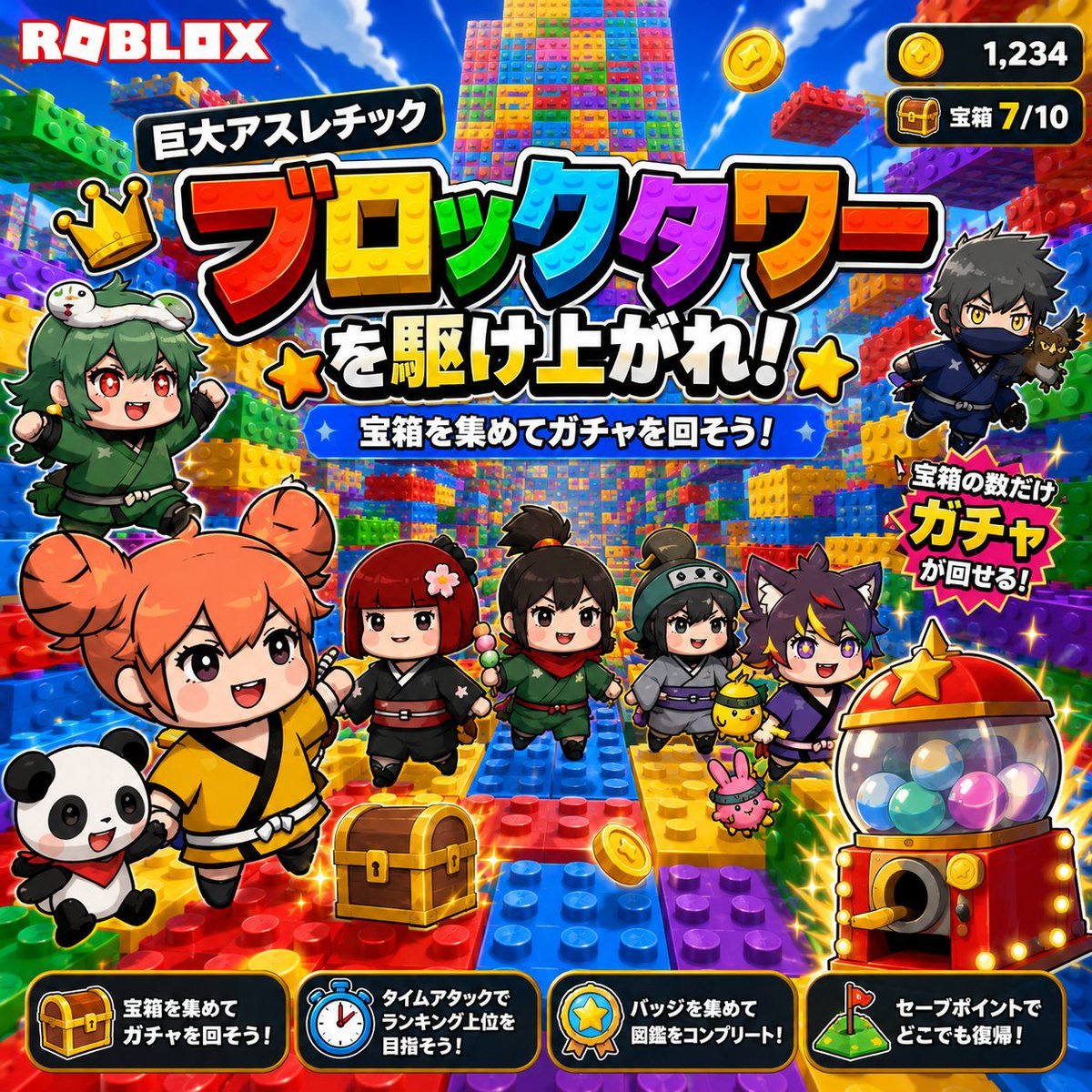
- Prompt included
- Model and format preset
- Premium template
The prompt behind this image
Copy the exact prompt behind Roblox Block Tower Thumbnail, or open it in the studio and make it yours.
Goal: Create a bright square Roblox-style promotional game thumbnail for {argument name="game title" default="巨大アスレチック ブロックタワーを駆け上がれ!"}, an exciting block-tower obby where players climb a giant toy-brick tower and collect treasure chests to spin a gacha. Canvas: Square 1:1 thumbnail, 768x768 or larger, ultra-saturated colors, high-contrast mobile-game advertising composition, thick white and black sticker outlines around every character and text element. Layout: Put the red-and-white ROBLOX logo at the top left. Fill the background with a huge vertical tower made from colorful LEGO-like plastic studs and brick platforms, receding upward into a blue sky with clouds. Place the main Japanese headline across the upper-middle in giant layered text: a small black rounded label reading 「巨大アスレチック」 above enormous rainbow block letters reading 「ブロックタワー」, followed by bold white text with black outline reading 「を駆け上がれ!」 with yellow star icons on both sides. Under the title, add a blue banner with white text: 「宝箱を集めてガチャを回そう!」. Add two game HUD counters at the top right: exactly 2 rounded black panels, one showing a gold coin icon and 「1,234」, the other showing a treasure chest icon and 「宝箱 7/10」. Characters and objects: Include exactly 8 main visible characters: 1 cheerful orange-haired chibi girl in a yellow martial-arts outfit running in the foreground, 1 smiling panda companion at bottom left, 1 green-haired crowned chibi girl in a green outfit on the left, 1 red-kimono chibi girl near center, 1 black-haired ponytail chibi adventurer in green at center, 1 gray-helmet chibi girl with a small round helmet to the right of center, 1 purple wolf-eared chibi boy on the right, and 1 dark ninja boy flying at the upper right holding a small black cat. Include exactly 3 small pet/mascot creatures near the right group: a tiny black cat with the ninja, a yellow chick-like mascot, and a pink bunny-like mascot. Add exactly 1 golden treasure chest in the lower center foreground and exactly 1 red-and-gold capsule gacha machine at the lower right filled with multicolored balls and topped with a gold star. Scatter a few sparkling gold coins and star effects around the scene. Callouts and UI: Add a jagged red-yellow burst callout near the gacha machine reading 「宝箱の数だけ ガチャが回せる!」. Along the bottom edge, add exactly 4 black rounded instruction cards with orange outlines and icons: 1 chest icon card reading 「宝箱を集めて ガチャを回そう!」, 1 stopwatch icon card reading 「タイムアタックで ランキング上位を目指そう!」, 1 badge icon card reading 「バッジを集めて 図鑑をコンプリート!」, and 1 checkpoint flag icon card reading 「セーブポイントで どこでも復帰!」. Visual style: Roblox-inspired toy-block world, glossy 3D plastic bricks, chibi anime characters with oversized heads, big expressive eyes, joyful adventurous expressions, dynamic running poses, cartoon lighting, sparkle effects, strong drop shadows, thick outlines, vivid red yellow green blue purple palette, busy but readable YouTube thumbnail composition. Constraints: Keep all visible text in Japanese exactly as specified, make the headline the dominant focal point, use exactly 8 main characters, exactly 3 small pet mascots, exactly 2 top-right HUD counters, and exactly 4 bottom instruction cards. No photorealism, no watermark, no extra logos beyond ROBLOX.
How to use Roblox Block Tower Thumbnail in 3 steps
- 1Upload ImagePNG, JPG or paste
Add your photo
Upload the photo the template builds on. The prompt, model and format are already set.
- 2…a portrait of your subject in softgolden-hour light, 85mm…
Personalize
Edit the subject and creative details for your destination.
- 3Generate
Generate
Press Generate — your image is created in PicX Studio, so you can compare it with the original and refine one variable at a time.
More like this
Templates with the same subject, style or setup. Open one to see its prompt.
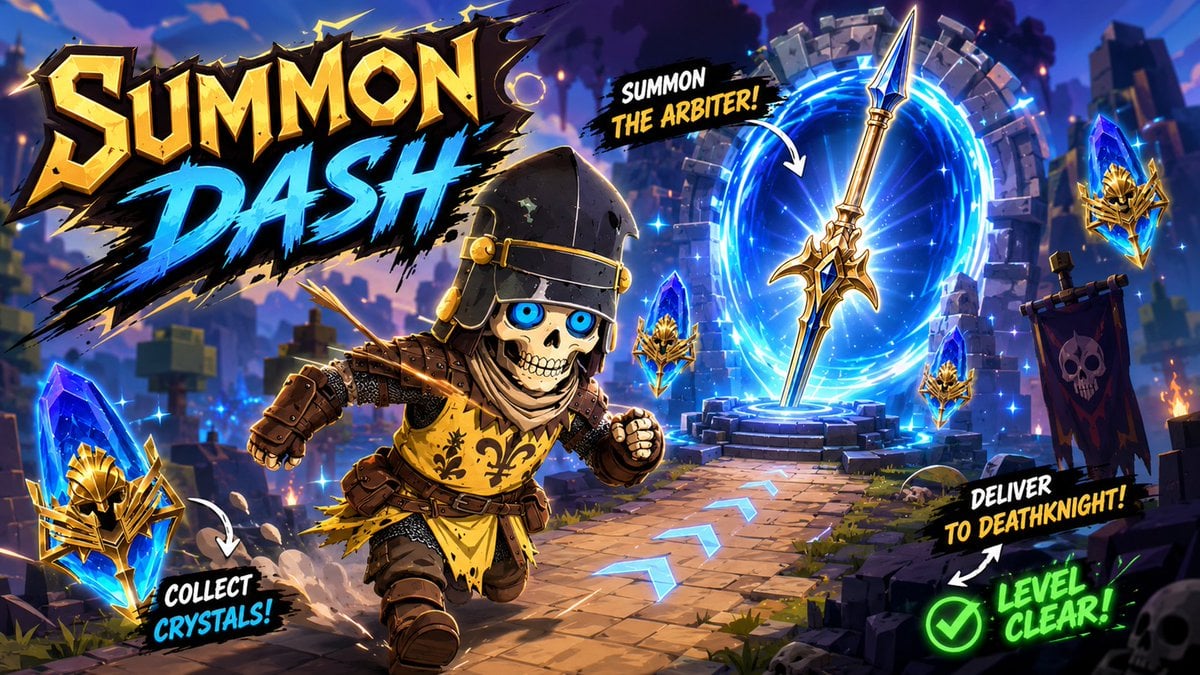
Summon Dash Roblox Fantasy Thumbnail
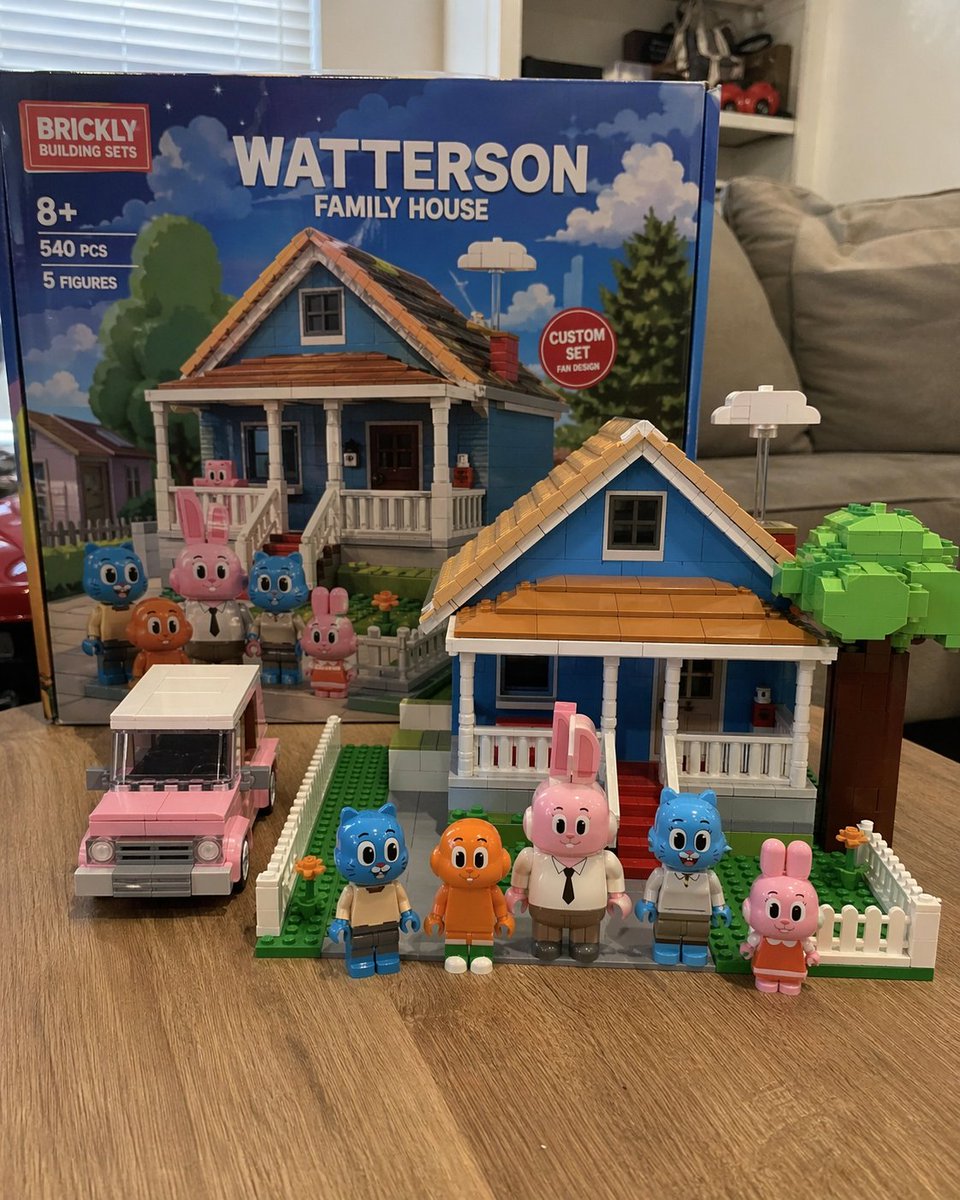
Custom Building Block Set Photography
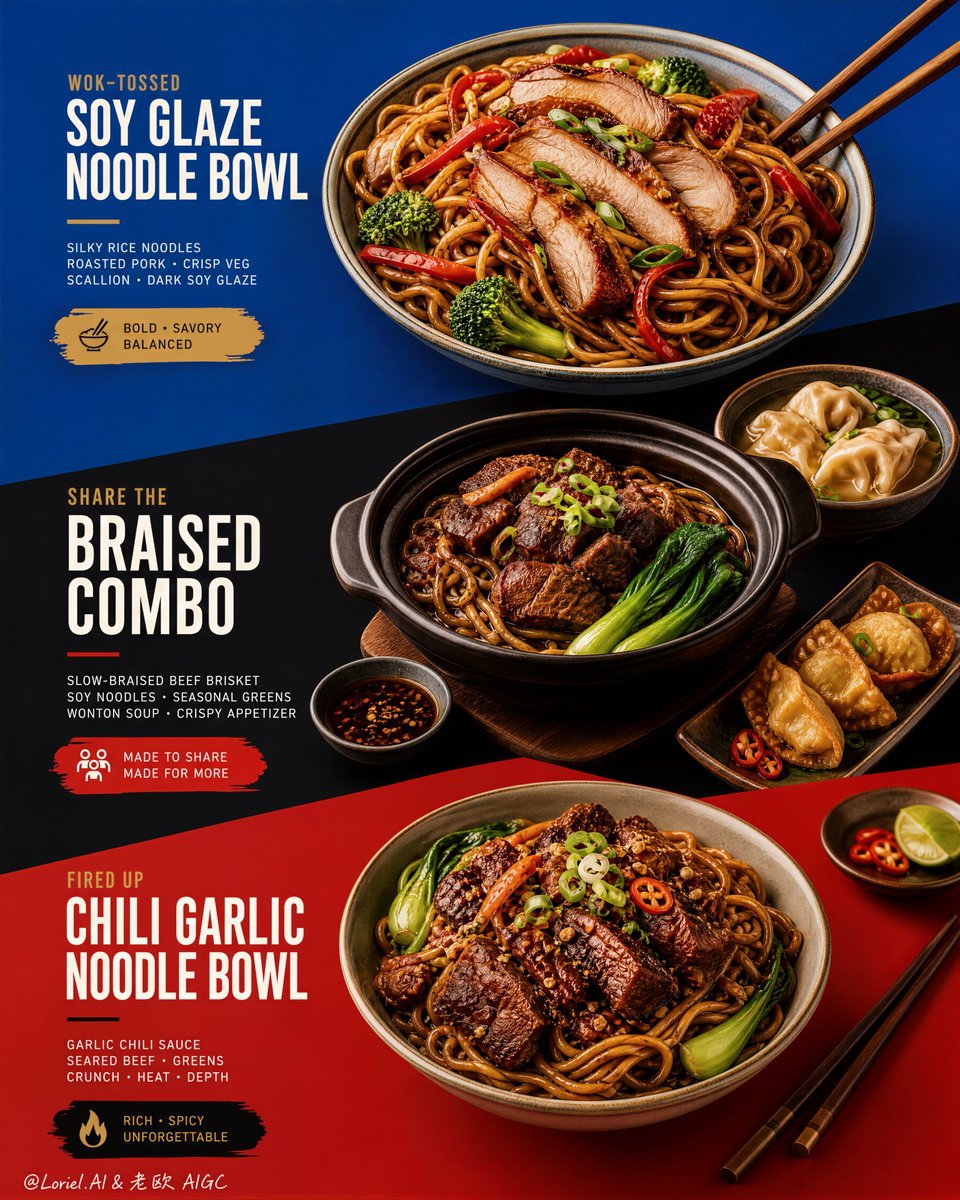
Premium Color-Block Restaurant Poster
Anime Skywork MV Thumbnail
Epic Douluo Fantasy Tower Poster
3D Isometric Block Art Reconstruction
Typography Small, clean sans-serif and typewriter-style text blocks
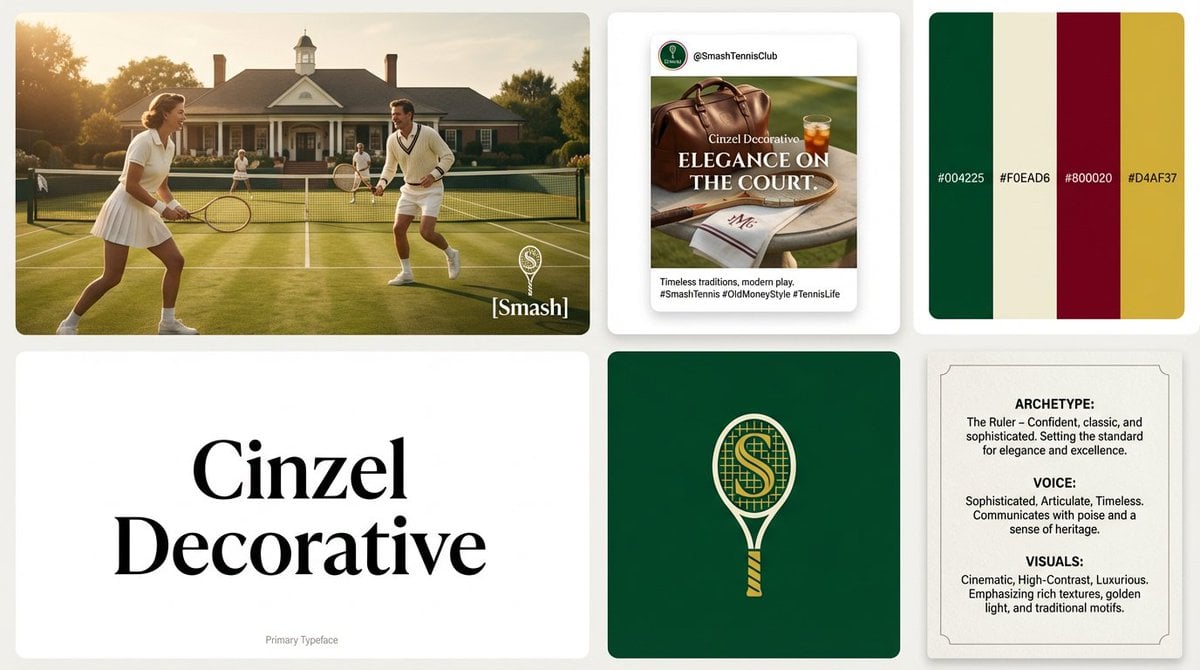
Block 5 The Logo A solid background block featuring the Final Logo
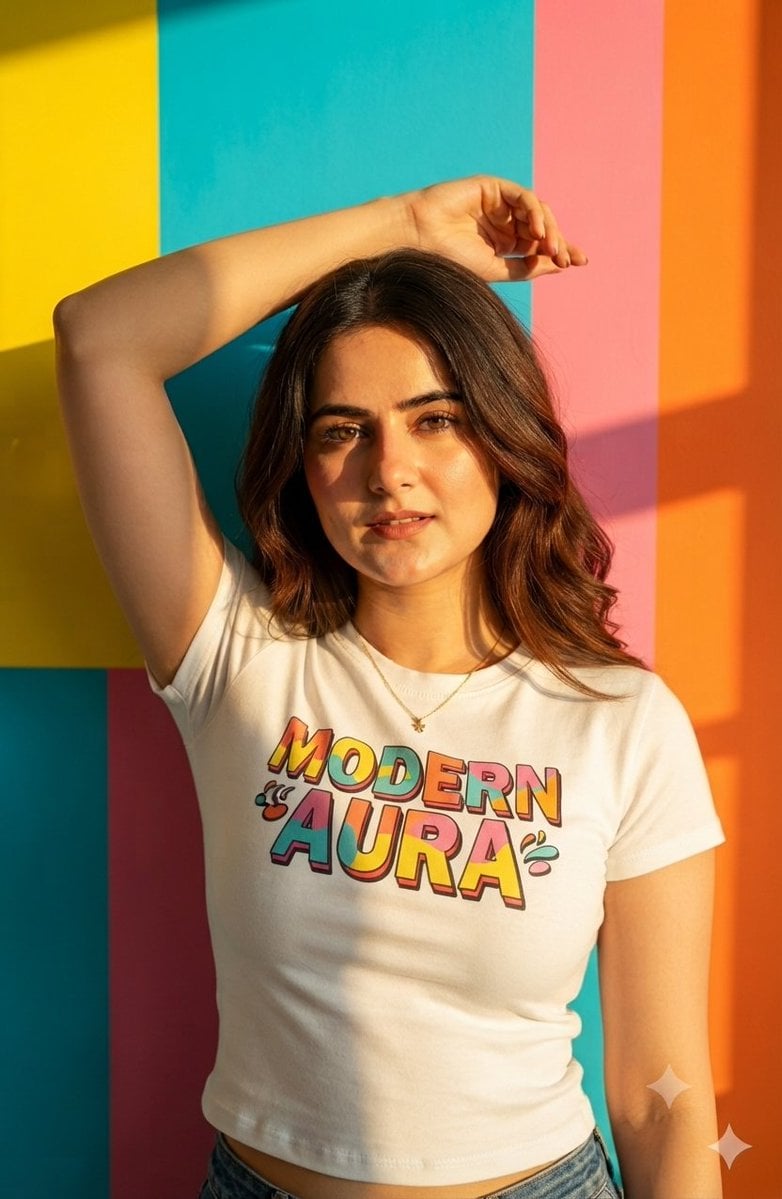
Geometric Color Block Editorial Portrait
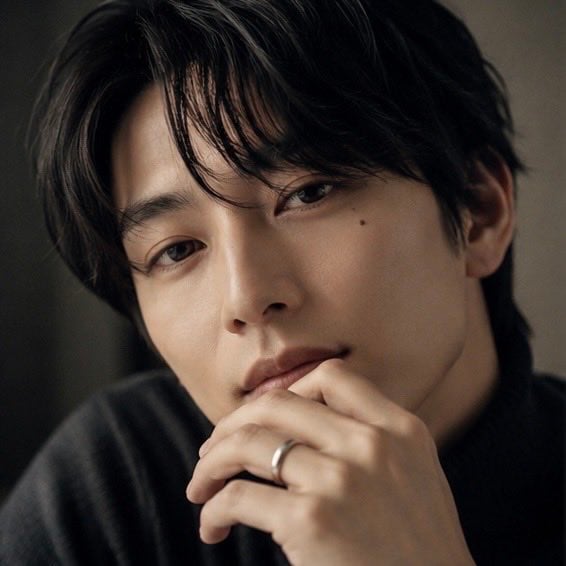
Moody Portrait With Privacy Block
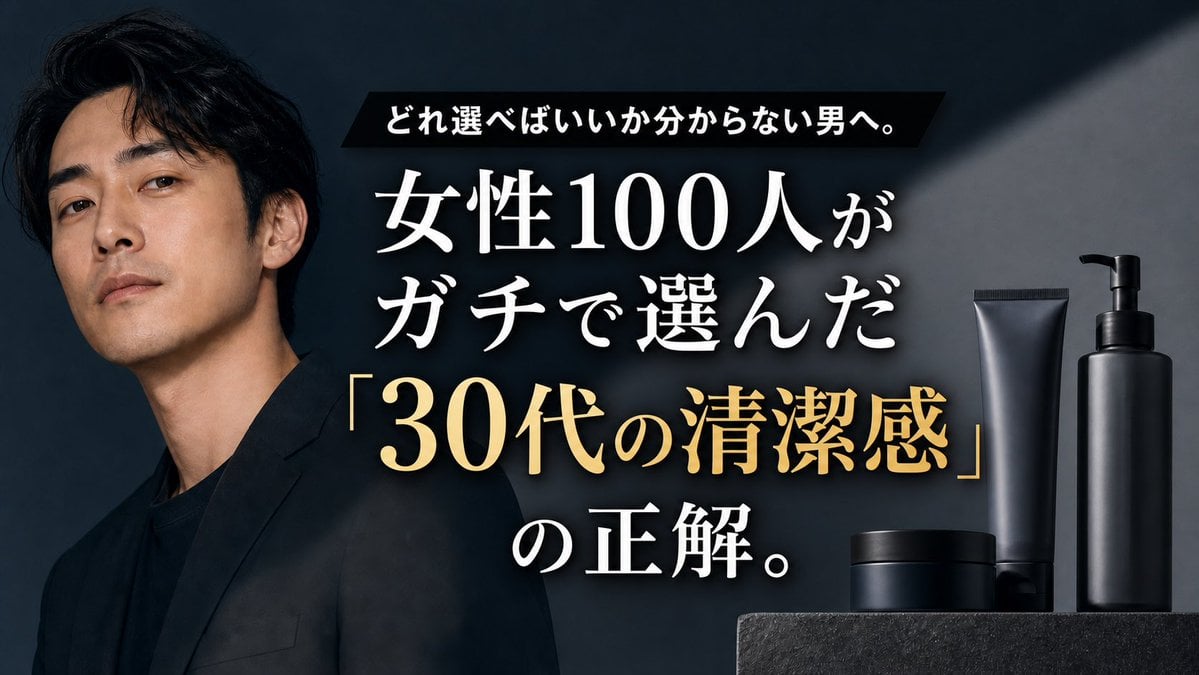
Premium Men's Skincare Thumbnail
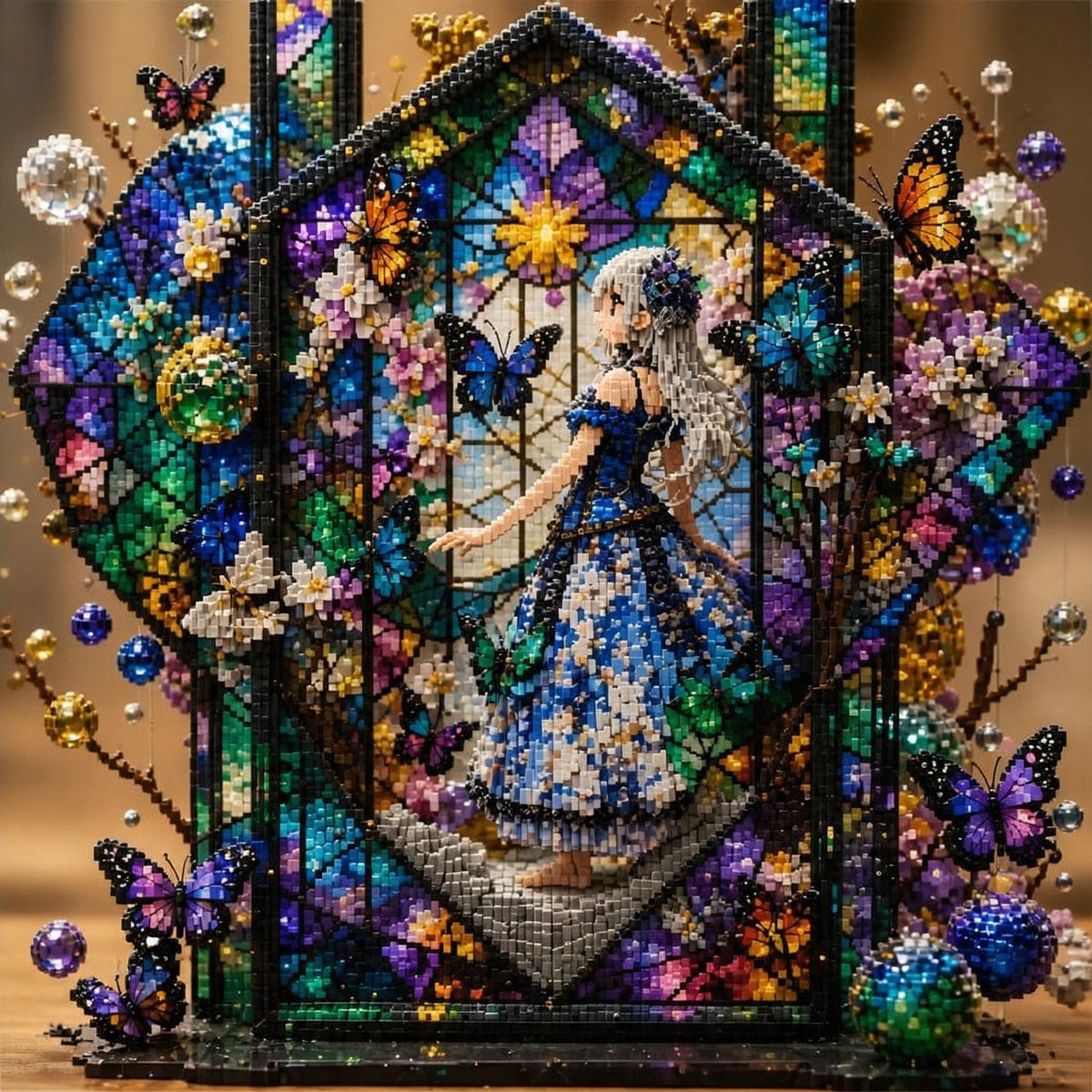
Block Mosaic Stained Glass Girl
Make it yours
Roblox Block Tower Thumbnail works as-is. These are the safest ways to change it without losing the look.
Change one field
Copy a single group, rewrite it, and generate again so you can see what that field is doing.
Keep the frame, change the subject
Hold the composition and light of Roblox Block Tower Thumbnail, then swap wardrobe, props or the person for a new take.
| If the result… | Why | Fix |
|---|---|---|
| The result drifts from the preview | Too many fields changed at once. | Reuse Roblox Block Tower Thumbnail as-is first, then change one group — subject, light, or setting. |
| The model over-stylizes the scene | The prose prompt leaves finish and camera underspecified. | Add one camera or lighting sentence and stay on GPT Image 2. |
More GPT Image 2 templates
Other prompts made for GPT Image 2.

Six VTuber Japanese Logo Sheet

Realistic Portrait of Woman and Deer

The Vista Modular Condo Poster

AI Model Routing Comparison Infographic

2.5D Anime Art Board

Isometric Productivity Desk Scene

New York Double Exposure Poster

Four-Panel AI Landscape Comparison

Japanese Tatami Lifestyle Magazine Cover

NESCAFÉ Coffee Map Poster
More image prompts
Fresh picks from across the catalog.
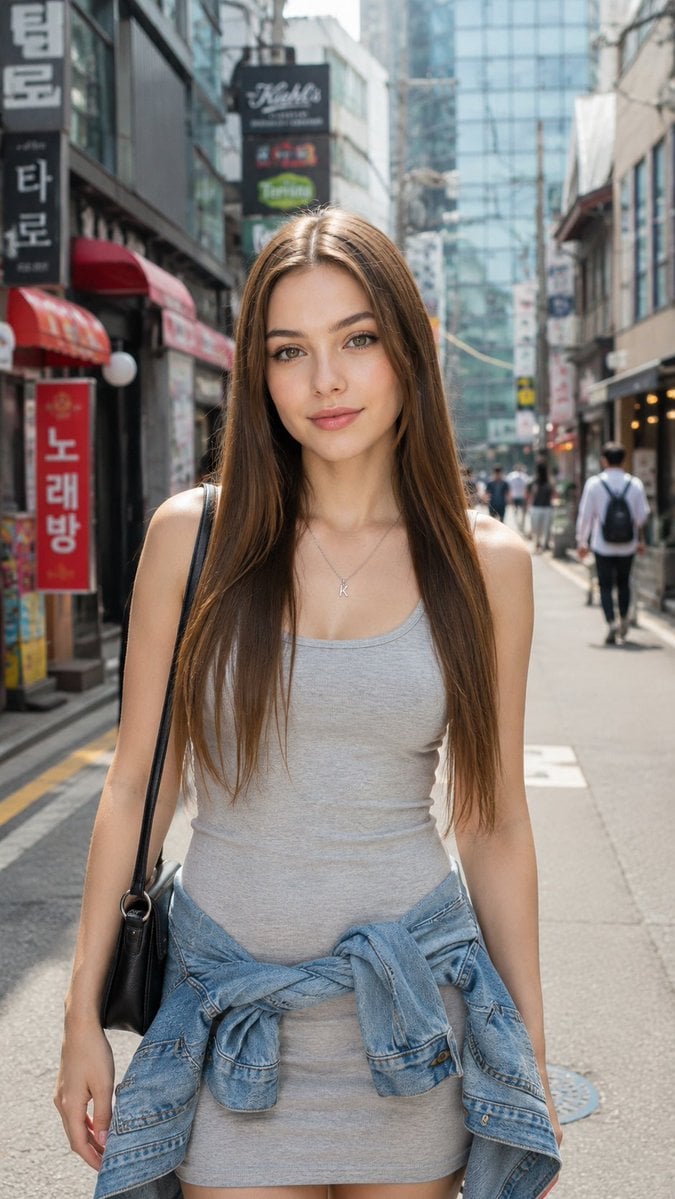
Hongdae Street Style Portrait
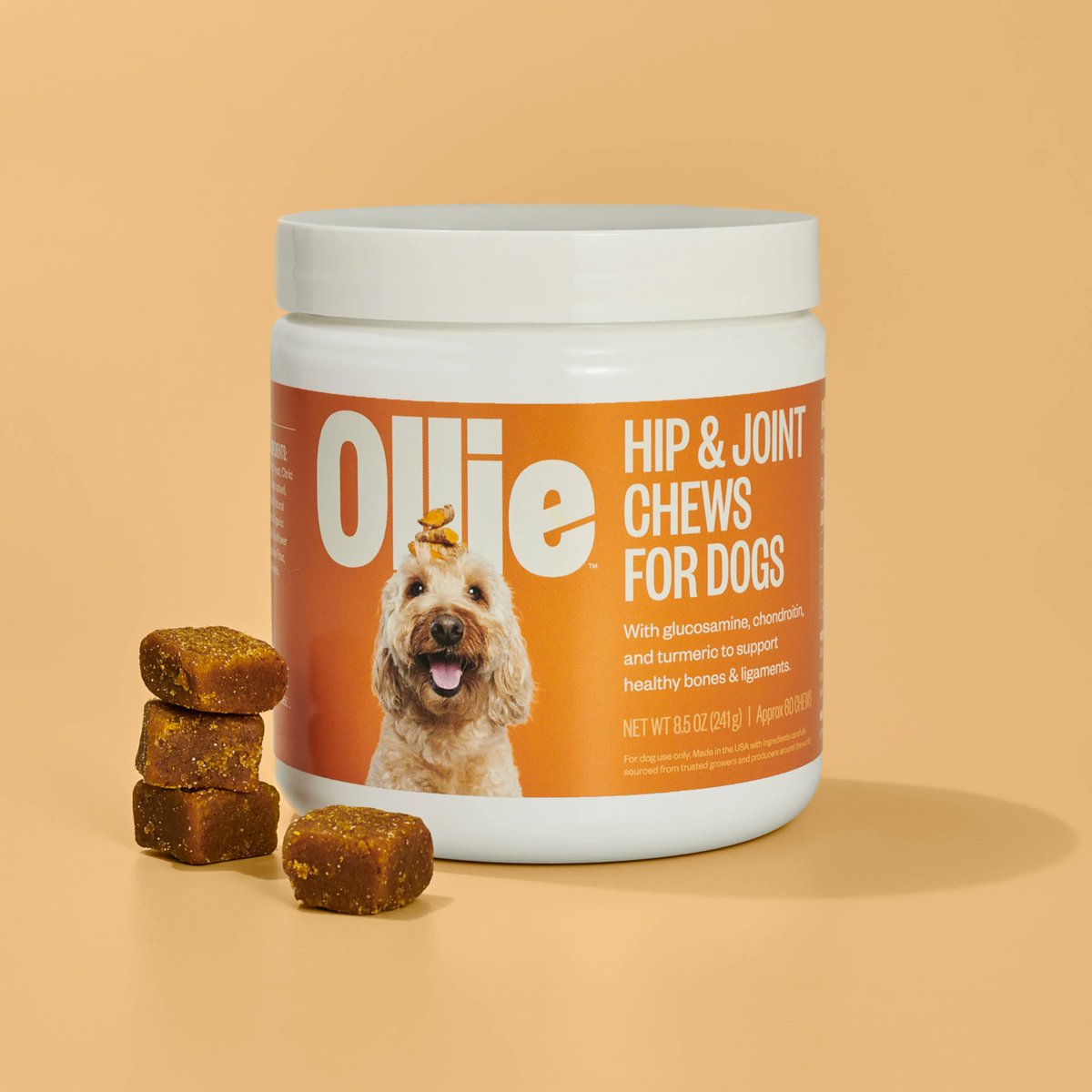
Consistent Product Photography for Dog Chews (3 Scenes)
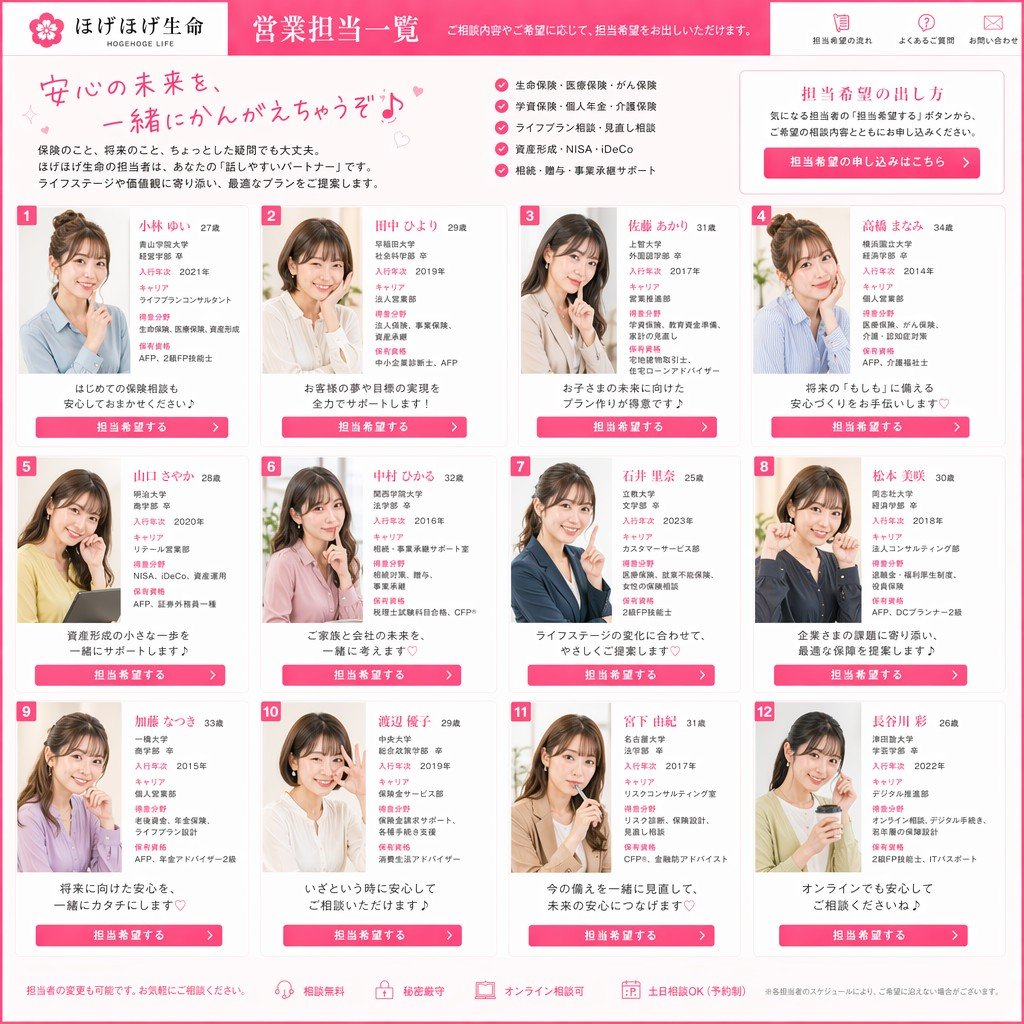
Japanese Insurance Staff Directory Mockup
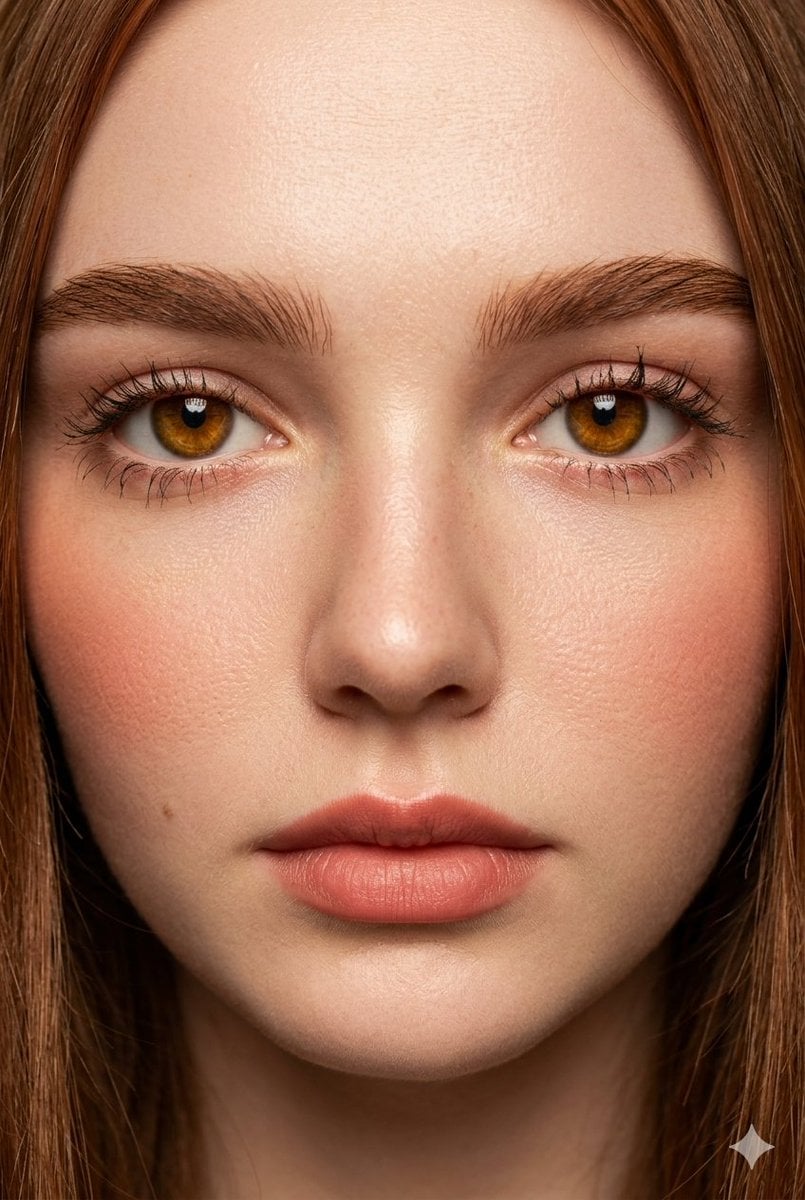
Extreme Close-Up Fashion Beauty Portrait
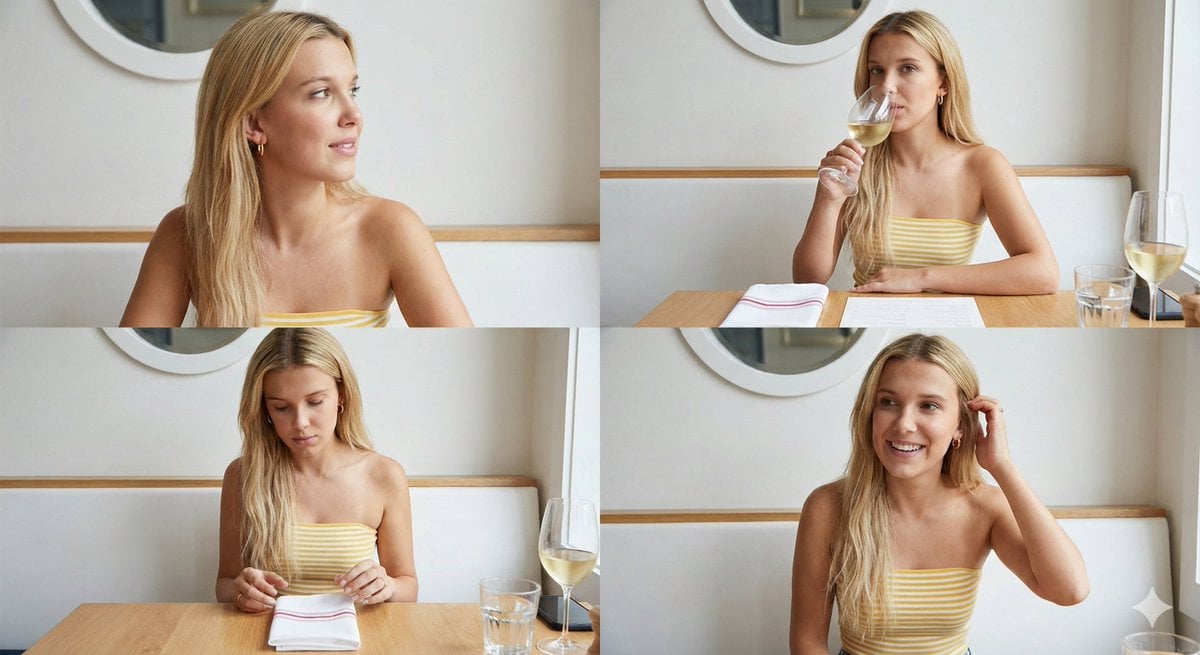
Four-Image Summer Lifestyle Editorial Collage Prompt
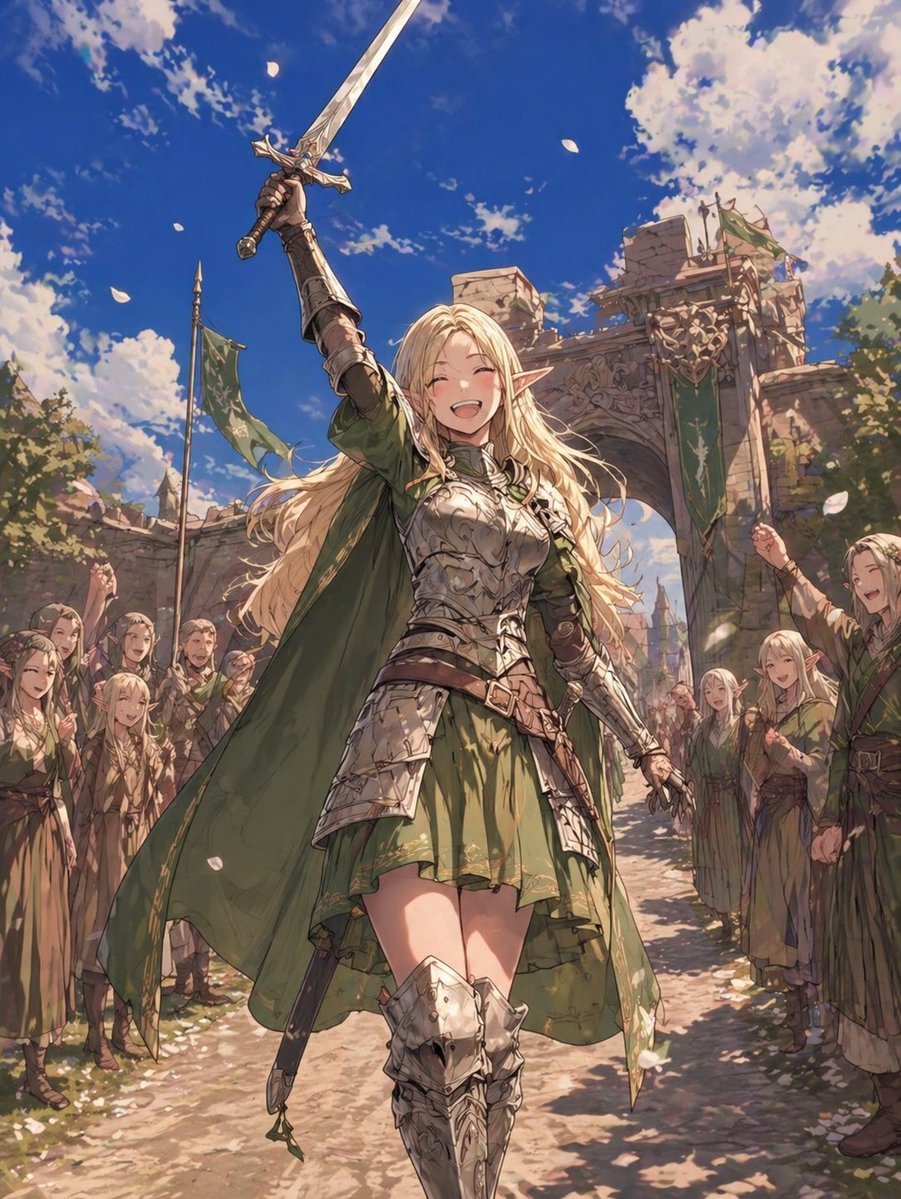
Elf Knight Victory Parade
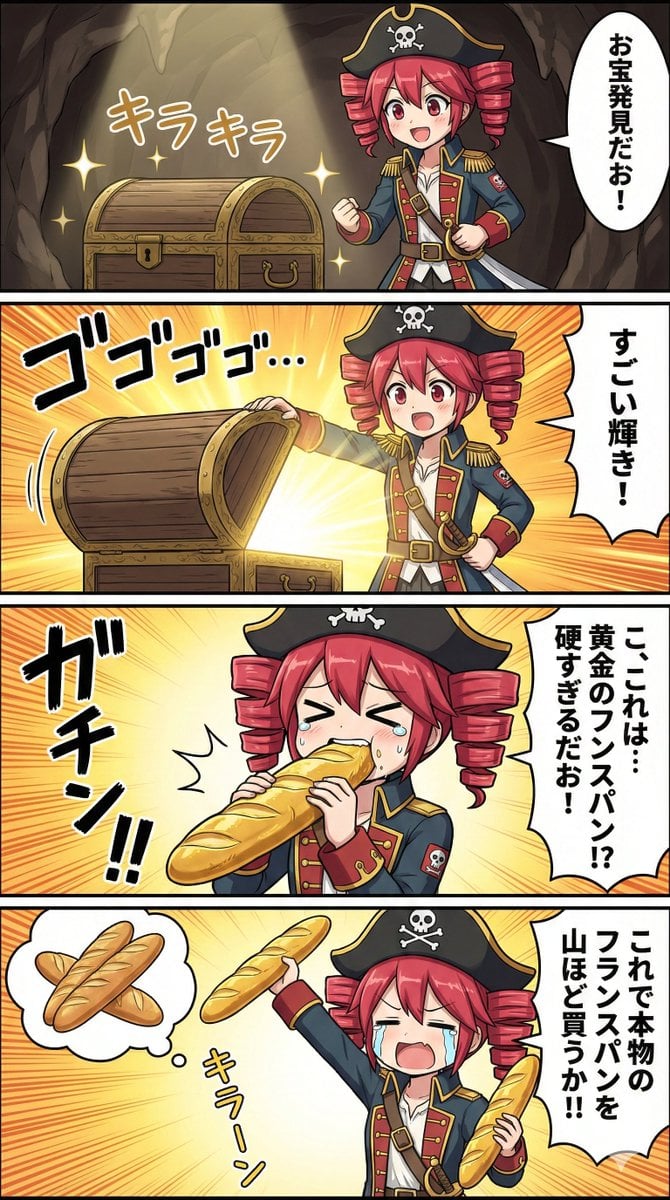
Nano Banana Pro Prompt for Teto Kasane in Pirate Attire
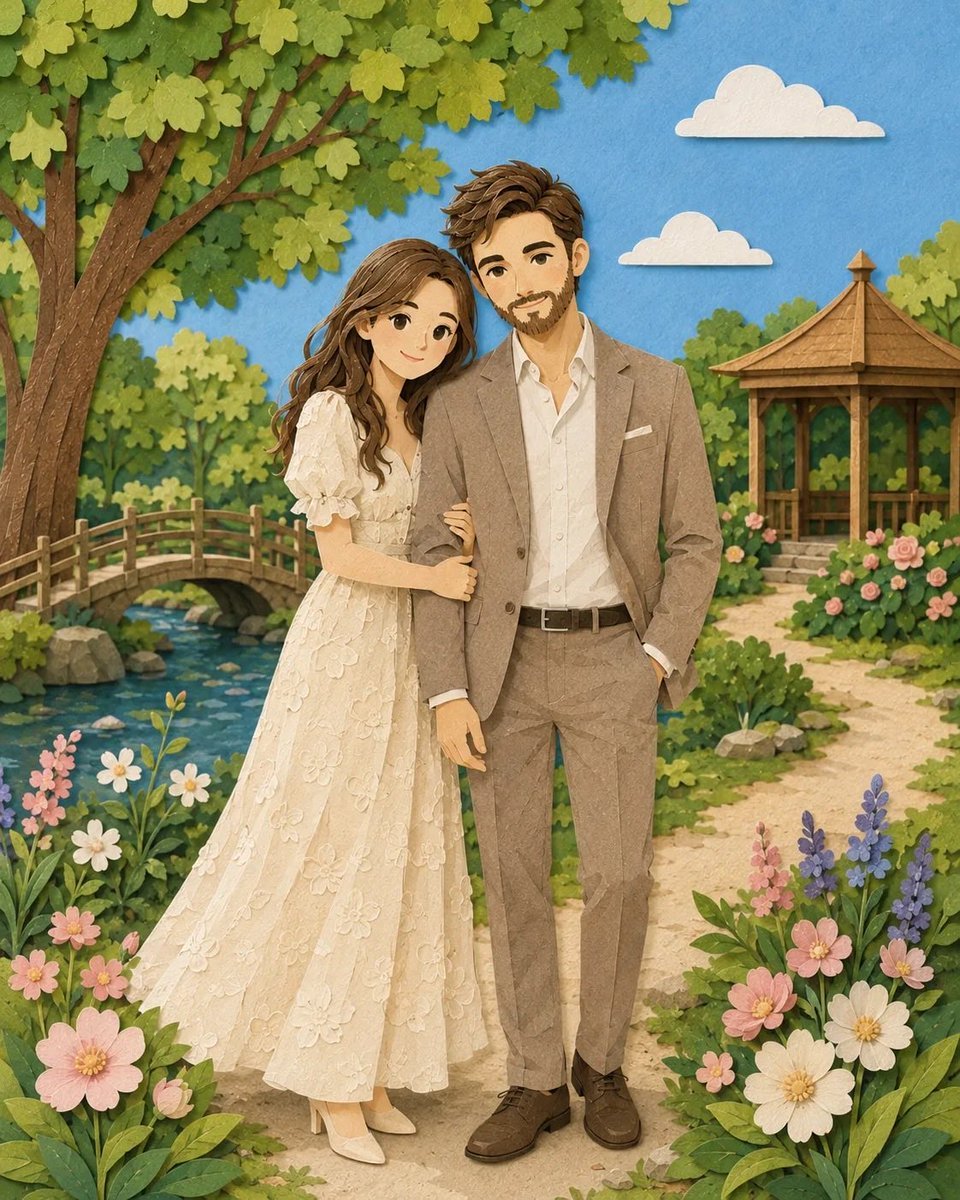
Romantic Paper-Cut Couple Portrait
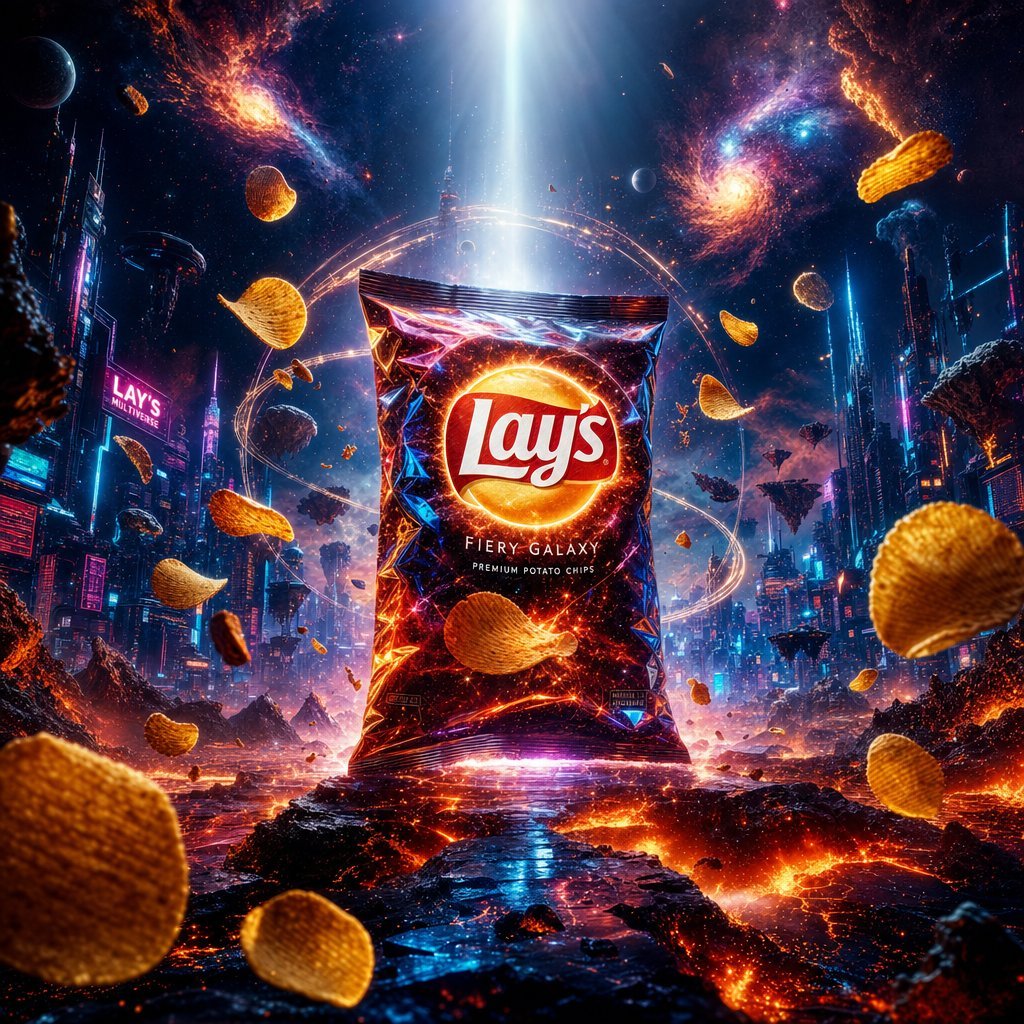
Cinematic Luxury Chip Commercial
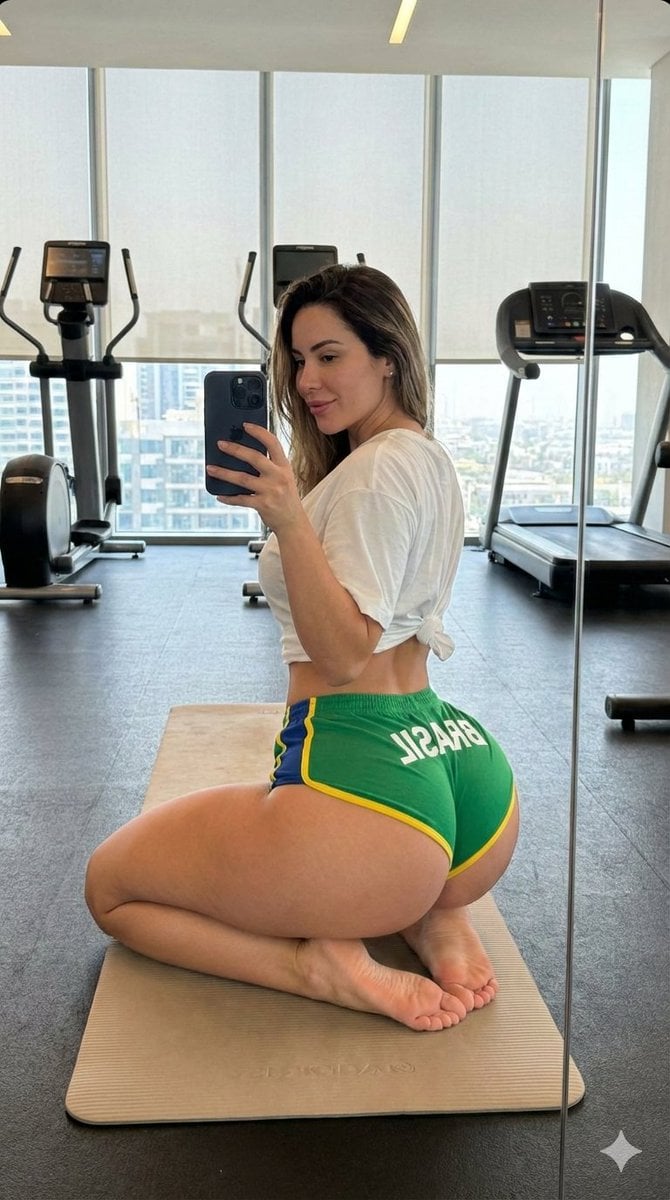
Gym Mirror Selfie with Exaggerated Proportions
Browse template categories
Roblox Block Tower Thumbnail questions
How do I use the Roblox Block Tower Thumbnail template?
Add your photo if the template asks for one, edit the prompt if you like — the template's model and format are already selected — and press Generate. Your version opens in PicX Studio.
Can I customize the Roblox Block Tower Thumbnail template?
Yes. You can change the subject, setting, lighting, mood, format, and available model controls before creating your image.
Is the Roblox Block Tower Thumbnail template free?
Opening and editing this template is free. Generating uses credits, shown on the Generate button when you are signed in.
Which AI model should I use?
Start with GPT Image 2, which is the model associated with this template. You can compare another compatible model for a different finish.
Looking for something else? Browse all templates.

Your photo, any look
Thousands of ready templates for every top image and video model, from one credit balance.