
Photography Tutorial and Camera Setup Infographic
An advanced prompt for generating instructional infographics for photography.
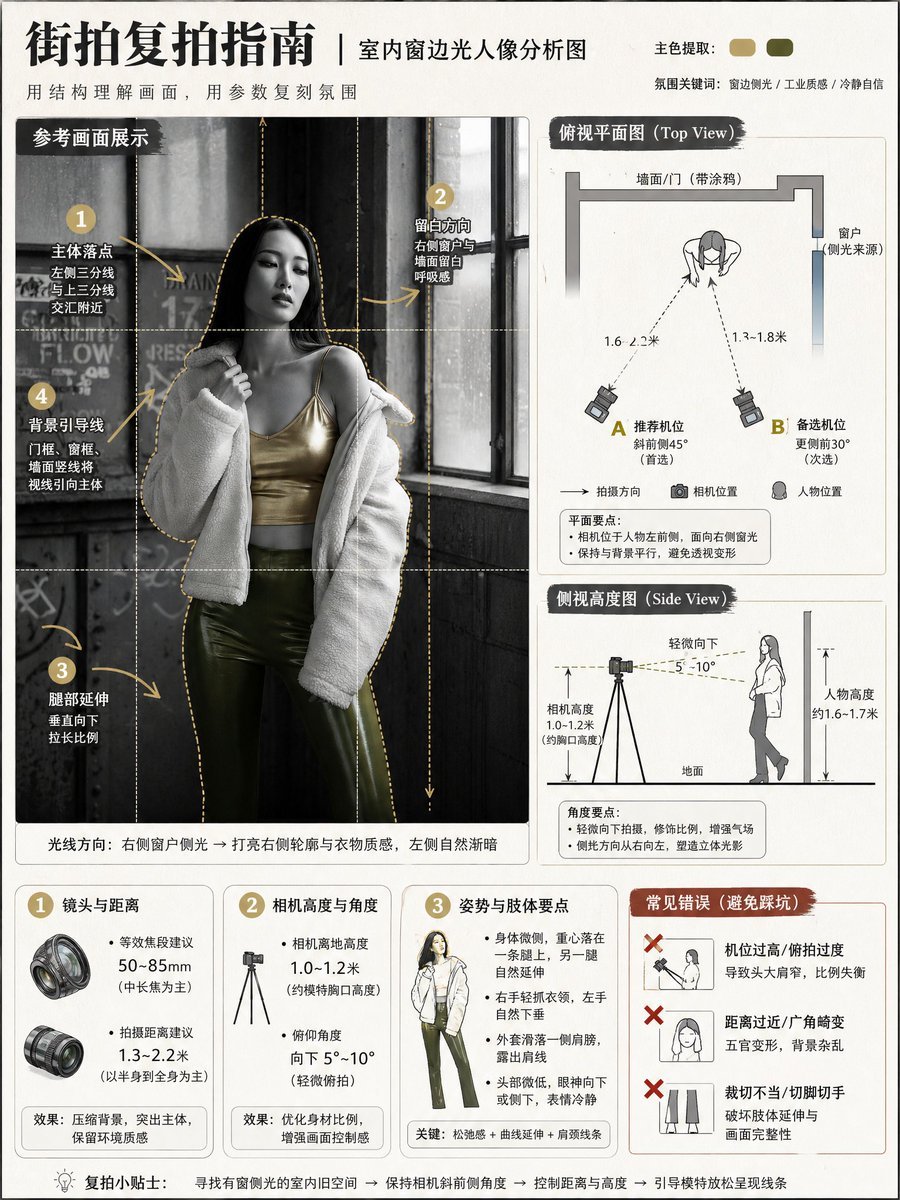
- Prompt included
- Model and format preset
- Free template
The prompt behind this image
Copy the exact prompt behind Photography Tutorial and Camera Setup Infographic, or open it in the studio and make it yours.
把【{argument name="参考图" default="图1参考图"}】作为唯一视觉依据,生成一张竖版 3:4 的{argument name="教学主题" default="街拍摄影知识分析图"}(教学信息图海报)。目标:用清晰有趣的图示把“人物位置、相机位置、镜头/距离、机位高度、拍摄角度、构图要点”讲明白,达到教别人复拍的目的。整体风格:干净高级的摄影教程信息图 + 轻手账式标注;浅米白纸感底或浅灰底;黑白灰为主;从图1自动提取1–2个颜色作为点缀;线条清晰、信息密度高但不杂乱、排版对齐统一、可读性强。 强制规则: - 必须保留图1的:人物姿势、人物与环境的相对位置关系、主要背景结构线条、光影方向与空间逻辑 - 不改变姿势、不改场景,只做“分析图示化呈现” - 人脸不作为重点:可轻度虚化/简化,不做写实美颜,不强化五官 - 全中文;不要英文、不要品牌名、不要水印、不要UI界面元素 固定版式(每次都一样,不随图1改变): 1)主视觉区(上半区或左侧大图):放置“参考画面展示”(基于图1轻度风格化/插画化,但场景与姿态可辨识),叠加:三分法网格、主体轮廓框、引导线提示、垂直线/水平线校正提示;用编号圆点+手绘箭头标注关键点(主体落点、留白方向、腿部延伸方向、背景引导线来源)。 2)示意图区(右侧或下半区,两张并列): - 俯视平面图(Top View):用极简图标画出墙面/街道/建筑边线(从图1抽象),人物站位(小人图标),相机站位(相机图标);必须显示拍摄方向箭头、人物与相机距离(虚线+数值范围)、推荐站位点A/B(两个备选点位);相机方位必须与图1一致(正前/侧前/斜前等)。 - 侧视高度图(Side View):画出地面线、人物高度示意、相机高度示意、仰俯角扇形;必须显示相机离地高度范围(按图1推断给出合理区间)、镜头仰俯角范围(按图1推断给出合理区间);低机位/平视/高机位必须正确。 3)参数卡片区(底部三张圆角卡片固定): - 卡片1:镜头与距离(给出等效焦段建议范围 + 拍摄距离建议范围) - 卡片2:相机高度与角度(给出相机高度范围 + 仰俯角范围) - 卡片3:姿势与肢体要点(用短句总结图1姿势的可复拍要点) 4)错误示范区(右下角固定):3条红叉错误提示(根据图1自动生成最相关的3条,短句化),例如:不要超广角贴脸、不要裁切脚尖/手指、不要机位过高导致比例失真(按图1实际情况自动调整)。 自动推断要求(让它每次替换图1都能用): - 从图1自动推断并写入图示:相机方位、机位高低、拍摄距离区间、等效焦段区间、主体落点与裁切策略、背景引导线来源 - 所有数值用“范围”表达(可信、可复拍),不要给单一死数 输出要求: 高清、线条锐利、阴影自然、图标统一、排版整齐、信息可读;无乱码文字、无Logo、无水印、无多余装饰。 负面限制: 不要水印、不要Logo、不要英文、不要乱码、不要过度写实人脸、不要夸张卡通比例、不要肢体畸变/多手指、不要杂乱排版、不要低清晰度、不要厚重滤镜、不要改变图1人物姿势与场景关系。
Reference images included
Photography Tutorial and Camera Setup Infographic needs input media to work. They load alongside the prompt when you open it in the studio.
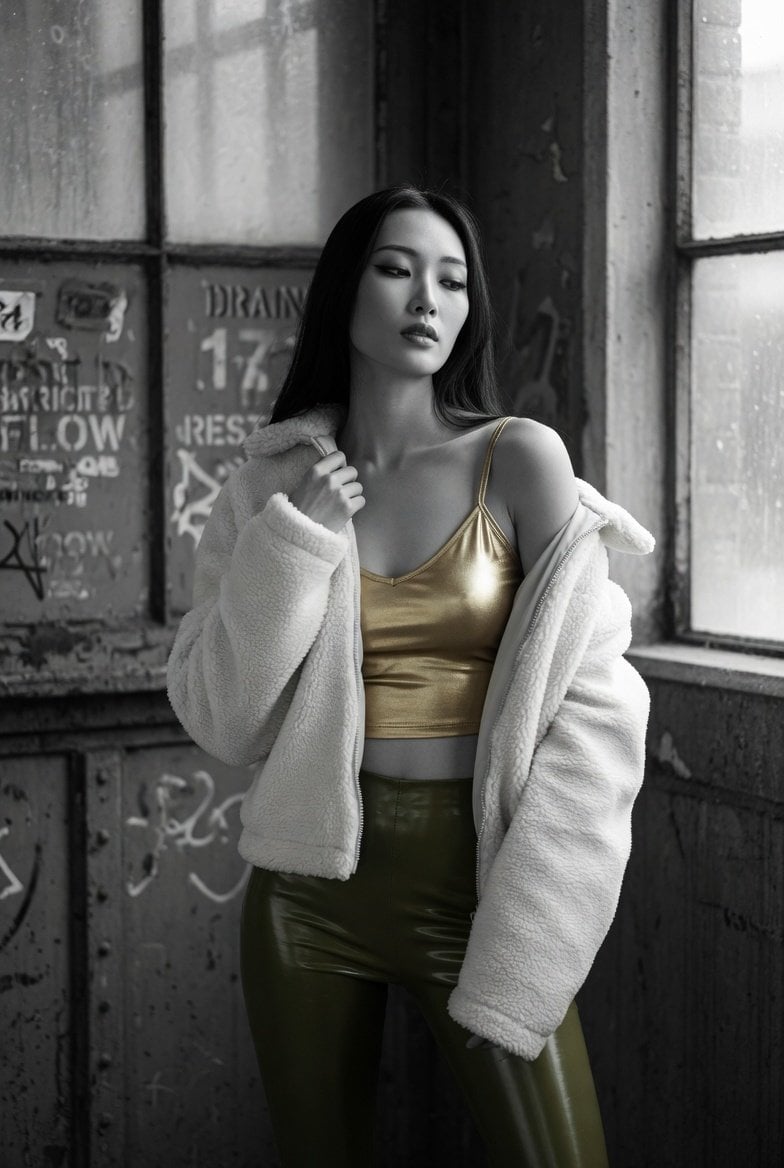
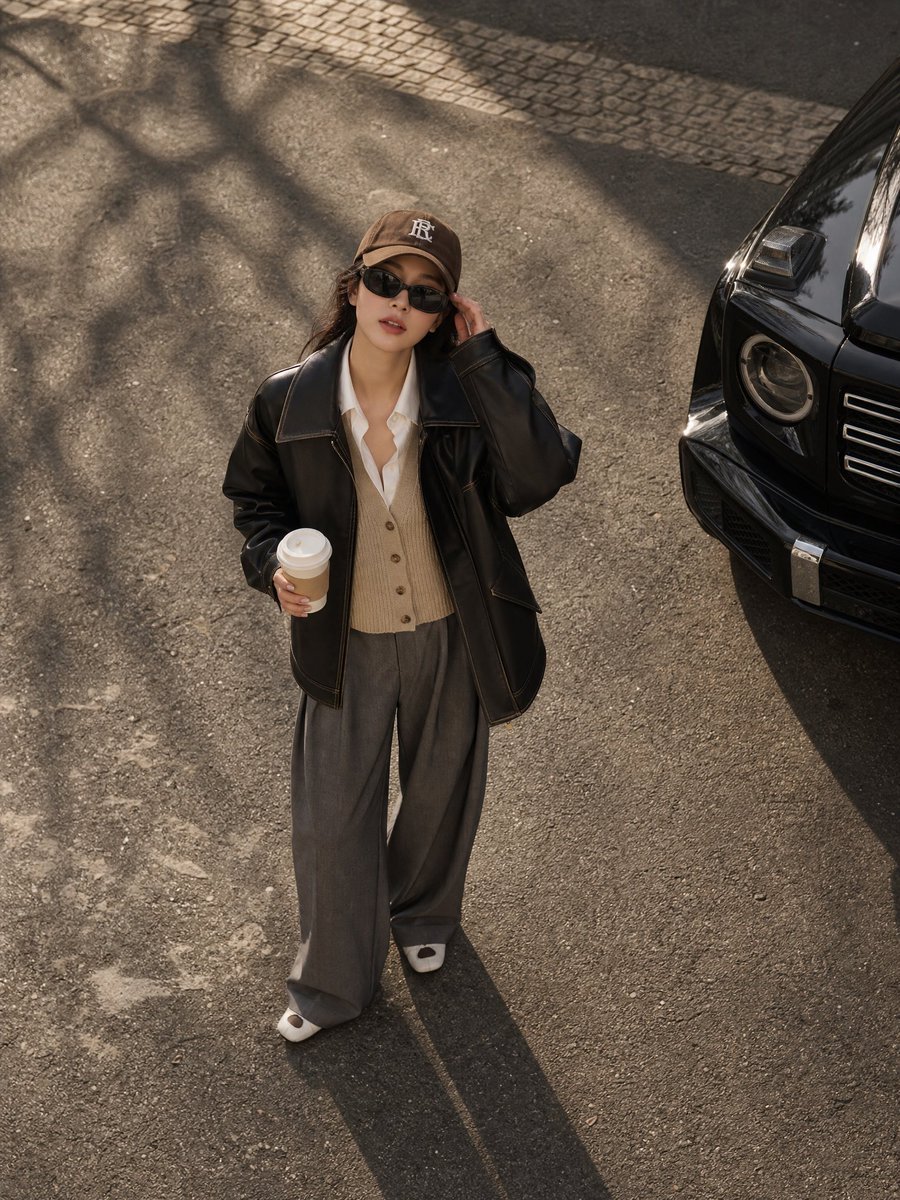
How to use Photography Tutorial and Camera Setup Infographic in 3 steps
- 1Upload ImagePNG, JPG or paste
Add your photo
Upload the photo the template builds on. The prompt, model and format are already set.
- 2…a portrait of your subject in softgolden-hour light, 85mm…
Personalize
Edit the subject and creative details for your destination.
- 3Generate
Generate
Press Generate — your image is created in PicX Studio, so you can compare it with the original and refine one variable at a time.
More like this
Templates with the same subject, style or setup. Open one to see its prompt.
Mirror Selfie Chibi Characters Pixar Style
Flower Petal Sunglasses Couture Portrait

Fashion Portrait Colored Smoke Studio
Mountain Valley Lifestyle Portrait

Japan Travel Brochure Poster
青蛇小青写真大片,绿色紧身蛇鳞裙,湿发红唇,妖娆妩媚
A double exposure, long exposure editorial photograph of a man Use image

Portrait of a young woman in her early 20s walking calmly on a beautiful
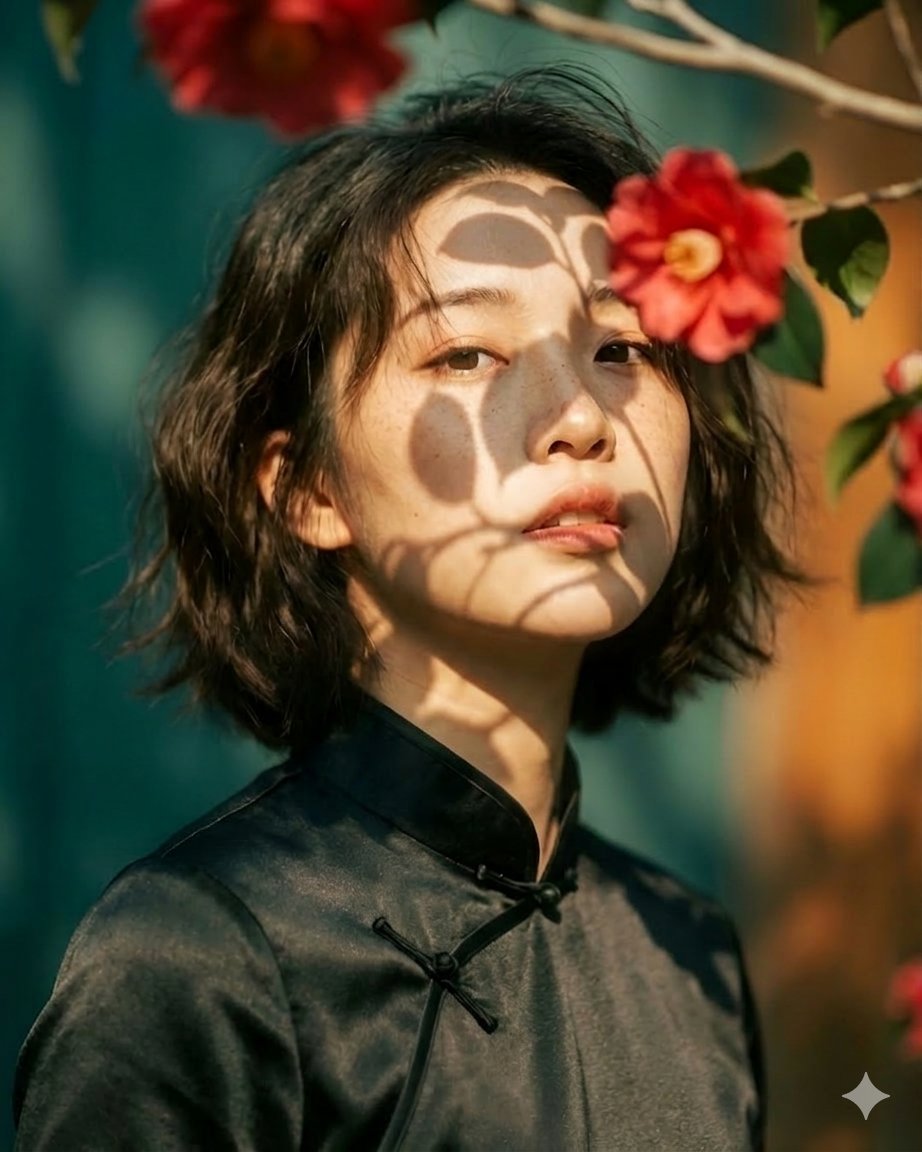
Artistic portrait of an elegant Asian woman wearing a black silk
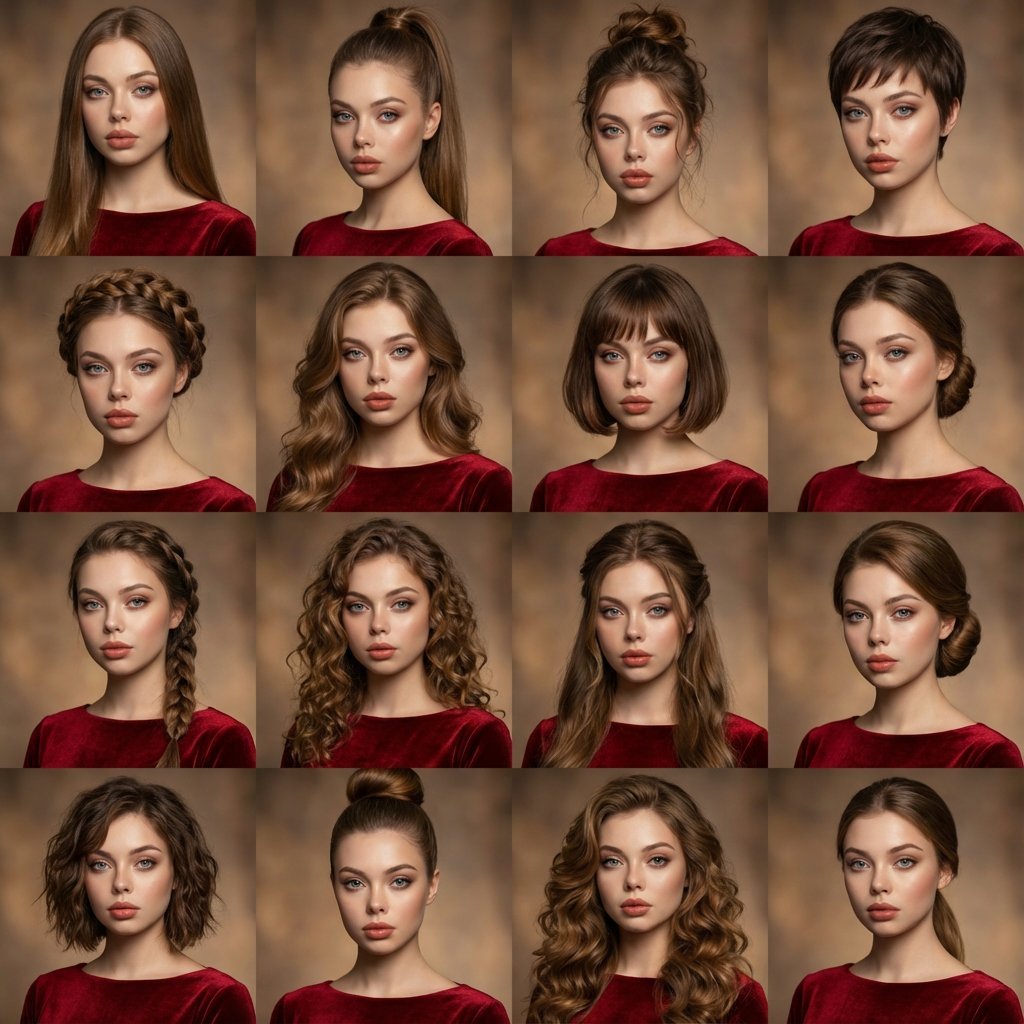
A high-quality photo collage featuring the same person with identical
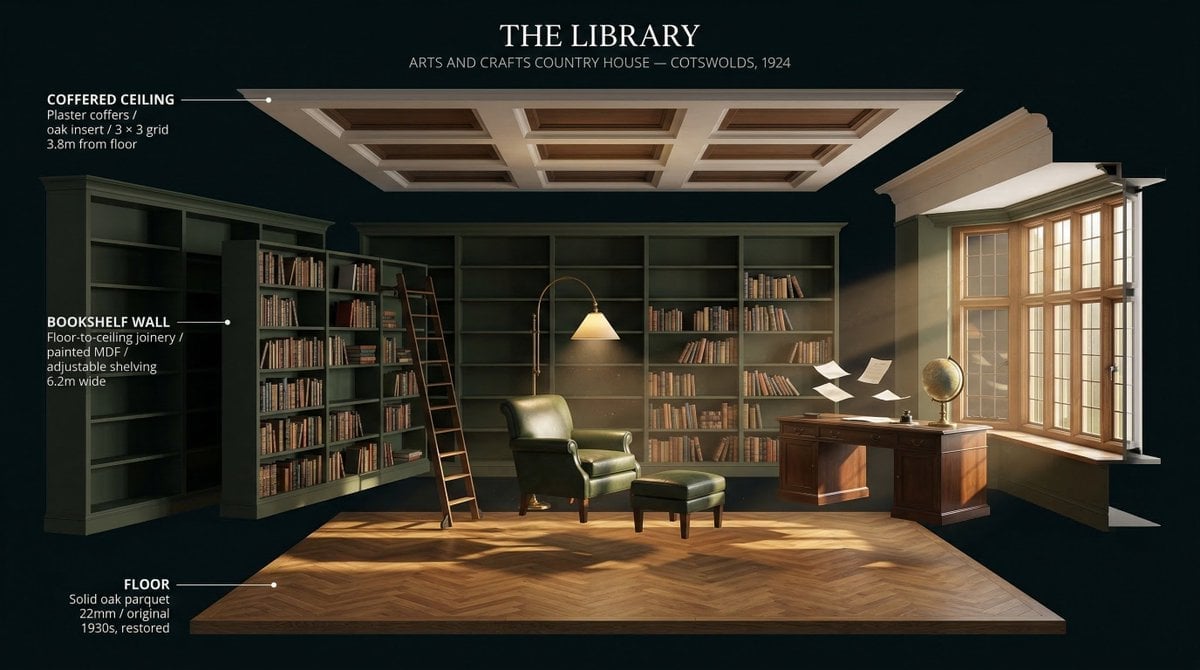
LIGHTING each element still lit by its original source, windows casting
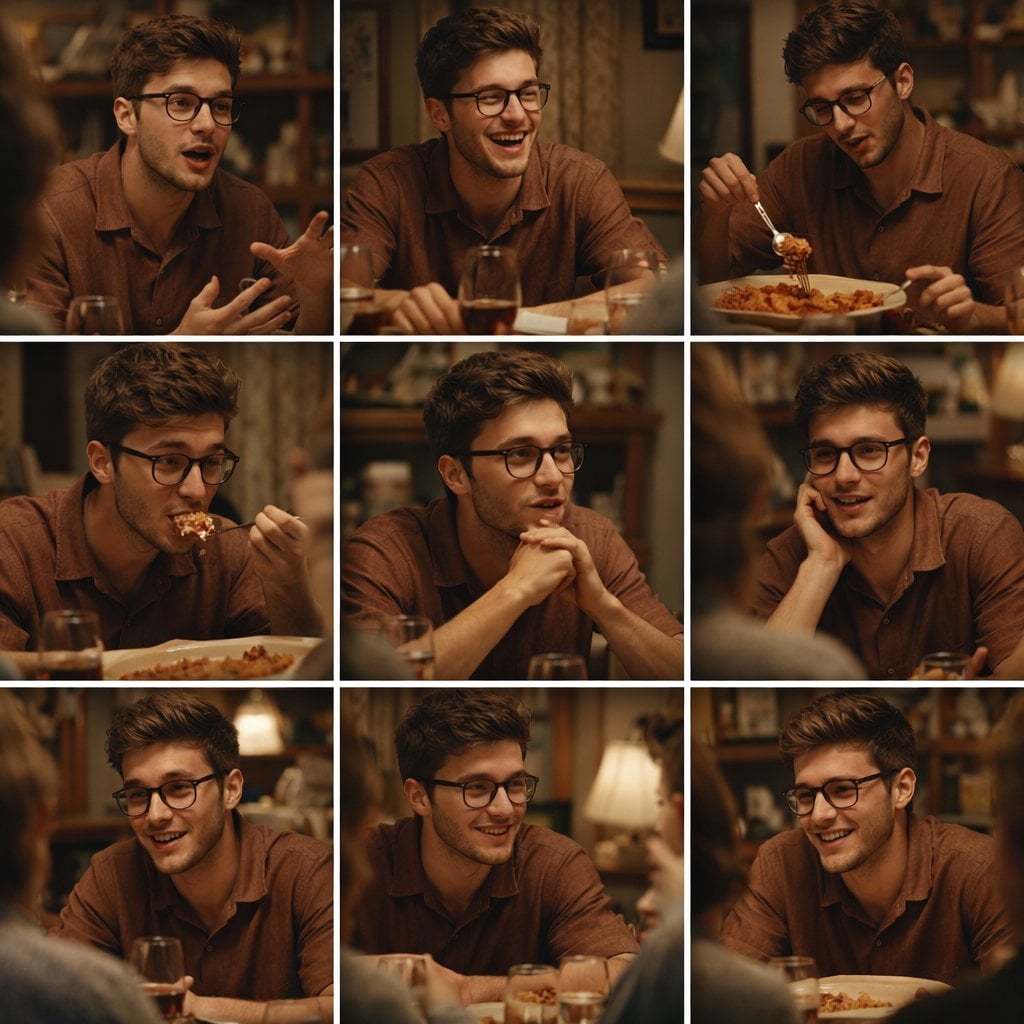
A 3x3 grid storyboard contact sheet comprised of nine candid, cinematic
Make it yours
Photography Tutorial and Camera Setup Infographic works as-is. These are the safest ways to change it without losing the look.
Change one field
Copy a single group, rewrite it, and generate again so you can see what that field is doing.
Keep the frame, change the subject
Hold the composition and light of Photography Tutorial and Camera Setup Infographic, then swap wardrobe, props or the person for a new take.
| If the result… | Why | Fix |
|---|---|---|
| The result drifts from the preview | Too many fields changed at once. | Reuse Photography Tutorial and Camera Setup Infographic as-is first, then change one group — subject, light, or setting. |
| The model over-stylizes the scene | The prose prompt leaves finish and camera underspecified. | Add one camera or lighting sentence and stay on GPT Image 2. |
More GPT Image 2 templates
Other prompts made for GPT Image 2.

Six VTuber Japanese Logo Sheet

Realistic Portrait of Woman and Deer

The Vista Modular Condo Poster

AI Model Routing Comparison Infographic

2.5D Anime Art Board

Isometric Productivity Desk Scene

New York Double Exposure Poster

Four-Panel AI Landscape Comparison

Japanese Tatami Lifestyle Magazine Cover

NESCAFÉ Coffee Map Poster
More image prompts
Fresh picks from across the catalog.
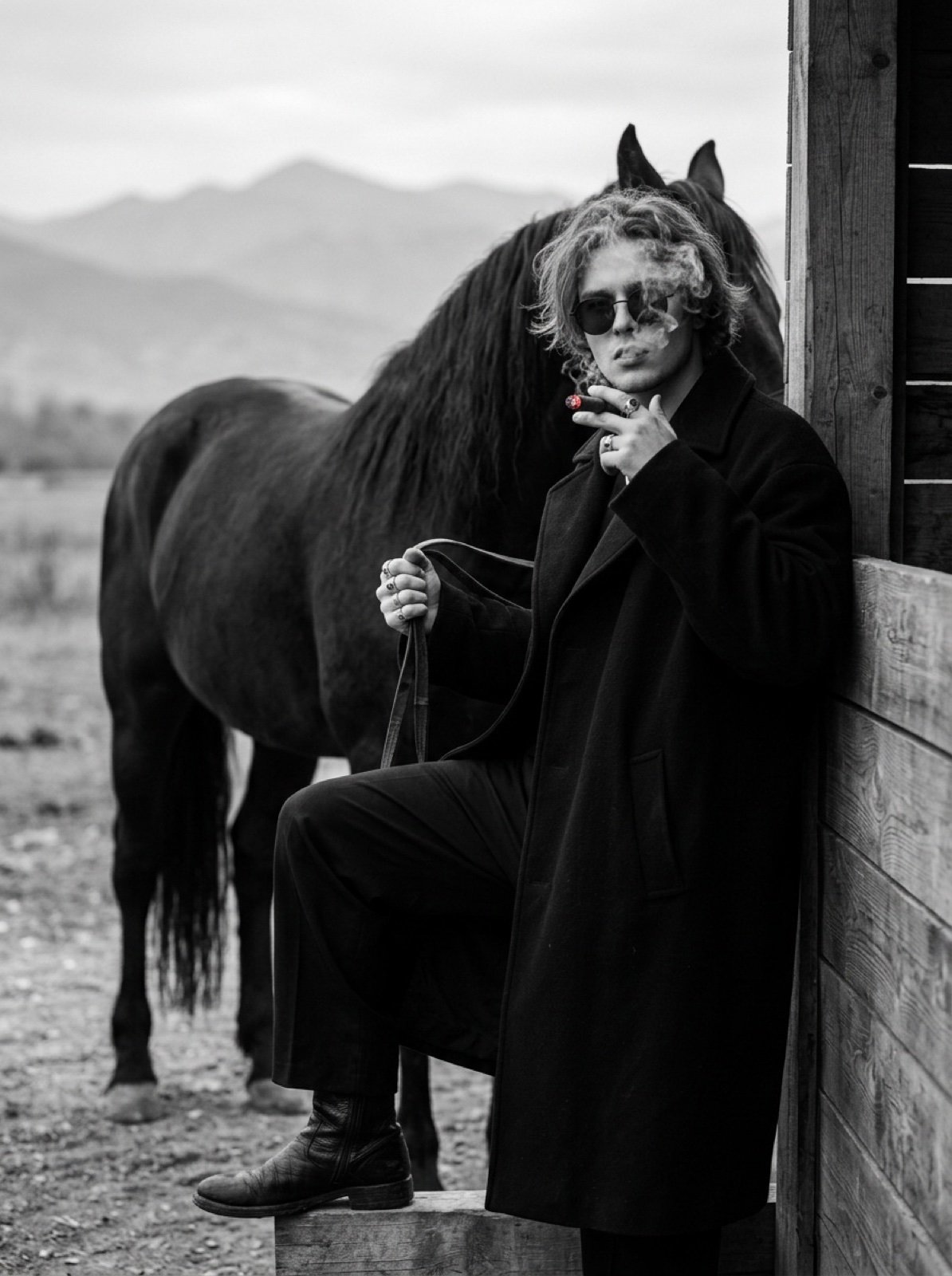
Cinematic Black and White Portrait Prompt of Man with Horse and Cigar
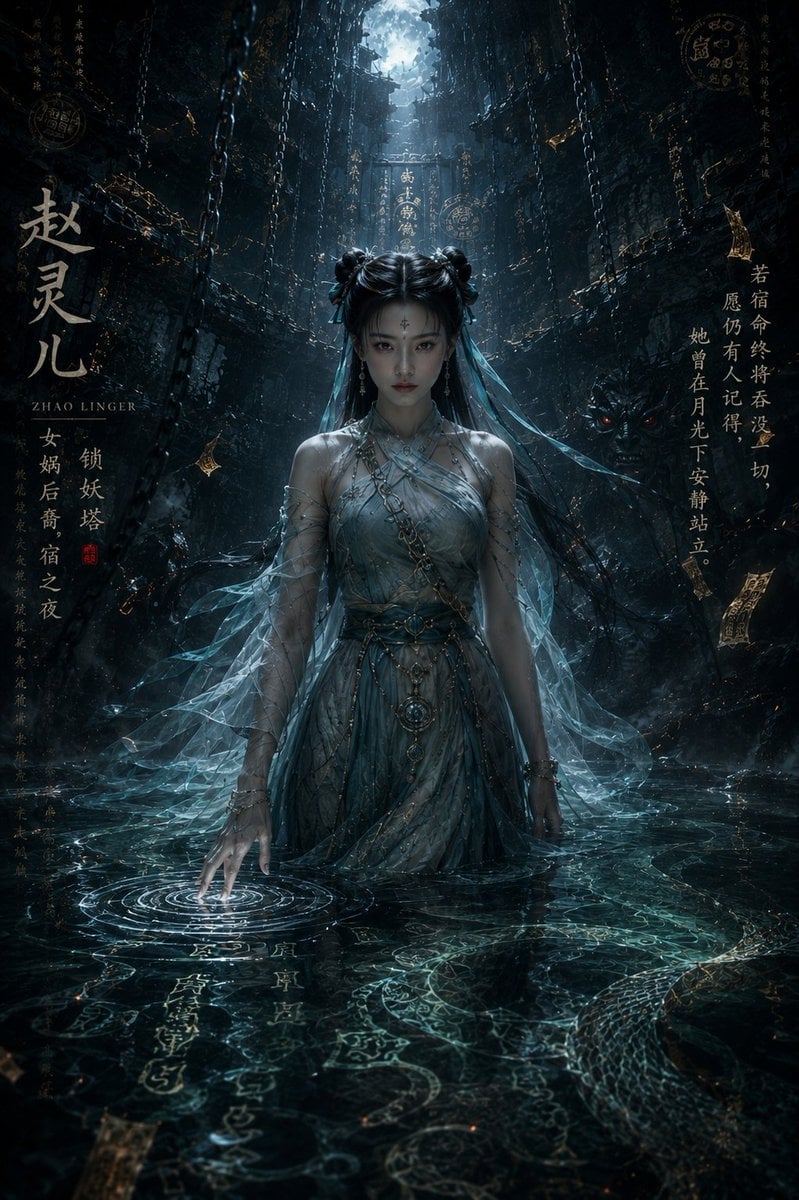
Dark Eastern Fantasy Zhao Ling'er Poster
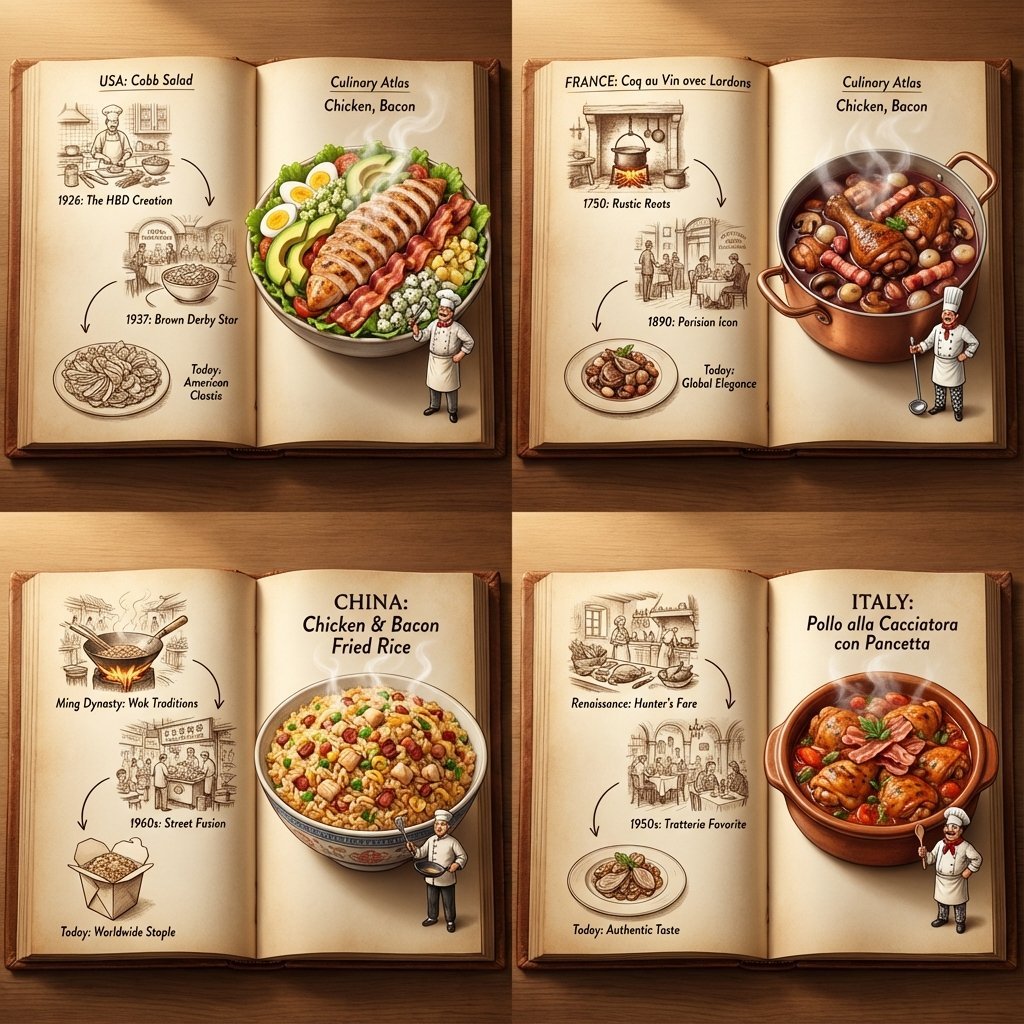
Culinary Atlas Grid: 3D Pop-up Recipe Dioramas
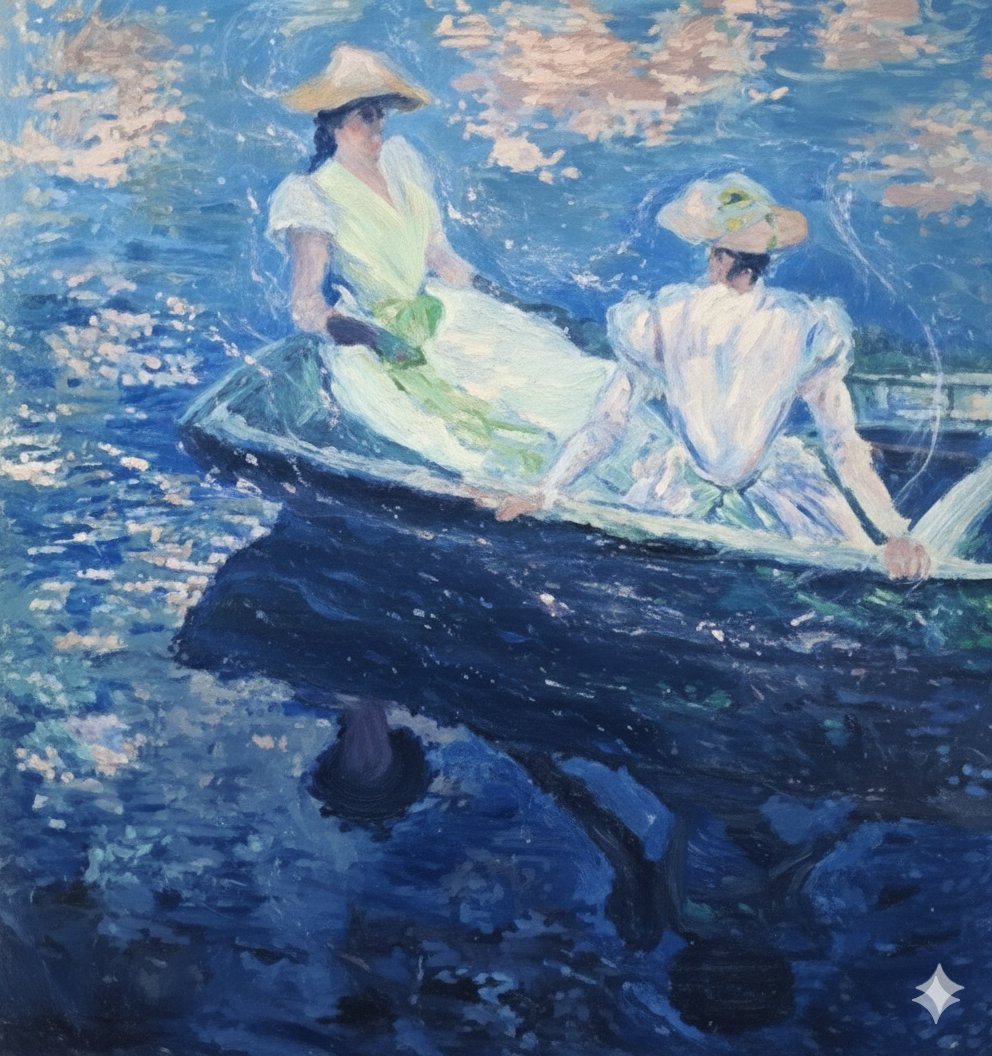
Image generation prompt for Nano Banana Pro: Monet's 'Boating' in an ethereal style
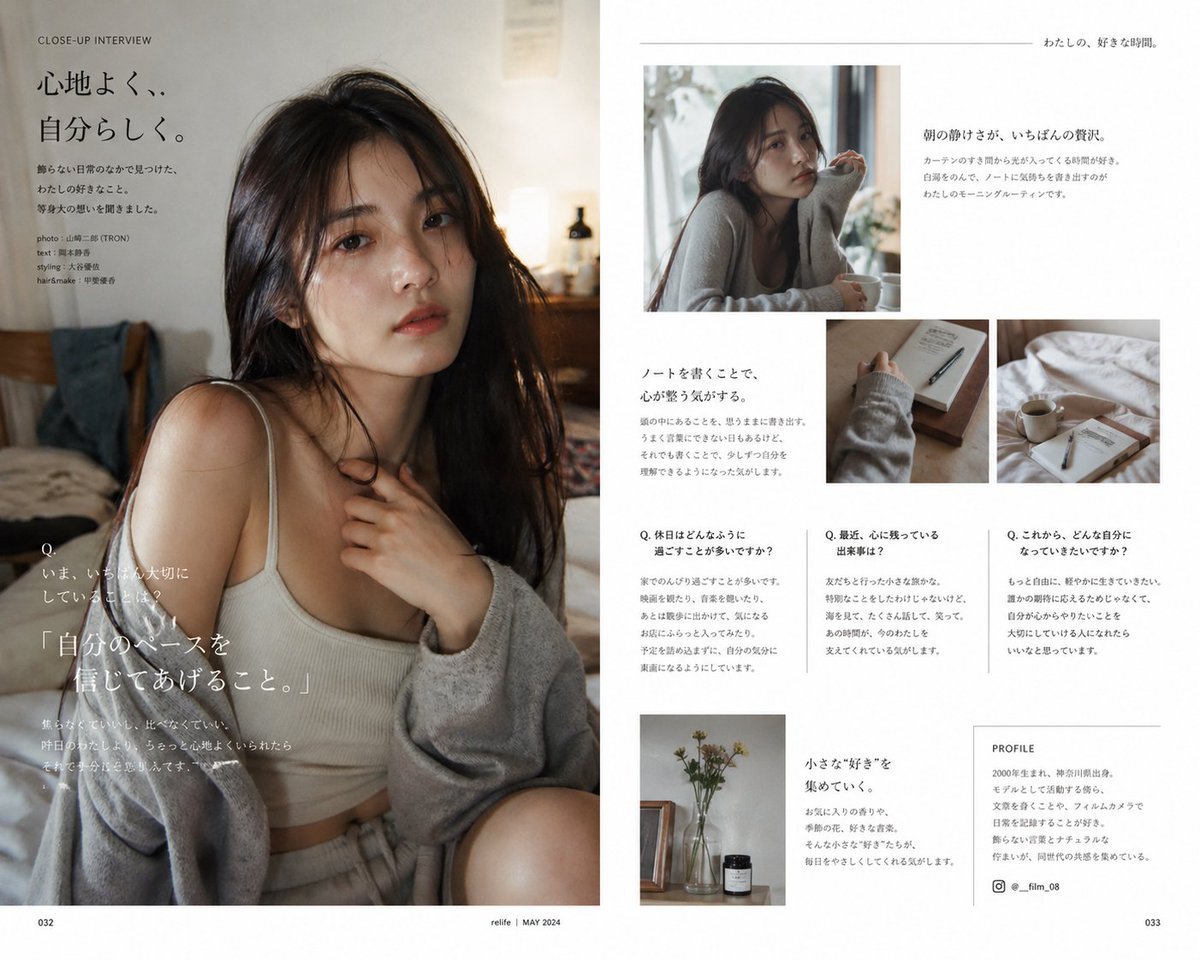
Japanese Lifestyle Magazine Layout
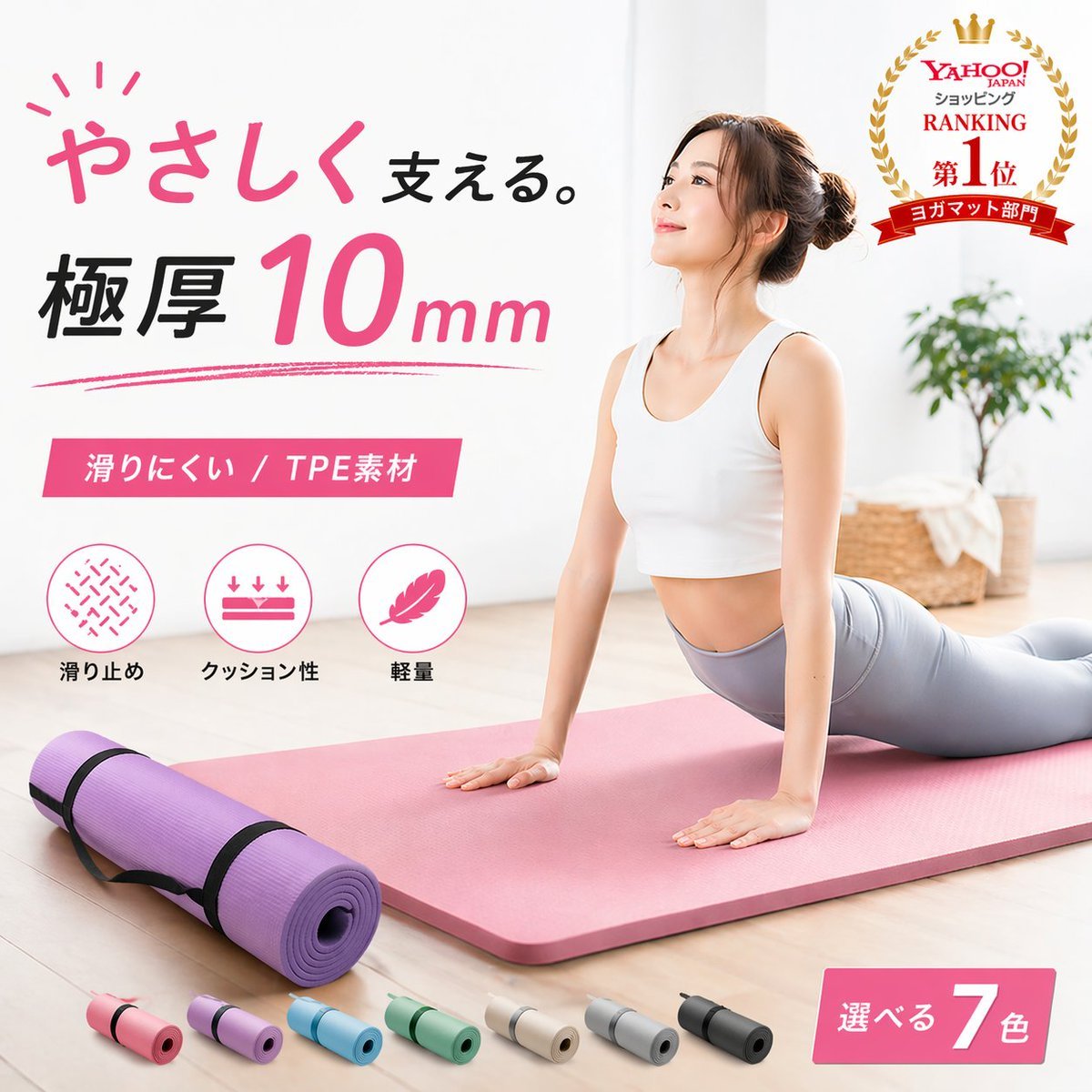
Japanese Yoga Mat E-commerce Ad
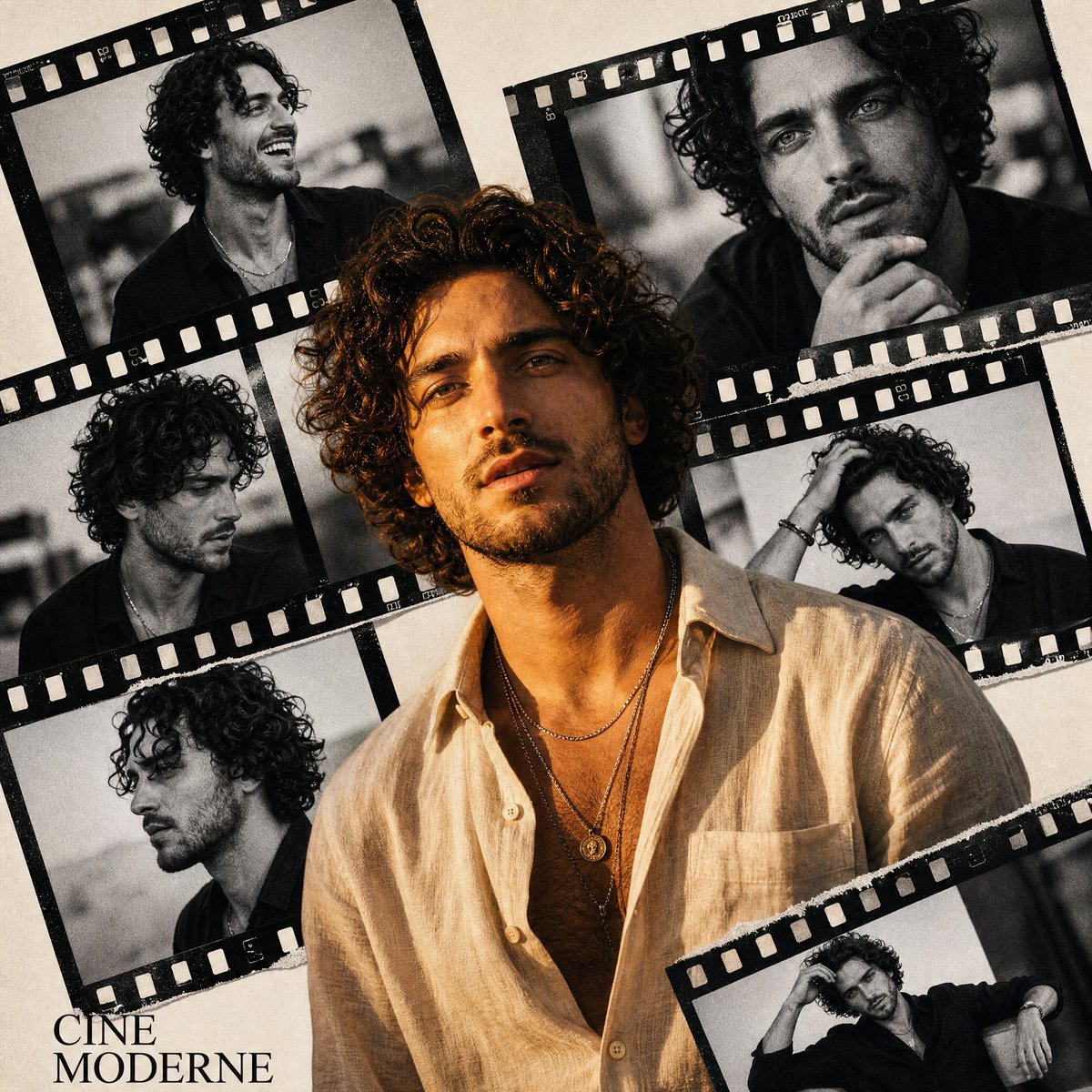
Retro Cinema Portrait Collage
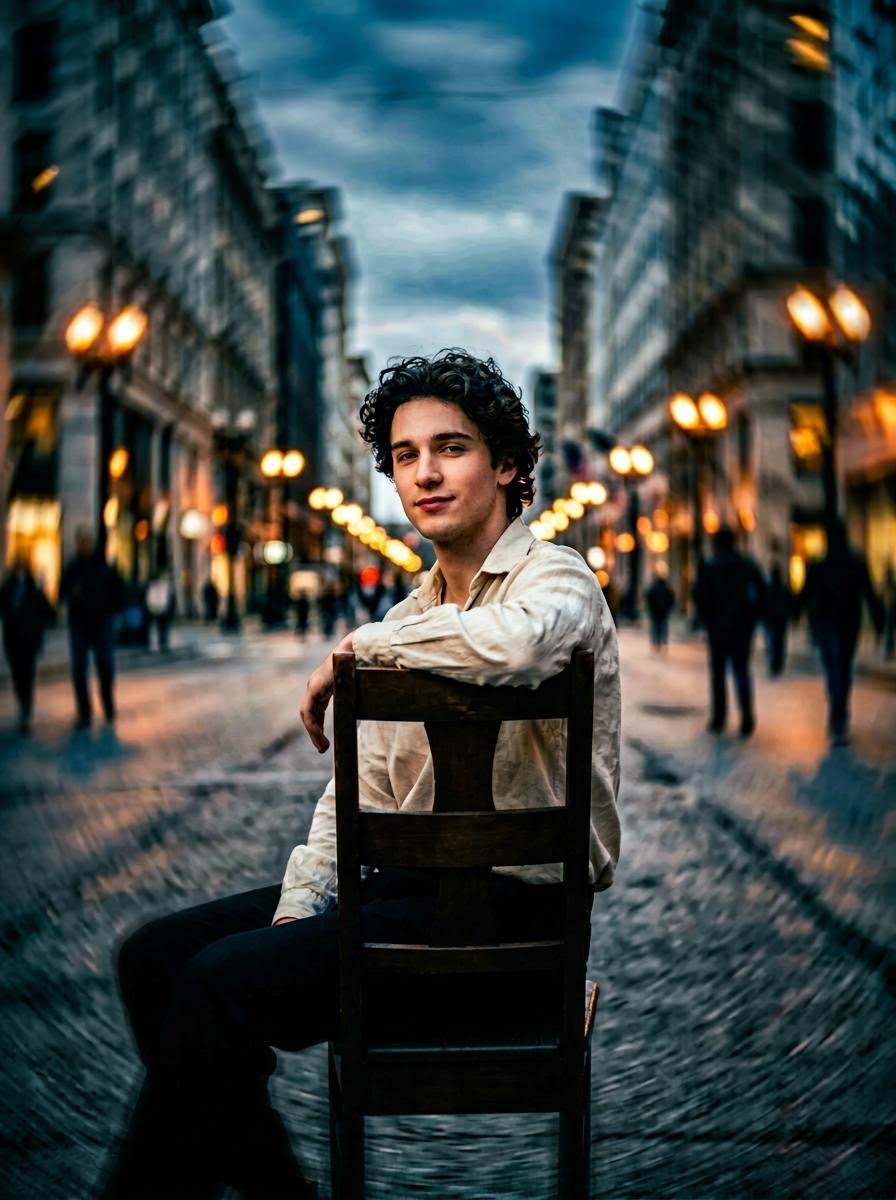
Hollywood-Style Cinematic Photo with Time Distortion
Magical Gothic Library Balcony
Dynamic Perspective Flat Vector Illustration
Browse template categories
Photography Tutorial and Camera Setup Infographic questions
How do I use the Photography Tutorial and Camera Setup Infographic template?
Add your photo if the template asks for one, edit the prompt if you like — the template's model and format are already selected — and press Generate. Your version opens in PicX Studio.
Can I customize the Photography Tutorial and Camera Setup Infographic template?
Yes. You can change the subject, setting, lighting, mood, format, and available model controls before creating your image.
Is the Photography Tutorial and Camera Setup Infographic template free?
Opening and editing this template is free. Generating uses credits, shown on the Generate button when you are signed in.
Which AI model should I use?
Start with GPT Image 2, which is the model associated with this template. You can compare another compatible model for a different finish.
Looking for something else? Browse all templates.

Your photo, any look
Thousands of ready templates for every top image and video model, from one credit balance.