
Simplified Comparative Infographic Grid Generator Prompt (Legs and Stockings)
A simplified version of the meta-prompt template for Nano Banana Pro, designed to generate a multi-panel infographic grid for visual comparison of bare legs versus different stockings, with the text overlay feature…
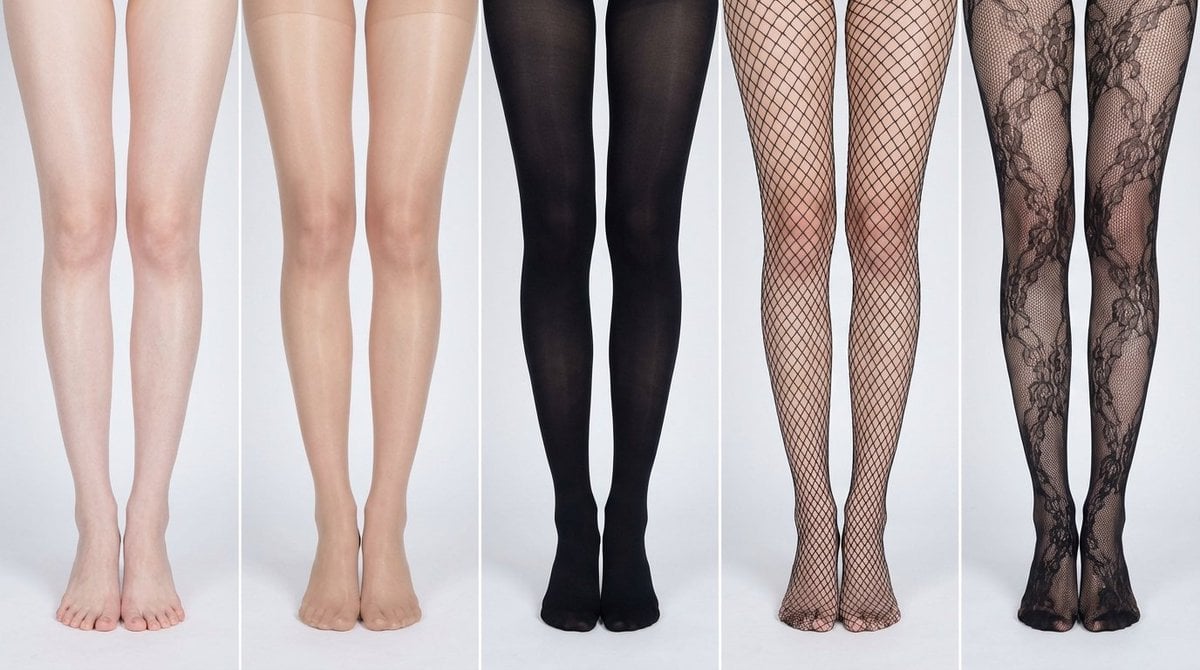
- Prompt included
- Model and format preset
- Free template
The prompt behind this image
Copy the exact prompt behind Simplified Comparative Infographic Grid Generator Prompt (Legs and Stockings), or open it in the studio and make it yours.
# Role: Comparison Infographic Generator (Design-Centric with Toggles) # === USER INPUT SETTINGS (FILL THESE IN) === # 1. Grid Size (e.g., "2x2 (4 panels)", "3x3 (9 panels)"): {argument name="宫格数量" default="1x5"} # 2. Base Subject Description (Identical base scene for all panels): [{argument name="主体描述" default="冷白纤细白皙的亚洲女性的腿部,皮肤细腻光滑,没有杂色,几乎看不到毛孔毛囊。皮肤不干燥,稍微湿润"}] # 3. Variations Theme (What is being compared?): {argument name="变量主题" default="裸腿与不同丝袜材质和风格丝袜的对比"} 脚步需要完整展示在画面中 # 4. Show Text Overlay at Bottom (Yes/No): NO # =========================================== # Task Description: Generate a multi-panel infographic grid chart for a comparative visual study based on the User Input Settings above. The goal is to showcase different textural or stylistic variations (defined in the data list below) applied to the identical Base Subject defined above. # Global Constraints & Style: 1. **Layout:** A **[Insert setting from "1. Grid Size" here]** infographic grid chart. 2. **Consistency is Key:** The Base Subject, camera angle, composition, and lighting must remain absolutely identical across ALL panels to emphasize only the specific variations defined in the data list. 3. **Photography Style:** Clean, controlled studio photography with neutral, even lighting designed to highlight texture differences. # Text Overlay Display Logic (CONDITIONAL): (AI Instructions: First, check the value of User Input Setting "# 4. Show Text Overlay at Bottom". You MUST execute ONLY ONE of the following logic blocks based on that value.) ##### ➤ LOGIC PATH A: IF Setting #4 is "Yes" (Show Overlay) If the user selected "Yes", EVERY panel must feature a precisely designed text overlay at the bottom following these strict rules: * **Background:** A clean, sharply defined solid rectangular color block (e.g., charcoal grey or black) spanning the entire width of the panel's bottom section. * **Typography:** Inside this block, the text must be rendered in an **elegant, ultra-thin, minimalist sans-serif font**. * **Layout:** The text "[Number]. [Short Title] (Prompt: [Key English Prompt Snippet])" must be perfectly centered within the color block. * **Aesthetic:** The overall effect should be that of professional, minimalist graphic design, with crisp lines and perfect alignment. ##### ➤ LOGIC PATH B: IF Setting #4 is "No" (Hide Overlay) If the user selected "No", apply this CRITICAL rule: * **CRITICAL:** DO NOT add any text overlay, numbers, titles, background color blocks, or prompt snippets to the images. * **Result:** The bottom of every panel must be clean image data only, showing the subject fully without obstruction. # Base Subject Definition: The base scene for every panel is: **[Insert description from "2. Base Subject Description" here]**. The variations below will modify the surface or appearance of this base subject. # Variations Data List (Apply sequentially to the grid): (AI instructions: Iterate through this list based on the required grid size. For each panel, apply the user-defined 'Visual Change' to the base
How to use Simplified Comparative Infographic Grid Generator Prompt (Legs and Stockings) in 3 steps
- 1
Open
The prompt is already in the box next to the preview, with the template's model and format selected.
- 2…a portrait of your subject in softgolden-hour light, 85mm…
Personalize
Edit the subject and creative details for your destination.
- 3Generate
Generate
Press Generate — your image is created in PicX Studio, so you can compare it with the original and refine one variable at a time.
More like this
Templates with the same subject, style or setup. Open one to see its prompt.
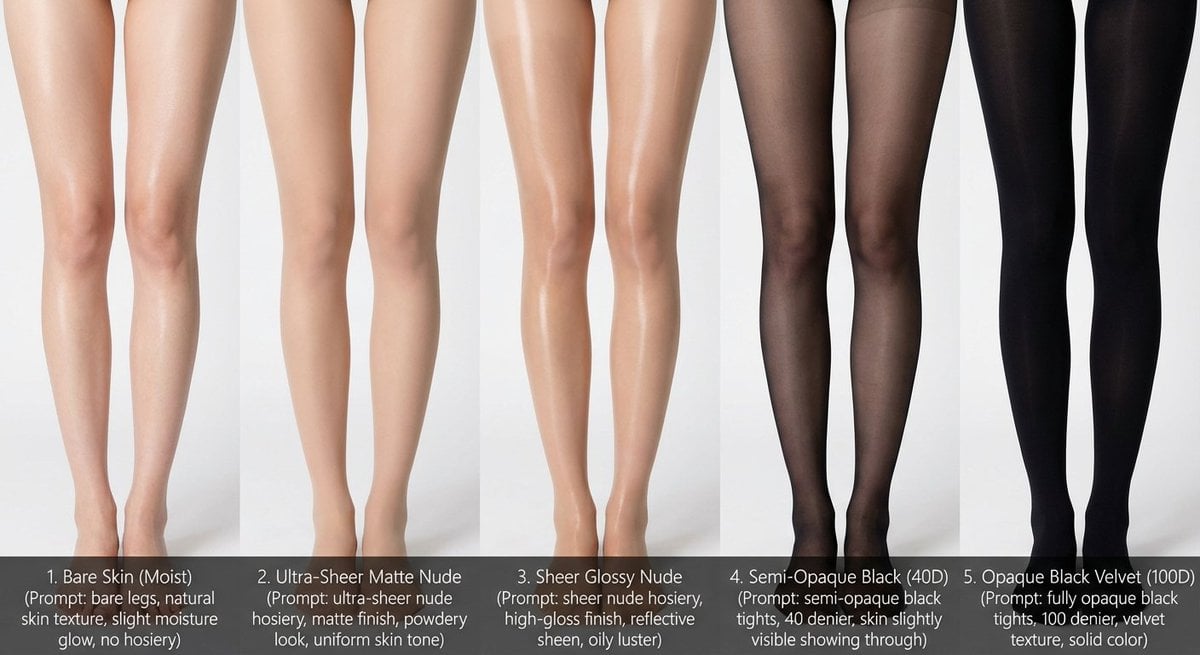
Comparative Infographic Grid Generator Prompt (Legs and Stockings)

Japan Travel Brochure Poster
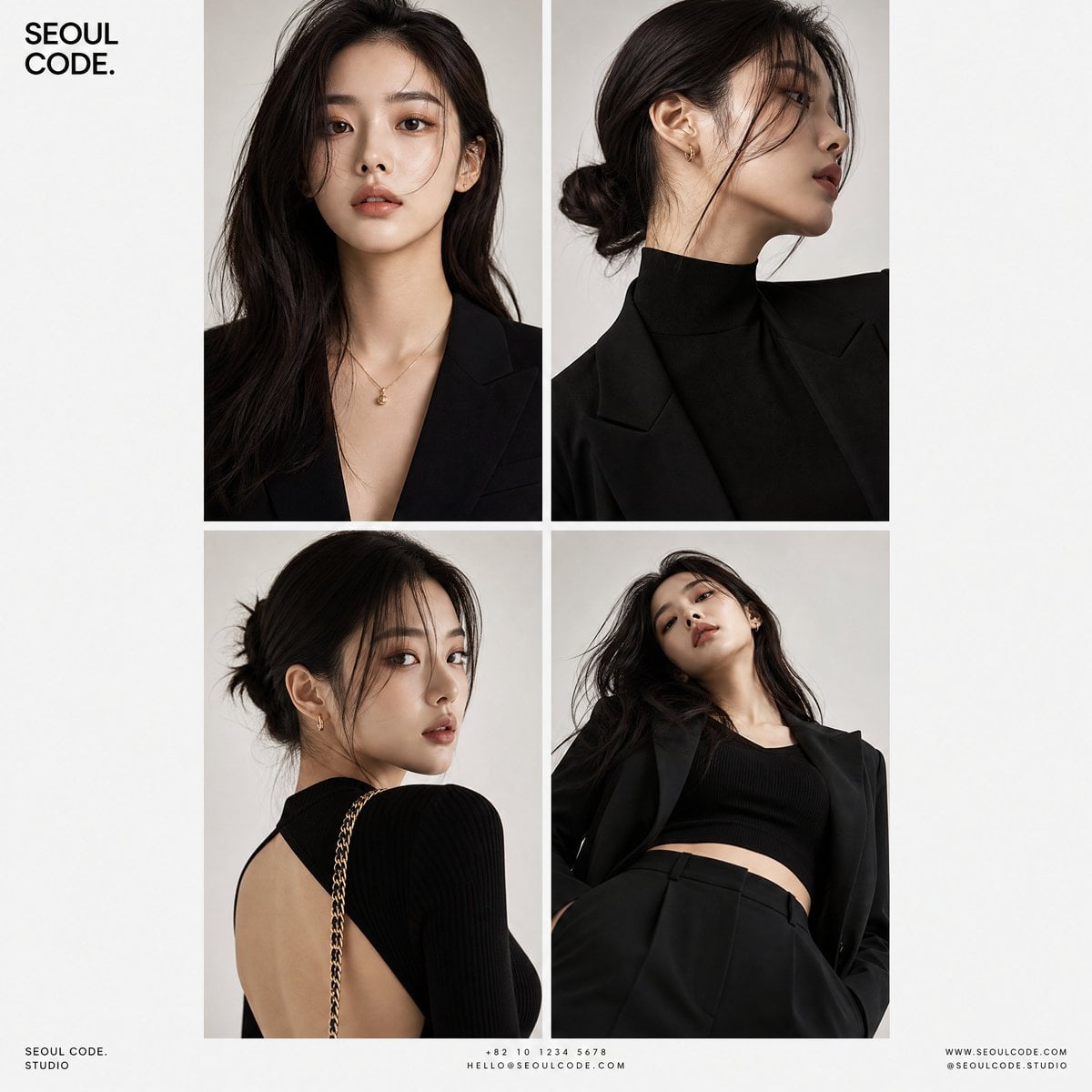
Korean Luxury Fashion Editorial 2x2 Grid Series
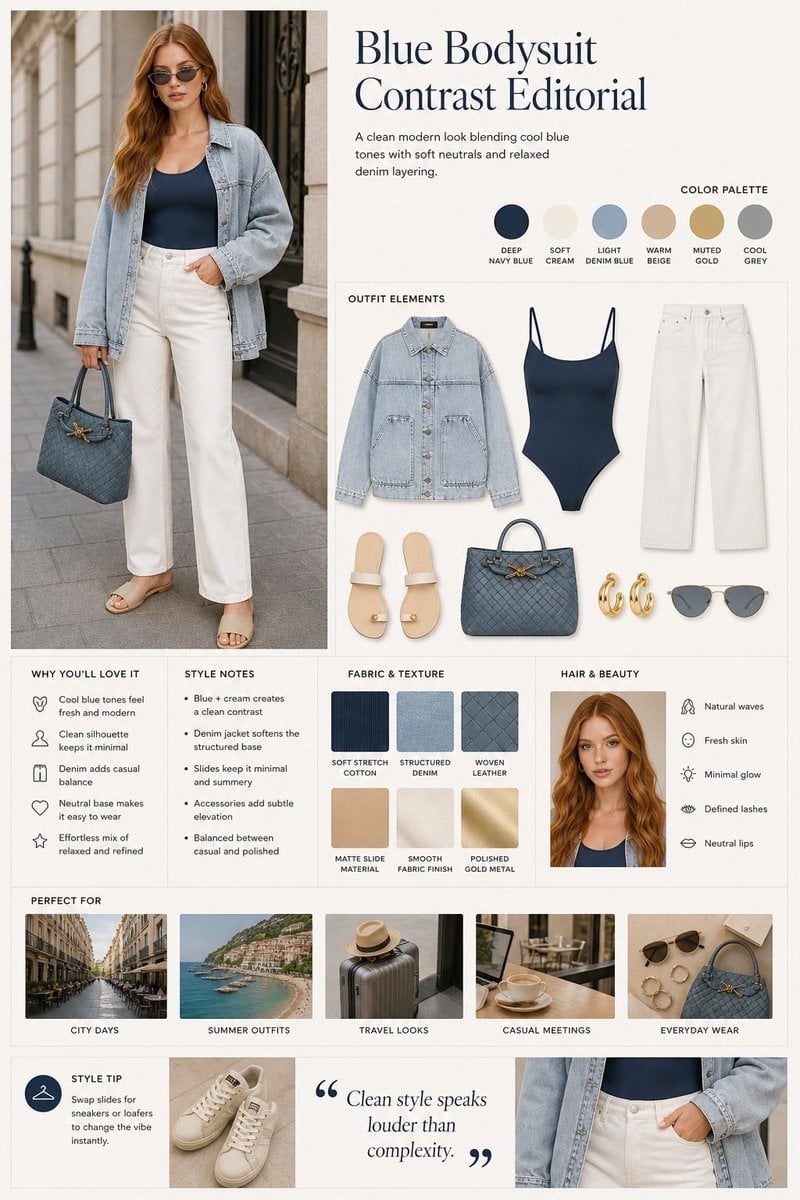
Minimalist Fashion Editorial Split Layout
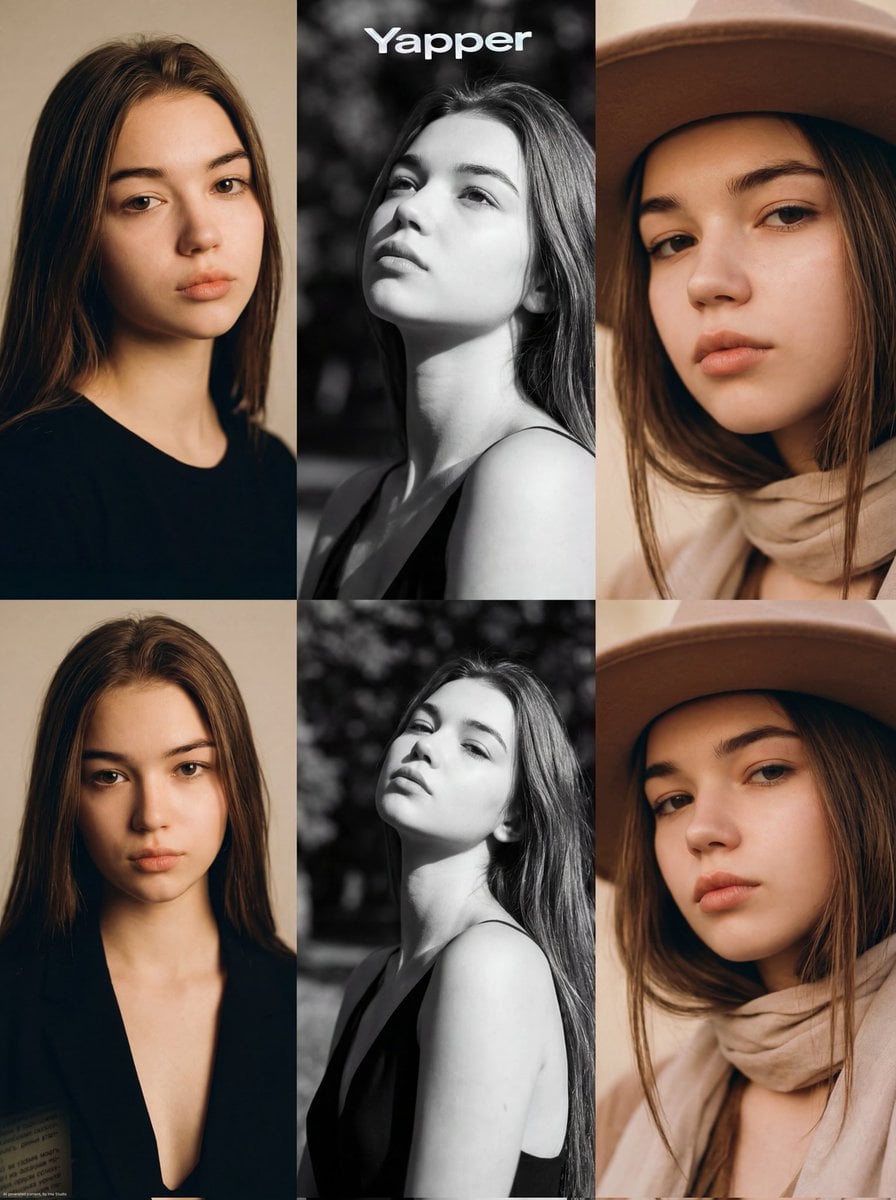
Ultra-Realistic Vogue-Style Editorial Fashion Grid
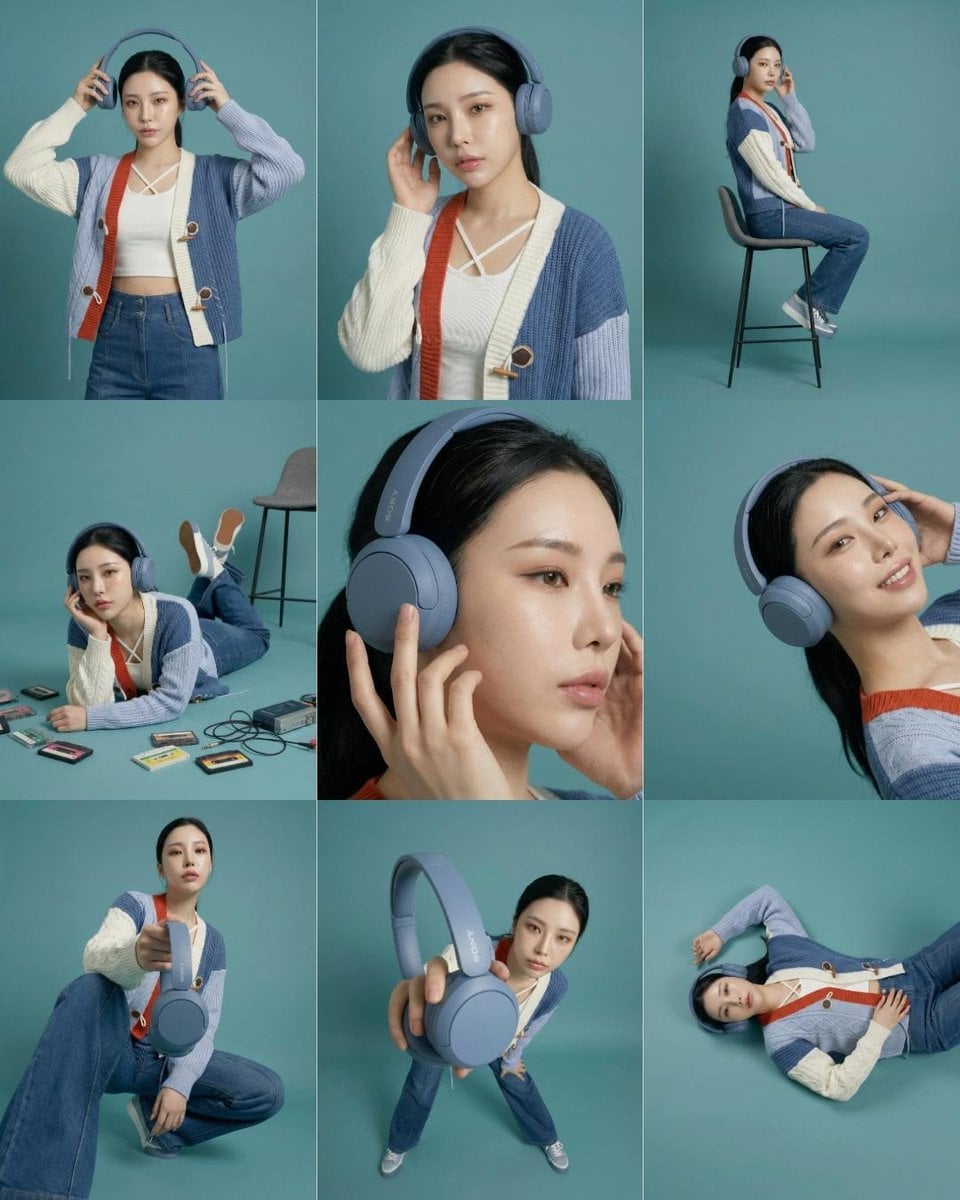
Headphones Lifestyle Nine Panel Grid

Isometric Process Educational Diorama

Isometric Vehicle Teardown Infographic Template
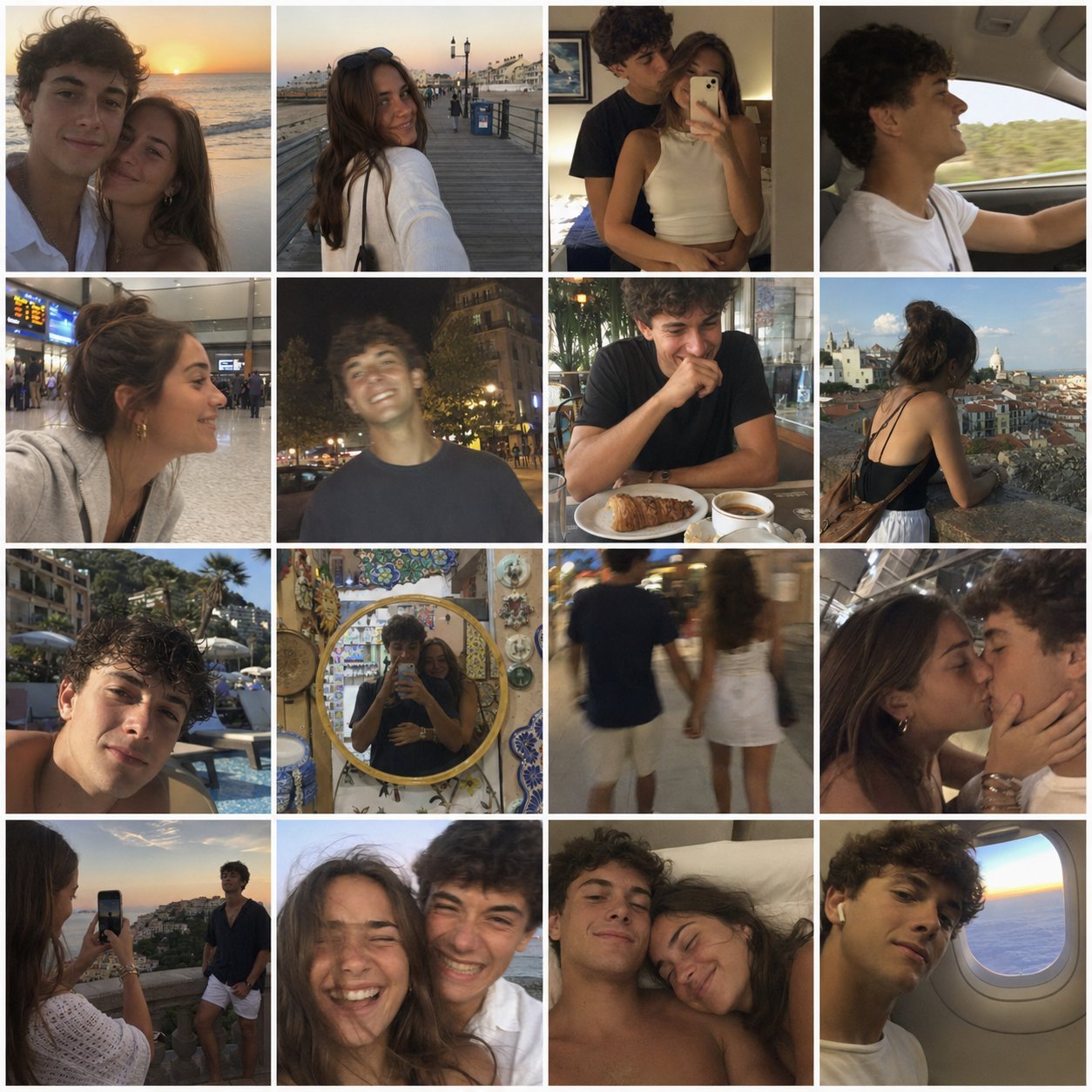
4x4 Grid - Candid Nostalgic Vacation Selfies
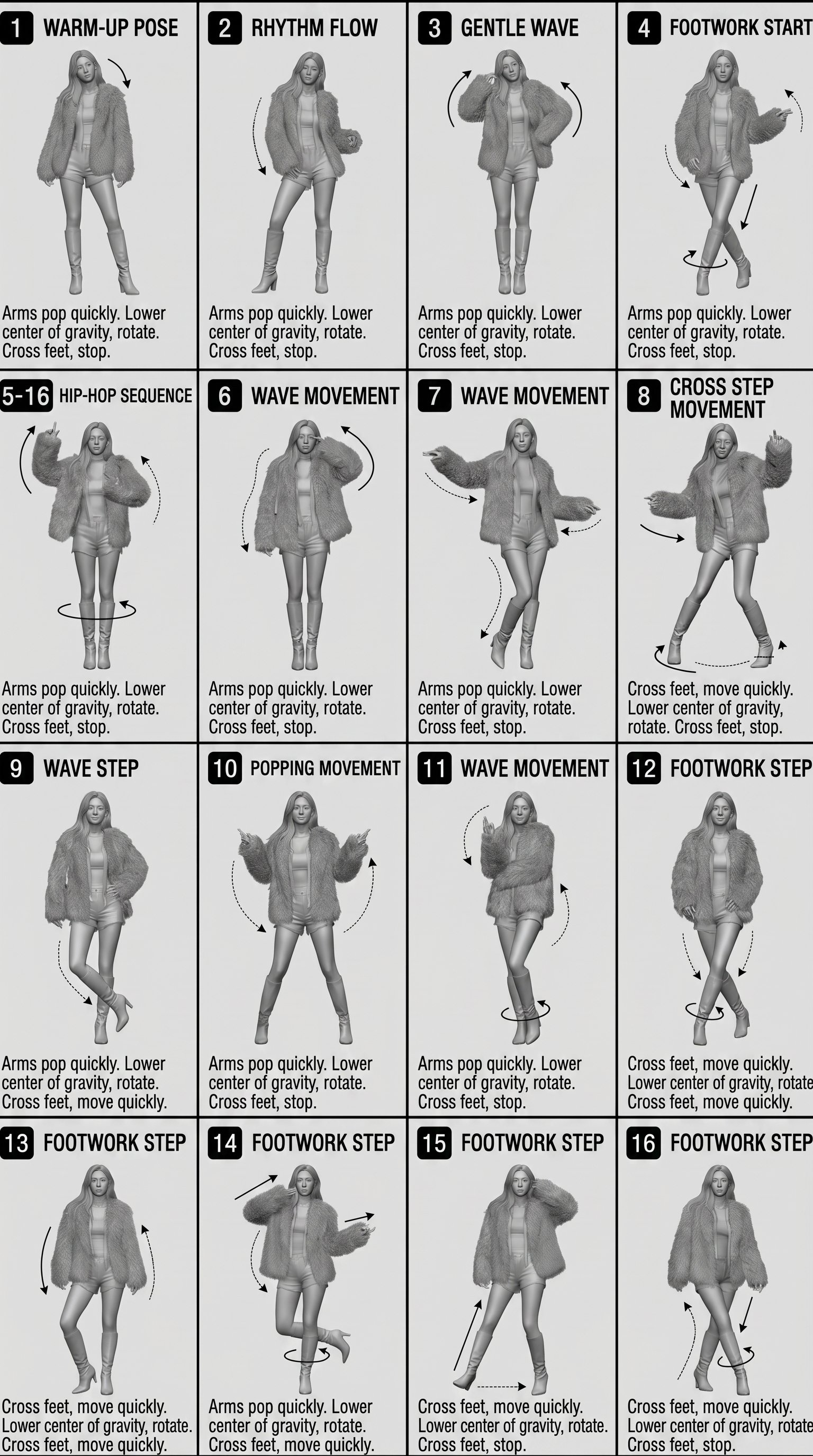
Movement Sheet - Dance Reference (Seedance 2.0)

Gpt2 E Commerce Main Image Earbuds E Commerce Infographic
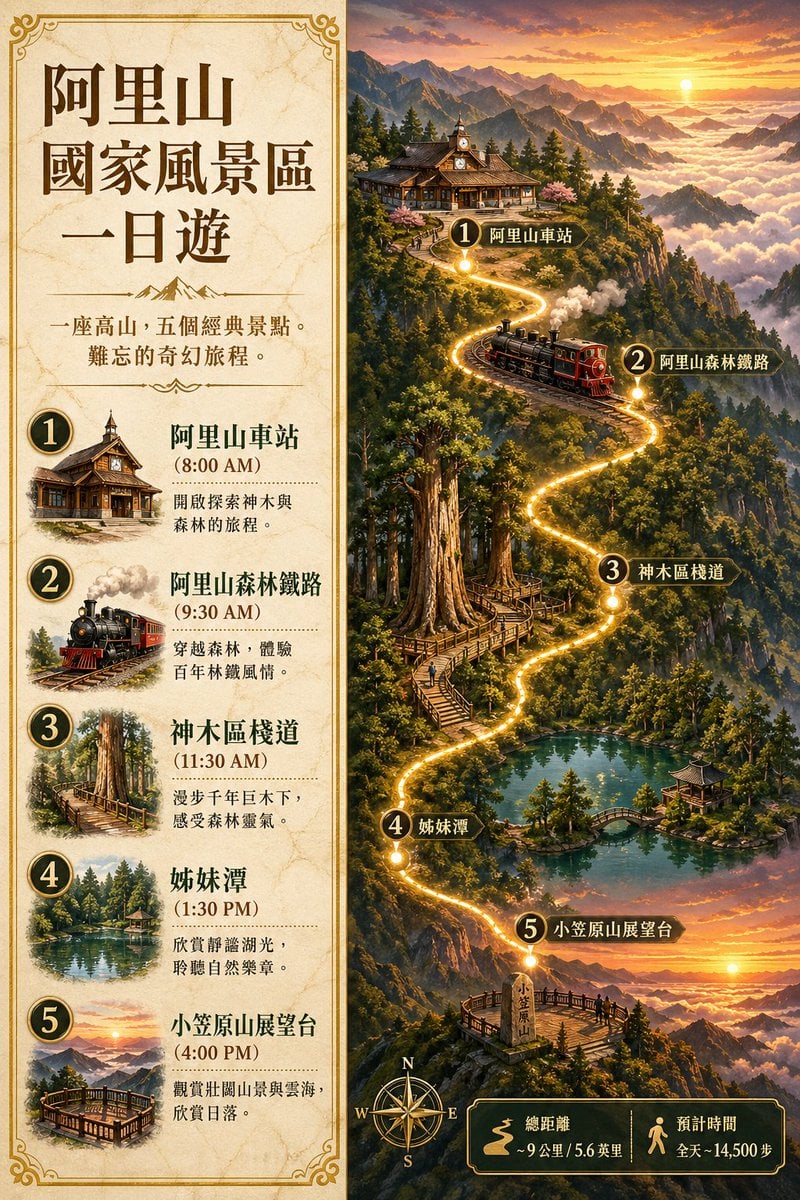
Gpt2 Infographic Edu Visual Alishan One Day Travel Poster
Make it yours
Simplified Comparative Infographic Grid Generator Prompt (Legs and Stockings) works as-is. These are the safest ways to change it without losing the look.
Change one field
Copy a single group, rewrite it, and generate again so you can see what that field is doing.
Keep the frame, change the subject
Hold the composition and light of Simplified Comparative Infographic Grid Generator Prompt (Legs and Stockings), then swap wardrobe, props or the person for a new take.
| If the result… | Why | Fix |
|---|---|---|
| The result drifts from the preview | Too many fields changed at once. | Reuse Simplified Comparative Infographic Grid Generator Prompt (Legs and Stockings) as-is first, then change one group — subject, light, or setting. |
| The model over-stylizes the scene | The prose prompt leaves finish and camera underspecified. | Add one camera or lighting sentence and stay on Nano Banana 2. |
More Nano Banana 2 templates
Other prompts made for Nano Banana 2.

Photorealistic Leaf Shaped Like a Dragon

K-Pop Idol Portrait Grid for Rapid Selection

Poetic Rain Forest Portrait During Golden Hour

Urban Street Portrait with Cartoon Inner Self Duo

Candid Nighttime Photo with Cat Prompt

High-Concept 3D Diorama Generation Prompt

Cinematic Futuristic Studio Portrait Template

Skincare Editorial Photography Collage Prompt

Hyper-Realistic Commercial Product Photography (Splash Effect)

Hyper-Realistic Nightclub Portrait Prompt
More image prompts
Fresh picks from across the catalog.
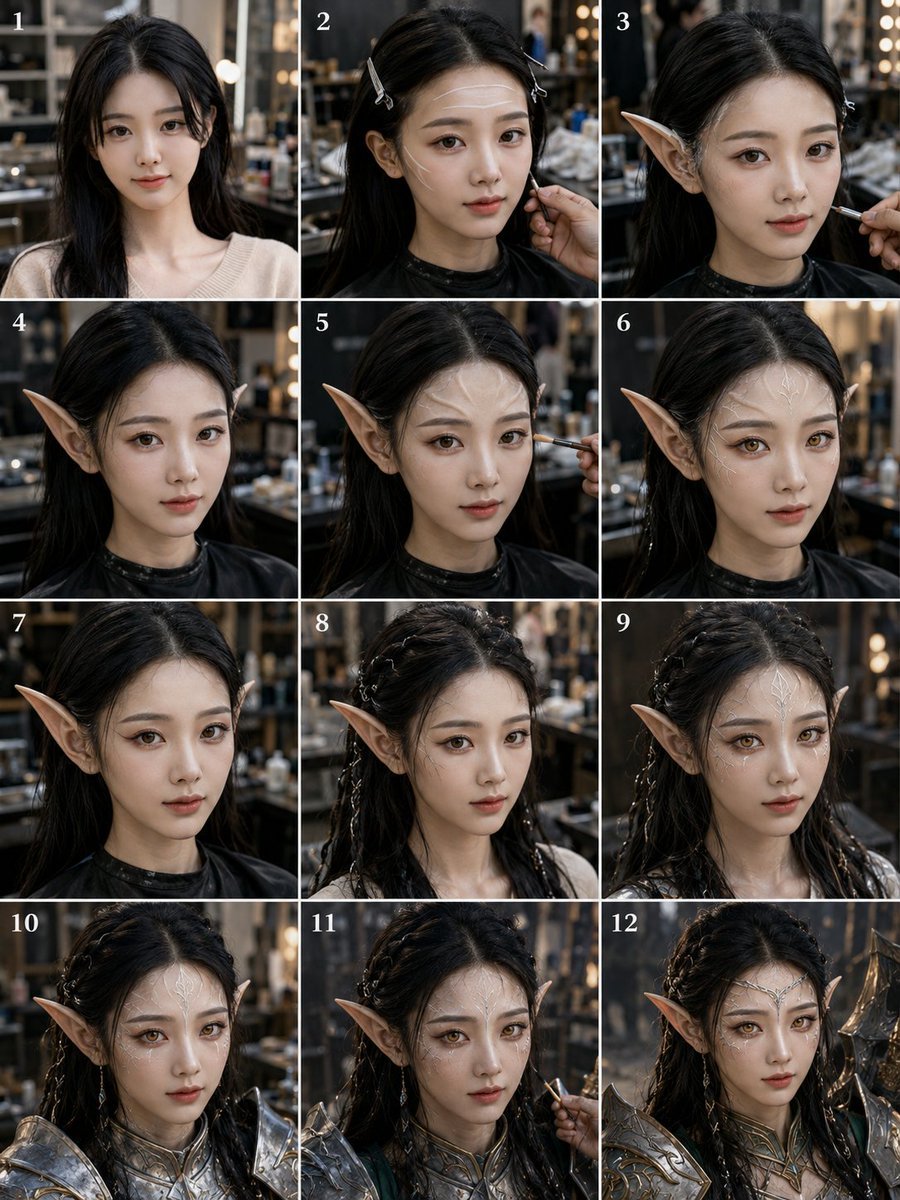
Elf Warrior Transformation Collage
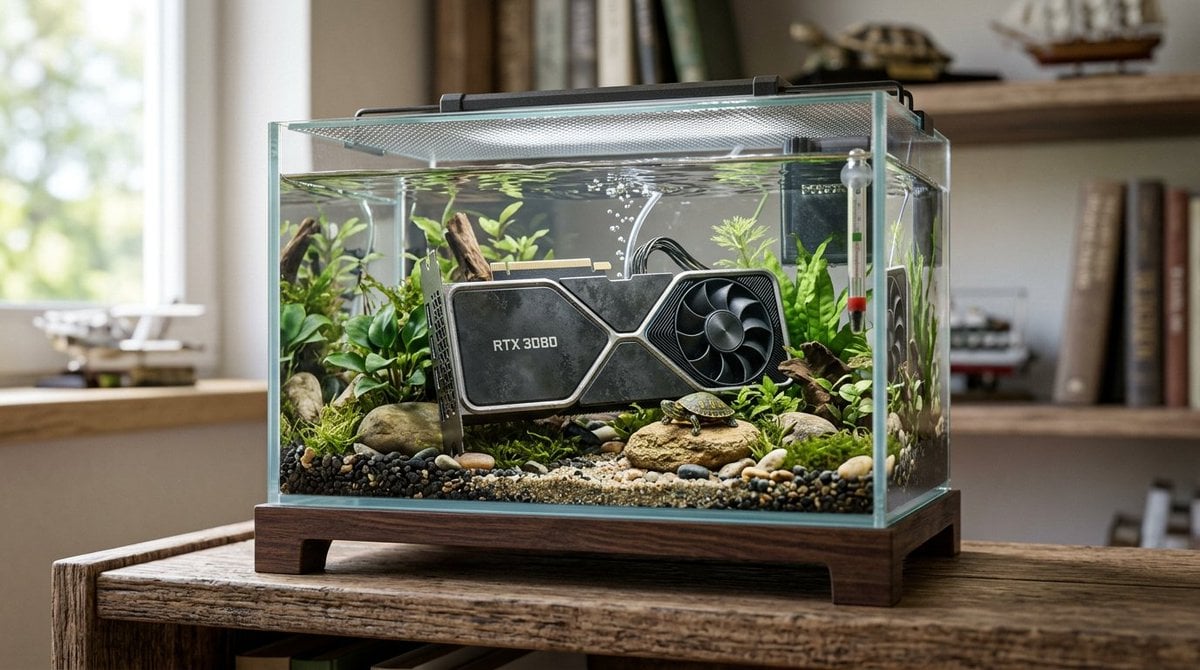
Hyper-Realistic Miniature Turtle Tank Diorama
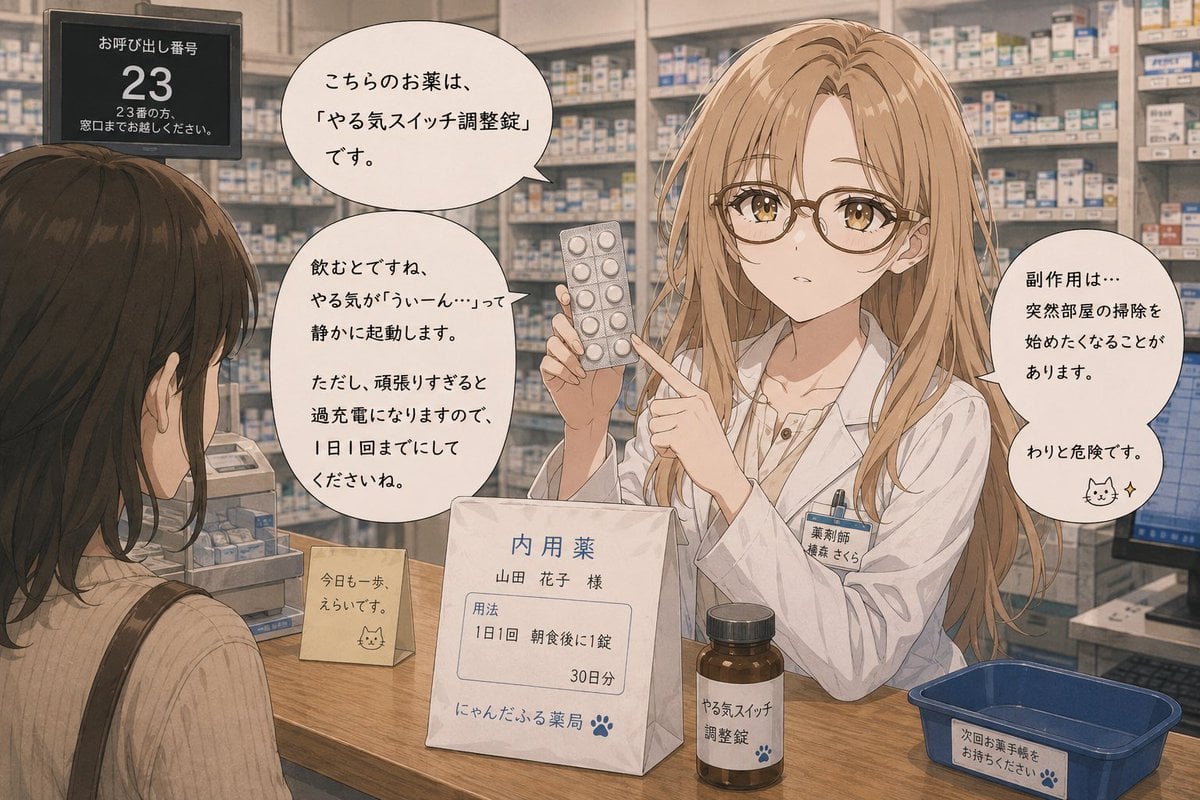
Anime Character Pharmacist Reimagining
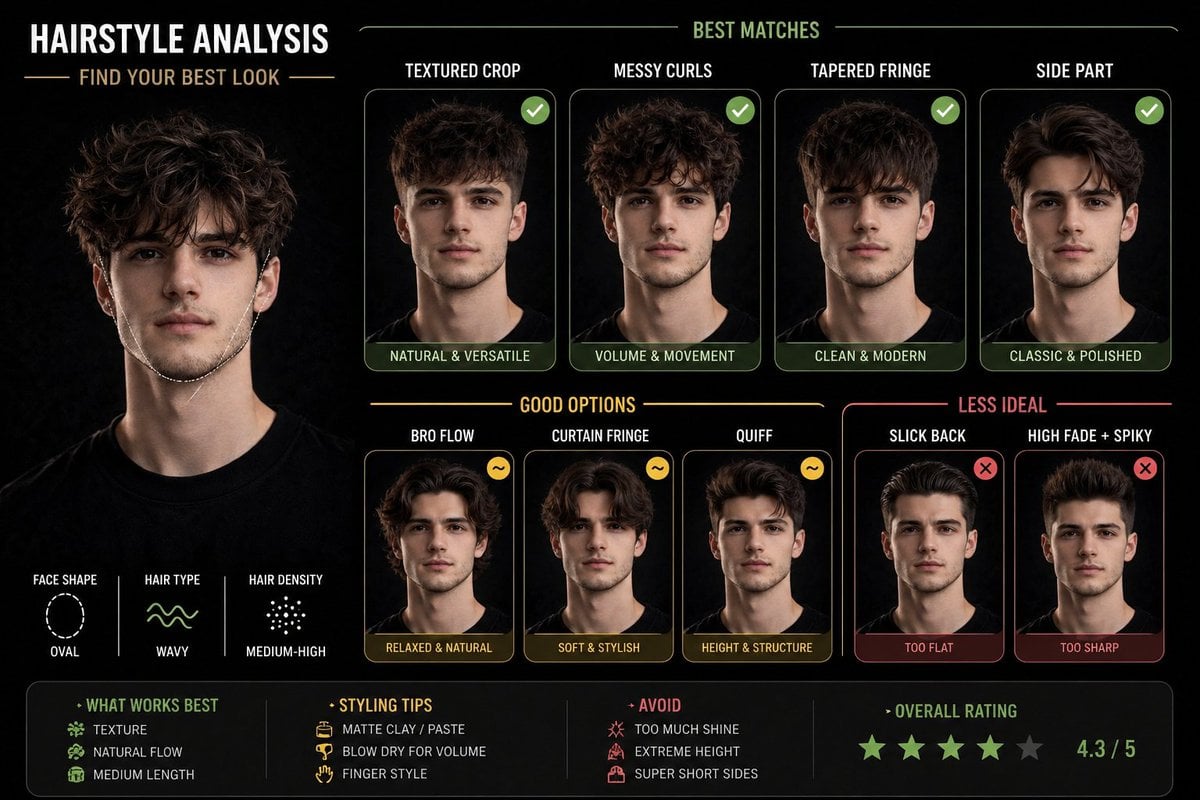
Hairstyle Suitability Analysis Chart
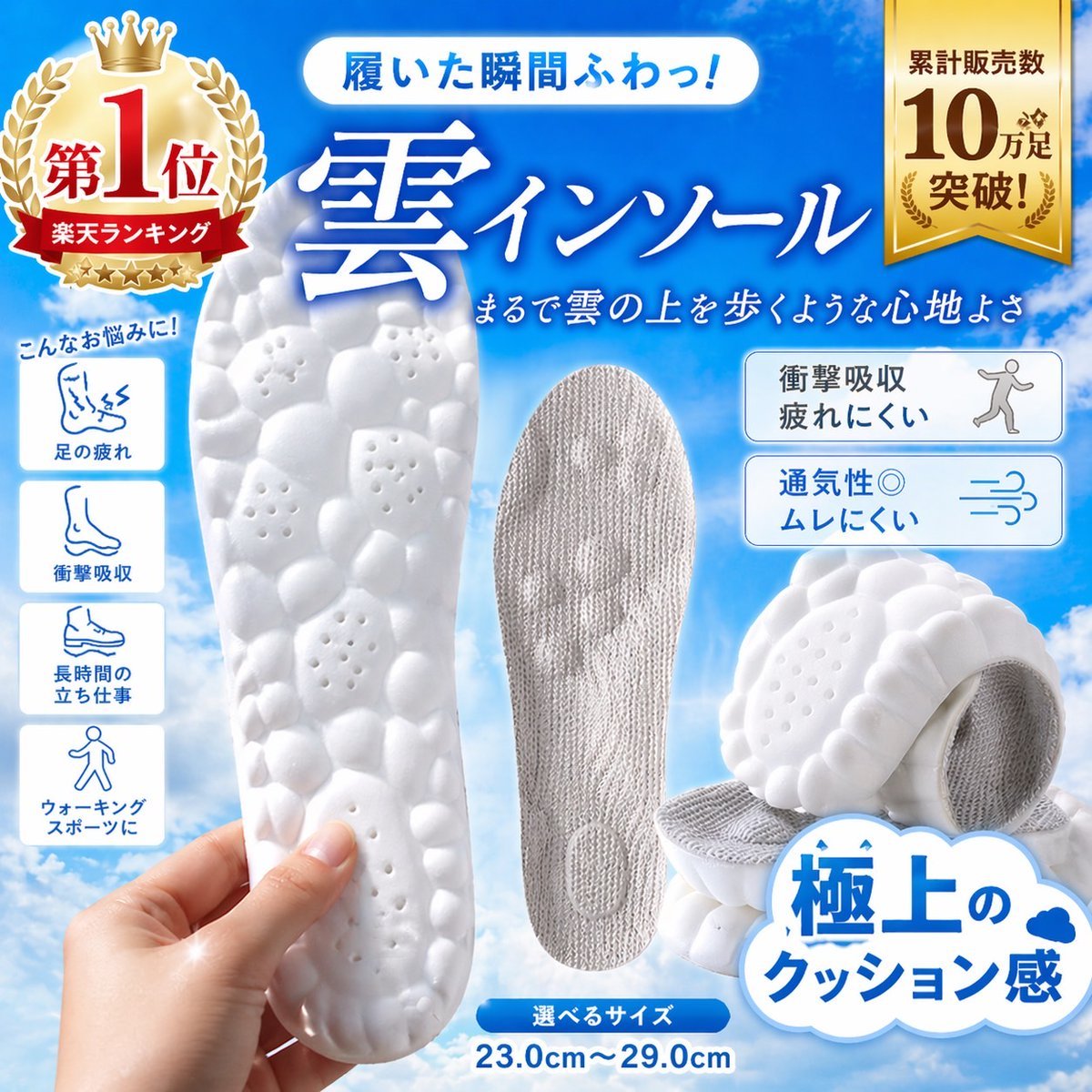
Japanese Cloud Insole Ad Banner
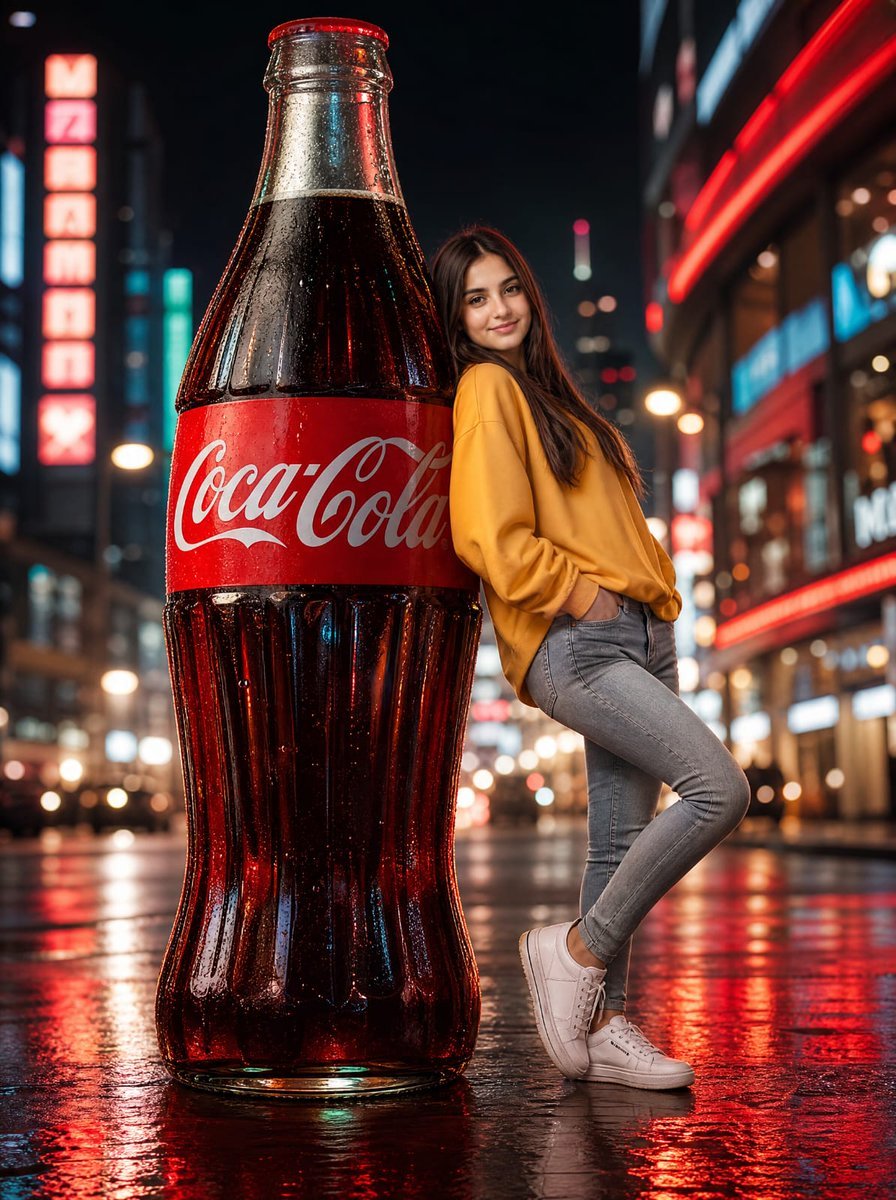
Neon Coca-Cola Street Portrait

Night Rooftop iPhone Portrait

Urban Luxury Streetwear Portrait
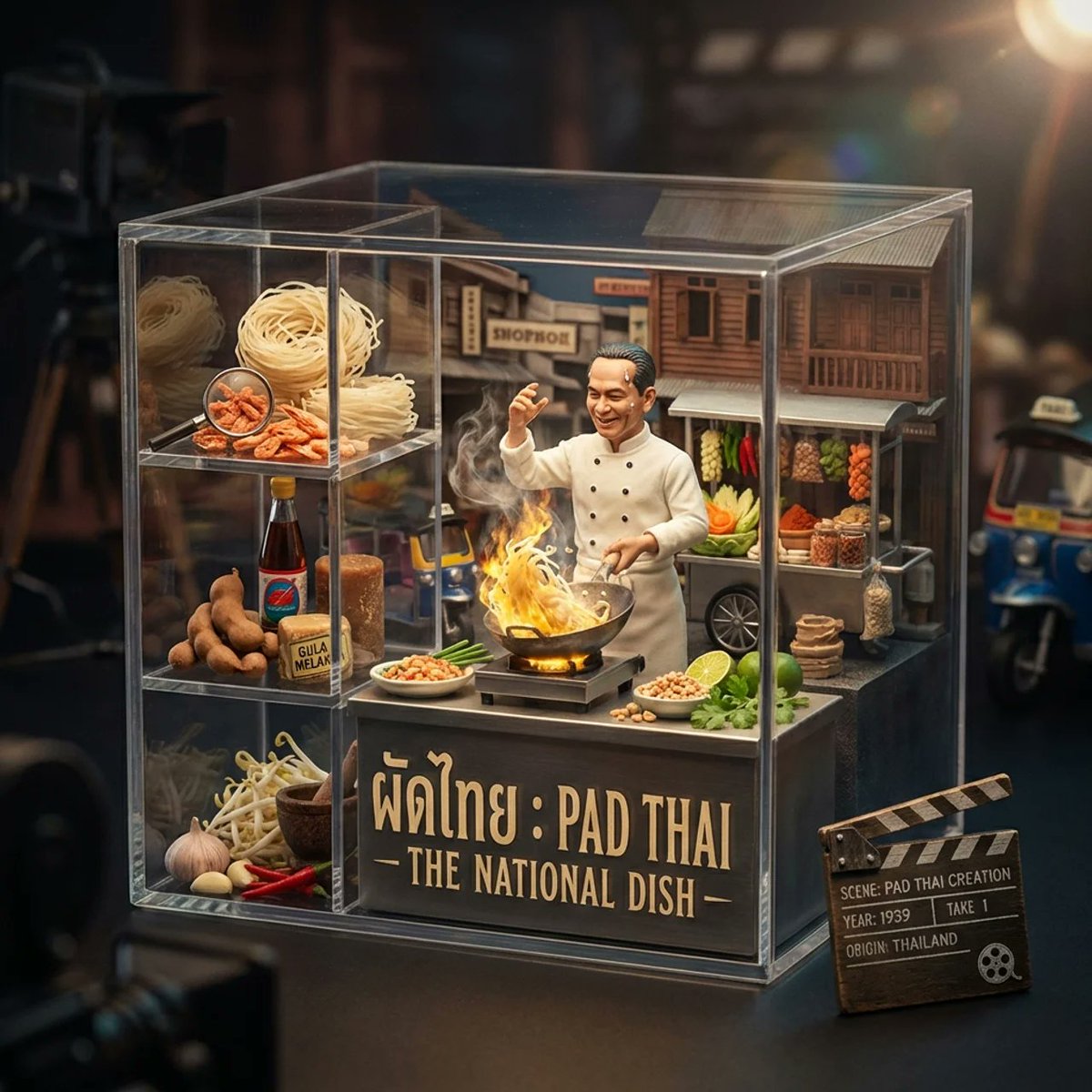
Gourmet Collectible Cinematic Dish Visualization
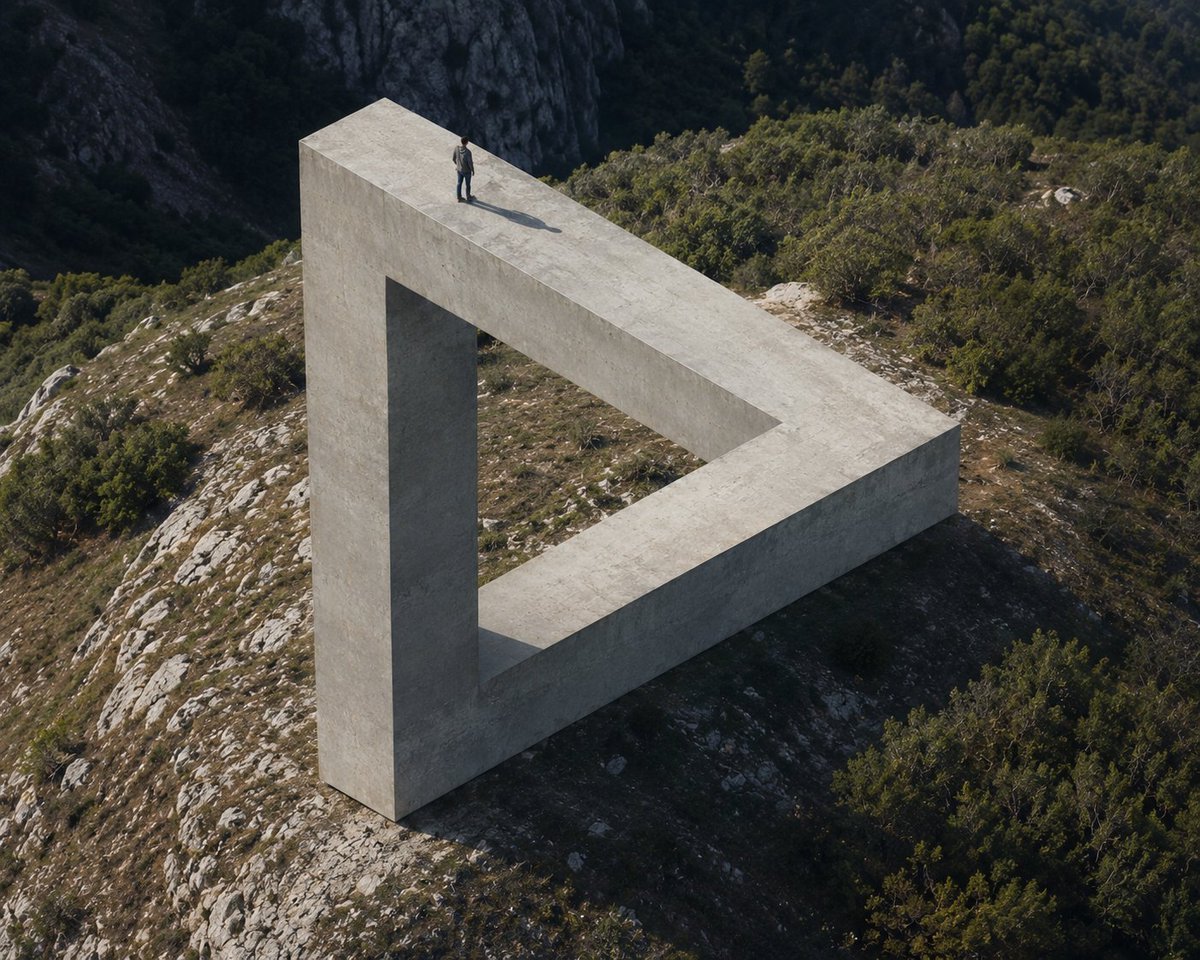
Penrose Impossible Triangle Structure
Browse template categories
Simplified Comparative Infographic Grid Generator Prompt (Legs and Stockings) questions
How do I use the Simplified Comparative Infographic Grid Generator Prompt (Legs and Stockings) template?
Add your photo if the template asks for one, edit the prompt if you like — the template's model and format are already selected — and press Generate. Your version opens in PicX Studio.
Can I customize the Simplified Comparative Infographic Grid Generator Prompt (Legs and Stockings) template?
Yes. You can change the subject, setting, lighting, mood, format, and available model controls before creating your image.
Is the Simplified Comparative Infographic Grid Generator Prompt (Legs and Stockings) template free?
Opening and editing this template is free. Generating uses credits, shown on the Generate button when you are signed in.
Which AI model should I use?
Start with Nano Banana 2, which is the model associated with this template. You can compare another compatible model for a different finish.
Looking for something else? Browse all templates.

Your photo, any look
Thousands of ready templates for every top image and video model, from one credit balance.