
Character Robotization and Technical Diagram Prompt
A detailed Japanese prompt for Nano Banana Pro to transform a reference character into a chibi-style robot and generate a technical illustration/infographic.
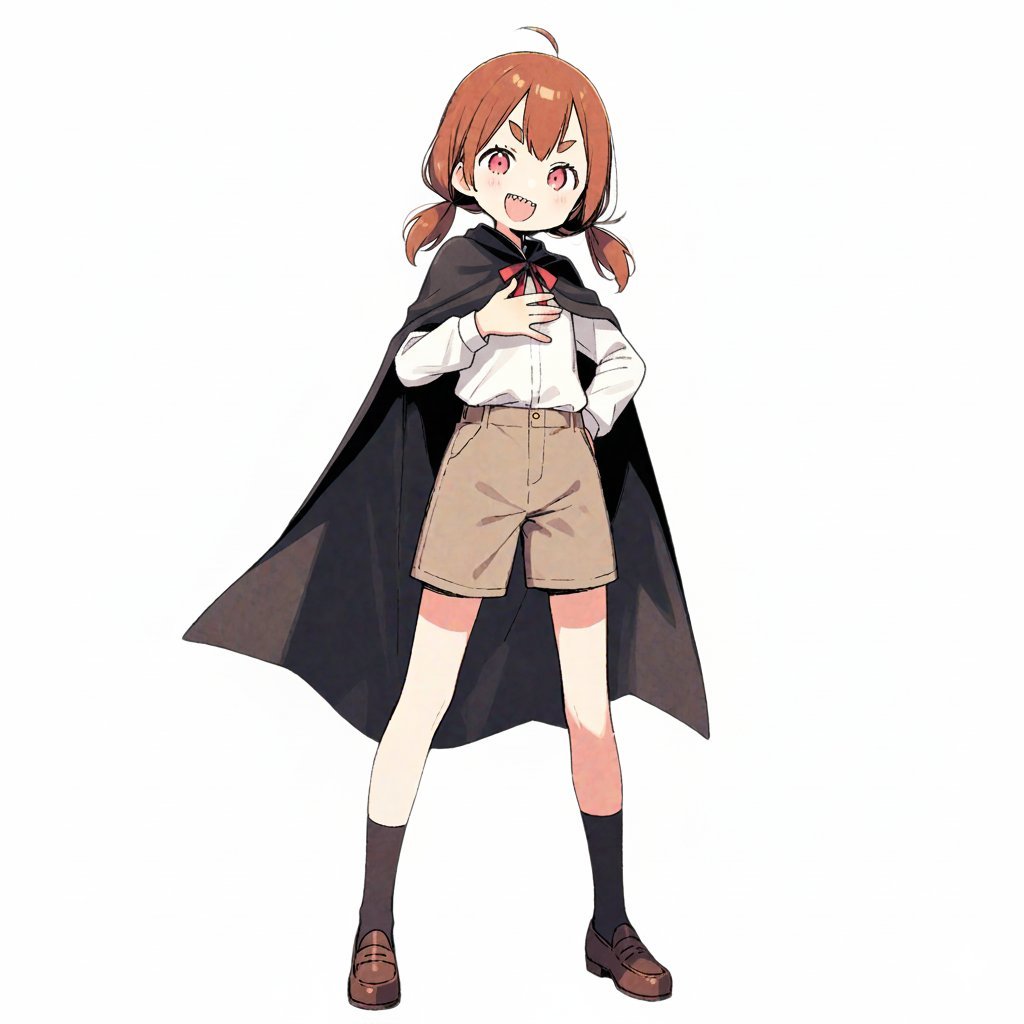
- Prompt included
- Model and format preset
- Premium template
The prompt behind this image
Copy the exact prompt behind Character Robotization and Technical Diagram Prompt, or open it in the studio and make it yours.
【Character setup】 ※Rewrite this to the appearance of the character you want to draw [Character features]: {argument name="character features" default="brown twin tails, a girl wearing a cloak"} 【Image generation instructions】 Style definition: - A style fusing anime-style character illustration with technical industrial-product illustration (a blueprint/schematic). - Background is white or plain. An infographic-style layout. Pose and composition: - An isometric composition - A 2-to-3-heads-tall deformed (chibi) style - Shape of the limbs: Do not draw joints at the elbows, knees, wrists, or ankles. Do not draw fingers or fine joints; make the tips simple, mitten-like shapes. Reproduce smooth "stuffed-animal limbs." - Facial modeling: Do not draw a nose or mouth; place only "eyes." Draw the eyes as vertically elongated ovals (vertical circles), giving them the look of simple sensors. Match the eye color to the reference image. - Depiction of clothing: The left half wears the reference image's clothes normally (cloak, shirt, pants, shoes, etc.), but the right half is a cutaway section where the cross-section of the clothing and the mechanics beneath it are simultaneously visible. - A standing pose showing the character's full body. - The right half of the body's exterior (skin or clothing) is semi-transparent, revealing the internal mechanical structure — an "internal cutaway view." Details of the internal structure: - Head: Behind the vertically elongated eyes, a camera-lens structure is visible. Behind the mouth is a speaker unit. The brain is made up of an electronic circuit board. - Torso: Inside the round limbs are packed thick hydraulic cylinders, large gears, and ball joints. - Back: A large "wind-up key" is stuck into the back, giving it the feel of a retro toy. Annotations and explanations (decoration): - Leader lines extend from the main mechanical parts of the internal structure (brain, eyes, ears, arms, legs), with detailed explanatory text placed at their ends, in English. - Overall, finish it like "a blueprint for a robot that is round and endearing on the outside, but precision machinery on the inside." Style: - Aspect ratio: Portrait (a vertical format close to A4 paper proportions) - Background: Graph-paper (grid-notebook) texture.
How to use Character Robotization and Technical Diagram Prompt in 3 steps
- 1Upload ImagePNG, JPG or paste
Add your photo
Upload the photo the template builds on. The prompt, model and format are already set.
- 2…a portrait of your subject in softgolden-hour light, 85mm…
Personalize
Edit the subject and creative details for your destination.
- 3Generate
Generate
Press Generate — your image is created in PicX Studio, so you can compare it with the original and refine one variable at a time.
More like this
Templates with the same subject, style or setup. Open one to see its prompt.

Isometric Vehicle Teardown Infographic Template
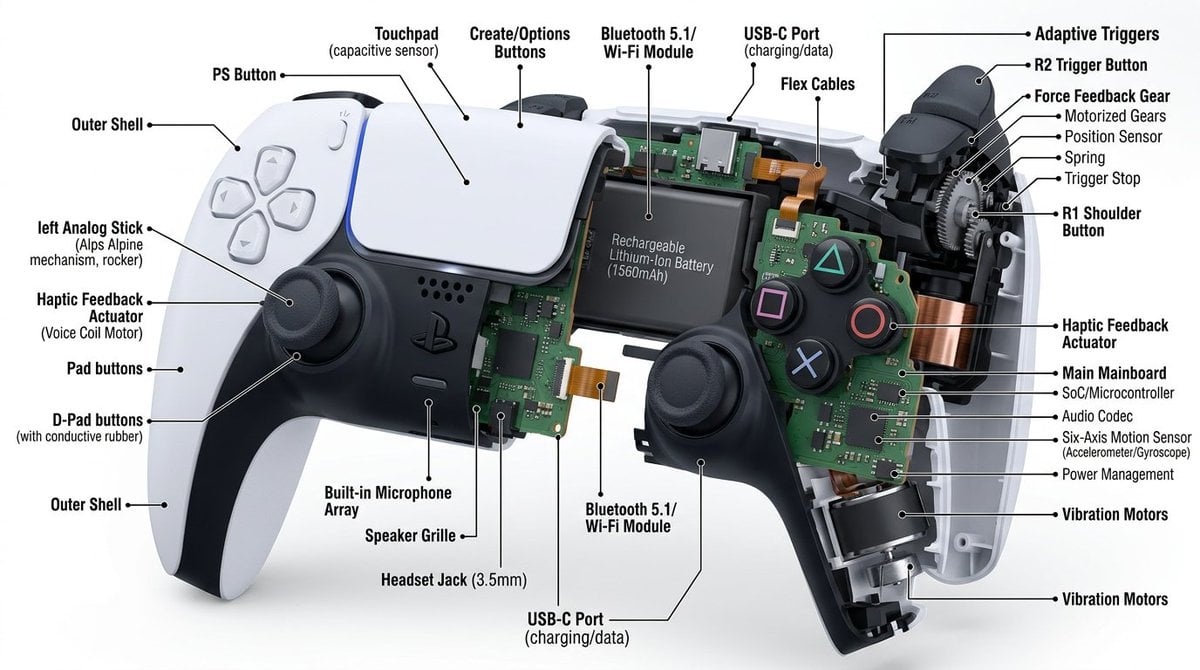
Technical Cutaway Diagram
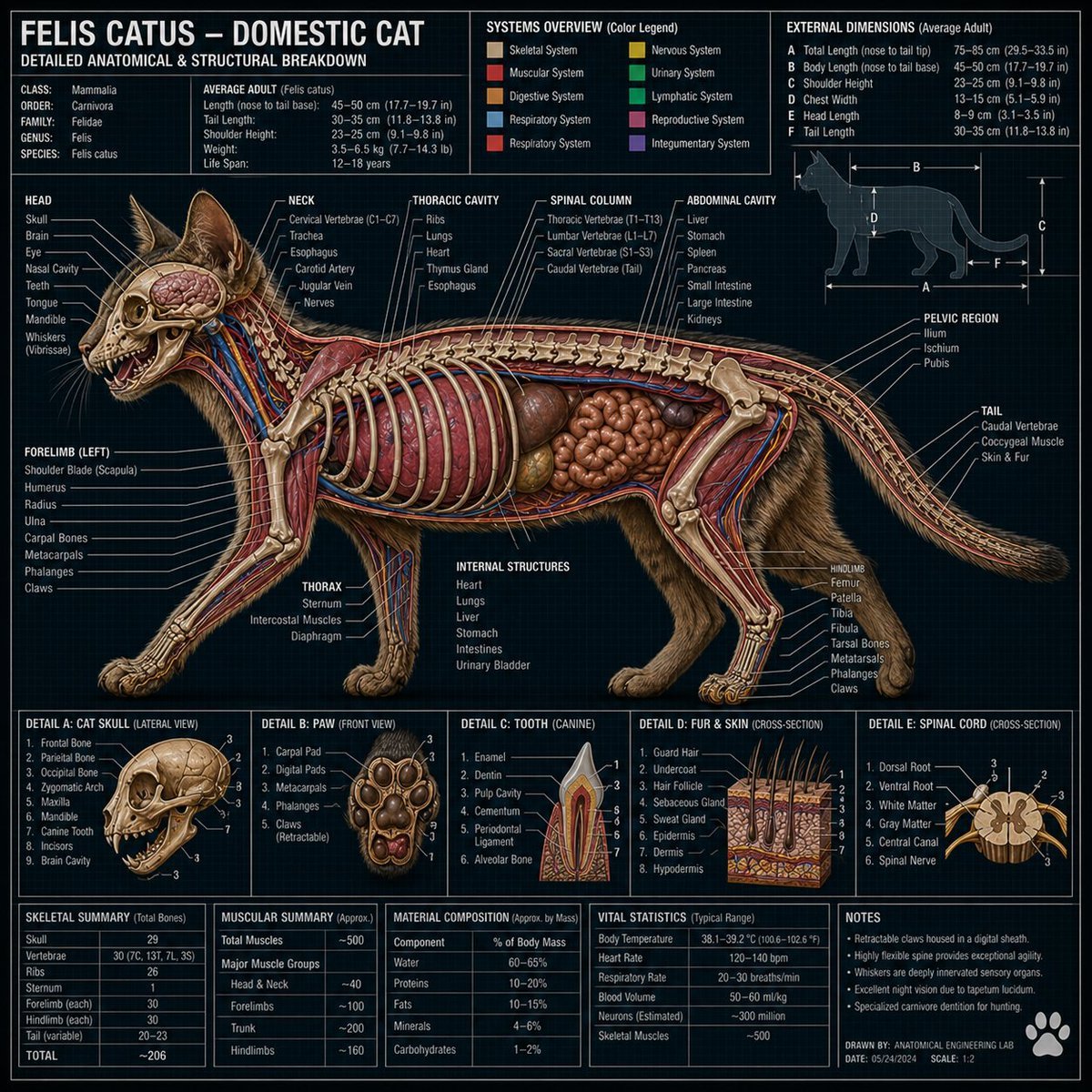
Technical Cross-Section Diagram
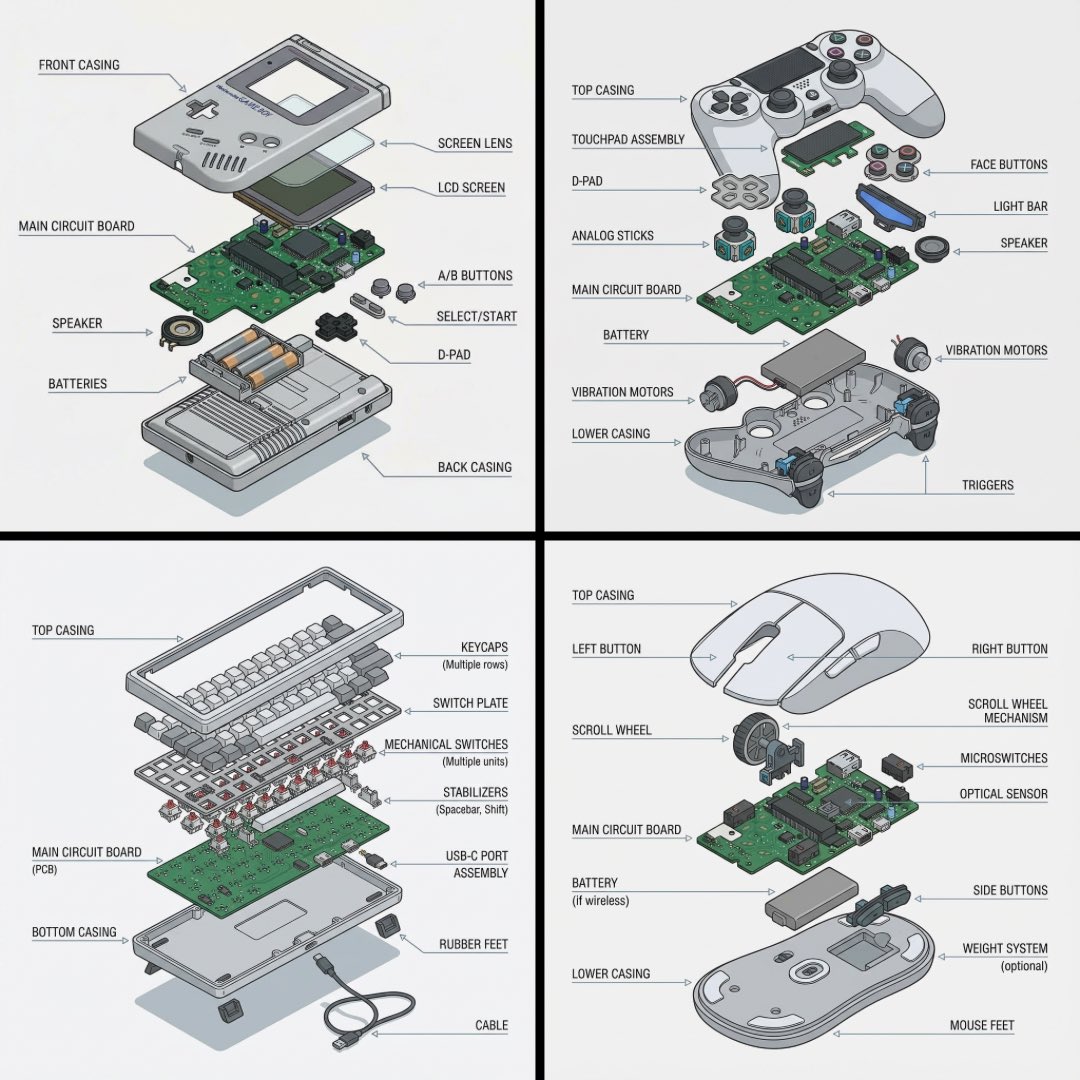
Technical exploded view diagram of a device
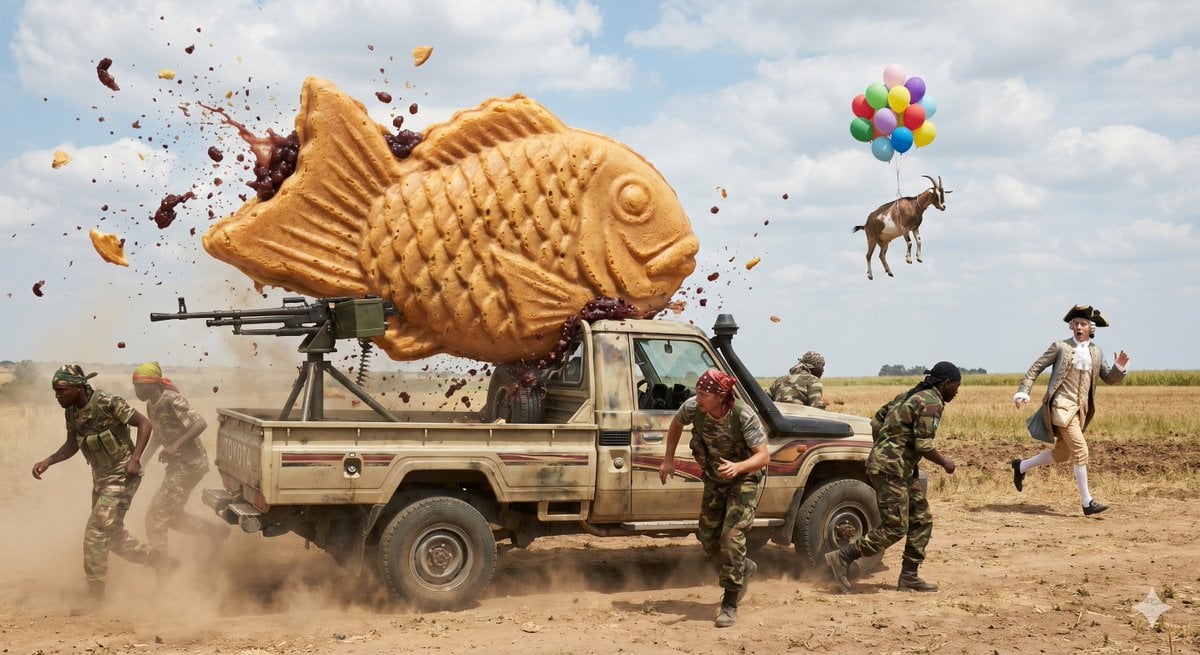
Technical Vehicle with Machine Gun
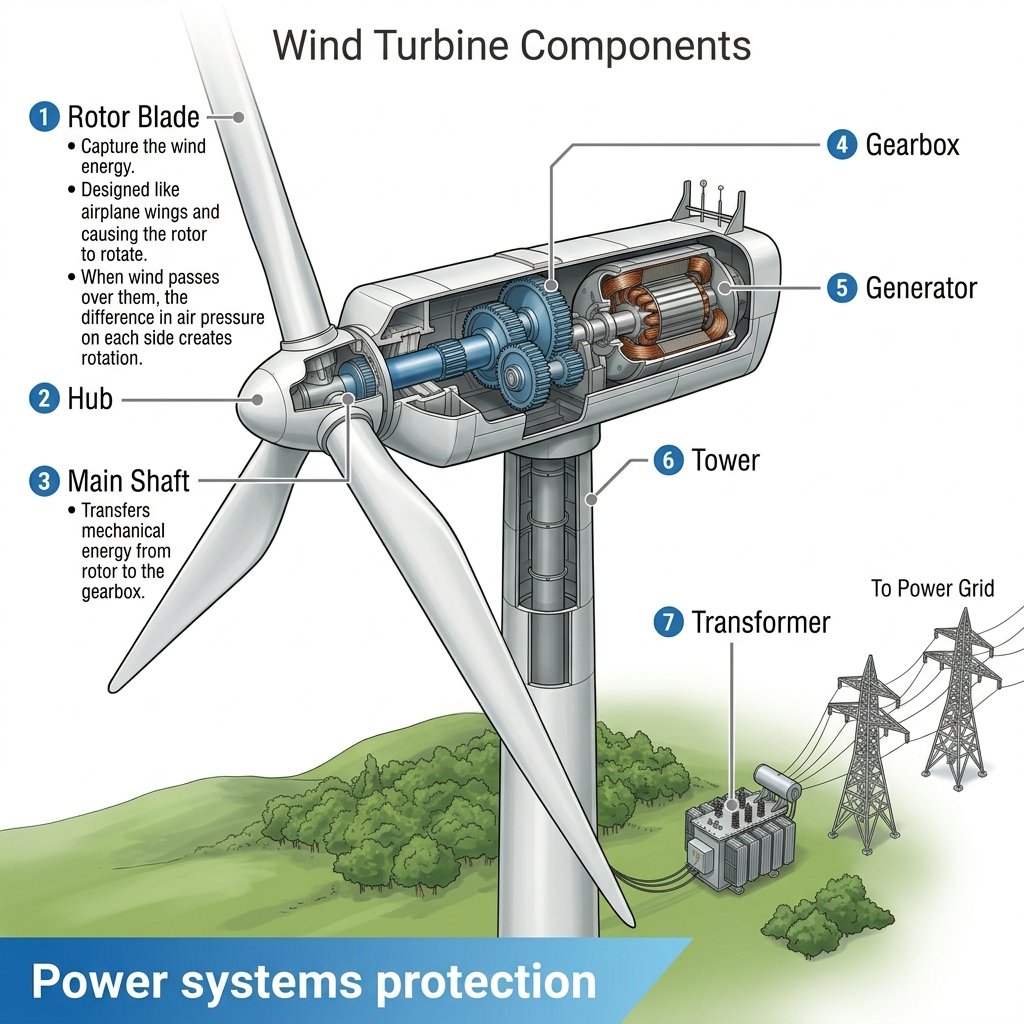
Wind Turbine Technical Schematic
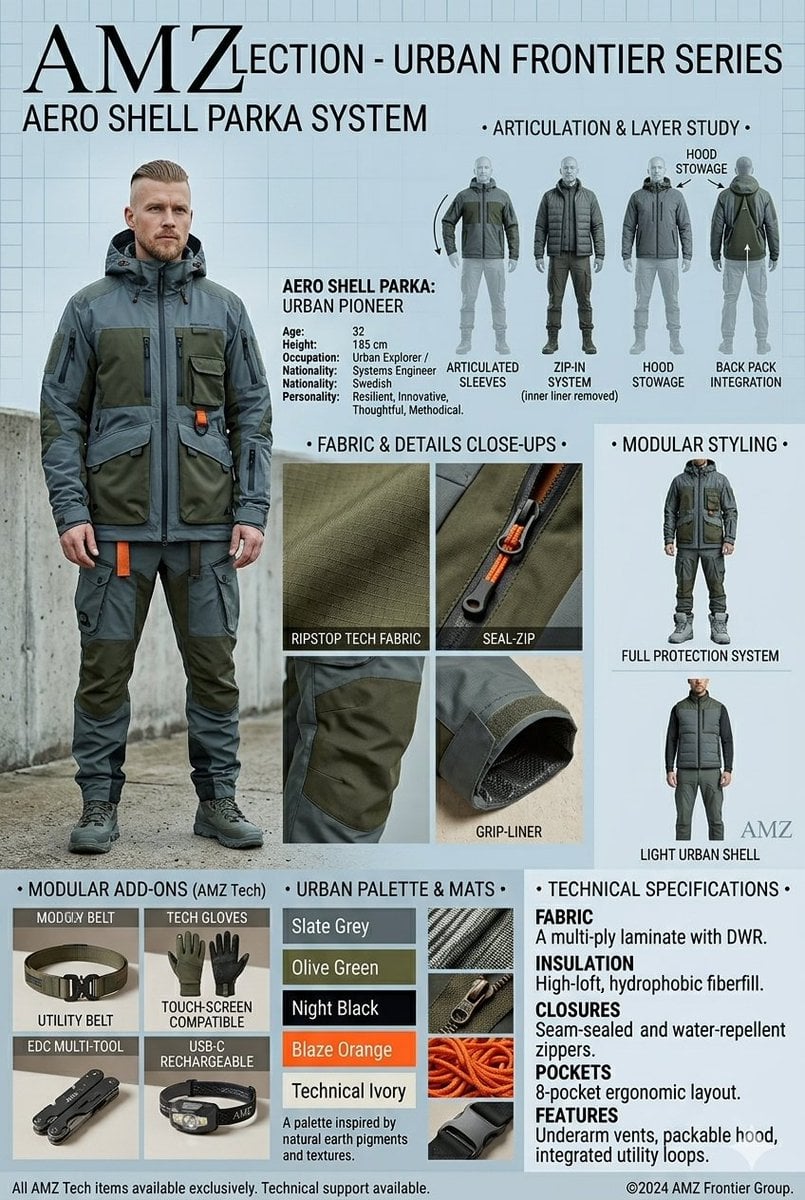
Technical Outerwear Design Sheet
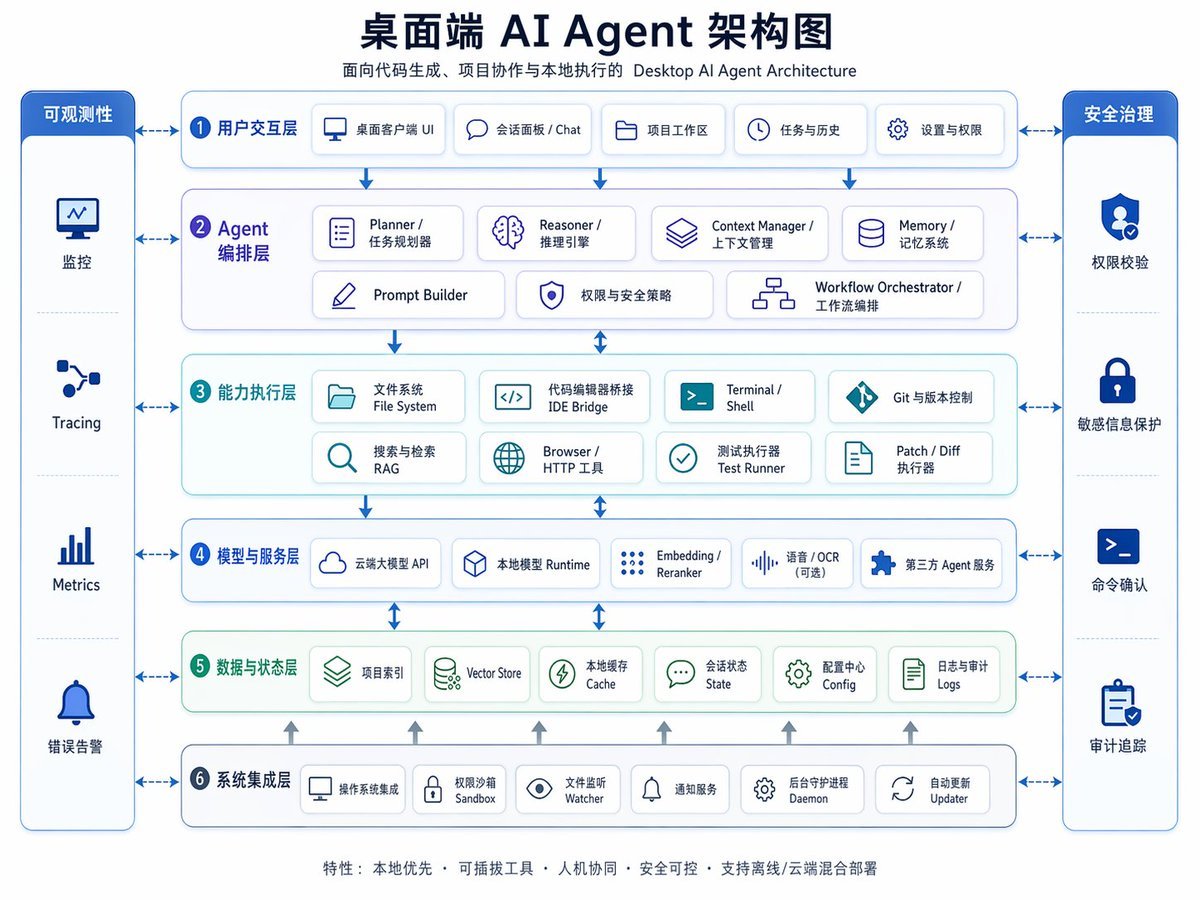
Desktop AI Agent Architecture Diagram
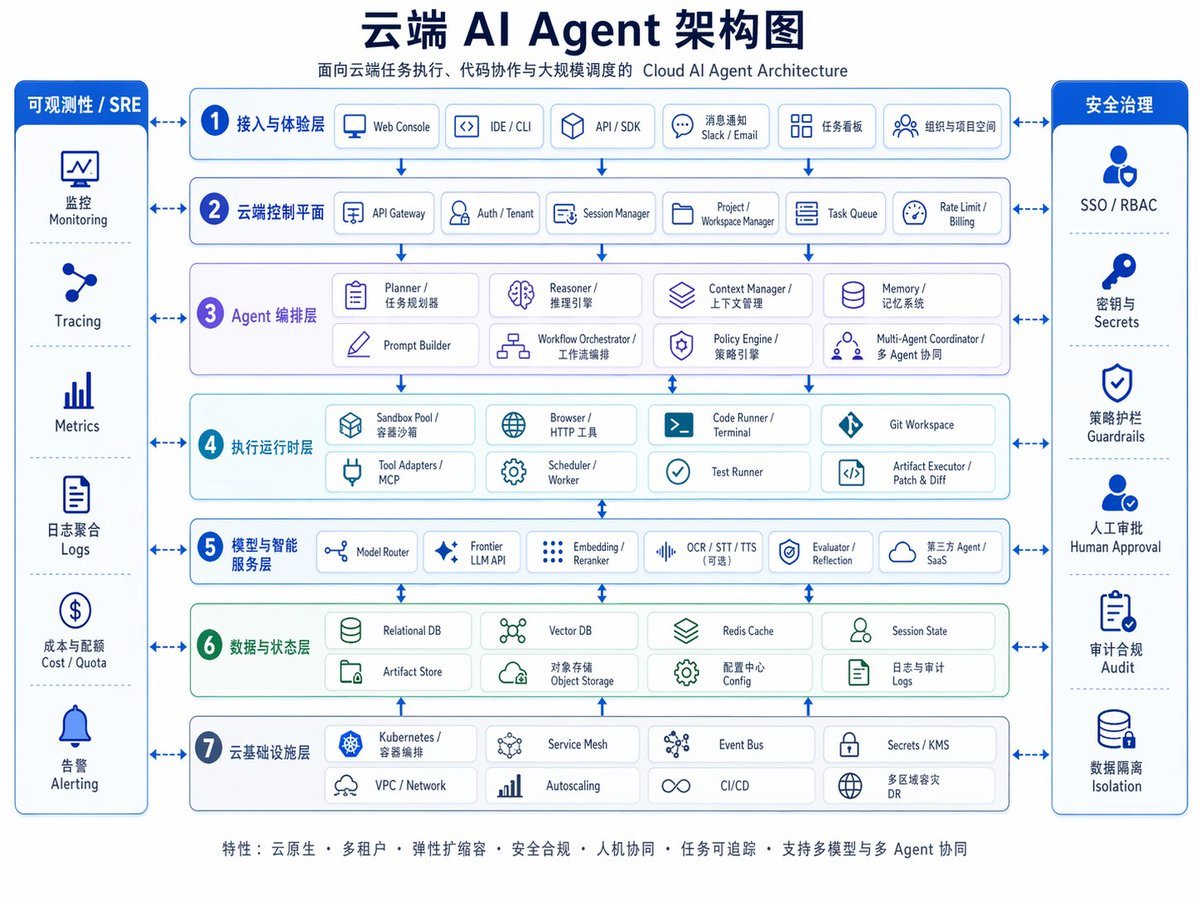
Cloud AI Agent Architecture Diagram
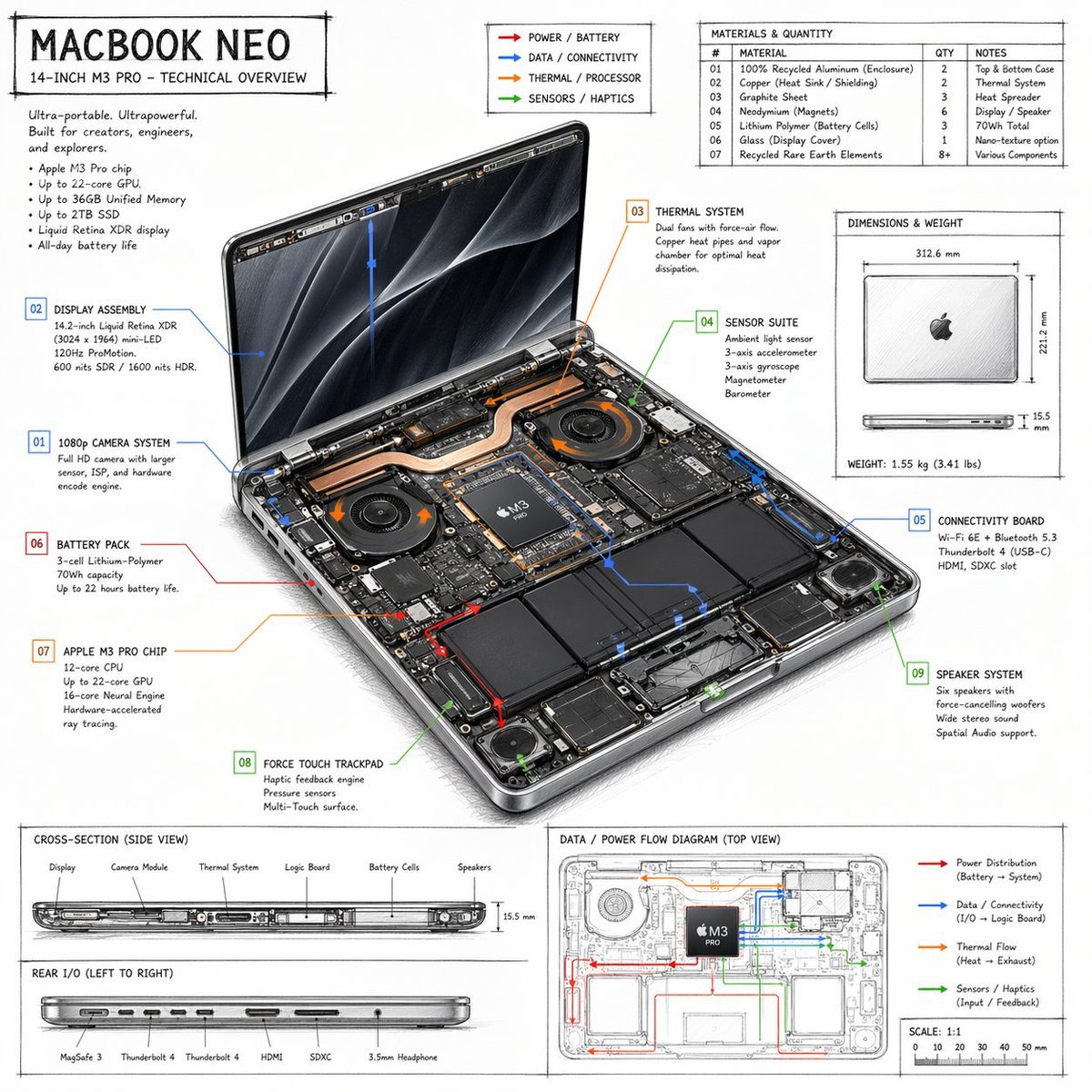
Laptop Technical Overview Infographic
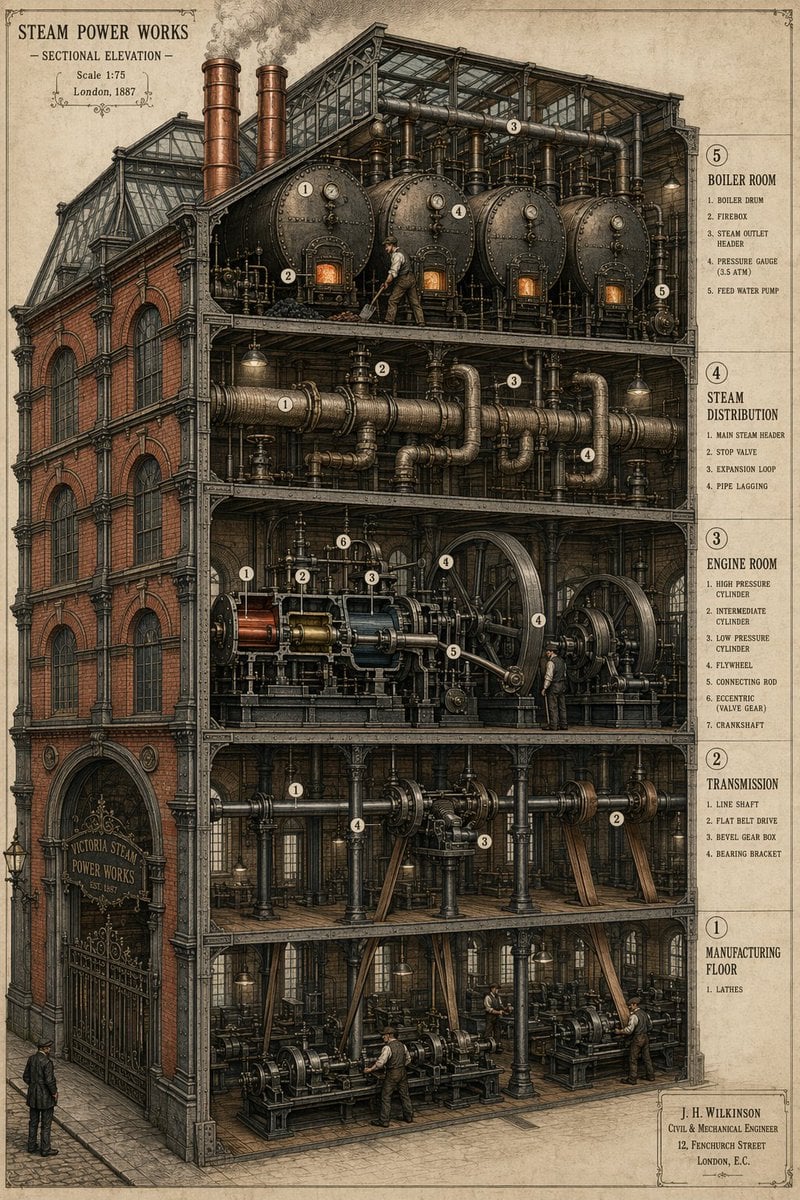
Victorian Steampunk Engineering Diagram
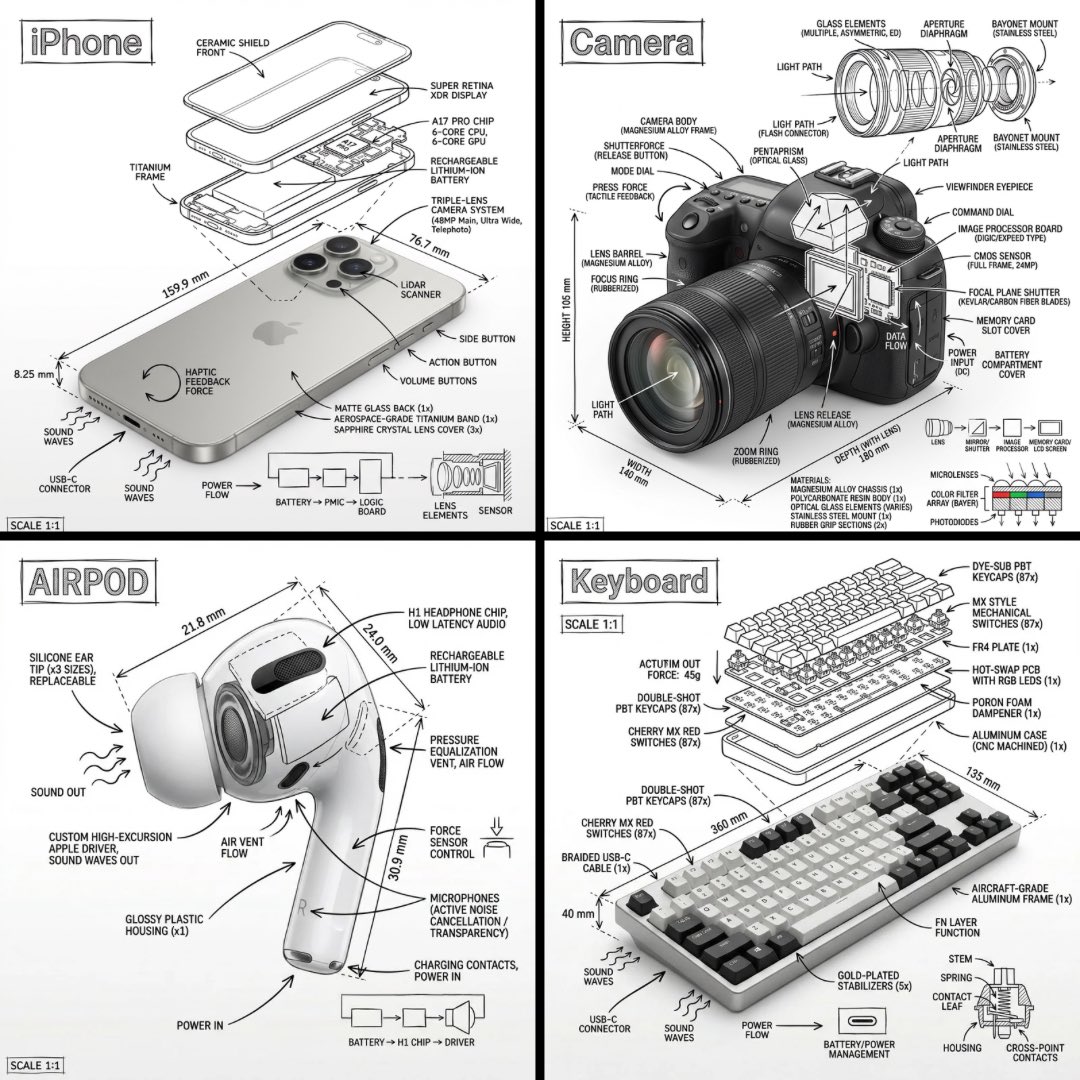
Technical Manual Infographic Style
Make it yours
Character Robotization and Technical Diagram Prompt works as-is. These are the safest ways to change it without losing the look.
Change one field
Copy a single group, rewrite it, and generate again so you can see what that field is doing.
Keep the frame, change the subject
Hold the composition and light of Character Robotization and Technical Diagram Prompt, then swap wardrobe, props or the person for a new take.
| If the result… | Why | Fix |
|---|---|---|
| The result drifts from the preview | Too many fields changed at once. | Reuse Character Robotization and Technical Diagram Prompt as-is first, then change one group — subject, light, or setting. |
| The model over-stylizes the scene | The prose prompt leaves finish and camera underspecified. | Add one camera or lighting sentence and stay on Nano Banana 2. |
More Nano Banana 2 templates
Other prompts made for Nano Banana 2.

Photorealistic Leaf Shaped Like a Dragon

K-Pop Idol Portrait Grid for Rapid Selection

Poetic Rain Forest Portrait During Golden Hour

Urban Street Portrait with Cartoon Inner Self Duo

Candid Nighttime Photo with Cat Prompt

High-Concept 3D Diorama Generation Prompt

Cinematic Futuristic Studio Portrait Template

Skincare Editorial Photography Collage Prompt

Hyper-Realistic Commercial Product Photography (Splash Effect)

Hyper-Realistic Nightclub Portrait Prompt
More image prompts
Fresh picks from across the catalog.

3x3 Grid Collage of Emotions in 3D Cartoon Style
Nano Banana - Cozy Cafe Night
Fleischer-Style Pony Ride
Golden Hour Goddess Editorial Portrait
Anime Condo Duo Gaming Scene
High-quality portrait upscaling and enhancement
Iridescent Glass Gothic Beauty Portrait
Hyper-Realistic Street View of Man Leaning on BMW
Nano Banana 2 General Image Generation Prompt
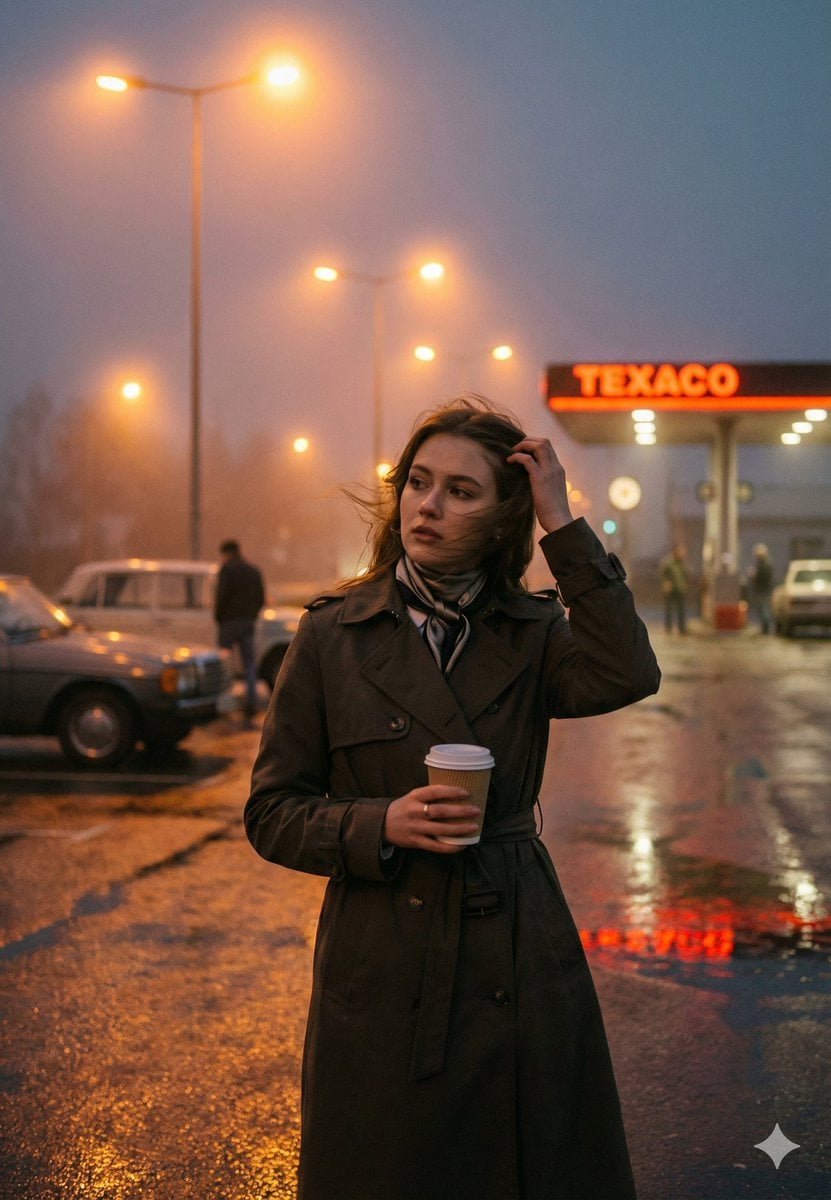
Cinematic Roadside Realism at a Gas Station
Browse template categories
Character Robotization and Technical Diagram Prompt questions
How do I use the Character Robotization and Technical Diagram Prompt template?
Add your photo if the template asks for one, edit the prompt if you like — the template's model and format are already selected — and press Generate. Your version opens in PicX Studio.
Can I customize the Character Robotization and Technical Diagram Prompt template?
Yes. You can change the subject, setting, lighting, mood, format, and available model controls before creating your image.
Is the Character Robotization and Technical Diagram Prompt template free?
Opening and editing this template is free. Generating uses credits, shown on the Generate button when you are signed in.
Which AI model should I use?
Start with Nano Banana 2, which is the model associated with this template. You can compare another compatible model for a different finish.
Looking for something else? Browse all templates.

Your photo, any look
Thousands of ready templates for every top image and video model, from one credit balance.