
Laptop Technical Overview Infographic
A detailed, hand-drawn style technical spec sheet for a laptop, featuring internal component callouts, material tables, and flow diagrams.
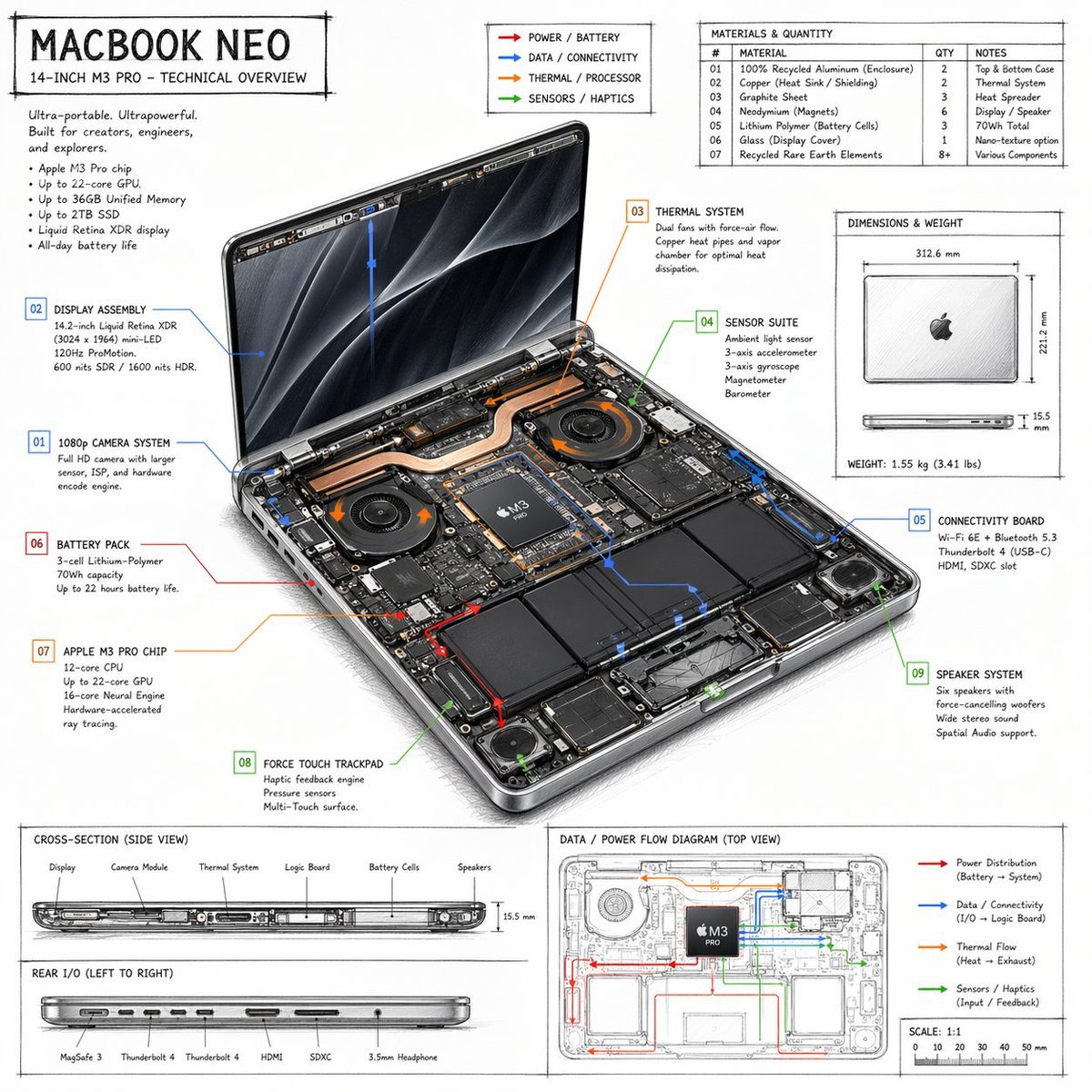
- Prompt included
- Model and format preset
- Free template
The prompt behind this image
Copy the exact prompt behind Laptop Technical Overview Infographic, or open it in the studio and make it yours.
- Type
- technical overview infographic
- Style
- {argument name="visual style" default="hand-drawn technical sketch with clean typography"}
- Product › Name
- {argument name="product name" default="MACBOOK NEO"}
- Product › Subtitle
- 14-INCH {argument name="processor model" default="M3 PRO"} - TECHNICAL OVERVIEW
- Layout › Centerpiece › Description
- isometric view of an opened laptop revealing internal hardware components like dual fans, copper heat pipes, battery cells, and logic board
- Layout › Centerpiece › Callouts Count
- 9
- Layout › Centerpiece › Callout Labels
- 01 1080p CAMERA SYSTEM, 02 DISPLAY ASSEMBLY, 03 THERMAL SYSTEM, 04 SENSOR SUITE, 05 CONNECTIVITY BOARD, 06 BATTERY PACK, 07 {argument name="main component" default="APPLE M3 PRO CHIP"}, 08 FORCE TOUCH TRACKPAD, 09 SPEAKER SYSTEM
- Layout › Sections › 0 › Title
- Header Text
- Layout › Sections › 0 › Position
- top-left
- Layout › Sections › 0 › Content
- Marketing blurb and 5-bullet specification list
- Layout › Sections › 1 › Title
- Legend
- Layout › Sections › 1 › Position
- top-center
- Layout › Sections › 1 › Content
- 4 color-coded arrows indicating {argument name="accent colors" default="red, blue, orange, green"} flow lines for Power, Data, Thermal, and Sensors
- Layout › Sections › 2 › Title
- MATERIALS & QUANTITY
- Layout › Sections › 2 › Position
- top-right
- Layout › Sections › 2 › Type
- table
- Layout › Sections › 2 › Rows Count
- 7
- Layout › Sections › 2 › Columns
- #, MATERIAL, QTY, NOTES
- Layout › Sections › 3 › Title
- DIMENSIONS & WEIGHT
- Layout › Sections › 3 › Position
- mid-right
- Layout › Sections › 3 › Content
- Top and side views of closed laptop with measurements
- Layout › Sections › 4 › Title
- CROSS-SECTION (SIDE VIEW)
- Layout › Sections › 4 › Position
- bottom-left (top half)
- Layout › Sections › 4 › Content
- Side profile showing internal component layout with 6 labels
Raw JSON
{
  "type": "technical overview infographic",
  "style": "{argument name=\"visual style\" default=\"hand-drawn technical sketch with clean typography\"}",
  "product": {
    "name": "{argument name=\"product name\" default=\"MACBOOK NEO\"}",
    "subtitle": "14-INCH {argument name=\"processor model\" default=\"M3 PRO\"} - TECHNICAL OVERVIEW"
  },
  "layout": {
    "centerpiece": {
      "description": "isometric view of an opened laptop revealing internal hardware components like dual fans, copper heat pipes, battery cells, and logic board",
      "callouts_count": 9,
      "callout_labels": [
        "01 1080p CAMERA SYSTEM",
        "02 DISPLAY ASSEMBLY",
        "03 THERMAL SYSTEM",
        "04 SENSOR SUITE",
        "05 CONNECTIVITY BOARD",
        "06 BATTERY PACK",
        "07 {argument name=\"main component\" default=\"APPLE M3 PRO CHIP\"}",
        "08 FORCE TOUCH TRACKPAD",
        "09 SPEAKER SYSTEM"
      ]
    },
    "sections": [
      {
        "title": "Header Text",
        "position": "top-left",
        "content": "Marketing blurb and 5-bullet specification list"
      },
      {
        "title": "Legend",
        "position": "top-center",
        "content": "4 color-coded arrows indicating {argument name=\"accent colors\" default=\"red, blue, orange, green\"} flow lines for Power, Data, Thermal, and Sensors"
      },
      {
        "title": "MATERIALS & QUANTITY",
        "position": "top-right",
        "type": "table",
        "rows_count": 7,
        "columns": ["#", "MATERIAL", "QTY", "NOTES"]
      },
      {
        "title": "DIMENSIONS & WEIGHT",
        "position": "mid-right",
        "content": "Top and side views of closed laptop with measurements"
      },
      {
        "title": "CROSS-SECTION (SIDE VIEW)",
        "position": "bottom-left (top half)",
        "content": "Side profile showing internal component layout with 6 labels"
      },
      {
        "title": "REAR I/O (LEFT TO RIGHT)",
        "position": "bottom-left (bottom half)",
        "content": "Side profile showing 6 ports"
      },
      {
        "title": "DATA / POWER FLOW DIAGRAM (TOP VIEW)",
        "position": "bottom-right",
        "content": "Wireframe top-down view with colored flow lines, legend, and scale bar"
      }
    ]
  }
}How to use Laptop Technical Overview Infographic in 3 steps
- 1Upload ImagePNG, JPG or paste
Add your photo
Upload the photo the template builds on. The prompt, model and format are already set.
- 2…a portrait of your subject in softgolden-hour light, 85mm…
Personalize
Edit the subject and creative details for your destination.
- 3Generate
Generate
Press Generate — your image is created in PicX Studio, so you can compare it with the original and refine one variable at a time.
More like this
Templates with the same subject, style or setup. Open one to see its prompt.

Isometric Vehicle Teardown Infographic Template
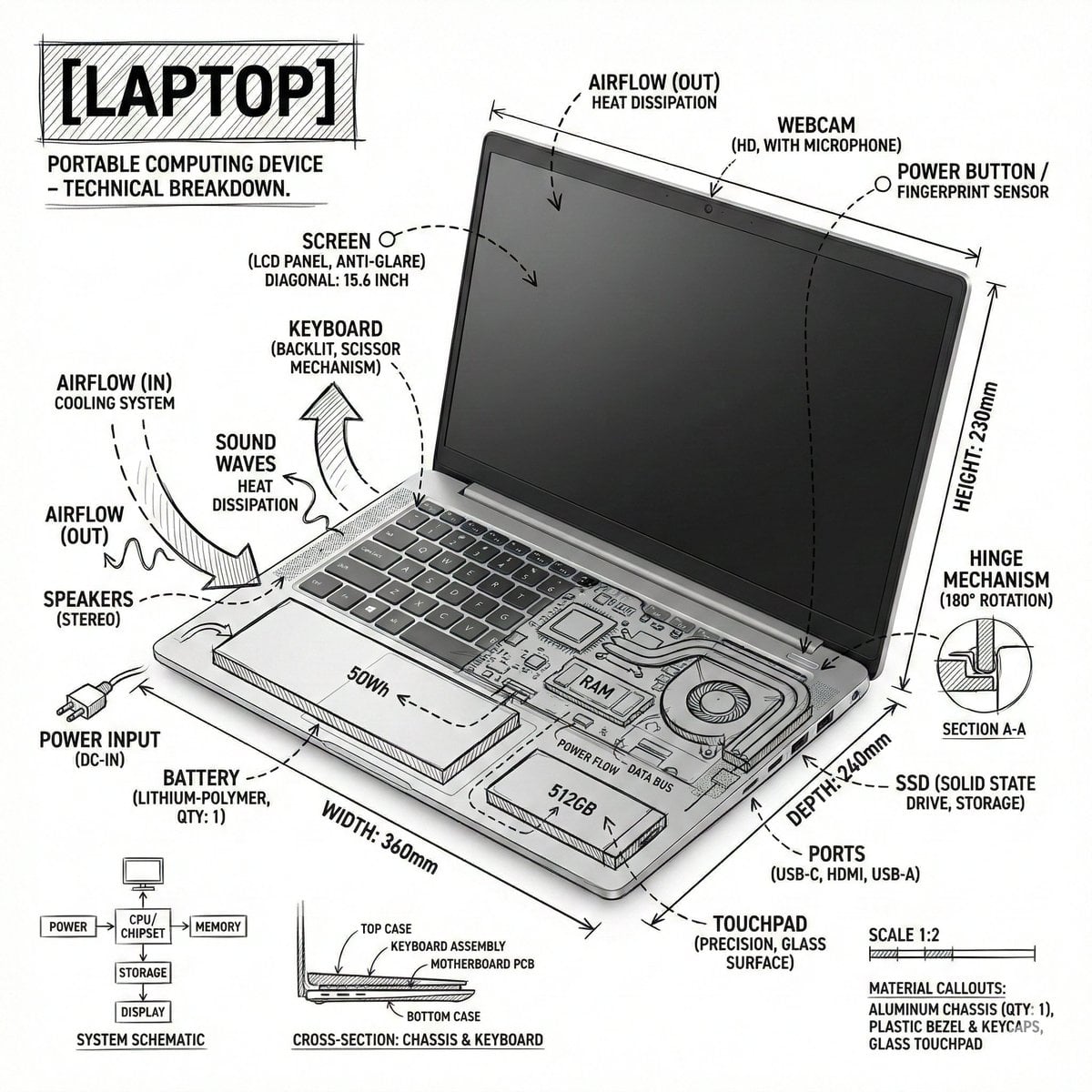
Technical Laptop Infographic Illustration
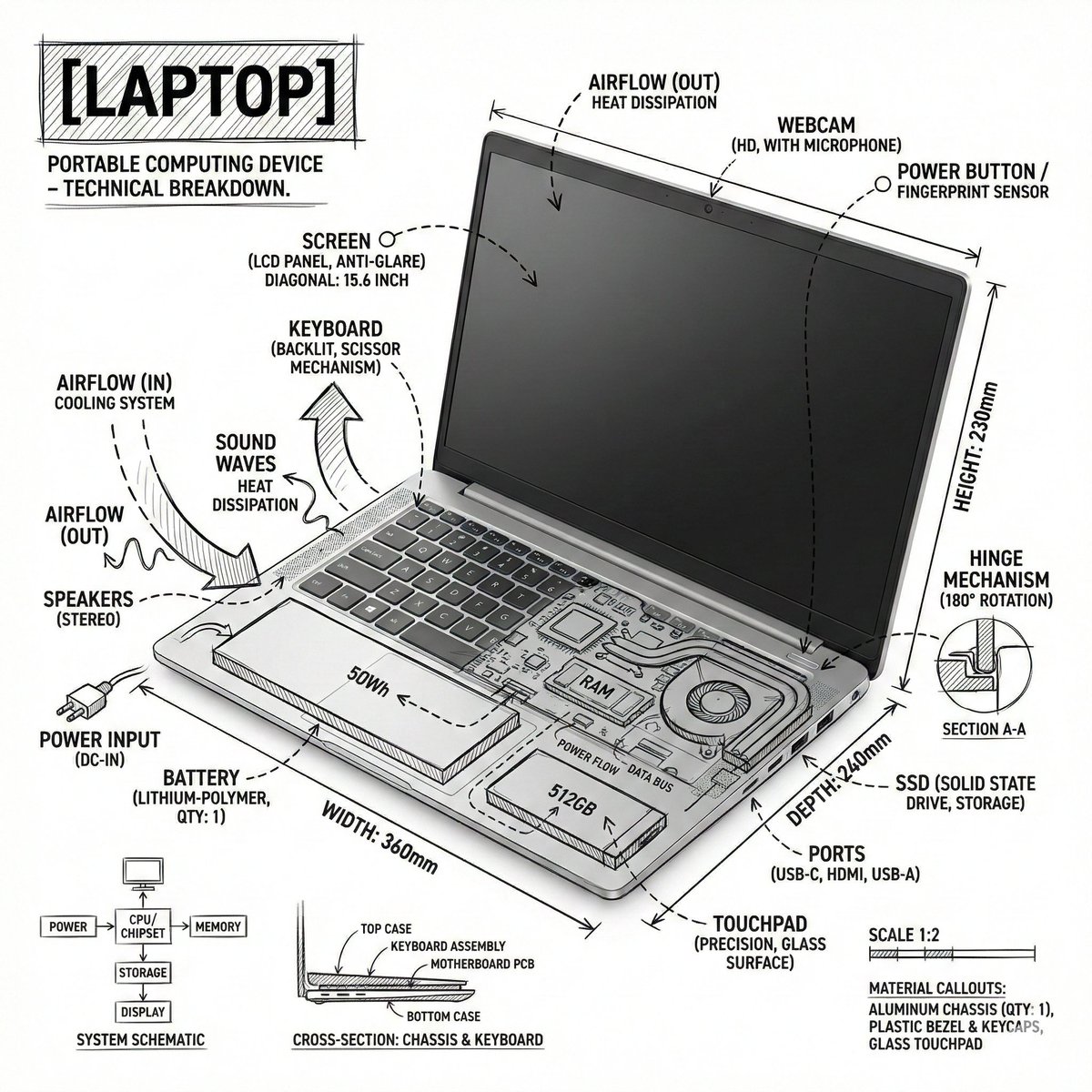
Technical Infographic Overlay on a Laptop Image

Japan Travel Brochure Poster

Isometric Process Educational Diorama

Gpt2 E Commerce Main Image Earbuds E Commerce Infographic
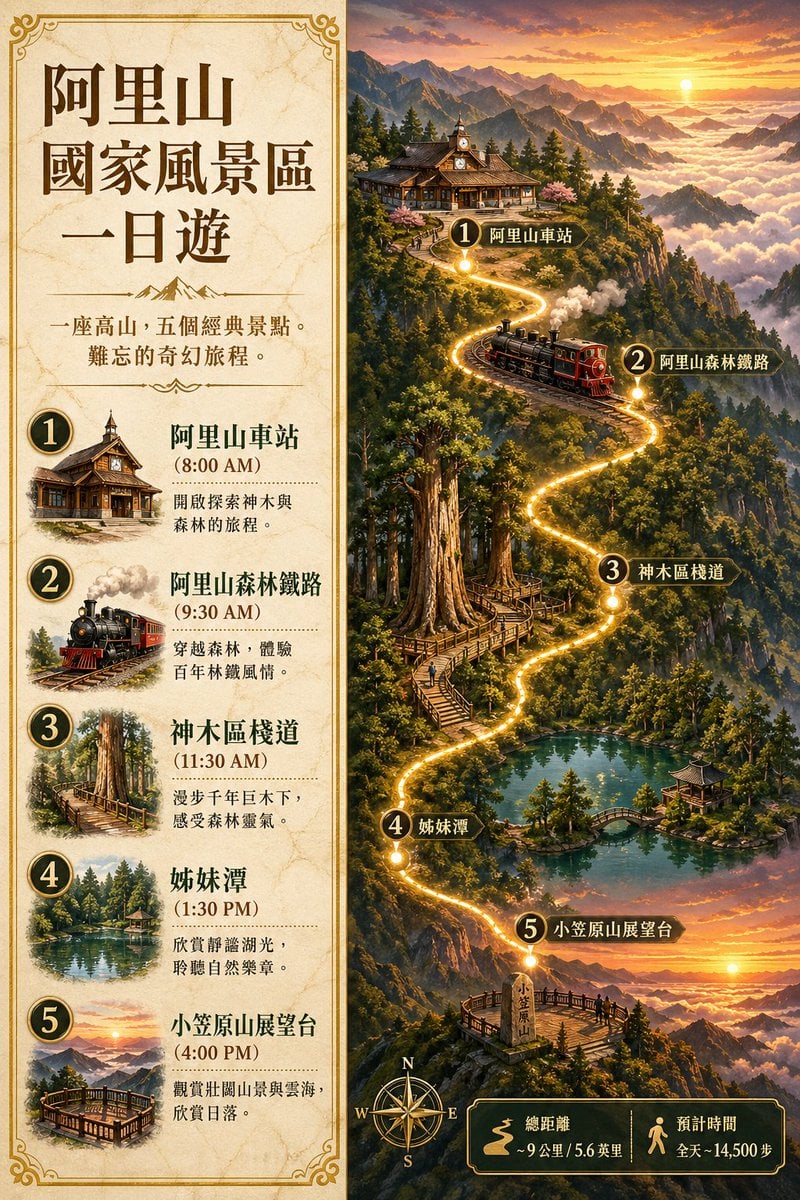
Gpt2 Infographic Edu Visual Alishan One Day Travel Poster

Gpt2 Infographic Edu Visual Ethnographic Plate for Tibetan Ceremonial Hat
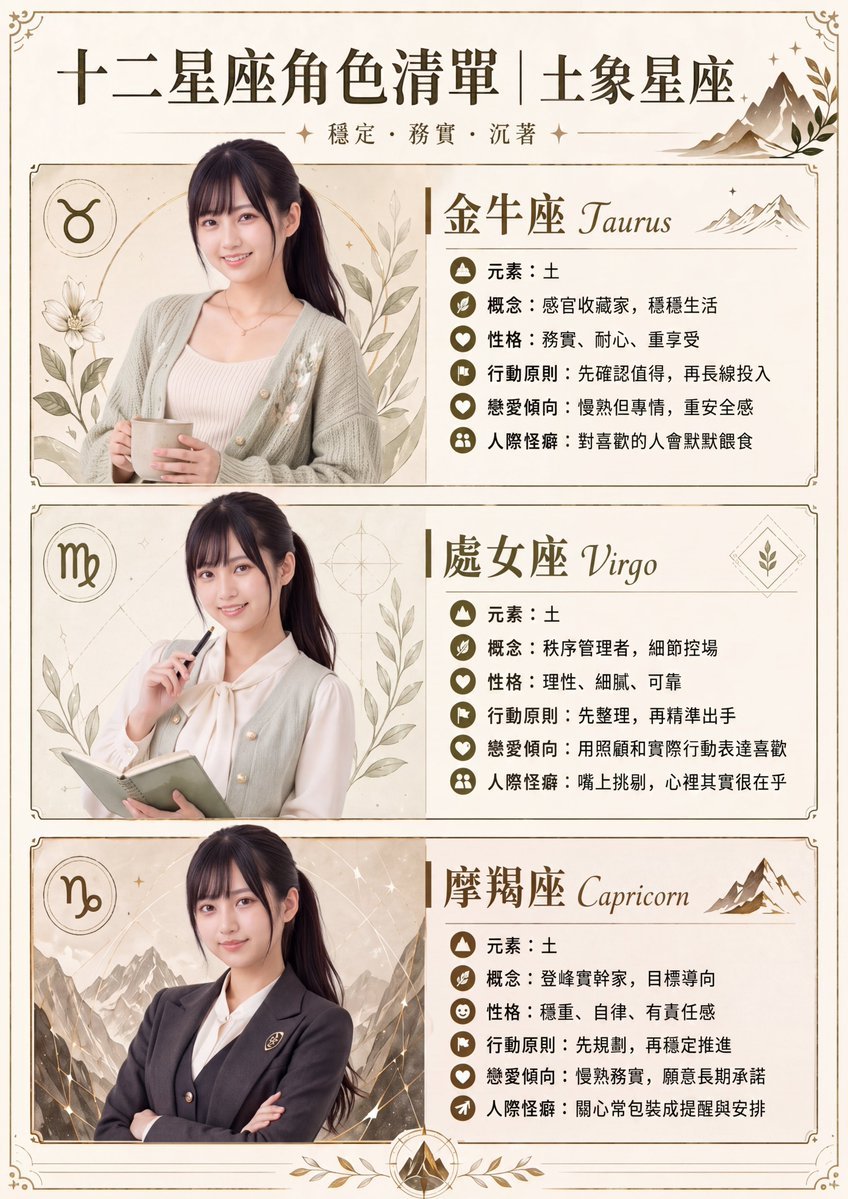
Gpt2 Infographic Edu Visual Earth Signs Zodiac Character Poster
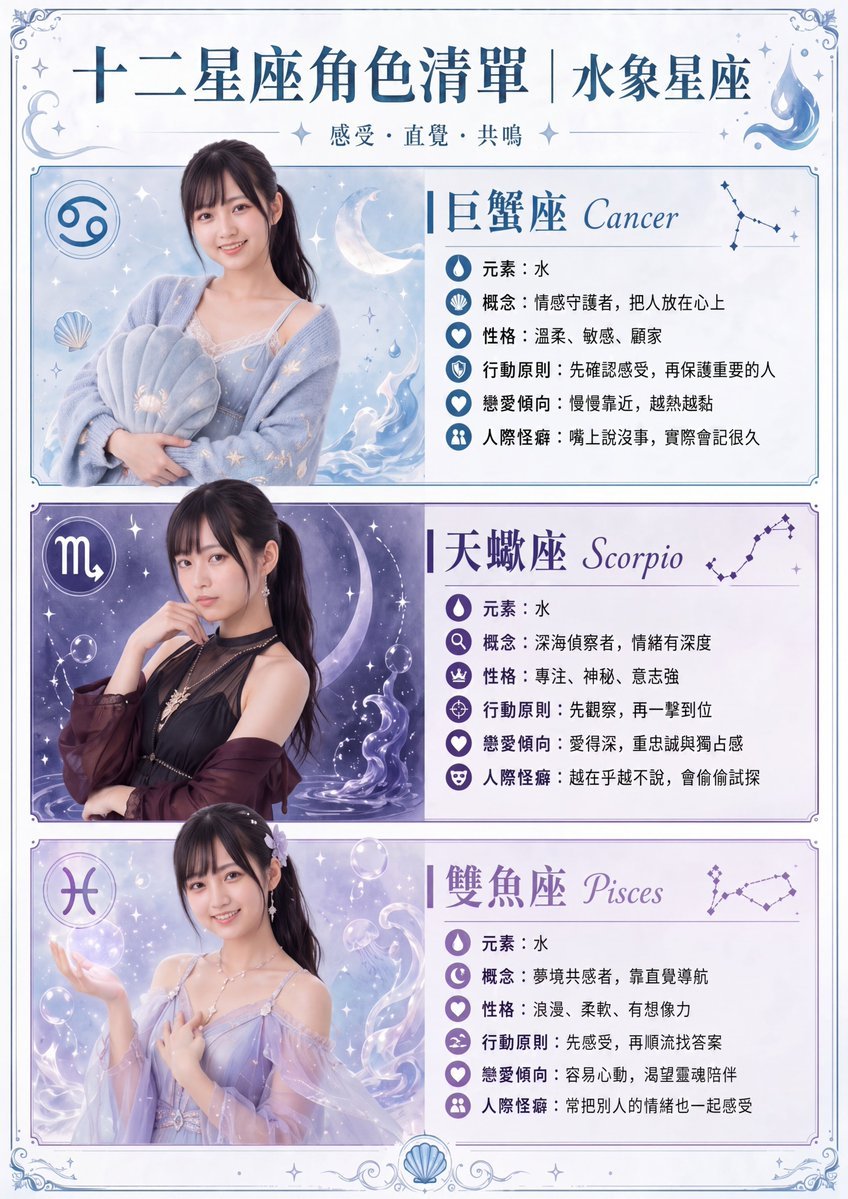
Gpt2 Infographic Edu Visual Water Signs Zodiac Character Poster
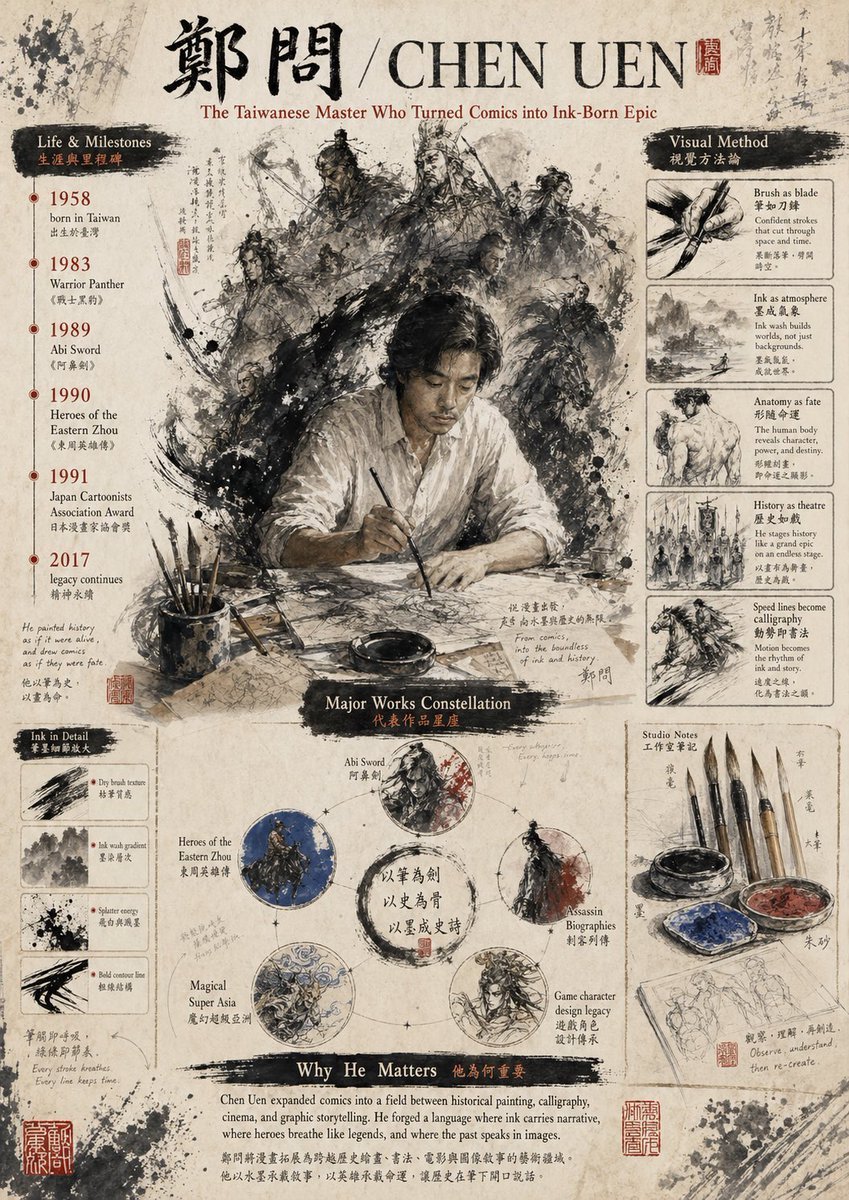
Gpt2 Infographic Edu Visual Ink Wash Tribute Poster for Chen Uen
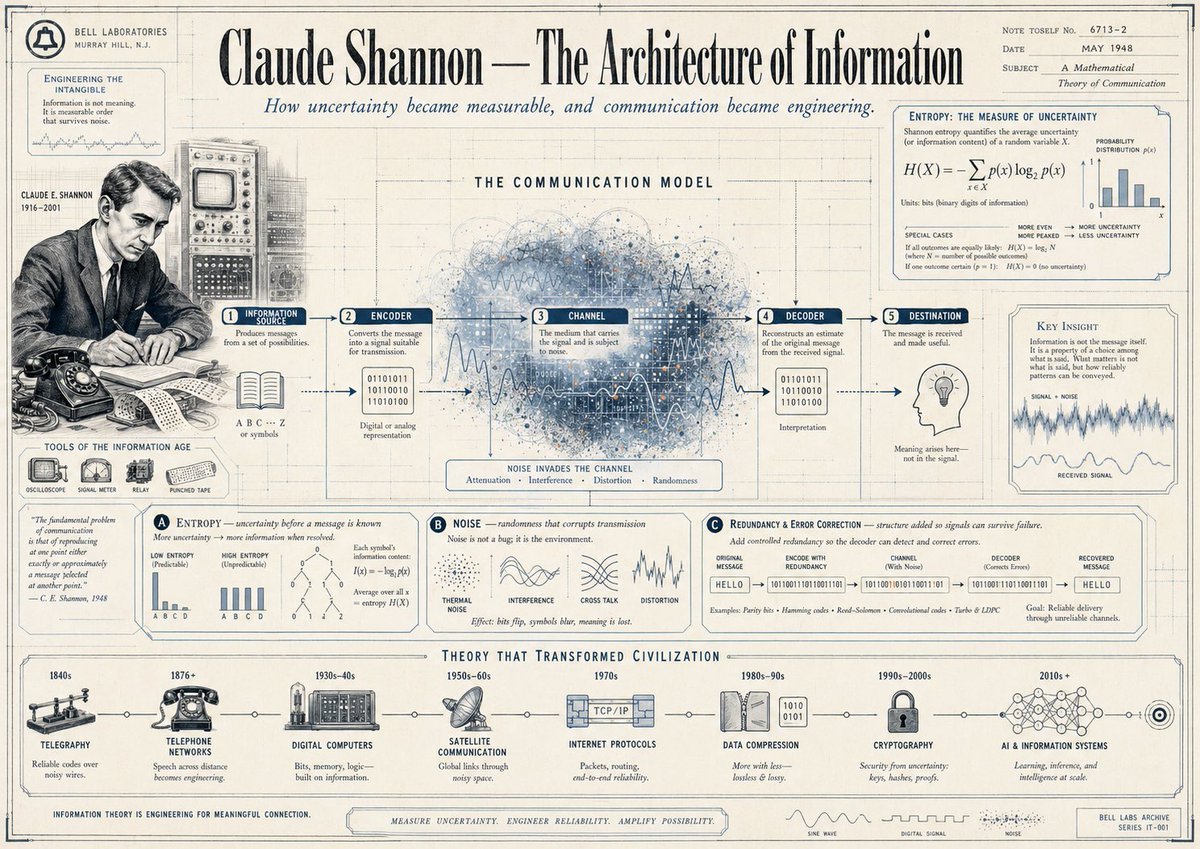
Gpt2 Infographic Edu Visual Vintage Claude Shannon Infographic Poster
Make it yours
Laptop Technical Overview Infographic works as-is. These are the safest ways to change it without losing the look.
Change one field
Copy a single group, rewrite it, and generate again so you can see what that field is doing.
Keep the frame, change the subject
Hold the composition and light of Laptop Technical Overview Infographic, then swap wardrobe, props or the person for a new take.
| If the result… | Why | Fix |
|---|---|---|
| The result drifts from the preview | Too many fields changed at once. | Reuse Laptop Technical Overview Infographic as-is first, then change one group — subject, light, or setting. |
| GPT Image 2 ignores part of the JSON | Some models flatten or skip nested keys. | Keep the same values and paste them as a short paragraph instead. |
More GPT Image 2 templates
Other prompts made for GPT Image 2.

Six VTuber Japanese Logo Sheet

Realistic Portrait of Woman and Deer

The Vista Modular Condo Poster

AI Model Routing Comparison Infographic

2.5D Anime Art Board

Isometric Productivity Desk Scene

New York Double Exposure Poster

Four-Panel AI Landscape Comparison

Japanese Tatami Lifestyle Magazine Cover

NESCAFÉ Coffee Map Poster
More image prompts
Fresh picks from across the catalog.

High-Fashion Cinematic Shot: Suit vs. Farmwear
Dopamine and schizophrenia synapse diagram
Mechanical Keyboard Keycap Product Photography Prompt

AI Haiga (Haiku Painting) Generation
Cinematic rooftop portrait from reference photos

Luxury Skincare Product Photography

Censored Tokyo Rooftop Night Portrait

Photoreal Istanbul Romance with Identity Lock

Cinematic Nightclub Portrait with Neon Lights Prompt

Godzilla in Tokyo Skytree District, 70s Style
Browse template categories
Laptop Technical Overview Infographic questions
How do I use the Laptop Technical Overview Infographic template?
Add your photo if the template asks for one, edit the prompt if you like — the template's model and format are already selected — and press Generate. Your version opens in PicX Studio.
Can I customize the Laptop Technical Overview Infographic template?
Yes. You can change the subject, setting, lighting, mood, format, and available model controls before creating your image.
Is the Laptop Technical Overview Infographic template free?
Opening and editing this template is free. Generating uses credits, shown on the Generate button when you are signed in.
Which AI model should I use?
Start with GPT Image 2, which is the model associated with this template. You can compare another compatible model for a different finish.
Looking for something else? Browse all templates.

Your photo, any look
Thousands of ready templates for every top image and video model, from one credit balance.