
Wind Turbine Technical Schematic
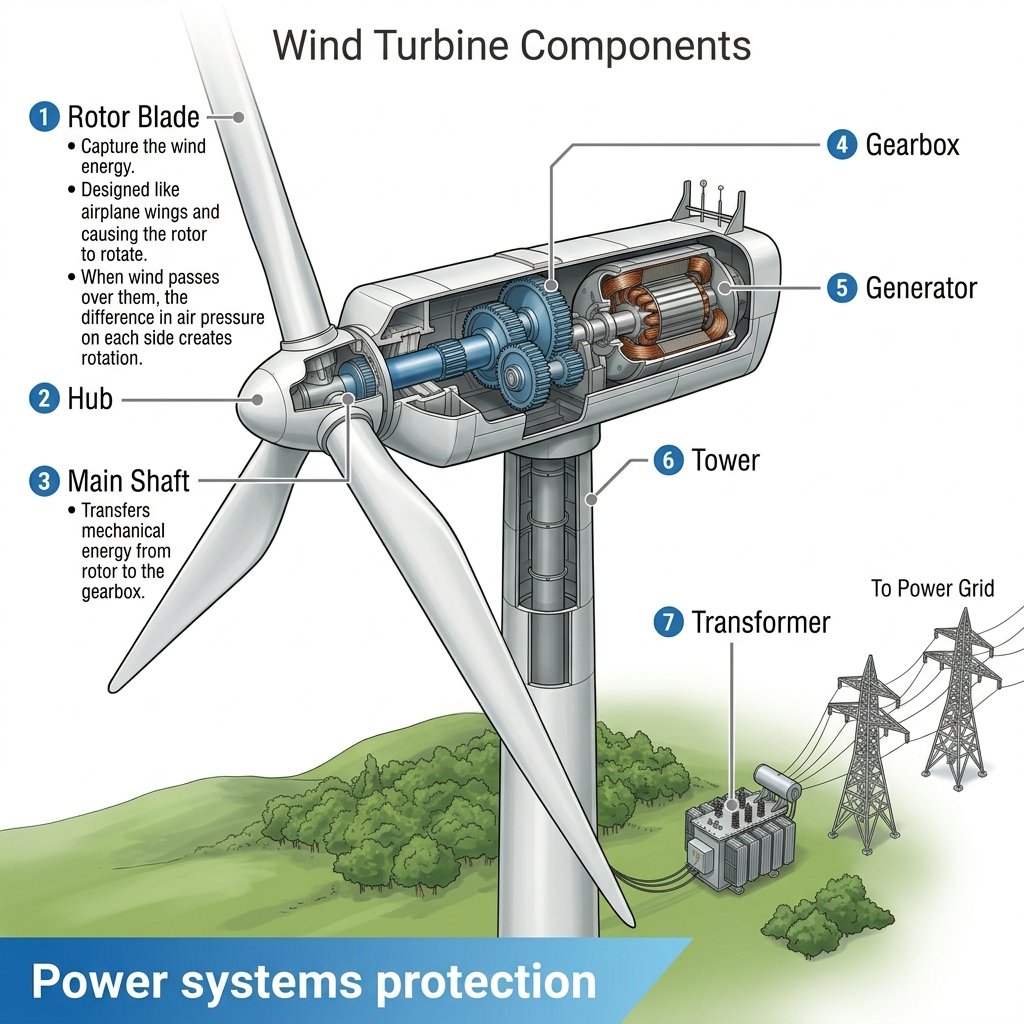
A detailed 3D technical illustration of a wind turbine, showing its cross-section and internal components in a professional schematic style.
- Prompt included
- Model and format preset
- Free template
The prompt behind this image
Copy the exact prompt behind Wind Turbine Technical Schematic, or open it in the studio and make it yours.
An intricate, highly detailed and clean 3D illustration and cross-section diagram of a massive horizontal-axis wind turbine, rendered on a crisp white background with a ground landscape and a distant power grid. The style is an illustrative technical schematic with clear lines and subtle textures. The overall title, positioned at the top-center in a professional sans-serif font, is "{argument name="title" default="Wind Turbine Components"}". The composition is dominated by the tall turbine, which is positioned slightly to the left, and its cutaway nacelle. The turbine stands on a detailed gray modular tower (Component 6), which rests on a ground plane of green rolling hills and foliage, alongside a detailed grey Transformer (Component 7). To the far right, two detailed steel lattice power pylons connect the transformer via high-voltage lines, labeled "To Power Grid". At the top of the tower sits the large nacelle, with a detailed internal cutaway revealing a visible multi-stage Gearbox (Component 4) with internal blue gears and a complex copper-coil Generator (Component 5), both cut to show their internal structure. The Generator housing is cut away to show the stator and rotor coils. Leading from the front is the Hub (Component 2), connecting three enormous, clean white aerodynamically-shaped Rotor Blades (Component 1) (labeled with bullet points: "Capture the wind energy.", "Designed like airplane wings...", "When wind passes over them..."). Inside the cutaway, the Hub leads to a detailed blue Main Shaft (Component 3, labeled with bullet points: "Transfers mechanical energy from rotor to the gearbox.", "Uses Direct Drive in some modern turbines.") that connects to the Gearbox. Multiple distinct, precise gray call-out lines with blue circular numbered bullet points (1 through 7) and corresponding text blocks are positioned around the diagram, connected to specific components. A large, blue-to-white gradient angled banner at the bottom-left features the bold, white text "{argument name="banner text" default="Power systems protection"}". The text for each component and its function is perfectly transcribed and legible as in image_1.png. The entire scene is sharply focused, like a technical patent illustration, with clean lighting.
How to use Wind Turbine Technical Schematic in 3 steps
- 1
Open
The prompt is already in the box next to the preview, with the template's model and format selected.
- 2…a portrait of your subject in softgolden-hour light, 85mm…
Personalize
Edit the subject and creative details for your destination.
- 3Generate
Generate
Press Generate — your image is created in PicX Studio, so you can compare it with the original and refine one variable at a time.
More like this
Templates with the same subject, style or setup. Open one to see its prompt.

Isometric Vehicle Teardown Infographic Template
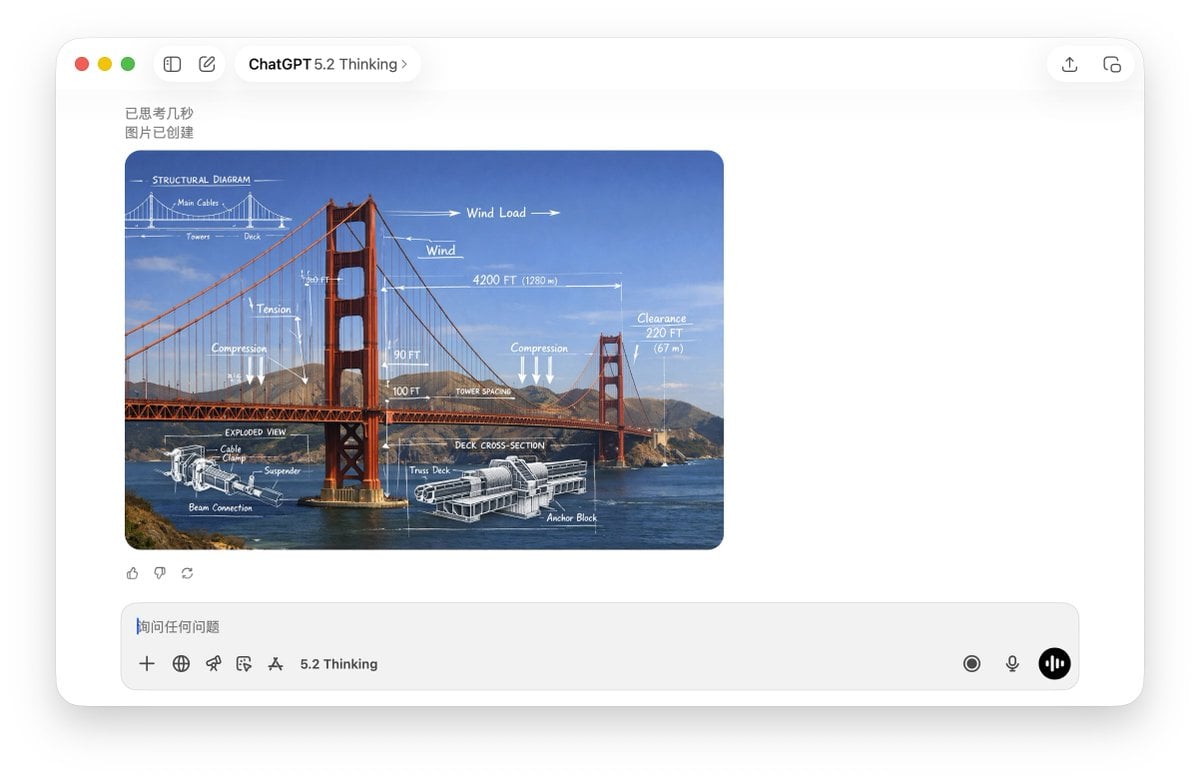
Technical Schematic Overlay Prompt
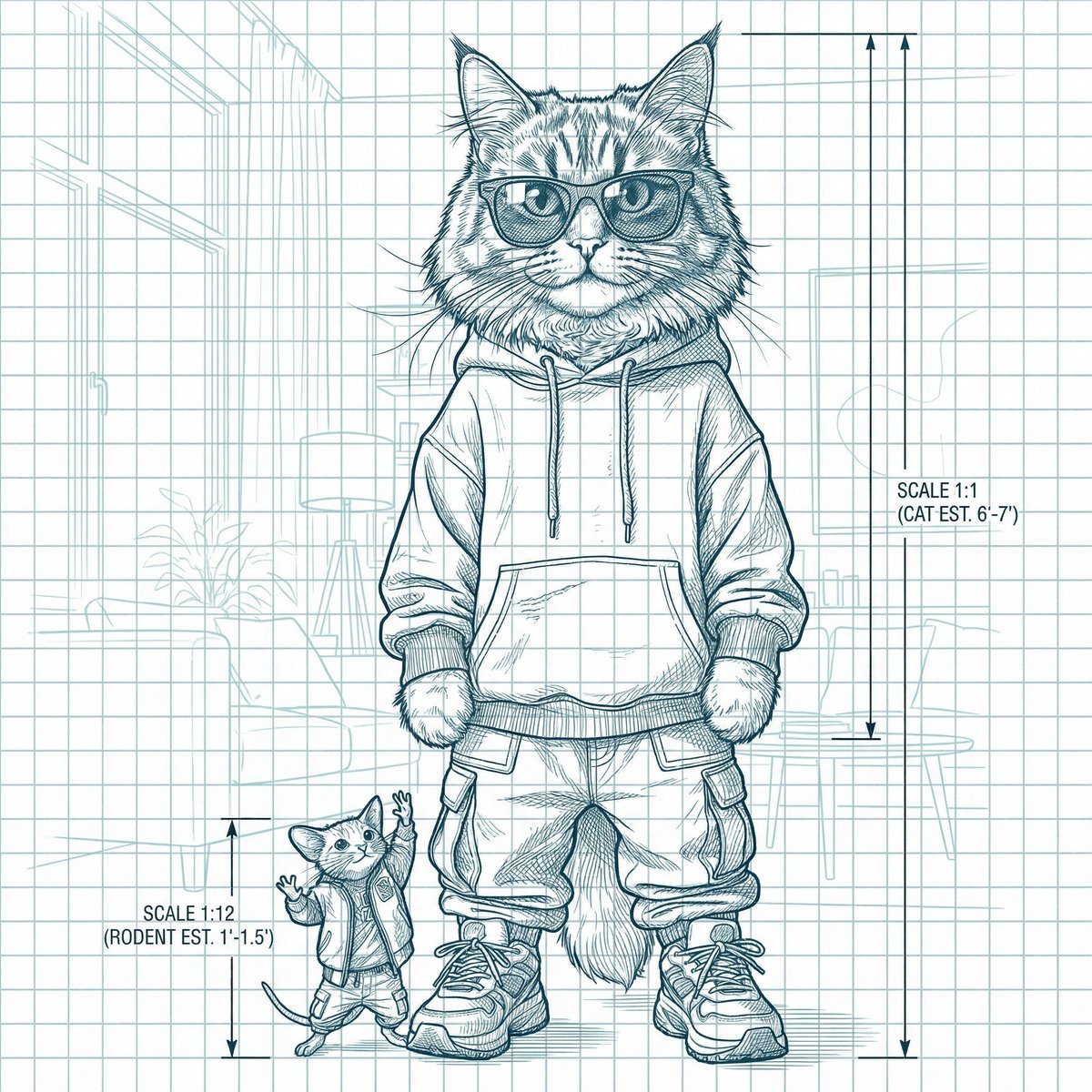
Blueprint-style technical schematic generation
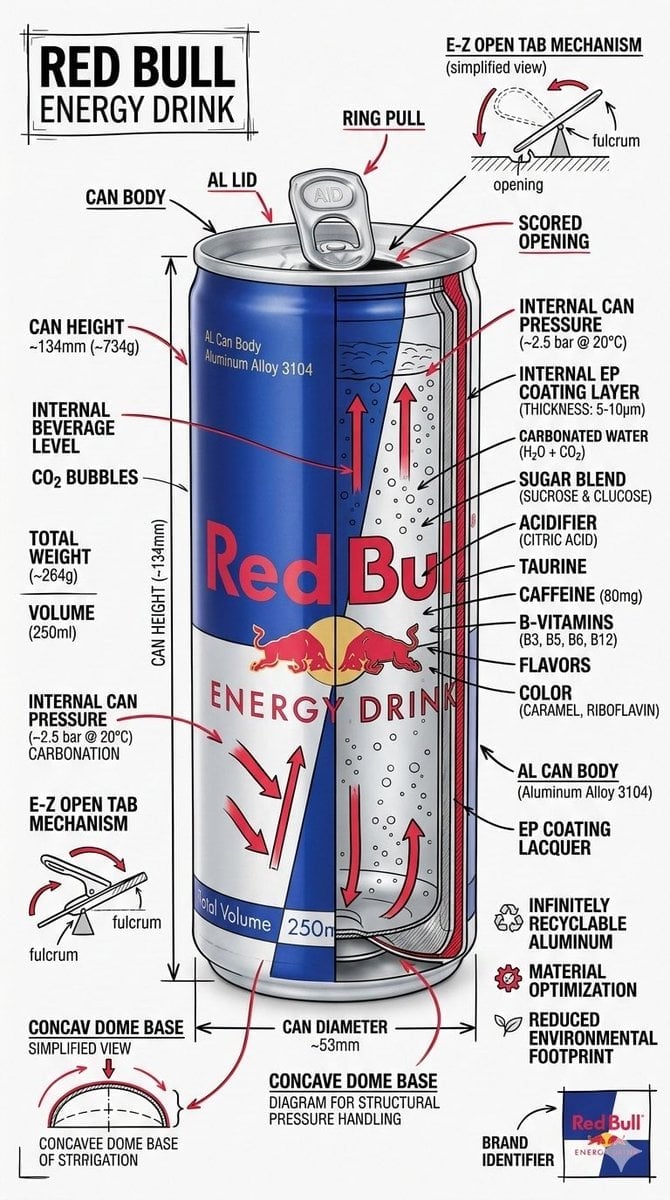
Technical Infographic Schematic for a Product/Beverage

Ultra Wide Low-Angle Portrait — Sairah (Nano Banana)

Fireworks Inside a Wind Chime
Futuristic Glass Turbine Engine
Black Wind Fashion Portrait

Tsuki at the Wind Chime Market

Dreamy Sunlit Window Portrait
Striped Window Shadow Editorial

Technical Vehicle with Machine Gun
Make it yours
Wind Turbine Technical Schematic works as-is. These are the safest ways to change it without losing the look.
Change one field
Copy a single group, rewrite it, and generate again so you can see what that field is doing.
Keep the frame, change the subject
Hold the composition and light of Wind Turbine Technical Schematic, then swap wardrobe, props or the person for a new take.
| If the result… | Why | Fix |
|---|---|---|
| The result drifts from the preview | Too many fields changed at once. | Reuse Wind Turbine Technical Schematic as-is first, then change one group — subject, light, or setting. |
| The model over-stylizes the scene | The prose prompt leaves finish and camera underspecified. | Add one camera or lighting sentence and stay on Nano Banana 2. |
More Nano Banana 2 templates
Other prompts made for Nano Banana 2.

Photorealistic Leaf Shaped Like a Dragon

K-Pop Idol Portrait Grid for Rapid Selection

Poetic Rain Forest Portrait During Golden Hour

Urban Street Portrait with Cartoon Inner Self Duo

Candid Nighttime Photo with Cat Prompt

High-Concept 3D Diorama Generation Prompt

Cinematic Futuristic Studio Portrait Template

Skincare Editorial Photography Collage Prompt

Hyper-Realistic Commercial Product Photography (Splash Effect)

Hyper-Realistic Nightclub Portrait Prompt
More image prompts
Fresh picks from across the catalog.

Minimalist Corporate Portrait Sprite Sheet
Dreamy Nemophila Date Portrait
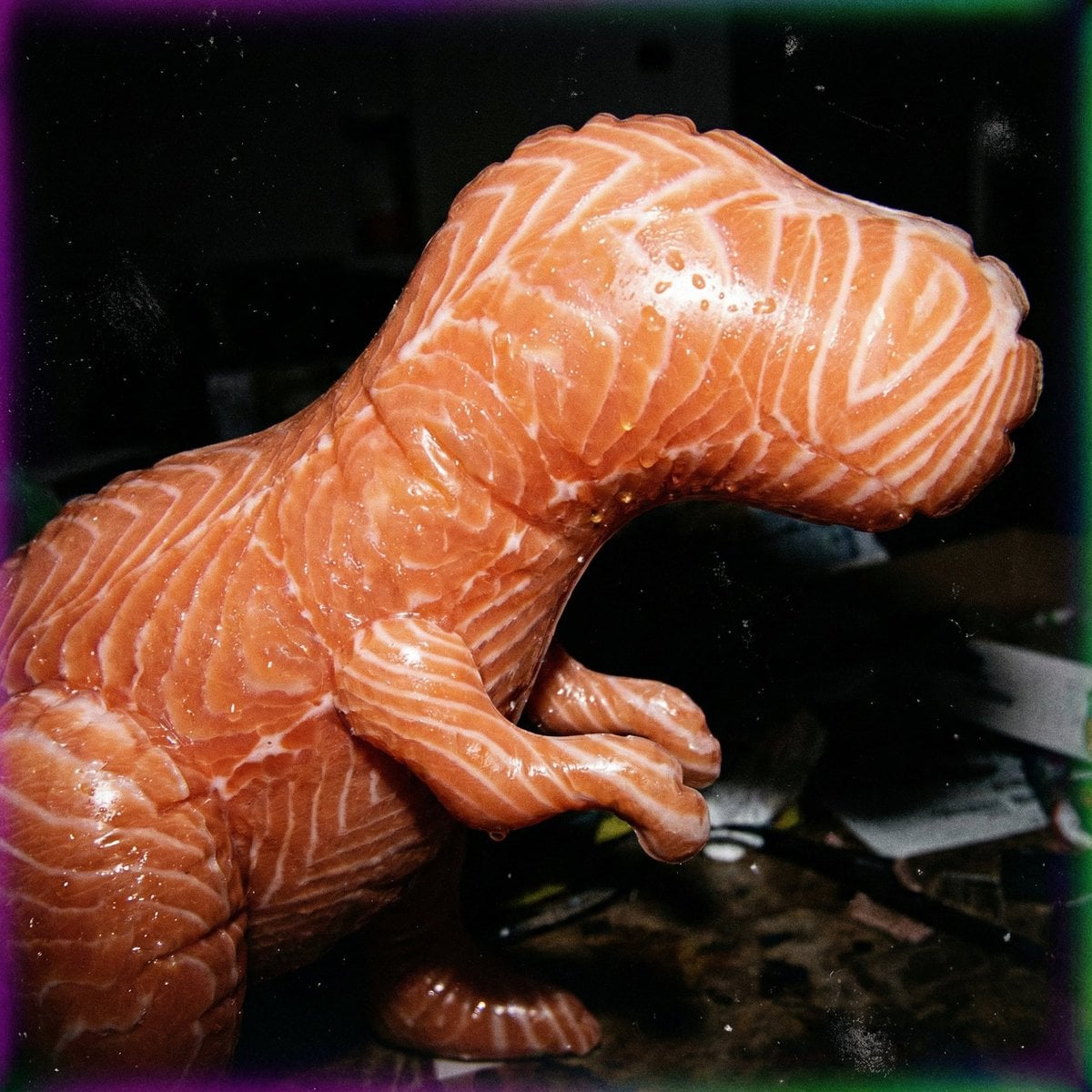
Macro Food Horror Prompt
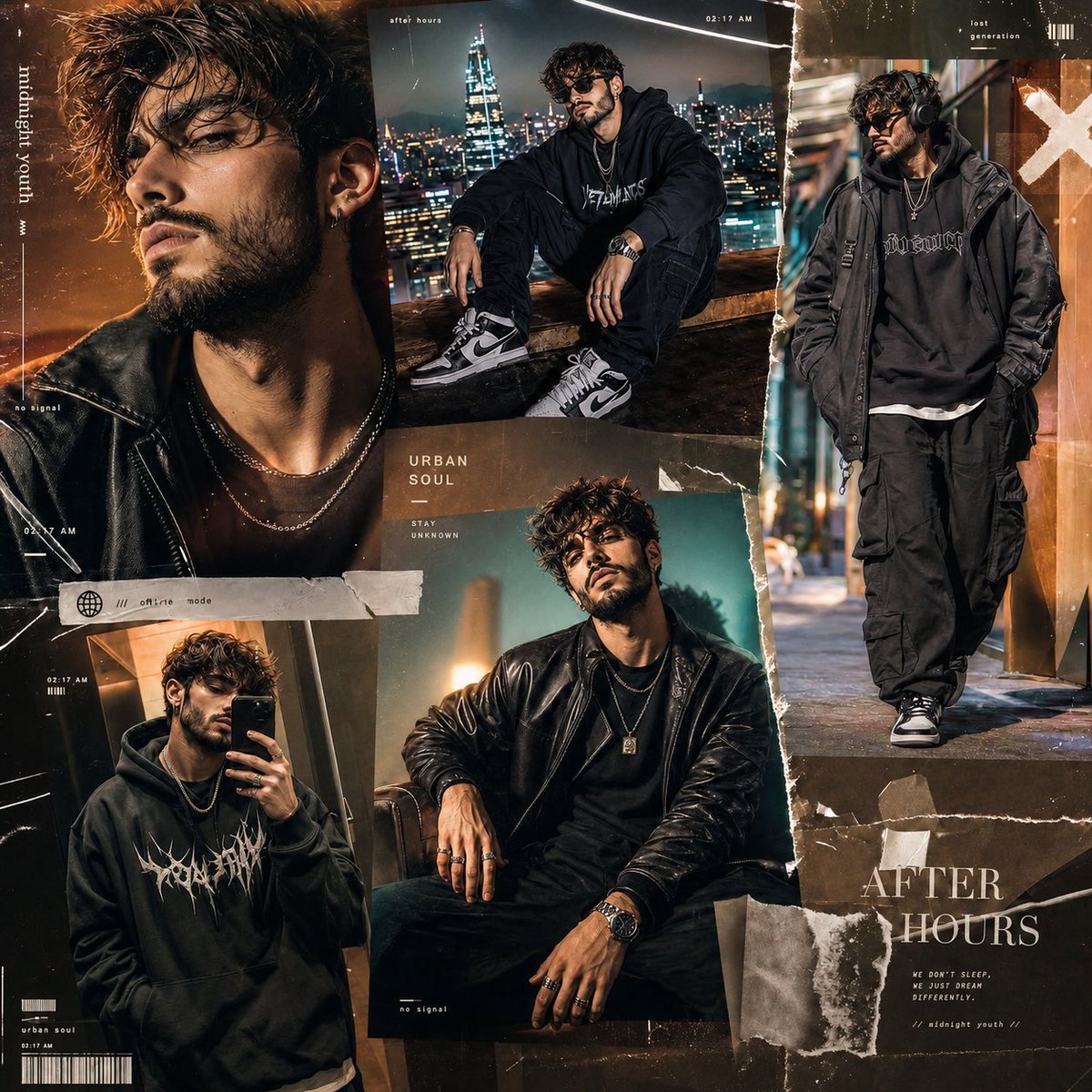
Premium Gen-Z Streetwear Fashion Collage

Pixar-Style American Passerby Prompt

Anime Fashion Lookbook Collage

Cinematic Portrait Through Rain-Streaked Window Prompt

Code Review English Infographic

Cinematic Winter Street Fashion Prompt
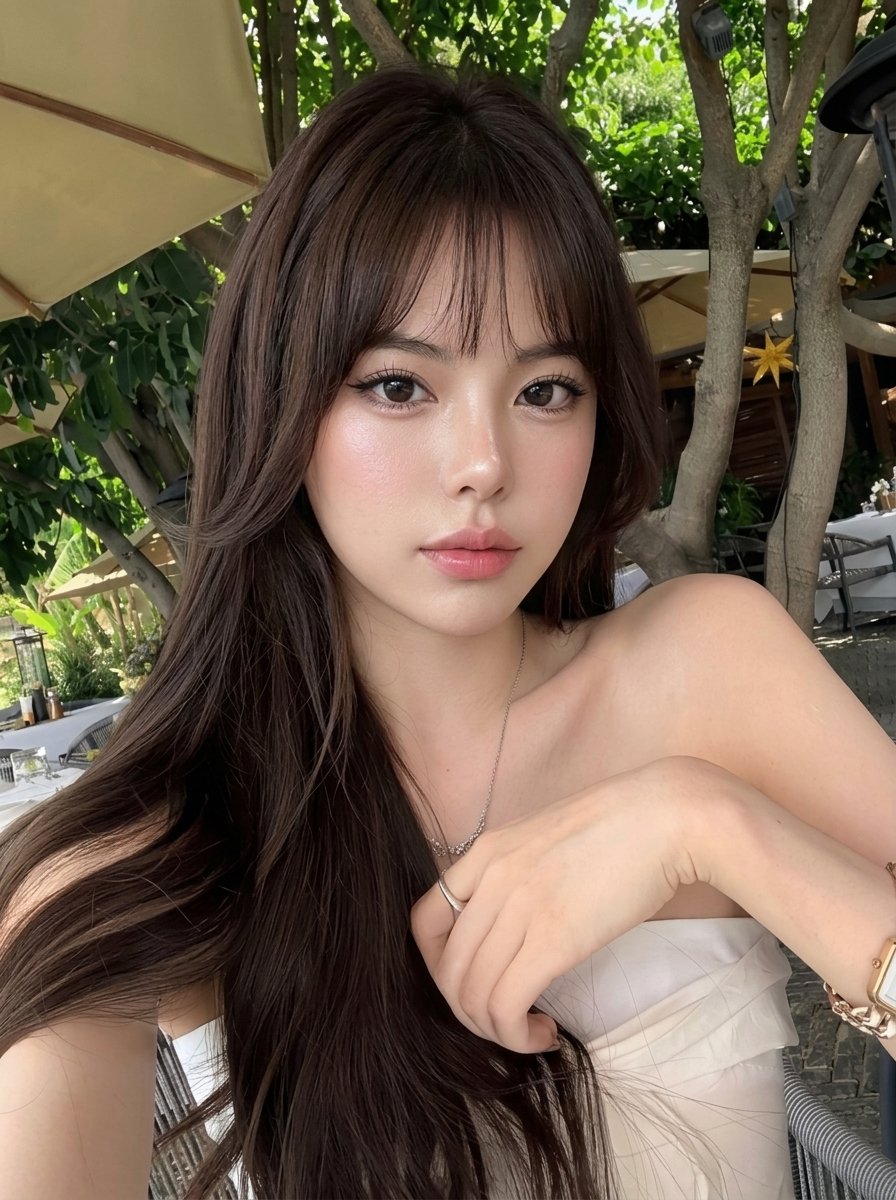
Outdoor Cafe Portrait — White Ruched Top Nano Banana
Browse template categories
Wind Turbine Technical Schematic questions
How do I use the Wind Turbine Technical Schematic template?
Add your photo if the template asks for one, edit the prompt if you like — the template's model and format are already selected — and press Generate. Your version opens in PicX Studio.
Can I customize the Wind Turbine Technical Schematic template?
Yes. You can change the subject, setting, lighting, mood, format, and available model controls before creating your image.
Is the Wind Turbine Technical Schematic template free?
Opening and editing this template is free. Generating uses credits, shown on the Generate button when you are signed in.
Which AI model should I use?
Start with Nano Banana 2, which is the model associated with this template. You can compare another compatible model for a different finish.
Looking for something else? Browse all templates.

Your photo, any look
Thousands of ready templates for every top image and video model, from one credit balance.