
Personalized Mural Studio Portrait
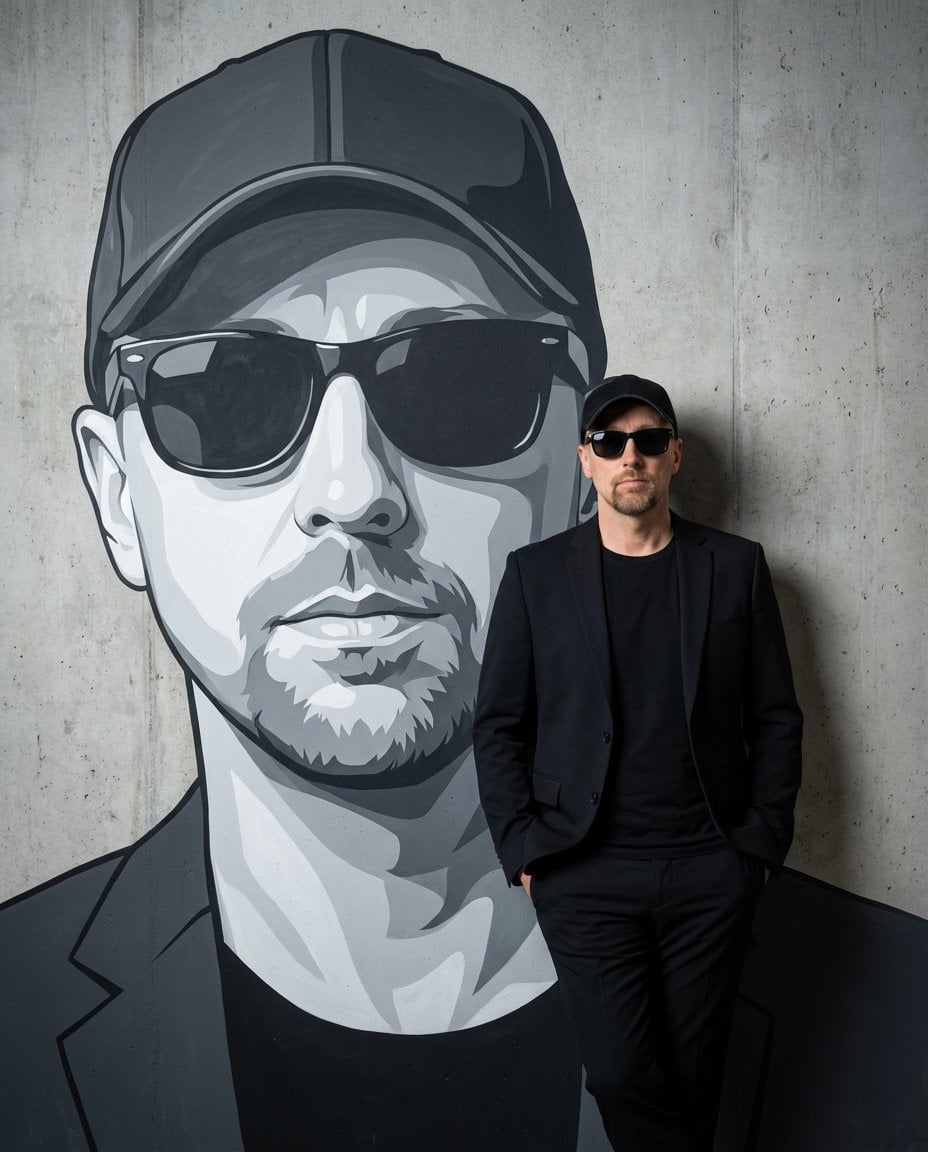
A detailed prompt for generating a high-resolution studio photograph where the subject is posing in front of a large, stylized vector-art mural of themselves.
- Prompt included
- Model and format preset
- Premium template
The prompt behind this image
Copy the exact prompt behind Personalized Mural Studio Portrait, or open it in the studio and make it yours.
Create a high-resolution studio photograph featuring THE_SUBJECT, using the uploaded photo as a strict visual reference for identity. THE_SUBJECT’s facial features, skin tone, body proportions, hairstyle, facial hair, and overall appearance must match the reference image exactly, with no reinterpretation or stylization of THE_SUBJECT. THE_SUBJECT is standing naturally and casually, leaning against a plain concrete or plaster studio wall. THE_SUBJECT is photographed as a real person in a real studio environment — this is a photographic image, not an illustration. Painted directly onto the wall behind THE_SUBJECT is a large-scale mural depicting THE_SUBJECT’s face and upper body. The mural is a stylized vector-art portrait of THE_SUBJECT, clearly recognizable as the same person, rendered in bold graphic shapes, clean edges, and modern illustrative color blocking. The mural is significantly larger than life-size and occupies most of the wall surface. THE_SUBJECT’s real body partially overlaps and obscures the mural, reinforcing depth and scale, while still making it immediately clear that the mural represents THE_SUBJECT. The mural must remain visibly painted on the wall, not floating, not projected, and not a digital overlay. Lighting is controlled studio lighting with a cinematic feel: soft but directional, illuminating both THE_SUBJECT and the mural evenly, with subtle contrast and color separation that allows the real subject and the painted mural to coexist clearly in the same physical space. The final image should feel like a professional studio portrait photographed in front of a custom mural wall — realistic, grounded, and visually cohesive — with a clear distinction between the real human subject and the stylized painted portrait behind them.
How to use Personalized Mural Studio Portrait in 3 steps
- 1Upload ImagePNG, JPG or paste
Add your photo
Upload the photo the template builds on. The prompt, model and format are already set.
- 2…a portrait of your subject in softgolden-hour light, 85mm…
Personalize
Edit the subject and creative details for your destination.
- 3Generate
Generate
Press Generate — your image is created in PicX Studio, so you can compare it with the original and refine one variable at a time.
More like this
Templates with the same subject, style or setup. Open one to see its prompt.

80s Couple Studio Portrait
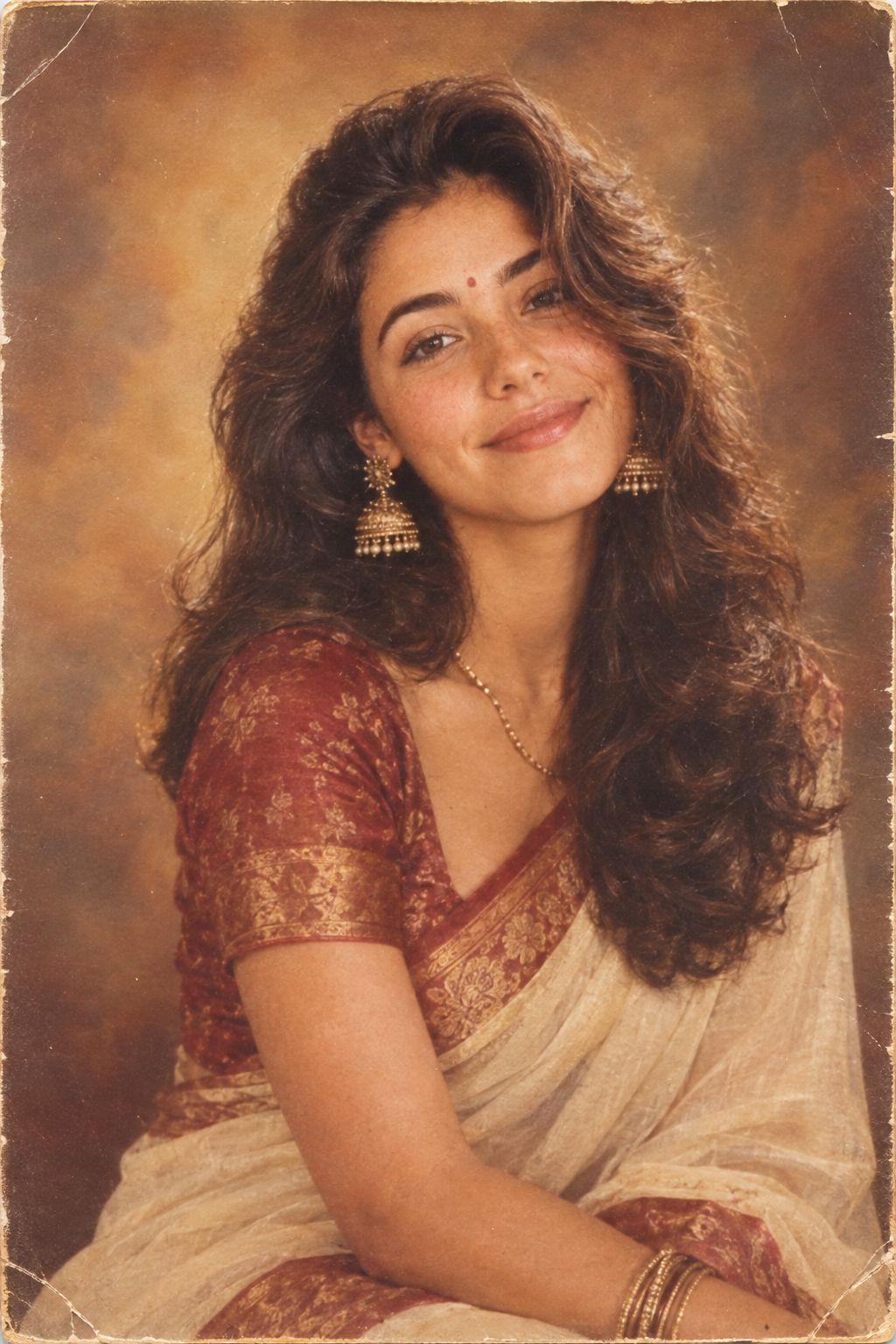
1985 Studio Portrait
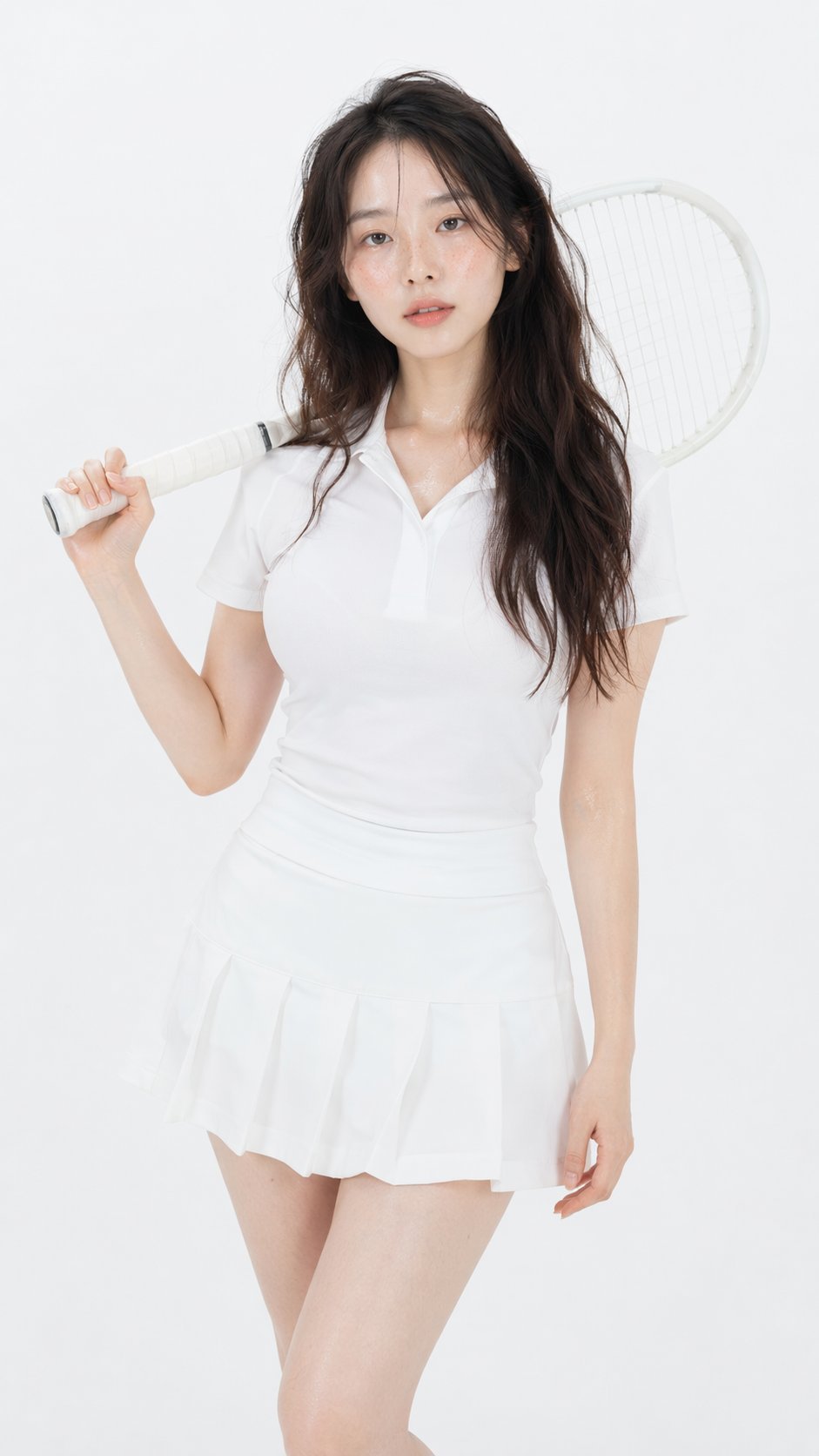
Gpt Image 2 Fashion Portrait

Found Photograph: Us, 1970
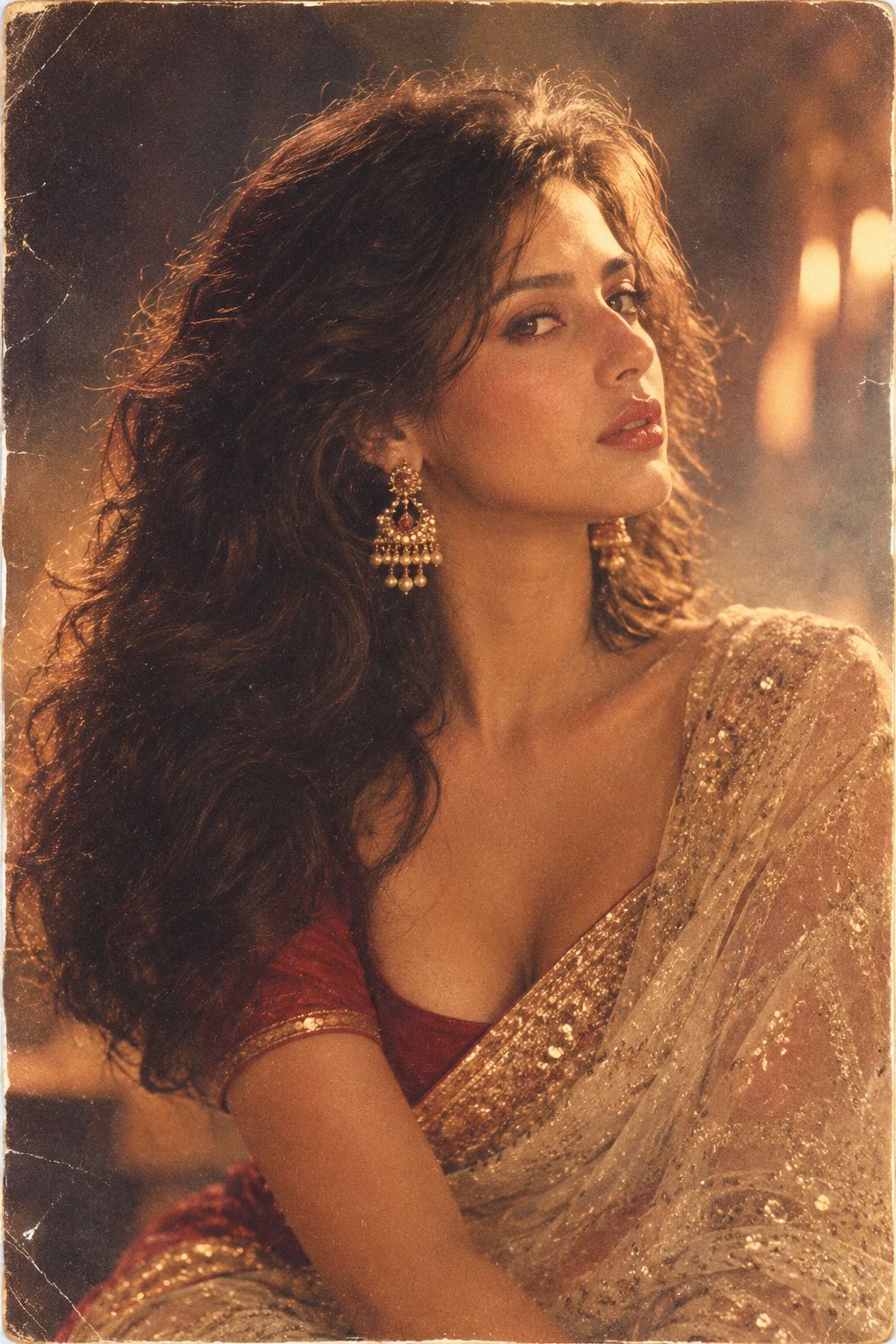
80s Bollywood Star
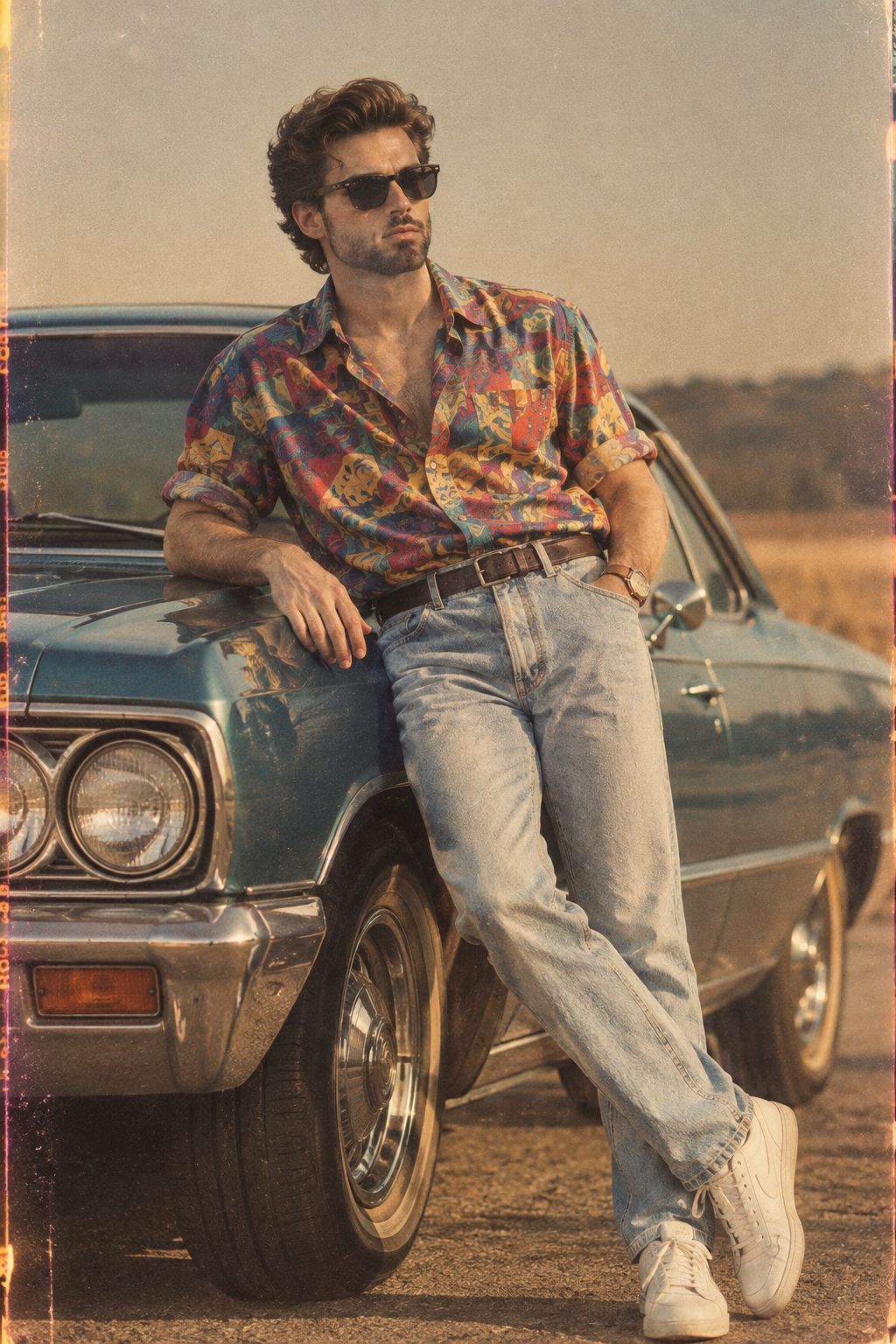
80s Golden Hour Cinema
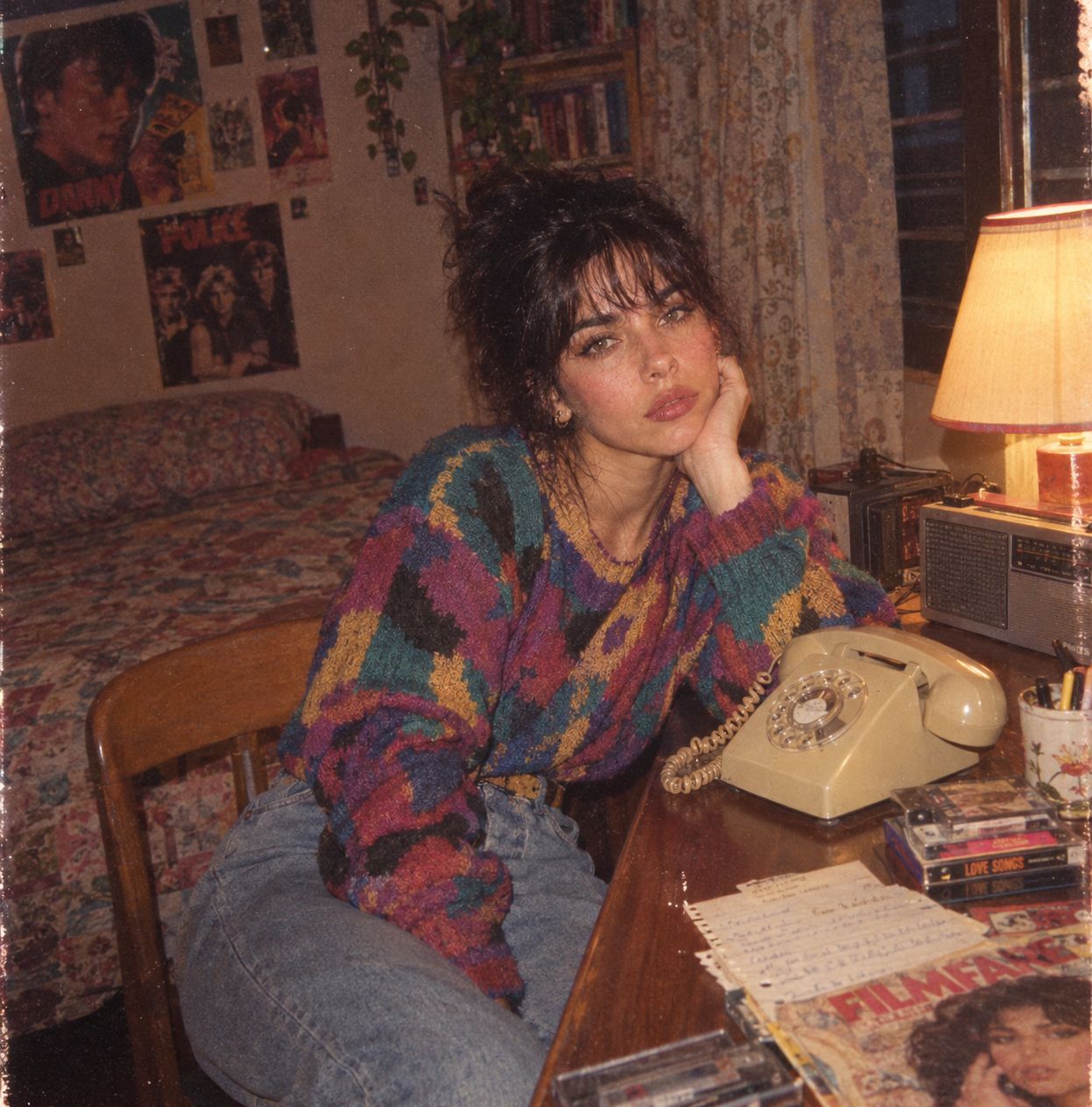
Me in 1985

Hyper-Realistic Minecraft POV Portrait
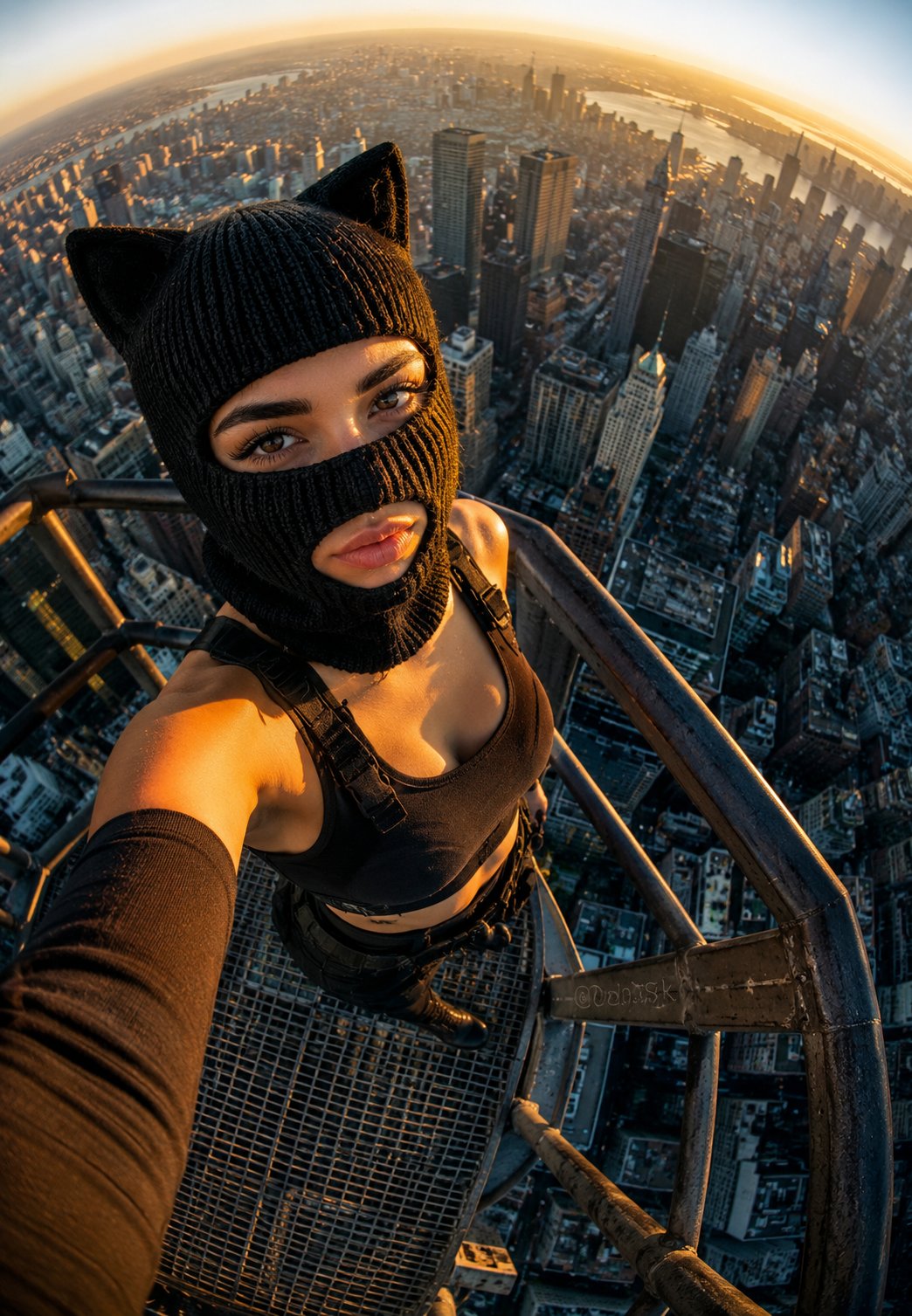
Rooftop Fisheye — Cat-Ear Balaclava at Golden Hour
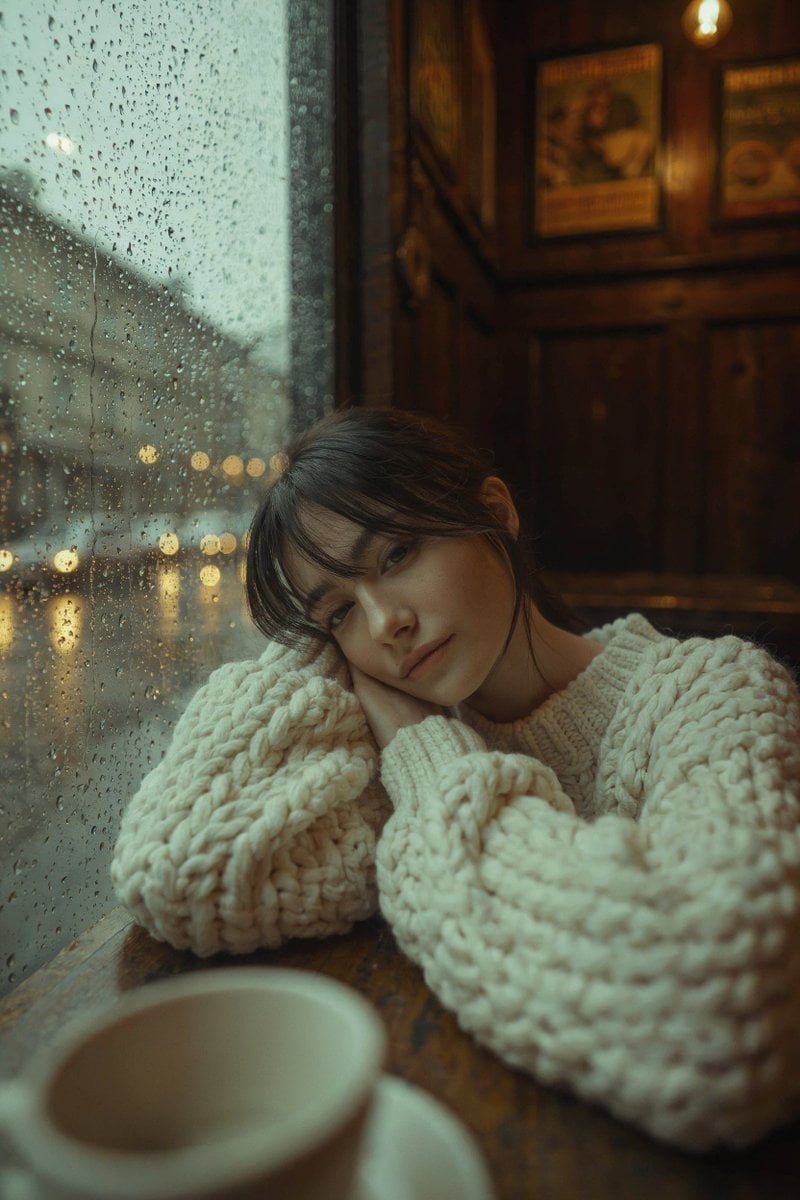
Rainy Café Window Moody Portrait

untitled
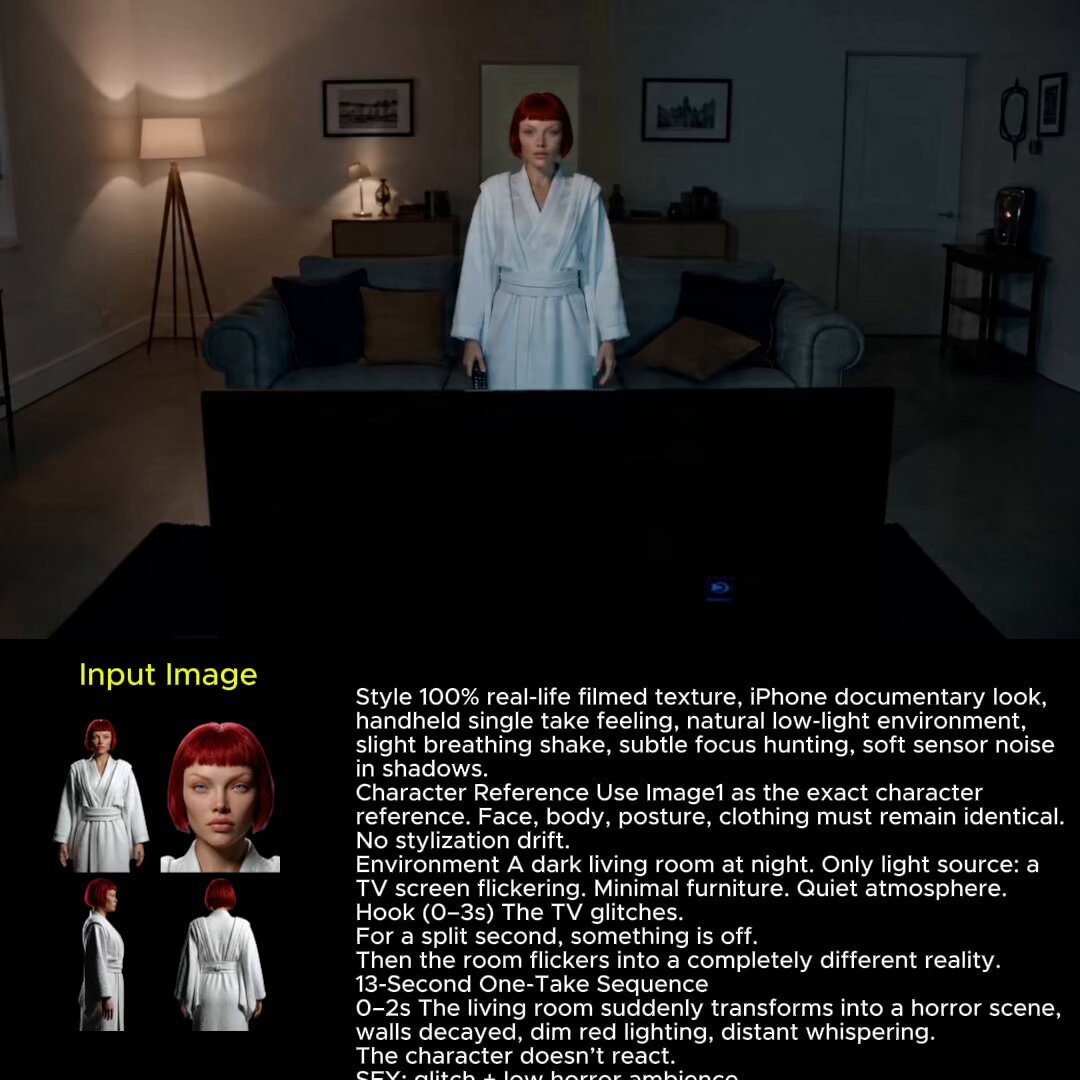
2025 Aesthetic Photography
Make it yours
Personalized Mural Studio Portrait works as-is. These are the safest ways to change it without losing the look.
Change one field
Copy a single group, rewrite it, and generate again so you can see what that field is doing.
Keep the frame, change the subject
Hold the composition and light of Personalized Mural Studio Portrait, then swap wardrobe, props or the person for a new take.
| If the result… | Why | Fix |
|---|---|---|
| The result drifts from the preview | Too many fields changed at once. | Reuse Personalized Mural Studio Portrait as-is first, then change one group — subject, light, or setting. |
| The model over-stylizes the scene | The prose prompt leaves finish and camera underspecified. | Add one camera or lighting sentence and stay on Nano Banana 2. |
More Nano Banana 2 templates
Other prompts made for Nano Banana 2.

Photorealistic Leaf Shaped Like a Dragon

K-Pop Idol Portrait Grid for Rapid Selection

Poetic Rain Forest Portrait During Golden Hour

Urban Street Portrait with Cartoon Inner Self Duo

Candid Nighttime Photo with Cat Prompt

High-Concept 3D Diorama Generation Prompt

Cinematic Futuristic Studio Portrait Template

Skincare Editorial Photography Collage Prompt

Hyper-Realistic Commercial Product Photography (Splash Effect)

Hyper-Realistic Nightclub Portrait Prompt
More image prompts
Fresh picks from across the catalog.
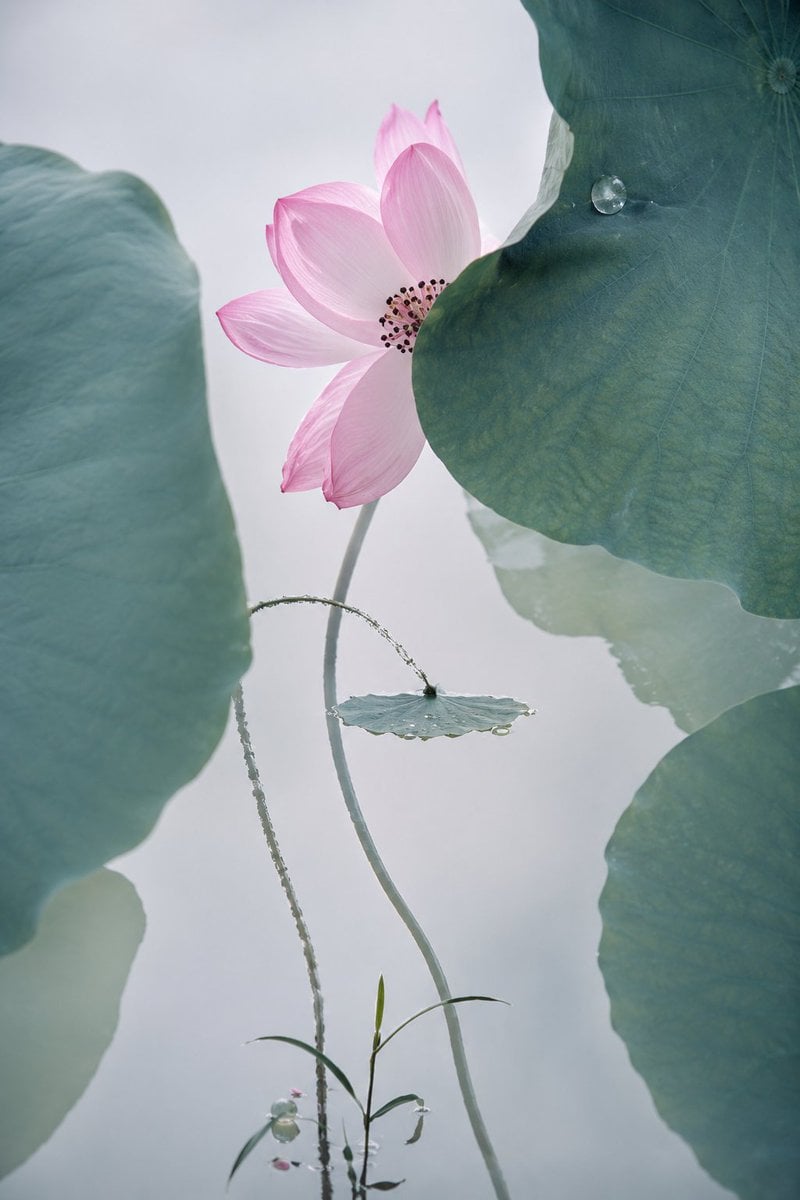
Cinematic Lotus Ancient Painting
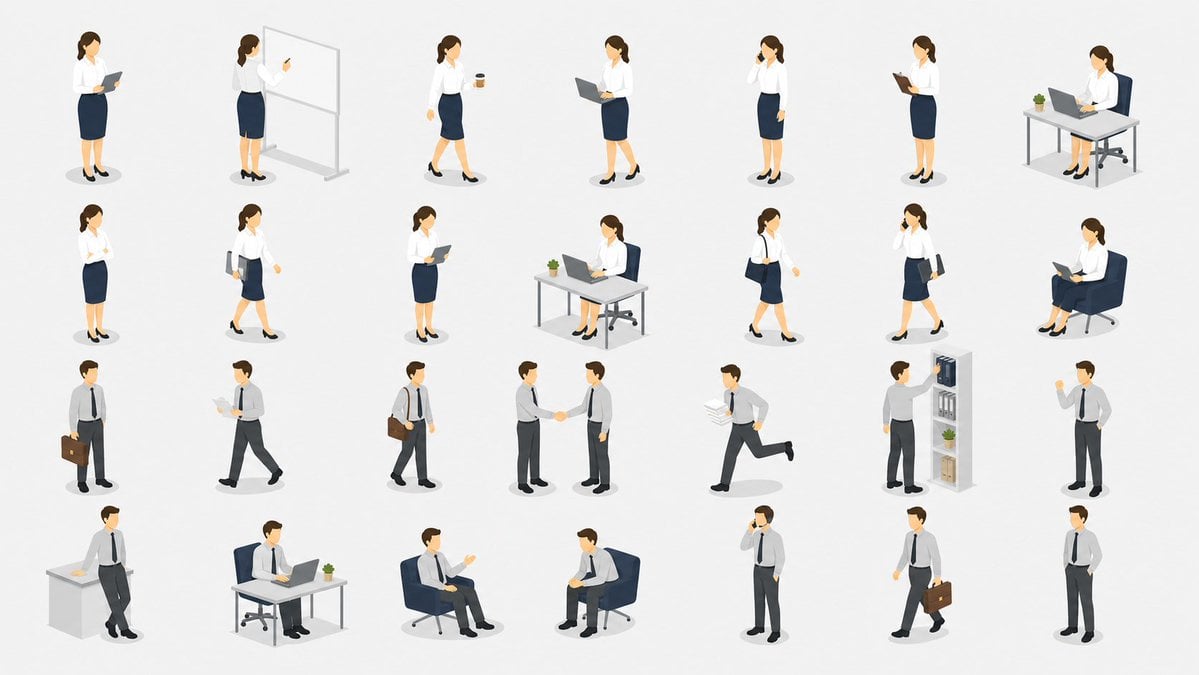
Isometric Office Worker Asset Sheet
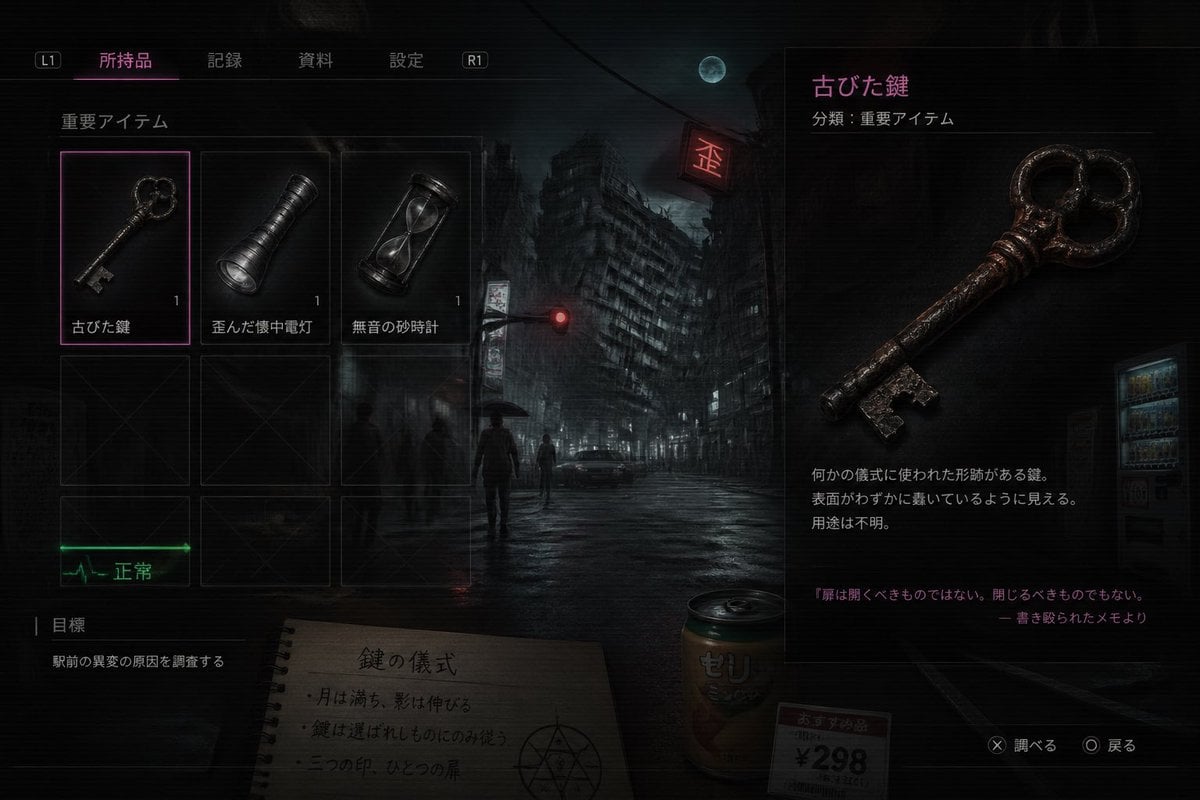
Japanese Horror Game Inventory Screen
Pamplets
untitled
Stylish Man on European Cobblestone Street Prompt
Stylized 3D Llama Character in Streetwear
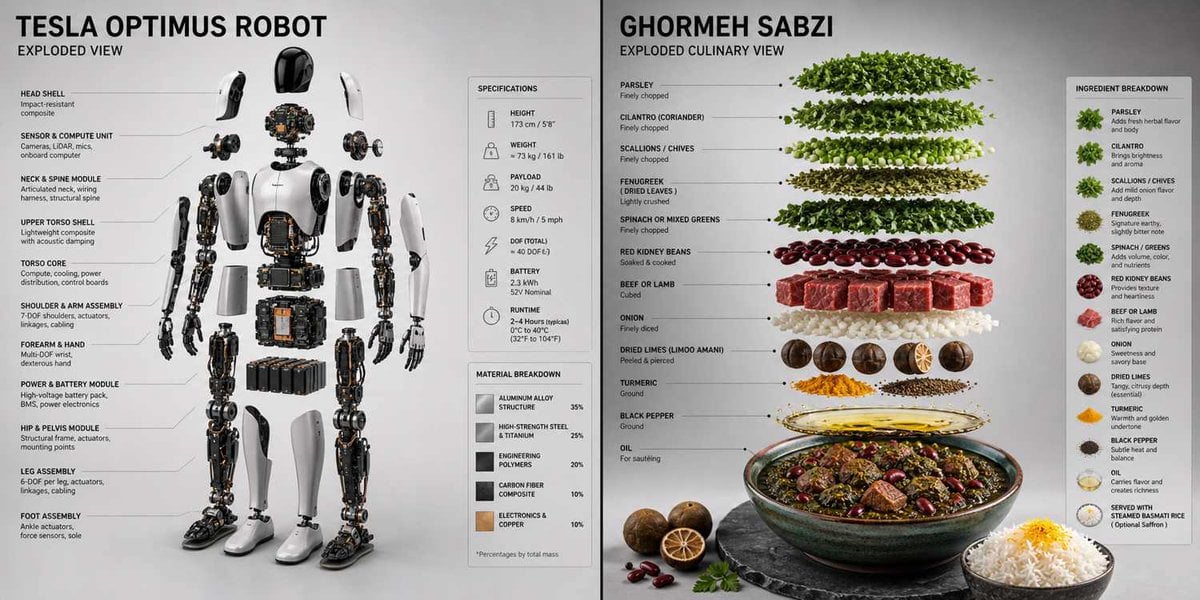
Technical 3D Exploded View
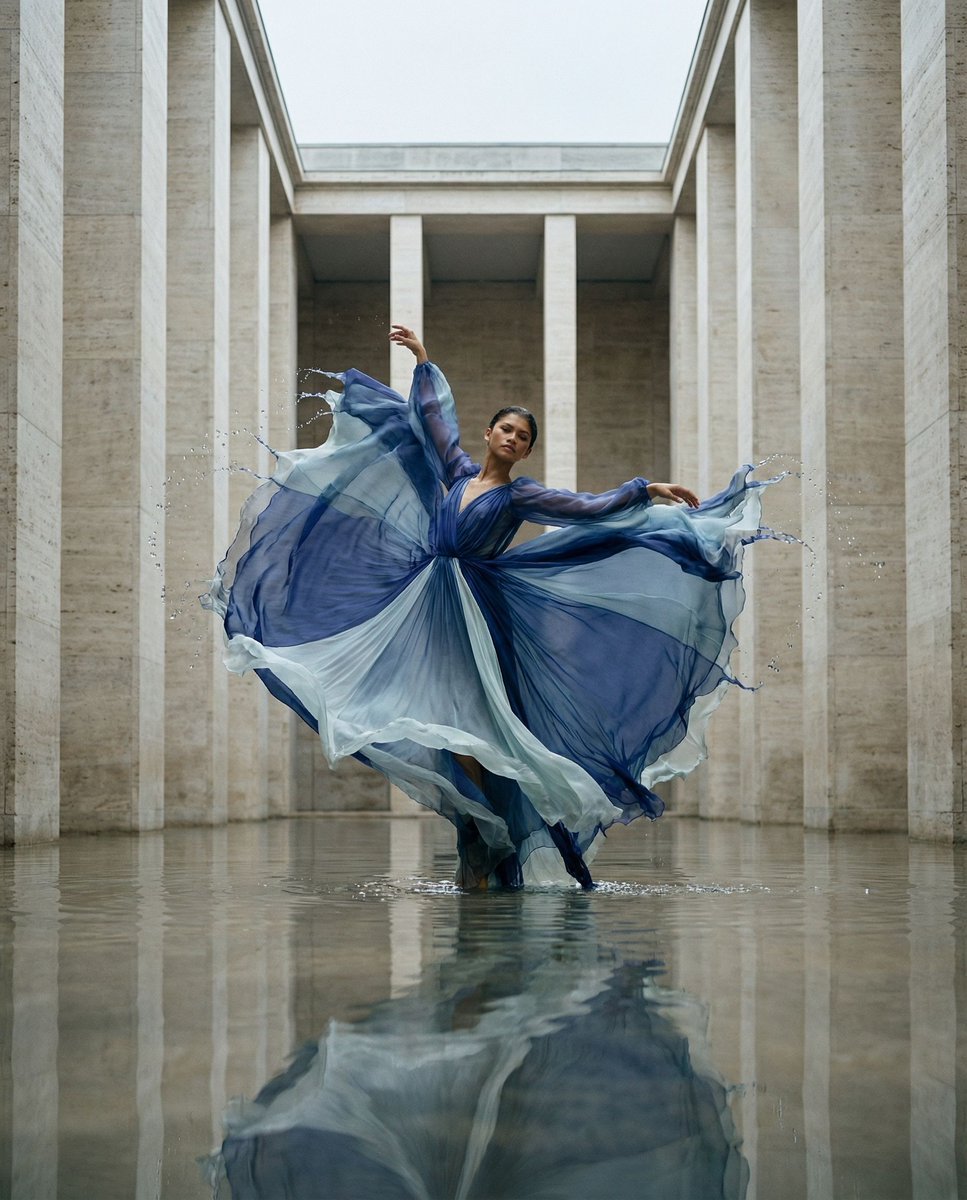
Cinematic Symmetrical Motion Portrait
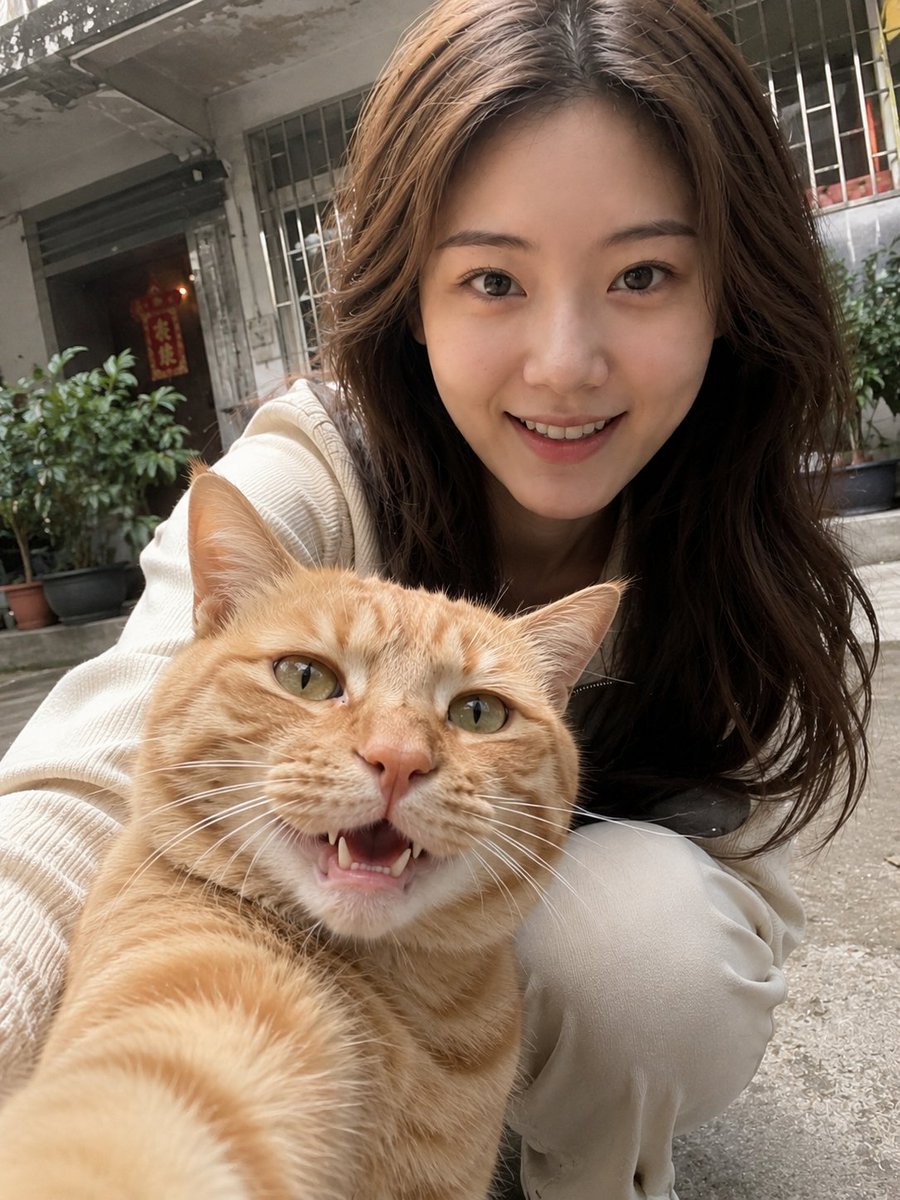
Realistic Pet and Owner Wide-Angle Selfie
Browse template categories
Personalized Mural Studio Portrait questions
How do I use the Personalized Mural Studio Portrait template?
Add your photo if the template asks for one, edit the prompt if you like — the template's model and format are already selected — and press Generate. Your version opens in PicX Studio.
Can I customize the Personalized Mural Studio Portrait template?
Yes. You can change the subject, setting, lighting, mood, format, and available model controls before creating your image.
Is the Personalized Mural Studio Portrait template free?
Opening and editing this template is free. Generating uses credits, shown on the Generate button when you are signed in.
Which AI model should I use?
Start with Nano Banana 2, which is the model associated with this template. You can compare another compatible model for a different finish.
Looking for something else? Browse all templates.

Your photo, any look
Thousands of ready templates for every top image and video model, from one credit balance.