
Hand-Drawn Style Photo Annotation
A trending prompt that adds cute, Japanese-style white line annotations and handwritten-style captions to objects within an uploaded photo.
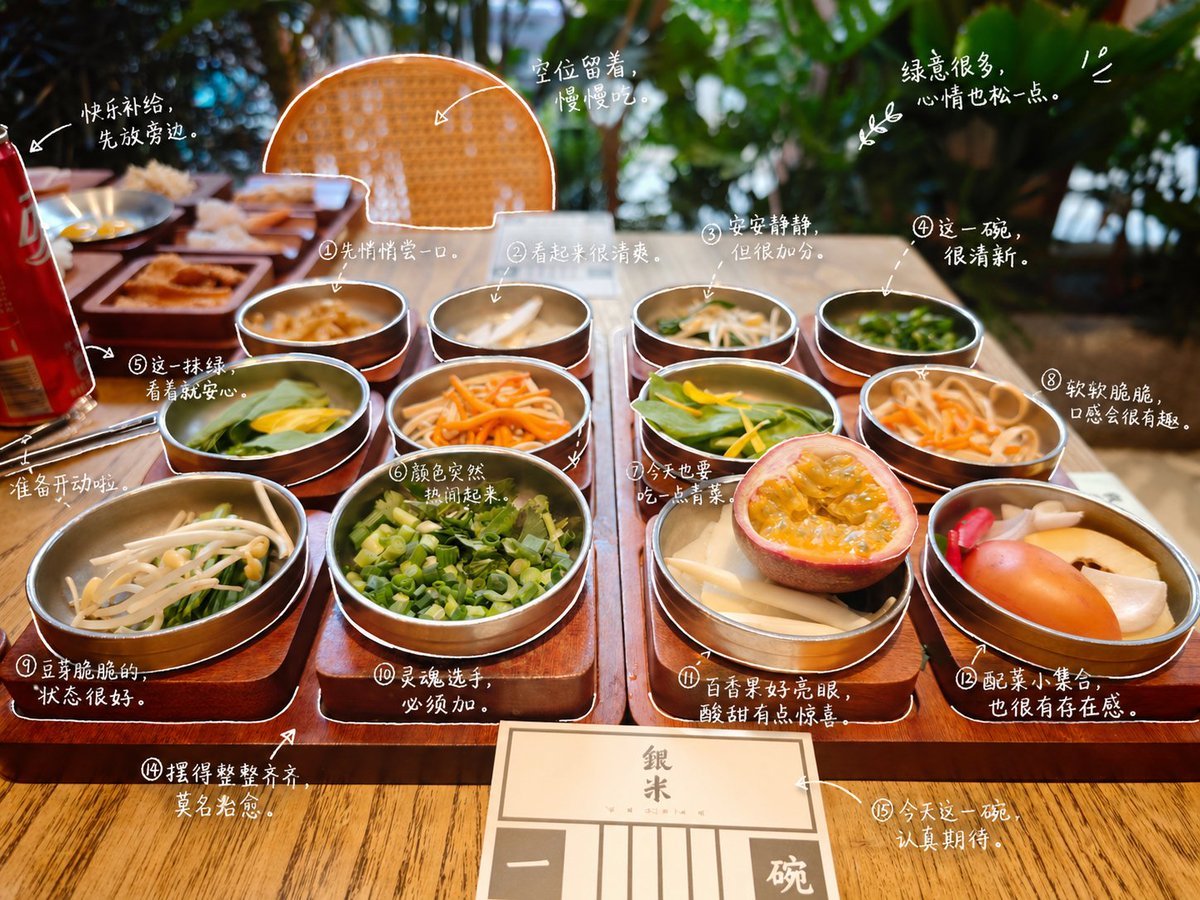
- Prompt included
- Model and format preset
- Free template
The prompt behind this image
Copy the exact prompt behind Hand-Drawn Style Photo Annotation, or open it in the studio and make it yours.
Please observe the elements in the photo and add a meaningful hand-drawn-style annotation to each object. Fill in the items in the photo. Description rules: • Use thin hand-drawn lines like strokes of a {argument name="pen color" default="white"} pen • one-stroke style, casual, with a slightly uneven feel • add outline strokes along the edges of the objects • use arrows or dashed lines to guide the eye Text rules: • handwritten-style font ({argument name="font style" default="Japanese-style cute feel"}) • short sentences, like little muttered thoughts to oneself • tone leaning toward a diary feel, with a bit of emotion Annotation generation rules: don't over-decorate, preserve empty space
How to use Hand-Drawn Style Photo Annotation in 3 steps
- 1Upload ImagePNG, JPG or paste
Add your photo
Upload the photo the template builds on. The prompt, model and format are already set.
- 2…a portrait of your subject in softgolden-hour light, 85mm…
Personalize
Edit the subject and creative details for your destination.
- 3Generate
Generate
Press Generate — your image is created in PicX Studio, so you can compare it with the original and refine one variable at a time.
More like this
Templates with the same subject, style or setup. Open one to see its prompt.
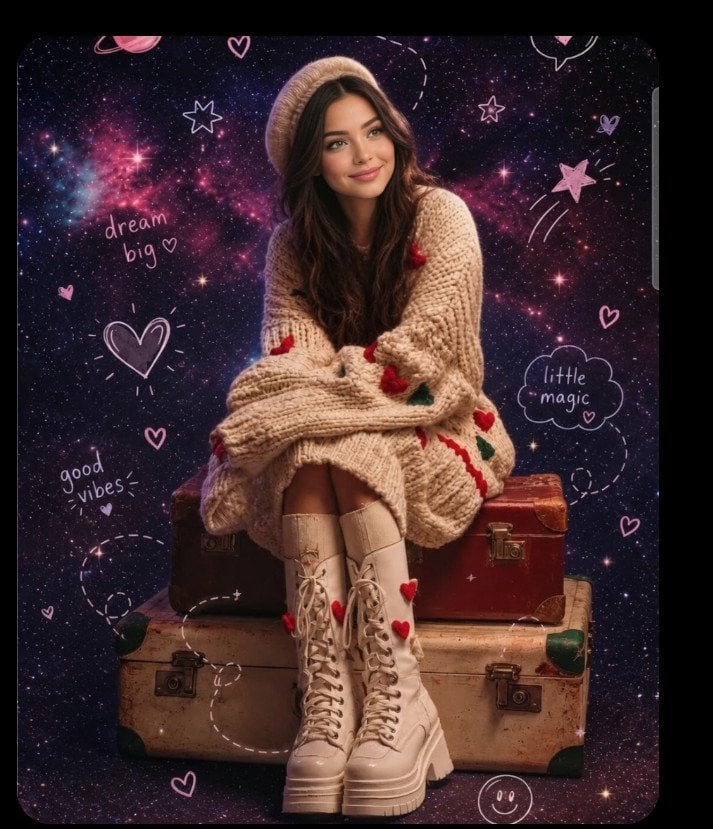
Hand-drawn scribble and annotation style
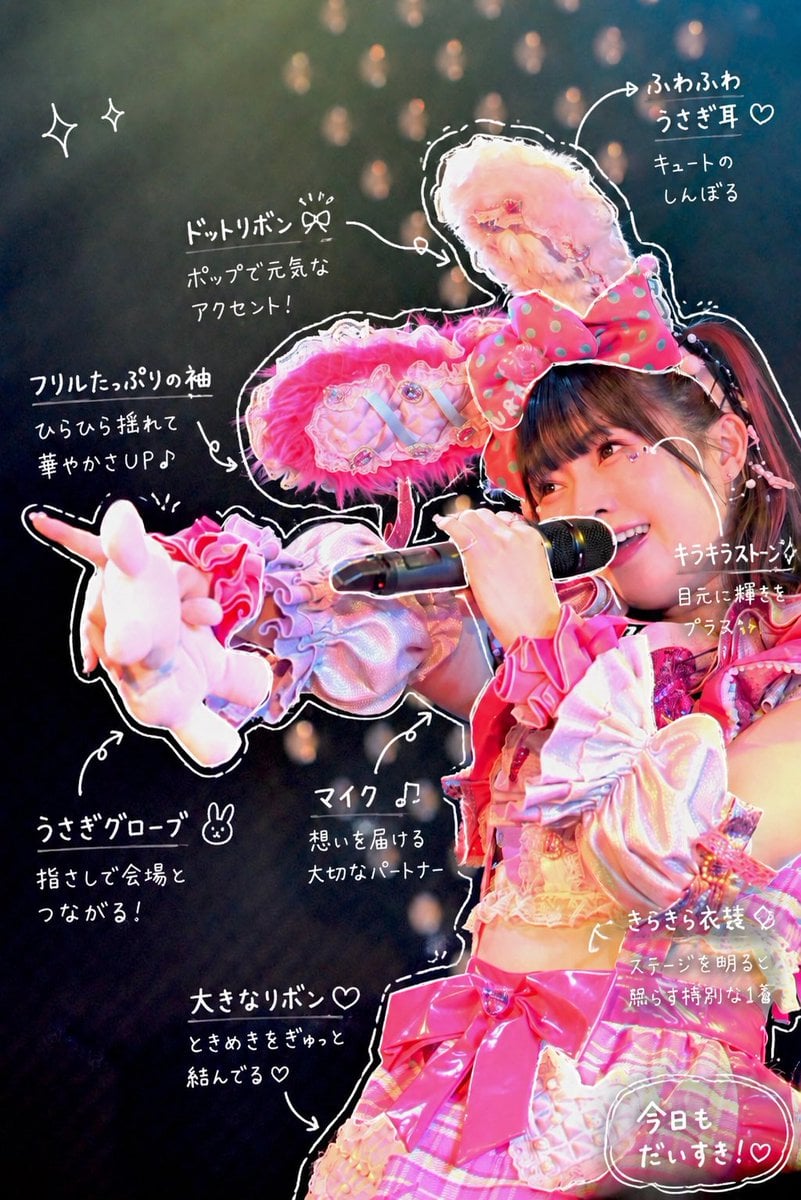
Hand-Drawn Sketch Photo Annotation
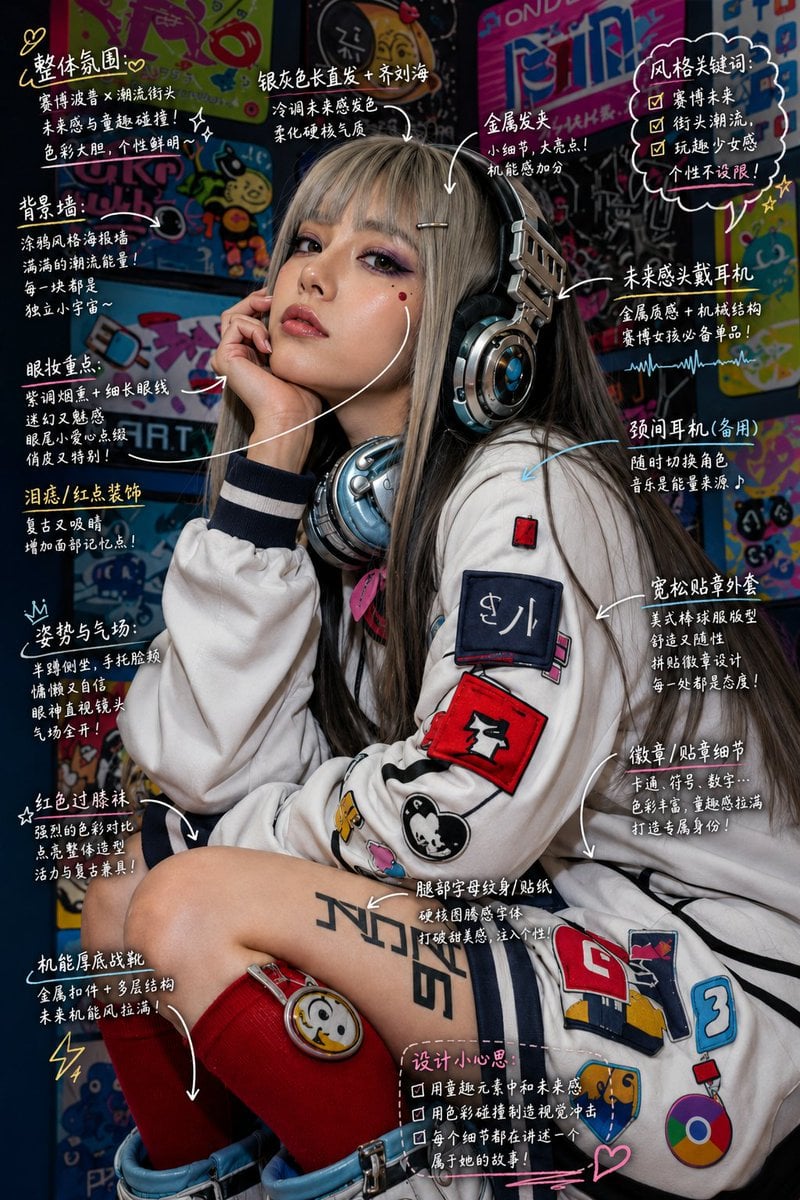
Hand-Drawn Style Image Annotation
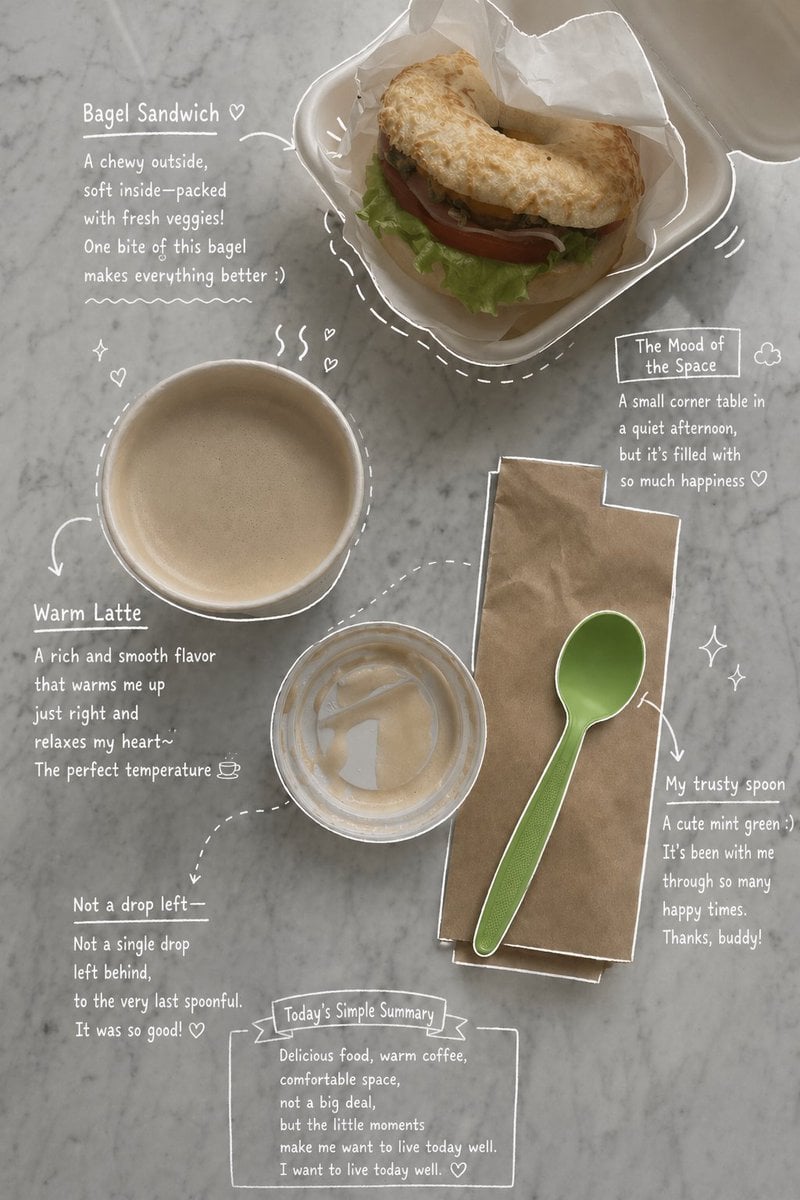
Emotional Hand-Drawn Annotations
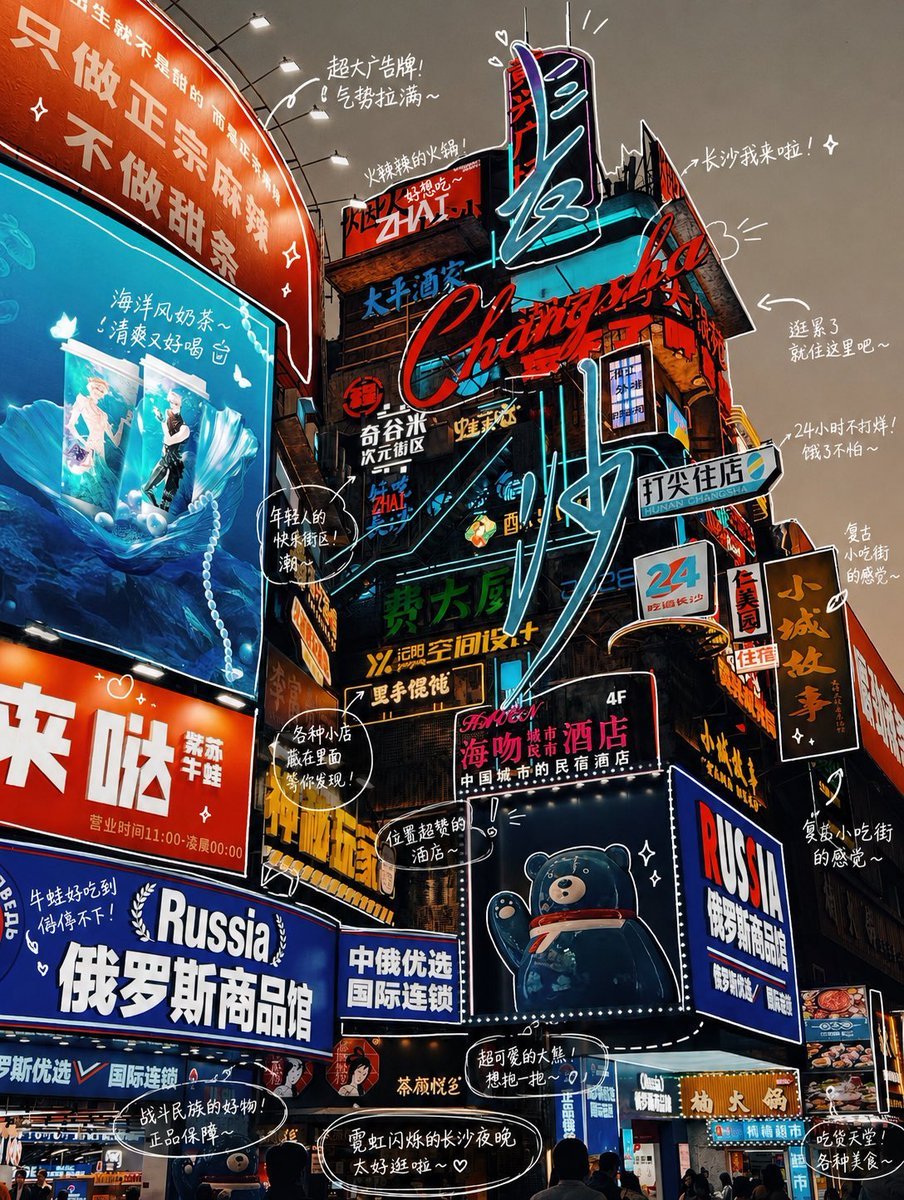
Hand-drawn Photo Annotation
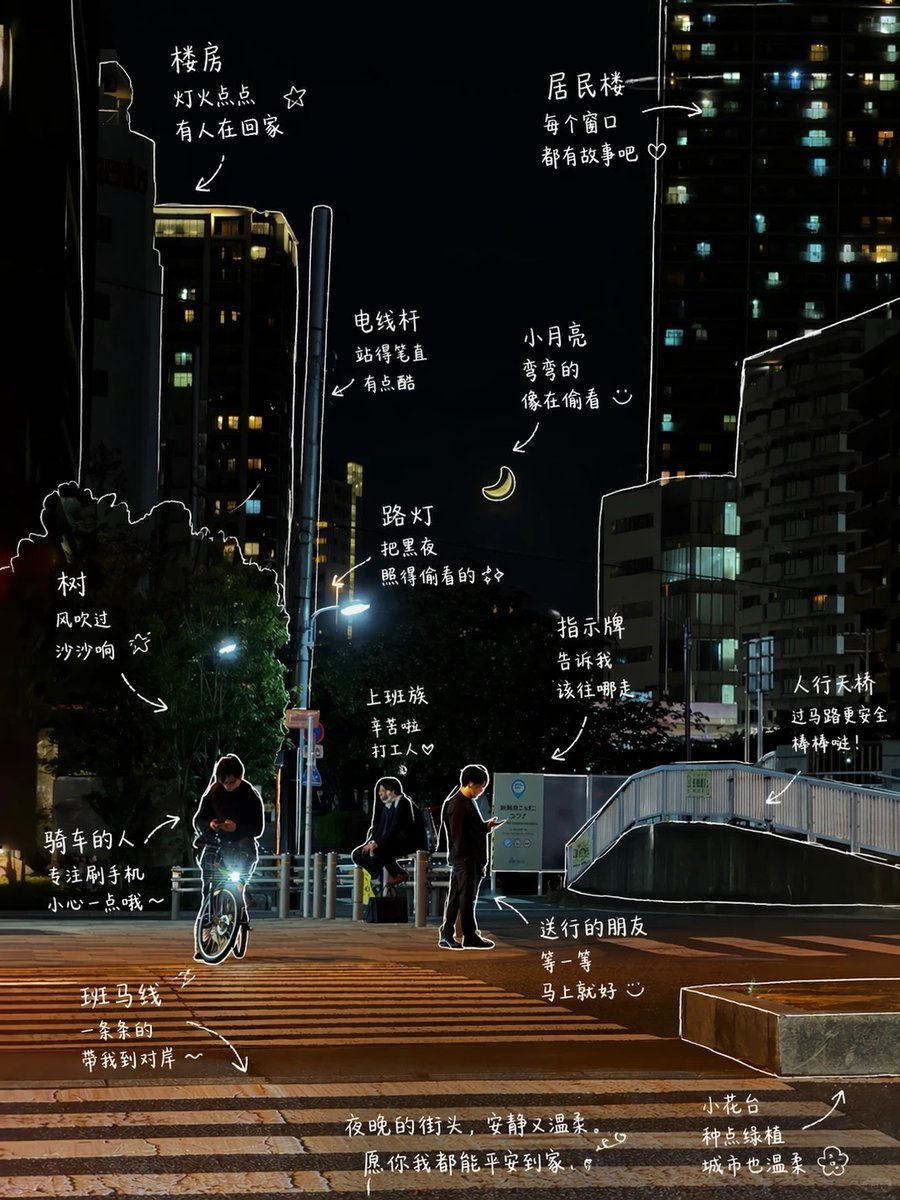
Hand-Drawn Style Photo Annotation

Handwritten Cafe Photo Annotations
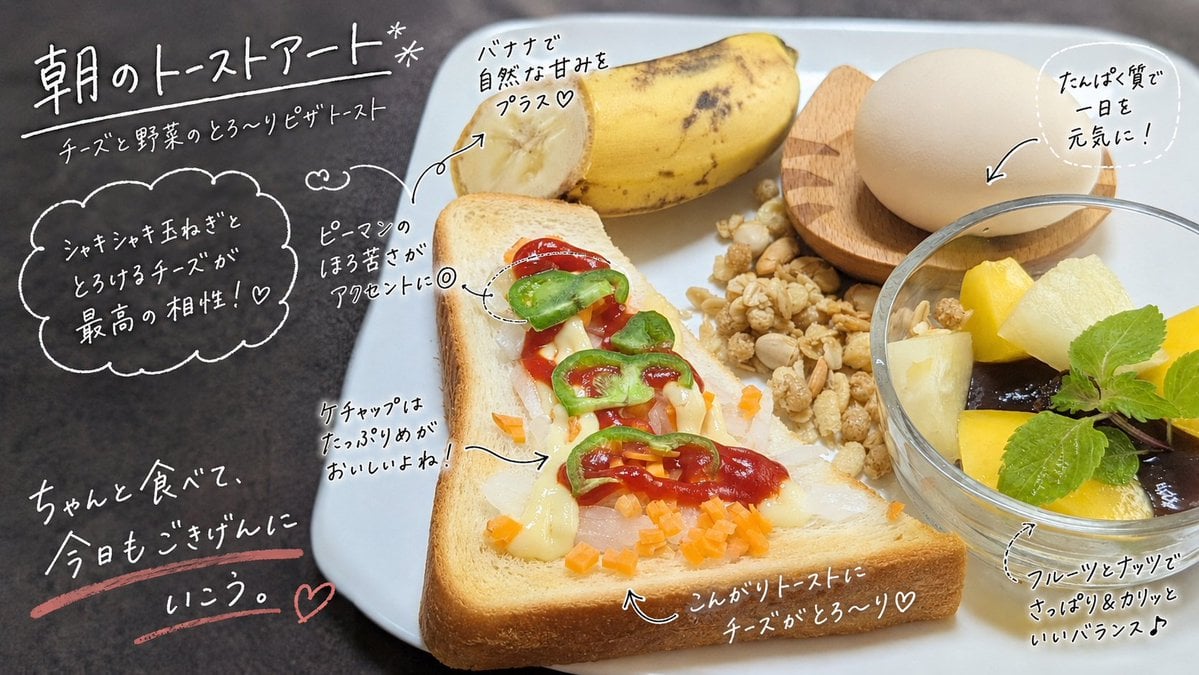
Handwritten Breakfast Photo Annotations
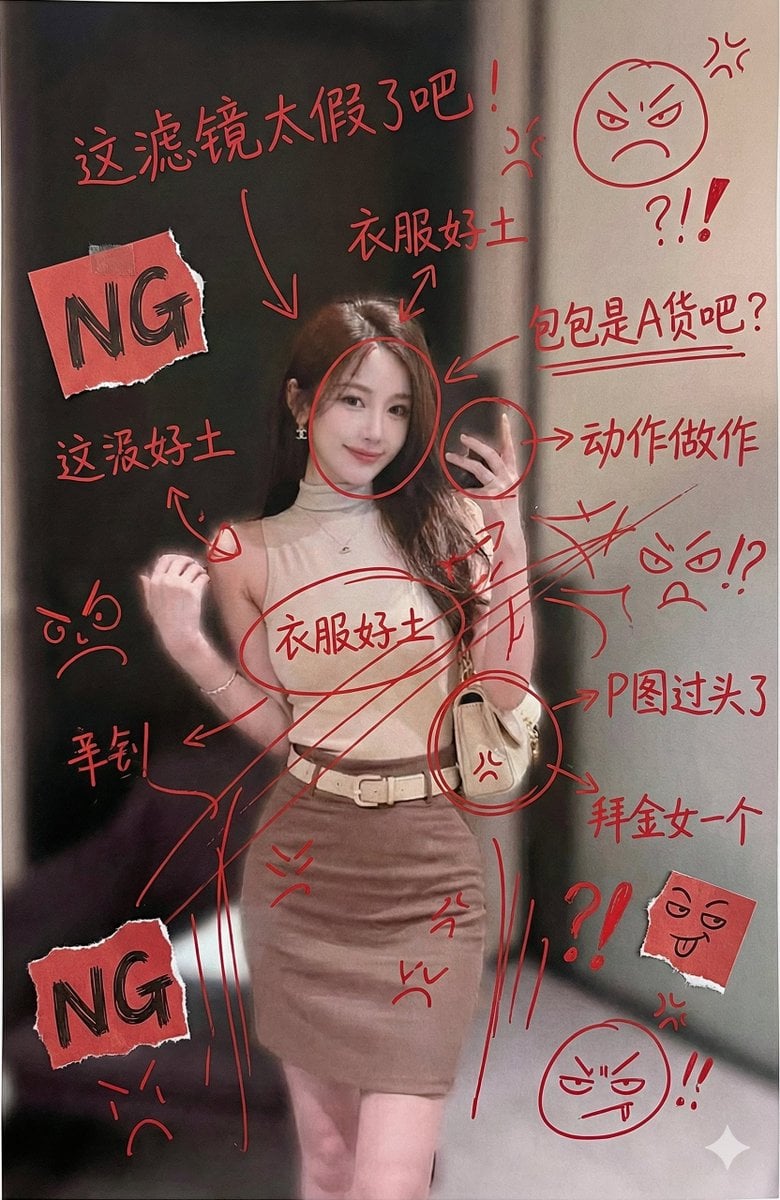
Image Generation with Handwritten Chinese Annotations and Trolling
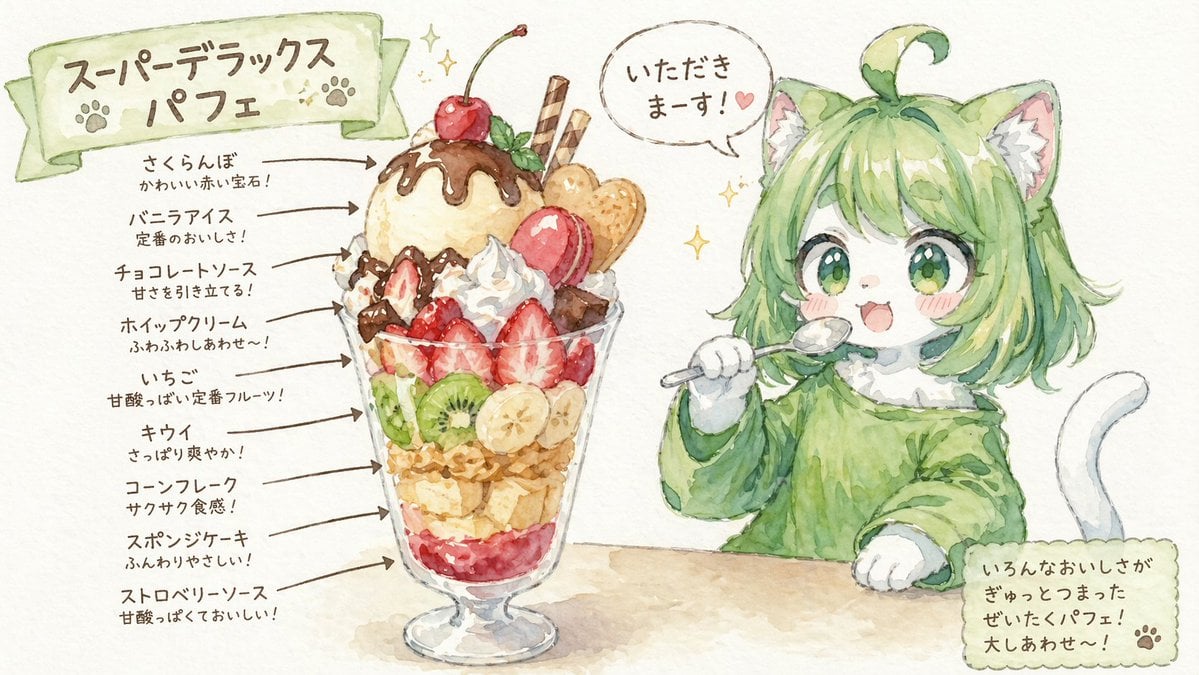
Character Eating Parfait with Annotations

Technical Annotation Infographic Style

Instagram Story with Annotations
Make it yours
Hand-Drawn Style Photo Annotation works as-is. These are the safest ways to change it without losing the look.
Change one field
Copy a single group, rewrite it, and generate again so you can see what that field is doing.
Keep the frame, change the subject
Hold the composition and light of Hand-Drawn Style Photo Annotation, then swap wardrobe, props or the person for a new take.
| If the result… | Why | Fix |
|---|---|---|
| The result drifts from the preview | Too many fields changed at once. | Reuse Hand-Drawn Style Photo Annotation as-is first, then change one group — subject, light, or setting. |
| The model over-stylizes the scene | The prose prompt leaves finish and camera underspecified. | Add one camera or lighting sentence and stay on GPT Image 2. |
More GPT Image 2 templates
Other prompts made for GPT Image 2.

Six VTuber Japanese Logo Sheet

Realistic Portrait of Woman and Deer

The Vista Modular Condo Poster

AI Model Routing Comparison Infographic

2.5D Anime Art Board

Isometric Productivity Desk Scene

New York Double Exposure Poster

Four-Panel AI Landscape Comparison

Japanese Tatami Lifestyle Magazine Cover

NESCAFÉ Coffee Map Poster
More image prompts
Fresh picks from across the catalog.
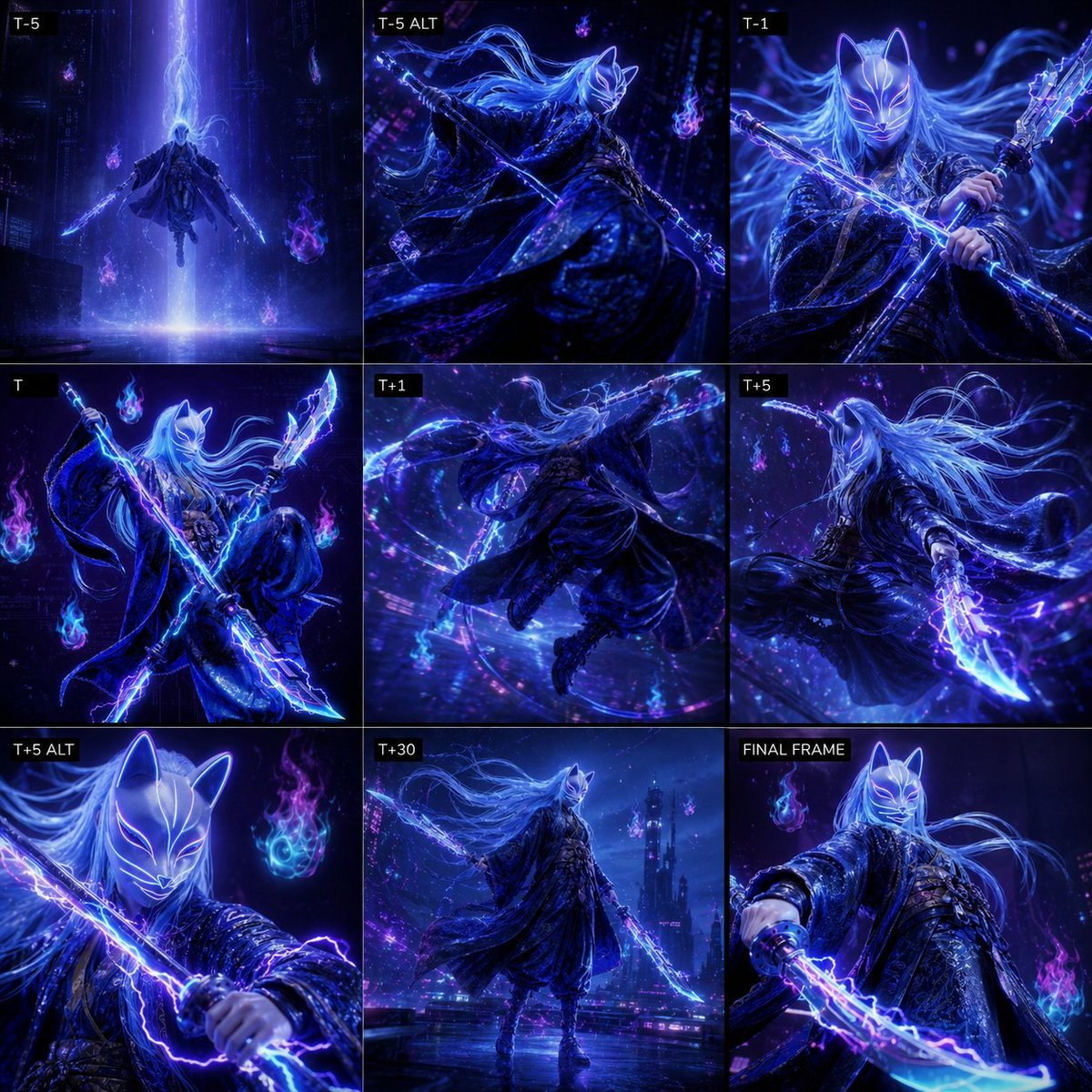
Cyber Kitsune Warrior Storyboard
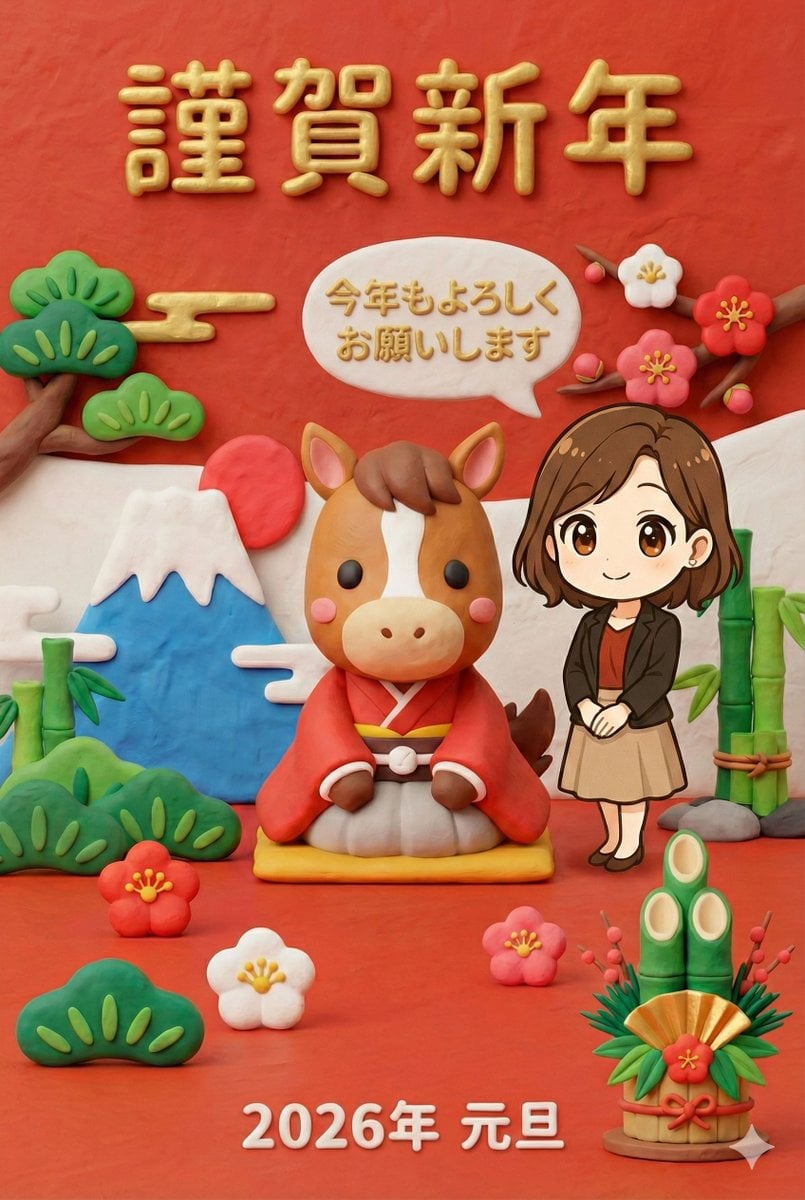
New Year's Greeting Image Generation in Claymation Style
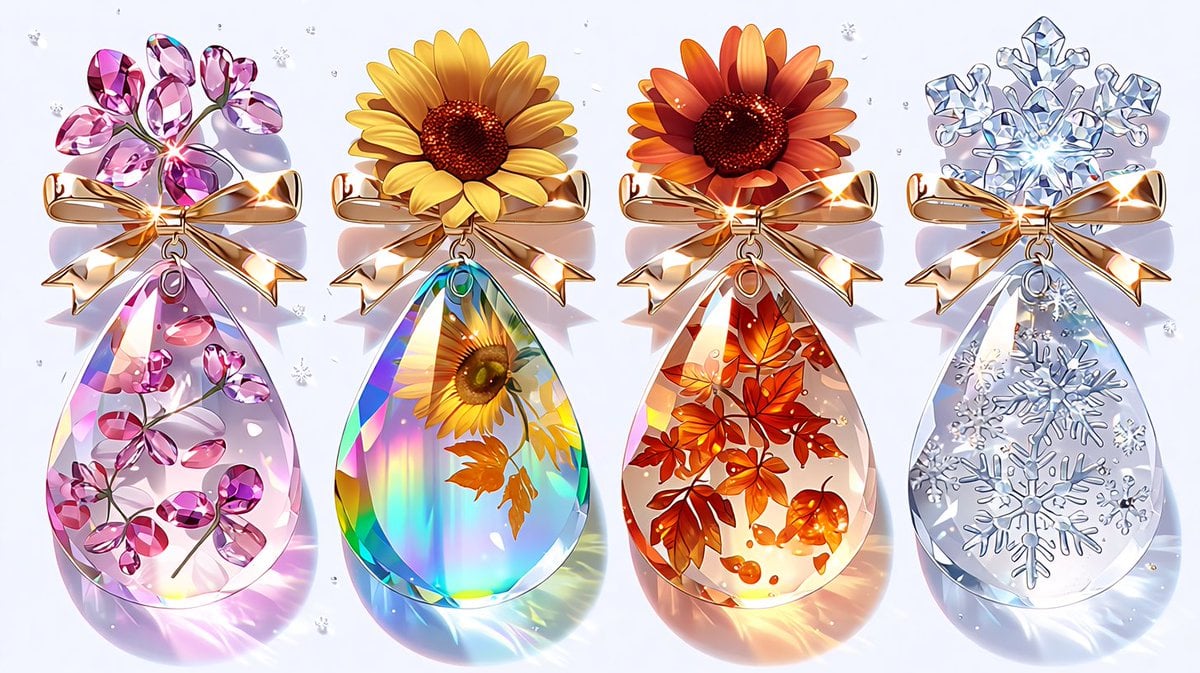
Luxury Jewelry Set Design Prompt for Nano Banana Pro
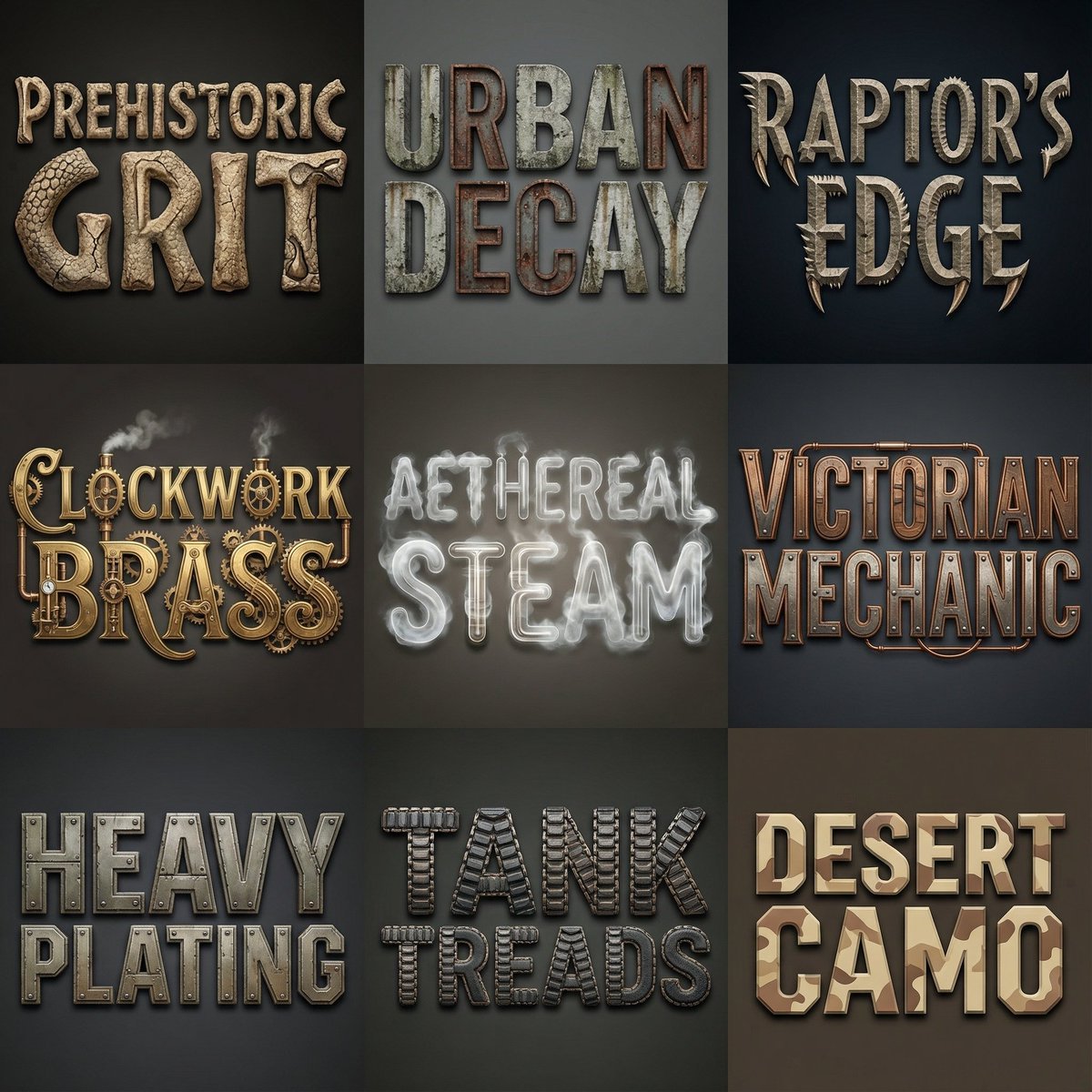
Font Generation Inspired by Uploaded Images

Cinematic Moody Portrait
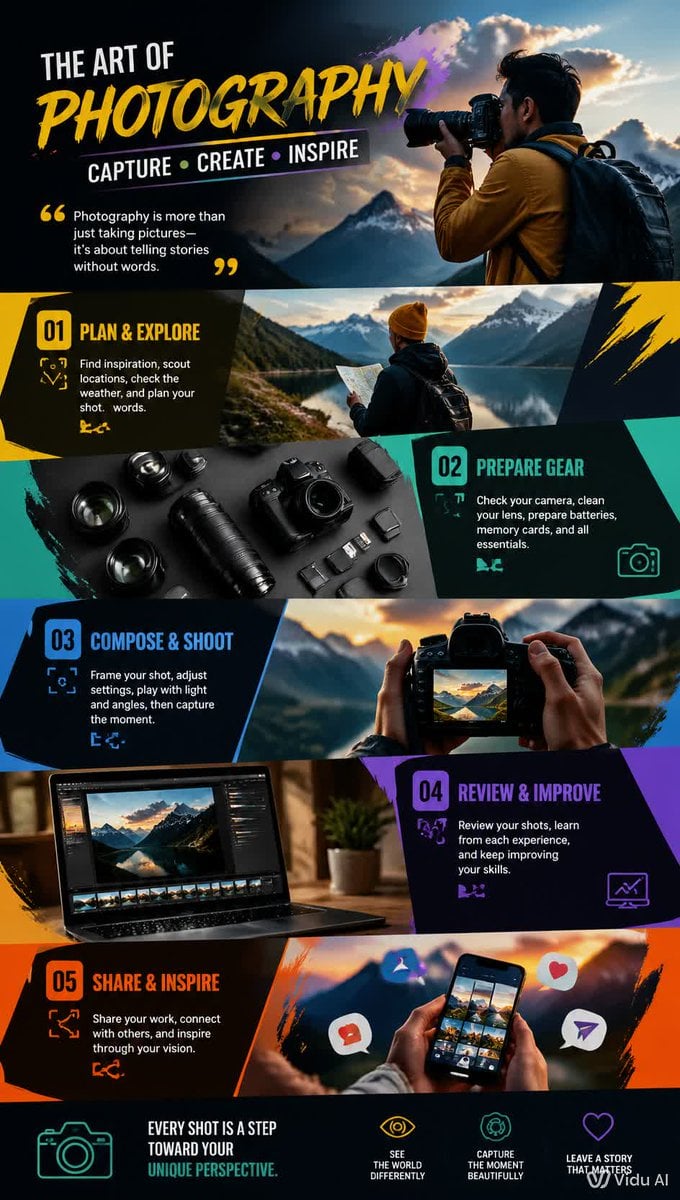
Dynamic Hobby Wallpaper
Cinematic Behind-the-Scenes VFX Artists Prompt
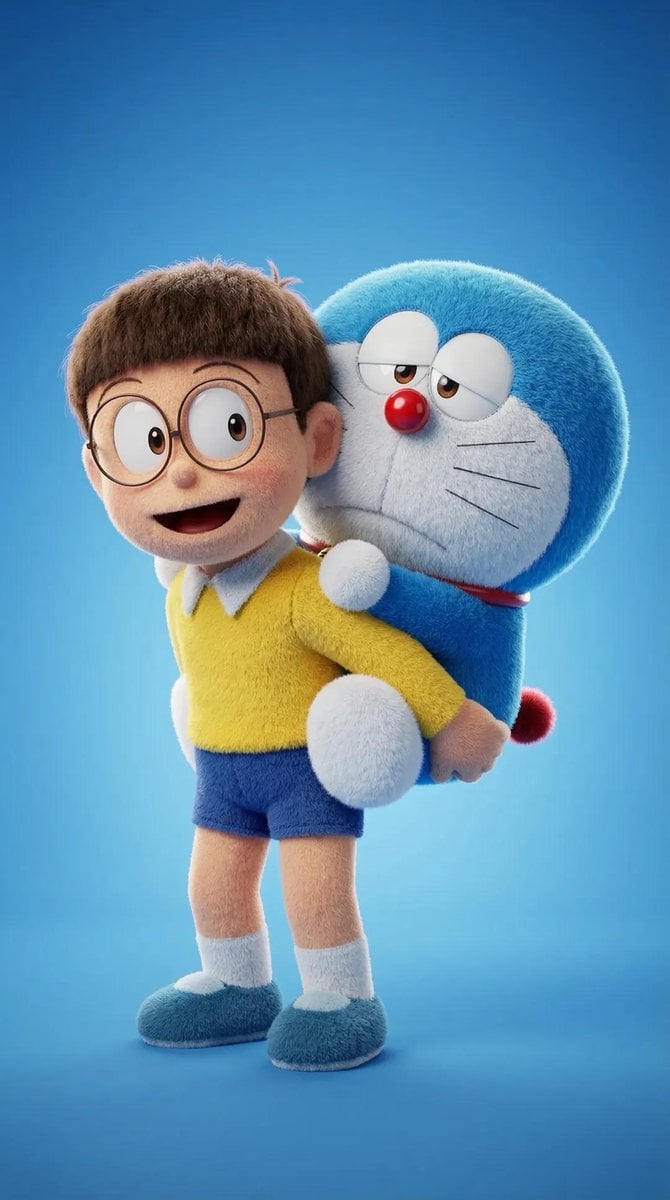
Ultra-Detailed 3D Plush Cartoon Character Rendering
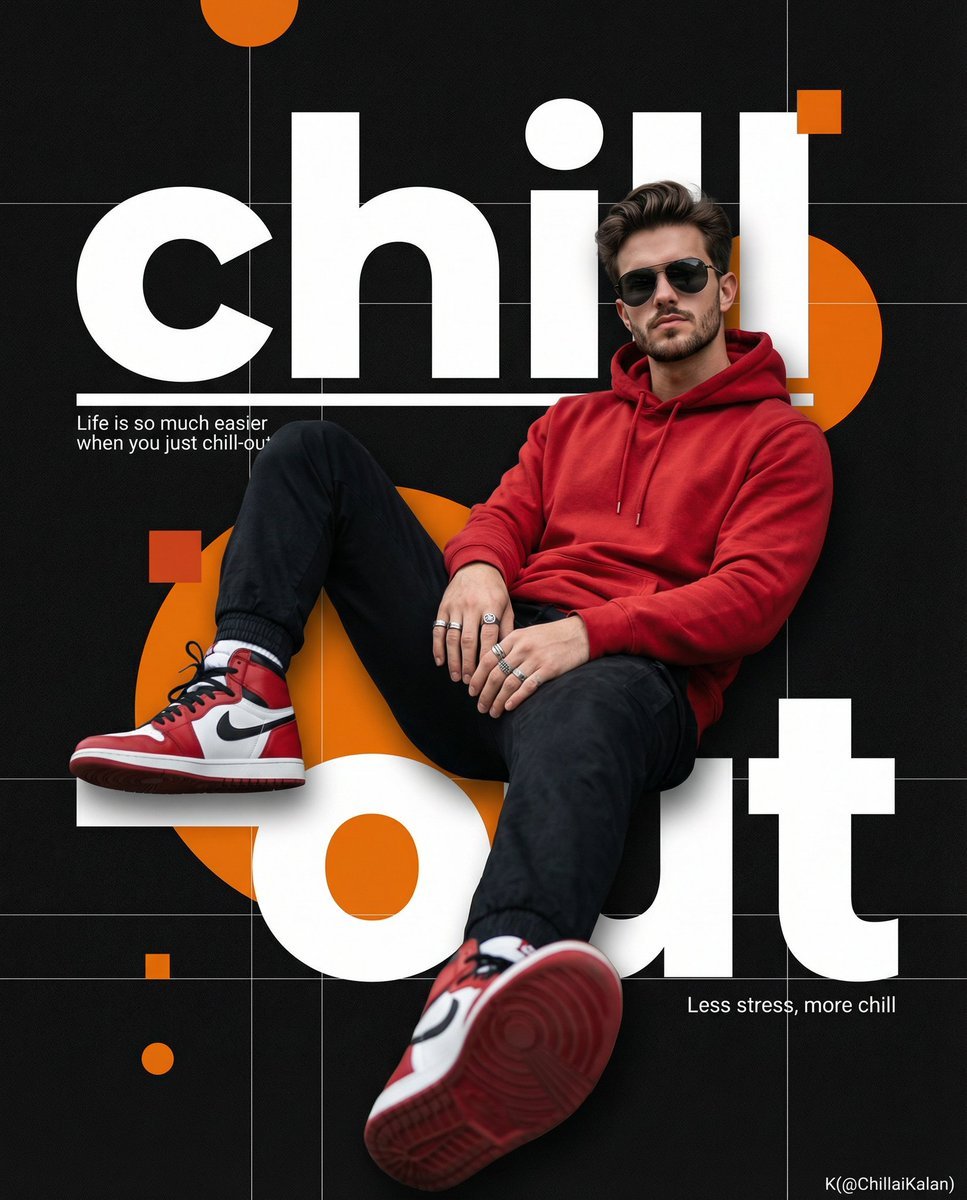
Hyper-Realistic Cinematic Poster Prompt for Nano Banana Pro
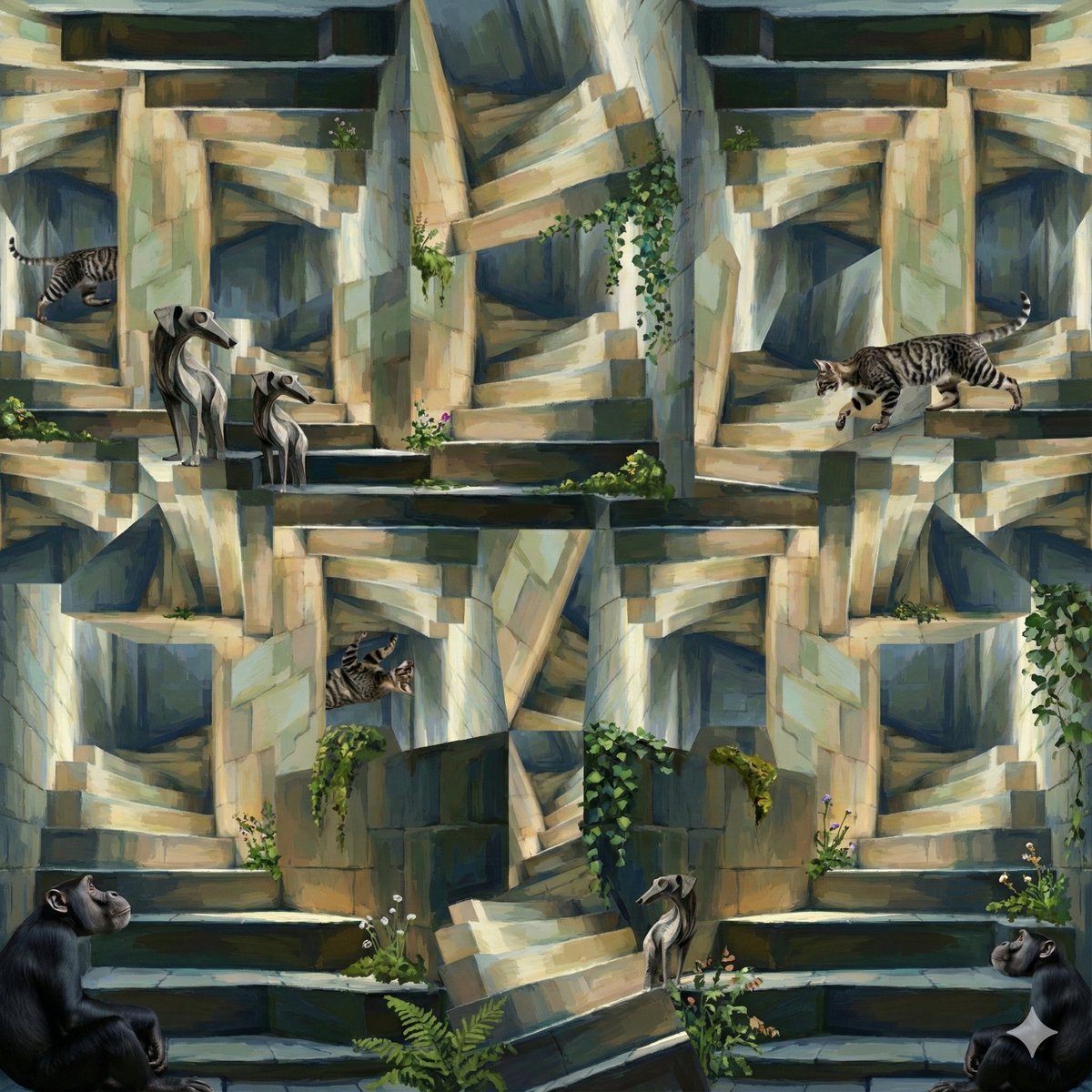
Image-to-Image Style Transfer: Collage to Cézanne Painting
Browse template categories
Hand-Drawn Style Photo Annotation questions
How do I use the Hand-Drawn Style Photo Annotation template?
Add your photo if the template asks for one, edit the prompt if you like — the template's model and format are already selected — and press Generate. Your version opens in PicX Studio.
Can I customize the Hand-Drawn Style Photo Annotation template?
Yes. You can change the subject, setting, lighting, mood, format, and available model controls before creating your image.
Is the Hand-Drawn Style Photo Annotation template free?
Opening and editing this template is free. Generating uses credits, shown on the Generate button when you are signed in.
Which AI model should I use?
Start with GPT Image 2, which is the model associated with this template. You can compare another compatible model for a different finish.
Looking for something else? Browse all templates.

Your photo, any look
Thousands of ready templates for every top image and video model, from one credit balance.