
3x3 Sci-Fi Action Storyboard
Generates a 9-panel cinematic storyboard depicting a character transitioning from a peaceful moment to an epic mecha battle.
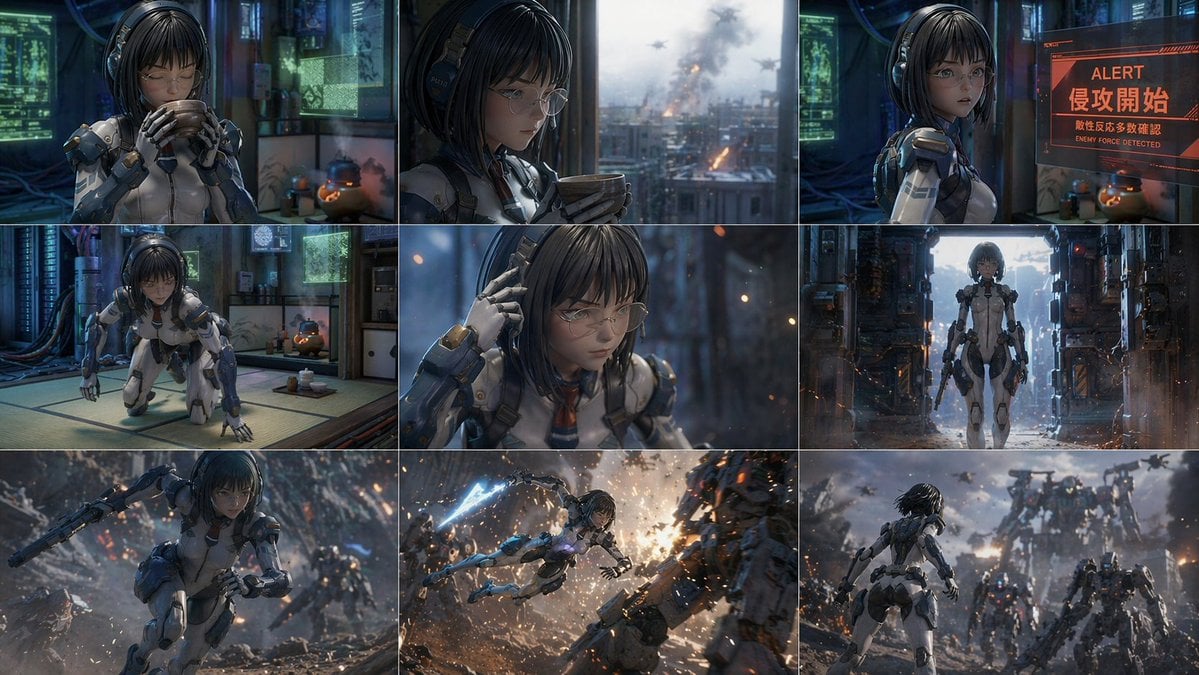
- Prompt included
- Model and format preset
- Free template
The prompt behind this image
Copy the exact prompt behind 3x3 Sci-Fi Action Storyboard, or open it in the studio and make it yours.
- Type
- 3x3 grid storyboard
- Style
- 3D CG anime style, cinematic lighting, highly detailed sci-fi environments
- Character › Description
- {argument name="character description" default="young woman with short black hair and round glasses"}
- Character › Outfit
- {argument name="suit design" default="futuristic white and blue mecha plugsuit"}
- Layout › Grid
- 3x3
- Layout › Panel Count
- 9
- Layout › Panels › 0 › Position
- top-left
- Layout › Panels › 0 › Scene
- Drinking traditional tea in a high-tech Japanese room with tatami mats
- Layout › Panels › 1 › Position
- top-center
- Layout › Panels › 1 › Scene
- Looking out a window at a futuristic city under attack, holding a tea bowl
- Layout › Panels › 2 › Position
- top-right
- Layout › Panels › 2 › Scene
- Looking at a red holographic warning screen displaying '{argument name="alert text" default="ALERT 侵攻開始 敵性反応多数確認 ENEMY FORCE DETECTED"}'
- Layout › Panels › 3 › Position
- mid-left
- Layout › Panels › 3 › Scene
- Kneeling on the tatami mat in a ready stance
- Layout › Panels › 4 › Position
- mid-center
- Layout › Panels › 4 › Scene
- Close-up portrait, touching headset with a serious expression
- Layout › Panels › 5 › Position
- mid-right
- Layout › Panels › 5 › Scene
- Standing in a dark metallic hangar, fully equipped
- Layout › Panels › 6 › Position
- bottom-left
- Layout › Panels › 6 › Scene
- Dashing through a war-torn battlefield with flying debris
- Layout › Panels › 7 › Position
- bottom-center
- Layout › Panels › 7 › Scene
- Dynamic mid-air combat, attacking a mecha with a {argument name="weapon" default="glowing blue energy blade"}
- Layout › Panels › 8 › Position
- bottom-right
- Layout › Panels › 8 › Scene
- Epic standoff, facing a {argument name="enemy" default="massive enemy mecha"} in a ruined landscape
Raw JSON
{
  "type": "3x3 grid storyboard",
  "style": "3D CG anime style, cinematic lighting, highly detailed sci-fi environments",
  "character": {
    "description": "{argument name=\"character description\" default=\"young woman with short black hair and round glasses\"}",
    "outfit": "{argument name=\"suit design\" default=\"futuristic white and blue mecha plugsuit\"}"
  },
  "layout": {
    "grid": "3x3",
    "panel_count": 9,
    "panels": [
      { "position": "top-left", "scene": "Drinking traditional tea in a high-tech Japanese room with tatami mats" },
      { "position": "top-center", "scene": "Looking out a window at a futuristic city under attack, holding a tea bowl" },
      { "position": "top-right", "scene": "Looking at a red holographic warning screen displaying '{argument name=\"alert text\" default=\"ALERT 侵攻開始 敵性反応多数確認 ENEMY FORCE DETECTED\"}'" },
      { "position": "mid-left", "scene": "Kneeling on the tatami mat in a ready stance" },
      { "position": "mid-center", "scene": "Close-up portrait, touching headset with a serious expression" },
      { "position": "mid-right", "scene": "Standing in a dark metallic hangar, fully equipped" },
      { "position": "bottom-left", "scene": "Dashing through a war-torn battlefield with flying debris" },
      { "position": "bottom-center", "scene": "Dynamic mid-air combat, attacking a mecha with a {argument name=\"weapon\" default=\"glowing blue energy blade\"}" },
      { "position": "bottom-right", "scene": "Epic standoff, facing a {argument name=\"enemy\" default=\"massive enemy mecha\"} in a ruined landscape" }
    ]
  }
}Reference images included
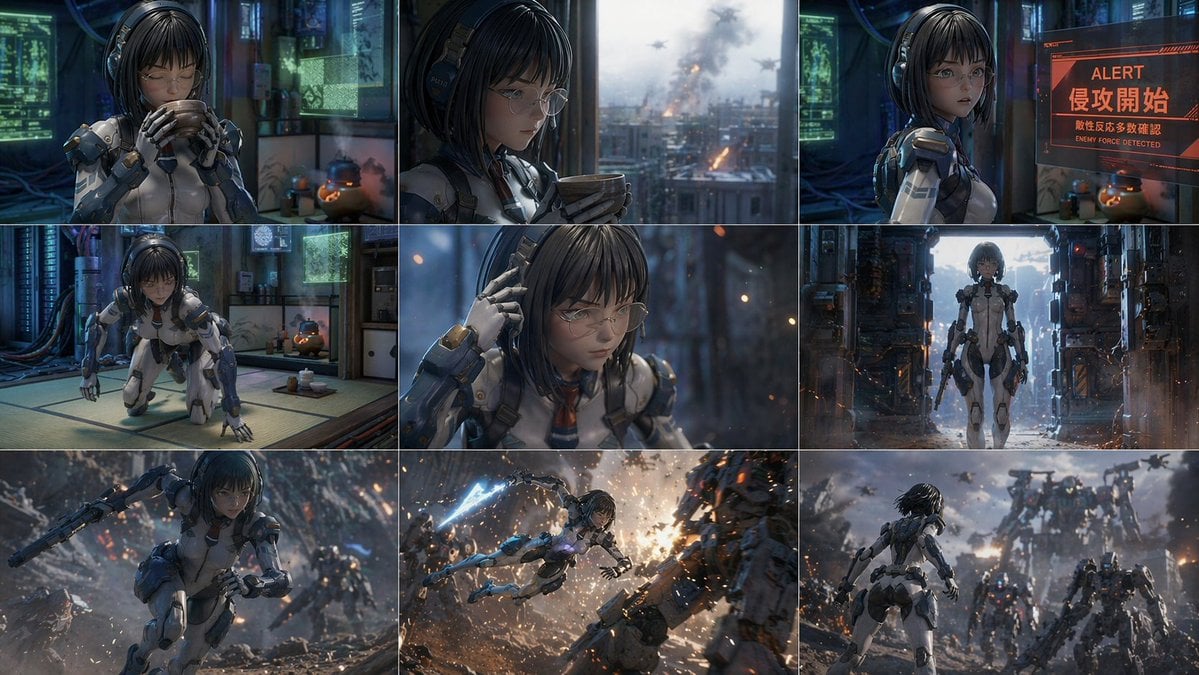
3x3 Sci-Fi Action Storyboard needs input media to work. They load alongside the prompt when you open it in the studio.
How to use 3x3 Sci-Fi Action Storyboard in 3 steps
- 1Upload ImagePNG, JPG or paste
Add your photo
Upload the photo the template builds on. The prompt, model and format are already set.
- 2…a portrait of your subject in softgolden-hour light, 85mm…
Personalize
Edit the subject and creative details for your destination.
- 3Generate
Generate
Press Generate — your image is created in PicX Studio, so you can compare it with the original and refine one variable at a time.
More like this
Templates with the same subject, style or setup. Open one to see its prompt.
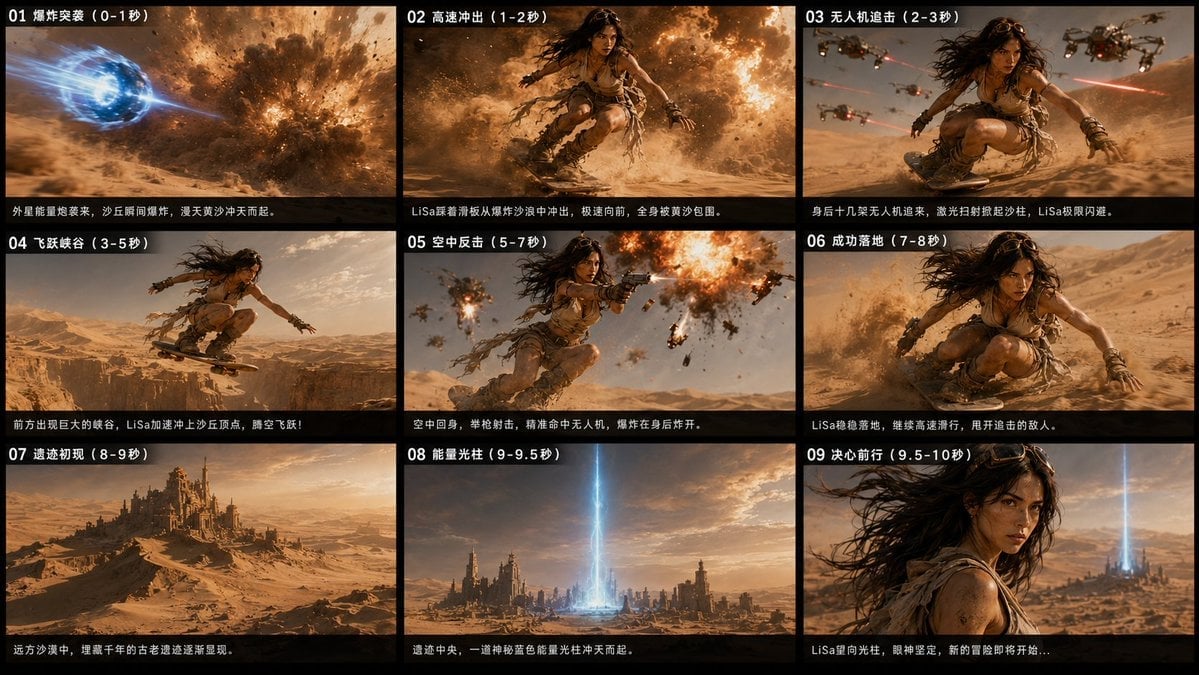
Desert Sci-Fi Action Storyboard
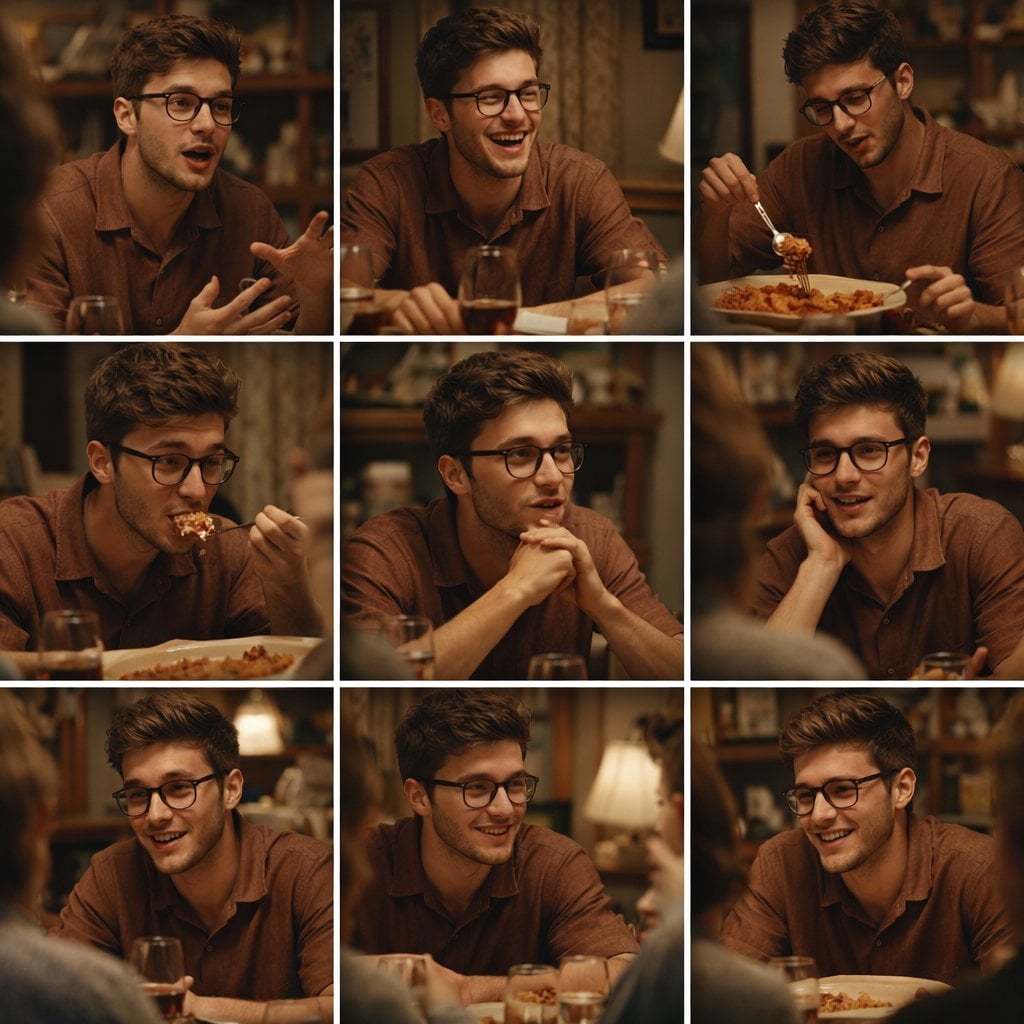
A 3x3 grid storyboard contact sheet comprised of nine candid, cinematic

Venom SpongeBob Hyperreal Cinematic Mix
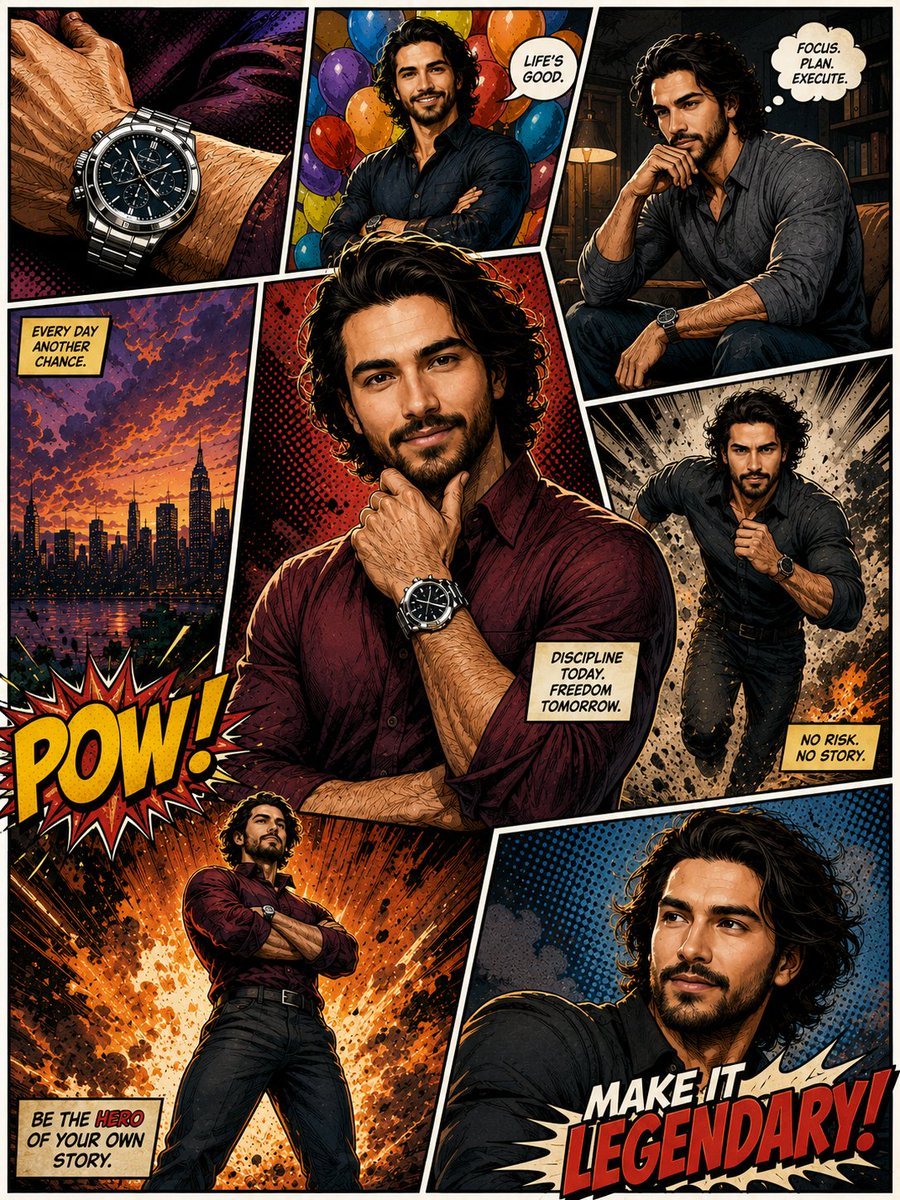
Hero Portrait Comic Multi-Panel Poster
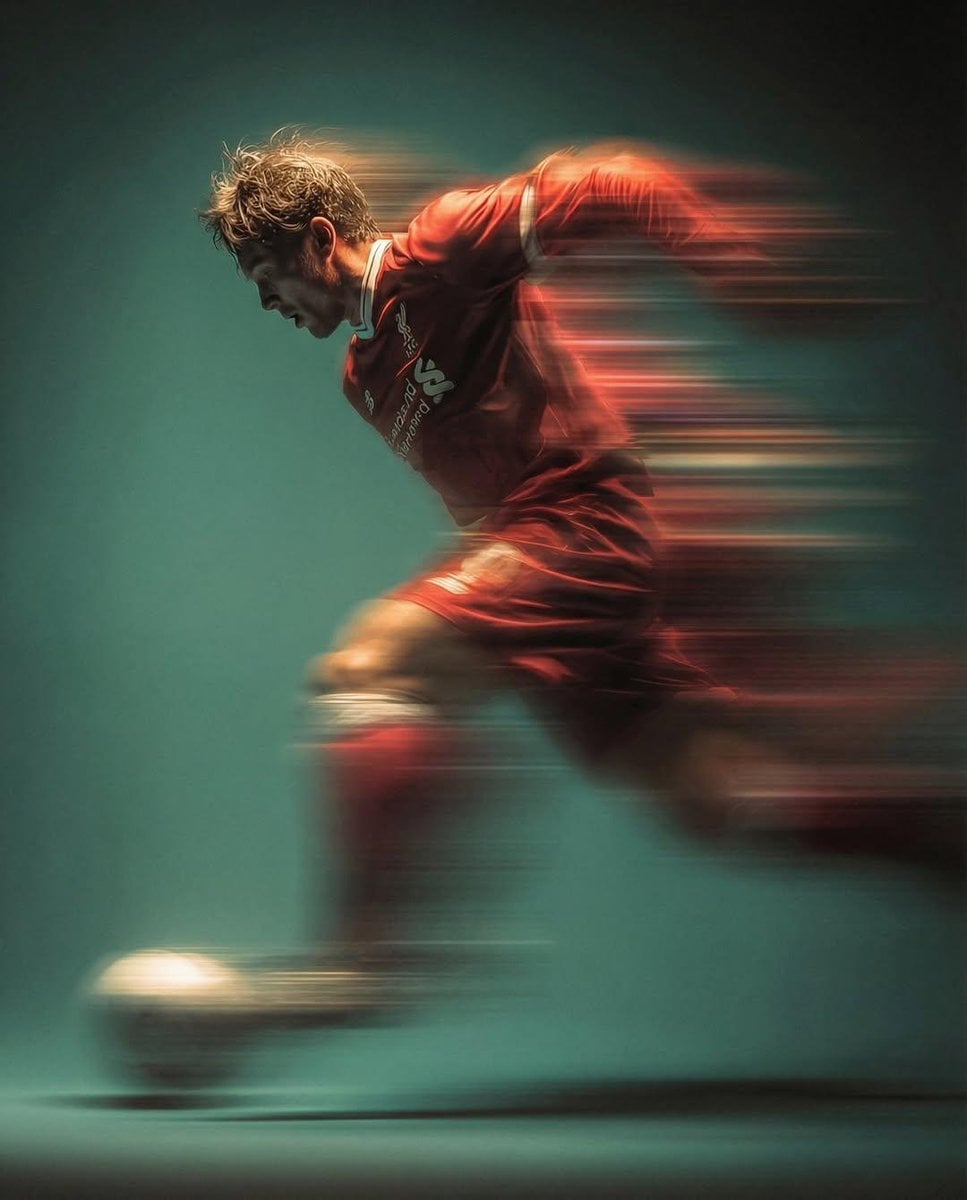
Panning Motion Soccer Kick Poster

Dual Composition Hero Action Football Poster
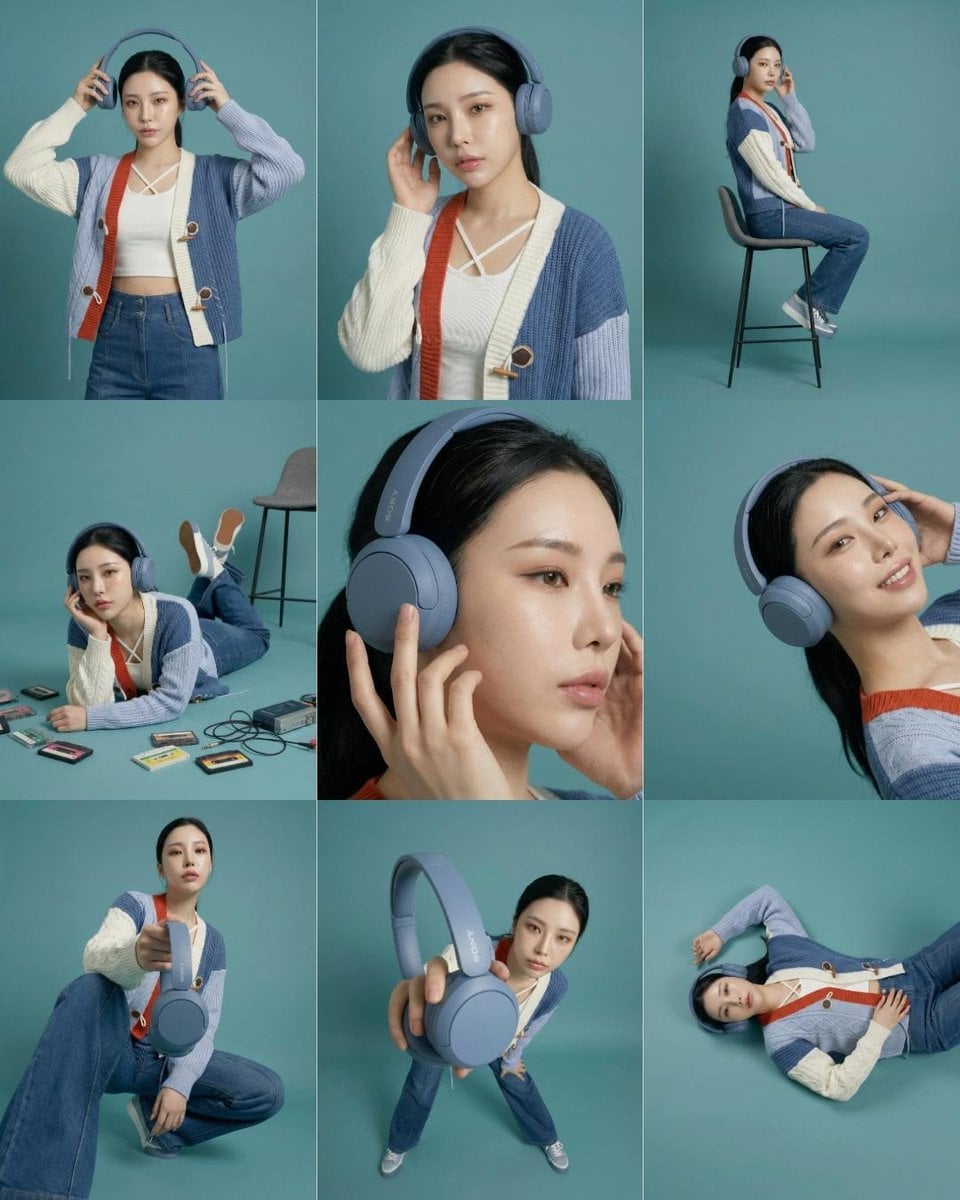
Headphones Lifestyle Nine Panel Grid
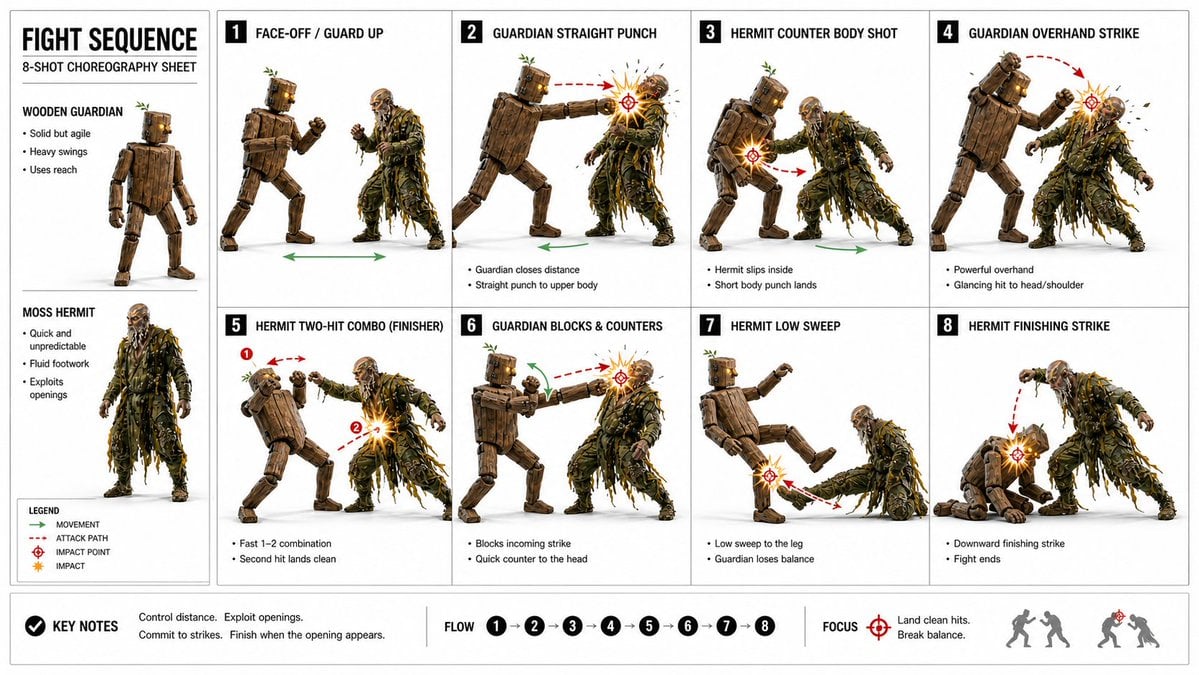
Action Storyboard Simplification
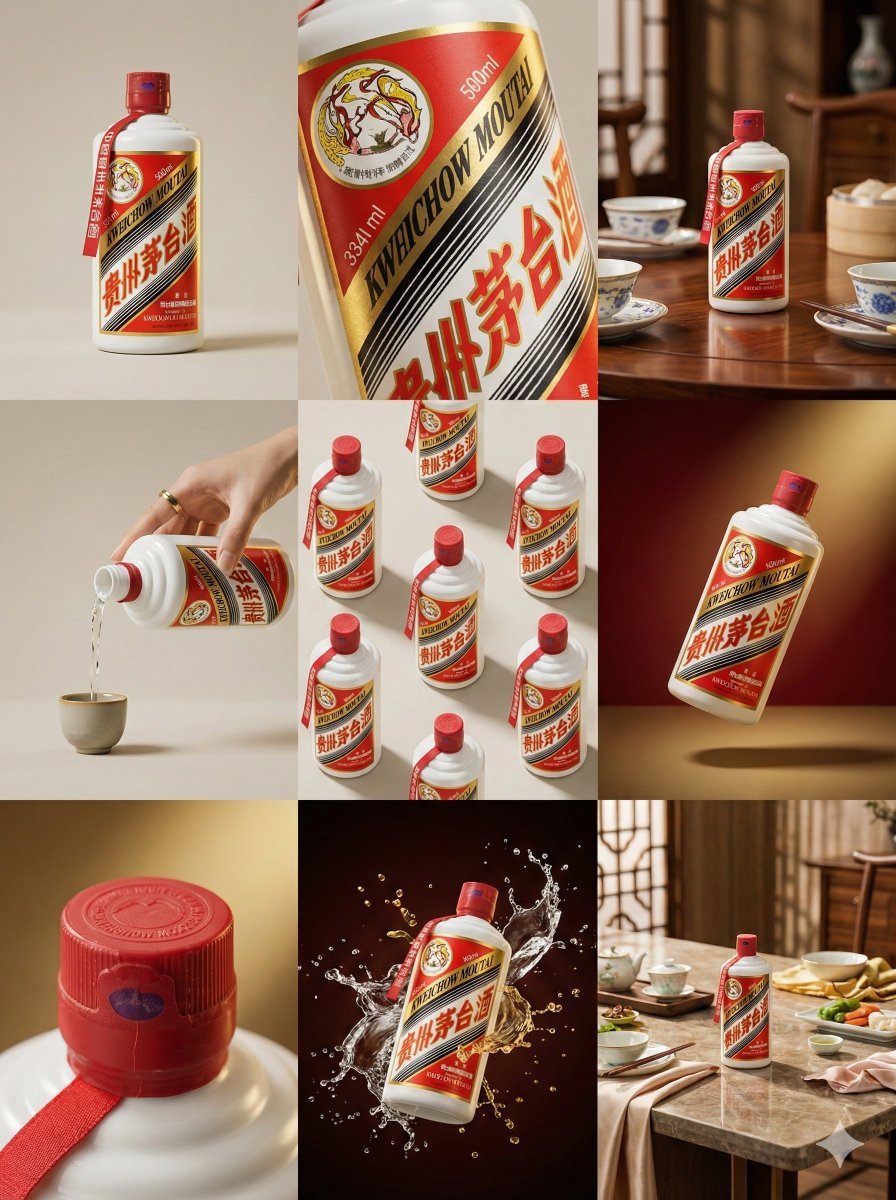
Moutai Brand 3x3 Visual Storyboard
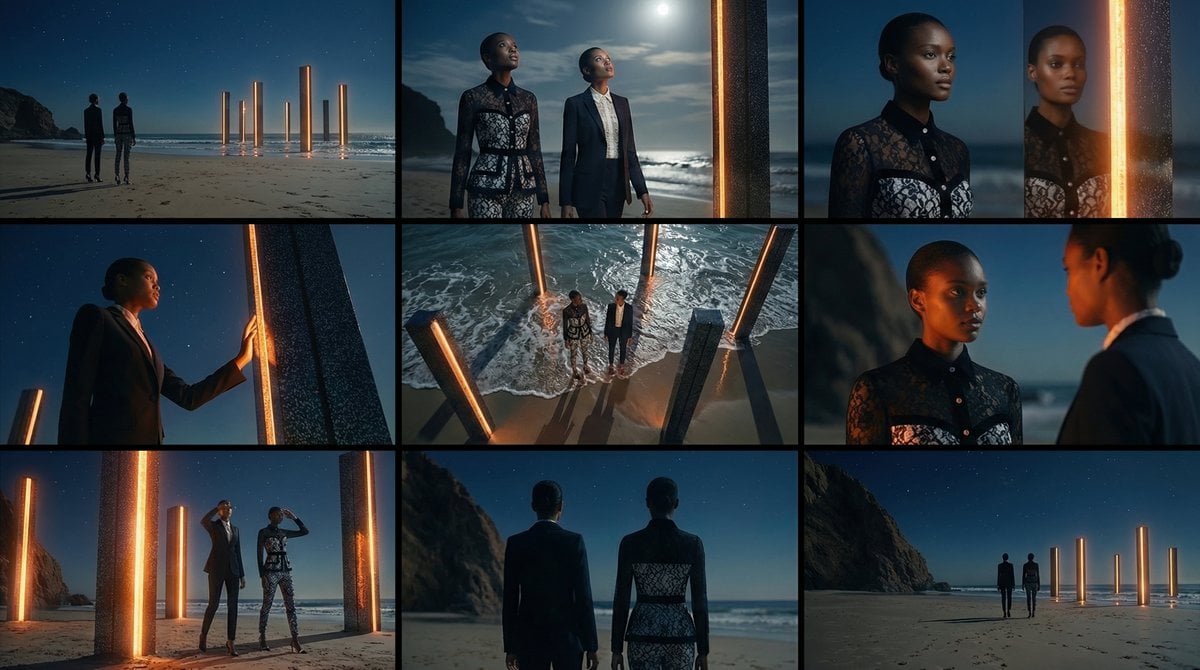
Storyboard Grid Generation Prompt (3x3)
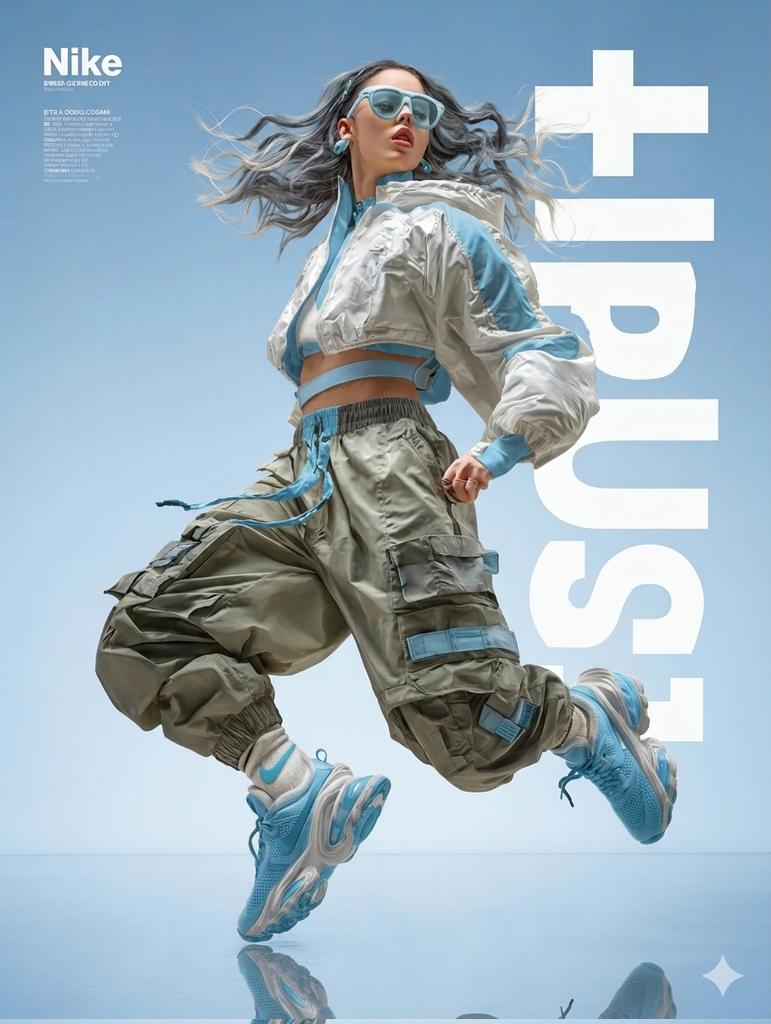
High Fashion Action Nike Nano Banana
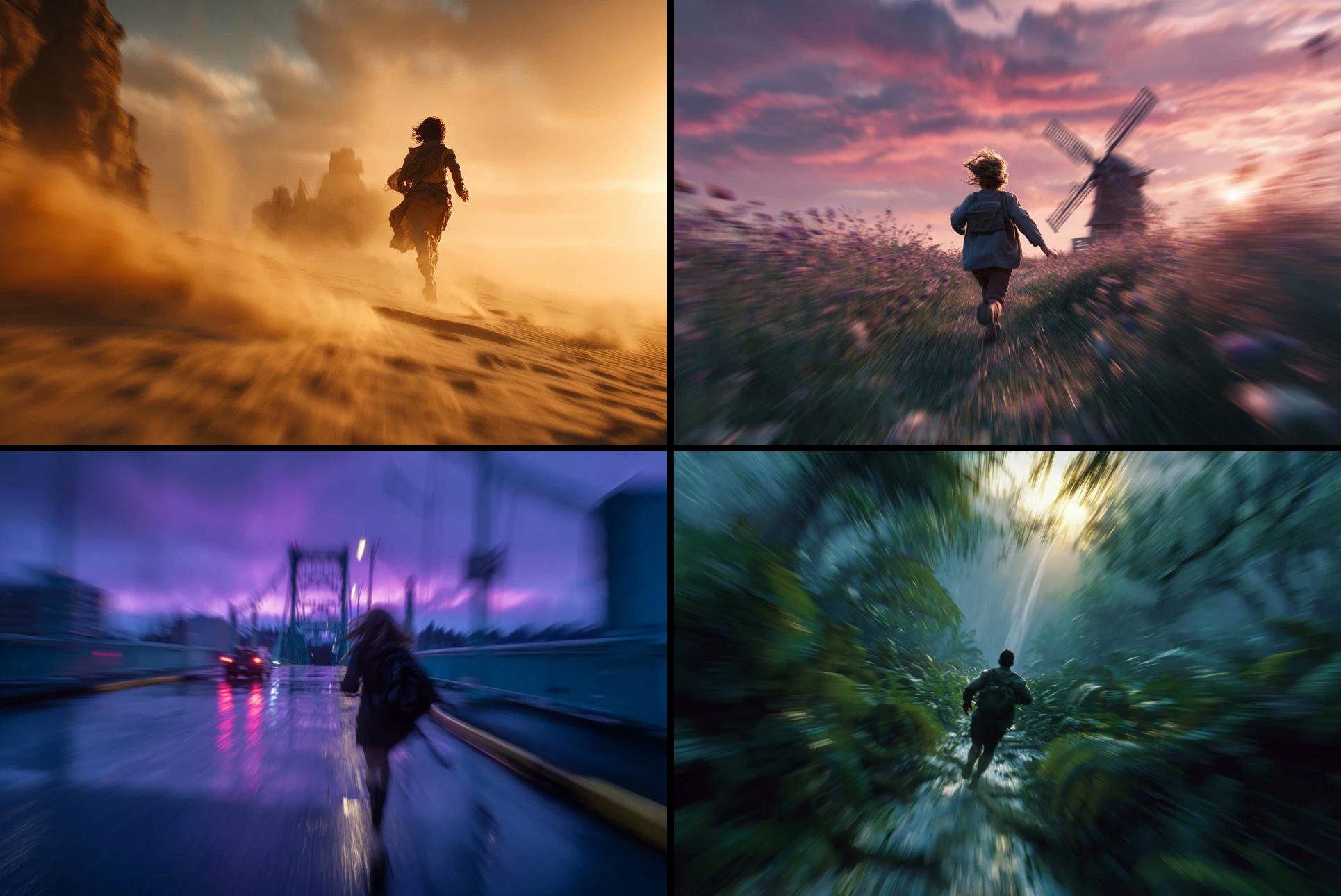
Freedom in Motion — Cinematic Sprint
Make it yours
3x3 Sci-Fi Action Storyboard works as-is. These are the safest ways to change it without losing the look.
Change one field
Copy a single group, rewrite it, and generate again so you can see what that field is doing.
Keep the frame, change the subject
Hold the composition and light of 3x3 Sci-Fi Action Storyboard, then swap wardrobe, props or the person for a new take.
| If the result… | Why | Fix |
|---|---|---|
| The result drifts from the preview | Too many fields changed at once. | Reuse 3x3 Sci-Fi Action Storyboard as-is first, then change one group — subject, light, or setting. |
| GPT Image 2 ignores part of the JSON | Some models flatten or skip nested keys. | Keep the same values and paste them as a short paragraph instead. |
More GPT Image 2 templates
Other prompts made for GPT Image 2.

Six VTuber Japanese Logo Sheet

Realistic Portrait of Woman and Deer

The Vista Modular Condo Poster

AI Model Routing Comparison Infographic

2.5D Anime Art Board

Isometric Productivity Desk Scene

New York Double Exposure Poster

Four-Panel AI Landscape Comparison

Japanese Tatami Lifestyle Magazine Cover

NESCAFÉ Coffee Map Poster
More image prompts
Fresh picks from across the catalog.

YouTube Unboxing Thumbnail Prompt
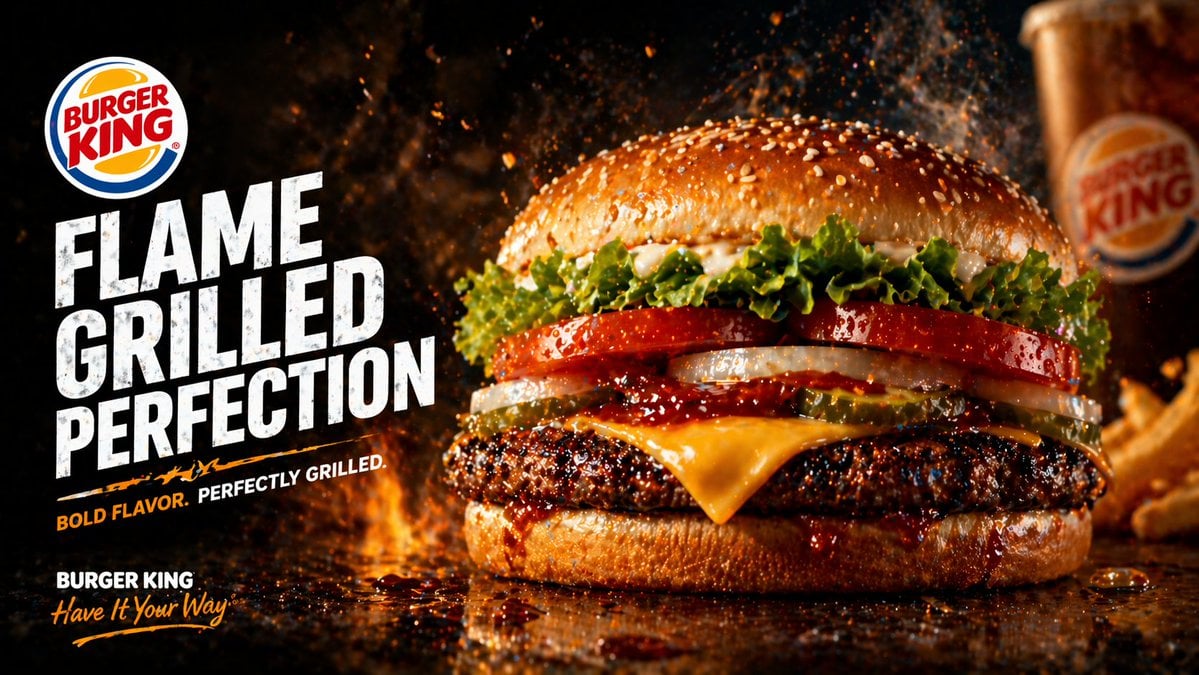
Flame-Grilled Burger Ad Poster
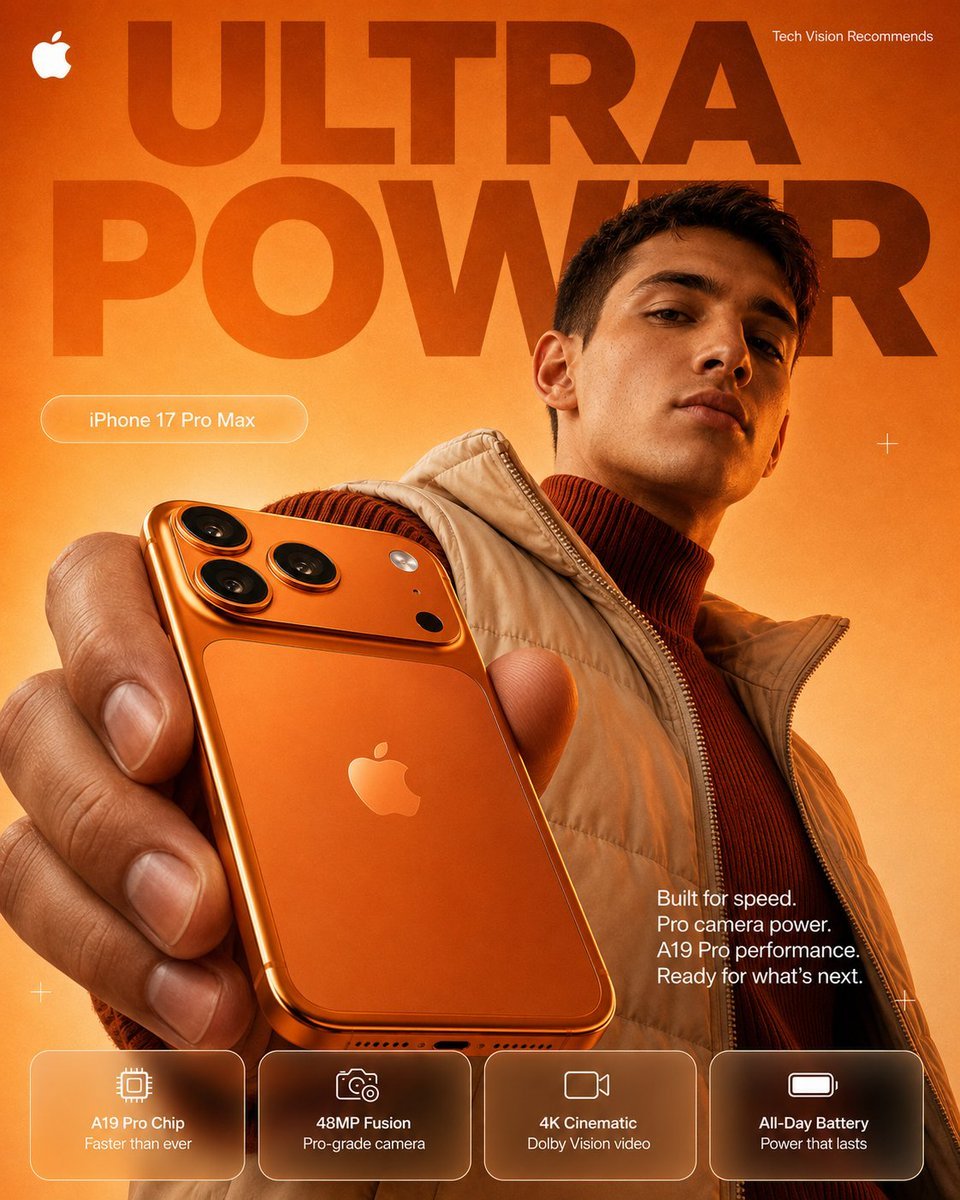
Orange Ultra Power iPhone Ad Poster
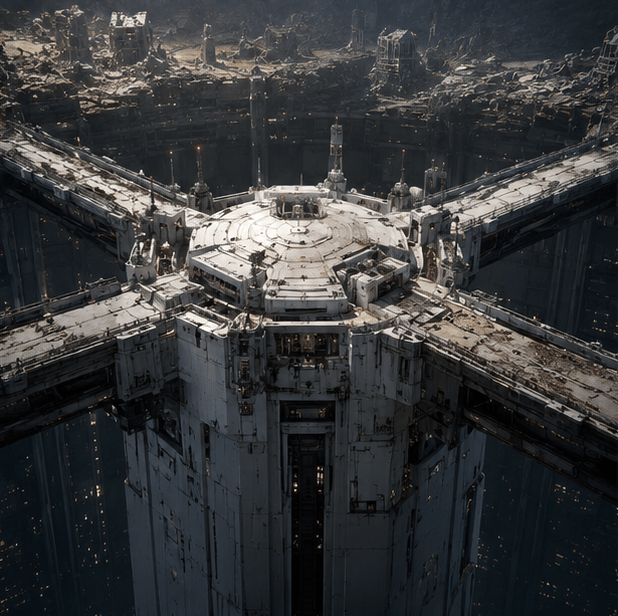
Tokyo Geofront Central Tower Rooftop
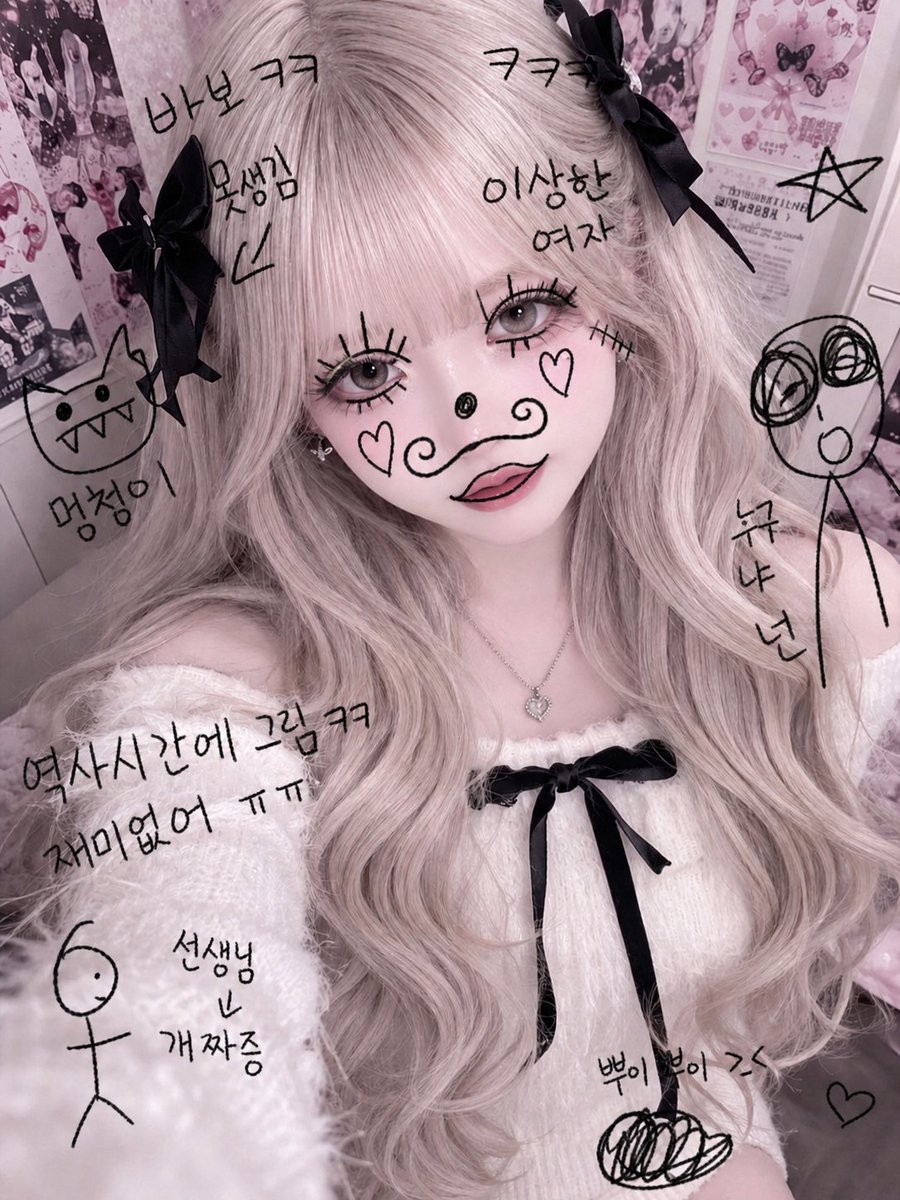
Textbook Doodle Drawing Effect
Hyper-realistic Fashion Poster
mirror
Futuristic Fashion Editorial Portrait
Origami Kitchen Cutaway
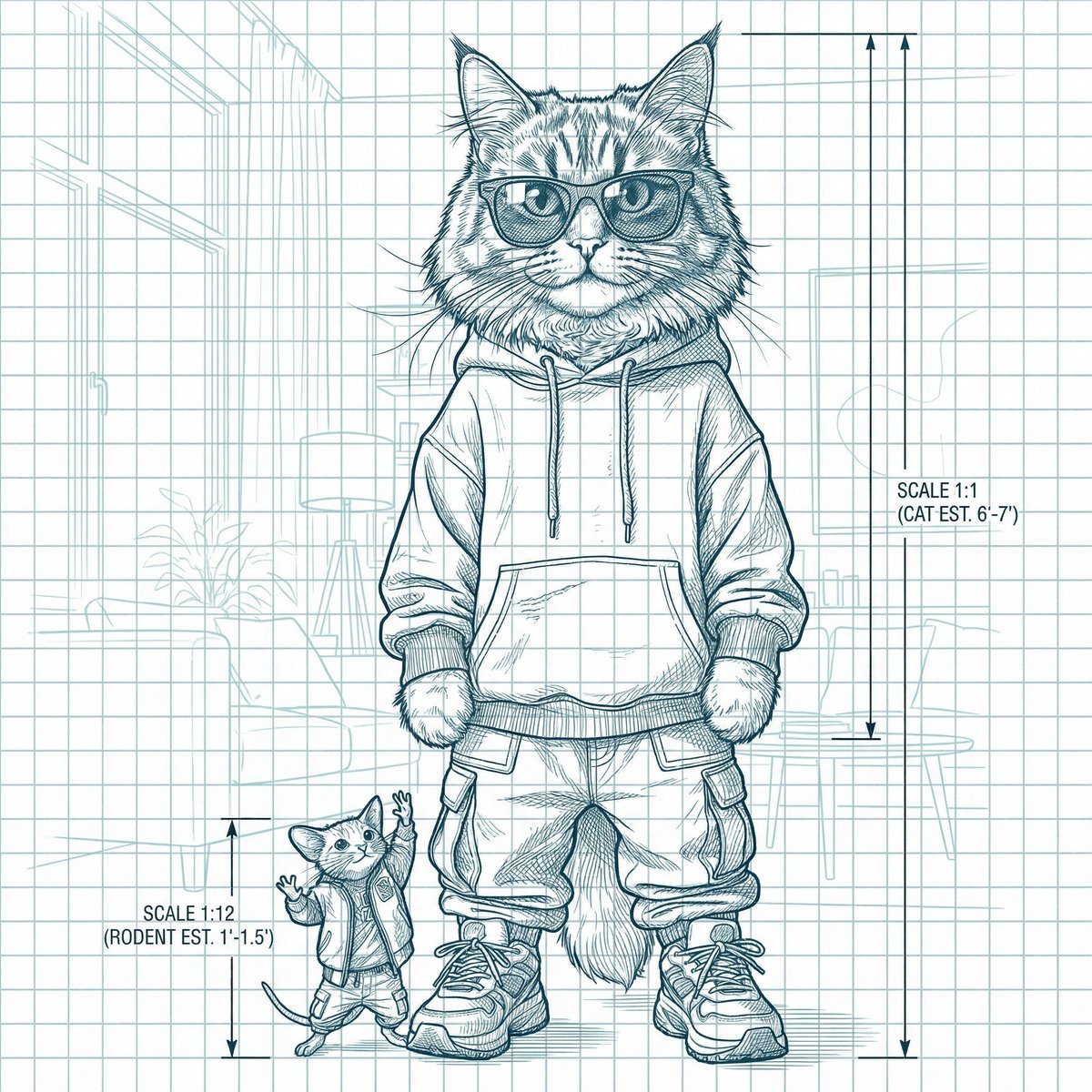
Blueprint-style technical schematic generation
Browse template categories
3x3 Sci-Fi Action Storyboard questions
How do I use the 3x3 Sci-Fi Action Storyboard template?
Add your photo if the template asks for one, edit the prompt if you like — the template's model and format are already selected — and press Generate. Your version opens in PicX Studio.
Can I customize the 3x3 Sci-Fi Action Storyboard template?
Yes. You can change the subject, setting, lighting, mood, format, and available model controls before creating your image.
Is the 3x3 Sci-Fi Action Storyboard template free?
Opening and editing this template is free. Generating uses credits, shown on the Generate button when you are signed in.
Which AI model should I use?
Start with GPT Image 2, which is the model associated with this template. You can compare another compatible model for a different finish.
Looking for something else? Browse all templates.

Your photo, any look
Thousands of ready templates for every top image and video model, from one credit balance.