
Paper Texture Swatch Grid
A 16:9 contact sheet of ten realistic paper texture swatches for design background and material reference use.
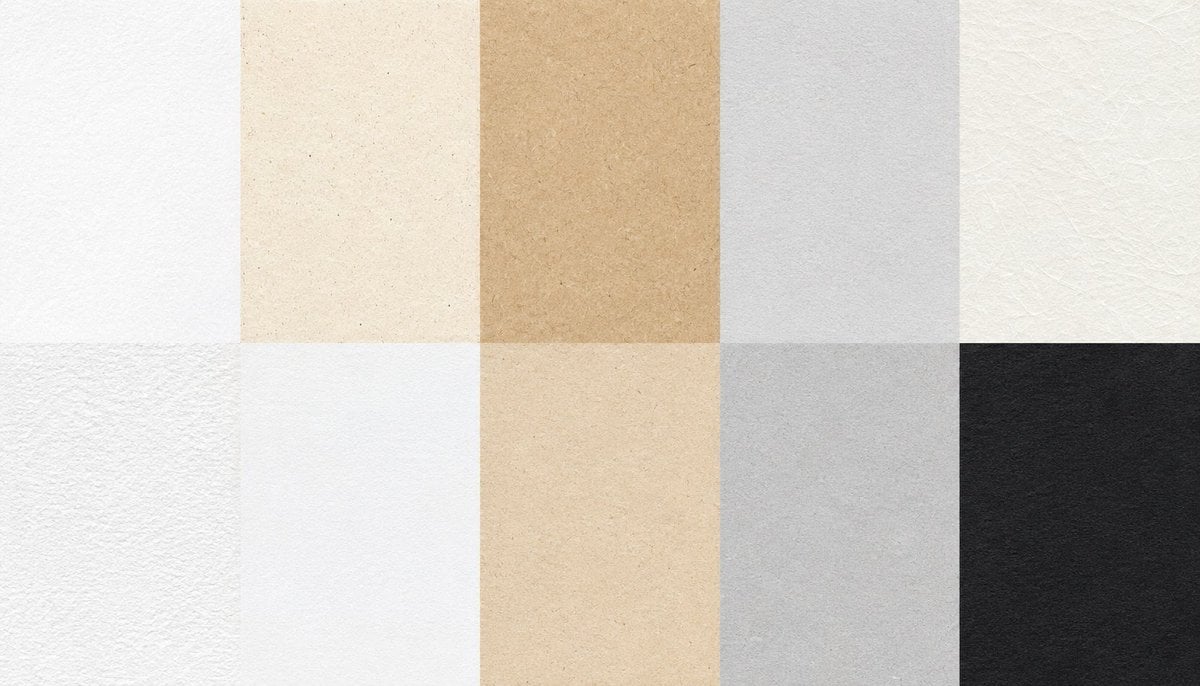
- Prompt included
- Model and format preset
- Free template
The prompt behind this image
Copy the exact prompt behind Paper Texture Swatch Grid, or open it in the studio and make it yours.
Create a 16:9 paper texture collection contact sheet showing exactly 10 rectangular paper swatches in a clean 5-column by 2-row grid, filling the entire frame edge to edge with no gaps, no borders, no labels, and no shadows. Canvas size should be {argument name="canvas size" default="1792x1024"}. Each swatch is a flat overhead scan-style texture with realistic matte paper grain, subtle fibers, fine speckles, and gentle uneven tonality. Top row, left to right: 1) bright minimal white paper with very fine grain, 2) warm ivory recycled paper with tiny brown flecks, 3) tan kraft paper with soft mottling and natural pulp fibers, 4) cool light gray paper with smooth fine grain, 5) off-white fibrous handmade paper with visible crisscross fibers and faint creases. Bottom row, left to right: 6) white rough watercolor paper with pronounced tooth and subtle deckle-like texture, 7) clean smooth white stationery paper with barely visible fibers, 8) pale beige parchment paper with aged speckles and warm uneven stains, 9) medium cool gray paper with cloudy mottling and soft grain, 10) deep charcoal black paper with visible fiber texture and low-contrast grain. Use natural soft lighting, high-resolution macro texture detail, realistic scanned paper surfaces, neutral color accuracy, and a minimal design suitable for texture references or design backgrounds. Avoid text, objects, hands, logos, watermarks, perspective distortion, seams beyond the grid divisions, and decorative elements.
How to use Paper Texture Swatch Grid in 3 steps
- 1Upload ImagePNG, JPG or paste
Add your photo
Upload the photo the template builds on. The prompt, model and format are already set.
- 2…a portrait of your subject in softgolden-hour light, 85mm…
Personalize
Edit the subject and creative details for your destination.
- 3Generate
Generate
Press Generate — your image is created in PicX Studio, so you can compare it with the original and refine one variable at a time.
More like this
Templates with the same subject, style or setup. Open one to see its prompt.
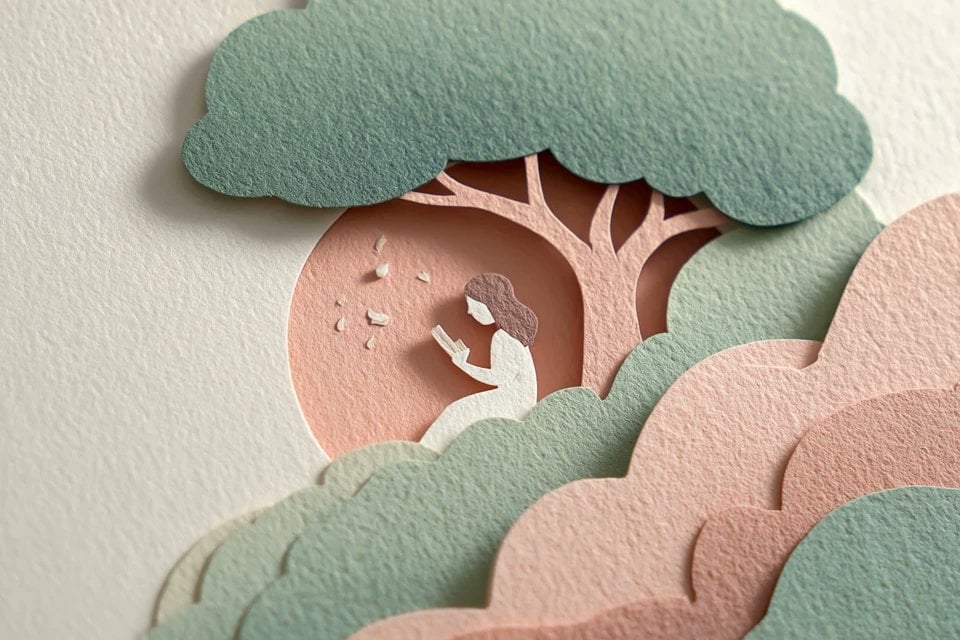
Master Layered Paper Cut Illustration — Overlapping Shapes with Handcrafted Textures
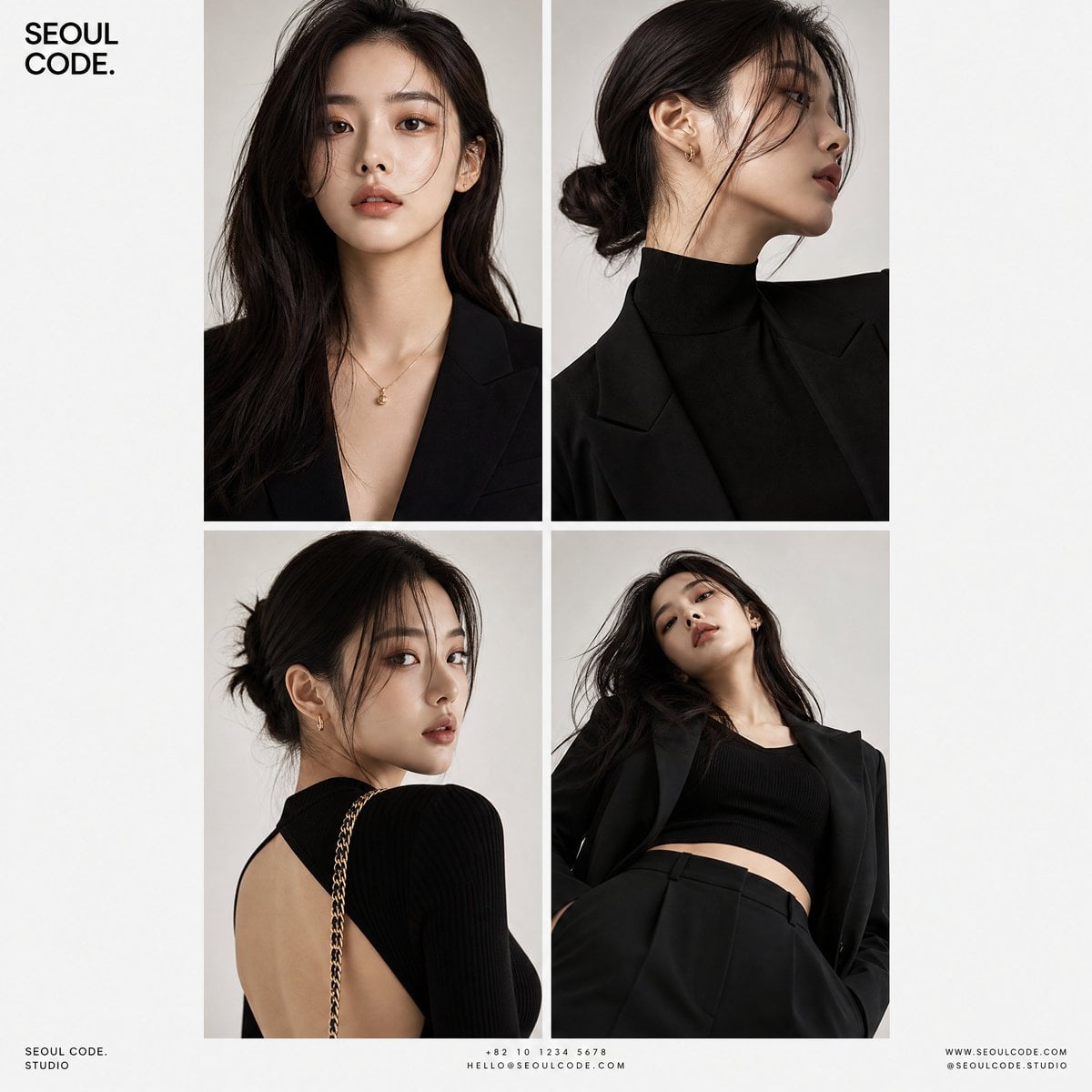
Korean Luxury Fashion Editorial 2x2 Grid Series
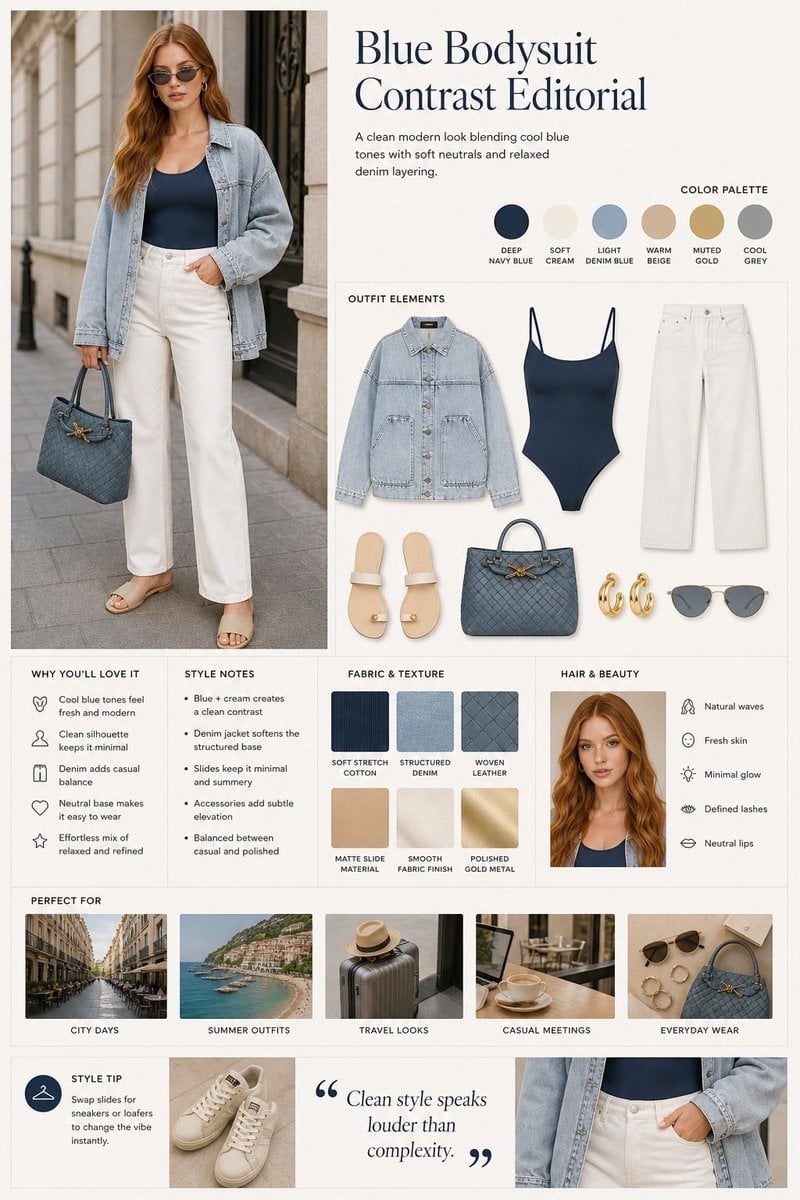
Minimalist Fashion Editorial Split Layout
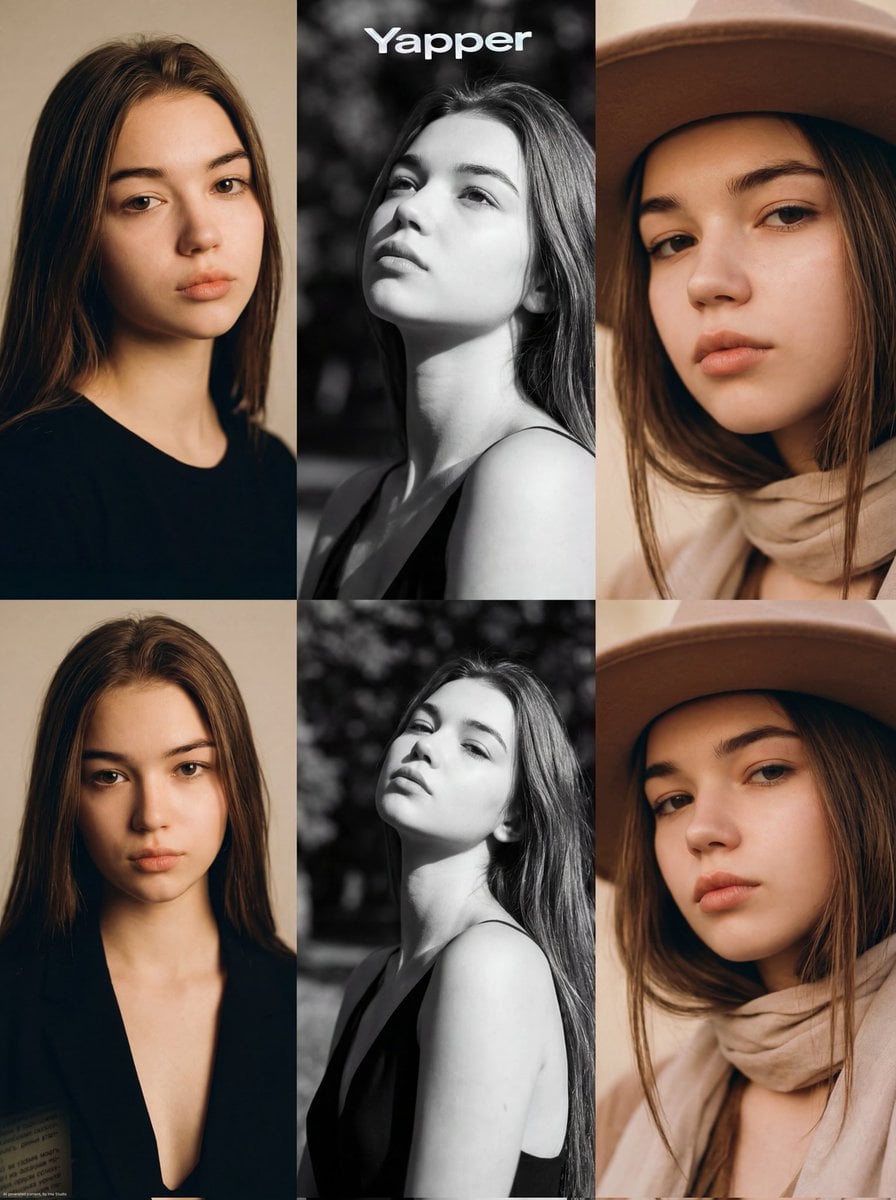
Ultra-Realistic Vogue-Style Editorial Fashion Grid
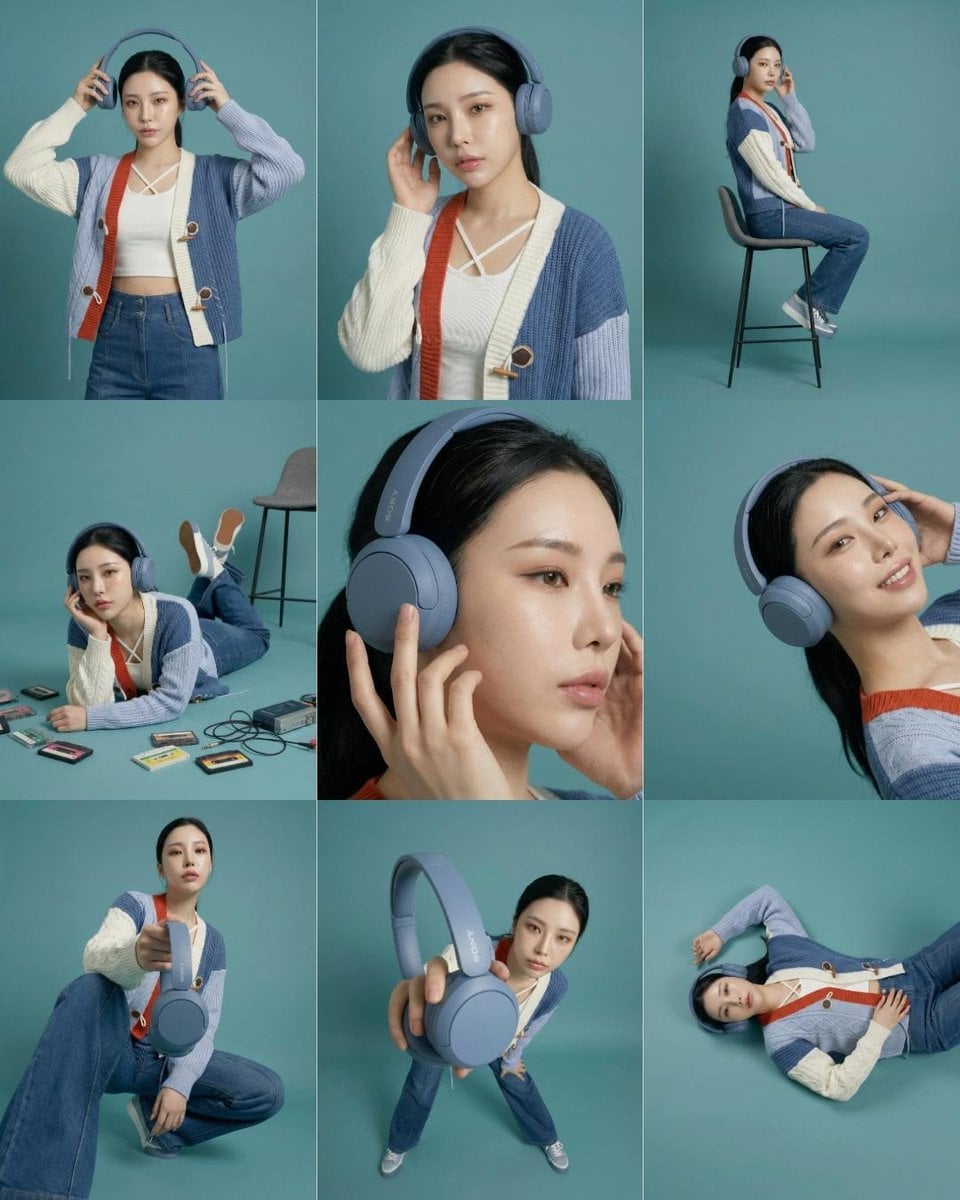
Headphones Lifestyle Nine Panel Grid
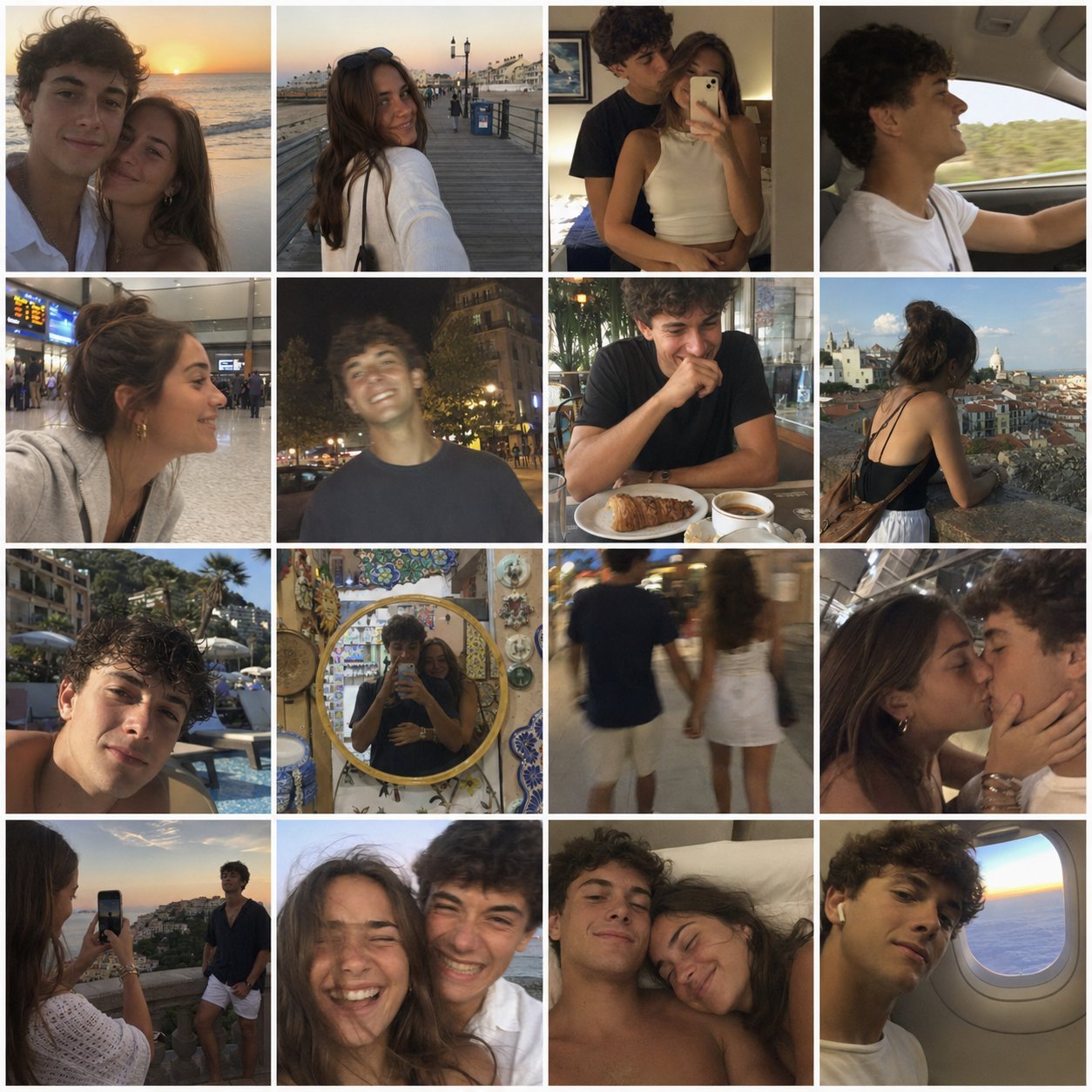
4x4 Grid - Candid Nostalgic Vacation Selfies
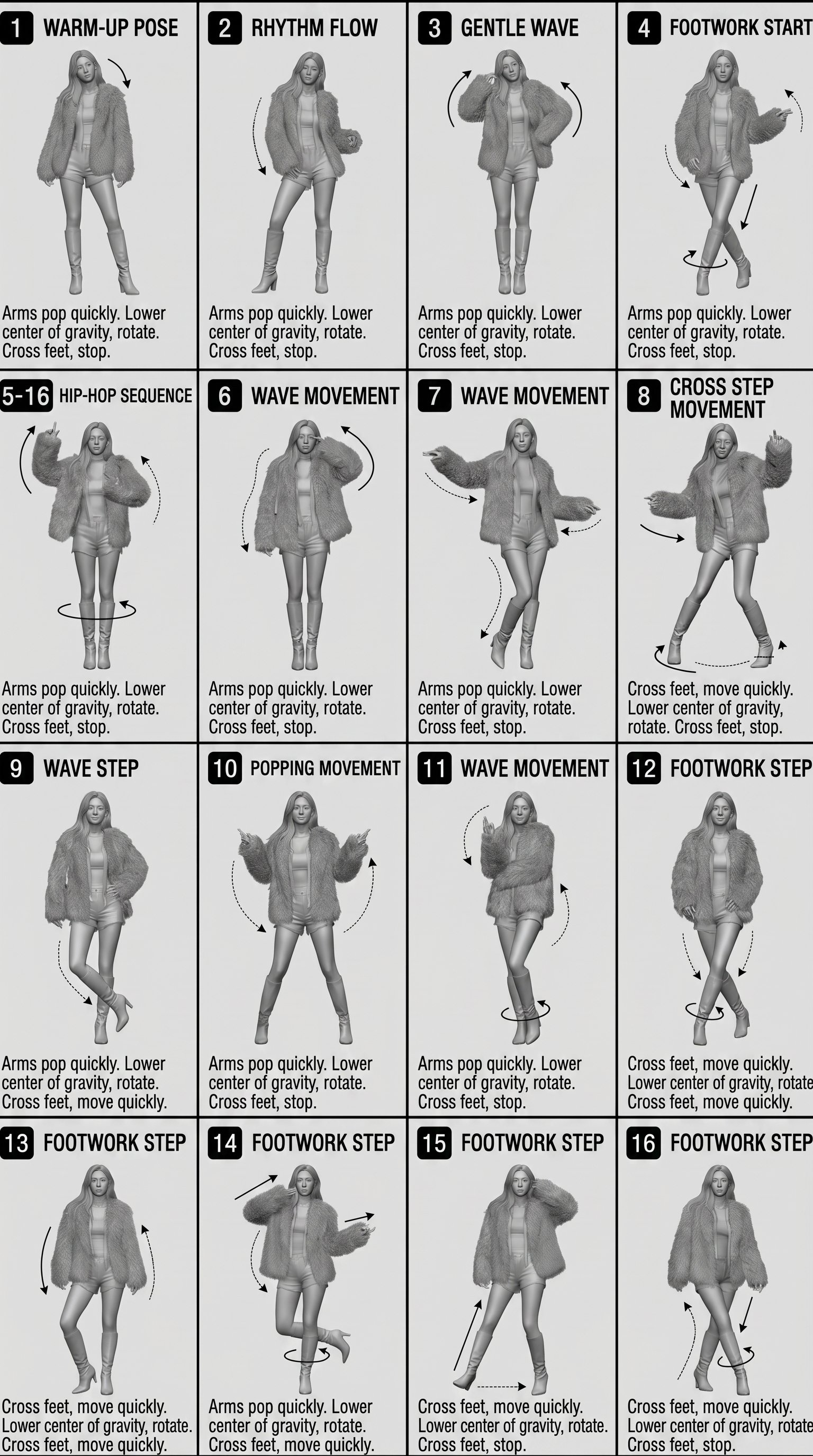
Movement Sheet - Dance Reference (Seedance 2.0)
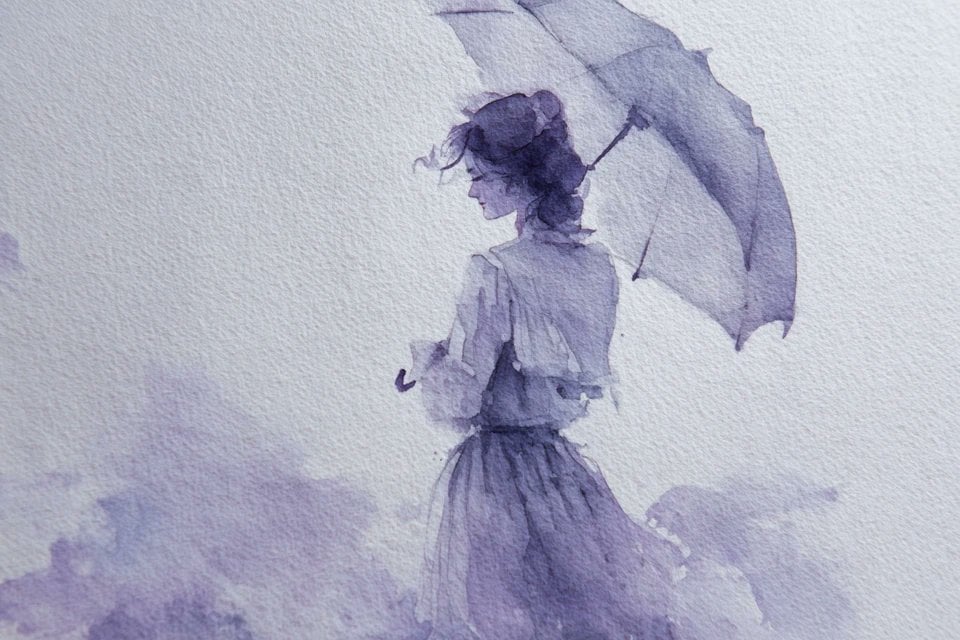
Watercolor Dreamscape — Nano Banana
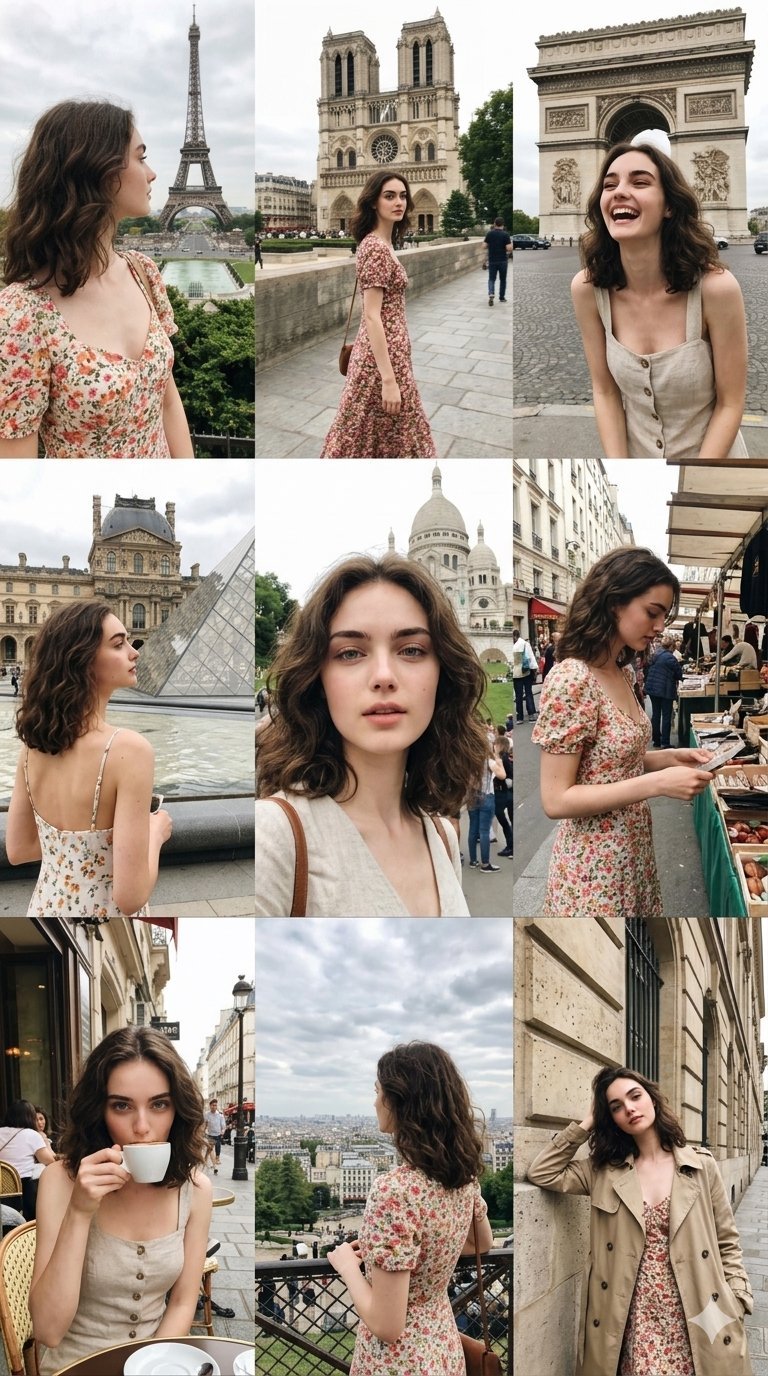
Paris Travel Collage Grid - Face Reference
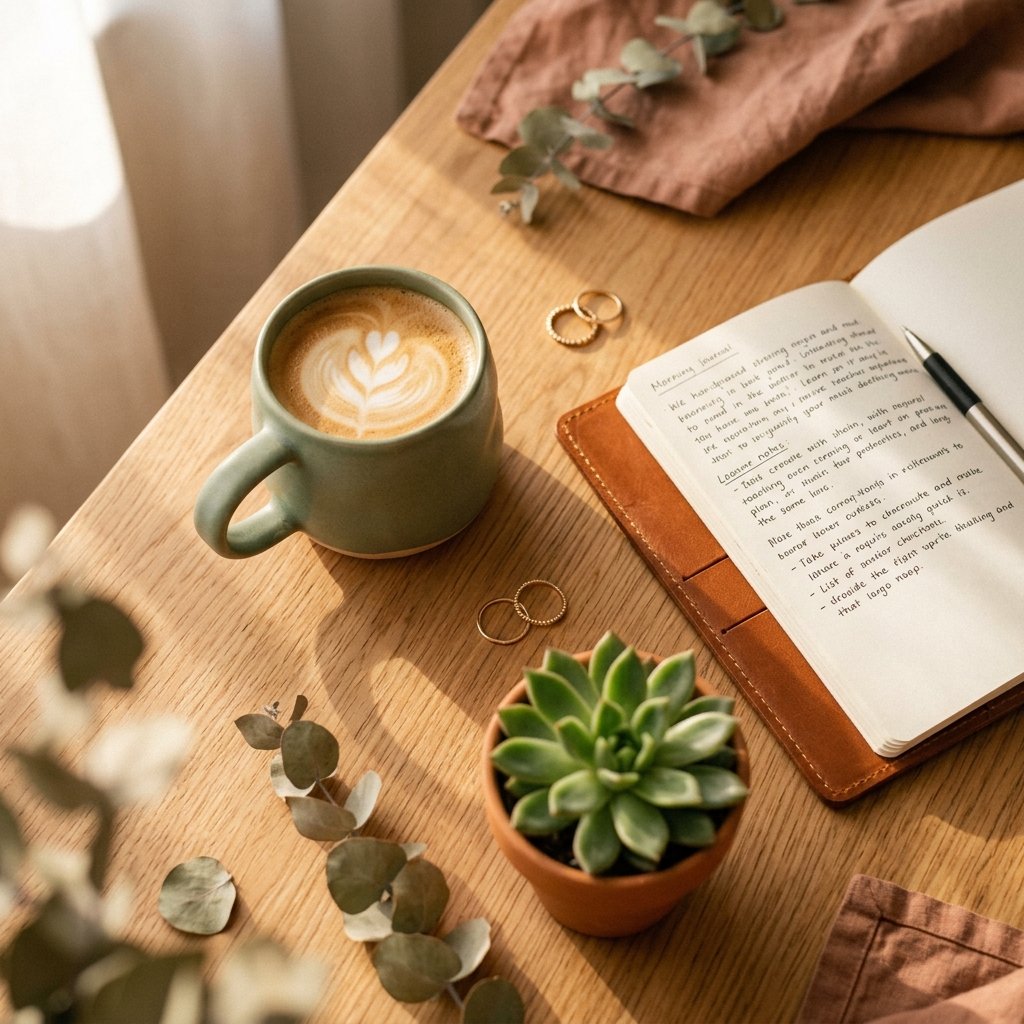
Instagram Feed Grid

Cinematic Portrait with Textured Crimson Wall
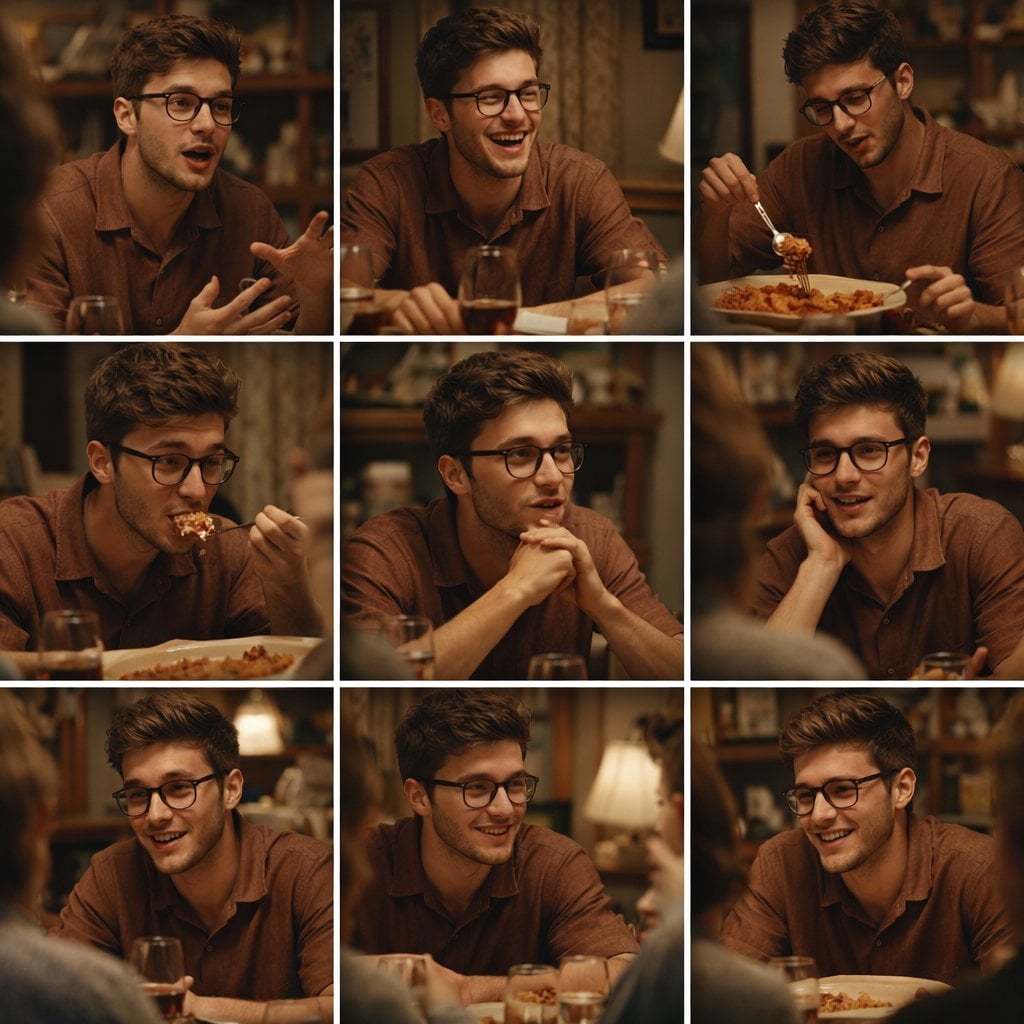
A 3x3 grid storyboard contact sheet comprised of nine candid, cinematic
Make it yours
Paper Texture Swatch Grid works as-is. These are the safest ways to change it without losing the look.
Change one field
Copy a single group, rewrite it, and generate again so you can see what that field is doing.
Keep the frame, change the subject
Hold the composition and light of Paper Texture Swatch Grid, then swap wardrobe, props or the person for a new take.
| If the result… | Why | Fix |
|---|---|---|
| The result drifts from the preview | Too many fields changed at once. | Reuse Paper Texture Swatch Grid as-is first, then change one group — subject, light, or setting. |
| The model over-stylizes the scene | The prose prompt leaves finish and camera underspecified. | Add one camera or lighting sentence and stay on GPT Image 2. |
More GPT Image 2 templates
Other prompts made for GPT Image 2.

Six VTuber Japanese Logo Sheet

Realistic Portrait of Woman and Deer

The Vista Modular Condo Poster

AI Model Routing Comparison Infographic

2.5D Anime Art Board

Isometric Productivity Desk Scene

New York Double Exposure Poster

Four-Panel AI Landscape Comparison

Japanese Tatami Lifestyle Magazine Cover

NESCAFÉ Coffee Map Poster
More image prompts
Fresh picks from across the catalog.
Minimalist Exploded View Commercial Food Photography
Cinematic Chiaroscuro Portrait
Luxury Chocolate Lava Ice Cream Ad
Minimal Anti-Itch Cream Poster
Cinematic Noir Neon Identity Portrait
Golden Hour Picnic with Chibi Miniatures
Classic Literature Surveillance Machine Dioramas
Japanese Salmon Kimchi Recipe Poster
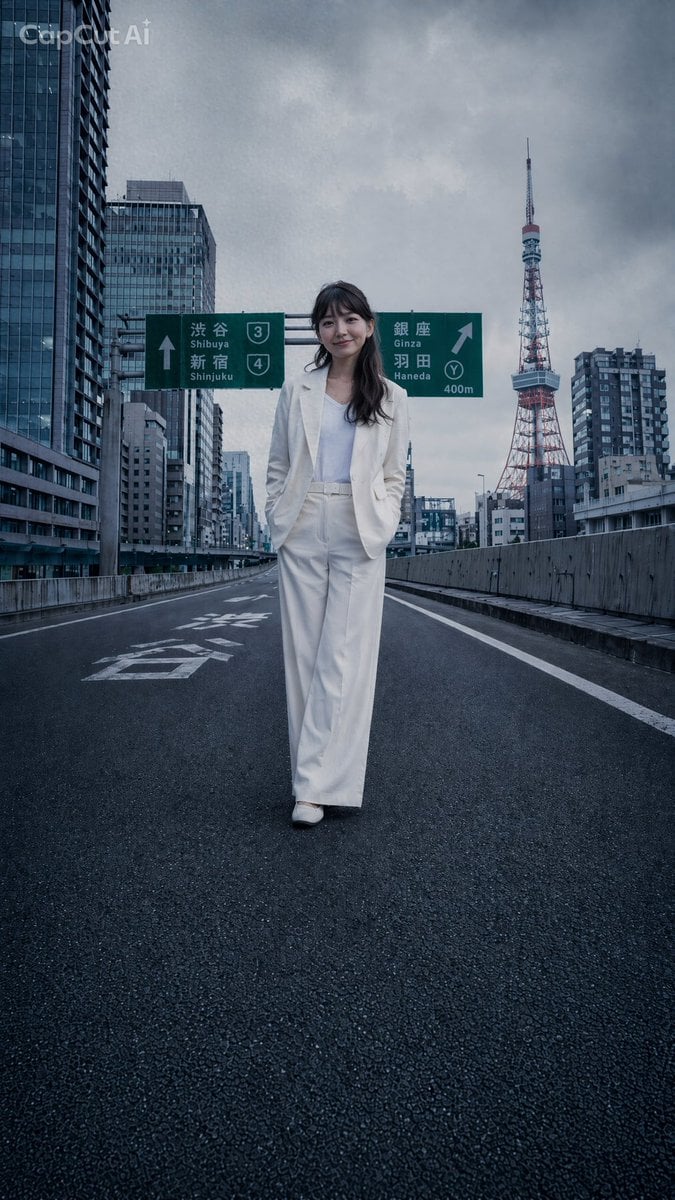
Tokyo Expressway Fashion Editorial
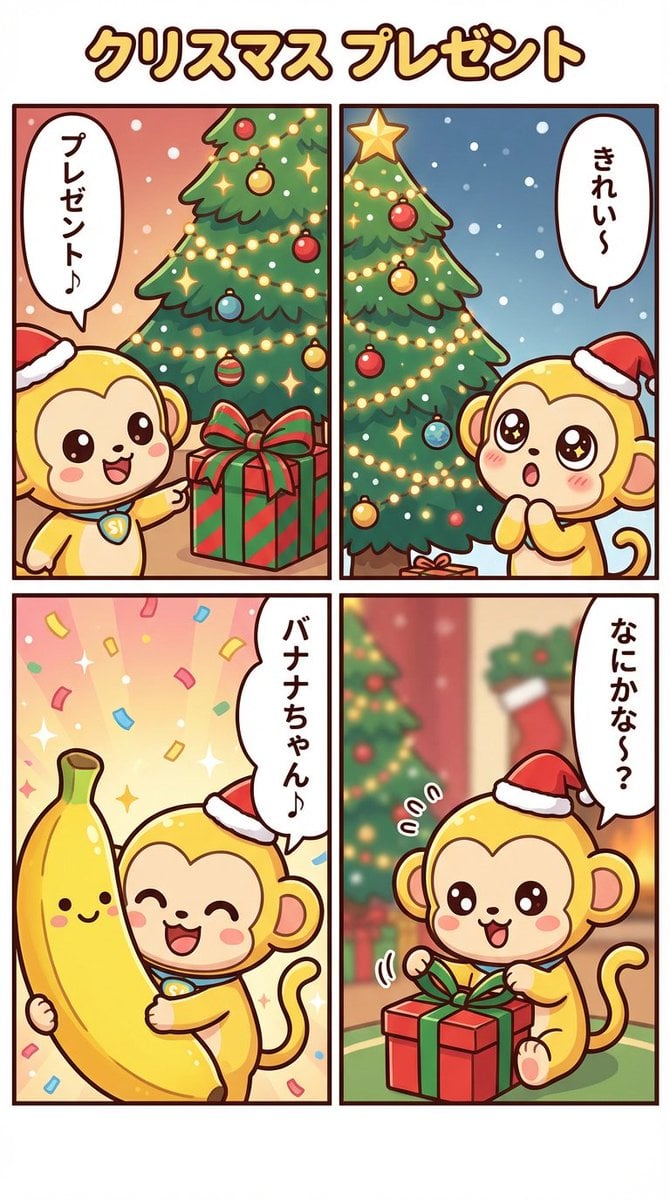
Nano Banana Pro Manga Generation - Christmas Present Theme
Browse template categories
Paper Texture Swatch Grid questions
How do I use the Paper Texture Swatch Grid template?
Add your photo if the template asks for one, edit the prompt if you like — the template's model and format are already selected — and press Generate. Your version opens in PicX Studio.
Can I customize the Paper Texture Swatch Grid template?
Yes. You can change the subject, setting, lighting, mood, format, and available model controls before creating your image.
Is the Paper Texture Swatch Grid template free?
Opening and editing this template is free. Generating uses credits, shown on the Generate button when you are signed in.
Which AI model should I use?
Start with GPT Image 2, which is the model associated with this template. You can compare another compatible model for a different finish.
Looking for something else? Browse all templates.

Your photo, any look
Thousands of ready templates for every top image and video model, from one credit balance.