
Traditional Dry Brush Artistic Portrait
Creates a handcrafted, expressive portrait using traditional dry brush painting techniques with vibrant colors and rich textures.
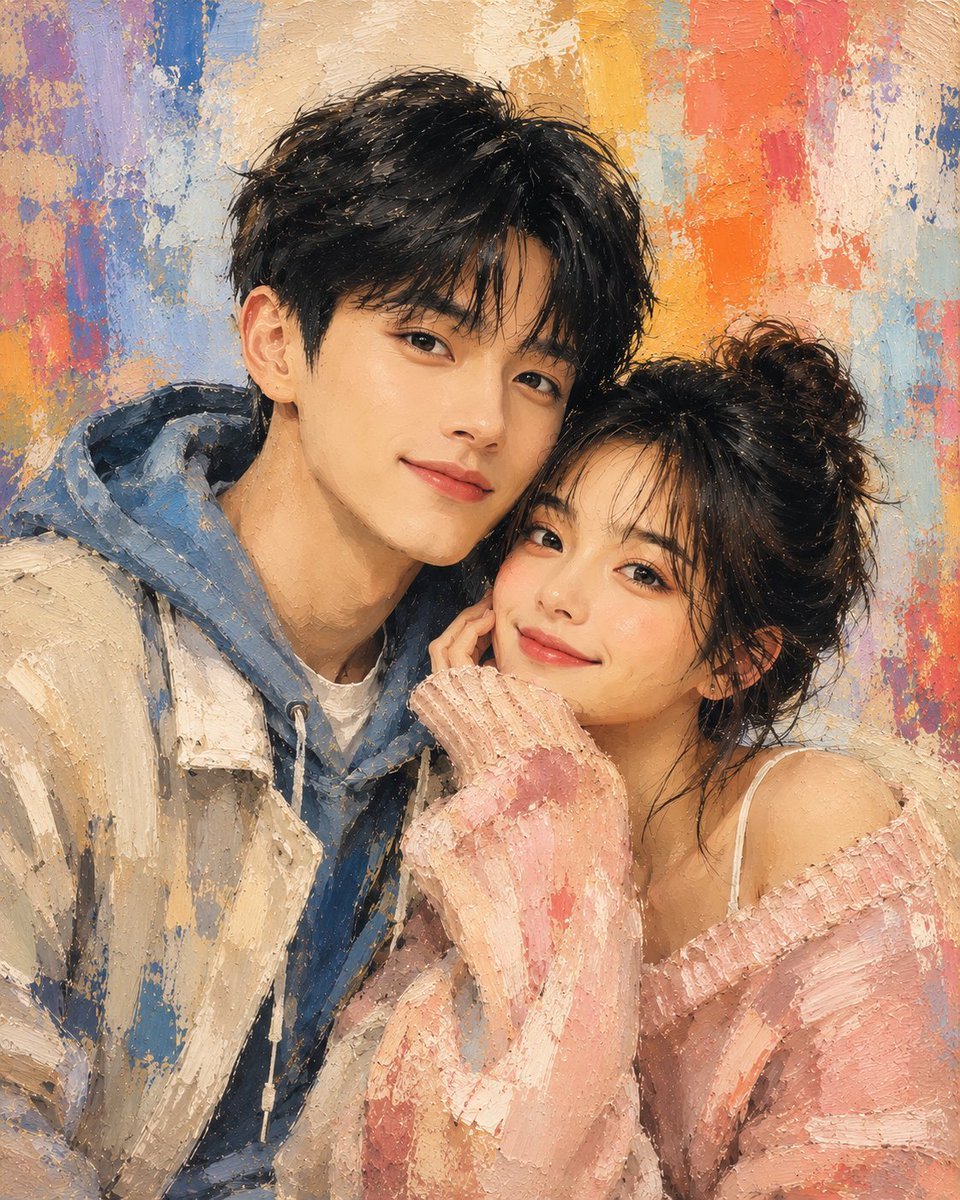
- Prompt included
- Model and format preset
- Free template
The prompt behind this image
Copy the exact prompt behind Traditional Dry Brush Artistic Portrait, or open it in the studio and make it yours.
Create a detailed artistic portrait painting of the subject using a traditional {argument name="technique" default="Dry Brush"} painting technique with visible rough brush strokes, imperfect textures, uneven paint distribution, and slightly messy handcrafted details to make the artwork feel authentically created by a human artist rather than digitally perfect. The overall style should feel expressive, raw, organic, and artistic while still maintaining strong visual appeal and realism on the subject’s facial structure. Use {argument name="color scheme" default="bright, vibrant, and eye-catching"} color combinations with rich tonal variation so the artwork feels alive, energetic, and visually dynamic, avoiding flat, dull, or monochromatic coloring. Skin textures, facial details, hair, outfit fabric, and all visible elements must fully follow the Dry Brush texture style with layered paint streaks and artistic imperfections. The subject’s pose and facial expression must look natural, relaxed, confident, and emotionally alive, avoiding stiff, awkward, gloomy, or expressionless appearances. The outfit must be stylish, modern, trendy, and casual with strong fashion aesthetics, avoiding basic, generic, or monotonous clothing designs. Ensure the outfit fully blends with the Dry Brush painting style, including textured fabric details, expressive brush patterns, and artistic color treatment. The final artwork should feel like a premium contemporary handmade portrait painting with expressive imperfections, dynamic brushwork, fashionable styling, and visually striking colors while still preserving the identity of the original subject.
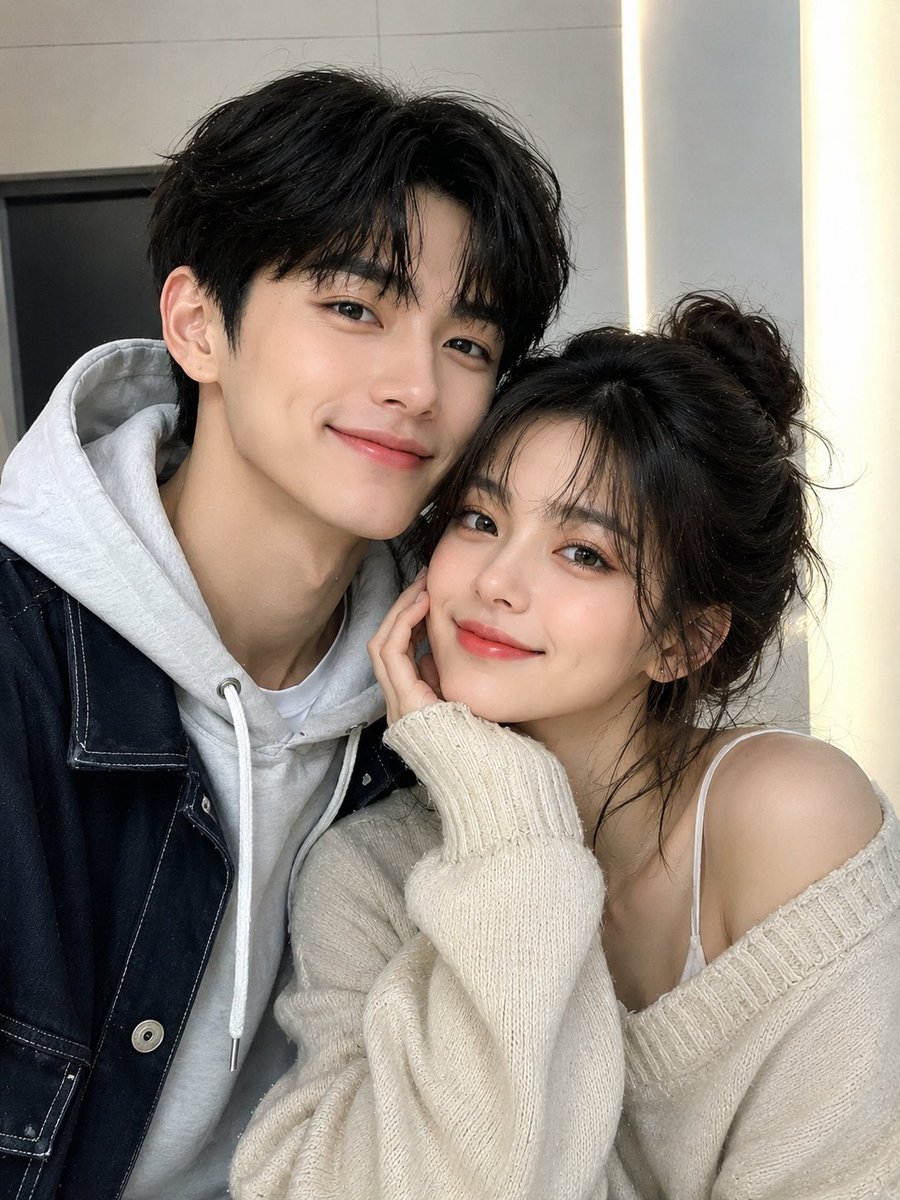
Reference images included
Traditional Dry Brush Artistic Portrait needs input media to work. They load alongside the prompt when you open it in the studio.
How to use Traditional Dry Brush Artistic Portrait in 3 steps
- 1Upload ImagePNG, JPG or paste
Add your photo
Upload the photo the template builds on. The prompt, model and format are already set.
- 2…a portrait of your subject in softgolden-hour light, 85mm…
Personalize
Edit the subject and creative details for your destination.
- 3Generate
Generate
Press Generate — your image is created in PicX Studio, so you can compare it with the original and refine one variable at a time.
More like this
Templates with the same subject, style or setup. Open one to see its prompt.
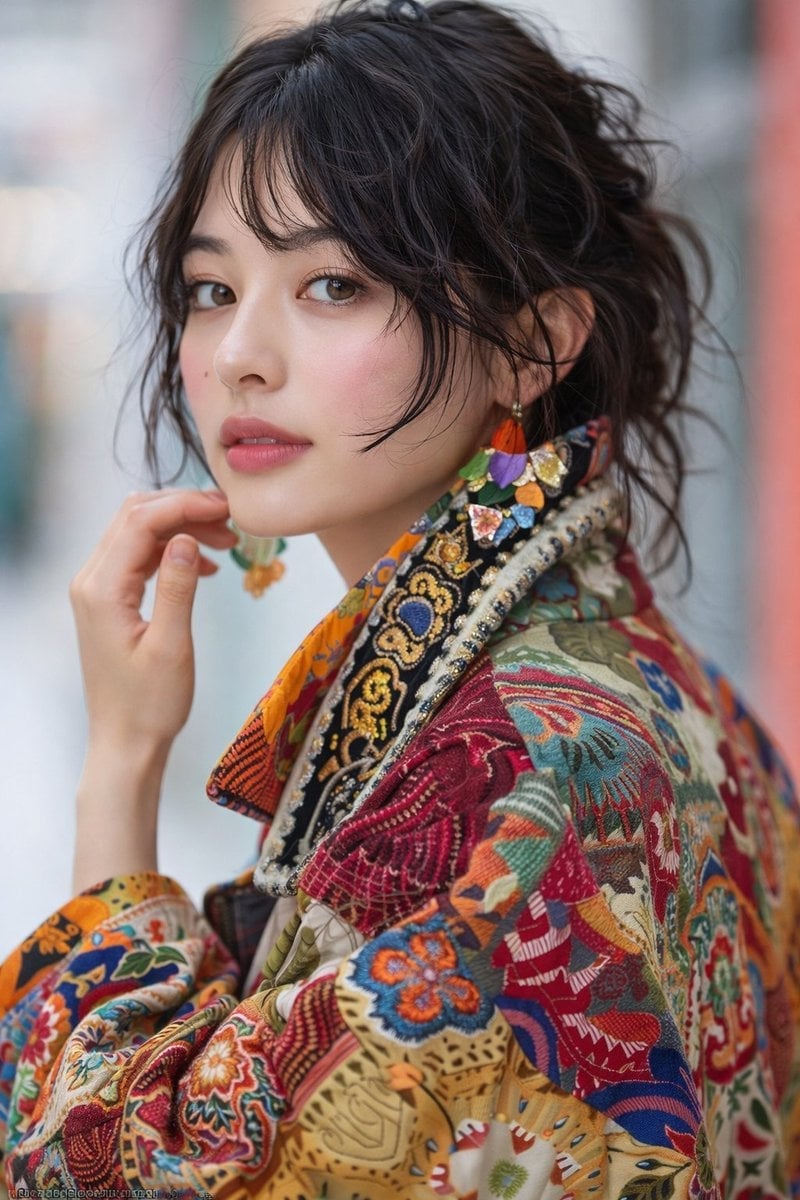
Artistic Patchwork Fashion Portrait Spring Festival

Found Photograph: Us, 1970

80s Couple Studio Portrait
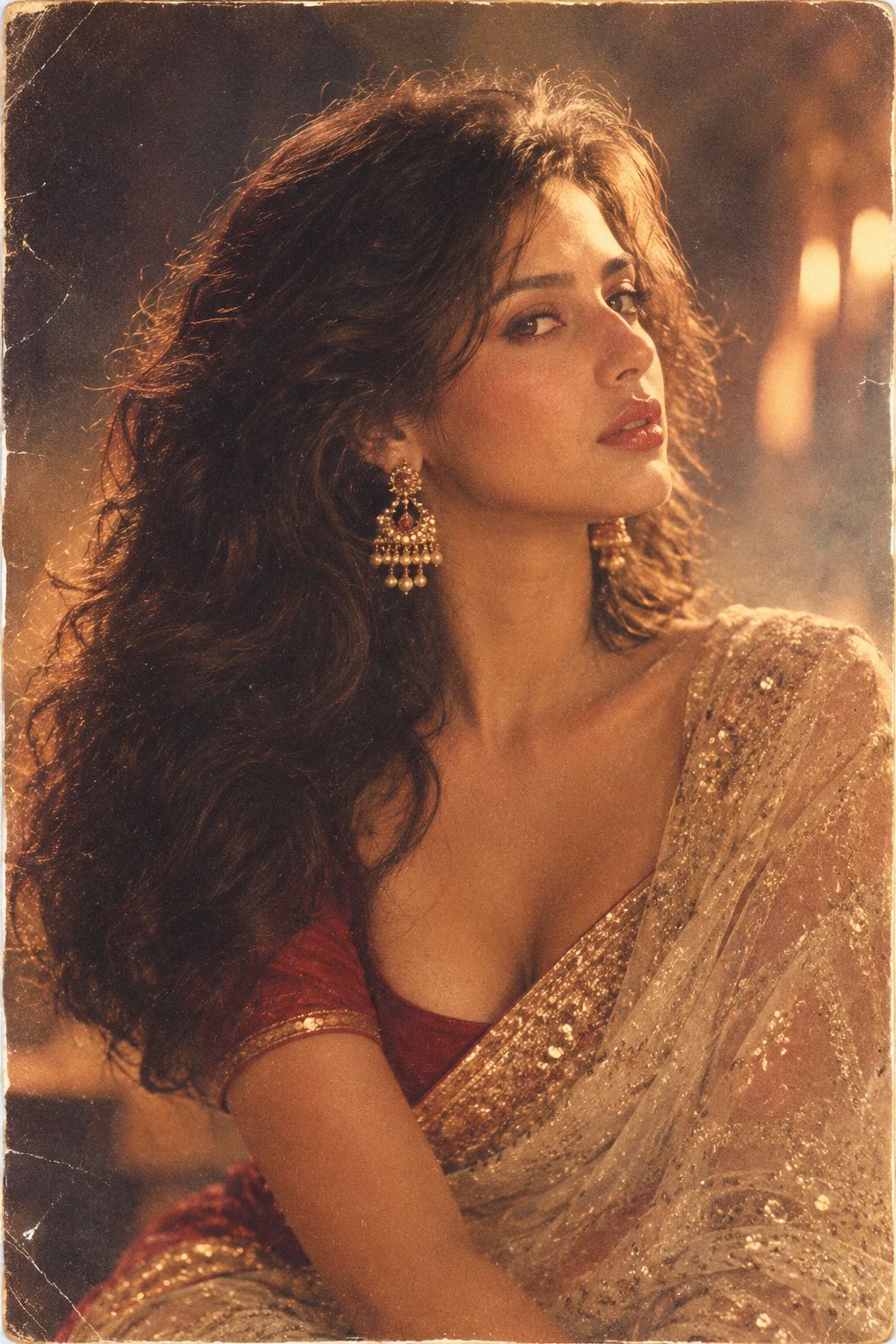
80s Bollywood Star
80s Golden Hour Cinema
Me in 1985
1985 Studio Portrait

Hyper-Realistic Minecraft POV Portrait
Rooftop Fisheye — Cat-Ear Balaclava at Golden Hour
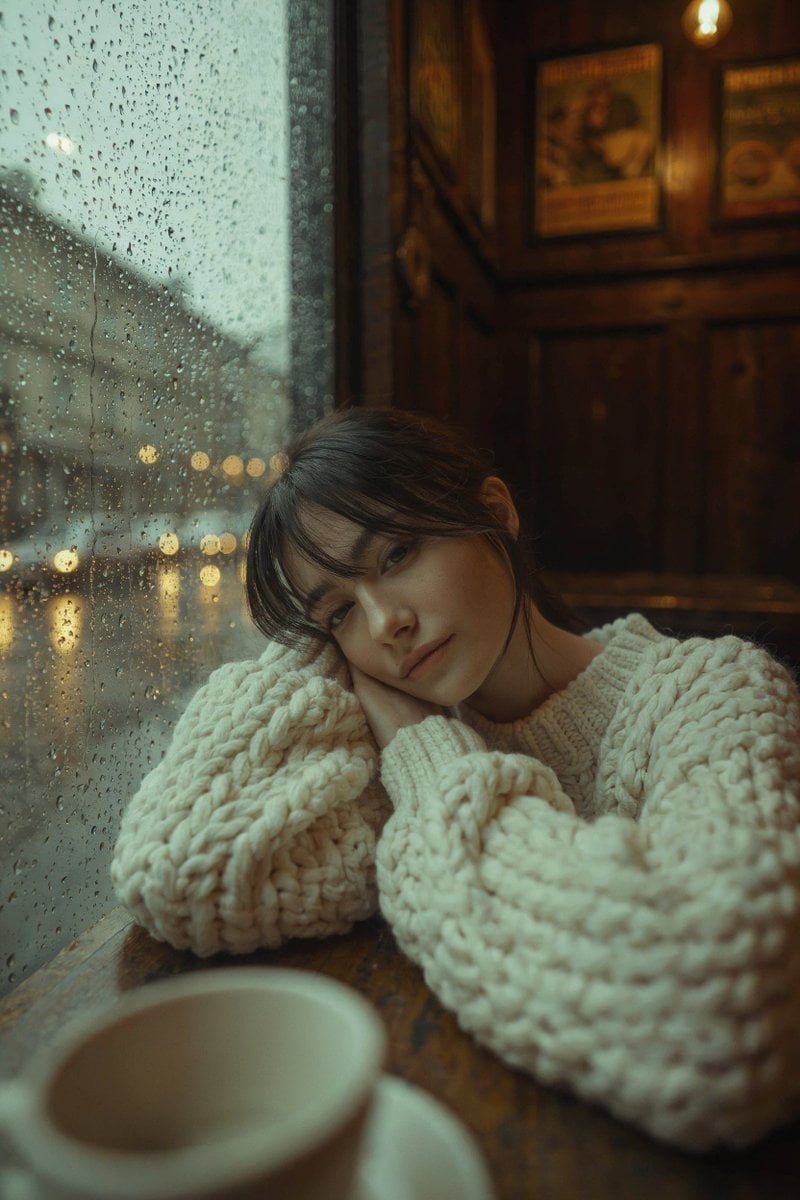
Rainy Café Window Moody Portrait

untitled
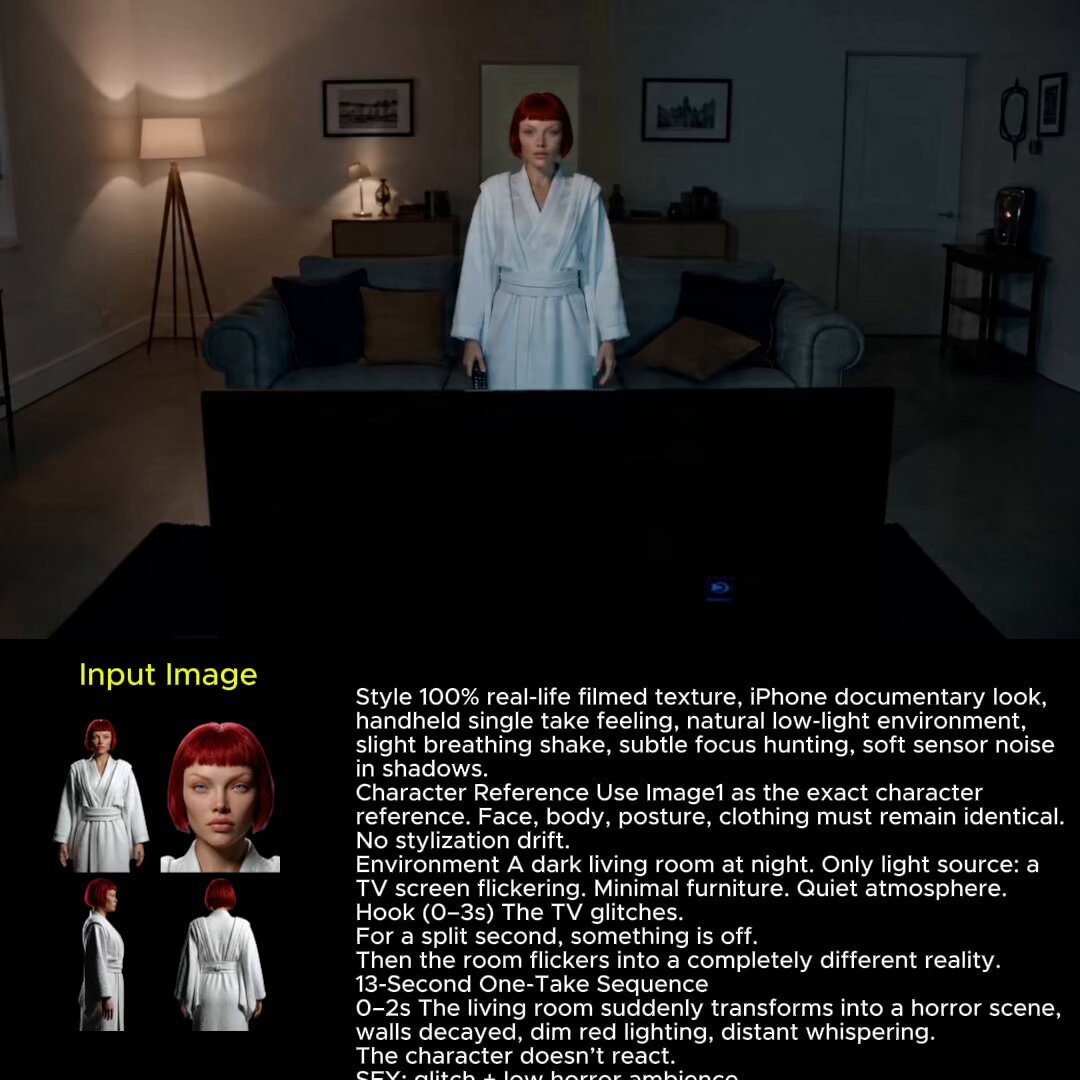
2025 Aesthetic Photography
Make it yours
Traditional Dry Brush Artistic Portrait works as-is. These are the safest ways to change it without losing the look.
Change one field
Copy a single group, rewrite it, and generate again so you can see what that field is doing.
Keep the frame, change the subject
Hold the composition and light of Traditional Dry Brush Artistic Portrait, then swap wardrobe, props or the person for a new take.
| If the result… | Why | Fix |
|---|---|---|
| The result drifts from the preview | Too many fields changed at once. | Reuse Traditional Dry Brush Artistic Portrait as-is first, then change one group — subject, light, or setting. |
| The model over-stylizes the scene | The prose prompt leaves finish and camera underspecified. | Add one camera or lighting sentence and stay on GPT Image 2. |
More GPT Image 2 templates
Other prompts made for GPT Image 2.

Six VTuber Japanese Logo Sheet

Realistic Portrait of Woman and Deer

The Vista Modular Condo Poster

AI Model Routing Comparison Infographic

2.5D Anime Art Board

Isometric Productivity Desk Scene

New York Double Exposure Poster

Four-Panel AI Landscape Comparison

Japanese Tatami Lifestyle Magazine Cover

NESCAFÉ Coffee Map Poster
More image prompts
Fresh picks from across the catalog.
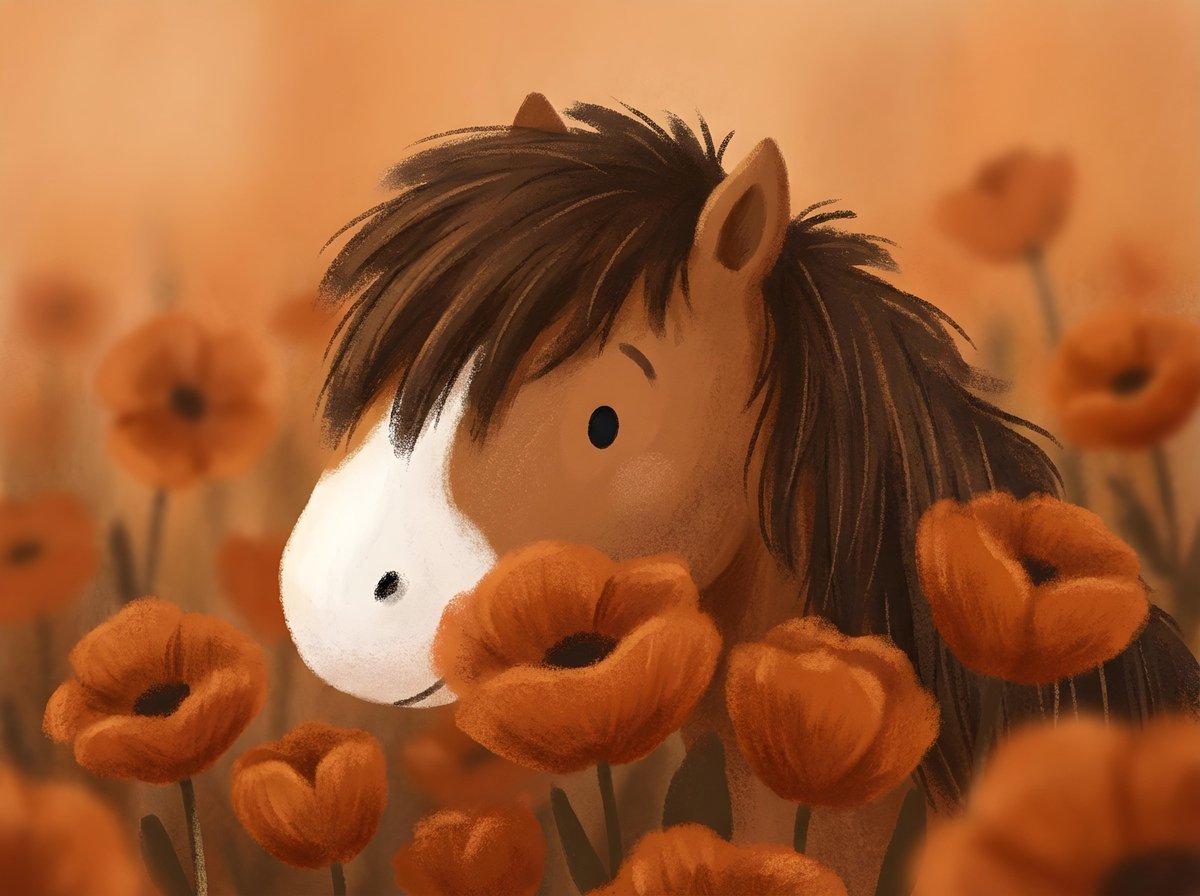
Nano Banana Pro prompt for a photorealistic image of a woman with a futuristic helmet
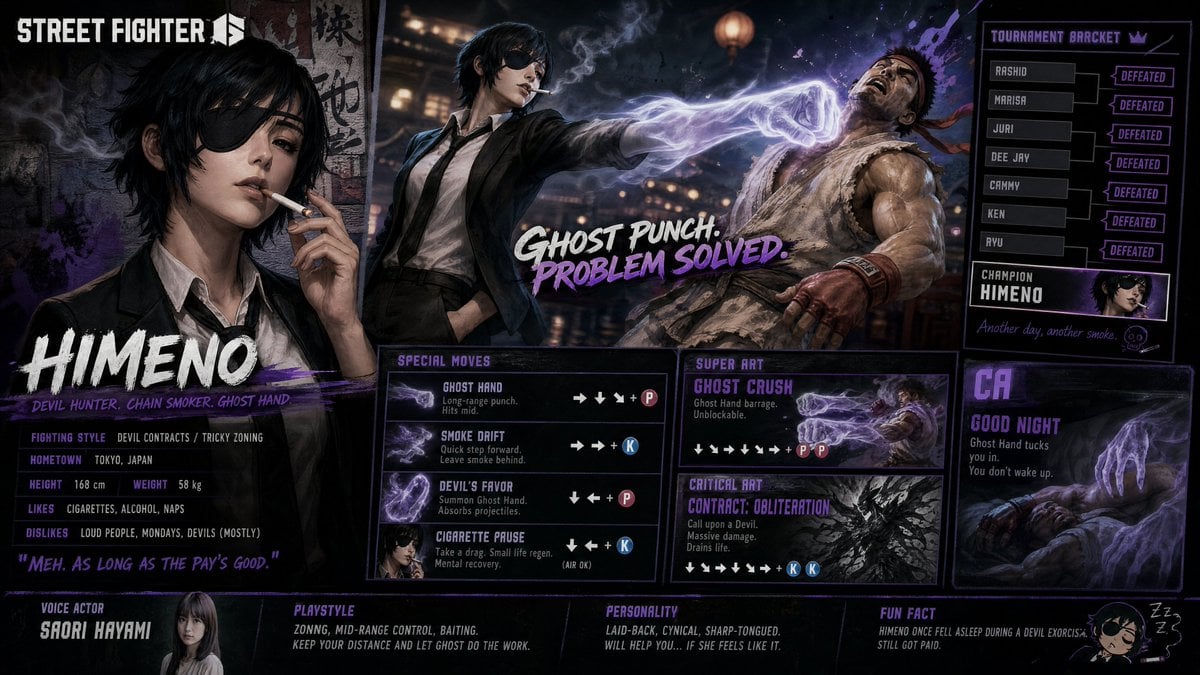
Street Fighter 6 Himeno Crossover Poster
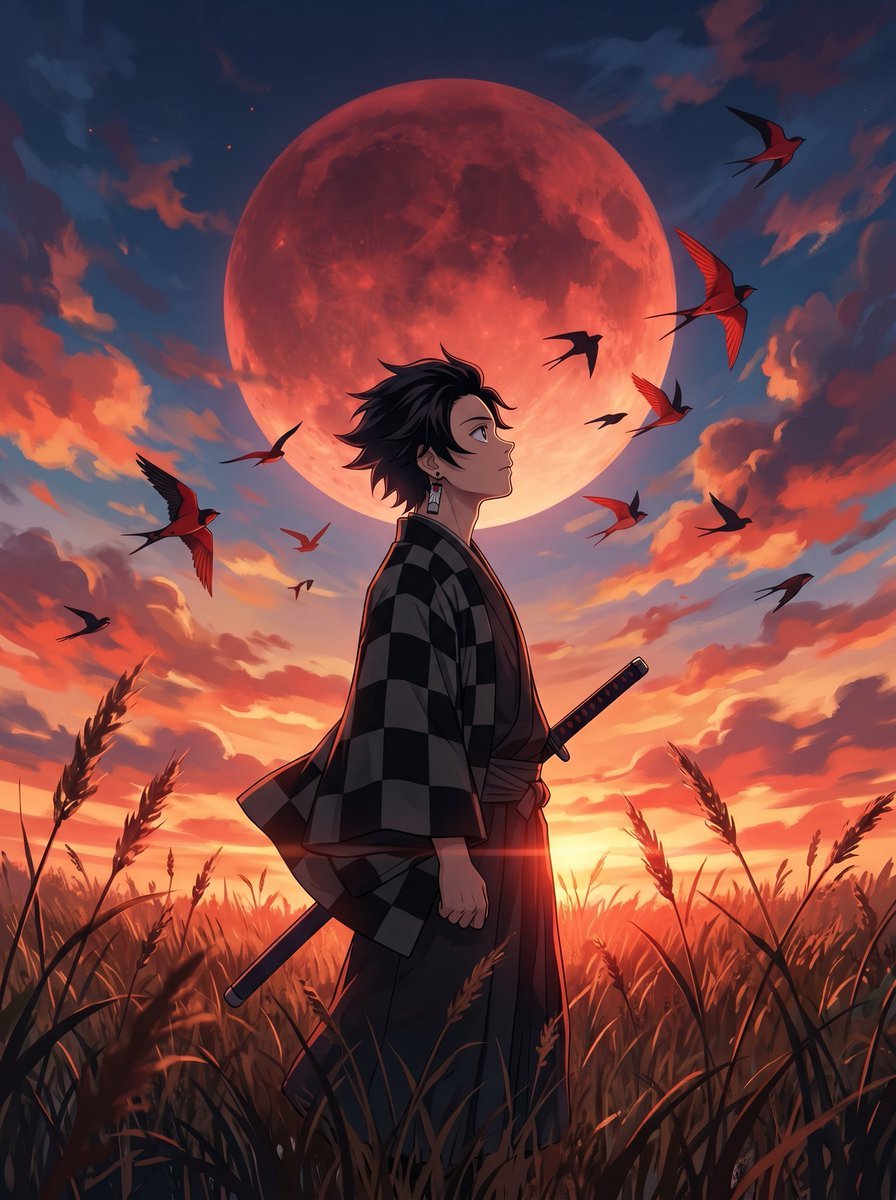
Cinematic Anime Warrior Under Crimson Moon
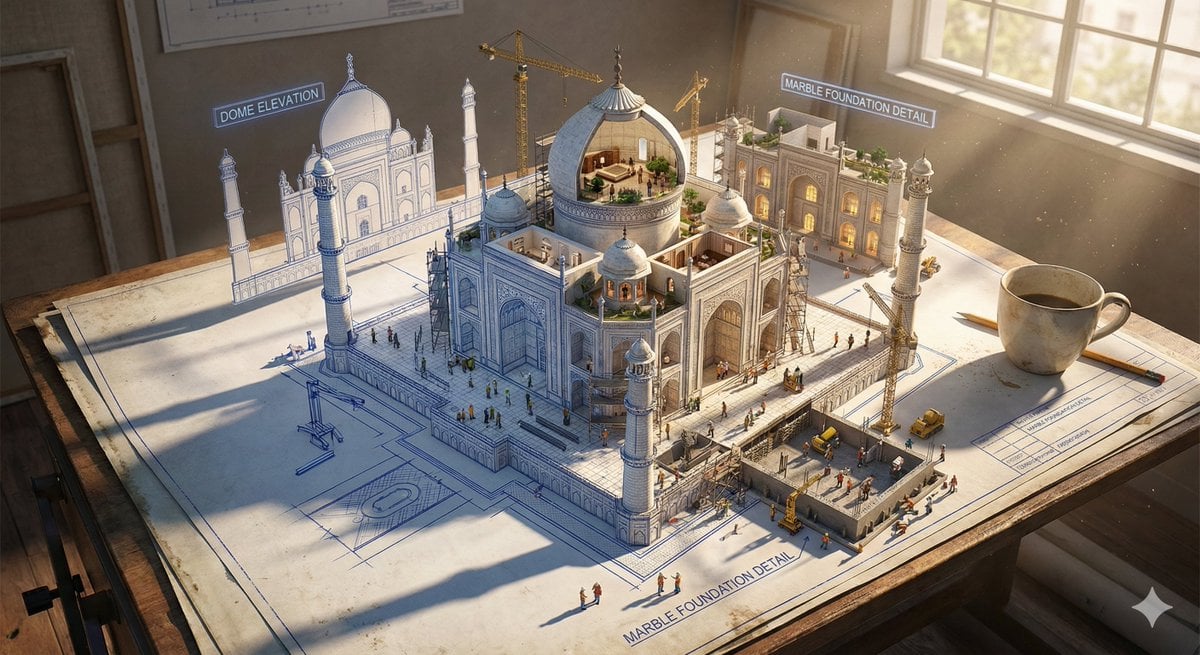
Epic 3D Architectural Blueprint Construction Scene
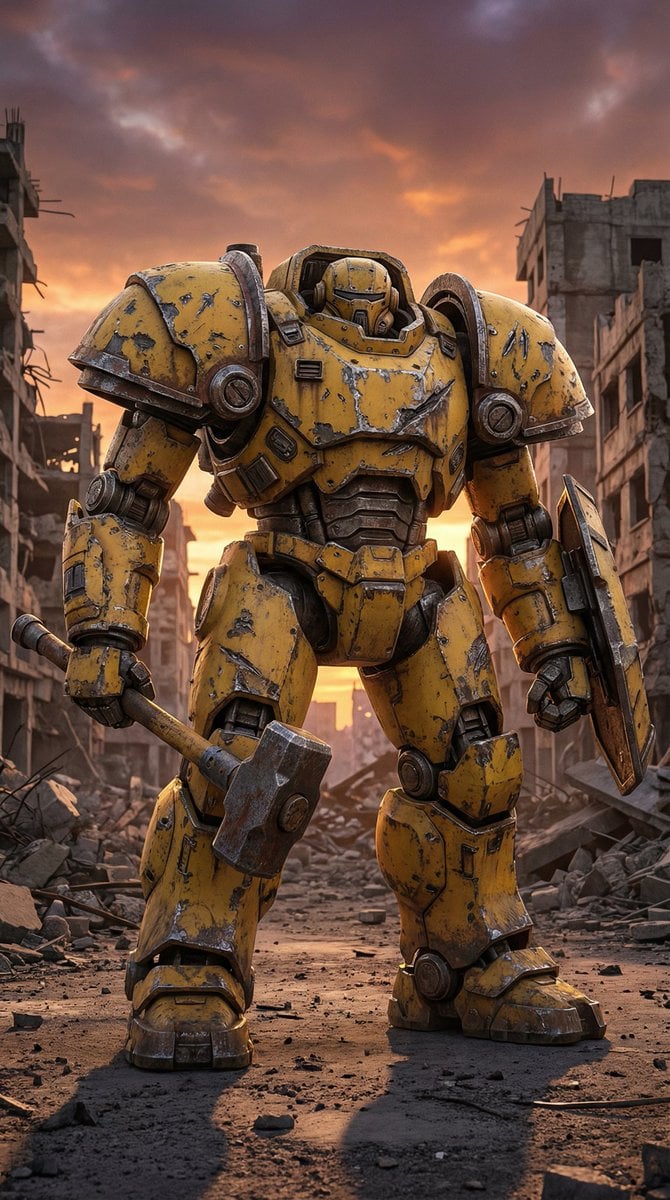
Photorealistic Battle-Damaged Mech Prompt
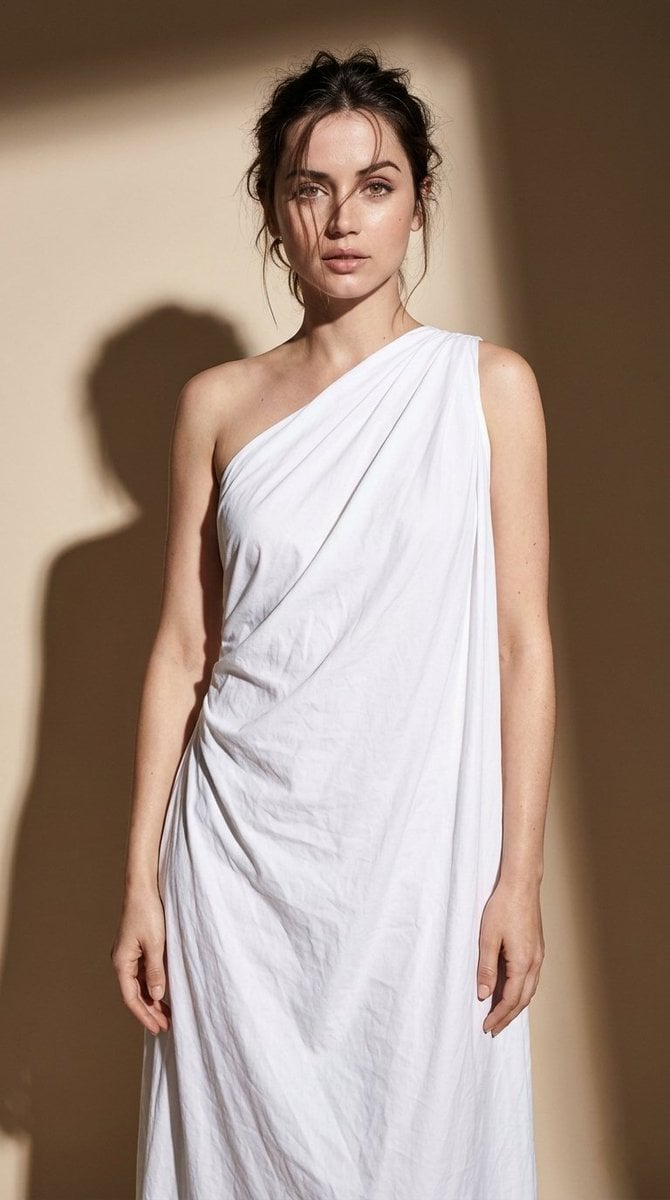
Minimal High-Contrast Studio Fashion Editorial
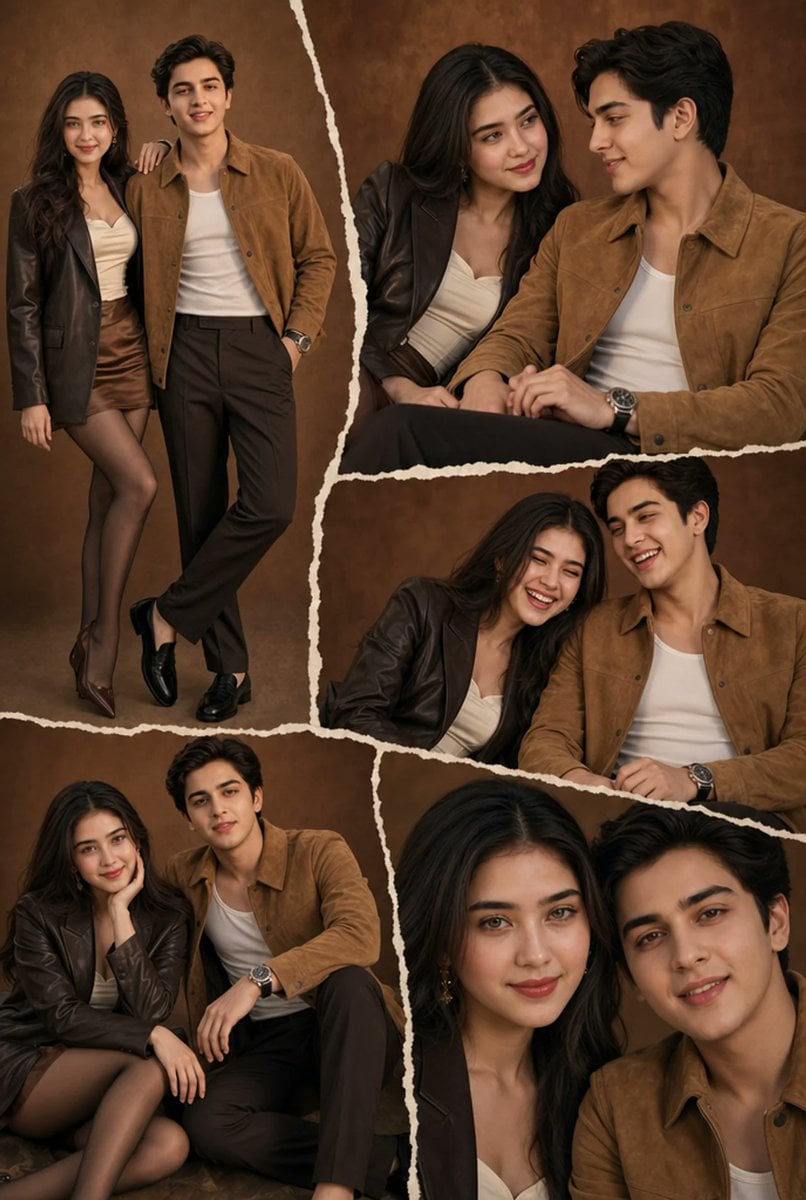
Brown Editorial Couple Collage
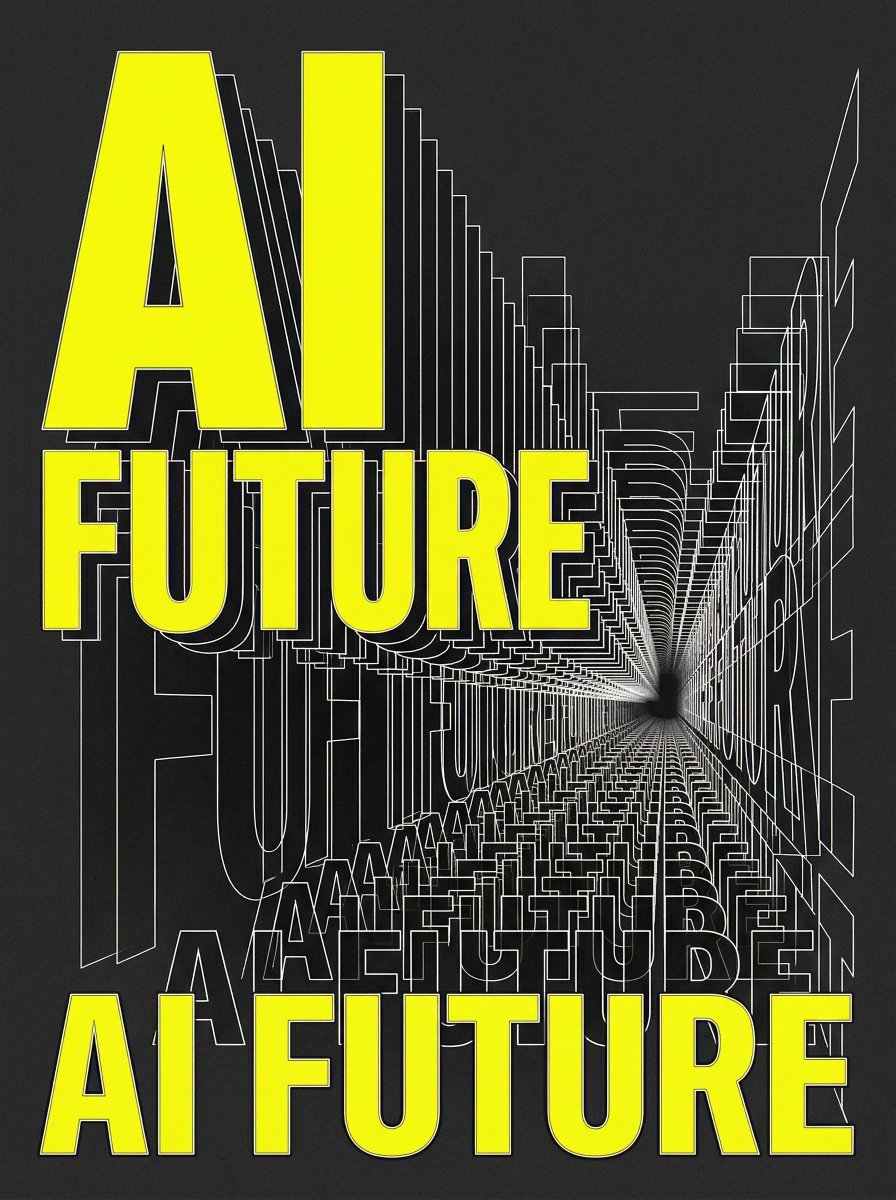
Graphic Design Typography Prompt using Nano Banana 2
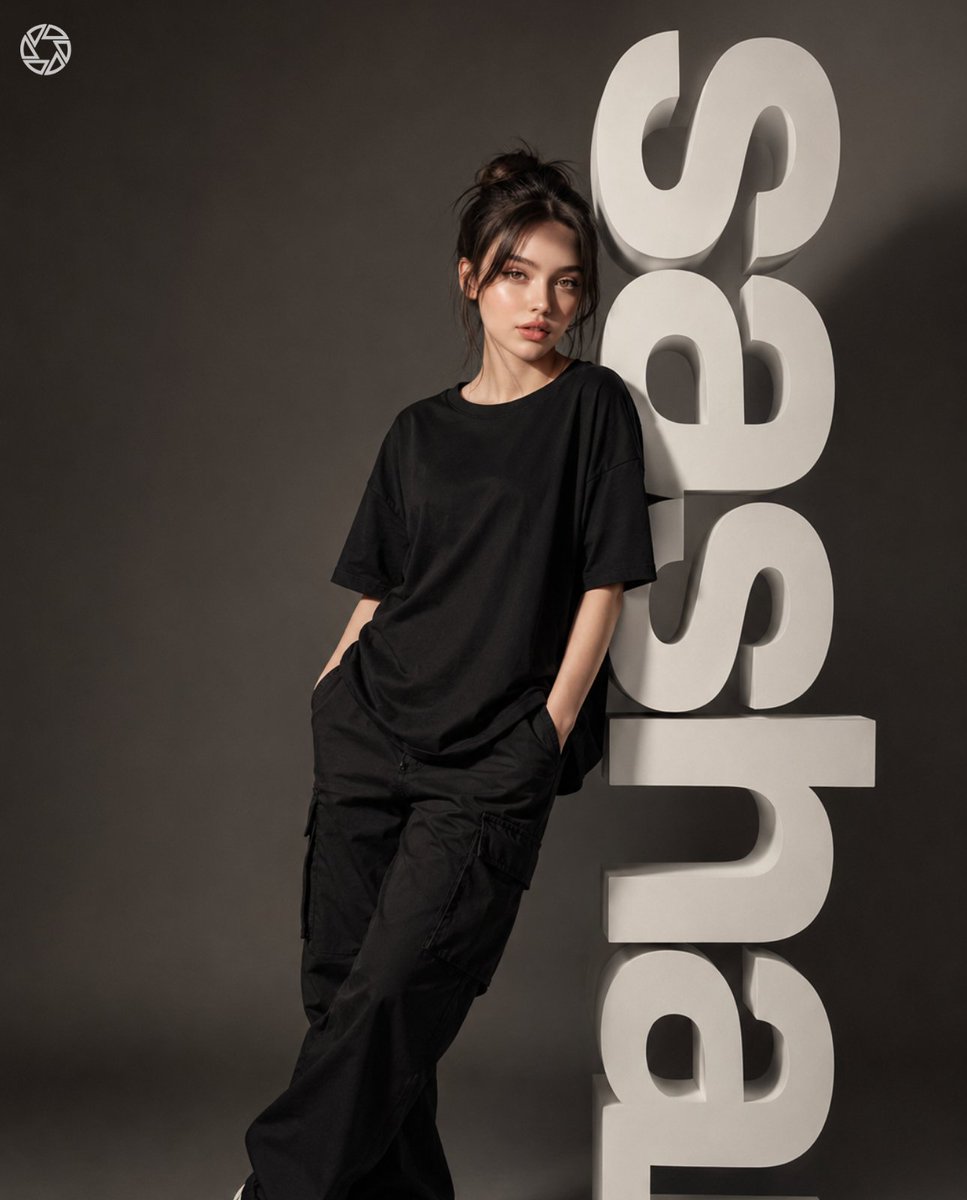
3D Block Letter Fashion Portrait
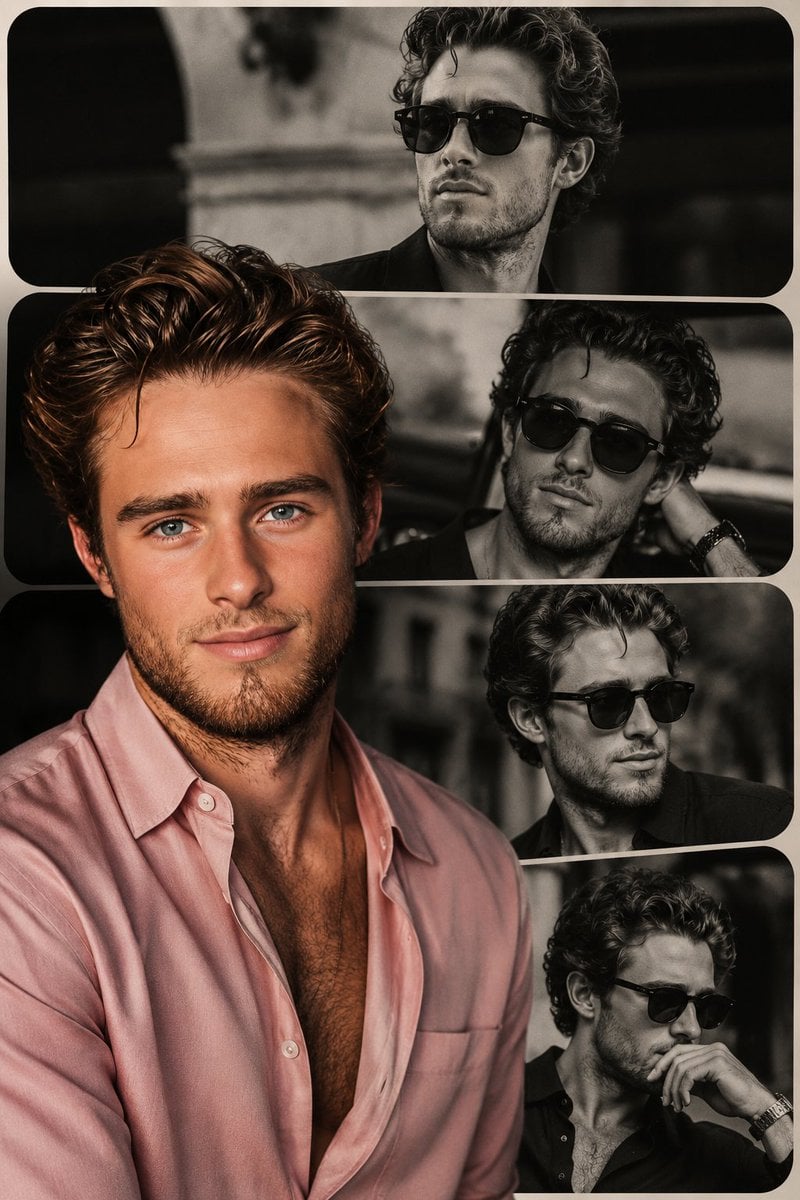
High-End Fashion Collage Poster
Browse template categories
Traditional Dry Brush Artistic Portrait questions
How do I use the Traditional Dry Brush Artistic Portrait template?
Add your photo if the template asks for one, edit the prompt if you like — the template's model and format are already selected — and press Generate. Your version opens in PicX Studio.
Can I customize the Traditional Dry Brush Artistic Portrait template?
Yes. You can change the subject, setting, lighting, mood, format, and available model controls before creating your image.
Is the Traditional Dry Brush Artistic Portrait template free?
Opening and editing this template is free. Generating uses credits, shown on the Generate button when you are signed in.
Which AI model should I use?
Start with GPT Image 2, which is the model associated with this template. You can compare another compatible model for a different finish.
Looking for something else? Browse all templates.

Your photo, any look
Thousands of ready templates for every top image and video model, from one credit balance.