
AI Gallery Portrait UI Screenshot
A structured prompt for generating a minimalist AI image gallery screenshot with four censored portrait thumbnails and a prompt input bar.
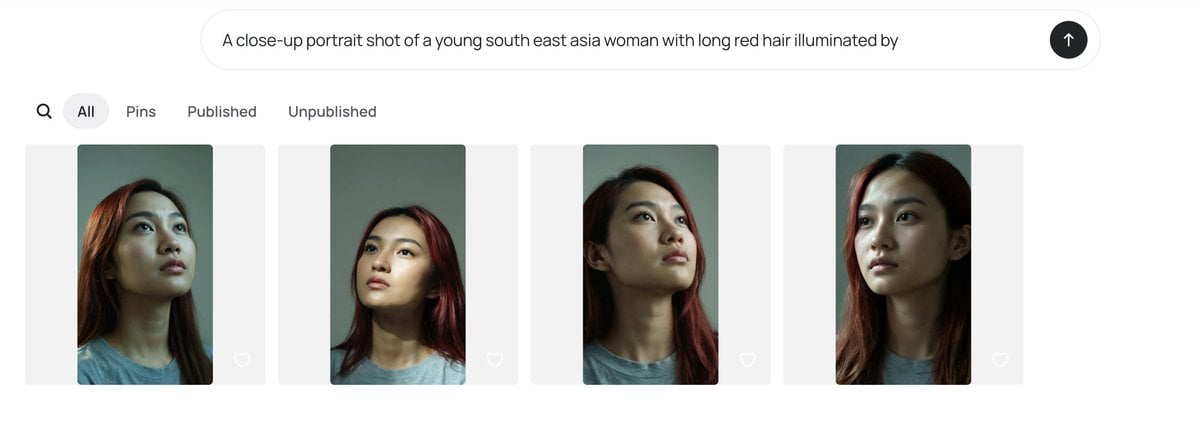
- Prompt included
- Model and format preset
- Free template
The prompt behind this image
Copy the exact prompt behind AI Gallery Portrait UI Screenshot, or open it in the studio and make it yours.
Goal: Create a clean desktop web app screenshot showing an AI image generation gallery interface for comparing portrait outputs. Canvas: Wide horizontal browser-like screenshot, approximately 1200×410 px, white background with generous margins, minimal modern UI. Top input area: Centered rounded prompt bar near the top, light gray outline, containing the exact prompt text: “A close-up portrait shot of a young south east asia woman with long red hair illuminated by”. At the far right inside the bar is a black circular submit button with a white upward arrow. Navigation row: Beneath the prompt bar, aligned left, show exactly 5 navigation elements: 1 magnifying-glass search icon, 2 selected pill tab labeled “All”, 3 text tab labeled “Pins”, 4 text tab labeled “Published”, 5 text tab labeled “Unpublished”. Use dark gray text, with the selected “All” tab in a light gray rounded pill. Gallery layout: Show exactly 4 image cards in one horizontal row, evenly spaced. Each card is a pale gray rounded rectangle background with a vertical portrait thumbnail centered inside it and a small white outline heart icon near the lower-right corner of the card. Portrait thumbnails: Each thumbnail depicts a close-up portrait of {argument name="subject description" default="a young Southeast Asian woman"} with {argument name="hair color" default="long red hair"}, wearing a plain gray T-shirt, photographed from the shoulders up against a muted green-gray background. The lighting is moody and directional, with realistic skin texture, dark shadows under the chin and neck, and warm reddish highlights in the hair. The face in each thumbnail is obscured by a soft rectangular blur censor block in muted beige-gray tones. Count and variation of the 4 portraits: 1 left card shows the woman slightly angled with hair falling over the left side and the head cropped near the top; 2 second card shows a straighter centered head-and-shoulders crop with red hair framing both sides; 3 third card shows the chin lifted and neck elongated, face turned slightly upward with red hair visible on the right; 4 fourth card shows the closest crop, head high in frame, red hair along both sides, with the darkest face blur rectangle. Visual style: Minimal white UI, soft shadows or very subtle borders, rounded corners, neutral gray typography, realistic generated portrait thumbnails. Keep the interface uncluttered and preserve the exact visible text labels. Do not add logos, watermarks, extra buttons, or additional gallery items.
How to use AI Gallery Portrait UI Screenshot in 3 steps
- 1Upload ImagePNG, JPG or paste
Add your photo
Upload the photo the template builds on. The prompt, model and format are already set.
- 2…a portrait of your subject in softgolden-hour light, 85mm…
Personalize
Edit the subject and creative details for your destination.
- 3Generate
Generate
Press Generate — your image is created in PicX Studio, so you can compare it with the original and refine one variable at a time.
More like this
Templates with the same subject, style or setup. Open one to see its prompt.

Found Photograph: Us, 1970

80s Couple Studio Portrait
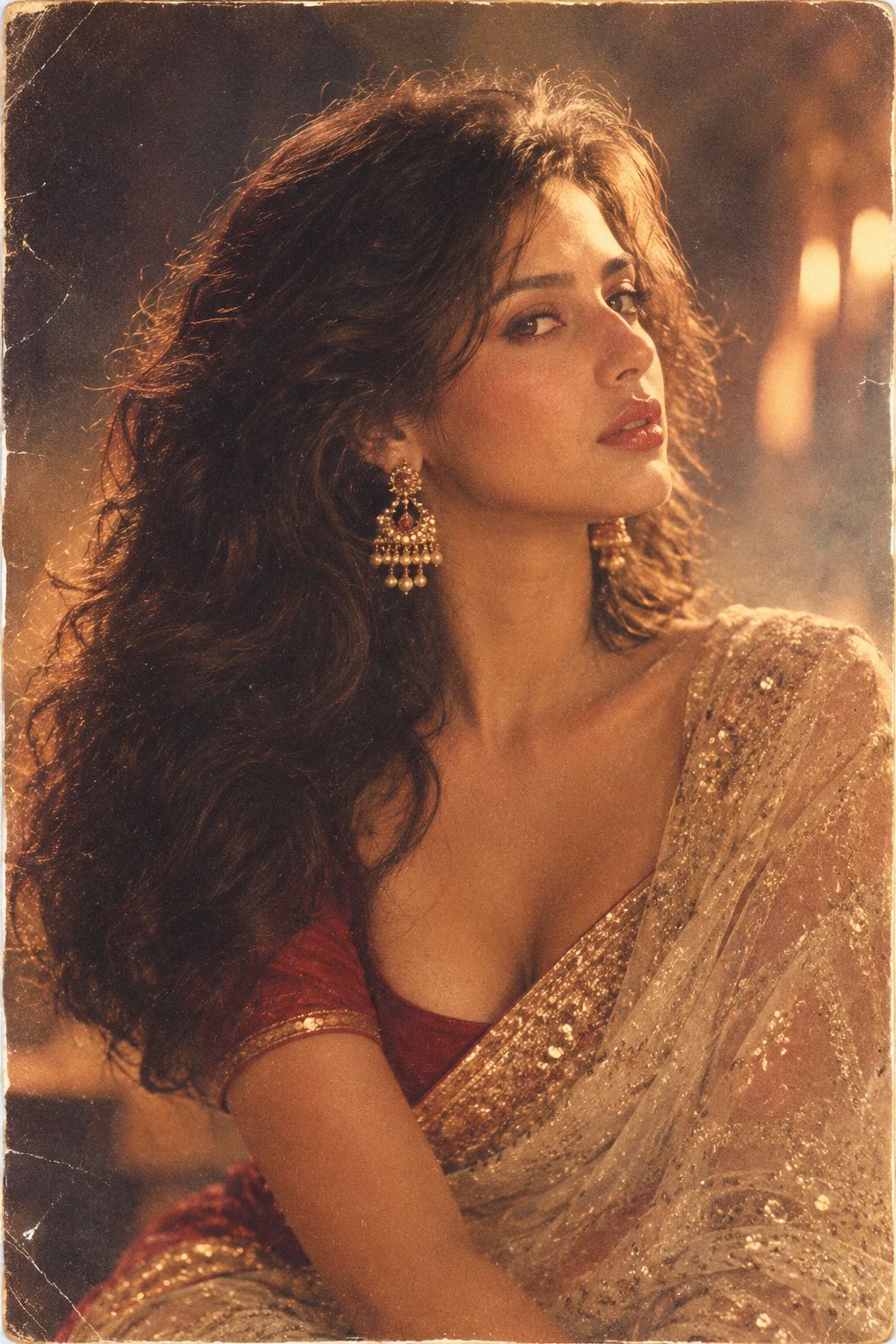
80s Bollywood Star
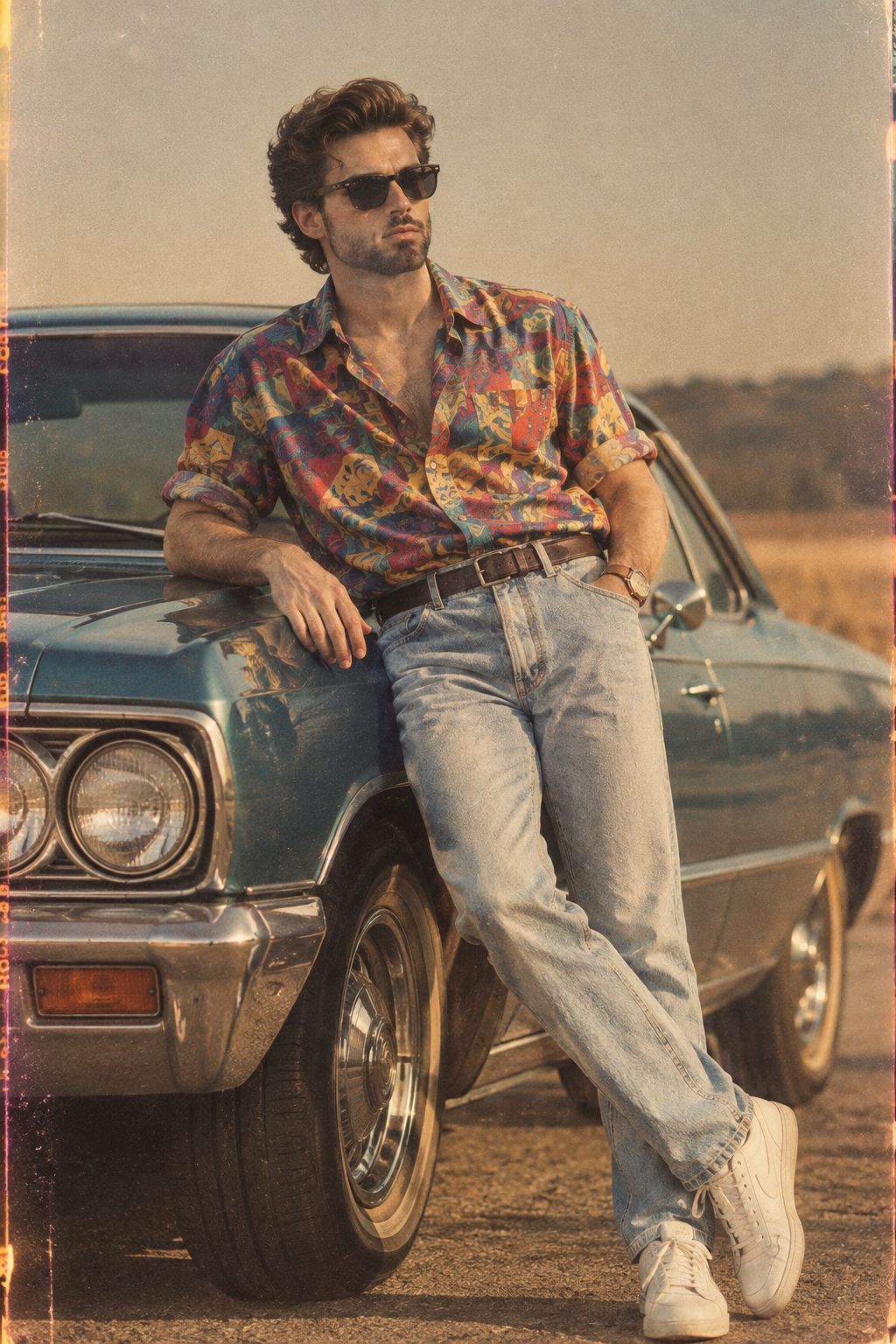
80s Golden Hour Cinema
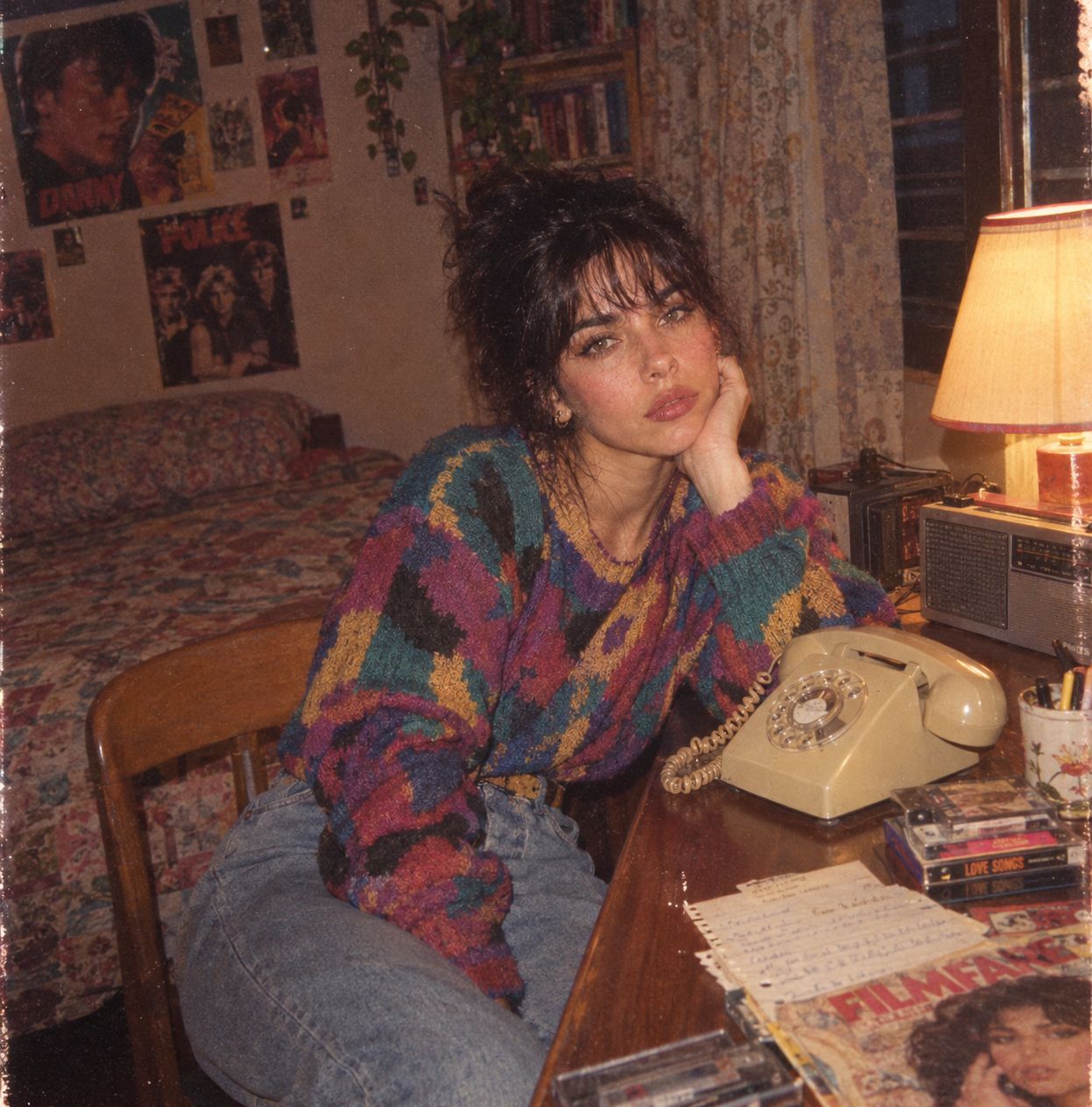
Me in 1985
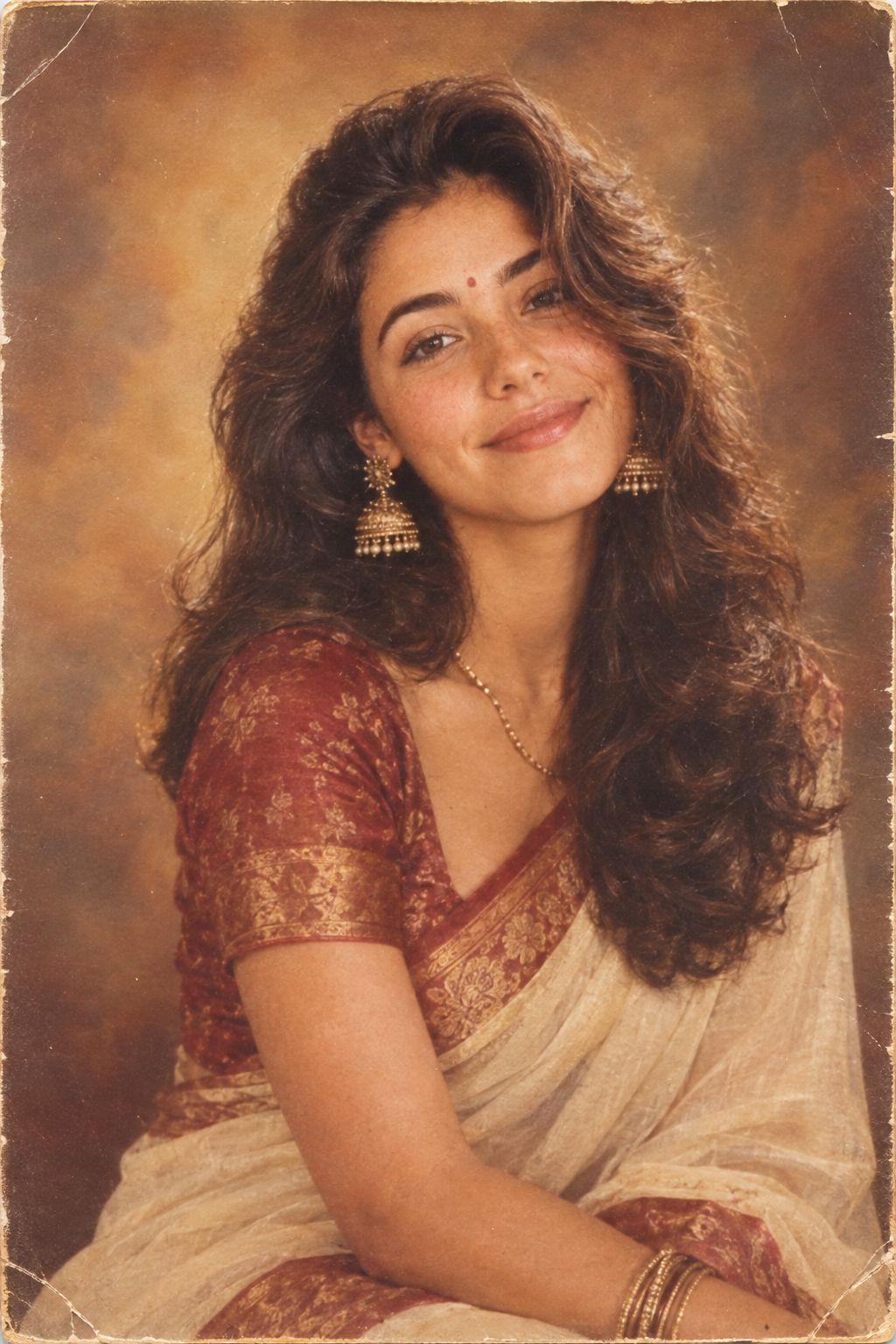
1985 Studio Portrait

Hyper-Realistic Minecraft POV Portrait
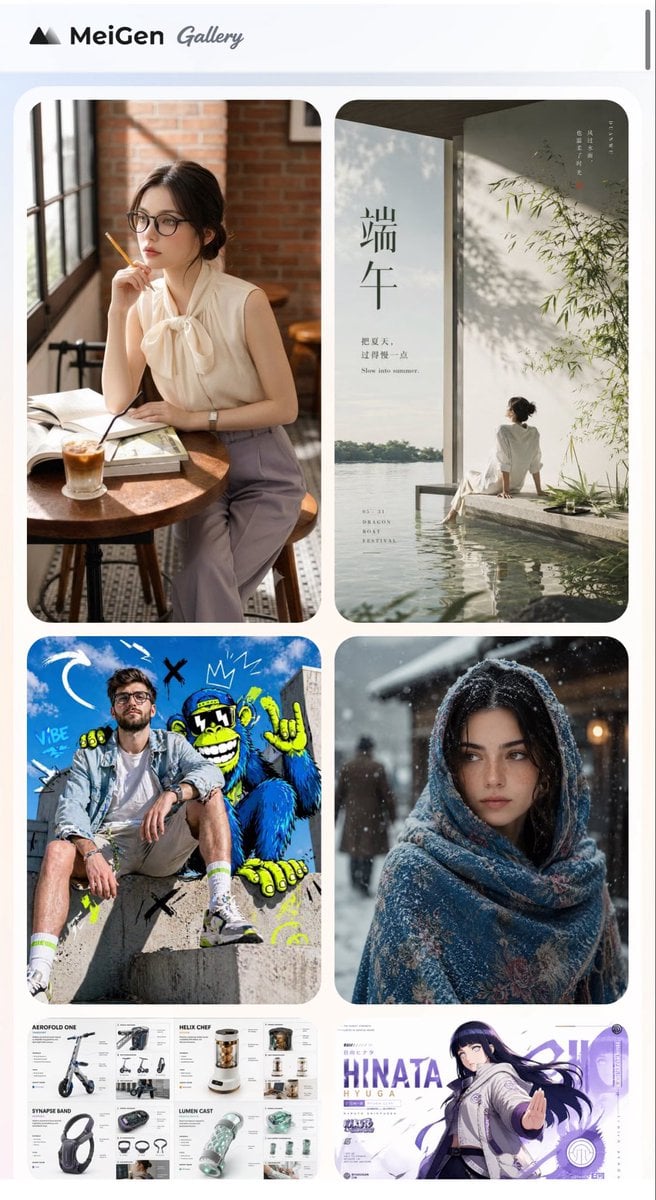
MeiGen AI Gallery Mobile Screenshot
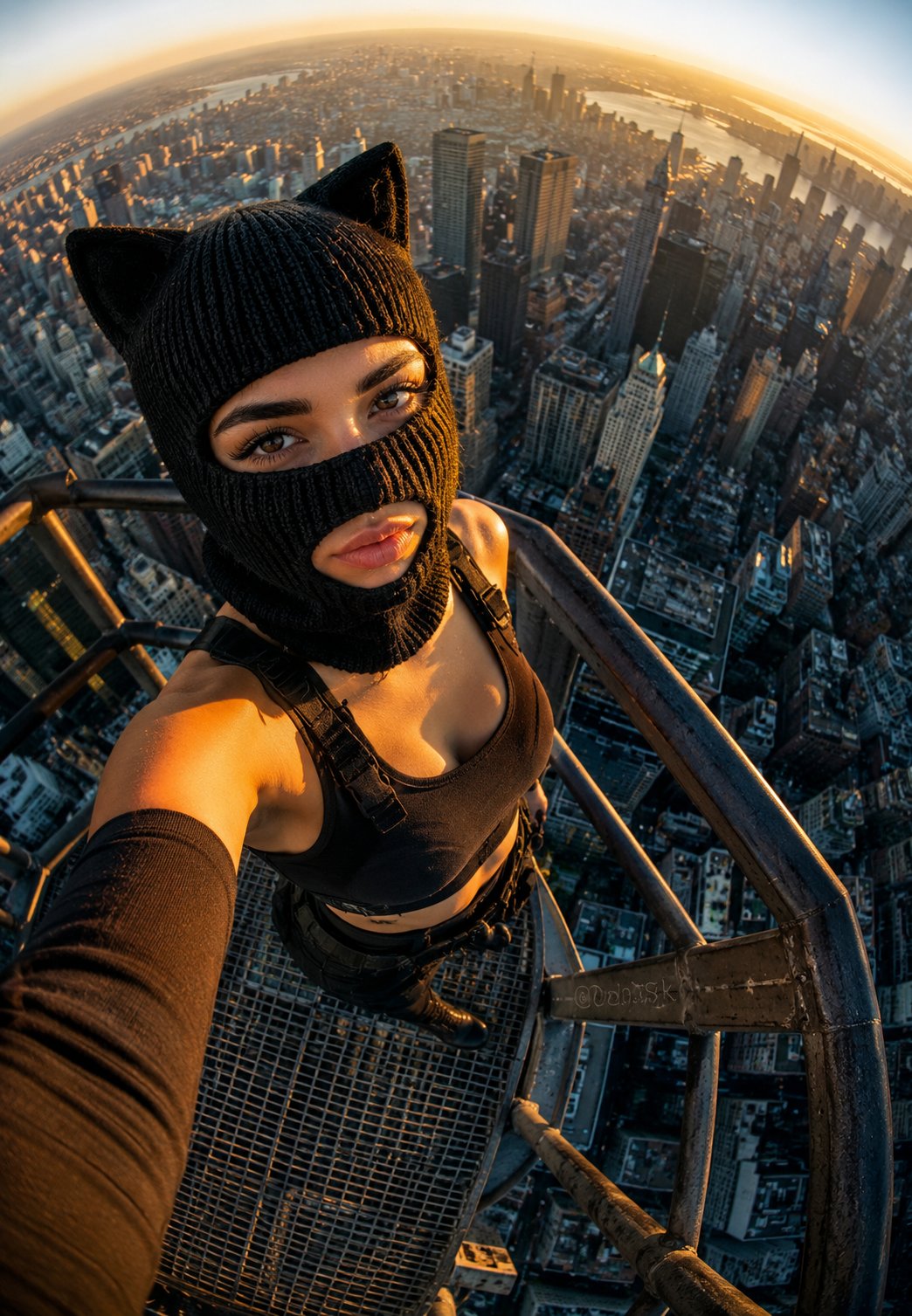
Rooftop Fisheye — Cat-Ear Balaclava at Golden Hour
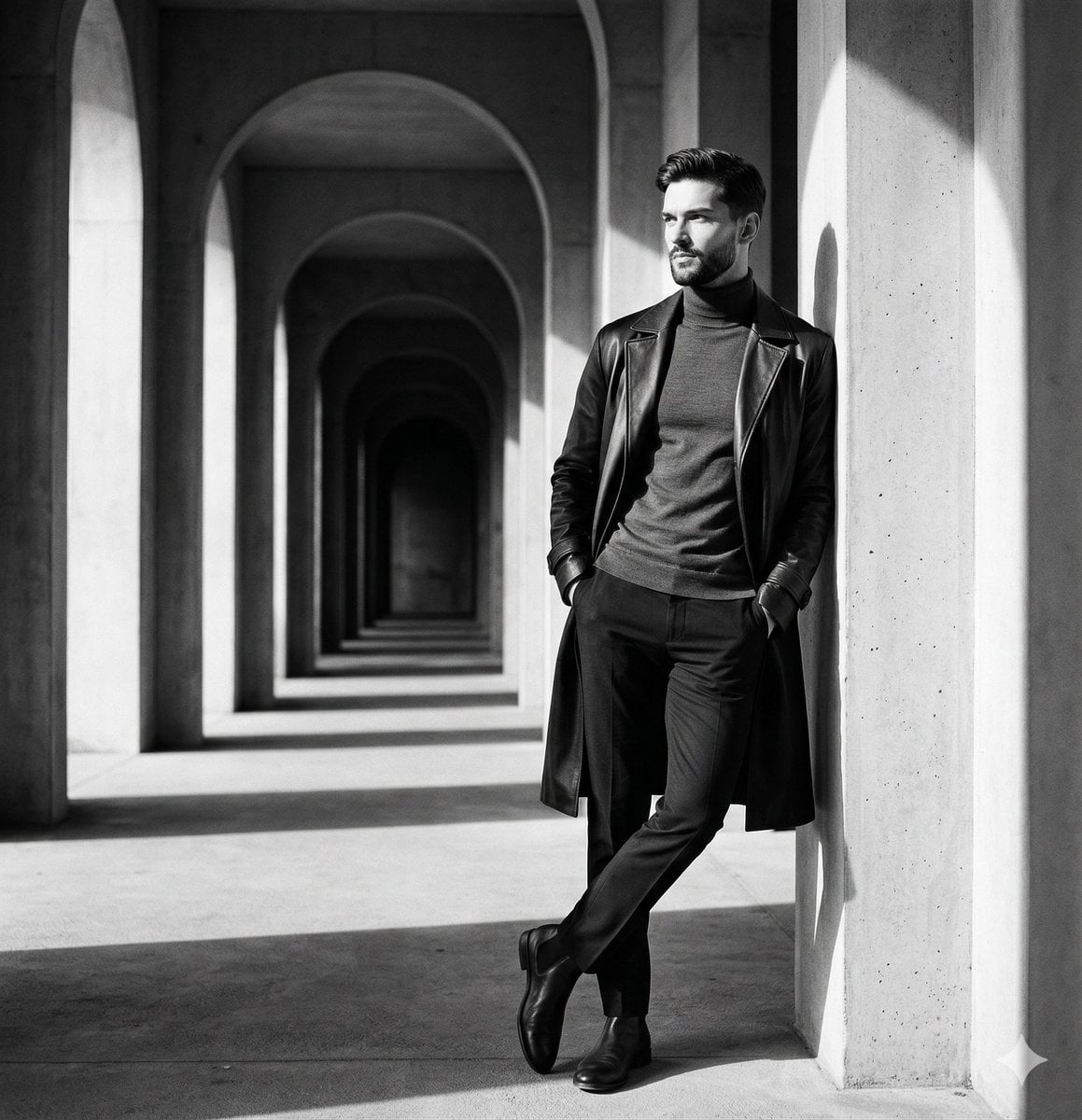
Oil Portrait Gallery Hall
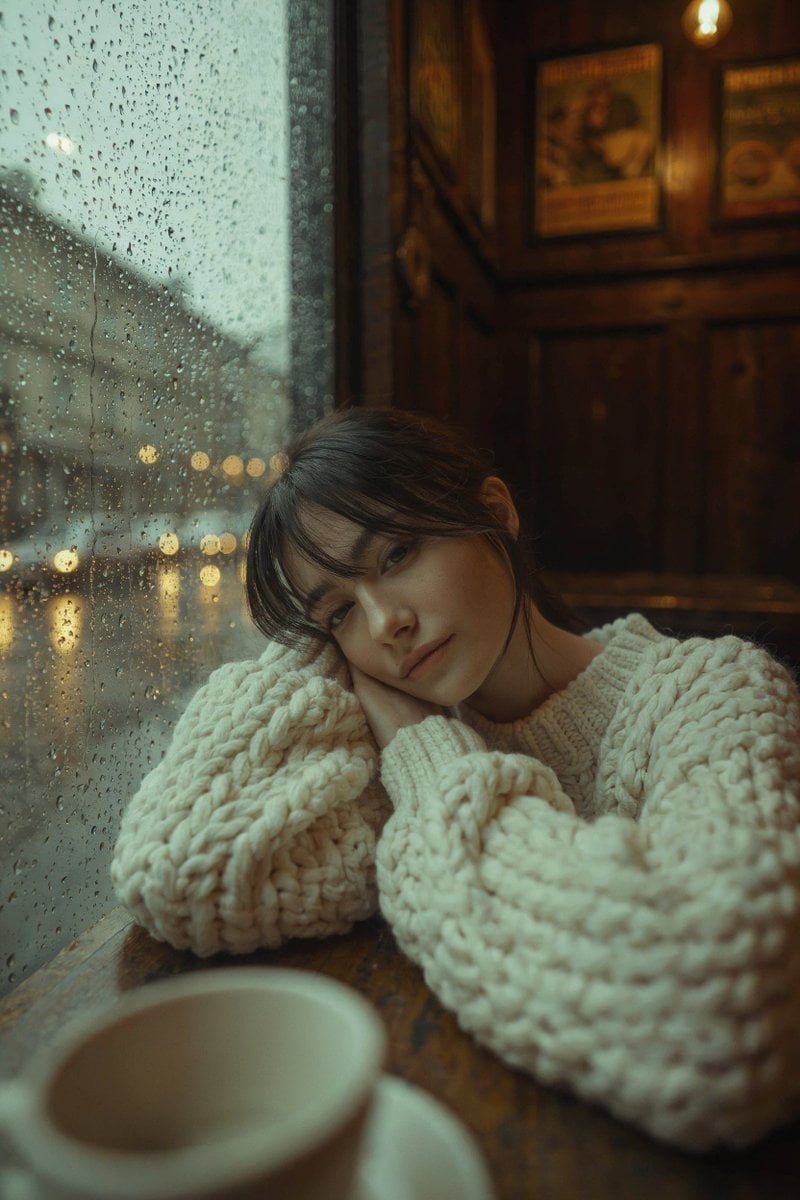
Rainy Café Window Moody Portrait
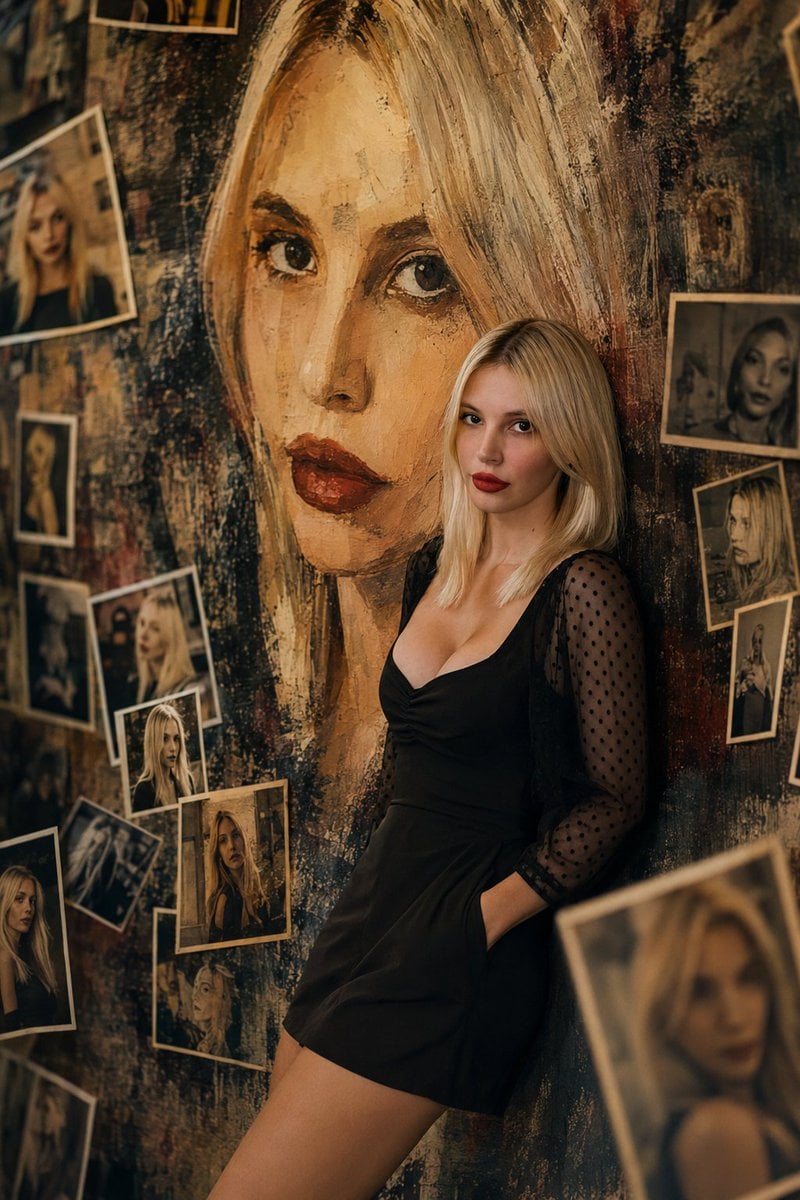
Artistic Mural Gallery Portrait
Make it yours
AI Gallery Portrait UI Screenshot works as-is. These are the safest ways to change it without losing the look.
Change one field
Copy a single group, rewrite it, and generate again so you can see what that field is doing.
Keep the frame, change the subject
Hold the composition and light of AI Gallery Portrait UI Screenshot, then swap wardrobe, props or the person for a new take.
| If the result… | Why | Fix |
|---|---|---|
| The result drifts from the preview | Too many fields changed at once. | Reuse AI Gallery Portrait UI Screenshot as-is first, then change one group — subject, light, or setting. |
| The model over-stylizes the scene | The prose prompt leaves finish and camera underspecified. | Add one camera or lighting sentence and stay on GPT Image 2. |
More GPT Image 2 templates
Other prompts made for GPT Image 2.

Six VTuber Japanese Logo Sheet

Realistic Portrait of Woman and Deer

The Vista Modular Condo Poster

AI Model Routing Comparison Infographic

2.5D Anime Art Board

Isometric Productivity Desk Scene

New York Double Exposure Poster

Four-Panel AI Landscape Comparison

Japanese Tatami Lifestyle Magazine Cover

NESCAFÉ Coffee Map Poster
More image prompts
Fresh picks from across the catalog.
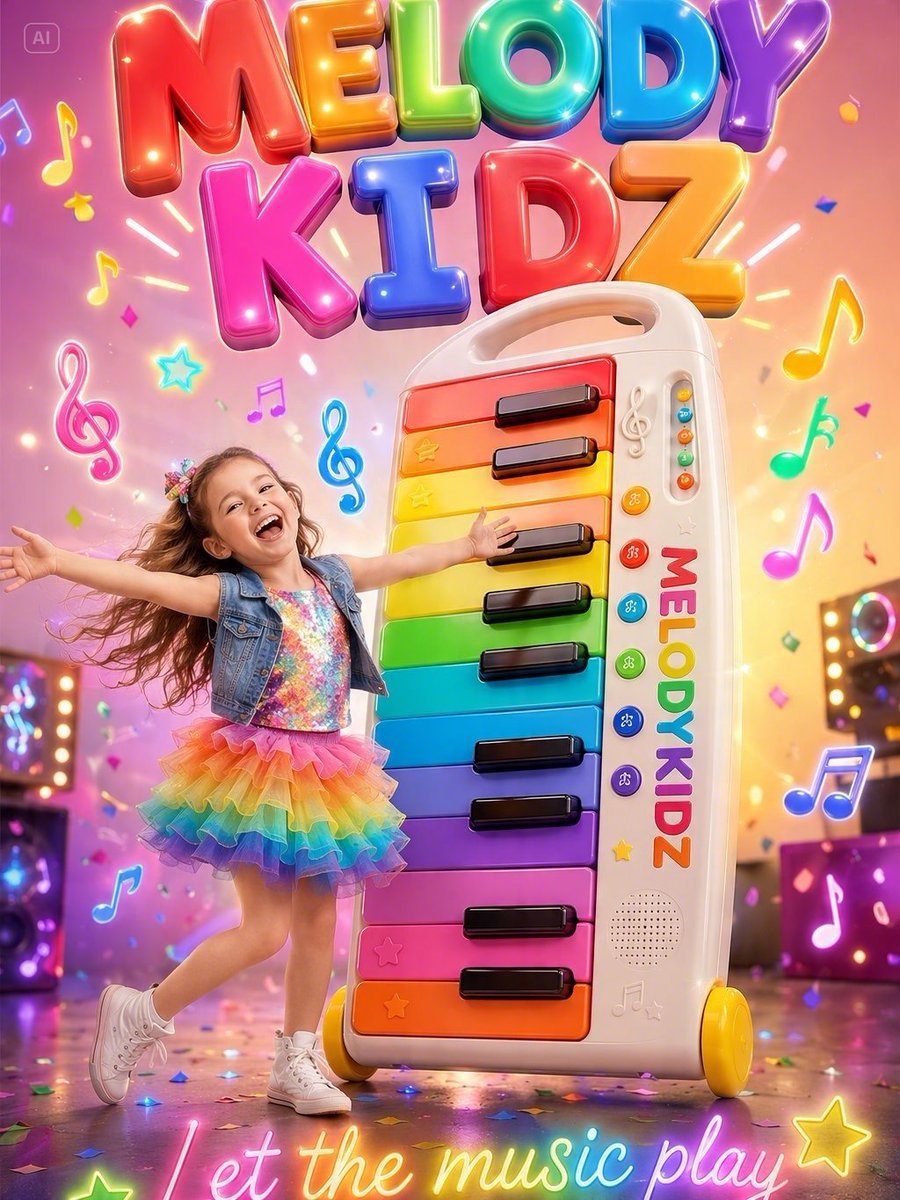
Musical Kids Toy Ad Poster
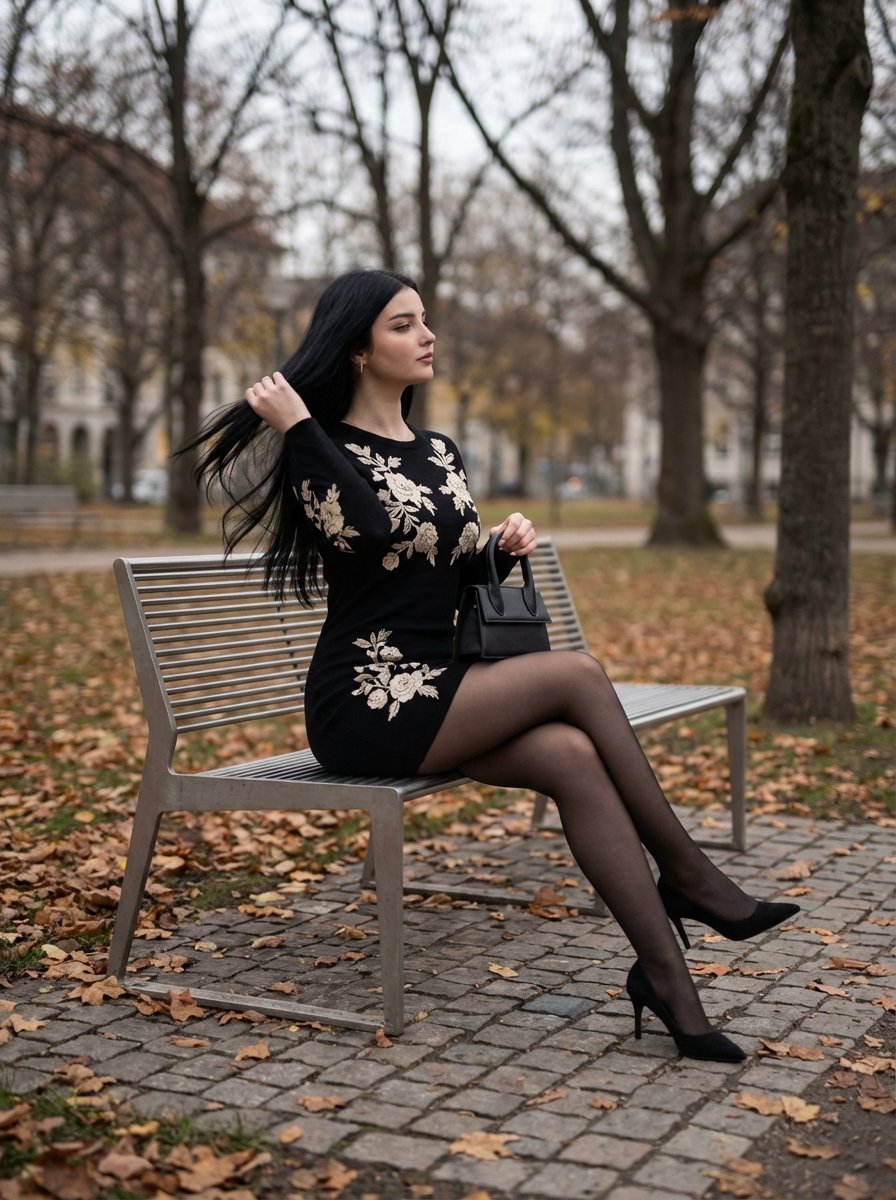
Elegant Autumn City Park Editorial Scene
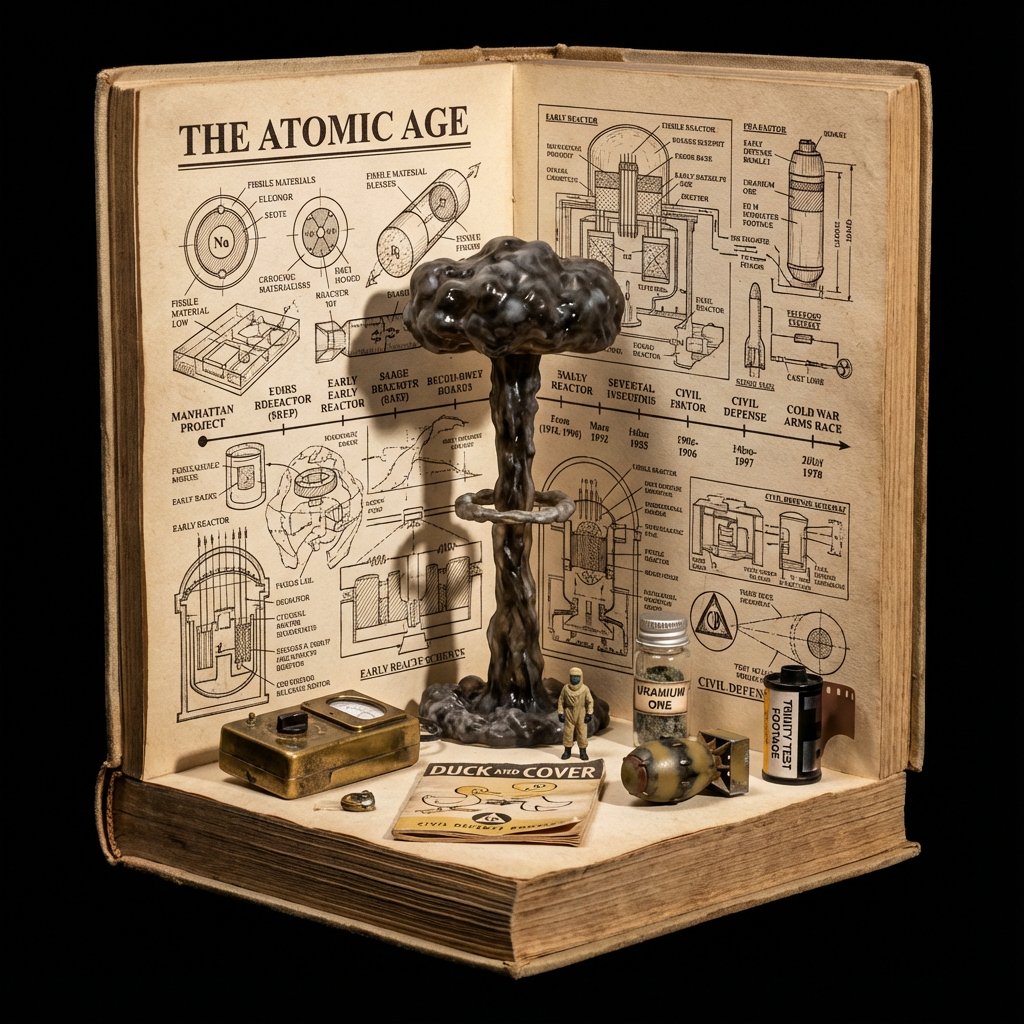
Procedural Book Nook Diorama Generation Prompt
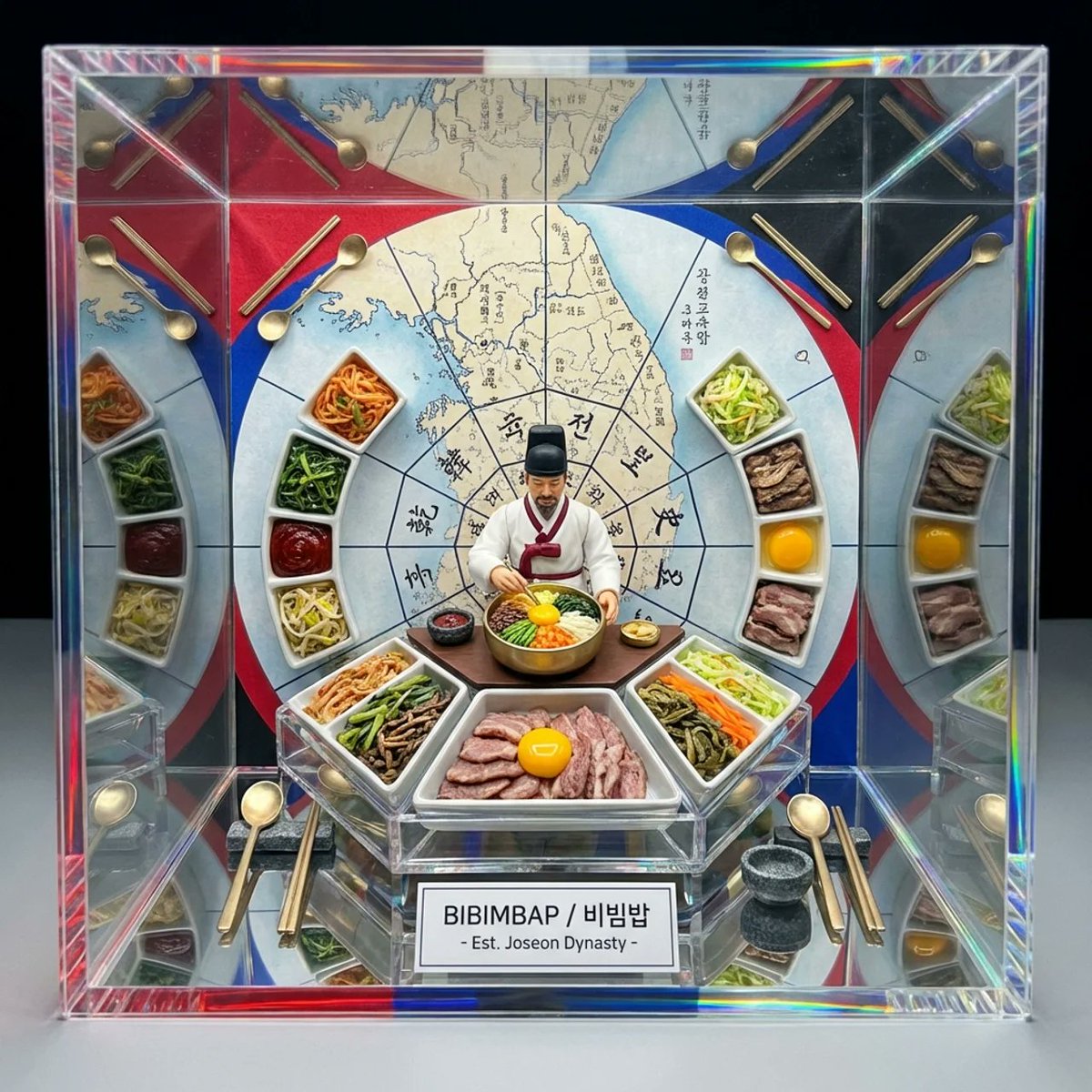
Kaleidoscopic Food Diorama in Acrylic Box
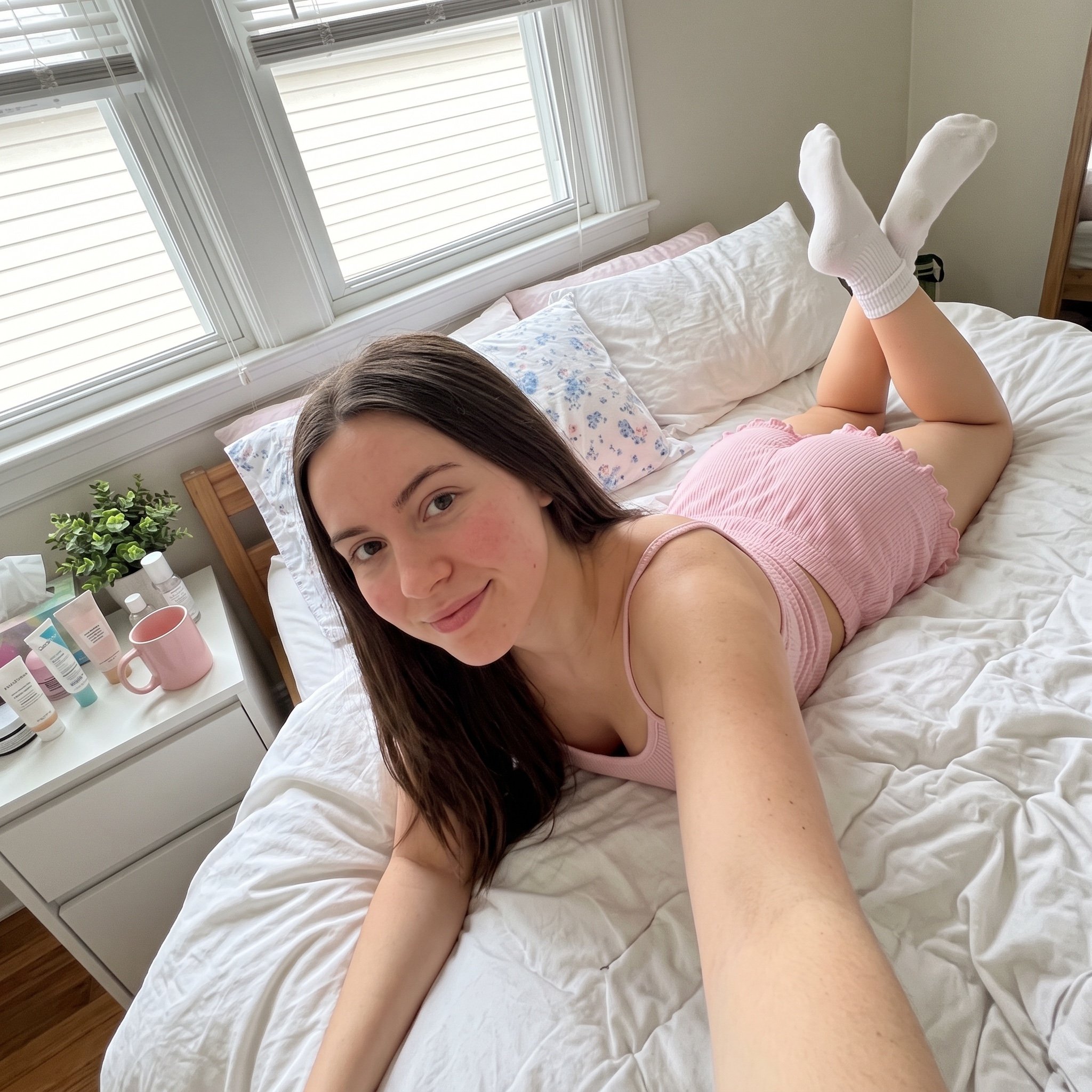
Cozy Bedroom Selfie Prompt
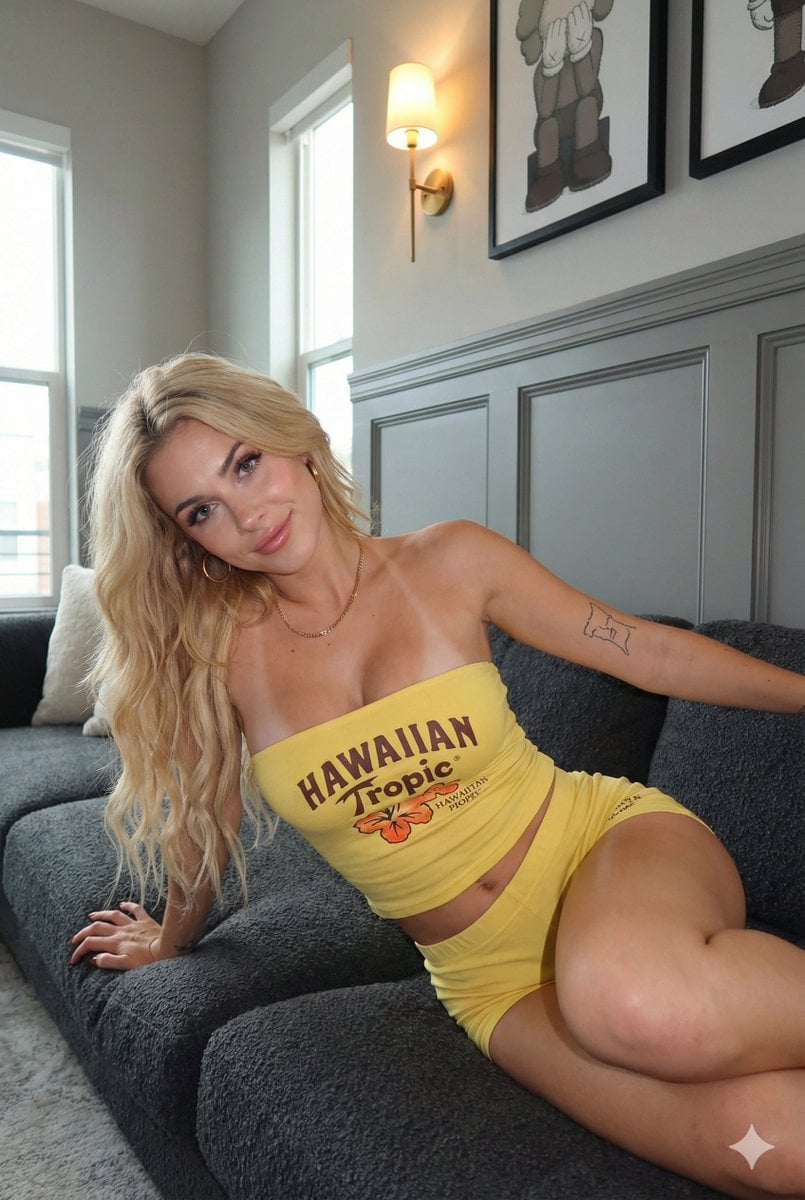
Photorealistic Influencer Lifestyle Portrait Prompt (Yellow Loungewear)
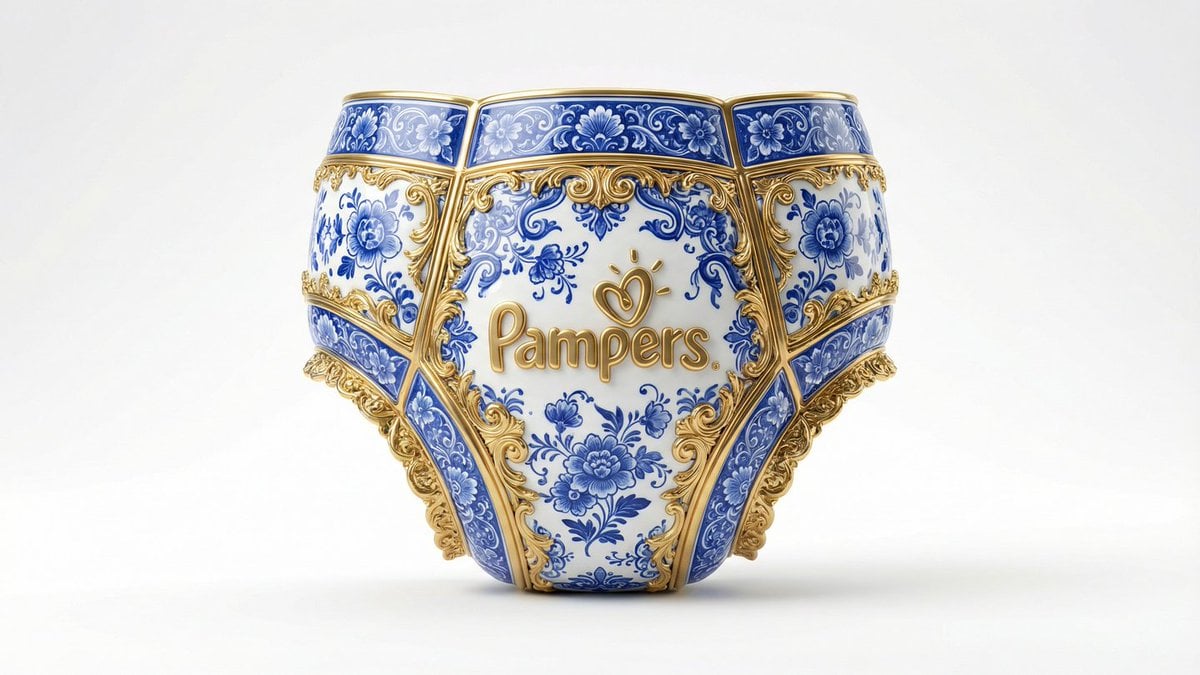
Gilded Delftware Product Signature Prompt
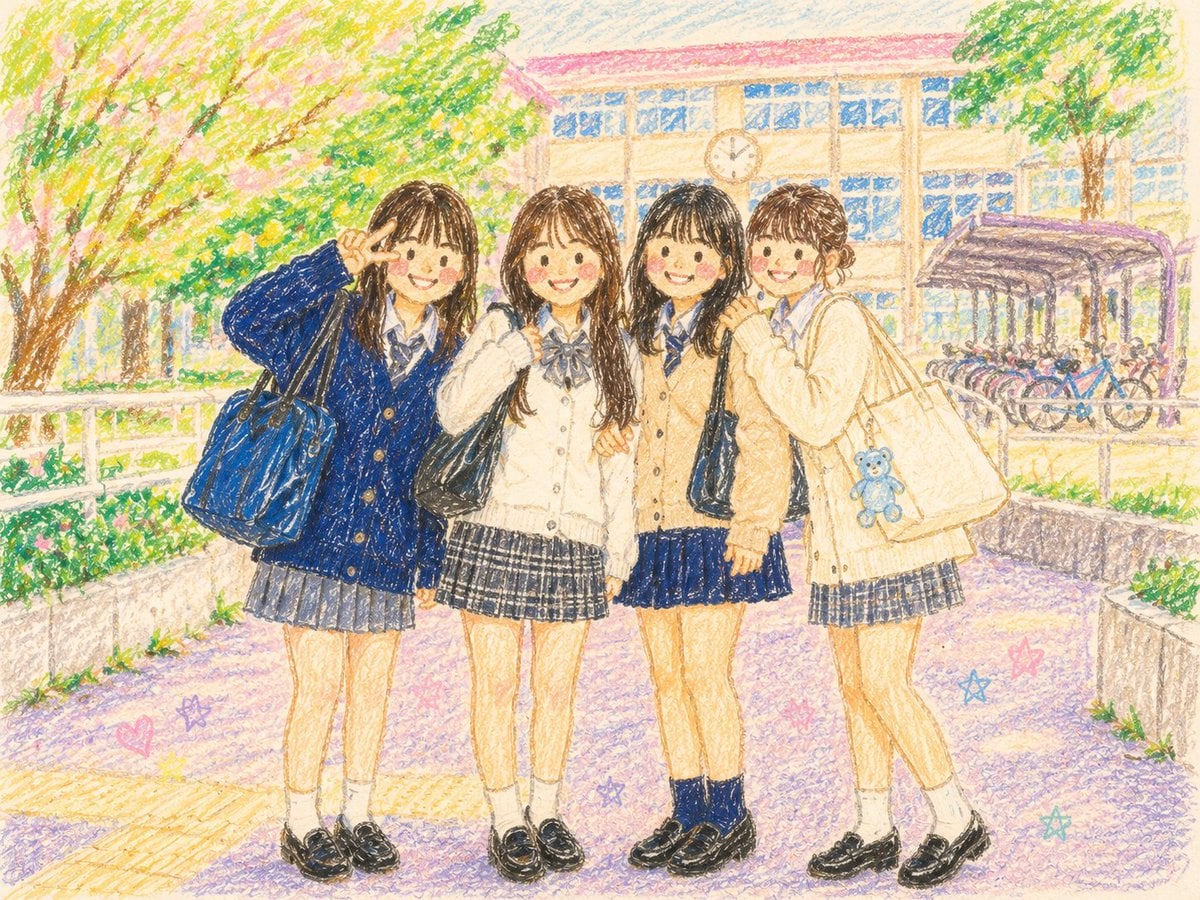
Crayon Style Picture Book Illustration
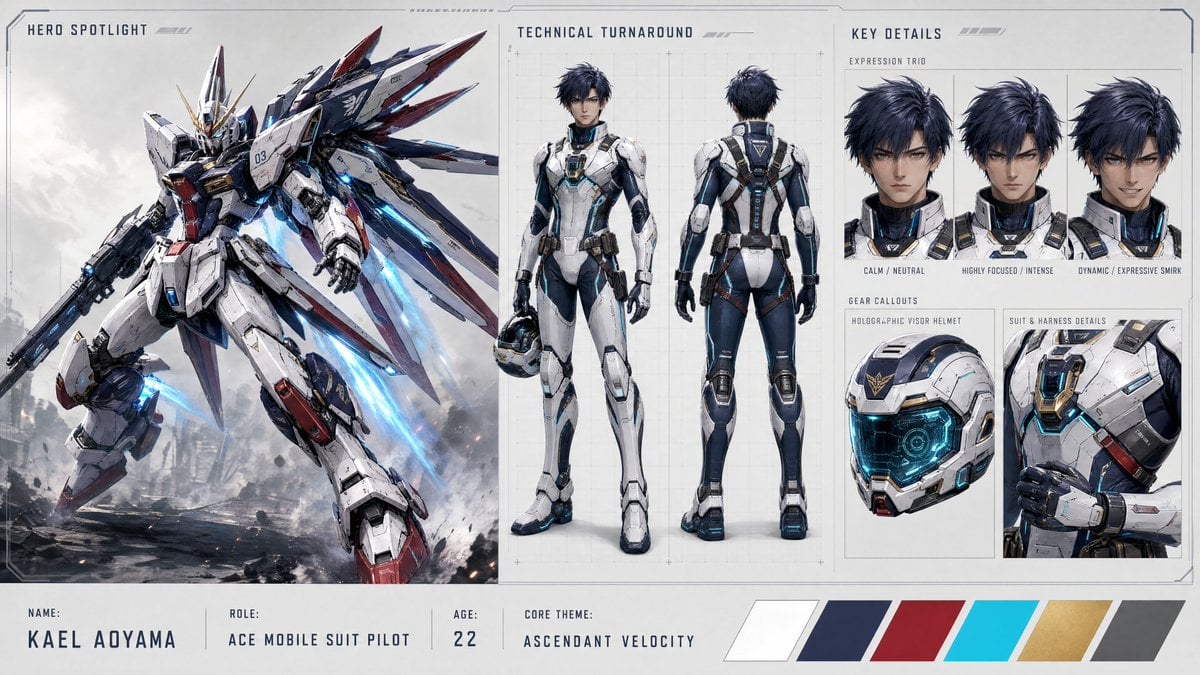
Mecha Character Concept Showcase
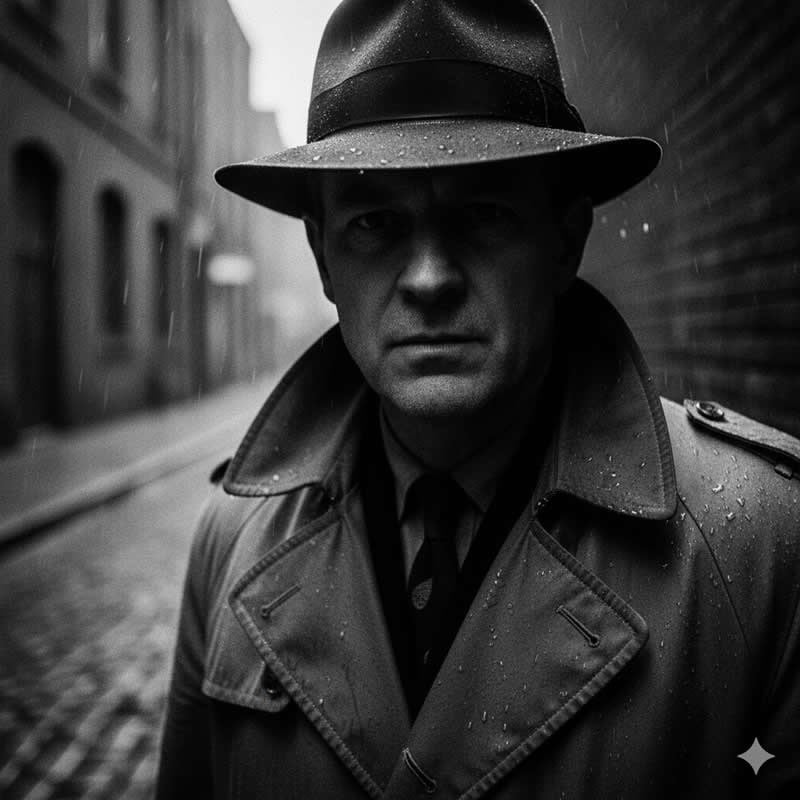
Cinematic Noir Portrait Prompt
Browse template categories
AI Gallery Portrait UI Screenshot questions
How do I use the AI Gallery Portrait UI Screenshot template?
Add your photo if the template asks for one, edit the prompt if you like — the template's model and format are already selected — and press Generate. Your version opens in PicX Studio.
Can I customize the AI Gallery Portrait UI Screenshot template?
Yes. You can change the subject, setting, lighting, mood, format, and available model controls before creating your image.
Is the AI Gallery Portrait UI Screenshot template free?
Opening and editing this template is free. Generating uses credits, shown on the Generate button when you are signed in.
Which AI model should I use?
Start with GPT Image 2, which is the model associated with this template. You can compare another compatible model for a different finish.
Looking for something else? Browse all templates.

Your photo, any look
Thousands of ready templates for every top image and video model, from one credit balance.