
Anime Art Process Infographic
Generates a comprehensive step-by-step digital art tutorial sheet with process thumbnails, color swatches, and detailed focus crops.
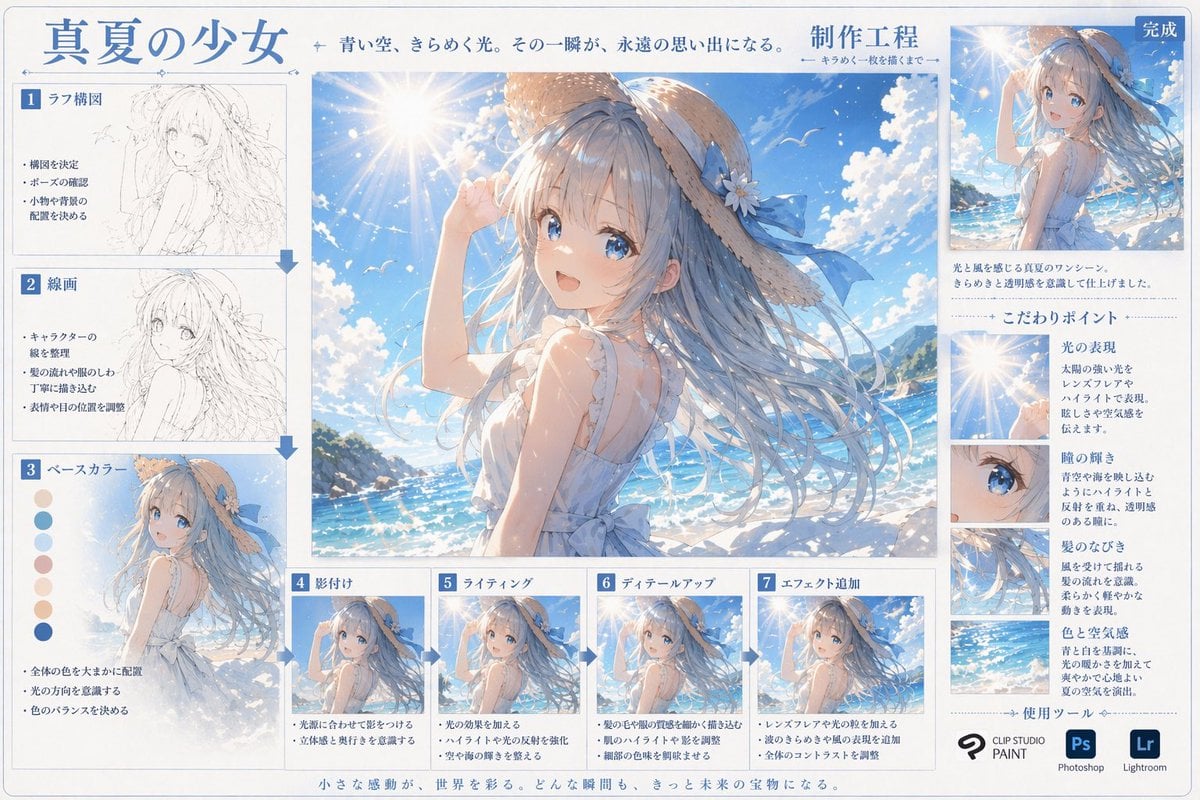
- Prompt included
- Model and format preset
- Free template
The prompt behind this image
Copy the exact prompt behind Anime Art Process Infographic, or open it in the studio and make it yours.
- Type
- digital art production process infographic
- Header › Title
- {argument name="main title" default="真夏の少女"}
- Header › Subtitle
- 青い空、きらめく光。その一瞬が、永遠の思い出になる。
- Header › Process Label
- {argument name="process title" default="制作工程"}
- Centerpiece › Description
- Large high-quality anime illustration of {argument name="character appearance" default="an anime girl with long flowing blue hair, a straw hat with a blue ribbon, and a white sleeveless summer dress"} standing in front of a {argument name="setting" default="bright sunny beach, sparkling blue ocean, clear sky with lens flare"}.
- Layout › Left Column › Count
- 3
- Layout › Left Column › Steps › 0 › Label
- 1 ラフ構図
- Layout › Left Column › Steps › 0 › Image Type
- rough pencil sketch
- Layout › Left Column › Steps › 0 › Bullet Points
- 3
- Layout › Left Column › Steps › 1 › Label
- 2 線画
- Layout › Left Column › Steps › 1 › Image Type
- clean monochrome line art
- Layout › Left Column › Steps › 1 › Bullet Points
- 3
- Layout › Left Column › Steps › 2 › Label
- 3 ベースカラー
- Layout › Left Column › Steps › 2 › Image Type
- flat colors
- Layout › Left Column › Steps › 2 › Extra Elements
- 7 circular color swatches
- Layout › Left Column › Steps › 2 › Bullet Points
- 3
- Layout › Bottom Row › Count
- 4
- Layout › Bottom Row › Steps › 0 › Label
- 4 影付け
- Layout › Bottom Row › Steps › 0 › Image Type
- basic cell shading
- Layout › Bottom Row › Steps › 0 › Bullet Points
- 2
- Layout › Bottom Row › Steps › 1 › Label
- 5 ライティング
- Layout › Bottom Row › Steps › 1 › Image Type
- lighting and highlights added
- Layout › Bottom Row › Steps › 1 › Bullet Points
- 2
- Layout › Bottom Row › Steps › 2 › Label
- 6 ディテールアップ
Raw JSON
{
  "type": "digital art production process infographic",
  "header": {
    "title": "{argument name=\"main title\" default=\"真夏の少女\"}",
    "subtitle": "青い空、きらめく光。その一瞬が、永遠の思い出になる。",
    "process_label": "{argument name=\"process title\" default=\"制作工程\"}"
  },
  "centerpiece": {
    "description": "Large high-quality anime illustration of {argument name=\"character appearance\" default=\"an anime girl with long flowing blue hair, a straw hat with a blue ribbon, and a white sleeveless summer dress\"} standing in front of a {argument name=\"setting\" default=\"bright sunny beach, sparkling blue ocean, clear sky with lens flare\"}."
  },
  "layout": {
    "left_column": {
      "count": 3,
      "steps": [
        { "label": "1 ラフ構図", "image_type": "rough pencil sketch", "bullet_points": 3 },
        { "label": "2 線画", "image_type": "clean monochrome line art", "bullet_points": 3 },
        { "label": "3 ベースカラー", "image_type": "flat colors", "extra_elements": "7 circular color swatches", "bullet_points": 3 }
      ]
    },
    "bottom_row": {
      "count": 4,
      "steps": [
        { "label": "4 影付け", "image_type": "basic cell shading", "bullet_points": 2 },
        { "label": "5 ライティング", "image_type": "lighting and highlights added", "bullet_points": 2 },
        { "label": "6 ディテールアップ", "image_type": "fine details rendered", "bullet_points": 2 },
        { "label": "7 エフェクト追加", "image_type": "final post-processing effects", "bullet_points": 3 }
      ]
    },
    "right_column": {
      "top_section": {
        "label": "完成",
        "image_type": "scaled down final illustration",
        "description_text": "2 lines of text"
      },
      "focus_points": {
        "title": "こだわりポイント",
        "count": 4,
        "items": [
          { "label": "光の表現", "image_crop": "lens flare and sun", "description_text": "short paragraph" },
          { "label": "瞳の輝き", "image_crop": "close-up of the girl's blue eye", "description_text": "short paragraph" },
          { "label": "髪のなびき", "image_crop": "close-up of flowing hair", "description_text": "short paragraph" },
          { "label": "色と空気感", "image_crop": "ocean and sky background", "description_text": "short paragraph" }
        ]
      },
      "tools_used": {
        "title": "使用ツール",
        "count": 3,
        "logos": [
          "{argument name=\"primary software\" default=\"CLIP STUDIO PAINT\"}",
          "Photoshop (Ps)",
          "Lightroom (Lr)"
        ]
      }
    },
    "footer": {
      "text": "小さな感動が、世界を彩る。どんな瞬間も、きっと未来の宝物になる。"
    }
  }
}Reference images included
Anime Art Process Infographic needs input media to work. They load alongside the prompt when you open it in the studio.
How to use Anime Art Process Infographic in 3 steps
- 1Upload ImagePNG, JPG or paste
Add your photo
Upload the photo the template builds on. The prompt, model and format are already set.
- 2…a portrait of your subject in softgolden-hour light, 85mm…
Personalize
Edit the subject and creative details for your destination.
- 3Generate
Generate
Press Generate — your image is created in PicX Studio, so you can compare it with the original and refine one variable at a time.
More like this
Templates with the same subject, style or setup. Open one to see its prompt.

Isometric Process Educational Diorama
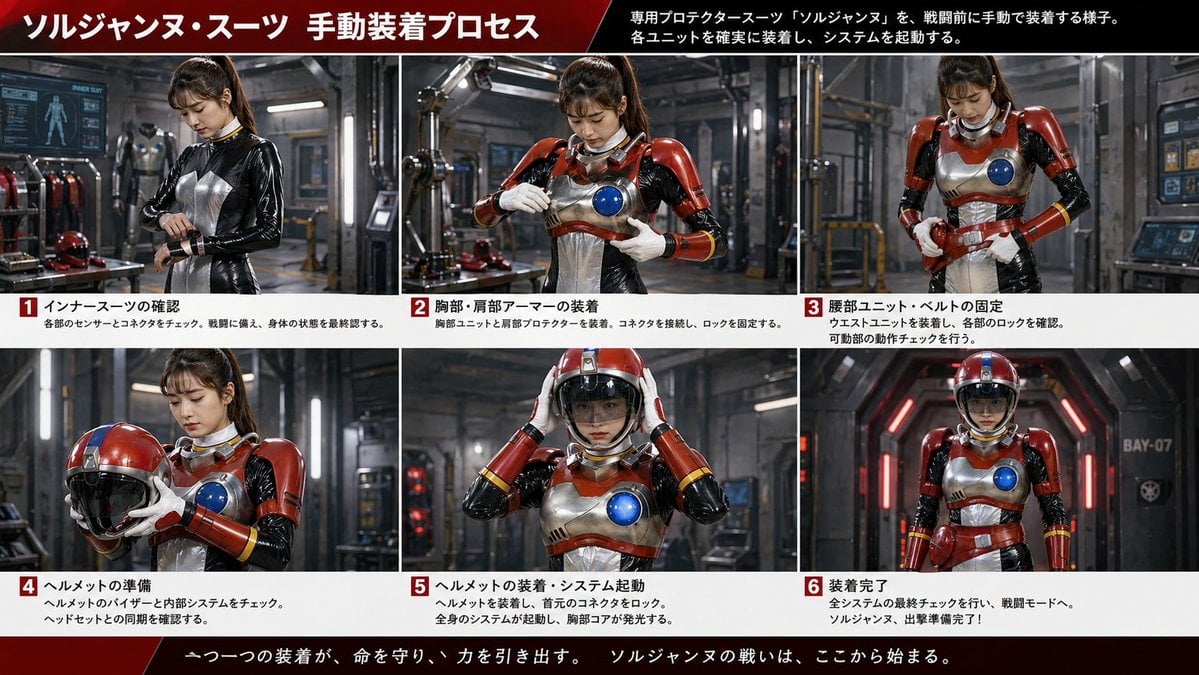
Gpt2 Infographic Edu Visual Japanese Sci Fi Suit Up Process Board

Japan Travel Brochure Poster
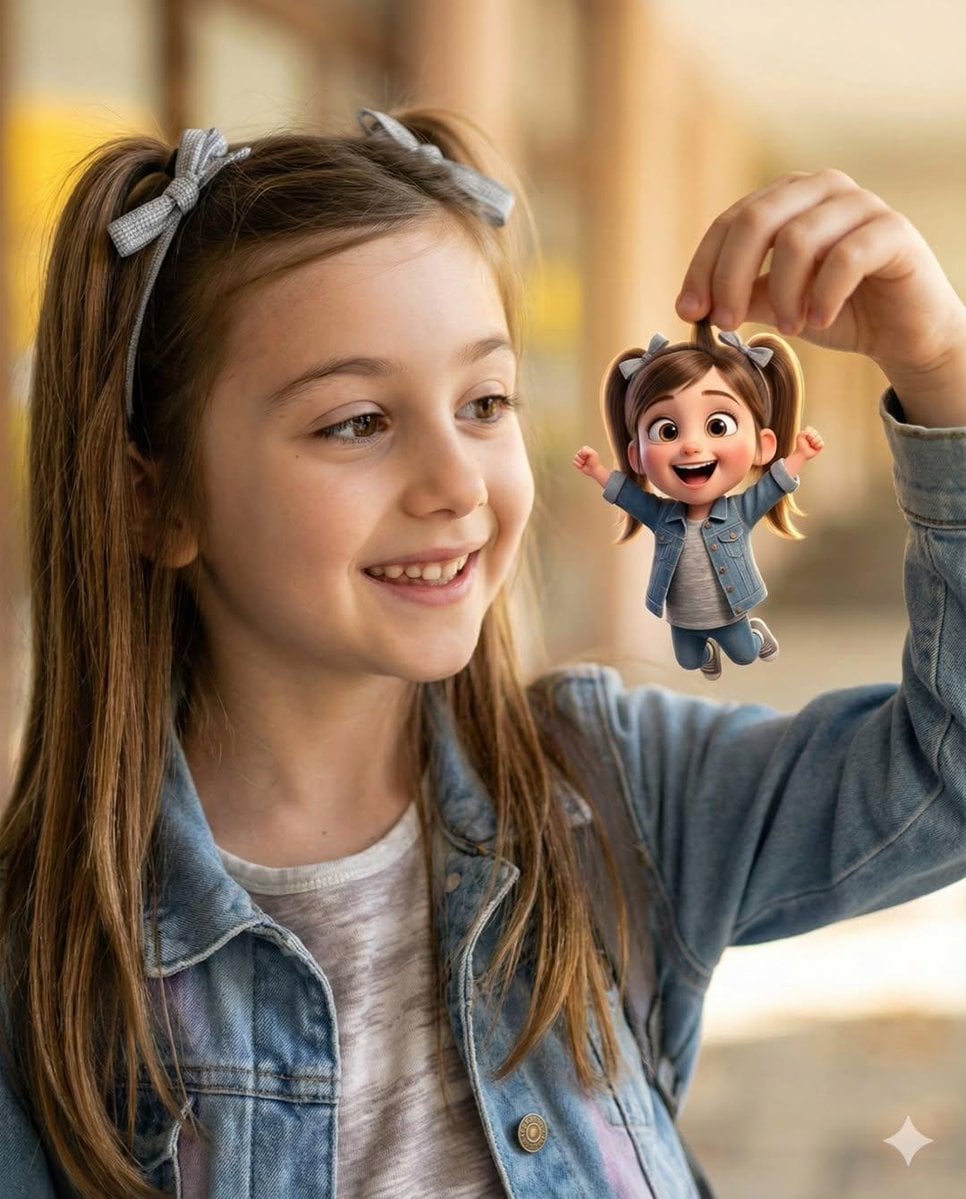
Cel 2D Finale Fireworks
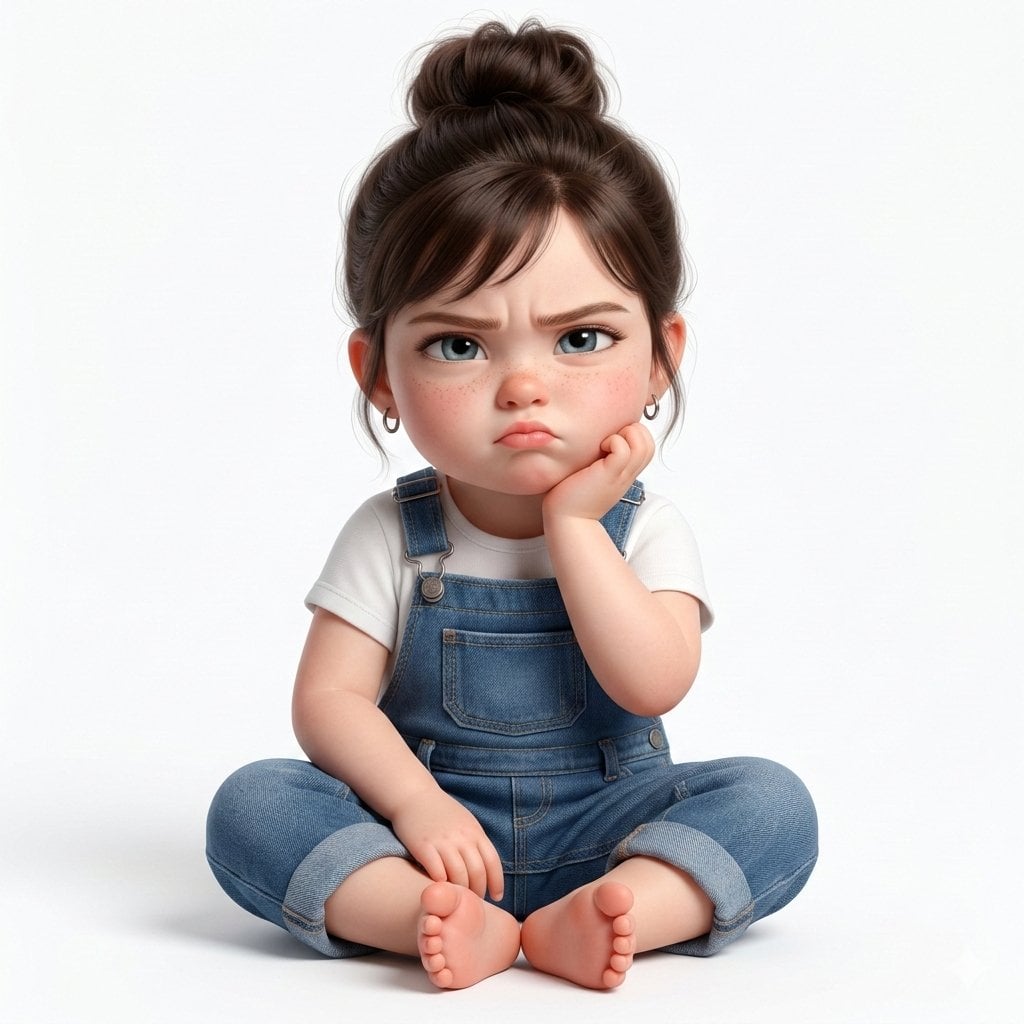
Cel 2D Garden Maze
Cel 2D Rooftop Concert
Cel 2D Bicycle Coast
Cel 2D Castle Gate
Cel 2D Kitchen Chaos
Cel 2D Carnival Ride
Cel 2D Rainy Bus Stop
Cel 2D Space Dock
Make it yours
Anime Art Process Infographic works as-is. These are the safest ways to change it without losing the look.
Change one field
Copy a single group, rewrite it, and generate again so you can see what that field is doing.
Keep the frame, change the subject
Hold the composition and light of Anime Art Process Infographic, then swap wardrobe, props or the person for a new take.
| If the result… | Why | Fix |
|---|---|---|
| The result drifts from the preview | Too many fields changed at once. | Reuse Anime Art Process Infographic as-is first, then change one group — subject, light, or setting. |
| GPT Image 2 ignores part of the JSON | Some models flatten or skip nested keys. | Keep the same values and paste them as a short paragraph instead. |
More GPT Image 2 templates
Other prompts made for GPT Image 2.

Six VTuber Japanese Logo Sheet

Realistic Portrait of Woman and Deer

The Vista Modular Condo Poster

AI Model Routing Comparison Infographic

2.5D Anime Art Board

Isometric Productivity Desk Scene

New York Double Exposure Poster

Four-Panel AI Landscape Comparison

Japanese Tatami Lifestyle Magazine Cover

NESCAFÉ Coffee Map Poster
More image prompts
Fresh picks from across the catalog.
Stylish Person in Cargo Pants Against Ethereal Landscape
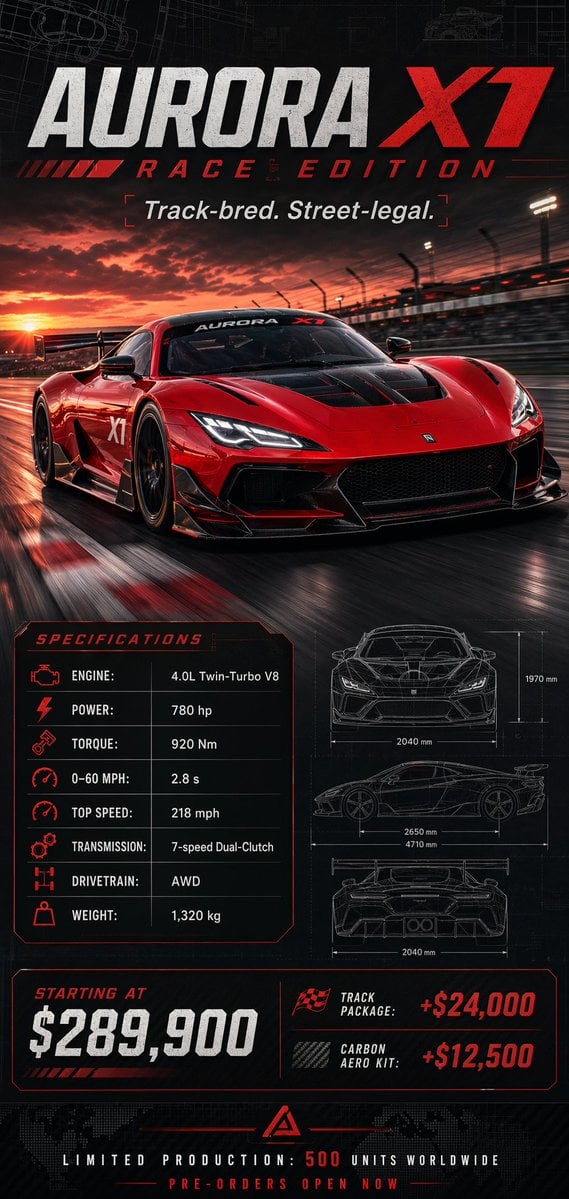
Racing Car Poster with Specs
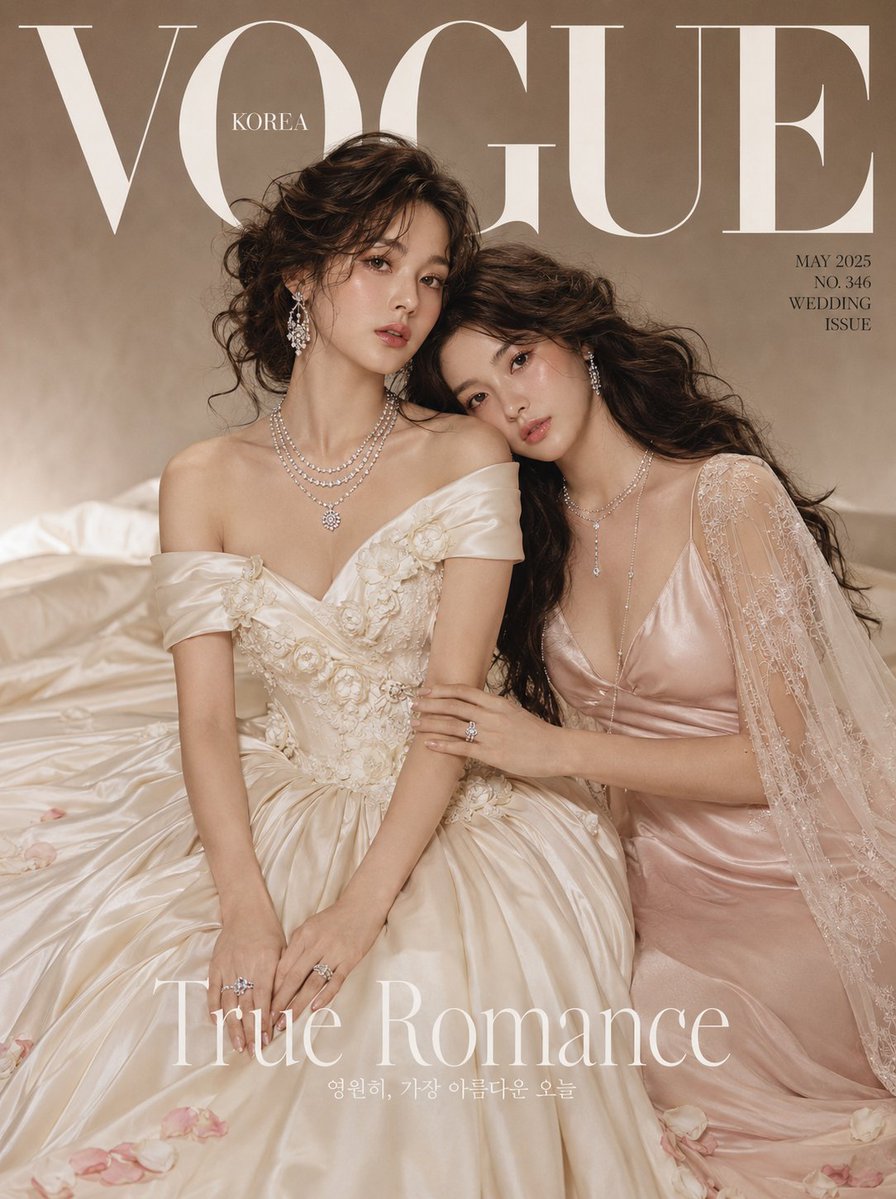
Vogue Bridal Couture Luxury Cover
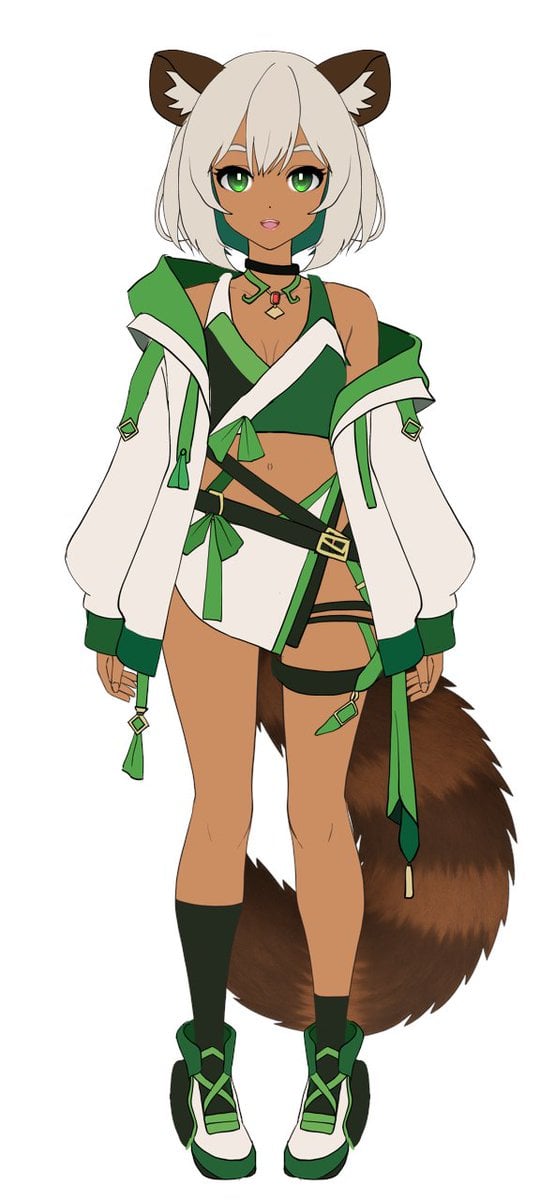
Flat Color to Rendered Anime Shading
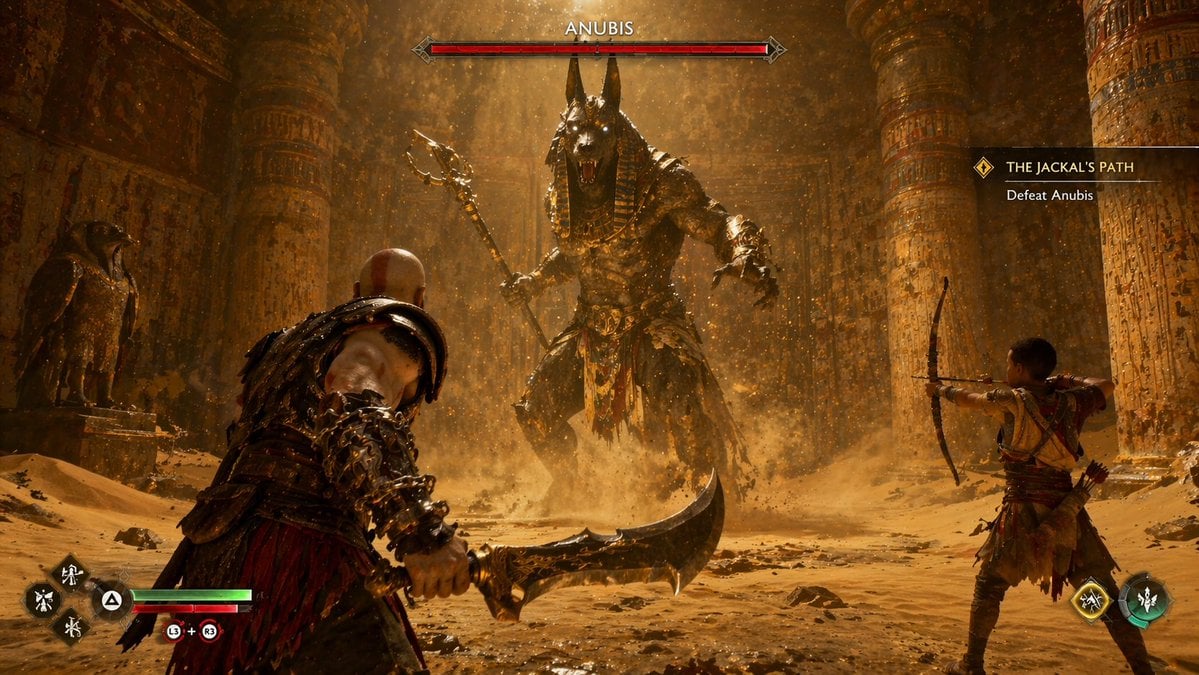
Mythological Action Game Screenshot
Cinematic short video prompt for female portraiture
Luxury Editorial Portrait of Mature Woman Prompt
Anime Character Transfer to Reality
City Ribbon Poster Design Prompt
Neo-Noir Hitman Film Still
Browse template categories
Anime Art Process Infographic questions
How do I use the Anime Art Process Infographic template?
Add your photo if the template asks for one, edit the prompt if you like — the template's model and format are already selected — and press Generate. Your version opens in PicX Studio.
Can I customize the Anime Art Process Infographic template?
Yes. You can change the subject, setting, lighting, mood, format, and available model controls before creating your image.
Is the Anime Art Process Infographic template free?
Opening and editing this template is free. Generating uses credits, shown on the Generate button when you are signed in.
Which AI model should I use?
Start with GPT Image 2, which is the model associated with this template. You can compare another compatible model for a different finish.
Looking for something else? Browse all templates.

Your photo, any look
Thousands of ready templates for every top image and video model, from one credit balance.