
Cafe Portrait Glare Removal Comparison
Generates a realistic side-by-side cafe portrait comparison for demonstrating subtle glasses-glare removal in a profile photo.

- Prompt included
- Model and format preset
- Free template
The prompt behind this image
Copy the exact prompt behind Cafe Portrait Glare Removal Comparison, or open it in the studio and make it yours.
Create a realistic side-by-side comparison image showing the same cafe portrait duplicated in two equal vertical panels, like a before-and-after social media demonstration for removing glasses glare while preserving identity. Canvas is a wide 16:9 image, approximately 1200×675, split exactly down the center by a thin vertical white divider. Both panels show one adult man seated at a cafe table by large windows, wearing a dark navy blazer over a plain white crew-neck T-shirt, arms resting forward, with short neatly styled black hair and warm medium skin tone. In both panels, place a large opaque tan square censorship block over the center of the face, covering the eyes, nose, and mouth while leaving hair, ears, jawline, neck, and clothing visible; use {argument name="face block color" default="muted tan brown"}. The left panel should subtly imply the original portrait with eyeglass frames and glare partly visible at the edges of the face block, while the right panel should show the cleaned version with no visible glasses glare and the same face shape, pose, hair, outfit, lighting, and background. Include exactly 2 portrait panels: left original and right edited. Include exactly 2 identical coffee cups, one near the bottom center of each panel, cream-colored ceramic with coffee inside. Include exactly 2 small green potted plants, one at the lower left of each panel. Background: bright cafe interior with black window frames, sunlit glass, soft green foliage outside, blurred street and building shapes, shallow depth of field, natural daylight, realistic photography. Style should be high-quality candid profile-photo realism, crisp subject details, soft bokeh background, no text labels, no watermark, no extra people, and no changes between the two panels except the suggested glasses-glare removal on the right. Use {argument name="subject outfit" default="dark navy blazer over a white T-shirt"}, {argument name="setting" default="sunlit cafe by large windows"}, and {argument name="comparison theme" default="glasses glare removal before and after"}.
How to use Cafe Portrait Glare Removal Comparison in 3 steps
- 1Upload ImagePNG, JPG or paste
Add your photo
Upload the photo the template builds on. The prompt, model and format are already set.
- 2…a portrait of your subject in softgolden-hour light, 85mm…
Personalize
Edit the subject and creative details for your destination.
- 3Generate
Generate
Press Generate — your image is created in PicX Studio, so you can compare it with the original and refine one variable at a time.
More like this
Templates with the same subject, style or setup. Open one to see its prompt.
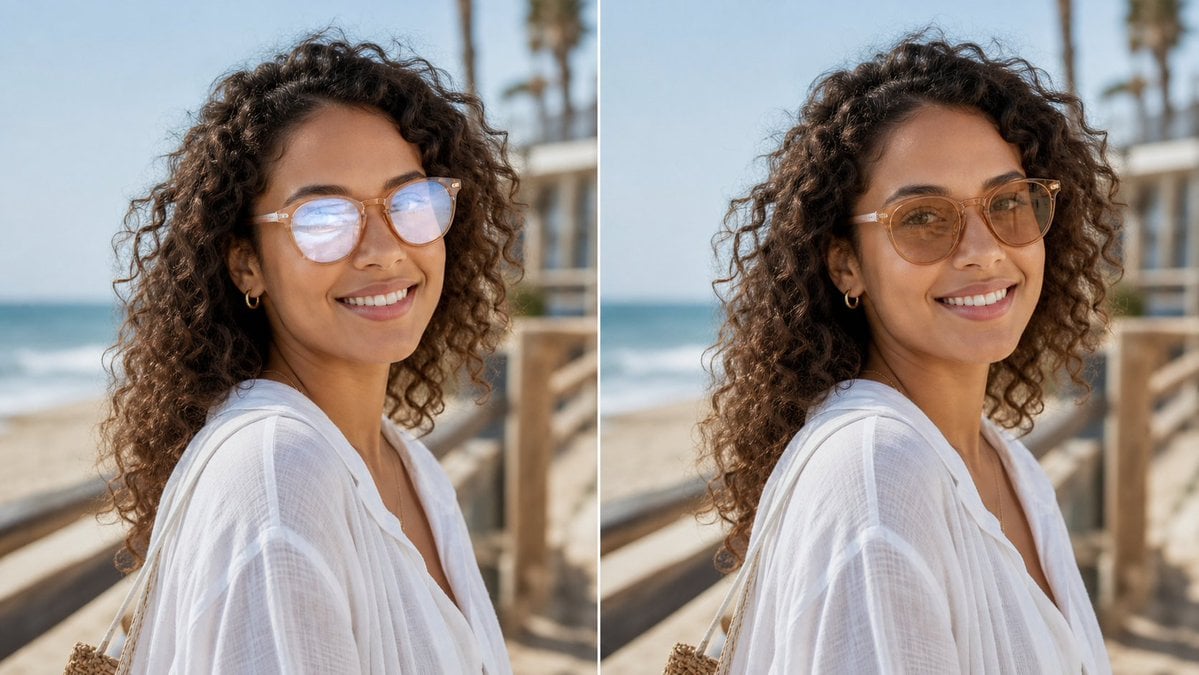
Glasses Glare Removal Comparison
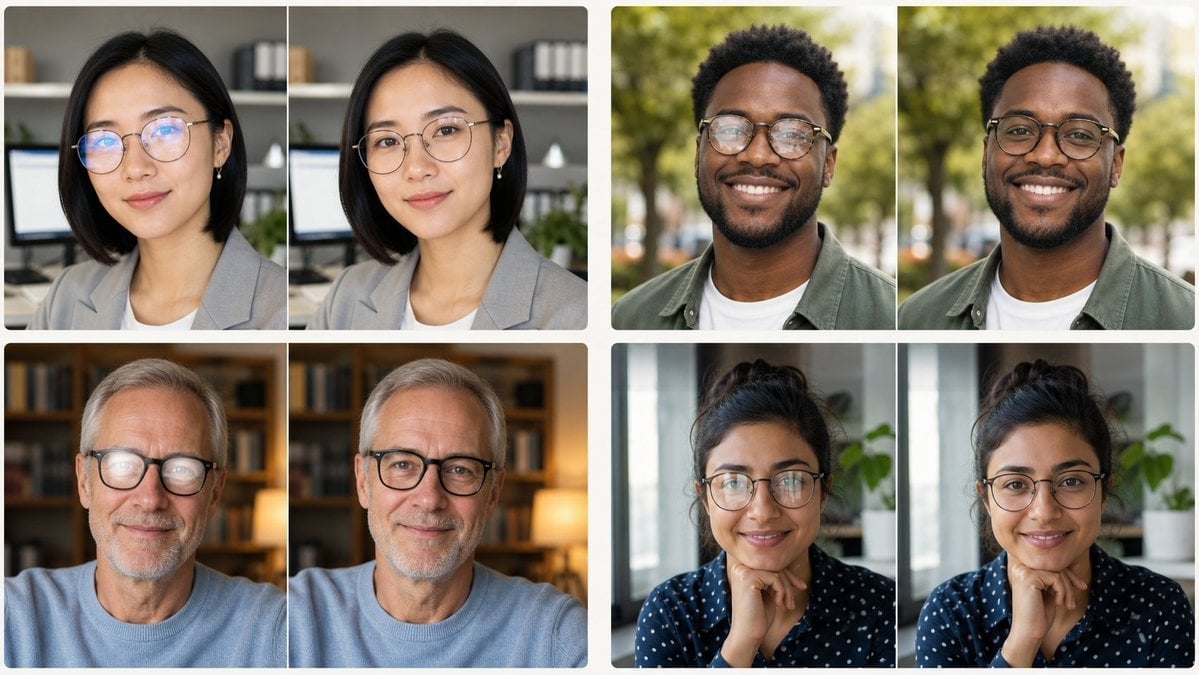
Glasses Glare Removal Portrait Collage

Found Photograph: Us, 1970

80s Couple Studio Portrait
80s Bollywood Star
80s Golden Hour Cinema
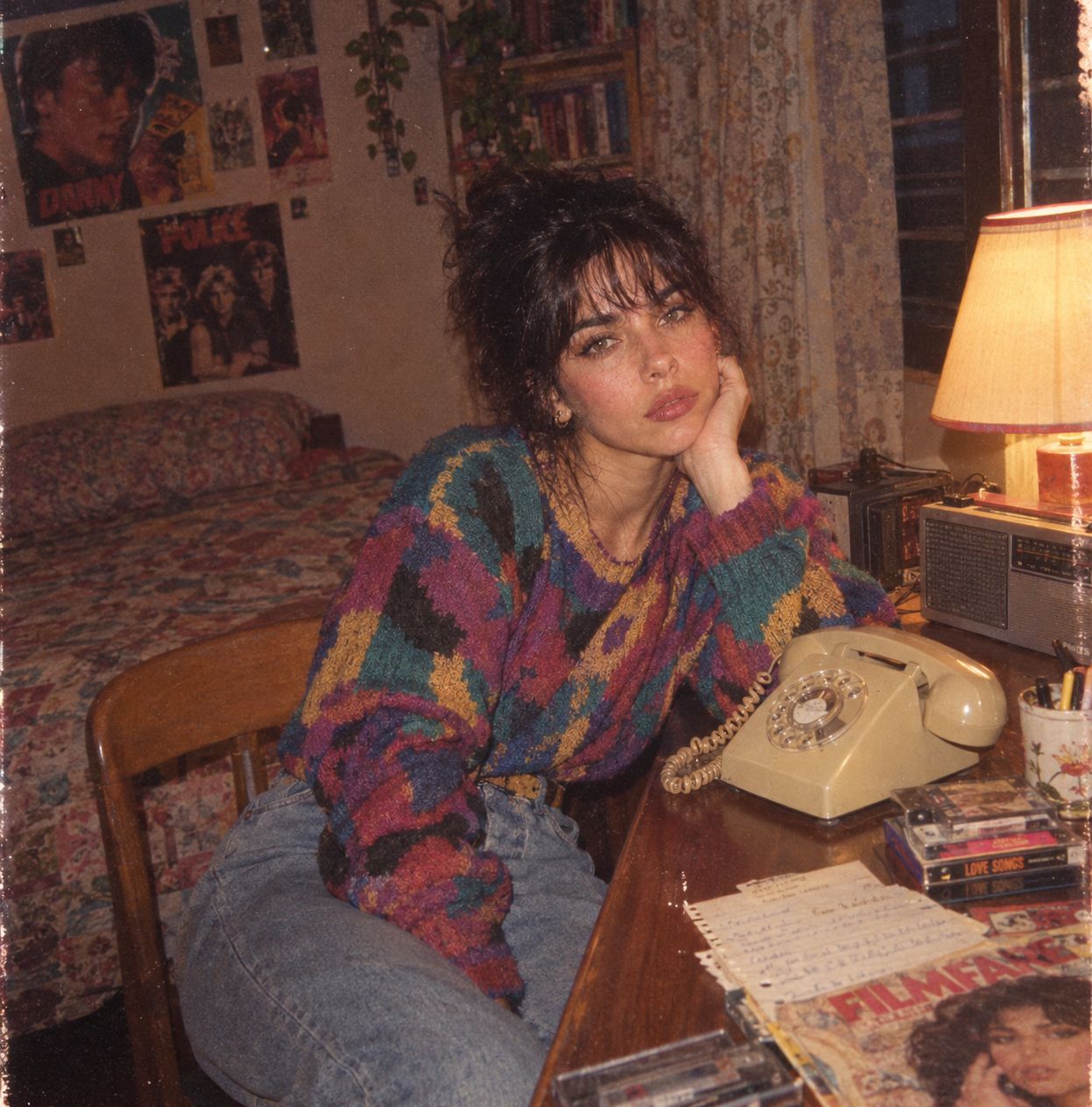
Me in 1985
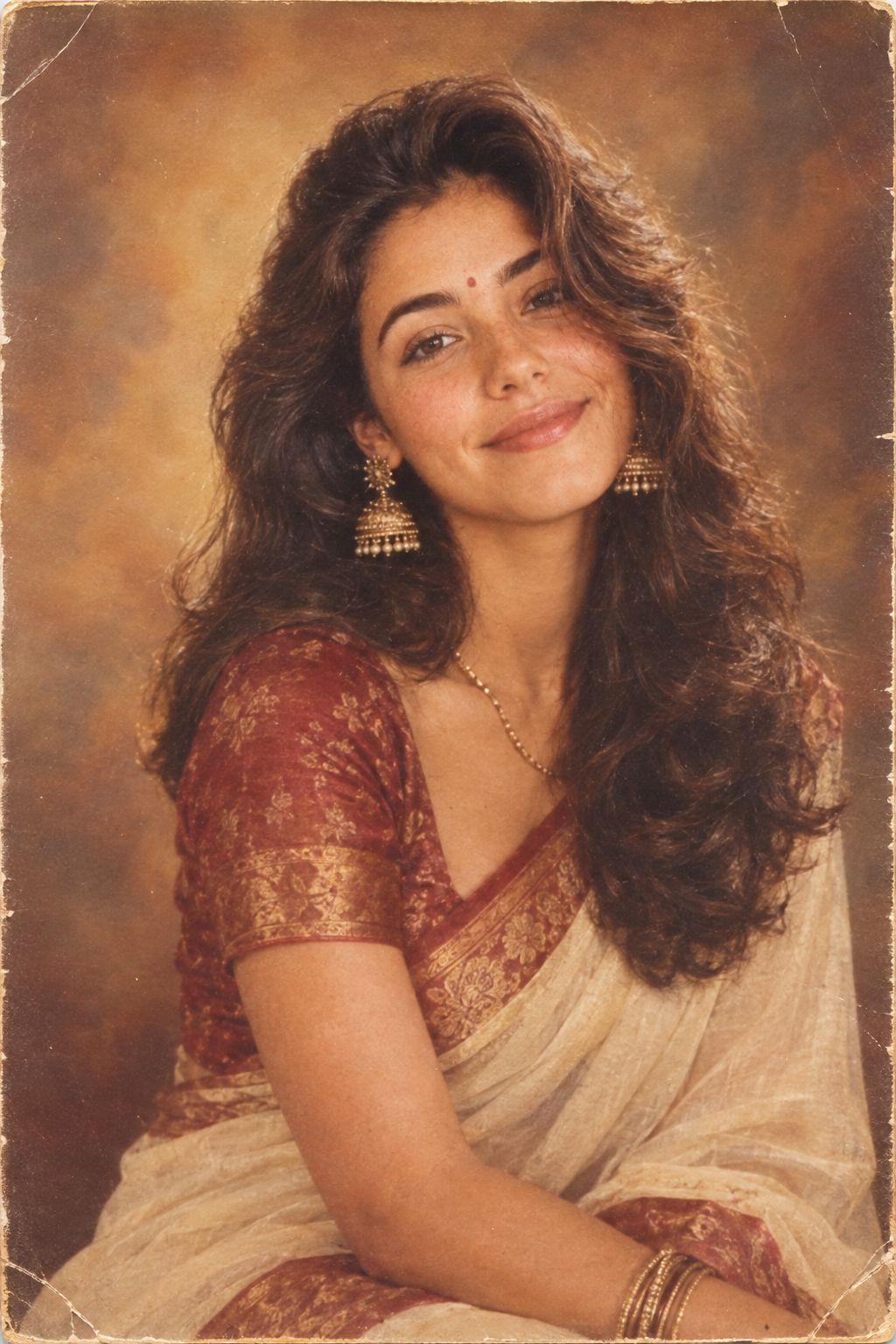
1985 Studio Portrait
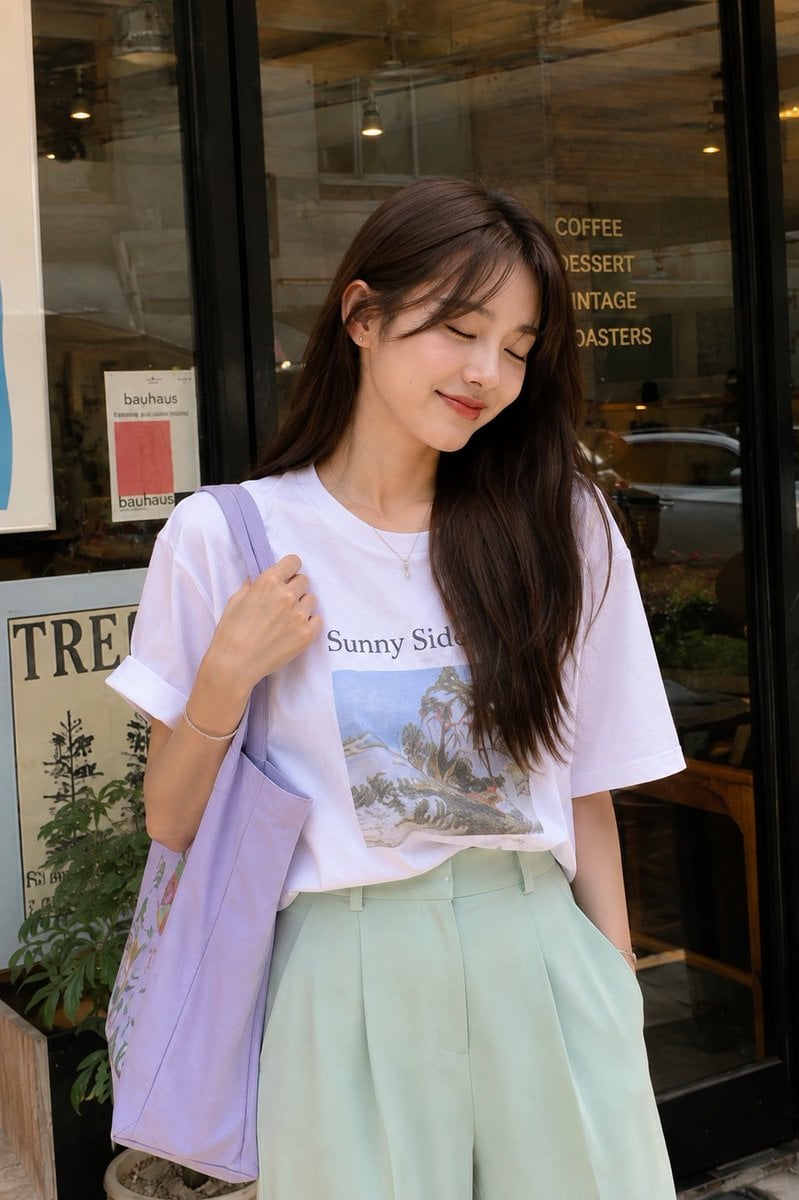
Urban Street Style Cafe Portrait

Hyper-Realistic Minecraft POV Portrait

Cinematic Cafe Portrait with Food
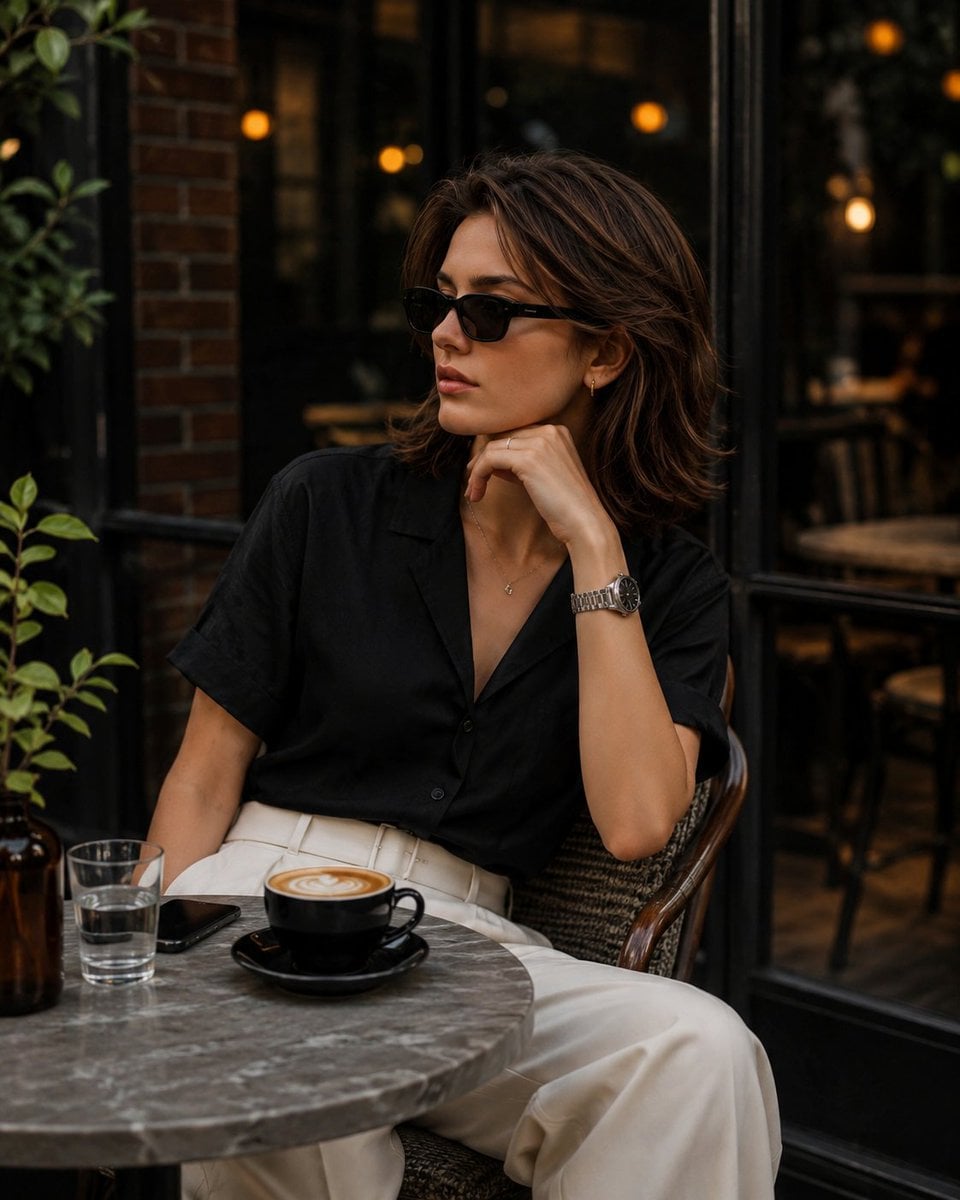
Elegant European Cafe Lifestyle Portrait
Make it yours
Cafe Portrait Glare Removal Comparison works as-is. These are the safest ways to change it without losing the look.
Change one field
Copy a single group, rewrite it, and generate again so you can see what that field is doing.
Keep the frame, change the subject
Hold the composition and light of Cafe Portrait Glare Removal Comparison, then swap wardrobe, props or the person for a new take.
| If the result… | Why | Fix |
|---|---|---|
| The result drifts from the preview | Too many fields changed at once. | Reuse Cafe Portrait Glare Removal Comparison as-is first, then change one group — subject, light, or setting. |
| The model over-stylizes the scene | The prose prompt leaves finish and camera underspecified. | Add one camera or lighting sentence and stay on GPT Image 2. |
More GPT Image 2 templates
Other prompts made for GPT Image 2.

Six VTuber Japanese Logo Sheet

Realistic Portrait of Woman and Deer

The Vista Modular Condo Poster

AI Model Routing Comparison Infographic

2.5D Anime Art Board

Isometric Productivity Desk Scene

New York Double Exposure Poster

Four-Panel AI Landscape Comparison

Japanese Tatami Lifestyle Magazine Cover

NESCAFÉ Coffee Map Poster
More image prompts
Fresh picks from across the catalog.
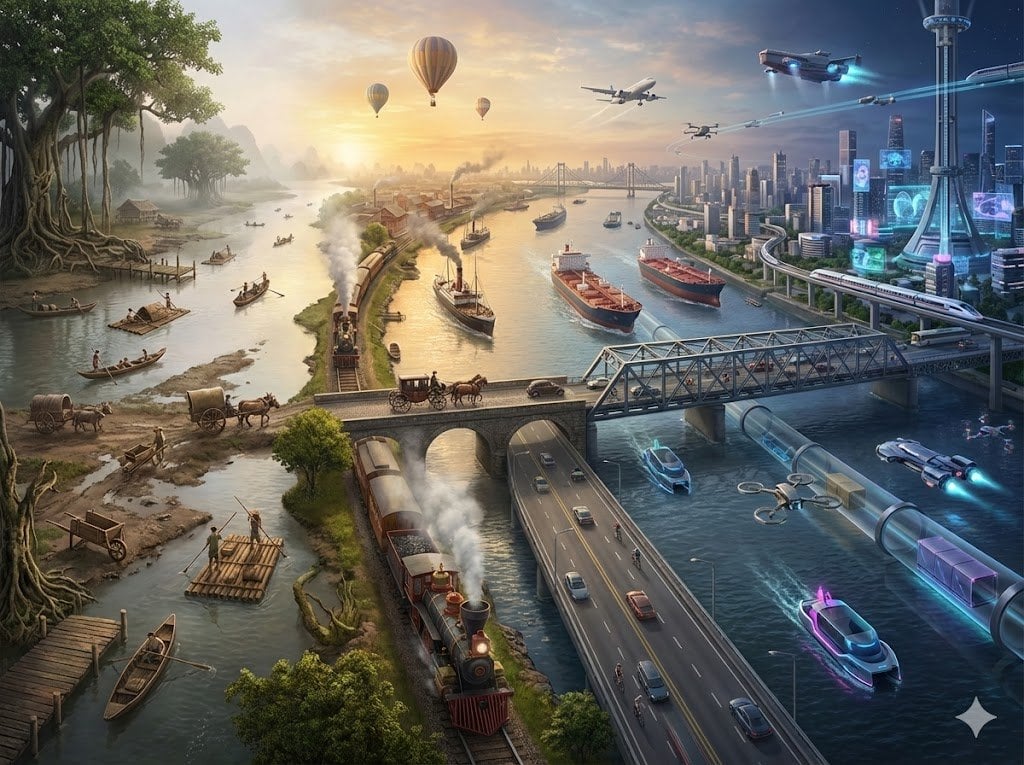
Hyper-realistic Transportation Evolution Panoramic Landscape Prompt
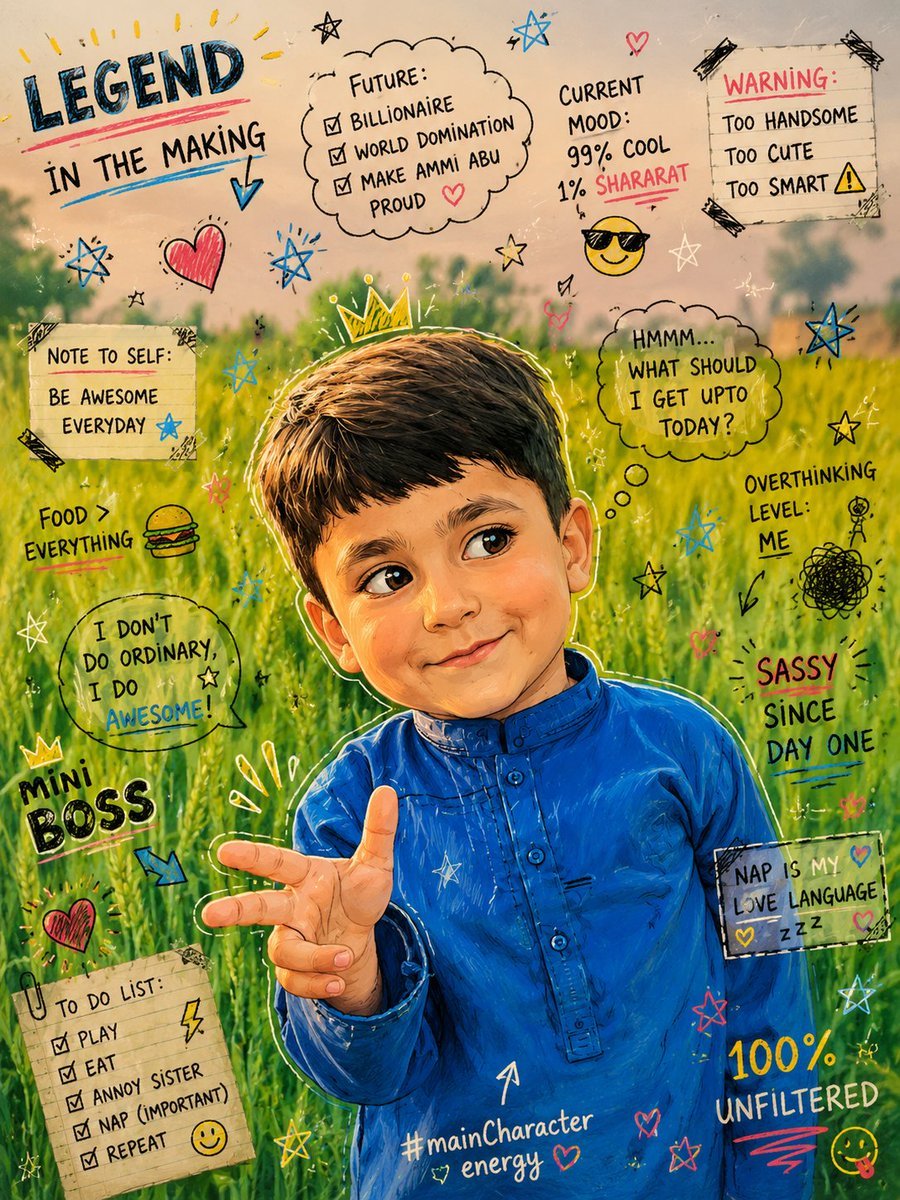
Teenage Sketchbook Caricature Transformation
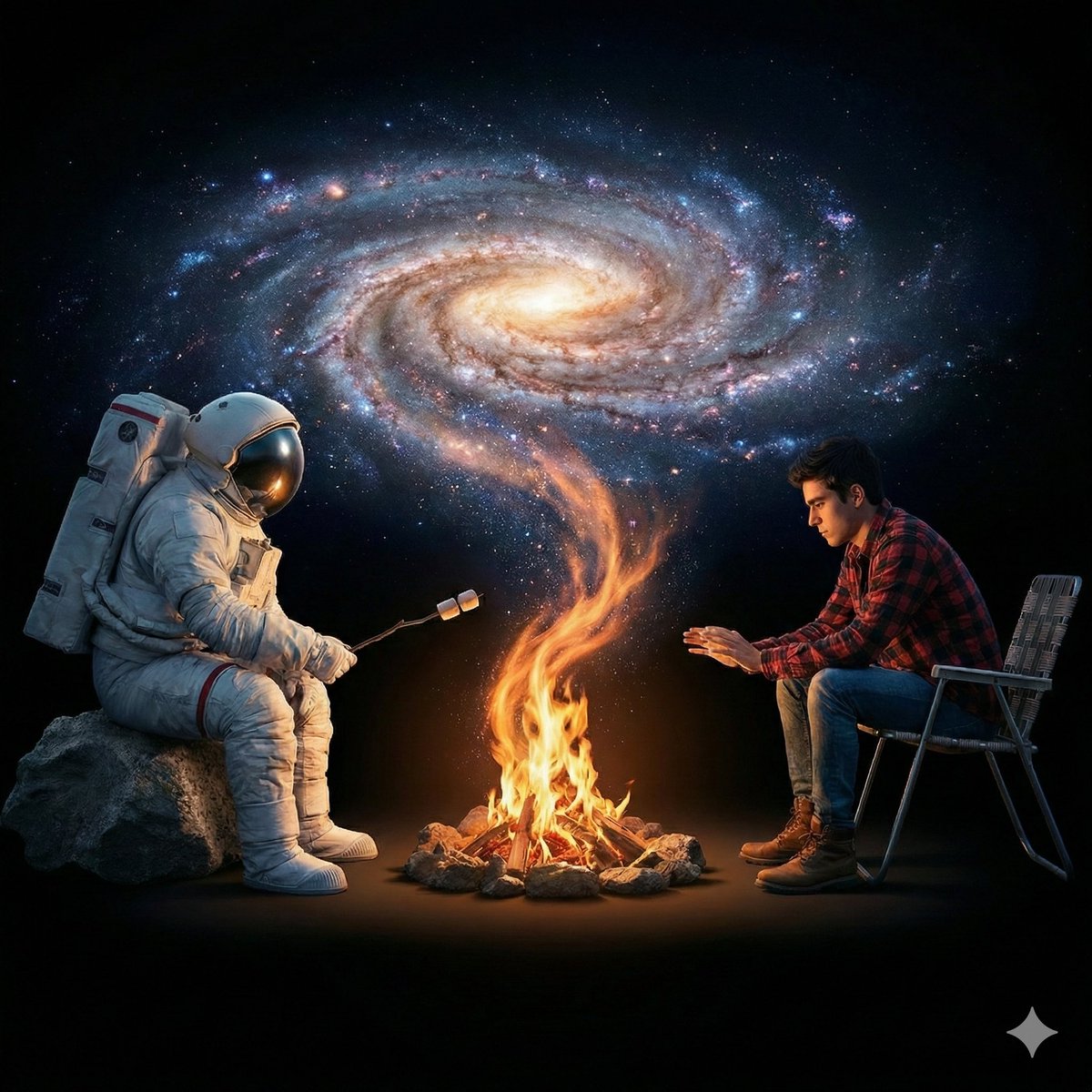
Surreal Cinematic Campfire in Cosmic Void
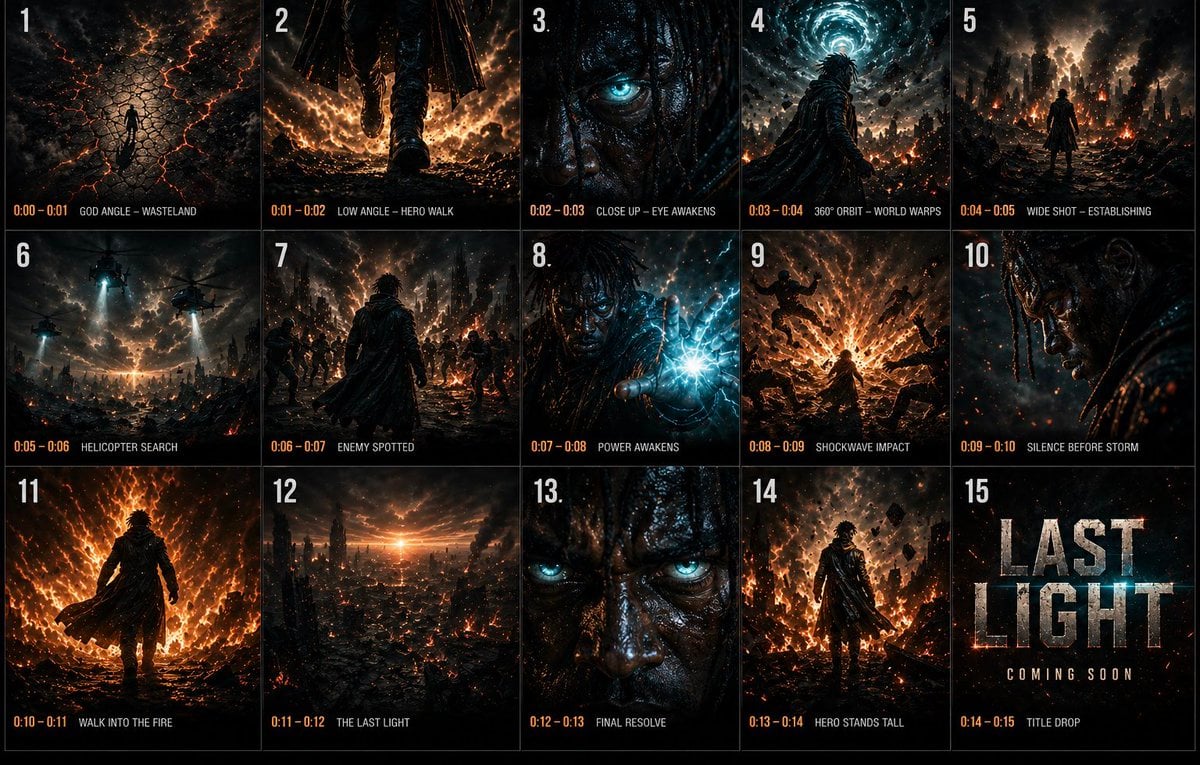
Cinematic 3x3 Storyboard Grid
Bear Peering into a Deep Hole Illustration

Golden Hour Fashion Portrait of a South Asian Man
Living Dragon Mural in Sunset Alley
Full-Body Studio Photo in Streetwear

Chinese AI Evolution Infographic Poster

Luxury Lavender Skincare Ad
Browse template categories
Cafe Portrait Glare Removal Comparison questions
How do I use the Cafe Portrait Glare Removal Comparison template?
Add your photo if the template asks for one, edit the prompt if you like — the template's model and format are already selected — and press Generate. Your version opens in PicX Studio.
Can I customize the Cafe Portrait Glare Removal Comparison template?
Yes. You can change the subject, setting, lighting, mood, format, and available model controls before creating your image.
Is the Cafe Portrait Glare Removal Comparison template free?
Opening and editing this template is free. Generating uses credits, shown on the Generate button when you are signed in.
Which AI model should I use?
Start with GPT Image 2, which is the model associated with this template. You can compare another compatible model for a different finish.
Looking for something else? Browse all templates.

Your photo, any look
Thousands of ready templates for every top image and video model, from one credit balance.