
Glasses Glare Removal Comparison
Generates a photorealistic before-and-after portrait comparison showing eyeglasses glare removed while preserving the subject’s identity.
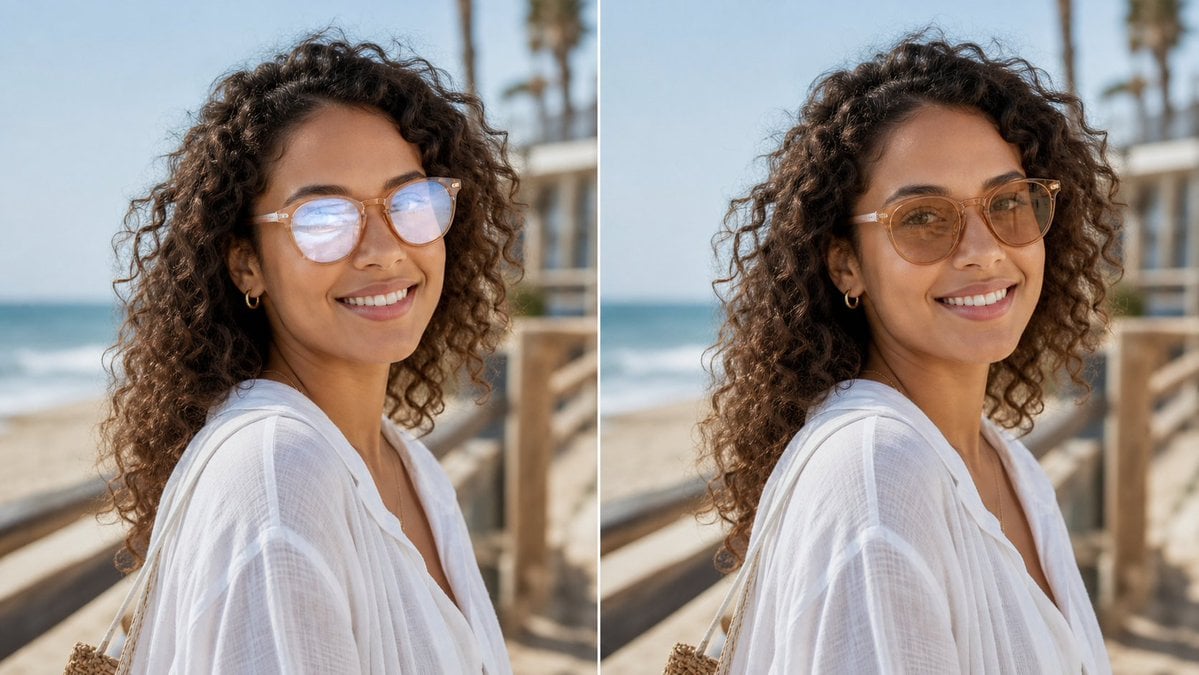
- Prompt included
- Model and format preset
- Free template
The prompt behind this image
Copy the exact prompt behind Glasses Glare Removal Comparison, or open it in the studio and make it yours.
Create a realistic side-by-side before-and-after comparison image showing the same outdoor portrait in two vertical panels separated by a thin white divider. The subject is {argument name="subject description" default="a woman with long dark curly hair wearing a loose white linen beach blouse, small gold hoop earrings, and light-framed eyeglasses"}, photographed from the shoulders up in three-quarter profile on a sunny beach boardwalk. The background shows ocean waves on the left, pale blue sky, wooden railings, and softly blurred palm trees, with shallow depth of field and natural warm daylight. Use exactly 2 panels: left panel is the original portrait with visible glasses glare/reflections partially obscuring the eyes, and right panel is the edited version where the glare has been removed and the eyes look natural while the face shape, pose, hair, clothing, lighting, and background remain unchanged. Add no labels or captions. Preserve photorealistic texture in the curls, translucent white fabric, skin tones, and beach environment. Keep the composition cropped horizontally like a social media comparison image, with the subject centered across both panels and the edit looking subtle and trustworthy for a profile photo. Use {argument name="image ratio" default="16:9 landscape"}, {argument name="setting" default="sunny beach boardwalk"}, and {argument name="edit goal" default="remove eyeglasses glare without changing the face"}.
How to use Glasses Glare Removal Comparison in 3 steps
- 1Upload ImagePNG, JPG or paste
Add your photo
Upload the photo the template builds on. The prompt, model and format are already set.
- 2…a portrait of your subject in softgolden-hour light, 85mm…
Personalize
Edit the subject and creative details for your destination.
- 3Generate
Generate
Press Generate — your image is created in PicX Studio, so you can compare it with the original and refine one variable at a time.
More like this
Templates with the same subject, style or setup. Open one to see its prompt.

Cafe Portrait Glare Removal Comparison
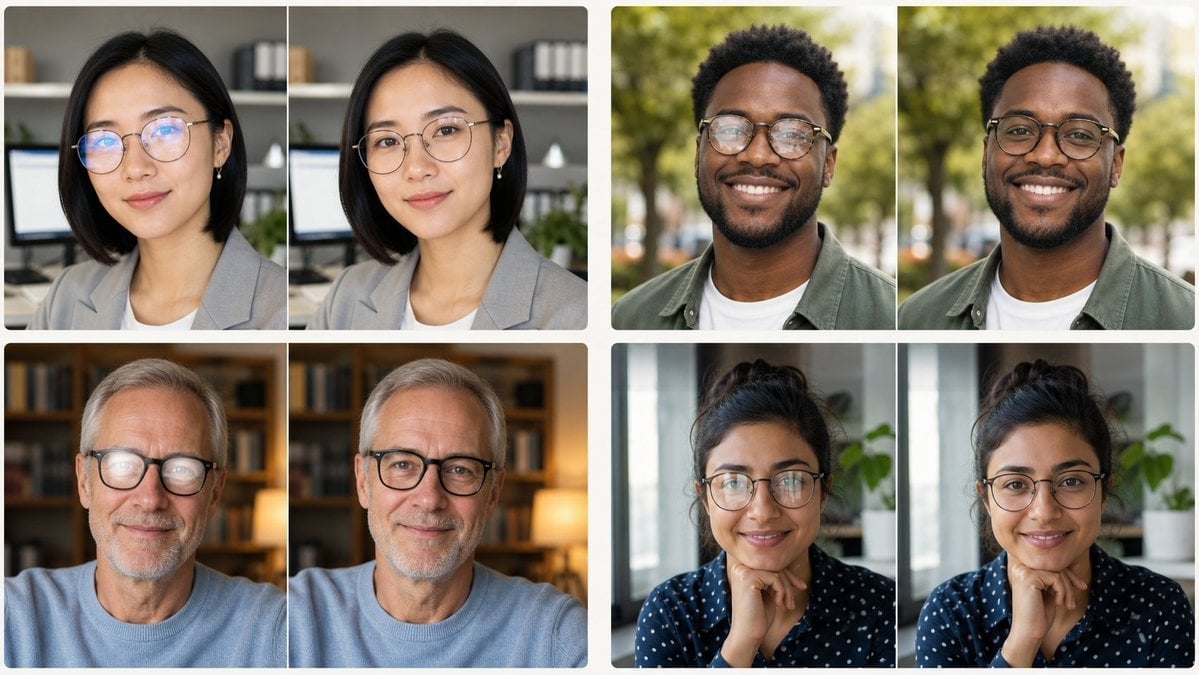
Glasses Glare Removal Portrait Collage
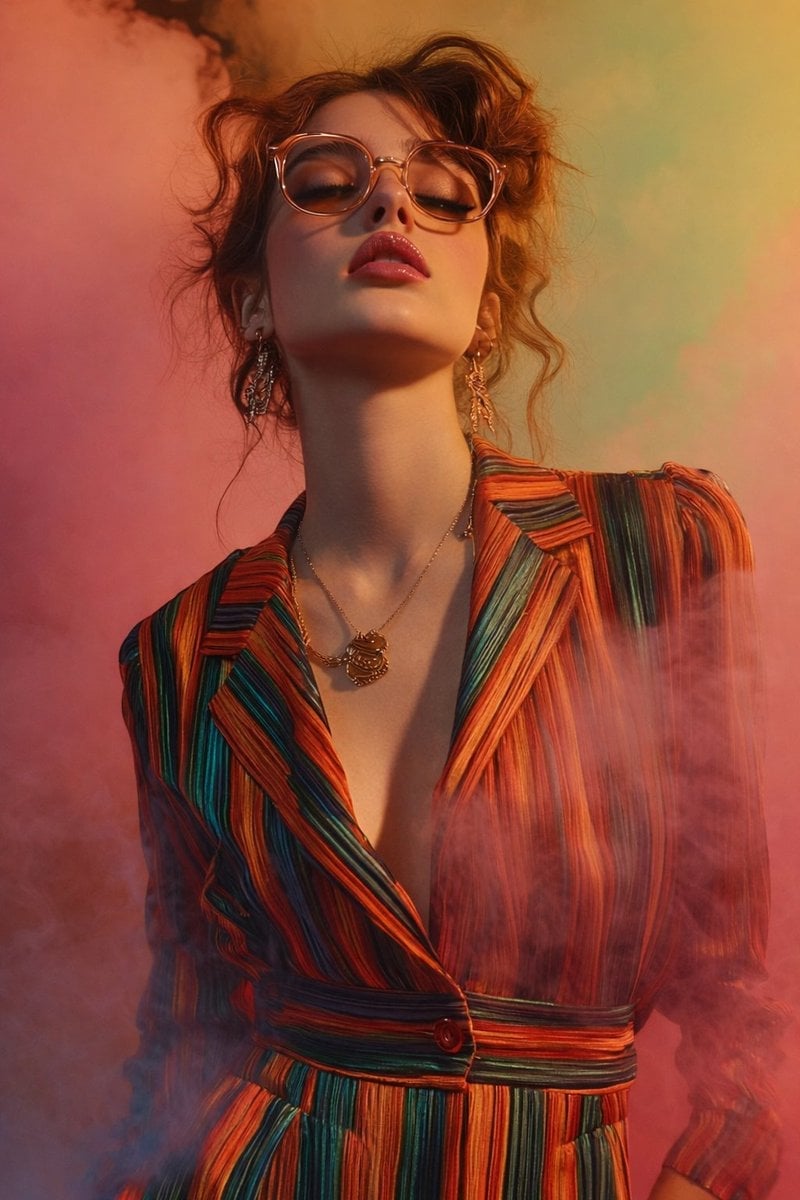
Cinematic Low-Angle Fashion Portrait Smoke Editorial
Cinematic Low-Angle Fashion Portrait Smoke Editorial
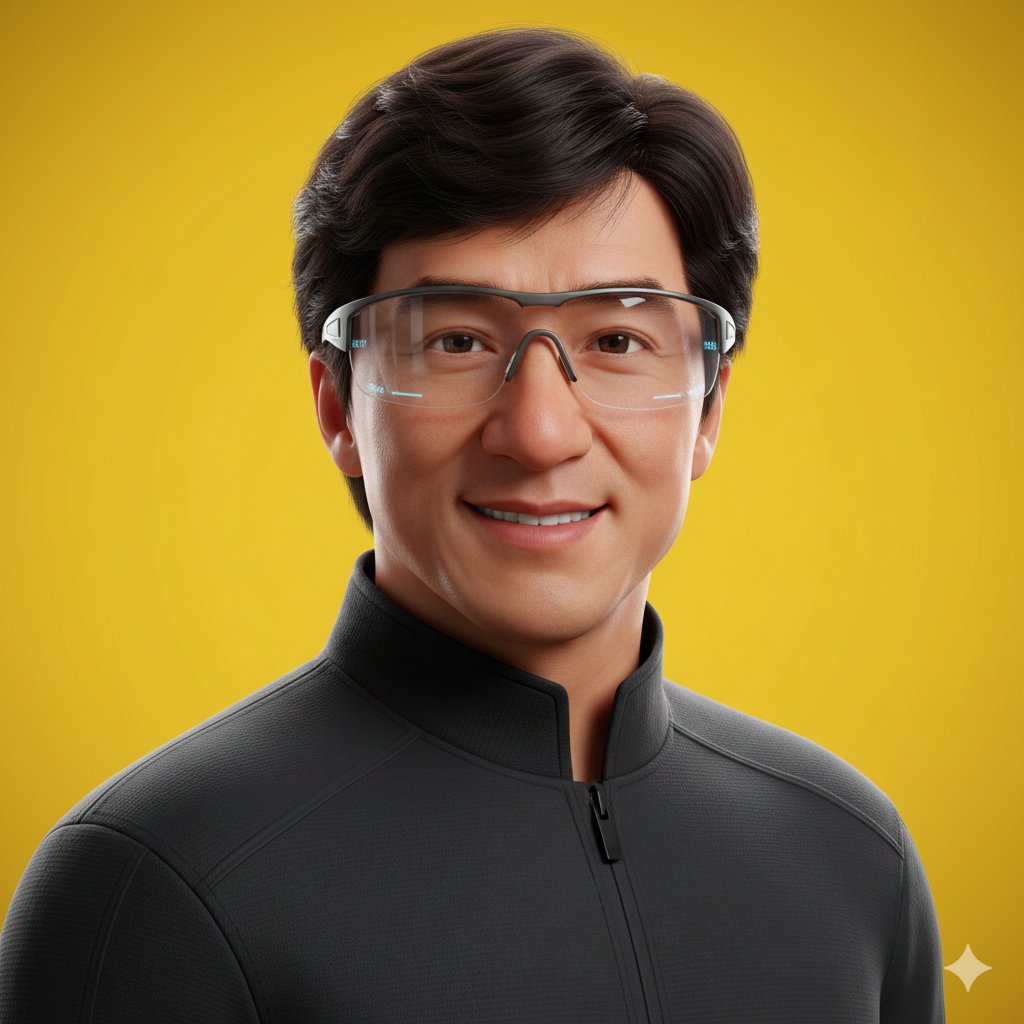
Pixar Style Headshot Prompt (Fixing Glasses Glare)
Glasses Removal and Face Integration
Skin Comparison Portrait — Nano Banana Pro
Anime Character Background Removal
Hanfu Intellectual Portrait with Glasses
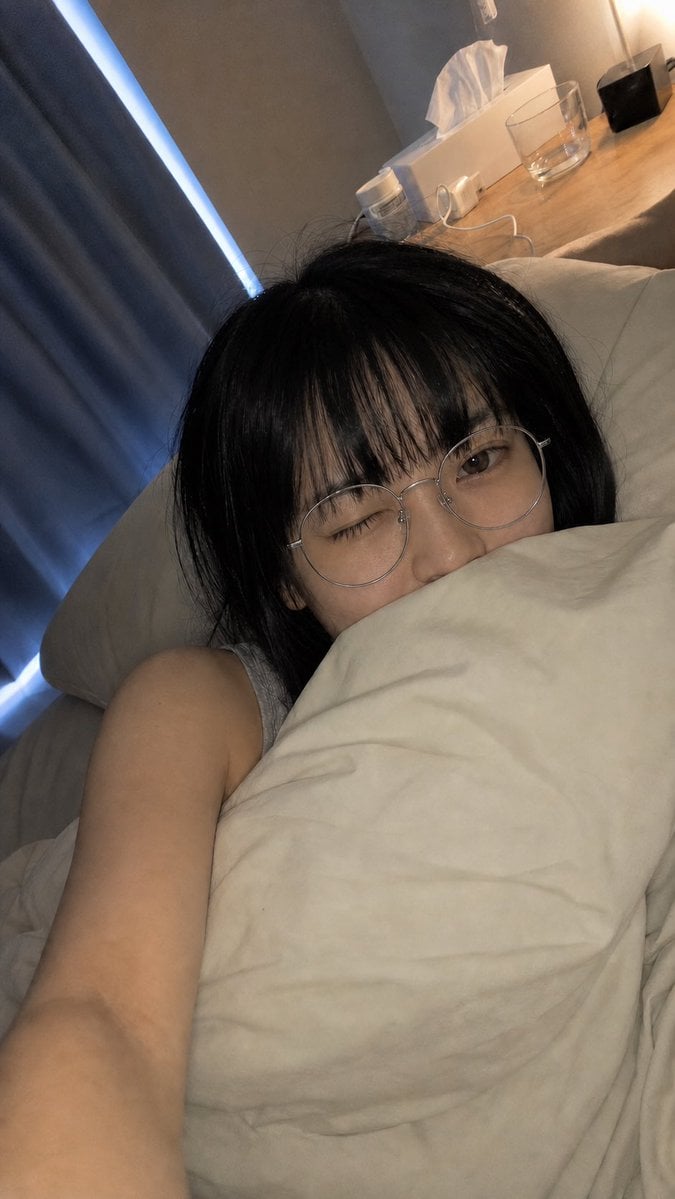
Adjust Glasses Placement in Bed Selfie
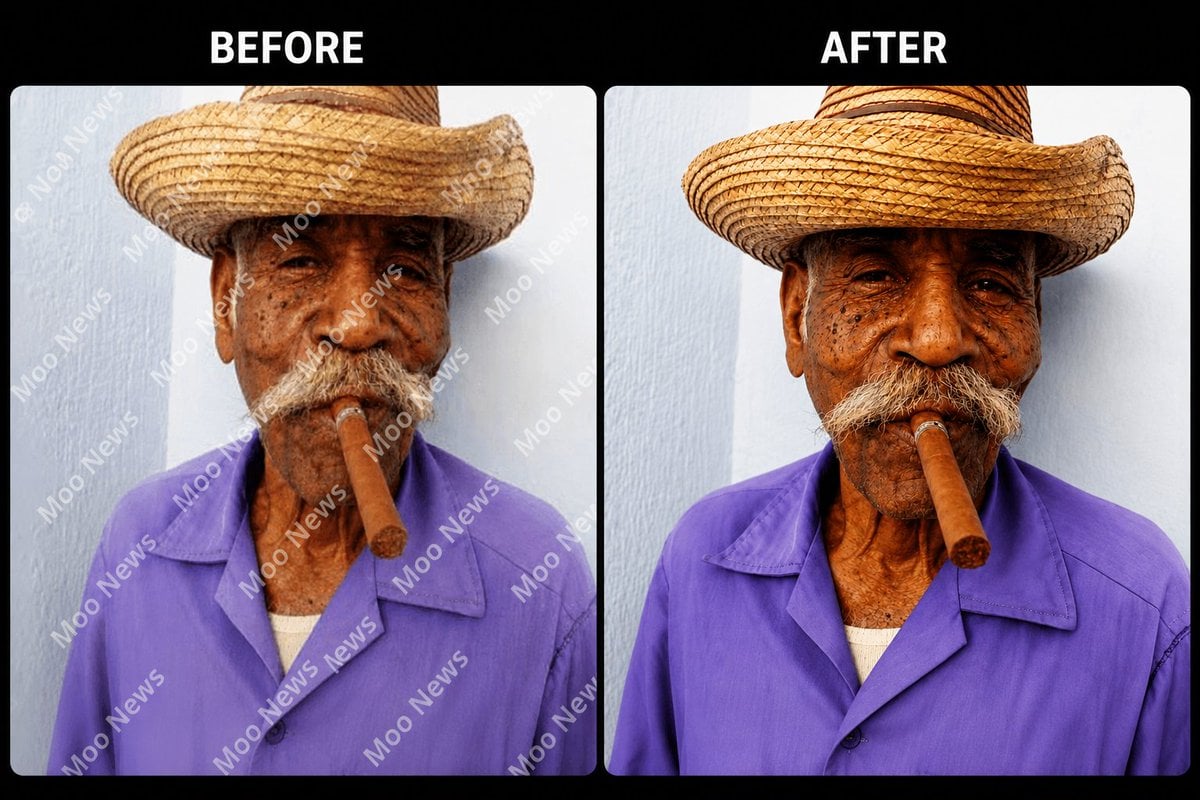
Object and Watermark Removal Instruction
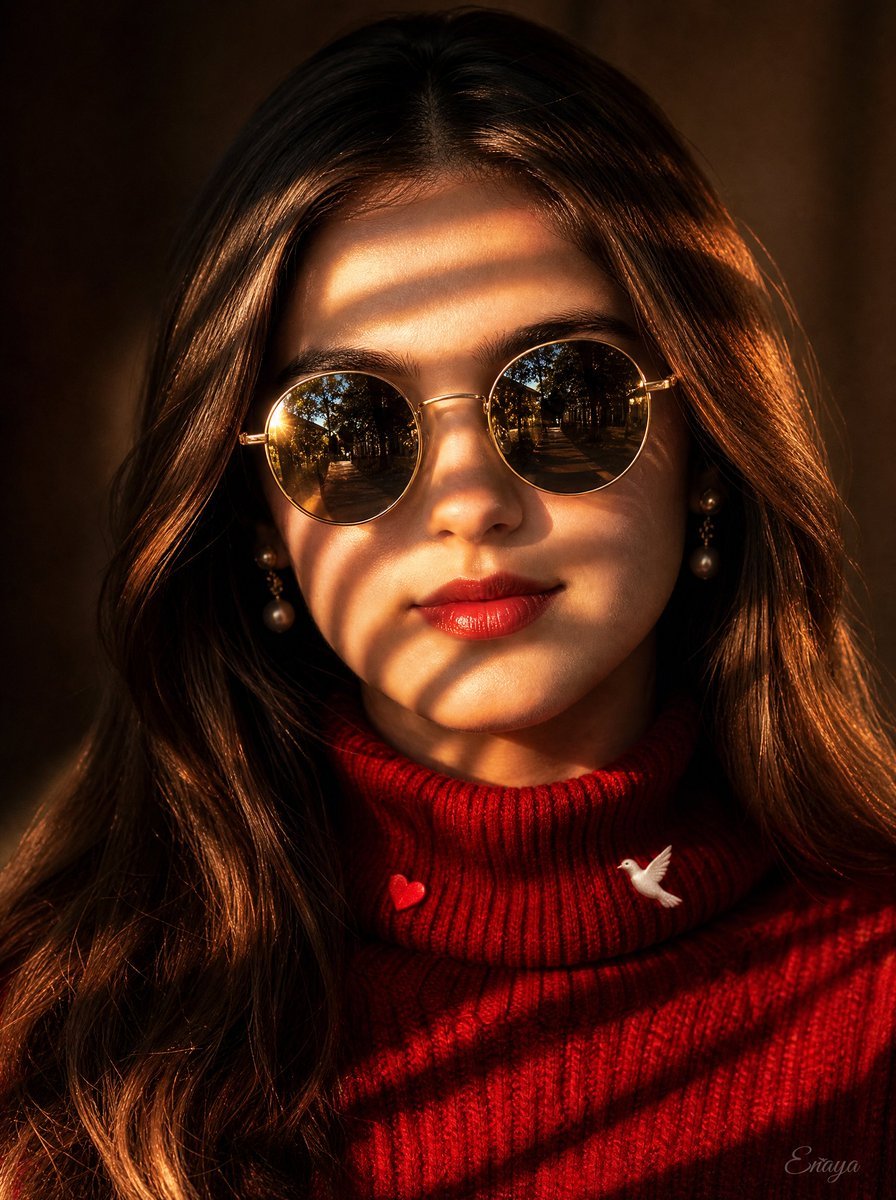
Golden Hour Sunglasses Portrait
Make it yours
Glasses Glare Removal Comparison works as-is. These are the safest ways to change it without losing the look.
Change one field
Copy a single group, rewrite it, and generate again so you can see what that field is doing.
Keep the frame, change the subject
Hold the composition and light of Glasses Glare Removal Comparison, then swap wardrobe, props or the person for a new take.
| If the result… | Why | Fix |
|---|---|---|
| The result drifts from the preview | Too many fields changed at once. | Reuse Glasses Glare Removal Comparison as-is first, then change one group — subject, light, or setting. |
| The model over-stylizes the scene | The prose prompt leaves finish and camera underspecified. | Add one camera or lighting sentence and stay on GPT Image 2. |
More GPT Image 2 templates
Other prompts made for GPT Image 2.

Six VTuber Japanese Logo Sheet

Realistic Portrait of Woman and Deer

The Vista Modular Condo Poster

2.5D Anime Art Board

Isometric Productivity Desk Scene

New York Double Exposure Poster

Japanese Tatami Lifestyle Magazine Cover

NESCAFÉ Coffee Map Poster

Brutalist Cogito Chinese Typography Poster
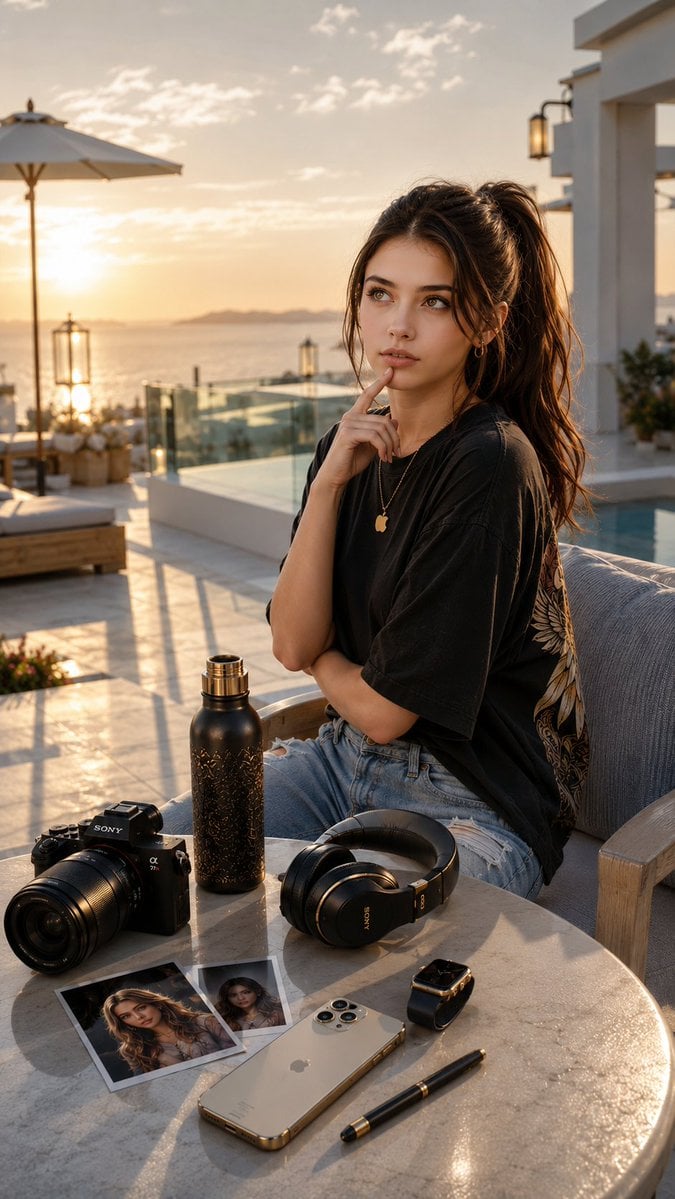
Cinematic Luxury Terrace Portrait
More image prompts
Fresh picks from across the catalog.
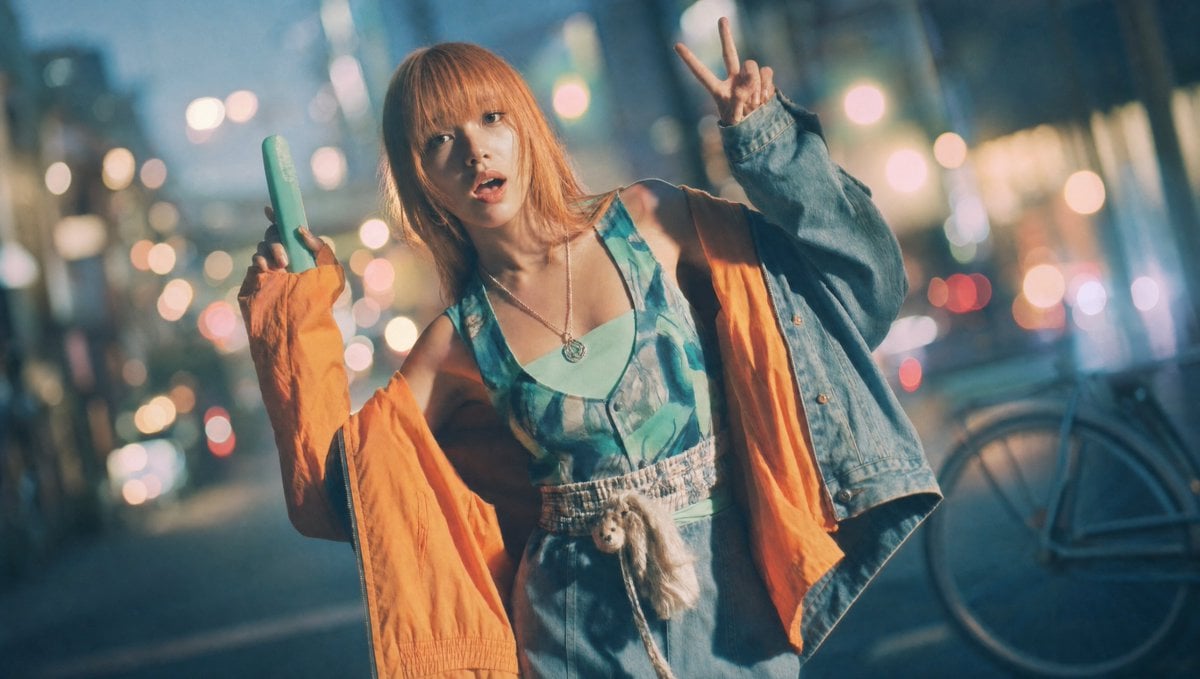
Vintage Old Lens Aesthetic
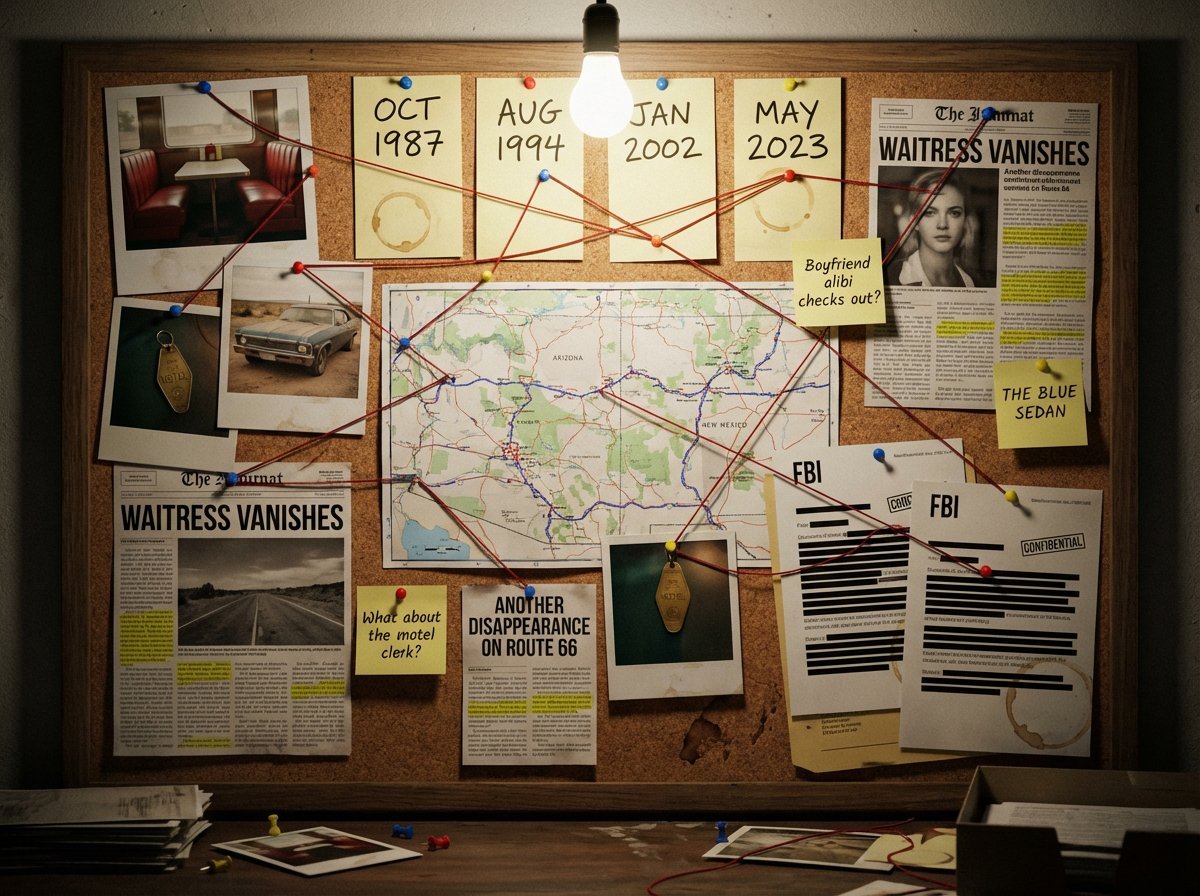
Noir Detective Evidence Board Visualization
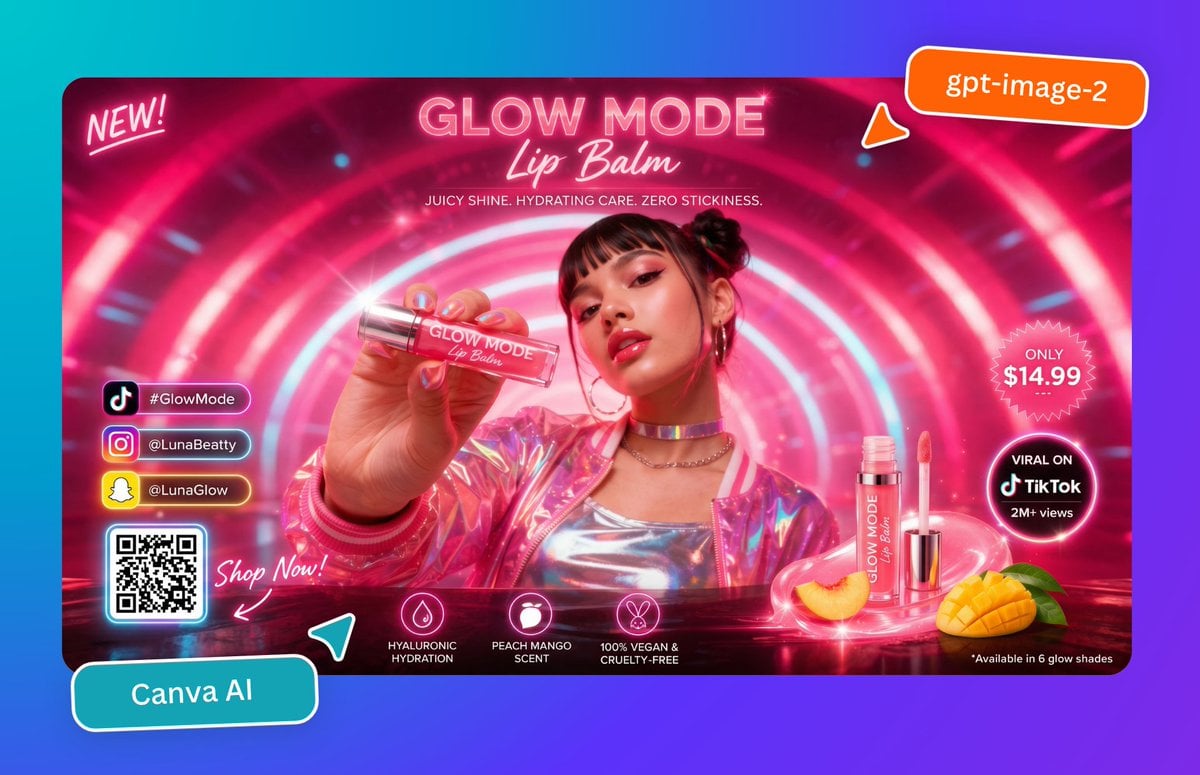
Neon Lip Balm Launch Ad
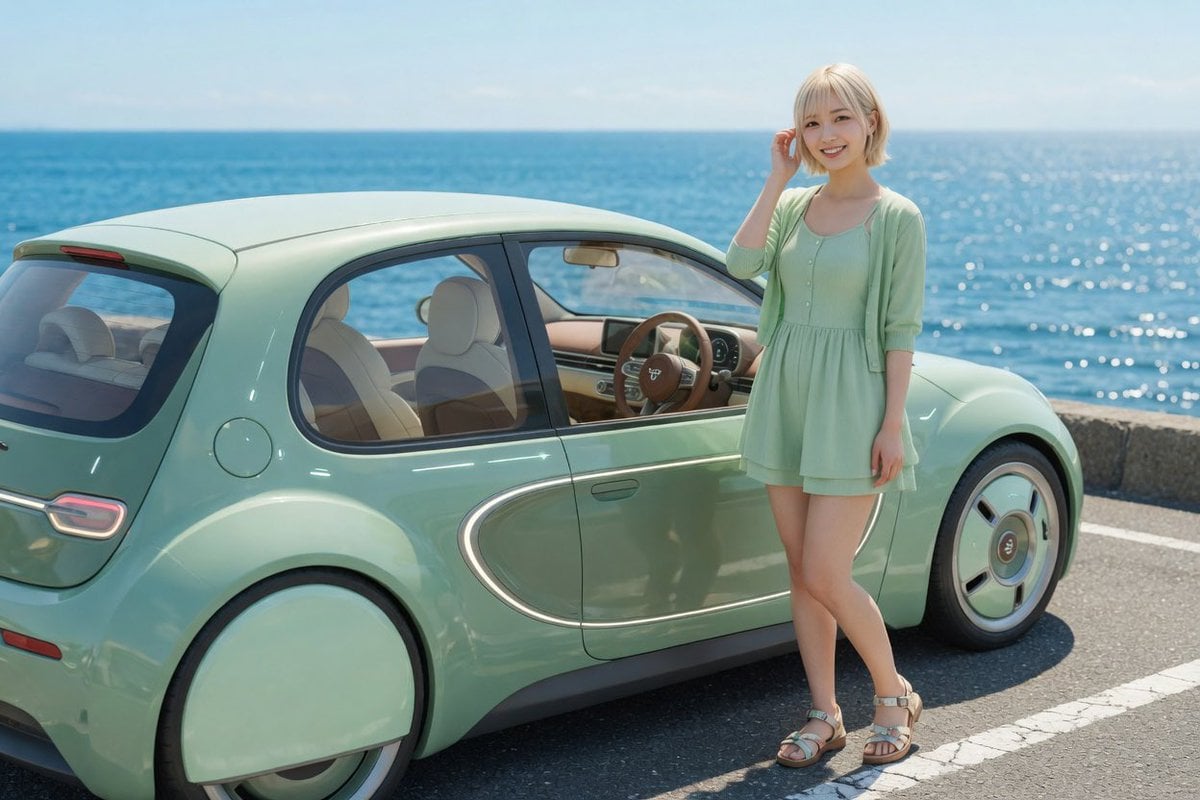
Mint Retro EV by the Sea
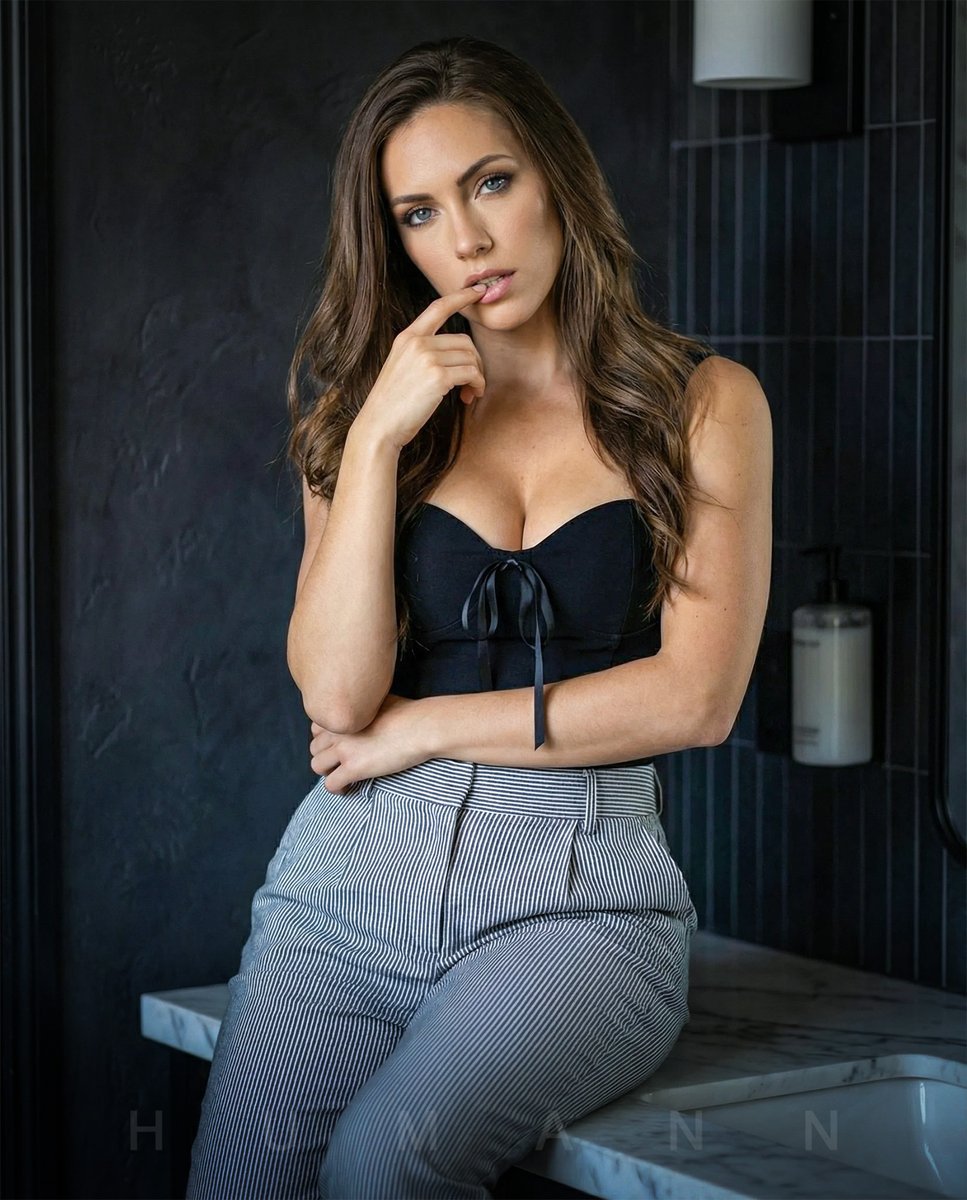
High-End Interior Portrait on a Marble Vanity
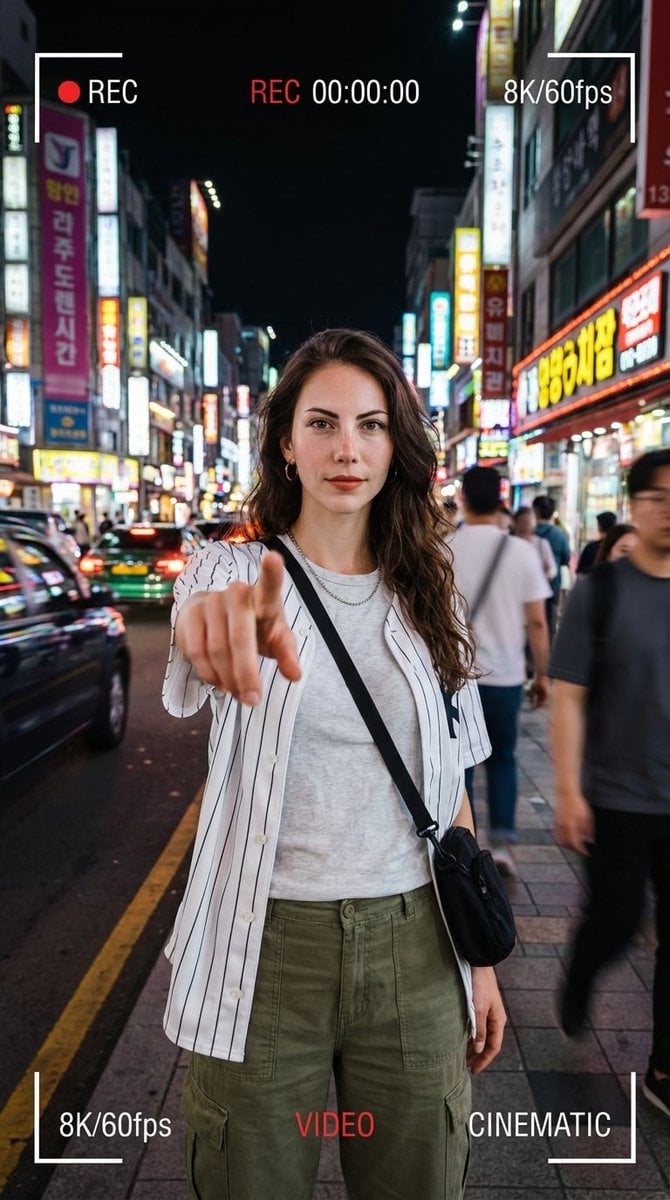
Hyper-Realistic Urban Night Portrait with UI Overlay
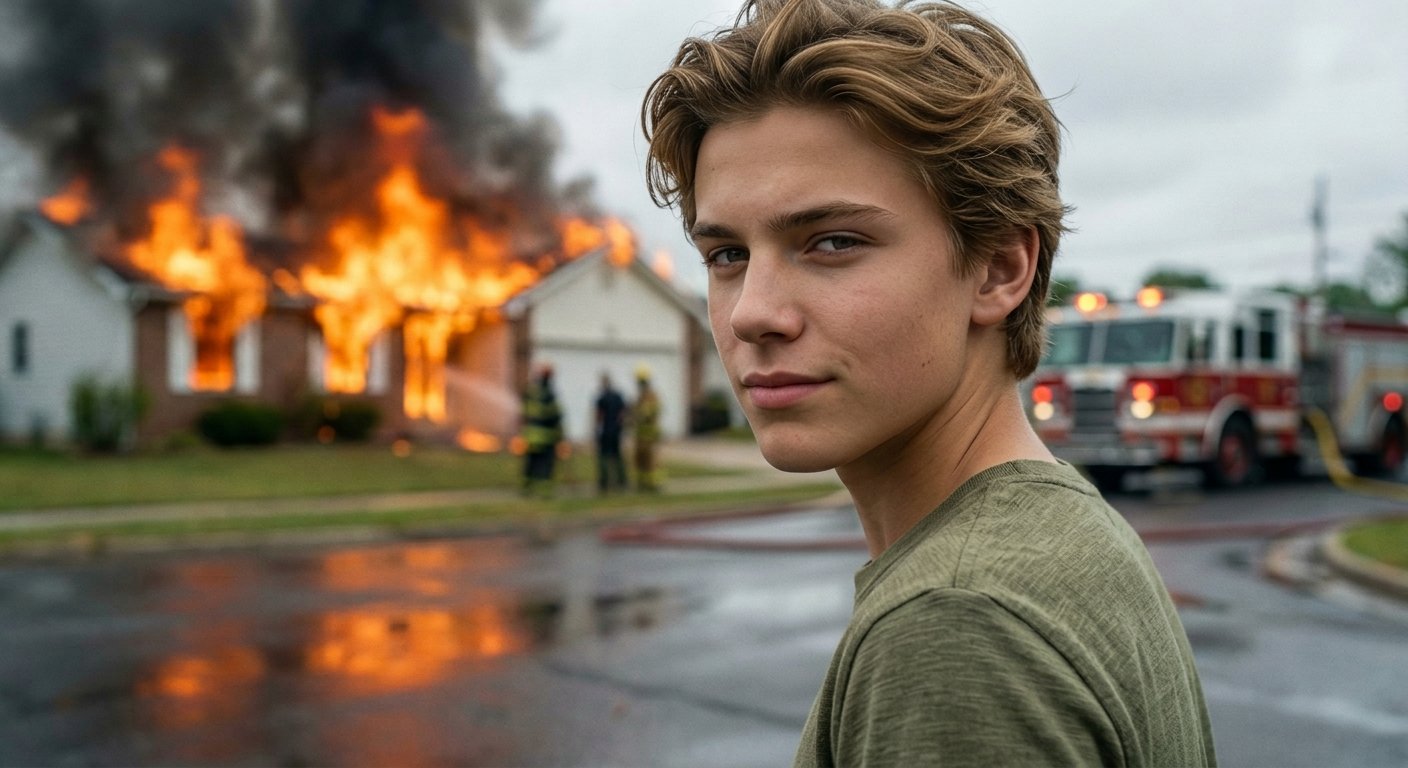
Cinematic Fire Portrait - Boy
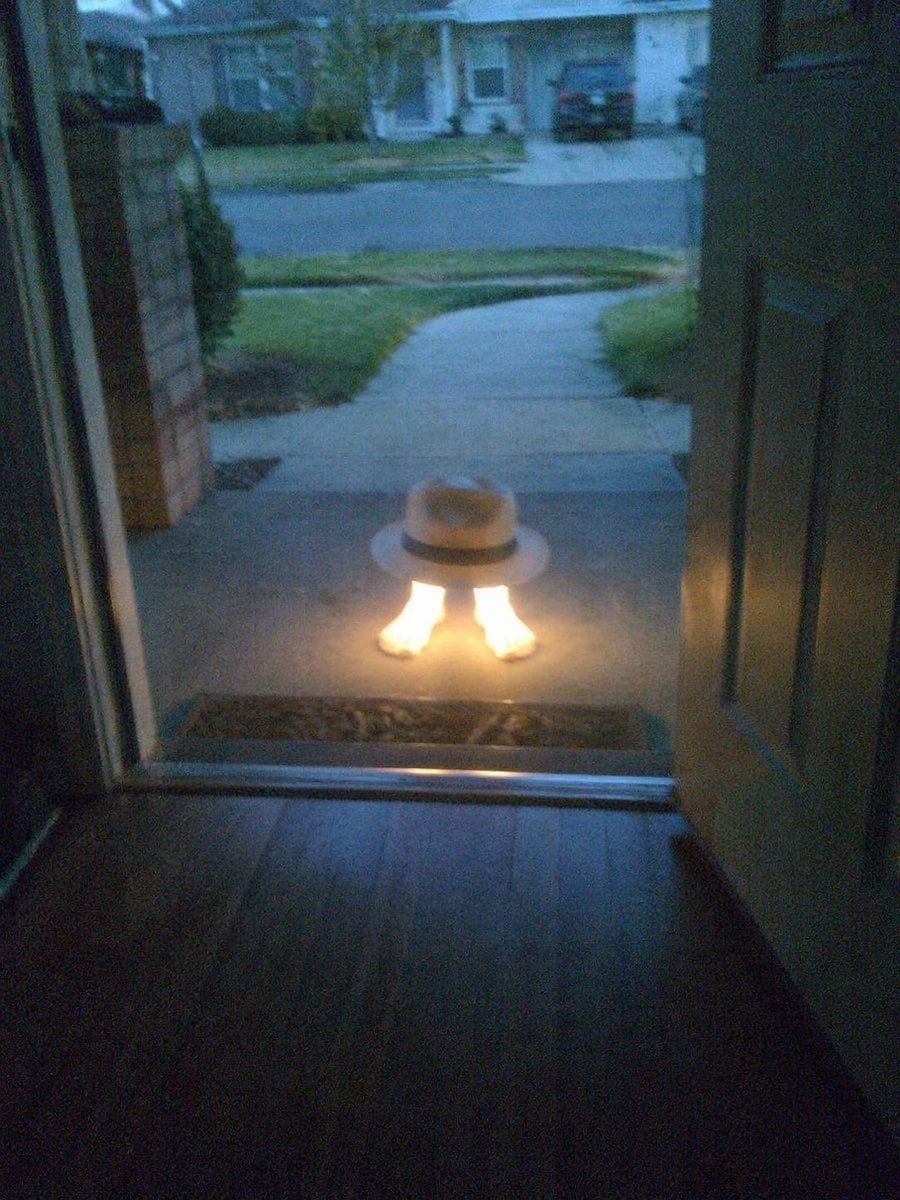
Subject Erasure and Hat Replacement
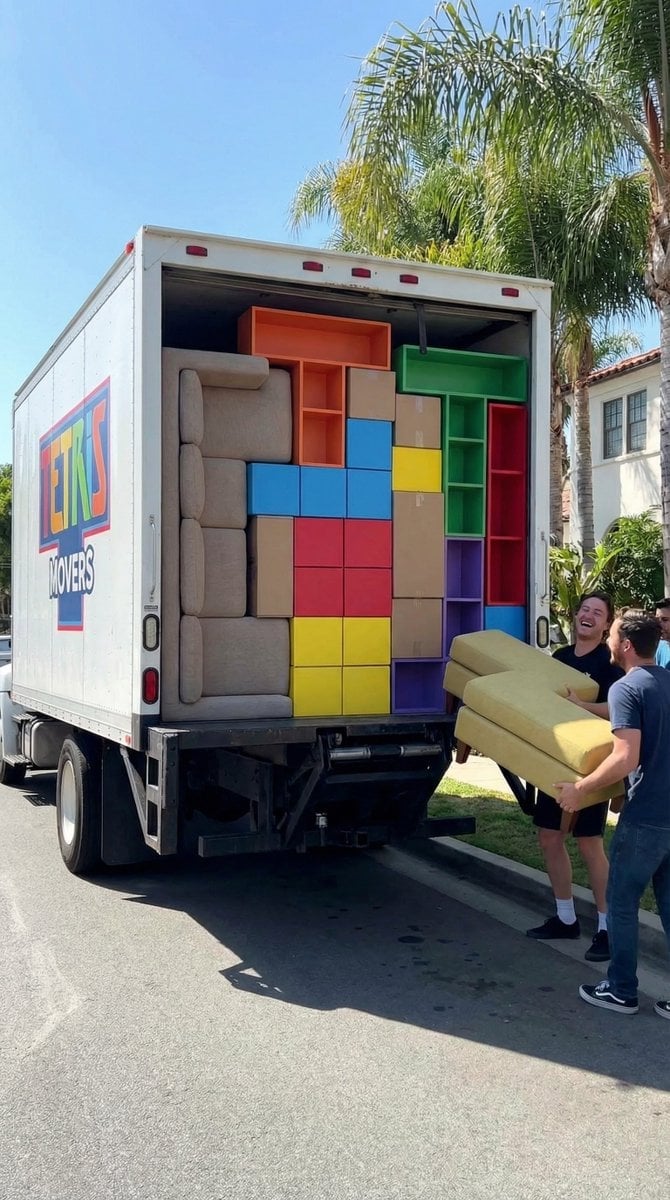
Tetris Home Organization Humor Prompt
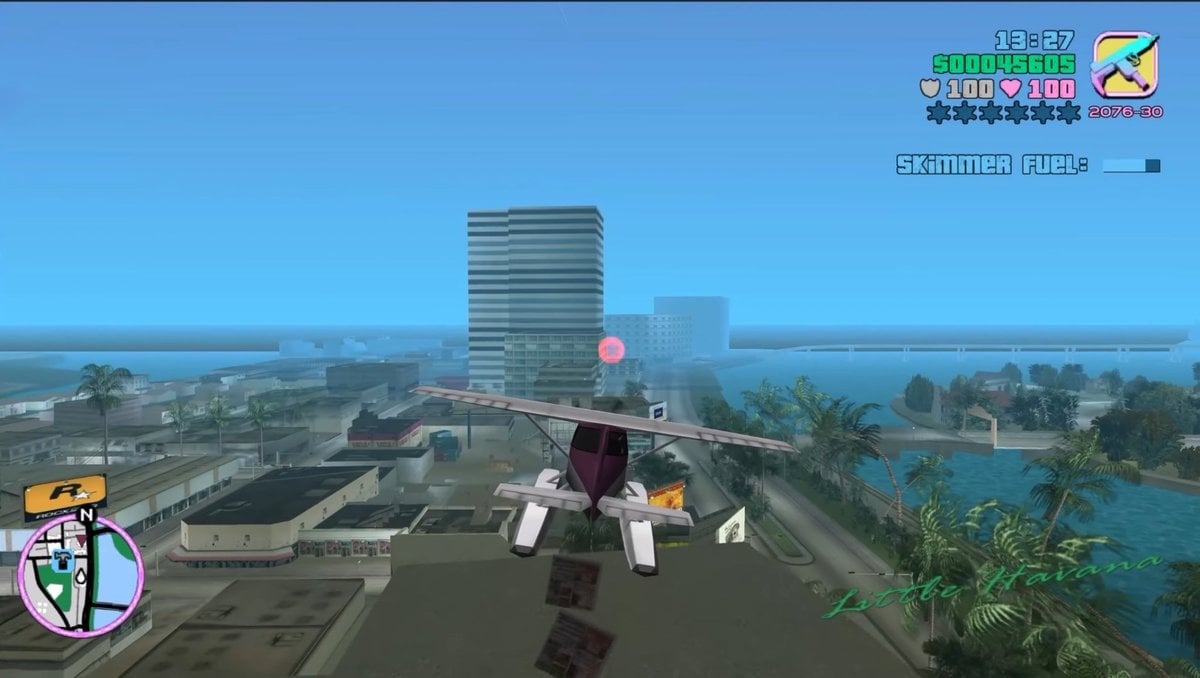
Retro Open-World Seaplane Screenshot
Browse template categories
Glasses Glare Removal Comparison questions
How do I use the Glasses Glare Removal Comparison template?
Add your photo if the template asks for one, edit the prompt if you like — the template's model and format are already selected — and press Generate. Your version opens in PicX Studio.
Can I customize the Glasses Glare Removal Comparison template?
Yes. You can change the subject, setting, lighting, mood, format, and available model controls before creating your image.
Is the Glasses Glare Removal Comparison template free?
Opening and editing this template is free. Generating uses credits, shown on the Generate button when you are signed in.
Which AI model should I use?
Start with GPT Image 2, which is the model associated with this template. You can compare another compatible model for a different finish.
Looking for something else? Browse all templates.

Your photo, any look
Thousands of ready templates for every top image and video model, from one credit balance.