How do I use the Extract First Storyboard Row template?
Edit the prompt in the box under the preview — the template's model and format are already selected — and press Generate. Your version appears right on this page.
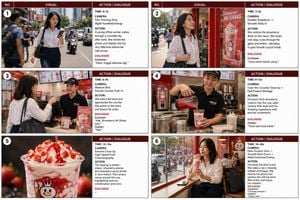
Creates a clean standalone horizontal strip from the first four panels of a larger storyboard, useful for separating one scene from a multi-scene board.

This template uses your photo — add one with the + button.
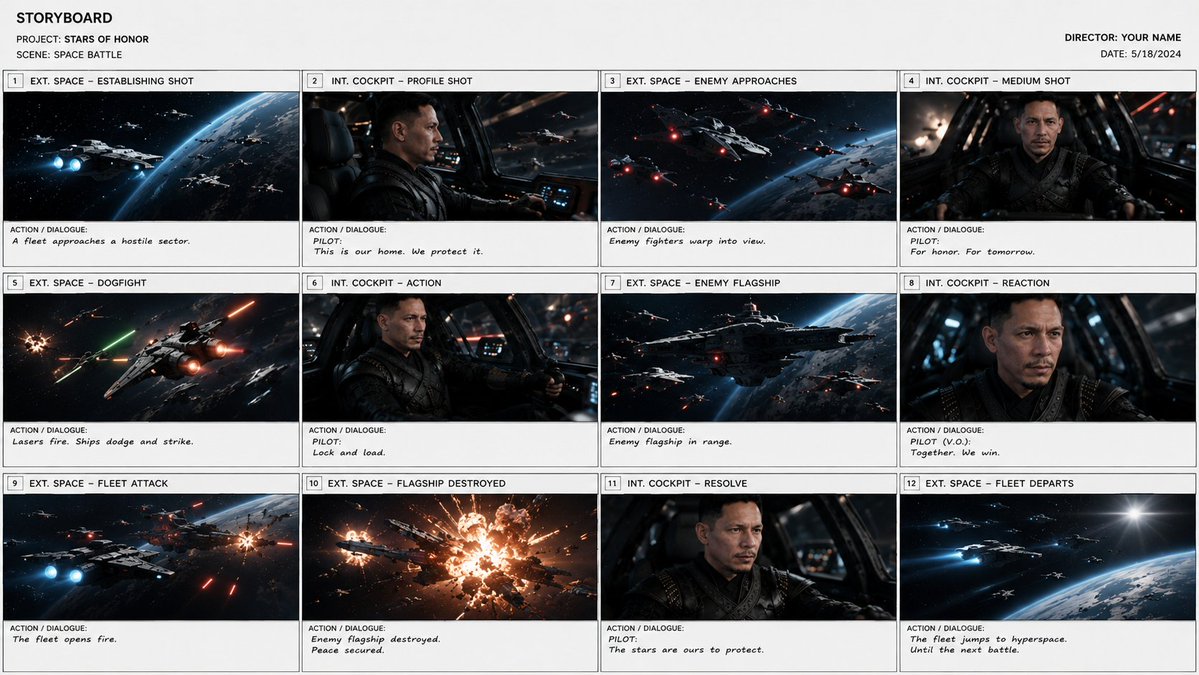
Using REFERENCE_0 as the source storyboard, extract only the first row of the storyboard and regenerate it as a standalone horizontal storyboard strip. Keep exactly 4 panels, preserving their original artwork, panel borders, numbering, shot labels, and action/dialogue text as closely as possible: 1) “EXT. SPACE – ESTABLISHING SHOT” with “A fleet approaches a hostile sector.” 2) “INT. COCKPIT – PROFILE SHOT” with “PILOT: This is our home. We protect it.” 3) “EXT. SPACE – ENEMY APPROACHES” with “Enemy fighters warp into view.” 4) “INT. COCKPIT – MEDIUM SHOT” with “PILOT: For honor. For tomorrow.” Remove the overall storyboard header, project/director/date information, and all panels after number 4. Place the four extracted panels in one clean row across the lower-middle of a wide white canvas, with generous blank white space above and around the strip. Do not add new imagery, new titles, watermarks, or extra panels. Optional customization: extract panels {argument name="panel range" default="1–4"} from the storyboard for a {argument name="scene duration" default="15-second scene"}.
Using REFERENCE_0 as the source storyboard, extract only the first row of the storyboard and regenerate it as a standalone horizontal storyboard strip. Keep exactly 4 panels, preserving their original artwork, panel borders, numbering, shot labels, and action/dialogue text as closely as possible: 1) “EXT. SPACE – ESTABLISHING SHOT” with “A fleet approaches a hostile sector.” 2) “INT. COCKPIT – PROFILE SHOT” with “PILOT: This is our home. We protect it.” 3) “EXT. SPACE – ENEMY APPROACHES” with “Enemy fighters warp into view.” 4) “INT. COCKPIT – MEDIUM SHOT” with “PILOT: For honor. For tomorrow.” Remove the overall storyboard header, project/director/date information, and all panels after number 4. Place the four extracted panels in one clean row across the lower-middle of a wide white canvas, with generous blank white space above and around the strip. Do not add new imagery, new titles, watermarks, or extra panels. Optional customization: extract panels {argument name="panel range" default="1–4"} from the storyboard for a {argument name="scene duration" default="15-second scene"}.
Extract First Storyboard Row needs input media to work. Open it in the studio and these load alongside the prompt — pick whichever ones your chosen model can take.
Edit the prompt in the box under the preview — the template's model and format are already selected — and press Generate. Your version appears right on this page.
Yes. You can change the subject, setting, lighting, mood, format, and available model controls before creating your image.
Opening and editing this template is free. Generating uses credits, shown on the Generate button when you are signed in.
Start with GPT Image 2, which is the model associated with this template. You can compare another compatible model for a different finish.
Follow a topic to a crawlable collection of related PicX Studio templates.