
GitHub README Ancient Social Feed
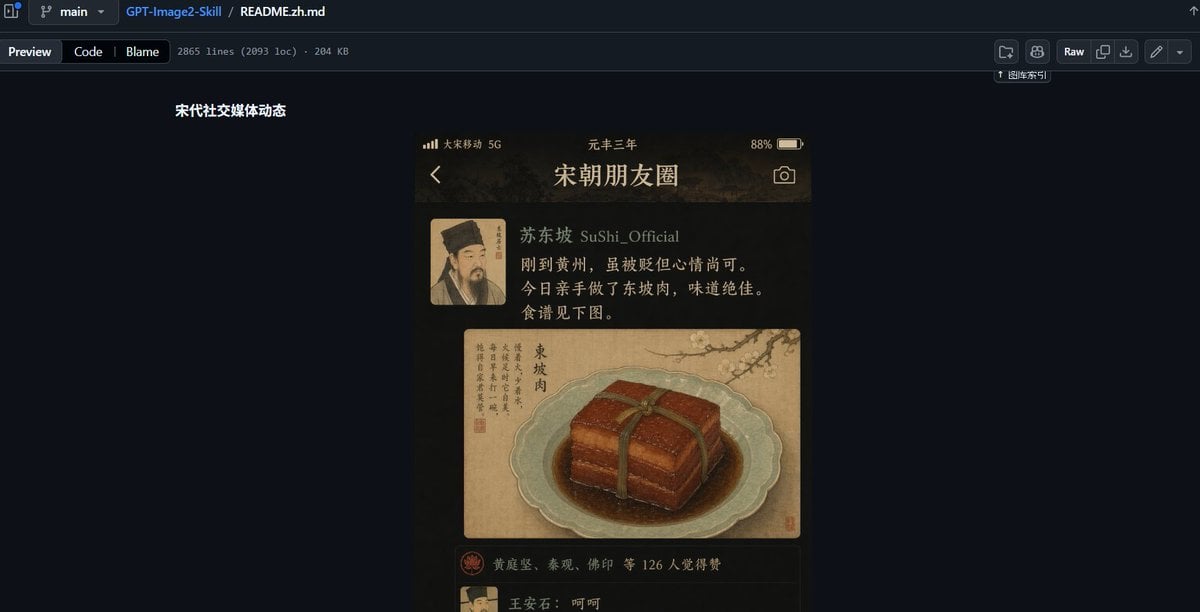
Creates a dark-mode GitHub README screenshot featuring a Song dynasty themed social media post mockup, useful for showcasing UI prompt presets.
- Prompt included
- Model and format preset
- Free template
The prompt behind this image
Copy the exact prompt behind GitHub README Ancient Social Feed, or open it in the studio and make it yours.
Goal: Create a wide desktop screenshot of a GitHub repository README preview in dark mode, showing a design example for an ancient Chinese social media feed UI. Canvas: 1200×612 px horizontal screenshot, dark navy GitHub interface, cropped like a browser window with no visible browser address bar. The composition is mostly empty dark GitHub background, with the README content centered slightly left of middle. GitHub page layout: At the very top, show the GitHub file breadcrumb and toolbar. Include exactly 3 breadcrumb/file items: a branch selector labeled “main”, the repository name “GPT-Image2-Skill”, and the file name “README.zh.md”. Below it, show exactly 3 tab buttons on the left: “Preview”, “Code”, and “Blame”, followed by small metadata text reading approximately “2865 lines (2093 loc) · 204 KB”. On the right side of the toolbar, include exactly 6 small GitHub action buttons/icons, including a “Raw” button. Keep the UI crisp, dark, and realistic. README content: On the dark page, place a short bold white Chinese heading near the upper left of the content area: “宋代社交媒体动态”. Beneath and to the right of this heading, display a single vertical smartphone-style mockup image. Phone mockup subject: The phone mockup is an ancient Song dynasty themed social media app screen titled {argument name="app title" default="宋朝朋友圈"}. It has a warm sepia-black background, gold text, parchment textures, and a moody historical aesthetic. At the top of the phone screen show a status bar with exactly 4 visible status elements: carrier text “大宋移动 5G”, centered era text “元丰三年”, battery percentage “88%”, and a battery icon. Below that, show exactly 3 navigation/header elements: a back arrow on the left, the large title “宋朝朋友圈” in the center, and a camera icon on the right. Social post details: Show exactly 1 post. The post has exactly 1 square avatar on the left, a Song dynasty portrait with the face softly blurred. To the right of the avatar, show the username line {argument name="username" default="苏东坡 SuShi_Official"}. Under it, include the post text in Chinese: “刚到黄州,虽被贬但心情尚可。今日亲手做了东坡肉,味道绝佳。食谱见下图。” Render the text as warm off-white/gold calligraphic UI text. Post image: Under the text, show exactly 1 large image card styled like an antique Chinese painting on parchment. It depicts a pale celadon plate holding a glossy square block of Dongpo pork tied with a dark green strip, sitting in brown sauce. The image card also contains vertical Chinese calligraphy on the left, a small red seal, and a faint ink landscape or branch detail in the upper background. The food illustration should look painterly, like a museum manuscript mixed with realistic food rendering. Engagement area: Beneath the food card, show exactly 1 like row with a small red circular emblem icon and Chinese names/text reading approximately “黄庭坚、秦观、佛印 等 126 人觉得赞”. Below that, begin exactly 1 visible comment row with a small avatar and the comment “王安石:呵呵”, partially cut off near the bottom edge of the phone screen. Visual style: The overall screenshot should look like a real GitHub README preview containing a generated UI sample. Use dark GitHub colors, subtle separators, small white-gray interface text, and high contrast. The embedded phone mockup should be warm, cinematic, ancient Chinese, parchment-and-ink inspired, with soft vignetting and realistic shadows. Constraints: Keep the final image as a screenshot of the GitHub page, not just the phone UI. Include only one embedded phone mockup, one social post, one avatar, one food image, one like row, and one visible comment row. Do not add extra panels, extra posts, watermarks, or explanatory captions beyond the specified GitHub and README text.
How to use GitHub README Ancient Social Feed in 3 steps
- 1Upload ImagePNG, JPG or paste
Add your photo
Upload the photo the template builds on. The prompt, model and format are already set.
- 2…a portrait of your subject in softgolden-hour light, 85mm…
Personalize
Edit the subject and creative details for your destination.
- 3Generate
Generate
Press Generate — your image is created in PicX Studio, so you can compare it with the original and refine one variable at a time.
More like this
Templates with the same subject, style or setup. Open one to see its prompt.
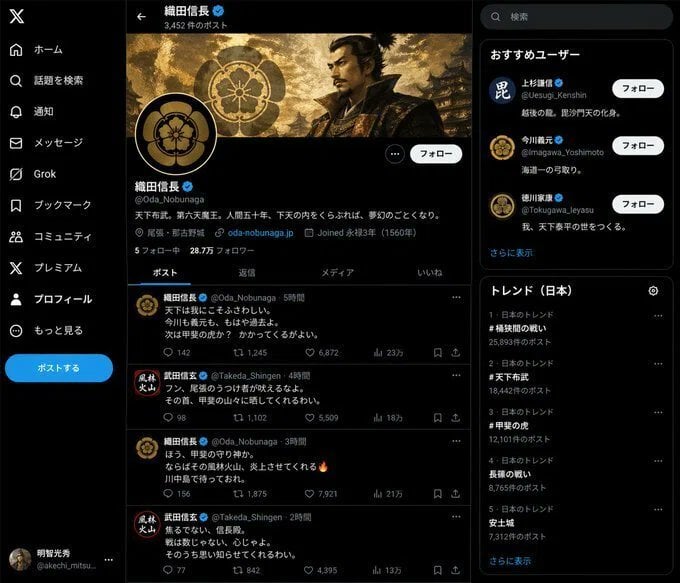
Fake Historical Figure Social Media Feed
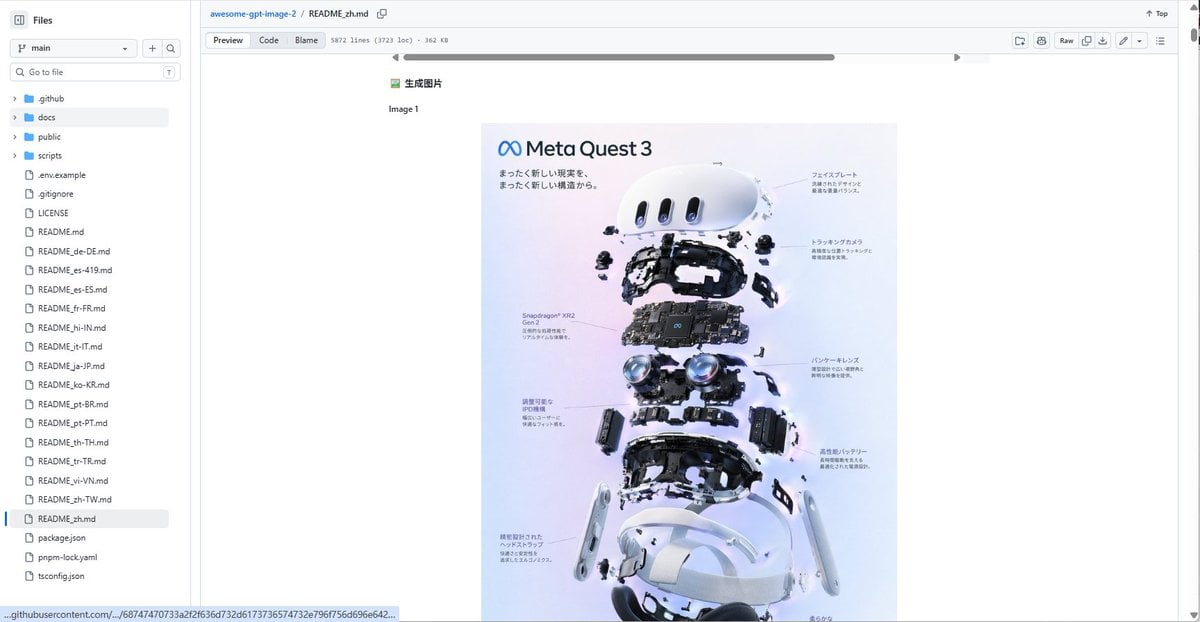
GitHub README with Meta Quest 3 Poster

Cross-Device Social Media Feed
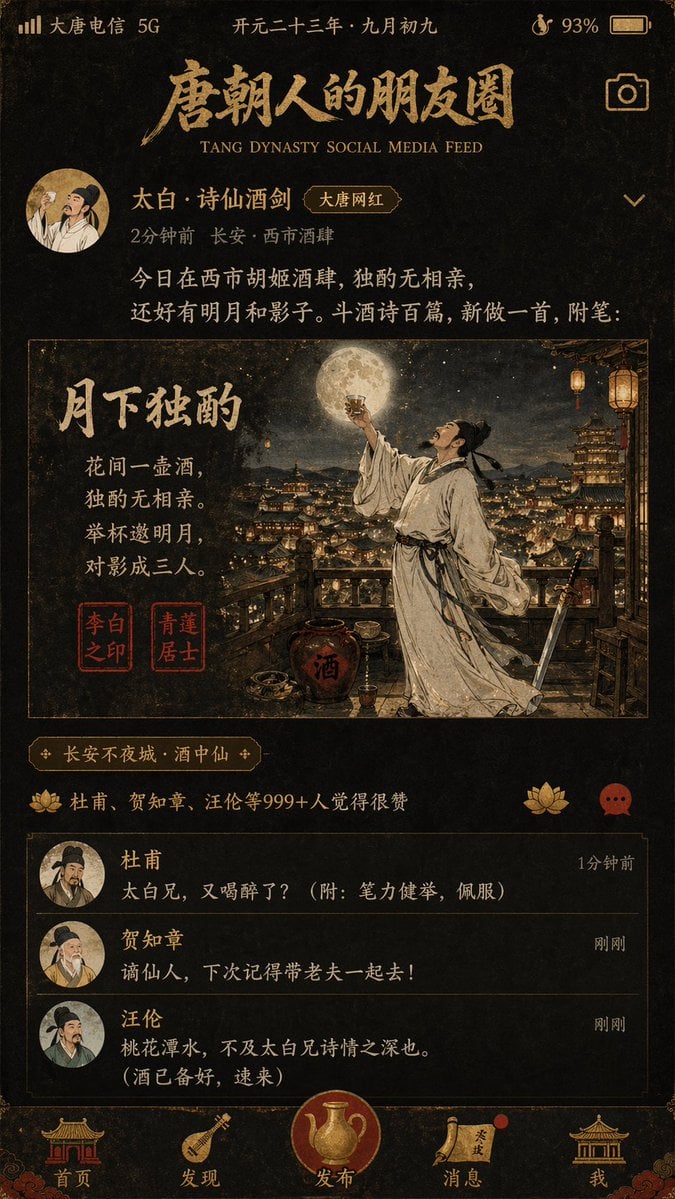
Tang Dynasty Social Feed Poster
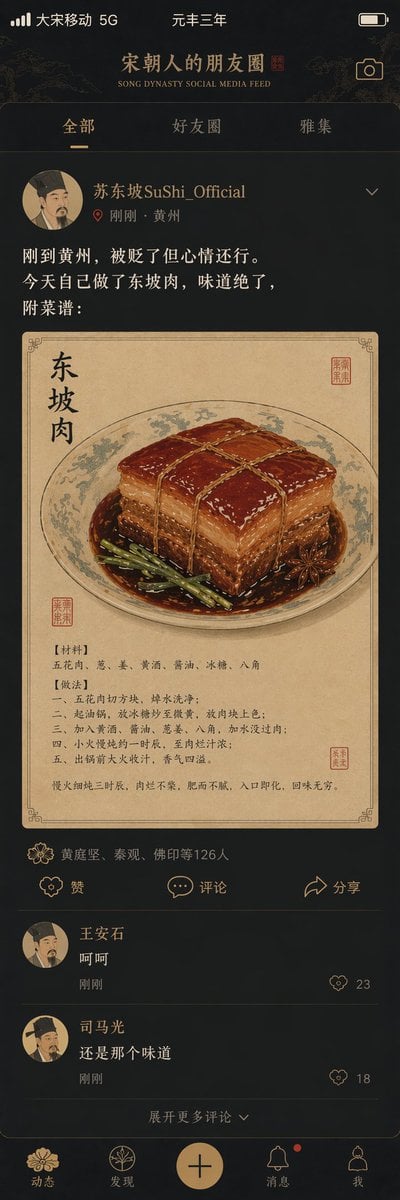
Song Dynasty Social Media Feed
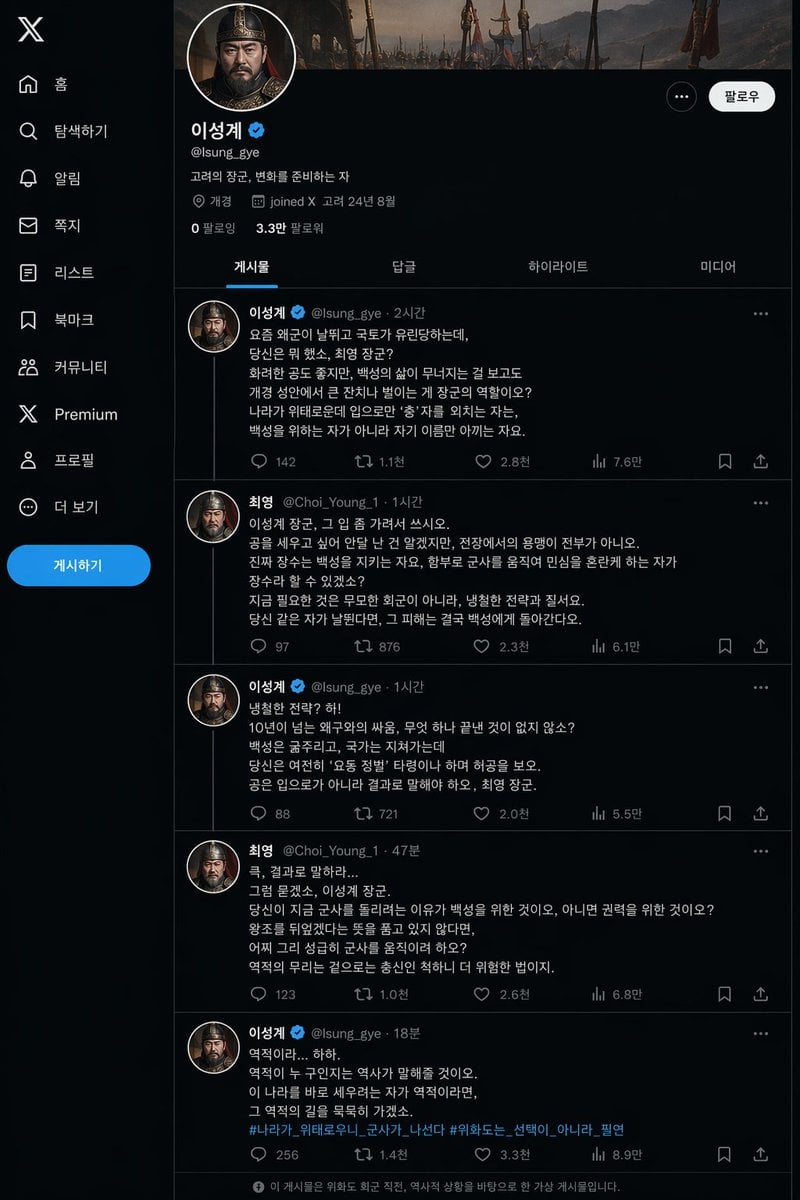
Historical Social Media Feed Mockup
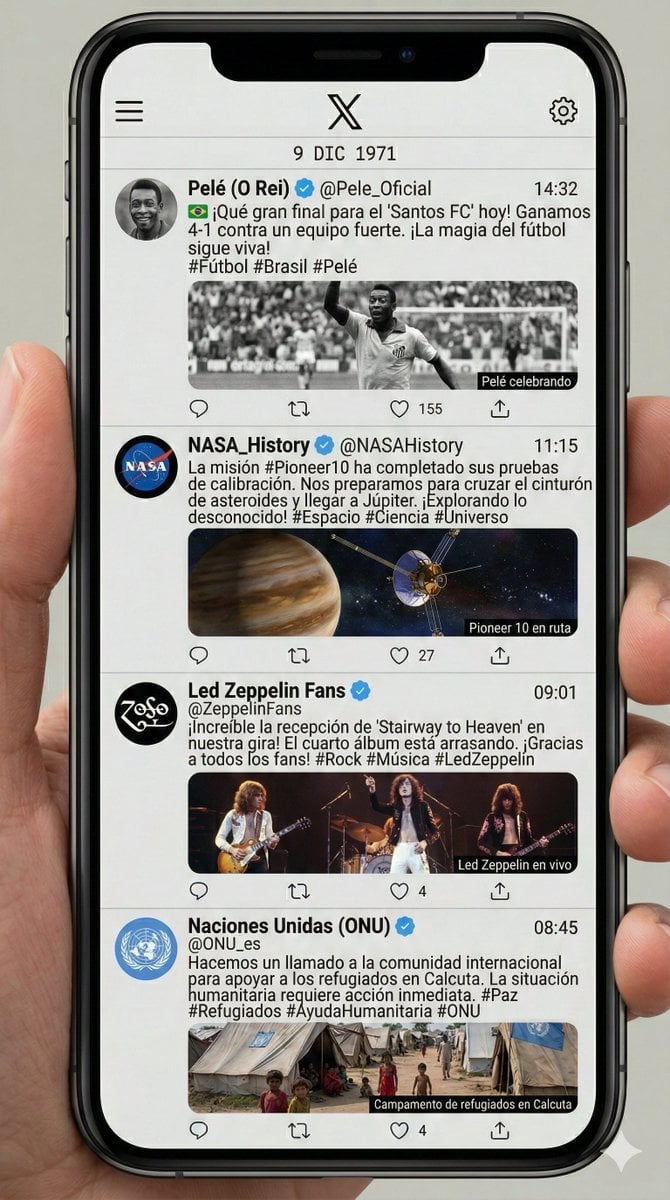
Historical Social Media Feed Generation
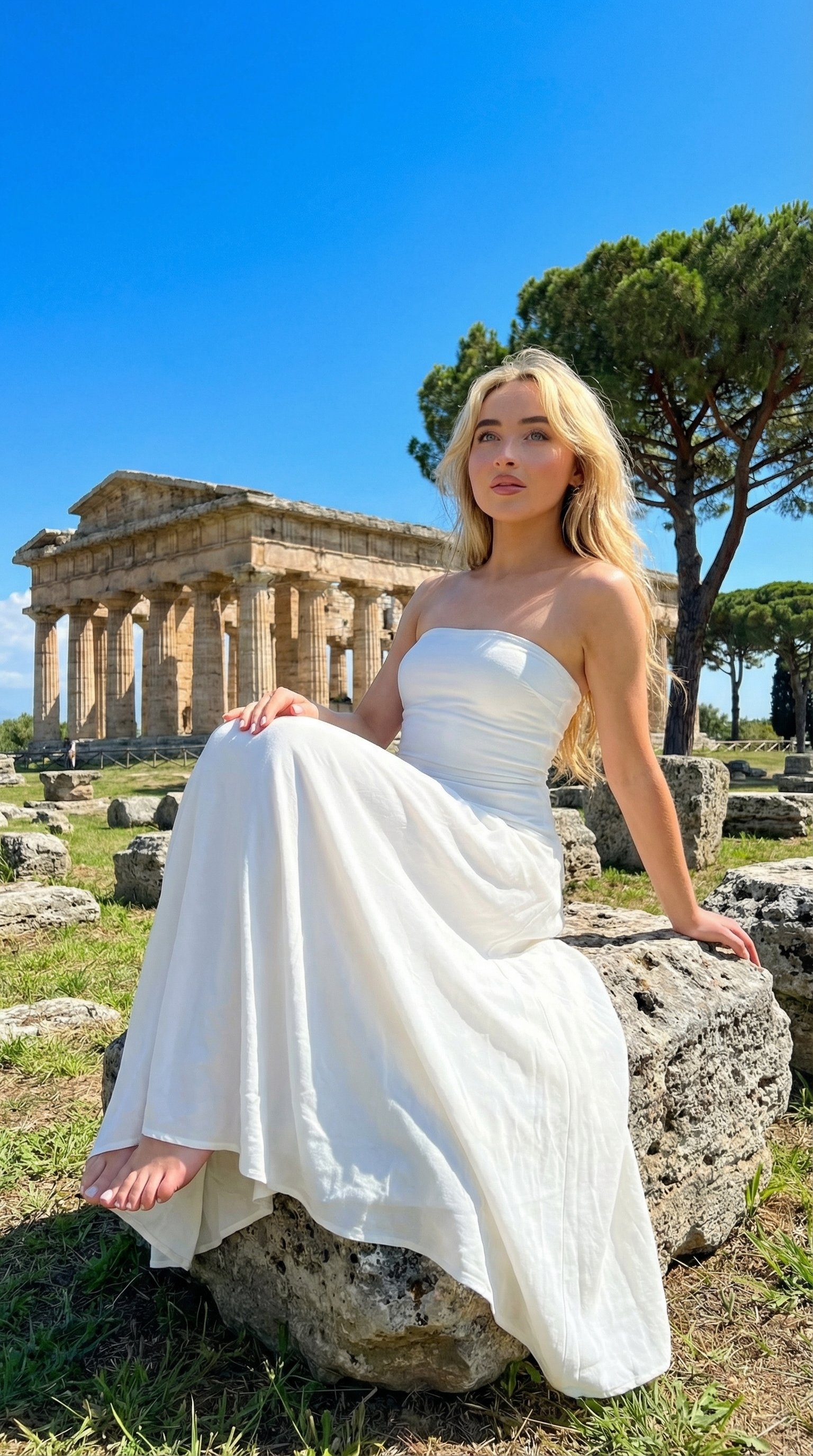
Ancient Temple Portrait — White Dress Nano Banana

Instagram Feed Grid

Woman Presenting GitHub Skill Repository
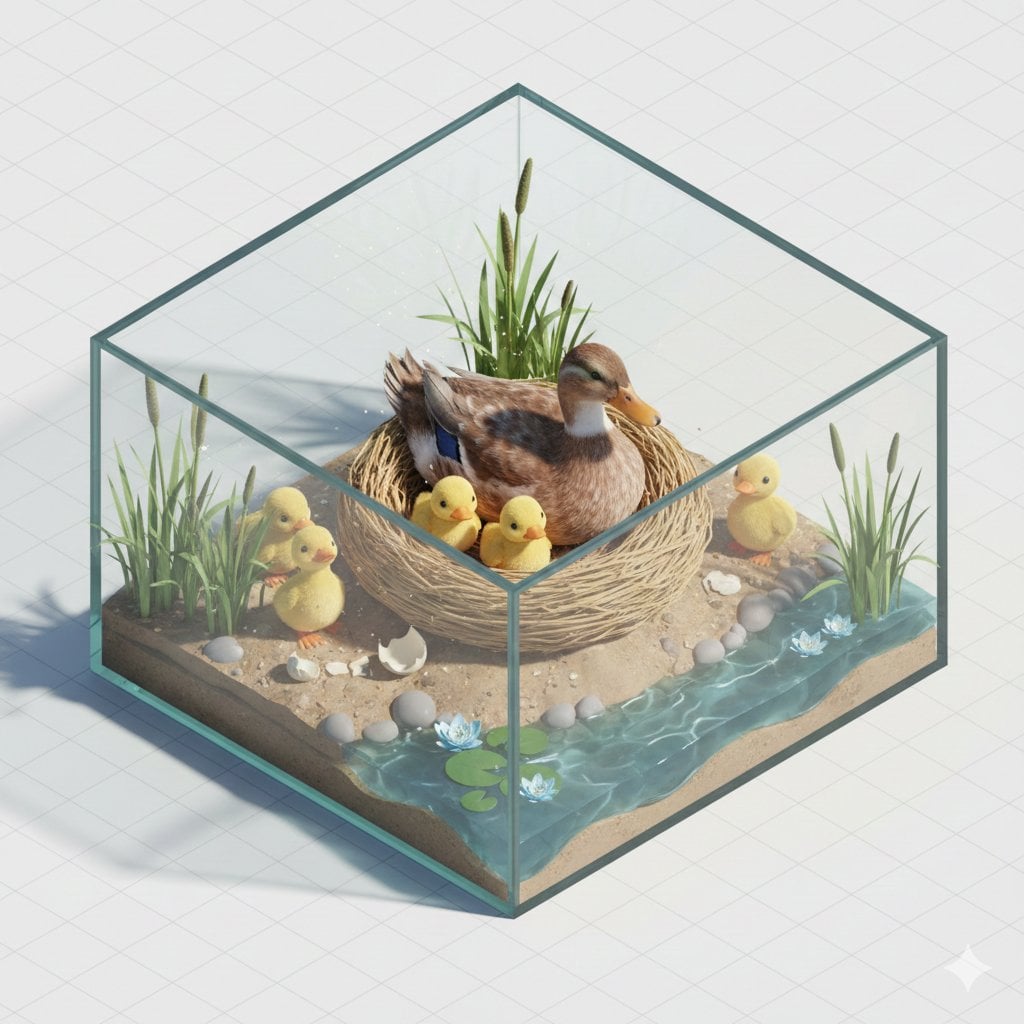
Isometric miniature nature diorama showing a mother feeding newborn
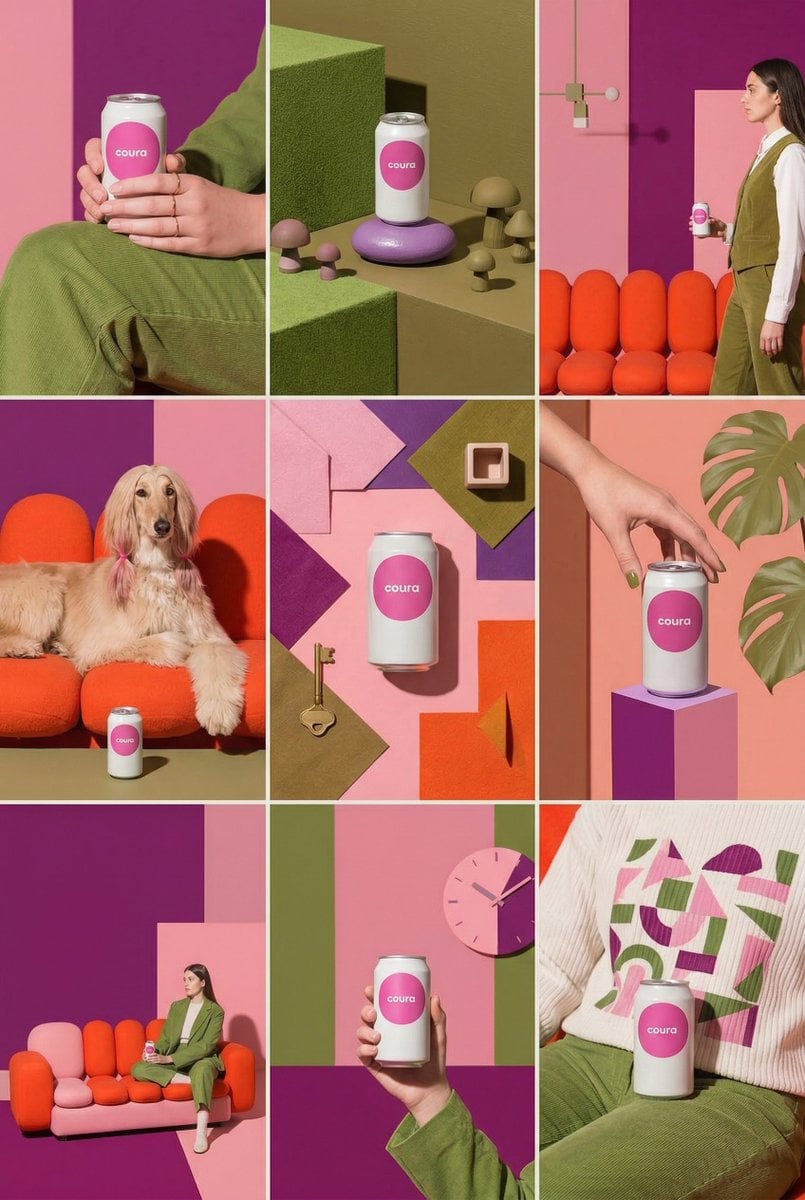
Cohesive Product Instagram Feed Layout
Make it yours
GitHub README Ancient Social Feed works as-is. These are the safest ways to change it without losing the look.
Change one field
Copy a single group, rewrite it, and generate again so you can see what that field is doing.
Keep the frame, change the subject
Hold the composition and light of GitHub README Ancient Social Feed, then swap wardrobe, props or the person for a new take.
| If the result… | Why | Fix |
|---|---|---|
| The result drifts from the preview | Too many fields changed at once. | Reuse GitHub README Ancient Social Feed as-is first, then change one group — subject, light, or setting. |
| The model over-stylizes the scene | The prose prompt leaves finish and camera underspecified. | Add one camera or lighting sentence and stay on GPT Image 2. |
More GPT Image 2 templates
Other prompts made for GPT Image 2.

Six VTuber Japanese Logo Sheet

Realistic Portrait of Woman and Deer

The Vista Modular Condo Poster

AI Model Routing Comparison Infographic

2.5D Anime Art Board

Isometric Productivity Desk Scene

New York Double Exposure Poster

Four-Panel AI Landscape Comparison

Japanese Tatami Lifestyle Magazine Cover

NESCAFÉ Coffee Map Poster
More image prompts
Fresh picks from across the catalog.

Retro Japanese Anime Wallpaper

Hyper-Realistic High-Contrast Mirror Selfie Prompt

Kpop Summer World Cup Photoshoot

Traveler Over Crystal Mountain Valley
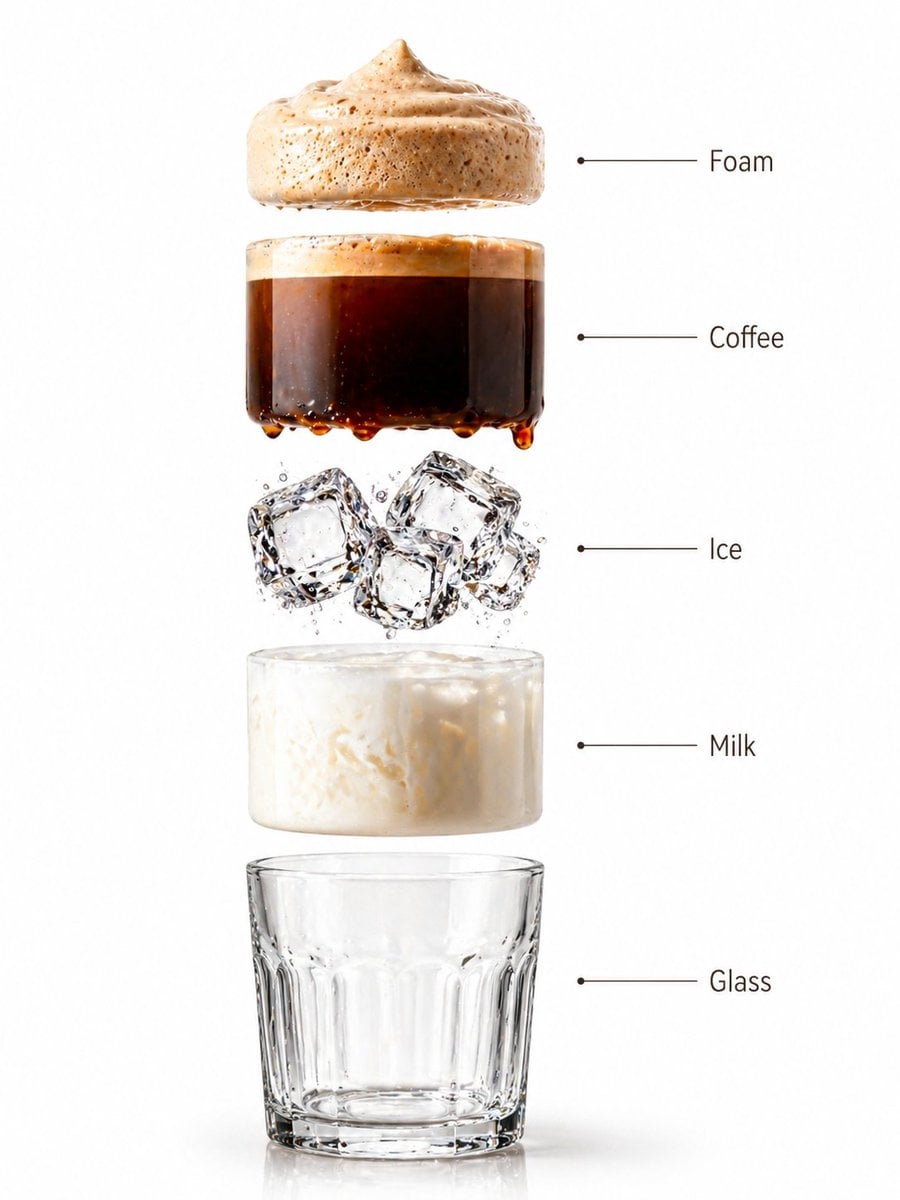
Premium Beverage Studio Photography

Isometric Figurine from Photo Prompt
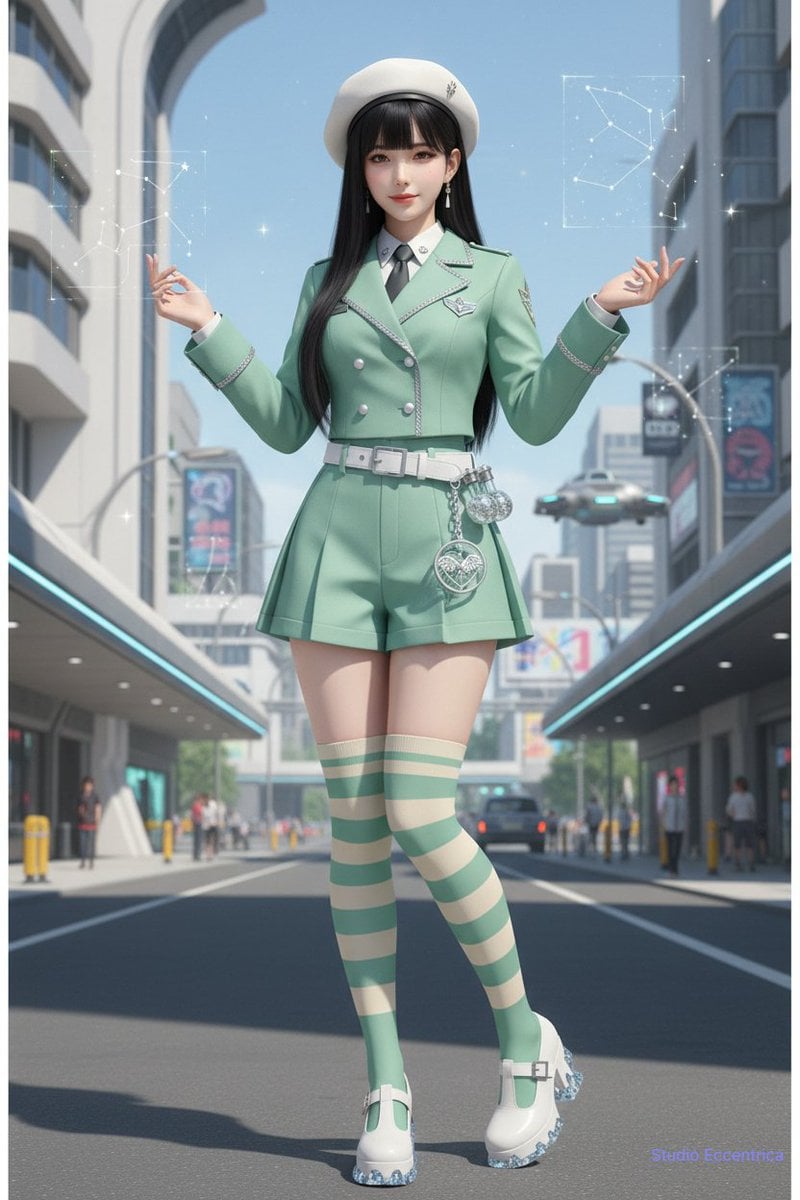
Nano Banana Character Sheet and Fashion Prompts
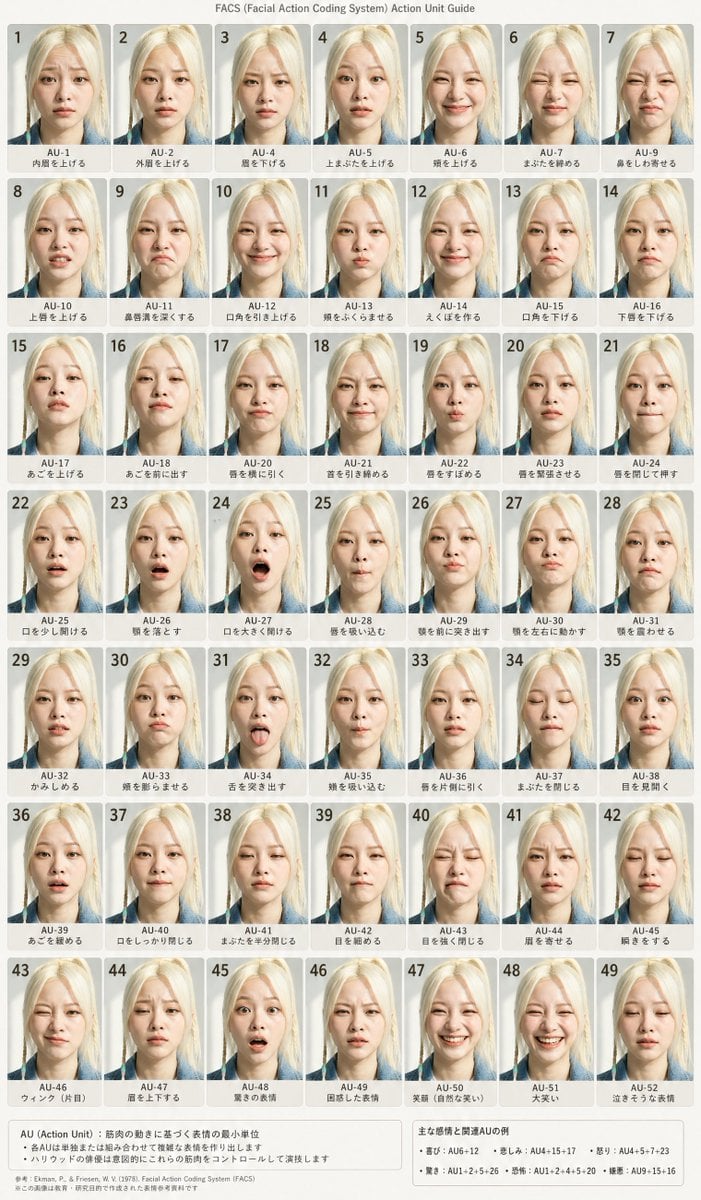
FACS Facial Expression Chart
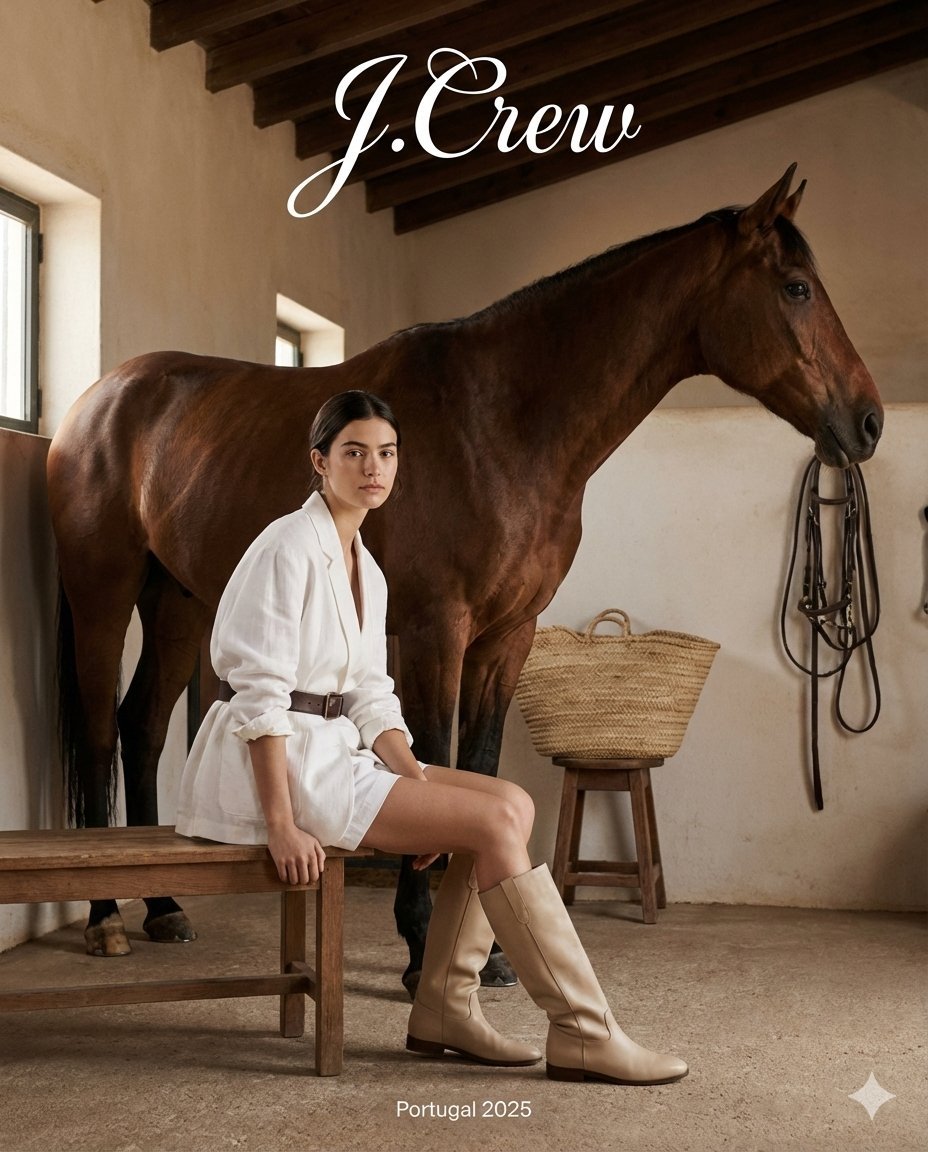
J.Crew Rustic Fashion Editorial

Luxury Fashion Advertisement Poster
Browse template categories
GitHub README Ancient Social Feed questions
How do I use the GitHub README Ancient Social Feed template?
Add your photo if the template asks for one, edit the prompt if you like — the template's model and format are already selected — and press Generate. Your version opens in PicX Studio.
Can I customize the GitHub README Ancient Social Feed template?
Yes. You can change the subject, setting, lighting, mood, format, and available model controls before creating your image.
Is the GitHub README Ancient Social Feed template free?
Opening and editing this template is free. Generating uses credits, shown on the Generate button when you are signed in.
Which AI model should I use?
Start with GPT Image 2, which is the model associated with this template. You can compare another compatible model for a different finish.
Looking for something else? Browse all templates.

Your photo, any look
Thousands of ready templates for every top image and video model, from one credit balance.