
Cross-Device Social Media Feed
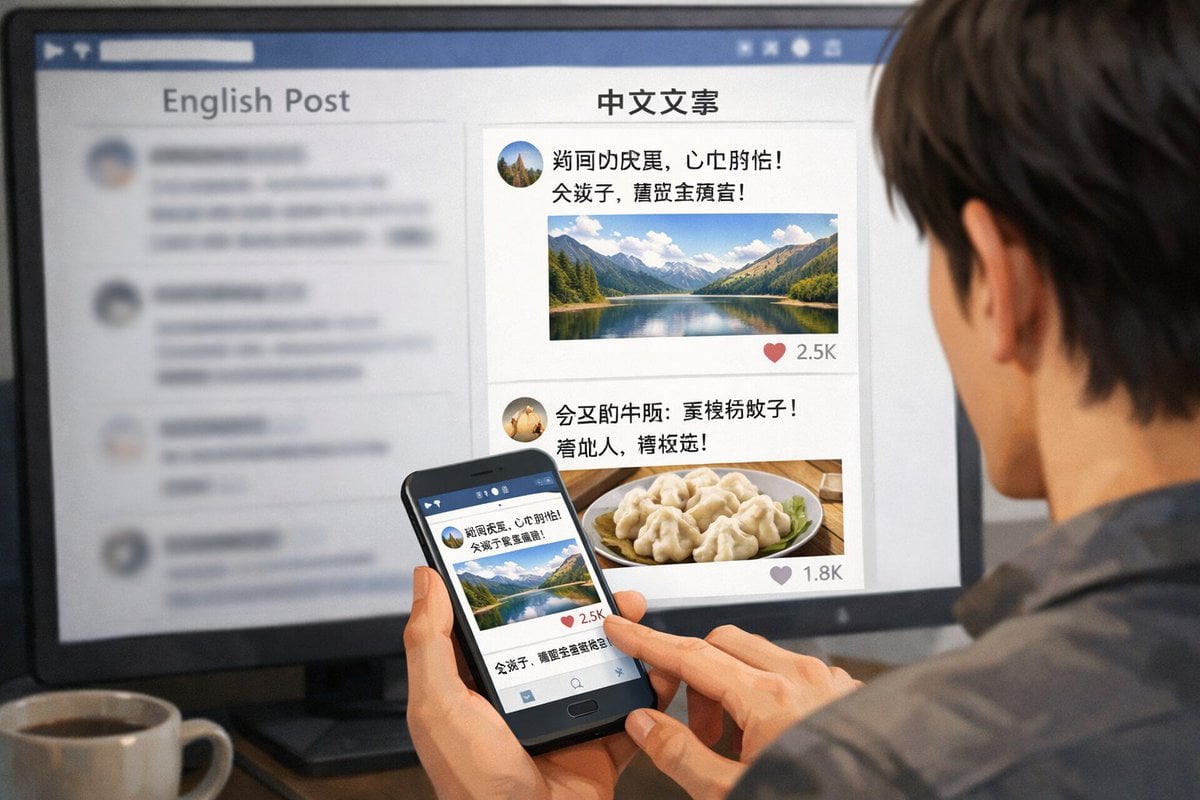
Generates an over-the-shoulder view of a person browsing a bilingual social media feed on both a desktop monitor and a smartphone.
- Prompt included
- Model and format preset
- Free template
The prompt behind this image
Copy the exact prompt behind Cross-Device Social Media Feed, or open it in the studio and make it yours.
A realistic over-the-shoulder shot of a person with dark hair wearing a grey shirt, sitting at a desk and looking at a large computer monitor while holding a black smartphone. On the desk in the bottom left corner is a {argument name="drink on desk" default="white mug filled with black coffee"}. The monitor displays a split-screen social media interface. The left column has the header "{argument name="left column header" default="English Post"}" with blurred-out feed items below it. The right column is in sharp focus with the header "{argument name="right column header" default="中文文案"}". Below this right header are 2 distinct social media posts: the top post features an avatar, pseudo-Chinese text, {argument name="first post image" default="a landscape photo of a mountain lake"}, and a heart icon with "2.5K"; the bottom post features an avatar, pseudo-Chinese text, {argument name="second post image" default="a photo of dumplings on a plate"}, and a heart icon with "1.8K". The person is holding the smartphone in their left hand and tapping the screen with their right index finger. The phone screen displays the exact same mountain lake social media post seen on the monitor. The image has a shallow depth of field, blurring the left side of the screen to emphasize the right column and the phone.
Reference images included
Cross-Device Social Media Feed needs input media to work. They load alongside the prompt when you open it in the studio.
How to use Cross-Device Social Media Feed in 3 steps
- 1Upload ImagePNG, JPG or paste
Add your photo
Upload the photo the template builds on. The prompt, model and format are already set.
- 2…a portrait of your subject in softgolden-hour light, 85mm…
Personalize
Edit the subject and creative details for your destination.
- 3Generate
Generate
Press Generate — your image is created in PicX Studio, so you can compare it with the original and refine one variable at a time.
More like this
Templates with the same subject, style or setup. Open one to see its prompt.
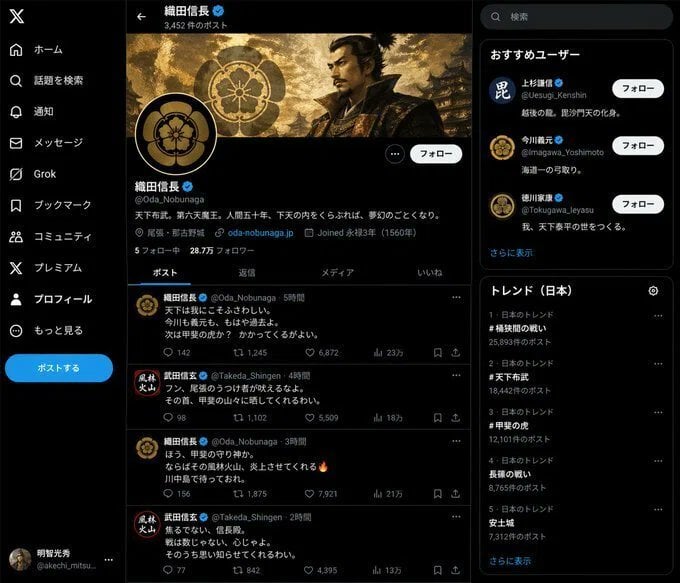
Fake Historical Figure Social Media Feed
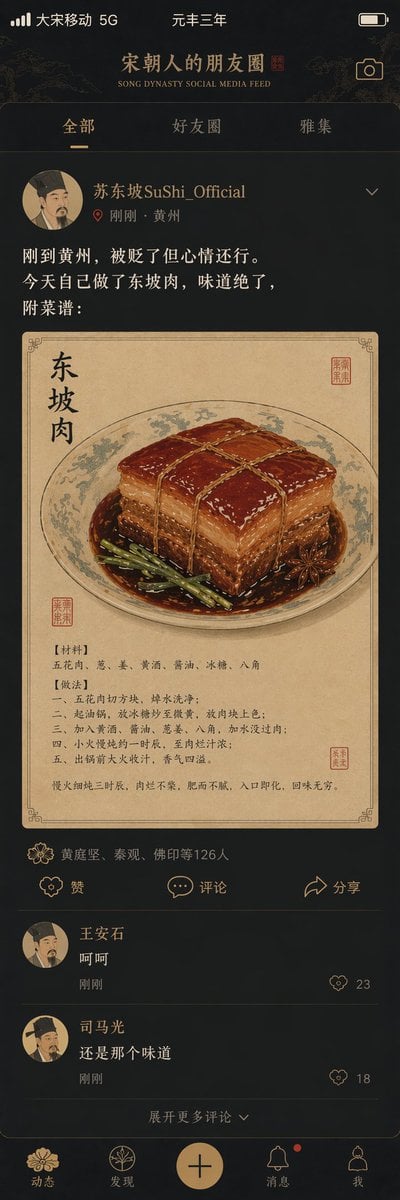
Song Dynasty Social Media Feed
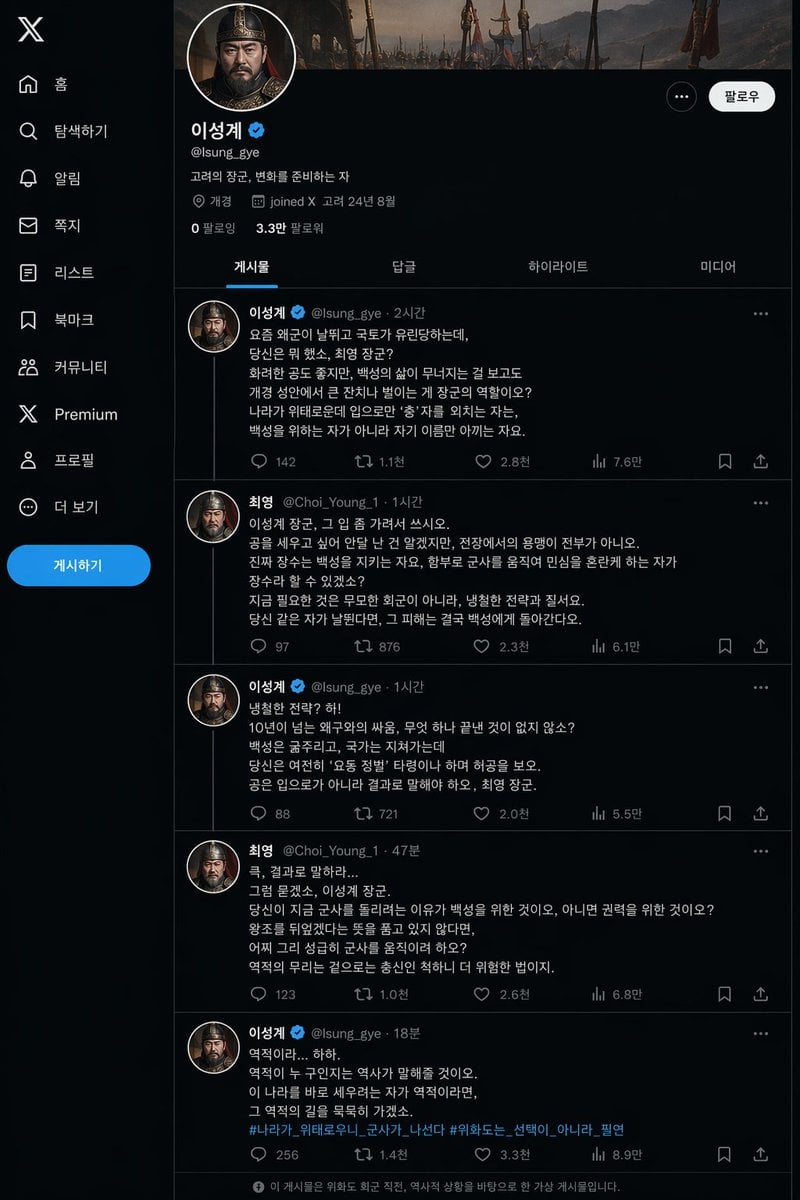
Historical Social Media Feed Mockup
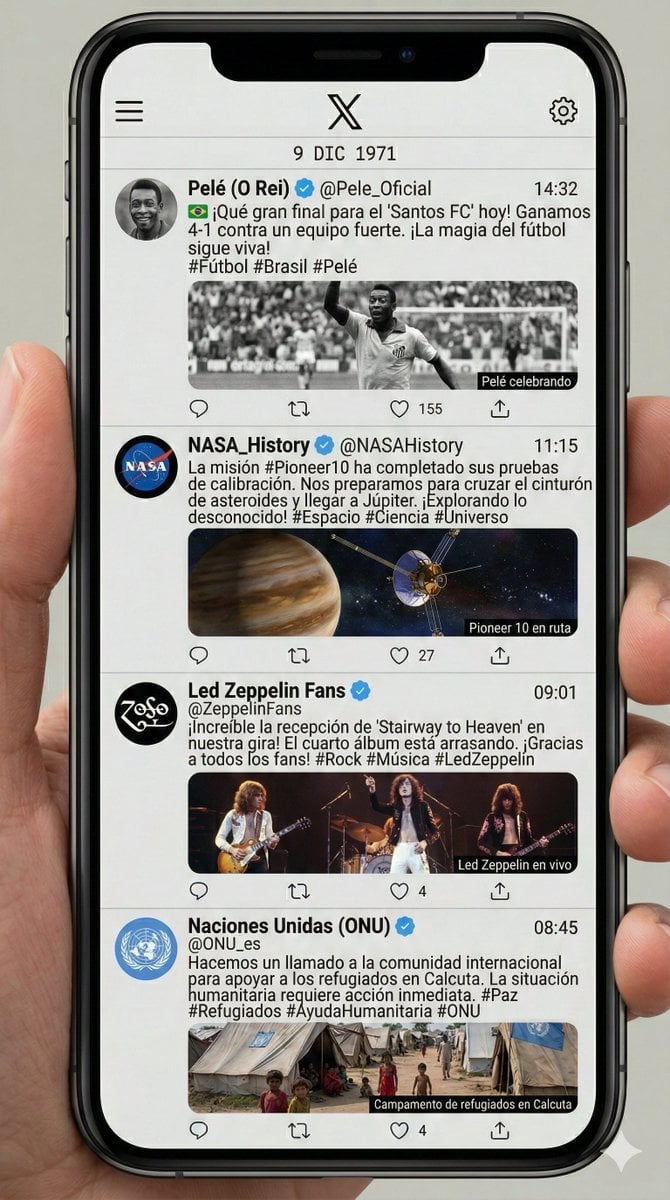
Historical Social Media Feed Generation

Shattered Screen Social Media Ad

Torn Social Media Profile Art
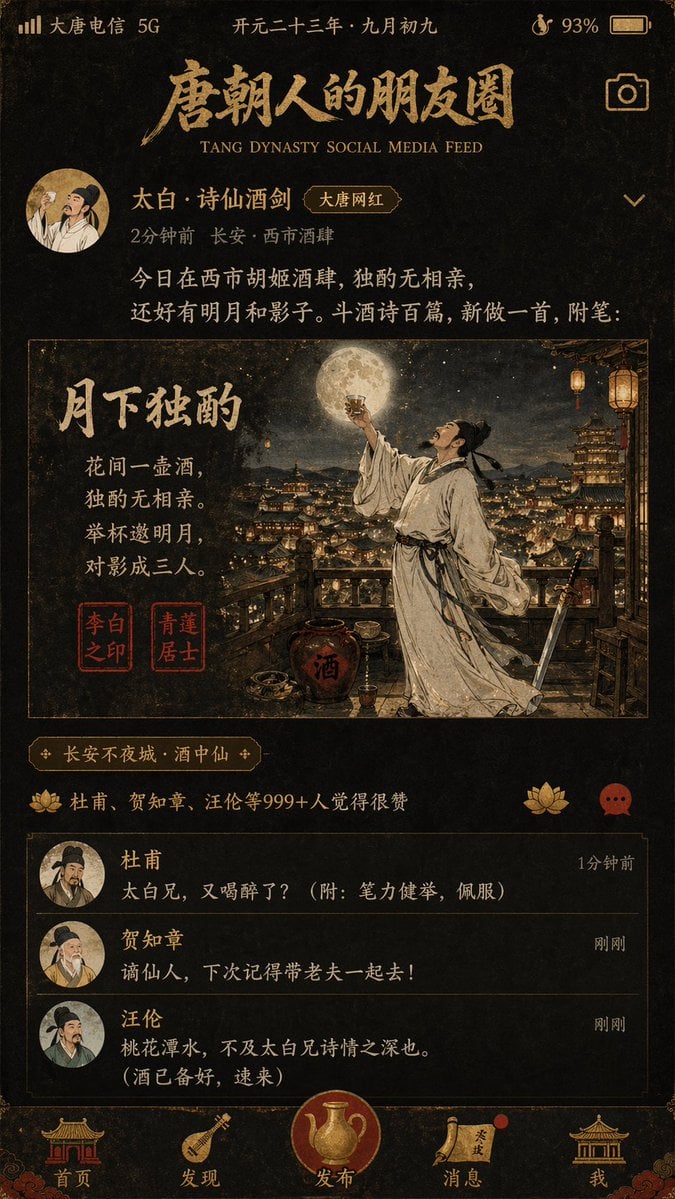
Tang Dynasty Social Feed Poster
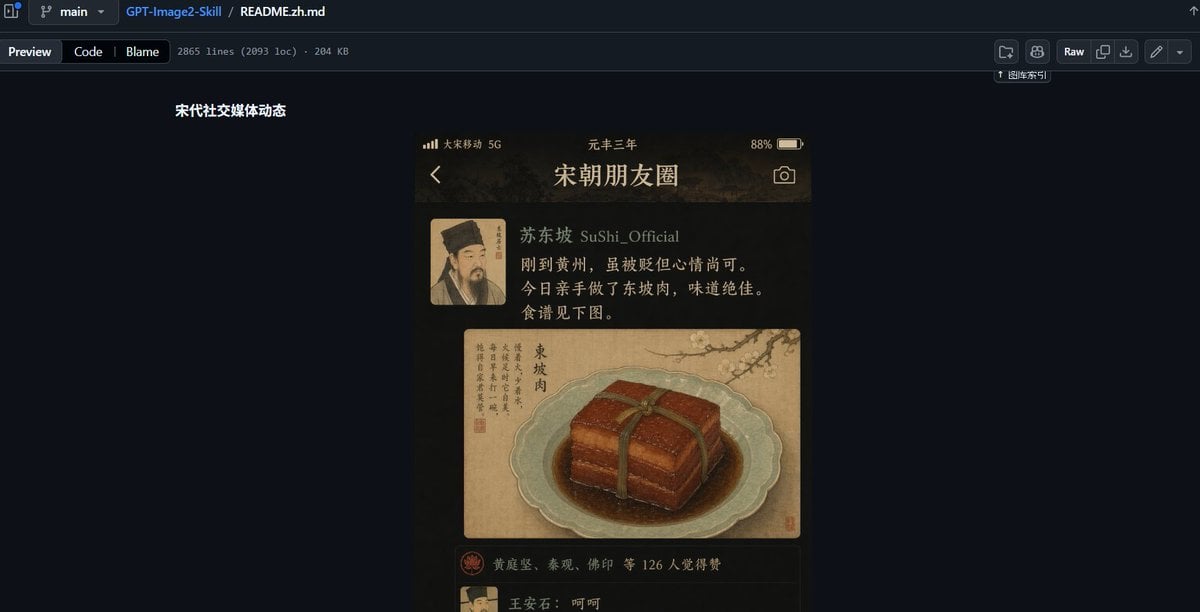
GitHub README Ancient Social Feed

VLOG Style Social Media Post
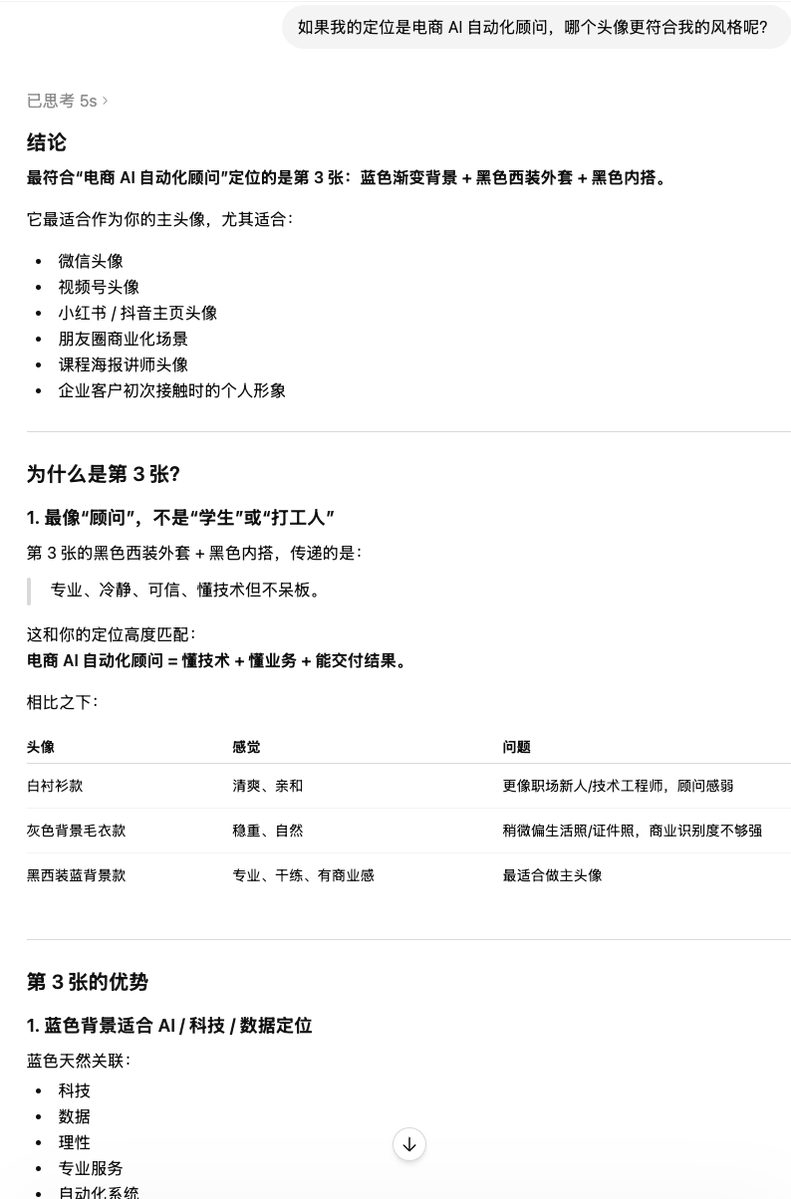
Clean Professional Social Media Avatar

Social Media Magazine Cover

Social Media Meme Cover
Make it yours
Cross-Device Social Media Feed works as-is. These are the safest ways to change it without losing the look.
Change one field
Copy a single group, rewrite it, and generate again so you can see what that field is doing.
Keep the frame, change the subject
Hold the composition and light of Cross-Device Social Media Feed, then swap wardrobe, props or the person for a new take.
| If the result… | Why | Fix |
|---|---|---|
| The result drifts from the preview | Too many fields changed at once. | Reuse Cross-Device Social Media Feed as-is first, then change one group — subject, light, or setting. |
| The model over-stylizes the scene | The prose prompt leaves finish and camera underspecified. | Add one camera or lighting sentence and stay on GPT Image 2. |
More GPT Image 2 templates
Other prompts made for GPT Image 2.

Six VTuber Japanese Logo Sheet

Realistic Portrait of Woman and Deer

The Vista Modular Condo Poster

AI Model Routing Comparison Infographic

2.5D Anime Art Board

Isometric Productivity Desk Scene

New York Double Exposure Poster

Four-Panel AI Landscape Comparison

Japanese Tatami Lifestyle Magazine Cover

NESCAFÉ Coffee Map Poster
More image prompts
Fresh picks from across the catalog.
Purposefully Bad MS Paint Redraw
Late Night Hotel Exhausted Traveler
Hyper-Realistic Arabic Infographic Generator Prompt
Shanghai Alley Candid Street Photography
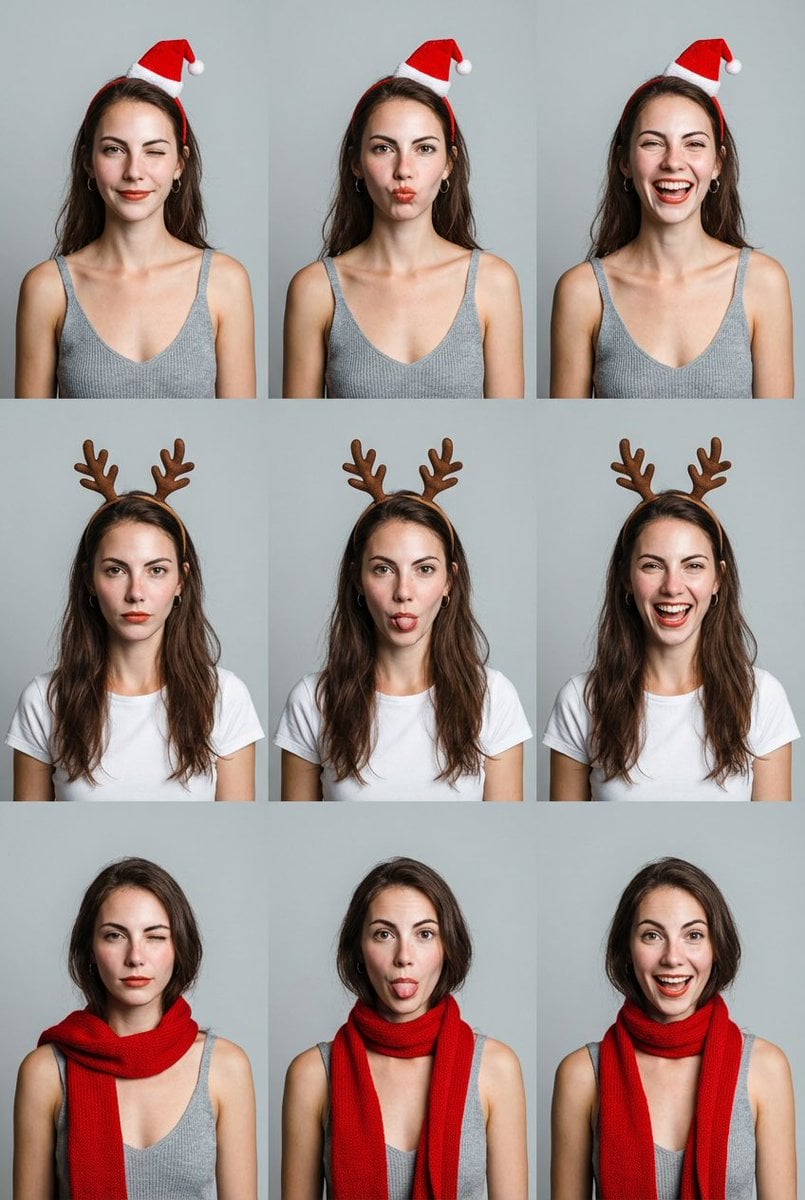
Grid Minimalist Christmas Portrait Prompt

Vintage Wet-Plate Photograph Portrait

Panel Manga Page: Creepy Delivery Man

Commercial Product Ad Portrait
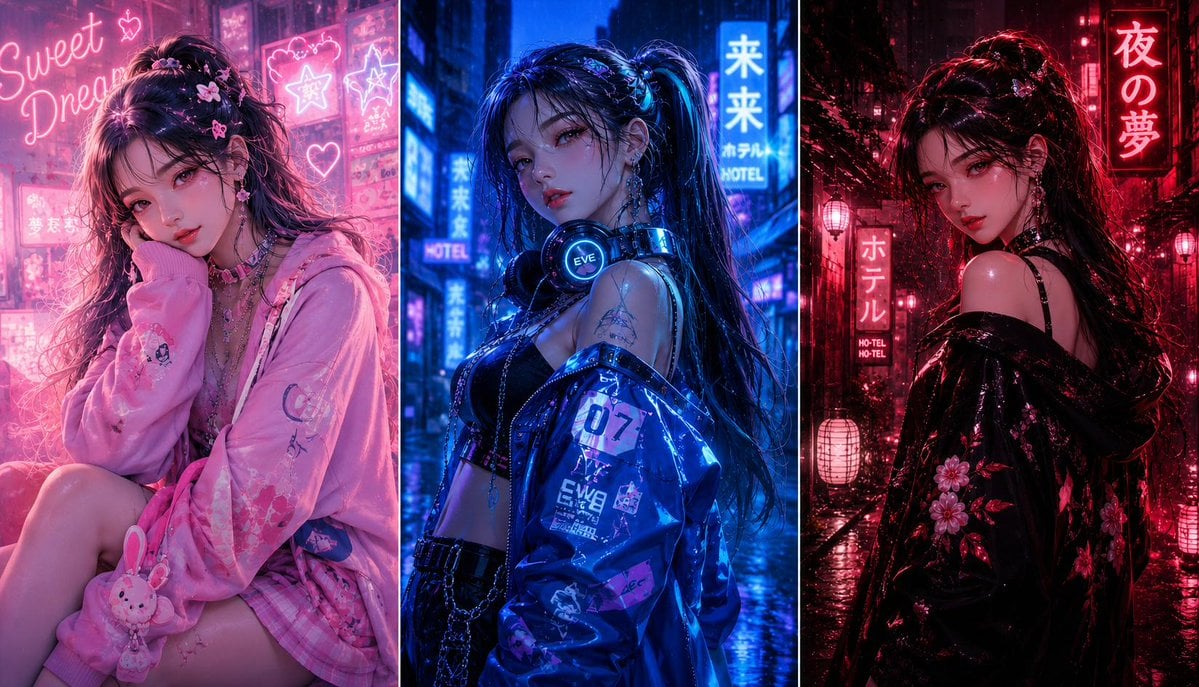
Three-panel anime fashion collage

Rubberhose 3D Character Prompt
Browse template categories
Cross-Device Social Media Feed questions
How do I use the Cross-Device Social Media Feed template?
Add your photo if the template asks for one, edit the prompt if you like — the template's model and format are already selected — and press Generate. Your version opens in PicX Studio.
Can I customize the Cross-Device Social Media Feed template?
Yes. You can change the subject, setting, lighting, mood, format, and available model controls before creating your image.
Is the Cross-Device Social Media Feed template free?
Opening and editing this template is free. Generating uses credits, shown on the Generate button when you are signed in.
Which AI model should I use?
Start with GPT Image 2, which is the model associated with this template. You can compare another compatible model for a different finish.
Looking for something else? Browse all templates.

Your photo, any look
Thousands of ready templates for every top image and video model, from one credit balance.