How do I use the Street View to Anime Background template?
Edit the prompt in the box under the preview — the template's model and format are already selected — and press Generate. Your version appears right on this page.
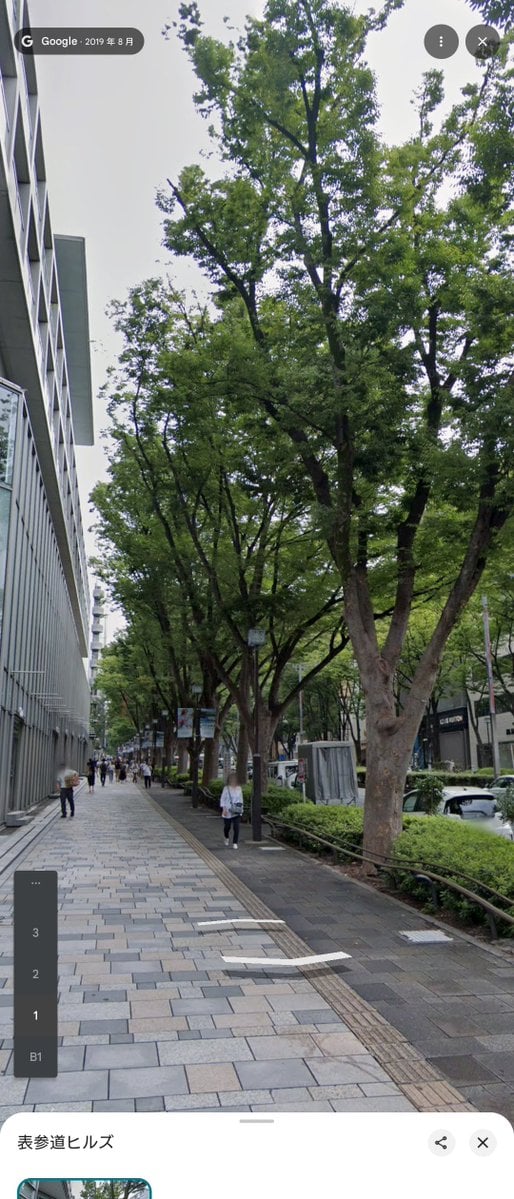
This prompt converts a real Google Maps street-view reference into a polished anime-style urban background illustration with cleaner lighting and no interface elements.

This template uses your photo — add one with the + button.
Using the provided reference image, transform the Google Maps street-view photo into a clean hand-painted anime-style cityscape illustration while preserving the same camera angle, sidewalk composition, row of trees, building on the left, road on the right, and pedestrian placement. Remove all Google Maps UI overlays, labels, arrows, buttons, and screenshot elements. Replace the overcast atmosphere with bright clear daytime lighting, a soft blue sky, gentle sunbeams, warmer highlights, and slightly idealized colors. Keep the scene realistic in layout but make it polished, serene, and picturesque, like a background illustration from a slice-of-life anime.
Using the provided reference image, transform the Google Maps street-view photo into a clean hand-painted anime-style cityscape illustration while preserving the same camera angle, sidewalk composition, row of trees, building on the left, road on the right, and pedestrian placement. Remove all Google Maps UI overlays, labels, arrows, buttons, and screenshot elements. Replace the overcast atmosphere with bright clear daytime lighting, a soft blue sky, gentle sunbeams, warmer highlights, and slightly idealized colors. Keep the scene realistic in layout but make it polished, serene, and picturesque, like a background illustration from a slice-of-life anime.
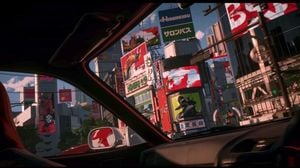
Street View to Anime Background needs input media to work. Open it in the studio and these load alongside the prompt — pick whichever ones your chosen model can take.
Edit the prompt in the box under the preview — the template's model and format are already selected — and press Generate. Your version appears right on this page.
Yes. You can change the subject, setting, lighting, mood, format, and available model controls before creating your image.
Opening and editing this template is free. Generating uses credits, shown on the Generate button when you are signed in.
Start with GPT Image 2, which is the model associated with this template. You can compare another compatible model for a different finish.
Follow a topic to a crawlable collection of related PicX Studio templates.