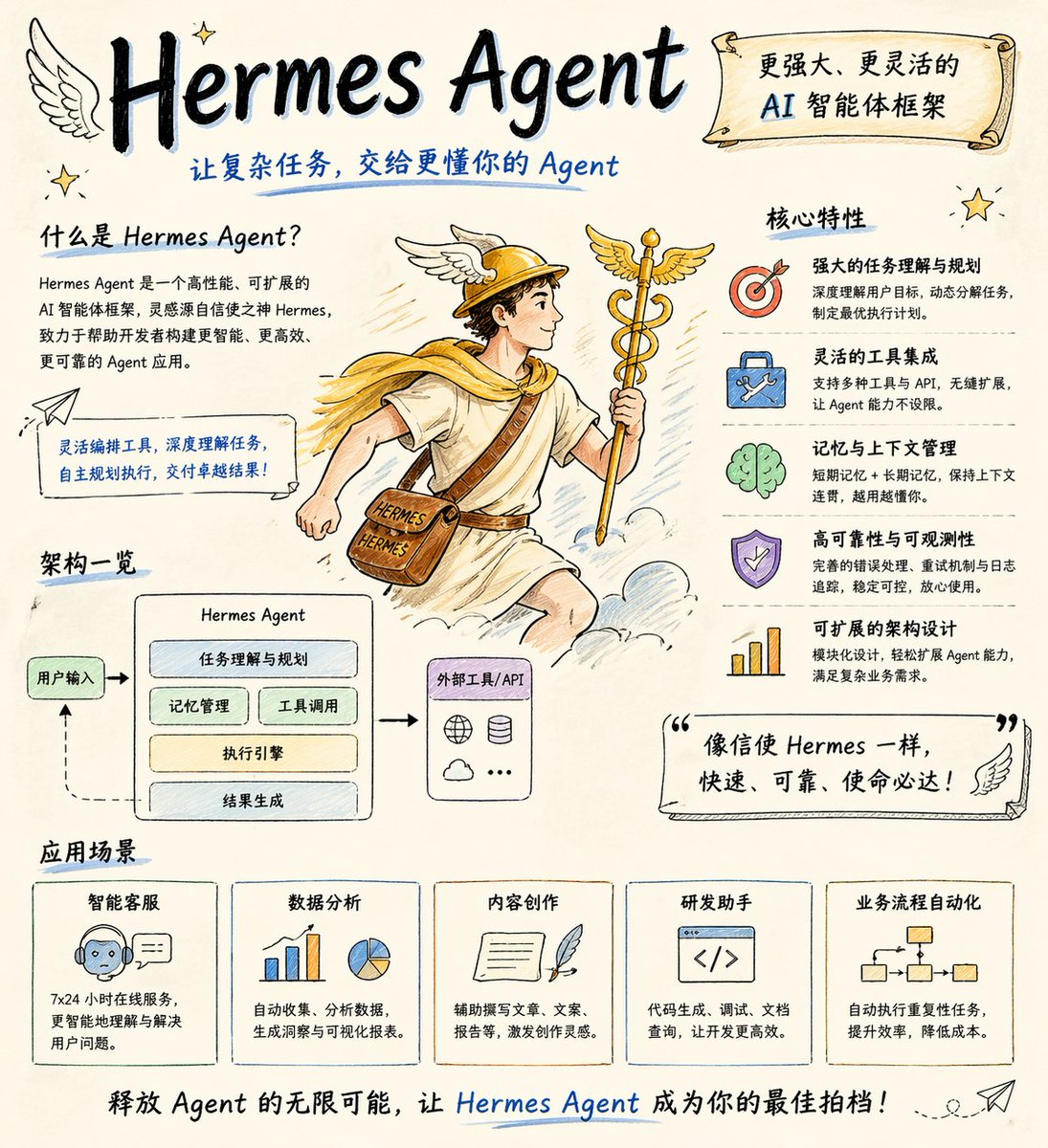
How do I use the Hermes Agent Sketchnote Infographic template?
Choose the primary action to open PicX Studio with the available template settings. Review the model and format, personalize the creative direction, and generate when ready.
A Japanese hand-drawn sketchnote poster visualizing a Hetzner VPS automation agent, its daily scheduled jobs, and background services. Change the subject, setting, or lighting one variable at a time.
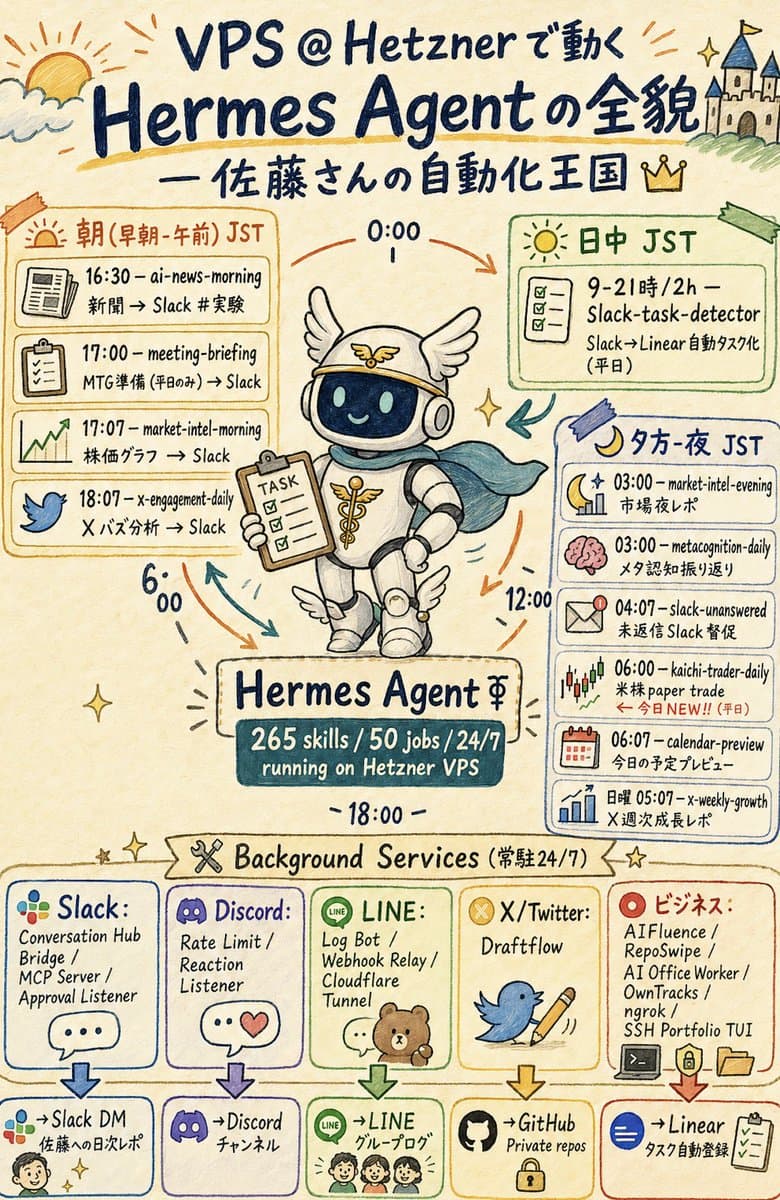
Goal: Create a vertical hand-drawn graphic recording infographic in Japanese about {argument name="main topic" default="VPS @ Hetznerで動く Hermes Agentの全貌"}, with a friendly automation-kingdom theme and a central mascot robot. Canvas: Portrait 2:3 poster, warm cream paper background, watercolor marker texture, dark navy handwritten lettering, loose sketch lines, pastel accent colors, small sparkles, arrows, doodles, and imperfect hand-drawn boxes. Header: At the very top, draw a sunrise/cloud doodle on the left and a small castle on a hill on the right. Large title text reads “VPS @ Hetznerで動く Hermes Agentの全貌”. Under it, add the subtitle “— 佐藤さんの自動化王国” with a small crown icon. Central subject: In the middle, draw a cute Hermes-themed robot mascot wearing a winged helmet, headphones, white rounded armor, small wing decorations on boots, and a teal cape. The robot smiles through a dark glass face screen and holds a clipboard labeled “TASK”. Around it, place circular time arrows and labels “0:00”, “6:00”, “12:00”, and “18:00”. Beneath the robot, add a nameplate reading “Hermes Agent ⚚” and a dark teal stats plaque reading “265 skills / 50 jobs / 24/7 running on Hetzner VPS”. Main schedule layout: Use exactly 3 large schedule panels around the mascot. Left panel is orange and titled “朝(早朝・午前)JST”; it contains exactly 4 task rows with icons: 1) newspaper icon, “16:30 — ai-news-morning / 新聞 → Slack #実験”; 2) clipboard icon, “17:00 — meeting-briefing / MTG準備(平日のみ)→ Slack”; 3) rising chart icon, “17:07 — market-intel-morning / 株価グラフ → Slack”; 4) blue bird icon, “18:07 — x-engagement-daily / X バズ分析 → Slack”. Upper right panel is green and titled “日中 JST”; it contains exactly 1 task card with checklist icon: “9–21時 / 2h — Slack-task-detector / Slack→Linear 自動タスク化(平日)”. Right panel is blue and titled “夕方・夜 JST”; it contains exactly 6 task rows with icons: 1) moon and chart, “03:00 — market-intel-evening / 市場夜レポ”; 2) pink brain, “03:00 — metacognition-daily / メタ認知振り返り”; 3) envelope alert, “04:07 — slack-unanswered / 未返信 Slack 督促”; 4) candlestick chart, “06:00 — kaichi-trader-daily / 米株 paper trade / ← 今日NEW!!(平日)”; 5) calendar, “06:07 — calendar-preview / 今日の予定プレビュー”; 6) bar chart, “日曜 05:07 — x-weekly-growth / X 週次成長レポ”. Background services section: Across the lower third, add a ribbon title “Background Services(常駐24/7)” with a crossed-tools icon and stars. Below it, create exactly 5 vertical service cards, each with a logo-style icon, service list, down arrow, and destination box. Card 1: “Slack:” with multicolor Slack-like dots, services “Conversation Hub / Bridge / MCP Server / Approval Listener”, destination “→Slack DM / 佐藤への日次レポ” with a small face doodle. Card 2: “Discord:” with purple gamepad logo, services “Rate Limit / Reaction Listener”, destination “→Discord / チャンネル”. Card 3: “LINE:” with green LINE icon and small bear/family doodle, services “Log Bot / Webhook Relay / Cloudflare Tunnel”, destination “→LINE / グループログ”. Card 4: “X/Twitter:” with yellow X badge, blue bird holding a pencil, service “Draftflow”, destination “→GitHub / Private repos” with a lock icon. Card 5: “ビジネス:” with red target icon, services “AIFluence / RepoSwipe / AI Office Worker / OwnTracks / ngrok / SSH Portfolio TUI”, destination “→Linear / タスク自動登録” with checklist icon. Visual style: Japanese sketchnote, analog marker and colored pencil, playful but information-dense, clean enough to read, charming imperfect typography, cream background, navy ink, orange/green/blue/purple/red outlined boxes, small decorative arrows and sparkles. Keep all visible text handwritten and preserve the Japanese/English mixed labels exactly where specified. Constraints: Use exactly 3 main schedule panels, exactly 11 scheduled task rows total, exactly 5 background service cards, and exactly 5 destination boxes. Do not add extra brands, watermarks, QR codes, photorealism, or typed sans-serif UI styling.
Choose the primary action to open PicX Studio with the available template settings. Review the model and format, personalize the creative direction, and generate when ready.
Yes. You can change the subject, setting, lighting, mood, format, and available model controls before creating your image.
This template is free to open and customize. Generation usage is shown in PicX Studio before you create.
Start with GPT Image 2, which is the model associated with this template. You can compare another compatible model for a different finish.
© 2026 PicX Studio. All rights reserved.

Follow a topic to a crawlable collection of related PicX Studio templates.
43,474 public templates available. Verified via the PicX Studio public templates API; refreshed hourly.
![Japan Travel Brochure Poster — Create a vertical vintage travel-brochure infographic poster titled “[COUNTRY/DESTINATION]: [TAGLINE]”, using a warm parchment-pa](/_next/image?url=https%3A%2F%2Fcdn.picxstudio.com%2Fuploads%2Fp0_982bf820-bb34-4c43-8a6d-42d799d7282b.jpg&w=828&q=100)
![gpt2-infographic-edu-visual-dance-movement-reference-sheet — [STYLE]
monochromatic grayscale illustration, 3D rendered character, clean instructional reference](/_next/image?url=https%3A%2F%2Fcdn.picxstudio.com%2Fuploads%2Fp53_2bb2c20d_4a8a521c-3b90-453c-9df1-6e66a07a8380.jpg&w=828&q=100)

![Isometric Vehicle Teardown Infographic Template — Create a technical infographic of [VEHICLE] with a 45-degree isometric 3D perspective showing the device sligh](/_next/image?url=https%3A%2F%2Fcdn.picxstudio.com%2Fuploads%2Fmeigen_aecaabc87fba_8dcefeb1-b8c3-4cae-8a57-853d0433c54e.jpg&w=828&q=100)



![Minimalist Flat Vector Travel Poster — Premium minimalist flat-vector travel poster for {argument name="city name" default="[CITY_NAME]"}, 3:4 vertical format.](https://cms-assets.youmind.com/media/1787917359711_3ug846_HQX205cbMAA6F6S-300x400.jpg)