
Tilt-Shift Palace Corridor Comparison
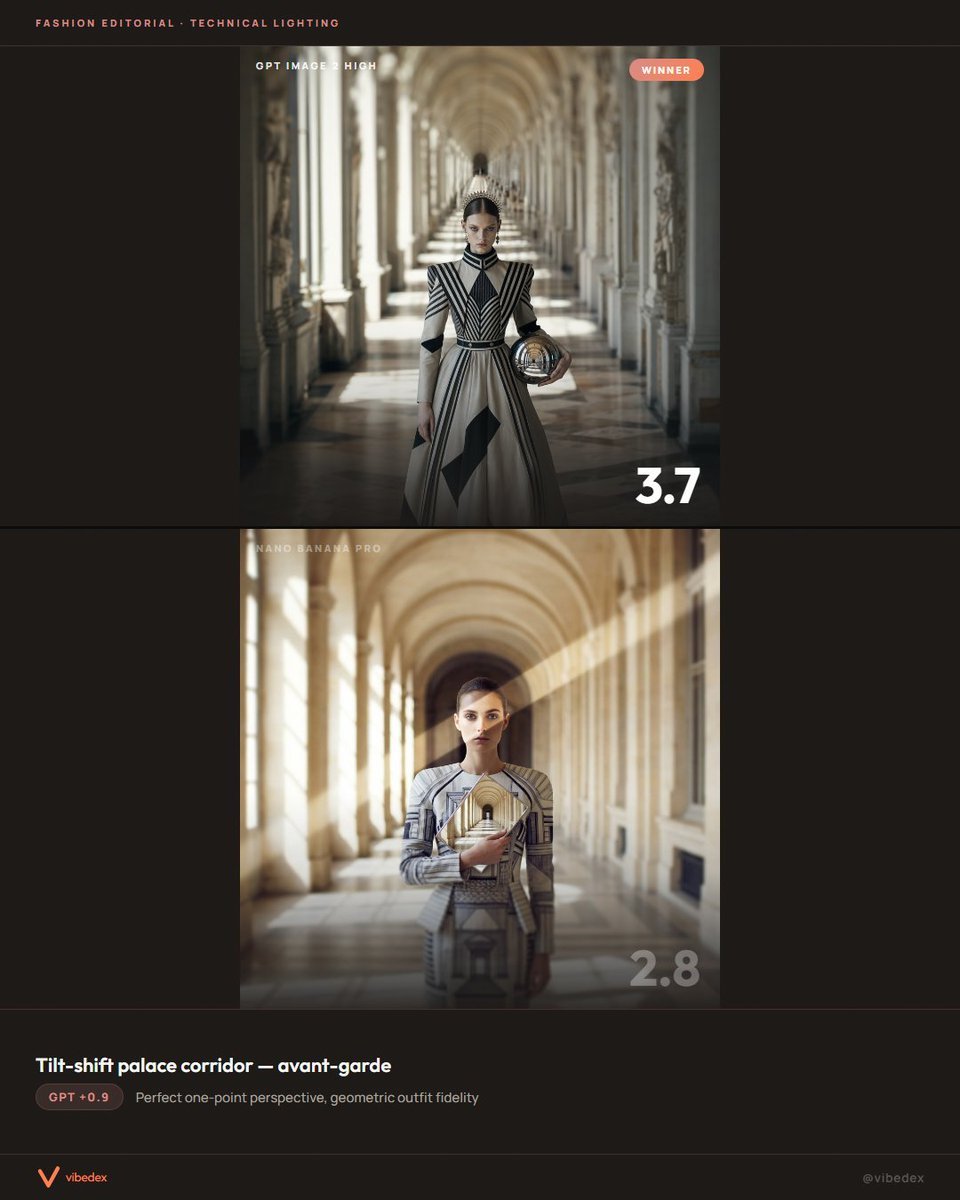
Creates a dark fashion benchmark card comparing two palace-corridor avant-garde model renders with scores and editorial notes.
- Prompt included
- Model and format preset
- Free template
The prompt behind this image
Copy the exact prompt behind Tilt-Shift Palace Corridor Comparison, or open it in the studio and make it yours.
Goal: Create a dark editorial benchmark comparison card for {argument name="headline text" default="Tilt-shift palace corridor — avant-garde"}, comparing two generated fashion images in a palace corridor. Canvas: Square 1024×1024 social media graphic with a nearly black warm-brown background, thin divider lines, and a refined fashion/tech review aesthetic. Layout: Use exactly 2 stacked image panels centered horizontally, each with a palace corridor fashion render. The top panel is larger and begins near the upper third; the bottom panel sits directly below with a thin horizontal separator between them. Add a small header at the very top left reading “FASHION EDITORIAL · TECHNICAL LIGHTING”. Add a bottom caption band with the headline, a score-delta pill, a short note, and subtle branding. Panel 1: A high-quality fashion editorial render labeled near the top left “GPT IMAGE · HIGH” and marked with a coral rounded “WINNER” badge near the top right. Show a full-body avant-garde model standing centered in a grand arched palace corridor with perfect one-point perspective, tall columns, classical statues, bright window light, and strong tilt-shift depth blur toward the distance. The model wears a geometric black, cream, and gray structured dress with sharp diagonal stripes, symmetrical shoulder panels, a cinched waist, a wide skirt with black diamond shapes, and a small architectural circular handbag held at the right side. The face should be intentionally blurred/obscured. Add a large white score “{argument name="top score" default="3.7"}” at the lower right of the panel. Panel 2: A lower-quality competing render labeled near the top left “NANO BANANA PRO”. Show the same concept but less accurate: a centered model in the same sunlit vaulted palace corridor, warmer golden lighting, strong blur, less perfect geometry, and a flatter/less faithful outfit. The model holds an architectural circular object across the chest, with the face also blurred/obscured. Add a large translucent gray score “{argument name="bottom score" default="2.8"}” at the lower right of this panel. Bottom text content: In the lower band, display the headline “{argument name="headline text" default="Tilt-shift palace corridor — avant-garde"}” in bold white. Beneath it place one coral pill reading “{argument name="score delta" default="GPT +0.9"}”, followed by the note “Perfect one-point perspective, geometric outfit fidelity”. Put a small orange V-shaped logo and the word “vibedex” at bottom left, and a faint “@vibedex” at bottom right. Visual style: Premium dark UI, muted cream and black palette, coral accents, clean sans-serif typography, crisp alignment, cinematic shadows, shallow depth of field, editorial fashion lighting, and subtle grain. Constraints: Include exactly 2 image panels, exactly 2 score numbers, exactly 2 model figures, exactly 1 winner badge, exactly 1 headline, exactly 1 score-delta pill, and exactly 2 brand marks. Preserve the split-screen benchmark layout and avoid adding extra charts, buttons, or decorative icons.
How to use Tilt-Shift Palace Corridor Comparison in 3 steps
- 1Upload ImagePNG, JPG or paste
Add your photo
Upload the photo the template builds on. The prompt, model and format are already set.
- 2…a portrait of your subject in softgolden-hour light, 85mm…
Personalize
Edit the subject and creative details for your destination.
- 3Generate
Generate
Press Generate — your image is created in PicX Studio, so you can compare it with the original and refine one variable at a time.
More like this
Templates with the same subject, style or setup. Open one to see its prompt.
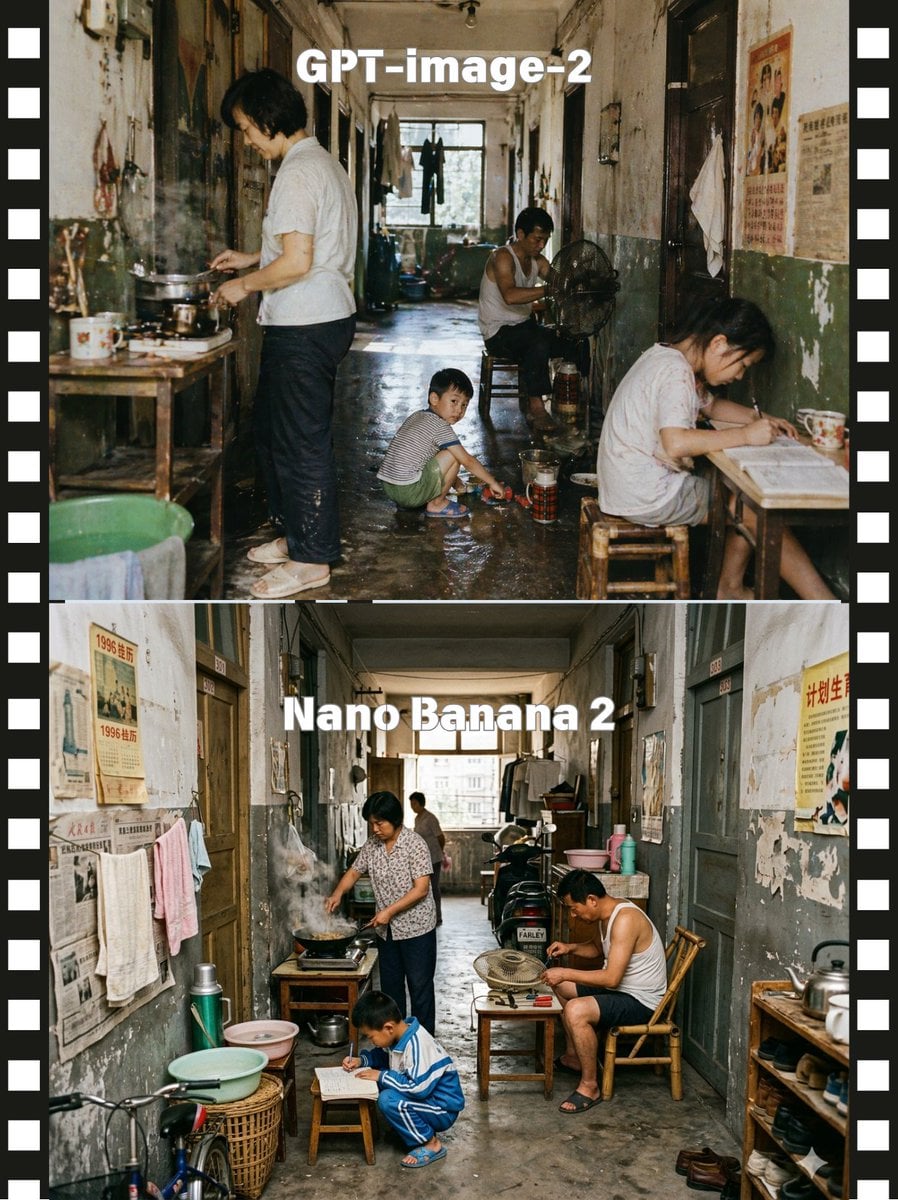
Stacked Corridor Model Comparison

Tokyo Tilt-Shift Miniature Diorama
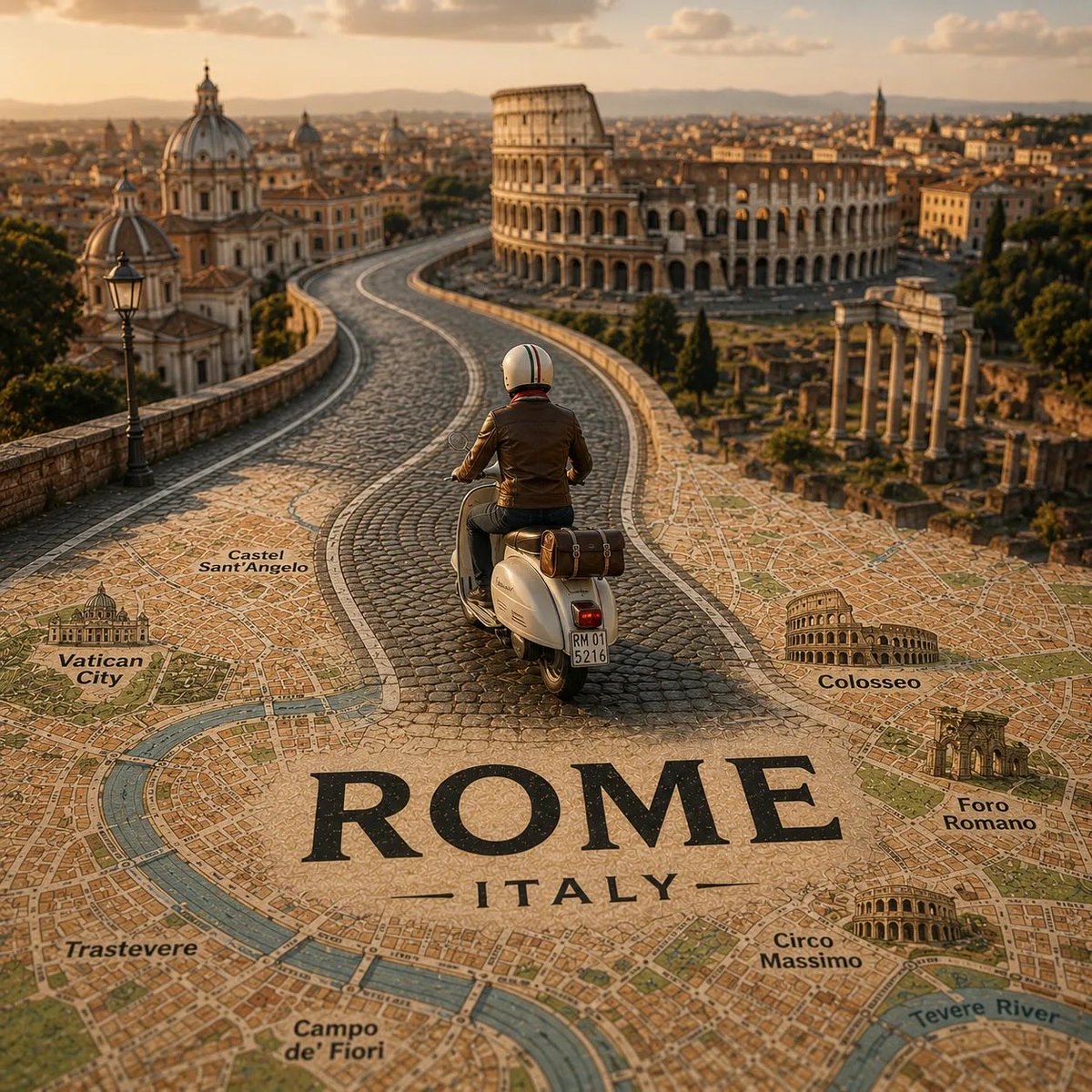
Tilt-Shift City Map Travel Scene
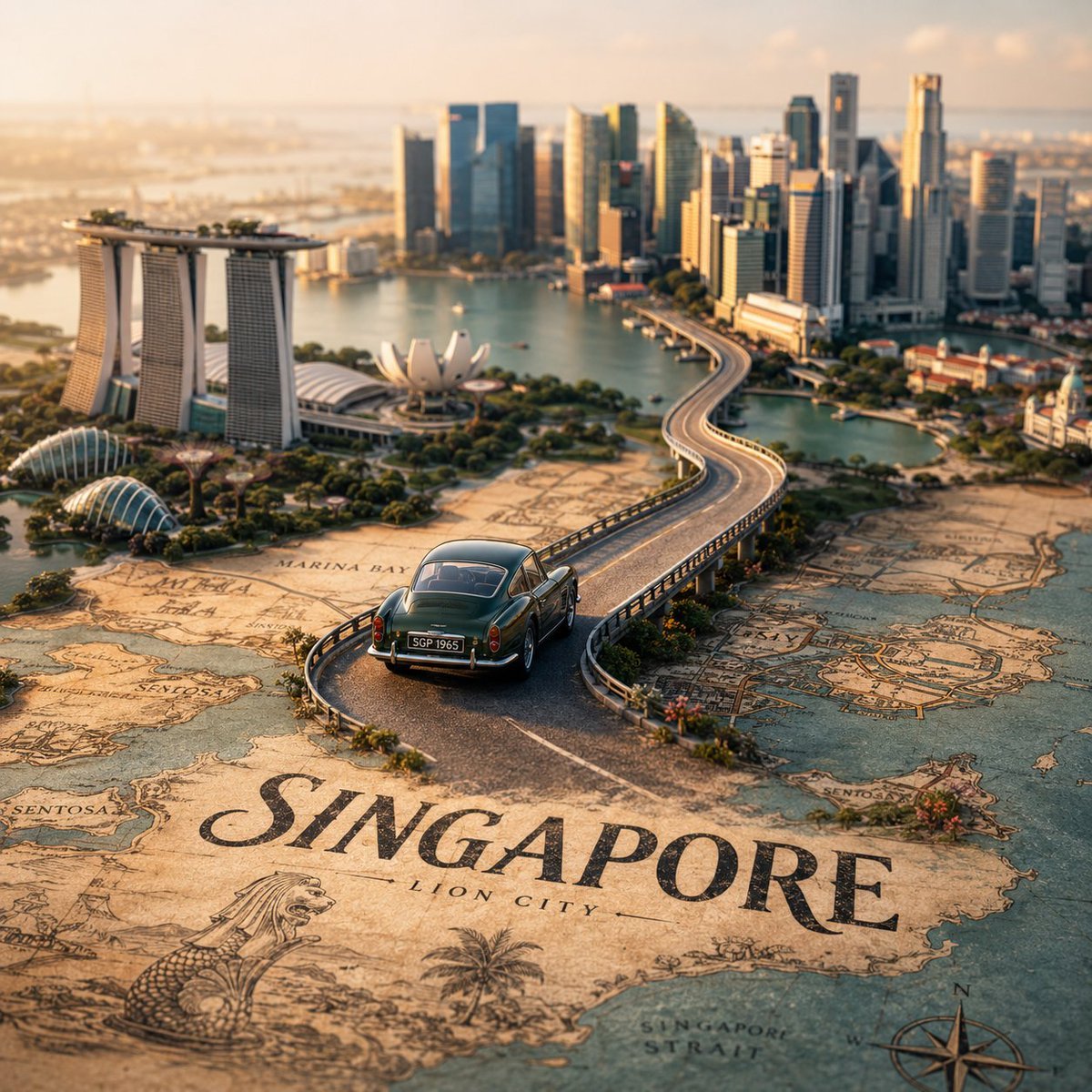
Tilt-Shift City Map Scene
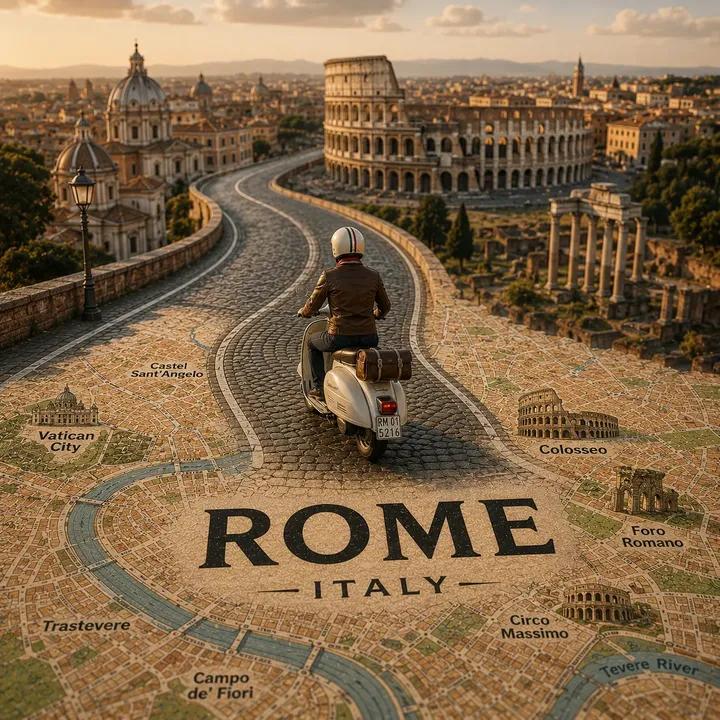
Tilt-Shift Travel Map Diorama
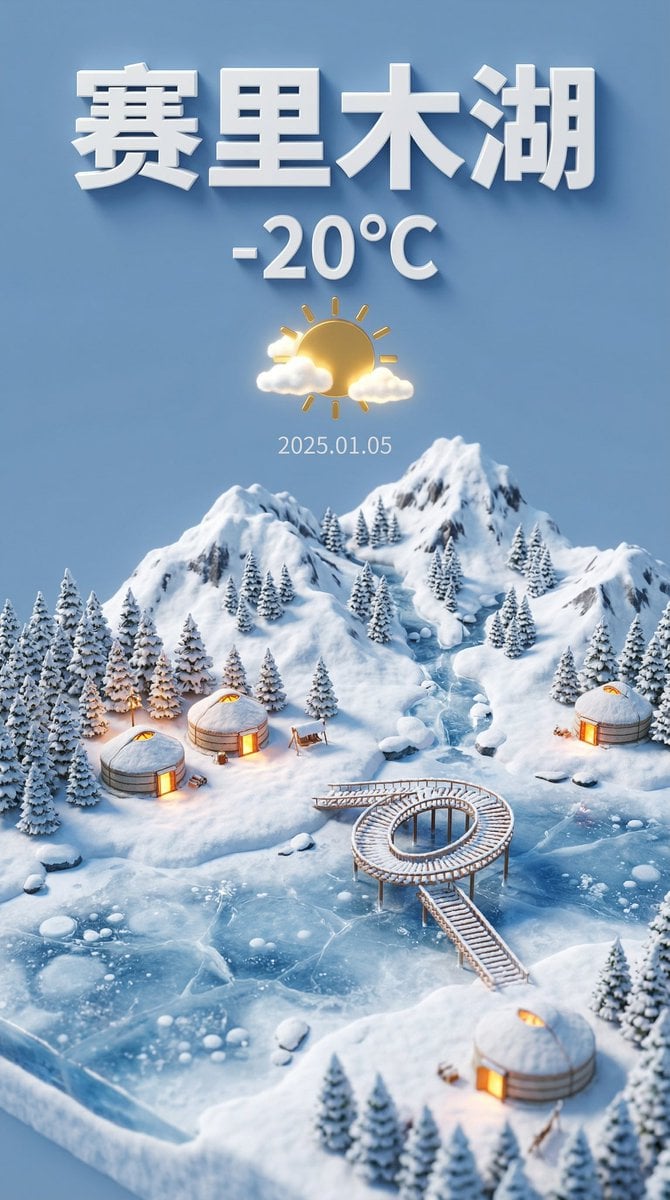
Tilt-Shift Miniature Landscape of Sayram Lake
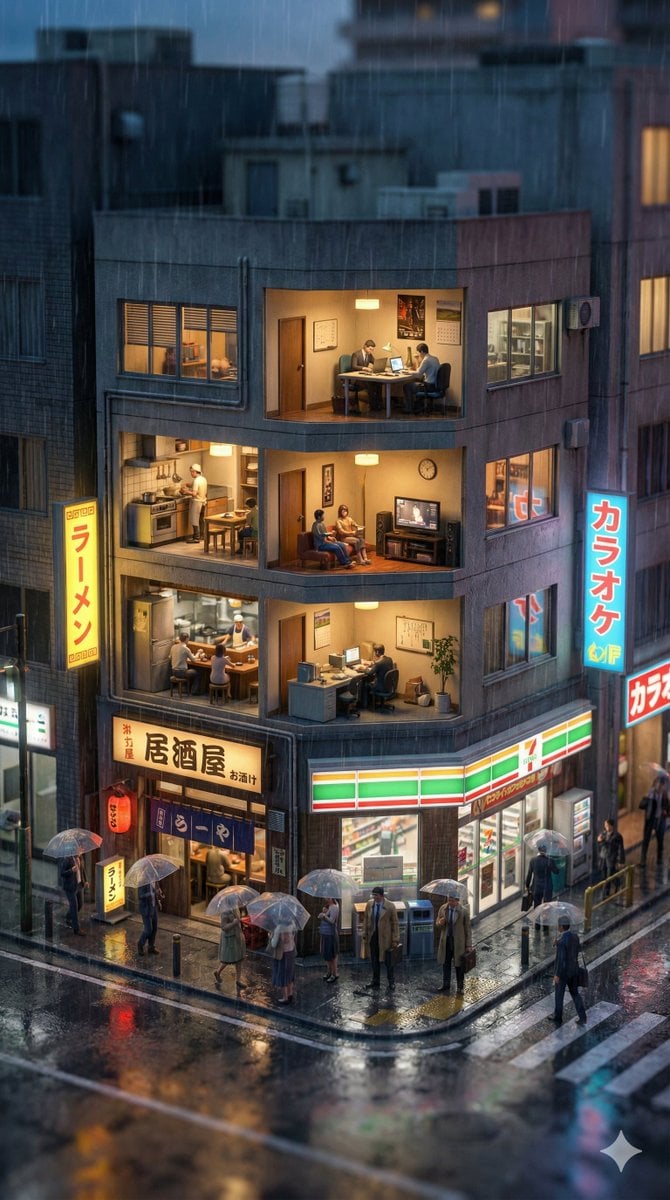
Vertical Tilt-Shift Miniature City Cross-Section
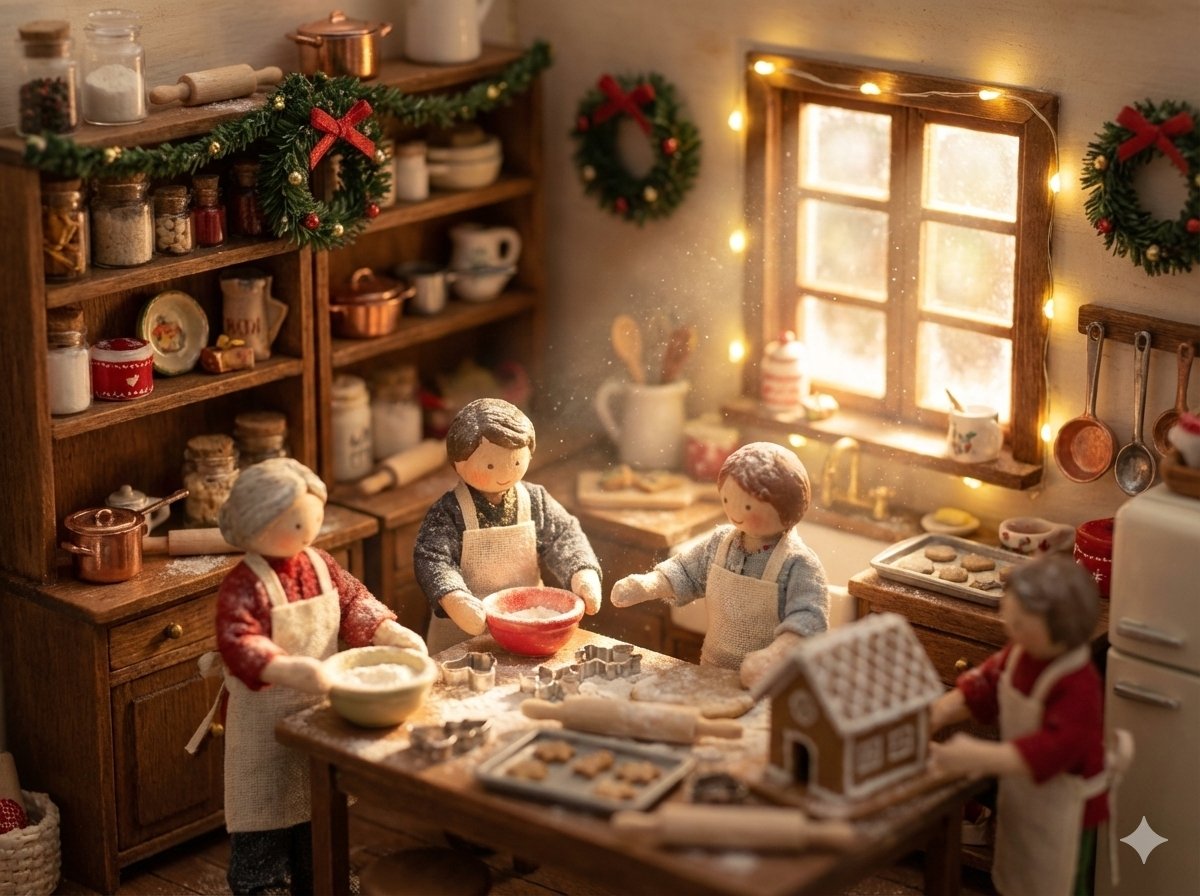
Miniature Diorama Prompt (Tilt-Shift)
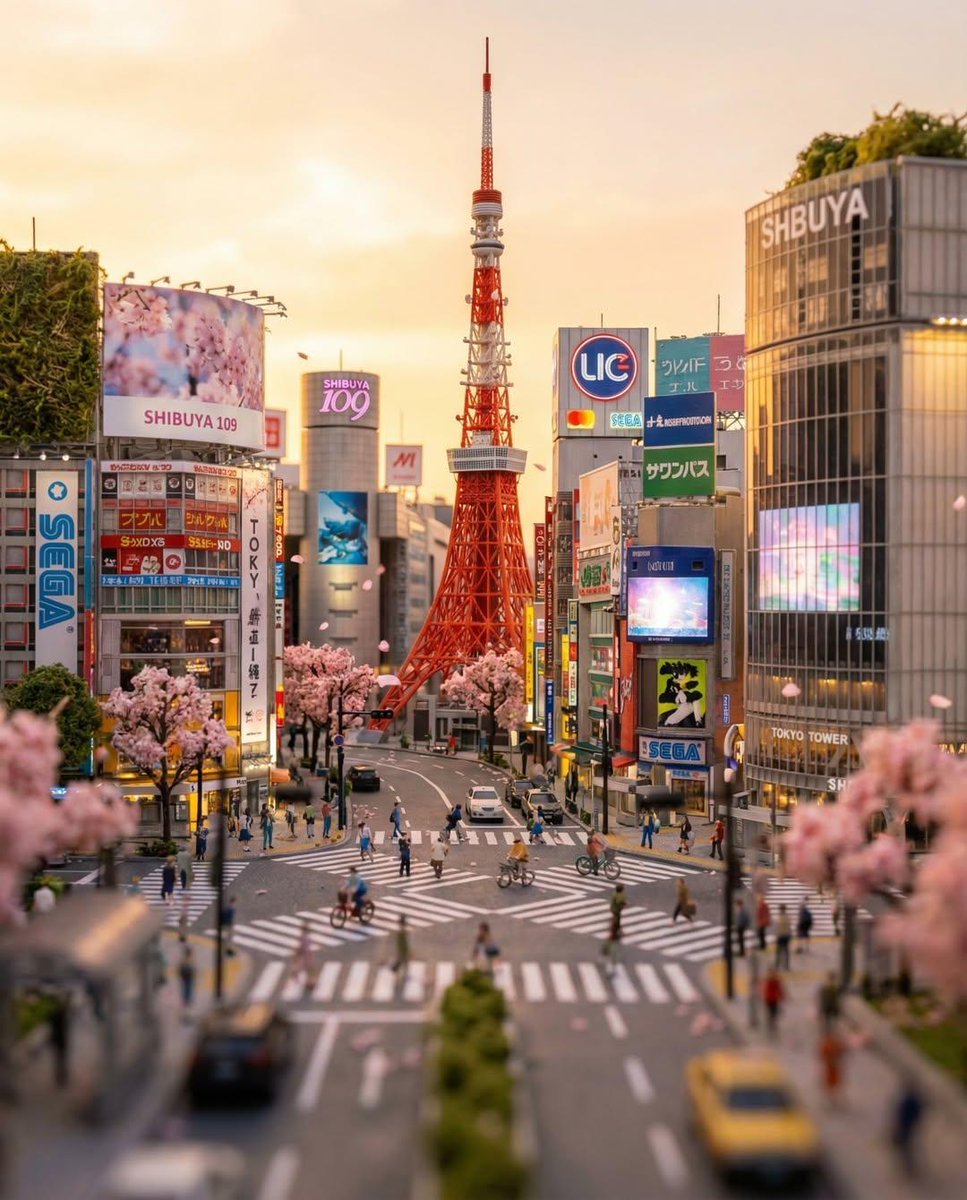
Tilt-Shift Tokyo Diorama at Sunset

Tilt-Shift Diorama Miniature City Prompt (Shanghai)
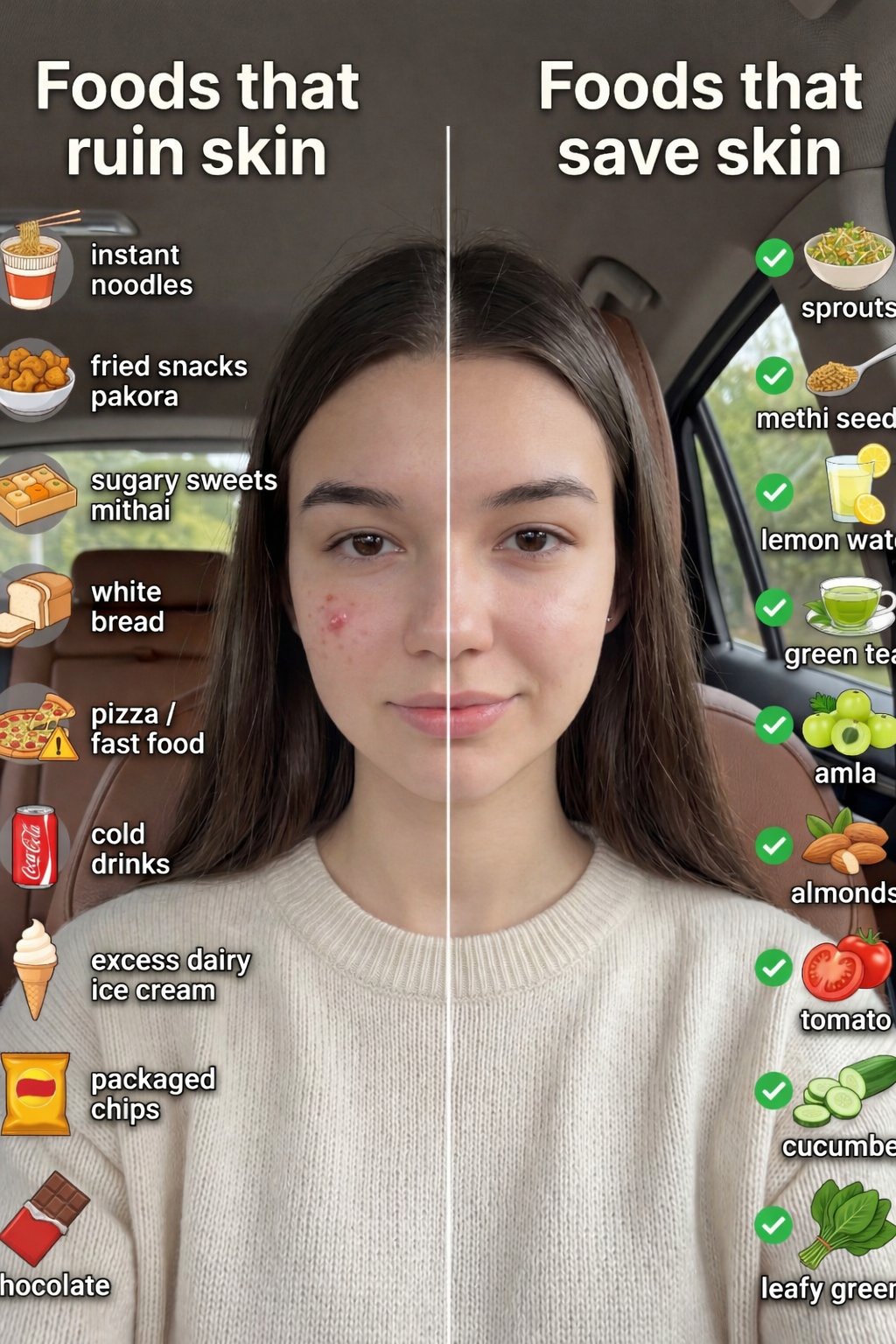
Skin Comparison Portrait — Nano Banana Pro

SD Spawn Sci-Fi Corridor Action Scene
Make it yours
Tilt-Shift Palace Corridor Comparison works as-is. These are the safest ways to change it without losing the look.
Change one field
Copy a single group, rewrite it, and generate again so you can see what that field is doing.
Keep the frame, change the subject
Hold the composition and light of Tilt-Shift Palace Corridor Comparison, then swap wardrobe, props or the person for a new take.
| If the result… | Why | Fix |
|---|---|---|
| The result drifts from the preview | Too many fields changed at once. | Reuse Tilt-Shift Palace Corridor Comparison as-is first, then change one group — subject, light, or setting. |
| The model over-stylizes the scene | The prose prompt leaves finish and camera underspecified. | Add one camera or lighting sentence and stay on GPT Image 2. |
More GPT Image 2 templates
Other prompts made for GPT Image 2.

Six VTuber Japanese Logo Sheet

Realistic Portrait of Woman and Deer

The Vista Modular Condo Poster

2.5D Anime Art Board

Isometric Productivity Desk Scene

New York Double Exposure Poster

Four-Panel AI Landscape Comparison

Japanese Tatami Lifestyle Magazine Cover

NESCAFÉ Coffee Map Poster

Brutalist Cogito Chinese Typography Poster
More image prompts
Fresh picks from across the catalog.

Monochrome Portrait with Neon Rim Light
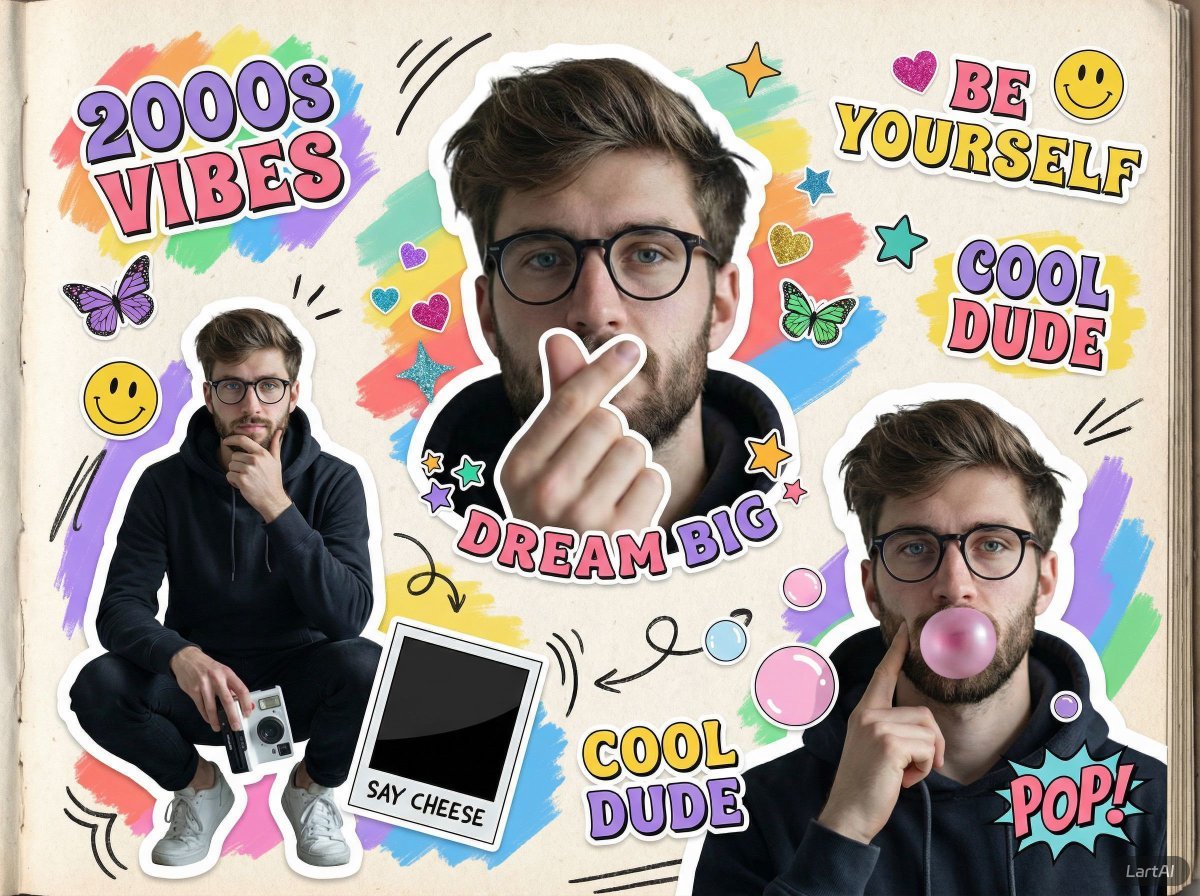
2000s Scrapbook Collage Image Prompt
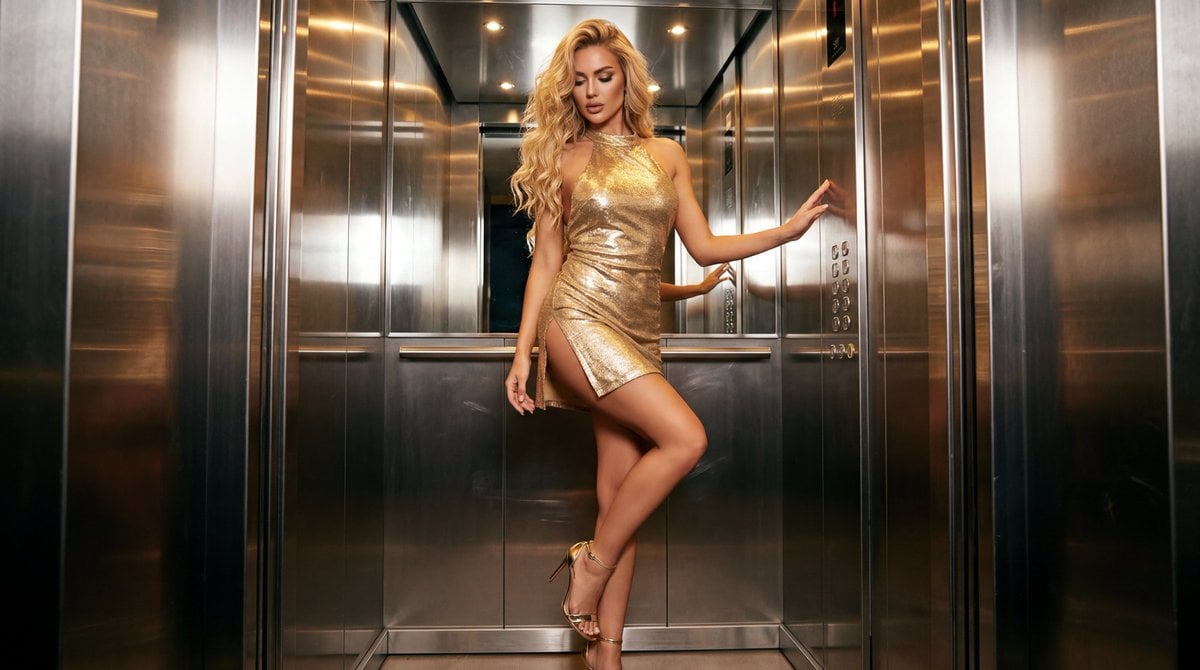
Glamorous Fashion Photoshoot in Steel Elevator

Hyper-realistic Product Photography of Kinder Joy
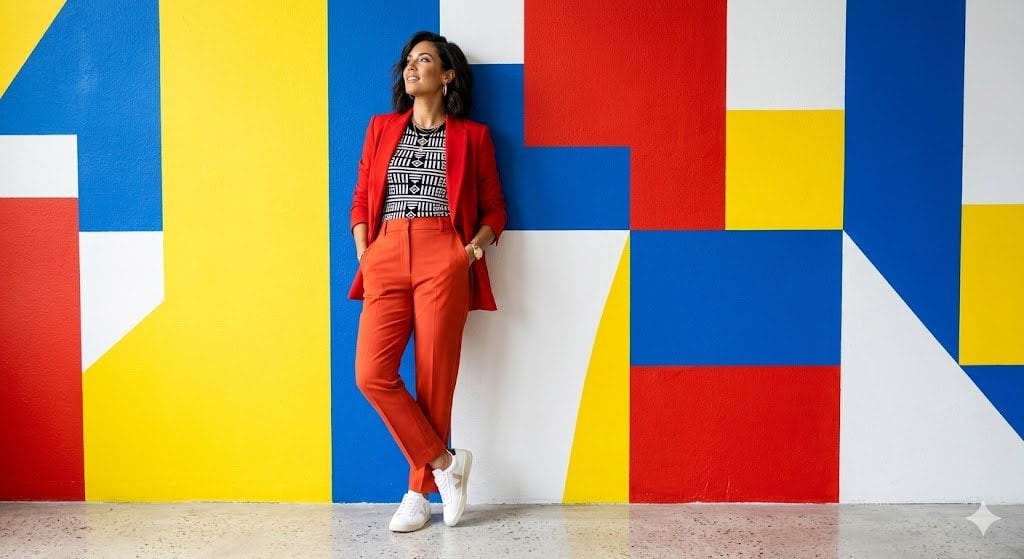
Google Gemini Nano Banana Pro

Amigurumi-style Scissor Man Image Generation Prompt
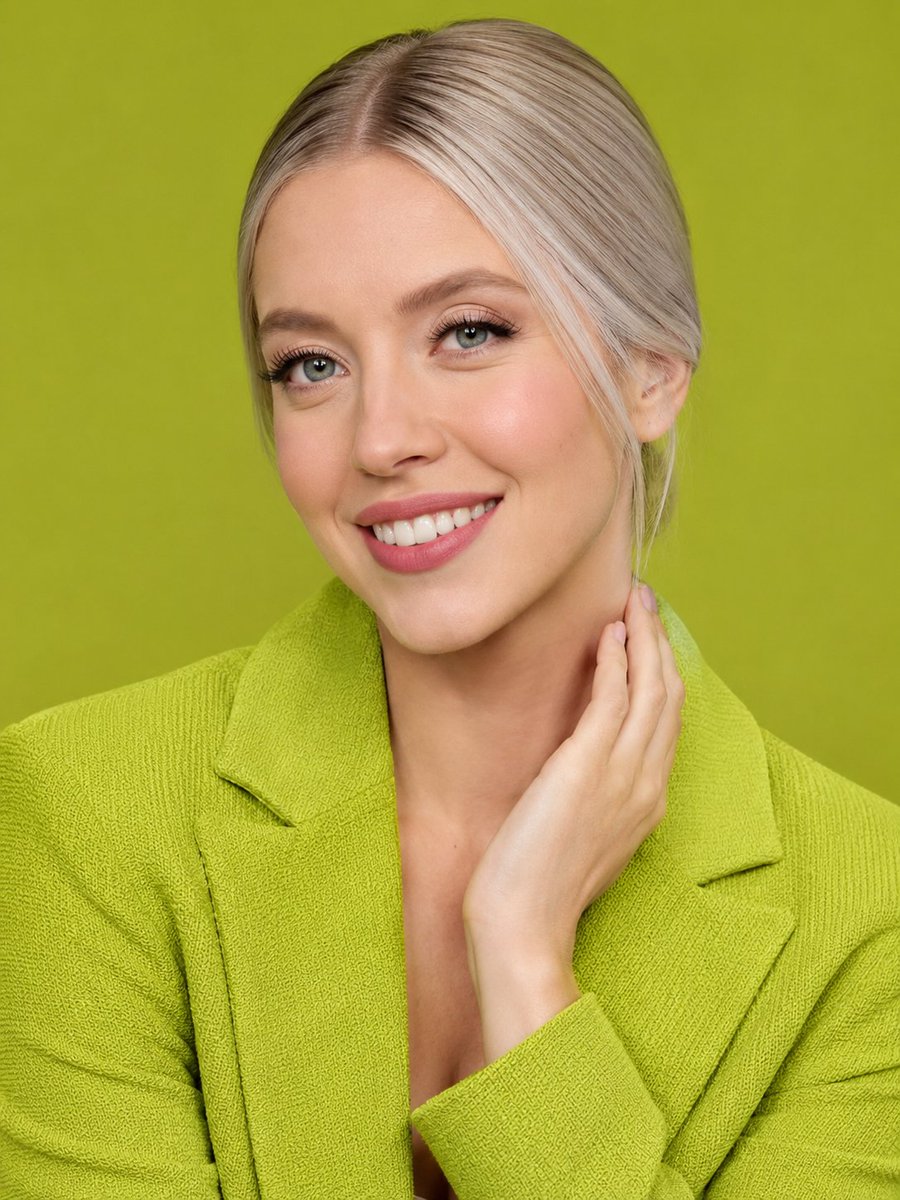
Lime Green Fashion Portrait

Women's Big Sale Fashion Poster

Neon TikTok AI Creator Poster

Character Consistency in Kyoto Setting
Browse template categories
Tilt-Shift Palace Corridor Comparison questions
How do I use the Tilt-Shift Palace Corridor Comparison template?
Add your photo if the template asks for one, edit the prompt if you like — the template's model and format are already selected — and press Generate. Your version opens in PicX Studio.
Can I customize the Tilt-Shift Palace Corridor Comparison template?
Yes. You can change the subject, setting, lighting, mood, format, and available model controls before creating your image.
Is the Tilt-Shift Palace Corridor Comparison template free?
Opening and editing this template is free. Generating uses credits, shown on the Generate button when you are signed in.
Which AI model should I use?
Start with GPT Image 2, which is the model associated with this template. You can compare another compatible model for a different finish.
Looking for something else? Browse all templates.

Your photo, any look
Thousands of ready templates for every top image and video model, from one credit balance.