
Sunny Sky Park Selfie
Generates a realistic outdoor selfie with a raised arm, cloudy blue sky background, and anonymized face for social media sky-selfie concepts.
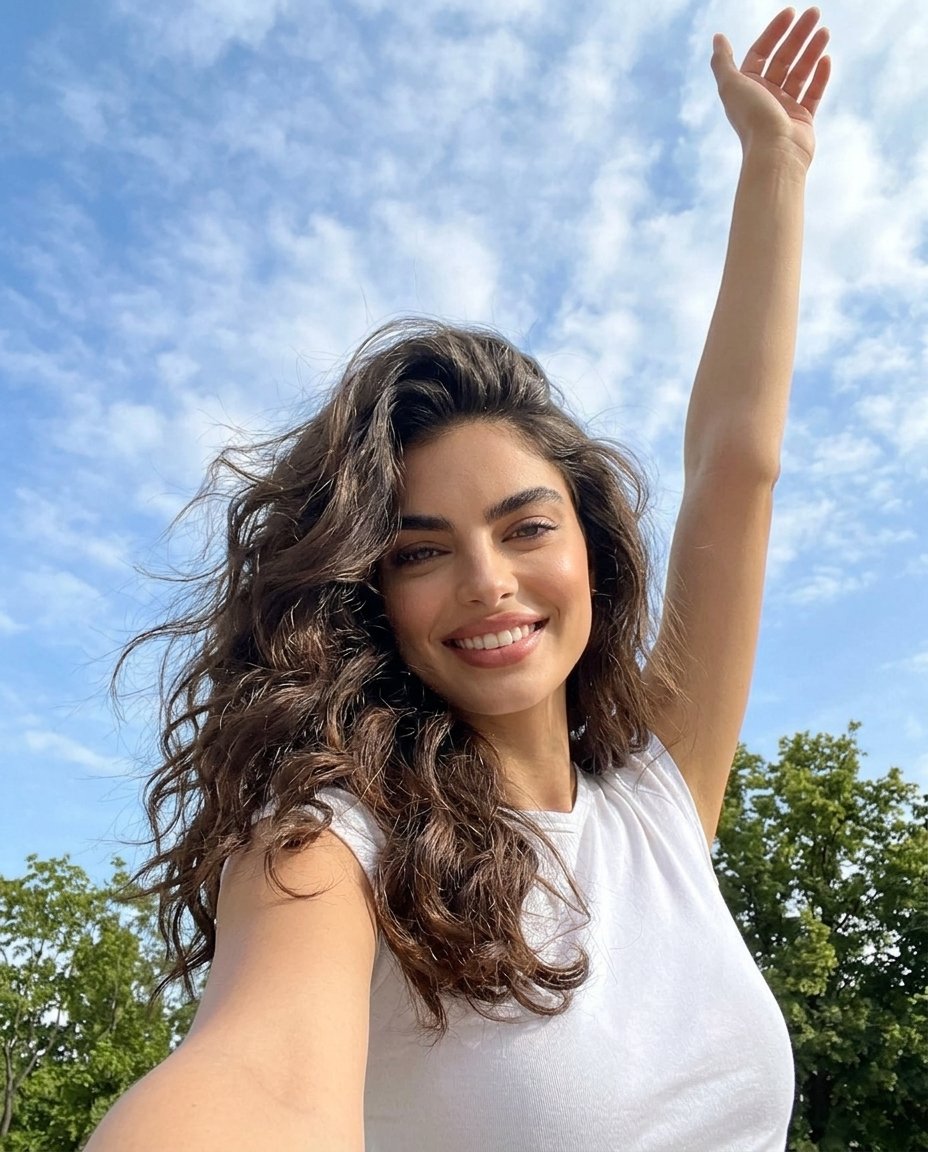
- Prompt included
- Model and format preset
- Free template
The prompt behind this image
Copy the exact prompt behind Sunny Sky Park Selfie, or open it in the studio and make it yours.
Create a photorealistic vertical outdoor selfie of a young woman standing in a sunny park beneath a bright blue sky with scattered soft white clouds. The camera is held low and close at arm’s length, creating a wide-angle smartphone selfie perspective with the left forearm extending toward the bottom left foreground and the upper body filling the lower half of the frame. The woman has {argument name="hair color" default="dark brown"} long, thick, naturally wavy hair blowing slightly in the breeze, wears a plain {argument name="shirt color" default="white"} sleeveless fitted top, and raises one arm high overhead toward the top right corner with an open relaxed hand. Her face is intentionally obscured by a centered square pixel-like privacy block in a medium brown skin-tone gradient, covering the entire facial area while leaving hair, neck, shoulders, and arm visible. Background: green leafy trees along the bottom edge and right side, open sky dominating the upper two thirds. Lighting is natural midday sunlight, crisp but flattering, with realistic skin texture, hair detail, cloud texture, and casual candid energy. No text, no watermark, no extra people, no artificial studio look.
How to use Sunny Sky Park Selfie in 3 steps
- 1Upload ImagePNG, JPG or paste
Add your photo
Upload the photo the template builds on. The prompt, model and format are already set.
- 2…a portrait of your subject in softgolden-hour light, 85mm…
Personalize
Edit the subject and creative details for your destination.
- 3Generate
Generate
Press Generate — your image is created in PicX Studio, so you can compare it with the original and refine one variable at a time.
More like this
Templates with the same subject, style or setup. Open one to see its prompt.
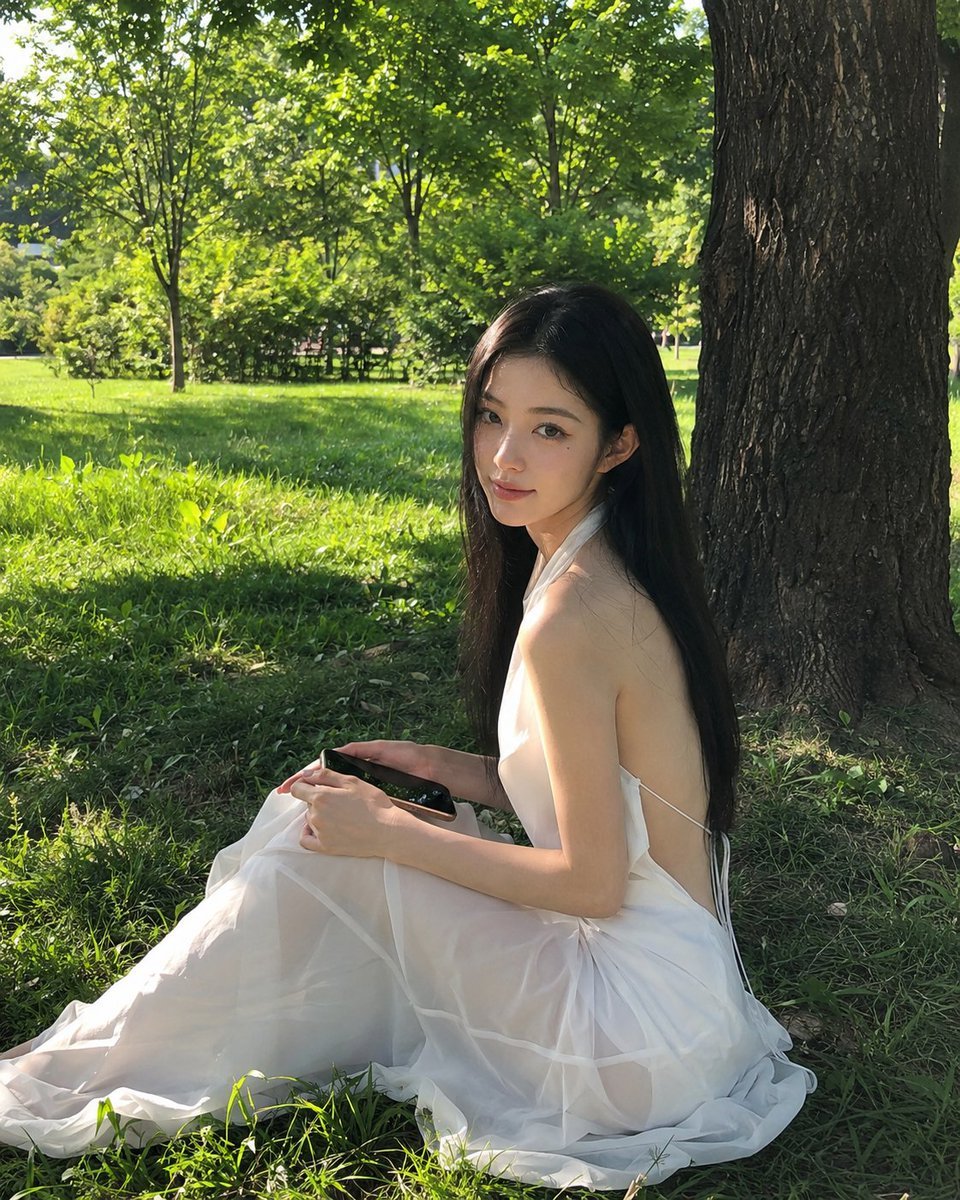
Sunny Park Portrait in White Dress
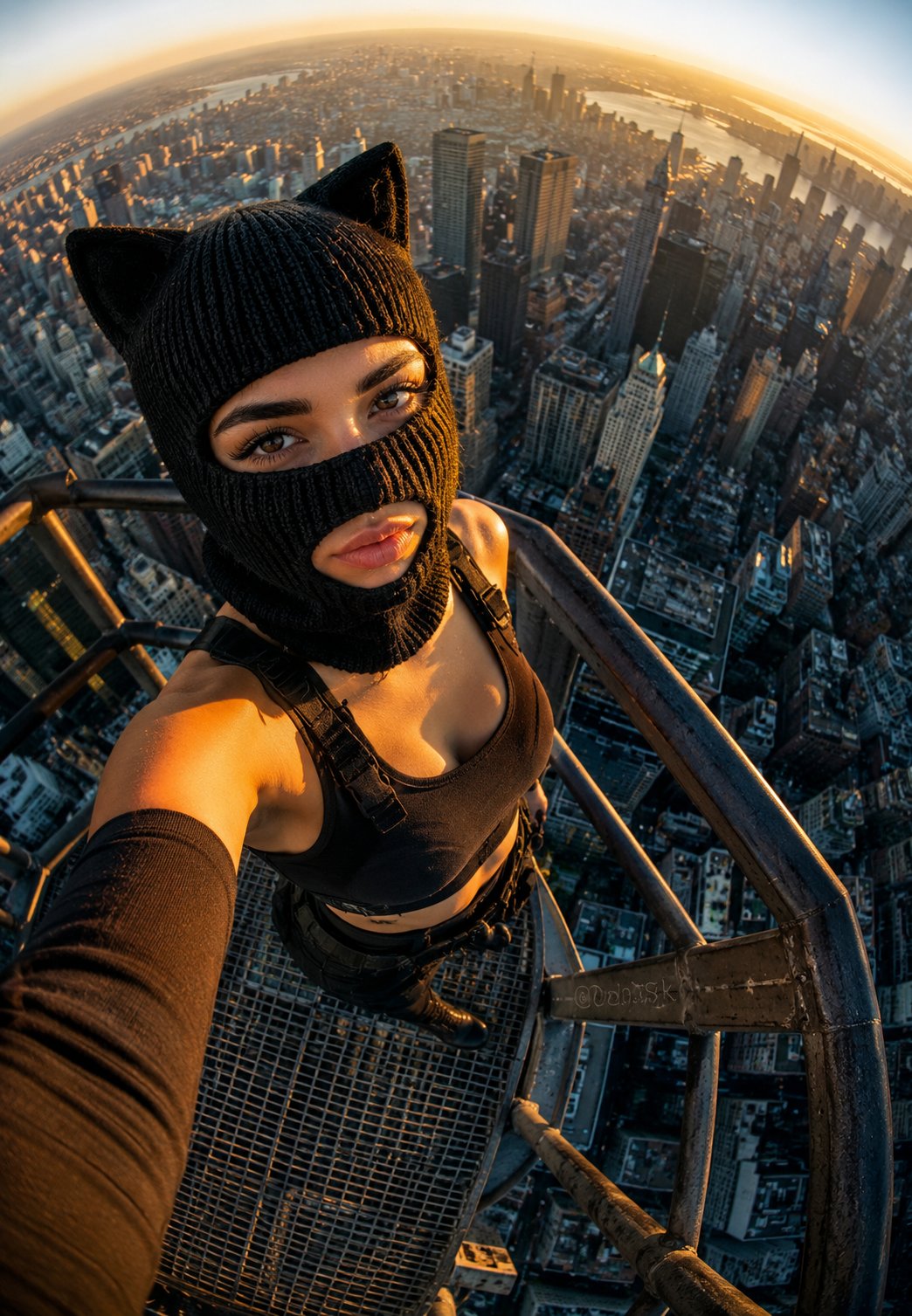
Rooftop Fisheye — Cat-Ear Balaclava at Golden Hour
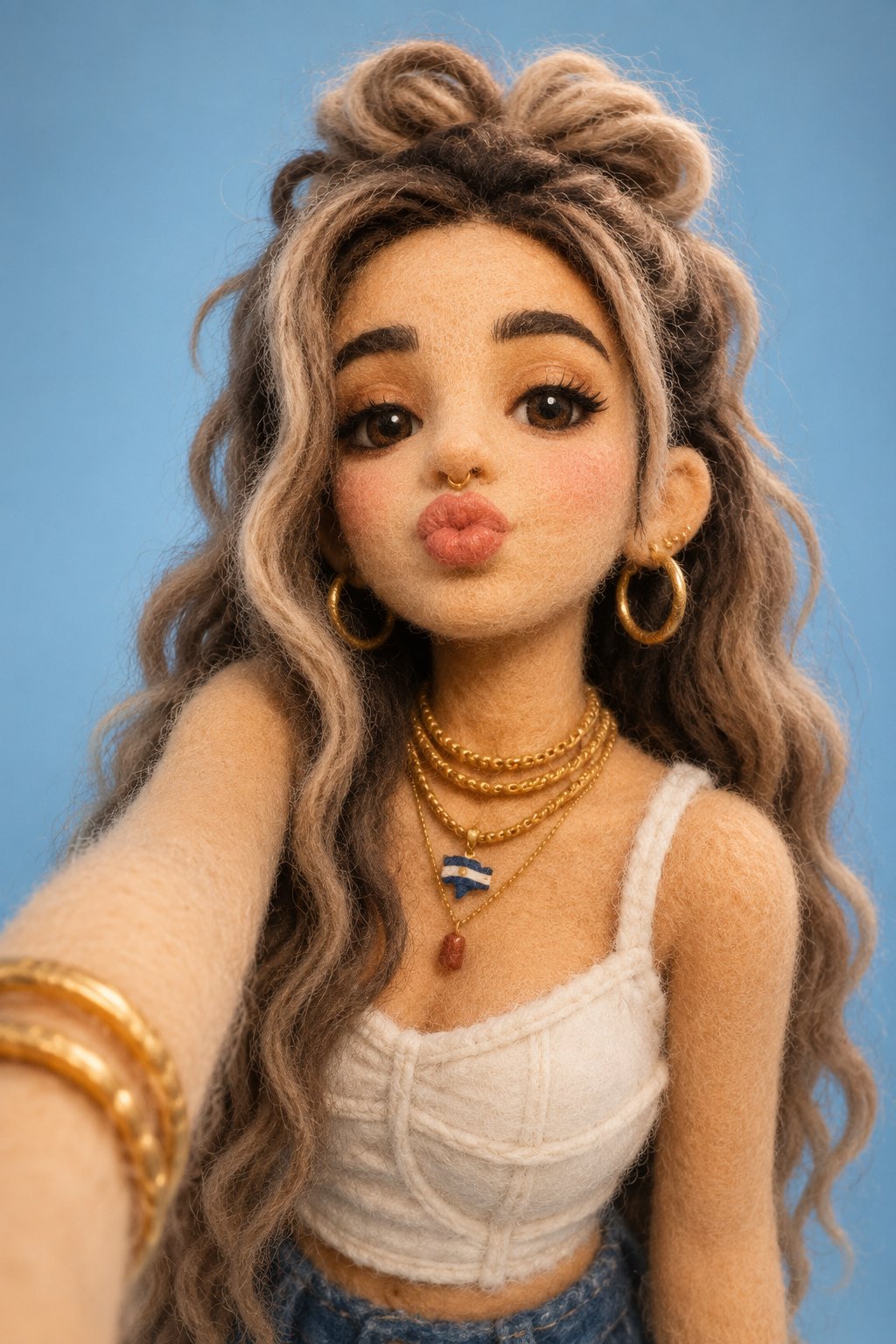
Felt & Knit 3D Character — Photo-Exact Face, Pixar-Quality Plush Figurine
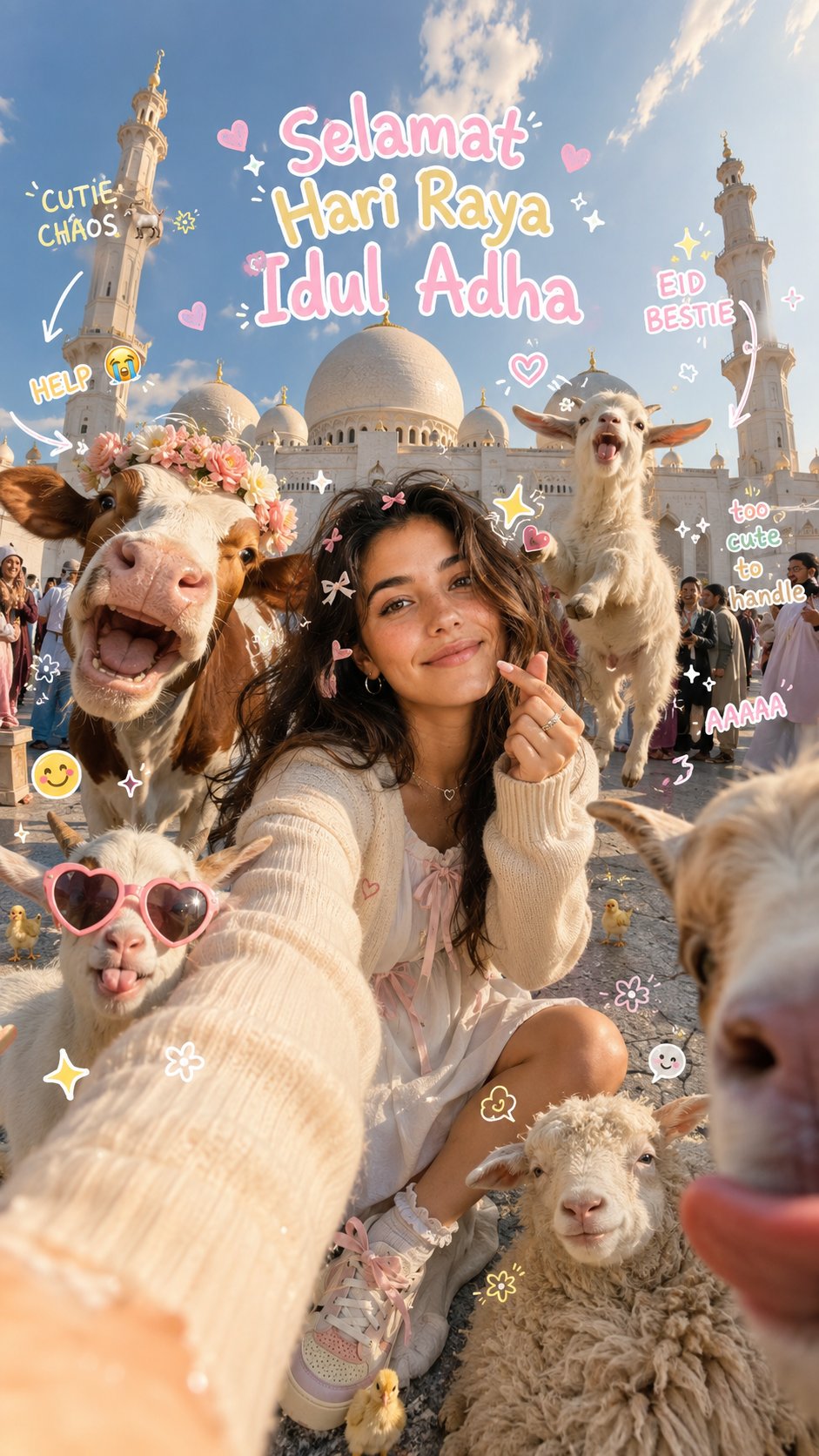
Eid al-Adha Cute Chaos — Fisheye Selfie with Farm Selfie, Mosque & Animals
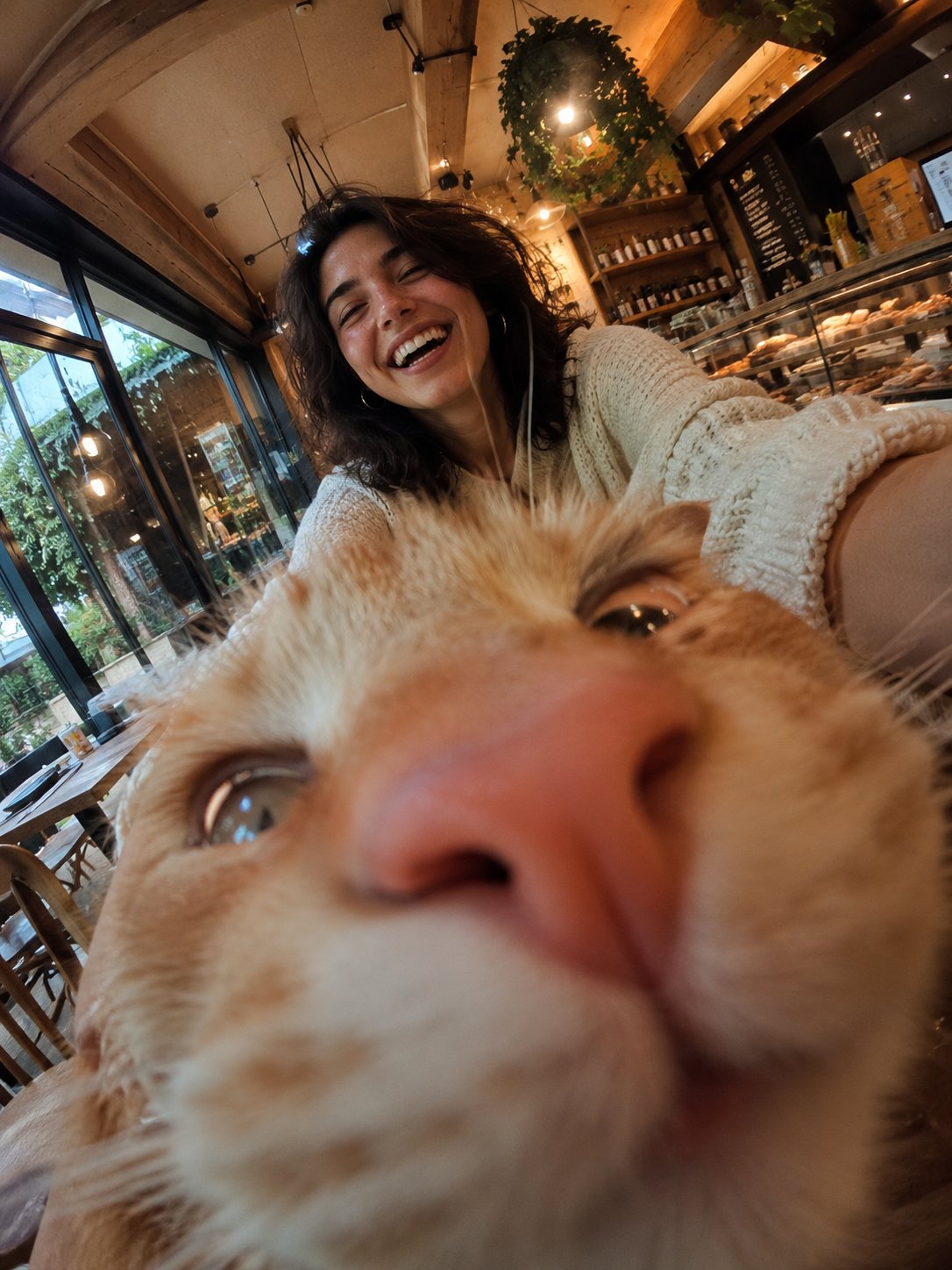
Cat Photobomb Selfie — 0.5x Wide Angle Café Chaos
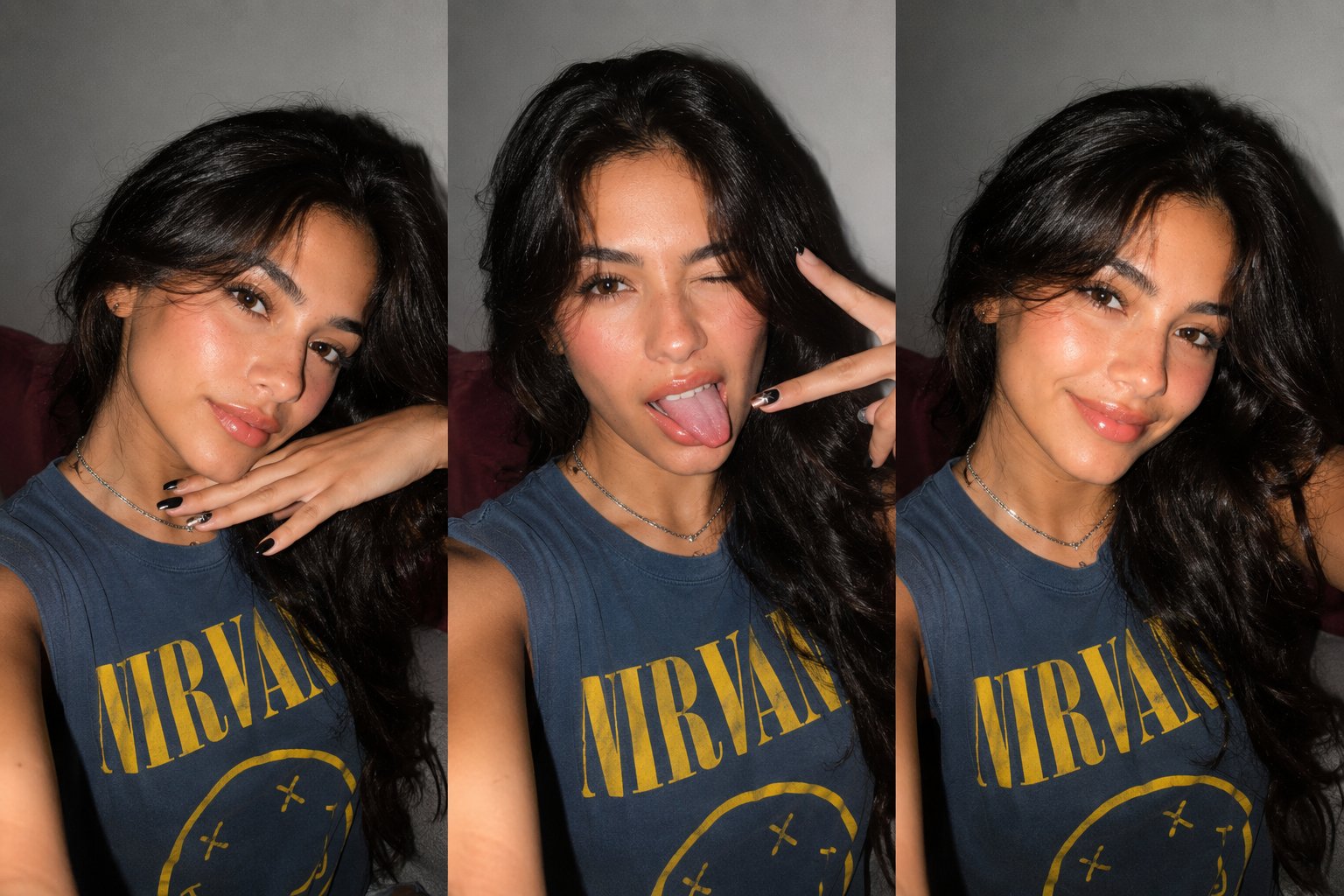
Gen Z Triple Selfie Collage — Y2K Flash Photography
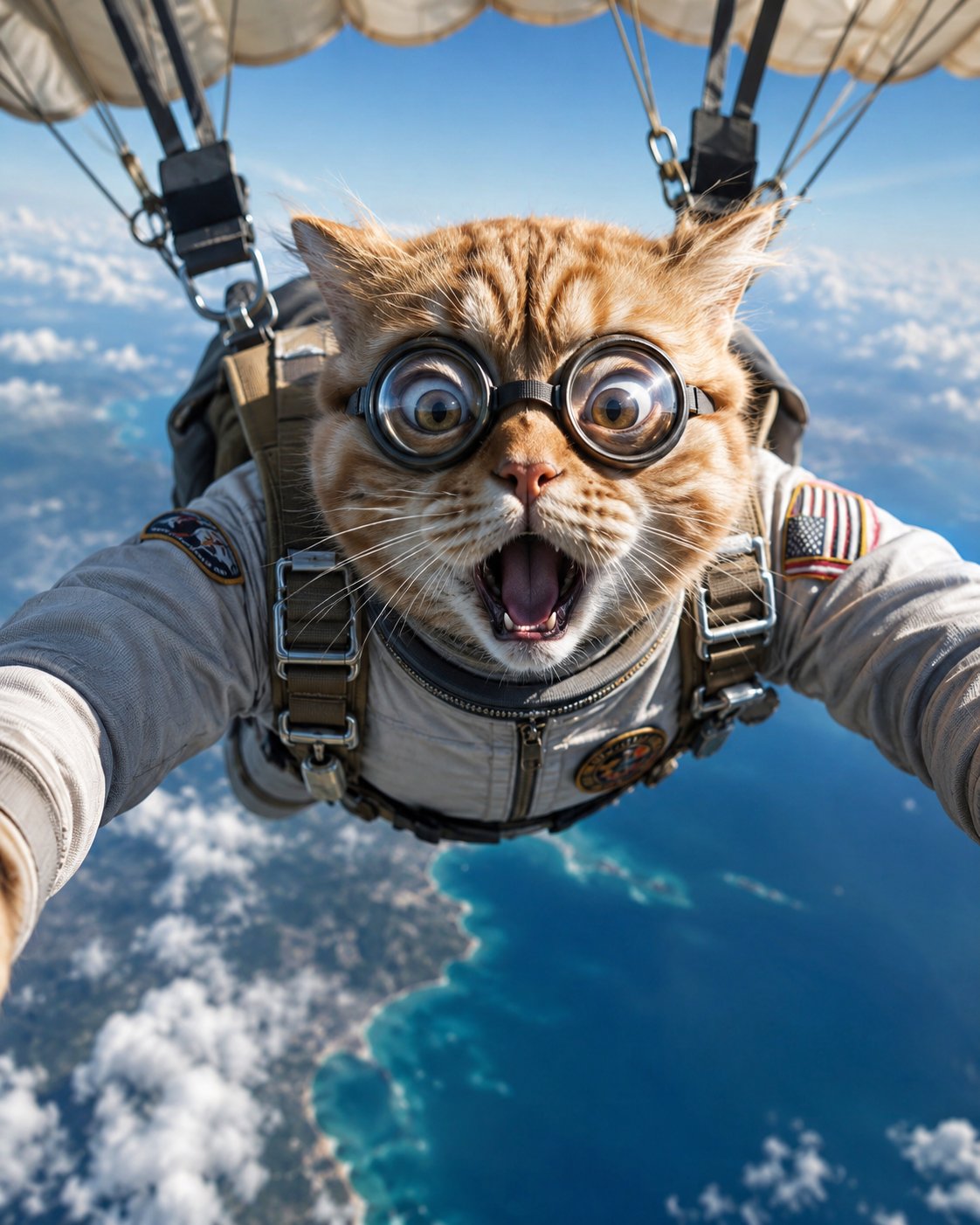
Surreal Cat Astronaut — Humanoid Face Freefall
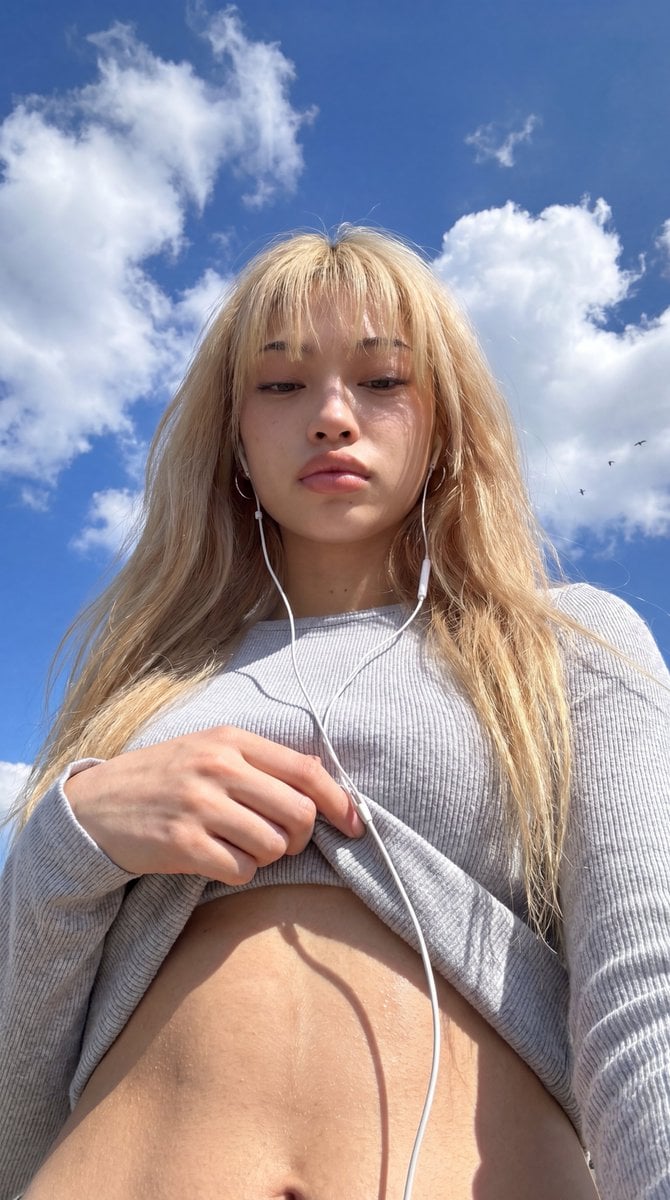
Low-Angle Wide-Sky Smartphone Selfie
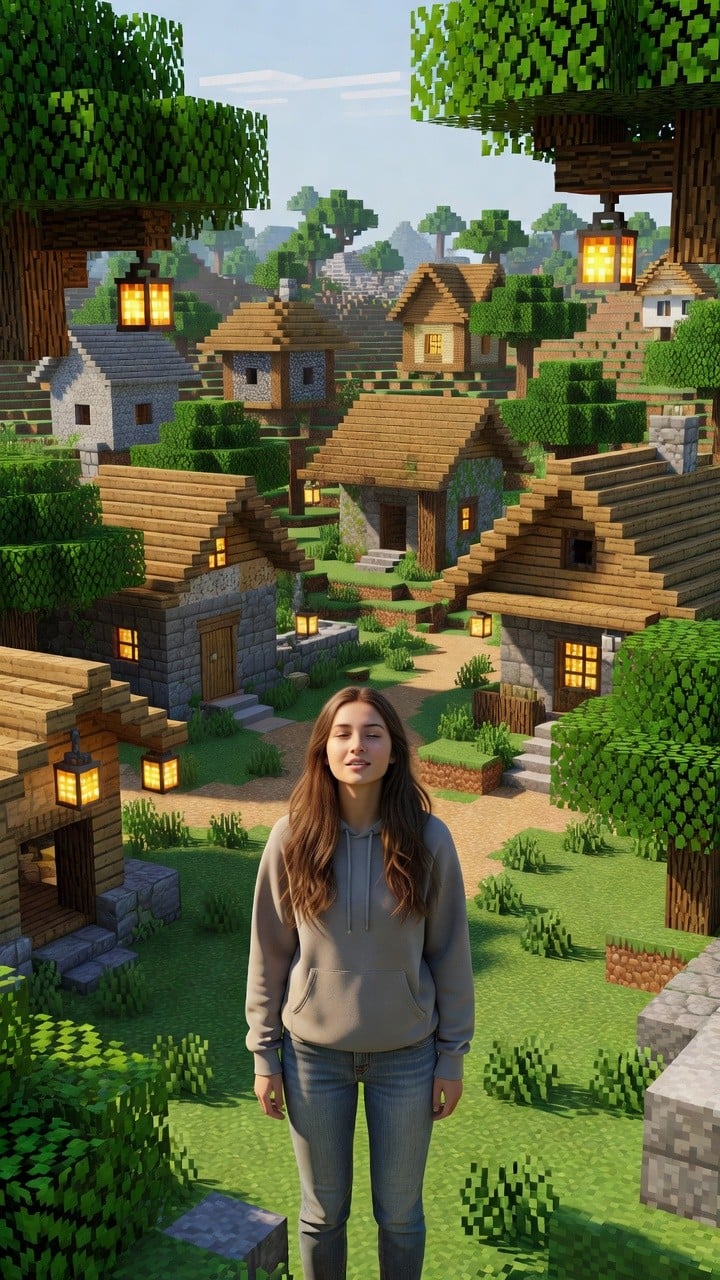
Photoreal Village Lanterns Minecraft Scene
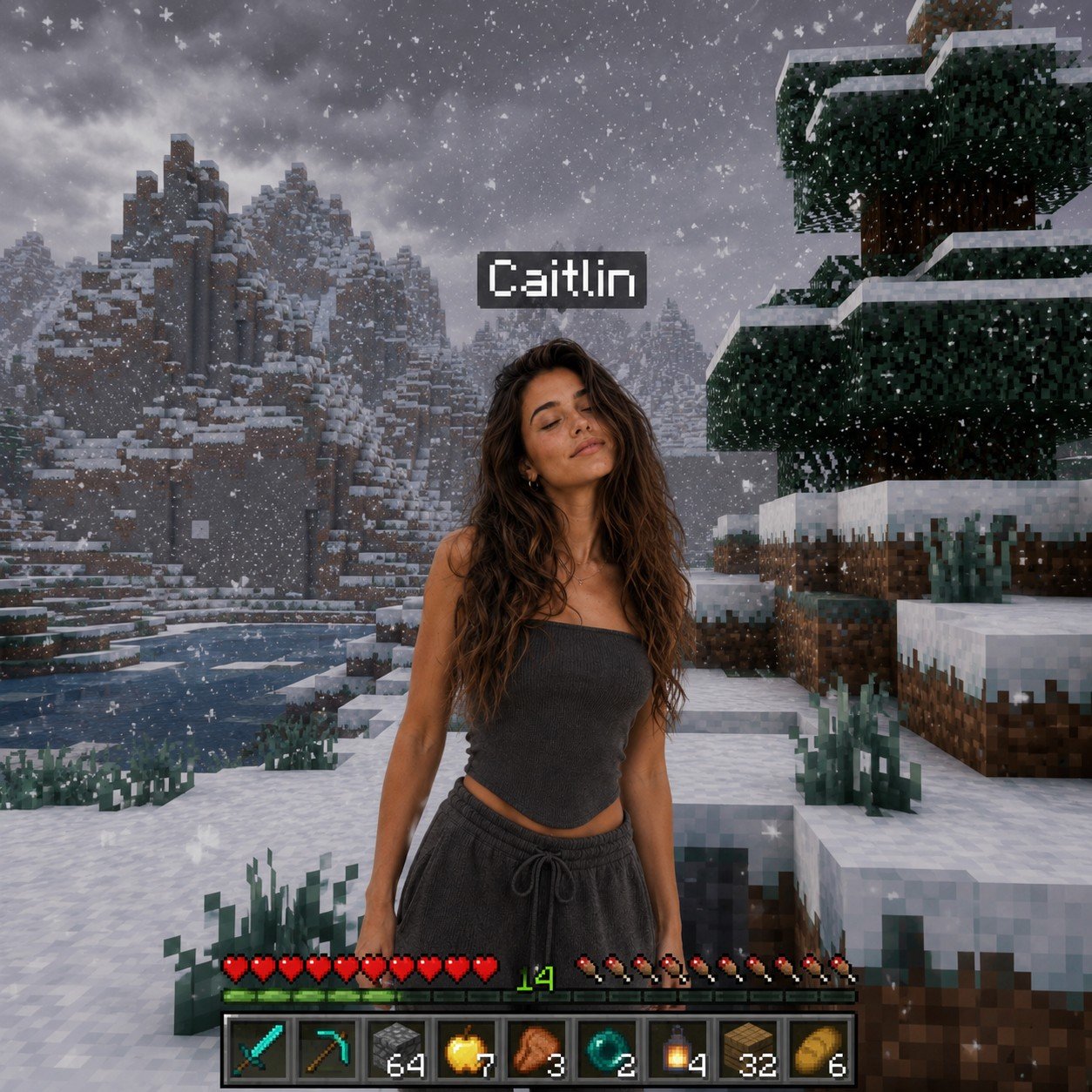
Photoreal Snow Biome Name Tag UI
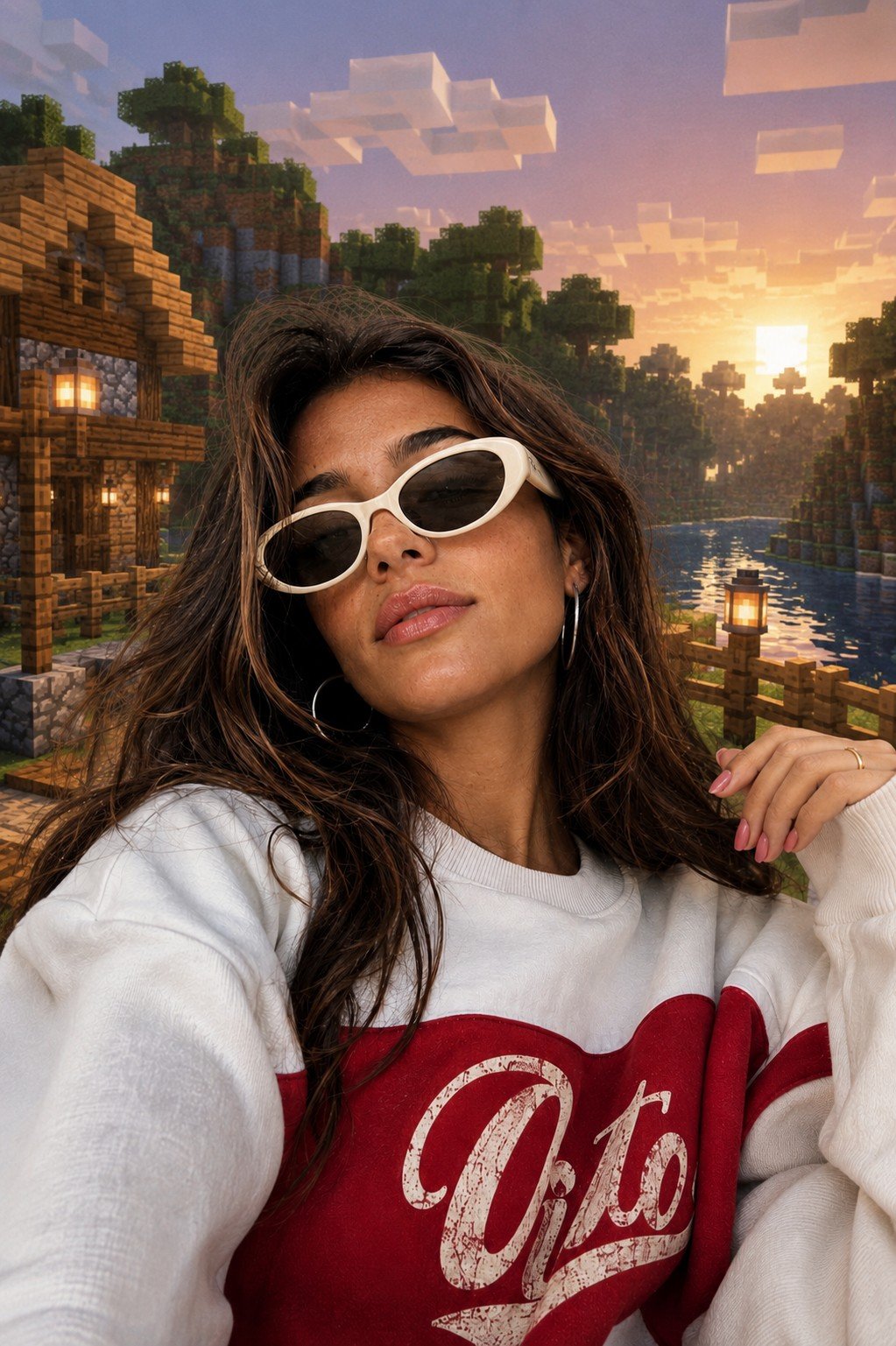
Photoreal Selfie Minecraft Block World
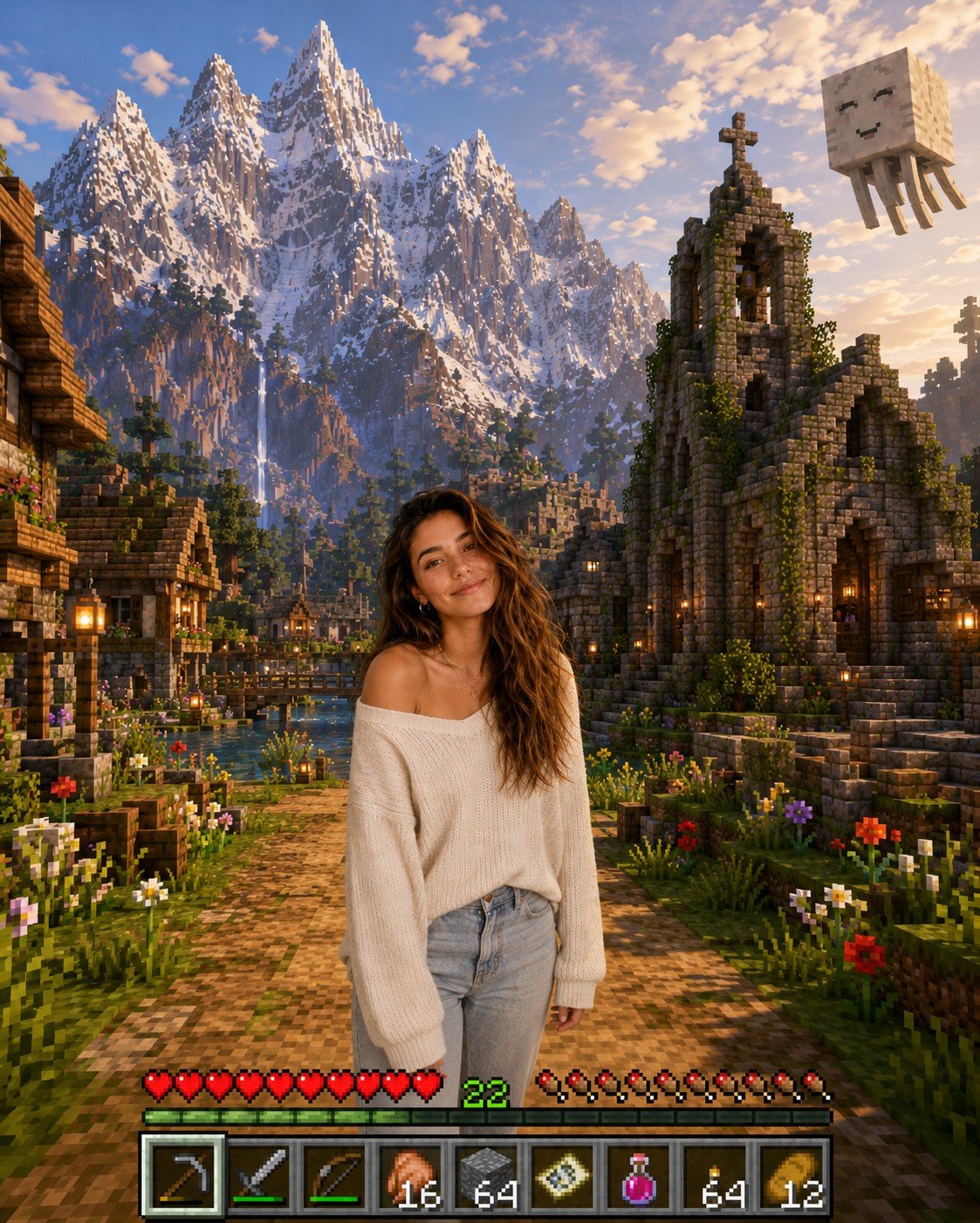
Photoreal Selfie Minecraft Village Ghast UI
Make it yours
Sunny Sky Park Selfie works as-is. These are the safest ways to change it without losing the look.
Change one field
Copy a single group, rewrite it, and generate again so you can see what that field is doing.
Keep the frame, change the subject
Hold the composition and light of Sunny Sky Park Selfie, then swap wardrobe, props or the person for a new take.
| If the result… | Why | Fix |
|---|---|---|
| The result drifts from the preview | Too many fields changed at once. | Reuse Sunny Sky Park Selfie as-is first, then change one group — subject, light, or setting. |
| The model over-stylizes the scene | The prose prompt leaves finish and camera underspecified. | Add one camera or lighting sentence and stay on GPT Image 2. |
More GPT Image 2 templates
Other prompts made for GPT Image 2.

Six VTuber Japanese Logo Sheet

Realistic Portrait of Woman and Deer

The Vista Modular Condo Poster

AI Model Routing Comparison Infographic

2.5D Anime Art Board

Isometric Productivity Desk Scene

New York Double Exposure Poster

Four-Panel AI Landscape Comparison

Japanese Tatami Lifestyle Magazine Cover

NESCAFÉ Coffee Map Poster
More image prompts
Fresh picks from across the catalog.
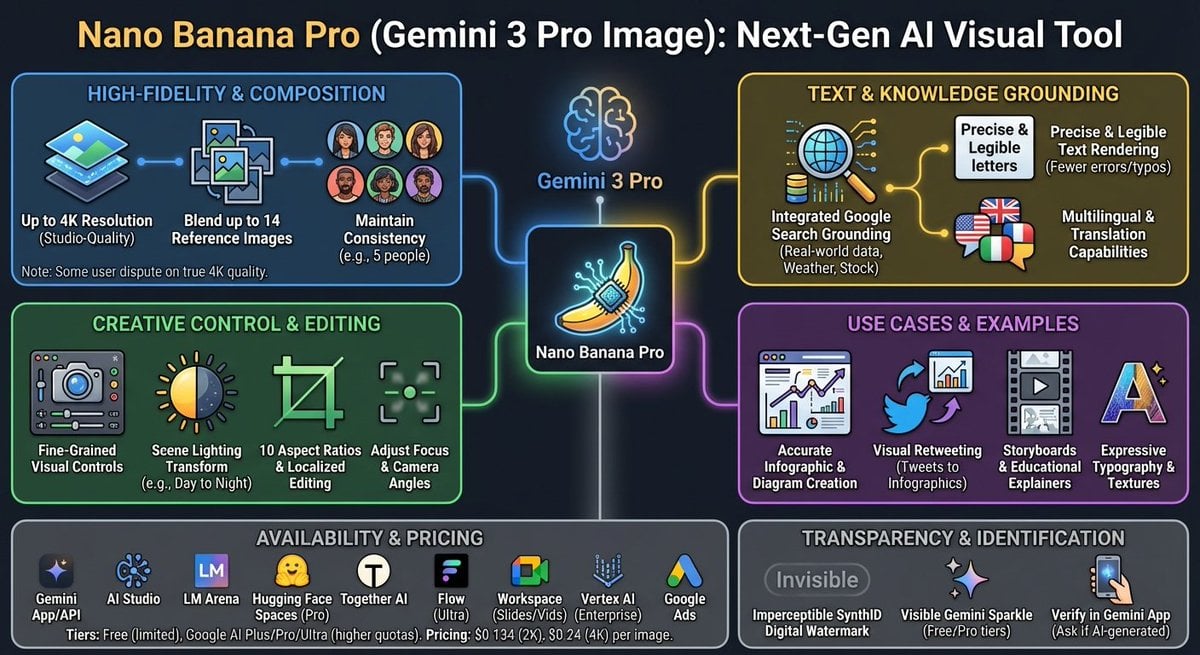
Nano Banana Pro Tesla FSD infographic
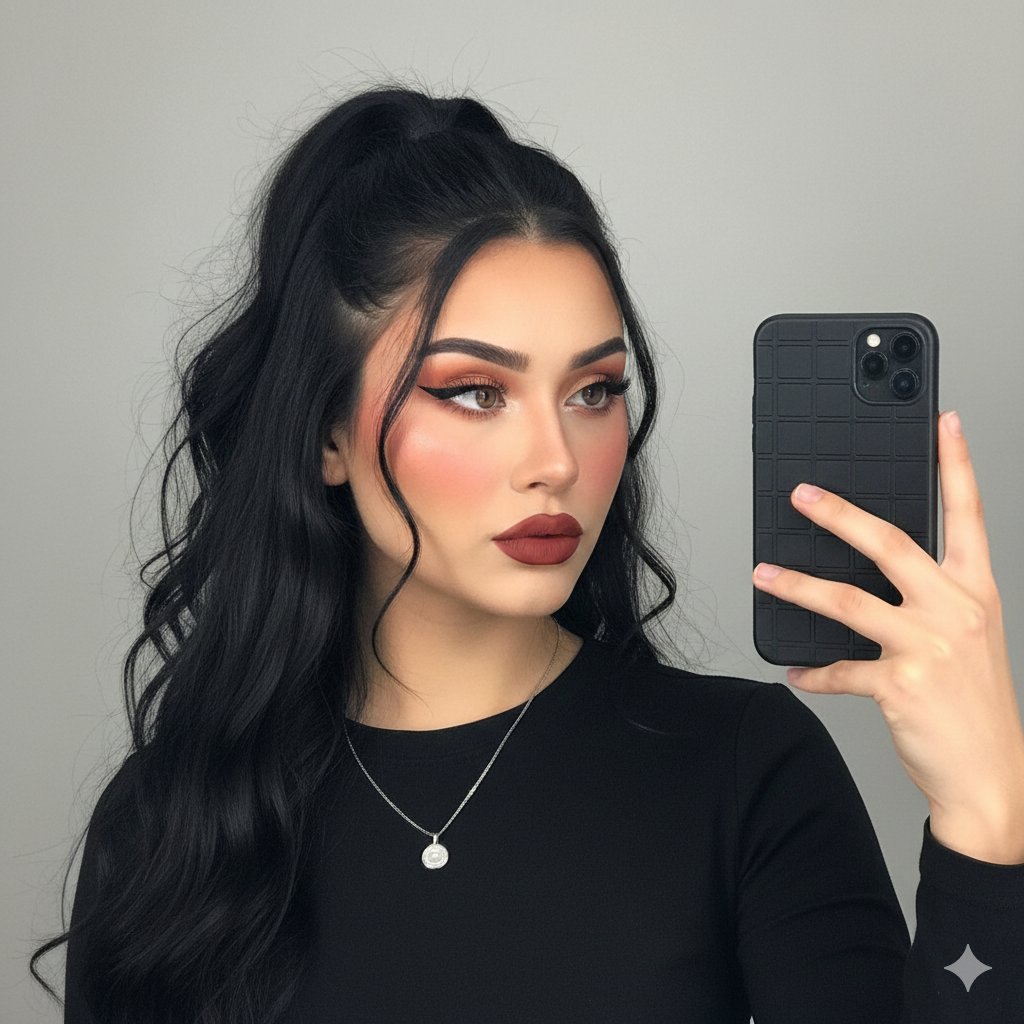
Modern Glam Mirror Selfie Portrait
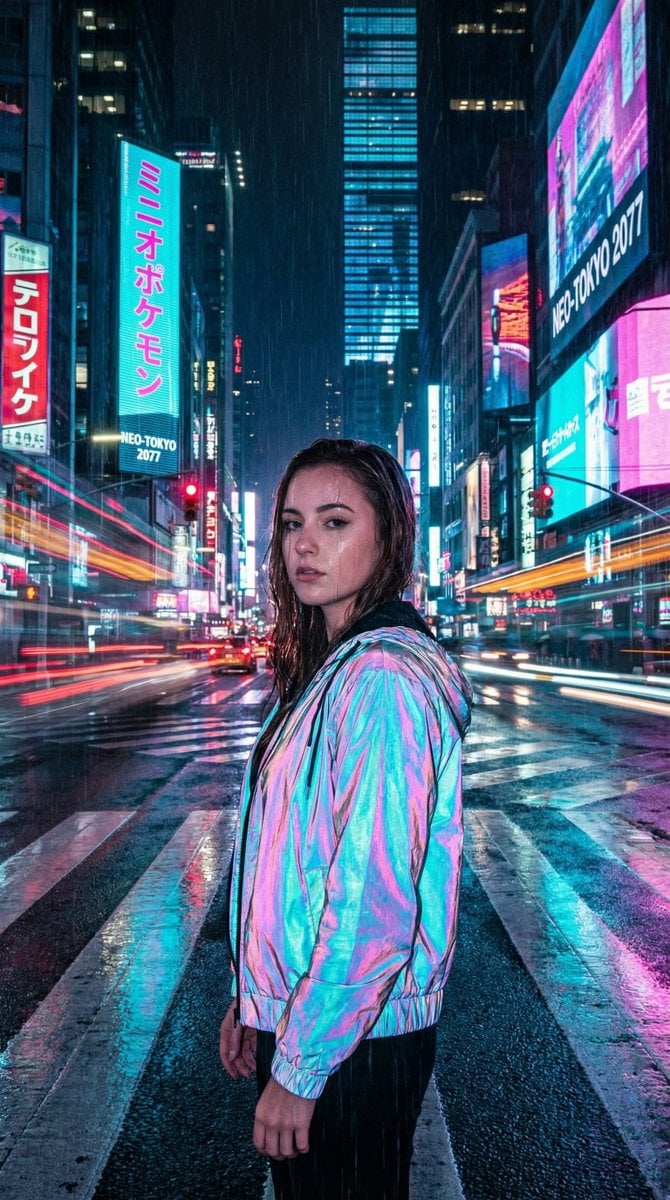
Cyberpunk City Night Scene
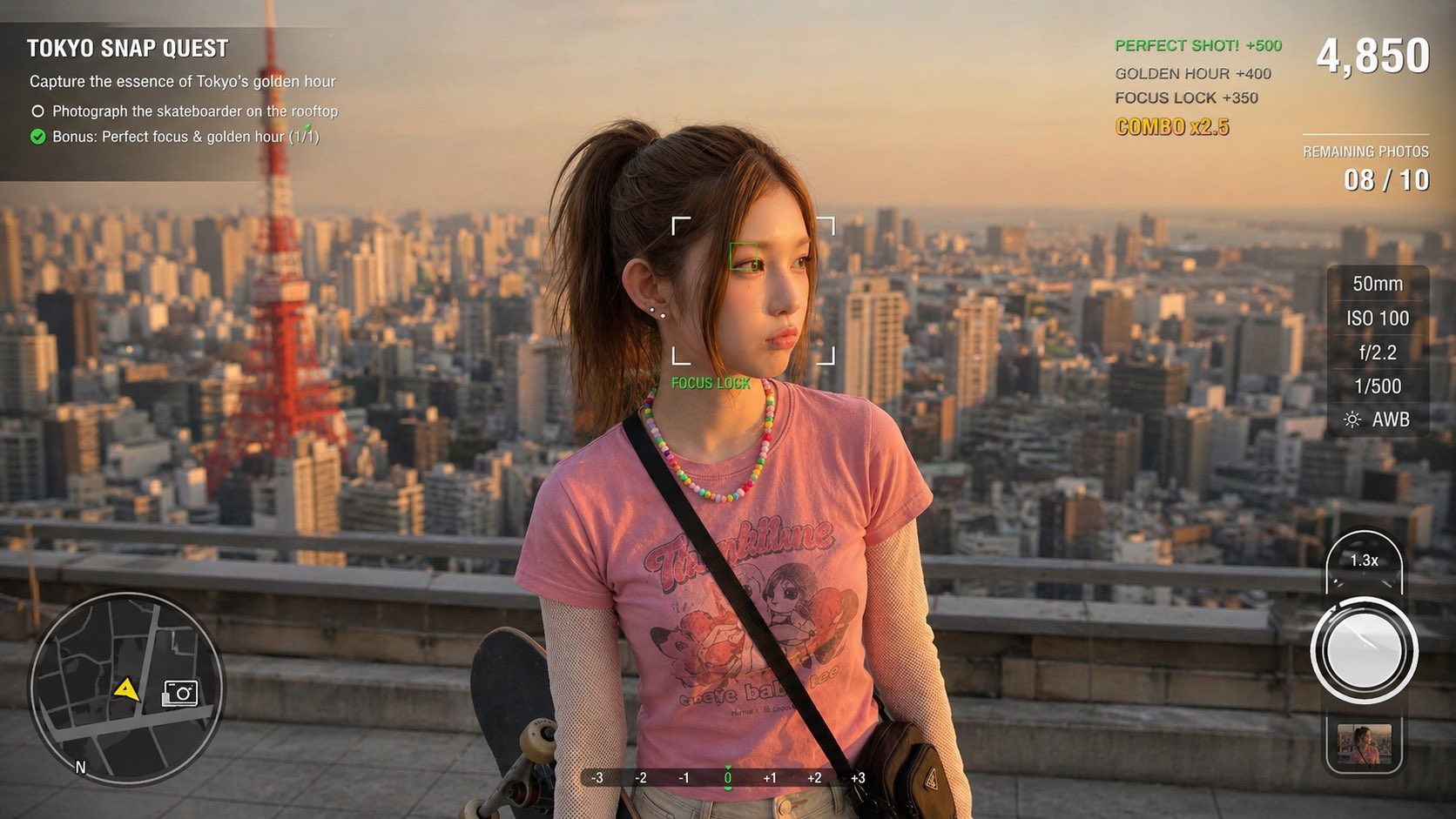
Photography Game Cinematic Capture
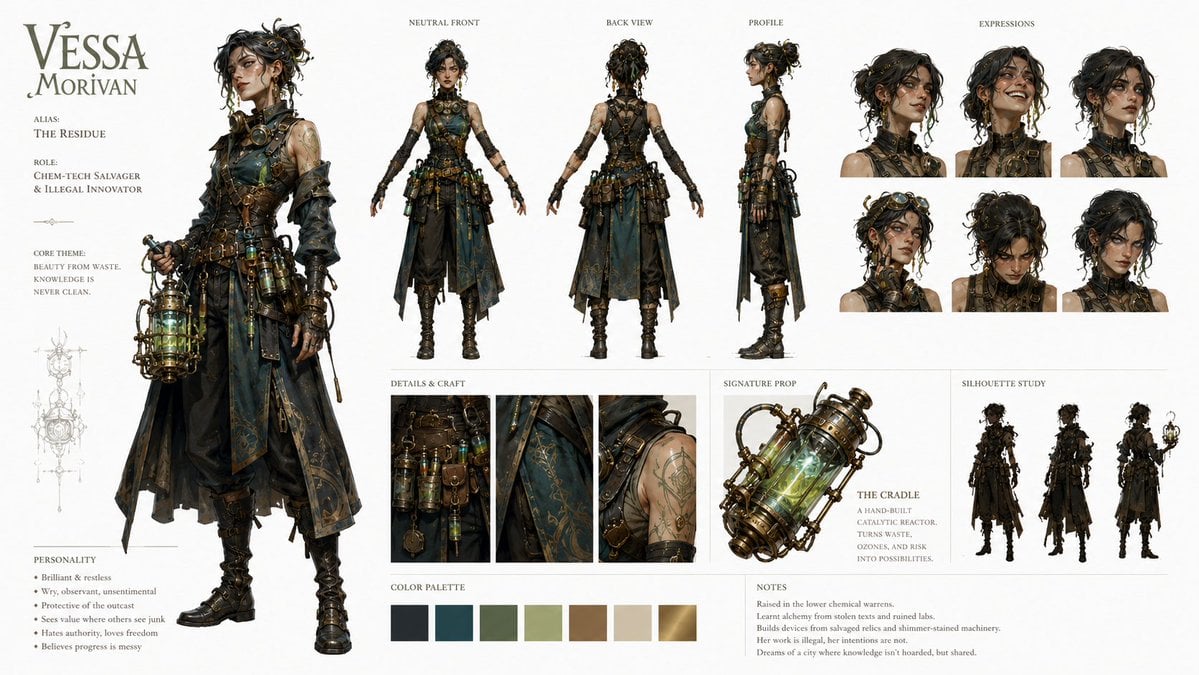
Character Identity Board Template
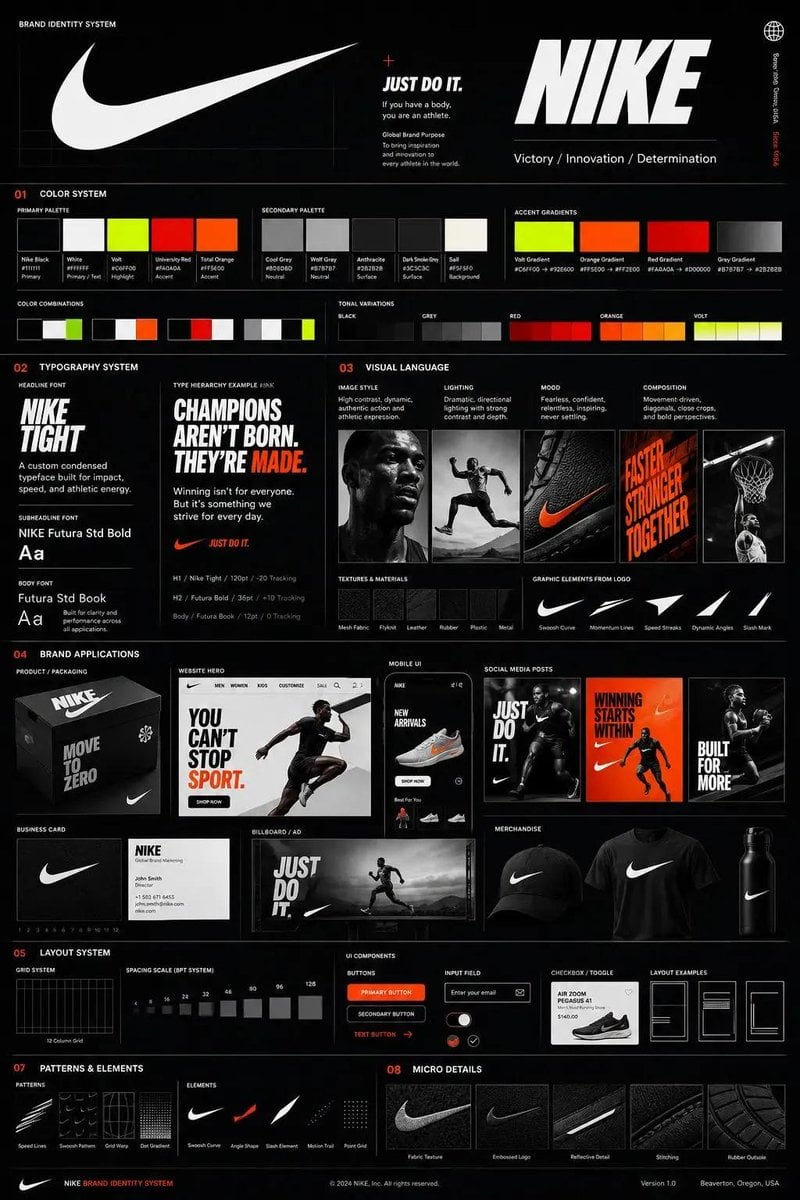
Agency Grade Brand Identity Poster
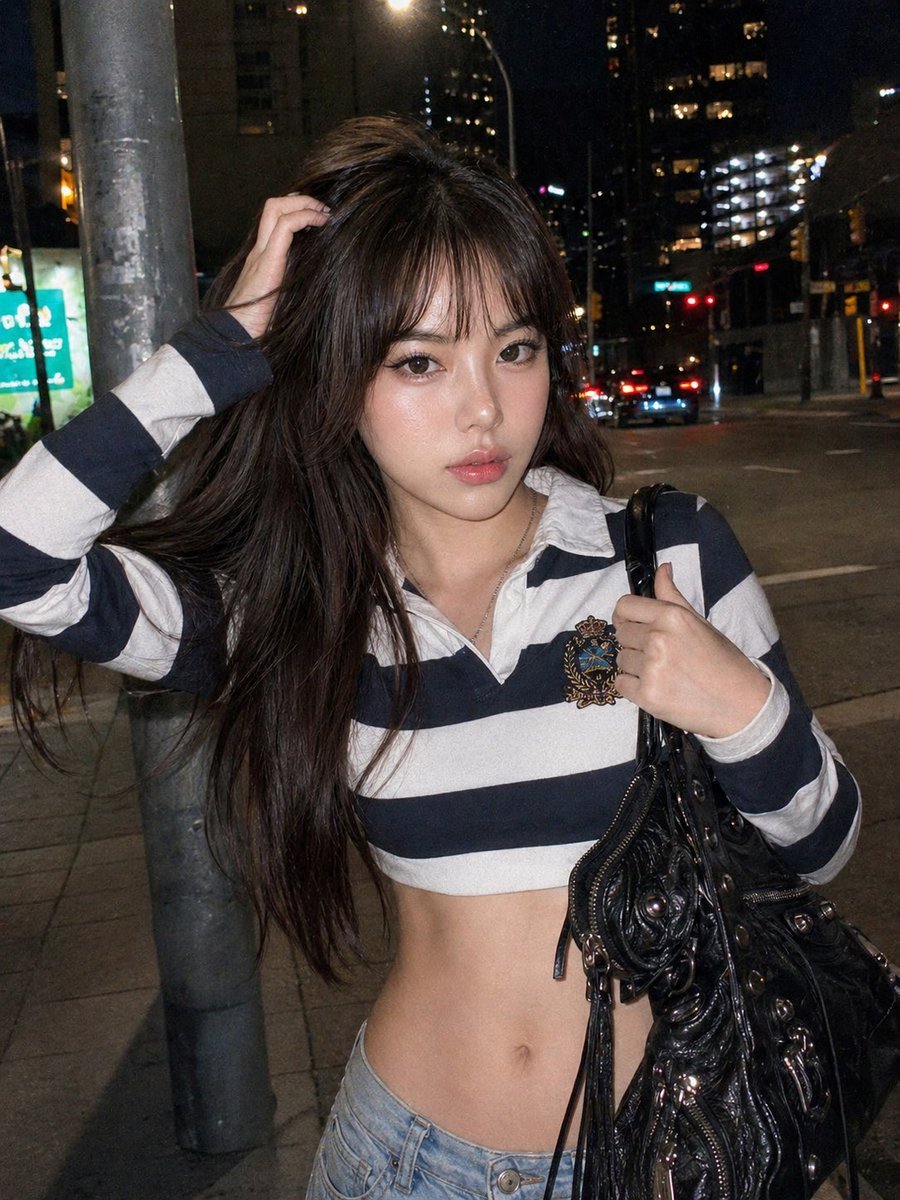
Y2K Urban Twilight Portrait
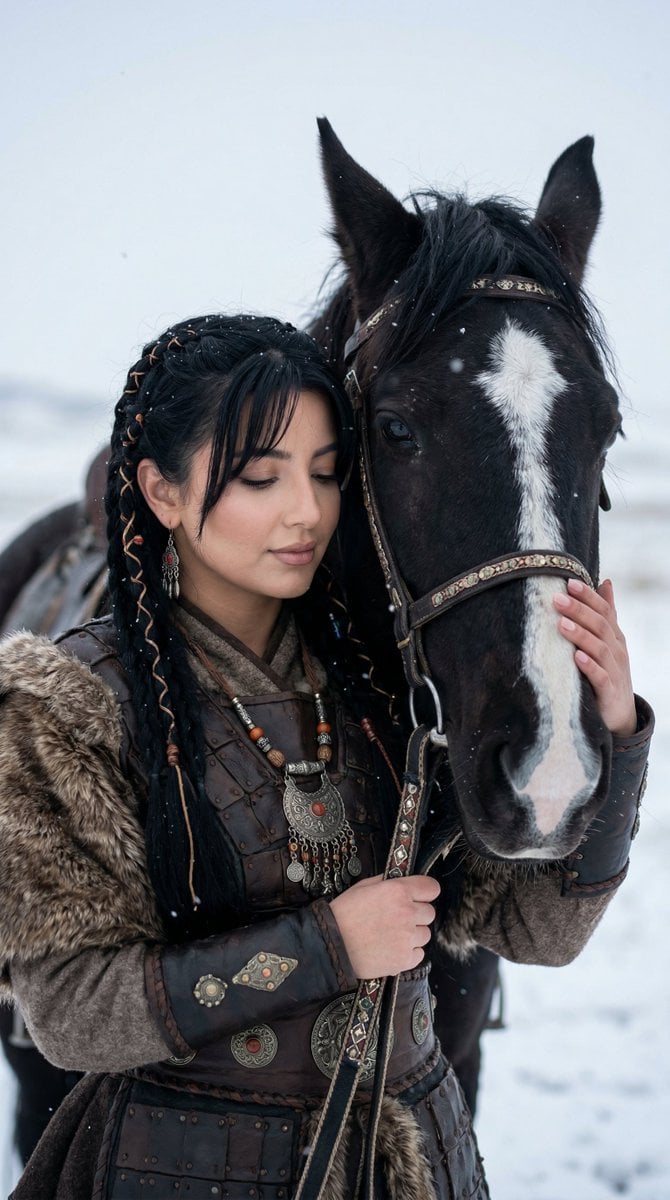
Cinematic Portrait of Ancient Turkic Woman and Horse in Snow
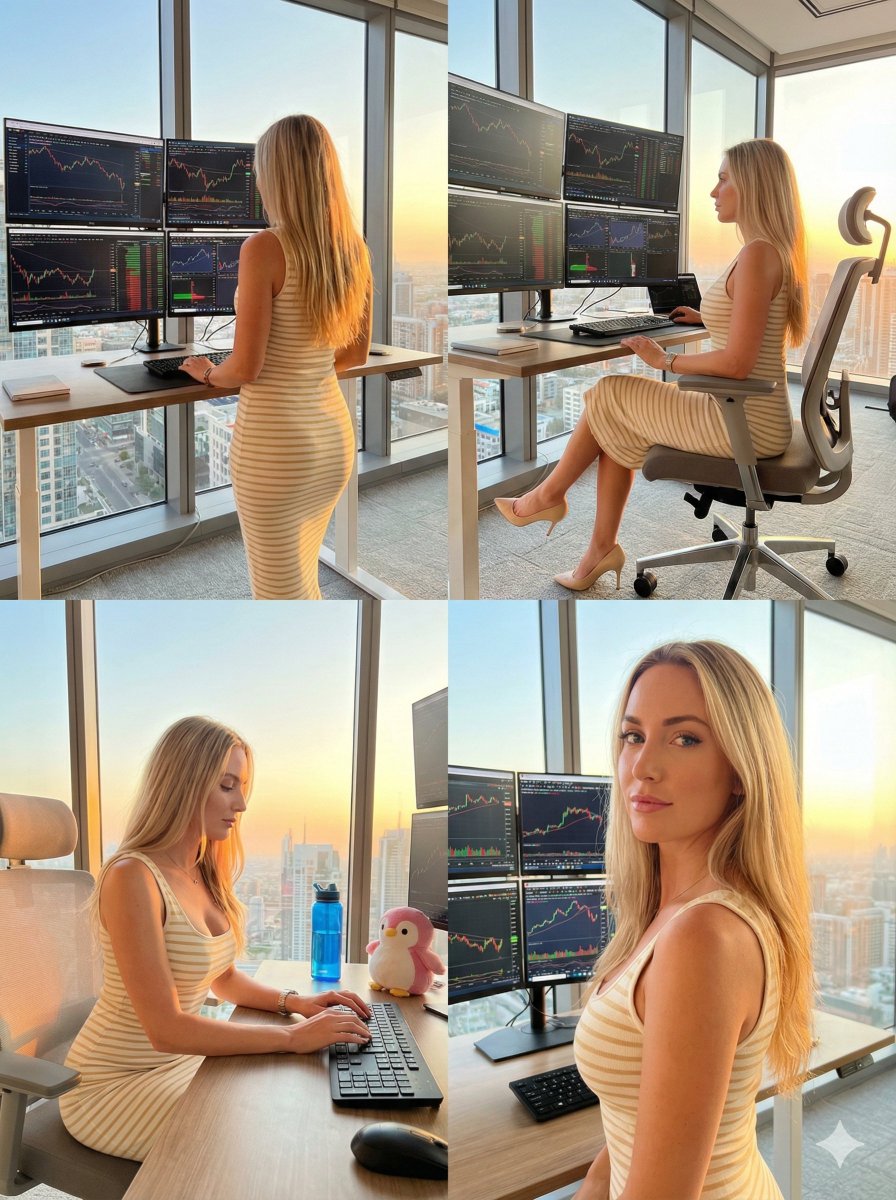
Four-Panel Trading Workspace Lifestyle Collage Prompt
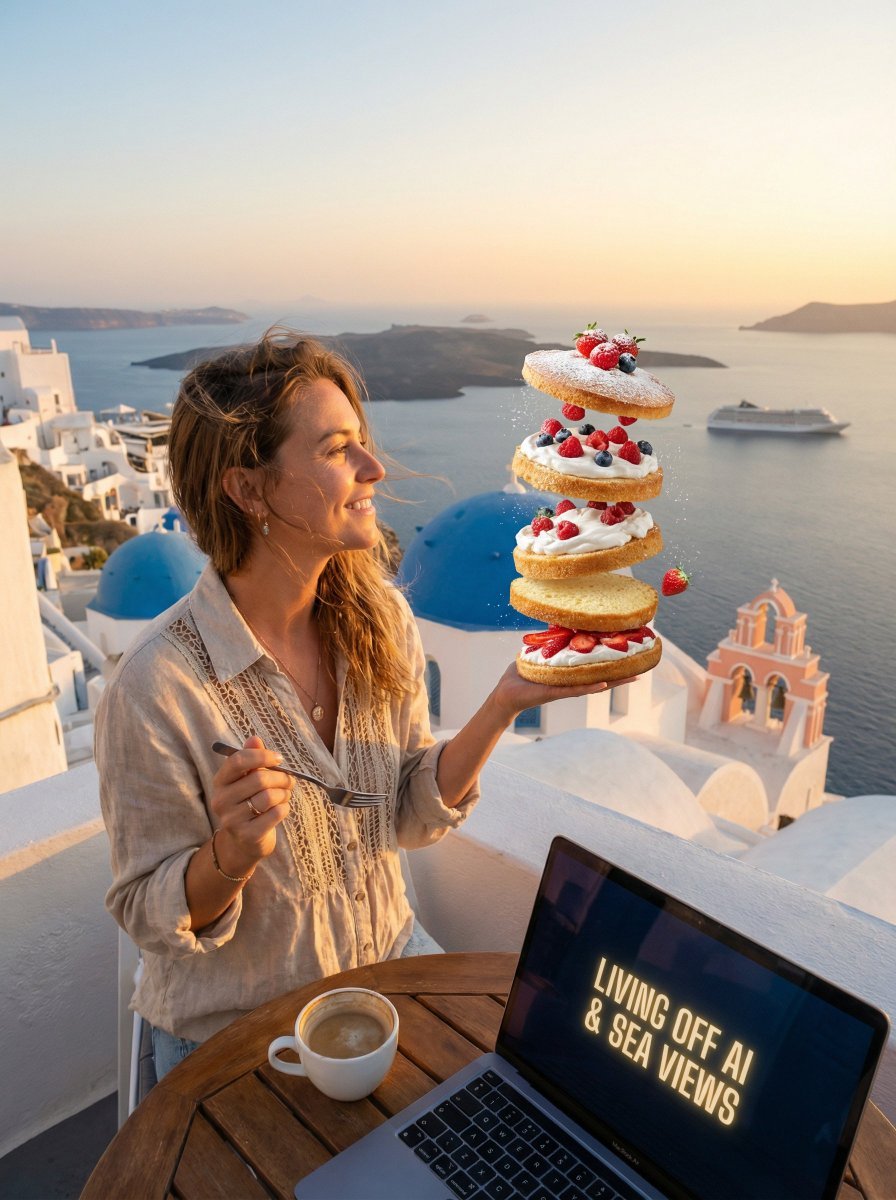
Dessert Nomad Dream: Cinematic Food and Travel Fusion
Browse template categories
Sunny Sky Park Selfie questions
How do I use the Sunny Sky Park Selfie template?
Add your photo if the template asks for one, edit the prompt if you like — the template's model and format are already selected — and press Generate. Your version opens in PicX Studio.
Can I customize the Sunny Sky Park Selfie template?
Yes. You can change the subject, setting, lighting, mood, format, and available model controls before creating your image.
Is the Sunny Sky Park Selfie template free?
Opening and editing this template is free. Generating uses credits, shown on the Generate button when you are signed in.
Which AI model should I use?
Start with GPT Image 2, which is the model associated with this template. You can compare another compatible model for a different finish.
Looking for something else? Browse all templates.

Your photo, any look
Thousands of ready templates for every top image and video model, from one credit balance.