
Dramatic Border Jump YouTube Thumbnail
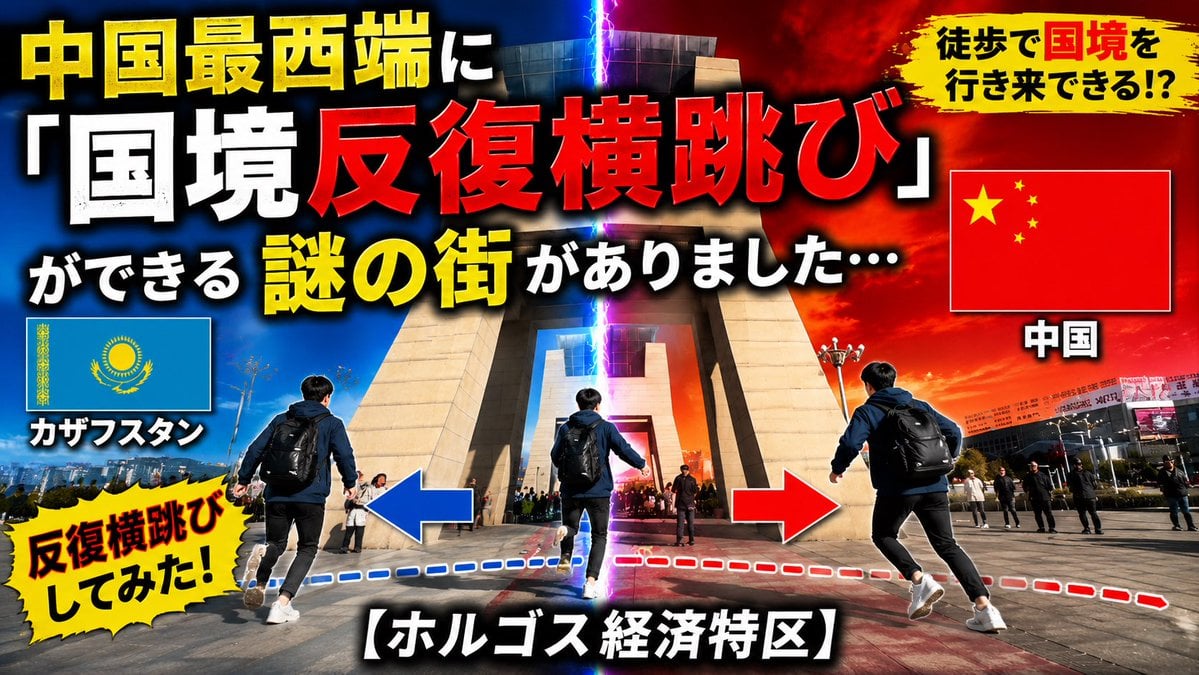
Transforms the reference travel thumbnail into a bold Japanese viral YouTube thumbnail about repeatedly crossing the Kazakhstan-China border.
- Prompt included
- Model and format preset
- Free template
The prompt behind this image
Copy the exact prompt behind Dramatic Border Jump YouTube Thumbnail, or open it in the studio and make it yours.
Using REFERENCE_0 as the base location, transform the simple travel/news thumbnail into a high-impact Japanese YouTube thumbnail. Keep the same border-gate landmark and plaza setting, but make the composition more dramatic with a vertical glowing lightning split down the center: left side blue for Kazakhstan, right side red/orange for China. Add a male traveler seen from behind with a backpack in 3 repeated action positions across the foreground to show a back-and-forth border jump, with blue and red dashed route lines and large left/right arrows. Replace the original text layout with bold, oversized Japanese thumbnail typography in yellow, white, and red with heavy black outline and drop shadow. Include exactly 3 flag panels: Kazakhstan flag on the left labeled “カザフスタン”, China flag on the right labeled “中国”, and no other flags. Add exactly 2 yellow brush/explosion callouts: top-right “徒歩で国境を行き来できる!?” and bottom-left “反復横跳びしてみた!”. Main headline text should read “中国最西端に「国境反復横跳び」ができる 謎の街がありました…” and bottom caption should read “【ホルゴス経済特区】”. Remove the original large lower-third title and make the final image feel like an energetic viral travel video thumbnail, cinematic contrast, saturated colors, sharp details, 16:9.
Reference images included
Dramatic Border Jump YouTube Thumbnail needs input media to work. They load alongside the prompt when you open it in the studio.
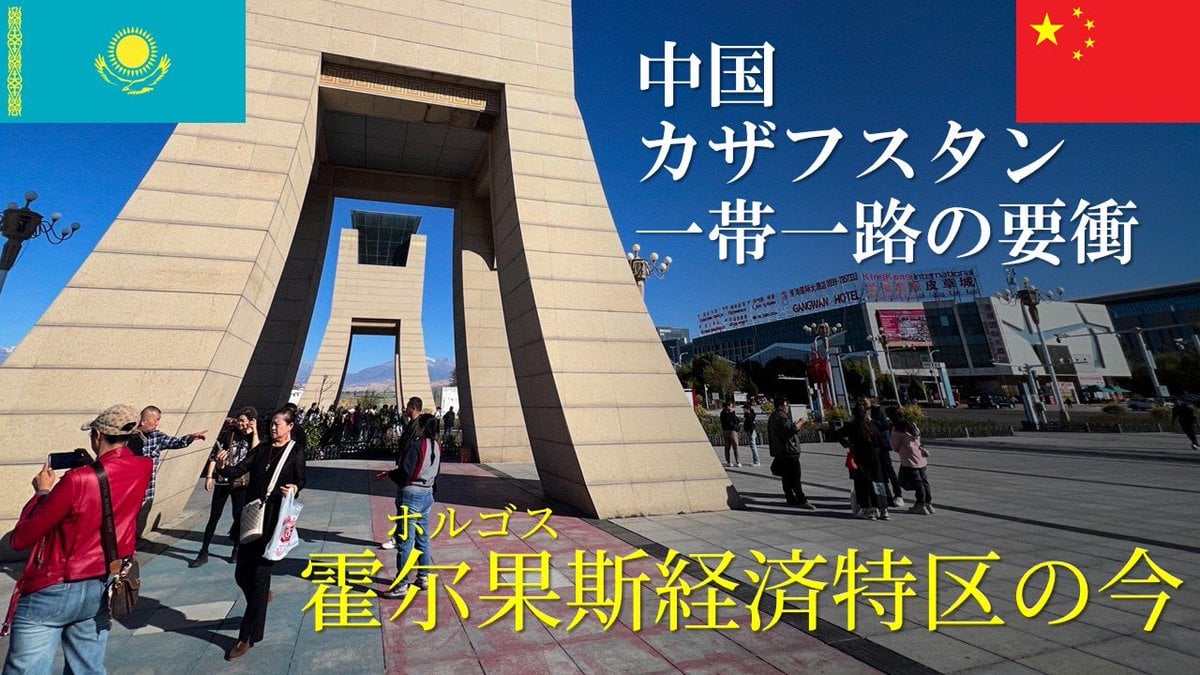
How to use Dramatic Border Jump YouTube Thumbnail in 3 steps
- 1Upload ImagePNG, JPG or paste
Add your photo
Upload the photo the template builds on. The prompt, model and format are already set.
- 2…a portrait of your subject in softgolden-hour light, 85mm…
Personalize
Edit the subject and creative details for your destination.
- 3Generate
Generate
Press Generate — your image is created in PicX Studio, so you can compare it with the original and refine one variable at a time.
More like this
Templates with the same subject, style or setup. Open one to see its prompt.
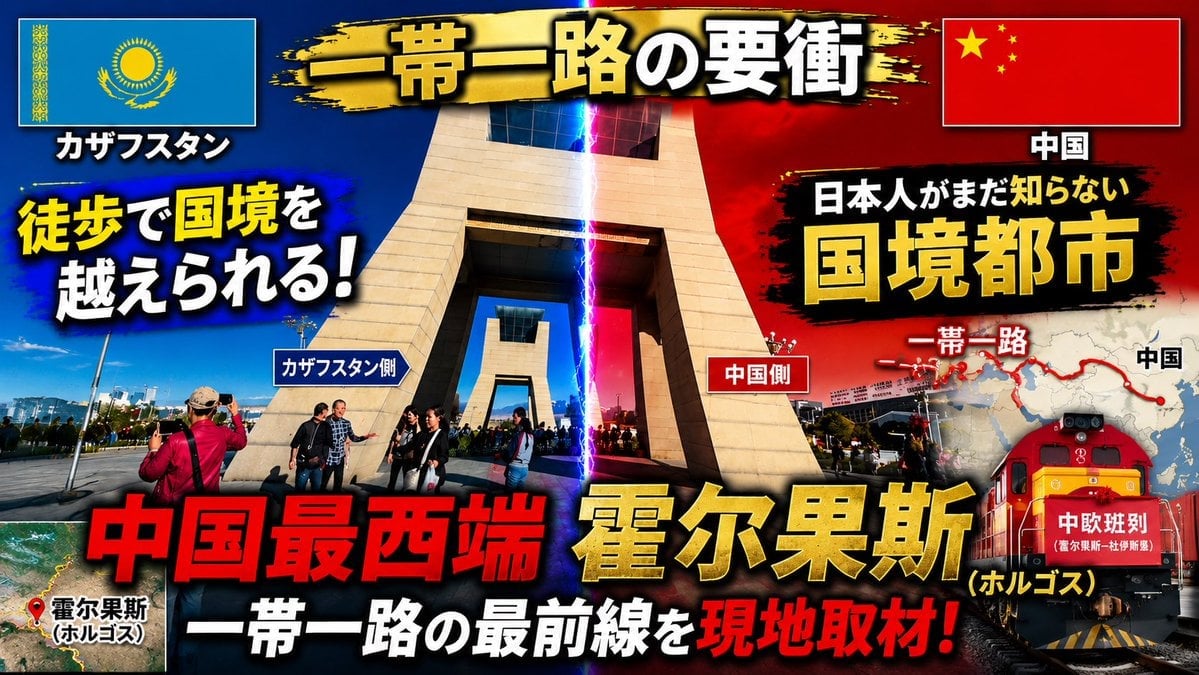
Dramatic Border City YouTube Thumbnail
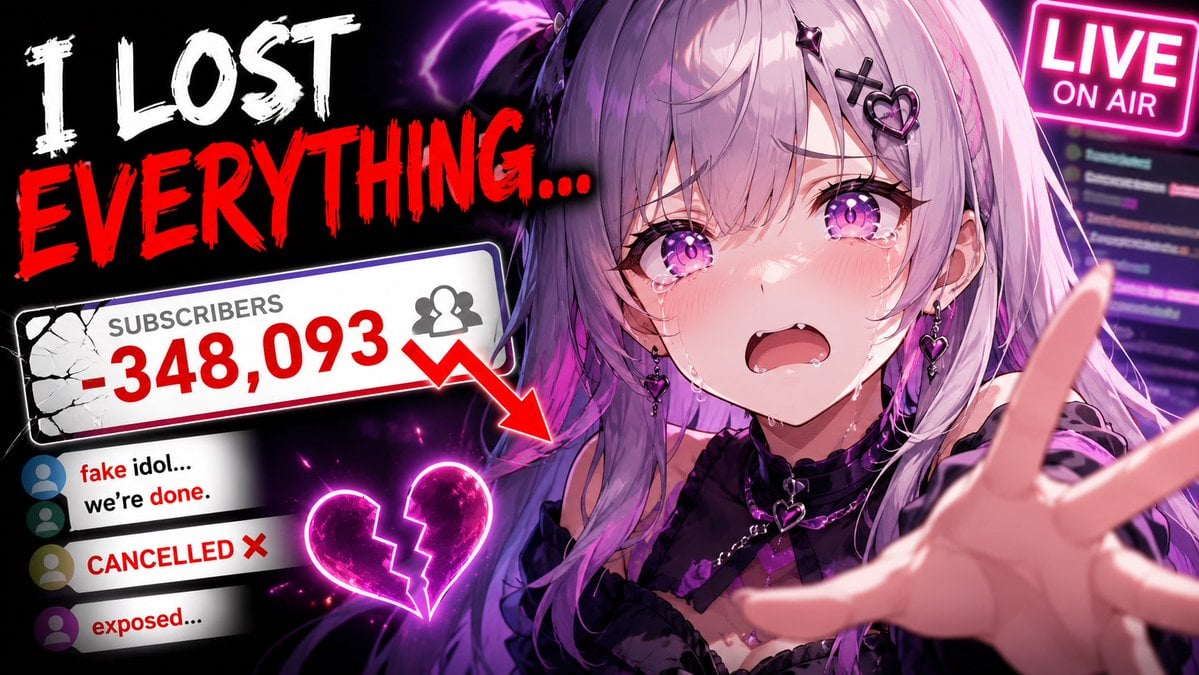
Viral YouTube Thumbnail Template

Neon AI Side Hustle YouTube Thumbnail

ASMR YouTuber Thumbnail
Convert image into YouTube thumbnail with OMW text
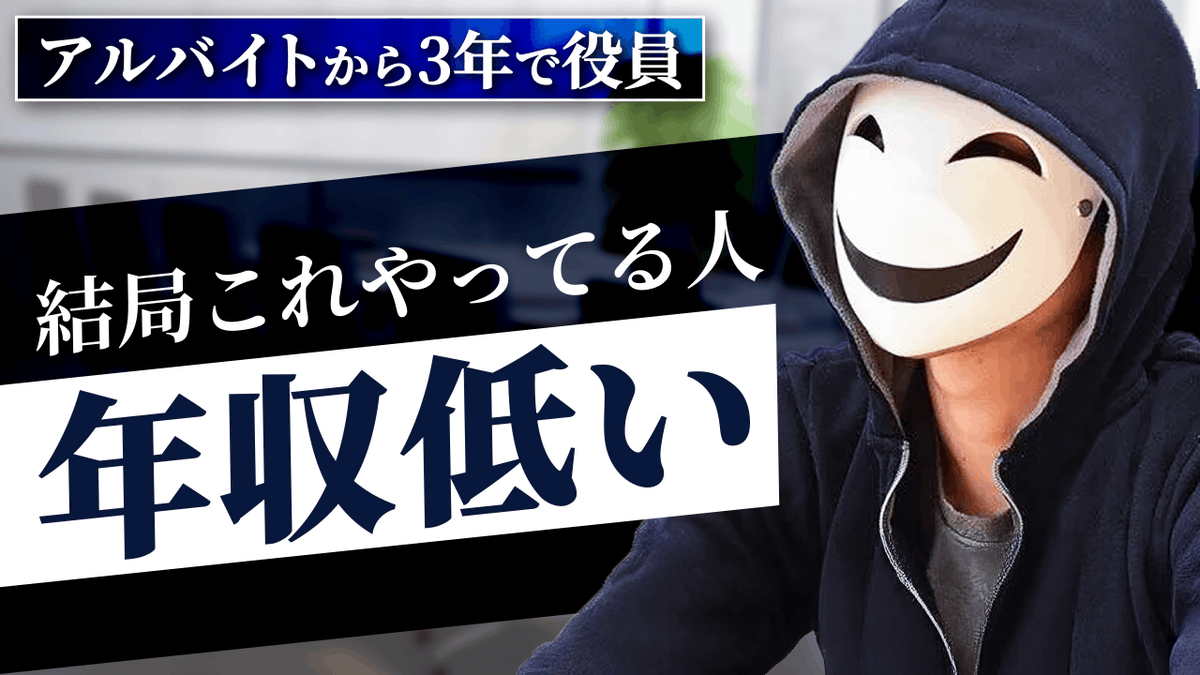
YouTube thumbnail design brief for a masked interview video
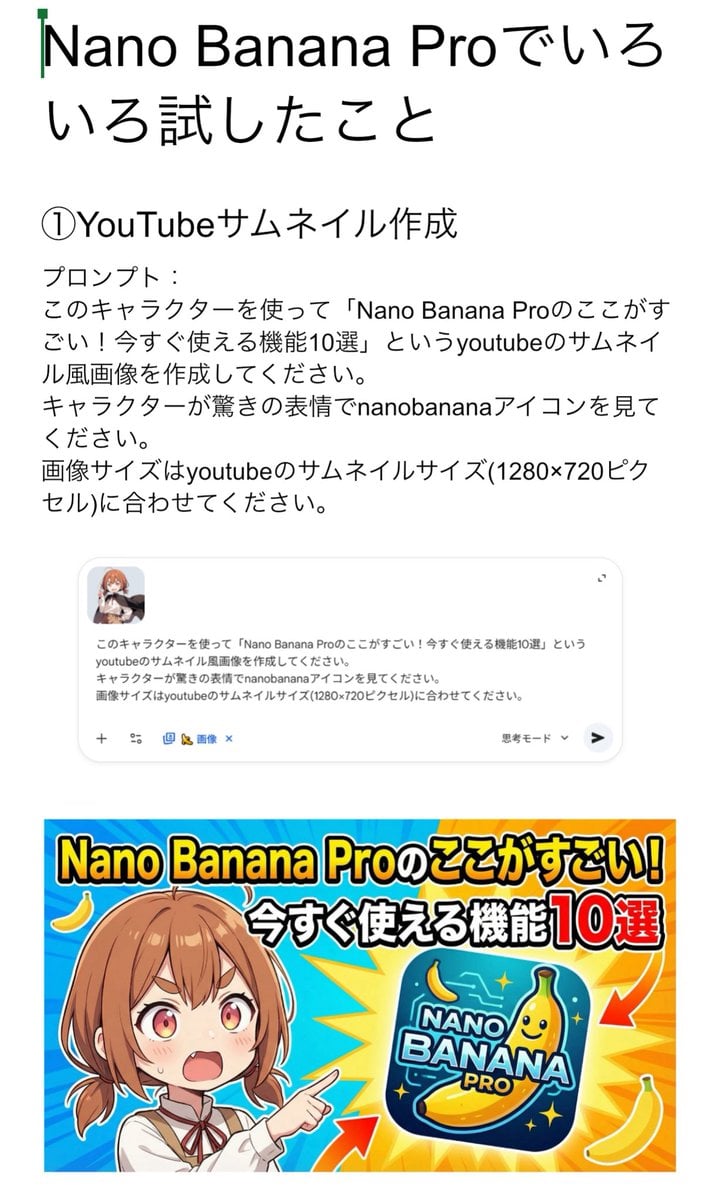
YouTube thumbnail for Nano Banana Pro features
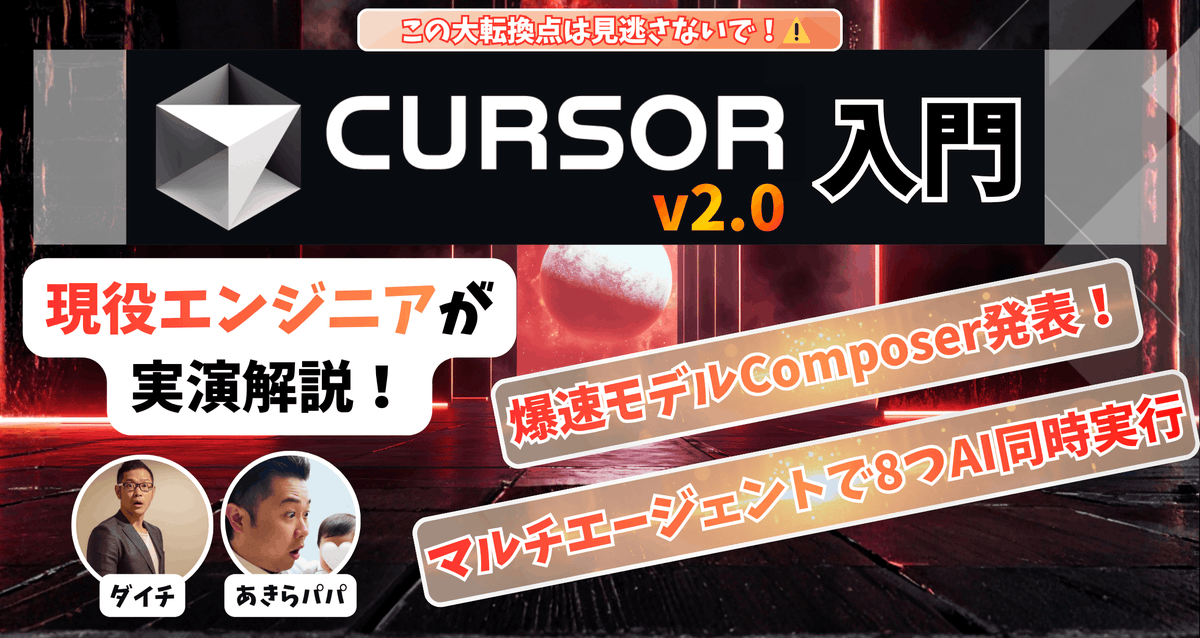
High-conversion YouTube thumbnail by genius designer-psychologist
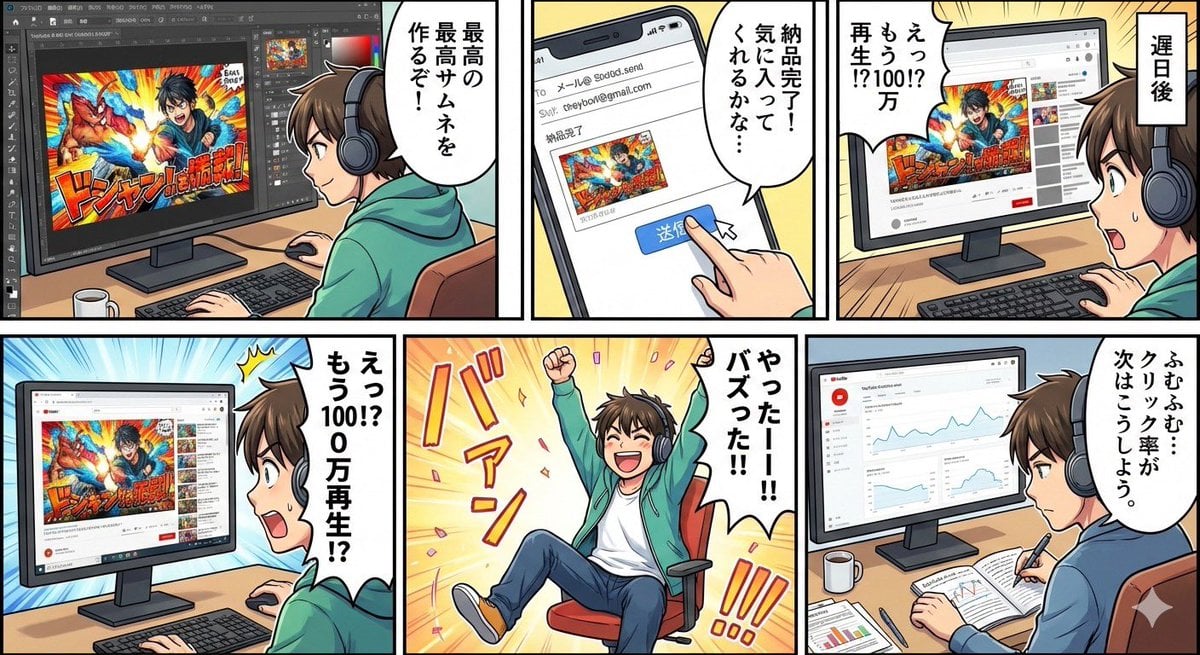
Five-panel manga of a YouTube thumbnail creator workflow

YouTube thumbnail using a specific character for chat stream

YouTube thumbnail introducing Nano Banana Pro

Simple YouTube Thumbnail Generation Prompt
Make it yours
Dramatic Border Jump YouTube Thumbnail works as-is. These are the safest ways to change it without losing the look.
Change one field
Copy a single group, rewrite it, and generate again so you can see what that field is doing.
Keep the frame, change the subject
Hold the composition and light of Dramatic Border Jump YouTube Thumbnail, then swap wardrobe, props or the person for a new take.
| If the result… | Why | Fix |
|---|---|---|
| The result drifts from the preview | Too many fields changed at once. | Reuse Dramatic Border Jump YouTube Thumbnail as-is first, then change one group — subject, light, or setting. |
| The model over-stylizes the scene | The prose prompt leaves finish and camera underspecified. | Add one camera or lighting sentence and stay on GPT Image 2. |
More GPT Image 2 templates
Other prompts made for GPT Image 2.

Six VTuber Japanese Logo Sheet

Realistic Portrait of Woman and Deer

The Vista Modular Condo Poster

AI Model Routing Comparison Infographic

2.5D Anime Art Board

Isometric Productivity Desk Scene

New York Double Exposure Poster

Four-Panel AI Landscape Comparison

Japanese Tatami Lifestyle Magazine Cover

NESCAFÉ Coffee Map Poster
More image prompts
Fresh picks from across the catalog.
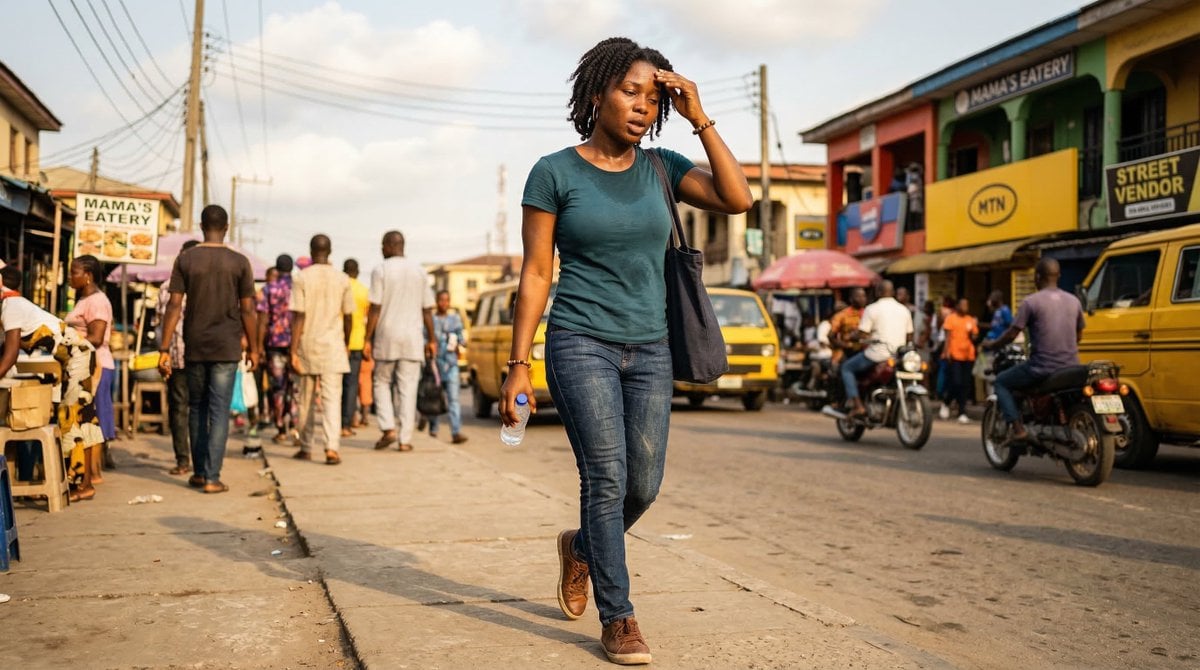
Nigerian Adult in Casual Daytime Clothing
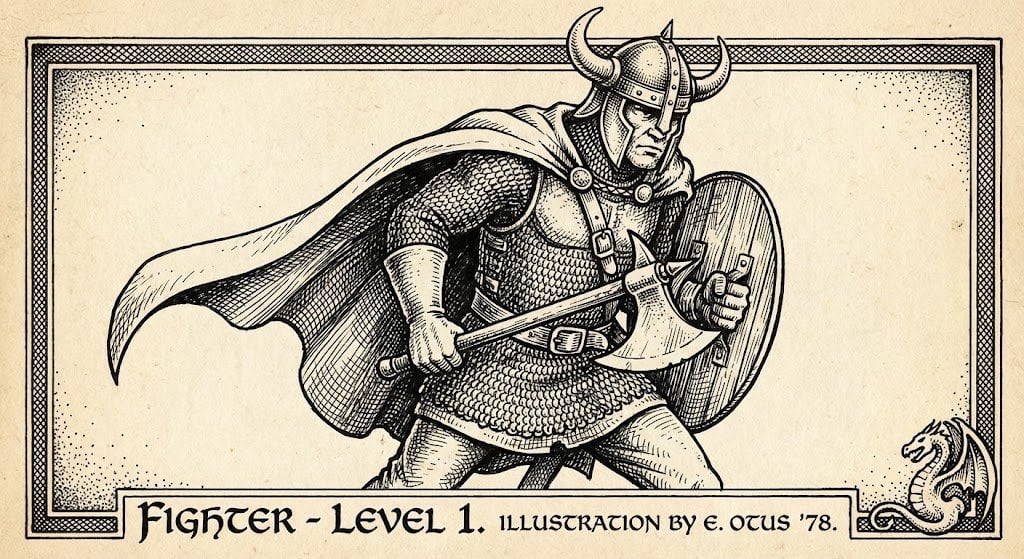
Vintage Black and White RPG Rulebook Illustration

Minimalist Luxury Automotive Poster
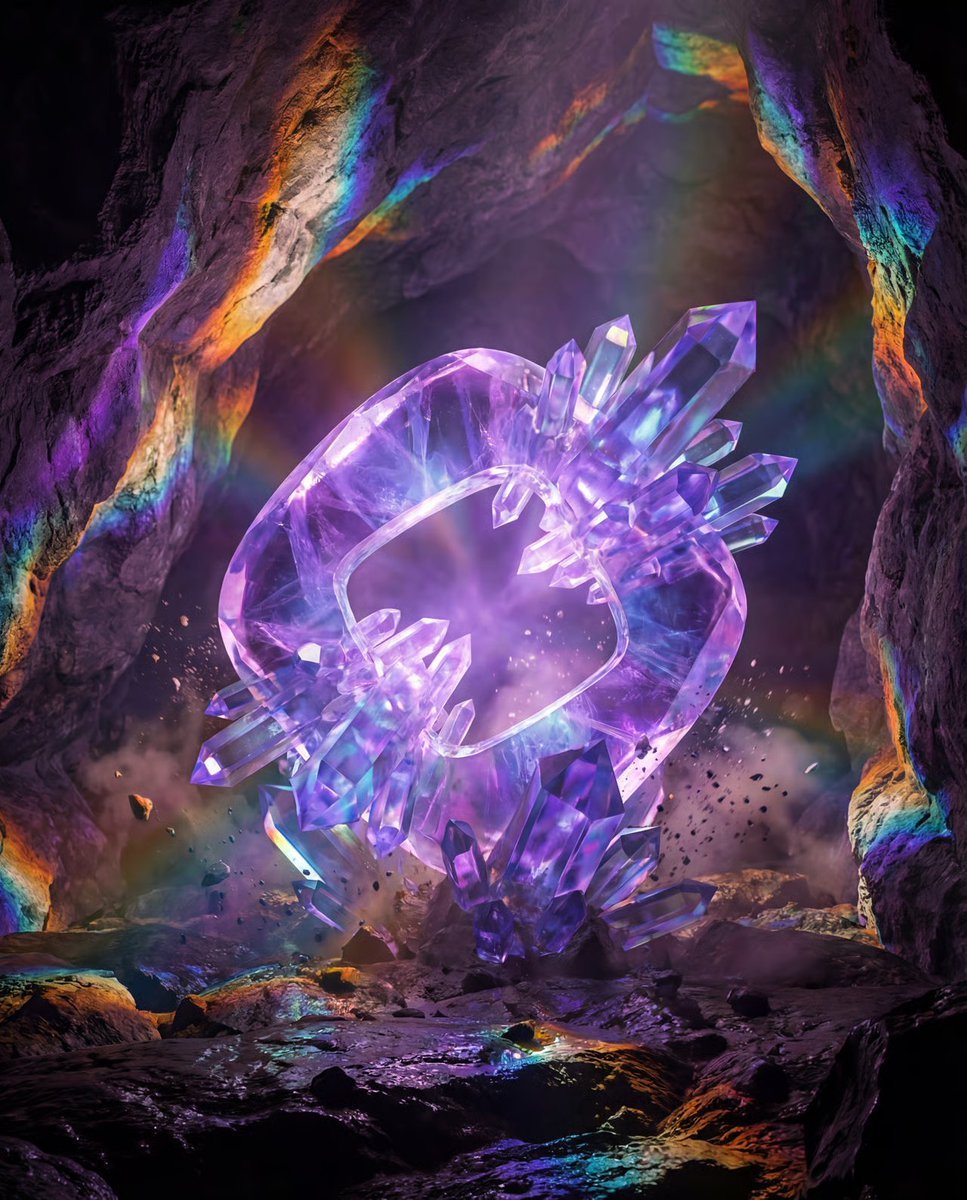
Photorealistic Crystal Logo Generation
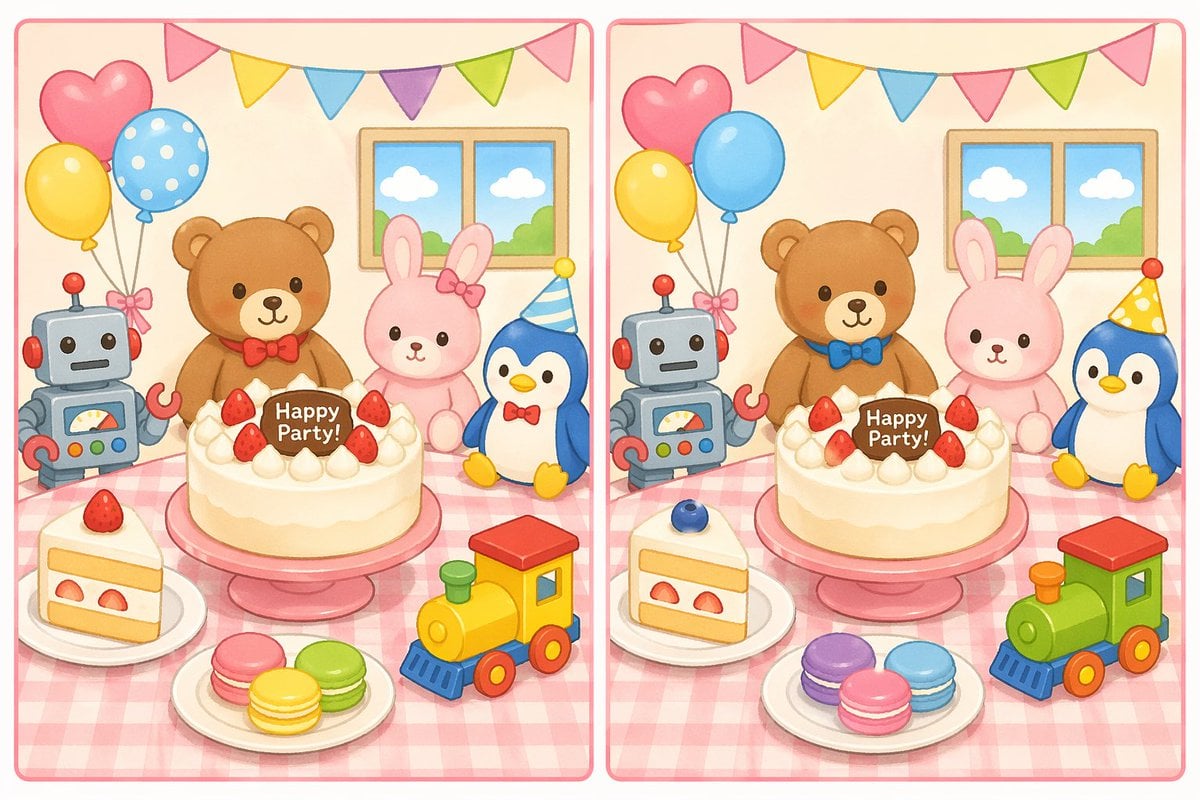
Spot the Difference Puzzle Generator
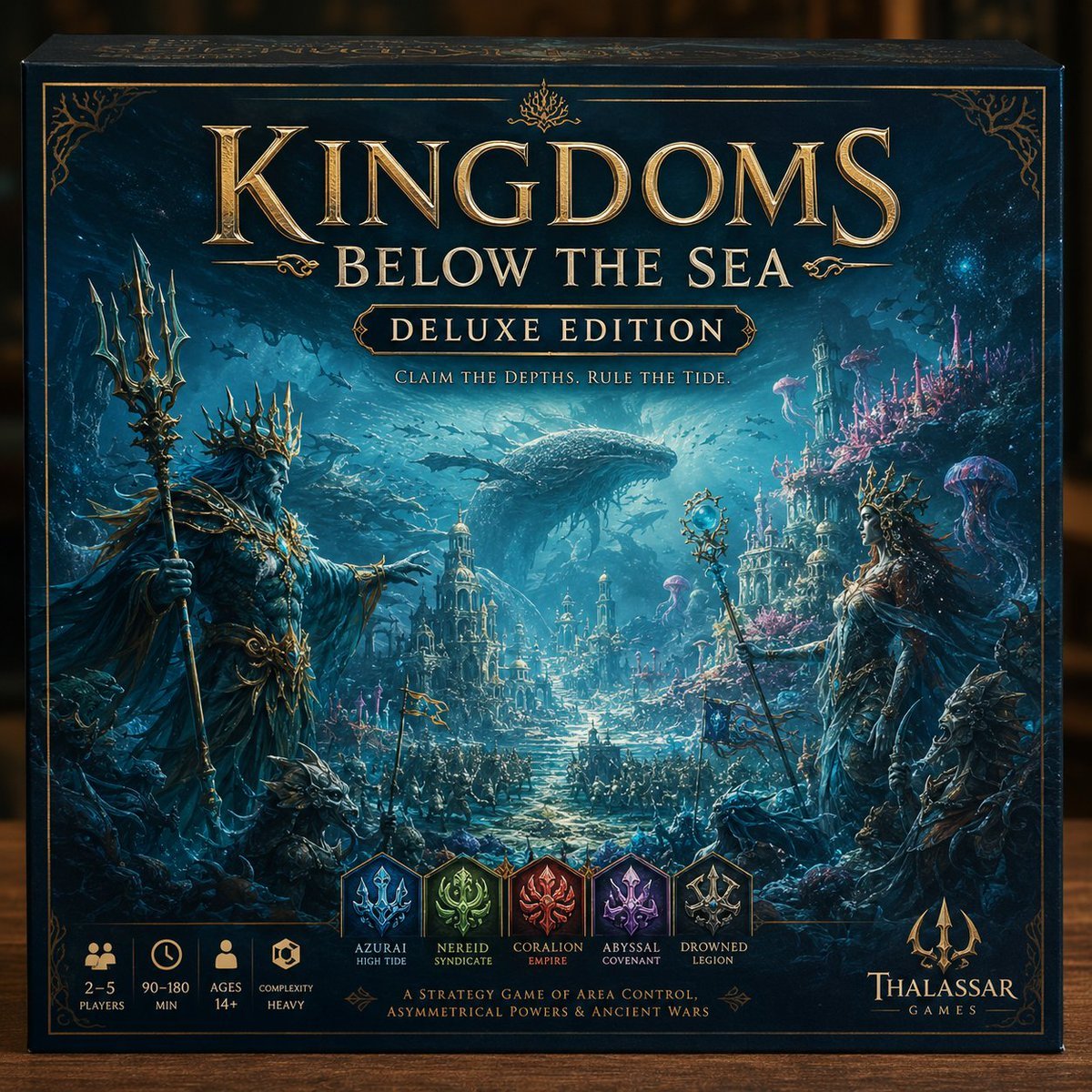
Deluxe Underwater Kingdom Board Game Box
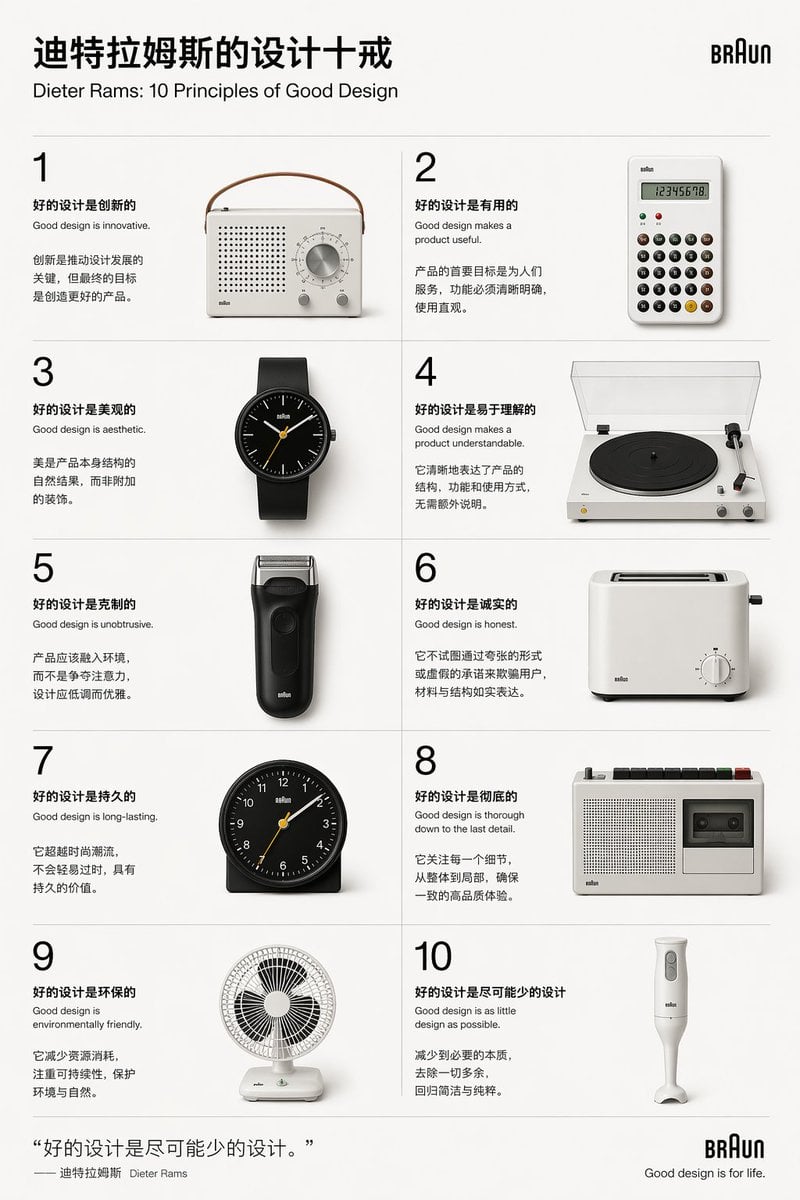
Dieter Rams Design Principles Poster
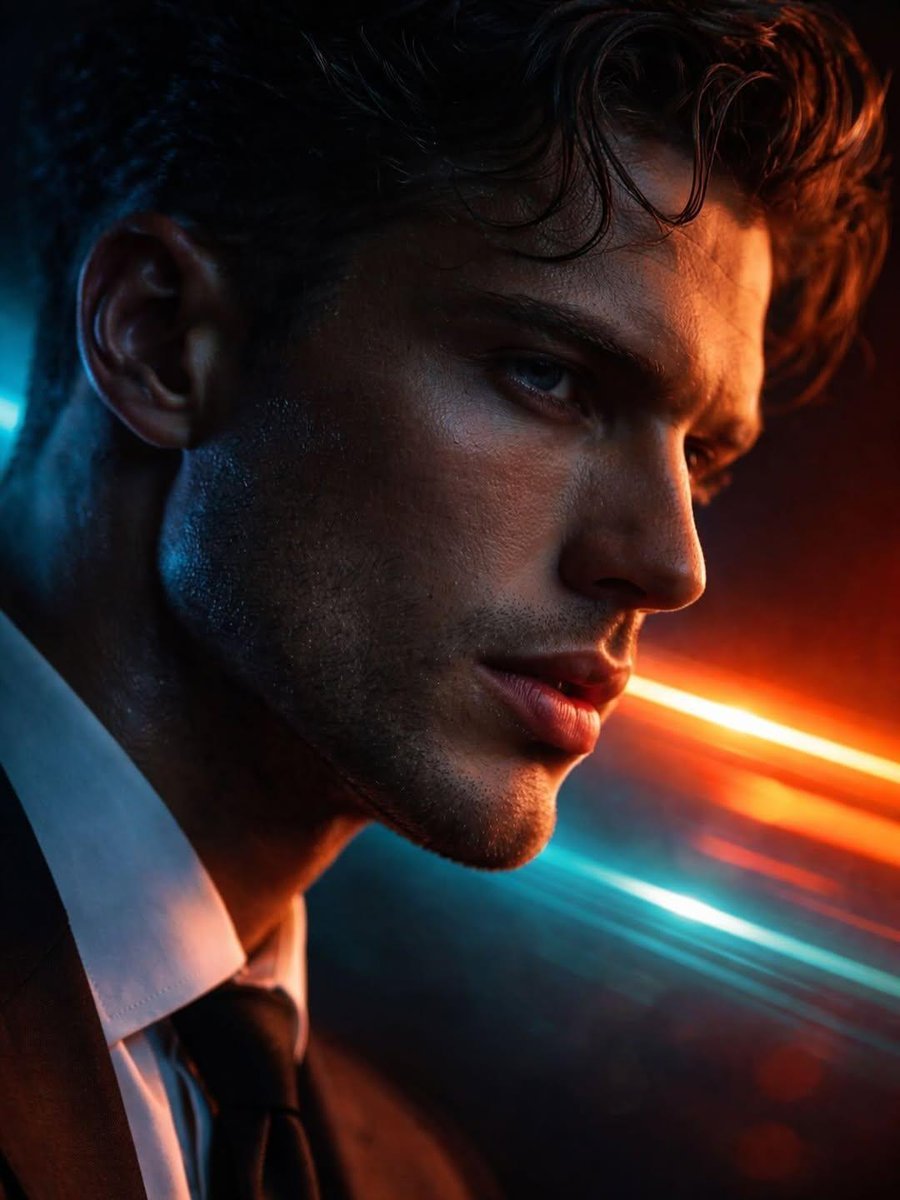
Hyper-realistic Futuristic Noir Portrait Prompt
Convert Photo to Professional Passport Size Image
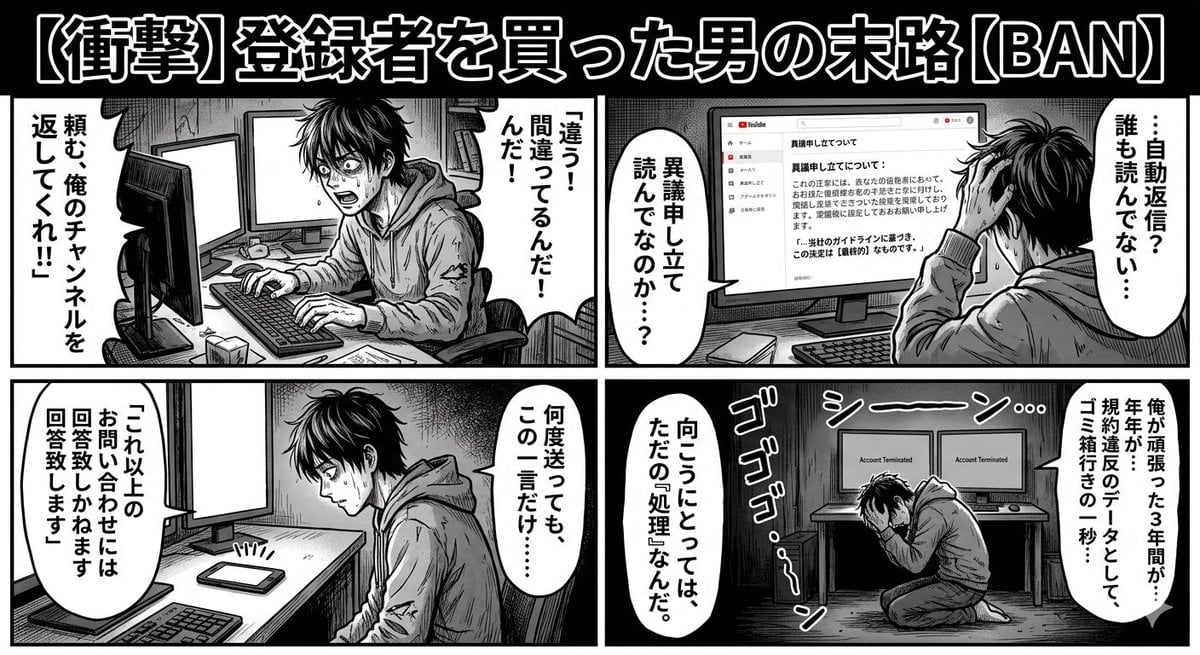
Four-Panel Manga: Labyrinth of Objection
Browse template categories
Dramatic Border Jump YouTube Thumbnail questions
How do I use the Dramatic Border Jump YouTube Thumbnail template?
Add your photo if the template asks for one, edit the prompt if you like — the template's model and format are already selected — and press Generate. Your version opens in PicX Studio.
Can I customize the Dramatic Border Jump YouTube Thumbnail template?
Yes. You can change the subject, setting, lighting, mood, format, and available model controls before creating your image.
Is the Dramatic Border Jump YouTube Thumbnail template free?
Opening and editing this template is free. Generating uses credits, shown on the Generate button when you are signed in.
Which AI model should I use?
Start with GPT Image 2, which is the model associated with this template. You can compare another compatible model for a different finish.
Looking for something else? Browse all templates.

Your photo, any look
Thousands of ready templates for every top image and video model, from one credit balance.