
Automotive Blueprint Split Composition
Curated from MeiGen gallery ID 2039777786639126806: Automotive Blueprint Split Composition.
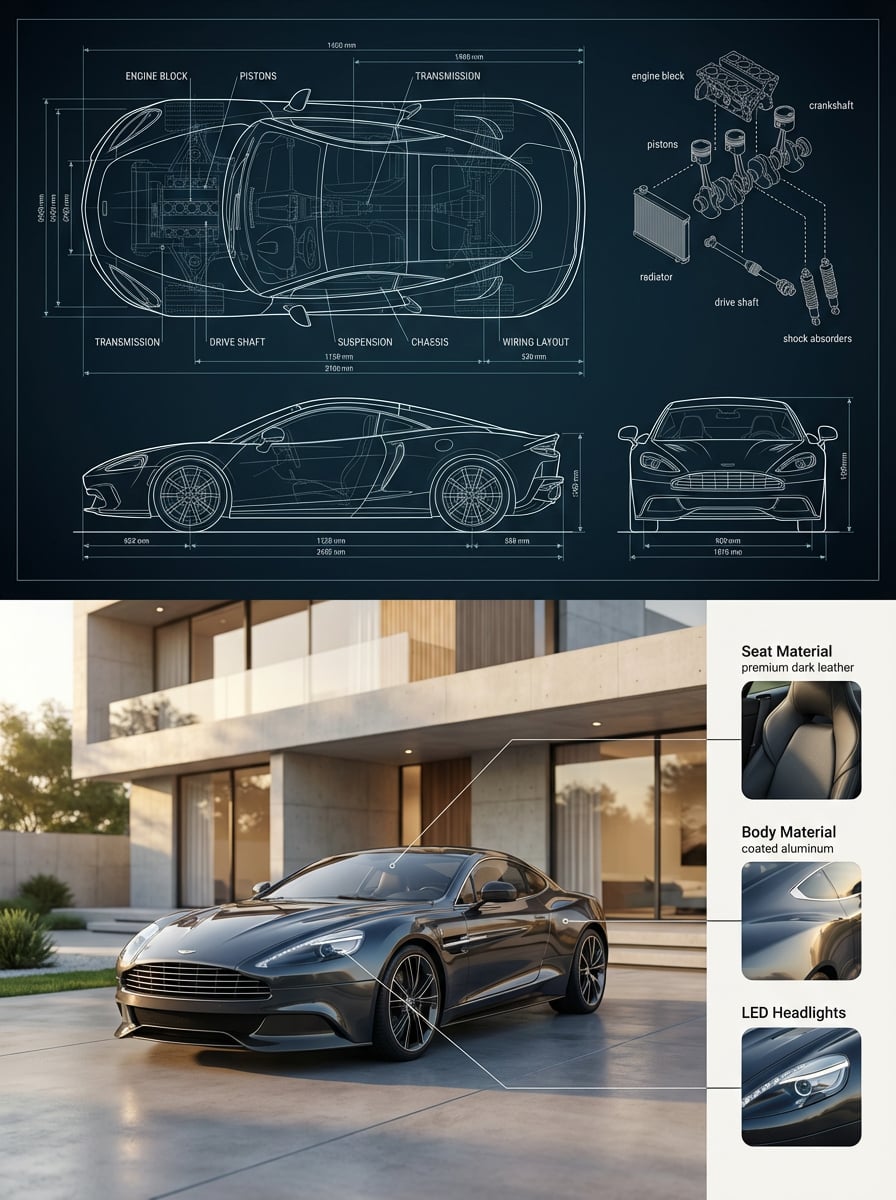
- Prompt included
- Model and format preset
- Free template
The prompt behind this image
Copy the exact prompt behind Automotive Blueprint Split Composition, or open it in the studio and make it yours.
Create a premium split composition showing a detailed automotive blueprint on top and a perfectly matching real-world car with material breakdown on bottom. Top: ultra-detailed CAD drawing on background #0b1d2a with subtle grid lines, very crisp white linework with faint cyan glow, dominant center top view with side and front views, dimension lines with mm units, thin CAD arrows, labels such as ENGINE BLOCK, PISTONS, TRANSMISSION, DRIVE SHAFT, SUSPENSION, CHASSIS, and exploded diagram on top right. Bottom: photorealistic 3/4 front angle car render slightly low hero perspective, luxury minimalist architectural background with clean concrete walls, large glass panels, subtle wood accents, minimal landscaping, golden hour side lighting, soft elongated shadows, physically accurate reflections. Right-side Apple-style material breakdown panel with close-ups of seat material, body material, and LED headlights. Fusion of engineering blueprint, luxury automotive ad, and product design presentation. polished editorial-grade finish. No mismatch, no cluttered background, no unrealistic reflections, no over-saturated colors, no random environments.
How to use Automotive Blueprint Split Composition in 3 steps
- 1
Open
The prompt is already in the box next to the preview, with the template's model and format selected.
- 2…a portrait of your subject in softgolden-hour light, 85mm…
Personalize
Edit the subject and creative details for your destination.
- 3Generate
Generate
Press Generate — your image is created in PicX Studio, so you can compare it with the original and refine one variable at a time.
More like this
Templates with the same subject, style or setup. Open one to see its prompt.
Automotive Blueprint Split Composition
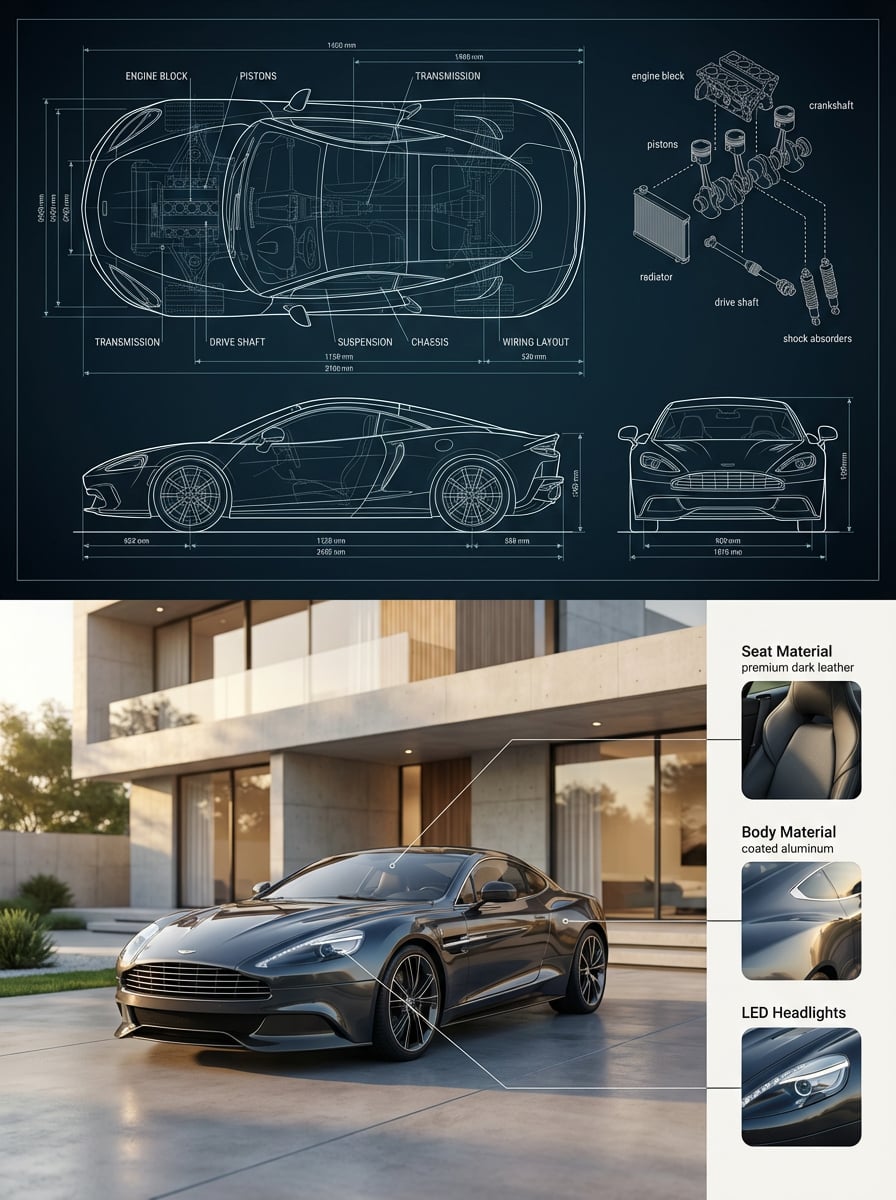
Premium split composition showing a detailed automotive blueprint top

Luxury Automotive Editorial Portrait
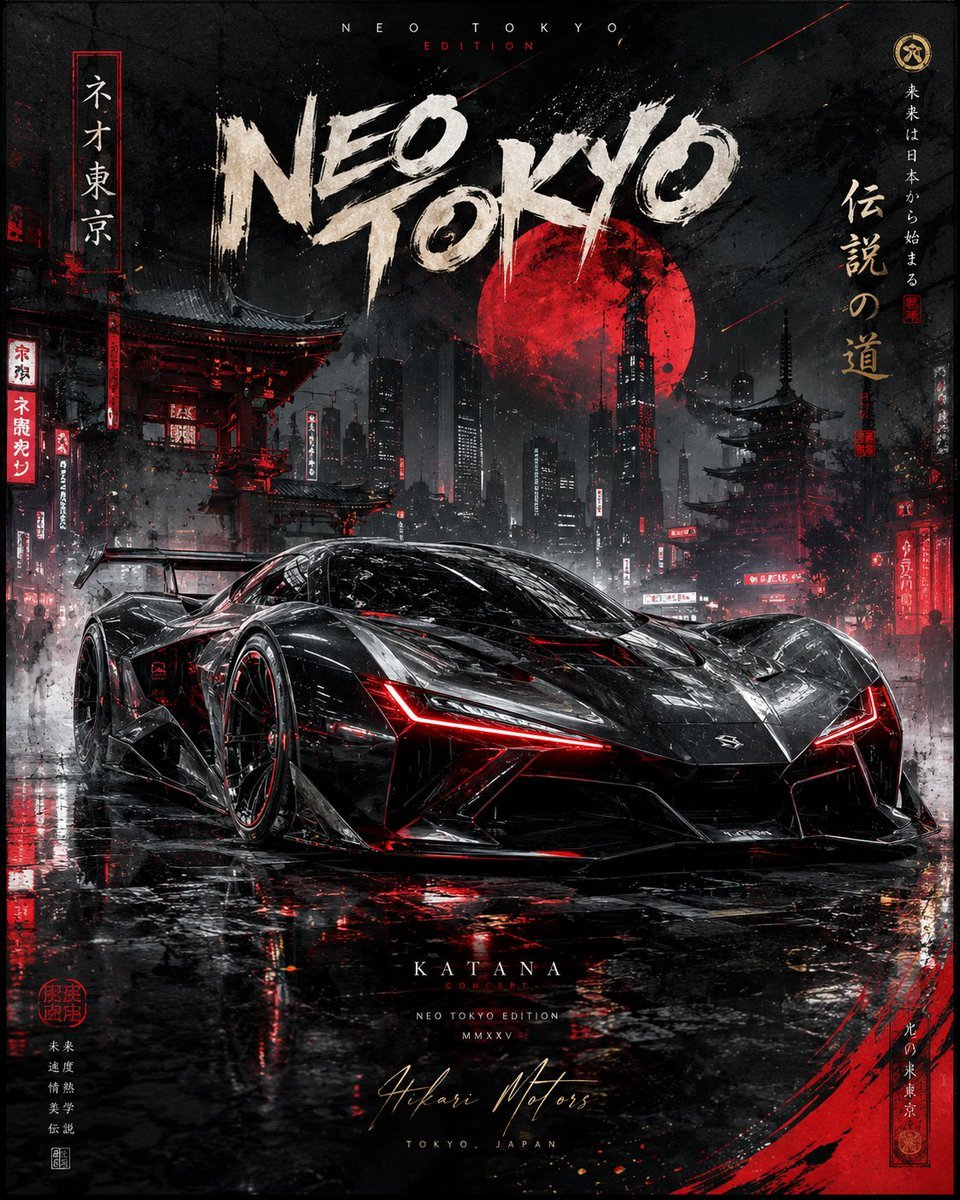
Cinematic Luxury Automotive Editorial Poster
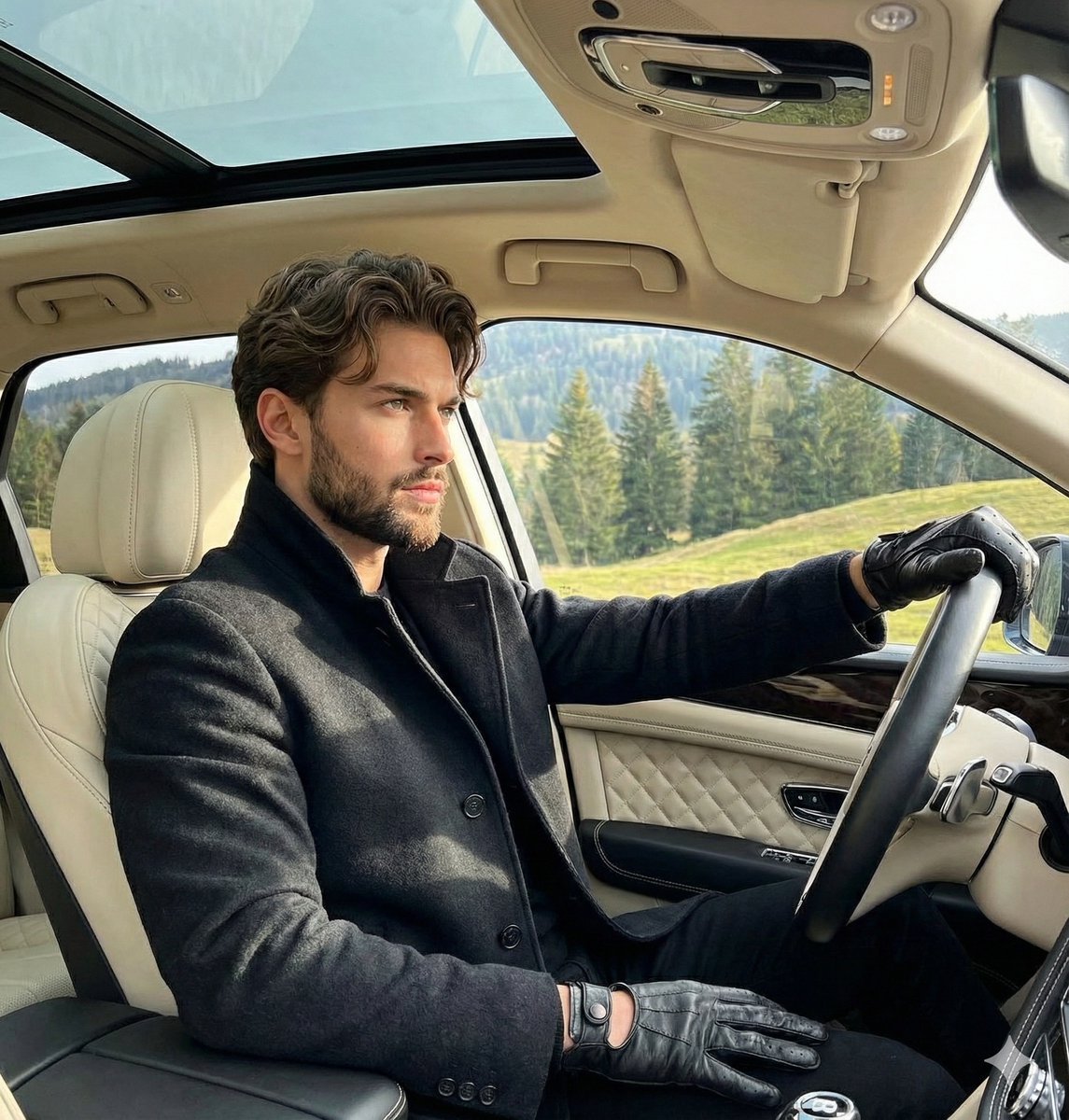
Luxury Automotive Editorial Photo Prompt
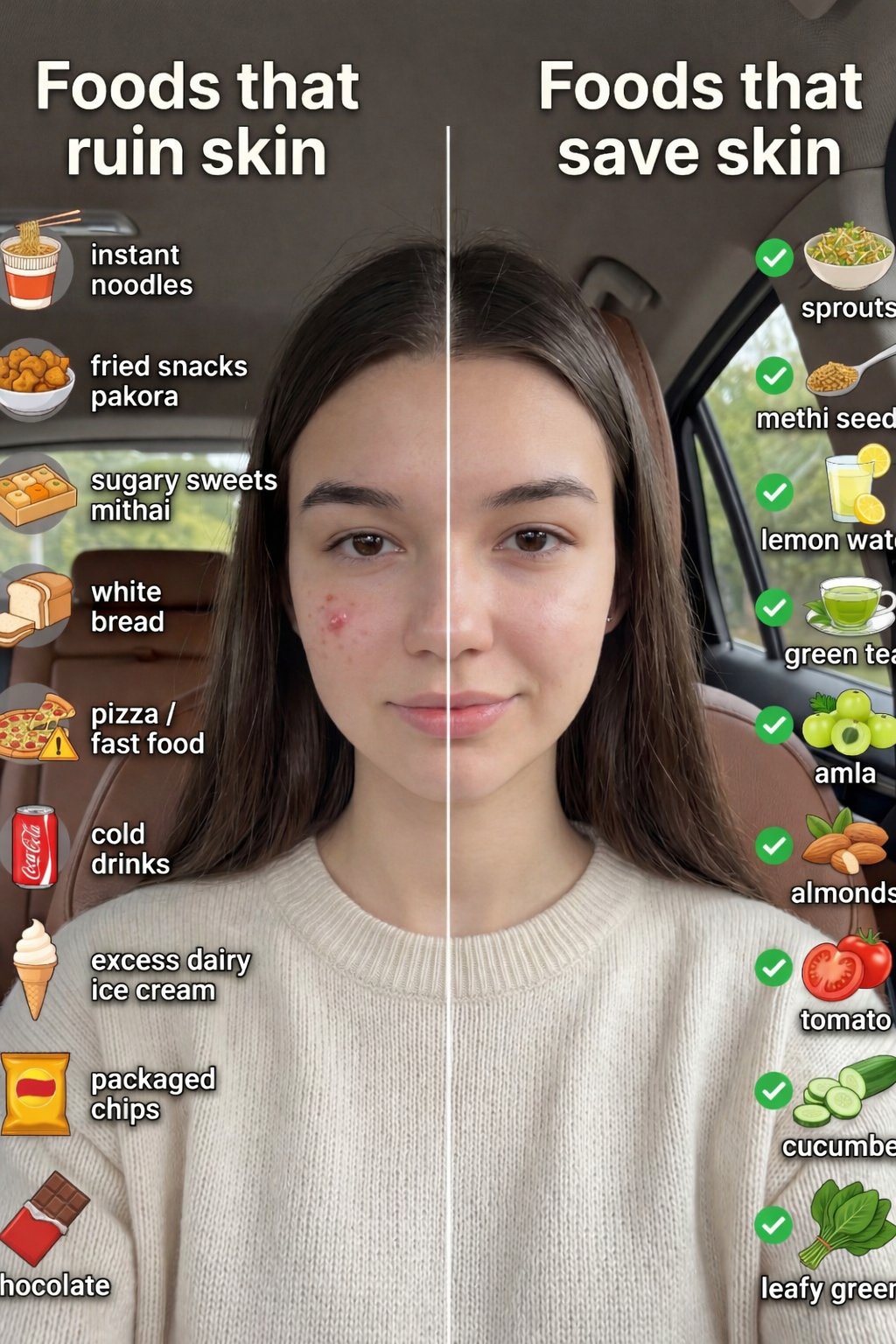
01 Skincare Split Portrait — Nano Banana 2
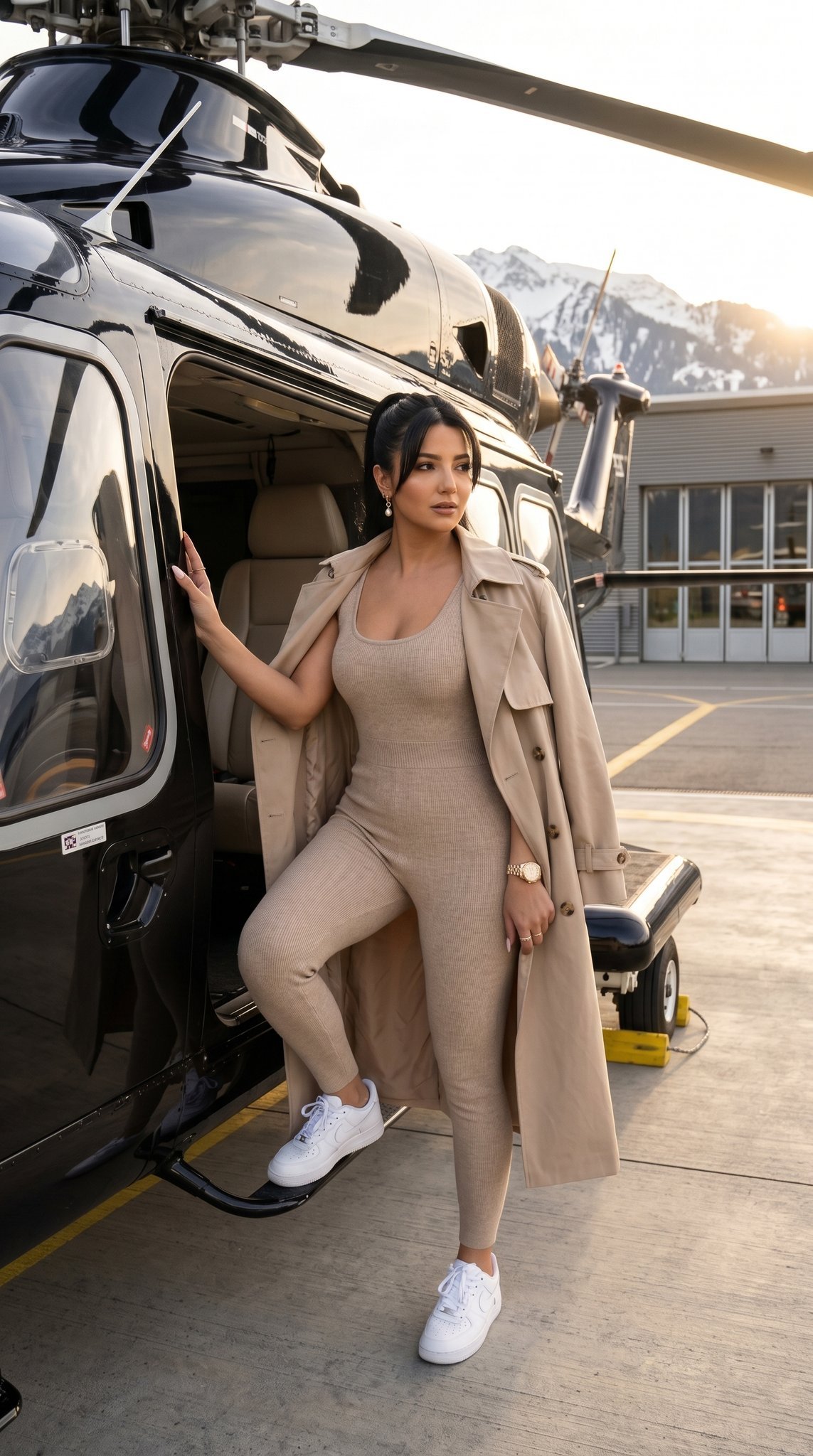
19 Luxury Helicopter Travel — California Series
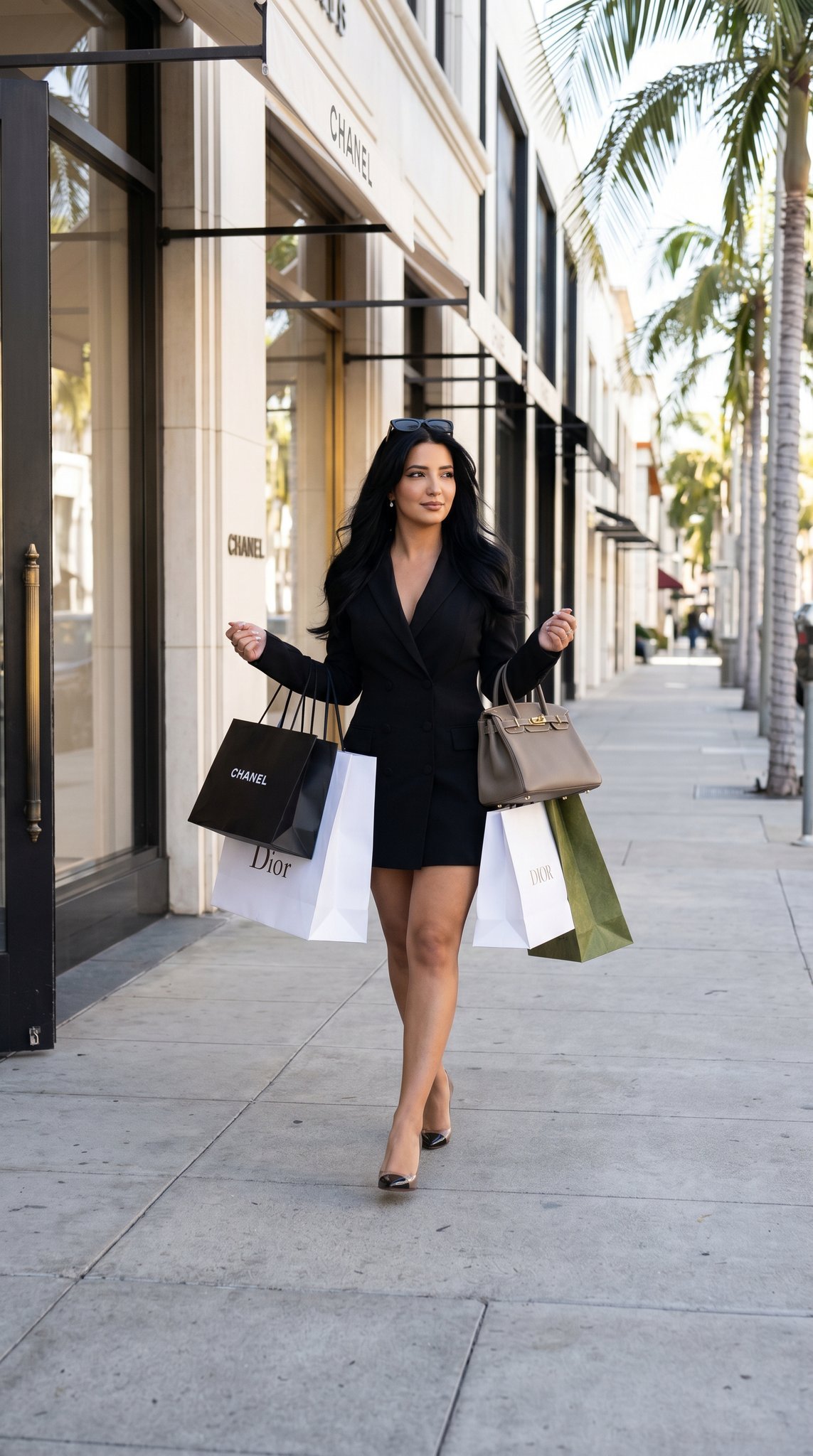
08 Rodeo Drive Luxury Exit — California Series
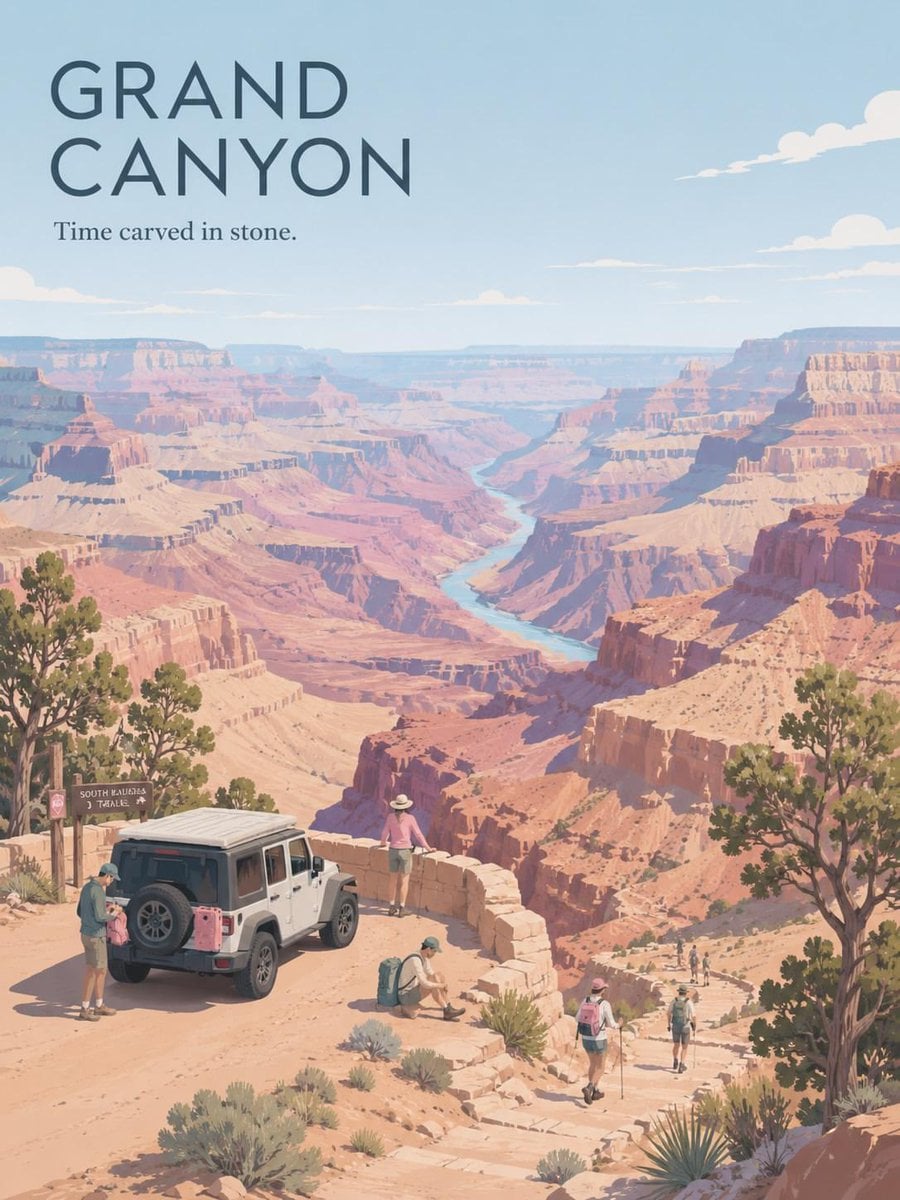
Premium Vintage Travel Poster Landscape
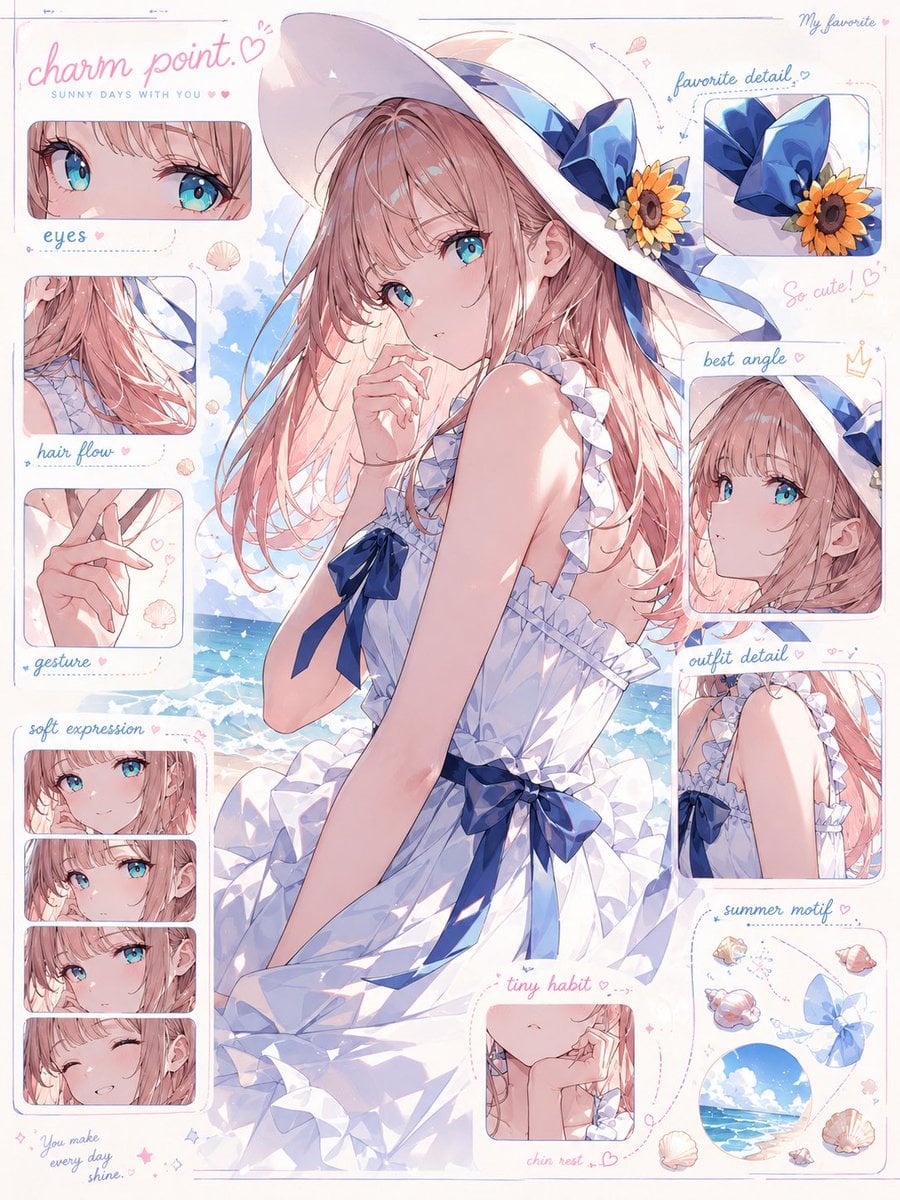
Anime Character Charm Analysis Sheet
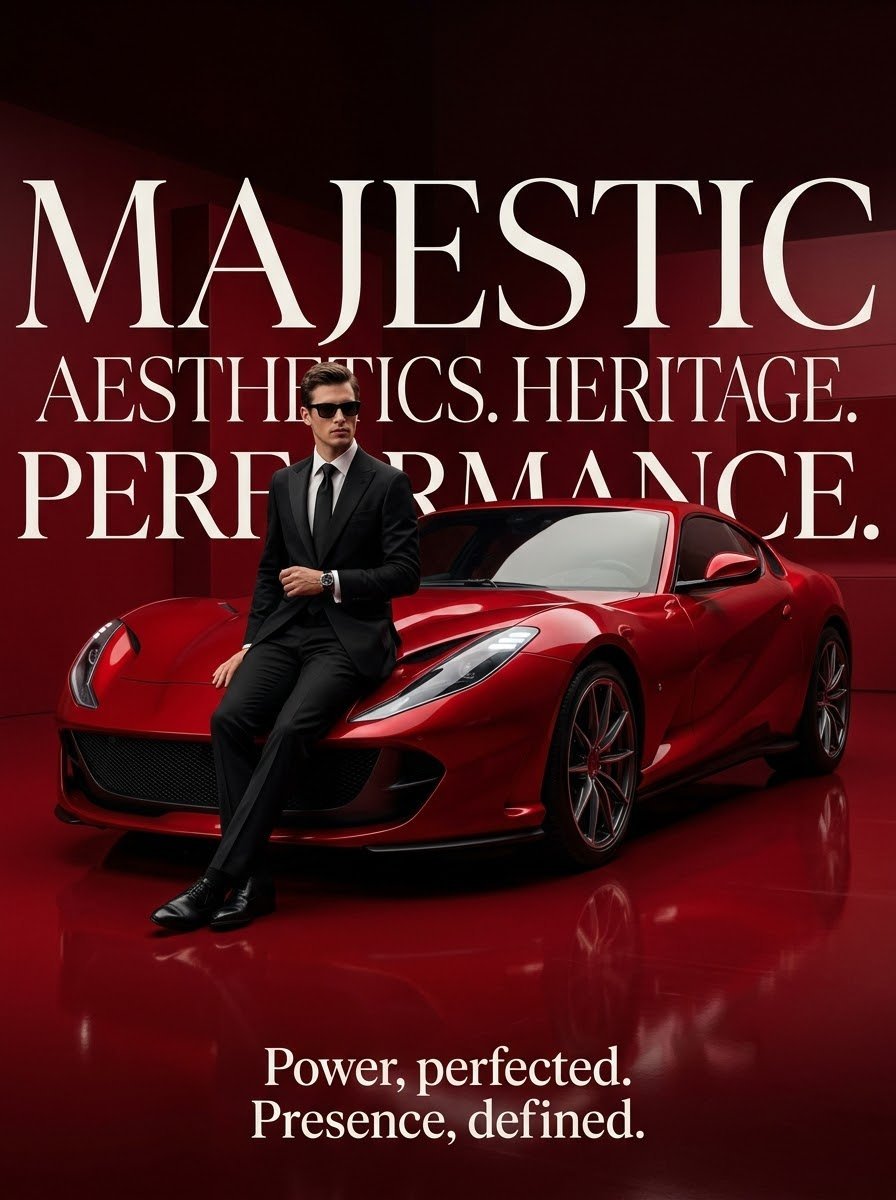
Luxury Surrealist Automotive Poster
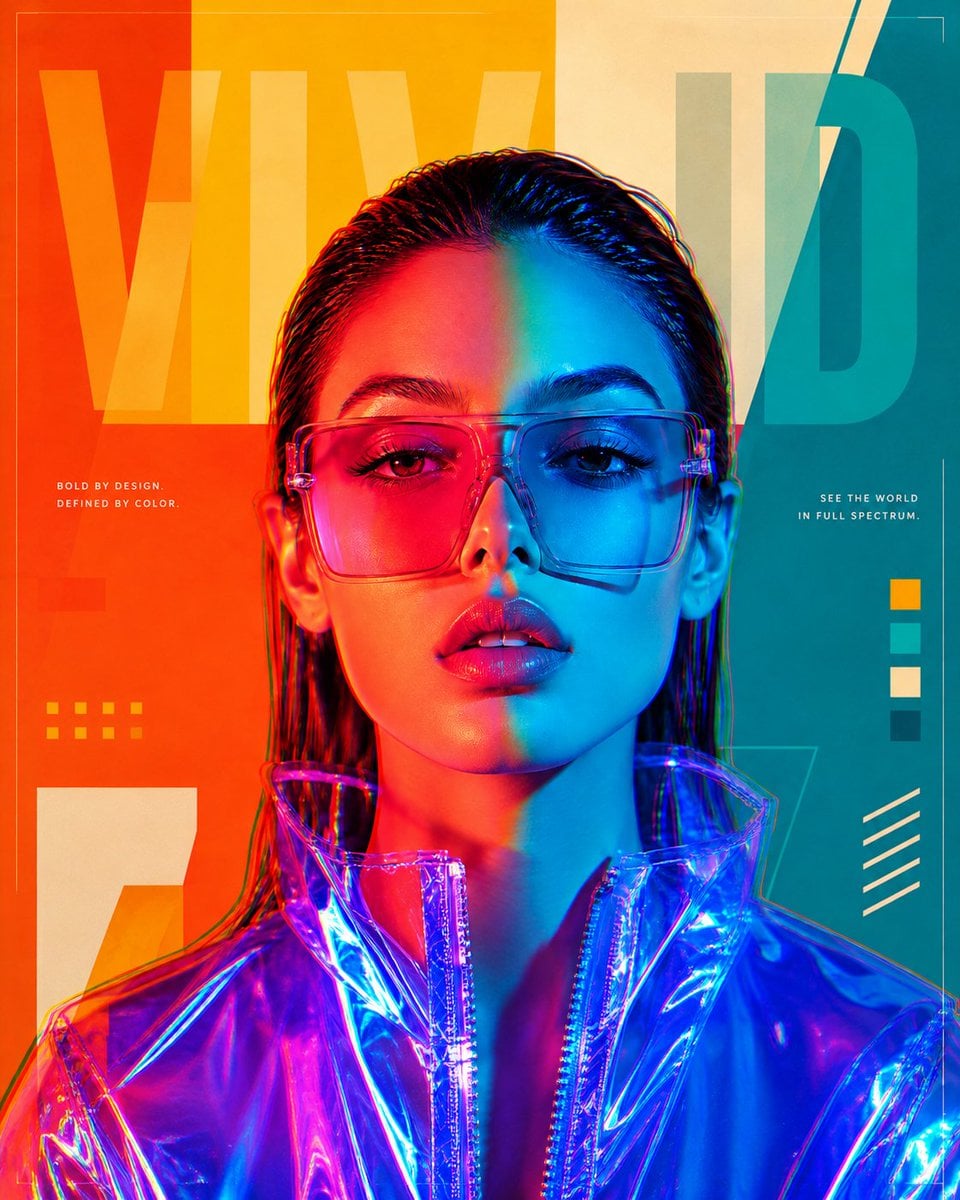
Futuristic Split-Lighting Editorial Poster
Make it yours
Automotive Blueprint Split Composition works as-is. These are the safest ways to change it without losing the look.
Change one field
Copy a single group, rewrite it, and generate again so you can see what that field is doing.
Keep the frame, change the subject
Hold the composition and light of Automotive Blueprint Split Composition, then swap wardrobe, props or the person for a new take.
| If the result… | Why | Fix |
|---|---|---|
| The result drifts from the preview | Too many fields changed at once. | Reuse Automotive Blueprint Split Composition as-is first, then change one group — subject, light, or setting. |
| The model over-stylizes the scene | The prose prompt leaves finish and camera underspecified. | Add one camera or lighting sentence and stay on PicX Studio. |
More image prompts
Fresh picks from across the catalog.
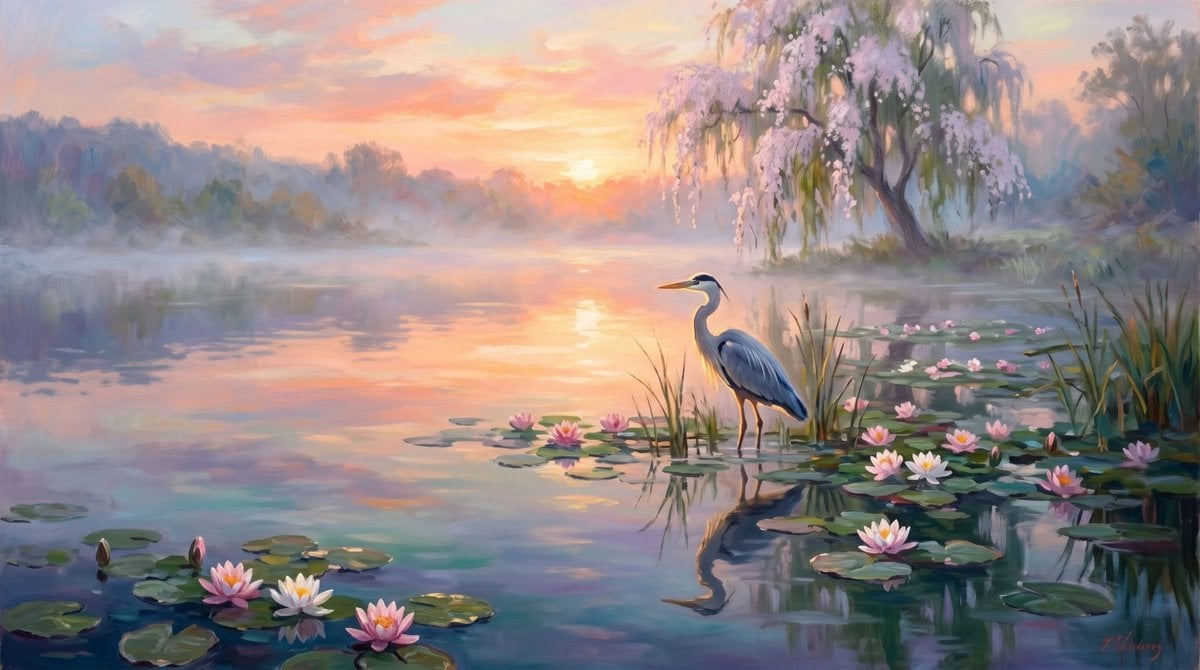
Misty Lotus Pond Heron Sunrise
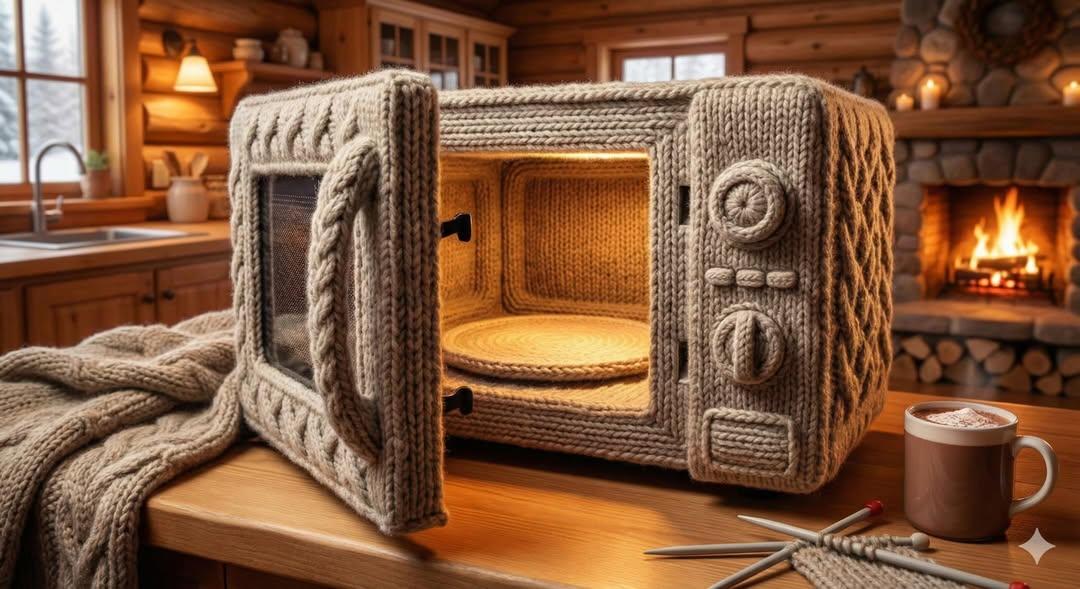
Knitted Yarn Object Generation Prompt
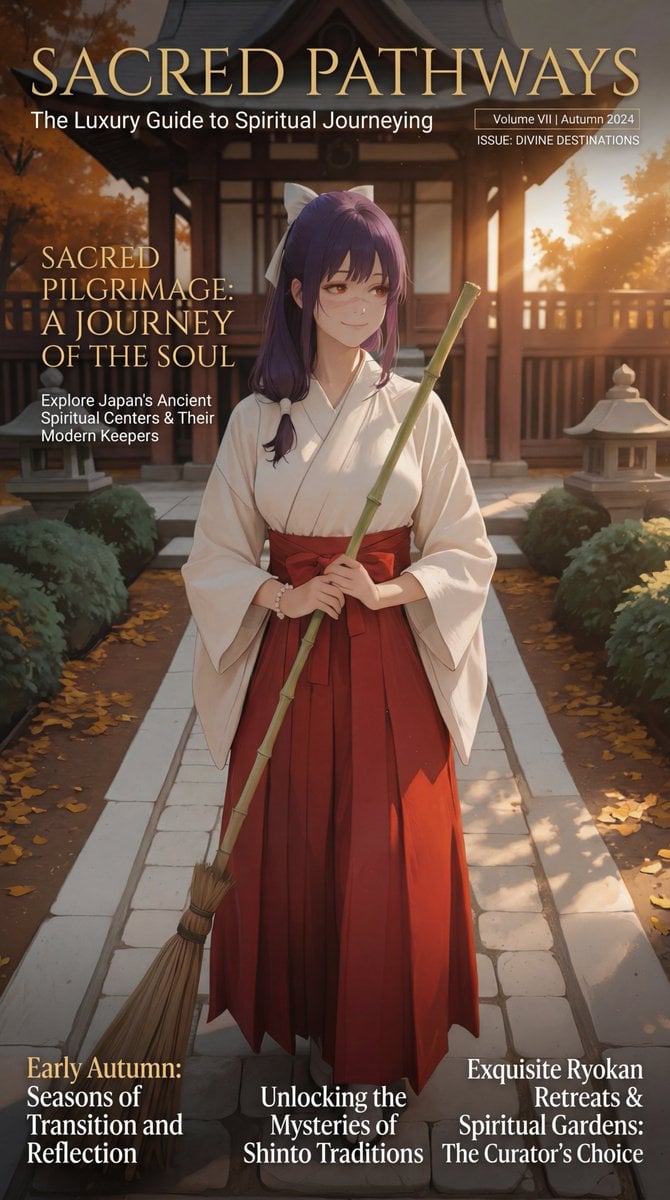
Luxury Travel Magazine Layout Prompt

High-Contrast Sports Editorial Portrait with Grillz and Oakley
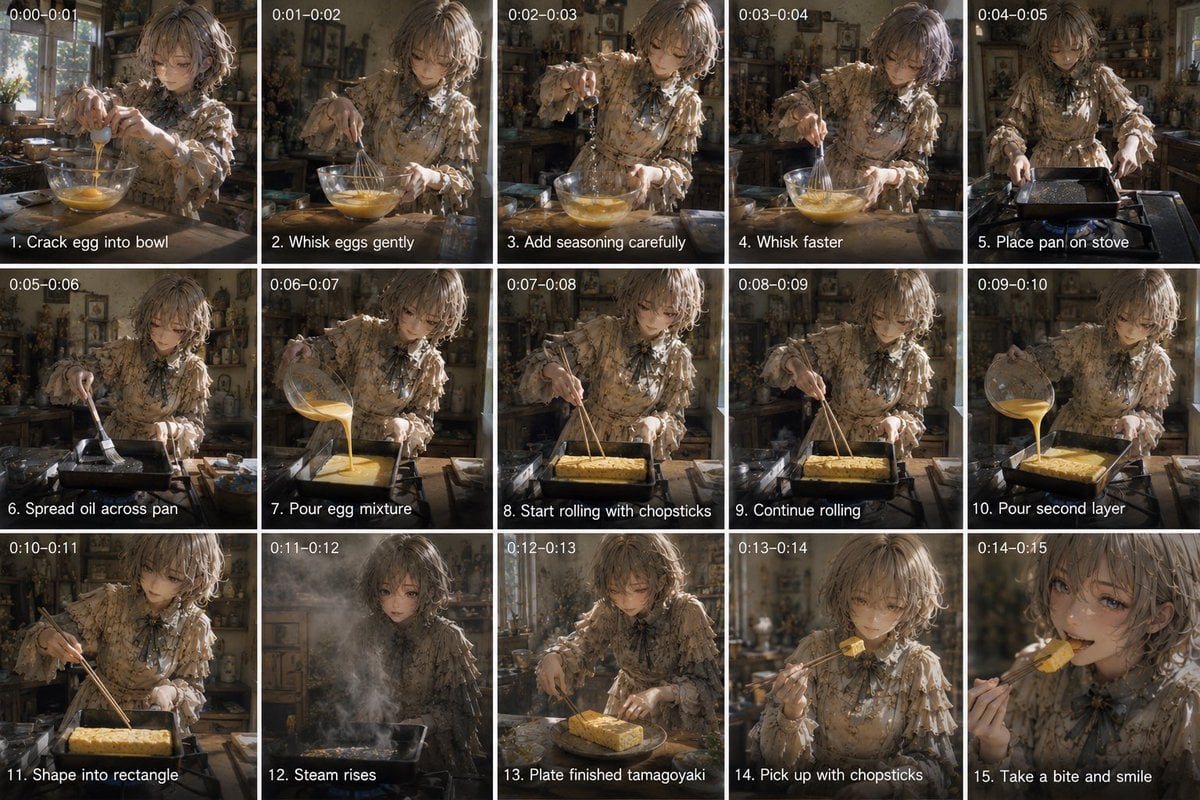
Tamagoyaki Cooking Storyboard
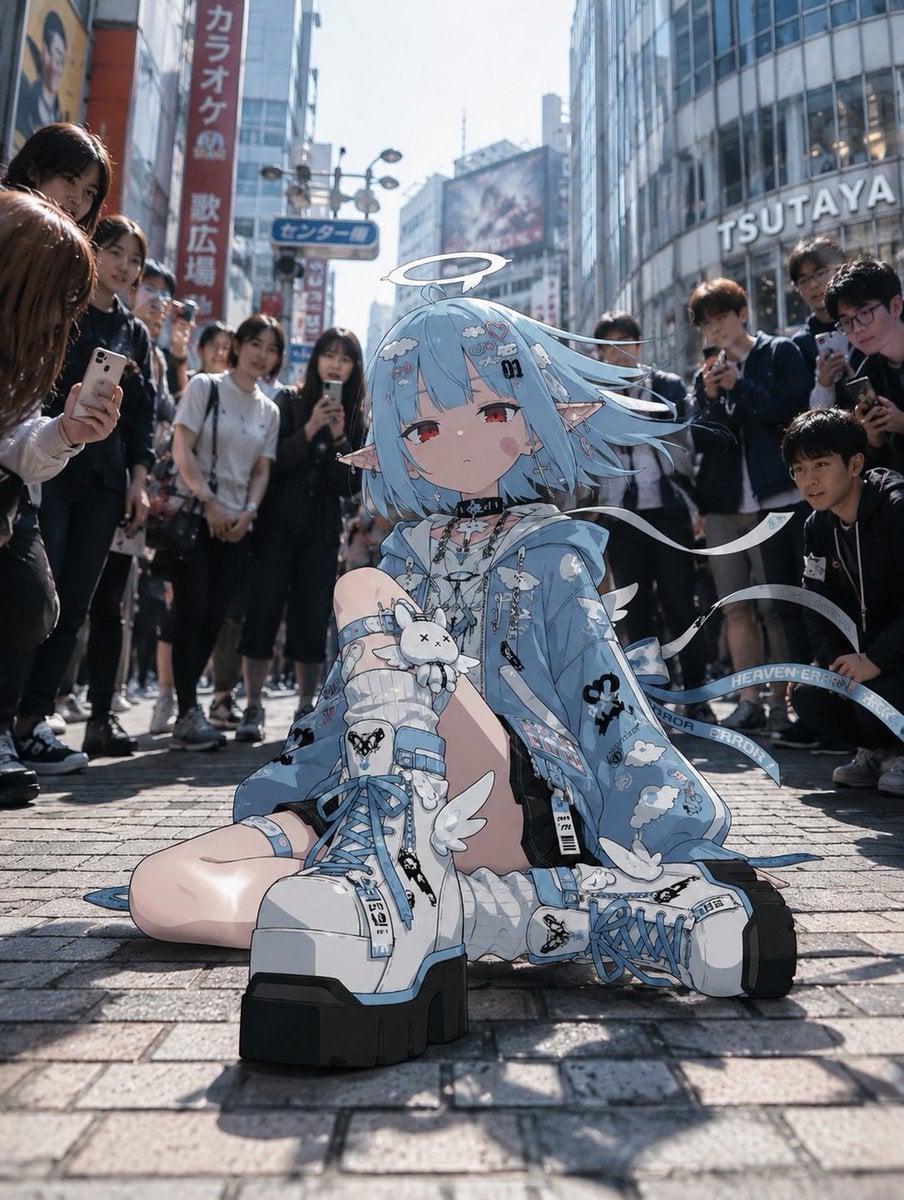
Anime Character in Real Tokyo Street
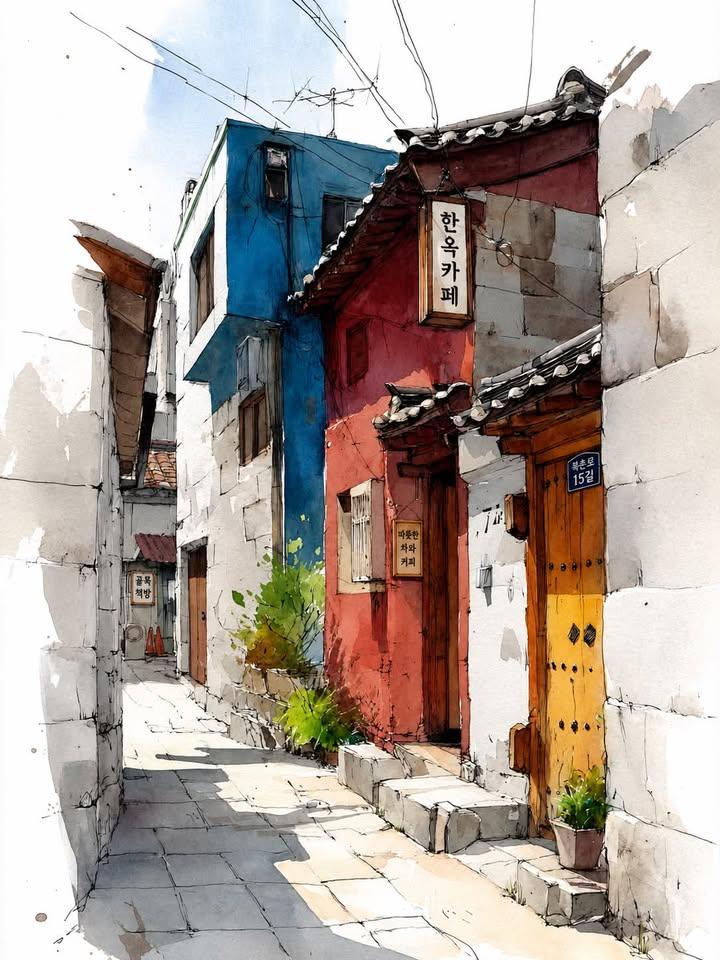
Watercolor Korean Hanok Village Sketch
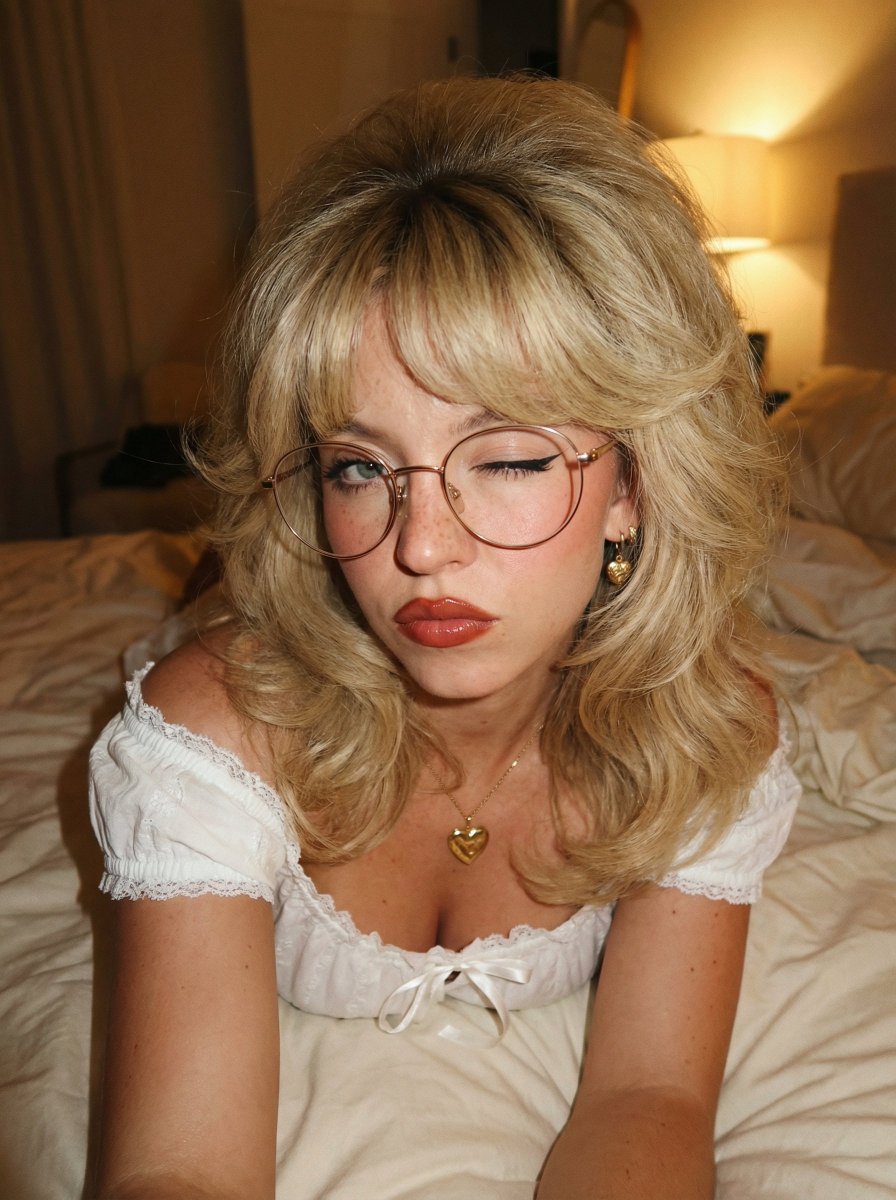
Retro 70s Coquette Selfie Portrait
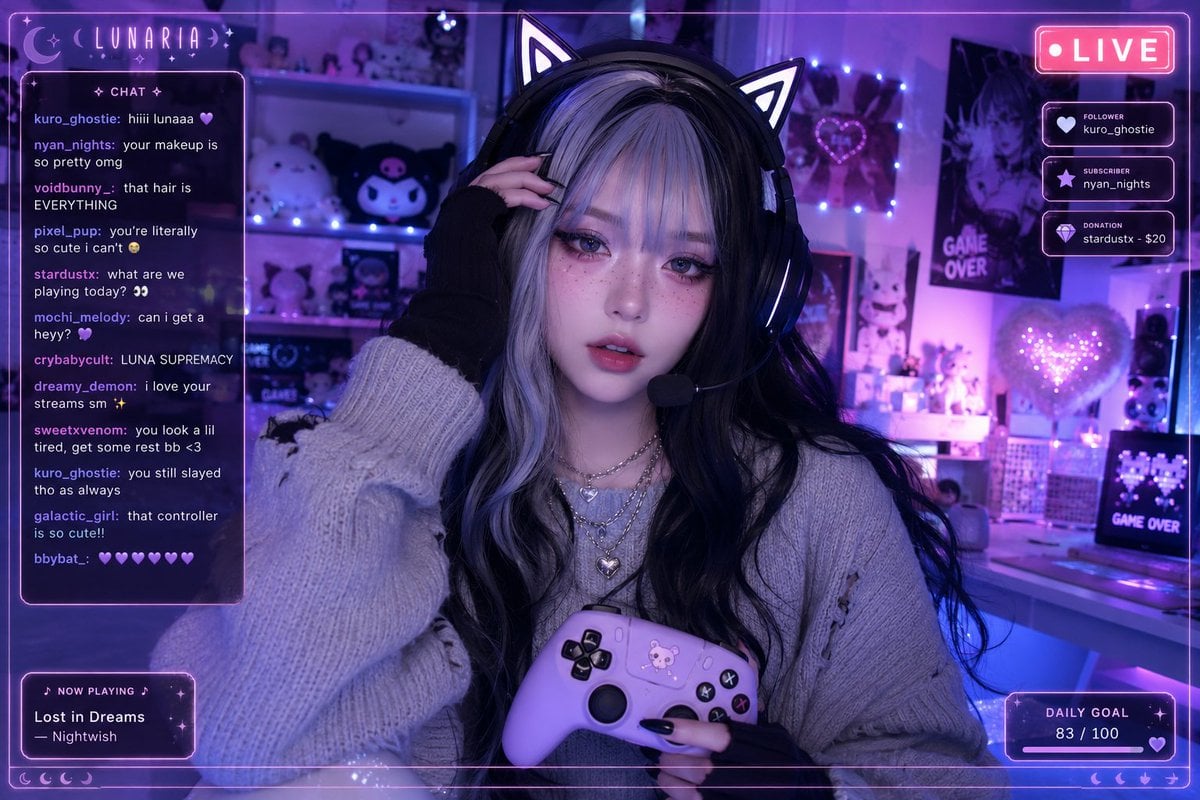
Aesthetic Gamer Girl Streamer
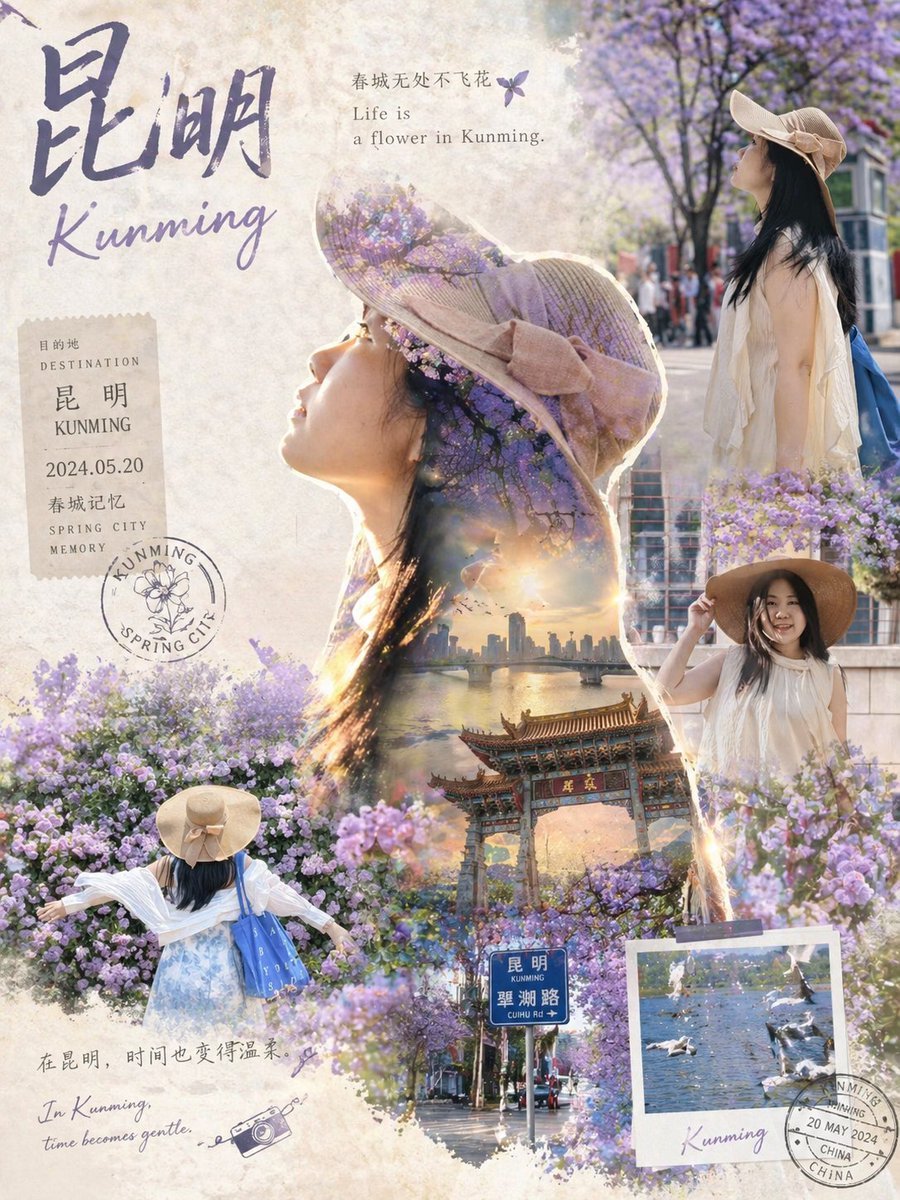
Epic Narrative Travel Poster
Browse template categories
Automotive Blueprint Split Composition questions
How do I use the Automotive Blueprint Split Composition template?
Add your photo if the template asks for one, edit the prompt if you like — the template's model and format are already selected — and press Generate. Your version opens in PicX Studio.
Can I customize the Automotive Blueprint Split Composition template?
Yes. You can change the subject, setting, lighting, mood, format, and available model controls before creating your image.
Is the Automotive Blueprint Split Composition template free?
Opening and editing this template is free. Generating uses credits, shown on the Generate button when you are signed in.
Which AI model should I use?
Choose a compatible model in PicX Studio based on the style, speed, and output controls your project needs.
Looking for something else? Browse all templates.

Your photo, any look
Thousands of ready templates for every top image and video model, from one credit balance.