
Cyberpunk Lightcycle Storyboard
Generates a 9-panel cinematic cyberpunk action storyboard sheet for a rain-soaked lightcycle ambush sequence.
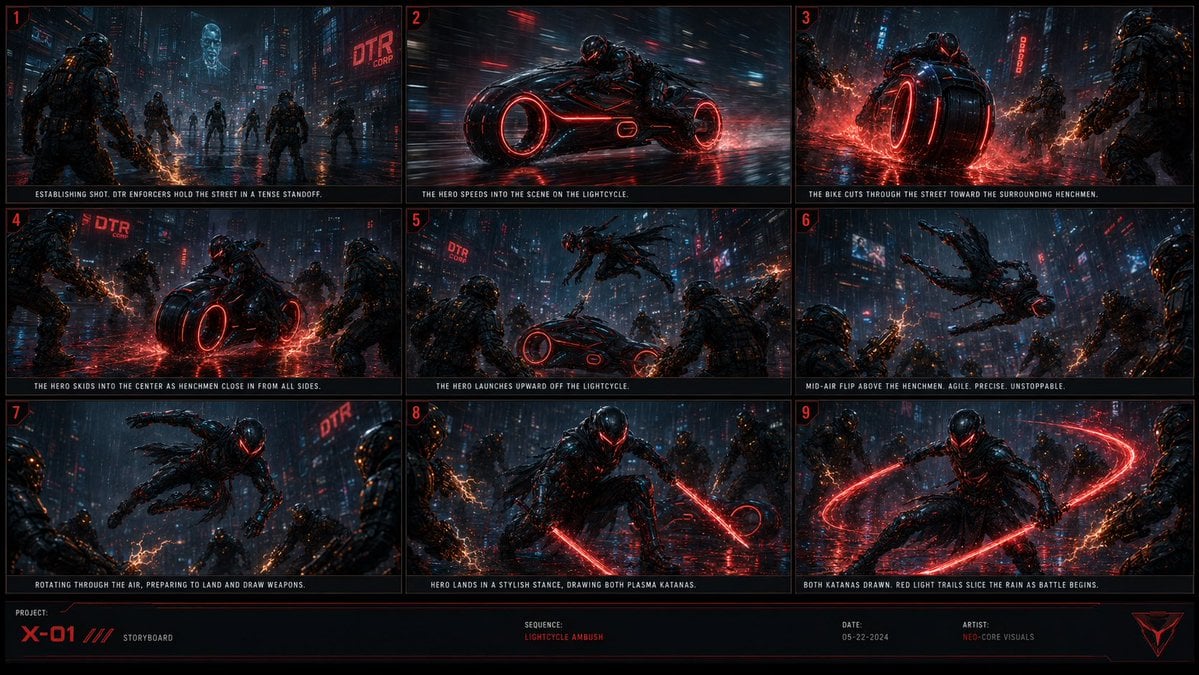
- Prompt included
- Model and format preset
- Premium template
The prompt behind this image
Copy the exact prompt behind Cyberpunk Lightcycle Storyboard, or open it in the studio and make it yours.
Goal: Create a cinematic cyberpunk action storyboard sheet for {argument name="project name" default="X-01"}, showing a black armored hero ambushed in a rain-soaked neon megacity and arriving on a red-glowing lightcycle before launching into combat. Canvas: Wide 16:9 storyboard board, dark sci-fi presentation style, black background with thin red grid borders. Arrange exactly 9 widescreen panels in a 3-column by 3-row grid, each panel numbered in small red numerals at the top-left. Add a bottom production strip with project metadata. Visual style: Hyper-detailed dark cyberpunk concept art, cinematic storyboard frames, wet reflective asphalt, heavy rain, blue-black city atmosphere, red neon accents, volumetric haze, motion blur, sparks, plasma arcs, chrome-black armor, high contrast lighting. The hero wears a sleek black futuristic exosuit with a glowing red visor and red energy highlights. Enemies are bulky armored enforcers with orange electrical weapons. The lightcycle is a low black futuristic motorcycle with oversized circular wheels glowing red. Panel layout and required captions: Include exactly 9 discrete storyboard panels with these actions and captions: 1. Establishing wide shot: several DTR enforcers hold a rainy neon street in a tense standoff; distant holographic skull and red corporate sign. Caption: "ESTABLISHING SHOT. DTR ENFORCERS HOLD THE STREET IN A TENSE STANDOFF." 2. Side tracking shot: the hero speeds into the scene on the red-lit lightcycle, intense motion blur and rain streaks. Caption: "THE HERO SPEEDS INTO THE SCENE ON THE LIGHTCYCLE." 3. Rear/low angle: the bike cuts through the wet street toward surrounding henchmen, red water spray exploding from the wheel. Caption: "THE BIKE CUTS THROUGH THE STREET TOWARD THE SURROUNDING HENCHMEN." 4. Central skid shot: the hero skids the lightcycle into the middle as enemies close in from all sides, red reflections across puddles. Caption: "THE HERO SKIDS INTO THE CENTER AS HENCHMEN CLOSE IN FROM ALL SIDES." 5. Launch shot: the hero springs upward off the lightcycle while enemies watch from the foreground. Caption: "THE HERO LAUNCHES UPWARD OFF THE LIGHTCYCLE." 6. High aerial action: the hero performs a mid-air flip above the henchmen, agile silhouette against rainy skyscrapers. Caption: "MID-AIR FLIP ABOVE THE HENCHMEN. AGILE. PRECISE. UNSTOPPABLE." 7. Rotating aerial close shot: the hero twists through the air, preparing to land and draw weapons, enemies framing the sides. Caption: "ROTATING THROUGH THE AIR, PREPARING TO LAND AND DRAW WEAPONS." 8. Hero landing shot: the hero lands in a stylish crouched stance, drawing exactly 2 red plasma katanas. Caption: "HERO LANDS IN A STYLISH STANCE, DRAWING BOTH PLASMA KATANAS." 9. Battle start shot: both katanas are drawn, red circular light trails cut through the rain around the hero as enemies surround him. Caption: "BOTH KATANAS DRAWN. RED LIGHT TRAILS SLICE THE RAIN AS BATTLE BEGINS." Visible text and branding: Use the corporate sign text {argument name="corporate sign text" default="DTR CORP"} in multiple city-background signs. In the bottom production strip include: "PROJECT:" then {argument name="project name" default="X-01"}, "STORYBOARD", "SEQUENCE:" then {argument name="sequence title" default="LIGHTCYCLE AMBUSH"}, "DATE:" then {argument name="date" default="05-22-2024"}, and "ARTIST:" then {argument name="artist credit" default="NEO-CORE VISUALS"}. Add a small angular red triangular emblem at the bottom-right. Constraints: Keep all captions in small uppercase condensed white text beneath each panel. Maintain exactly 9 panels, exactly 2 plasma katanas in panels 8 and 9, and a cohesive red/black/blue cyberpunk palette. No extra panels, no speech bubbles, no watermark.
How to use Cyberpunk Lightcycle Storyboard in 3 steps
- 1Upload ImagePNG, JPG or paste
Add your photo
Upload the photo the template builds on. The prompt, model and format are already set.
- 2…a portrait of your subject in softgolden-hour light, 85mm…
Personalize
Edit the subject and creative details for your destination.
- 3Generate
Generate
Press Generate — your image is created in PicX Studio, so you can compare it with the original and refine one variable at a time.
More like this
Templates with the same subject, style or setup. Open one to see its prompt.
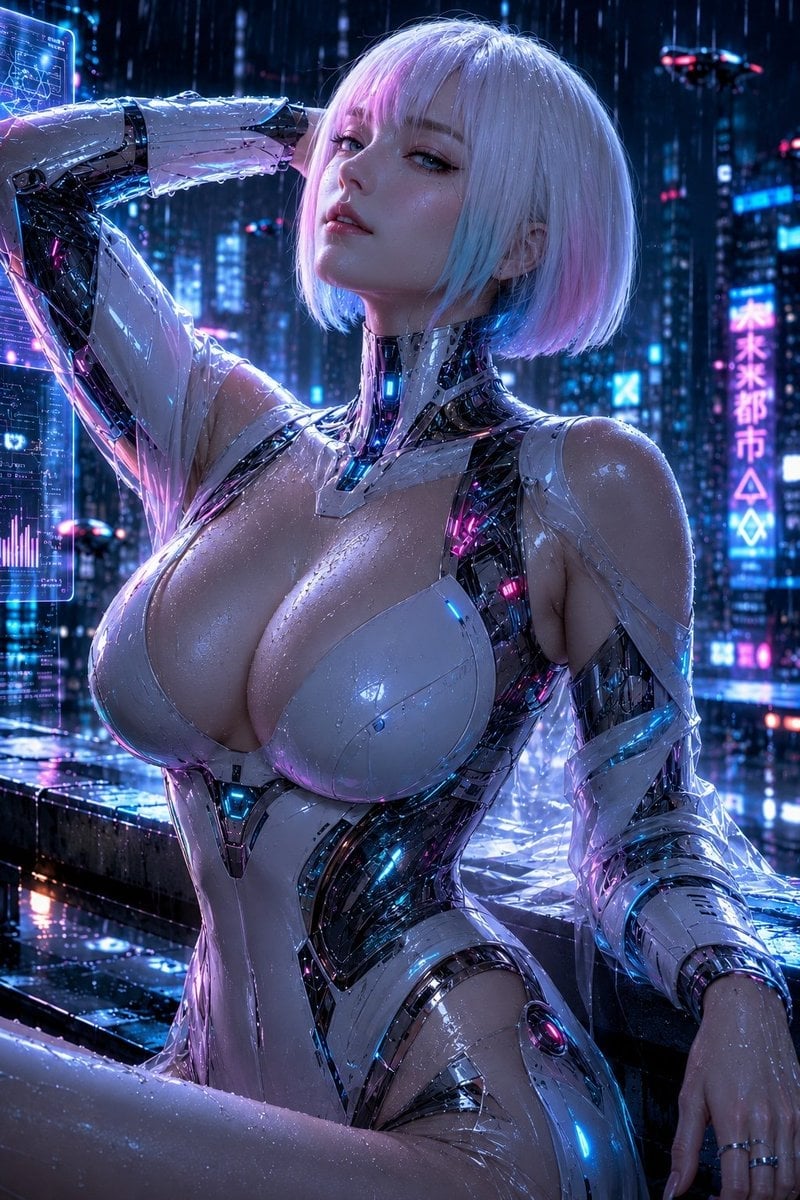
Rainy Night Android Cyberpunk Portrait
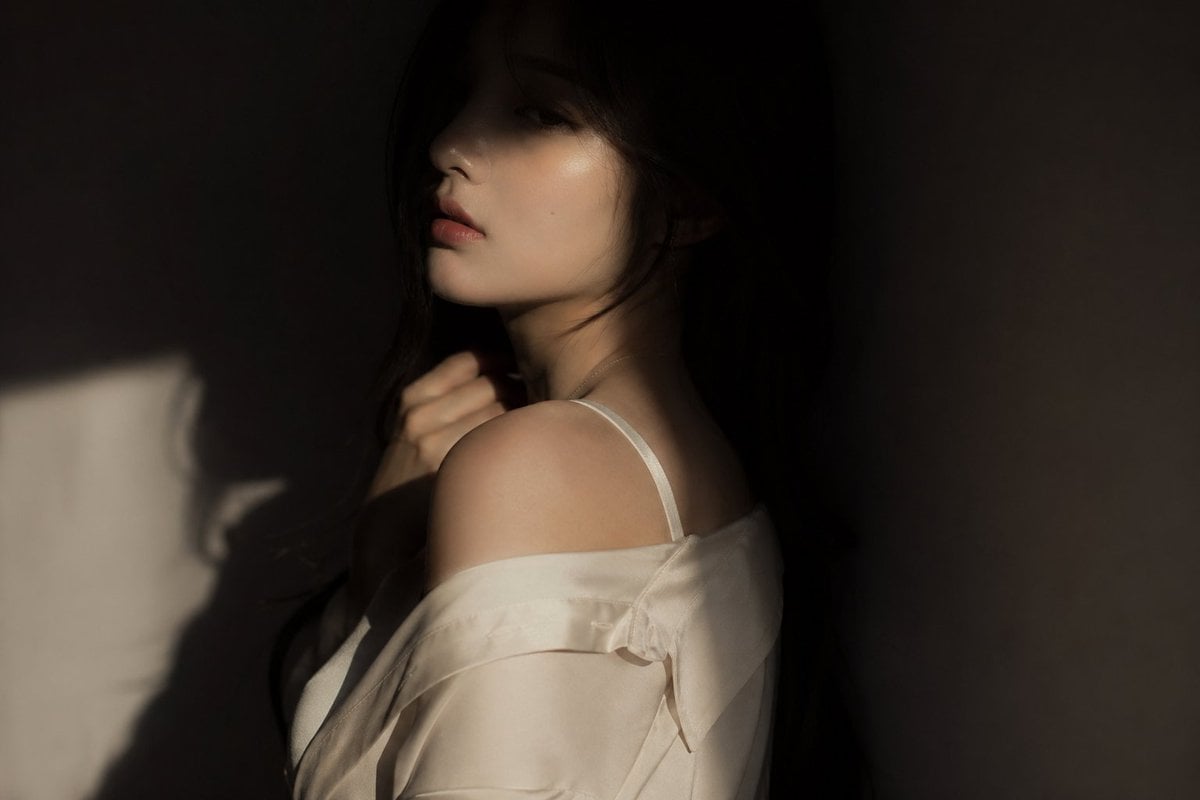
Korean Idol Partial Shadow Editorial Portrait
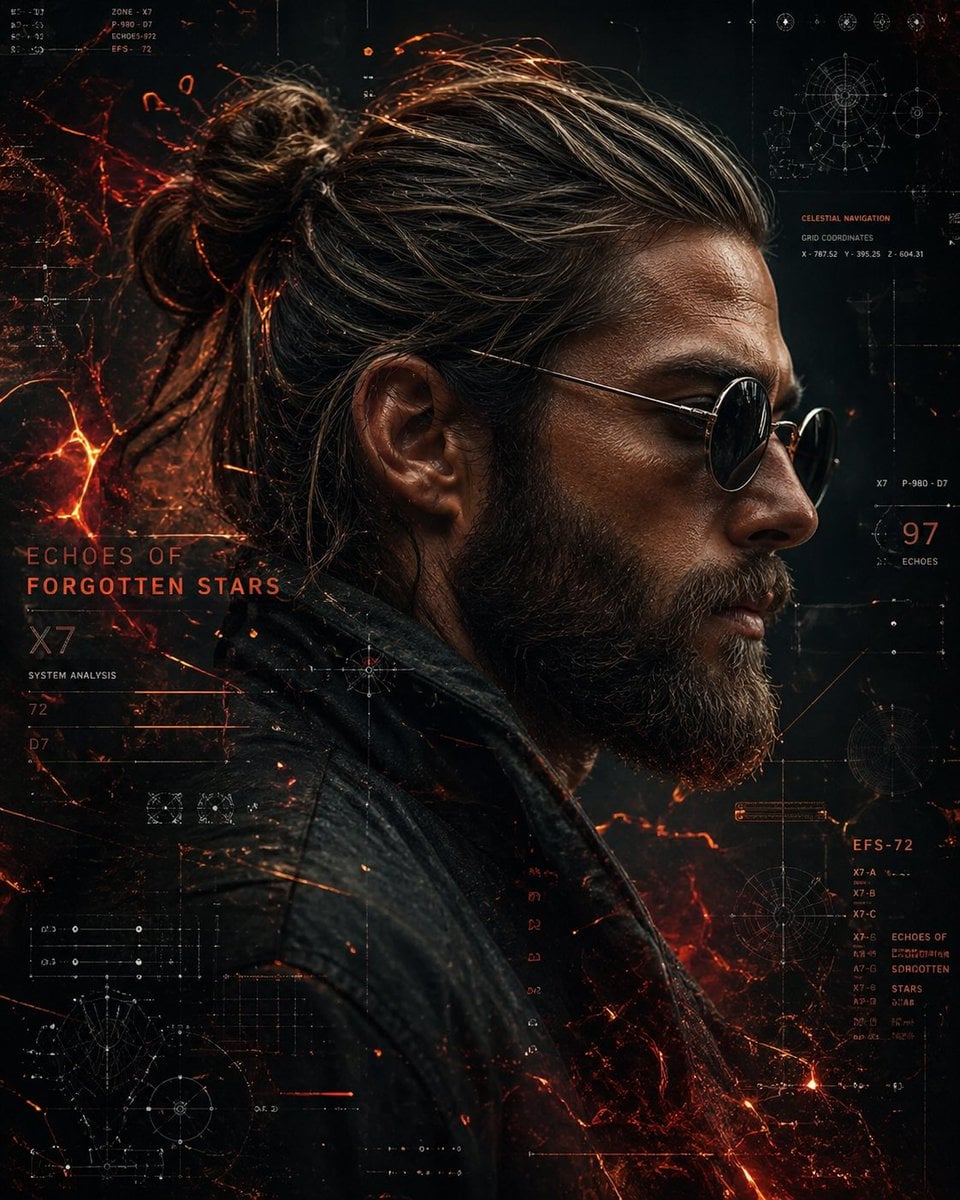
Cinematic Sci-Fi Interface Side Profile
Cyberpunk Neon Profile Fashion Portrait
Cinematic Neon Light Strip Studio Portrait
Futuristic Studio Neon Ring Minimalist Portrait
Neon Violet Streetwear Fashion Portrait
Neon Night Crosswalk Candid Portrait
Red Futuristic Sport Motorcycle POV
Rainy Night Android Cyberpunk Portrait
Cinematic Sci-Fi Commander Side Profile Portrait
Low-Angle Cyberpunk Neon Profile Portrait
Make it yours
Cyberpunk Lightcycle Storyboard works as-is. These are the safest ways to change it without losing the look.
Change one field
Copy a single group, rewrite it, and generate again so you can see what that field is doing.
Keep the frame, change the subject
Hold the composition and light of Cyberpunk Lightcycle Storyboard, then swap wardrobe, props or the person for a new take.
| If the result… | Why | Fix |
|---|---|---|
| The result drifts from the preview | Too many fields changed at once. | Reuse Cyberpunk Lightcycle Storyboard as-is first, then change one group — subject, light, or setting. |
| The model over-stylizes the scene | The prose prompt leaves finish and camera underspecified. | Add one camera or lighting sentence and stay on GPT Image 2. |
More GPT Image 2 templates
Other prompts made for GPT Image 2.

Six VTuber Japanese Logo Sheet

Realistic Portrait of Woman and Deer

The Vista Modular Condo Poster

AI Model Routing Comparison Infographic

2.5D Anime Art Board

Isometric Productivity Desk Scene

New York Double Exposure Poster

Four-Panel AI Landscape Comparison

Japanese Tatami Lifestyle Magazine Cover

NESCAFÉ Coffee Map Poster
More image prompts
Fresh picks from across the catalog.
Panel Editorial Grid Portrait with Cat for Nano Banana Pro
Indian Folk Art Depiction Prompt
Graffiti Sketch AI Builder Style
Cookie Baking Scene for Image and Video Generation
Synthwave Monochromatic Portrait with Bokeh

2x2 Grid of Online School Banner Ads
Hyper-Detailed Character and Style Replication Prompt
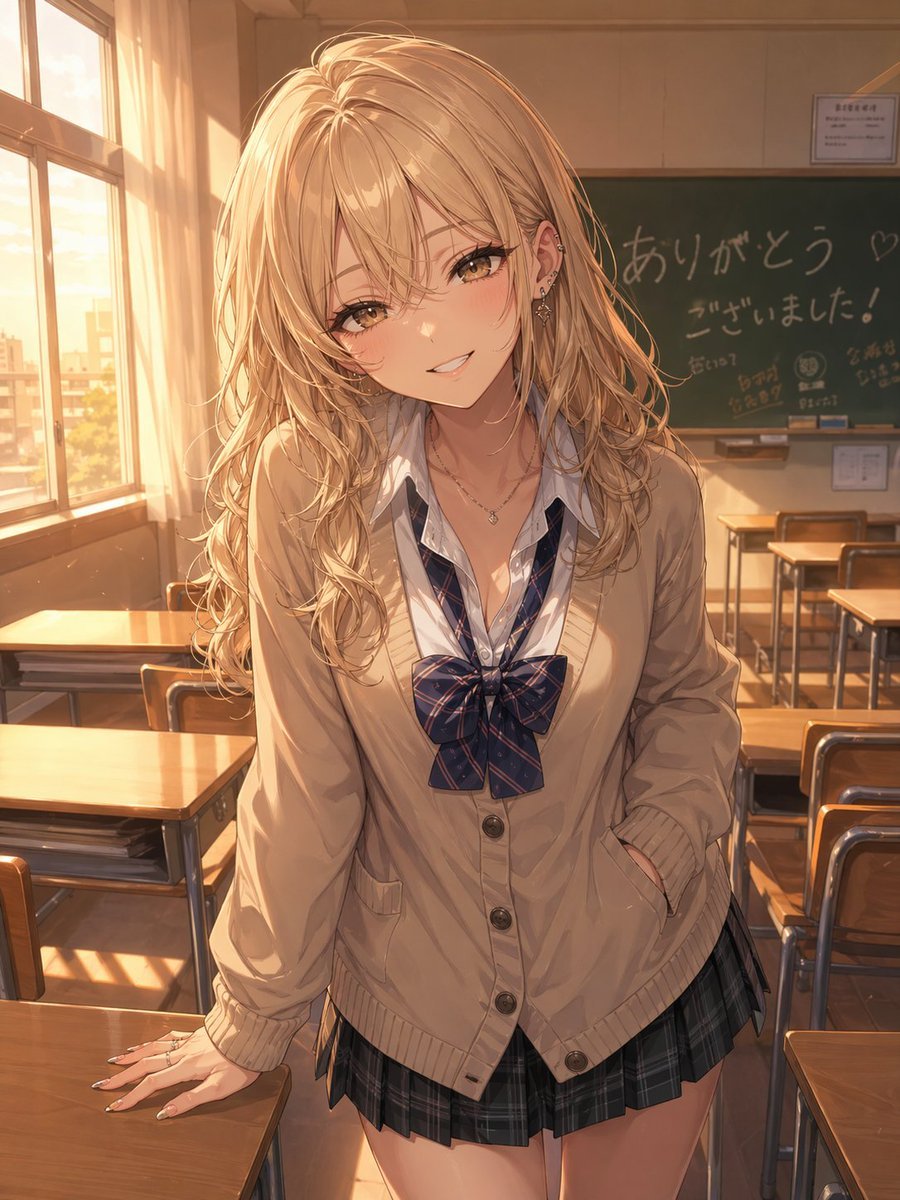
Otaku-Friendly Gyaru in Sunset Classroom
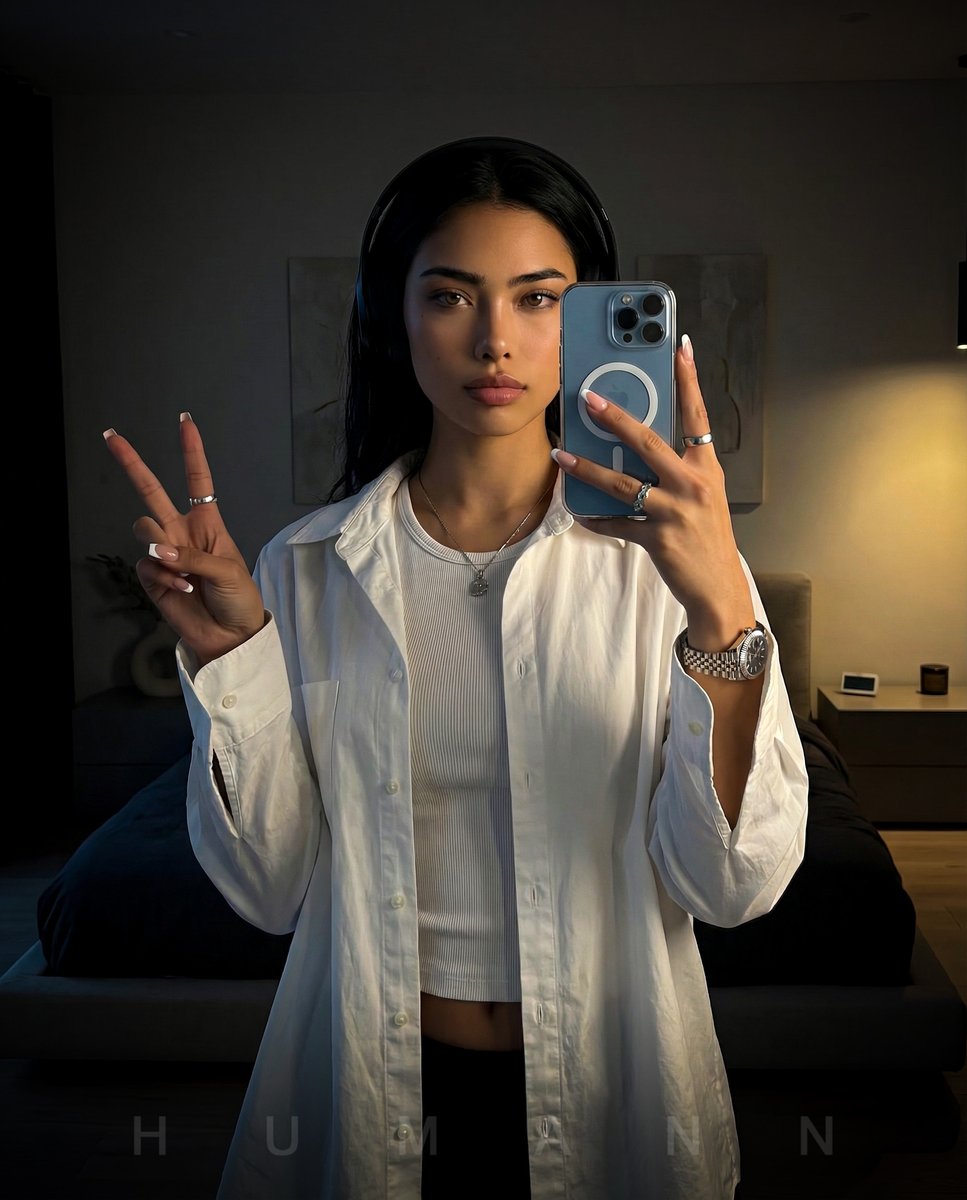
Nano Banana - Peace Sign Bedroom Selfie
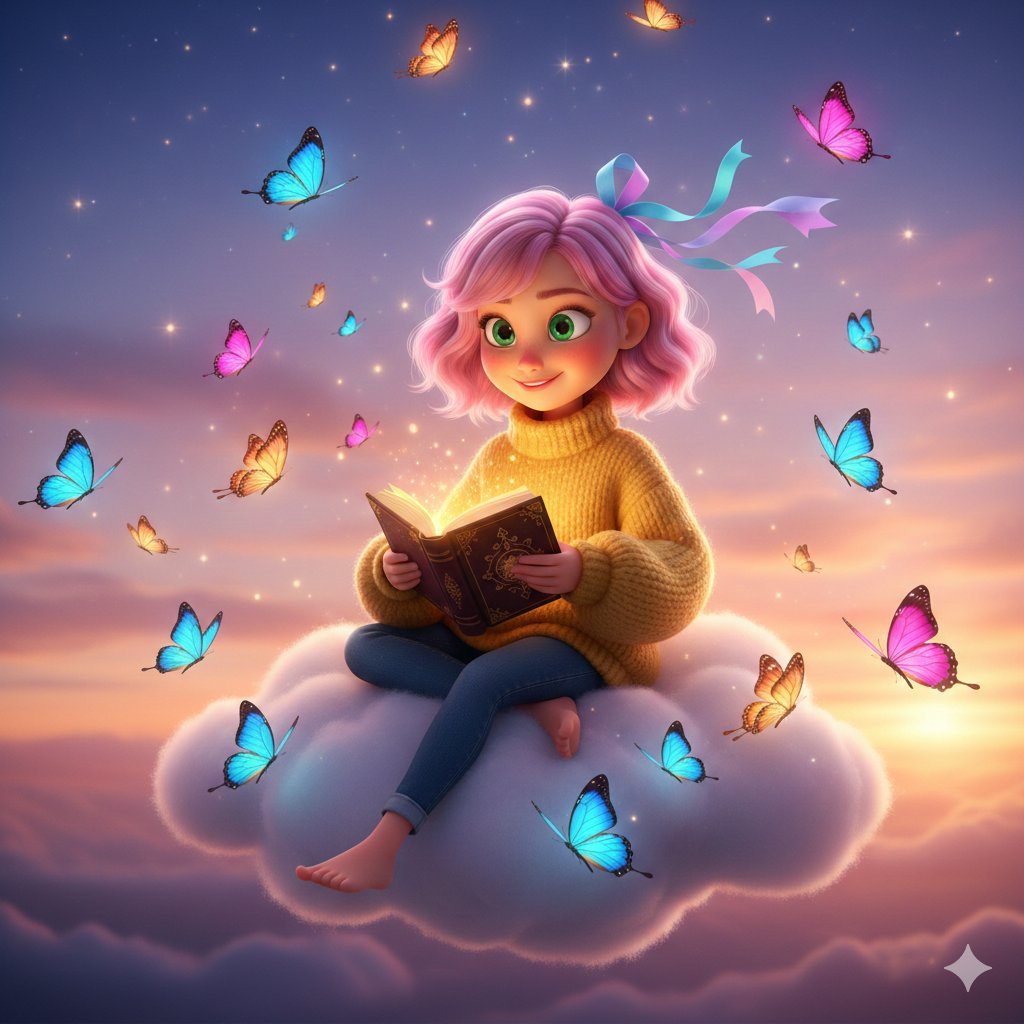
Pixar-Style Girl on a Floating Cloud
Browse template categories
Cyberpunk Lightcycle Storyboard questions
How do I use the Cyberpunk Lightcycle Storyboard template?
Add your photo if the template asks for one, edit the prompt if you like — the template's model and format are already selected — and press Generate. Your version opens in PicX Studio.
Can I customize the Cyberpunk Lightcycle Storyboard template?
Yes. You can change the subject, setting, lighting, mood, format, and available model controls before creating your image.
Is the Cyberpunk Lightcycle Storyboard template free?
Opening and editing this template is free. Generating uses credits, shown on the Generate button when you are signed in.
Which AI model should I use?
Start with GPT Image 2, which is the model associated with this template. You can compare another compatible model for a different finish.
Looking for something else? Browse all templates.

Your photo, any look
Thousands of ready templates for every top image and video model, from one credit balance.