
Recursive GPT Image 2 Inception
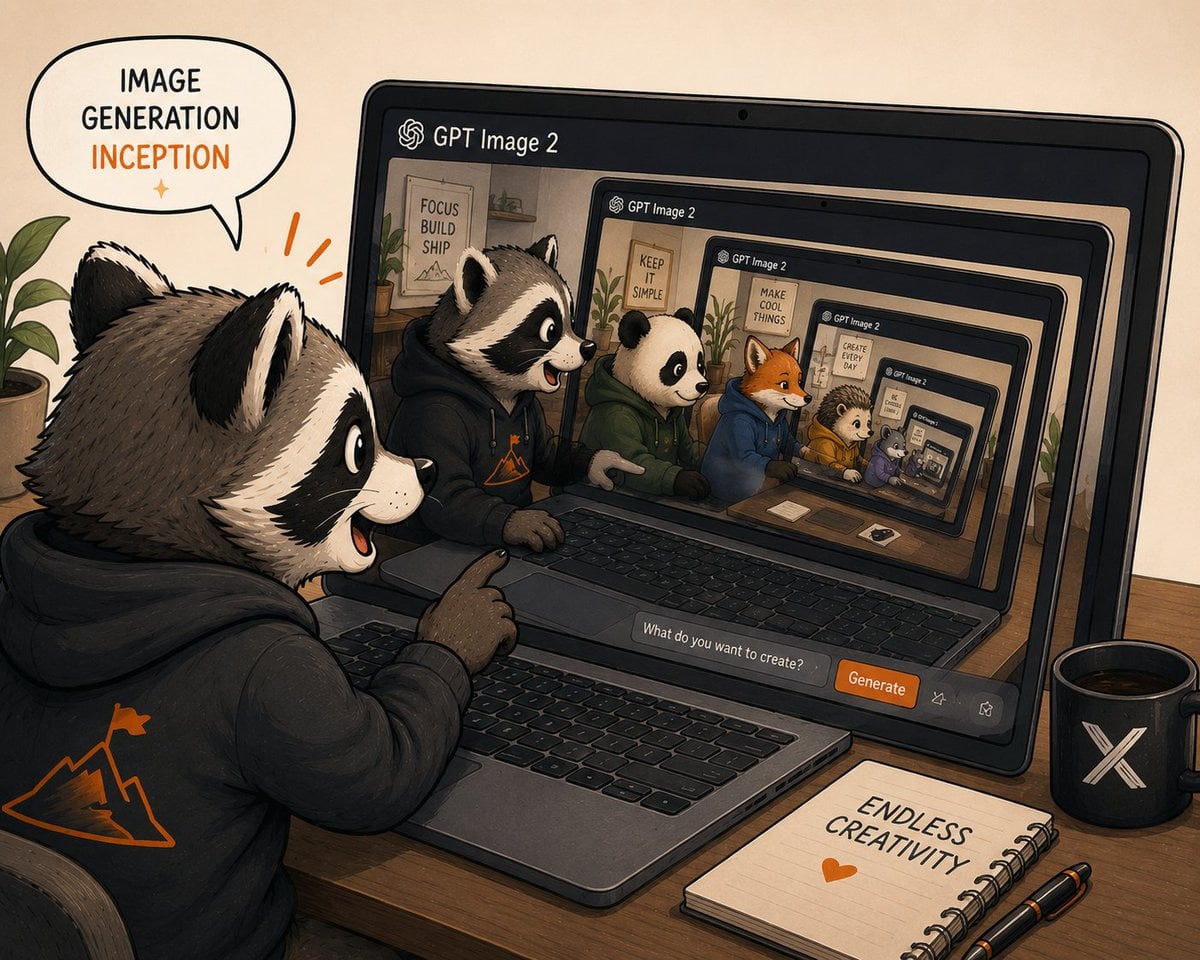
A cozy illustrated creator scene showing an anthropomorphic raccoon generating an infinite nested GPT Image 2 image inside a laptop.
- Prompt included
- Model and format preset
- Premium template
The prompt behind this image
Copy the exact prompt behind Recursive GPT Image 2 Inception, or open it in the studio and make it yours.
Create a warm hand-drawn digital illustration of recursive image generation inception, showing a cute anthropomorphic raccoon creator at a wooden desk using GPT Image 2 on a laptop. The scene is in a cozy studio with beige paper-textured background, inked outlines, soft shading, muted earth tones, and orange accent highlights. In the foreground, place 1 large raccoon character wearing a black hoodie with an orange mountain-and-flag logo on the back, sitting at the laptop and pointing excitedly at the screen with an open-mouthed smile. Add a speech bubble above the raccoon that reads “IMAGE GENERATION” in black and “INCEPTION” in orange, with a small orange sparkle beneath. On the laptop screen, show the GPT Image 2 interface with the header “GPT Image 2” and an infinite nested recursion of the same scene: exactly 6 visible screen/laptop frames receding inward, each smaller and perspective-aligned, creating a tunnel effect. Inside the main visible screen, include exactly 6 main animal characters seated side by side at desks: 1 raccoon in a black hoodie, 1 panda in a green hoodie, 1 orange fox in a blue hoodie, 1 hedgehog in a yellow hoodie, 1 small purple animal, and 1 tiny nested animal inside the deepest screen. Add motivational posters in the recursive room backgrounds with short text such as “FOCUS BUILD SHIP,” “KEEP IT SIMPLE,” “MAKE COOL THINGS,” and “CREATE EVERY DAY.” At the bottom of the laptop interface, include a prompt input field reading “What do you want to create?” and an orange button labeled “Generate,” plus two small outline action icons. On the desk, include exactly 3 prominent accessories: a black mug with a white X logo on the right, a spiral notebook reading “ENDLESS CREATIVITY” with an orange heart below it, and two black pens with orange accents. Add a leafy green plant at the far left edge and another plant visible inside the recursive screen room. Use a slightly wide 4:3 composition, dynamic perspective looking over the raccoon’s shoulder, playful creator-community mood, crisp readable text, no photorealism, no watermark. Use {argument name="app name" default="GPT Image 2"}, {argument name="speech bubble text" default="IMAGE GENERATION INCEPTION"}, {argument name="button label" default="Generate"}, {argument name="notebook text" default="ENDLESS CREATIVITY"}, and {argument name="main character" default="anthropomorphic raccoon creator"}.
How to use Recursive GPT Image 2 Inception in 3 steps
- 1Upload ImagePNG, JPG or paste
Add your photo
Upload the photo the template builds on. The prompt, model and format are already set.
- 2…a portrait of your subject in softgolden-hour light, 85mm…
Personalize
Edit the subject and creative details for your destination.
- 3Generate
Generate
Press Generate — your image is created in PicX Studio, so you can compare it with the original and refine one variable at a time.
More like this
Templates with the same subject, style or setup. Open one to see its prompt.
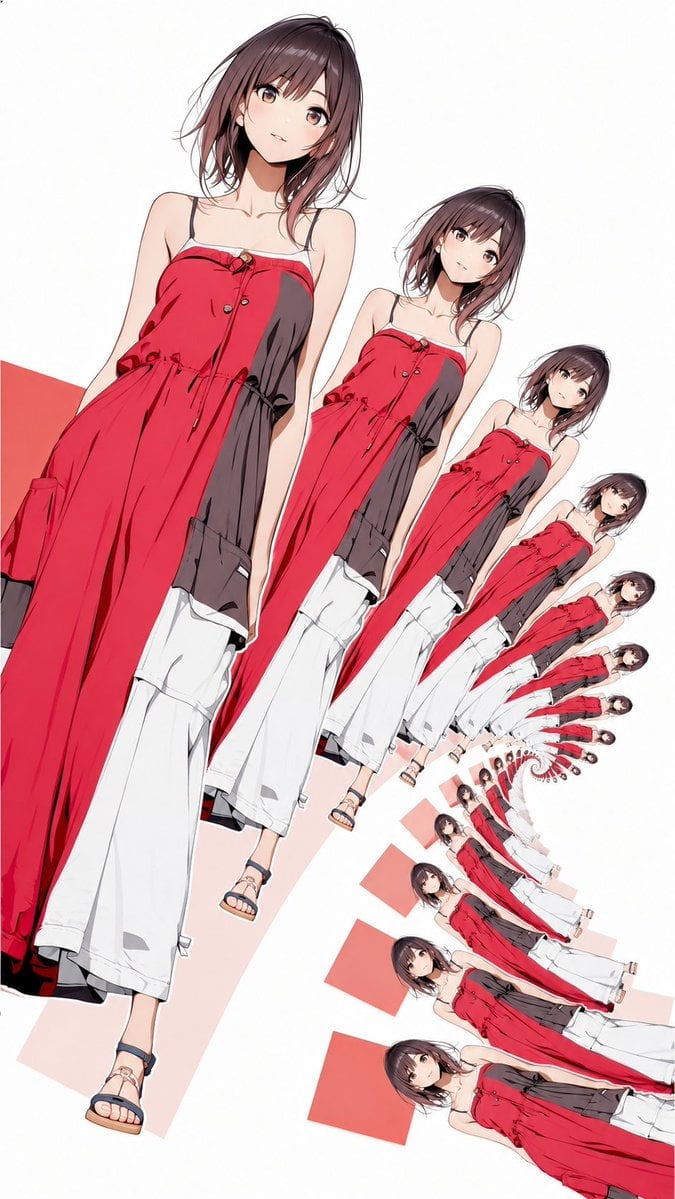
Infinite Recursive Droste Spiral
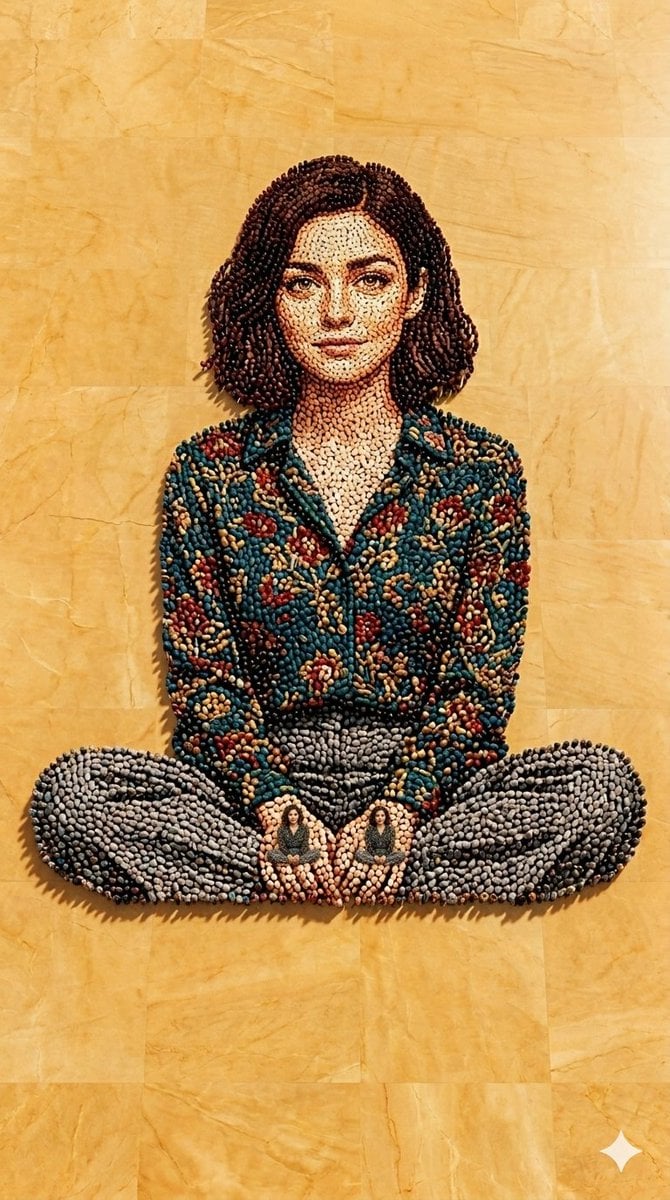
Recursive Human Figure Mosaic
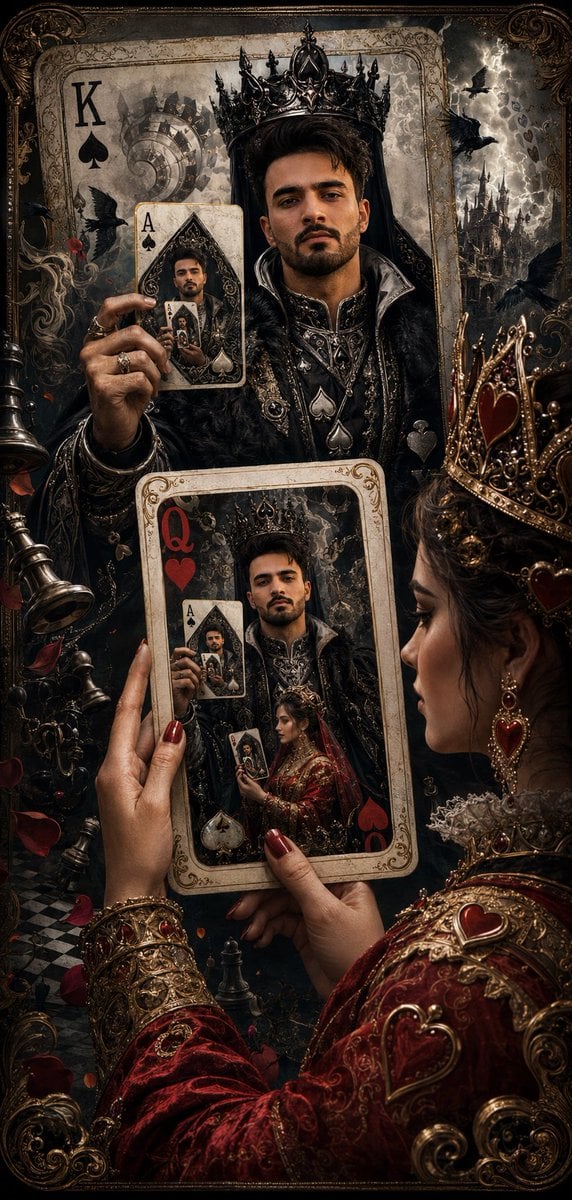
Recursive King of Spades Card
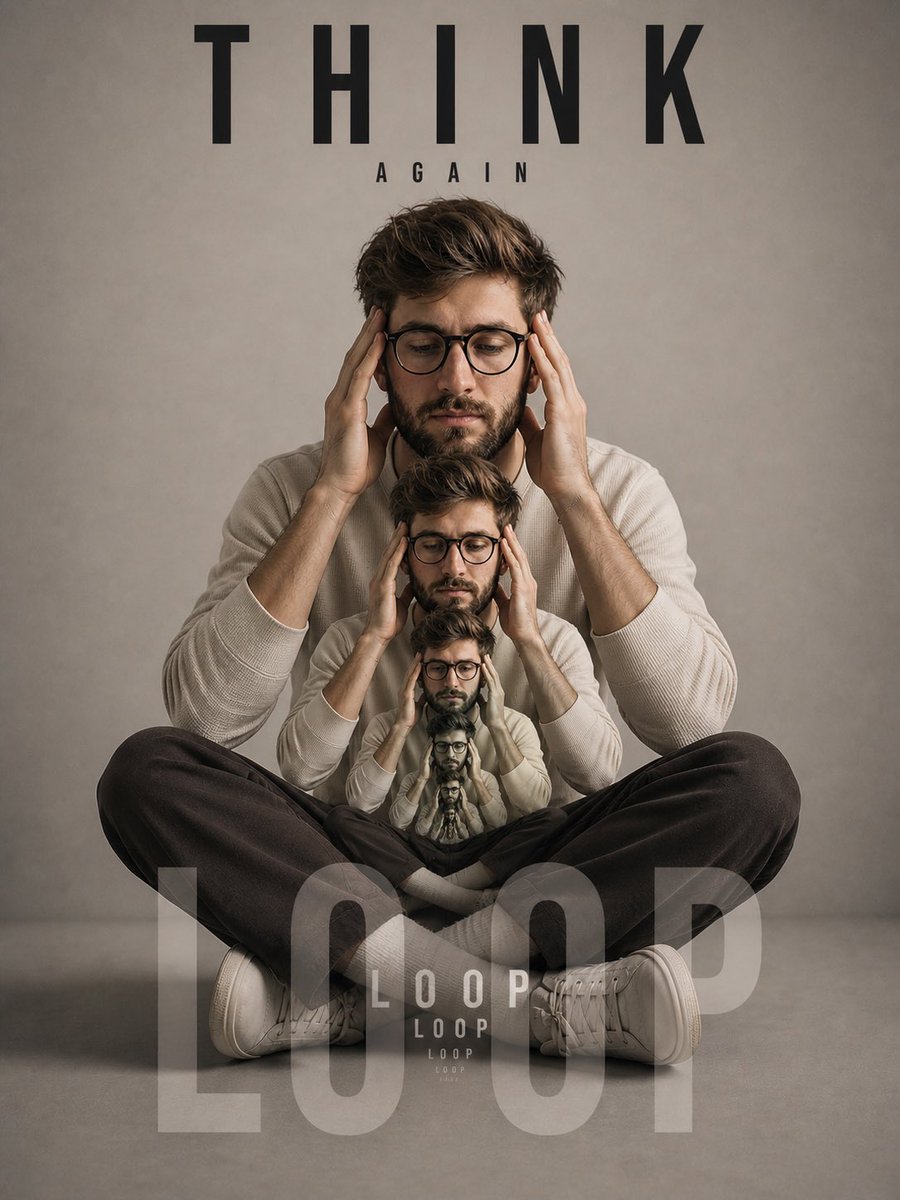
Recursive Thinking Loop Portrait
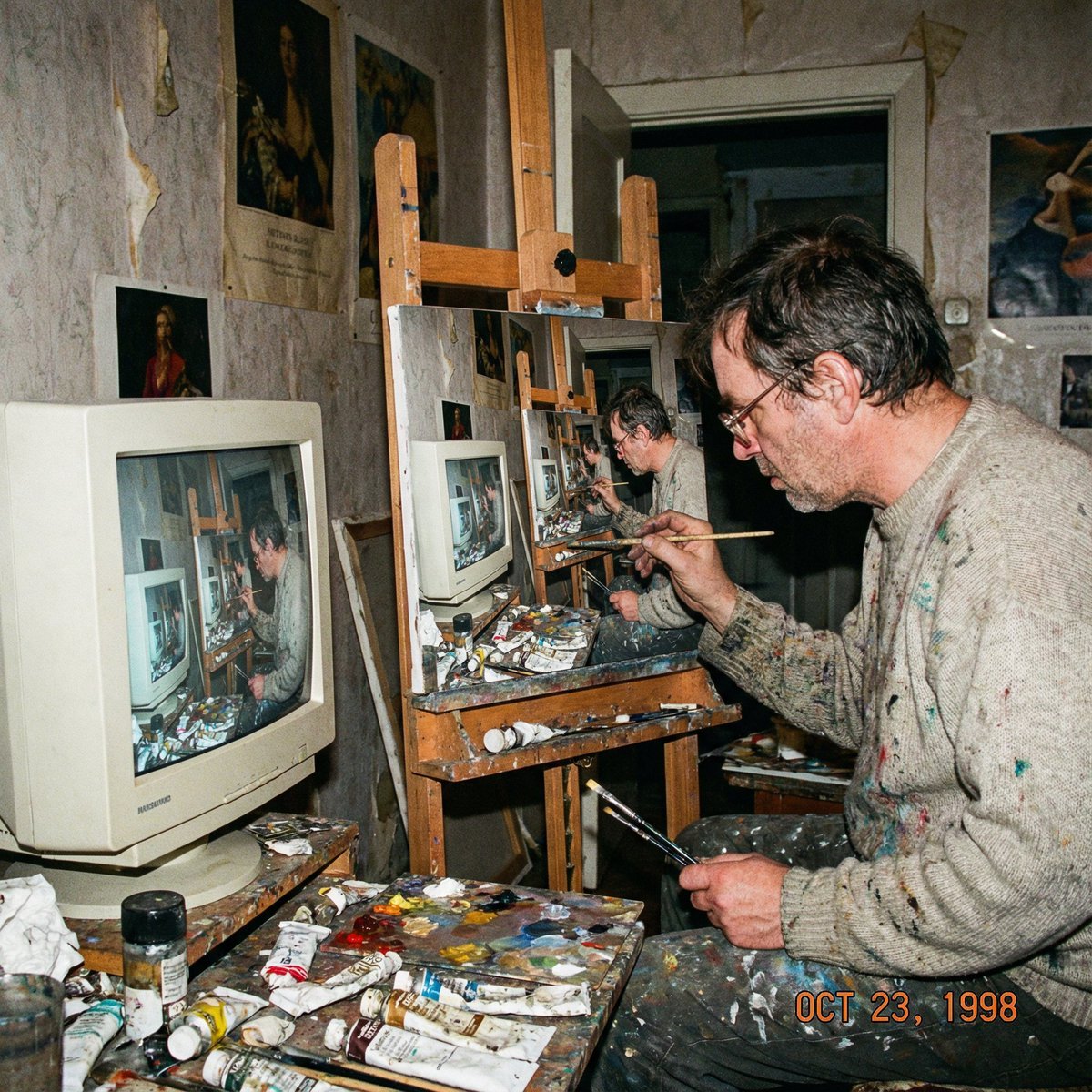
Recursive artist painting a photo of himself painting
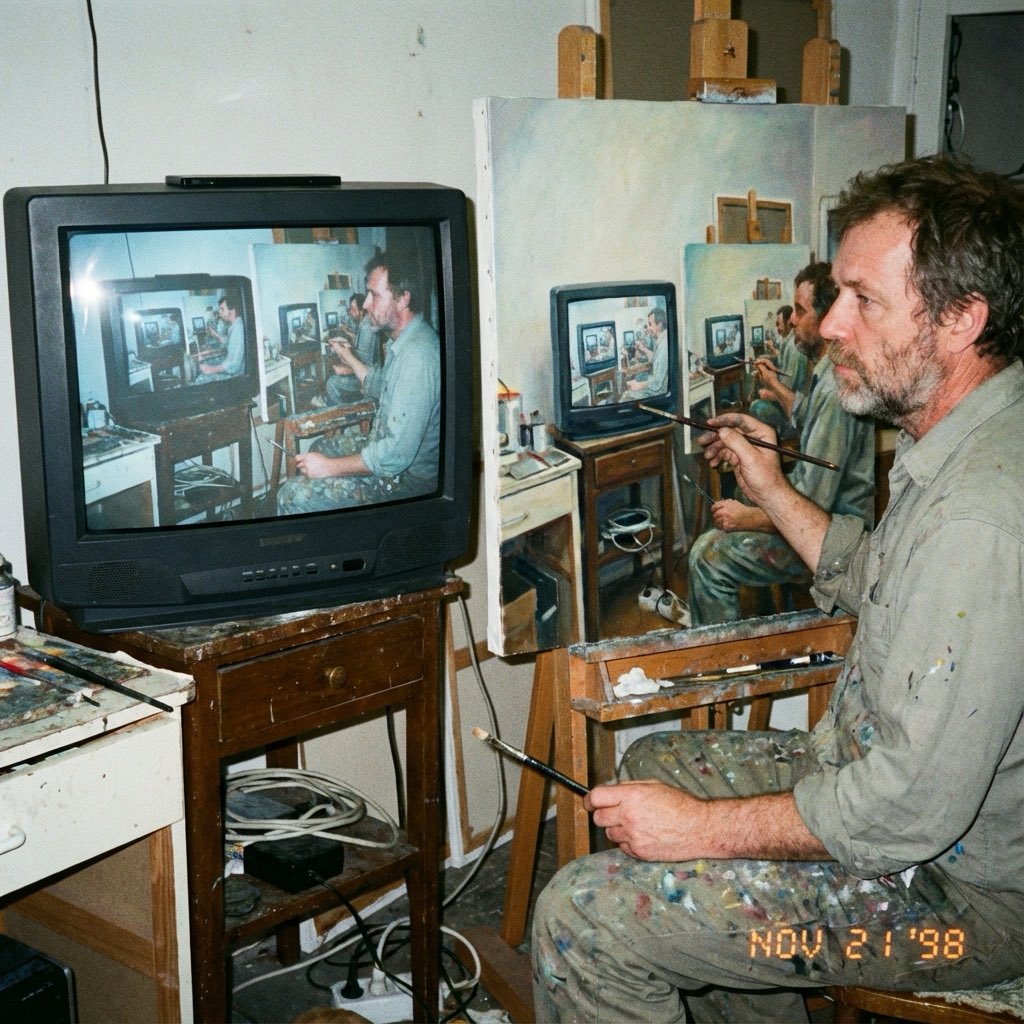
Recursive Painting Photograph Prompt
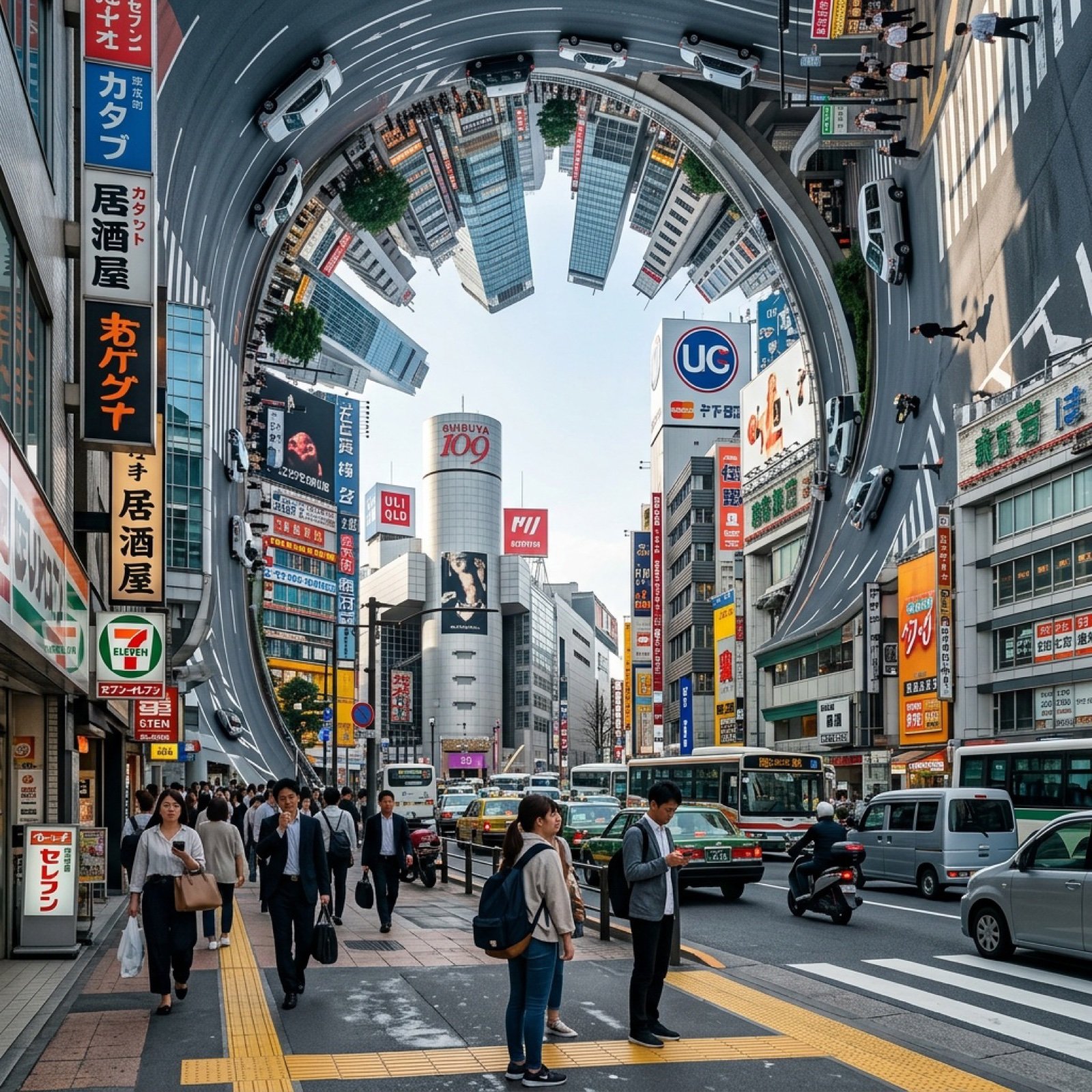
Inception-Style City Street Bending Upward
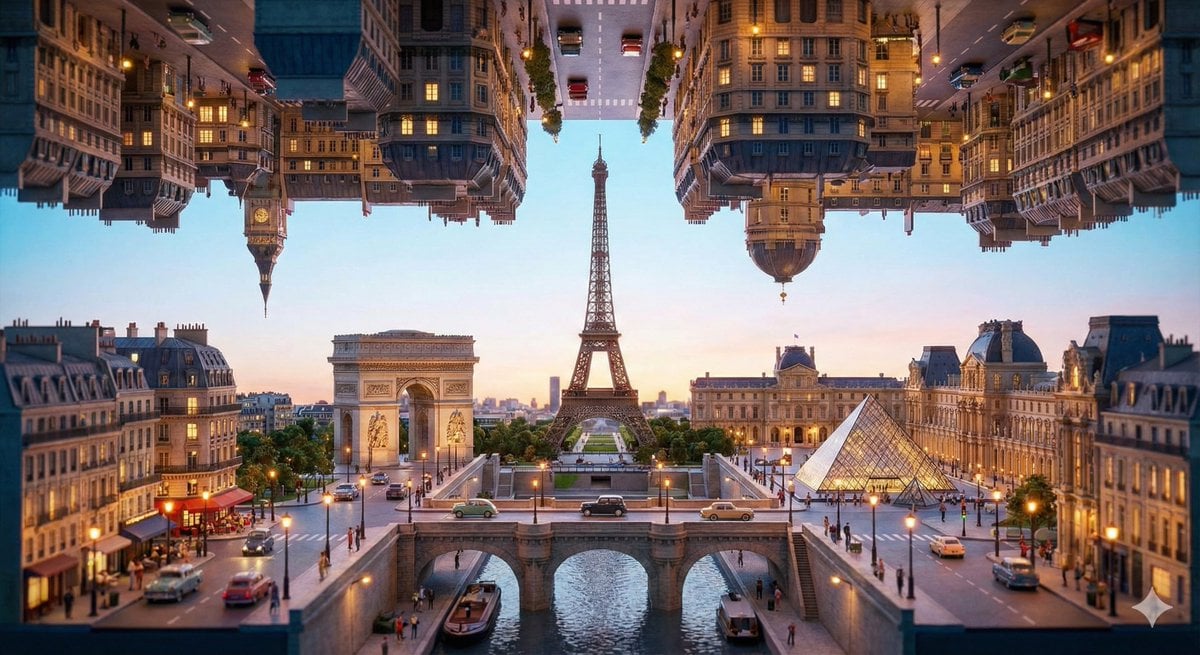
Inception-Style Folding City Diorama Prompt
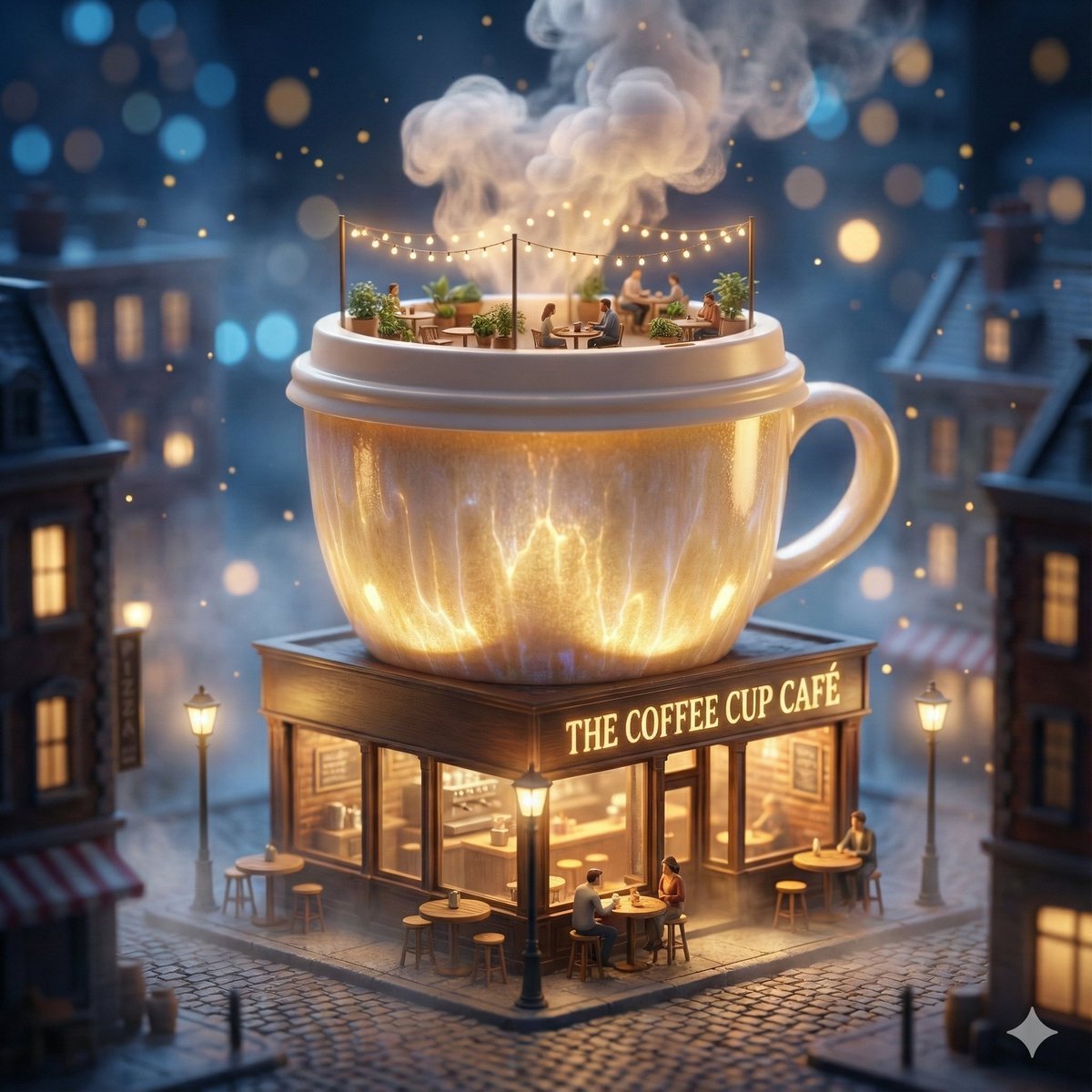
ChatGPT Image 1 5 Google Veo 3 1
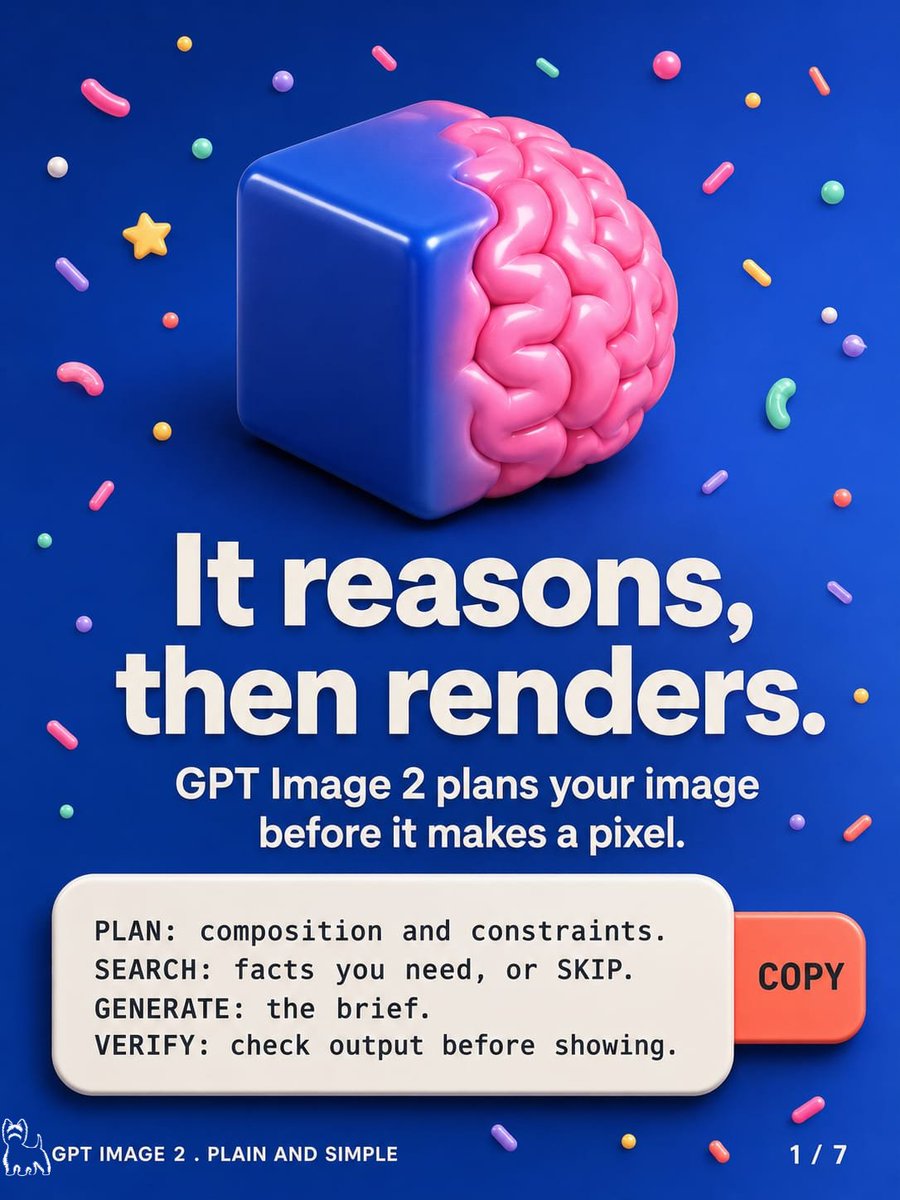
GPT Image 2 Reasoning Poster
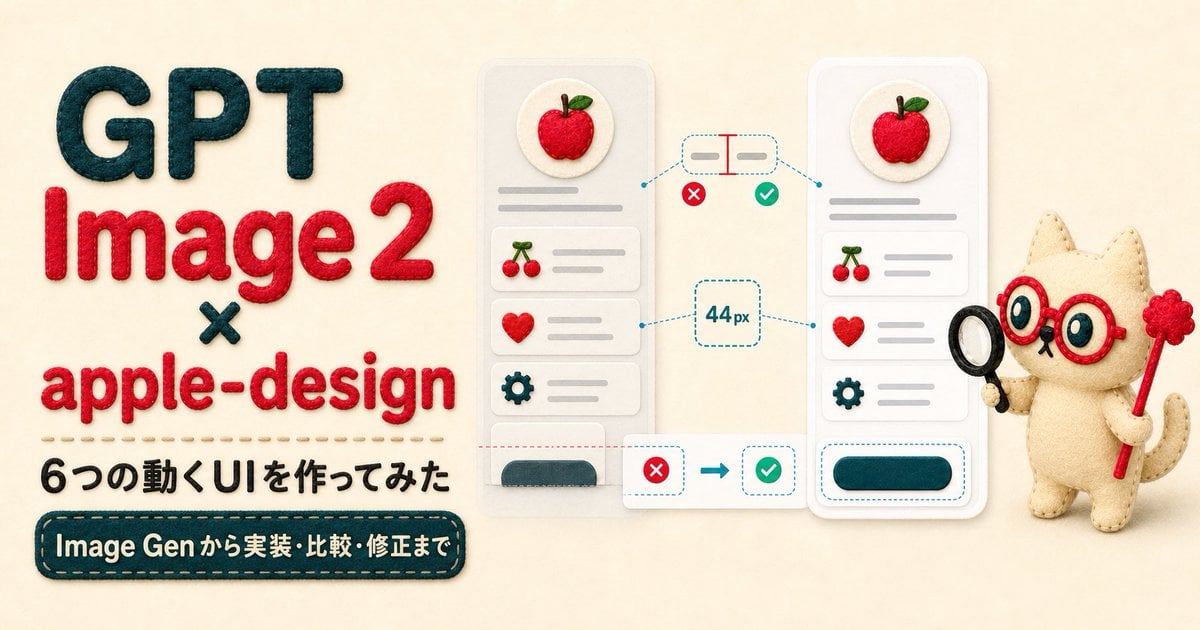
Felt GPT Image 2 Apple Design Banner
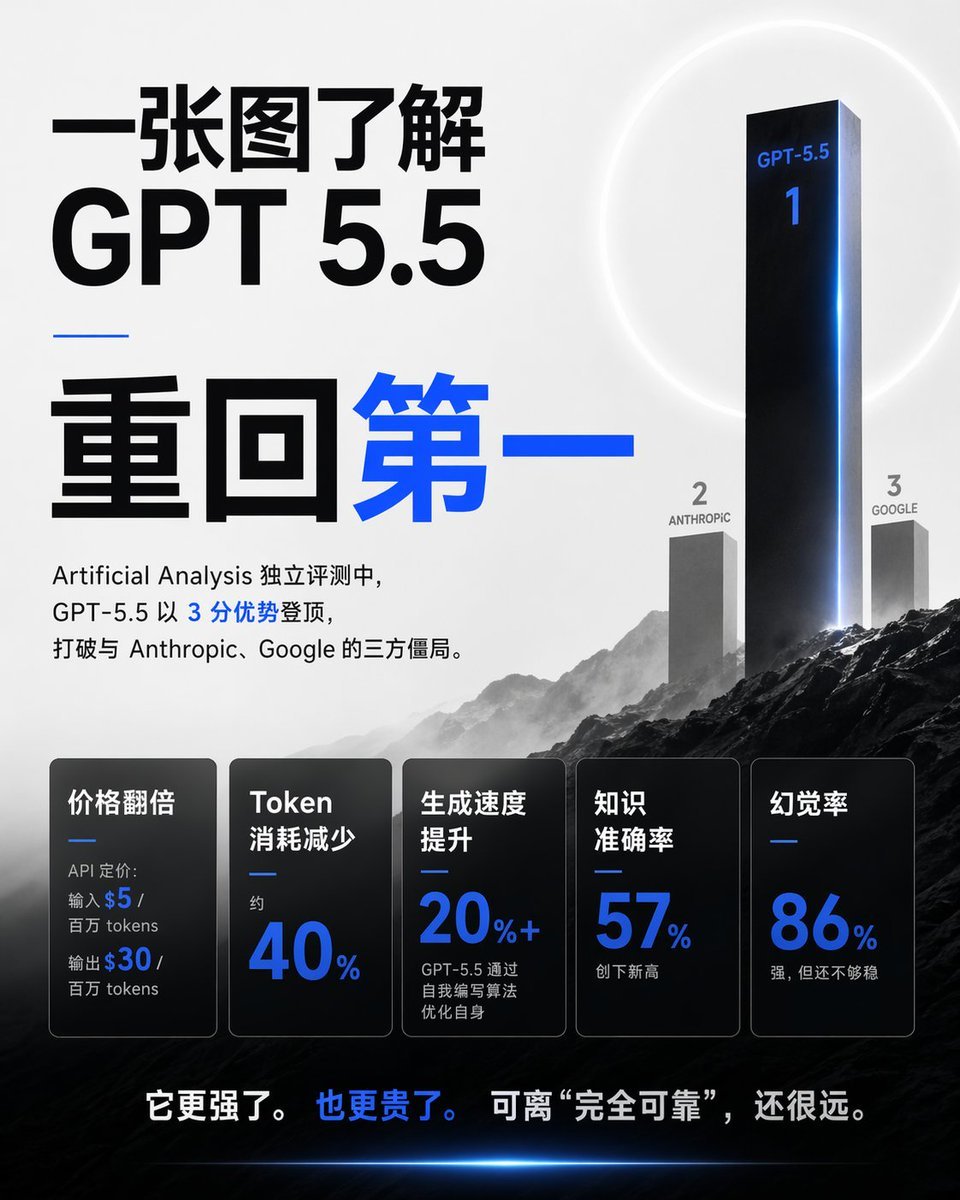
Chinese GPT 5.5 Benchmark Infographic
Make it yours
Recursive GPT Image 2 Inception works as-is. These are the safest ways to change it without losing the look.
Change one field
Copy a single group, rewrite it, and generate again so you can see what that field is doing.
Keep the frame, change the subject
Hold the composition and light of Recursive GPT Image 2 Inception, then swap wardrobe, props or the person for a new take.
| If the result… | Why | Fix |
|---|---|---|
| The result drifts from the preview | Too many fields changed at once. | Reuse Recursive GPT Image 2 Inception as-is first, then change one group — subject, light, or setting. |
| The model over-stylizes the scene | The prose prompt leaves finish and camera underspecified. | Add one camera or lighting sentence and stay on GPT Image 2. |
More GPT Image 2 templates
Other prompts made for GPT Image 2.

Six VTuber Japanese Logo Sheet

Realistic Portrait of Woman and Deer

The Vista Modular Condo Poster

AI Model Routing Comparison Infographic

2.5D Anime Art Board

Isometric Productivity Desk Scene

New York Double Exposure Poster

Four-Panel AI Landscape Comparison

Japanese Tatami Lifestyle Magazine Cover

NESCAFÉ Coffee Map Poster
More image prompts
Fresh picks from across the catalog.
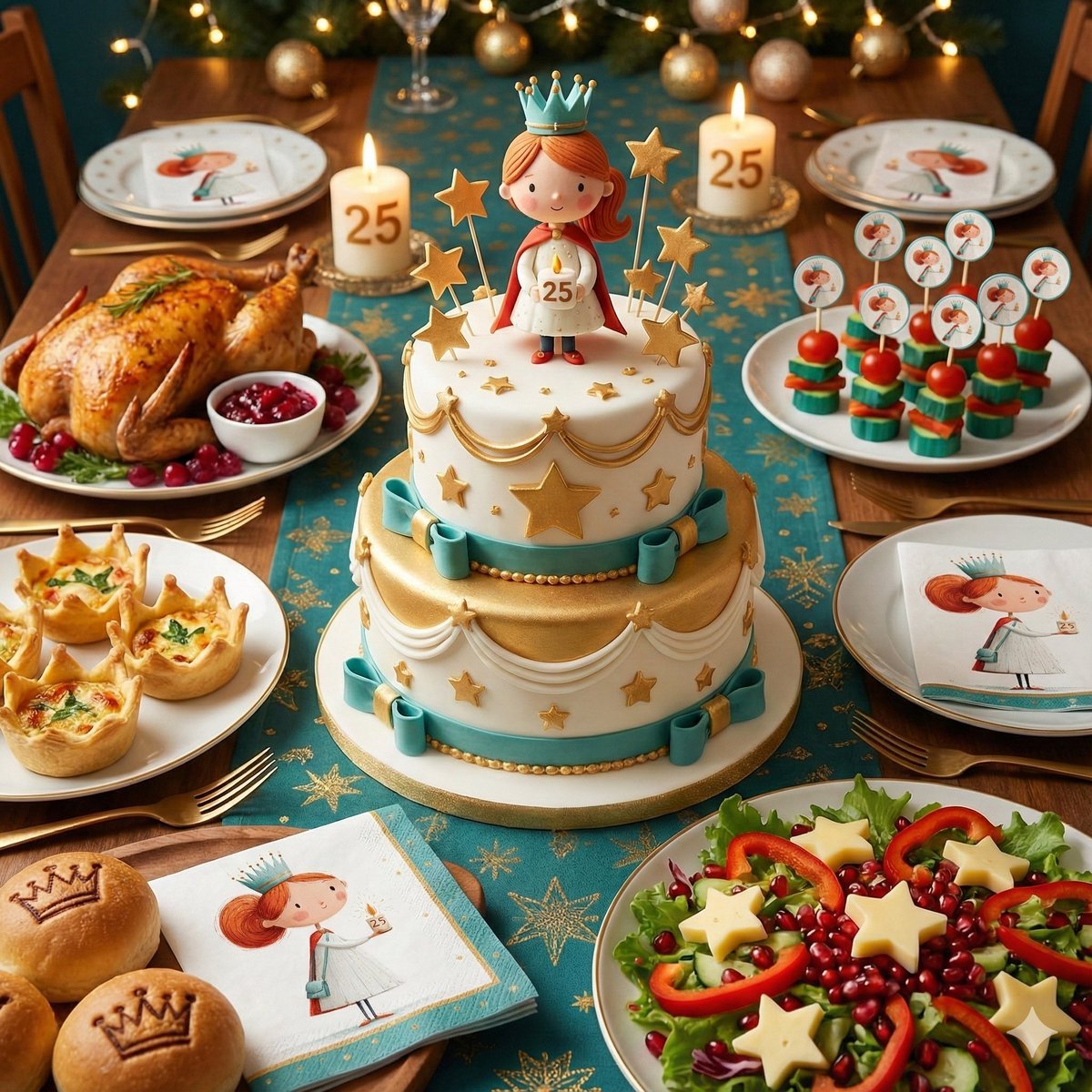
Image-to-Christmas Feast Prompt

Ultra-Realistic 8K Lifestyle Portrait at Modern Café
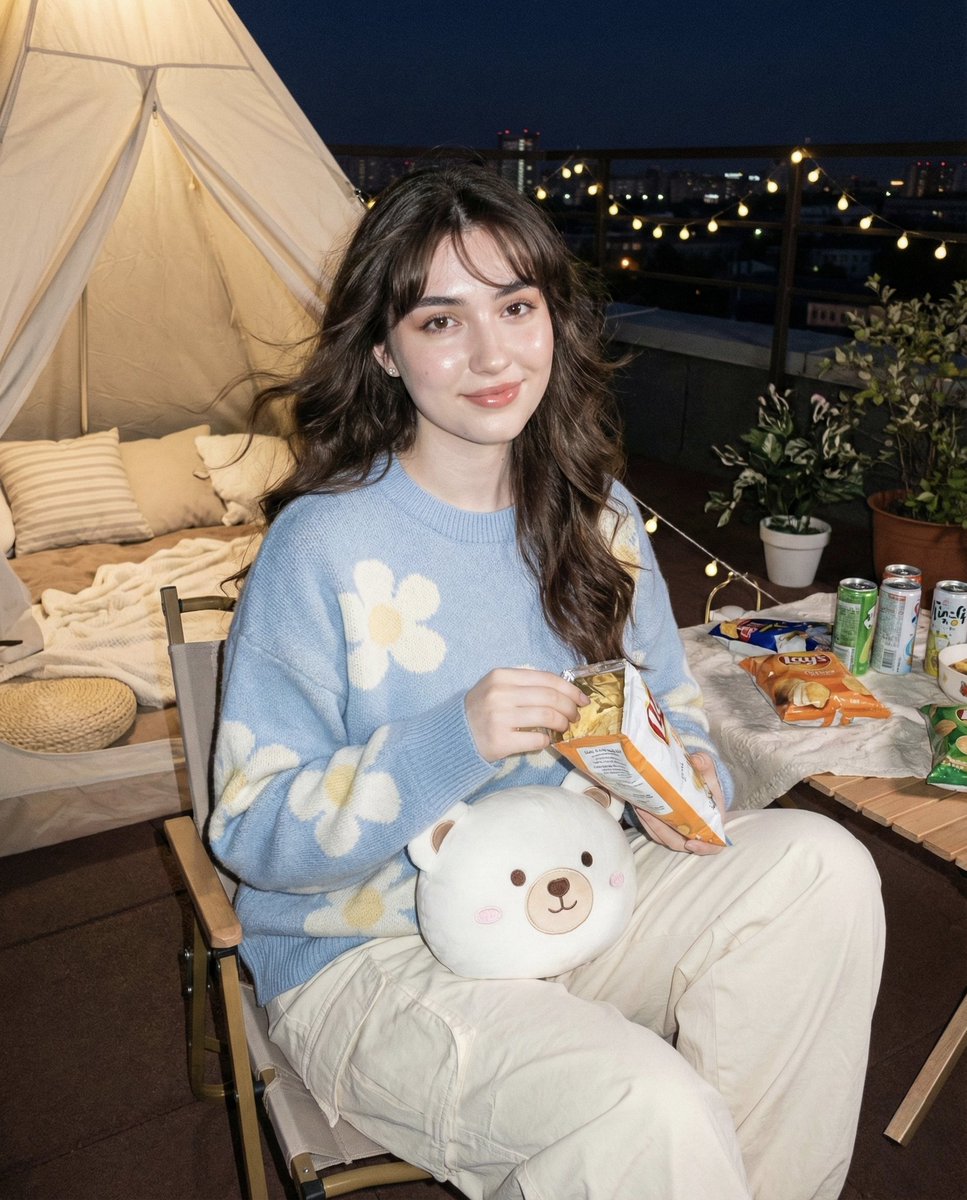
Hyper-realistic Nighttime Rooftop Portrait with Digital Camera Flash Effect

Rainy Premier League Trophy Celebration
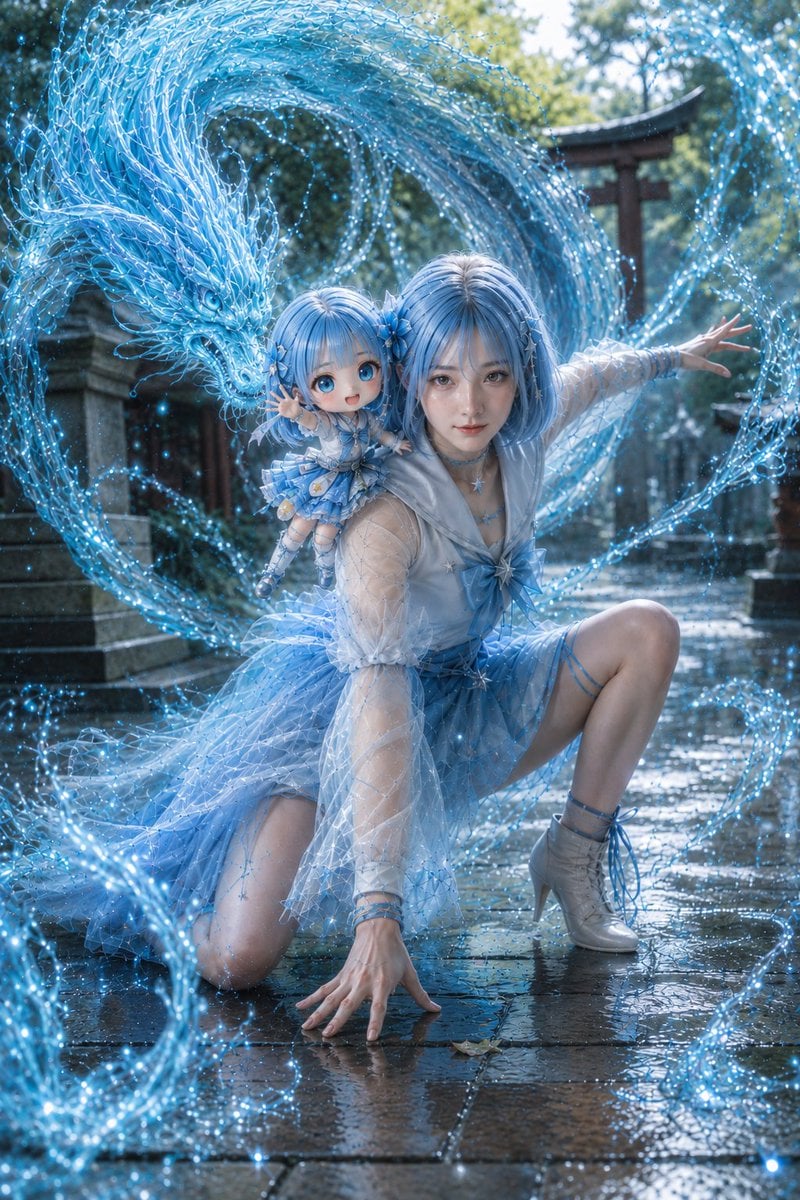
Water Dragon Magic Girl Fantasy Portrait
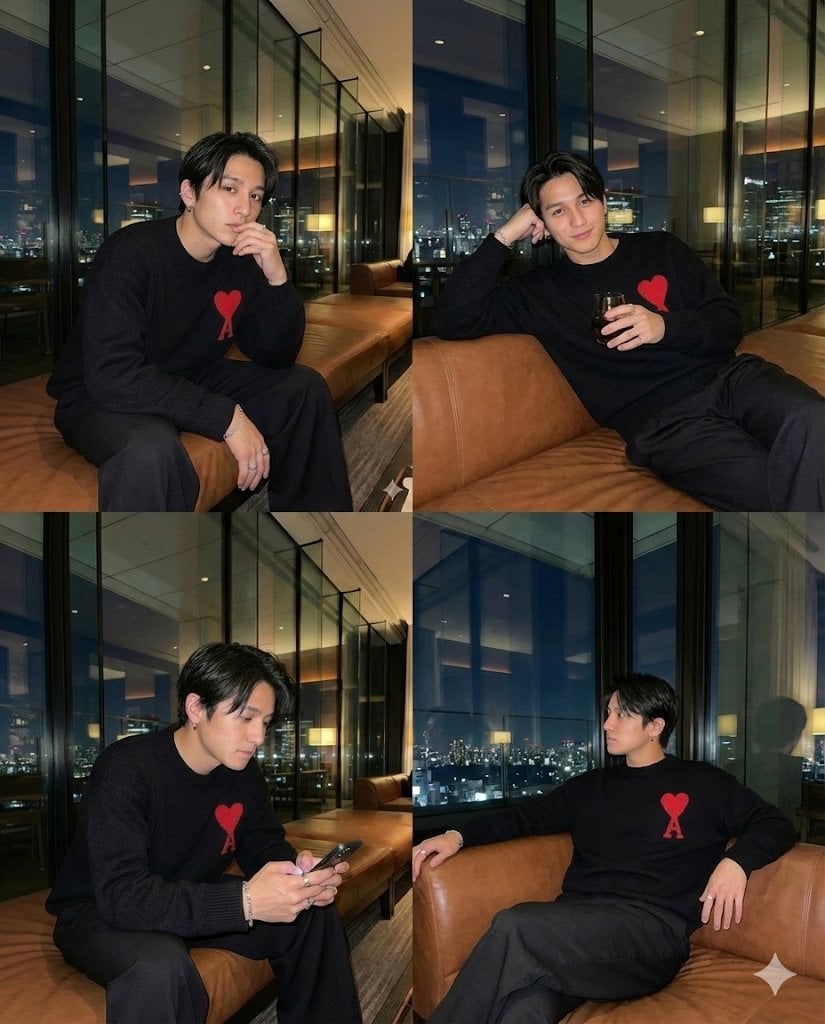
Generating 4 Images Simultaneously (Grid View)
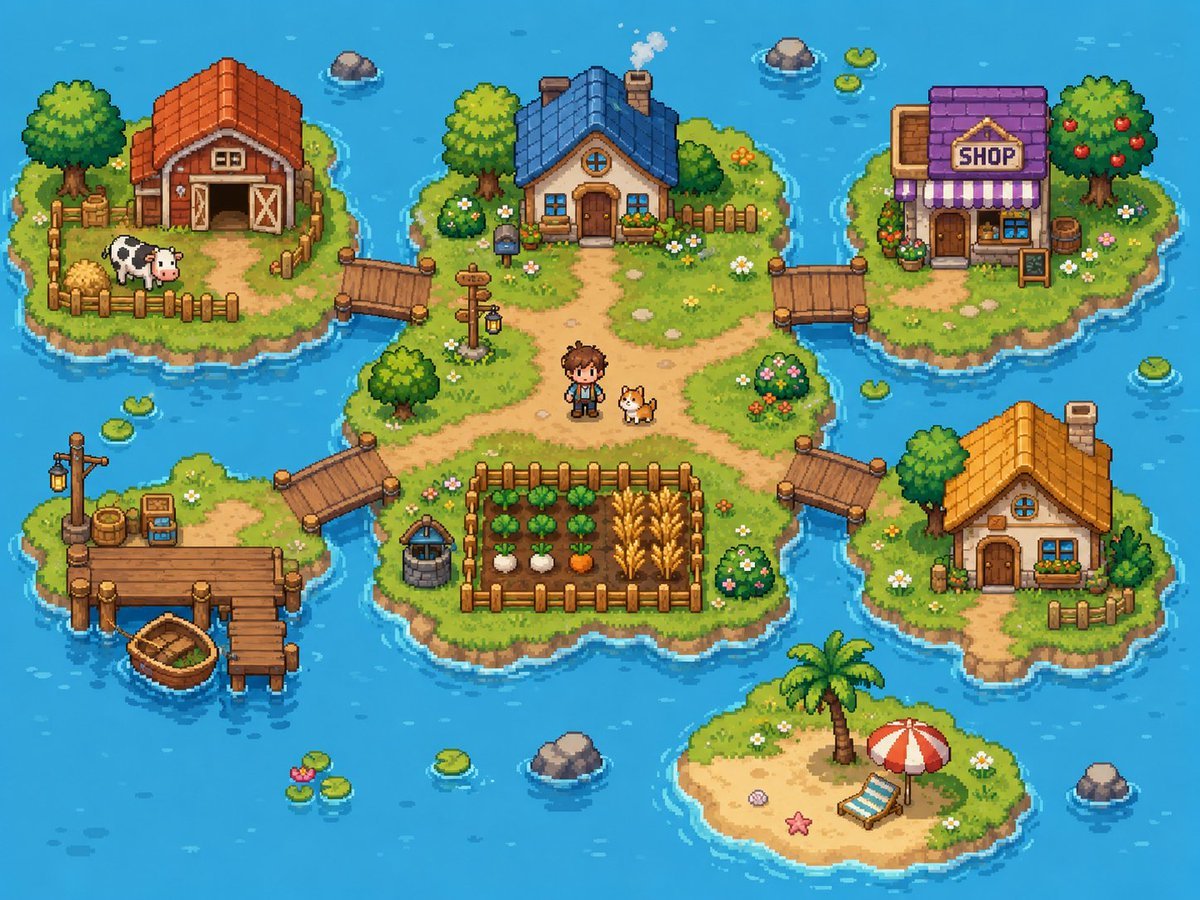
Cozy Pixel Farm Island Village
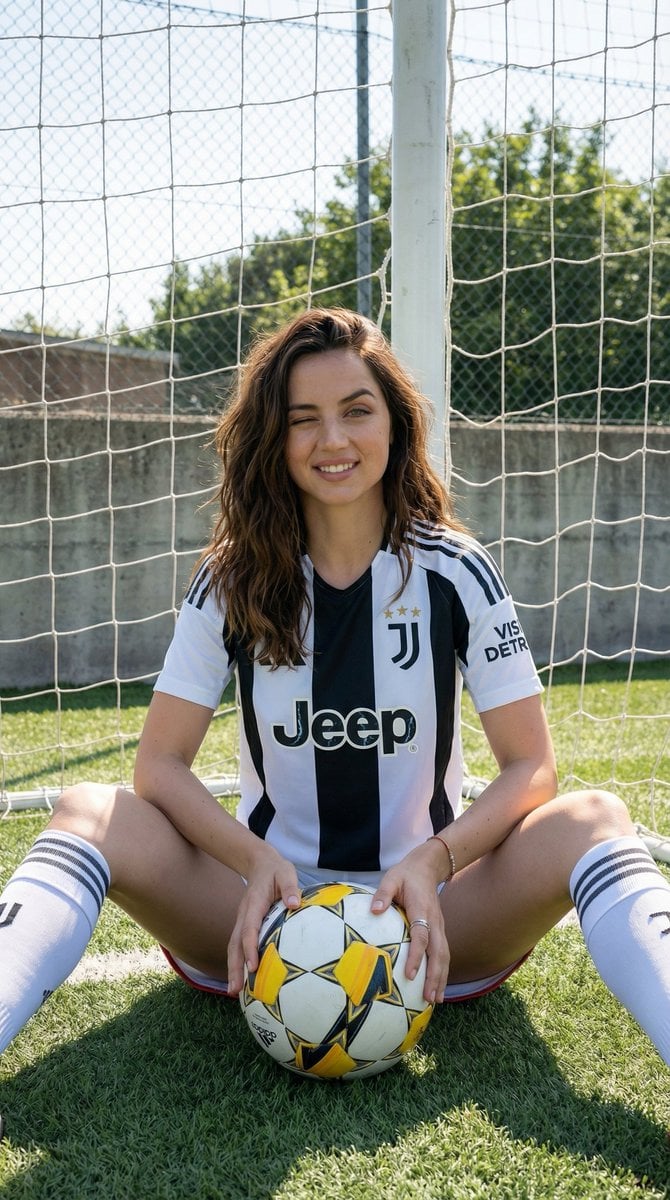
Juventus Kit Soccer Field Portrait with Harsh Sunlight
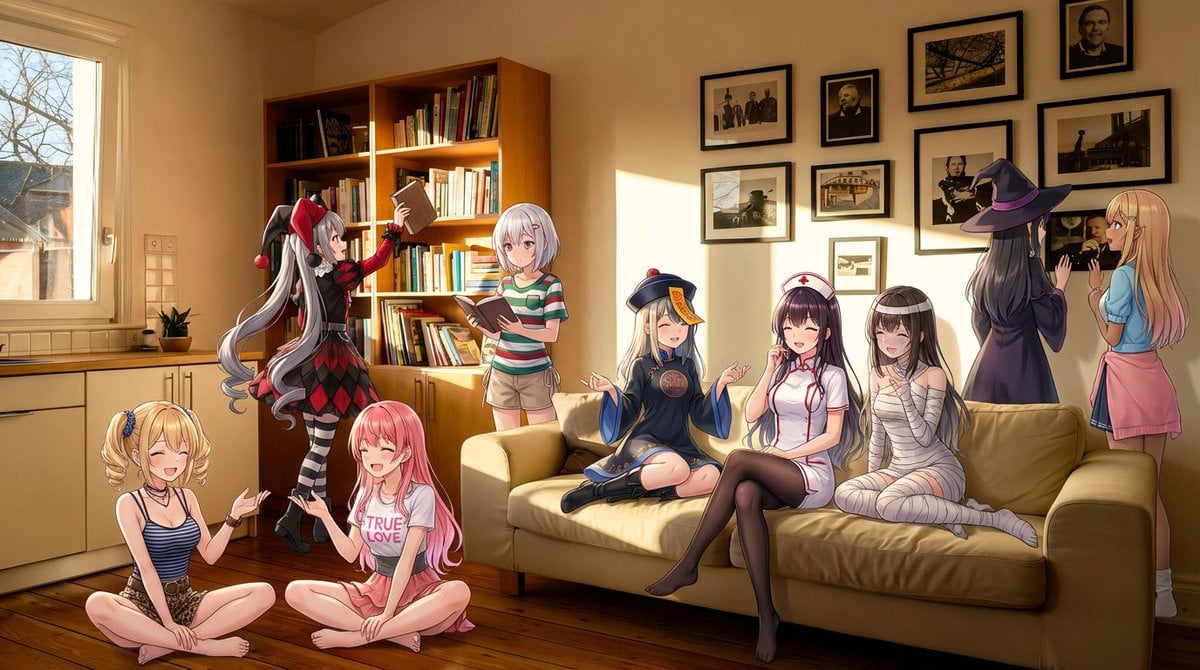
Nine-character group scene in living room background
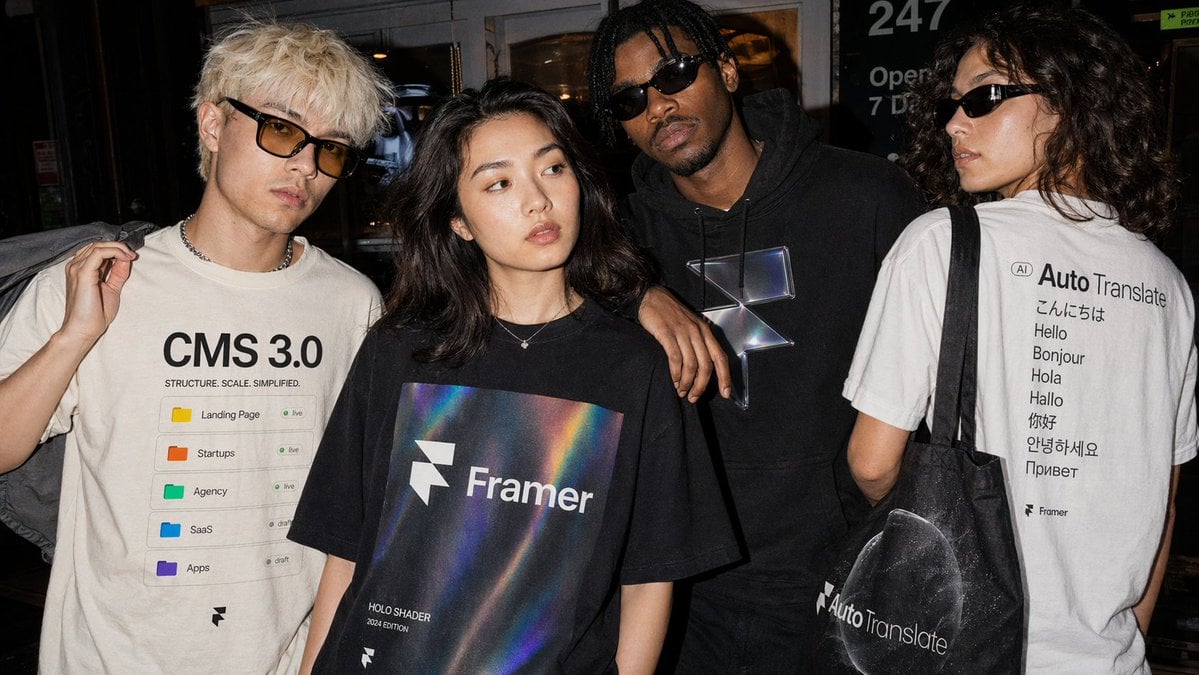
Editorial Streetwear Lifestyle Merch
Browse template categories
Recursive GPT Image 2 Inception questions
How do I use the Recursive GPT Image 2 Inception template?
Add your photo if the template asks for one, edit the prompt if you like — the template's model and format are already selected — and press Generate. Your version opens in PicX Studio.
Can I customize the Recursive GPT Image 2 Inception template?
Yes. You can change the subject, setting, lighting, mood, format, and available model controls before creating your image.
Is the Recursive GPT Image 2 Inception template free?
Opening and editing this template is free. Generating uses credits, shown on the Generate button when you are signed in.
Which AI model should I use?
Start with GPT Image 2, which is the model associated with this template. You can compare another compatible model for a different finish.
Looking for something else? Browse all templates.

Your photo, any look
Thousands of ready templates for every top image and video model, from one credit balance.