
Gothic Flower Petal Portrait
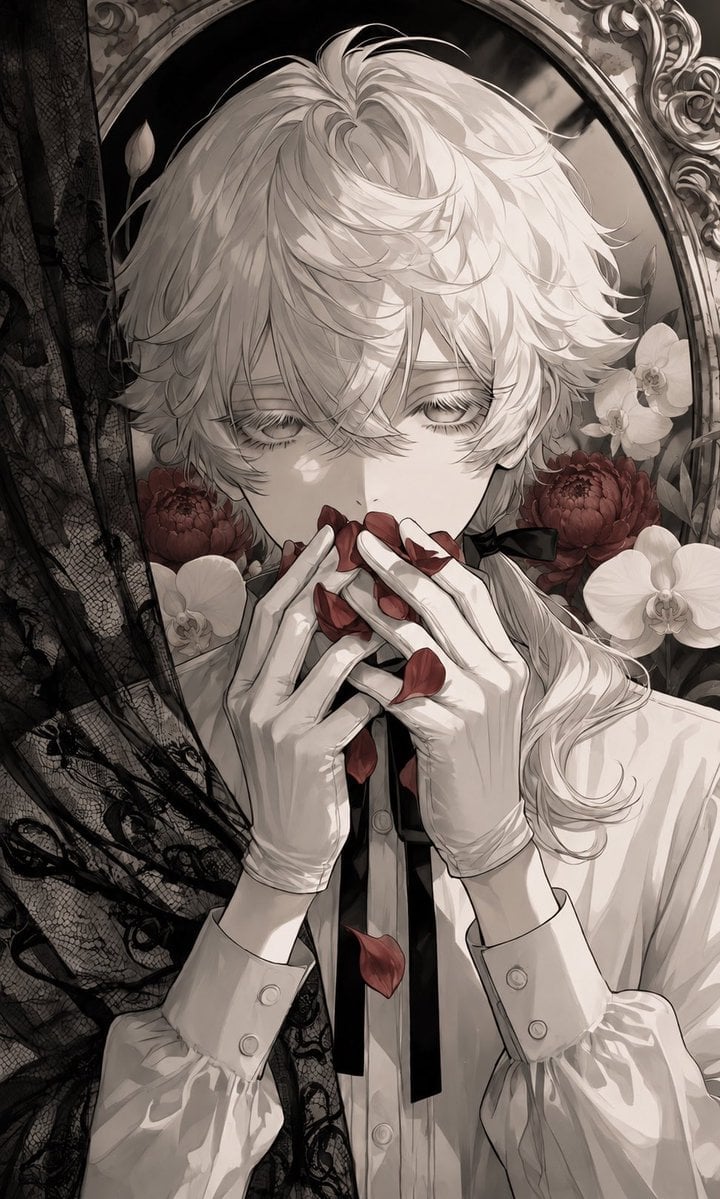
A detailed prompt for generating a melancholic gothic anime album-cover portrait with lace, mirror framing, orchids, and crimson flower petals.
- Prompt included
- Model and format preset
- Free template
The prompt behind this image
Copy the exact prompt behind Gothic Flower Petal Portrait, or open it in the studio and make it yours.
Create a vertical anime album-cover illustration in a melancholic gothic-romantic style. Show an androgynous young person with {argument name="hair color" default="silvery white"} tousled, layered hair and very pale skin, framed tightly from the chest up in front of an ornate oval mirror. Their eyes are half-closed and downcast, mostly hidden by long lashes and messy bangs, giving a guilty, secretive expression. They wear a crisp white blouse with puffed sleeves, buttoned cuffs, and a narrow black ribbon tie; add white gloves on both hands. Pose them facing forward but emotionally withdrawn, holding red flower petals to their mouth as if eating or hiding them, with a few petals falling down the center of the composition. Use exactly three visible red petals at the lips/hands and two falling red petals below. Add a black lace veil or curtain along the left side, partially covering the scene with intricate floral lace patterns and reinforcing the sense of concealment. Surround the figure with flowers: exactly two large dark red round blossoms behind the shoulders and exactly four white orchid-like flowers, two on each side. Include a small black bow at the side of the neck and a long pale ponytail or loose hair trailing over the right shoulder. Background should be sepia-gray and muted, with decorative baroque mirror trim visible at the top and right edge. Color palette is mostly monochrome ivory, charcoal, and warm gray, with deep crimson accents only on the petals and red blossoms. Render with delicate manga linework, soft painterly shading, high detail in hair strands, gloves, lace, and mirror ornamentation, vertical 9:16 composition, intimate close crop, no text, no watermark.
How to use Gothic Flower Petal Portrait in 3 steps
- 1Upload ImagePNG, JPG or paste
Add your photo
Upload the photo the template builds on. The prompt, model and format are already set.
- 2…a portrait of your subject in softgolden-hour light, 85mm…
Personalize
Edit the subject and creative details for your destination.
- 3Generate
Generate
Press Generate — your image is created in PicX Studio, so you can compare it with the original and refine one variable at a time.
More like this
Templates with the same subject, style or setup. Open one to see its prompt.
Flower Petal Sunglasses Couture Portrait
Intimate Flower Petal Macro Portrait

Found Photograph: Us, 1970

80s Couple Studio Portrait
80s Bollywood Star

80s Golden Hour Cinema
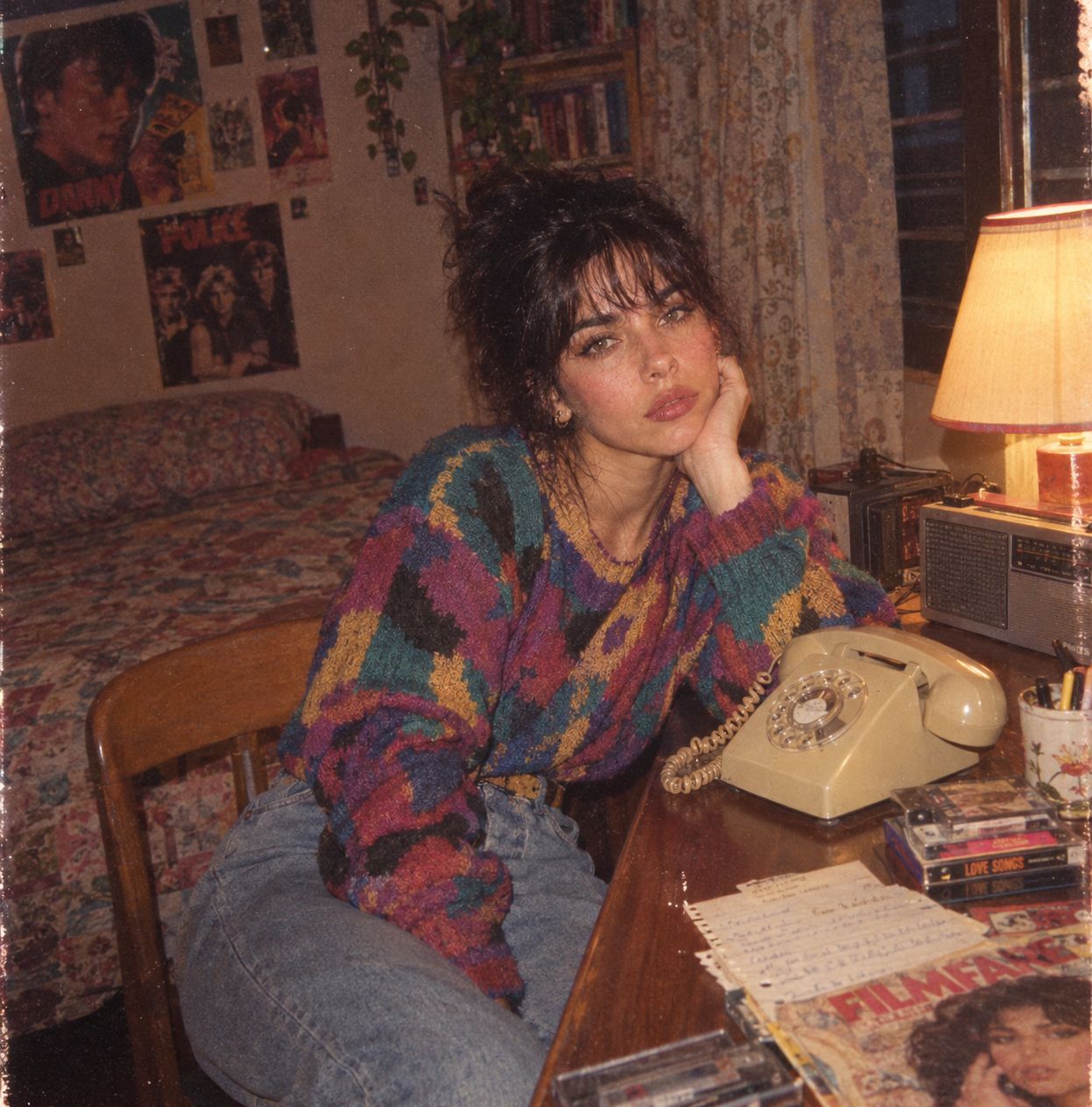
Me in 1985
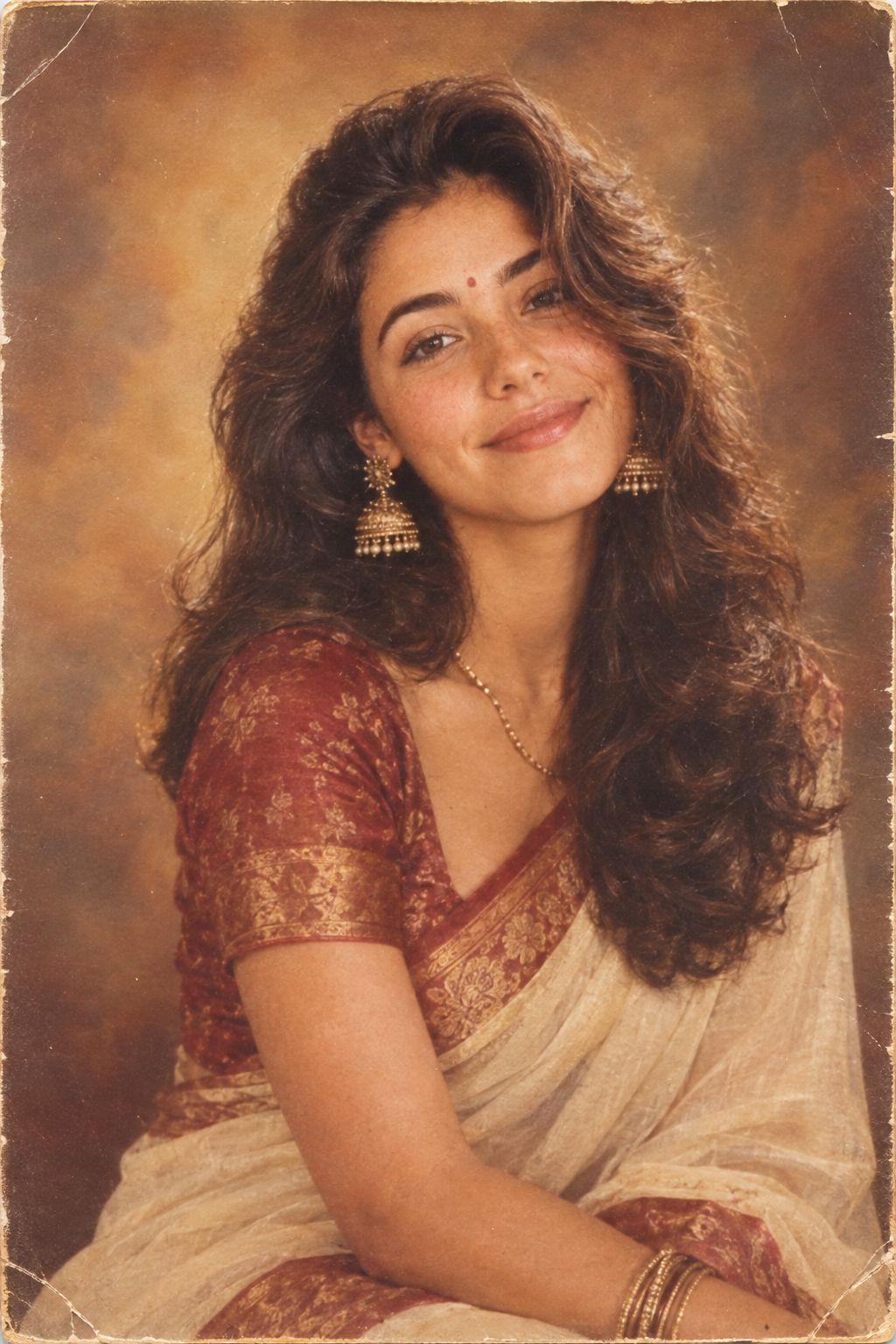
1985 Studio Portrait
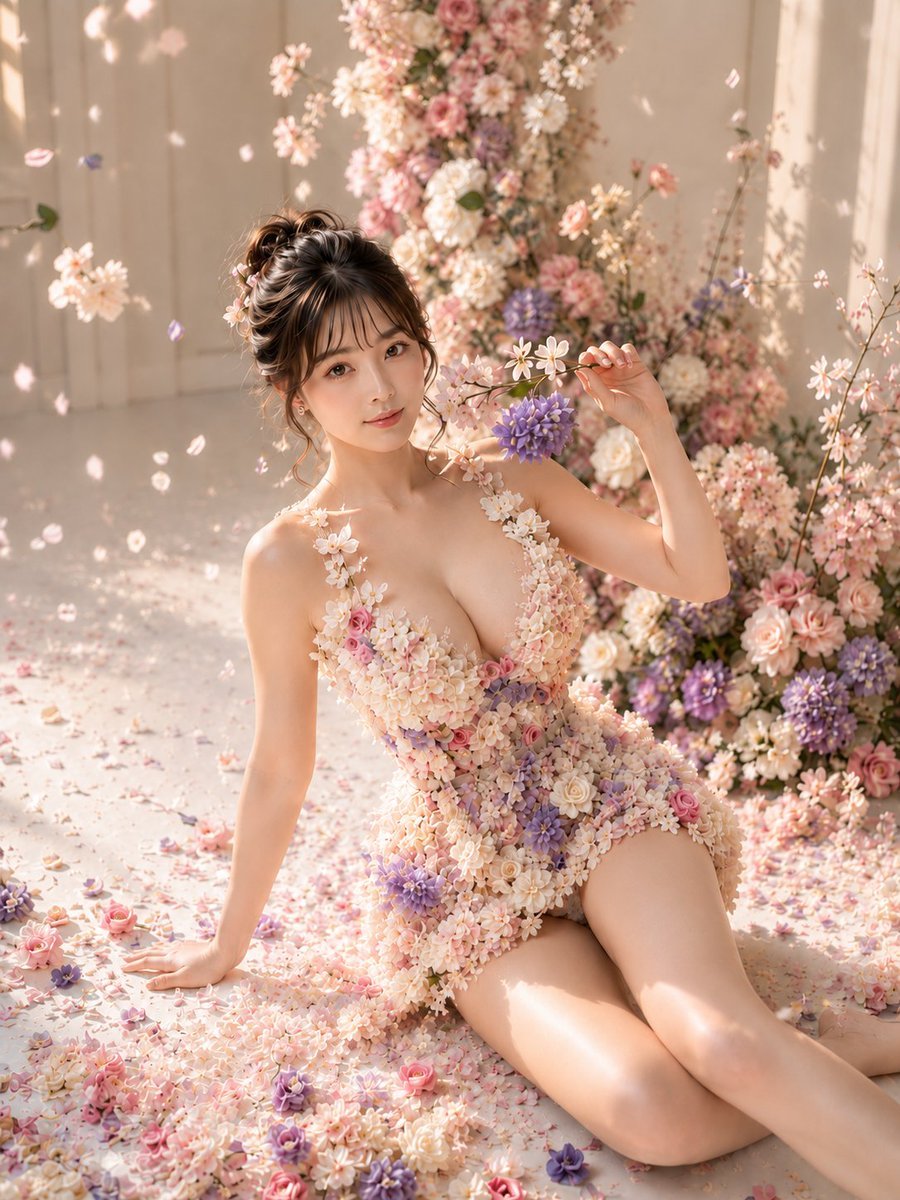
Pastel Flower Petal Dress

Hyper-Realistic Minecraft POV Portrait
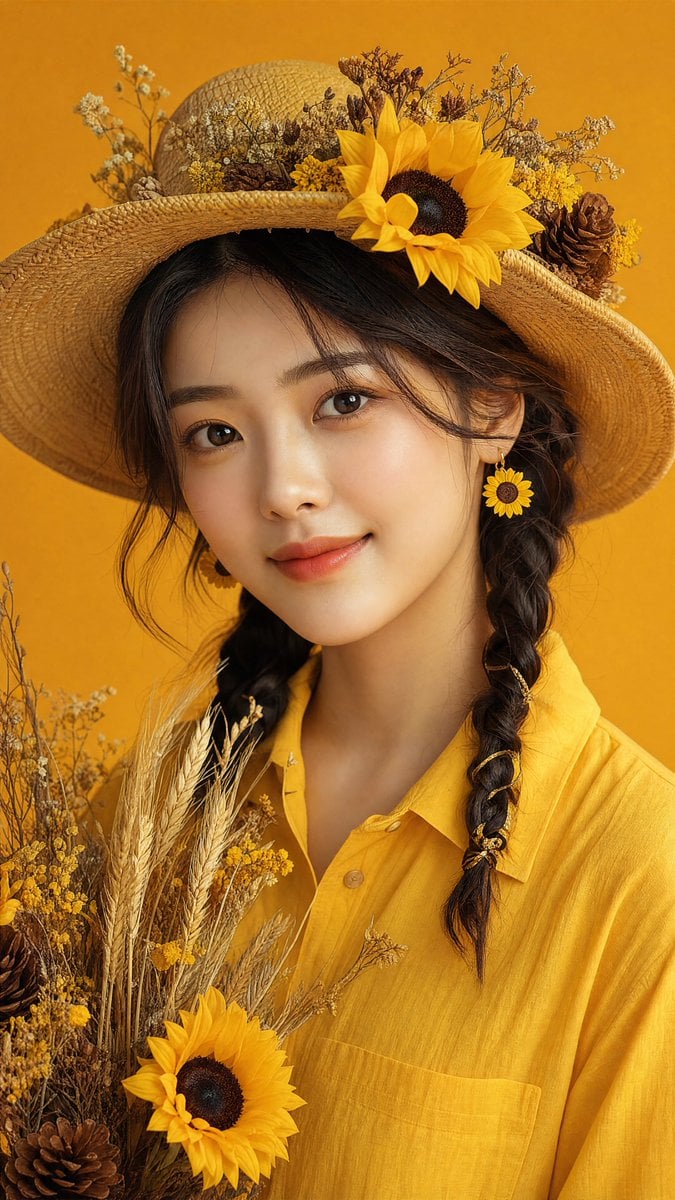
Sunflower Straw Hat Portrait

Sunflower Field Frame Portrait
Make it yours
Gothic Flower Petal Portrait works as-is. These are the safest ways to change it without losing the look.
Change one field
Copy a single group, rewrite it, and generate again so you can see what that field is doing.
Keep the frame, change the subject
Hold the composition and light of Gothic Flower Petal Portrait, then swap wardrobe, props or the person for a new take.
| If the result… | Why | Fix |
|---|---|---|
| The result drifts from the preview | Too many fields changed at once. | Reuse Gothic Flower Petal Portrait as-is first, then change one group — subject, light, or setting. |
| The model over-stylizes the scene | The prose prompt leaves finish and camera underspecified. | Add one camera or lighting sentence and stay on GPT Image 2. |
More GPT Image 2 templates
Other prompts made for GPT Image 2.

Six VTuber Japanese Logo Sheet

Realistic Portrait of Woman and Deer

The Vista Modular Condo Poster

AI Model Routing Comparison Infographic

2.5D Anime Art Board

Isometric Productivity Desk Scene

New York Double Exposure Poster

Four-Panel AI Landscape Comparison

Japanese Tatami Lifestyle Magazine Cover

NESCAFÉ Coffee Map Poster
More image prompts
Fresh picks from across the catalog.
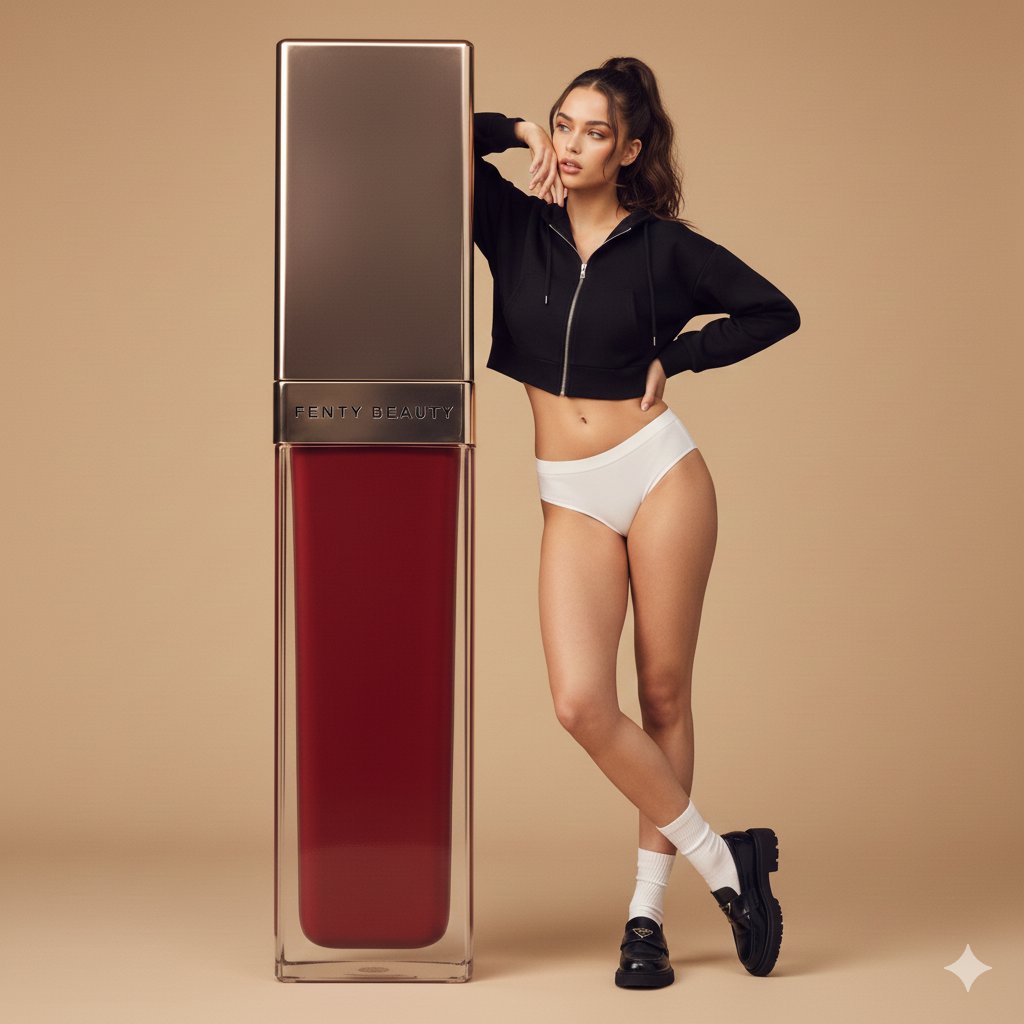
Structured Prompt for Fashion Editorial with Oversized Product
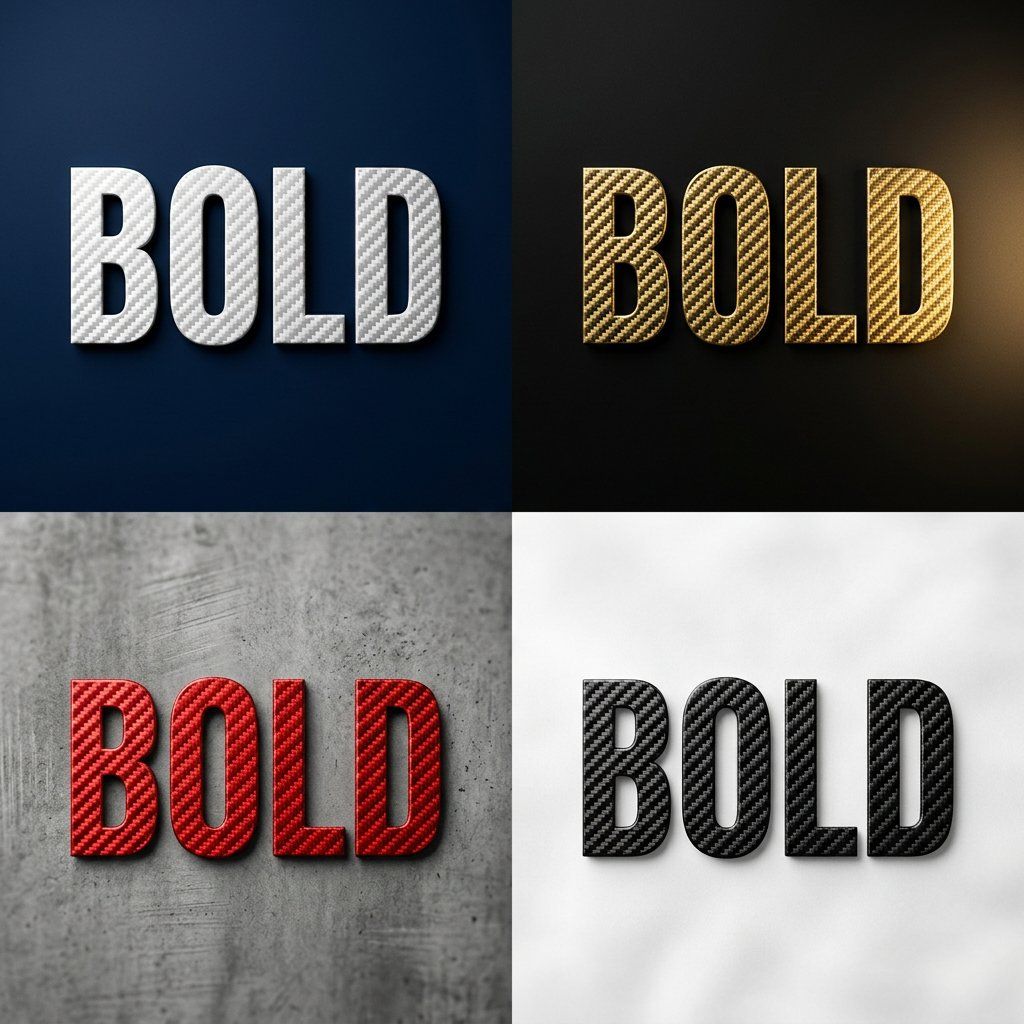
Carbon Fiber Typography
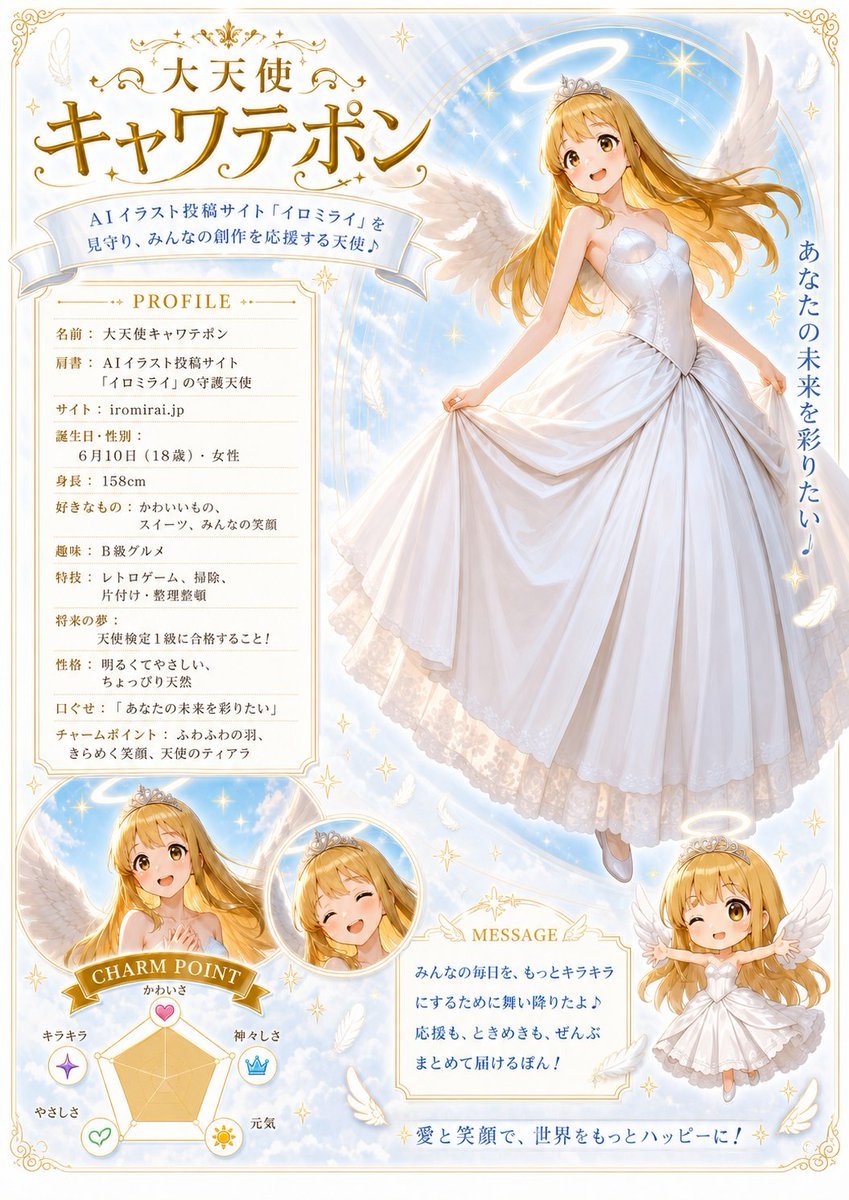
Celestial Angel Character Profile Poster
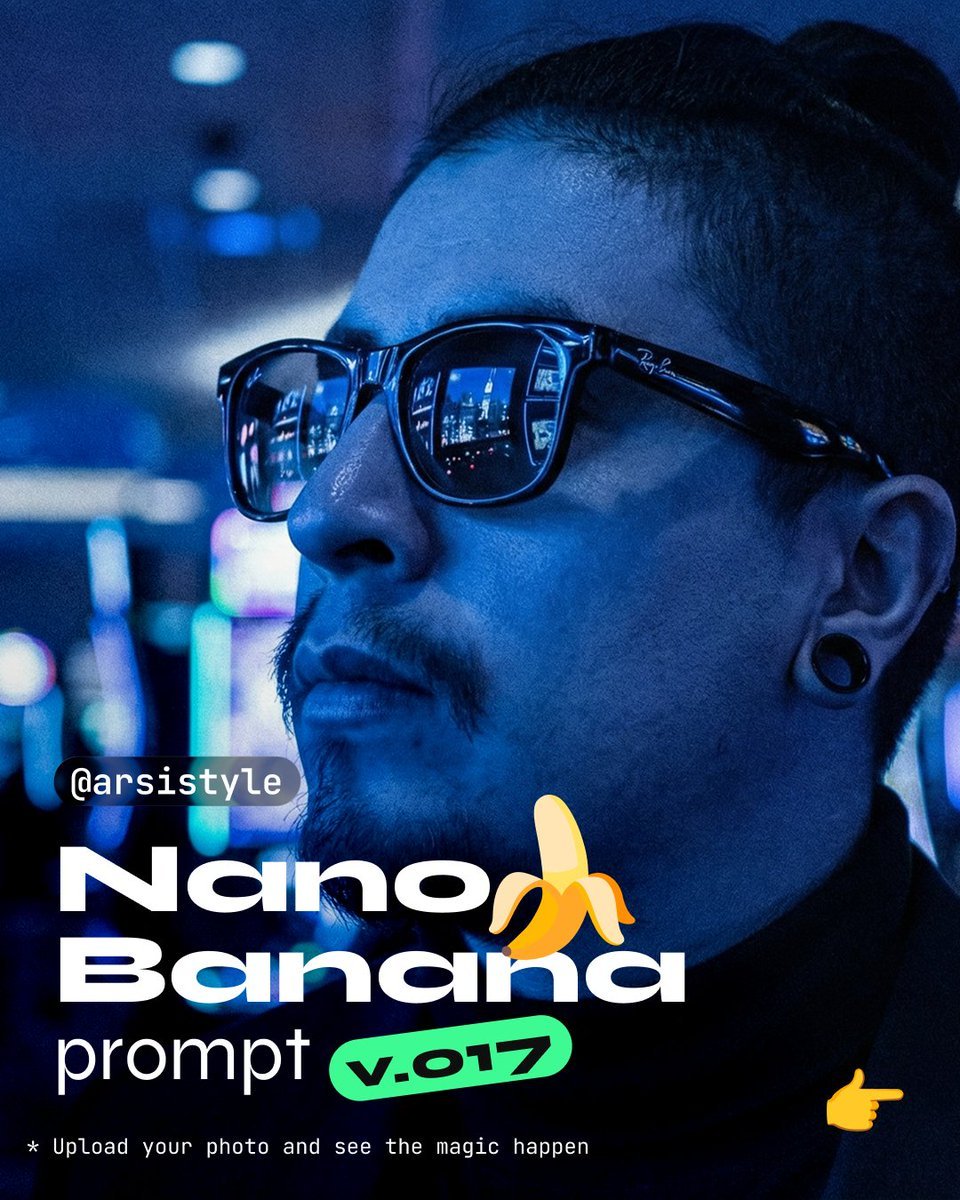
Synthwave Monochromatic Portrait with Bokeh
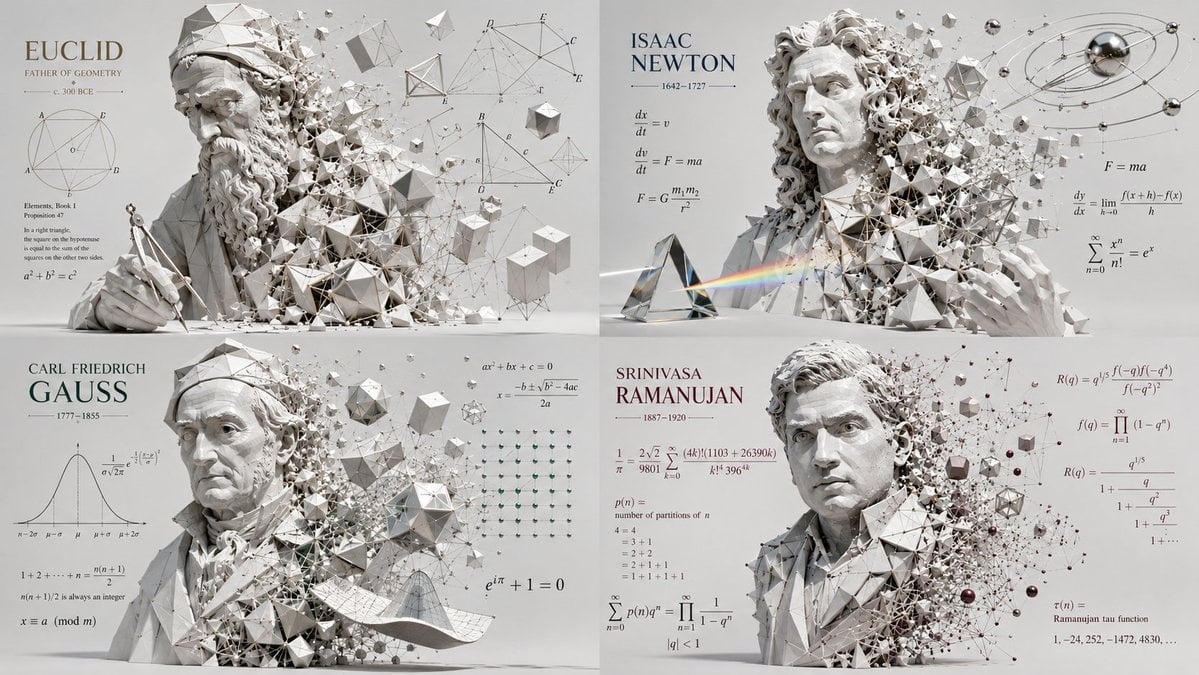
Geometric Mathematician Visualization
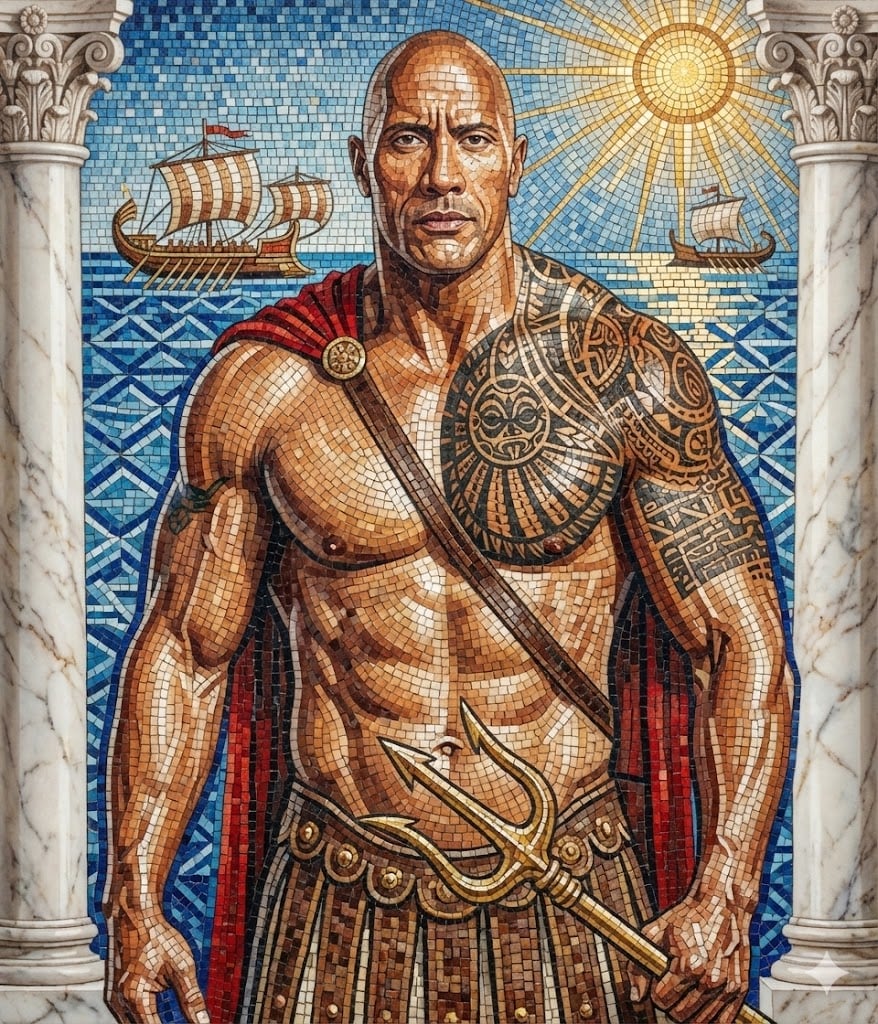
Subject Reimagined as Roman God in Mosaic Art Style
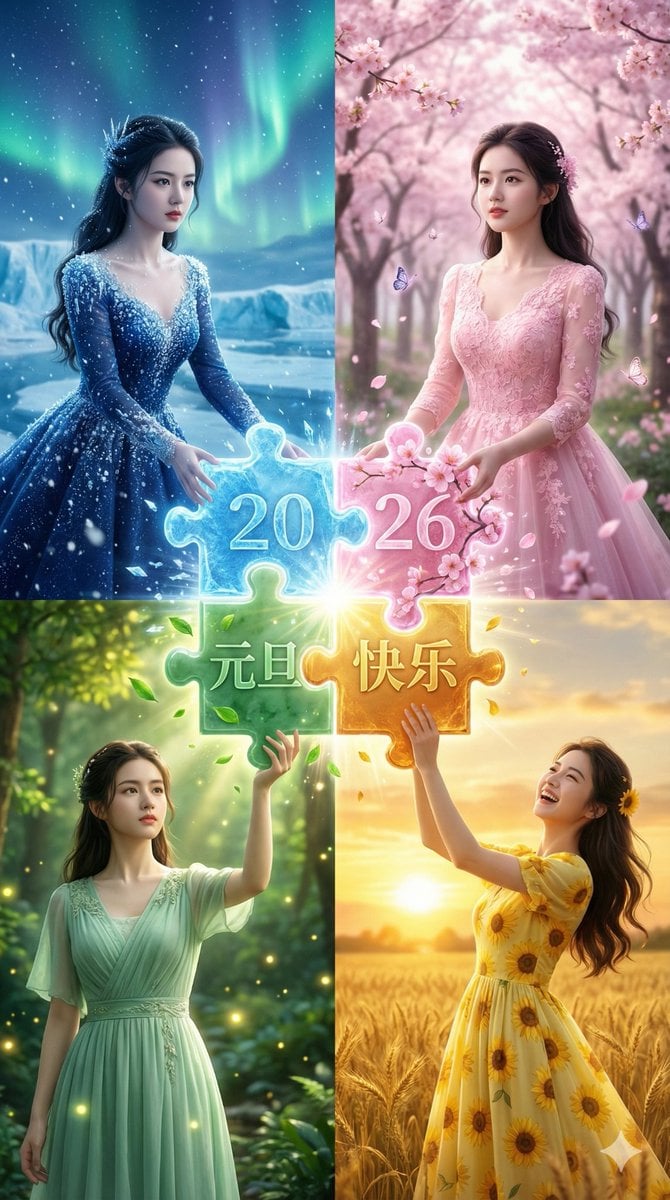
Four Seasons Puzzle for 2026 New Year Greeting

Animation Style - Framer Motion
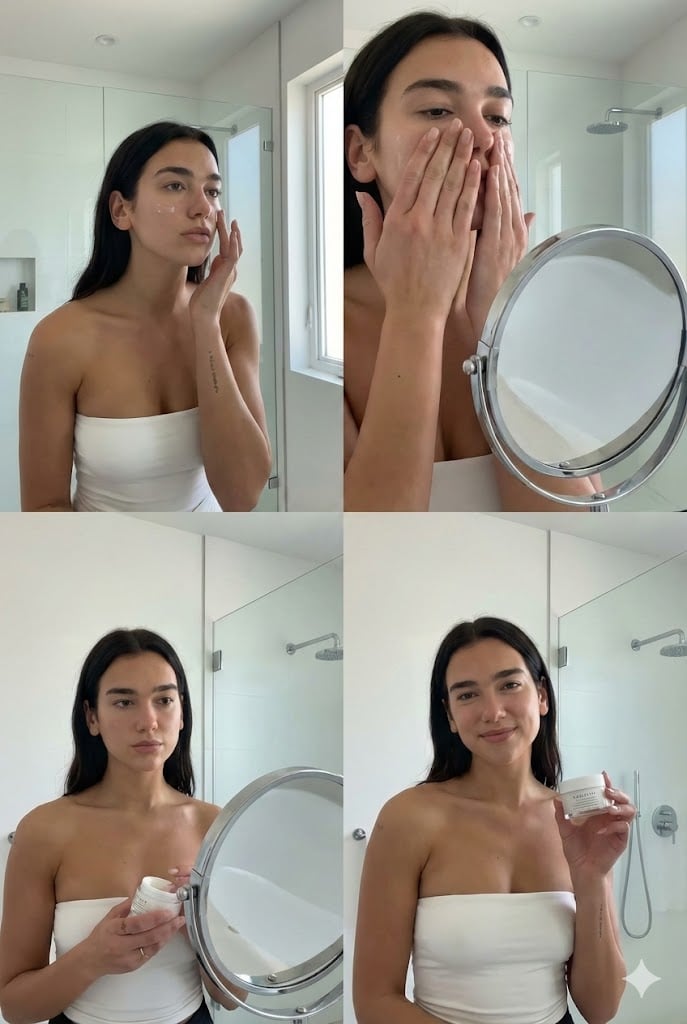
Dua Lipa Skincare Editorial Collage
Kling 3.0 Video Generation from Nano Banana Pro Images
Browse template categories
Gothic Flower Petal Portrait questions
How do I use the Gothic Flower Petal Portrait template?
Add your photo if the template asks for one, edit the prompt if you like — the template's model and format are already selected — and press Generate. Your version opens in PicX Studio.
Can I customize the Gothic Flower Petal Portrait template?
Yes. You can change the subject, setting, lighting, mood, format, and available model controls before creating your image.
Is the Gothic Flower Petal Portrait template free?
Opening and editing this template is free. Generating uses credits, shown on the Generate button when you are signed in.
Which AI model should I use?
Start with GPT Image 2, which is the model associated with this template. You can compare another compatible model for a different finish.
Looking for something else? Browse all templates.

Your photo, any look
Thousands of ready templates for every top image and video model, from one credit balance.