How do I use the Six-Expression Studio Headshot Grid template?
Choose the primary action to open PicX Studio with the available template settings. Review the model and format, personalize the creative direction, and generate when ready.
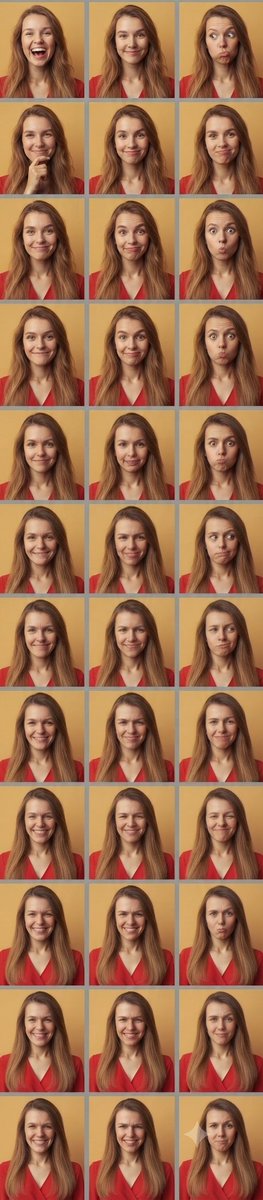
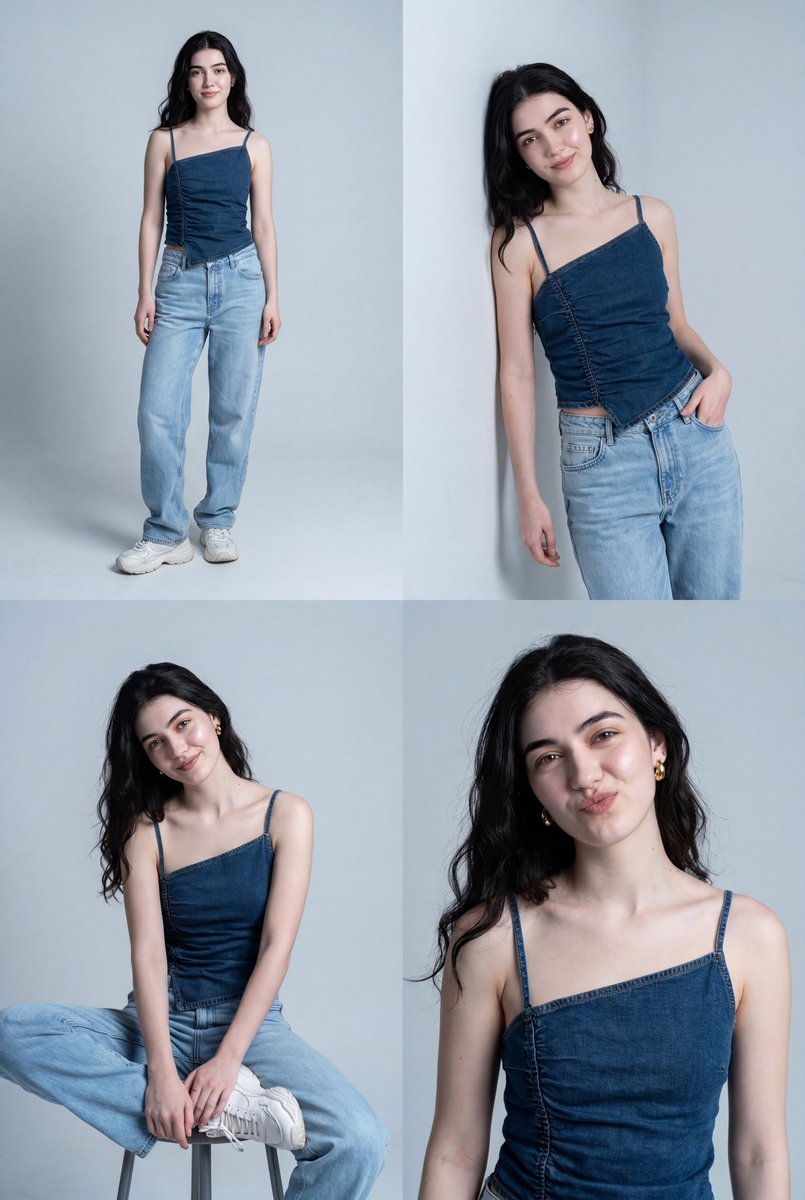
Generates a realistic 3-by-2 studio portrait sheet showing one man in six distinct facial expressions for reaction or character reference use.

Create a clean studio portrait expression sheet of {argument name="character name" default="a young Black man"} shown in exactly 6 separate head-and-shoulders portraits arranged in a 3-column by 2-row grid. The man has short cropped black hair, warm brown skin, a neatly trimmed short beard and mustache, and distinctive thick translucent white eyeglasses. He wears a dark charcoal or black blazer over a crisp white open-collar dress shirt in every panel. Use a neutral beige-gray studio backdrop, soft even portrait lighting, realistic photography, sharp facial detail, and consistent camera angle and framing across all six images. The six expressions must be: top left, broad friendly smile showing teeth; top center, calm neutral serious face looking straight at camera; top right, surprised delighted face with wide eyes and open mouth; bottom left, joyful laughing smile with eyes slightly squinted; bottom center, thoughtful skeptical pose with furrowed brow and one hand touching the chin; bottom right, subtle smirk looking off to the side. Keep the portraits tightly cropped from chest to head, evenly spaced with clean horizontal and vertical grid alignment, no text, no logos, no extra people, no props except the glasses and the hand in the thoughtful pose. Style should feel like a polished professional actor headshot contact sheet for {argument name="use case" default="social media reaction expressions"}.
Choose the primary action to open PicX Studio with the available template settings. Review the model and format, personalize the creative direction, and generate when ready.
Yes. You can change the subject, setting, lighting, mood, format, and available model controls before creating your image.
This template is free to open and customize. Generation usage is shown in PicX Studio before you create.
Start with GPT Image 2, which is the model associated with this template. You can compare another compatible model for a different finish.
Follow a topic to a crawlable collection of related PicX Studio templates.