
Realistic Portrait with Red Marker Background
A creative transformation prompt that keeps a person photorealistic while turning the original background into a playful red felt-tip marker sketch.
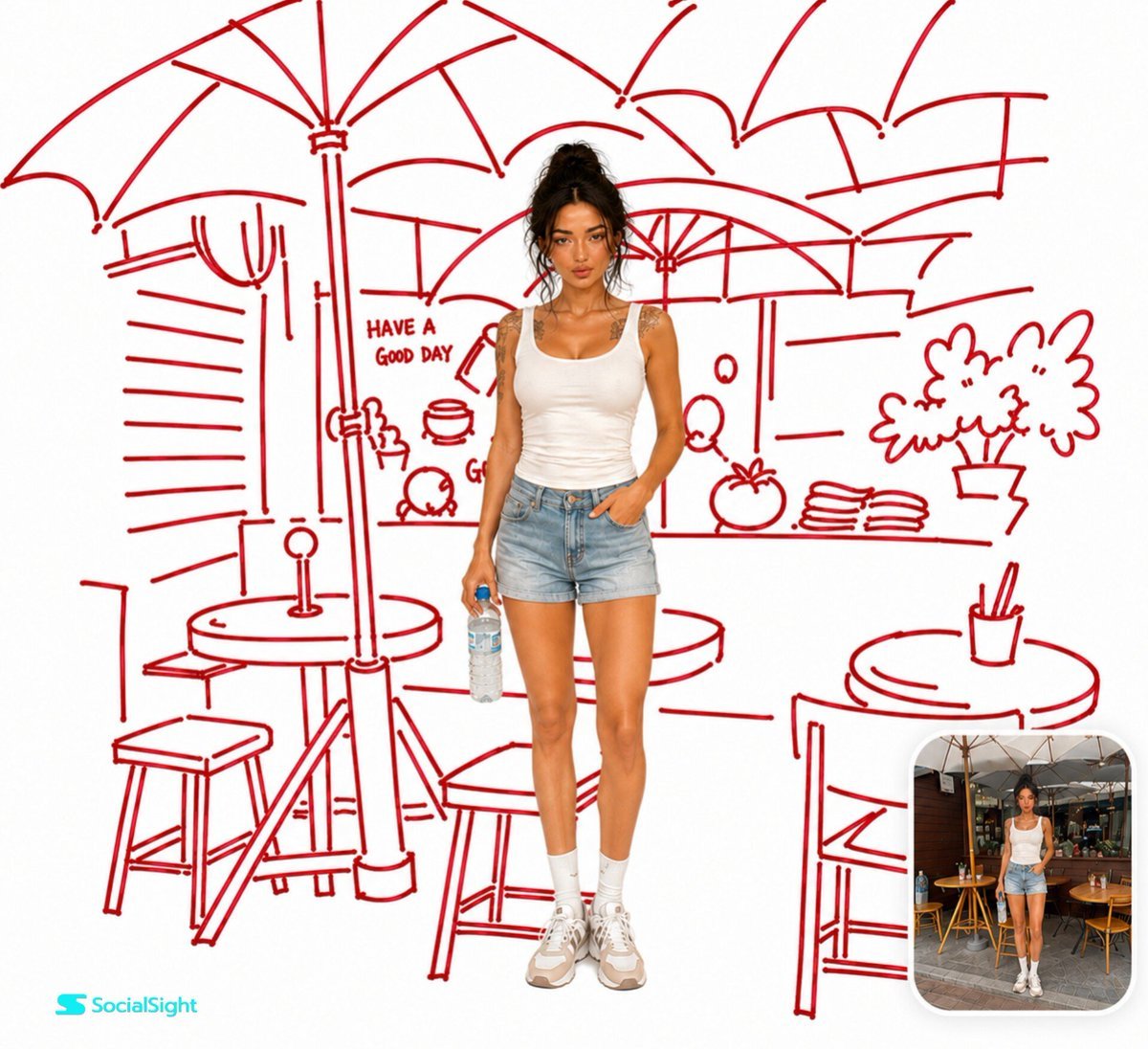
- Prompt included
- Model and format preset
- Free template
The prompt behind this image
Copy the exact prompt behind Realistic Portrait with Red Marker Background, or open it in the studio and make it yours.
Use the uploaded image as the only reference. Keep the person exactly the same, preserving their face, pose, clothing, hairstyle, lighting, colors, and proportions. Remove the original background and recreate the same environment as a {argument name="sketch style" default="loose hand-drawn sketch using only deep crimson red felt-tip marker lines"} on a {argument name="background color" default="pure white background"}. The sketch should be quick, playful, imperfect, and confidently hand-drawn with medium-thick strokes, slight wobble, pressure variation, tiny gaps, and marker bleed—not vector art or technical line work. Keep the person 100% photorealistic with no sketch effect or outline applied to them. Place the subject naturally in front of the illustrated background, ensuring all {argument name="marker color" default="red"} sketch lines remain behind the person. Add a small rounded-corner inset in the bottom-right corner showing the original uploaded photo of the exact same person and scene before the transformation for a clear before-and-after comparison. Ultra-clean editorial style, high resolution, strong contrast between the realistic subject and the bold red sketch, no extra colors, no gradients, and no paper texture.
How to use Realistic Portrait with Red Marker Background in 3 steps
- 1Upload ImagePNG, JPG or paste
Add your photo
Upload the photo the template builds on. The prompt, model and format are already set.
- 2…a portrait of your subject in softgolden-hour light, 85mm…
Personalize
Edit the subject and creative details for your destination.
- 3Generate
Generate
Press Generate — your image is created in PicX Studio, so you can compare it with the original and refine one variable at a time.
More like this
Templates with the same subject, style or setup. Open one to see its prompt.

Found Photograph: Us, 1970

80s Couple Studio Portrait
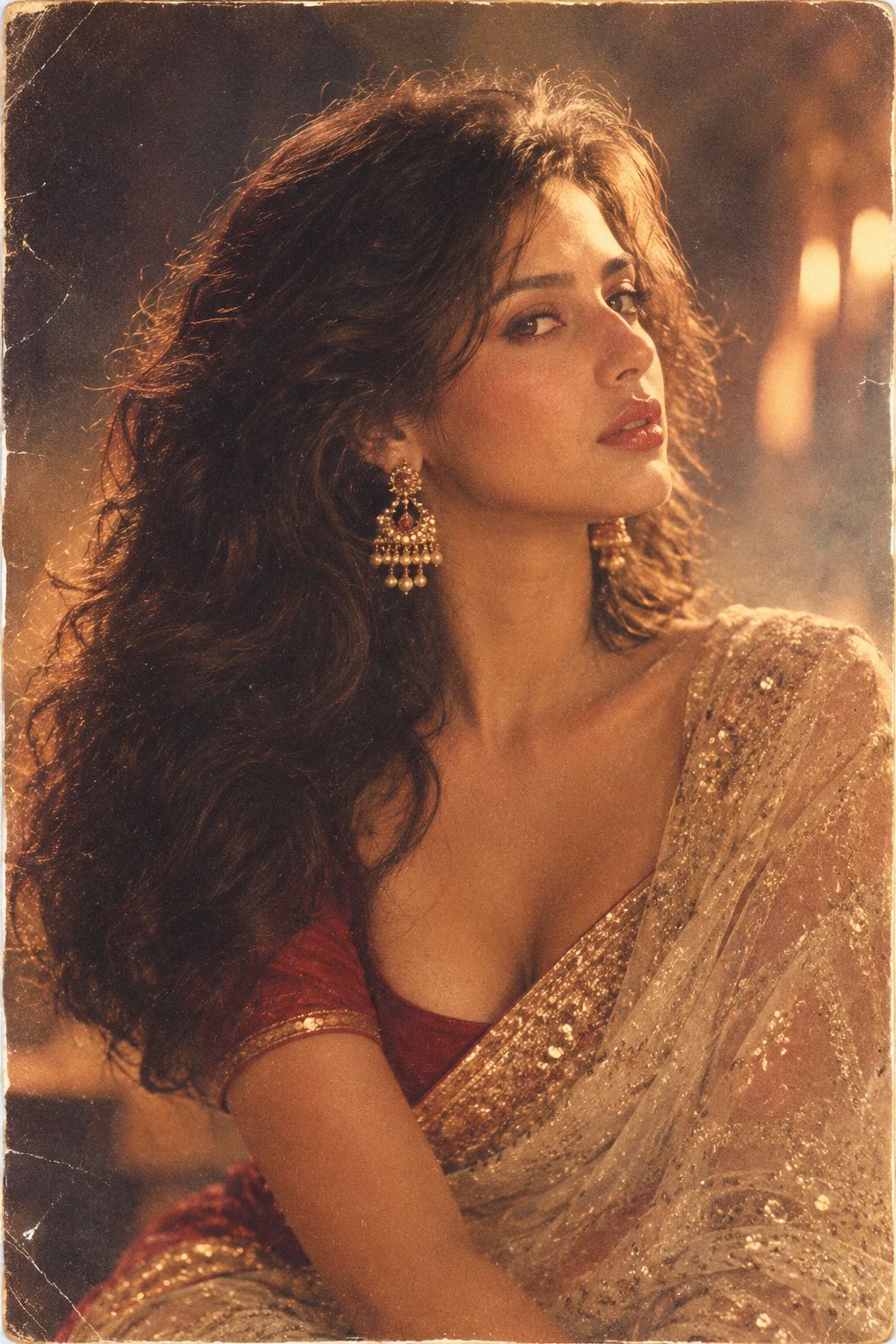
80s Bollywood Star
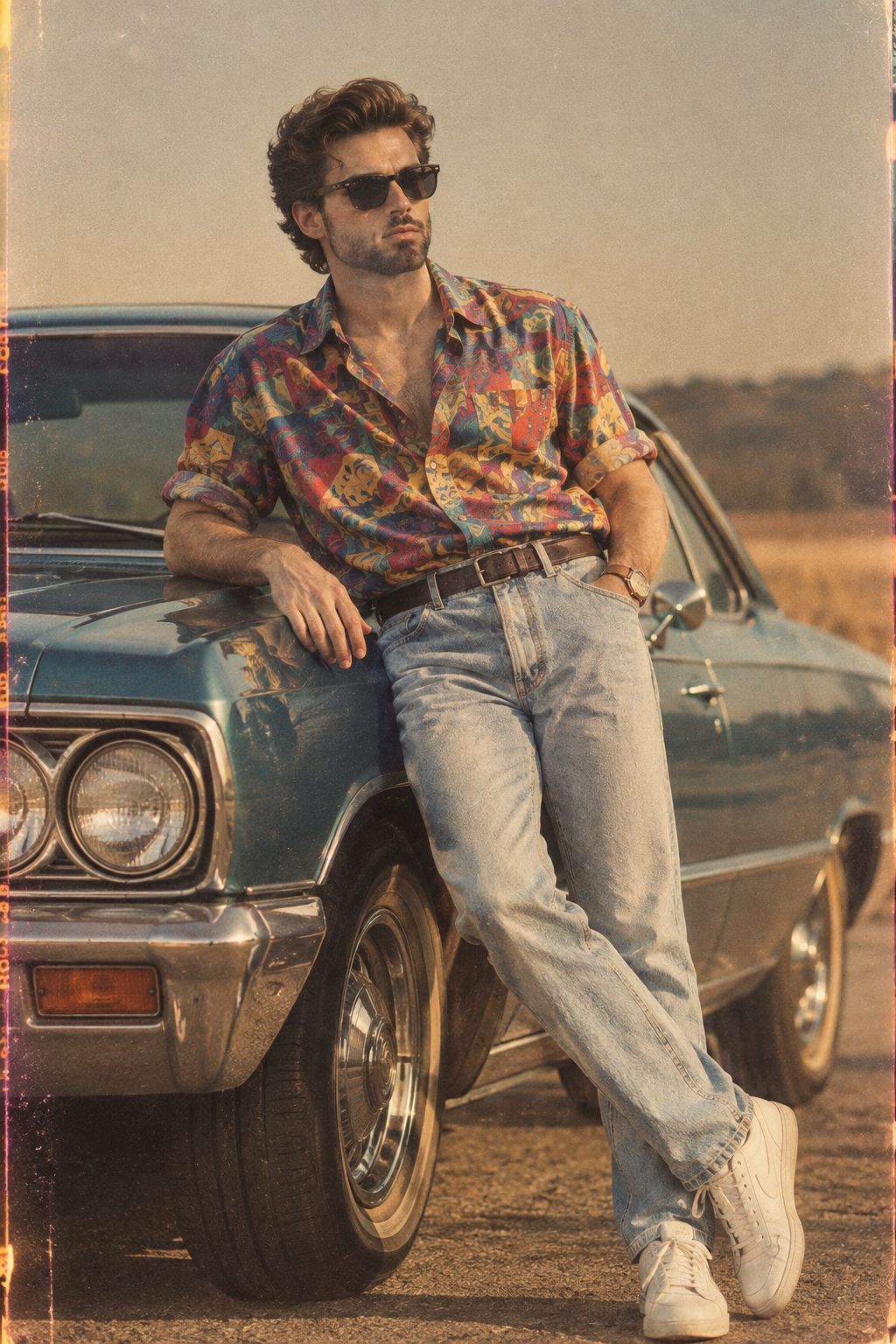
80s Golden Hour Cinema
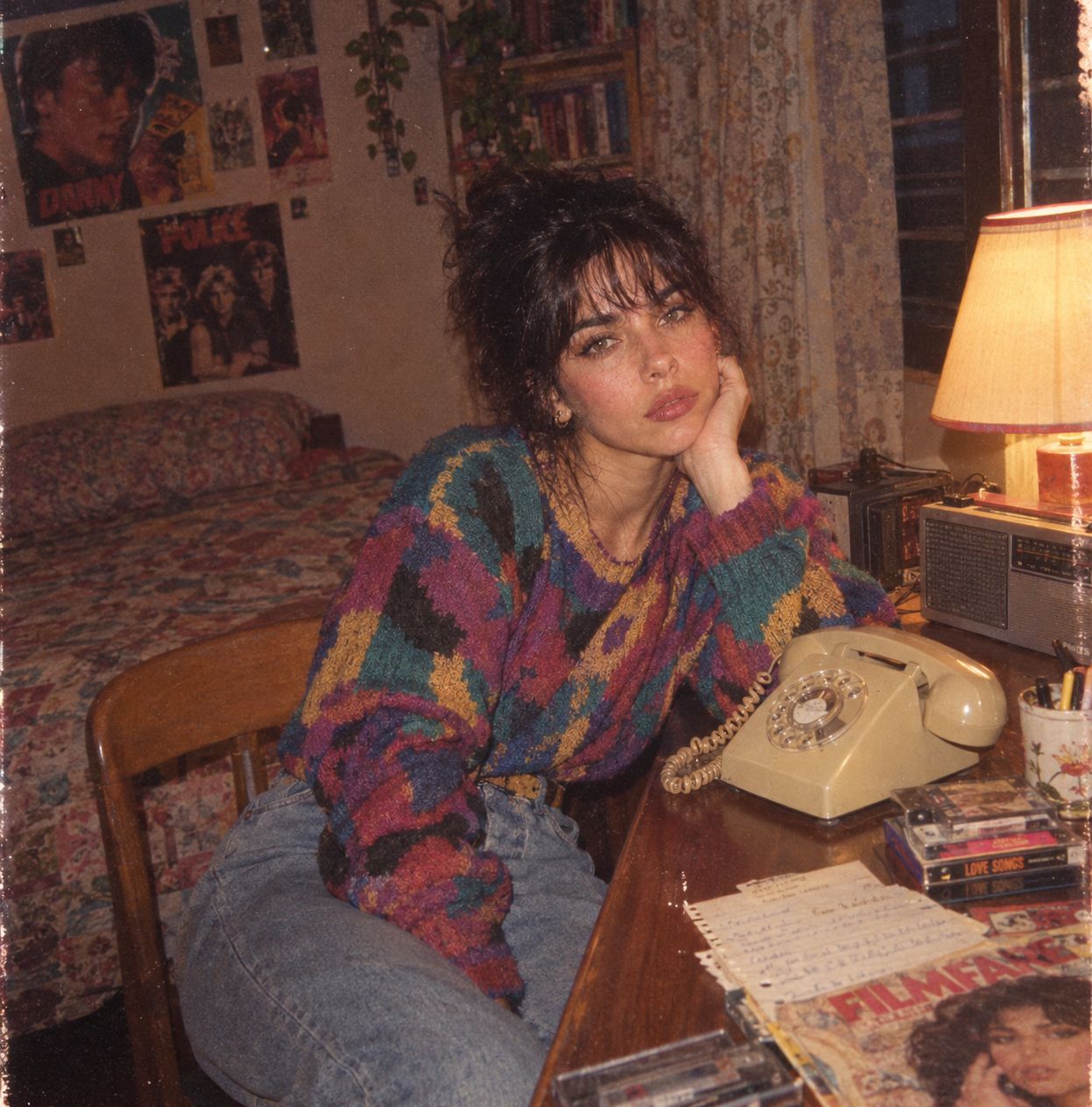
Me in 1985
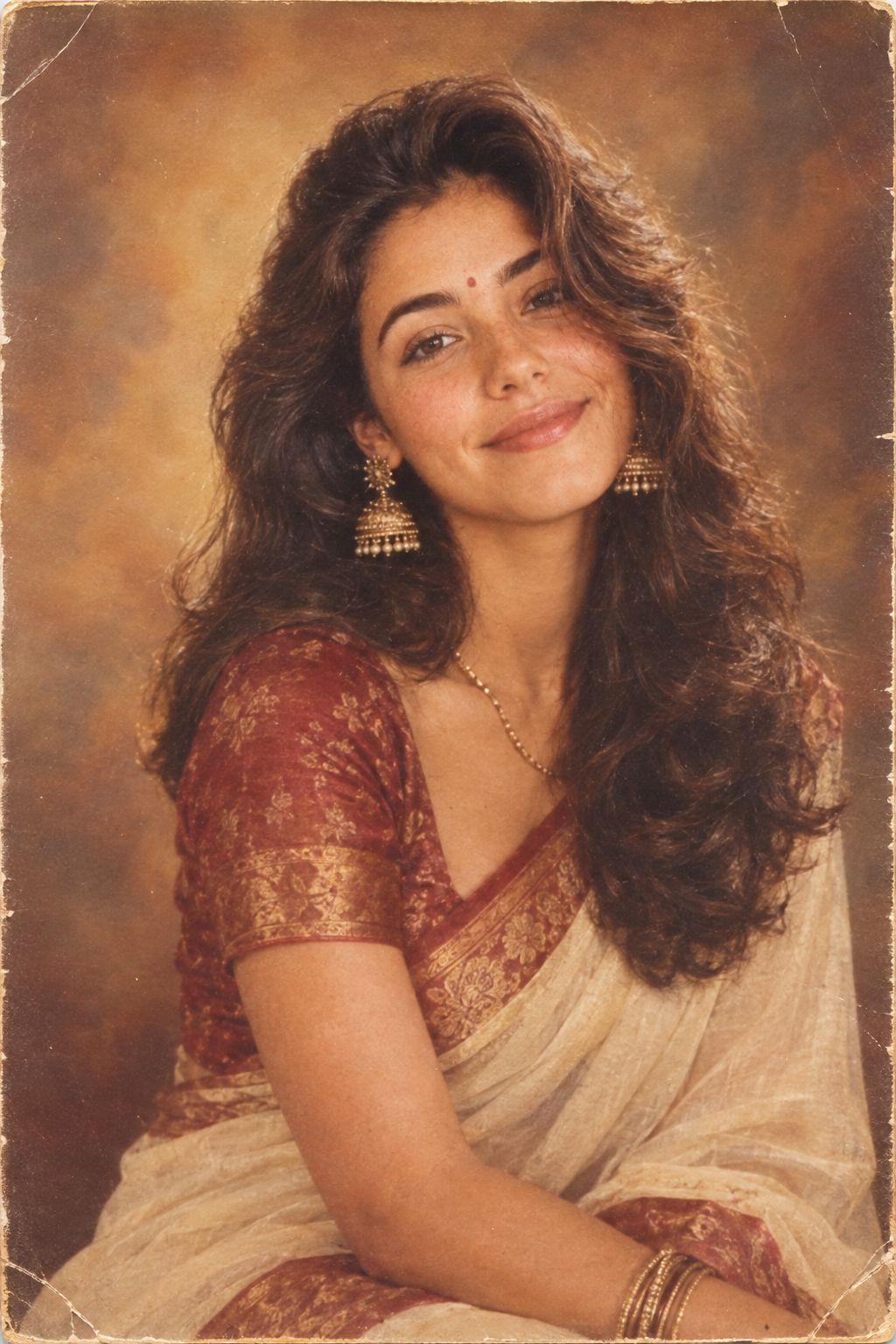
1985 Studio Portrait

Hyper-Realistic Minecraft POV Portrait
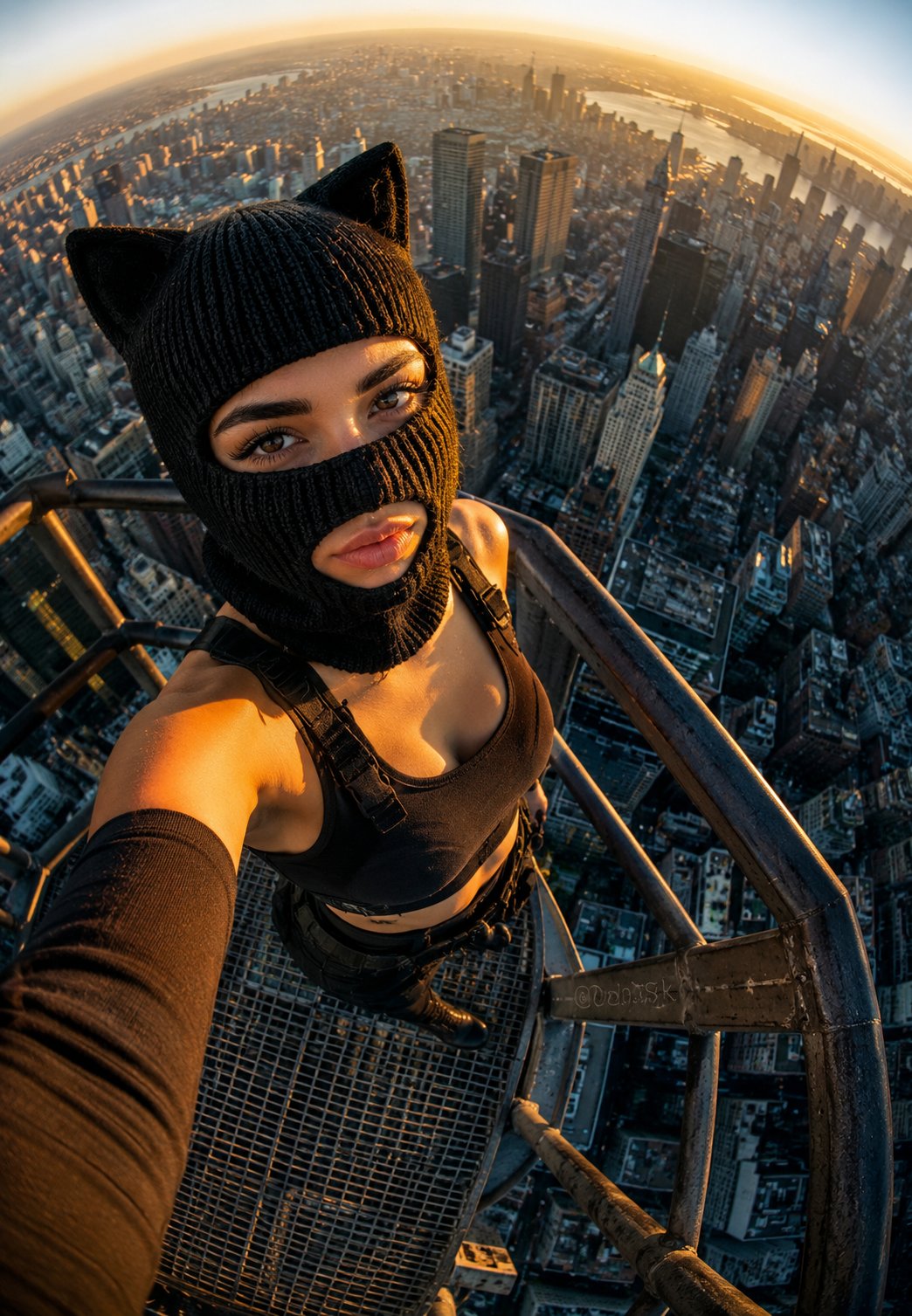
Rooftop Fisheye — Cat-Ear Balaclava at Golden Hour
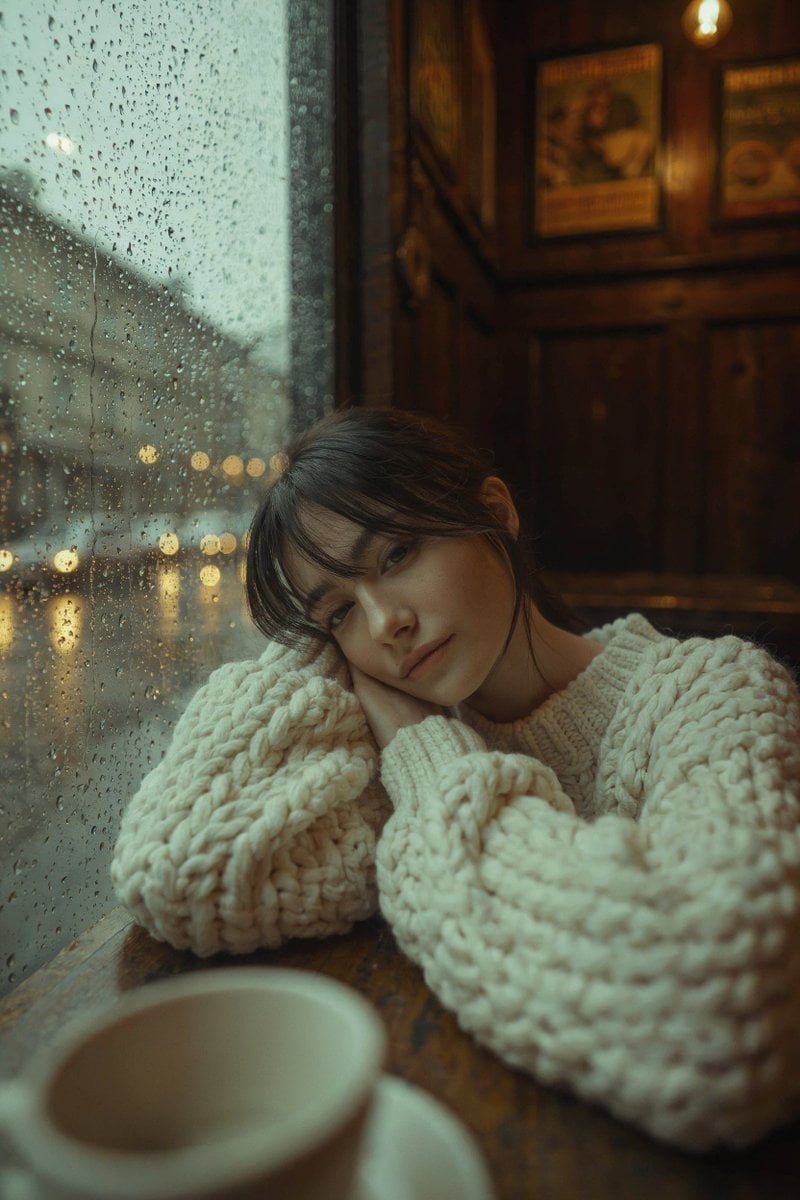
Rainy Café Window Moody Portrait

untitled
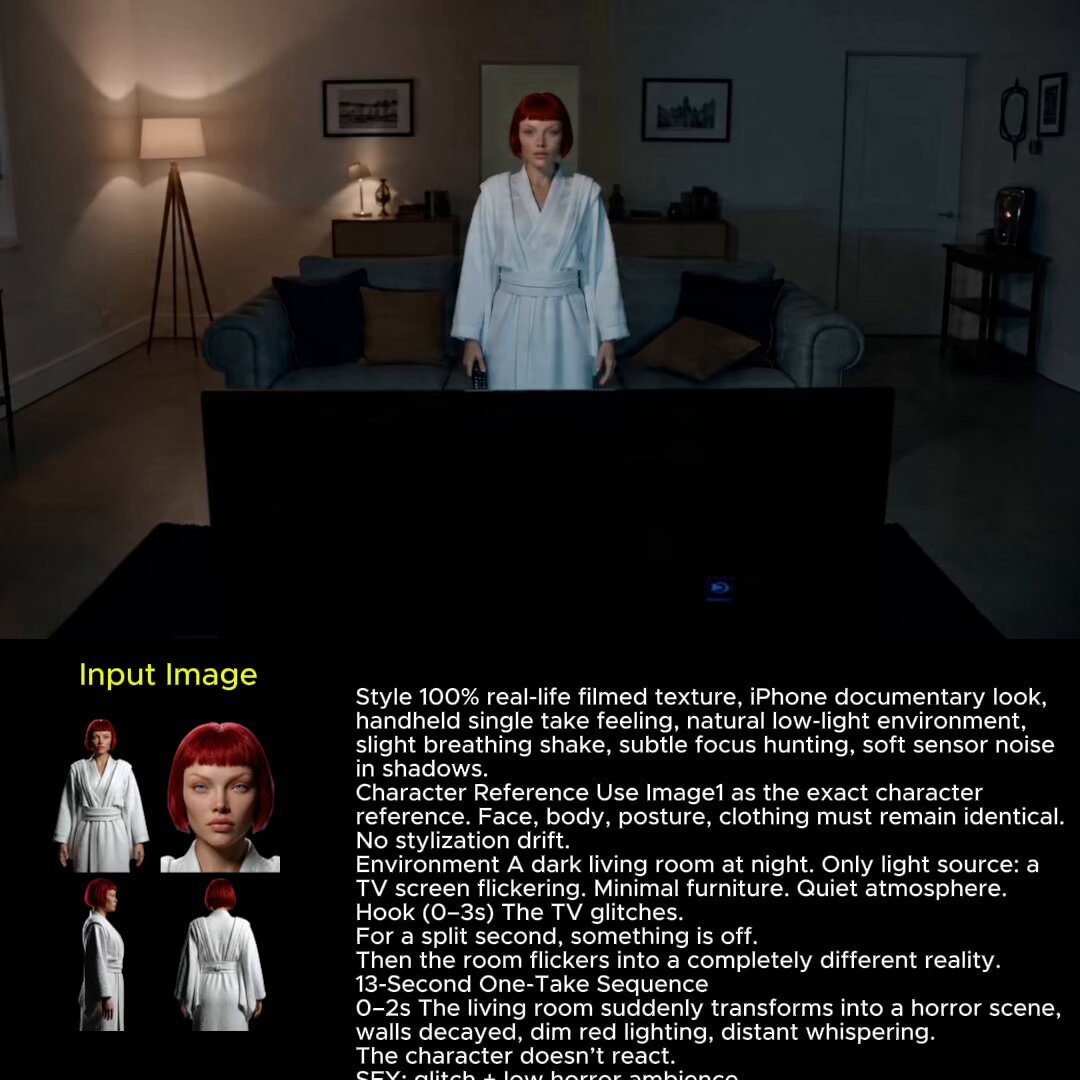
2025 Aesthetic Photography
Nano Banana Is So Addictive
Make it yours
Realistic Portrait with Red Marker Background works as-is. These are the safest ways to change it without losing the look.
Change one field
Copy a single group, rewrite it, and generate again so you can see what that field is doing.
Keep the frame, change the subject
Hold the composition and light of Realistic Portrait with Red Marker Background, then swap wardrobe, props or the person for a new take.
| If the result… | Why | Fix |
|---|---|---|
| The result drifts from the preview | Too many fields changed at once. | Reuse Realistic Portrait with Red Marker Background as-is first, then change one group — subject, light, or setting. |
| The model over-stylizes the scene | The prose prompt leaves finish and camera underspecified. | Add one camera or lighting sentence and stay on GPT Image 2. |
More GPT Image 2 templates
Other prompts made for GPT Image 2.

Six VTuber Japanese Logo Sheet

Realistic Portrait of Woman and Deer

The Vista Modular Condo Poster

AI Model Routing Comparison Infographic

2.5D Anime Art Board

Isometric Productivity Desk Scene

New York Double Exposure Poster

Four-Panel AI Landscape Comparison

Japanese Tatami Lifestyle Magazine Cover

NESCAFÉ Coffee Map Poster
More image prompts
Fresh picks from across the catalog.
Cyberpunk Fashion Portrait with Electric Blue Skin
Macro Hero Shot of Optical Cast Glass Object with Caustics
Minimalist Eyewear Advertisement Poster

Steampunk Shih Tzu Airship Pilot
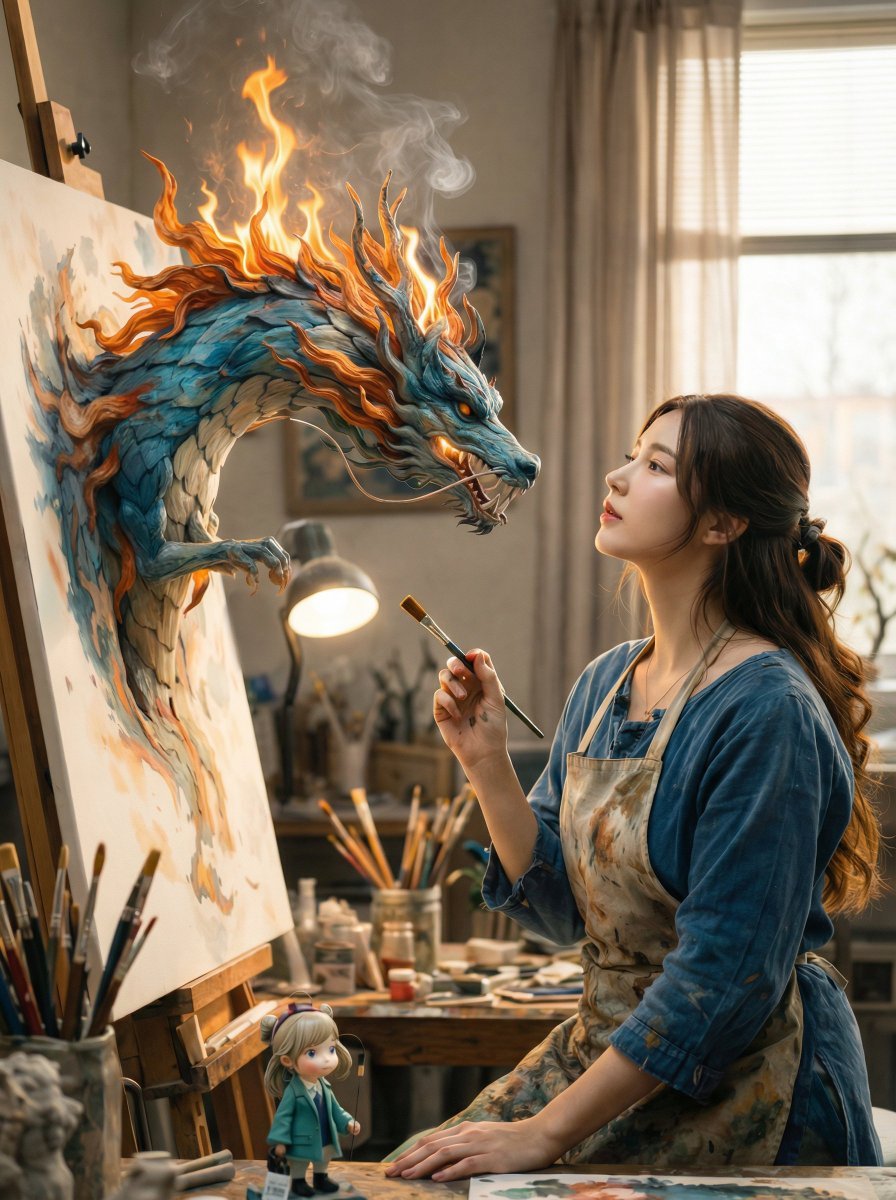
Magical Realism: Dragon Emerging from Canvas
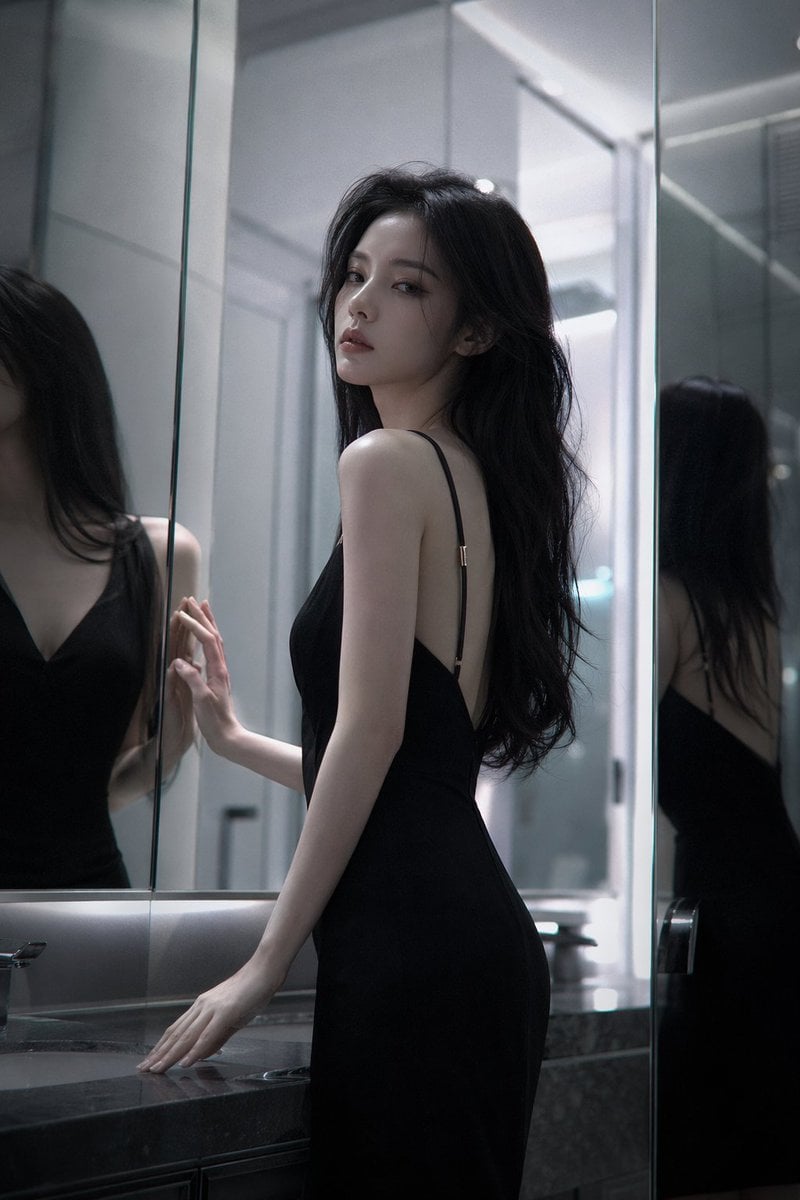
Atmospheric cold glamor mirror portrait
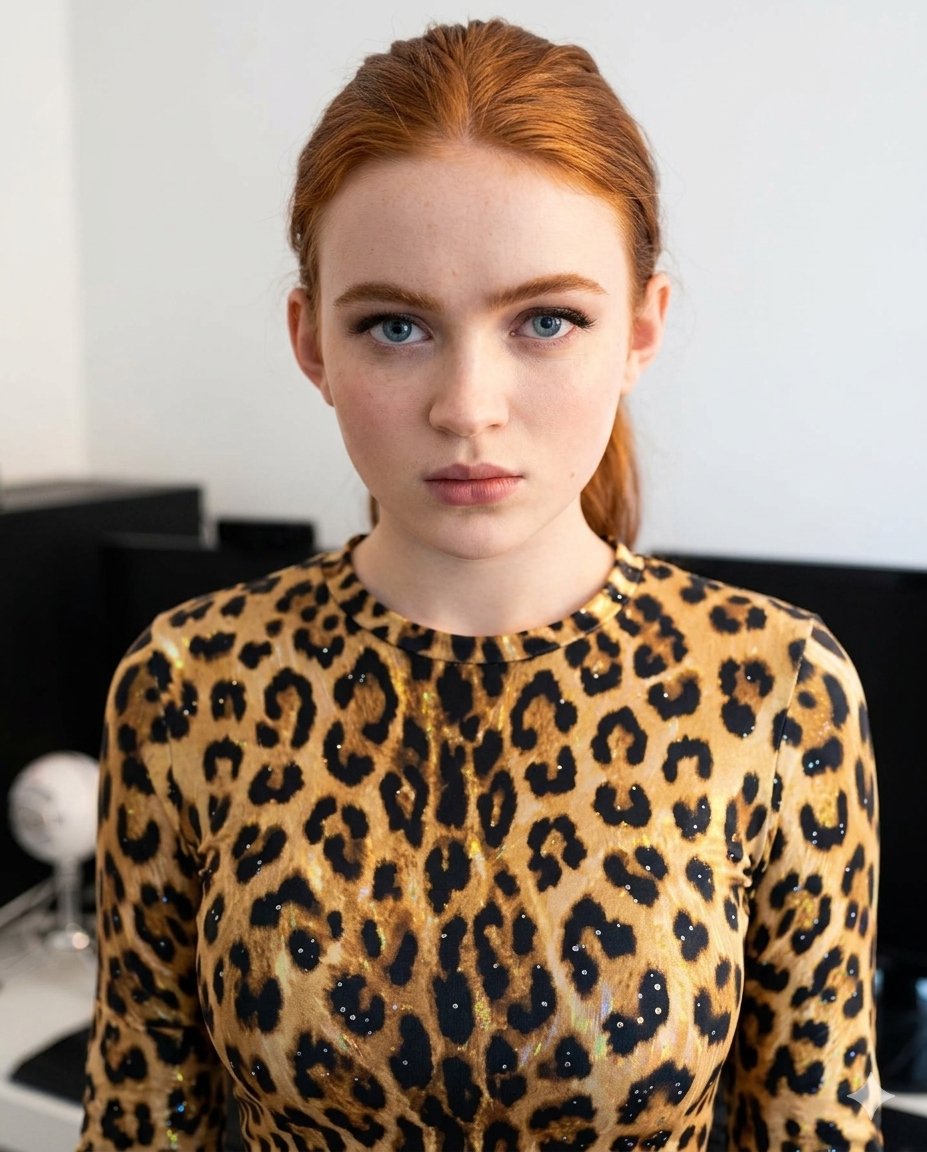
Sparkling Cheetah Portrait Prompt for Gemini Nano Banana Pro

Hyper-Realistic Flash Selfie Crime Scene Prompt (JSON format)

Cozy Hand-Drawn Food Doodle
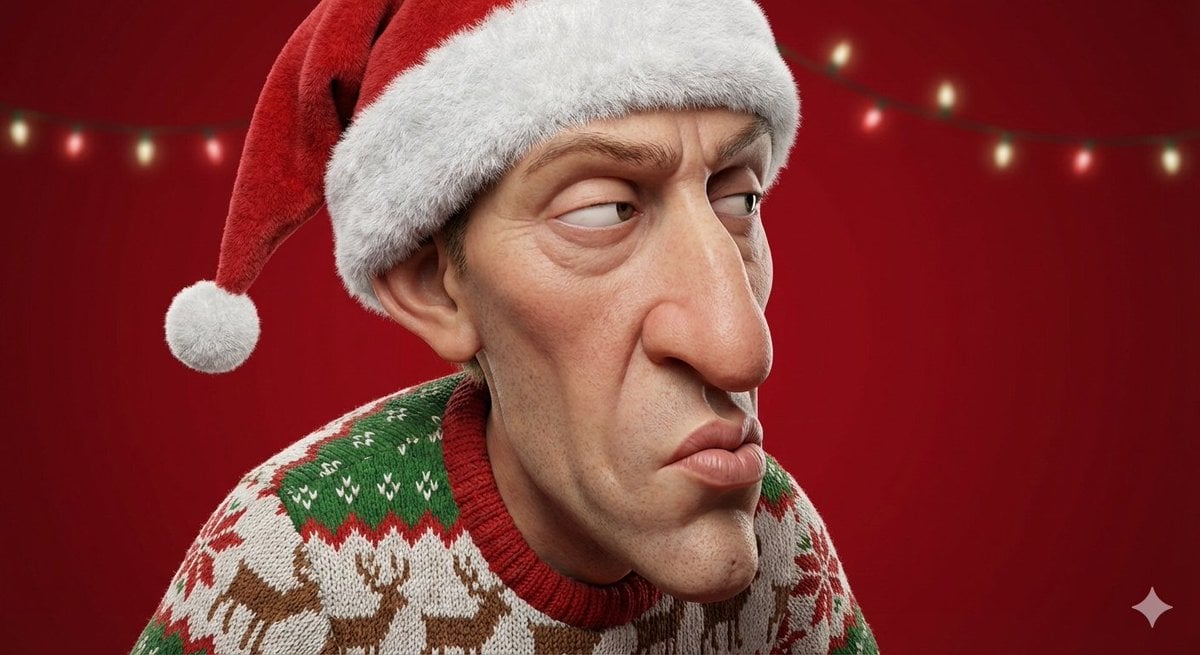
Stylized 3D Cartoon Portrait with Realistic Textures
Browse template categories
Realistic Portrait with Red Marker Background questions
How do I use the Realistic Portrait with Red Marker Background template?
Add your photo if the template asks for one, edit the prompt if you like — the template's model and format are already selected — and press Generate. Your version opens in PicX Studio.
Can I customize the Realistic Portrait with Red Marker Background template?
Yes. You can change the subject, setting, lighting, mood, format, and available model controls before creating your image.
Is the Realistic Portrait with Red Marker Background template free?
Opening and editing this template is free. Generating uses credits, shown on the Generate button when you are signed in.
Which AI model should I use?
Start with GPT Image 2, which is the model associated with this template. You can compare another compatible model for a different finish.
Looking for something else? Browse all templates.

Your photo, any look
Thousands of ready templates for every top image and video model, from one credit balance.