
Angelic Cloud Terminal Icon
A dreamy celestial tech icon with angel wings and a halo, ideal for a soft futuristic visual about coding or cloud tools.

- Prompt included
- Model and format preset
- Free template
The prompt behind this image
Copy the exact prompt behind Angelic Cloud Terminal Icon, or open it in the studio and make it yours.
Create a dreamy celestial tech icon scene: a large rounded cloud-shaped logo floats in the center, filled with a smooth gradient from deep cobalt blue at the bottom to violet and pale lavender at the top. Inside the cloud, place exactly 2 white terminal symbols: a thick greater-than chevron on the left and a short horizontal underscore on the right, both rounded and softly glowing. Add exactly 2 large white angel wings attached symmetrically behind the cloud, with layered soft feathers, the left wing extending to the upper-left and the right wing to the upper-right. Above the cloud, add exactly 1 luminous halo: a thin glowing oval ring in warm pink-white light. Set the scene in a heavenly sky with voluminous pastel clouds filling the lower half and both side edges, using blue, lavender, pink, and peach tones. Add soft god rays from above, subtle sparkles, atmospheric haze, and a bright backlit glow behind the central icon. Use a polished 3D soft-rendered style, ultra-clean, whimsical, ethereal, high contrast but gentle, no text, no watermark. Wide 16:9 composition, centered subject, cinematic lighting, crisp edges on the icon with soft bloom around highlights.
How to use Angelic Cloud Terminal Icon in 3 steps
- 1Upload ImagePNG, JPG or paste
Add your photo
Upload the photo the template builds on. The prompt, model and format are already set.
- 2…a portrait of your subject in softgolden-hour light, 85mm…
Personalize
Edit the subject and creative details for your destination.
- 3Generate
Generate
Press Generate — your image is created in PicX Studio, so you can compare it with the original and refine one variable at a time.
More like this
Templates with the same subject, style or setup. Open one to see its prompt.

Floating Woman Above Cityscape with Notifications

Foxy App Icon Exploration Board

Clear, 45 top-down isometric miniature 3D cartoon scene of the iconic

A premium centered in the frame, iconic packaging partially unwrapped

Istanbul, rainy day at the ferry terminal

Refreshing Citrus Coconut Cloud Ice Poster
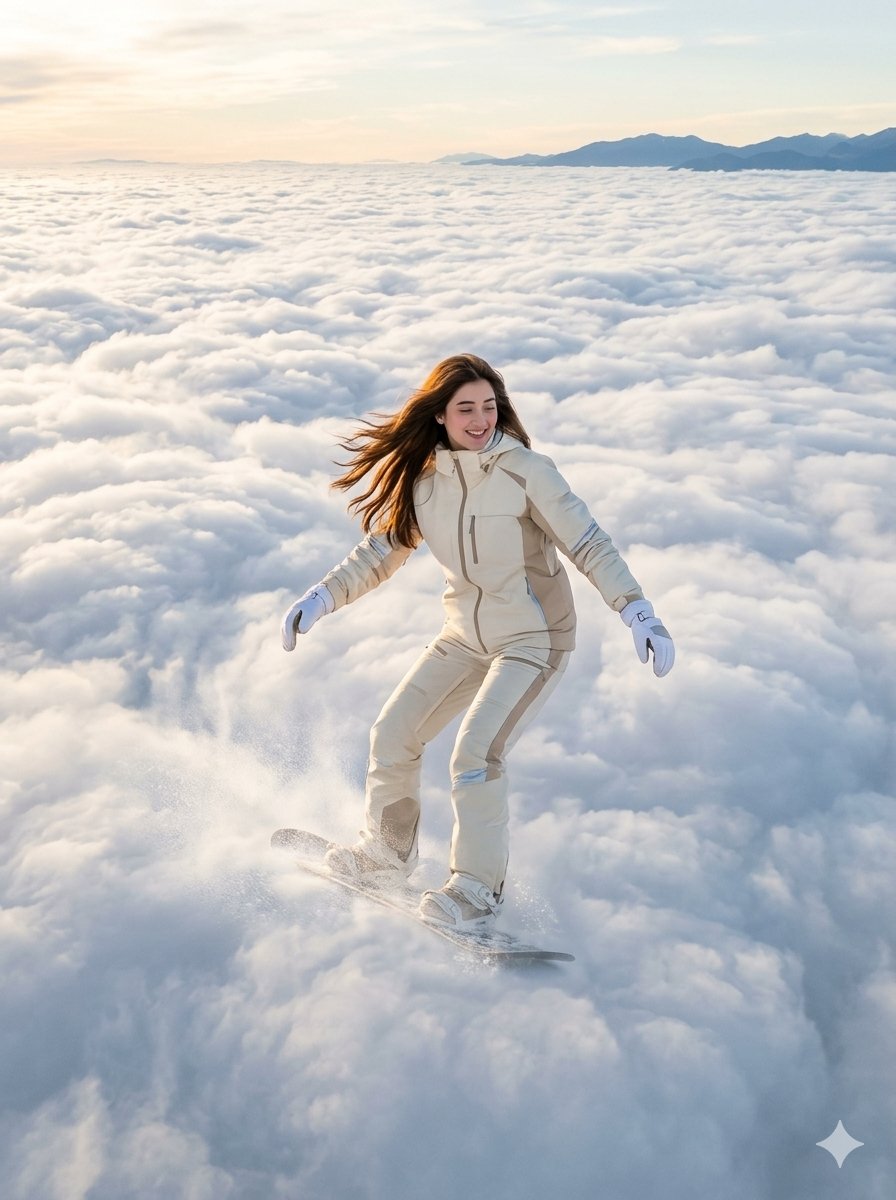
Surreal Cloud Snowboarding Girl

Majestic Elephant Cloud Photography

Realistic Airport Terminal Portrait

Ghibli Castle Cloud Sea

Pixar Anime Cloud Whale

High-Fashion Editorial Magazine Cover ICON
Make it yours
Angelic Cloud Terminal Icon works as-is. These are the safest ways to change it without losing the look.
Change one field
Copy a single group, rewrite it, and generate again so you can see what that field is doing.
Keep the frame, change the subject
Hold the composition and light of Angelic Cloud Terminal Icon, then swap wardrobe, props or the person for a new take.
| If the result… | Why | Fix |
|---|---|---|
| The result drifts from the preview | Too many fields changed at once. | Reuse Angelic Cloud Terminal Icon as-is first, then change one group — subject, light, or setting. |
| The model over-stylizes the scene | The prose prompt leaves finish and camera underspecified. | Add one camera or lighting sentence and stay on GPT Image 2. |
More GPT Image 2 templates
Other prompts made for GPT Image 2.

Six VTuber Japanese Logo Sheet

Realistic Portrait of Woman and Deer

The Vista Modular Condo Poster

AI Model Routing Comparison Infographic

2.5D Anime Art Board

Isometric Productivity Desk Scene

New York Double Exposure Poster

Four-Panel AI Landscape Comparison

Japanese Tatami Lifestyle Magazine Cover

NESCAFÉ Coffee Map Poster
More image prompts
Fresh picks from across the catalog.

Tourism Poster Illustration

Dark Romantic Tabletop Composition Prompt

Nano Banana Pro Prompt: Candid Mirror Selfie with Cat

Yuri Sakazaki Anime Battle Poster

Anime Girl Eating Ramen Edit
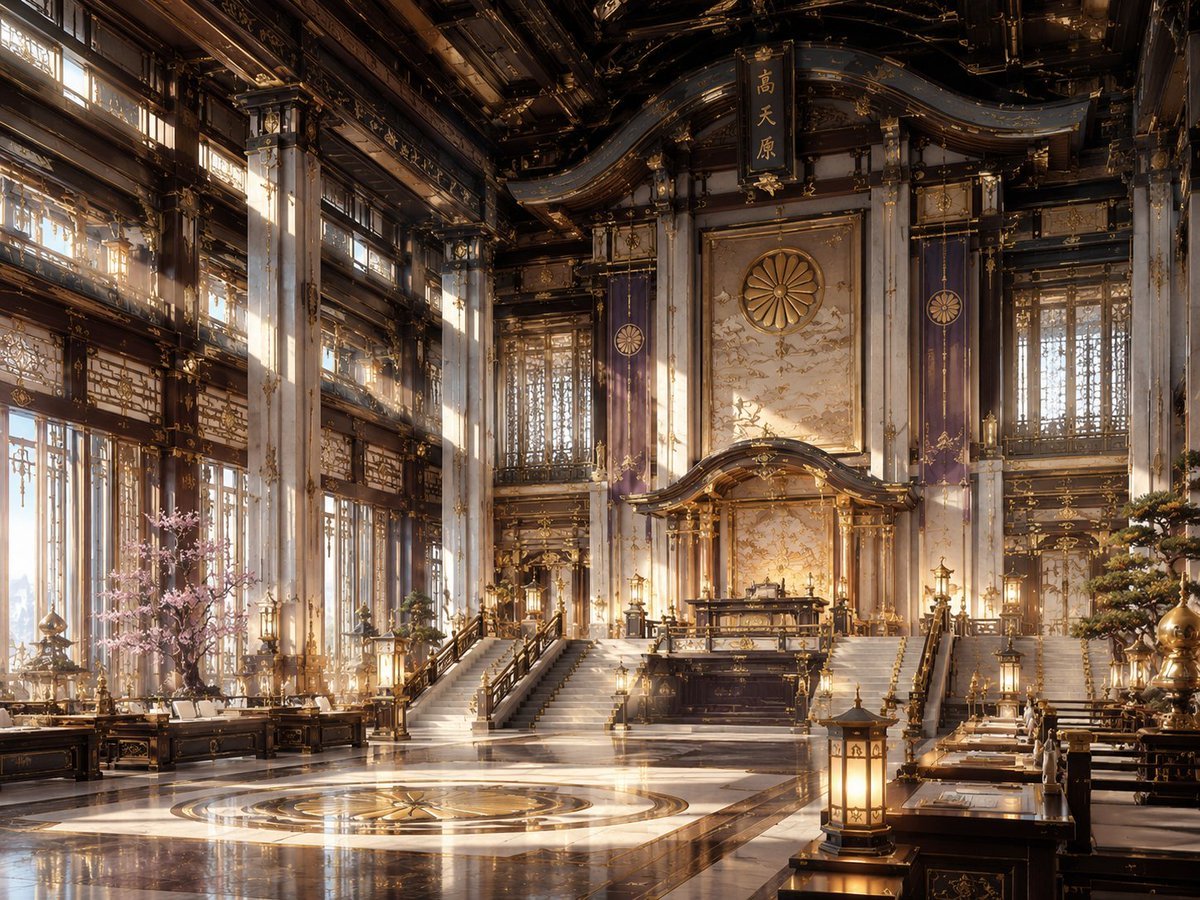
NeoNippon Imperial Throne Hall
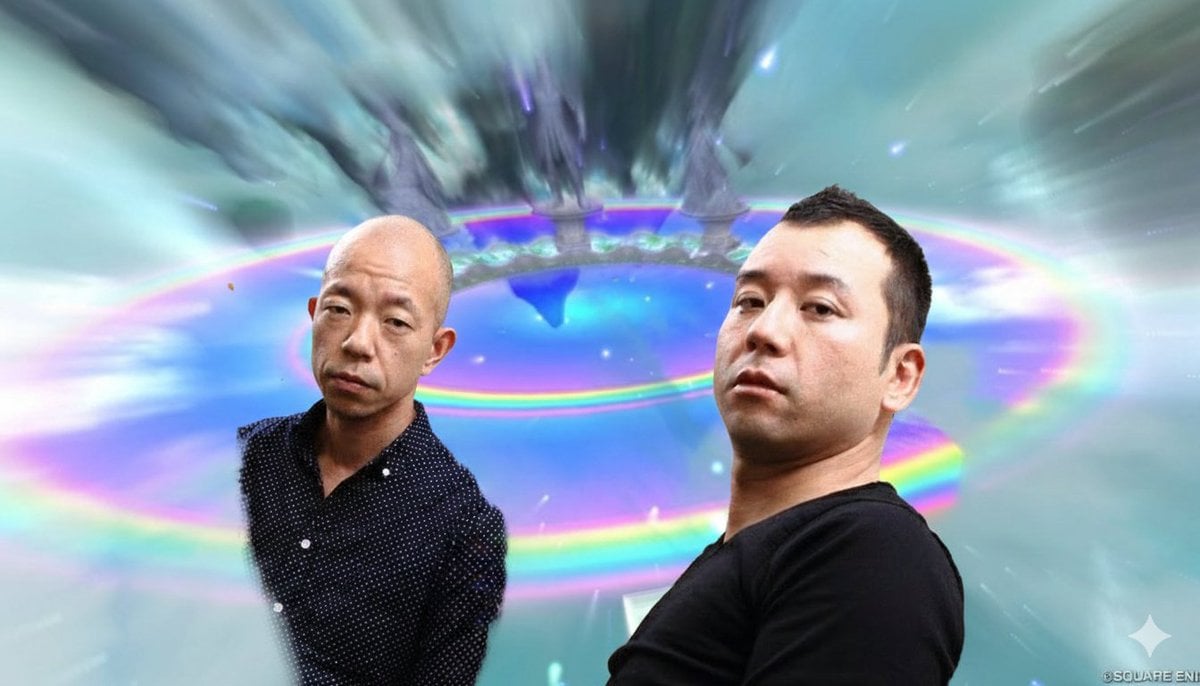
Image Style Transfer Prompt: Viking to Dragon Quest X 'Chamber of Vows'

Sunset Alpine Lake Oil Painting

Sunlit Library Study Portrait

Photorealistic Winter Portrait with Snowflakes
Browse template categories
Angelic Cloud Terminal Icon questions
How do I use the Angelic Cloud Terminal Icon template?
Add your photo if the template asks for one, edit the prompt if you like — the template's model and format are already selected — and press Generate. Your version opens in PicX Studio.
Can I customize the Angelic Cloud Terminal Icon template?
Yes. You can change the subject, setting, lighting, mood, format, and available model controls before creating your image.
Is the Angelic Cloud Terminal Icon template free?
Opening and editing this template is free. Generating uses credits, shown on the Generate button when you are signed in.
Which AI model should I use?
Start with GPT Image 2, which is the model associated with this template. You can compare another compatible model for a different finish.
Looking for something else? Browse all templates.

Your photo, any look
Thousands of ready templates for every top image and video model, from one credit balance.