
Foxy App Icon Exploration Board
A structured prompt for generating a polished 19-variant app icon exploration sheet featuring a curled fluffy fox mascot in multiple UI styles.
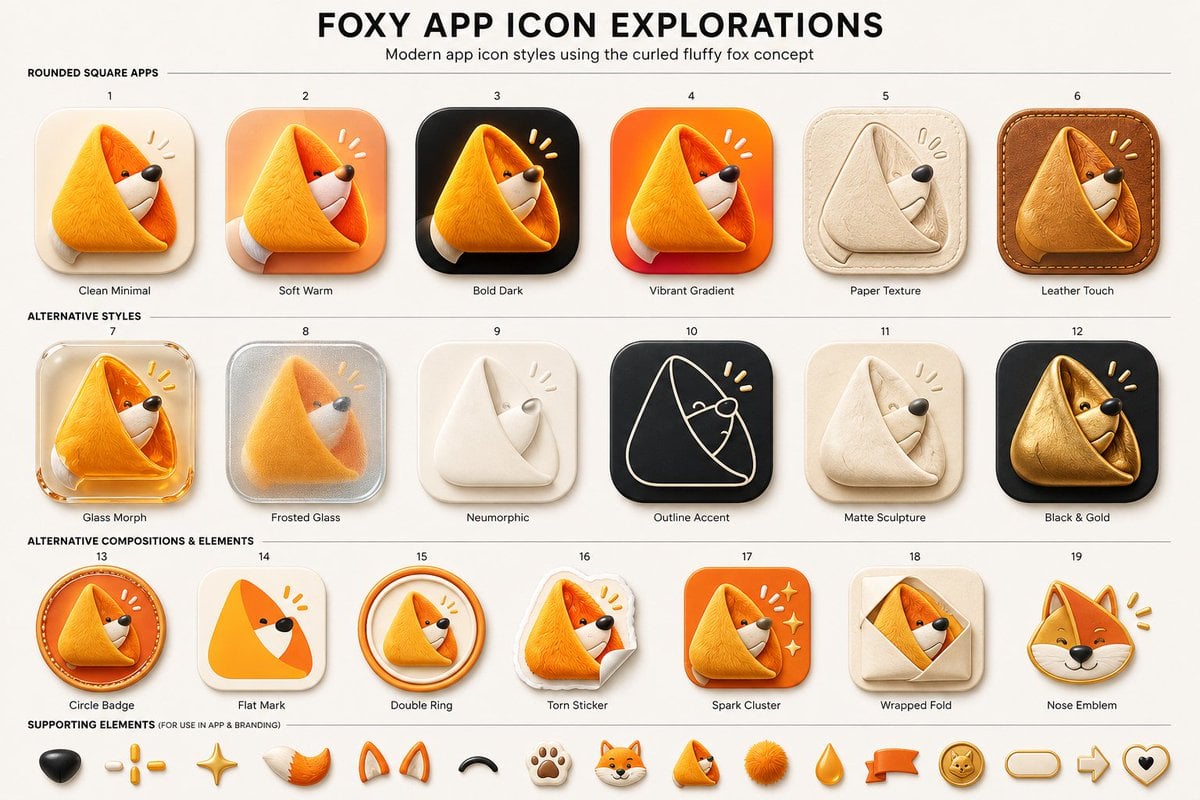
- Prompt included
- Model and format preset
- Free template
The prompt behind this image
Copy the exact prompt behind Foxy App Icon Exploration Board, or open it in the studio and make it yours.
Goal: Create a clean presentation board titled {argument name="headline text" default="FOXY APP ICON EXPLORATIONS"}, showing modern app icon style variations for a cute curled fluffy fox logo concept. Canvas: Wide 16:9 beige/off-white design board, high-resolution, centered composition, subtle paper background. At the top, a large bold black all-caps headline, with a smaller subtitle underneath: {argument name="subtitle text" default="Modern app icon styles using the curled fluffy fox concept"}. Use thin horizontal divider lines to separate sections. Layout: Arrange exactly 19 numbered app icon concepts in a neat grid of 3 rows: first row has 6 icons, second row has 6 icons, third row has 7 icons. Each icon is a rounded-square or badge-style app icon featuring the same curled triangular fox mascot: a fluffy orange fox curled into a soft triangular fold, with a white muzzle, tiny black eye, black nose, and small yellow attention marks near the head. Put a small number above each icon and a short label below it. Section 1 title: “ROUNDED SQUARE APPS”. Include exactly 6 icons: 1. Clean Minimal — cream rounded-square background, soft shadow, simple orange curled fox. 2. Soft Warm — peach/orange warm gradient rounded-square background. 3. Bold Dark — black rounded-square background with glowing orange fox. 4. Vibrant Gradient — bright orange-red gradient rounded-square background. 5. Paper Texture — beige paper-like icon, embossed folded fox in pale cream. 6. Leather Touch — brown stitched leather rounded-square background, tan leather fox. Section 2 title: “ALTERNATIVE STYLES”. Include exactly 6 icons: 7. Glass Morph — translucent glossy glass rounded-square icon with orange fox. 8. Frosted Glass — frosted silver translucent square with blurred fox inside. 9. Neumorphic — soft off-white raised icon with minimal white folded fox. 10. Outline Accent — dark charcoal rounded square with thin cream line-art fox outline and yellow accent marks. 11. Matte Sculpture — soft beige matte clay-like curled fox sculpture. 12. Black & Gold — black rounded square with metallic gold fox. Section 3 title: “ALTERNATIVE COMPOSITIONS & ELEMENTS”. Include exactly 7 icons: 13. Circle Badge — circular orange badge with curled fox inside and stitched/ring detail. 14. Flat Mark — simplified flat orange triangular fox mark on cream rounded square. 15. Double Ring — curled fox inside two circular orange rings. 16. Torn Sticker — fox printed as a torn paper sticker with curled paper corner. 17. Spark Cluster — orange rounded square with fox and small sparkle/star cluster. 18. Wrapped Fold — beige square with fox peeking from a folded envelope/wrap shape. 19. Nose Emblem — fox head emblem focused on face, ears, black nose, and yellow marks. Supporting elements: Along the bottom, add a row labeled “SUPPORTING ELEMENTS (FOR USE IN APP & BRANDING)” containing exactly 14 small mascot/brand elements: black nose, three yellow dash marks, golden sparkle star, orange-white fluffy tail, pair of orange fox ears, black curved smile/arc, paw print, small fox head, tiny curled fox mascot, orange fluffy pom-pom, orange teardrop, orange ribbon banner, gold fox coin badge, rounded pill outline, right arrow outline, and heart outline with black center. If space is tight, keep the first 14 most visible items and maintain the same visual style. Visual style: Premium UI concept sheet, polished 3D soft-rendered icons, rounded corners, tactile materials, gentle shadows, warm orange and cream palette with black accents. Use crisp readable typography, small labels, even spacing, and a modern product-design presentation aesthetic. The mascot should remain consistently recognizable across all variations as a {argument name="mascot description" default="curled fluffy orange fox forming a triangular app icon shape"}. Avoid extra icons, extra labels, watermarks, or photorealistic background clutter.
How to use Foxy App Icon Exploration Board in 3 steps
- 1Upload ImagePNG, JPG or paste
Add your photo
Upload the photo the template builds on. The prompt, model and format are already set.
- 2…a portrait of your subject in softgolden-hour light, 85mm…
Personalize
Edit the subject and creative details for your destination.
- 3Generate
Generate
Press Generate — your image is created in PicX Studio, so you can compare it with the original and refine one variable at a time.
More like this
Templates with the same subject, style or setup. Open one to see its prompt.

Minecraft Japanese Research Lab Exploration
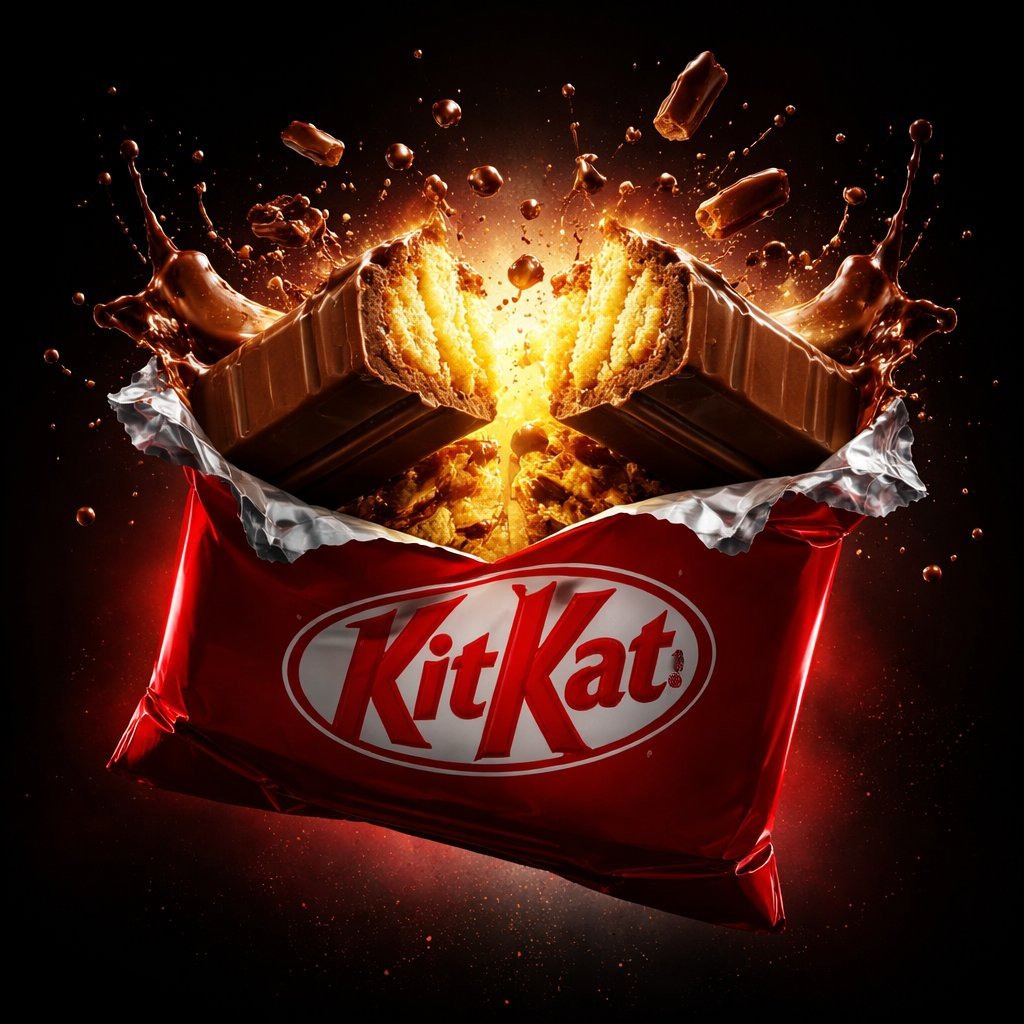
A premium centered in the frame, iconic packaging partially unwrapped
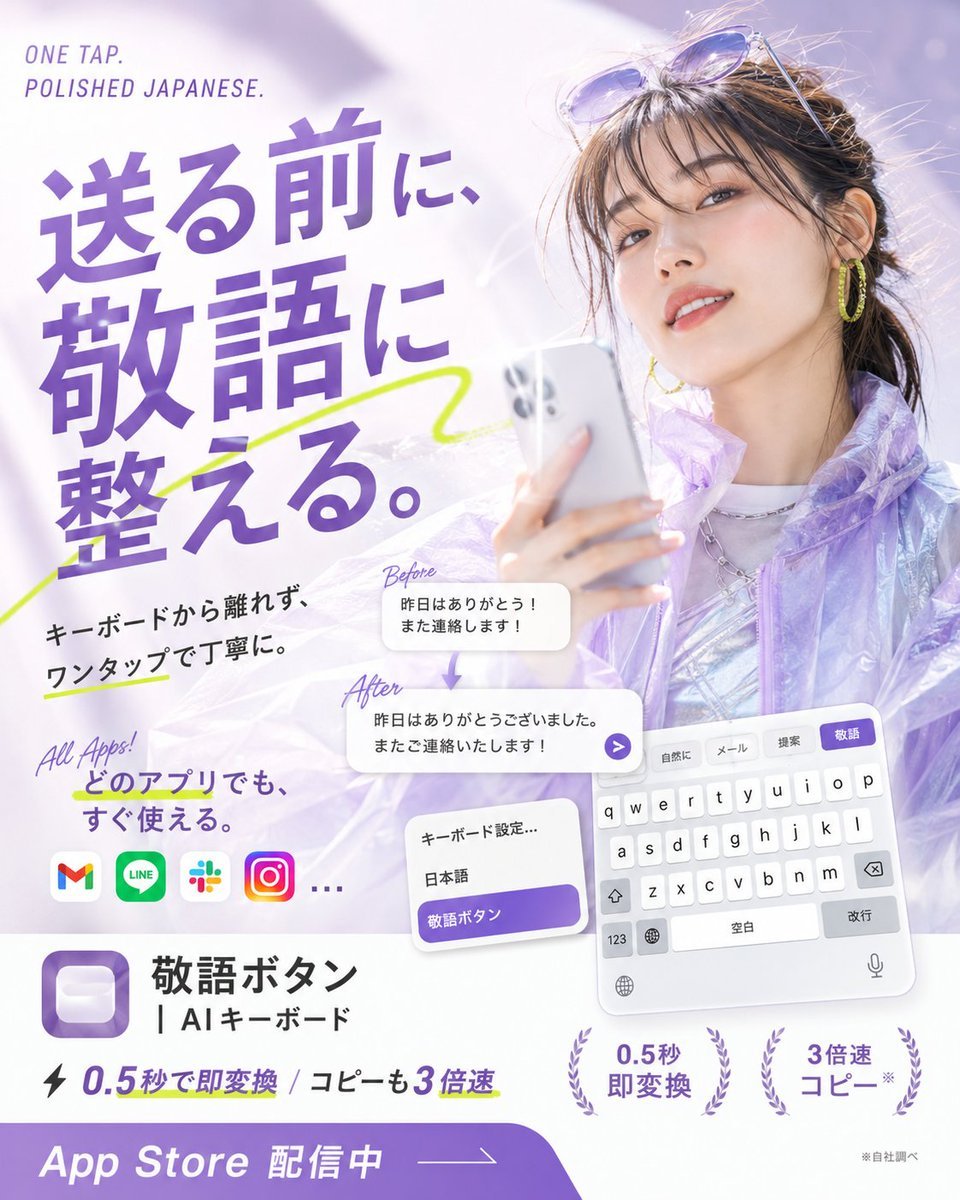
Japanese AI Keyboard App Poster
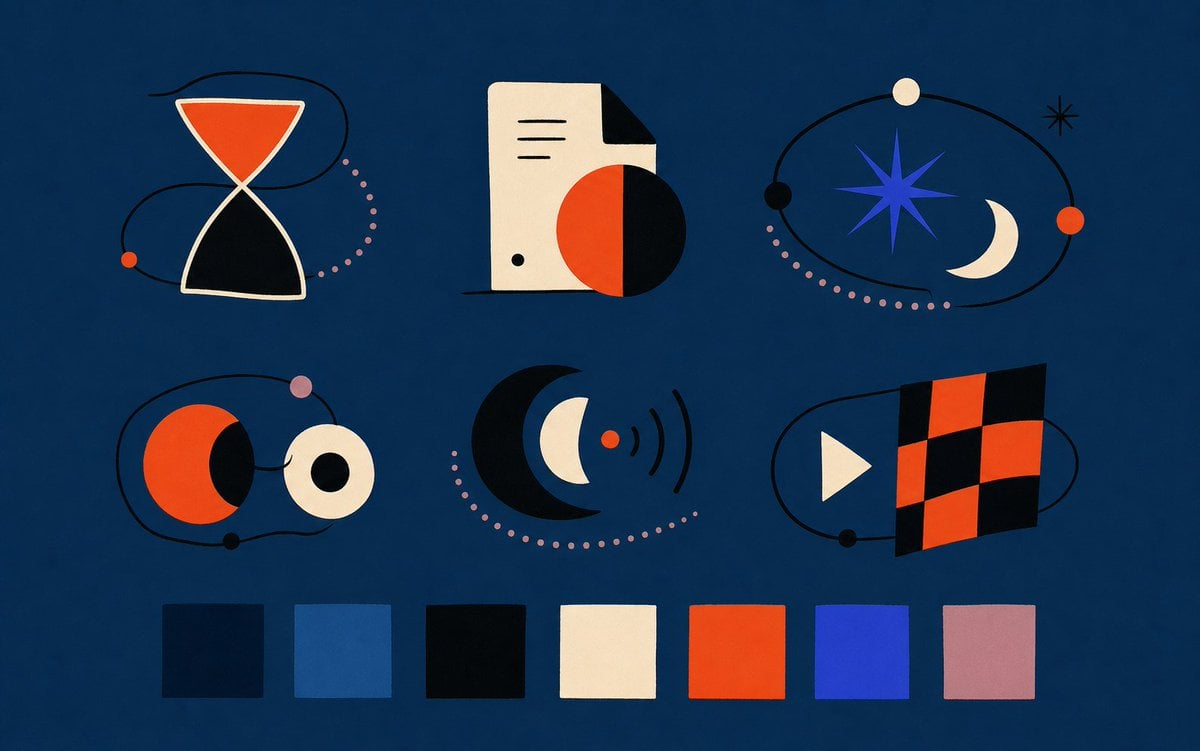
Abstract Vector Icon Asset Board
Glowing 3D Heartbeat App Icon
Number Puzzle App Icon Concepts
Neon Number App Icon

GlowUp App UI Board
Neito Brand Color Exploration Board
Soft 3D App Feature Icon Grid

Cute 3D App Mascot Icon Grid

Galactic Exploration and Nebulae
Make it yours
Foxy App Icon Exploration Board works as-is. These are the safest ways to change it without losing the look.
Change one field
Copy a single group, rewrite it, and generate again so you can see what that field is doing.
Keep the frame, change the subject
Hold the composition and light of Foxy App Icon Exploration Board, then swap wardrobe, props or the person for a new take.
| If the result… | Why | Fix |
|---|---|---|
| The result drifts from the preview | Too many fields changed at once. | Reuse Foxy App Icon Exploration Board as-is first, then change one group — subject, light, or setting. |
| The model over-stylizes the scene | The prose prompt leaves finish and camera underspecified. | Add one camera or lighting sentence and stay on GPT Image 2. |
More GPT Image 2 templates
Other prompts made for GPT Image 2.

Six VTuber Japanese Logo Sheet

Realistic Portrait of Woman and Deer

The Vista Modular Condo Poster

AI Model Routing Comparison Infographic

Isometric Productivity Desk Scene

New York Double Exposure Poster

Four-Panel AI Landscape Comparison

Japanese Tatami Lifestyle Magazine Cover

NESCAFÉ Coffee Map Poster

Brutalist Cogito Chinese Typography Poster
More image prompts
Fresh picks from across the catalog.
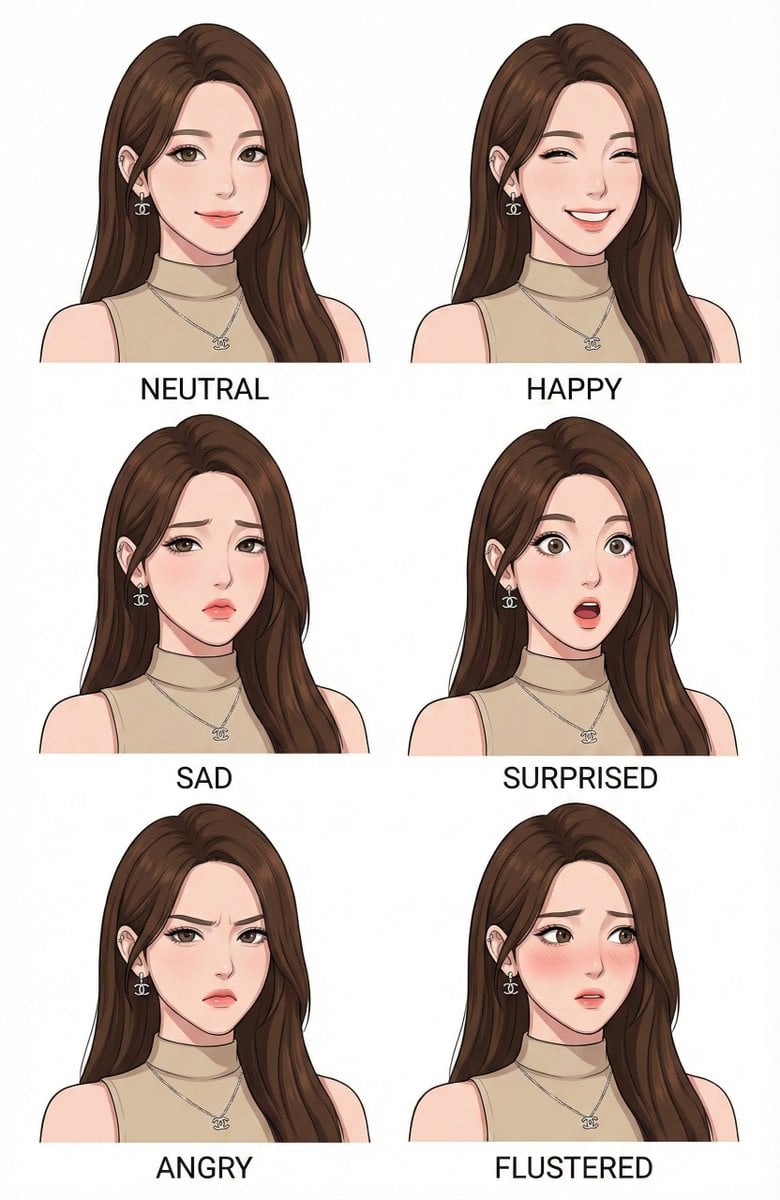
Character Design Expression Style Guide Prompt
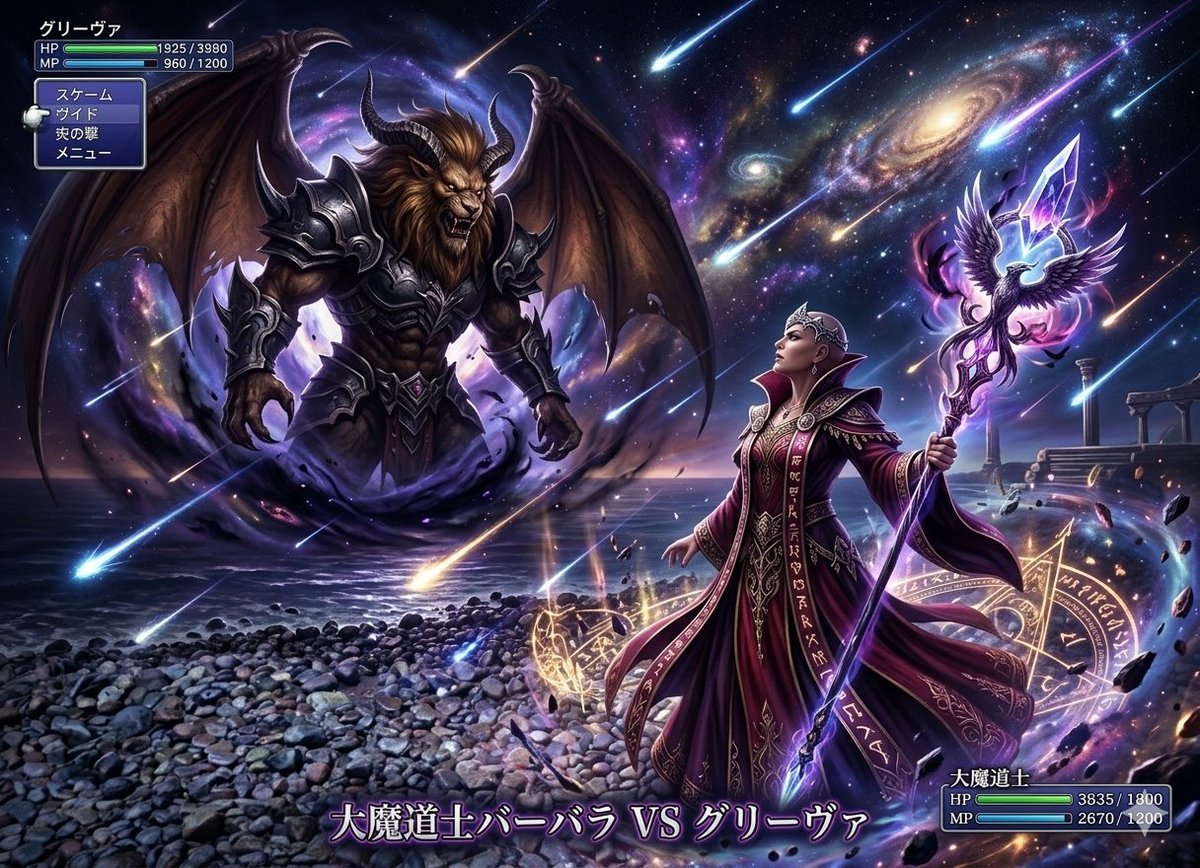
Final Fantasy transformation prompt (Nano Banana Pro)
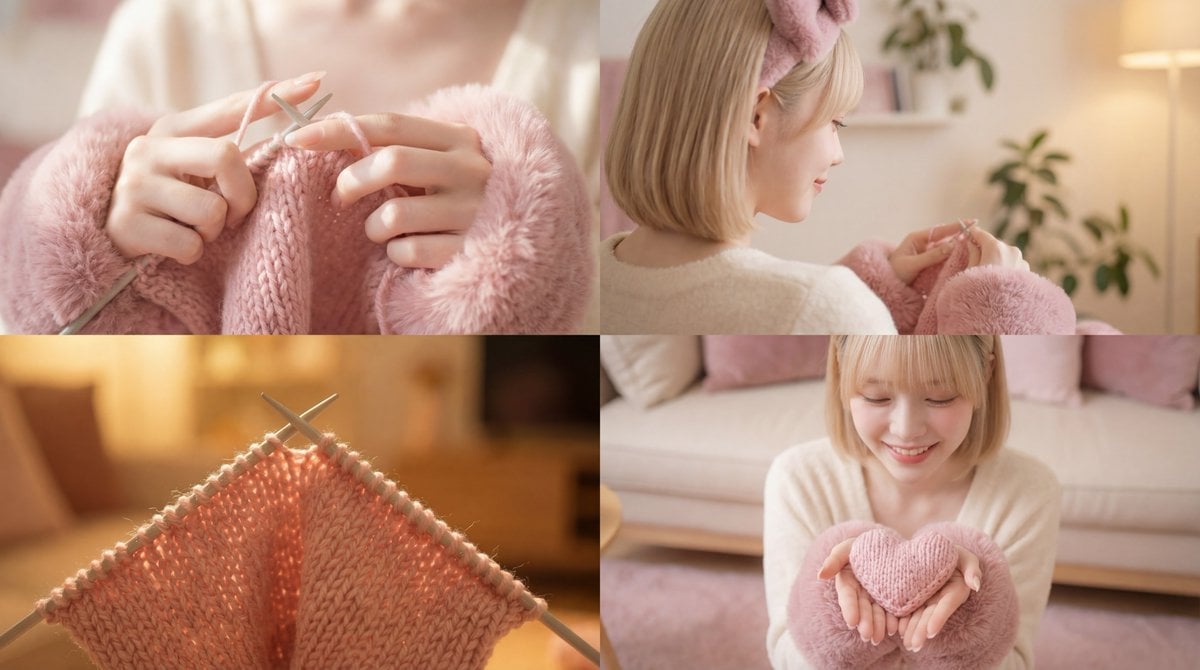
Cinematic Video of a Woman Knitting
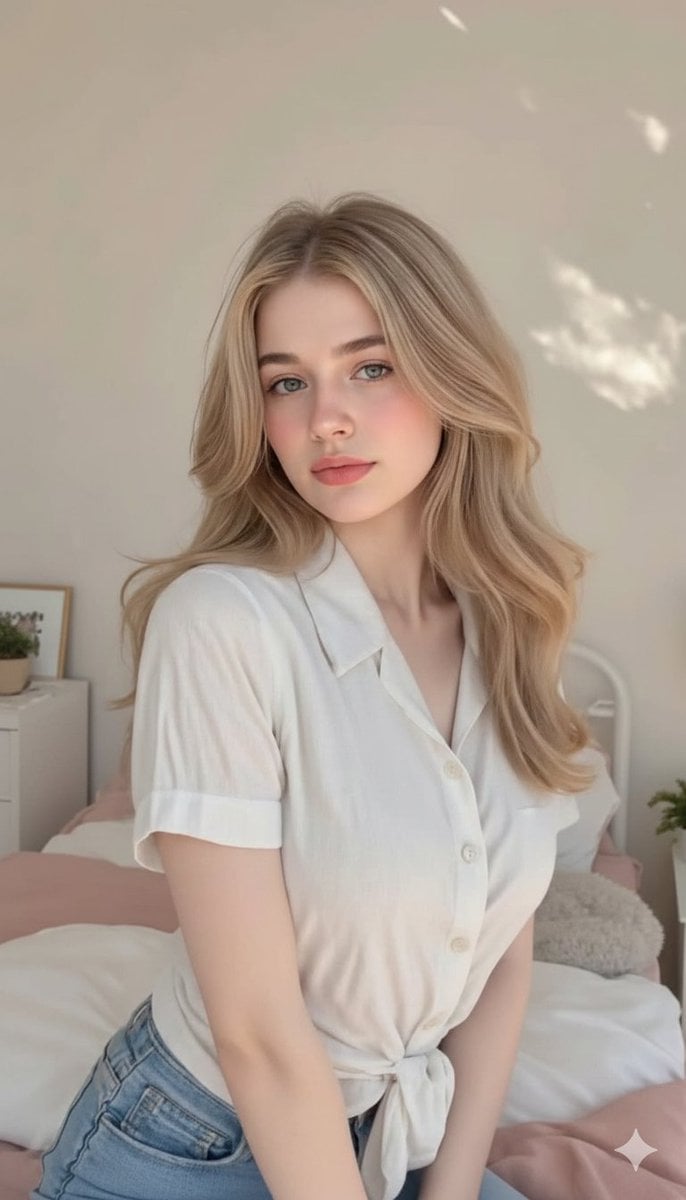
Photorealistic Blonde Woman in Cozy Bedroom Prompt
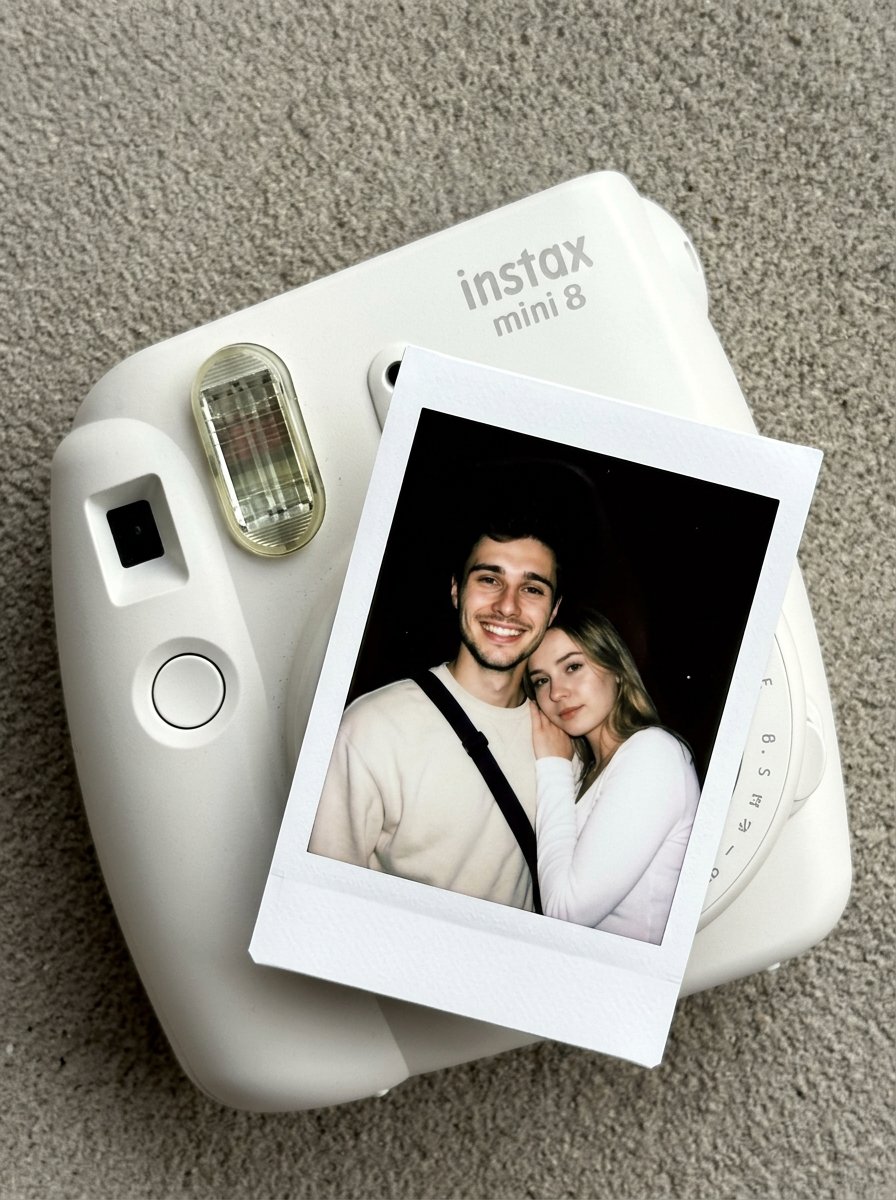
02 Instax Camera Product — Nano Banana 2
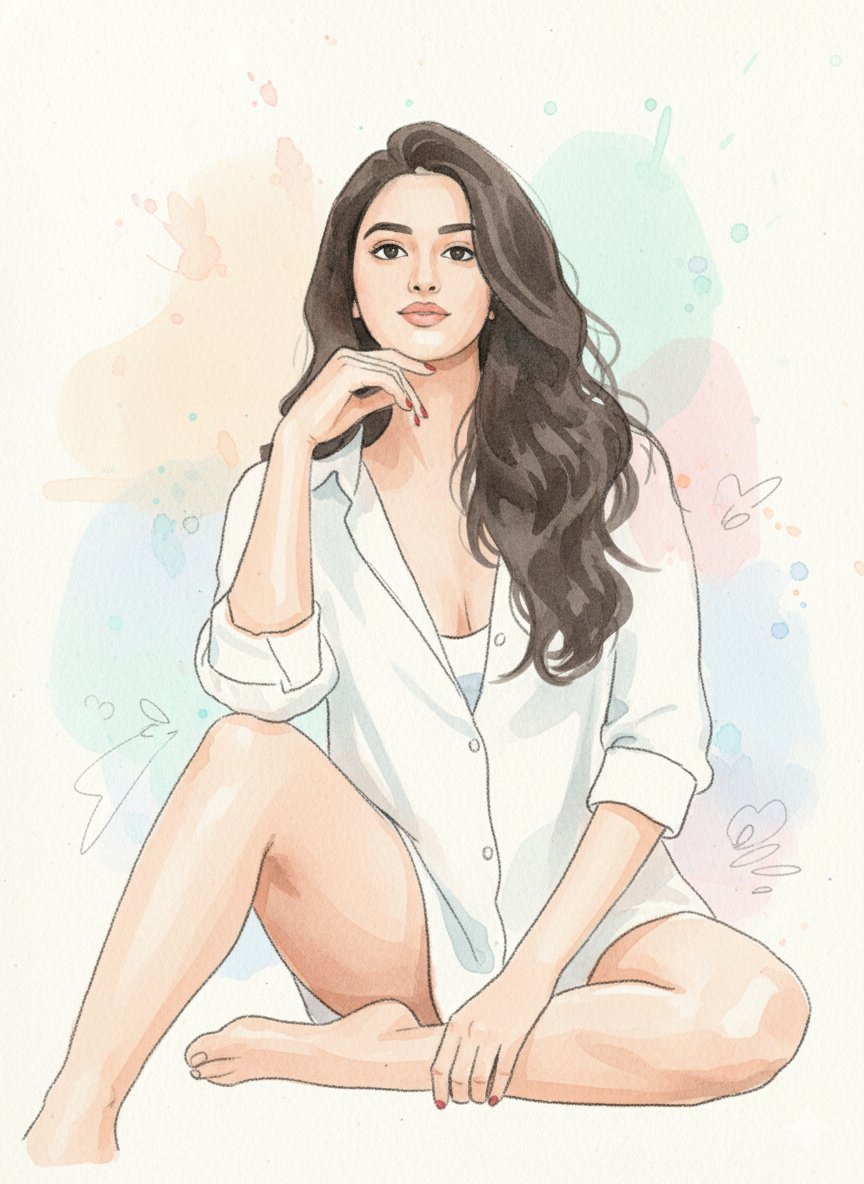
Watercolor Blob Doodle Identity Preservation Prompt
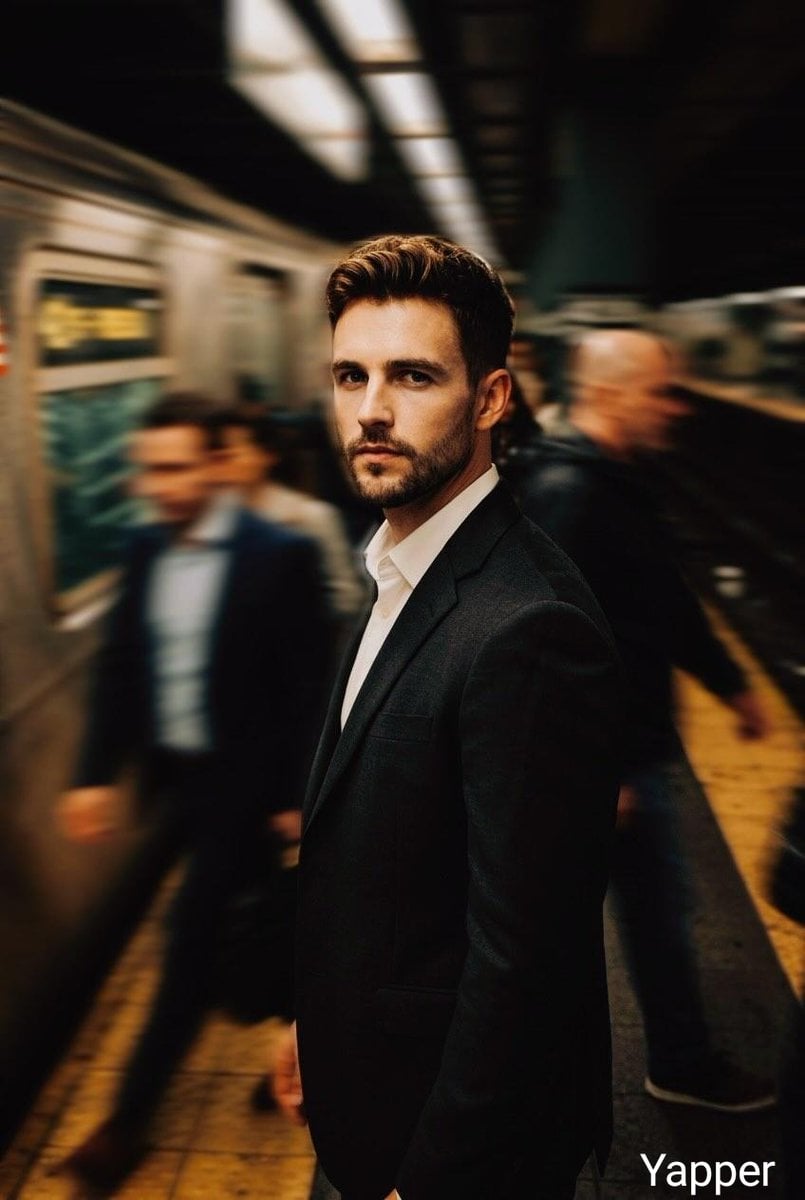
Cinematic Subway Thriller Portrait Prompt for Nano Banana 2
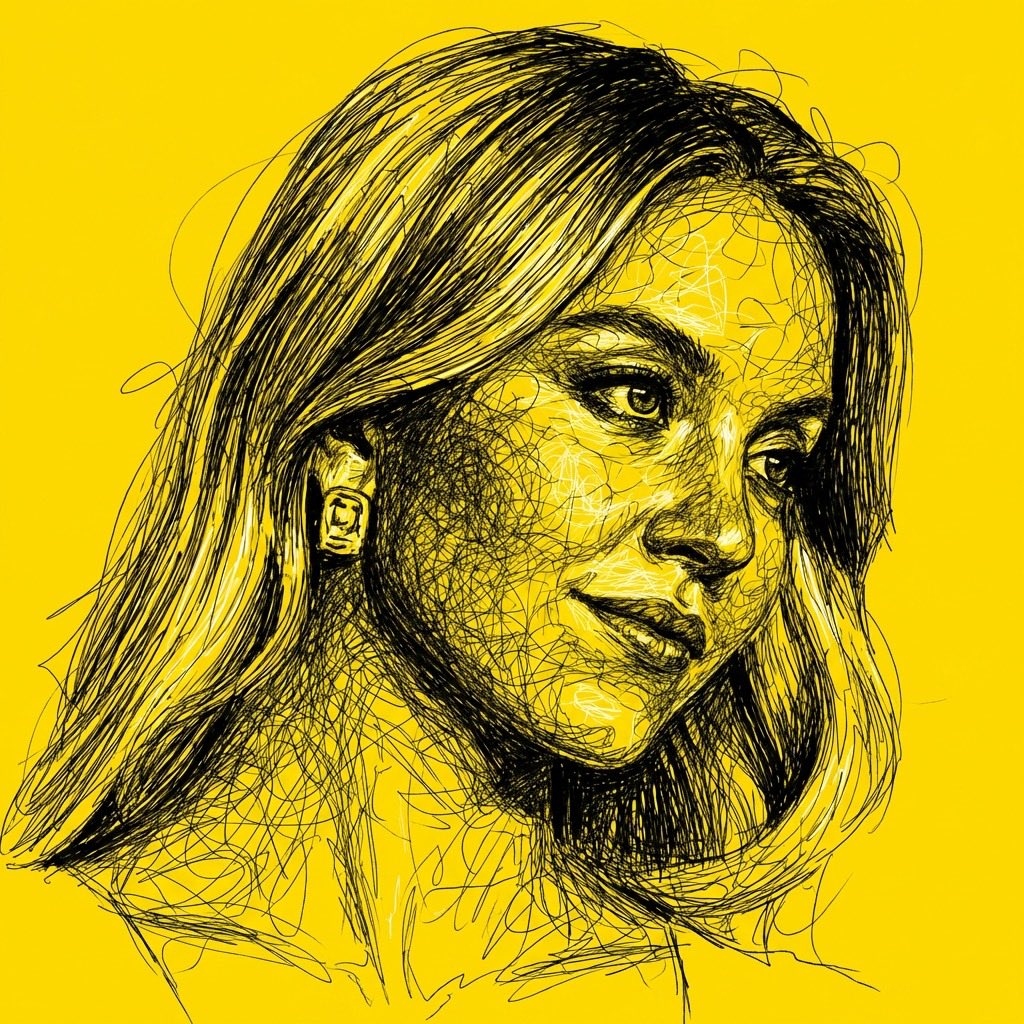
High Contrast Scribble Art Portrait
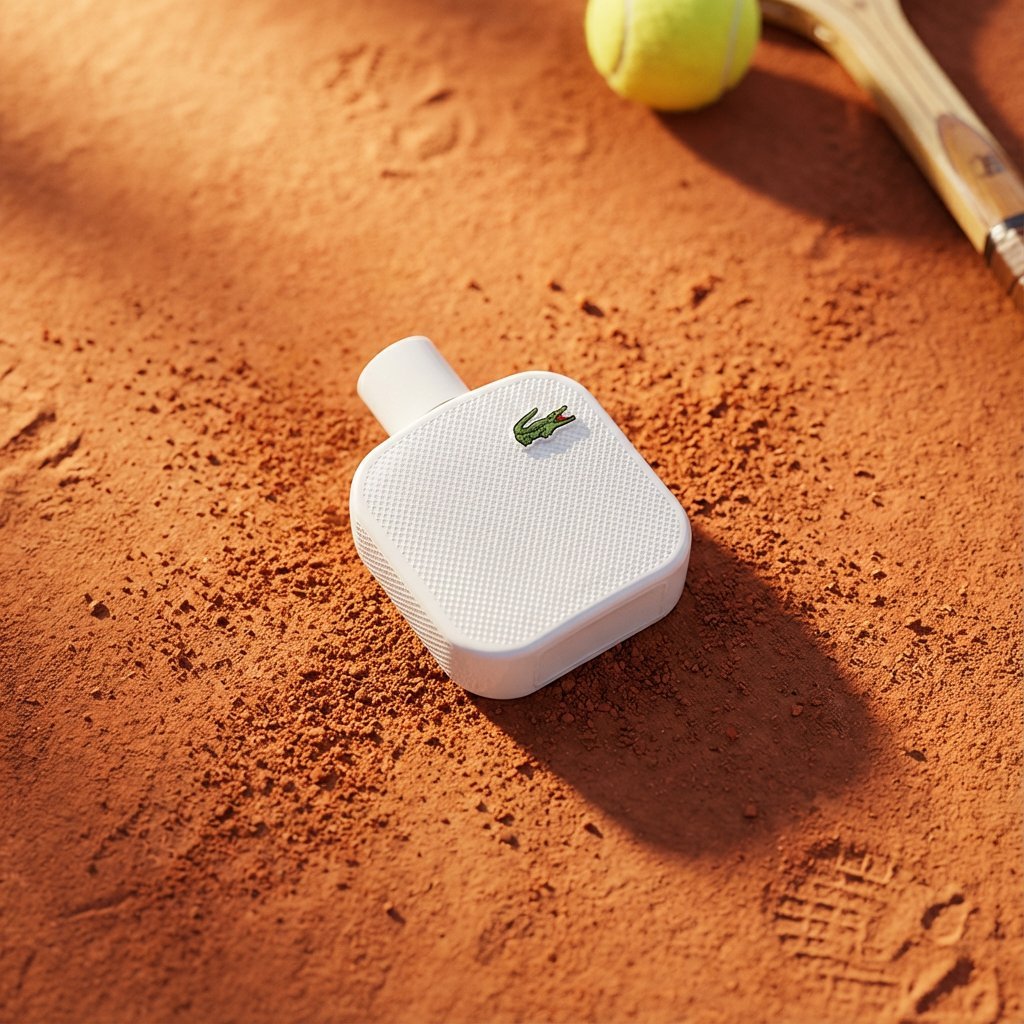
Premium Top-Down Product Marketing Shot Prompt
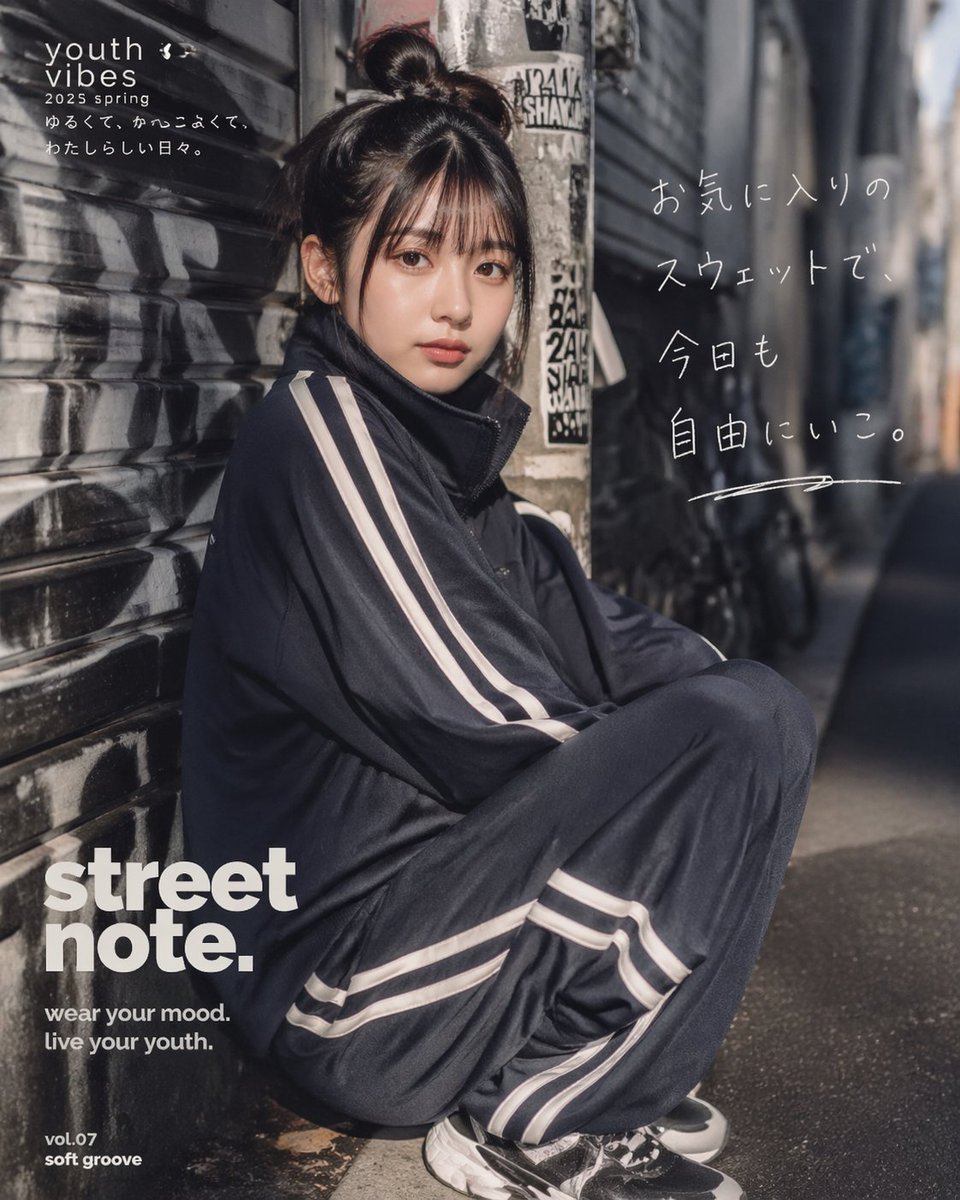
Japanese Streetwear Editorial Poster
Browse template categories
Foxy App Icon Exploration Board questions
How do I use the Foxy App Icon Exploration Board template?
Add your photo if the template asks for one, edit the prompt if you like — the template's model and format are already selected — and press Generate. Your version opens in PicX Studio.
Can I customize the Foxy App Icon Exploration Board template?
Yes. You can change the subject, setting, lighting, mood, format, and available model controls before creating your image.
Is the Foxy App Icon Exploration Board template free?
Opening and editing this template is free. Generating uses credits, shown on the Generate button when you are signed in.
Which AI model should I use?
Start with GPT Image 2, which is the model associated with this template. You can compare another compatible model for a different finish.
Looking for something else? Browse all templates.

Your photo, any look
Thousands of ready templates for every top image and video model, from one credit balance.