How do I use the Papercraft Diorama Style Portrait template?
Choose the primary action to open PicX Studio with the available template settings. Review the model and format, personalize the creative direction, and generate when ready.
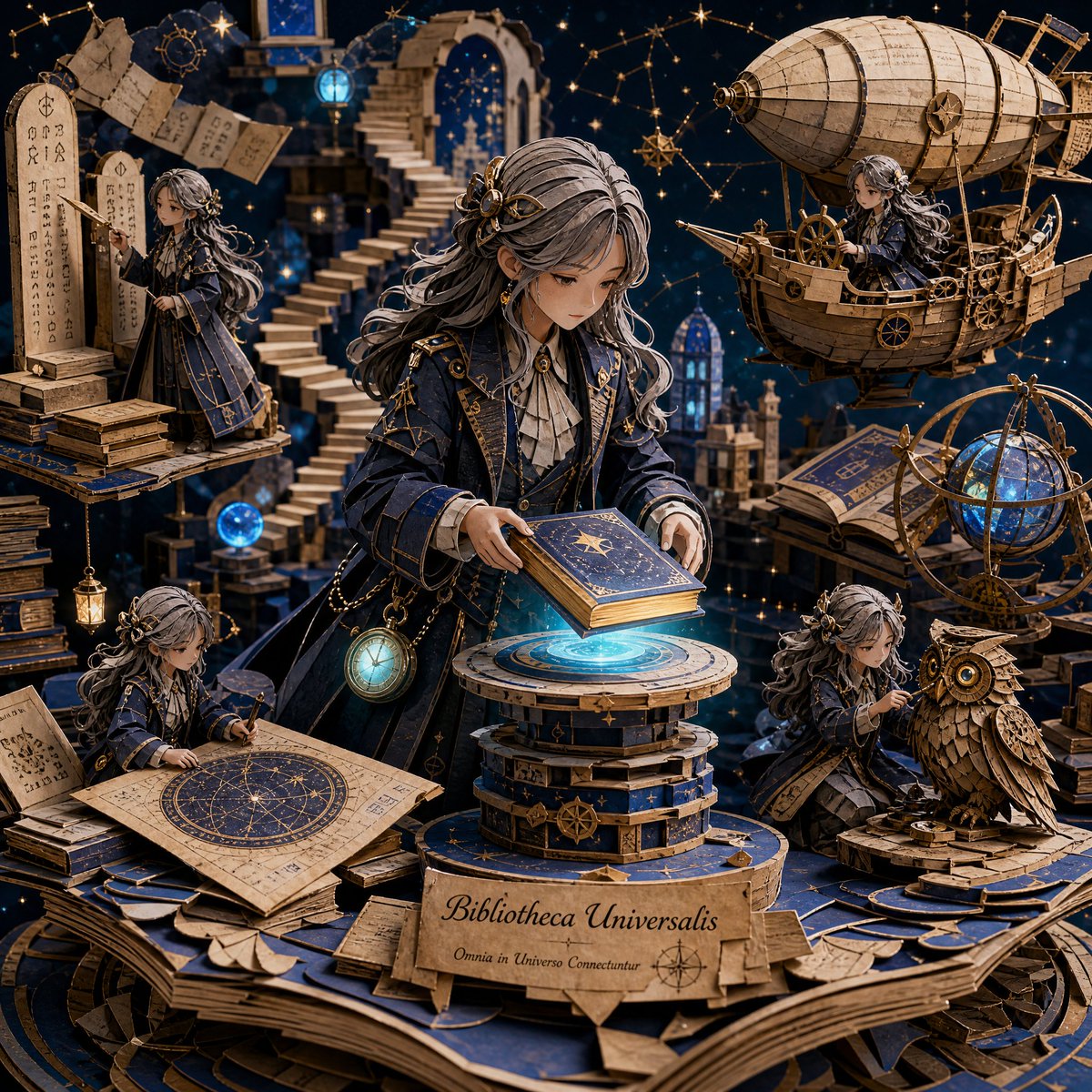
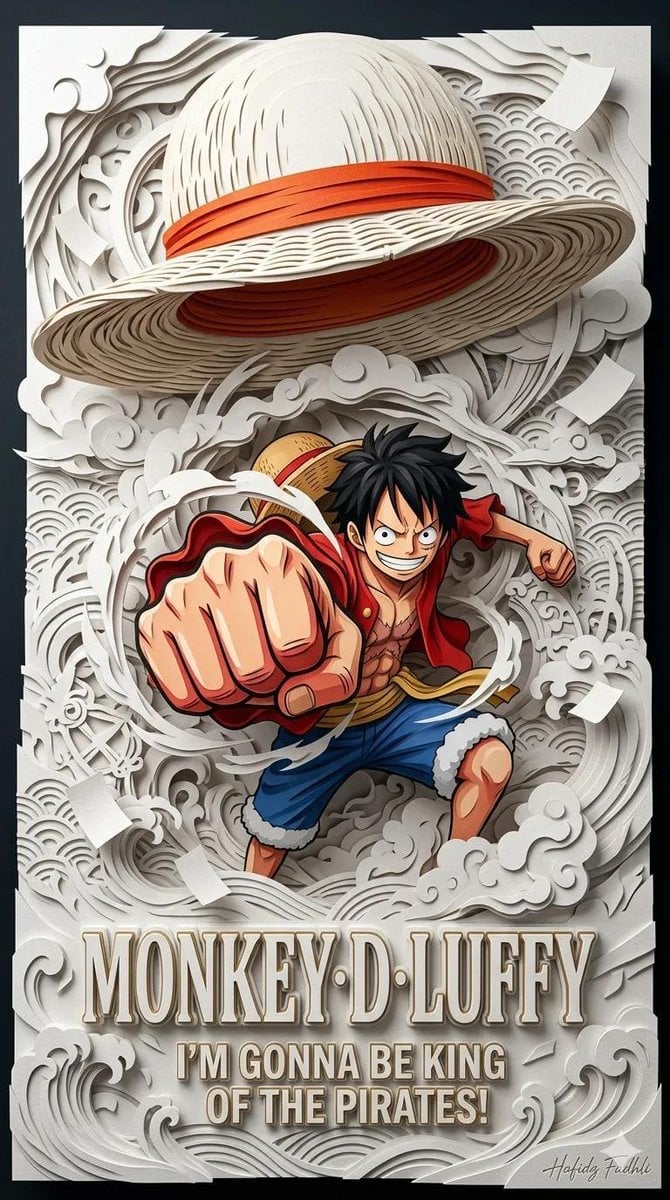
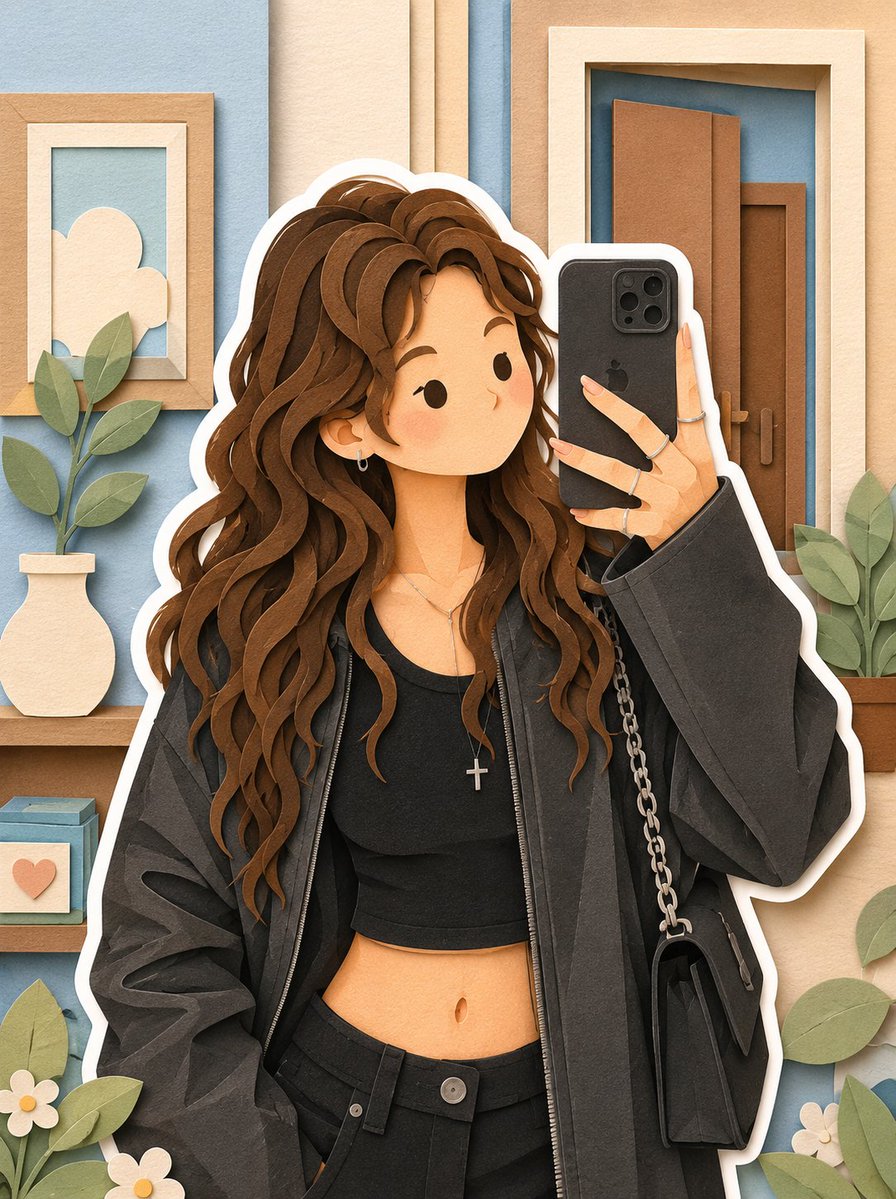
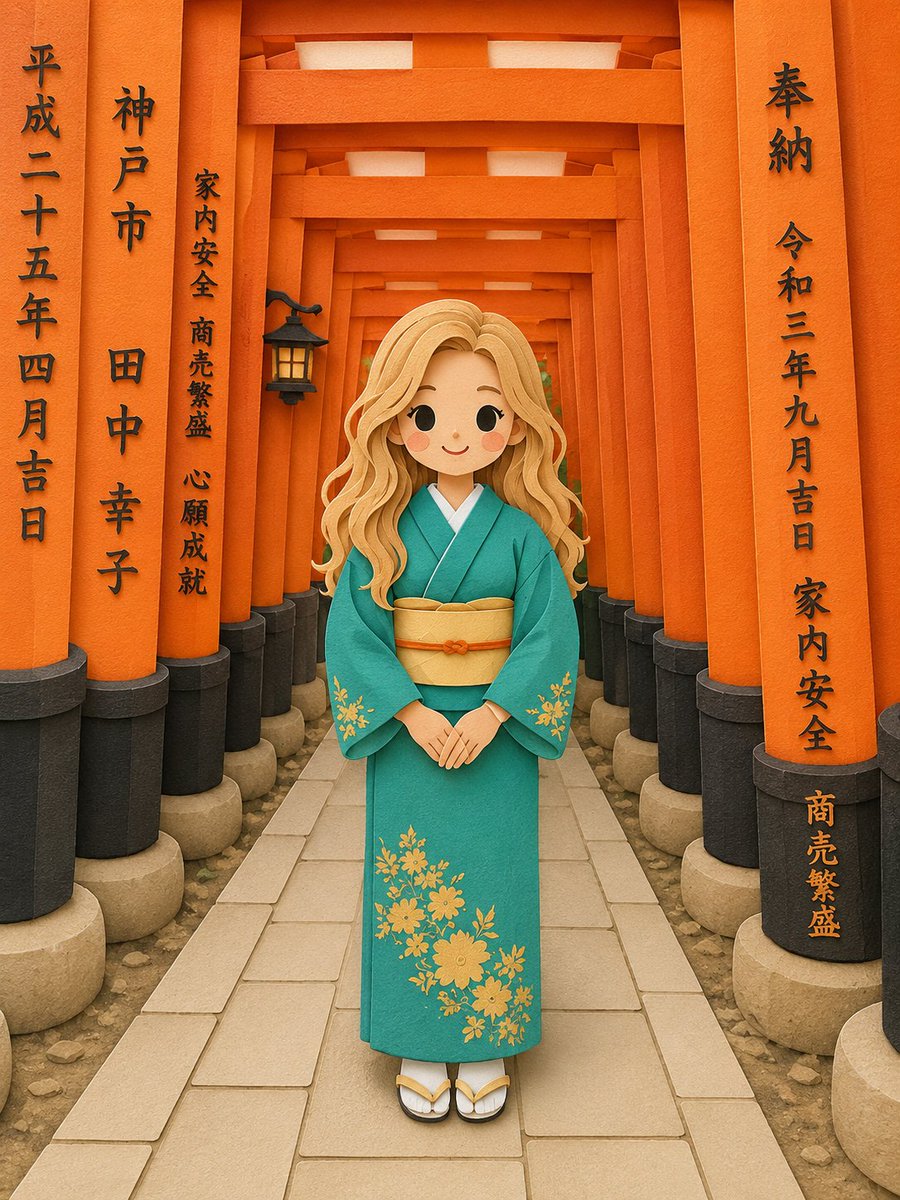
A creative prompt for GPT Image 2 that transforms portraits into soft, handcrafted paper-cut illustrations.
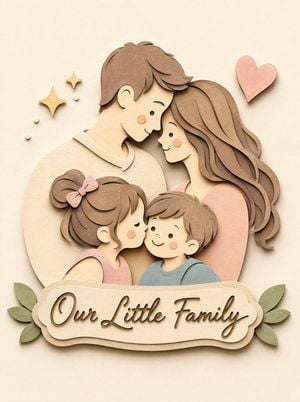
Convert this image into a {argument name="style" default="soft, handcrafted paper-cut layered illustration style"}, inspired by papercraft diorama aesthetics. Use smooth rounded shapes, simplified cute character proportions, and {argument name="facial details" default="minimal facial details (dot eyes, blush cheeks)"} to create a warm, charming look. Apply stacked paper layers with visible depth, subtle shadows between layers, and clean cut edges that resemble {argument name="material" default="laser-cut cardstock"}.
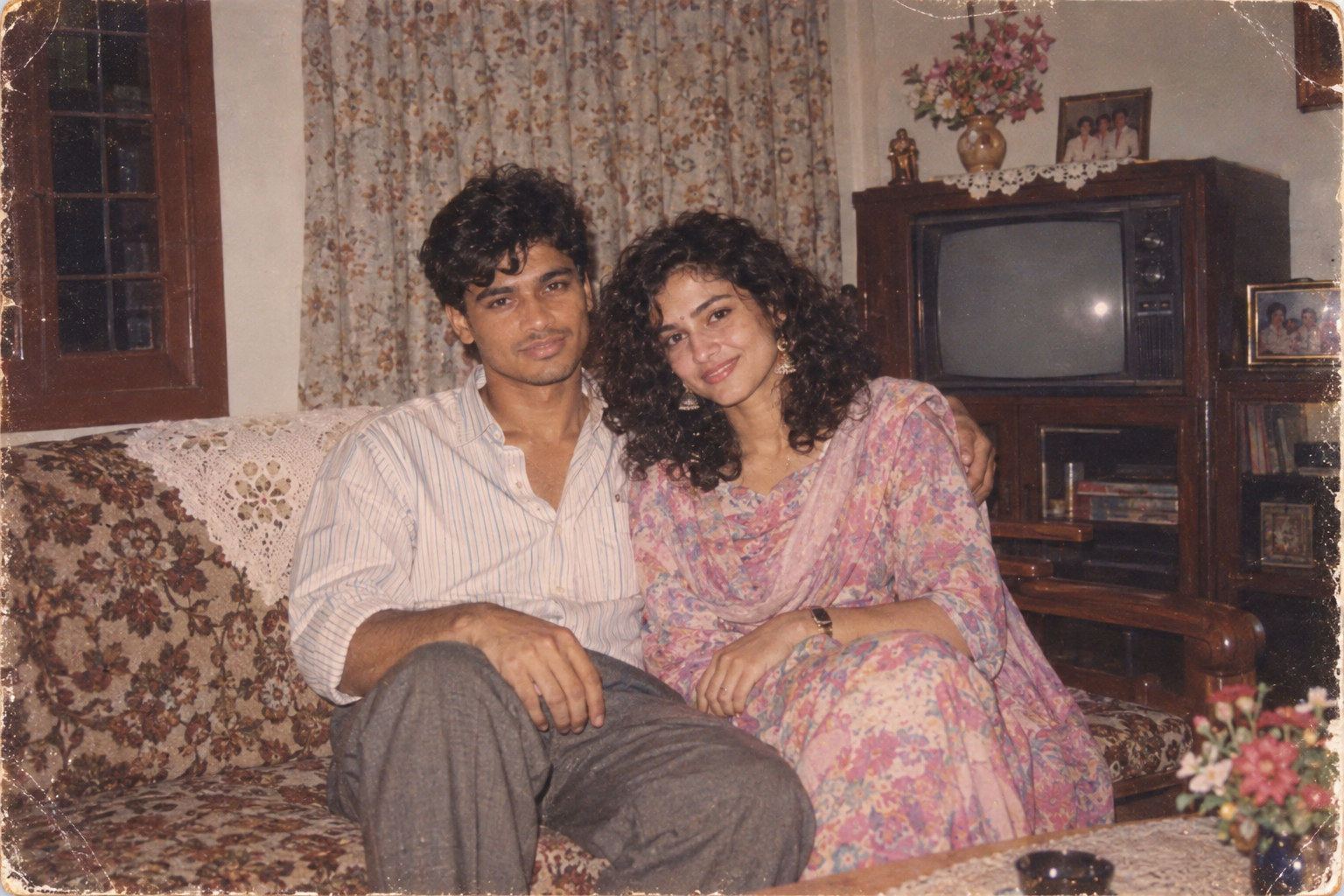
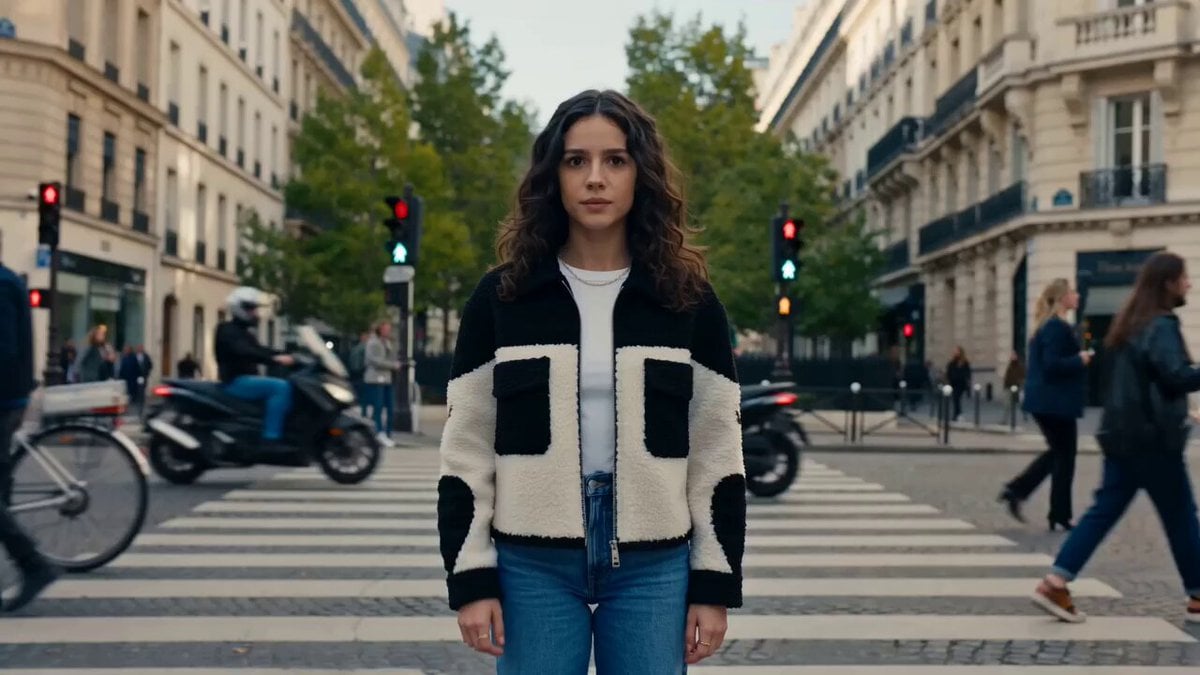
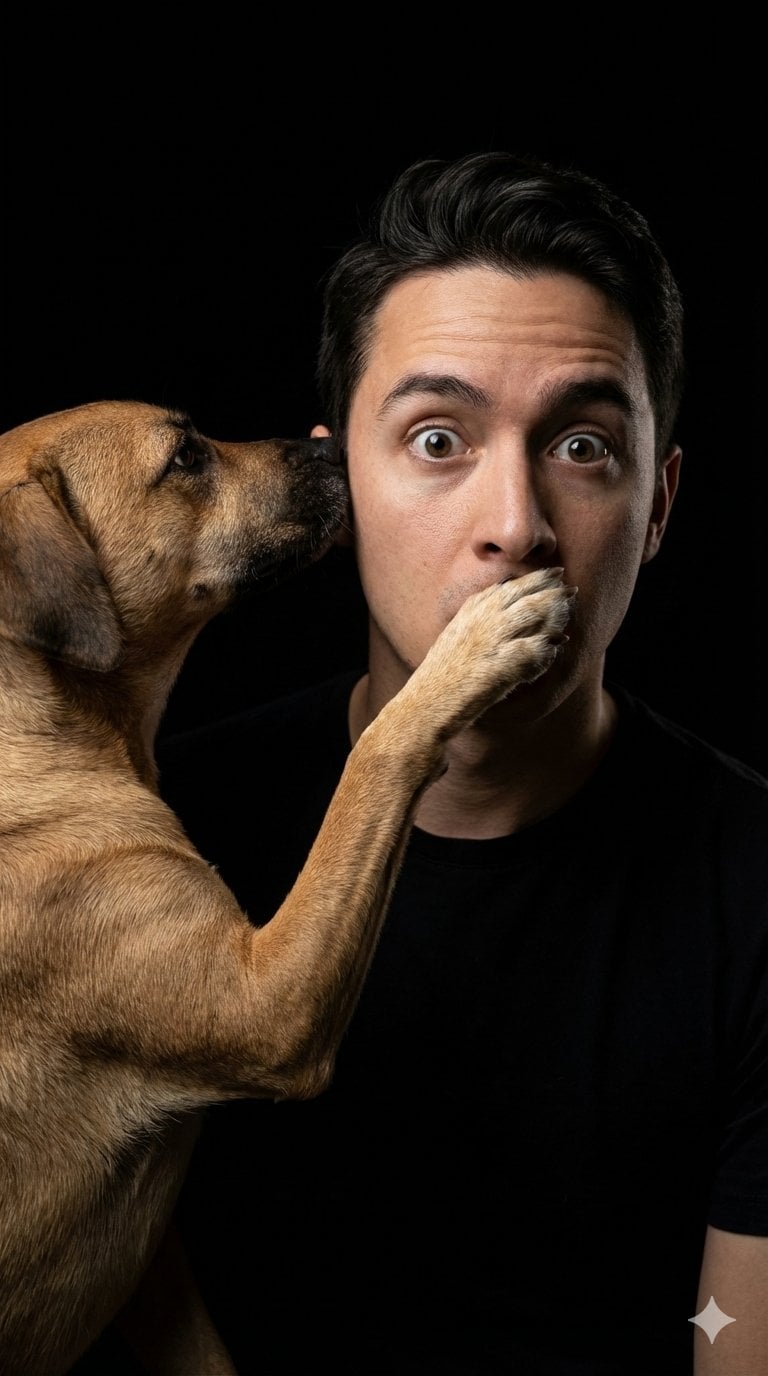
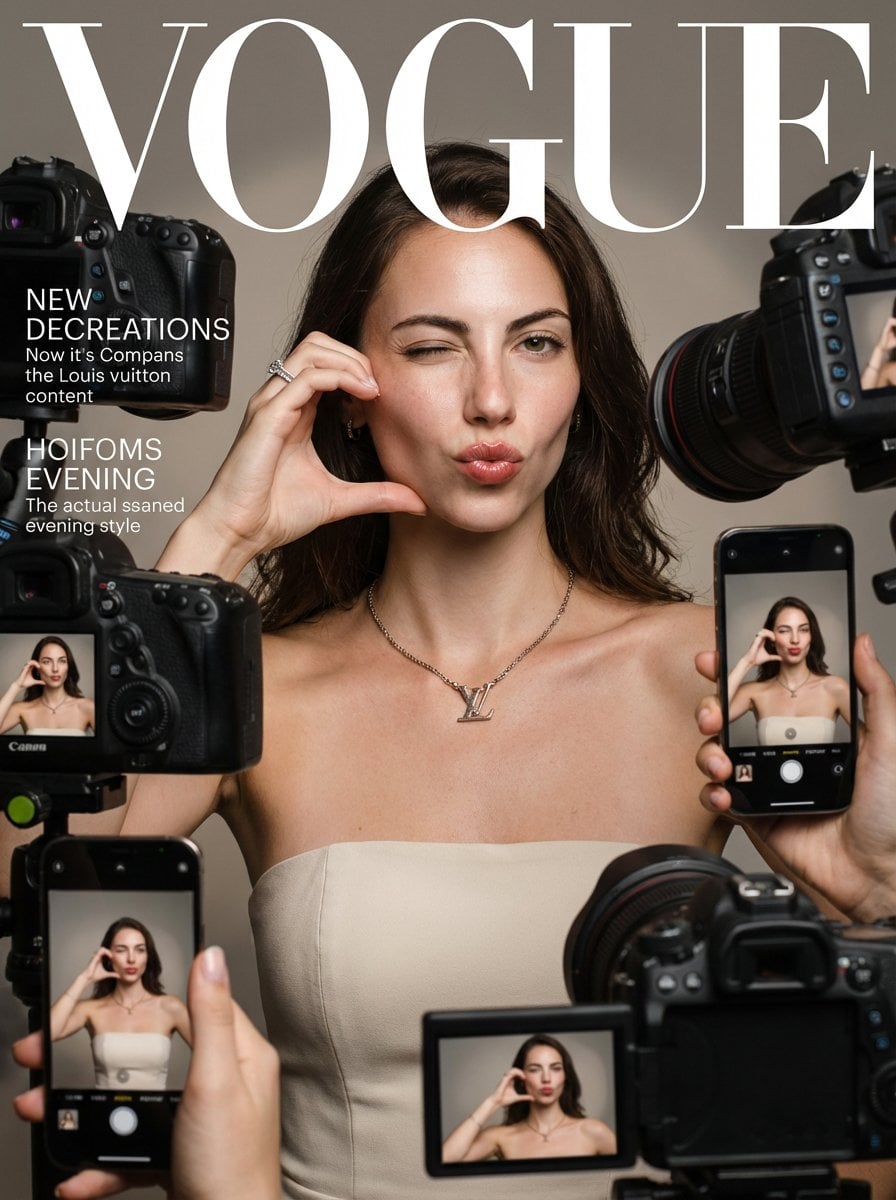
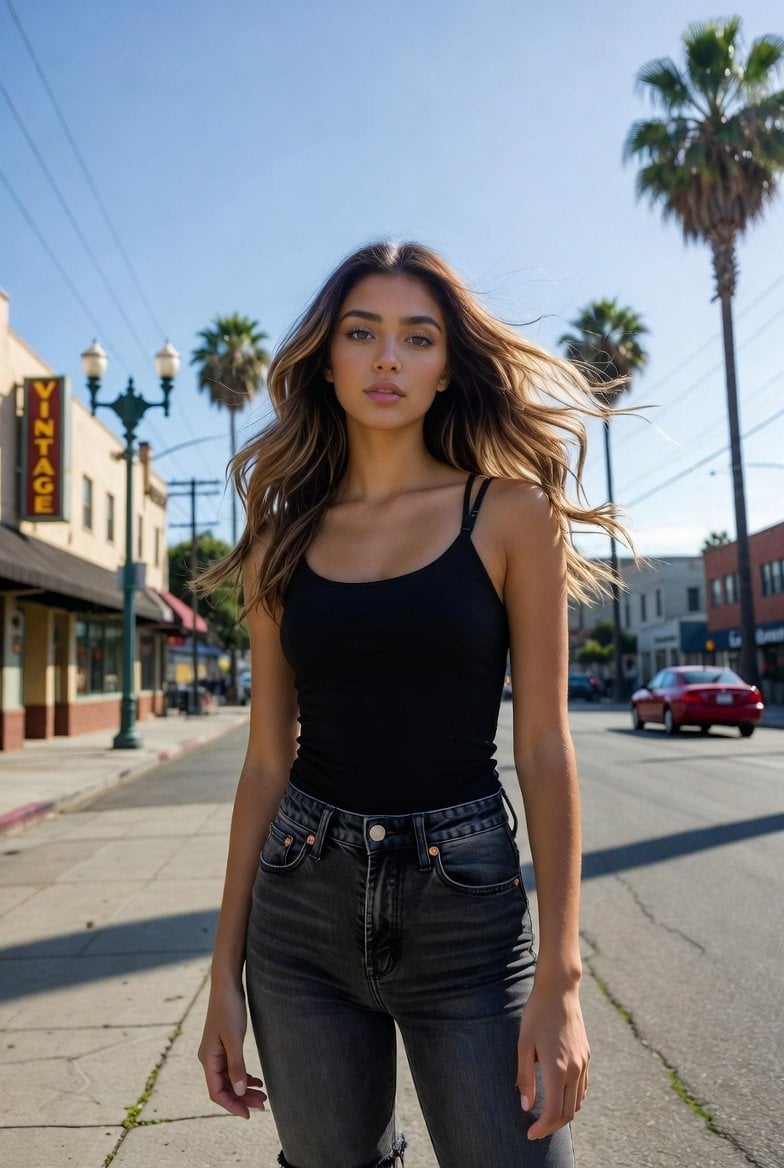
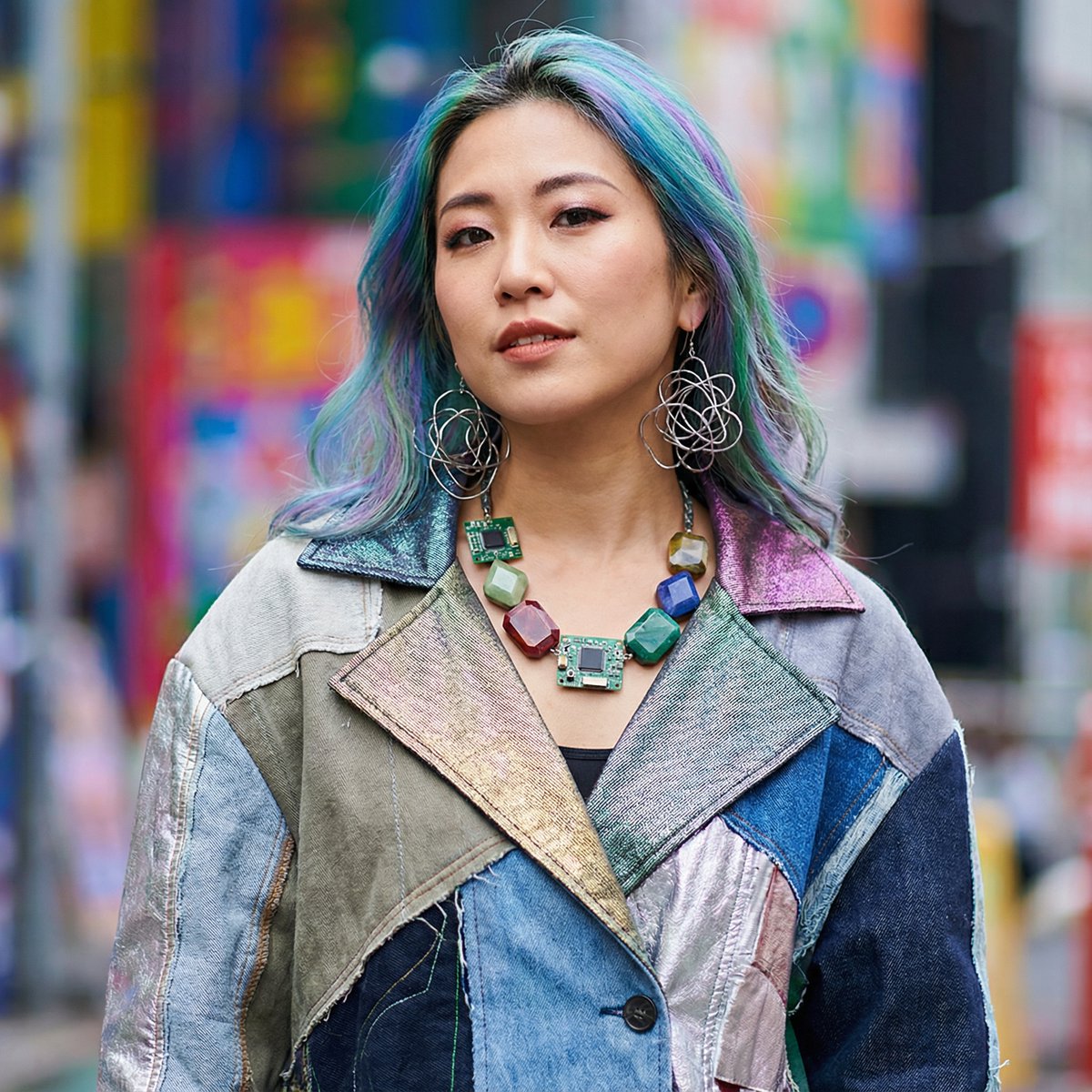
Papercraft Diorama Style Portrait needs input media to work. Open it in the studio and these load alongside the prompt — pick whichever ones your chosen model can take.
Choose the primary action to open PicX Studio with the available template settings. Review the model and format, personalize the creative direction, and generate when ready.
Yes. You can change the subject, setting, lighting, mood, format, and available model controls before creating your image.
This template is free to open and customize. Generation usage is shown in PicX Studio before you create.
Start with GPT Image 2, which is the model associated with this template. You can compare another compatible model for a different finish.
Follow a topic to a crawlable collection of related PicX Studio templates.