How do I use the Photoreal Character on GPS Map 3D Scene template?
Edit the prompt in the box under the preview — the template's model and format are already selected — and press Generate. Your version appears right on this page.
Curated from MeiGen gallery (ID: 2015314306578182501) by Sharon Riley.

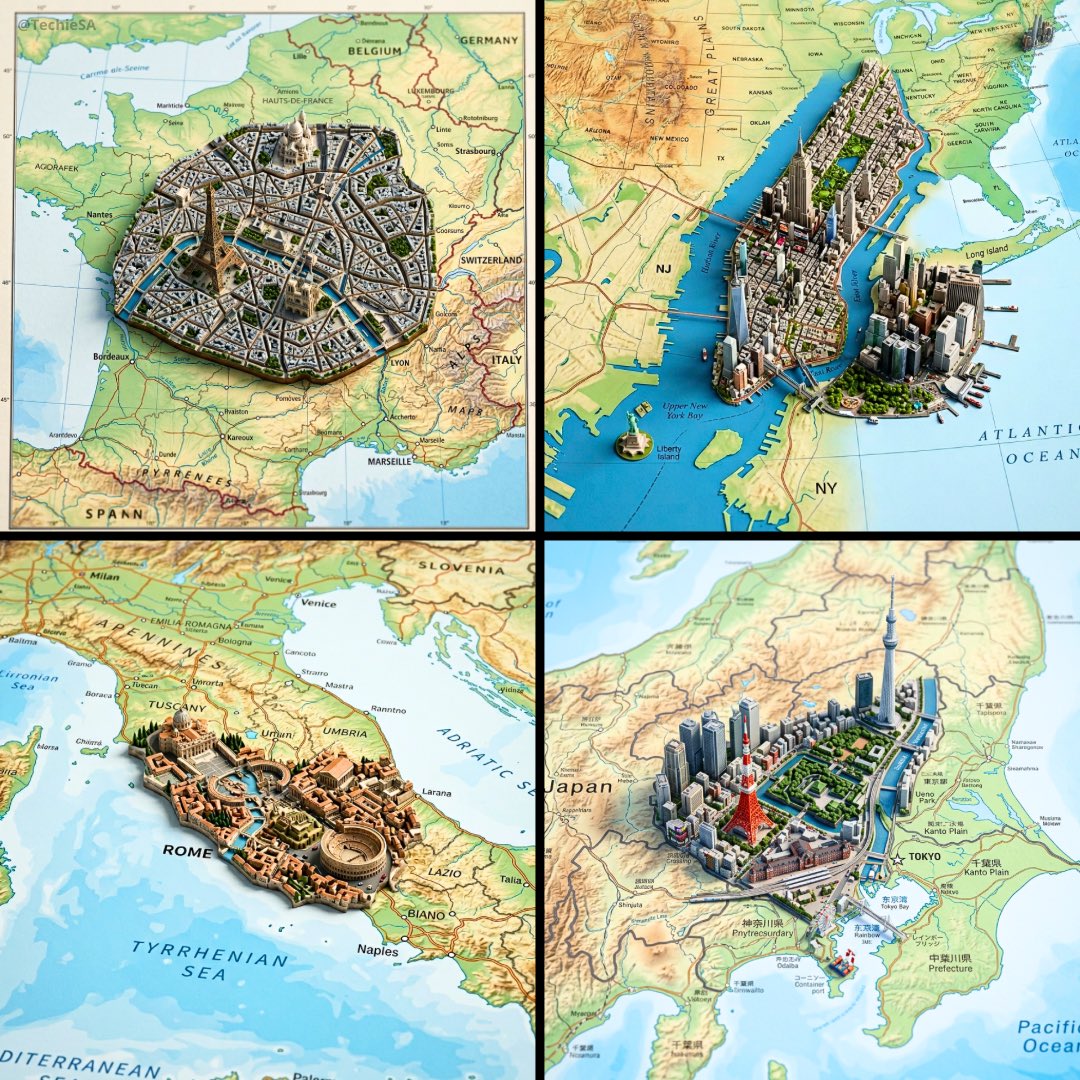
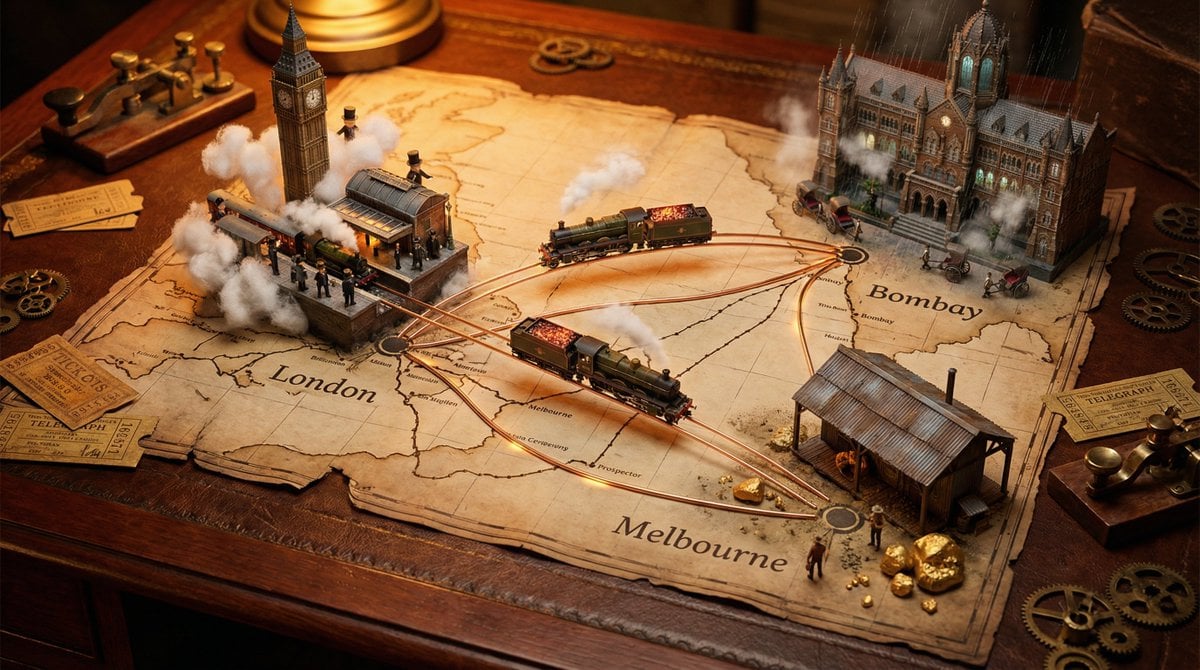
Use the same face from the reference image without changing facial features Vertical (4:5 or 9:16) surreal 3D scene featuring a photorealistic character generated strictly from the attached reference image (accurate facial likeness, skin texture, age, proportions). Front-facing view, camera slightly above eye level, the character riding her own scooter/motorbike directly on top of the blue GPS route line itself, moving forward toward a red destination pin. The character wears culturally accurate clothing inspired by [west], with realistic fabric behavior and riding posture. Below, a stylized GPS-style city map of [United Kingdom] fills the scene. A chaos zone at [Greenwich ] shows dense miniature cars, people, buildings, trees, and urban clutter concentrated near the destination. Natural daylight, cinematic shadows, sharp focus on the character, and subtle depth of field on the map. High-end concept-art quality combining photoreal human + stylized miniature city.
Use the same face from the reference image without changing facial features Vertical (4:5 or 9:16) surreal 3D scene featuring a photorealistic character generated strictly from the attached reference image (accurate facial likeness, skin texture, age, proportions). Front-facing view, camera slightly above eye level, the character riding her own scooter/motorbike directly on top of the blue GPS route line itself, moving forward toward a red destination pin. The character wears culturally accurate clothing inspired by [west], with realistic fabric behavior and riding posture. Below, a stylized GPS-style city map of [United Kingdom] fills the scene. A chaos zone at [Greenwich ] shows dense miniature cars, people, buildings, trees, and urban clutter concentrated near the destination. Natural daylight, cinematic shadows, sharp focus on the character, and subtle depth of field on the map. High-end concept-art quality combining photoreal human + stylized miniature city.
Edit the prompt in the box under the preview — the template's model and format are already selected — and press Generate. Your version appears right on this page.
Yes. You can change the subject, setting, lighting, mood, format, and available model controls before creating your image.
Opening and editing this template is free. Generating uses credits, shown on the Generate button when you are signed in.
Choose a compatible model in PicX Studio based on the style, speed, and output controls your project needs.
Follow a topic to a crawlable collection of related PicX Studio templates.