
Watercolor Cherry Blossom Anime Scene
Creates a tranquil watercolor anime transformation with a kimono-clad figure overlooking a cherry blossom riverside town.
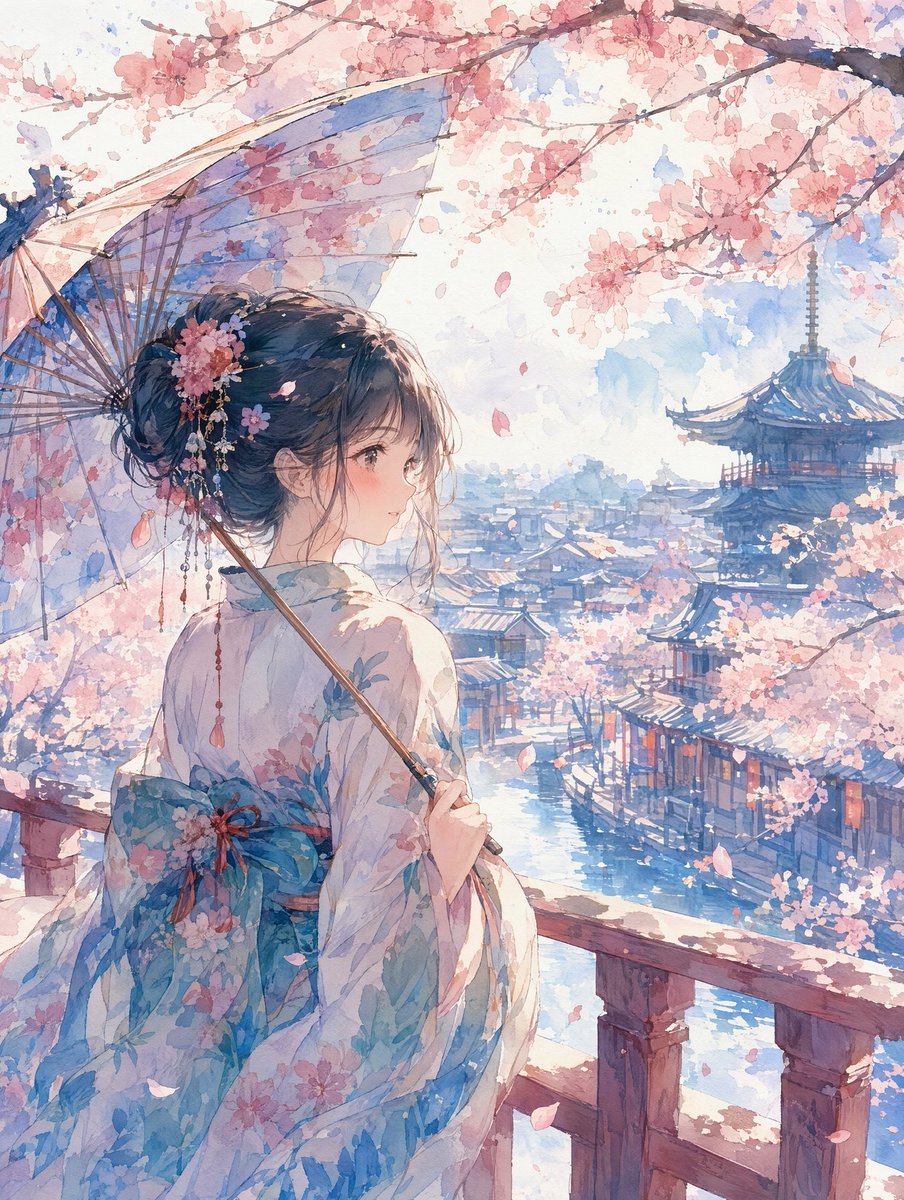
- Prompt included
- Model and format preset
- Free template
The prompt behind this image
Copy the exact prompt behind Watercolor Cherry Blossom Anime Scene, or open it in the studio and make it yours.
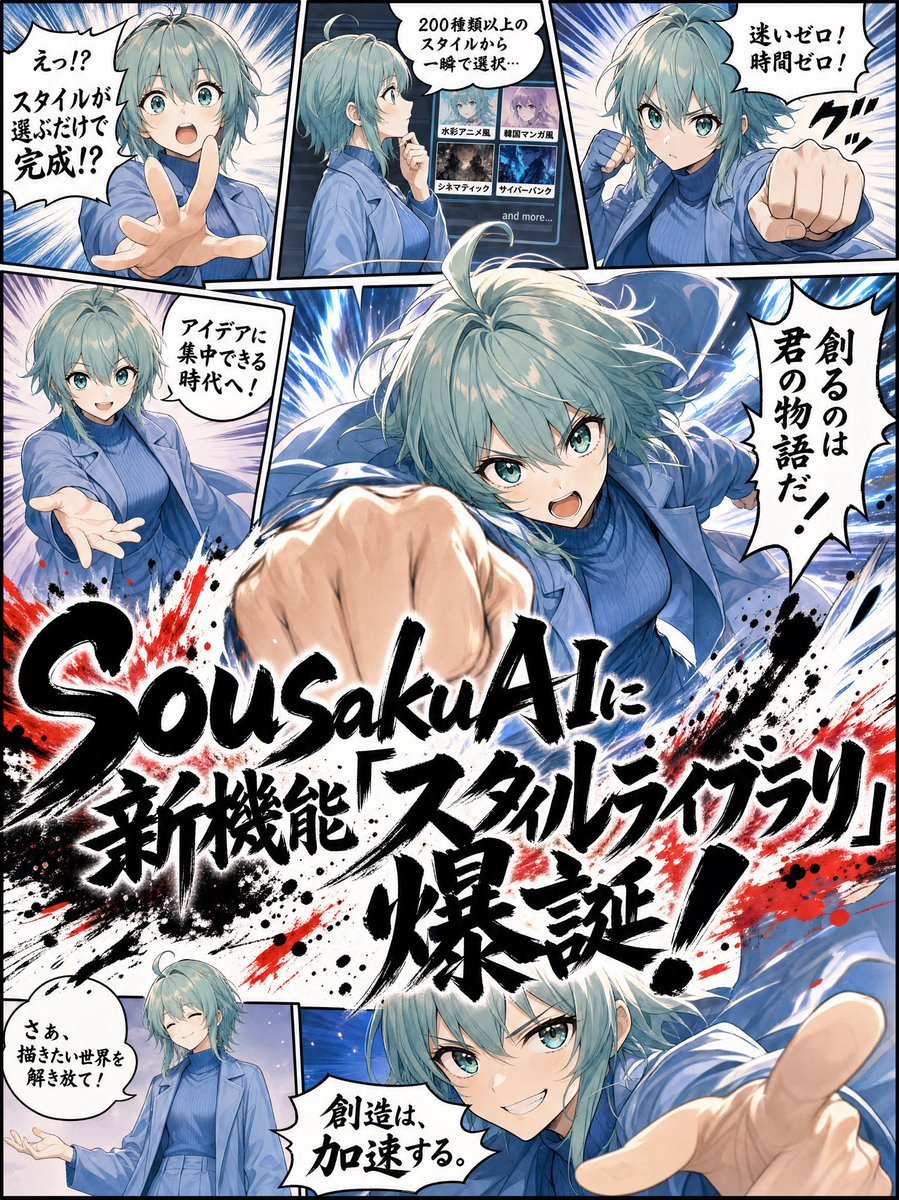
Using REFERENCE_0 as the source style inspiration, transform the manga-style promotional image into a single serene watercolor anime illustration. Remove all comic panels, speech bubbles, typography, action effects, and advertising layout. Create a vertical scene of {argument name="character subject" default="a young woman in a floral kimono"} viewed from behind in a three-quarter pose, standing on a wooden balcony and looking over a historic riverside Japanese town. Add {argument name="seasonal setting" default="spring cherry blossoms"} with branches framing the top, falling petals, and soft pink blossoms throughout the scene. Give the character an elegant updo with floral hair ornaments and have her hold {argument name="accessory" default="a translucent traditional umbrella"}. Set the background with a blue river canal, traditional rooftops, and a distant pagoda or temple tower. Use {argument name="visual style" default="delicate watercolor anime style"}: pale washes, soft paper texture, gentle blue and pink palette, luminous daylight, fine ink-like detail, and a calm romantic atmosphere. No text, no logos, no speech bubbles, no comic borders, no modern UI elements.
Reference images included
Watercolor Cherry Blossom Anime Scene needs input media to work. They load alongside the prompt when you open it in the studio.
How to use Watercolor Cherry Blossom Anime Scene in 3 steps
- 1Upload ImagePNG, JPG or paste
Add your photo
Upload the photo the template builds on. The prompt, model and format are already set.
- 2…a portrait of your subject in softgolden-hour light, 85mm…
Personalize
Edit the subject and creative details for your destination.
- 3Generate
Generate
Press Generate — your image is created in PicX Studio, so you can compare it with the original and refine one variable at a time.
More like this
Templates with the same subject, style or setup. Open one to see its prompt.
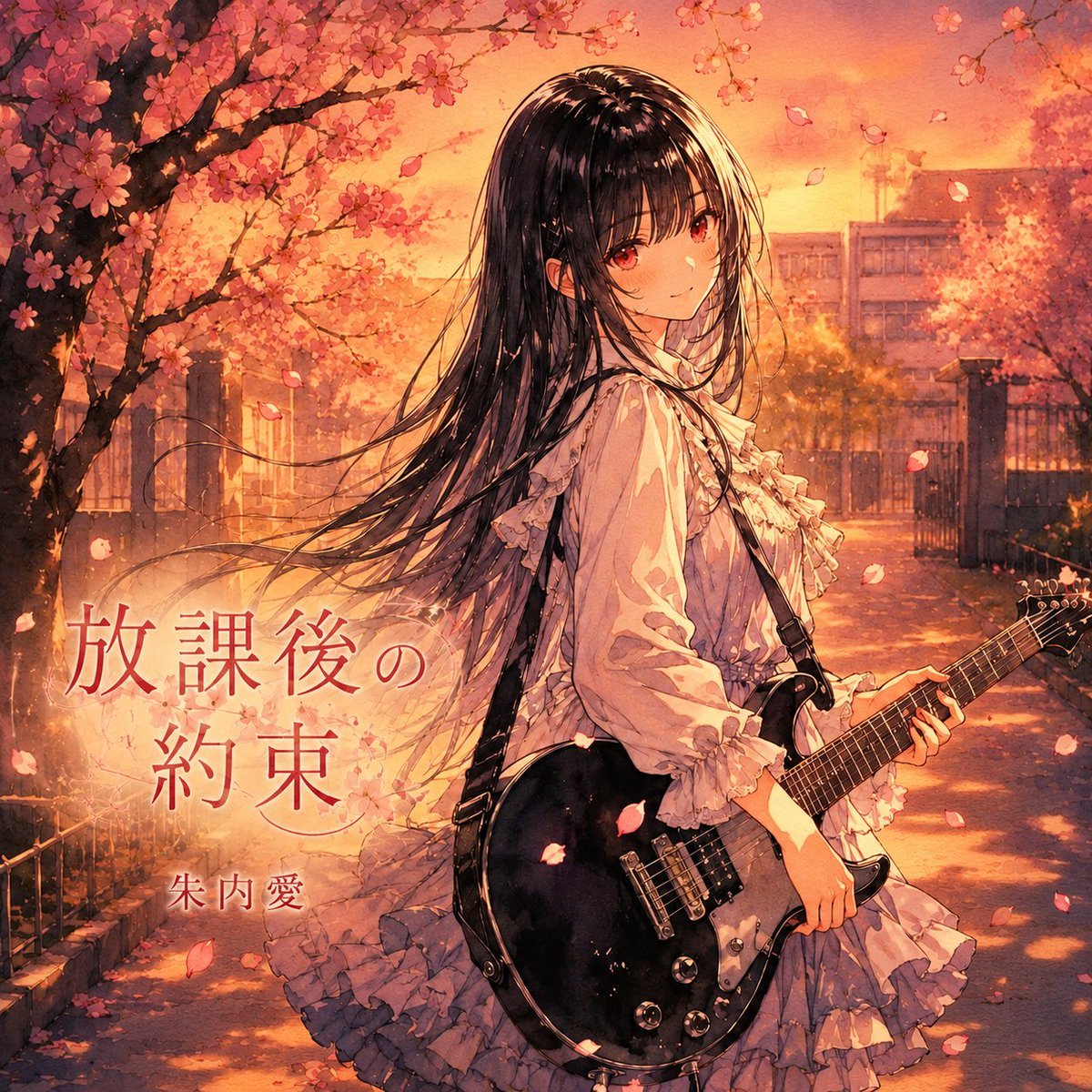
Anime Cherry Blossom Rock Album Cover
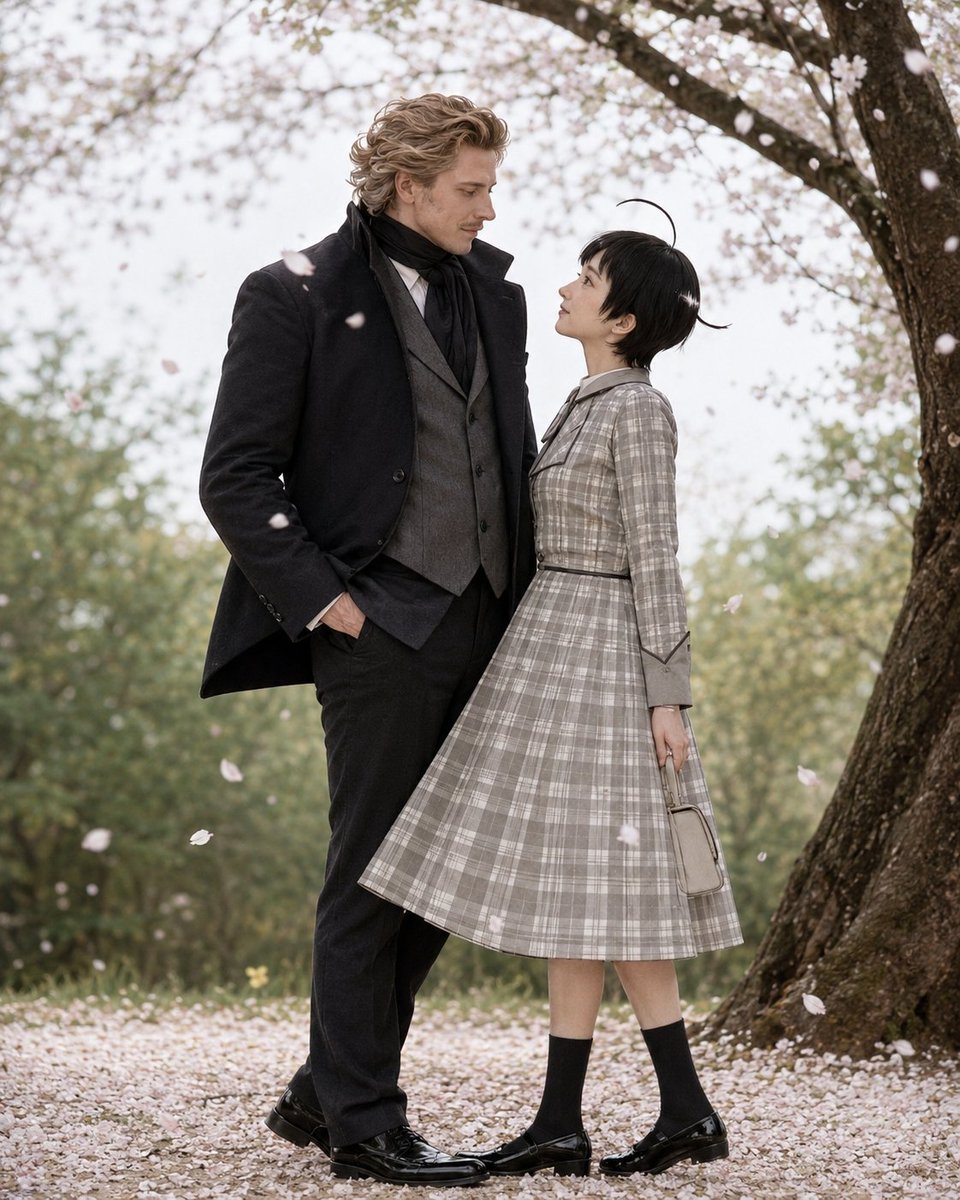
Cherry Blossom Cosplay Romance
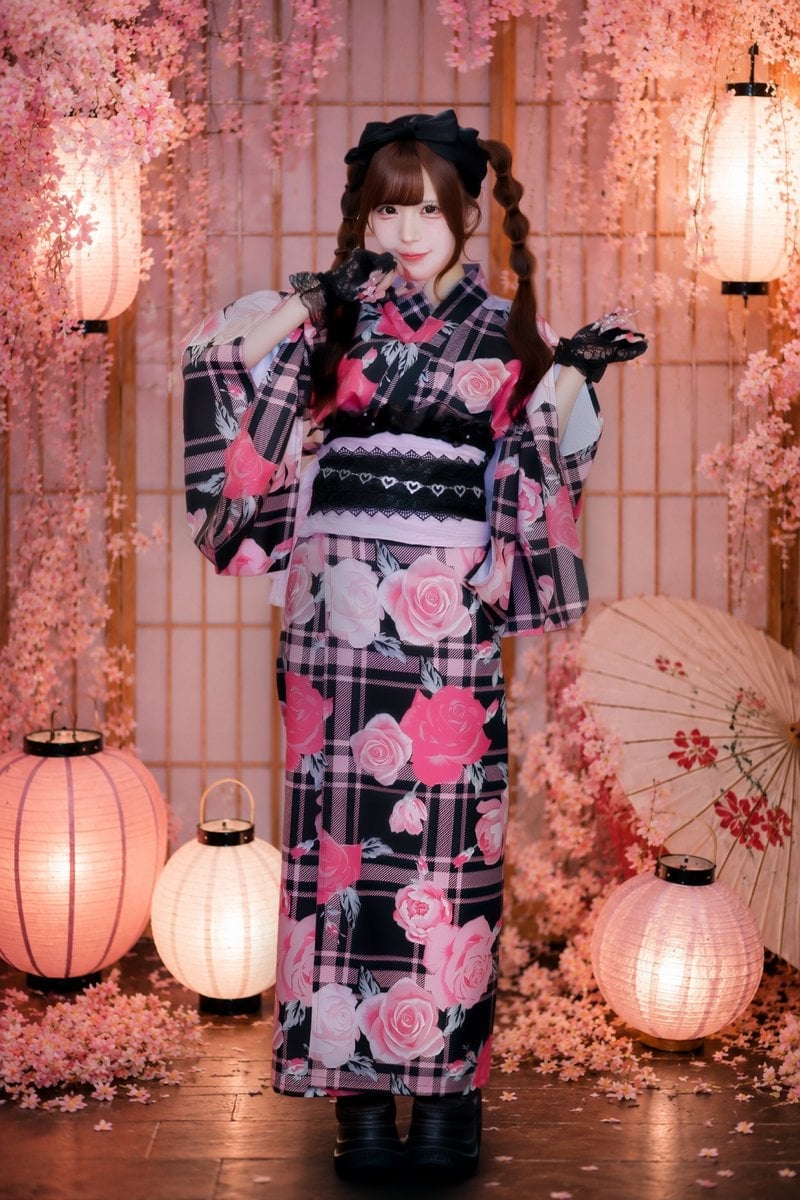
Cherry Blossom Yukata Idol Portrait
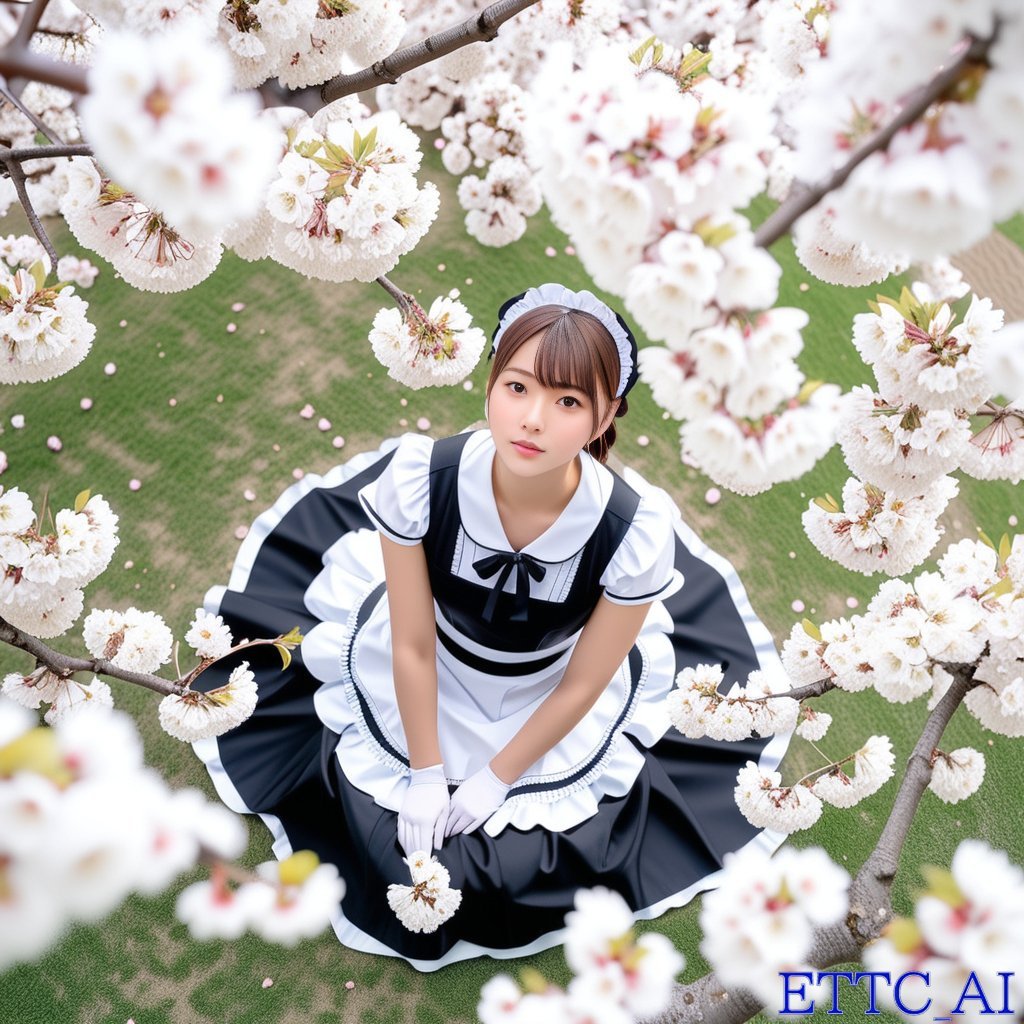
Top-Down Maid and Cherry Blossoms
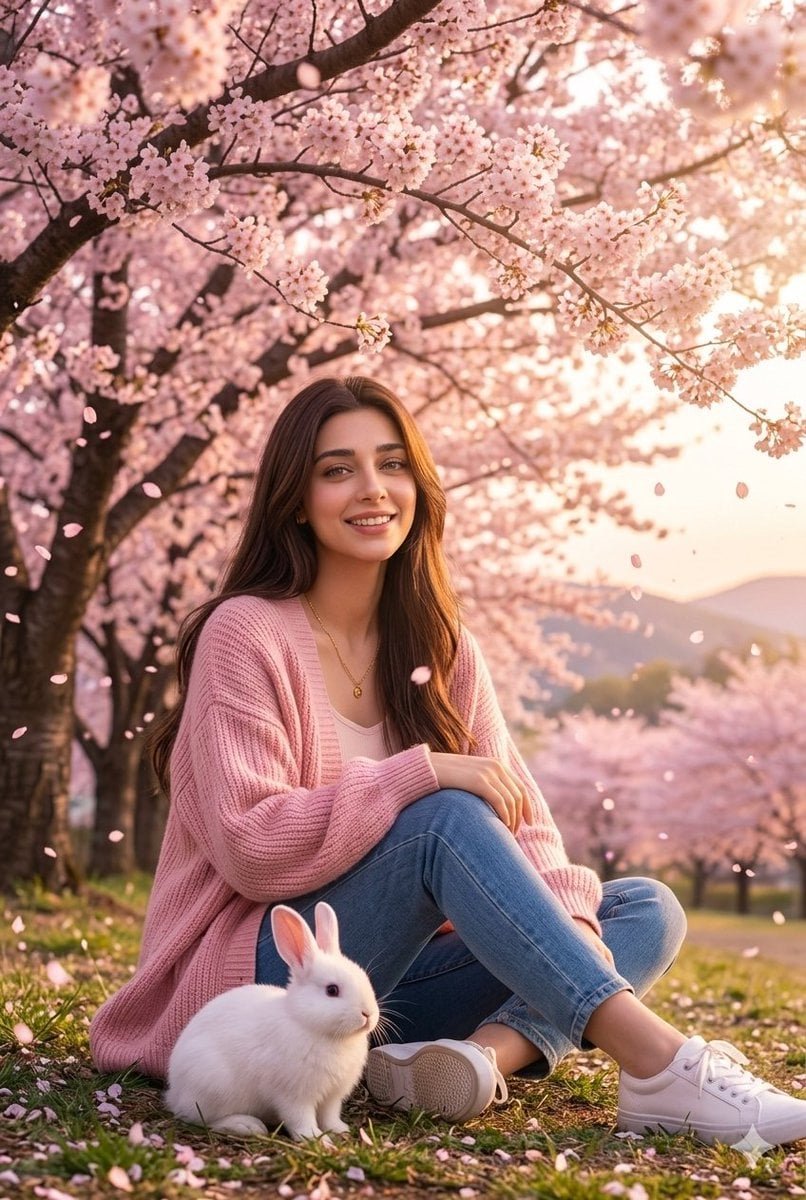
Woman with Rabbit in Cherry Blossom Garden
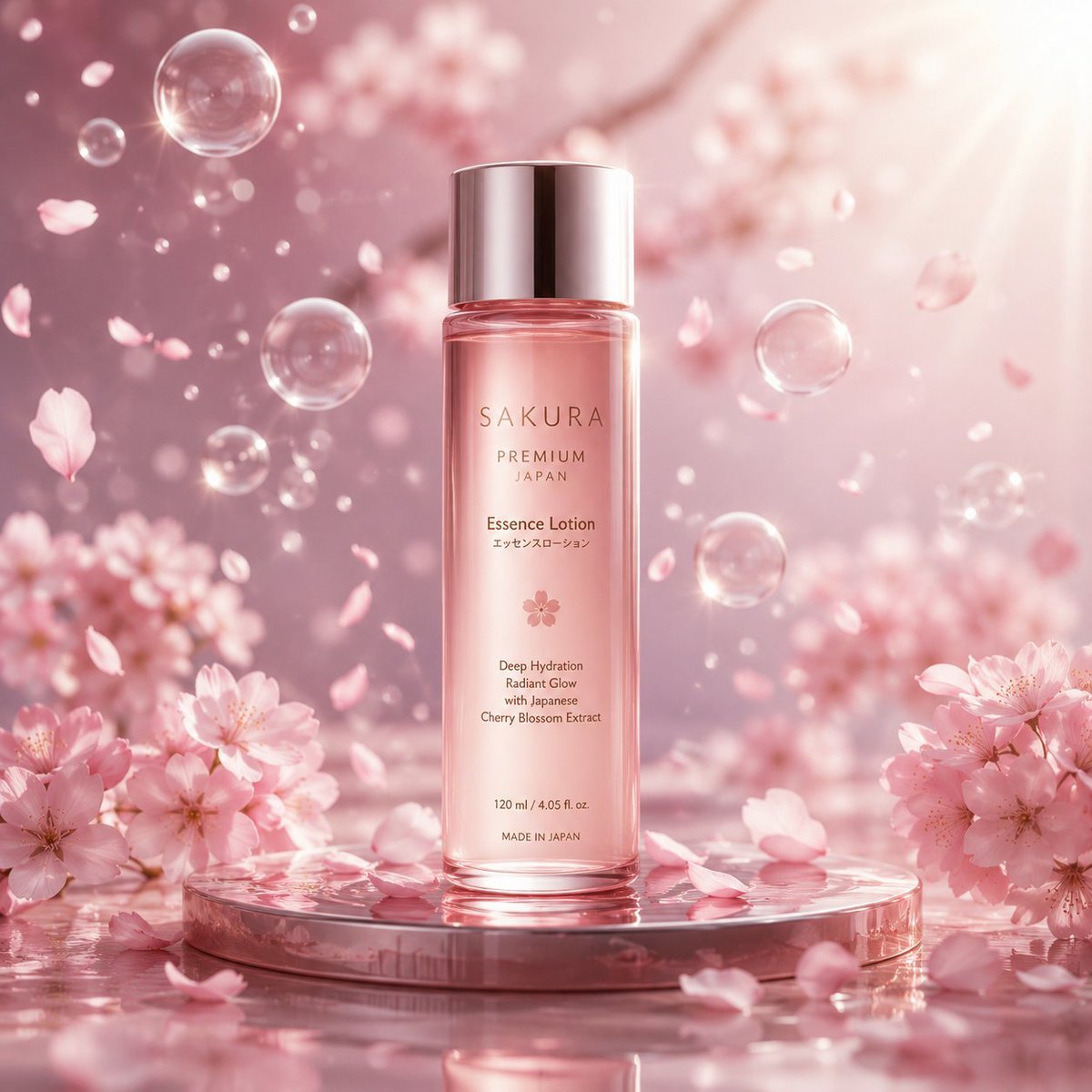
Cherry Blossom Beauty Campaign
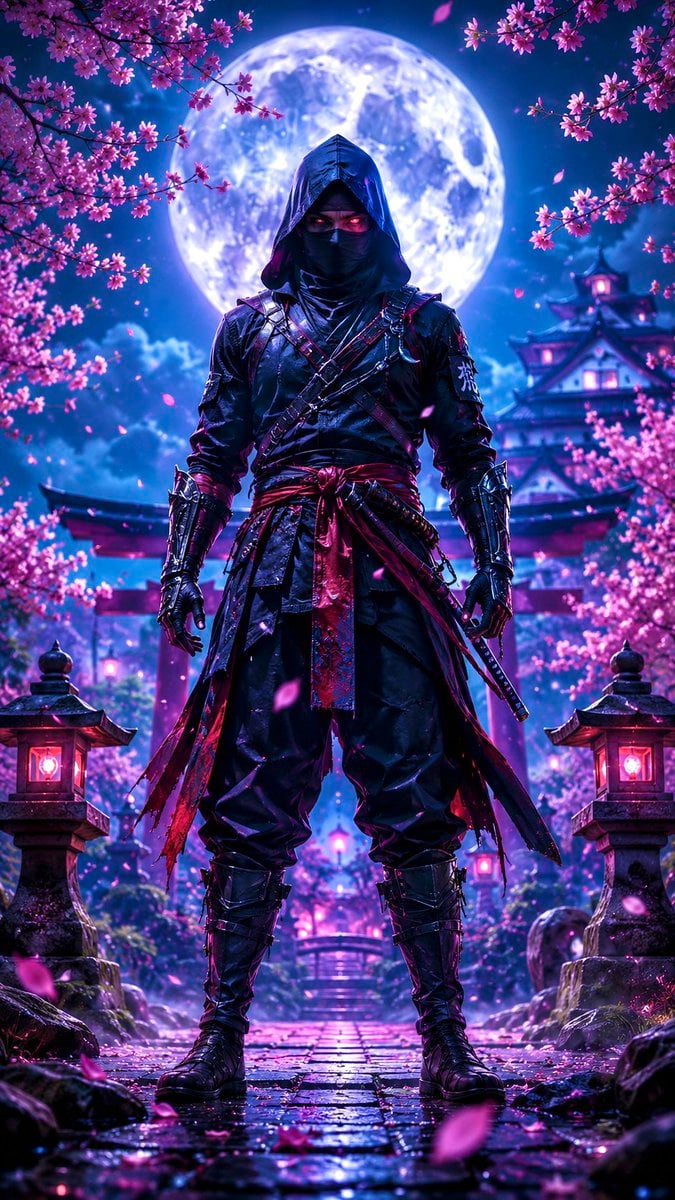
Ninja in Cherry Blossom Garden
Watercolor Anim Finale Fireworks
Watercolor Anim Garden Maze
Watercolor Anim Rooftop Concert
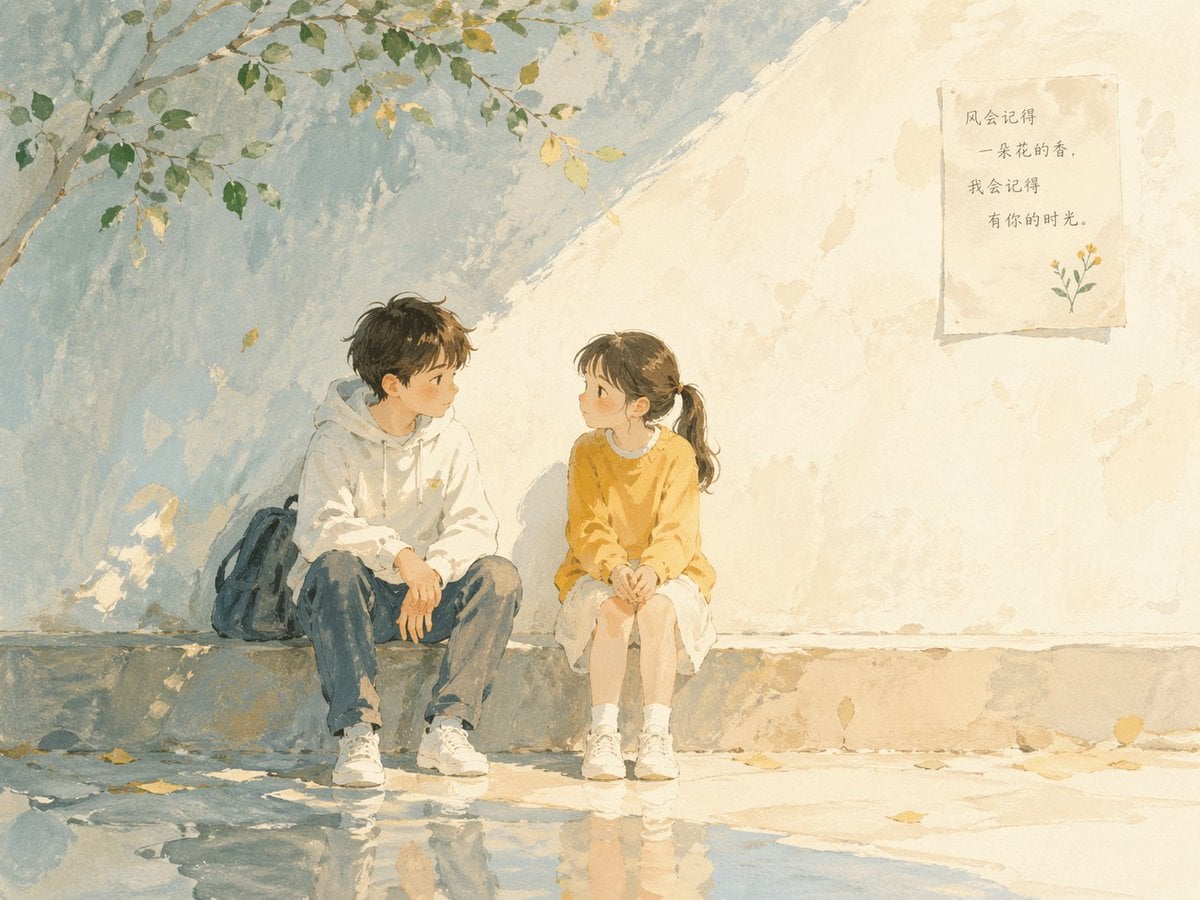
Watercolor Anim Bicycle Coast

Watercolor Anim Castle Gate
Make it yours
Watercolor Cherry Blossom Anime Scene works as-is. These are the safest ways to change it without losing the look.
Change one field
Copy a single group, rewrite it, and generate again so you can see what that field is doing.
Keep the frame, change the subject
Hold the composition and light of Watercolor Cherry Blossom Anime Scene, then swap wardrobe, props or the person for a new take.
| If the result… | Why | Fix |
|---|---|---|
| The result drifts from the preview | Too many fields changed at once. | Reuse Watercolor Cherry Blossom Anime Scene as-is first, then change one group — subject, light, or setting. |
| The model over-stylizes the scene | The prose prompt leaves finish and camera underspecified. | Add one camera or lighting sentence and stay on GPT Image 2. |
More GPT Image 2 templates
Other prompts made for GPT Image 2.

Six VTuber Japanese Logo Sheet

Realistic Portrait of Woman and Deer

The Vista Modular Condo Poster

AI Model Routing Comparison Infographic

2.5D Anime Art Board

Isometric Productivity Desk Scene

New York Double Exposure Poster

Four-Panel AI Landscape Comparison

Japanese Tatami Lifestyle Magazine Cover

NESCAFÉ Coffee Map Poster
More image prompts
Fresh picks from across the catalog.
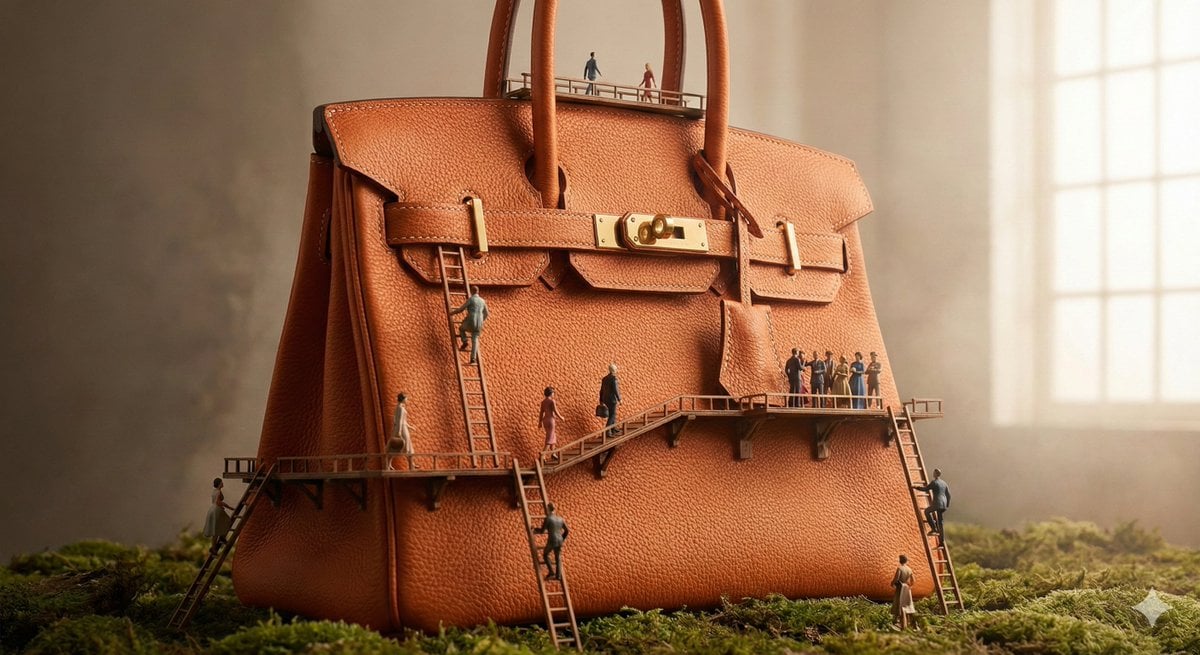
Micro World Discovery Product Photography Prompt
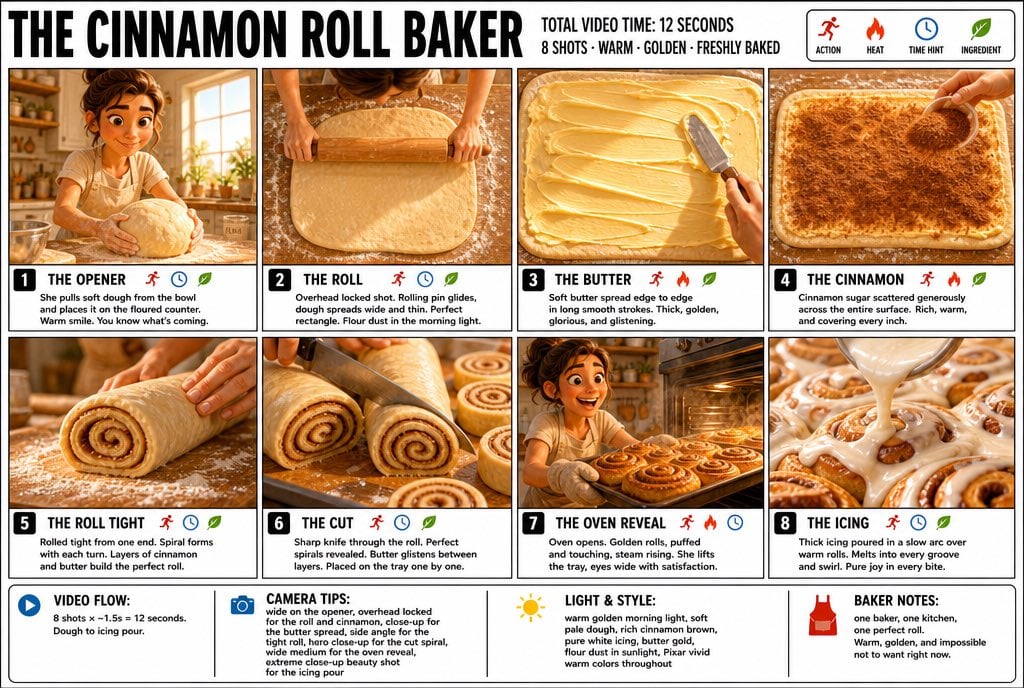
3D Pixar Style Bakery Infographic
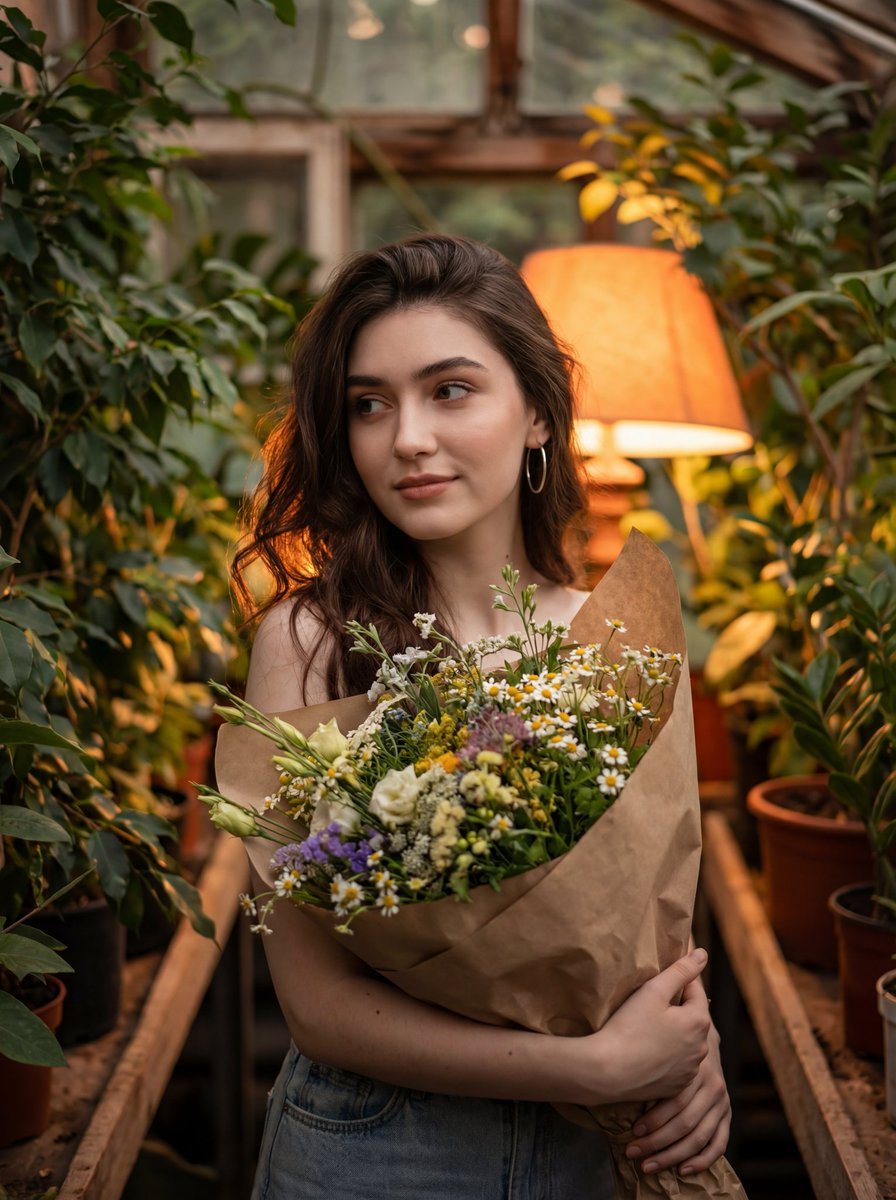
Atmospheric Portrait with Flowers and Warm Lighting
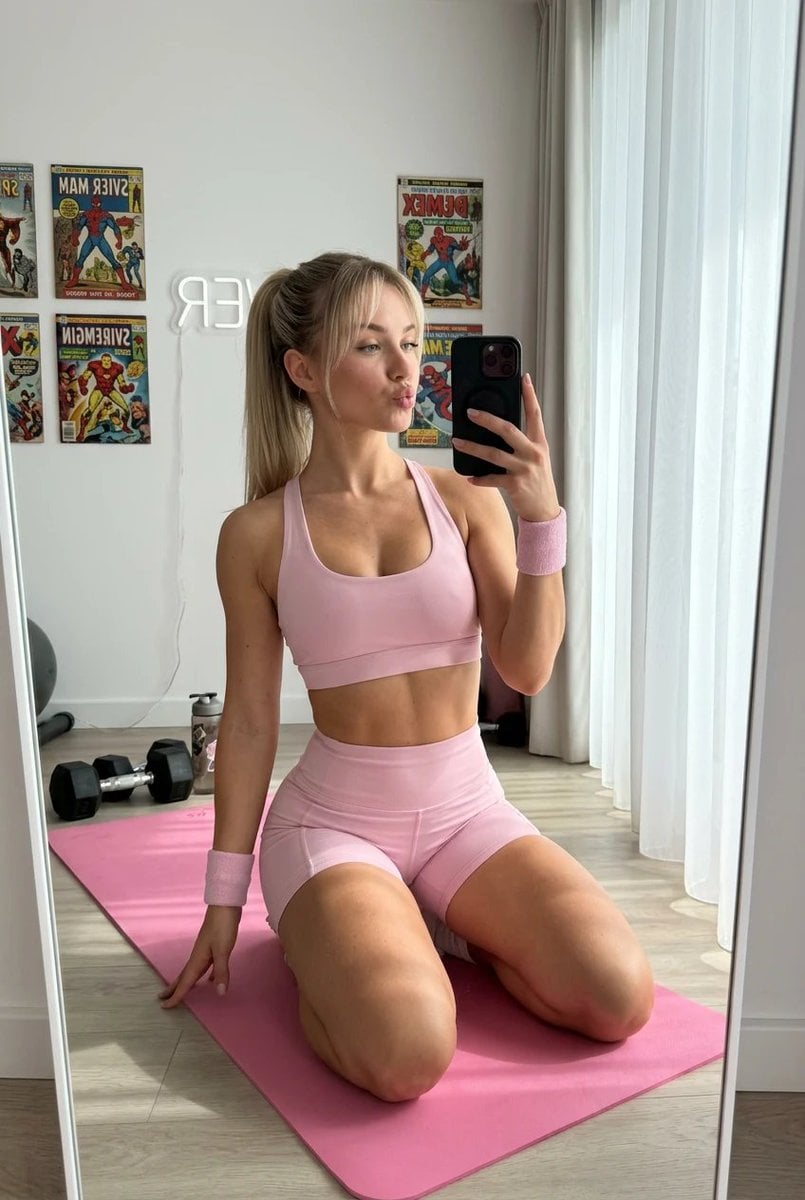
Blonde Fitness Girl Mirror Selfie in Modern Apartment
untitled
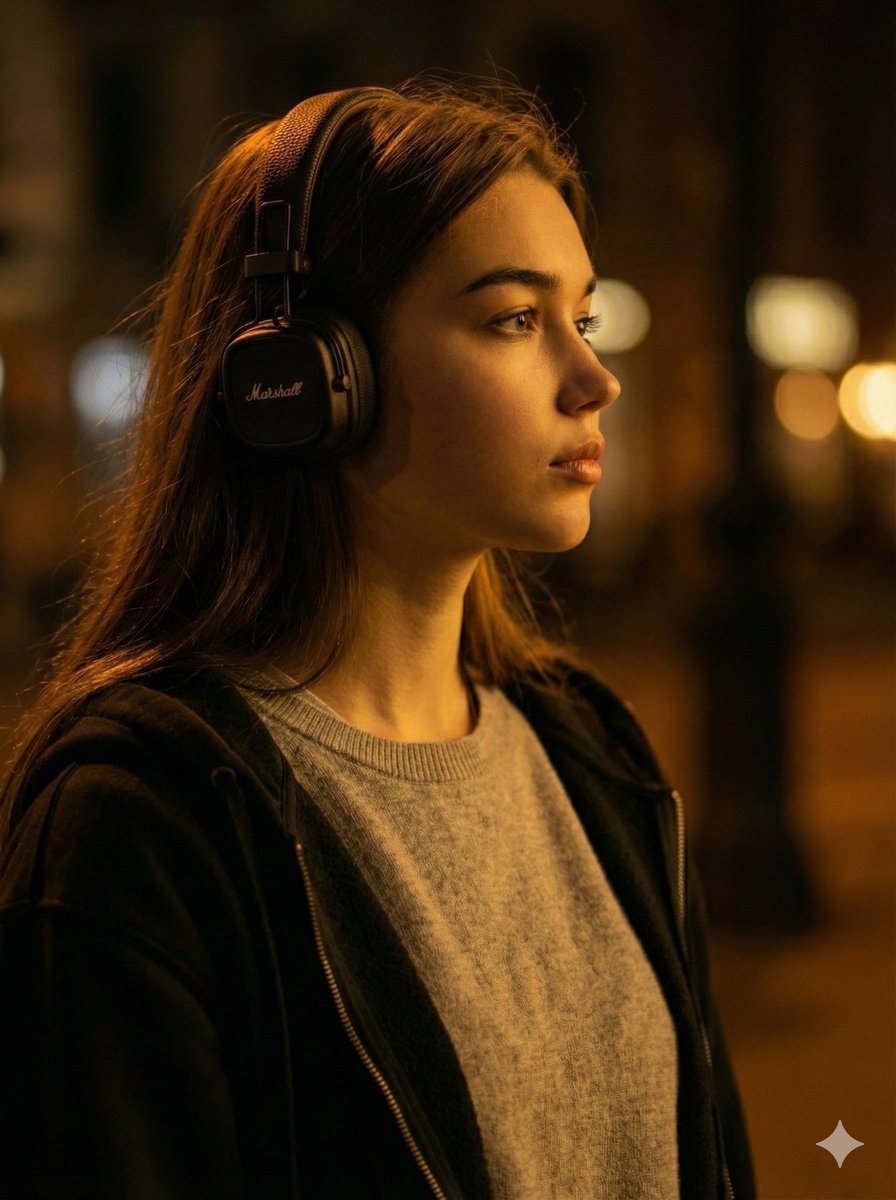
Moody Cinematic Profile Portrait Prompt
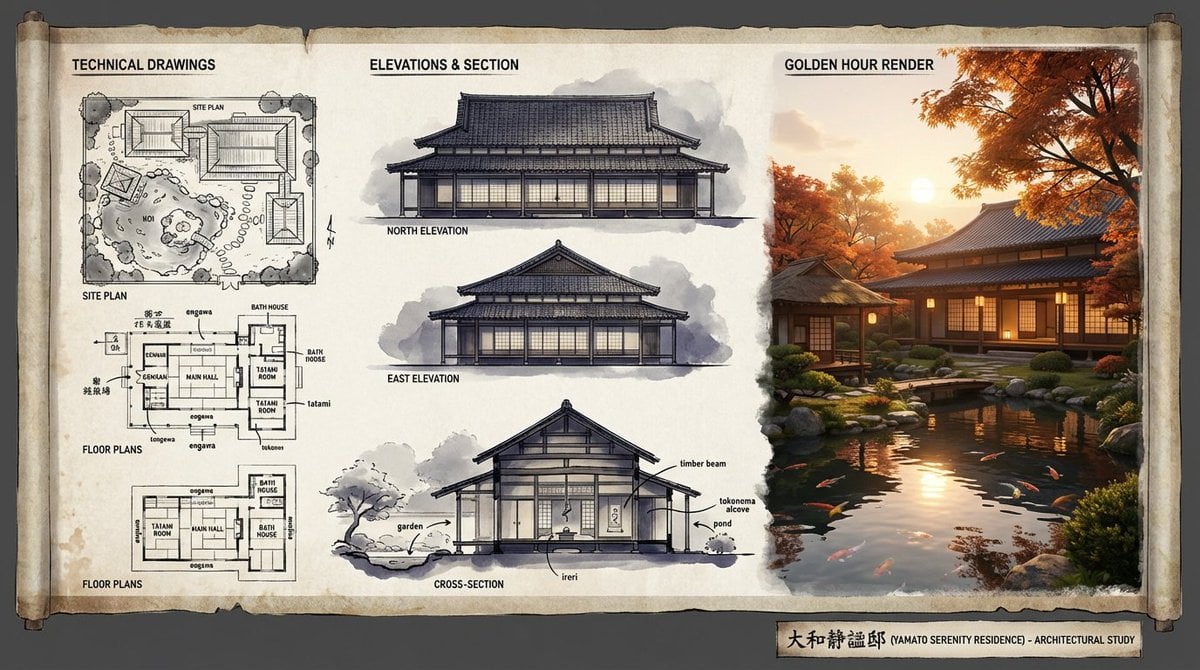
Architectural Illustrator Presentation Board Template
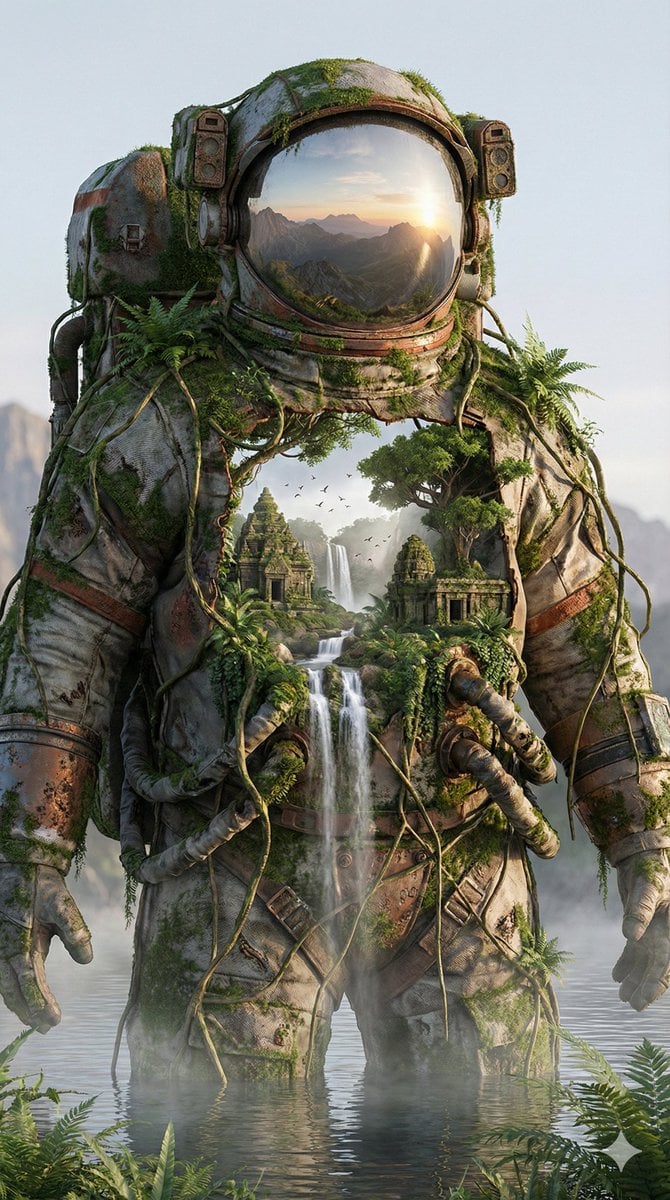
Surreal Nature-Meets-Sci-Fi Astronaut Suit
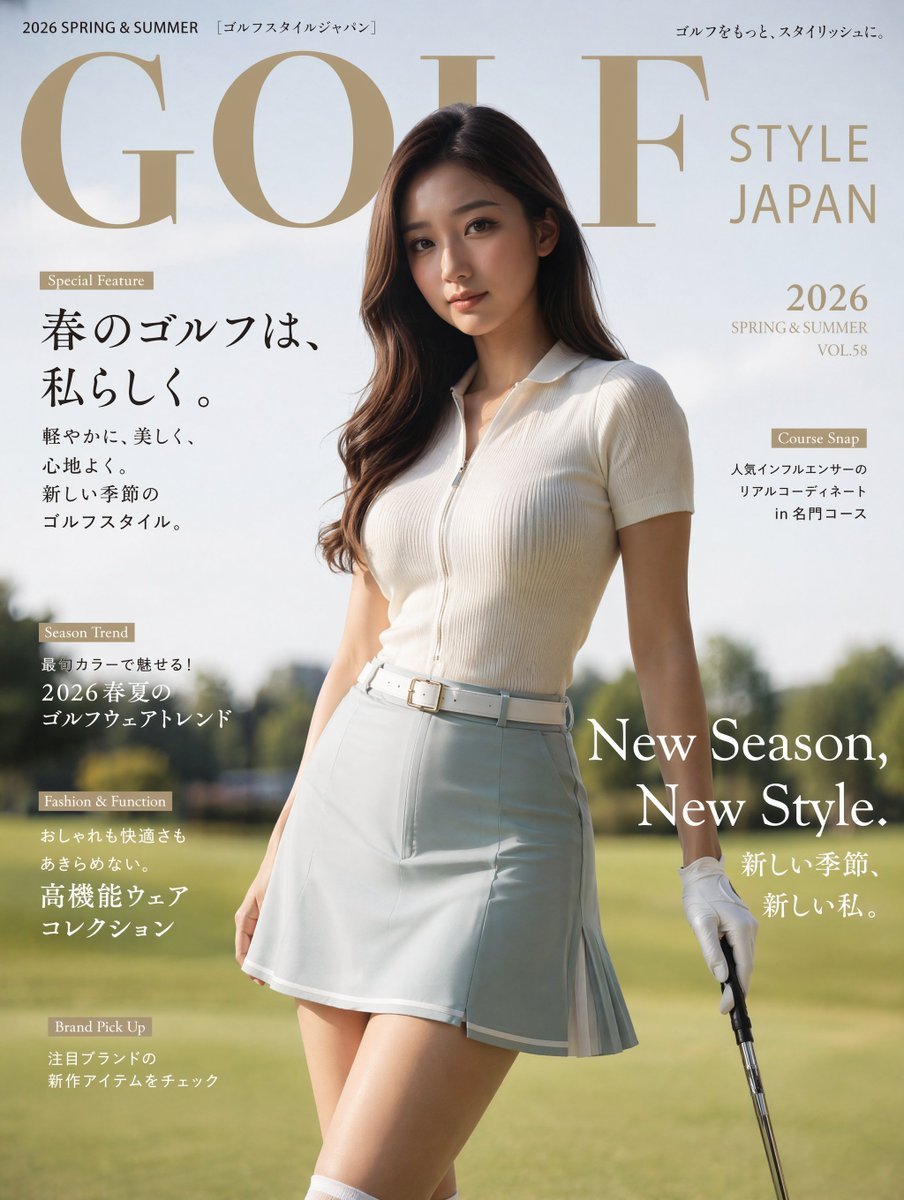
Japanese Golf Fashion Magazine Cover
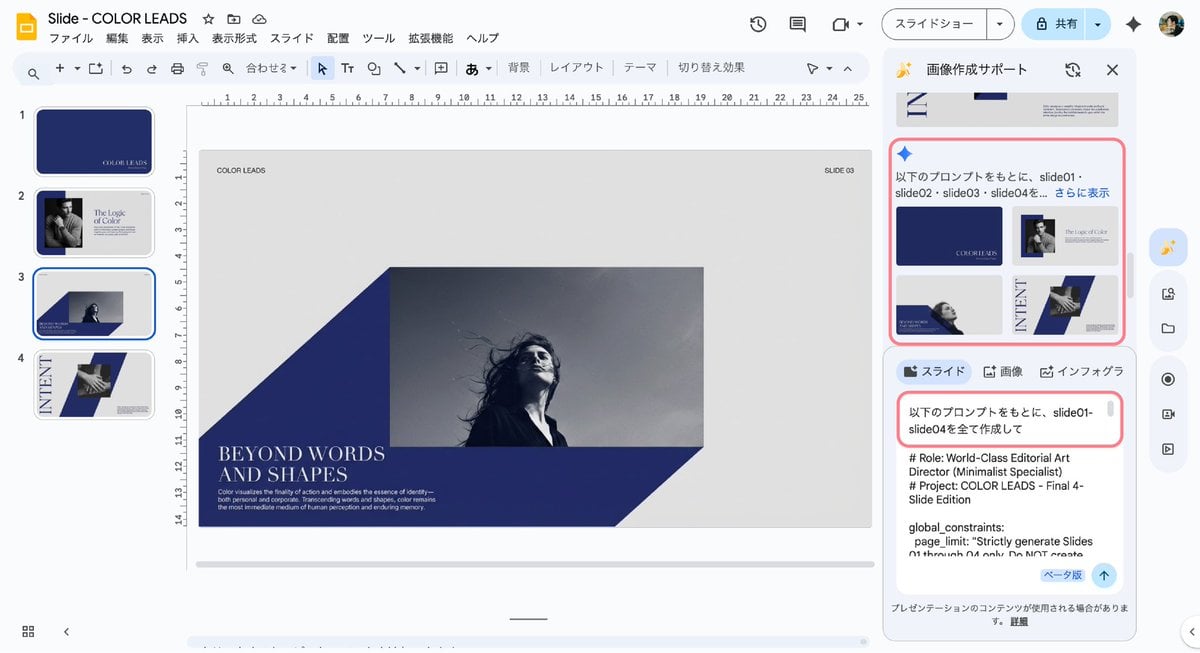
Multi-Slide Document Generation with Nano Banana and NotebookLM
Browse template categories
Watercolor Cherry Blossom Anime Scene questions
How do I use the Watercolor Cherry Blossom Anime Scene template?
Add your photo if the template asks for one, edit the prompt if you like — the template's model and format are already selected — and press Generate. Your version opens in PicX Studio.
Can I customize the Watercolor Cherry Blossom Anime Scene template?
Yes. You can change the subject, setting, lighting, mood, format, and available model controls before creating your image.
Is the Watercolor Cherry Blossom Anime Scene template free?
Opening and editing this template is free. Generating uses credits, shown on the Generate button when you are signed in.
Which AI model should I use?
Start with GPT Image 2, which is the model associated with this template. You can compare another compatible model for a different finish.
Looking for something else? Browse all templates.

Your photo, any look
Thousands of ready templates for every top image and video model, from one credit balance.