How do I use the Cherry Blossom Cosplay Romance template?
Choose the primary action to open PicX Studio with the available template settings. Review the model and format, personalize the creative direction, and generate when ready.
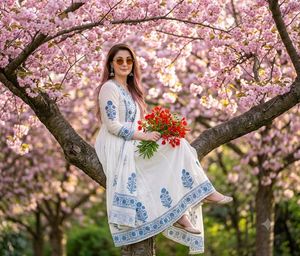
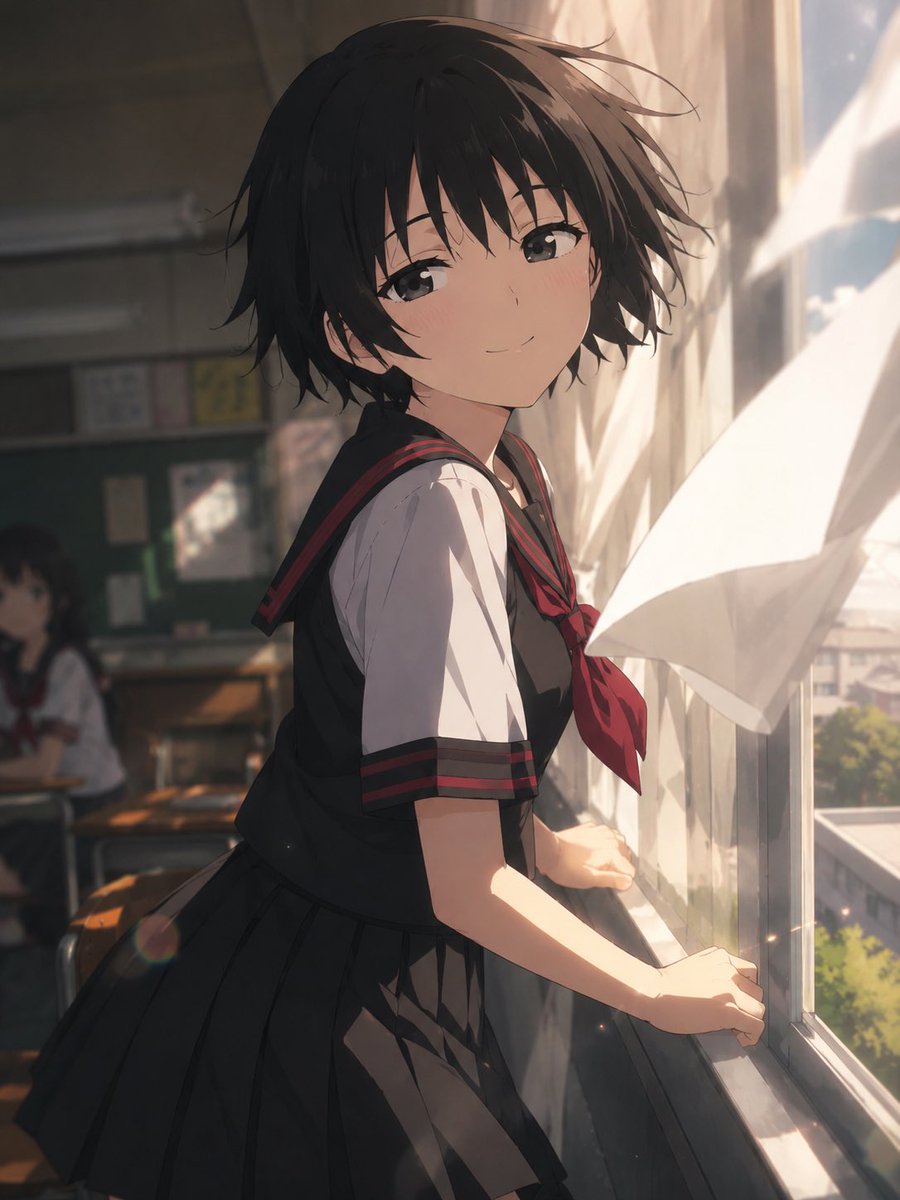
A realistic vertical drama-still image of two elegantly dressed cosplay characters sharing a romantic gaze beneath falling cherry blossoms.
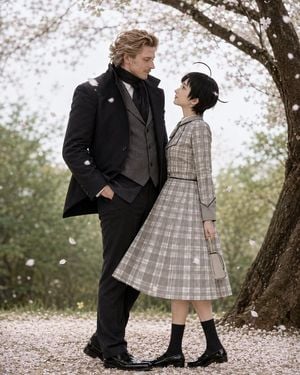
Create a cinematic live-action cosplay-style romantic scene under blooming cherry trees in early spring. Two full-body characters stand very close together on a path carpeted with pale pink petals, gazing softly into each other’s eyes. The man is tall, fair-skinned, and elegant, with wavy blond hair, wearing a black wool overcoat over a gray three-piece suit, white shirt, black scarf, dark trousers, and polished black dress shoes; one hand rests in his pocket and his posture is relaxed and protective. The woman is much shorter, fair-skinned, with a petite build and short black pixie-cut hair with two distinctive stray antenna-like locks, wearing a modest gray plaid long-sleeve fit-and-flare dress with a white collar, thin black belt, black socks, glossy black loafers, and holding a small beige handbag at her side. Set them beside a large dark cherry tree trunk on the right, with arching branches above, soft bokeh greenery in the background, and numerous falling sakura petals frozen in the air. Use a vertical 4:5 portrait composition, natural diffused daylight, shallow depth of field, realistic fabric textures, muted gray and pink palette, tender dramatic mood, high-end Japanese live-action drama still, no text or watermark. Optional customization: the woman represents {argument name="female character" default="Kubota Miwa"}, the man represents {argument name="male character" default="Hakkai Takashi"}, the setting is {argument name="seasonal setting" default="spring cherry blossom path"}, the woman’s outfit is {argument name="female outfit" default="gray plaid long-sleeve dress with white collar"}, and the man’s outfit is {argument name="male outfit" default="black overcoat with gray three-piece suit and black scarf"}.
Choose the primary action to open PicX Studio with the available template settings. Review the model and format, personalize the creative direction, and generate when ready.
Yes. You can change the subject, setting, lighting, mood, format, and available model controls before creating your image.
This template is free to open and customize. Generation usage is shown in PicX Studio before you create.
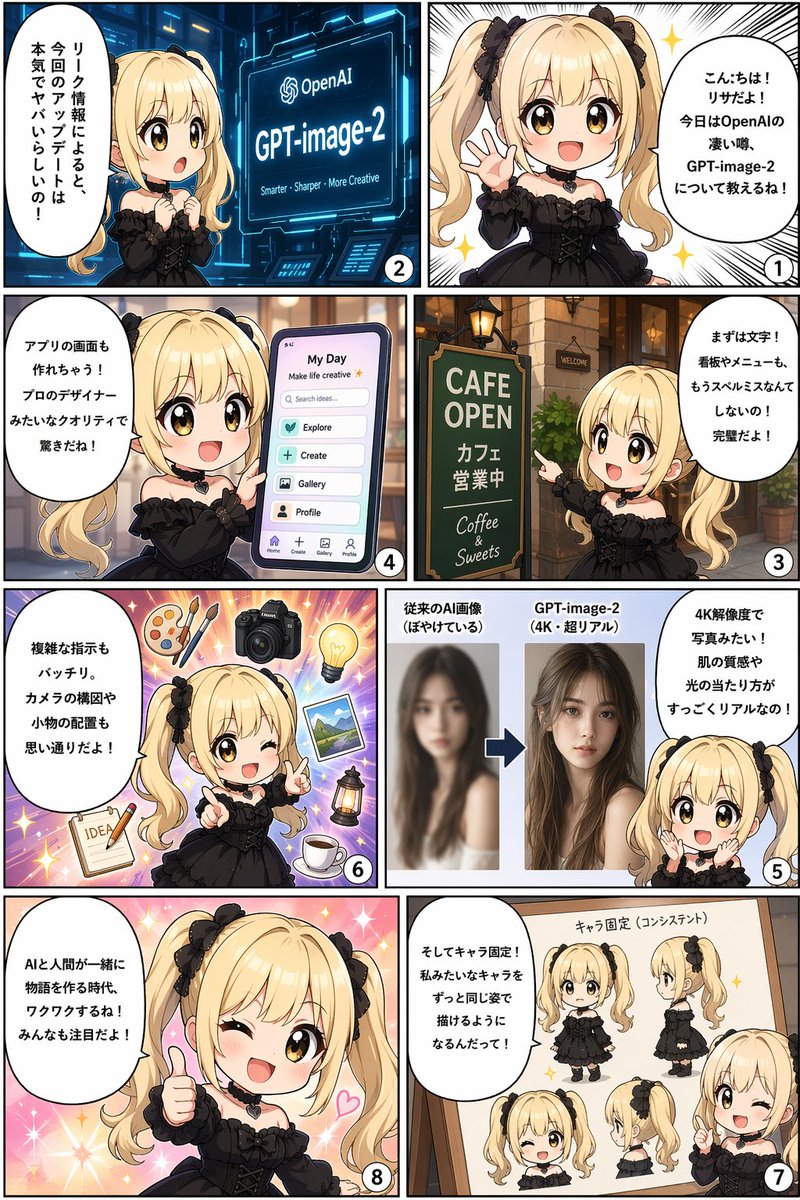
Start with GPT Image 2, which is the model associated with this template. You can compare another compatible model for a different finish.
Follow a topic to a crawlable collection of related PicX Studio templates.