
Subtle Cinematic Scene Punch-In
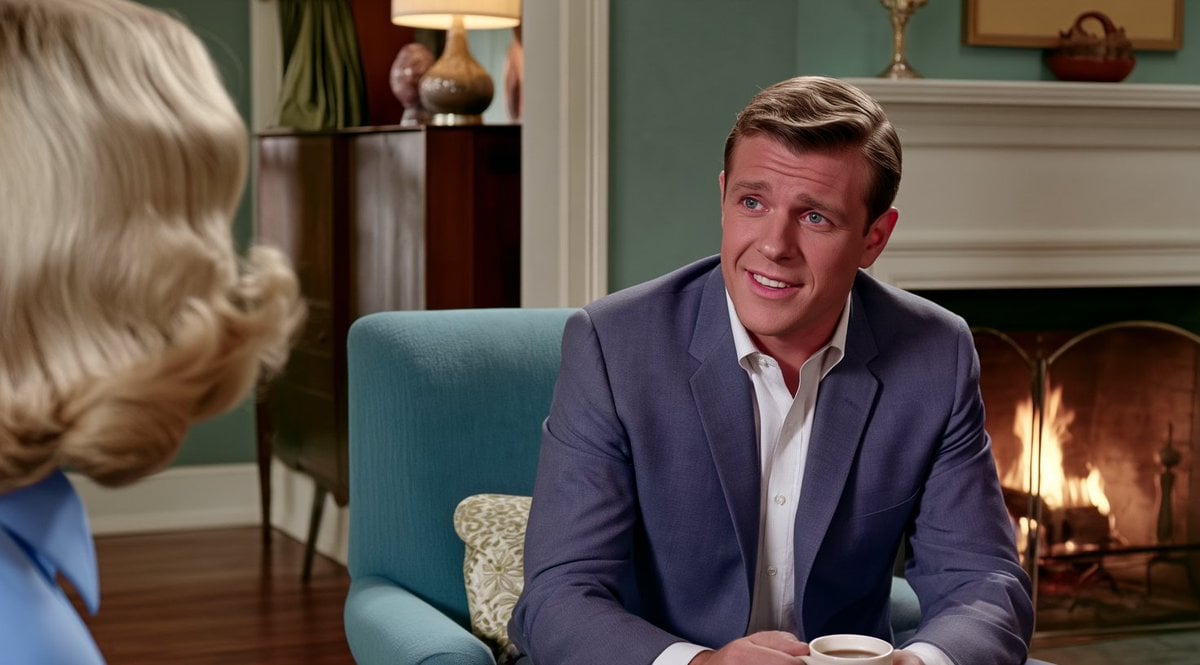
Creates a lightly punched-in, cleaned-up version of a reference film still while preserving the original scene and composition.
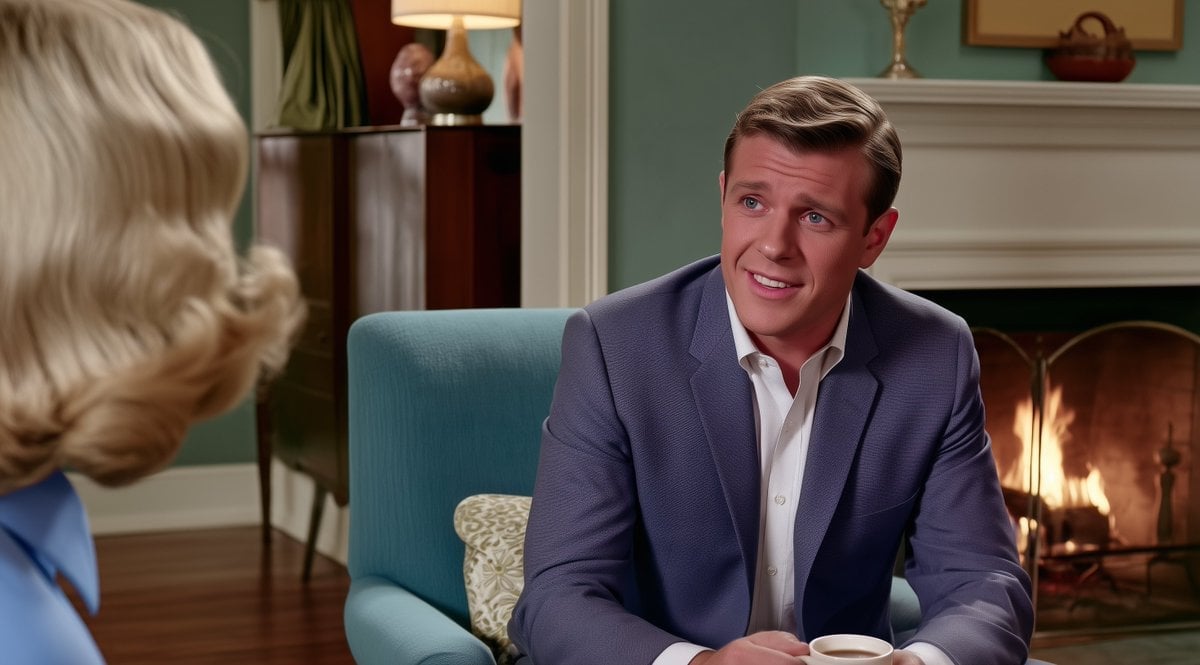
- Prompt included
- Model and format preset
- Free template
The prompt behind this image
Copy the exact prompt behind Subtle Cinematic Scene Punch-In, or open it in the studio and make it yours.
Using the provided reference image, make a very subtle production-style edit: keep the same living-room scene, characters, composition, camera angle, lighting, and mid-century film still look, but punch in slightly toward the right-side man and clean up the image. Preserve the woman as a blurred foreground shoulder/head on the left, the man seated in the teal chair, the fireplace, cabinet, lamp, and decor placement. Improve facial clarity, fabric texture, edge definition, and color consistency while maintaining a natural cinematic look. Do not change the actors, expressions, clothing, room layout, or add any new objects. Output in a {argument name="aspect ratio" default="16:9"} frame with the same warm indoor color grade.
Reference images included
Subtle Cinematic Scene Punch-In needs input media to work. They load alongside the prompt when you open it in the studio.
How to use Subtle Cinematic Scene Punch-In in 3 steps
- 1Upload ImagePNG, JPG or paste
Add your photo
Upload the photo the template builds on. The prompt, model and format are already set.
- 2…a portrait of your subject in softgolden-hour light, 85mm…
Personalize
Edit the subject and creative details for your destination.
- 3Generate
Generate
Press Generate — your image is created in PicX Studio, so you can compare it with the original and refine one variable at a time.
More like this
Templates with the same subject, style or setup. Open one to see its prompt.
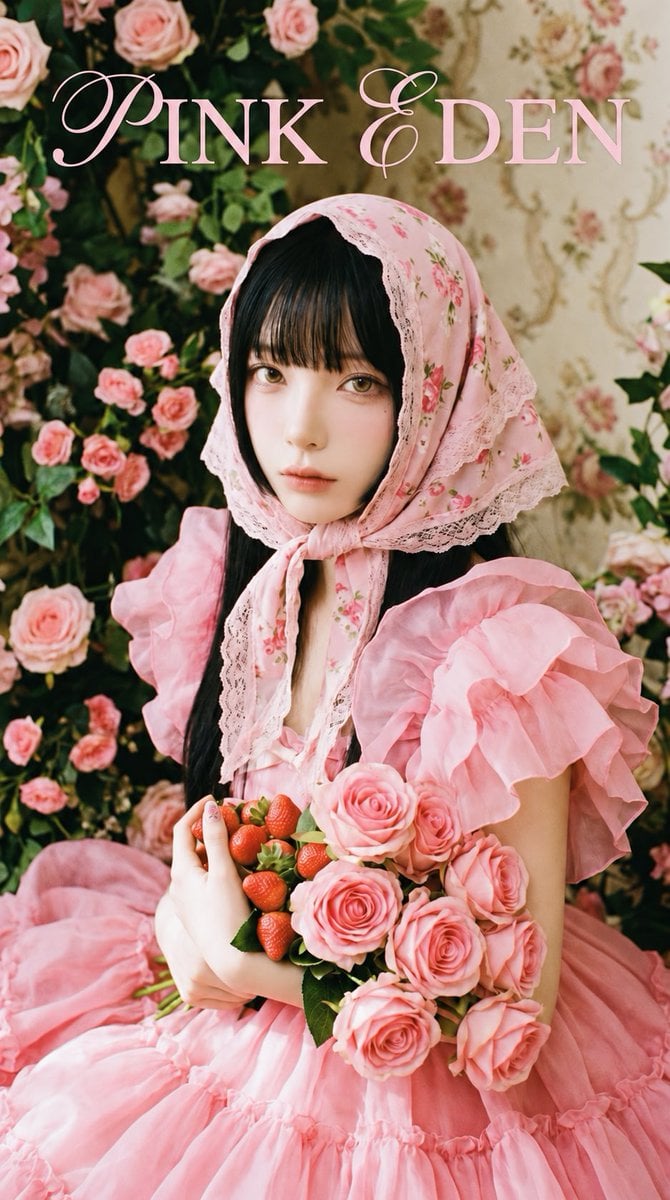
Subtle Rose Nail Edit
Makeup is minimal and natural, emphasizing clear skin and subtle lip
Nano Banana Pro 'Correct Words' for Subtle Smiling Expression
Subtle Cyborg Transformation in Subway
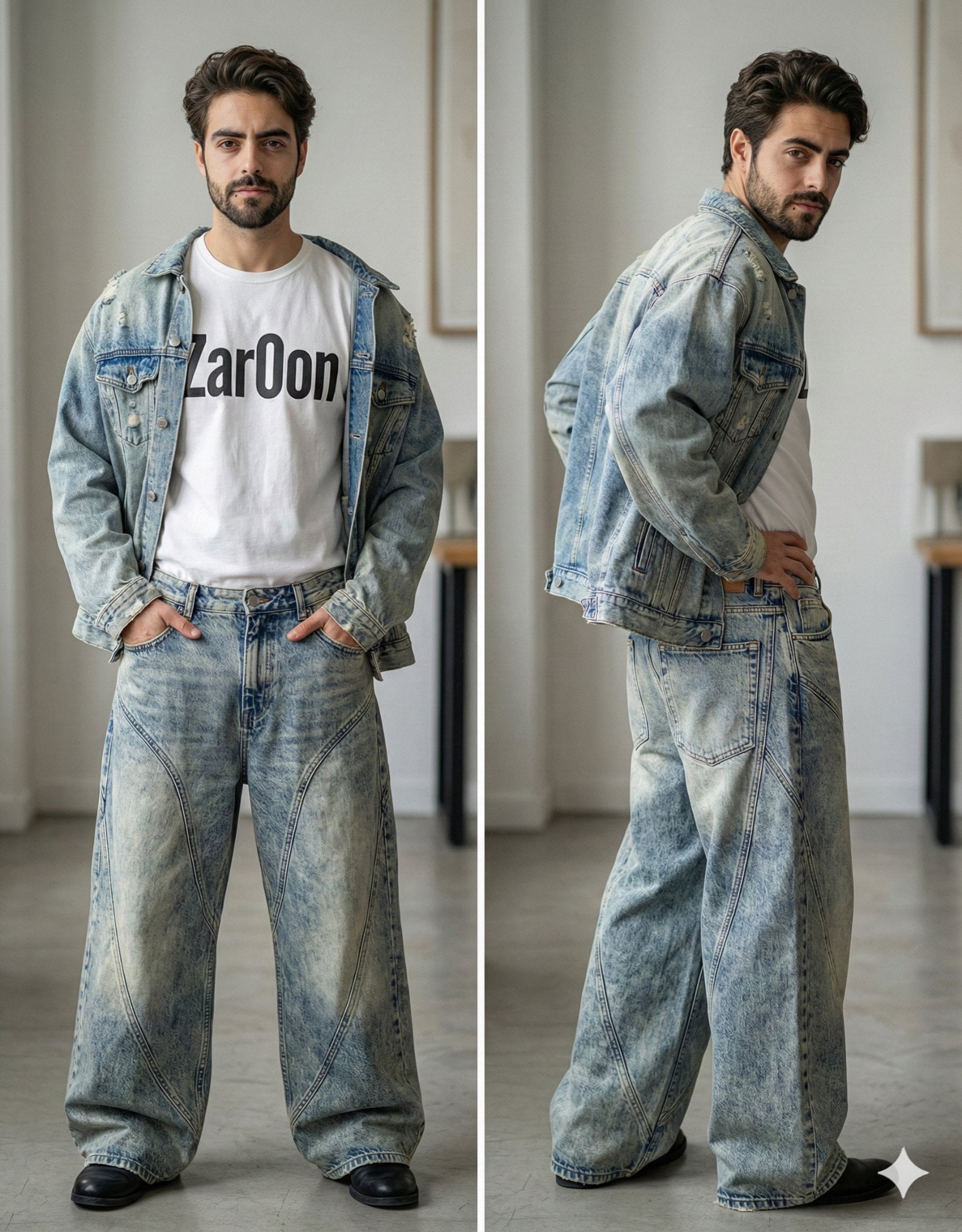
Subtle Brand Texture Visual Prompt
Two Tickets, One Night
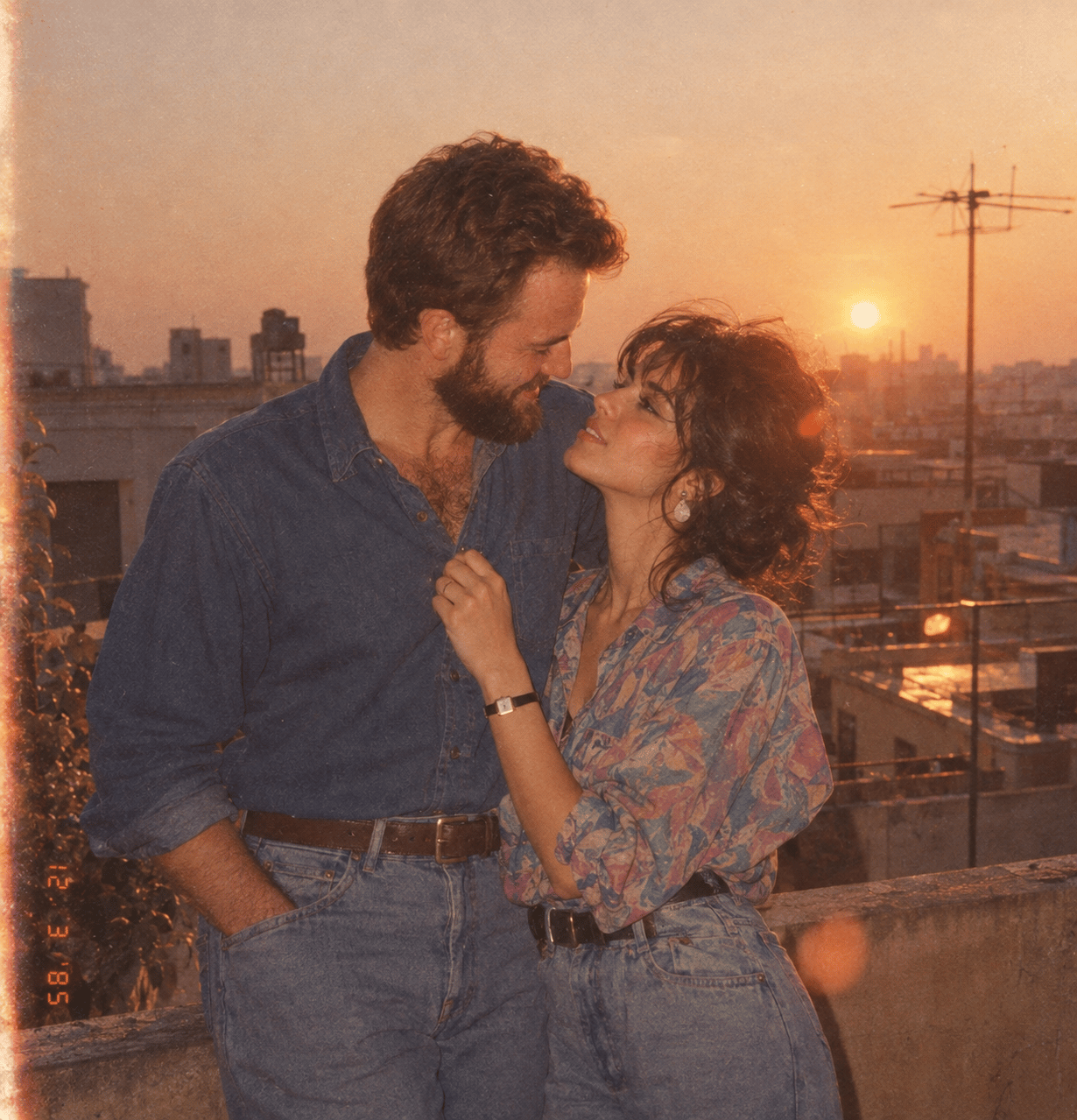
If We Met in 1985

Found Photograph: Us, 1970

Realistic Portrait of Woman and Deer

The Vista Modular Condo Poster

AI Model Routing Comparison Infographic

2.5D Anime Art Board
Make it yours
Subtle Cinematic Scene Punch-In works as-is. These are the safest ways to change it without losing the look.
Change one field
Copy a single group, rewrite it, and generate again so you can see what that field is doing.
Keep the frame, change the subject
Hold the composition and light of Subtle Cinematic Scene Punch-In, then swap wardrobe, props or the person for a new take.
| If the result… | Why | Fix |
|---|---|---|
| The result drifts from the preview | Too many fields changed at once. | Reuse Subtle Cinematic Scene Punch-In as-is first, then change one group — subject, light, or setting. |
| The model over-stylizes the scene | The prose prompt leaves finish and camera underspecified. | Add one camera or lighting sentence and stay on GPT Image 2. |
More GPT Image 2 templates
Other prompts made for GPT Image 2.

Six VTuber Japanese Logo Sheet

New York Double Exposure Poster

Four-Panel AI Landscape Comparison

Japanese Tatami Lifestyle Magazine Cover

NESCAFÉ Coffee Map Poster
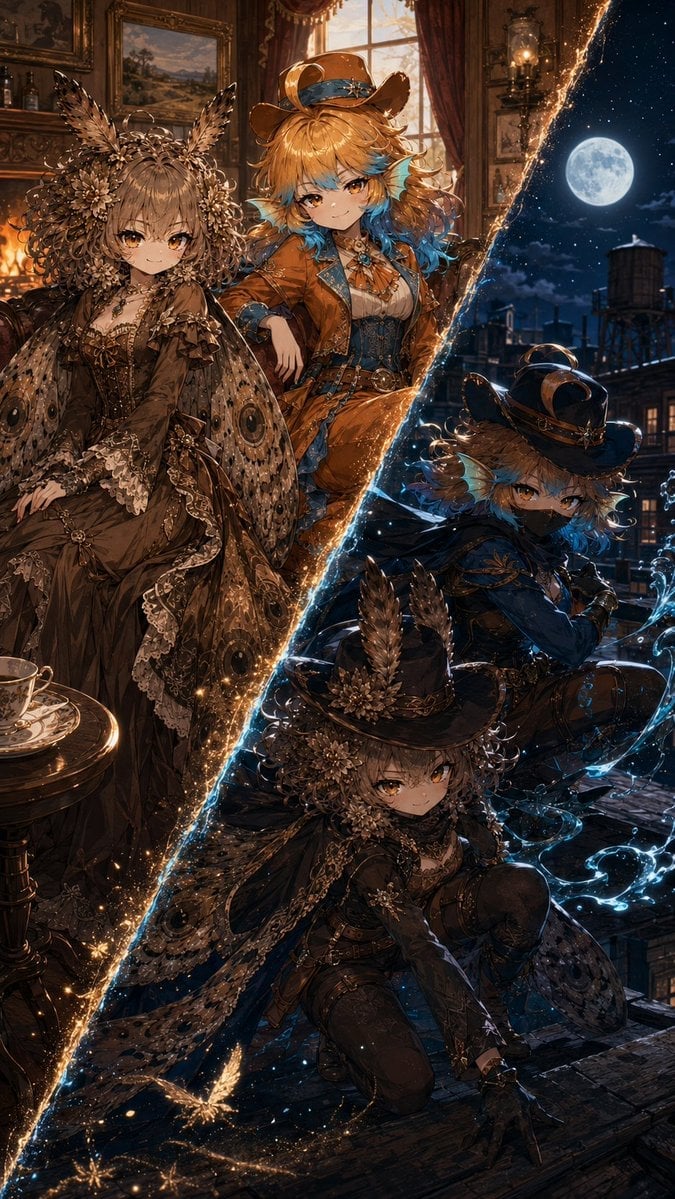
Superhero Era Transformation Split Portrait
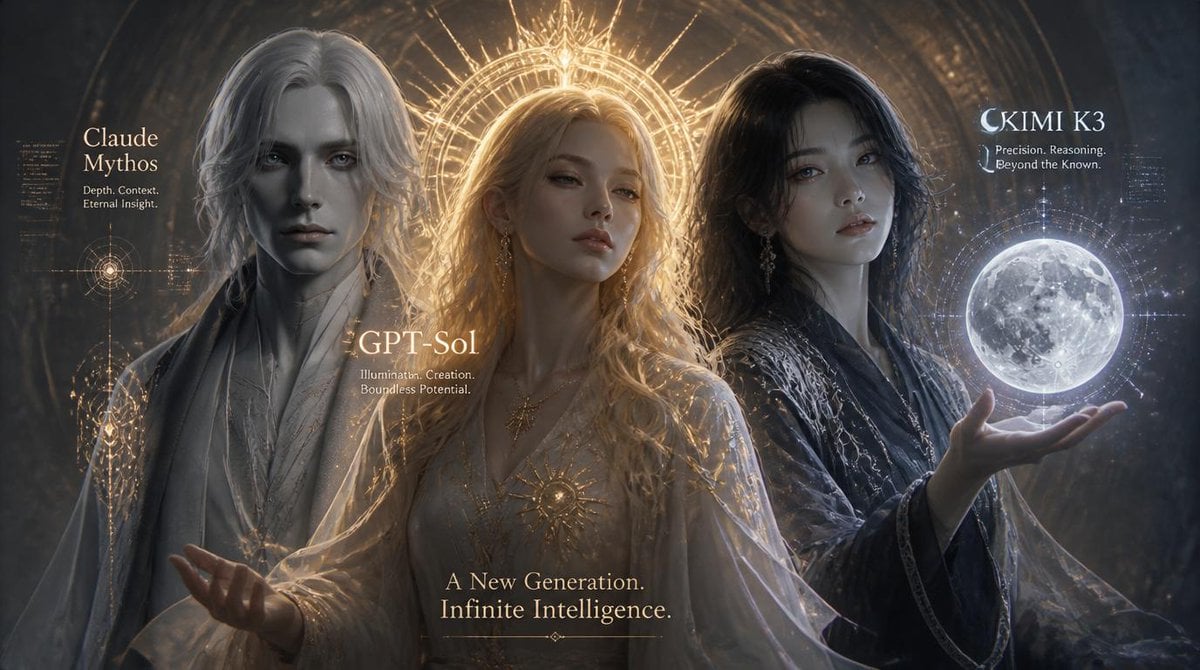
Three AI Deities Fantasy Poster

Japanese Fantasy Winged Pig Film Poster
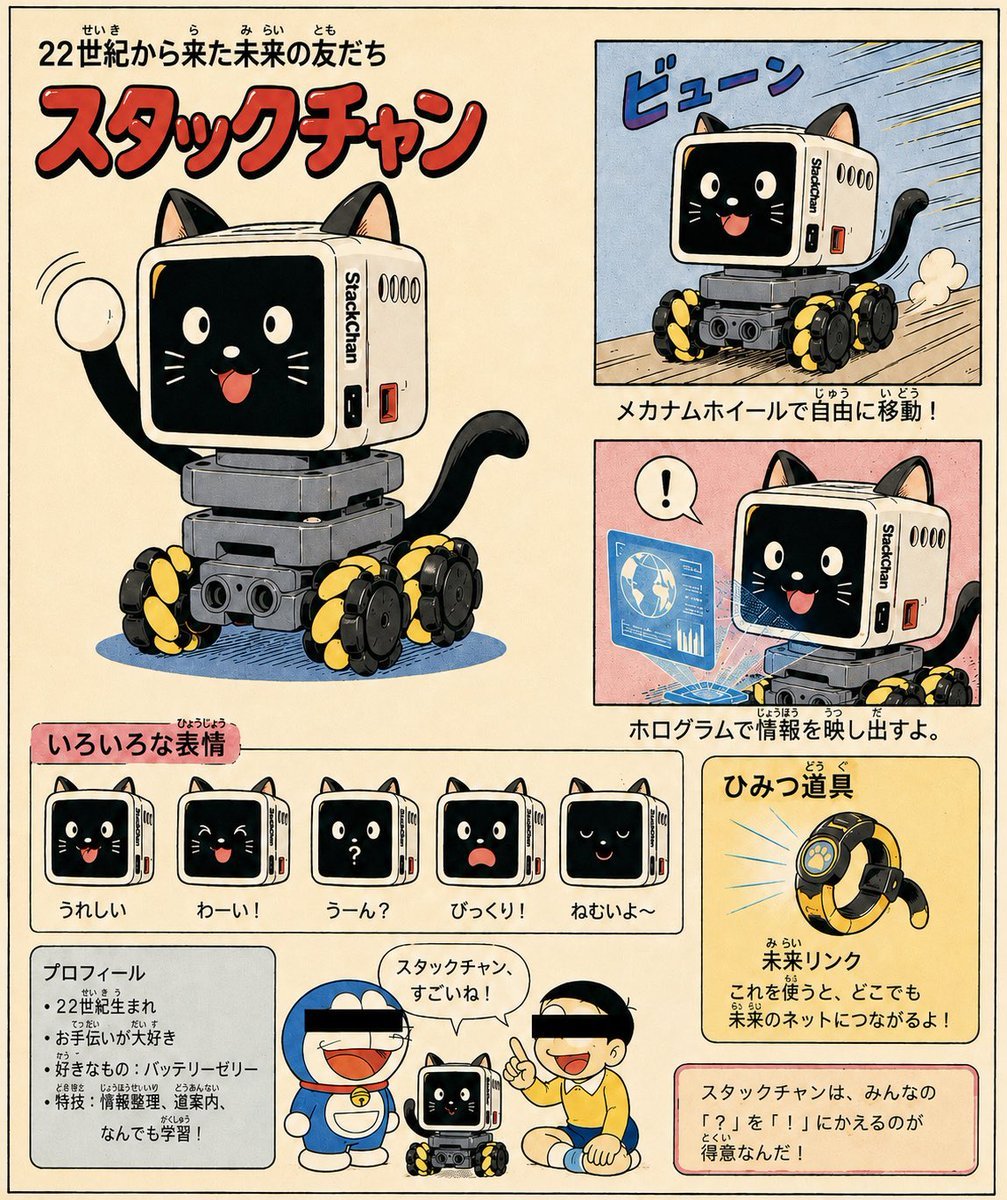
Retro Manga StackChan Concept Sheet

Futuristic AI 2026 Tech Poster
More image prompts
Fresh picks from across the catalog.
Moody Fashion Editorial Rainy Night Prompt
Rainbow Decora Anime Photo Card
Highly Structured Prompt for Outdoor Tennis Lifestyle Portrait

Concert poster for Google Banana Band
Eco-Friendly Skincare Product Photography
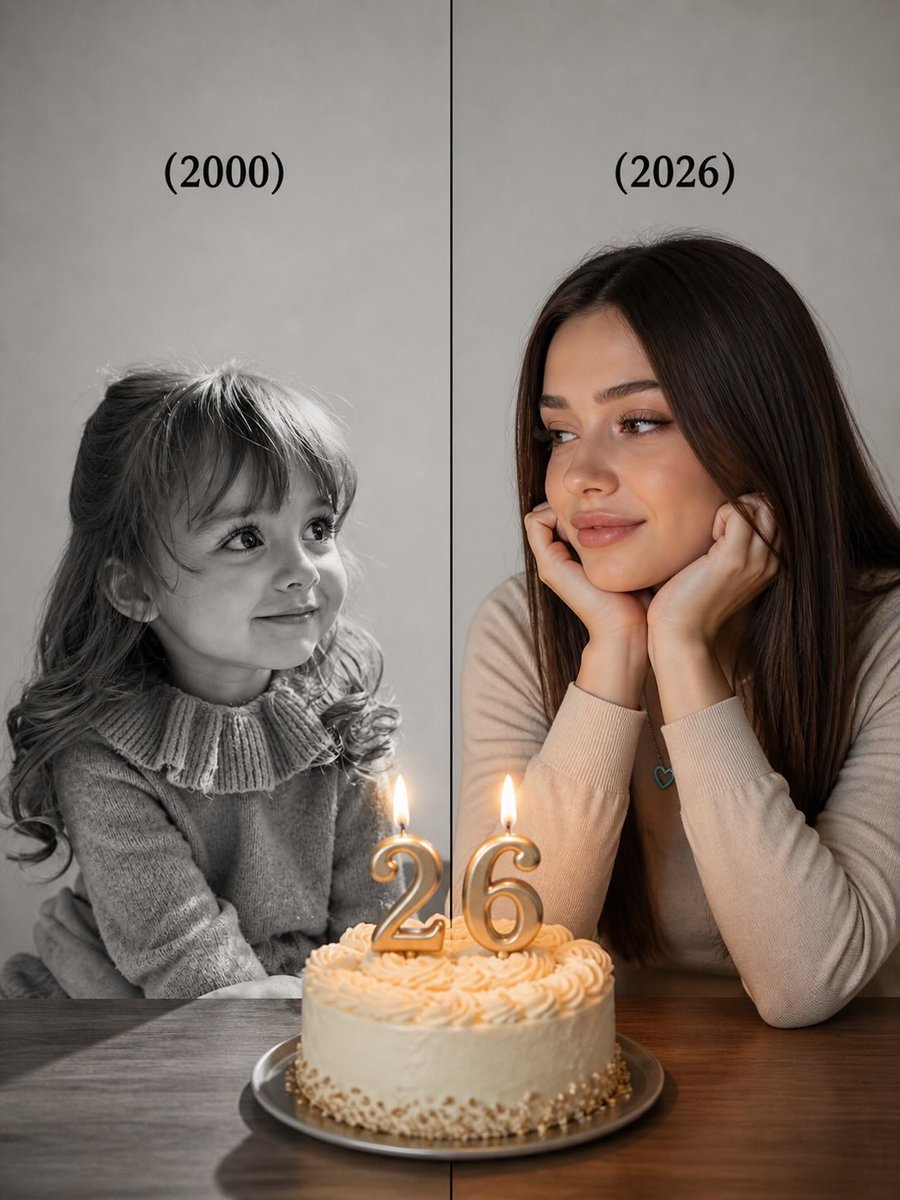
Split-Time Birthday Portrait
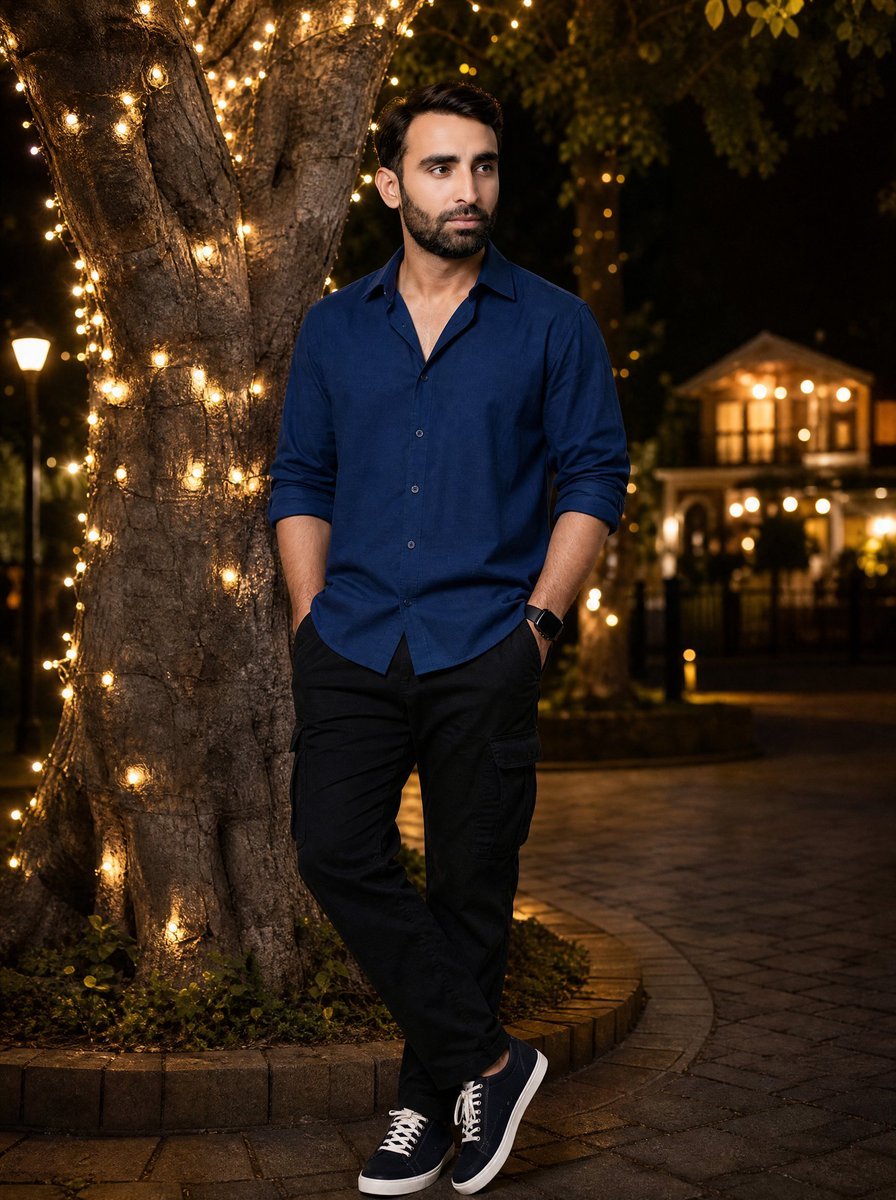
Night Portrait by Fairy Light Tree
Abstract Geometry Portrait in Zen Space
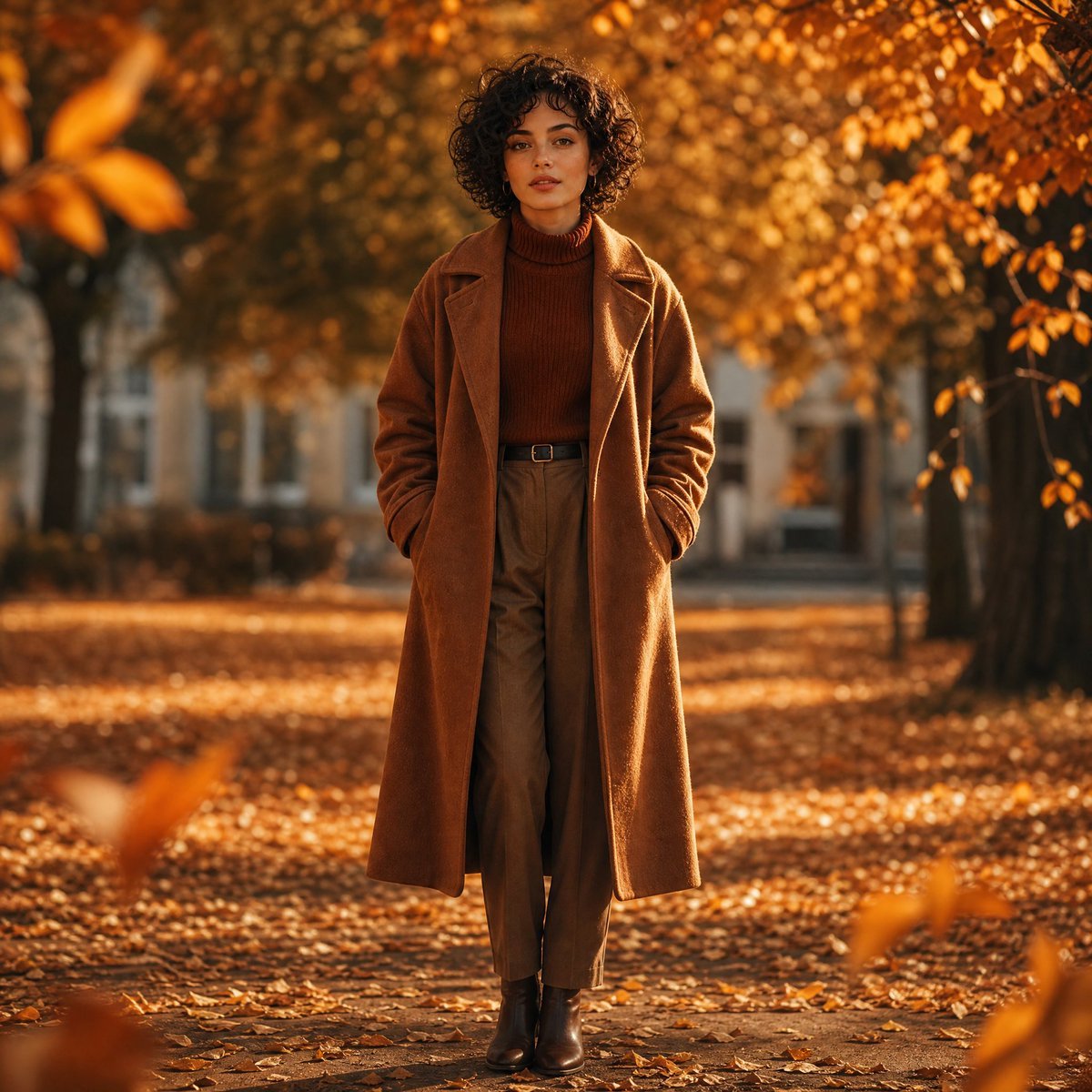
Cinematic Autumn Fashion Portrait
Detailed JSON Prompt for Gamer Girl Selfie
Browse template categories
Subtle Cinematic Scene Punch-In questions
How do I use the Subtle Cinematic Scene Punch-In template?
Add your photo if the template asks for one, edit the prompt if you like — the template's model and format are already selected — and press Generate. Your version opens in PicX Studio.
Can I customize the Subtle Cinematic Scene Punch-In template?
Yes. You can change the subject, setting, lighting, mood, format, and available model controls before creating your image.
Is the Subtle Cinematic Scene Punch-In template free?
Opening and editing this template is free. Generating uses credits, shown on the Generate button when you are signed in.
Which AI model should I use?
Start with GPT Image 2, which is the model associated with this template. You can compare another compatible model for a different finish.
Looking for something else? Browse all templates.

Your photo, any look
Thousands of ready templates for every top image and video model, from one credit balance.