
AI Agent LP Ecosystem Infographic
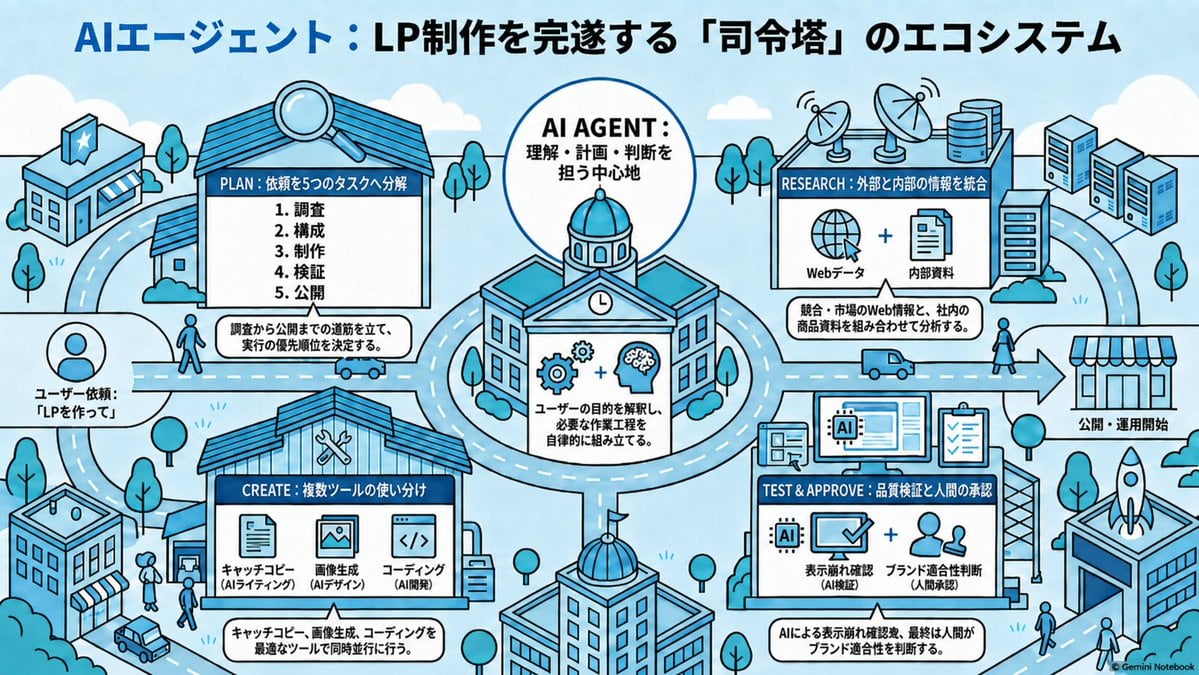
A Japanese isometric city-map infographic showing an AI agent coordinating research, creation, testing, and publication for landing page production.
- Prompt included
- Model and format preset
- Free template
The prompt behind this image
Copy the exact prompt behind AI Agent LP Ecosystem Infographic, or open it in the studio and make it yours.
Goal: Create a wide isometric Japanese infographic explaining an ecosystem where an AI agent acts as a command tower to complete landing page production. Use the headline {argument name="headline text" default="AIエージェント:LP制作を完遂する「司令塔」のエコシステム"} across the top, with “AIエージェント” in blue and the rest in black. Canvas: Horizontal 16:9 educational slide, light sky-blue background, clean vector line art, blue/cyan/white palette with black outlines, rounded clouds, roads, trees, small people, buildings, and arrows. Style should feel like a friendly isometric city map mixed with a business workflow diagram, crisp and readable, no photorealism. Layout: Place 1 large central circular hub building labeled AI AGENT, surrounded by exactly 4 facility cards/buildings connected by roads and directional arrows. Include a user request icon on the far left feeding into the system and a storefront/publication area on the far right as the final output. The overall composition should show the relationship between facilities more than a strict vertical flow. Central hub: A domed civic building inside a large outlined circle, labeled “AI AGENT: 理解・計画・判断を担う中心地”. Add icons of gears plus a brain, and a caption box: “ユーザーの目的を解釈し、必要な作業工程を自律的に組み立てる。” Counted diagram elements: Include exactly 4 main workflow facilities/cards: 1) PLAN, 2) RESEARCH, 3) CREATE, 4) TEST & APPROVE. Include exactly 5 numbered plan tasks in the PLAN card: 1. 調査, 2. 構成, 3. 制作, 4. 検証, 5. 公開. Include exactly 3 creation tools in the CREATE card: キャッチコピー(AIライティング), 画像生成(AIデザイン), コーディング(AI開発). Include exactly 2 research inputs in the RESEARCH card: Webデータ and 内部資料. Include exactly 2 test/approval checks in the TEST & APPROVE card: 表示崩れ確認(AI検証) and ブランド適合性判断(人間承認). Facility details and text: Top-left facility card with a magnifying glass on the roof, titled “PLAN:依頼を5つのタスクへ分解”, containing the 5 numbered tasks and a bottom caption: “調査から公開までの道筋を立て、実行の優先順位を決定する。” Top-right facility card titled “RESEARCH:外部と内部の情報を統合”, showing a globe icon plus document icon and caption: “統合:市場のWeb情報と、社内の商品資料を組み合わせて分析する。” Bottom-left facility card titled “CREATE:複数ツールの使い分け”, showing the 3 tool icons and caption: “キャッチコピー、画像生成、コーディングを最適なツールで同時並行に行う。” Bottom-right facility card titled “TEST & APPROVE:品質検証と人間の承認”, showing an AI chip, screen with checkmark, clipboard, and human figures, with caption: “AIによる表示崩れ確認、最終は人間がブランド適合性を判断する。” Side elements: On the far left, show a circular user avatar and label {argument name="user request label" default="ユーザー依頼:「LPを作って」"}. On the far right, show a large arrow pointing to a small shop/storefront labeled {argument name="publication label" default="公開・運用開始"}. Add surrounding city elements: at least 6 buildings including office blocks and a shop, roads with dashed lane markings, tiny cars/trucks, pedestrians, trees, antennas or database cylinders near the research area, and a rocket on a rooftop near the publication side. Visual style: Use thick black outlines, flat fills, limited blue monochrome palette with white panels, subtle shadows, clean infographic spacing, hand-drawn isometric technical illustration feeling. Keep all text legible, centered in its boxes, and preserve Japanese labels exactly as specified. Add a small bottom-right credit text {argument name="credit text" default="Gemini Notebook"}.
How to use AI Agent LP Ecosystem Infographic in 3 steps
- 1Upload ImagePNG, JPG or paste
Add your photo
Upload the photo the template builds on. The prompt, model and format are already set.
- 2…a portrait of your subject in softgolden-hour light, 85mm…
Personalize
Edit the subject and creative details for your destination.
- 3Generate
Generate
Press Generate — your image is created in PicX Studio, so you can compare it with the original and refine one variable at a time.
More like this
Templates with the same subject, style or setup. Open one to see its prompt.

Japan Travel Brochure Poster

Isometric Process Educational Diorama

Isometric Vehicle Teardown Infographic Template

Gpt2 E Commerce Main Image Earbuds E Commerce Infographic
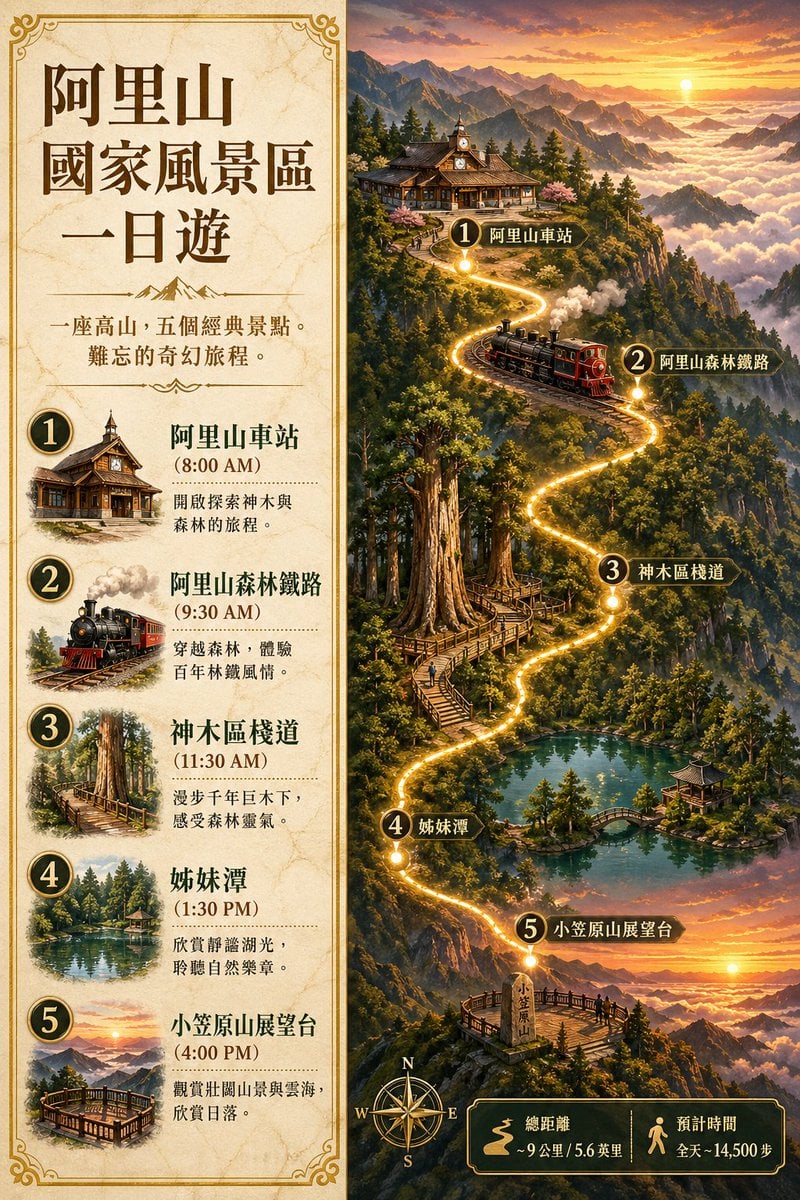
Gpt2 Infographic Edu Visual Alishan One Day Travel Poster

Gpt2 Infographic Edu Visual Ethnographic Plate for Tibetan Ceremonial Hat
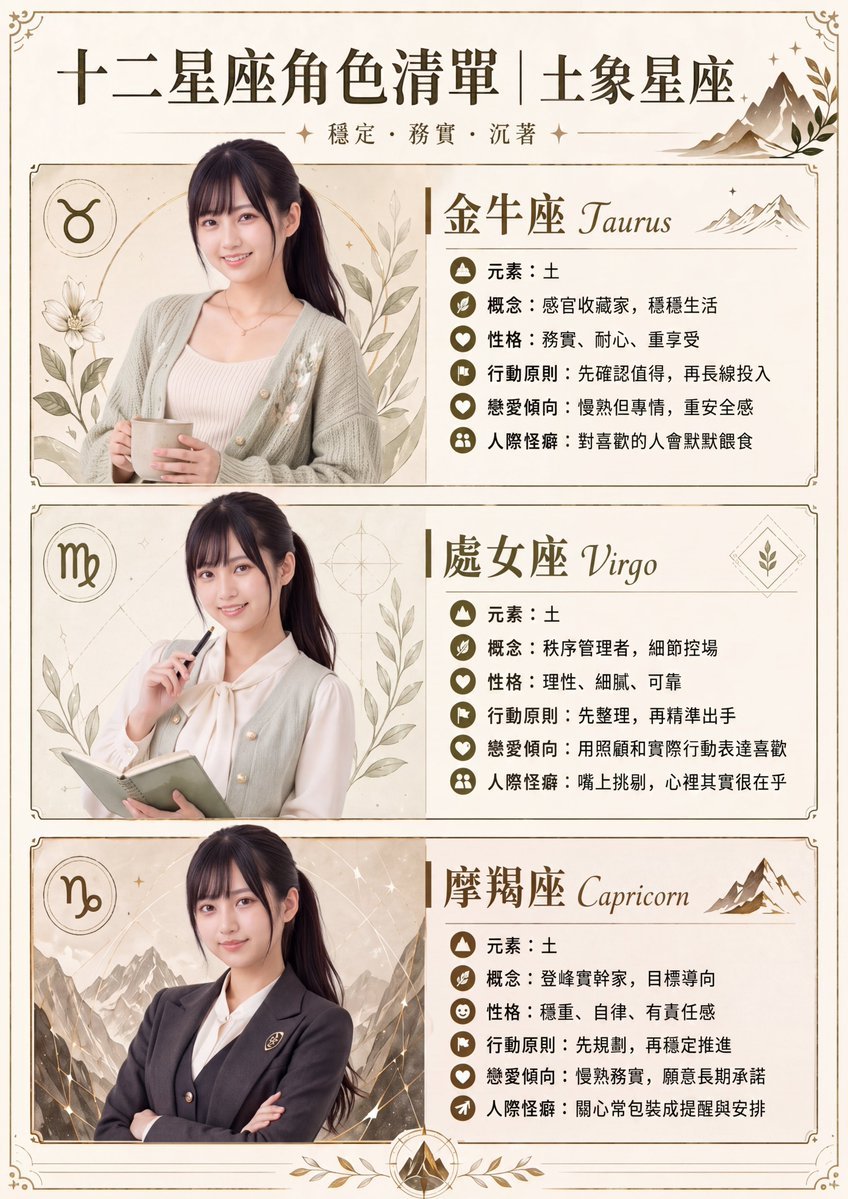
Gpt2 Infographic Edu Visual Earth Signs Zodiac Character Poster
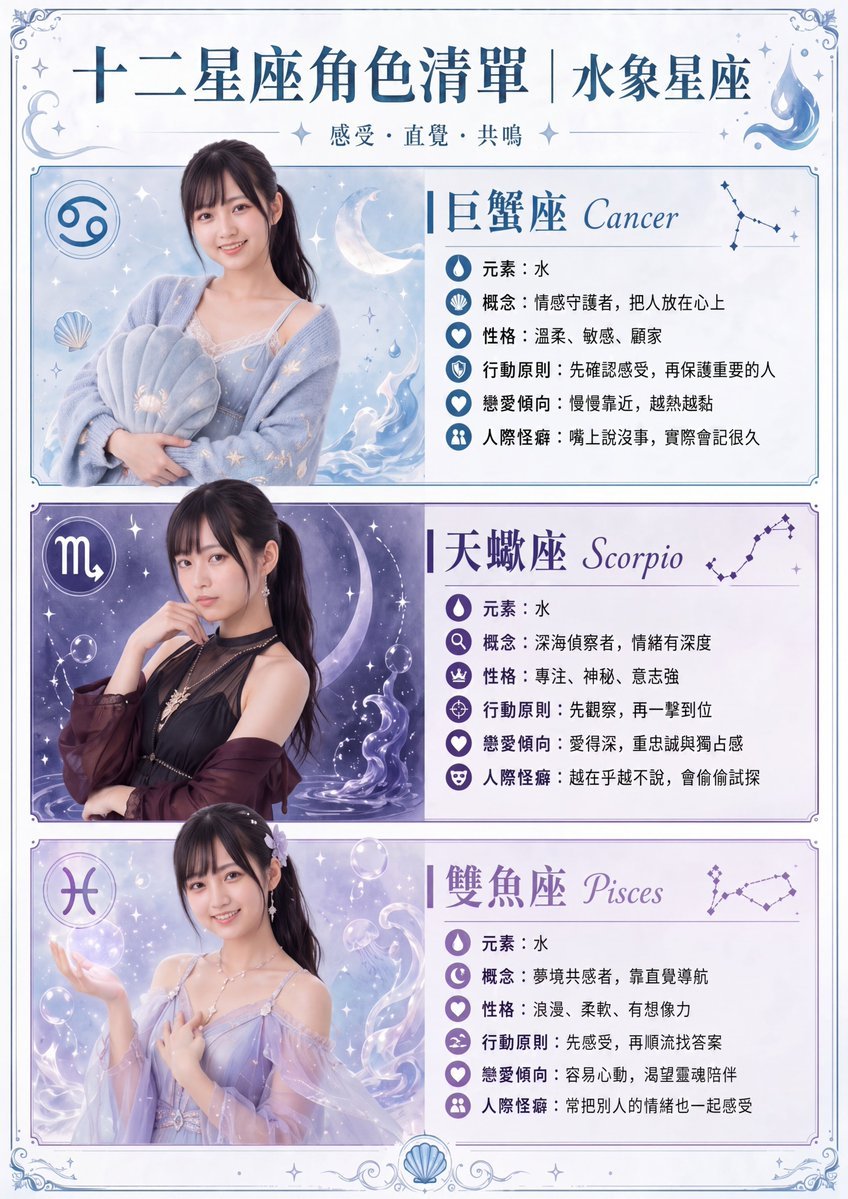
Gpt2 Infographic Edu Visual Water Signs Zodiac Character Poster
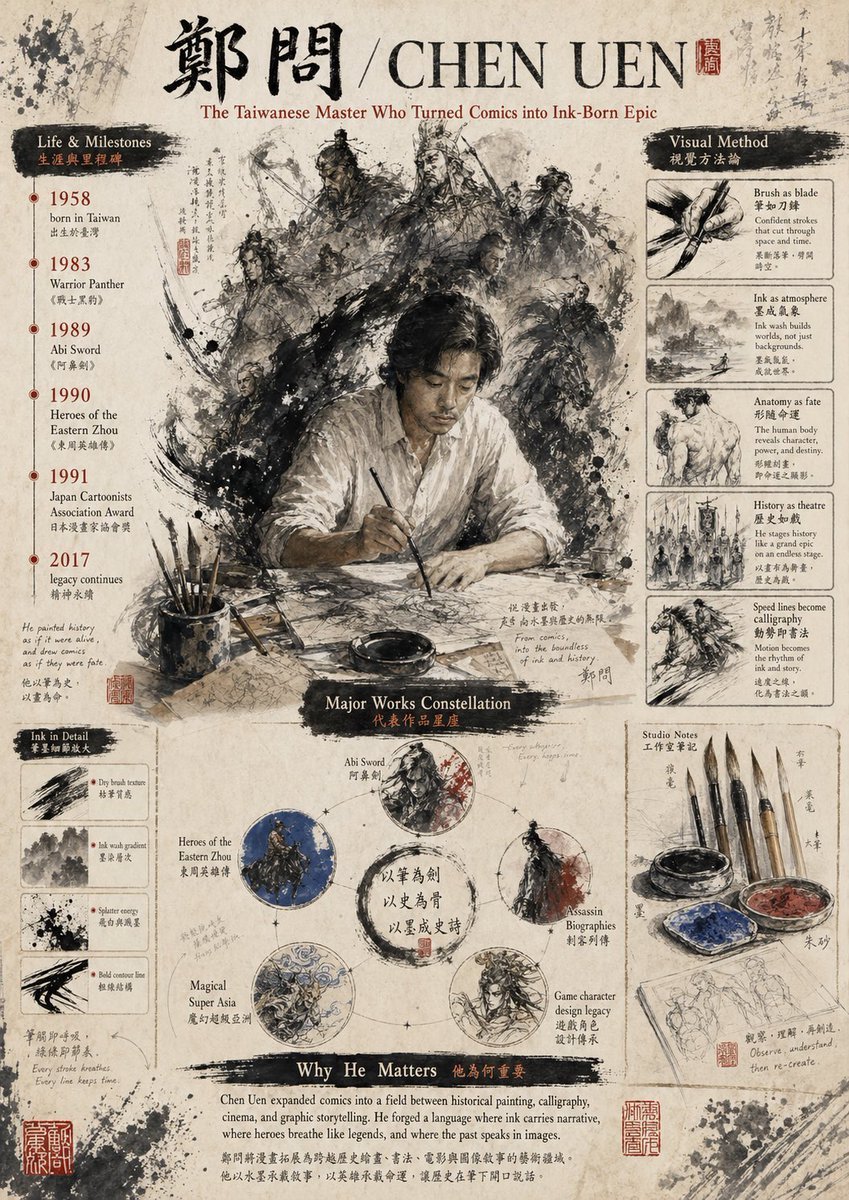
Gpt2 Infographic Edu Visual Ink Wash Tribute Poster for Chen Uen
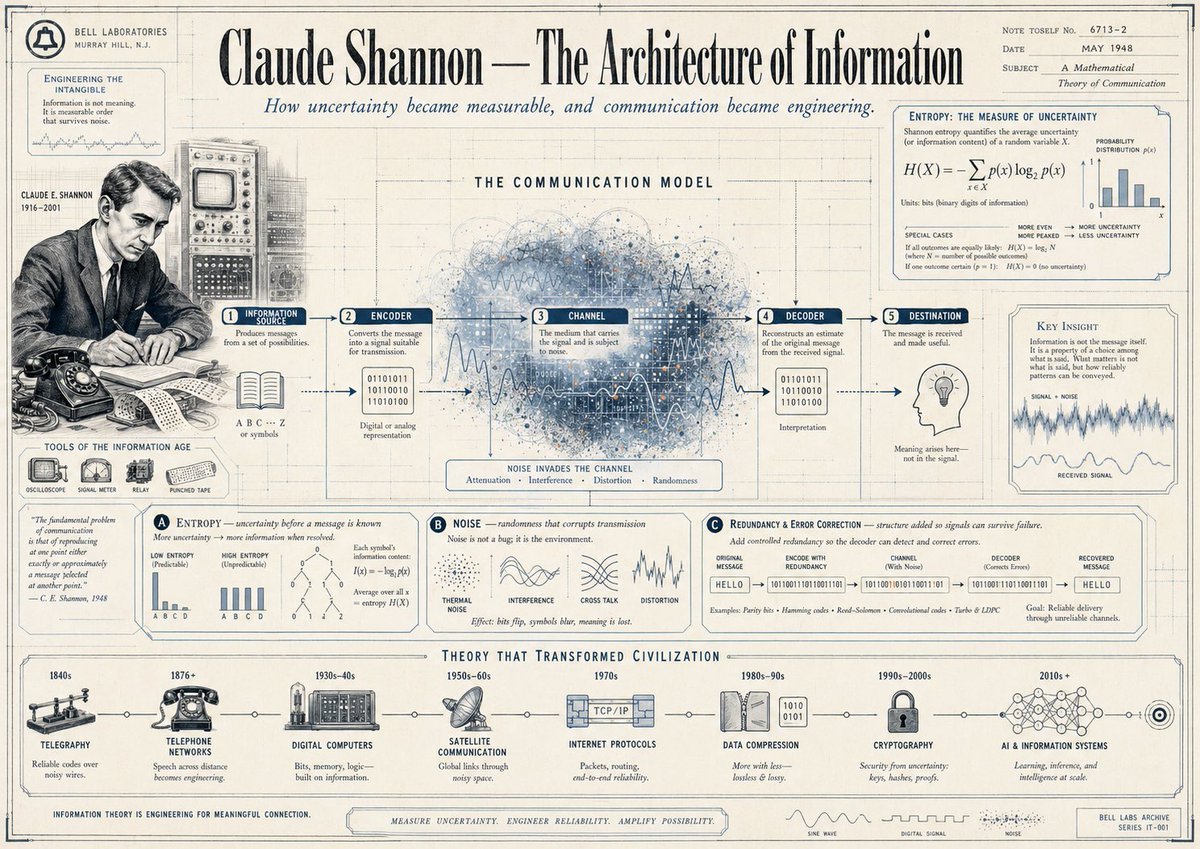
Gpt2 Infographic Edu Visual Vintage Claude Shannon Infographic Poster
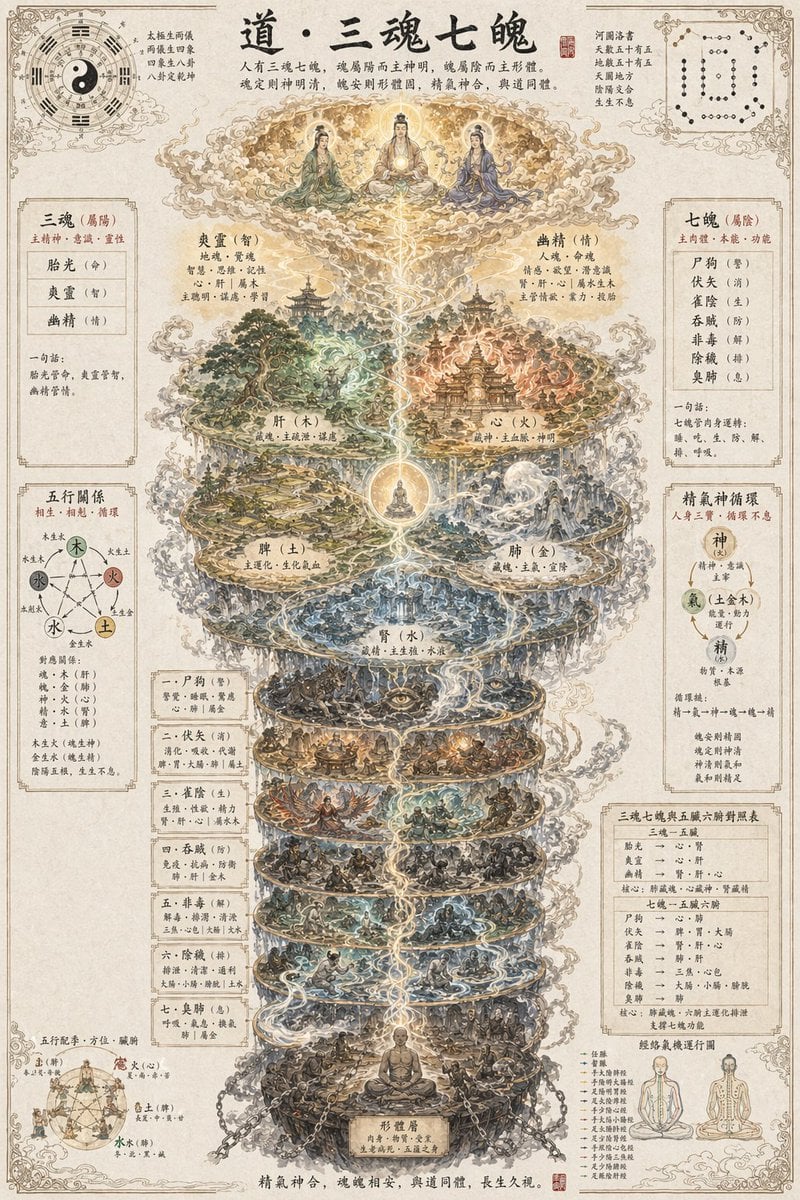
Gpt2 Infographic Edu Visual Taoist Three Souls Seven Po Poster
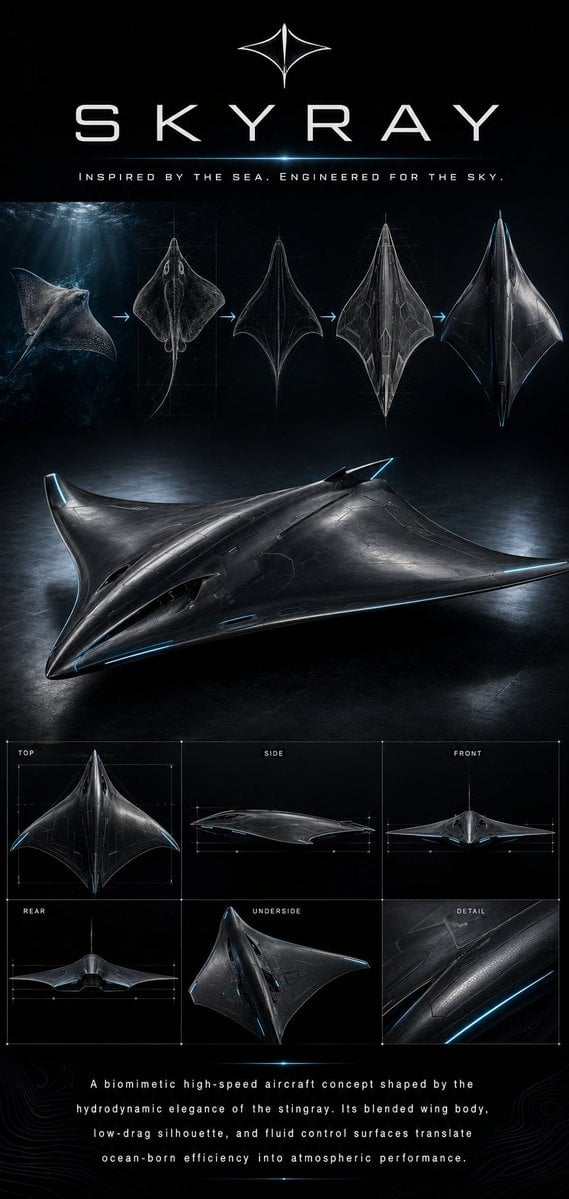
Gpt2 Infographic Edu Visual Biomimetic Skyray Aircraft Poster
Make it yours
AI Agent LP Ecosystem Infographic works as-is. These are the safest ways to change it without losing the look.
Change one field
Copy a single group, rewrite it, and generate again so you can see what that field is doing.
Keep the frame, change the subject
Hold the composition and light of AI Agent LP Ecosystem Infographic, then swap wardrobe, props or the person for a new take.
| If the result… | Why | Fix |
|---|---|---|
| The result drifts from the preview | Too many fields changed at once. | Reuse AI Agent LP Ecosystem Infographic as-is first, then change one group — subject, light, or setting. |
| The model over-stylizes the scene | The prose prompt leaves finish and camera underspecified. | Add one camera or lighting sentence and stay on GPT Image 2. |
More GPT Image 2 templates
Other prompts made for GPT Image 2.

Six VTuber Japanese Logo Sheet

Realistic Portrait of Woman and Deer

The Vista Modular Condo Poster

AI Model Routing Comparison Infographic

2.5D Anime Art Board

Isometric Productivity Desk Scene

New York Double Exposure Poster

Four-Panel AI Landscape Comparison

Japanese Tatami Lifestyle Magazine Cover

NESCAFÉ Coffee Map Poster
More image prompts
Fresh picks from across the catalog.

Dreamy Golden Hour Orange Grove Portrait Prompt

Amateur Apple Store Photography

Cat Groom Garden Wedding Portrait

Retro 70s Coquette Selfie Portrait
Shy Classroom Romance Manga Page

Photorealistic Superhero on Skyscraper Rooftop
Recommended Nano Banana Pro Prompting Strategy for Consistency
UR Ice Priestess Fantasy Card

Spider-Man Bodysuit Mirror Selfie in Luxury Bedroom

Pastel Anime Spring Magazine Cover
Browse template categories
AI Agent LP Ecosystem Infographic questions
How do I use the AI Agent LP Ecosystem Infographic template?
Add your photo if the template asks for one, edit the prompt if you like — the template's model and format are already selected — and press Generate. Your version opens in PicX Studio.
Can I customize the AI Agent LP Ecosystem Infographic template?
Yes. You can change the subject, setting, lighting, mood, format, and available model controls before creating your image.
Is the AI Agent LP Ecosystem Infographic template free?
Opening and editing this template is free. Generating uses credits, shown on the Generate button when you are signed in.
Which AI model should I use?
Start with GPT Image 2, which is the model associated with this template. You can compare another compatible model for a different finish.
Looking for something else? Browse all templates.

Your photo, any look
Thousands of ready templates for every top image and video model, from one credit balance.