
AI Image Degradation Collage
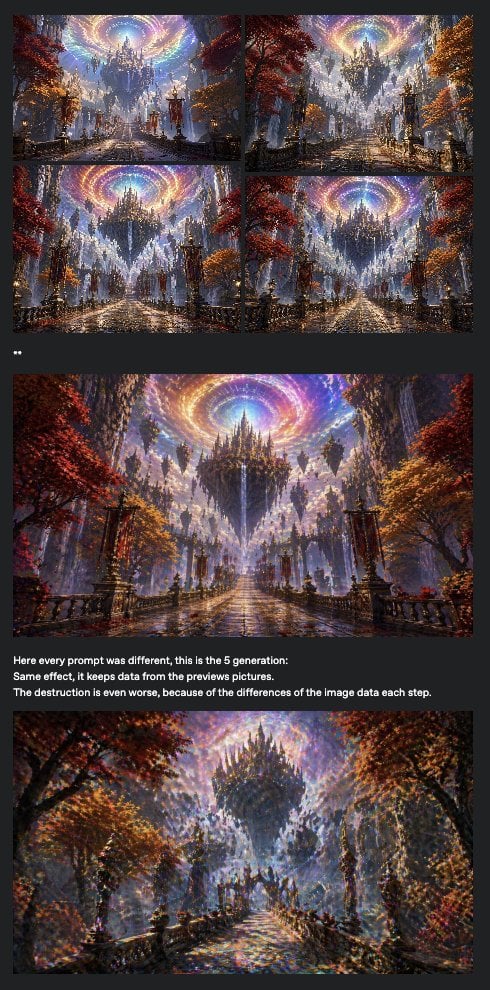
Creates a dark documentary-style collage showing repeated fantasy image generations degrading across a session.
- Prompt included
- Model and format preset
- Free template
The prompt behind this image
Copy the exact prompt behind AI Image Degradation Collage, or open it in the studio and make it yours.
Goal: Create a dark social-media style evidence collage illustrating iterative AI image degradation and repeated pattern accumulation, using a fantasy castle scene as the repeated subject. Canvas: Tall vertical screenshot format, approximately 490 × 957 px, charcoal-black background with narrow margins and a feed-post look. Layout: At the top, place a 2 × 2 grid of exactly 4 small landscape thumbnails with thin dark gutters. Beneath the grid, add a tiny two-character mark that looks like “**” or two small white dots. Below that, place 1 large landscape fantasy image spanning almost the full width. Under the large image, add exactly 3 short lines of white caption text aligned left. At the bottom, place 1 final large landscape fantasy image spanning almost the full width. Total visible image panels: exactly 6, consisting of 4 small thumbnails, 1 middle large panel, and 1 bottom large panel. Fantasy image subject: Each panel should depict a similar epic gothic fantasy avenue leading toward a floating black spired castle or citadel, with wet reflective cobblestone paving, ornate lamp posts and railings, red and orange autumn trees on both sides, misty blue atmospheric depth, waterfalls or vertical light beams, and a luminous swirling rainbow vortex in the sky above the castle. The style should resemble highly detailed digital fantasy concept art with dramatic perspective, painterly lighting, and ornate architecture. Degradation concept: The 4 thumbnails should look very similar to each other, as if the same scene is being regenerated repeatedly. The middle large image should be sharper and grand, but already show repeated texture patterns and overlaid effects. The bottom image should look noticeably degraded: noisy, smeared, oversaturated, speckled, warped details, doubled edges, crunchy textures, and excessive accumulated brush-like artifacts, while still recognizable as the same fantasy castle avenue. Text content: Use exactly these 3 caption lines under the middle image in small bold white sans-serif text: “Here every prompt was different, this is the 5 generation:” “Same effect, it keeps data from the previous pictures.” “The destruction is even worse, because of the differences of the image data each step.” Visual style: Dark UI screenshot aesthetic, no decorative border, compact spacing, high contrast white text, images cropped as landscape rectangles. Make the collage feel like a forum or tweet screenshot documenting a model failure. Customizable details: Use {argument name="main scene" default="floating gothic castle avenue under a rainbow vortex"}, {argument name="caption line one" default="Here every prompt was different, this is the 5 generation:"}, {argument name="caption line two" default="Same effect, it keeps data from the previous pictures."}, {argument name="caption line three" default="The destruction is even worse, because of the differences of the image data each step."}, and {argument name="background color" default="charcoal black"}.
How to use AI Image Degradation Collage in 3 steps
- 1Upload ImagePNG, JPG or paste
Add your photo
Upload the photo the template builds on. The prompt, model and format are already set.
- 2…a portrait of your subject in softgolden-hour light, 85mm…
Personalize
Edit the subject and creative details for your destination.
- 3Generate
Generate
Press Generate — your image is created in PicX Studio, so you can compare it with the original and refine one variable at a time.
More like this
Templates with the same subject, style or setup. Open one to see its prompt.



Make it yours
AI Image Degradation Collage works as-is. These are the safest ways to change it without losing the look.
Change one field
Copy a single group, rewrite it, and generate again so you can see what that field is doing.
Keep the frame, change the subject
Hold the composition and light of AI Image Degradation Collage, then swap wardrobe, props or the person for a new take.
| If the result… | Why | Fix |
|---|---|---|
| The result drifts from the preview | Too many fields changed at once. | Reuse AI Image Degradation Collage as-is first, then change one group — subject, light, or setting. |
| The model over-stylizes the scene | The prose prompt leaves finish and camera underspecified. | Add one camera or lighting sentence and stay on GPT Image 2. |
More GPT Image 2 templates
Other prompts made for GPT Image 2.

Six VTuber Japanese Logo Sheet

Realistic Portrait of Woman and Deer

The Vista Modular Condo Poster

AI Model Routing Comparison Infographic

2.5D Anime Art Board

Isometric Productivity Desk Scene

New York Double Exposure Poster

Four-Panel AI Landscape Comparison

Japanese Tatami Lifestyle Magazine Cover

NESCAFÉ Coffee Map Poster
More image prompts
Fresh picks from across the catalog.

Old Shanghai Fusion Poster
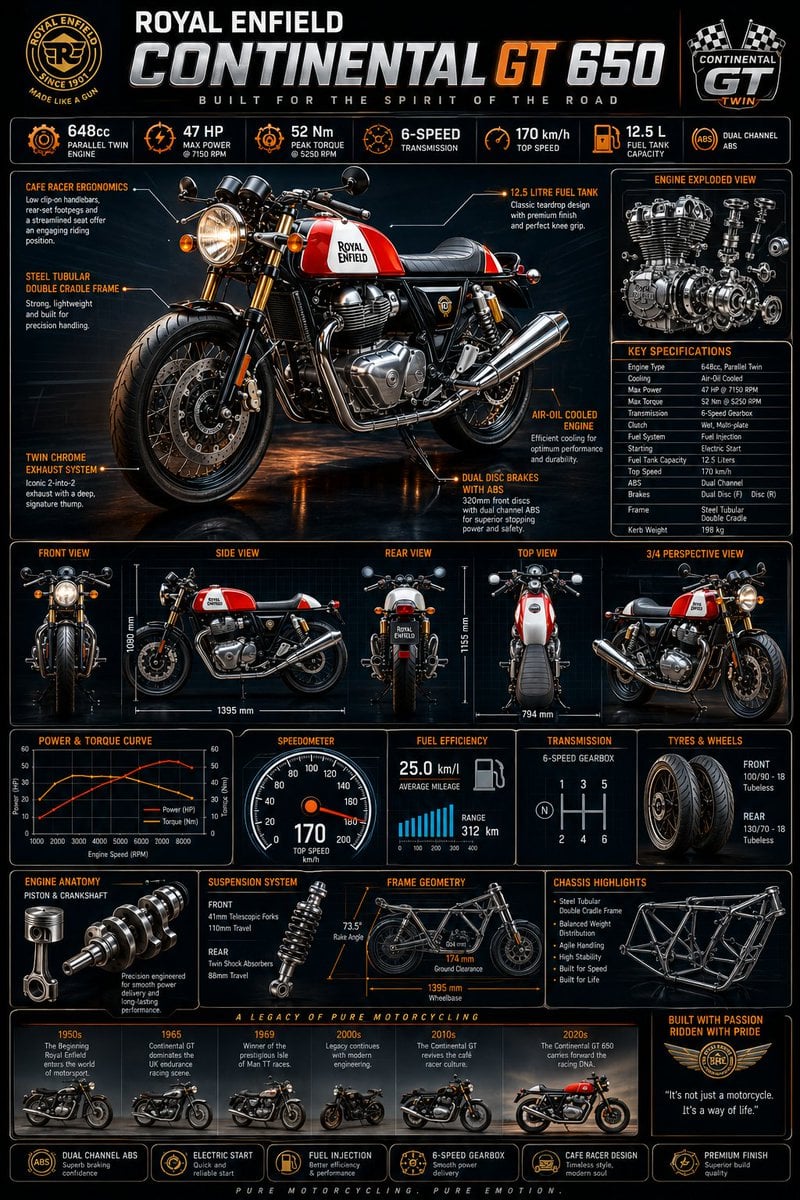
Motorcycle Engineering Infographic Poster
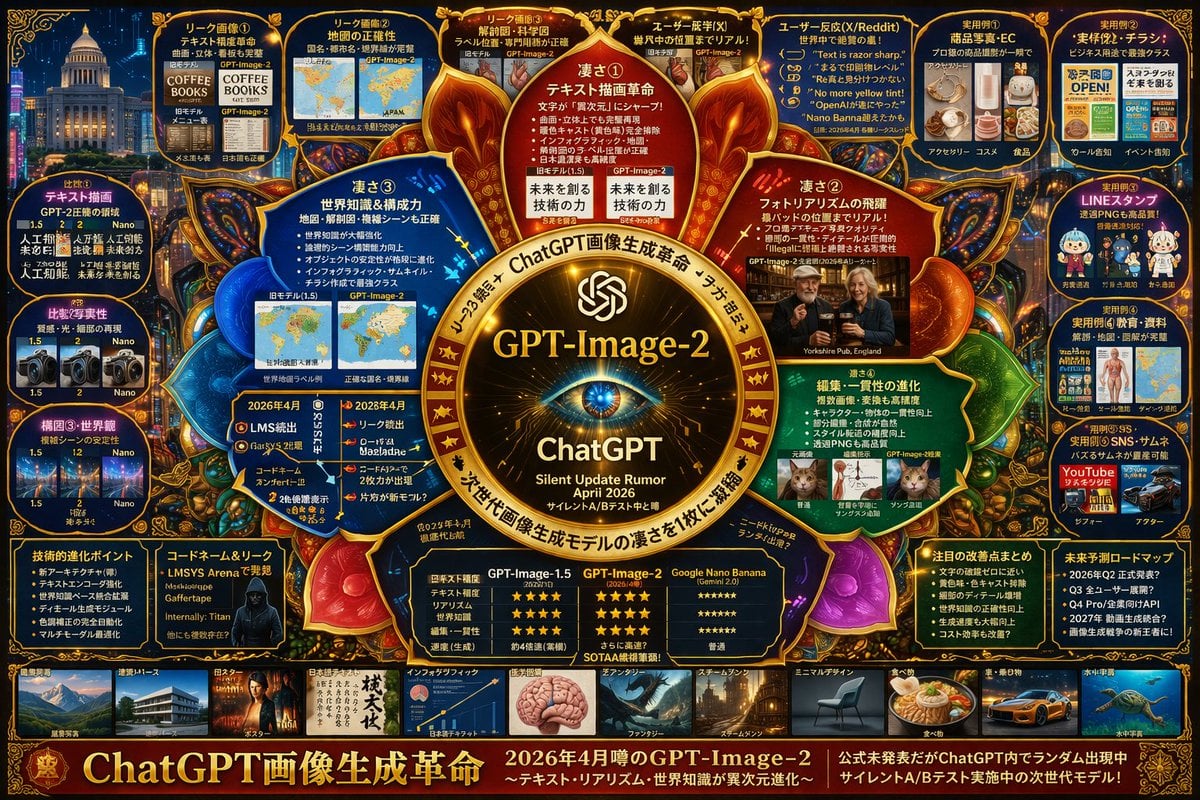
Complex Tech Speculation Infographic
Cyberpunk Neon Street Food Advertisement Prompt
Ultra-Realistic Mediterranean Couple Portrait Prompt
Photorealistic Watermelon Fruit Carving Prompt
K-Pop Idol Stage Portrait

Censored Bedroom Lifestyle Portrait
Mediterranean Luxury Editorial

Water Vs Thunder Breathing Anime Battle
Browse template categories
AI Image Degradation Collage questions
How do I use the AI Image Degradation Collage template?
Add your photo if the template asks for one, edit the prompt if you like — the template's model and format are already selected — and press Generate. Your version opens in PicX Studio.
Can I customize the AI Image Degradation Collage template?
Yes. You can change the subject, setting, lighting, mood, format, and available model controls before creating your image.
Is the AI Image Degradation Collage template free?
Opening and editing this template is free. Generating uses credits, shown on the Generate button when you are signed in.
Which AI model should I use?
Start with GPT Image 2, which is the model associated with this template. You can compare another compatible model for a different finish.
Looking for something else? Browse all templates.

Your photo, any look
Thousands of ready templates for every top image and video model, from one credit balance.