
Burj Khalifa Technical Sketch and Real Photo Comparison
A structured prompt for generating a mixed-media comparison image, splitting the frame horizontally between a detailed technical architectural sketch of the Burj Khalifa (with measurements) and a high-resolution real…
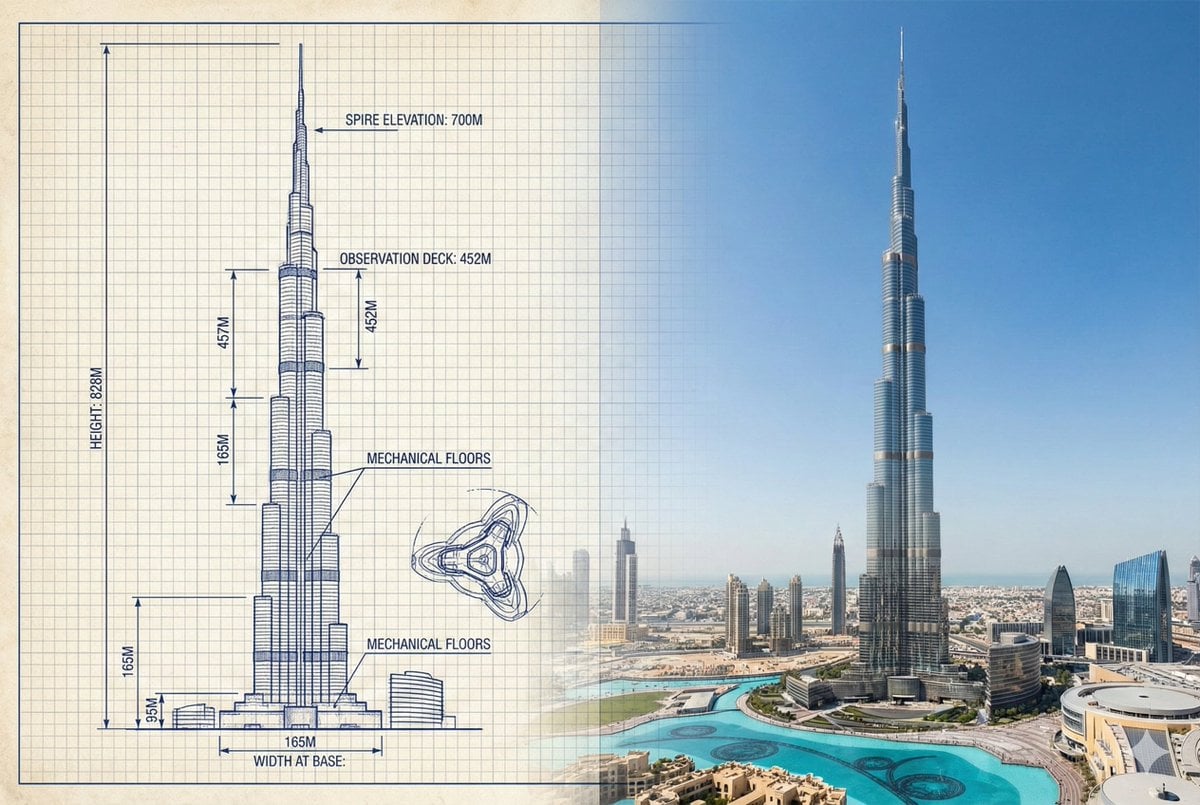
- Prompt included
- Model and format preset
- Free template
The prompt behind this image
Copy the exact prompt behind Burj Khalifa Technical Sketch and Real Photo Comparison, or open it in the studio and make it yours.
- Objective
- Create a side-by-side comparison image featuring a technical sketch and real photograph of the Burj Khalifa
- Image Specifications › Style
- Mixed media (Technical drawing + Real photograph)
- Image Specifications › Layout
- Horizontal split - Left side: Sketch with measurements, Right side: Real photo
- Image Specifications › Aspect Ratio
- 3:2
- Left Side › Content Type
- Technical sketch of the Burj Khalifa
- Left Side › Features
- Detailed architectural lines showing tiered setbacks, Numerical height and width measurements, Elevation labels for different tower sections, Side and front elevation views (top-down projection if space allows)
- Left Side › Text Annotations › Units
- Metric (meters)
- Left Side › Text Annotations › Language
- English
- Left Side › Text Annotations › Font Style
- Blueprint or engineering-style typography
- Left Side › Positioning
- Take up the left half of the image
- Right Side › Content Type
- High-resolution real photo of the Burj Khalifa
- Right Side › Features
- Full view of the tower from base to spire, Natural daylight with clear sky, Color image with Dubai skyline or Downtown Dubai context
- Right Side › Positioning
- Take up the right half of the image
- Visual Elements › Border Division
- Vertical line or subtle transition between left (sketch) and right (photo)
- Visual Elements › Color Palette › Left
- Monochrome or blueprint blue for sketch
- Visual Elements › Color Palette › Right
- Natural realistic colors
- Output Format › Type
- Image
- Output Format › Use Case
- Educational poster, Architectural comparison, Engineering visualization, Tourism visual aid
- Output Format › High Resolution
- true
Raw JSON
{
  "objective": "Create a side-by-side comparison image featuring a technical sketch and real photograph of the Burj Khalifa",
  "image_specifications": {
    "style": "Mixed media (Technical drawing + Real photograph)",
    "layout": "Horizontal split - Left side: Sketch with measurements, Right side: Real photo",
    "aspect_ratio": "3:2"
  },
  "left_side": {
    "content_type": "Technical sketch of the Burj Khalifa",
    "features": [
      "Detailed architectural lines showing tiered setbacks",
      "Numerical height and width measurements",
      "Elevation labels for different tower sections",
      "Side and front elevation views (top-down projection if space allows)"
    ],
    "text_annotations": {
      "units": "Metric (meters)",
      "language": "English",
      "font_style": "Blueprint or engineering-style typography"
    },
    "positioning": "Take up the left half of the image"
  },
  "right_side": {
    "content_type": "High-resolution real photo of the Burj Khalifa",
    "features": [
      "Full view of the tower from base to spire",
      "Natural daylight with clear sky",
      "Color image with Dubai skyline or Downtown Dubai context"
    ],
    "positioning": "Take up the right half of the image"
  },
  "visual_elements": {
    "border_division": "Vertical line or subtle transition between left (sketch) and right (photo)",
    "color_palette": {
      "left": "Monochrome or blueprint blue for sketch",
      "right": "Natural realistic colors"
    }
  },
  "output_format": {
    "type": "Image",
    "use_case": ["Educational poster", "Architectural comparison", "Engineering visualization", "Tourism visual aid"],
    "high_resolution": true
  }
}How to use Burj Khalifa Technical Sketch and Real Photo Comparison in 3 steps
- 1
Open
The prompt is already in the box next to the preview, with the template's model and format selected.
- 2…a portrait of your subject in softgolden-hour light, 85mm…
Personalize
Edit the subject and creative details for your destination.
- 3Generate
Generate
Press Generate — your image is created in PicX Studio, so you can compare it with the original and refine one variable at a time.
More like this
Templates with the same subject, style or setup. Open one to see its prompt.
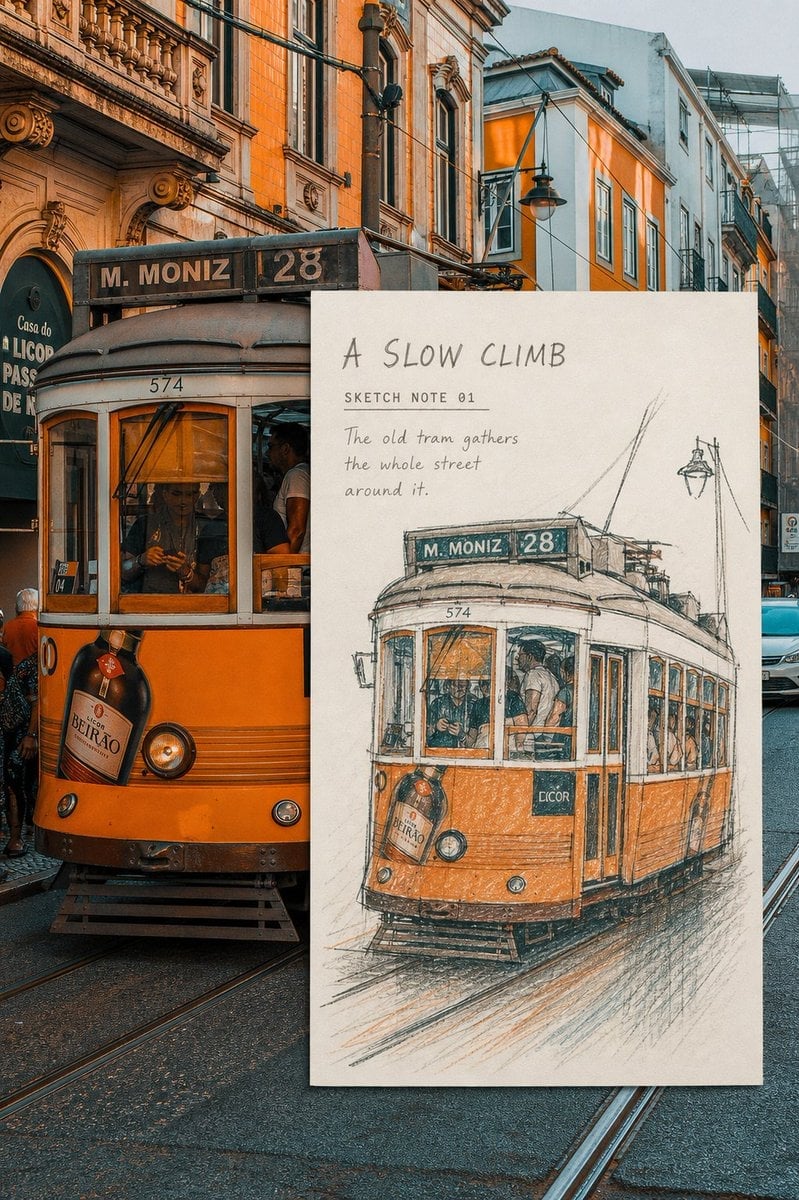
Real-Scene Inset Sketch Poster
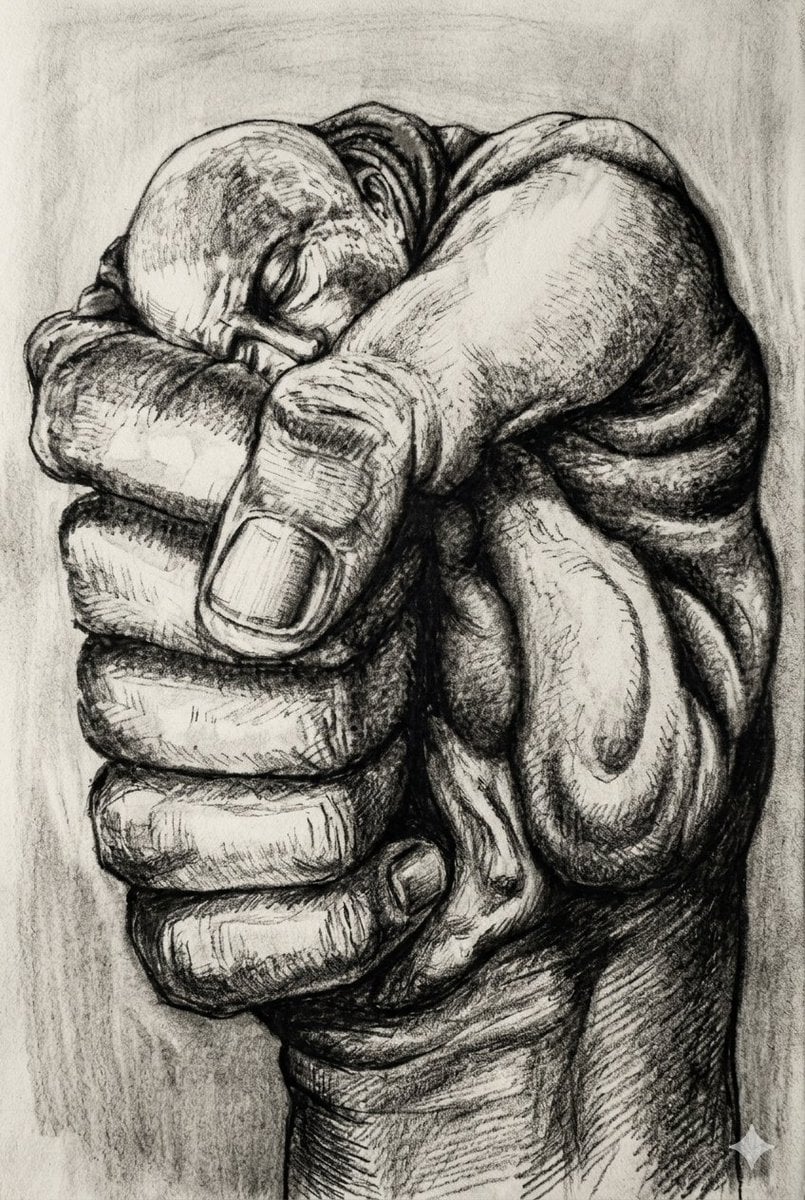
Surreal Charcoal Fist Sketch
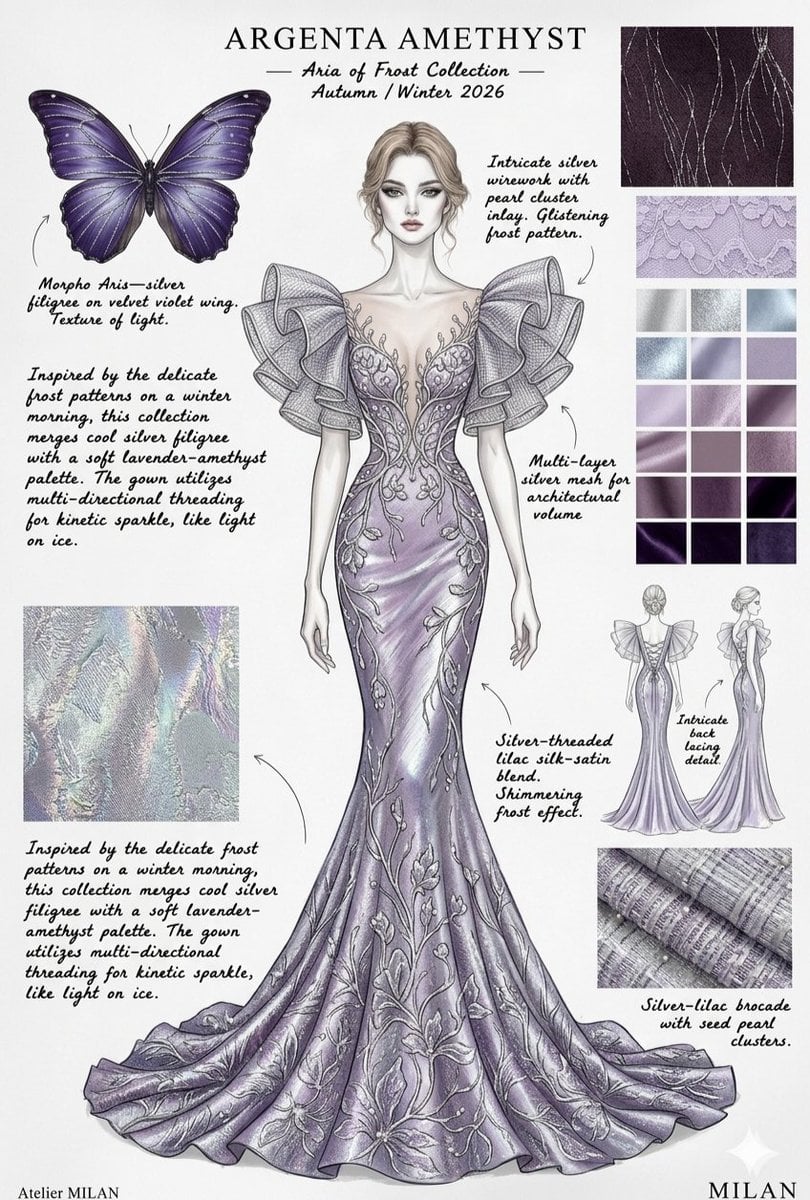
Ethereal Butterfly Couture Sketches
Sketch to Realistic Color Photo Transformation
Japanese Café Sketch Duo Illustration
Delicate Japanese Café Lifestyle Illustration

Isometric Vehicle Teardown Infographic Template

Burj Khalifa Epic Infographic Poster
Futuristic Holographic Burj Khalifa Blueprint
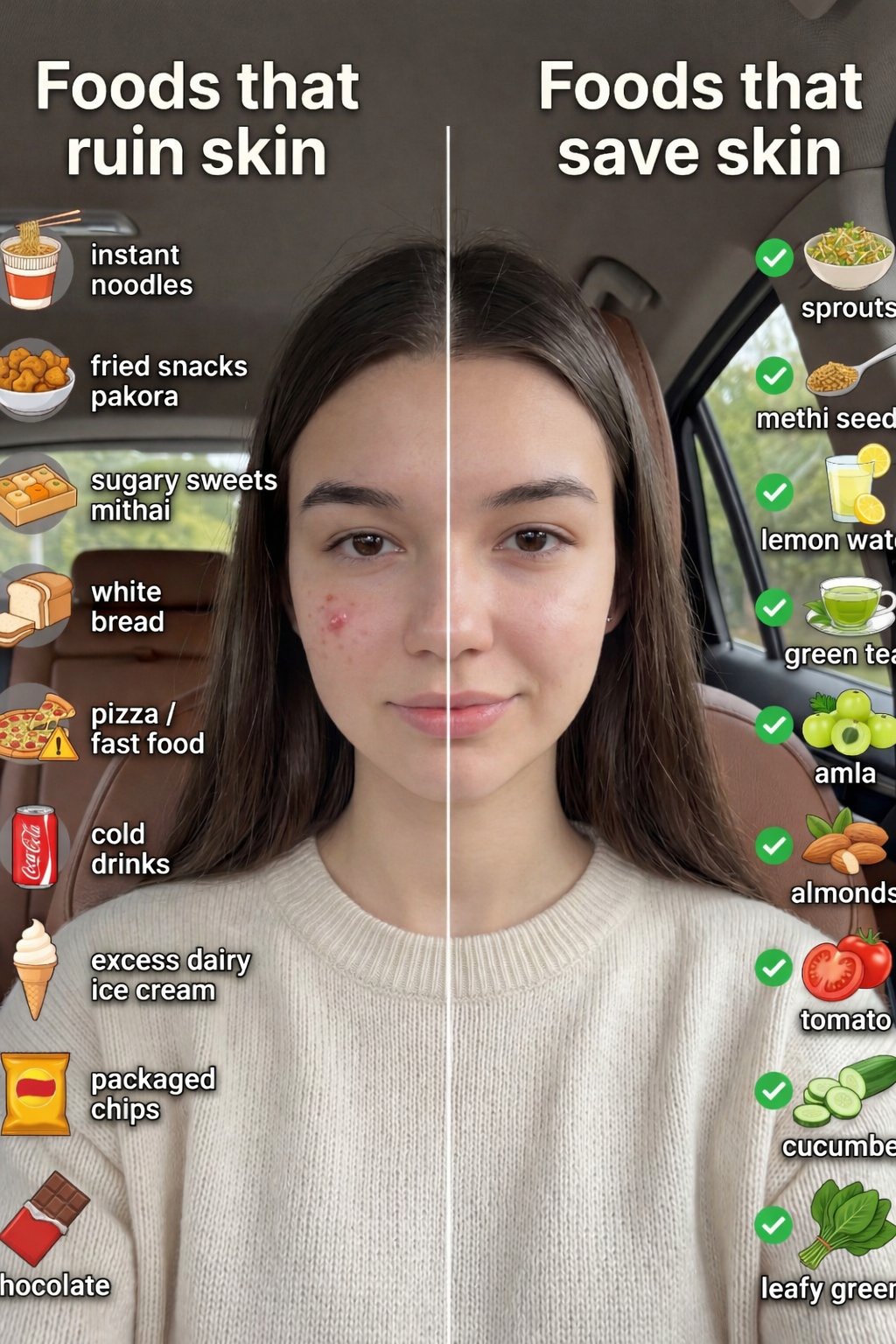
Skin Comparison Portrait — Nano Banana Pro
UGC Skincare Review - Seedance 2.0
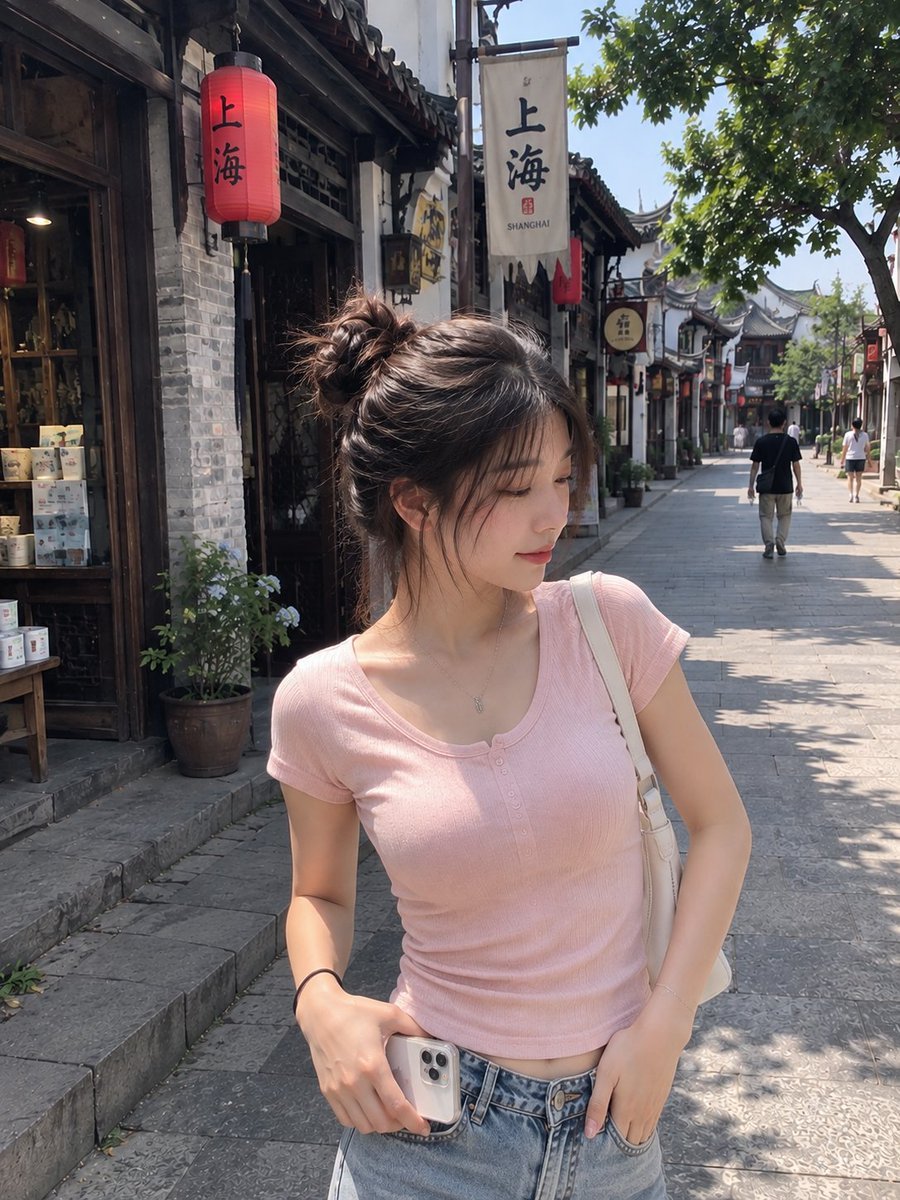
Realistic Chinese Street Smartphone Photo
Make it yours
Burj Khalifa Technical Sketch and Real Photo Comparison works as-is. These are the safest ways to change it without losing the look.
Change one field
Copy a single group, rewrite it, and generate again so you can see what that field is doing.
Keep the frame, change the subject
Hold the composition and light of Burj Khalifa Technical Sketch and Real Photo Comparison, then swap wardrobe, props or the person for a new take.
| If the result… | Why | Fix |
|---|---|---|
| The result drifts from the preview | Too many fields changed at once. | Reuse Burj Khalifa Technical Sketch and Real Photo Comparison as-is first, then change one group — subject, light, or setting. |
| Nano Banana 2 ignores part of the JSON | Some models flatten or skip nested keys. | Keep the same values and paste them as a short paragraph instead. |
More Nano Banana 2 templates
Other prompts made for Nano Banana 2.

Photorealistic Leaf Shaped Like a Dragon

K-Pop Idol Portrait Grid for Rapid Selection

Poetic Rain Forest Portrait During Golden Hour

Urban Street Portrait with Cartoon Inner Self Duo

Candid Nighttime Photo with Cat Prompt

High-Concept 3D Diorama Generation Prompt

Cinematic Futuristic Studio Portrait Template

Skincare Editorial Photography Collage Prompt

Hyper-Realistic Commercial Product Photography (Splash Effect)

Hyper-Realistic Nightclub Portrait Prompt
More image prompts
Fresh picks from across the catalog.
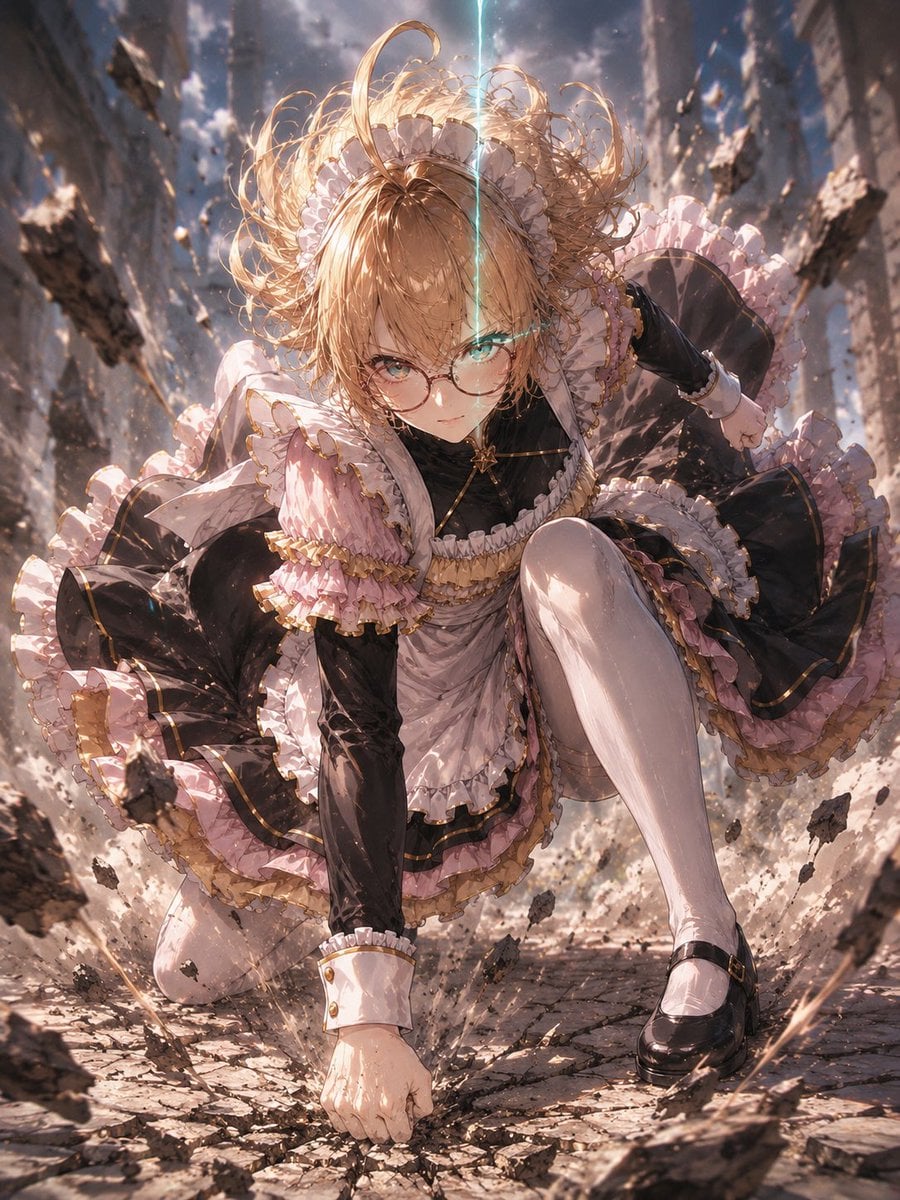
Gothic Maid Superhero Landing
Minimalist Editorial Illustration Prompt
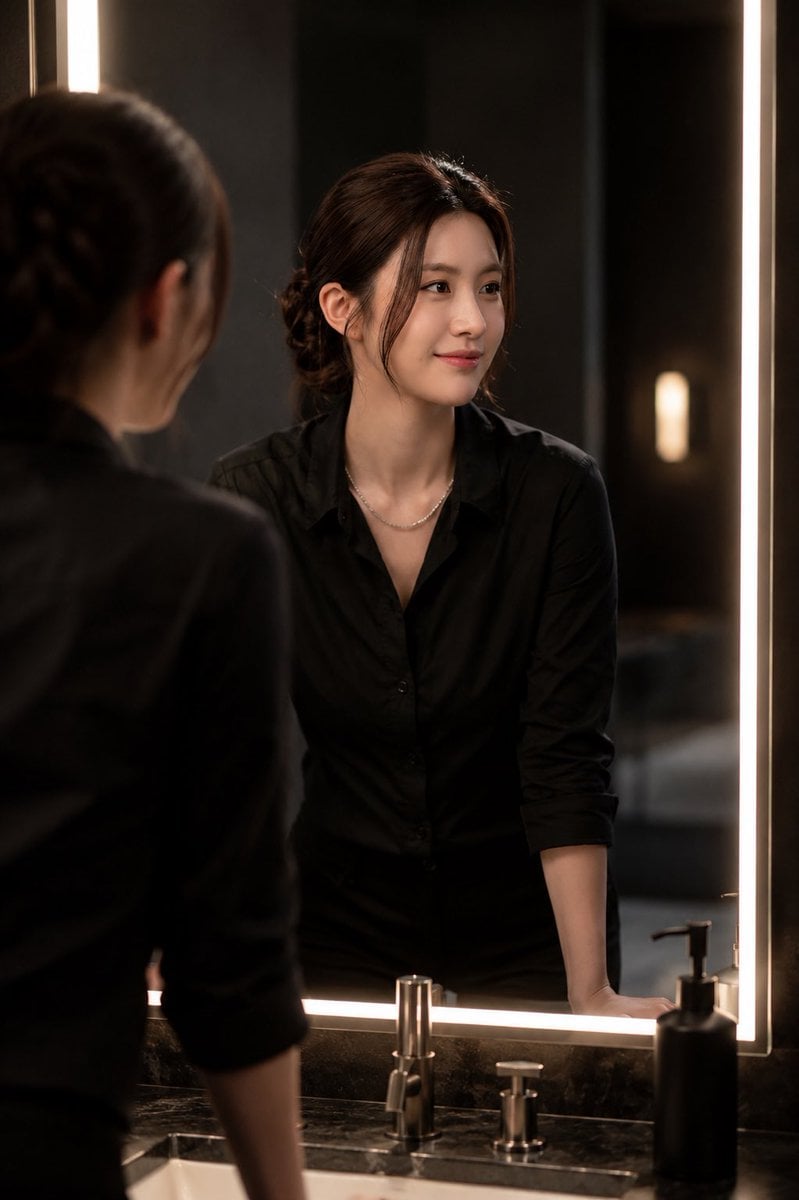
Ultra-Realistic Portrait in Cinematic Bathroom Lighting
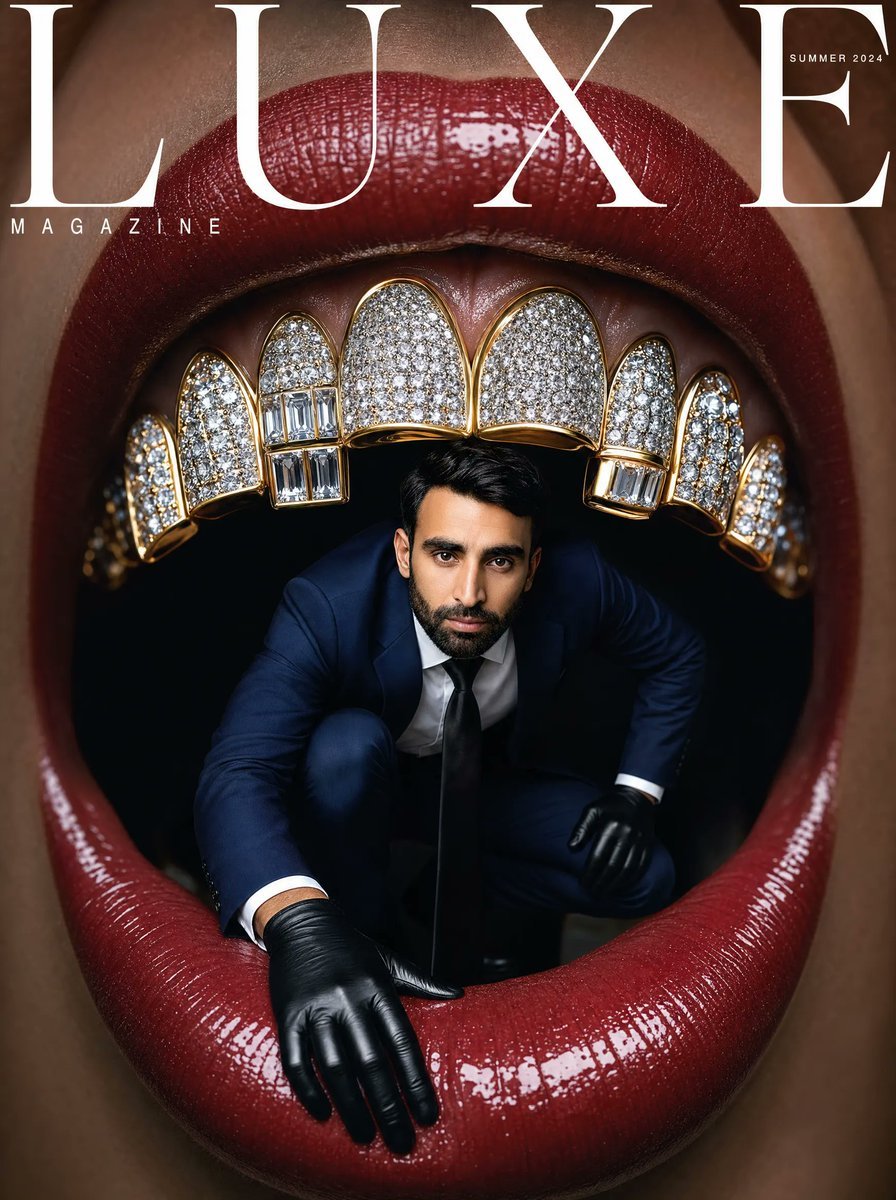
Surreal Luxe Mouth Magazine Cover

Natural Language Prompt for Kawaii Starfish in Custom Chibi Style

Ultra-realistic Portrait with Miniature Cartoon Self
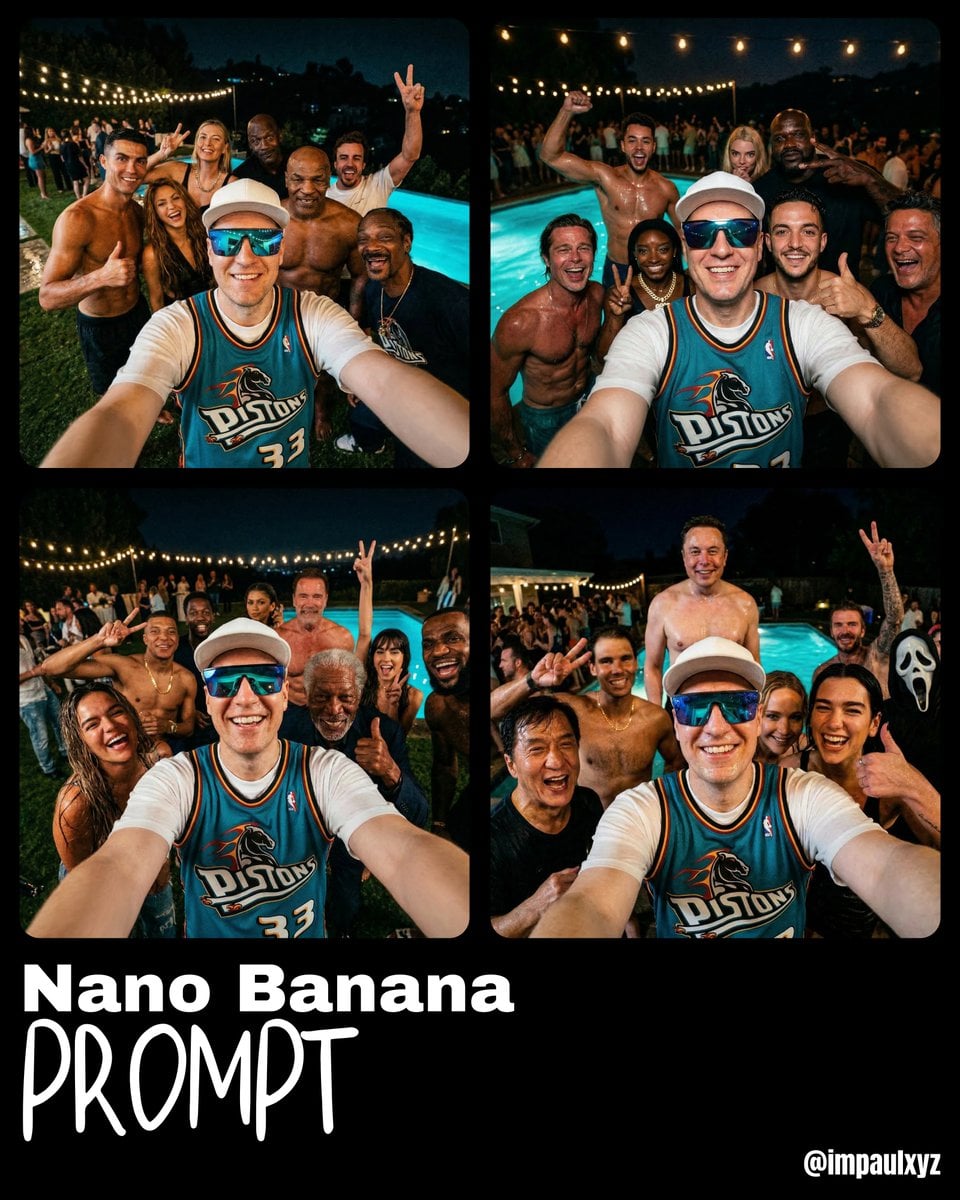
Monday Morning Photo Discovery Prompt
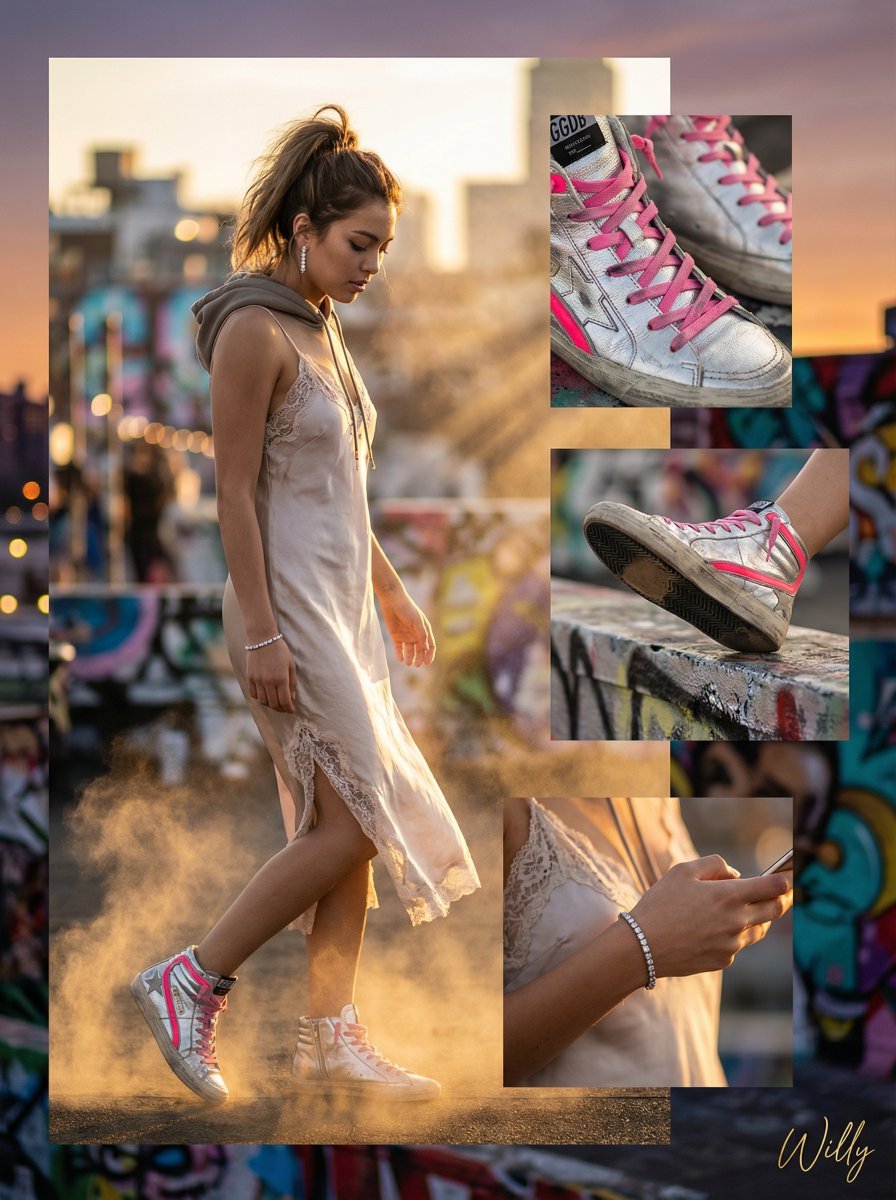
Luxury Streetwear Instagram Feed Composite
Overhead View of Saturday Morning Activity Prompt

Meme to Ultra-Realistic Image Prompt
Browse template categories
Burj Khalifa Technical Sketch and Real Photo Comparison questions
How do I use the Burj Khalifa Technical Sketch and Real Photo Comparison template?
Add your photo if the template asks for one, edit the prompt if you like — the template's model and format are already selected — and press Generate. Your version opens in PicX Studio.
Can I customize the Burj Khalifa Technical Sketch and Real Photo Comparison template?
Yes. You can change the subject, setting, lighting, mood, format, and available model controls before creating your image.
Is the Burj Khalifa Technical Sketch and Real Photo Comparison template free?
Opening and editing this template is free. Generating uses credits, shown on the Generate button when you are signed in.
Which AI model should I use?
Start with Nano Banana 2, which is the model associated with this template. You can compare another compatible model for a different finish.
Looking for something else? Browse all templates.

Your photo, any look
Thousands of ready templates for every top image and video model, from one credit balance.