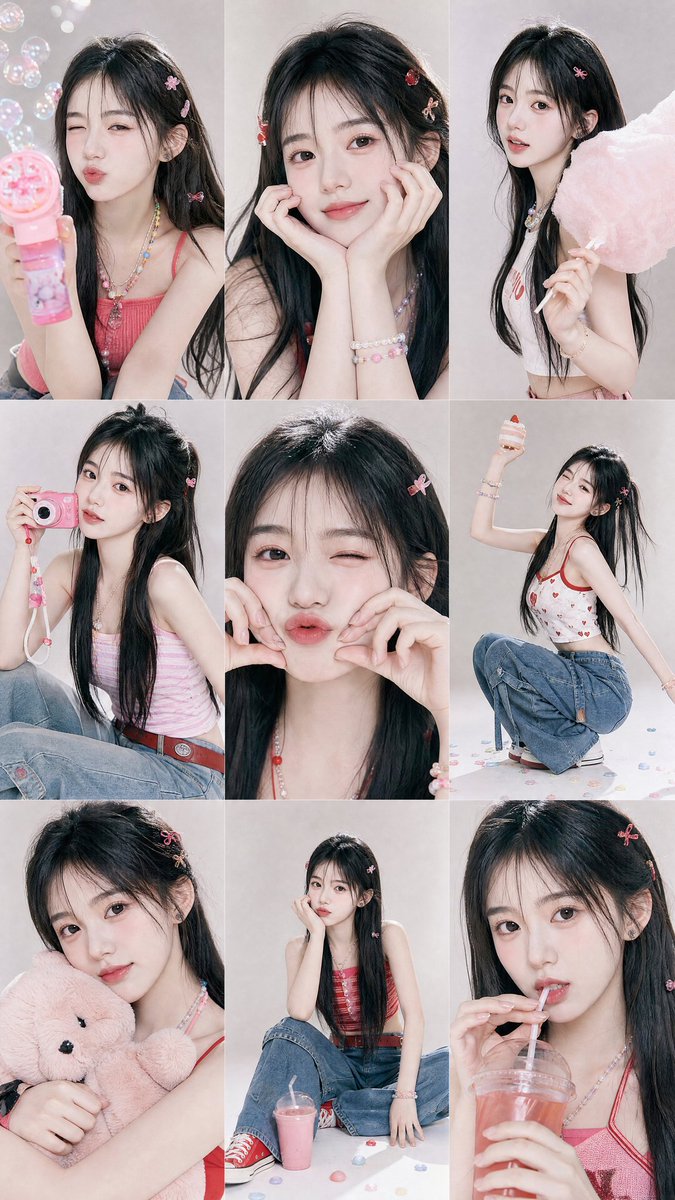
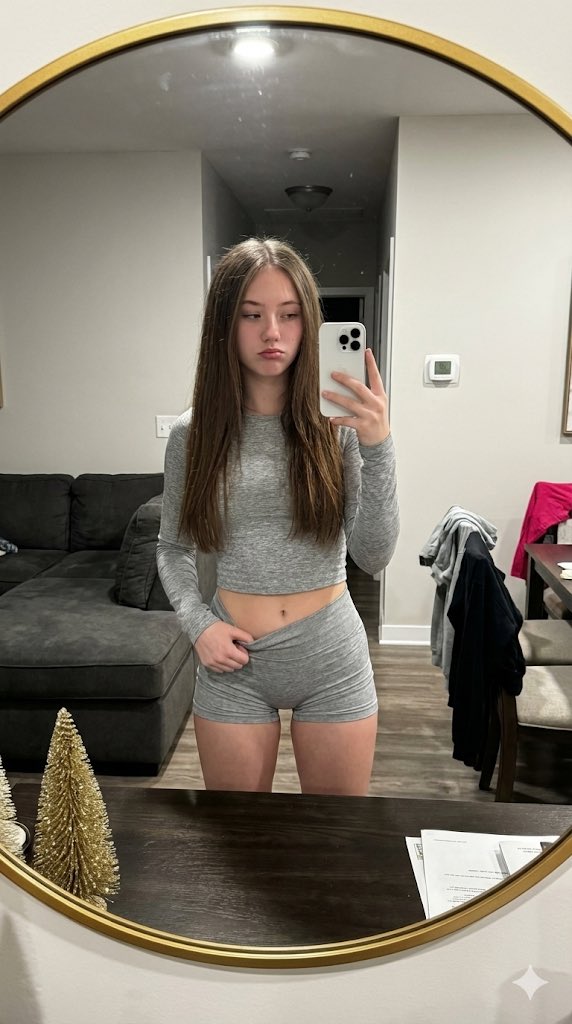
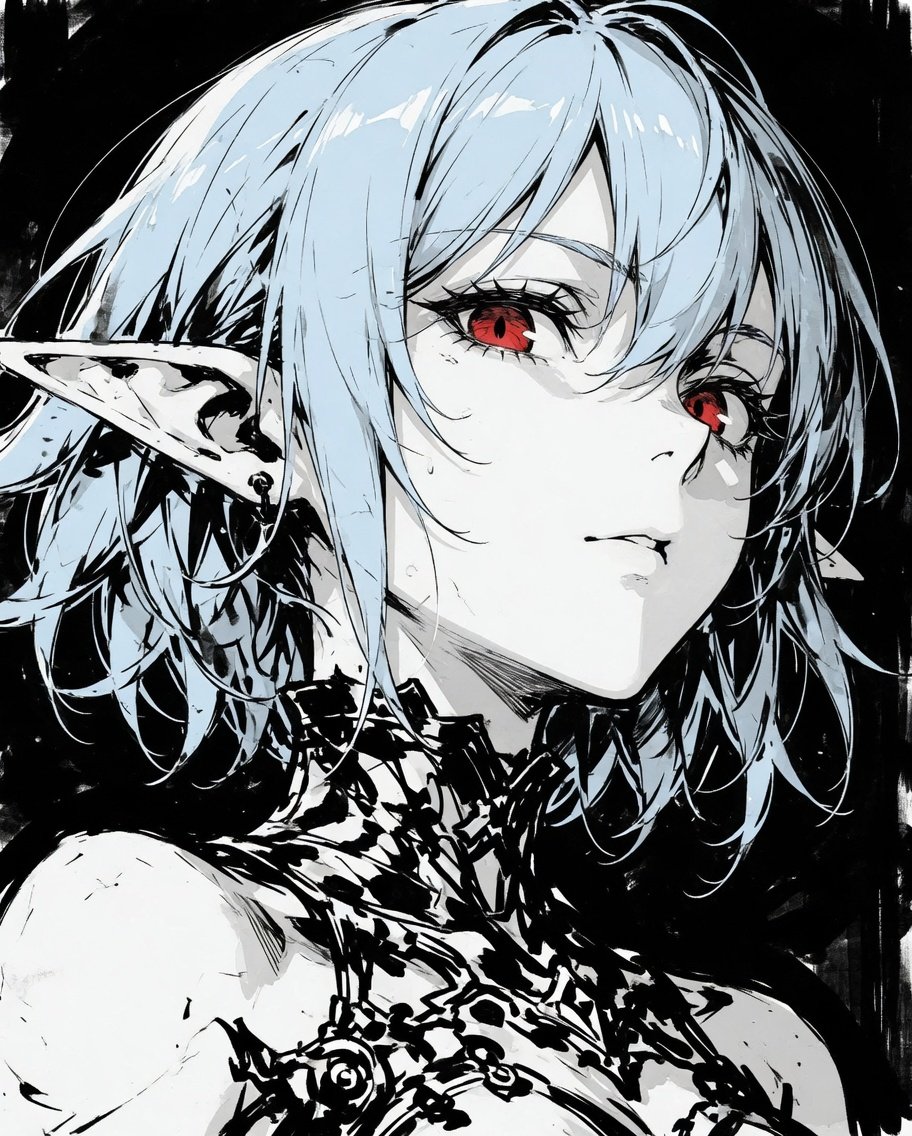
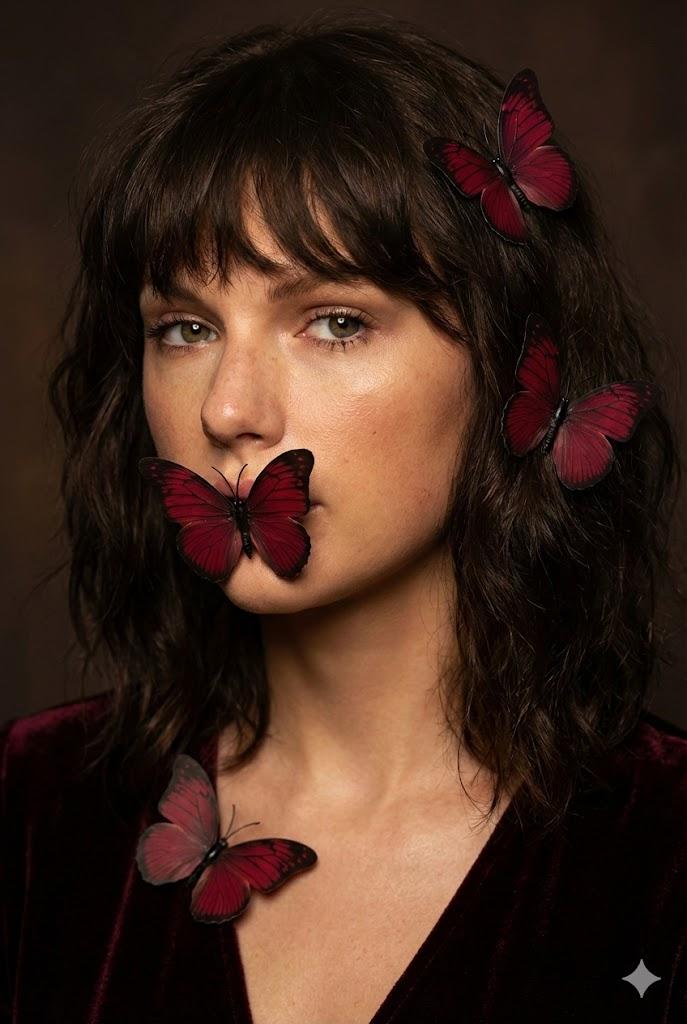
How do I use the HUD battle power overlay for any character image template?
Choose the primary action to open PicX Studio with the available template settings. Review the model and format, personalize the creative direction, and generate when ready.
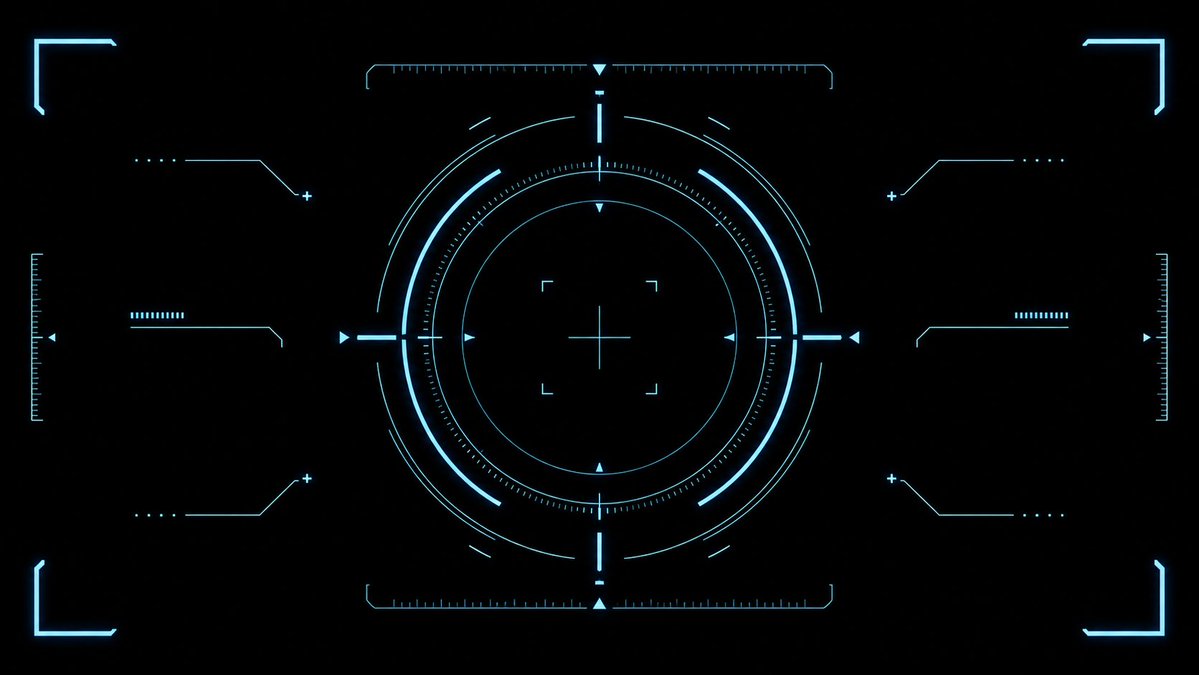
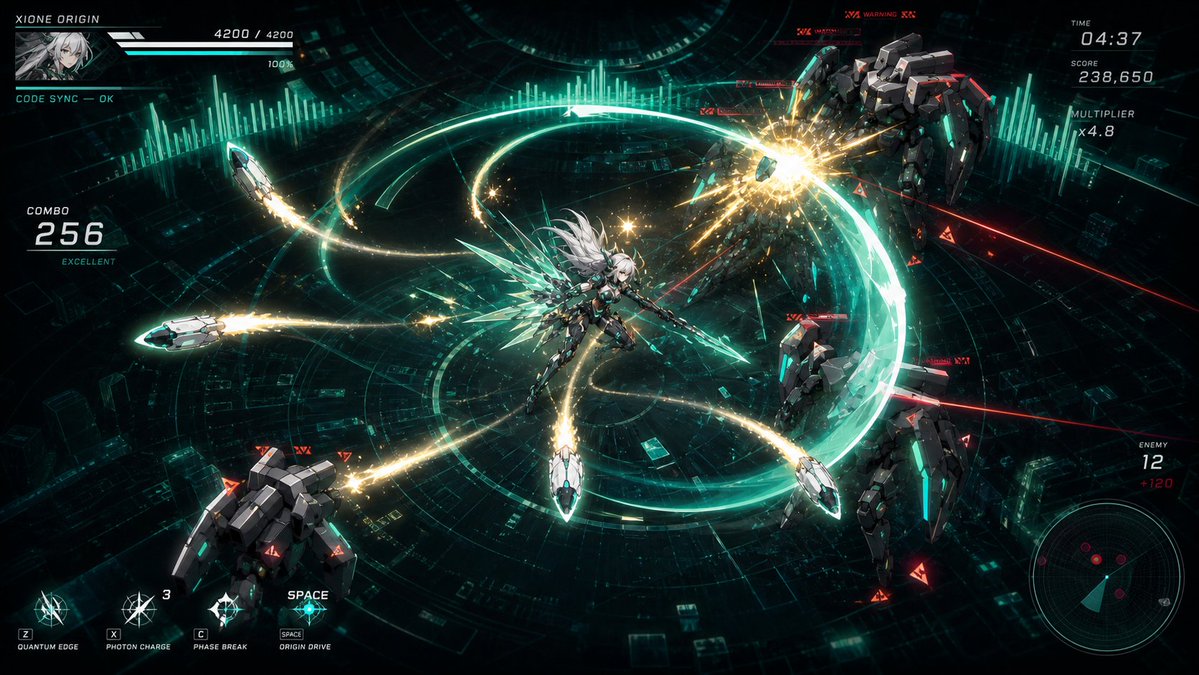
A two-part setup: a first line to set the HUD color and a core task prompt that overlays a full-screen scouter-style analysis HUD with a battle power value chosen by Nano Banana Pro from the image’s impression. Change the subject, setting, or lighting one variable at a time.

Use blue HUD color. task: "edit-image: add full-screen analysis HUD overlay only"
Choose the primary action to open PicX Studio with the available template settings. Review the model and format, personalize the creative direction, and generate when ready.
Yes. You can change the subject, setting, lighting, mood, format, and available model controls before creating your image.
This template is free to open and customize. Generation usage is shown in PicX Studio before you create.
Start with Nano Banana 2, which is the model associated with this template. You can compare another compatible model for a different finish.
© 2026 PicX Studio. All rights reserved.

Follow a topic to a crawlable collection of related PicX Studio templates.
43,474 public templates available. Verified via the PicX Studio public templates API; refreshed hourly.








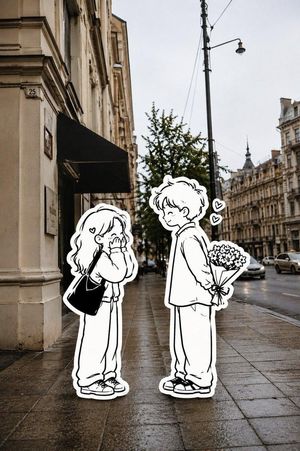
![Naive doodle-style subject illustration — A doodle-style {argument name="subject" default="[subject]"}, naive lines, humorous shape exaggeration](https://pbs.twimg.com/media/G6Wl2YxbsAARB2b.jpg)