
Neon Japanese AI Canvas Ad
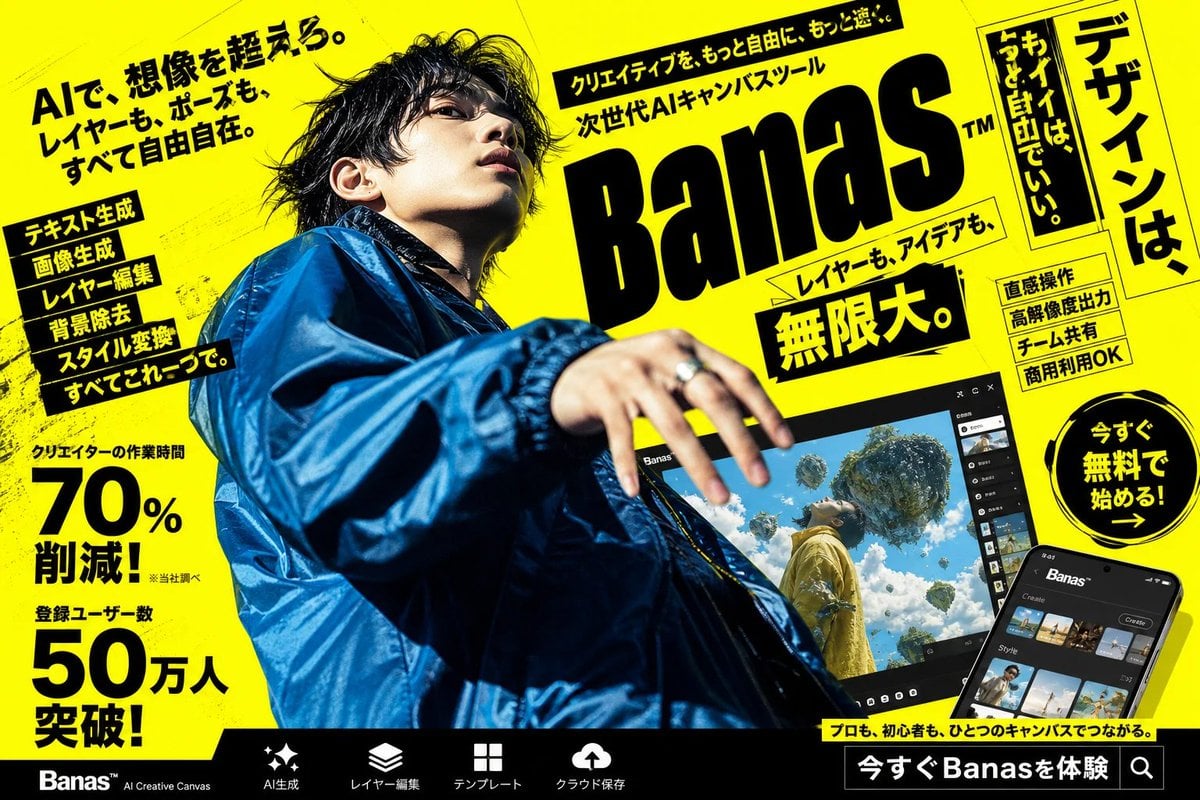
Creates a bold Japanese promotional poster for an AI creative canvas app with a censored fashion model, UI mockups, and dense ad typography.
- Prompt included
- Model and format preset
- Free template
The prompt behind this image
Copy the exact prompt behind Neon Japanese AI Canvas Ad, or open it in the studio and make it yours.
Goal: Create a high-impact Japanese cyberpunk-style advertising poster for an AI creative canvas tool called {argument name="product name" default="Banas"}, with a loud yellow-and-black street magazine layout and a dramatic fashion photo centerpiece. Canvas: Landscape 16:9 poster, bright fluorescent yellow background with black ink texture, diagonal perspective, gritty halftone scratches, skewed panels, thick black borders, and dense promotional typography. Overall look should feel like a Japanese web banner or transit ad for a next-generation AI design app. Main subject: One young male creator photographed from an extreme low angle, occupying the left and center of the poster. He wears an oversized glossy cobalt-blue windbreaker jacket, messy black hair, and reaches one hand toward the camera with motion blur and shallow depth of field. His face is intentionally obscured by a soft square blur/mosaic censor block. Lighting is harsh and editorial, with strong contrast against the yellow background. Layout: Place a huge slanted black logo wordmark reading {argument name="product name" default="Banas"} on the upper right-center, with a small trademark mark. Above it, add a narrow black headline strip with energetic Japanese marketing copy. Around the logo, use multiple tilted yellow and black text boxes. On the far right, add one tall vertical framed headline panel. At bottom, add a black navigation bar with product feature icons and labels. Text content: The largest Japanese headline should be {argument name="main Japanese headline" default="AIで、想像を超えろ。レイヤーも、ポーズも、すべて自由自在。"}. The main logo area should include the supporting phrase {argument name="supporting Japanese tagline" default="次世代AIキャンバスツール"}. Add a bold central callout reading {argument name="big benefit text" default="無限大。"}. Add one circular call-to-action badge on the right reading {argument name="call to action" default="今すぐ無料で始める!"}. Keep all visible copy in bold Japanese display typography, mixing horizontal and vertical writing. Discrete visible elements to include: exactly 1 censored human model; exactly 1 giant product logo; exactly 1 laptop/tablet-like app preview screen near the lower center-right; exactly 1 smartphone app mockup in the bottom-right corner; exactly 1 circular call-to-action badge; exactly 1 tall vertical headline panel on the far right; exactly 2 large numeric statistic blocks on the left, one showing 70% and one showing 50万人; exactly 6 stacked feature labels on the left side; exactly 4 small rectangular feature badges on the right side; exactly 5 bottom navigation items with simple white icons: sparkle/AI generation, layers, grid/template, cloud upload, and search/experience button. App mockups: The larger tilted screen should show a dark UI labeled with the product name and a surreal generated image of a person in yellow clothing looking up at floating islands and vegetation in a bright blue sky. The smartphone mockup should show a dark mobile interface with thumbnail rows and a create button. Visual style: Ultra-bold Japanese commercial graphic design, black typography on neon yellow, skewed perspective, energetic composition, dramatic lens distortion, glossy fashion photography mixed with UI mockups, high contrast, crisp print-ad finish, no clean minimalism, no white background, no watermark.
How to use Neon Japanese AI Canvas Ad in 3 steps
- 1Upload ImagePNG, JPG or paste
Add your photo
Upload the photo the template builds on. The prompt, model and format are already set.
- 2…a portrait of your subject in softgolden-hour light, 85mm…
Personalize
Edit the subject and creative details for your destination.
- 3Generate
Generate
Press Generate — your image is created in PicX Studio, so you can compare it with the original and refine one variable at a time.
More like this
Templates with the same subject, style or setup. Open one to see its prompt.
80s Neon Disco Night

Minecraft Japanese Research Lab Exploration
Neon Japanese AI IDE Landing Poster
Cartoon TV Show Poster Pack

Japanese Architectural Concrete Studio Fashion Campaign

Japanese Minimalist Concrete Studio Fashion Editorial

Blue Backdrop Luxury Fashion Portrait Campaign
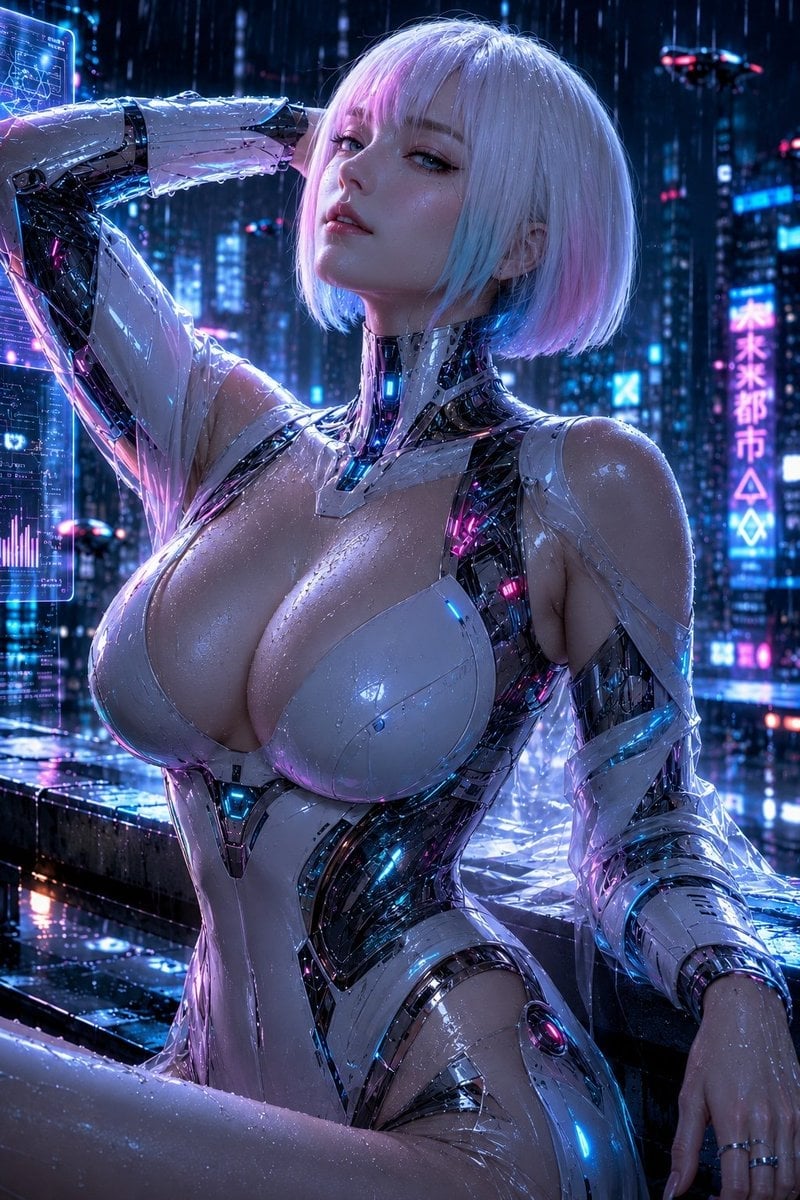
Rainy Night Android Cyberpunk Portrait
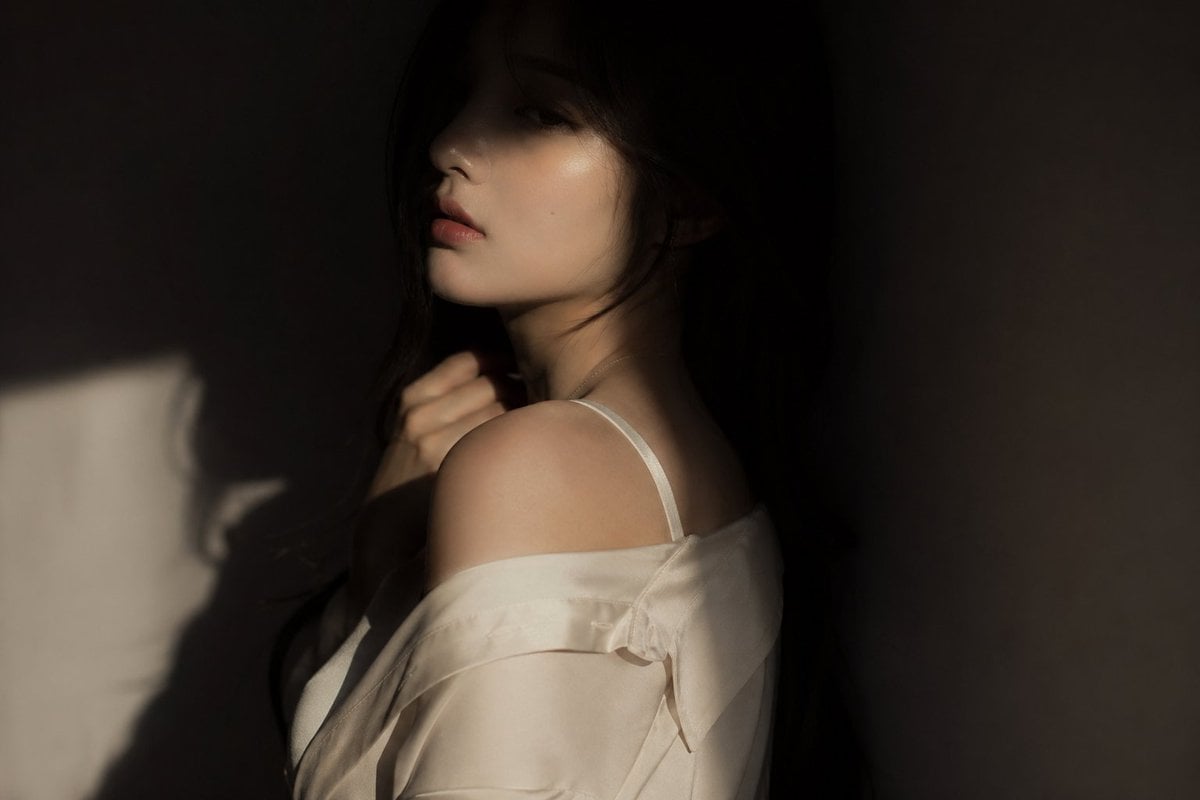
Korean Idol Partial Shadow Editorial Portrait
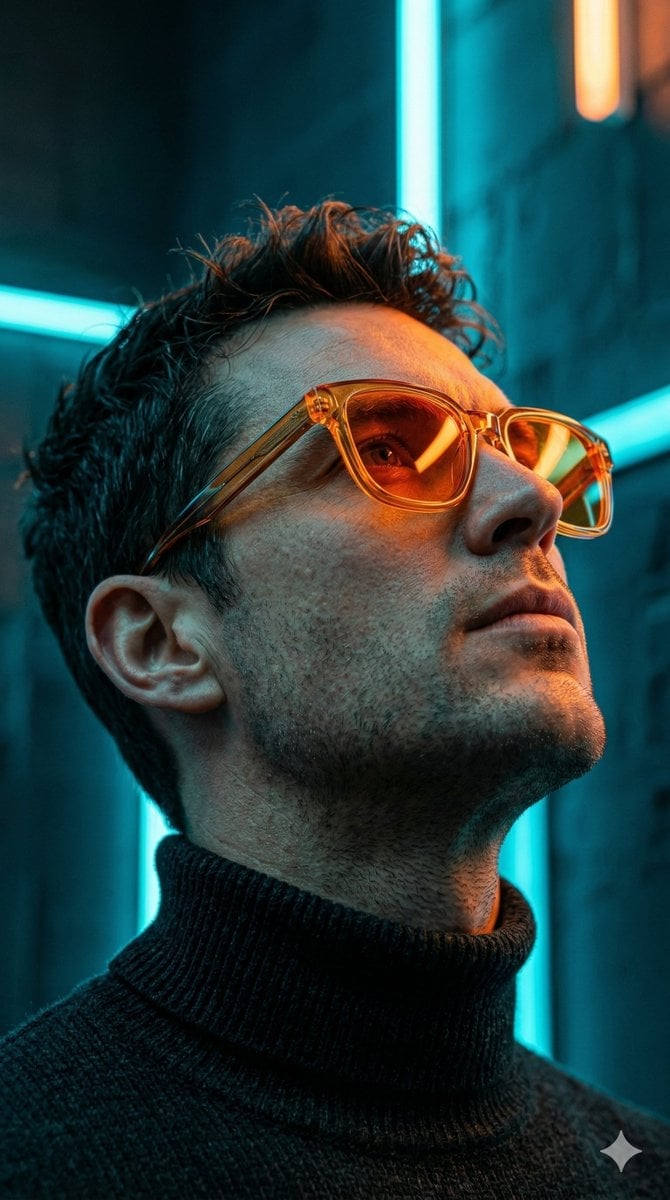
Cyberpunk Neon Profile Fashion Portrait
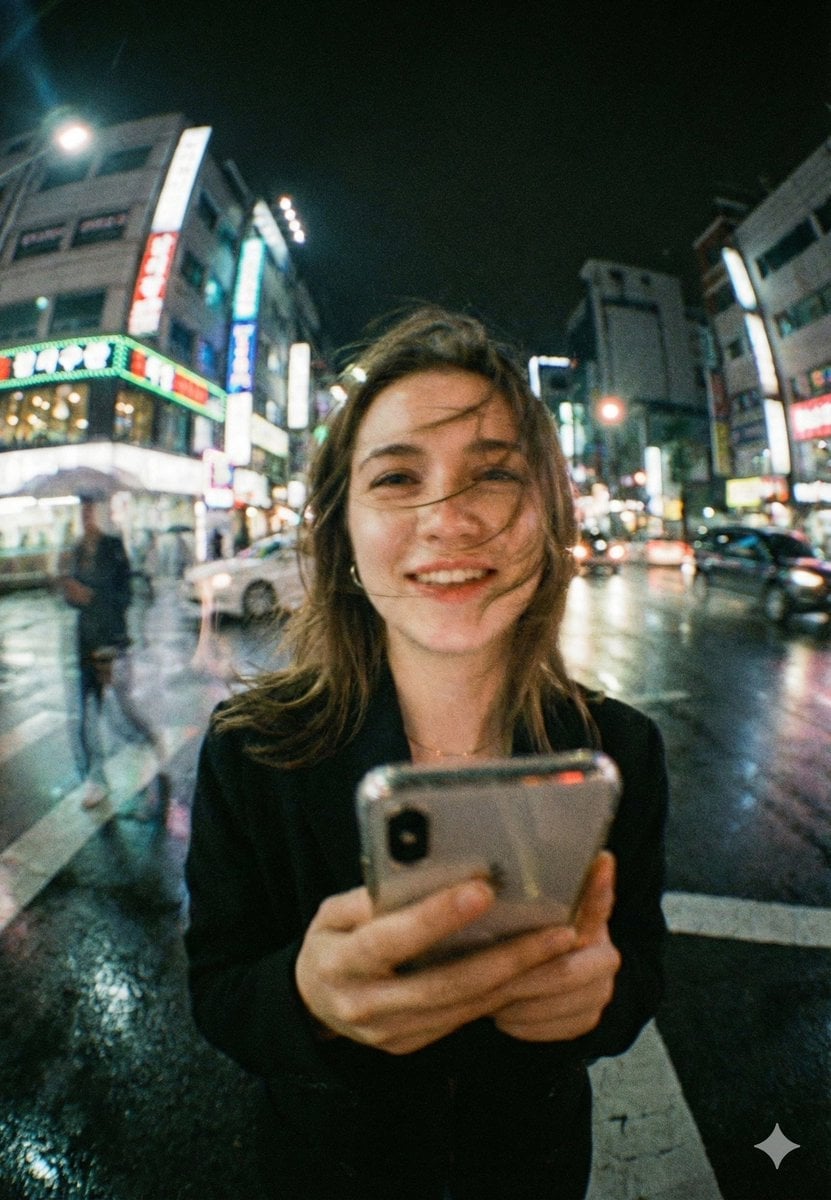
Neon Night Crosswalk Candid Portrait
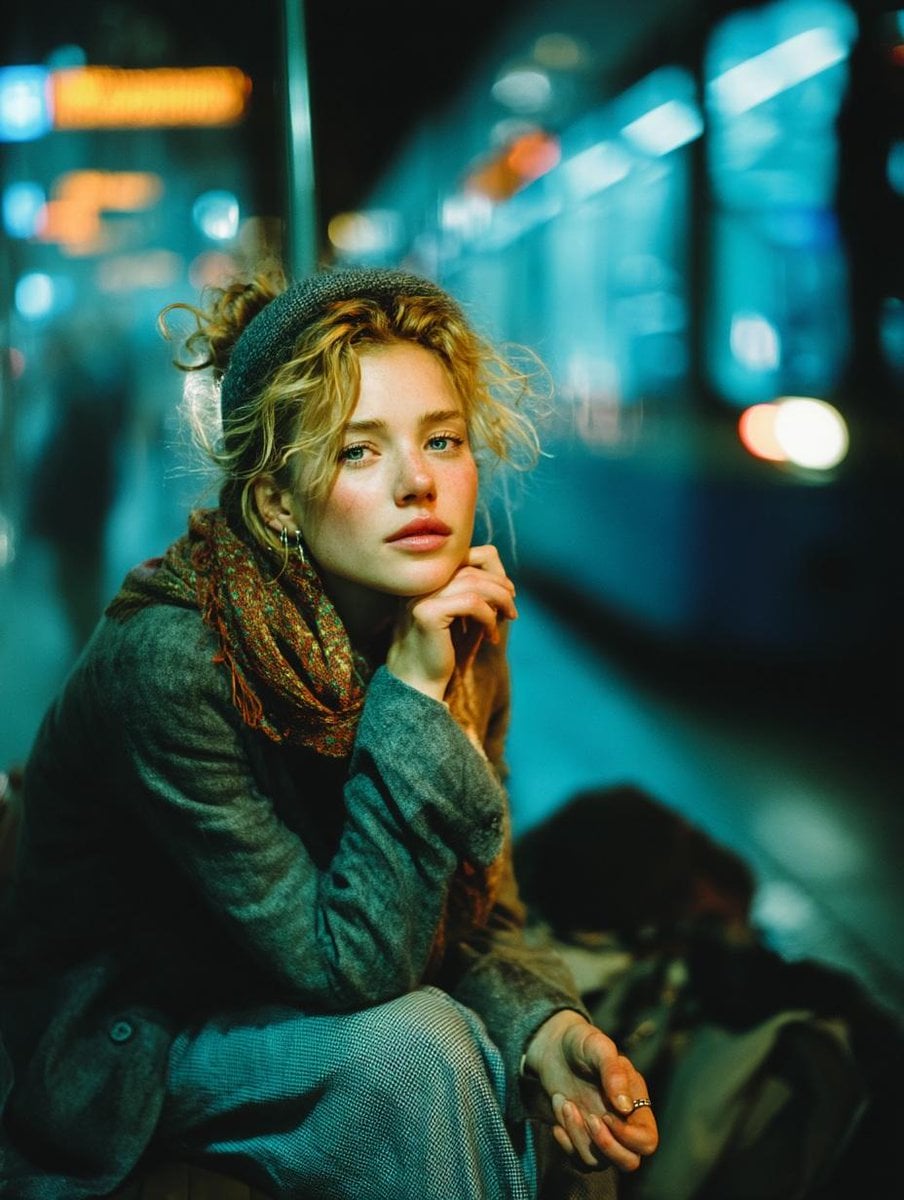
Subway Platform Quiet Introspective Portrait
Make it yours
Neon Japanese AI Canvas Ad works as-is. These are the safest ways to change it without losing the look.
Change one field
Copy a single group, rewrite it, and generate again so you can see what that field is doing.
Keep the frame, change the subject
Hold the composition and light of Neon Japanese AI Canvas Ad, then swap wardrobe, props or the person for a new take.
| If the result… | Why | Fix |
|---|---|---|
| The result drifts from the preview | Too many fields changed at once. | Reuse Neon Japanese AI Canvas Ad as-is first, then change one group — subject, light, or setting. |
| The model over-stylizes the scene | The prose prompt leaves finish and camera underspecified. | Add one camera or lighting sentence and stay on GPT Image 2. |
More GPT Image 2 templates
Other prompts made for GPT Image 2.

Six VTuber Japanese Logo Sheet

Realistic Portrait of Woman and Deer

The Vista Modular Condo Poster

AI Model Routing Comparison Infographic

2.5D Anime Art Board

Isometric Productivity Desk Scene

New York Double Exposure Poster

Four-Panel AI Landscape Comparison

Japanese Tatami Lifestyle Magazine Cover

NESCAFÉ Coffee Map Poster
More image prompts
Fresh picks from across the catalog.
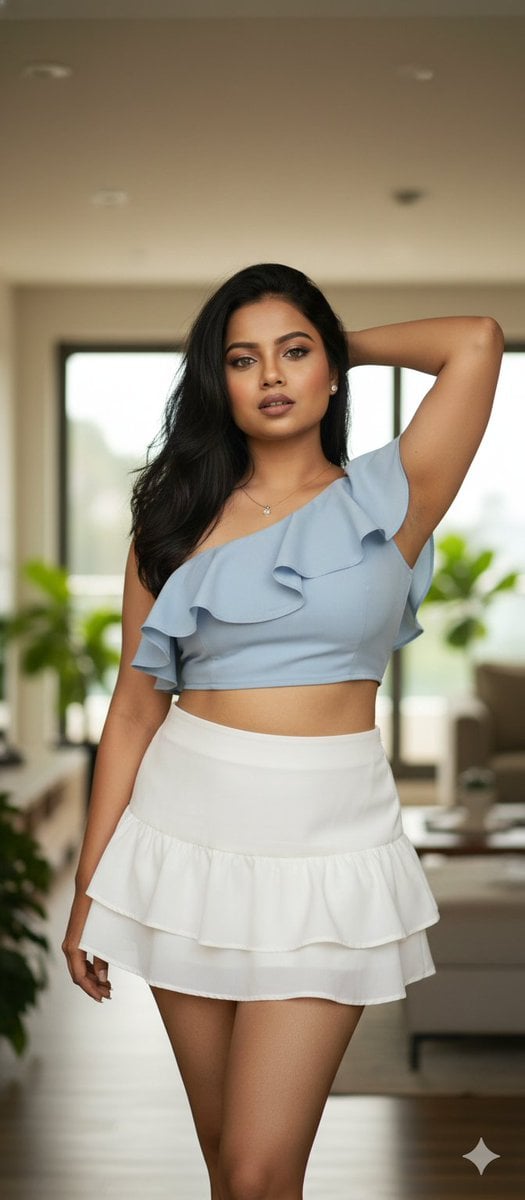
Glamour Photo Prompt for Gemini Nano Banana
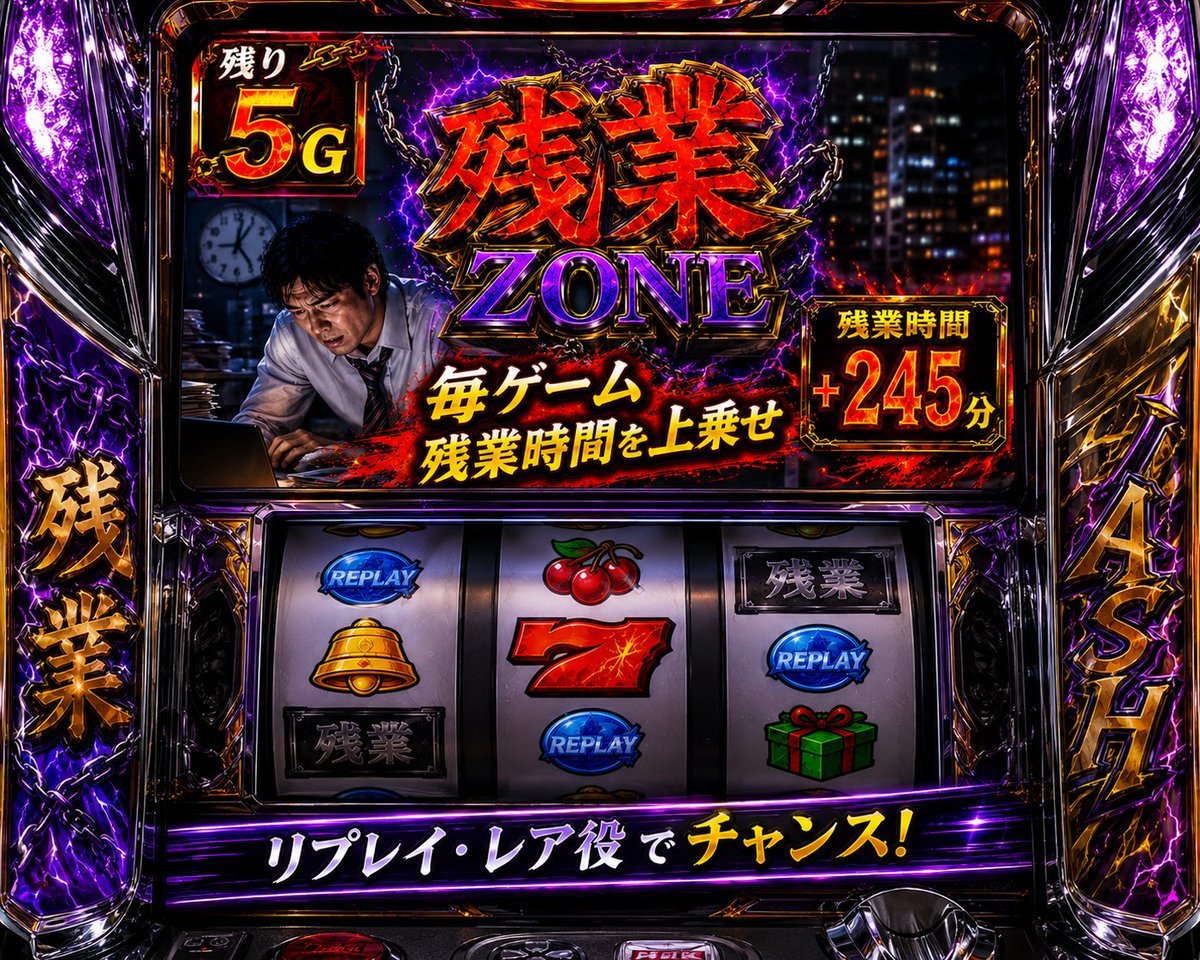
Overtime Zone Pachislot Machine
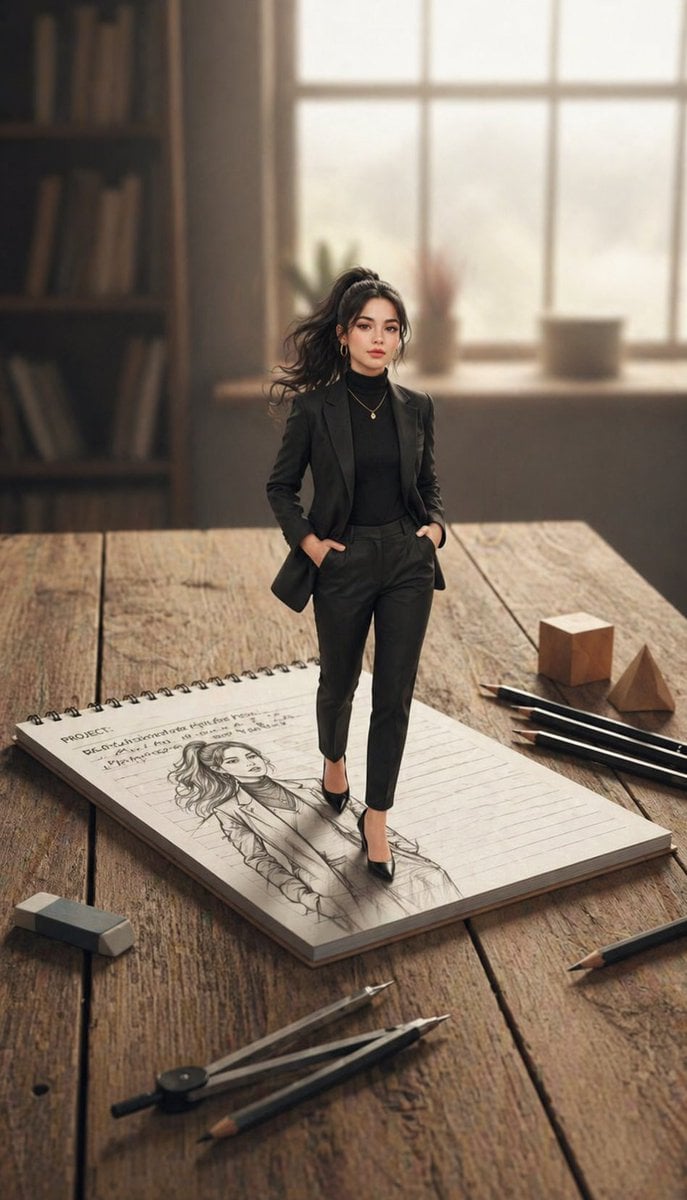
X Noor Ul Ain43 She Designed Herself and Then
Alternative Faction Character Success Story
19 Luxury Helicopter Travel — California Series
Chibi Clone Sticker Diary
Candid Elevator Mirror Selfie
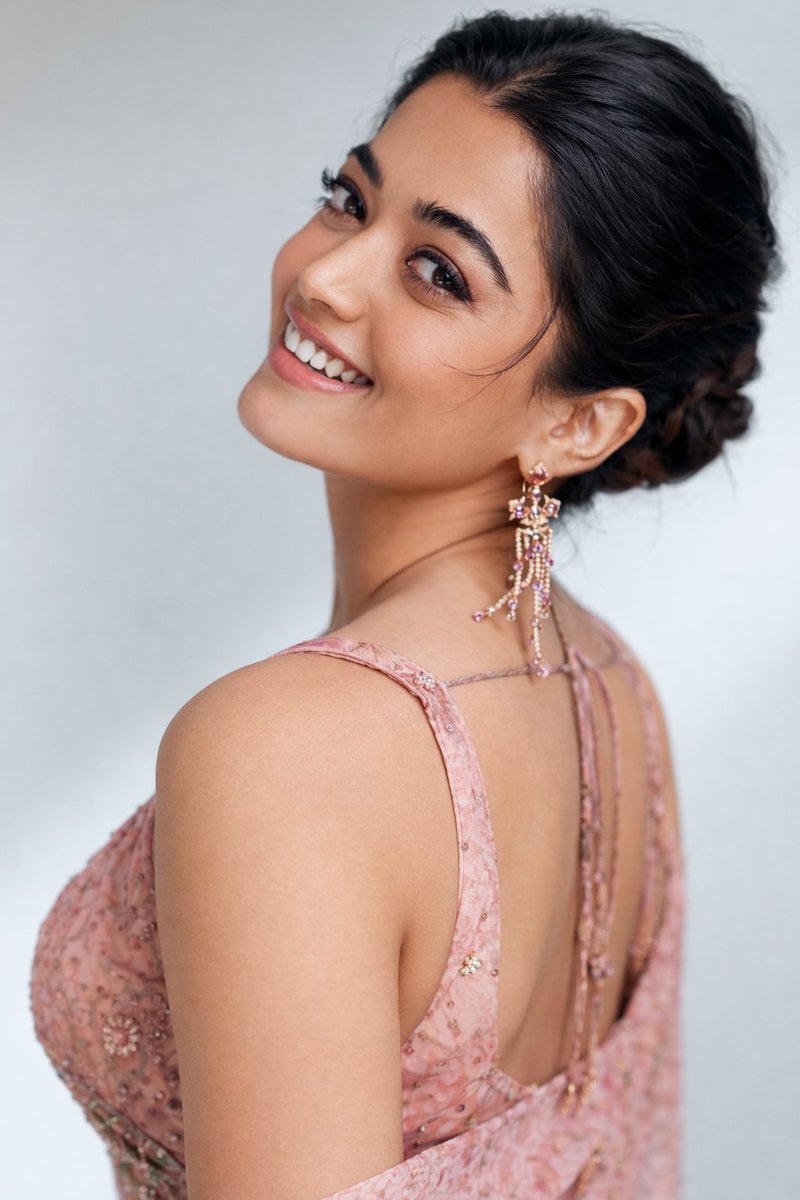
8K Studio Portrait of Rashmika Mandhana in Saree
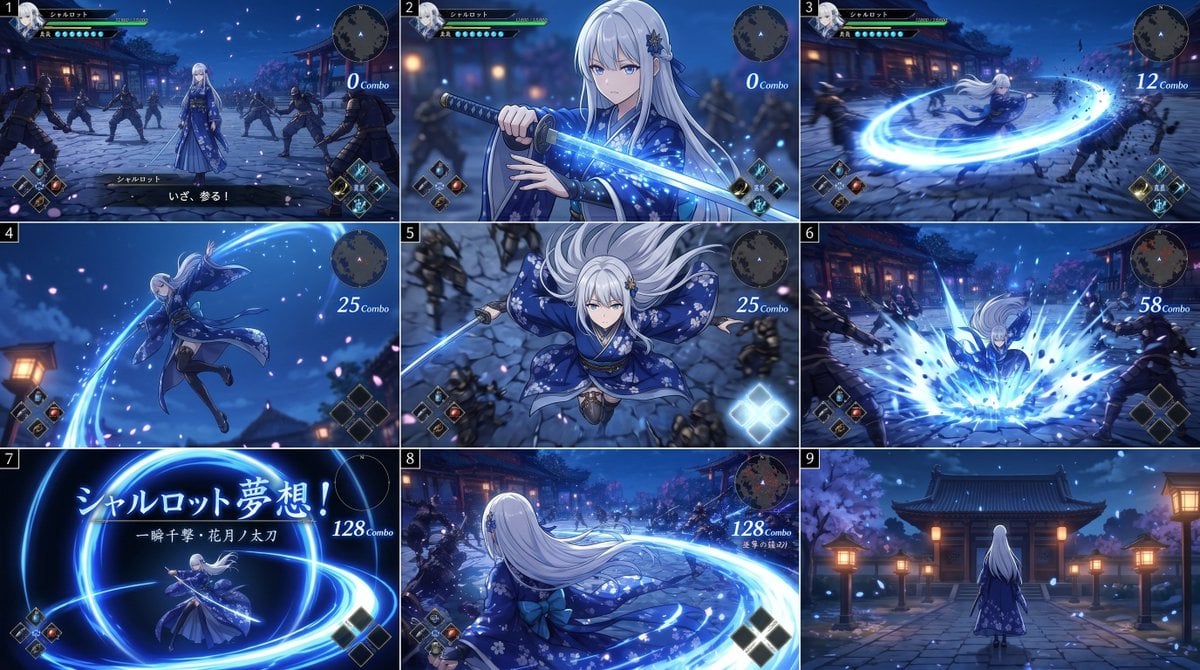
Anime RPG Sword Attack Storyboard
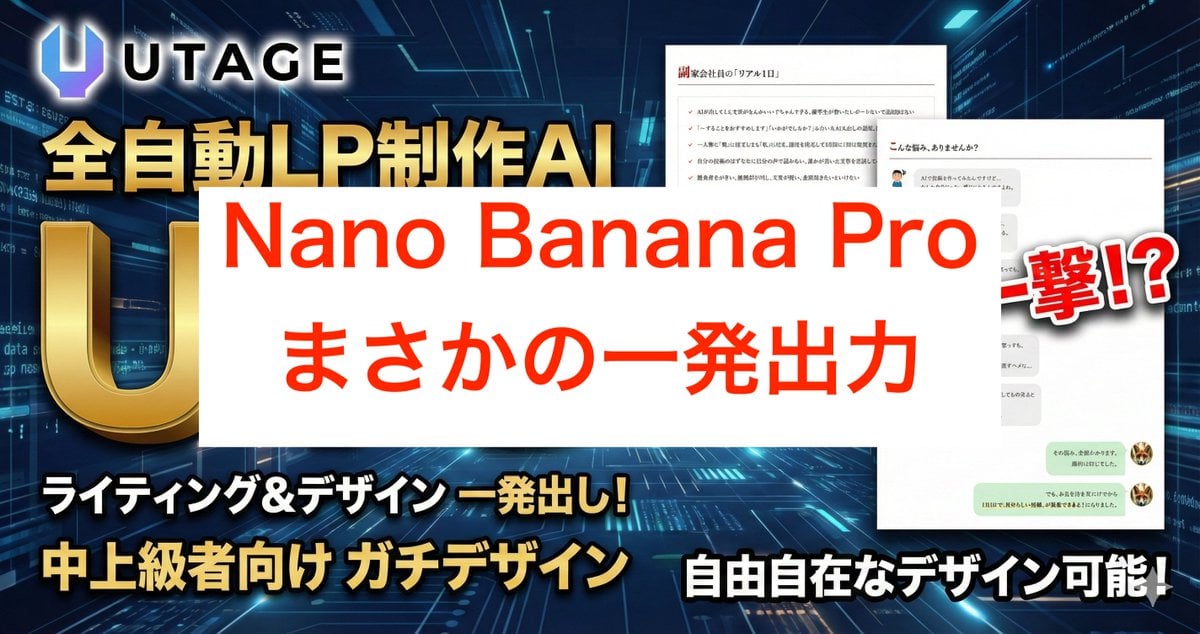
Nano Banana Pro Prompt for High-Visibility 3D Thumbnail Design
Browse template categories
Neon Japanese AI Canvas Ad questions
How do I use the Neon Japanese AI Canvas Ad template?
Add your photo if the template asks for one, edit the prompt if you like — the template's model and format are already selected — and press Generate. Your version opens in PicX Studio.
Can I customize the Neon Japanese AI Canvas Ad template?
Yes. You can change the subject, setting, lighting, mood, format, and available model controls before creating your image.
Is the Neon Japanese AI Canvas Ad template free?
Opening and editing this template is free. Generating uses credits, shown on the Generate button when you are signed in.
Which AI model should I use?
Start with GPT Image 2, which is the model associated with this template. You can compare another compatible model for a different finish.
Looking for something else? Browse all templates.

Your photo, any look
Thousands of ready templates for every top image and video model, from one credit balance.