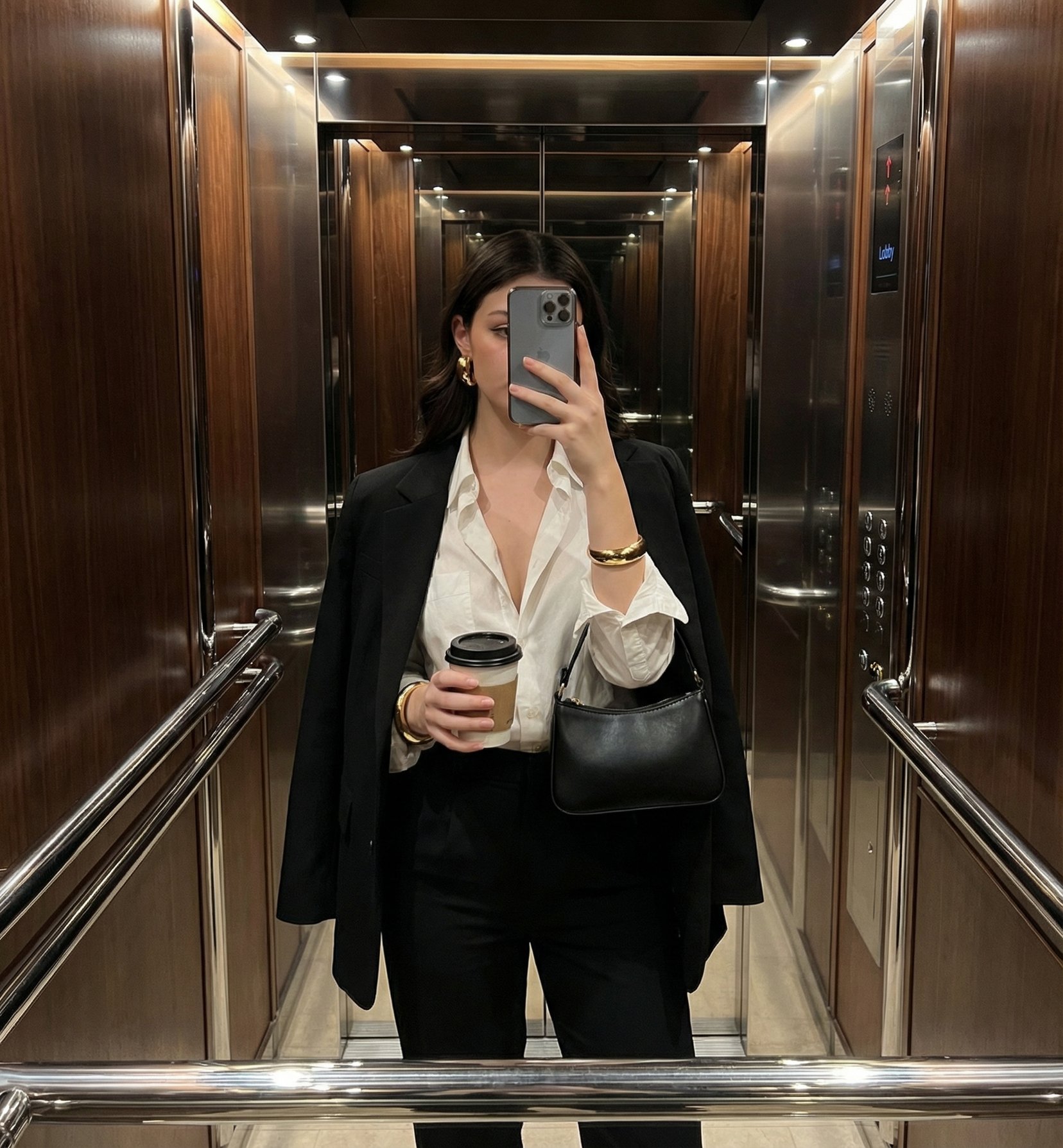
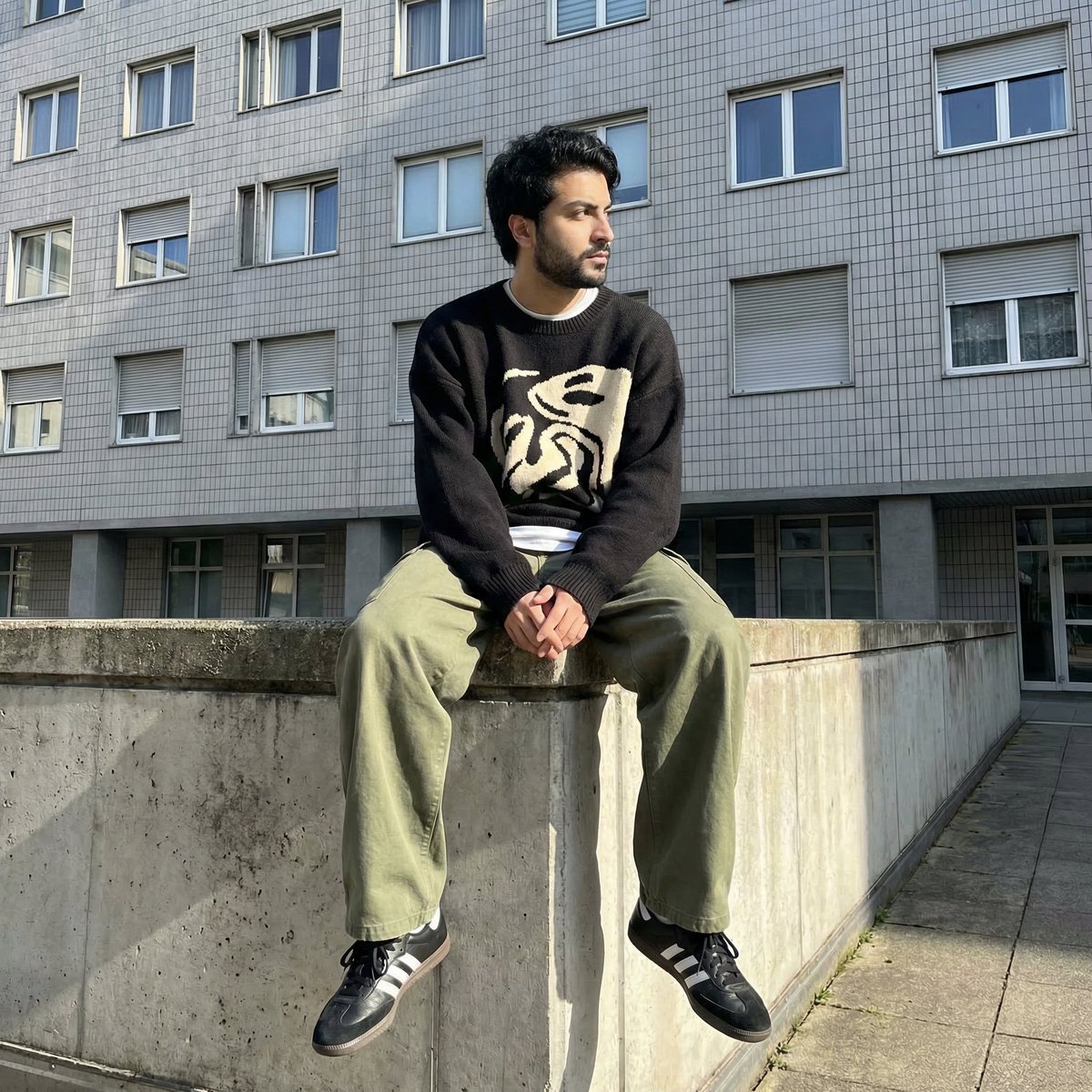
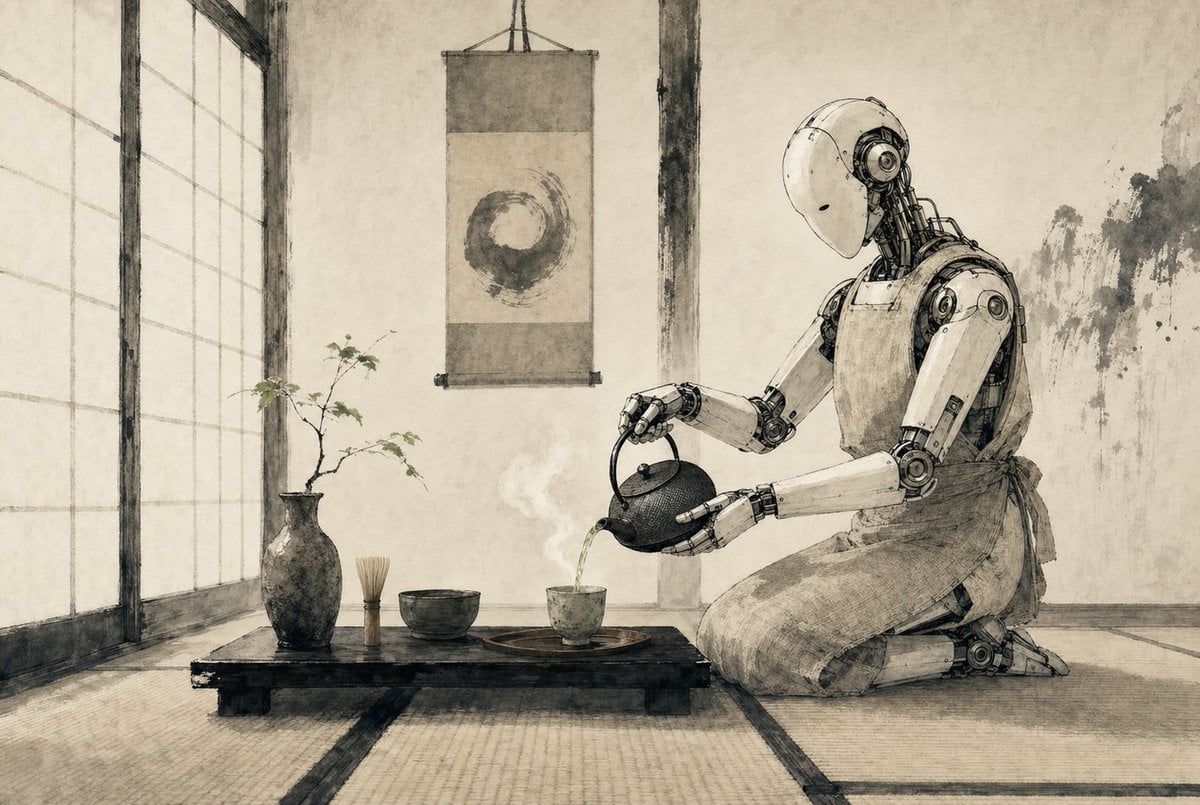
How do I use the Professional ID Photo Generator template?
Edit the prompt in the box under the preview — the template's model and format are already selected — and press Generate. Your version appears right on this page.
A prompt that converts a casual photo into a professional ID or application photo with clean studio lighting, formal attire, and a neutral expression.

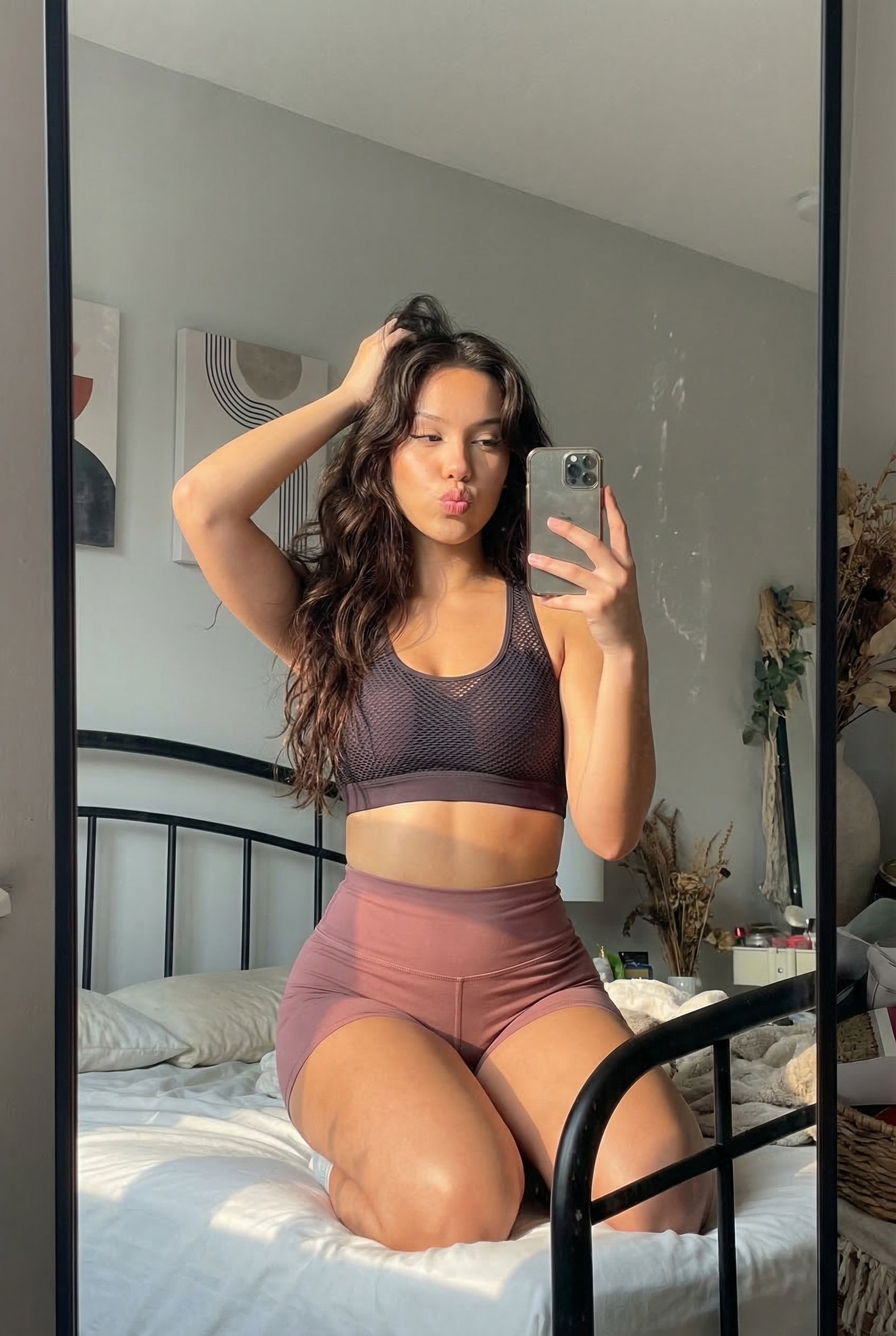
This template uses your photo — add one with the + button.
Based on this photo, please create an ID photo suitable for job hunting and various applications — one that feels clean, refined, and trustworthy. The hairstyle should be neat and natural, wearing {argument name="outfit" default="a black suit jacket with a simple white crew-neck blouse"}. The background should be {argument name="background color" default="a plain white"}, with bright, even studio lighting; finish it with a natural, clear skin tone and a high resolution. Use a front-facing composition, a front view showing clearly from the shoulders up, with a calm, neutral expression that conveys both approachability and an intelligent air. Overall, make it a minimal, polished, natural, and professional ID photo.
Based on this photo, please create an ID photo suitable for job hunting and various applications — one that feels clean, refined, and trustworthy. The hairstyle should be neat and natural, wearing {argument name="outfit" default="a black suit jacket with a simple white crew-neck blouse"}. The background should be {argument name="background color" default="a plain white"}, with bright, even studio lighting; finish it with a natural, clear skin tone and a high resolution. Use a front-facing composition, a front view showing clearly from the shoulders up, with a calm, neutral expression that conveys both approachability and an intelligent air. Overall, make it a minimal, polished, natural, and professional ID photo.
Professional ID Photo Generator needs input media to work. Open it in the studio and these load alongside the prompt — pick whichever ones your chosen model can take.
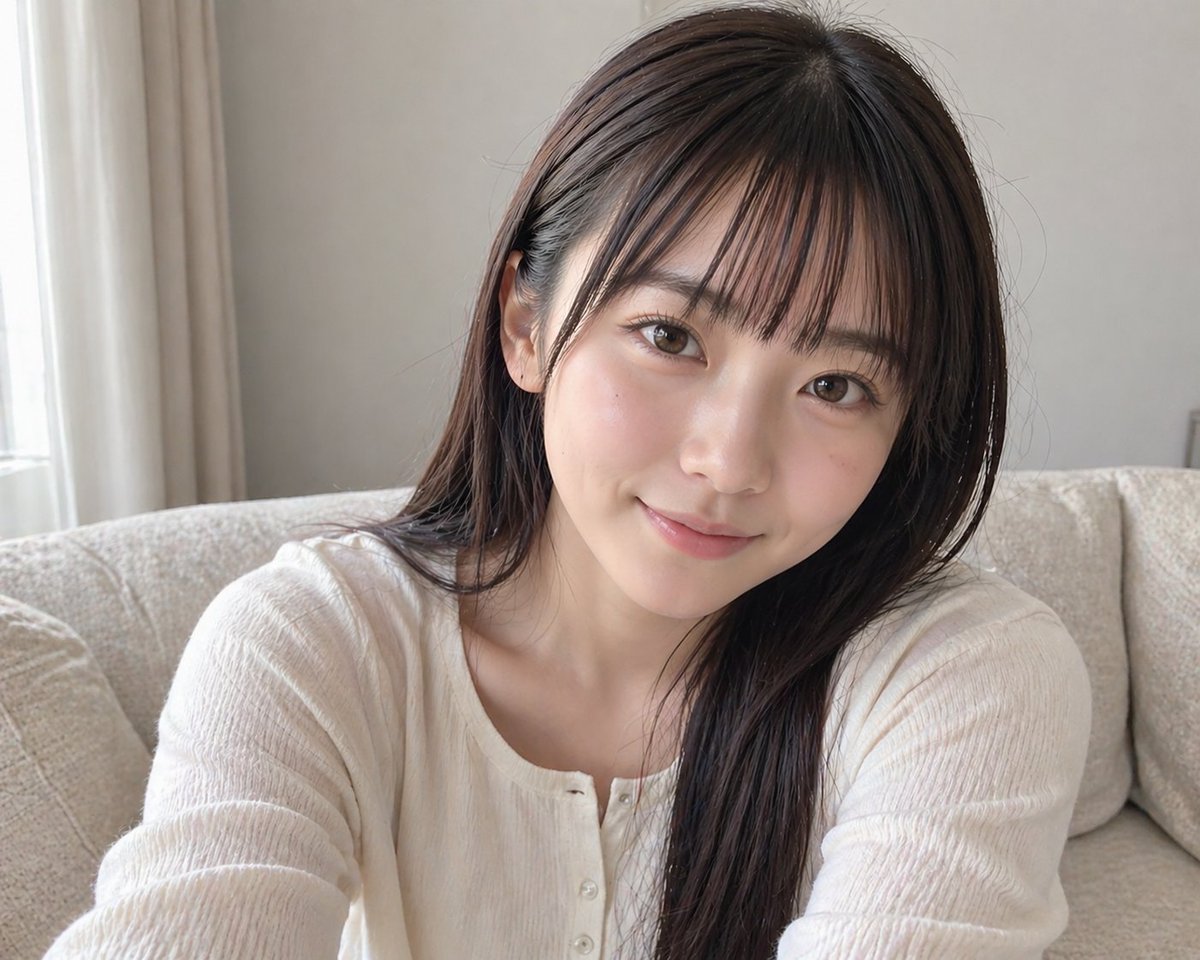
Edit the prompt in the box under the preview — the template's model and format are already selected — and press Generate. Your version appears right on this page.
Yes. You can change the subject, setting, lighting, mood, format, and available model controls before creating your image.
Opening and editing this template is free. Generating uses credits, shown on the Generate button when you are signed in.
Start with GPT Image 2, which is the model associated with this template. You can compare another compatible model for a different finish.
Follow a topic to a crawlable collection of related PicX Studio templates.