
Hidden Engraved Rice Grain
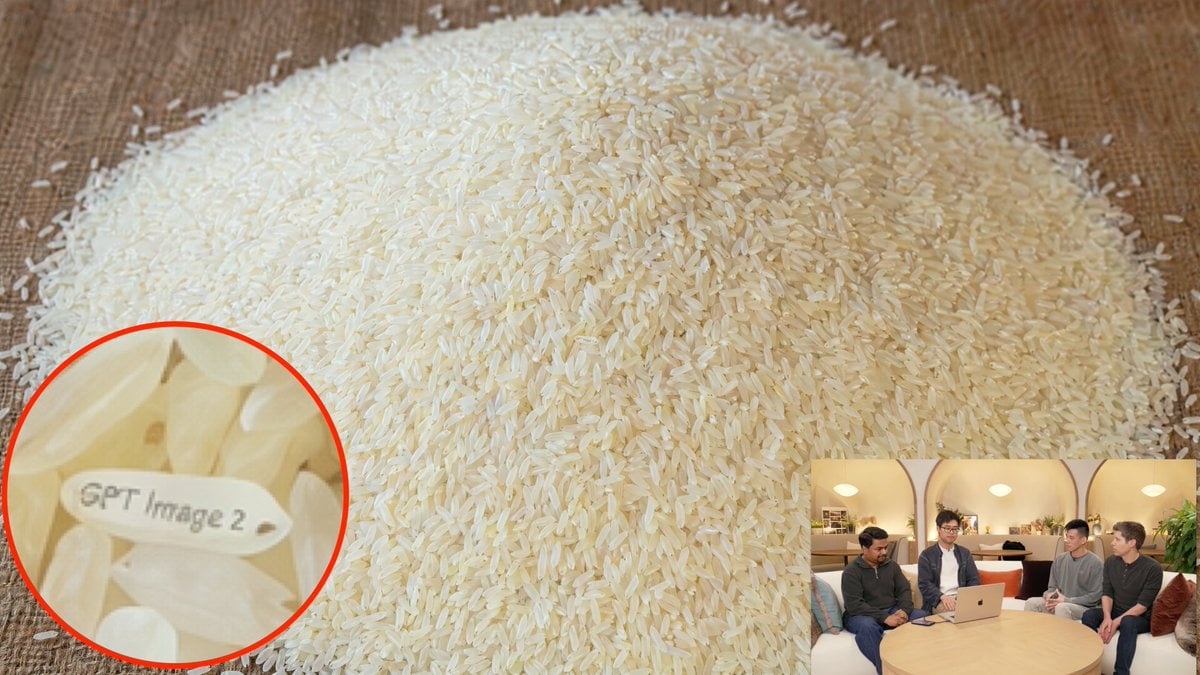
This prompt generates a realistic close-up of a pile of rice with one engraved grain highlighted by a magnified callout, useful for easter-egg visuals or AI demo imagery.
- Prompt included
- Model and format preset
- Premium template
The prompt behind this image
Copy the exact prompt behind Hidden Engraved Rice Grain, or open it in the studio and make it yours.
A photorealistic close-up tabletop scene showing a large mound of uncooked long-grain white rice poured onto a warm brown wooden surface, filling almost the entire frame. The camera is slightly elevated and angled toward the pile so the rice forms a broad dome centered in the image, with thousands of individual grains sharply visible and softly lit by warm indoor lighting. Hide a tiny easter egg in the rice: exactly 1 unusual rice grain near the lower-left area is rotated horizontally and has the text "{argument name="engraved text" default="GPT Image 2"}" neatly engraved on its surface in small legible letters. Add a circular magnified callout in the bottom-left corner with a bright red outline, zooming in on that single engraved grain among surrounding rice grains so the text becomes readable. Also add exactly 1 small picture-in-picture inset in the bottom-right corner showing a casual indoor livestream or interview setting with 4 seated people around a round wooden table and an open laptop, warm ambient lighting, and faces slightly indistinct; the inset should feel like a secondary contextual thumbnail, much smaller than the main rice image. Prioritize realistic texture, convincing macro detail, natural shadows, subtle ivory color variation in the rice, and clear but believable engraved text on the highlighted grain.
How to use Hidden Engraved Rice Grain in 3 steps
- 1Upload ImagePNG, JPG or paste
Add your photo
Upload the photo the template builds on. The prompt, model and format are already set.
- 2…a portrait of your subject in softgolden-hour light, 85mm…
Personalize
Edit the subject and creative details for your destination.
- 3Generate
Generate
Press Generate — your image is created in PicX Studio, so you can compare it with the original and refine one variable at a time.
More like this
Templates with the same subject, style or setup. Open one to see its prompt.

Steamed Rice Low High Comparison
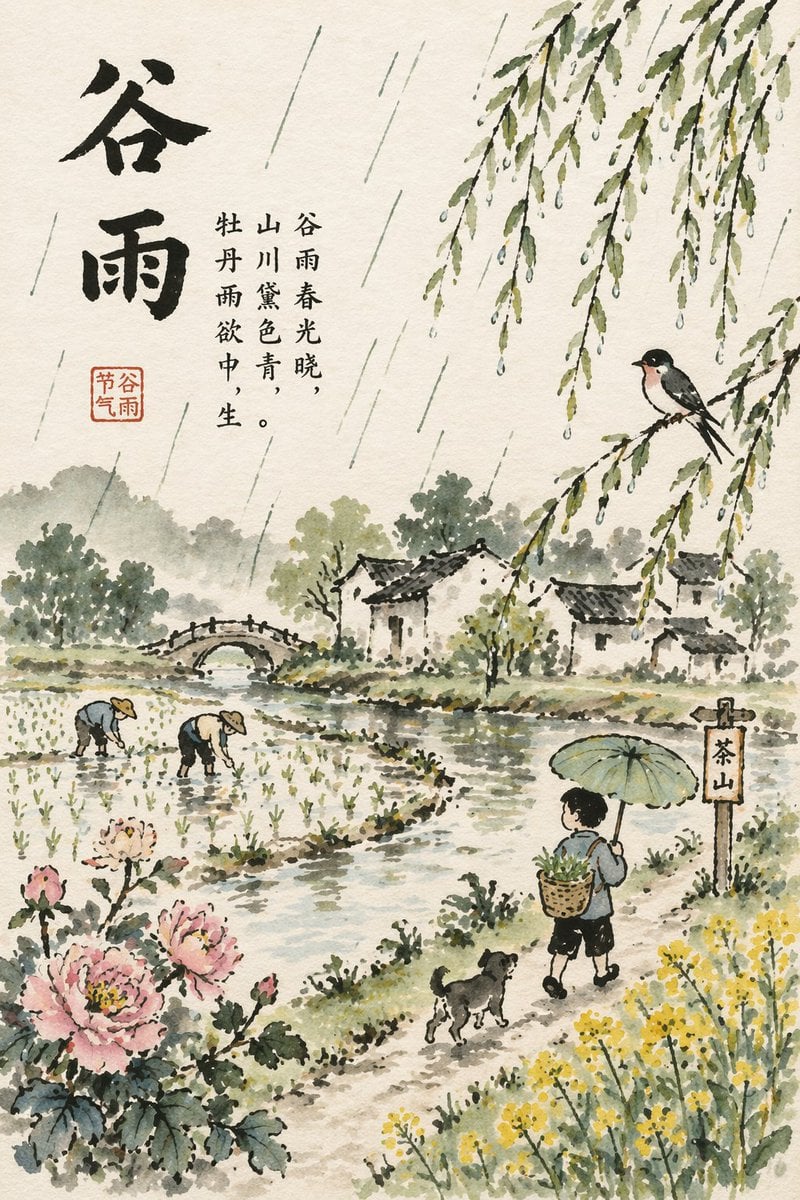
Grain Rain Festival Poster
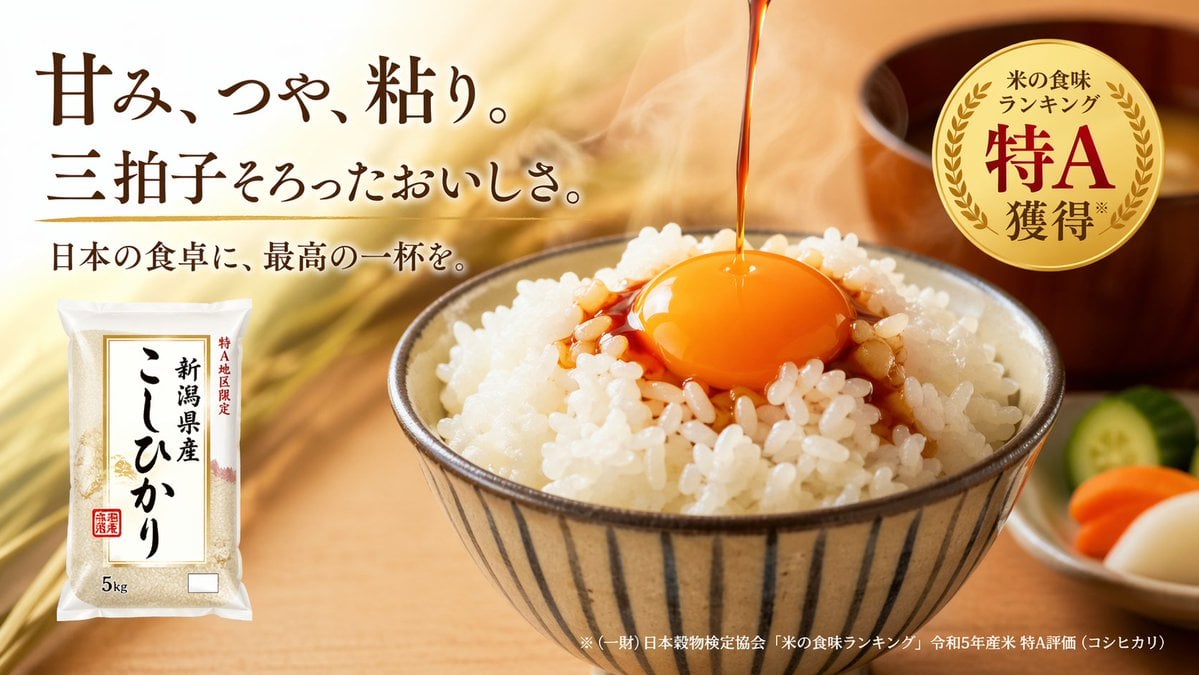
Japanese Rice Advertisement Banner
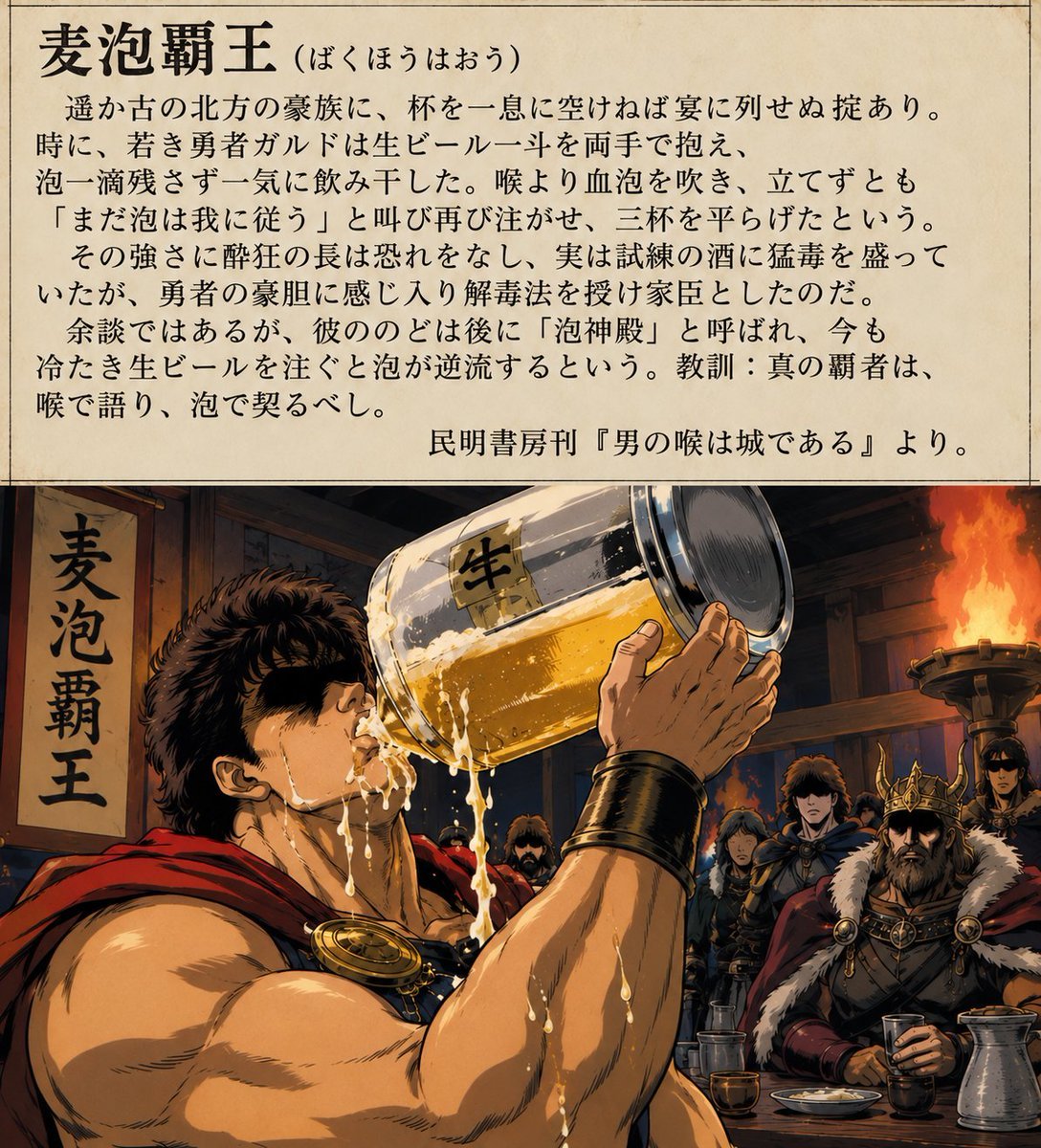
Grain-Free Manga Image Restoration
Gothic Calligraphy Hidden Clown Poster
Engraved Surreal Illustration Portrait
Digital modern maximalism style sports collage of visuals with grainy
2x2 grid, do this for 4 common ingredients like rice, diamond
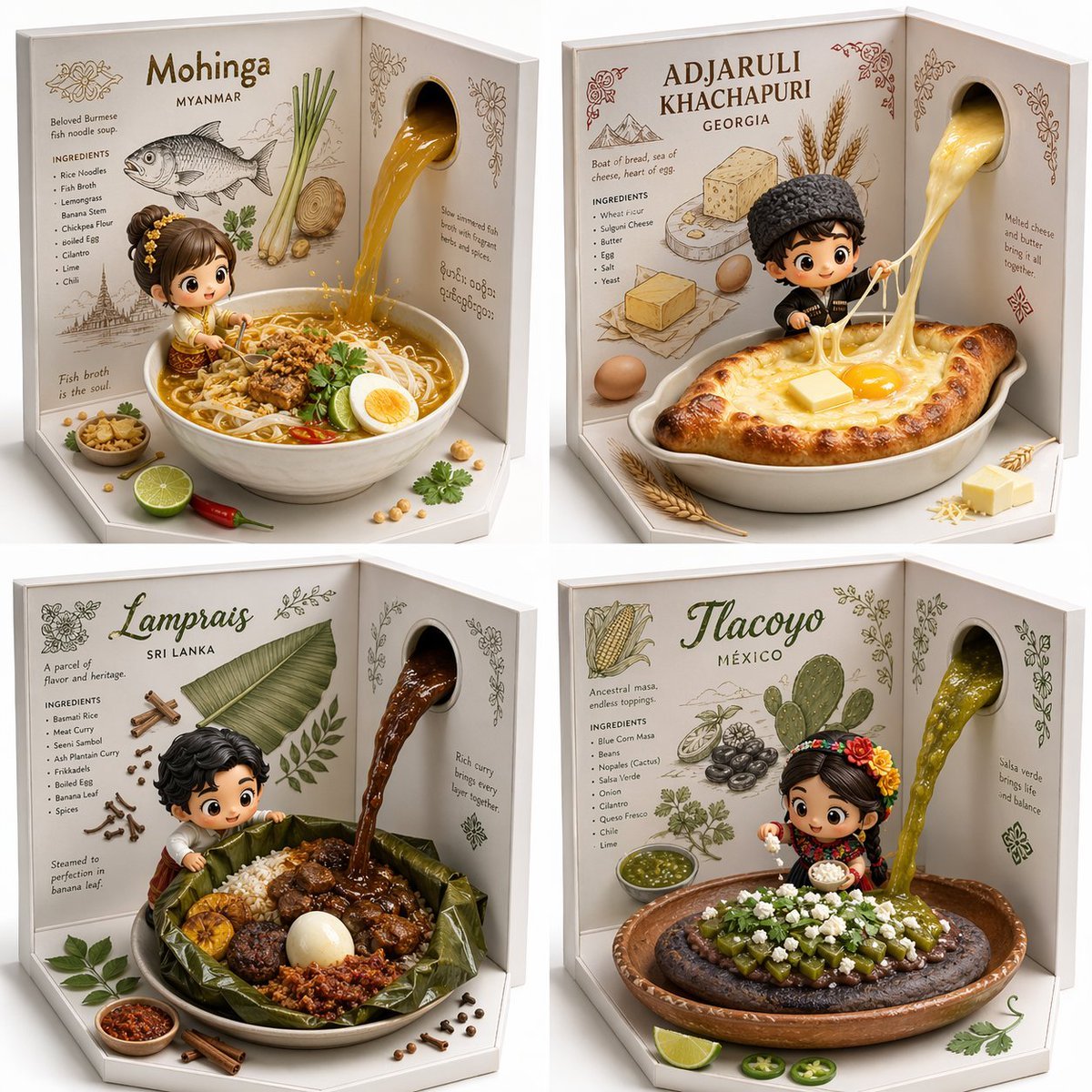
2x2 grid, do this for 4 hidden gem international foods select
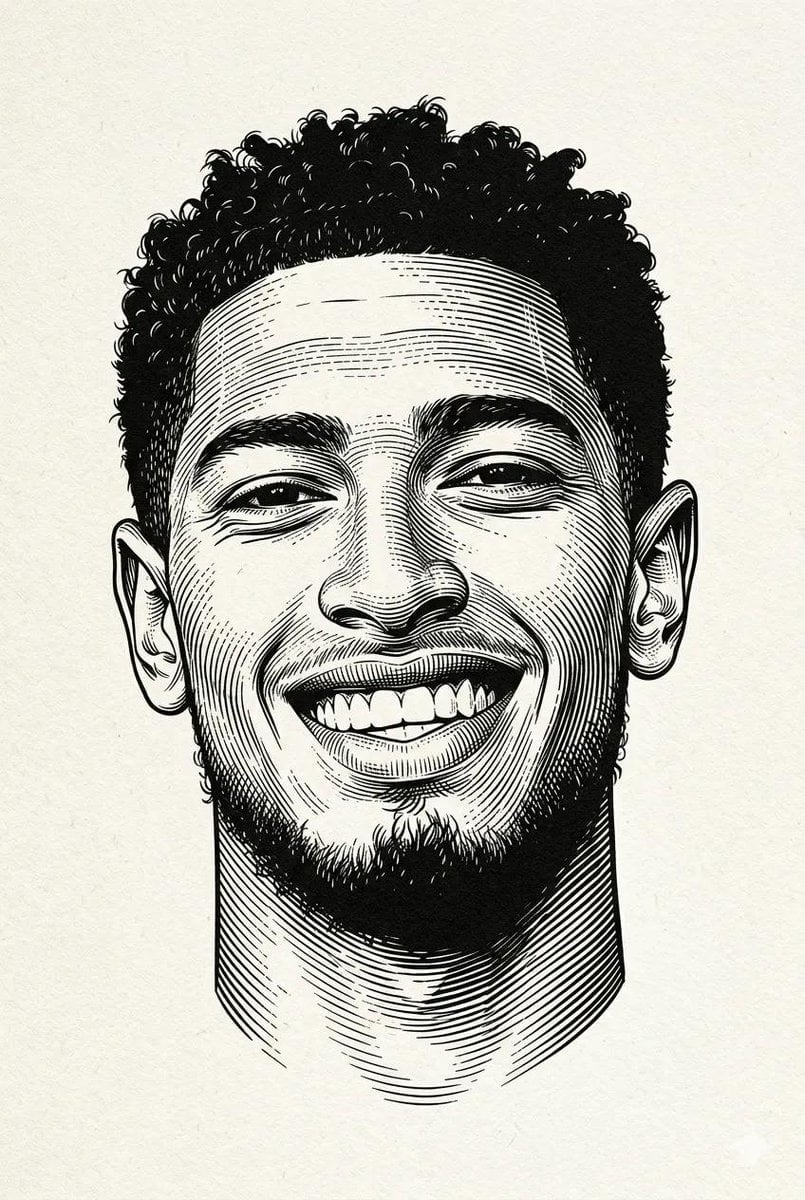
Black and white engraved portrait illustration of a person
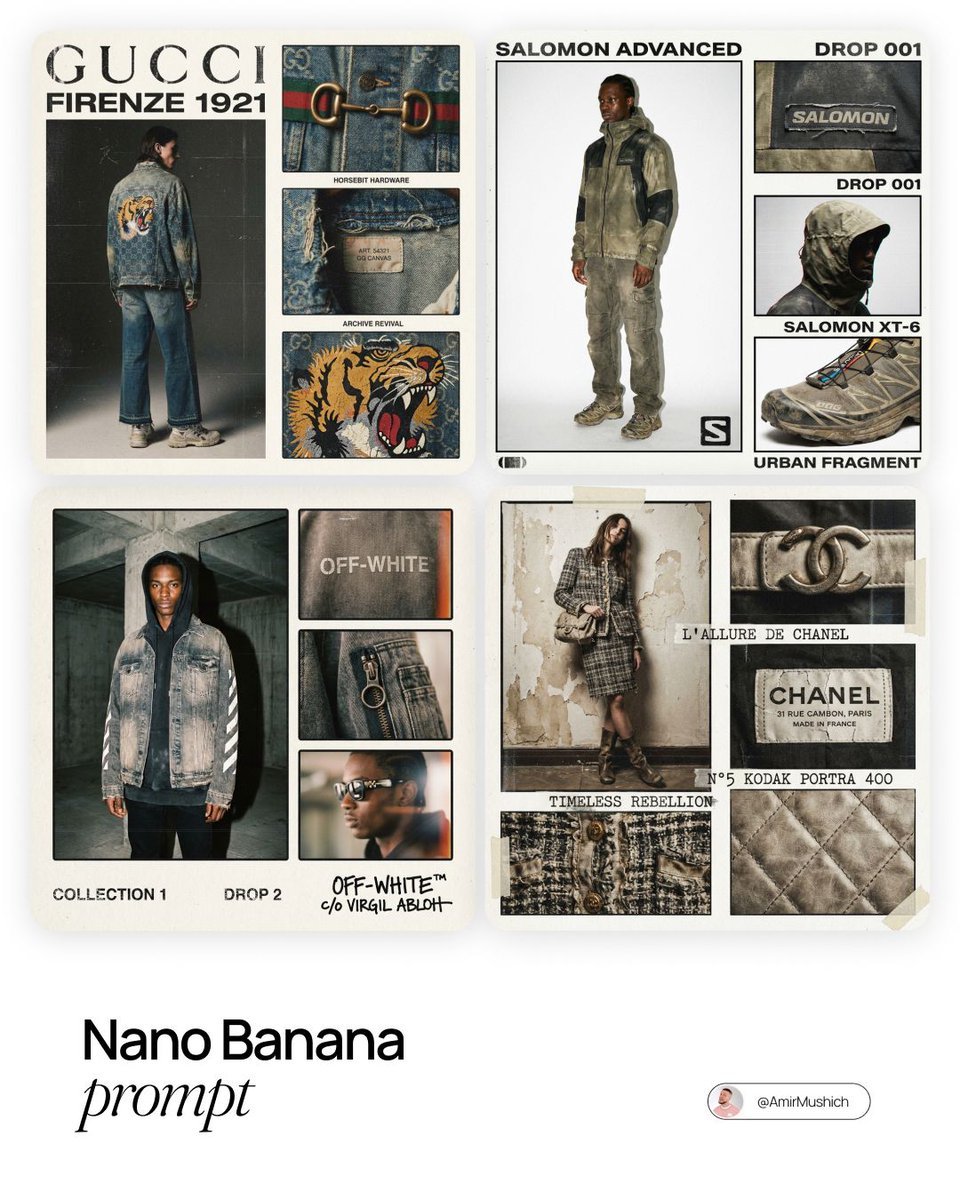
Intense film grain, analog noise, and scanline artifacts
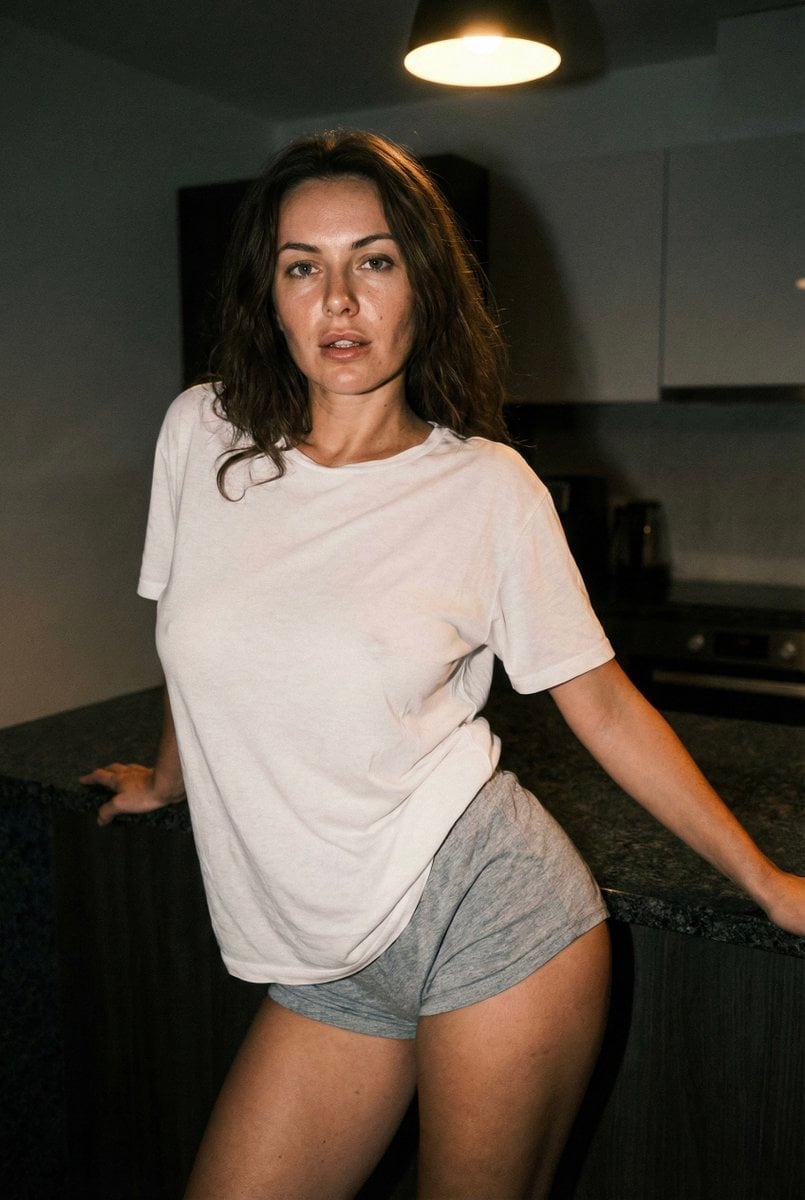
Raw iphone realism, low light, slight grain, natural skin texture, not
Make it yours
Hidden Engraved Rice Grain works as-is. These are the safest ways to change it without losing the look.
Change one field
Copy a single group, rewrite it, and generate again so you can see what that field is doing.
Keep the frame, change the subject
Hold the composition and light of Hidden Engraved Rice Grain, then swap wardrobe, props or the person for a new take.
| If the result… | Why | Fix |
|---|---|---|
| The result drifts from the preview | Too many fields changed at once. | Reuse Hidden Engraved Rice Grain as-is first, then change one group — subject, light, or setting. |
| The model over-stylizes the scene | The prose prompt leaves finish and camera underspecified. | Add one camera or lighting sentence and stay on GPT Image 2. |
More GPT Image 2 templates
Other prompts made for GPT Image 2.

Six VTuber Japanese Logo Sheet

Realistic Portrait of Woman and Deer

The Vista Modular Condo Poster

AI Model Routing Comparison Infographic

2.5D Anime Art Board

Isometric Productivity Desk Scene

New York Double Exposure Poster

Four-Panel AI Landscape Comparison

Japanese Tatami Lifestyle Magazine Cover

NESCAFÉ Coffee Map Poster
More image prompts
Fresh picks from across the catalog.

Orthographic Reference Sheet Generation
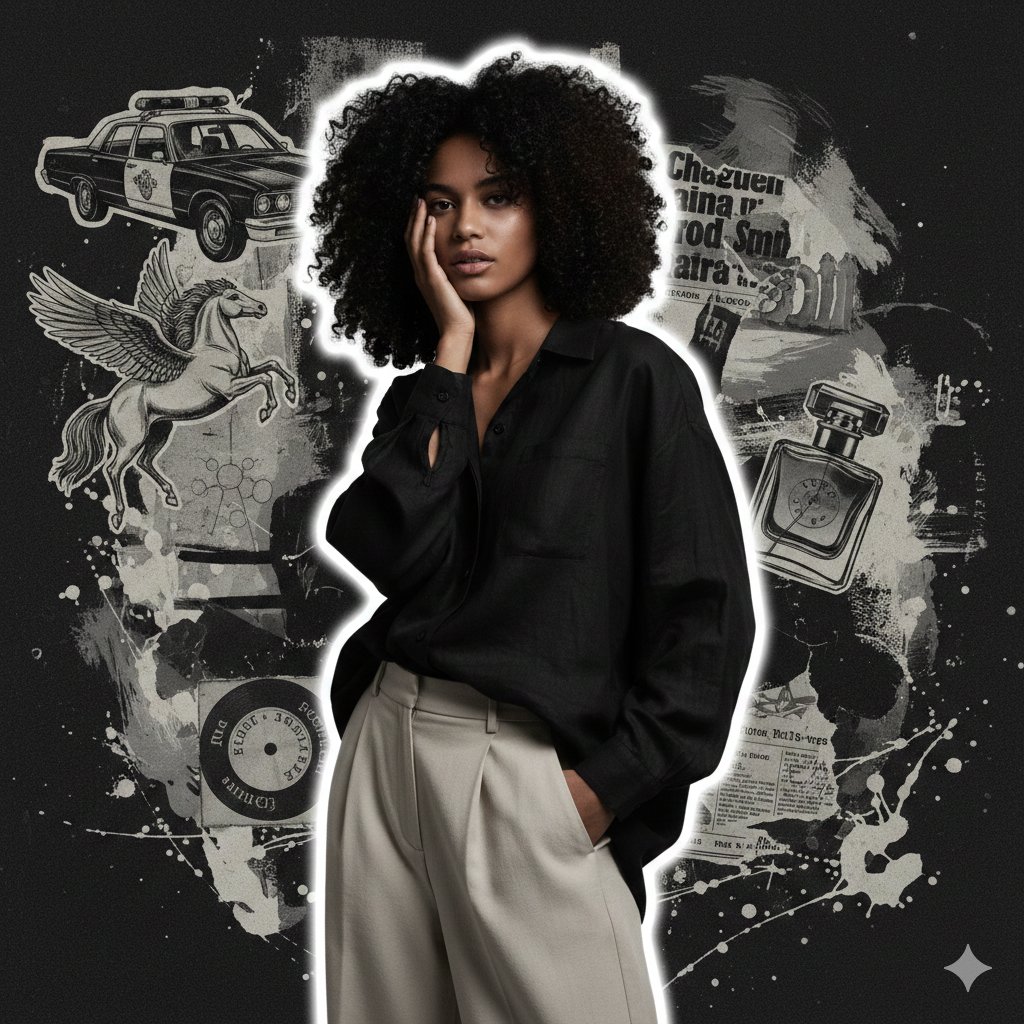
High-Fashion Grunge Portrait with Artistic Collage Background
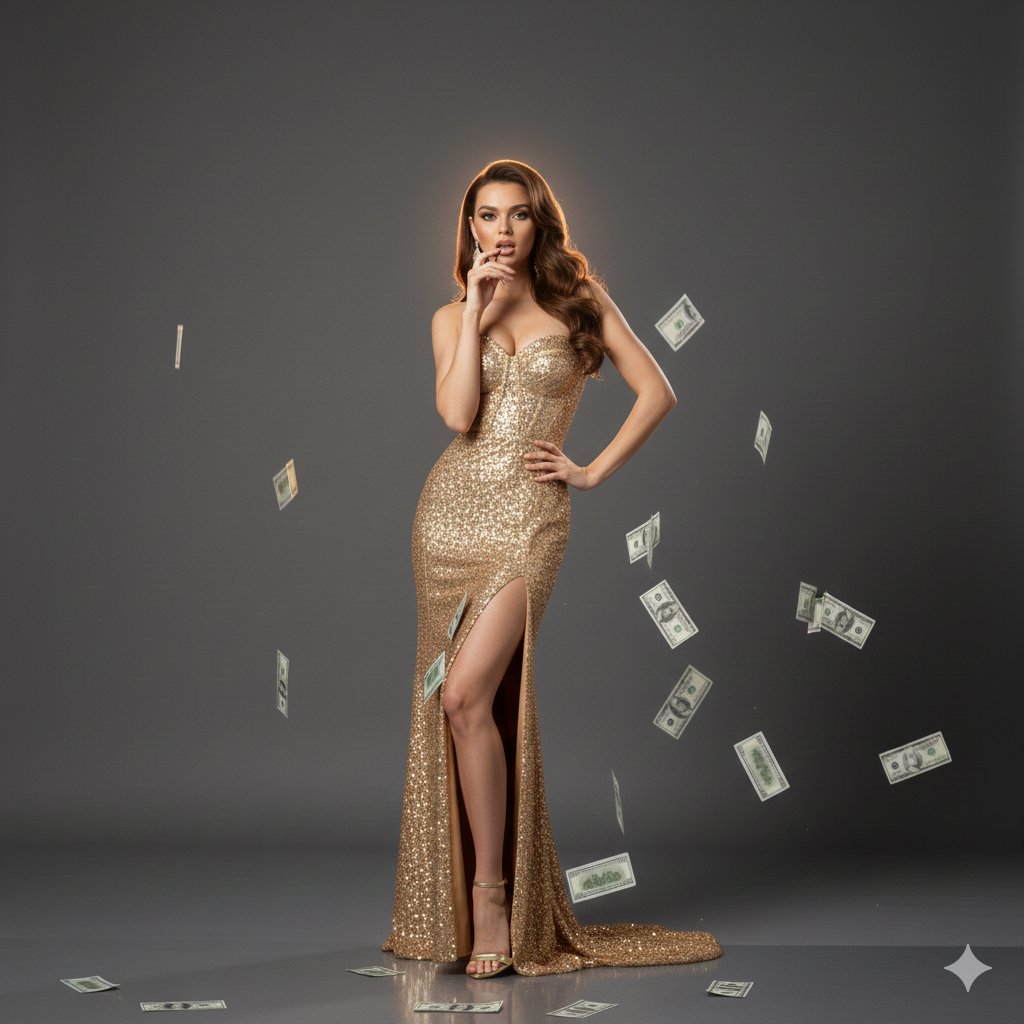
Luxury Fashion Editorial with Money Gun and Sequins
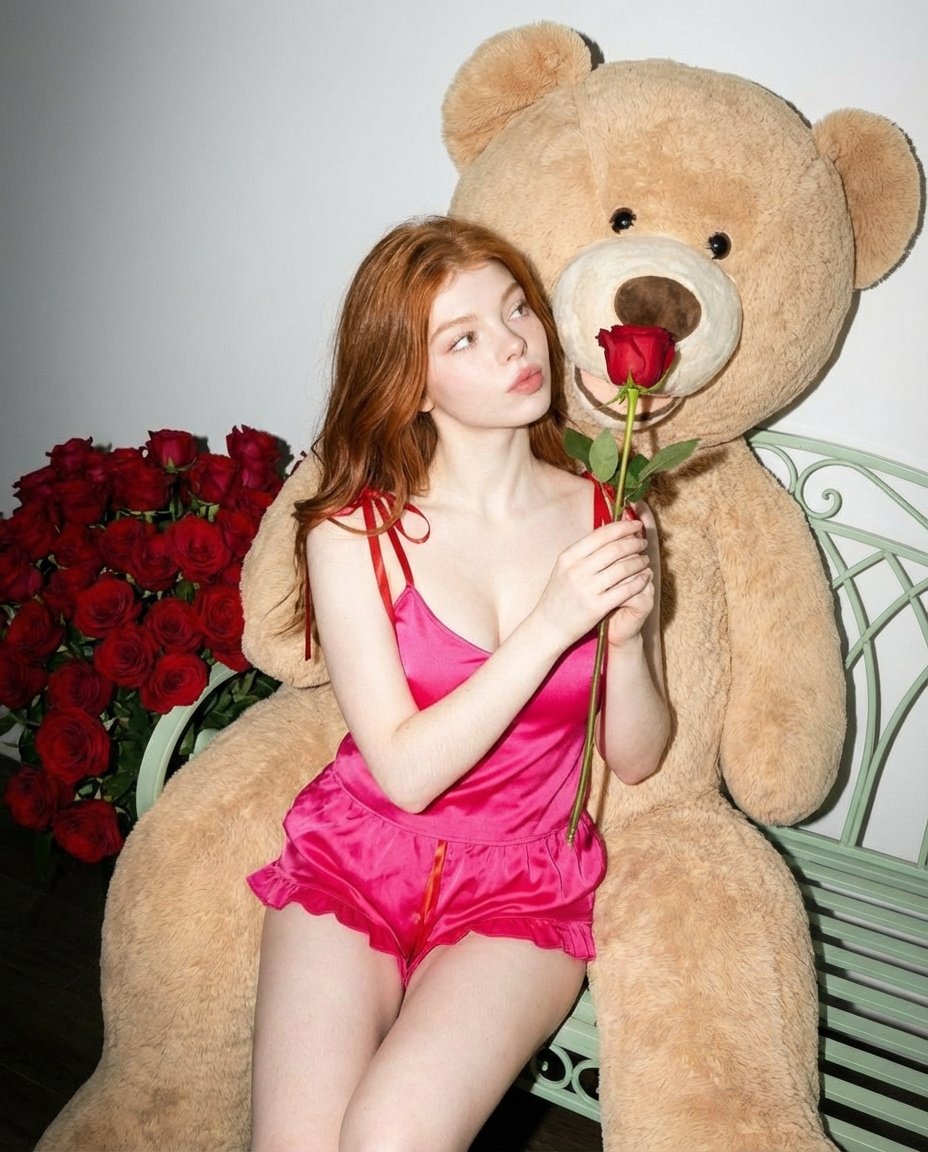
Romantic Fashion Editorial Portrait Prompt
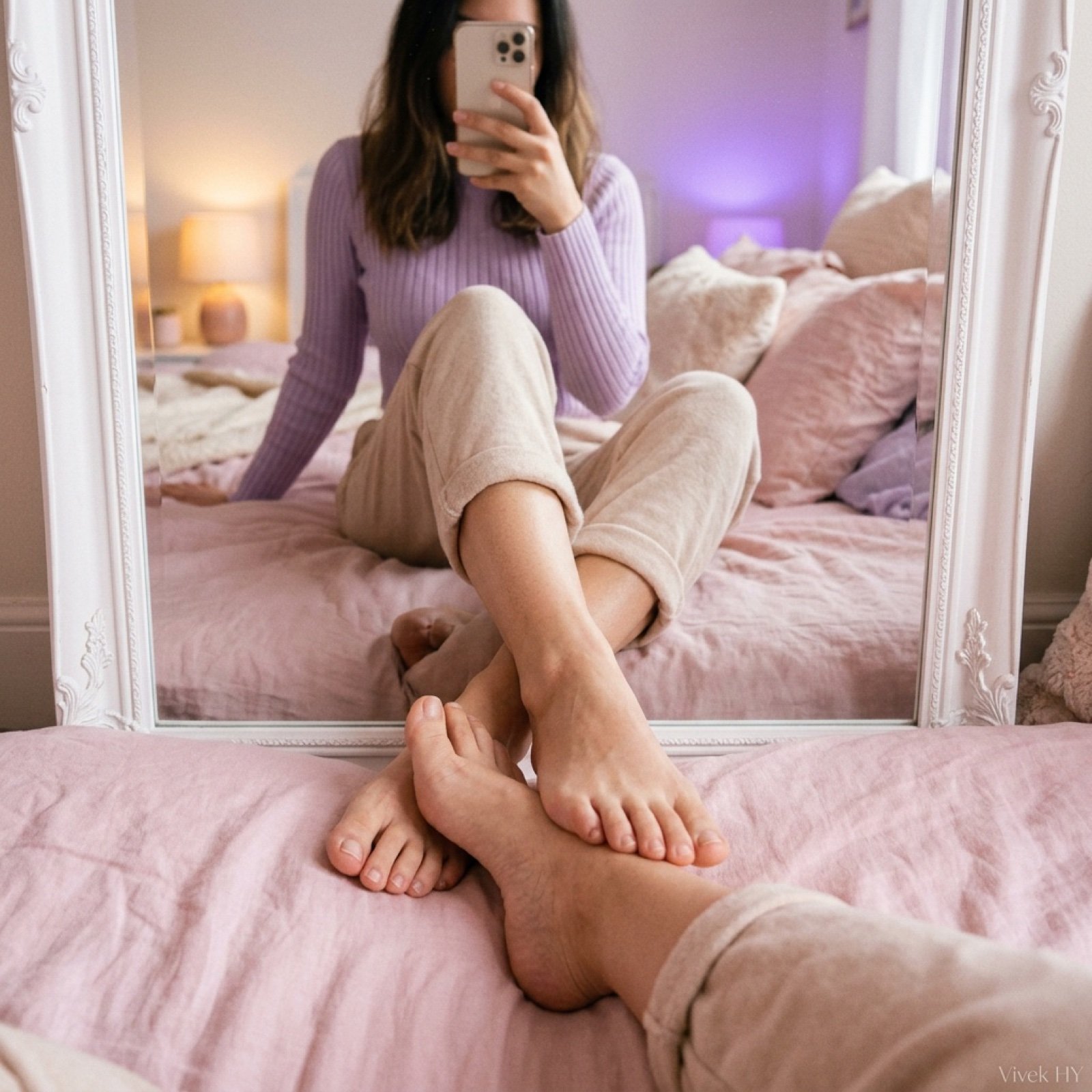
Mirror Pose Selfie Aesthetic Prompt
Anime Girl Stairwell Composite
Minimalist Studio Fashion Photo of Young Man
Prone Bed Selfie in Pink Lounge Wear
Ultra-Realistic Commercial Soda Can Photography
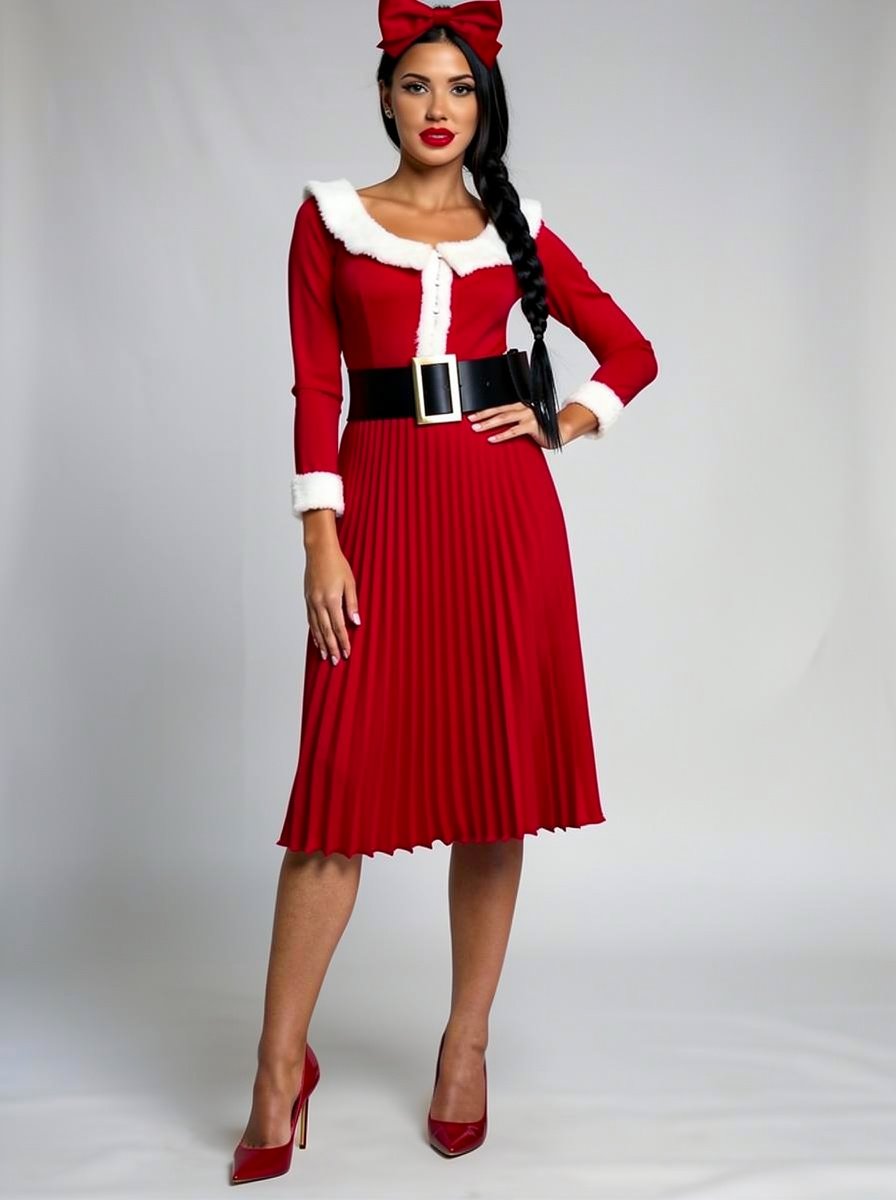
Outfit Style Edit: Santa-Inspired Dress
Browse template categories
Hidden Engraved Rice Grain questions
How do I use the Hidden Engraved Rice Grain template?
Add your photo if the template asks for one, edit the prompt if you like — the template's model and format are already selected — and press Generate. Your version opens in PicX Studio.
Can I customize the Hidden Engraved Rice Grain template?
Yes. You can change the subject, setting, lighting, mood, format, and available model controls before creating your image.
Is the Hidden Engraved Rice Grain template free?
Opening and editing this template is free. Generating uses credits, shown on the Generate button when you are signed in.
Which AI model should I use?
Start with GPT Image 2, which is the model associated with this template. You can compare another compatible model for a different finish.
Looking for something else? Browse all templates.

Your photo, any look
Thousands of ready templates for every top image and video model, from one credit balance.