
Layered Paper-Cut Illustration
A stylized transformation prompt that turns an image into a handcrafted papercraft diorama with layered paper textures and sticker-like outlines.
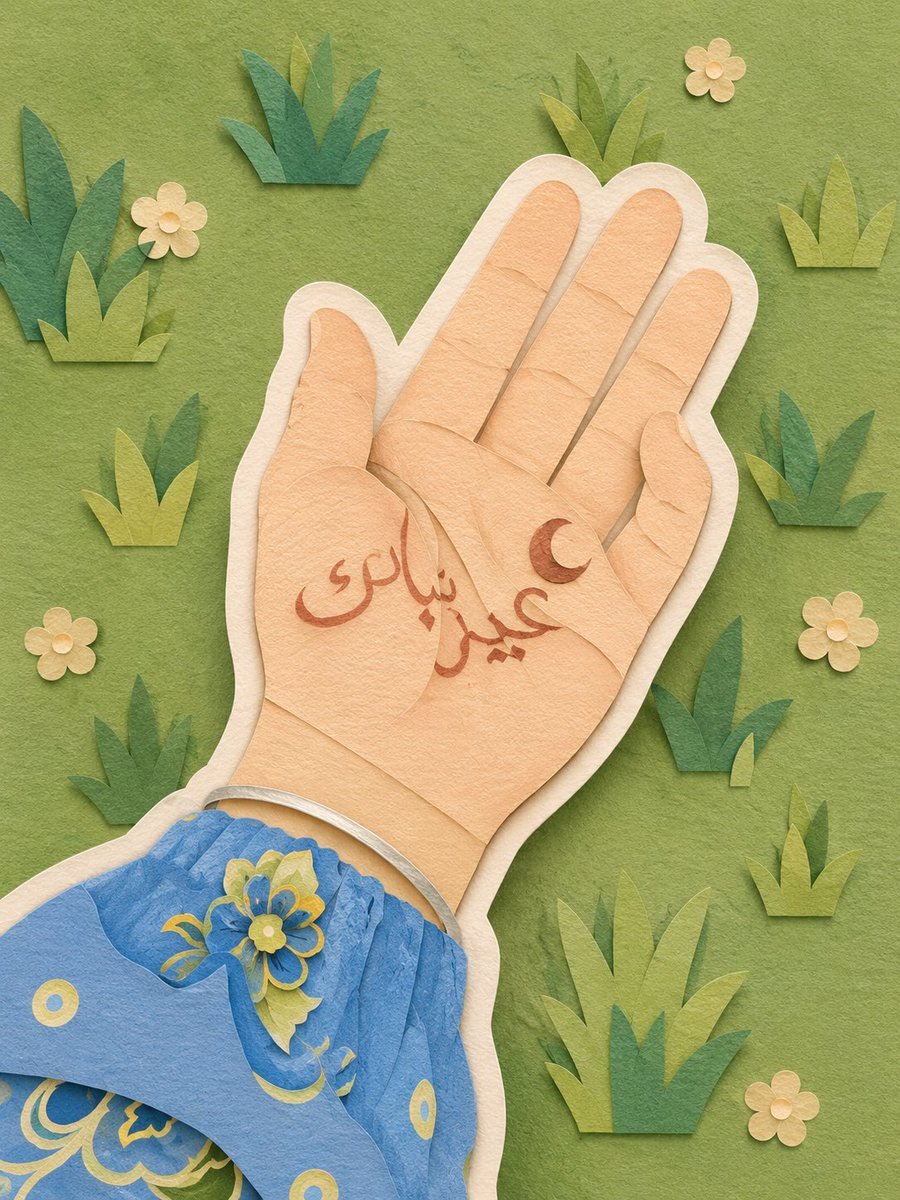
- Prompt included
- Model and format preset
- Free template
The prompt behind this image
Copy the exact prompt behind Layered Paper-Cut Illustration, or open it in the studio and make it yours.
Convert this image into a {argument name="art style" default="soft, handcrafted paper-cut layered illustration style"}, inspired by papercraft diorama aesthetics. Use smooth rounded shapes, simplified cute character proportions, and minimal facial details (dot eyes, blush cheeks) to create a warm, charming look. Apply stacked paper layers with visible depth, subtle shadows between layers, and clean cut edges that resemble laser-cut cardstock. Add a distinct white outer outline layer surrounding each main character, resembling a thick sticker border or white cut-paper backing, clearly separating the characters from the background. This white layer should feel like an intentional paper layer, not a glow. Use a {argument name="color palette" default="pastel color palette with muted blues, greens, and warm neutrals"}, balanced and calming. Lighting should feel soft, diffused, and even, enhancing the dimensional paper layers without harsh contrast. Textures should appear matte and tactile, like thick art paper or craft foam. Overall mood: {argument name="mood" default="cozy, wholesome, gentle, and storybook-like"}, with a playful yet polished handcrafted feel suitable for modern illustration, children’s books, or decorative art.
How to use Layered Paper-Cut Illustration in 3 steps
- 1Upload ImagePNG, JPG or paste
Add your photo
Upload the photo the template builds on. The prompt, model and format are already set.
- 2…a portrait of your subject in softgolden-hour light, 85mm…
Personalize
Edit the subject and creative details for your destination.
- 3Generate
Generate
Press Generate — your image is created in PicX Studio, so you can compare it with the original and refine one variable at a time.
More like this
Templates with the same subject, style or setup. Open one to see its prompt.
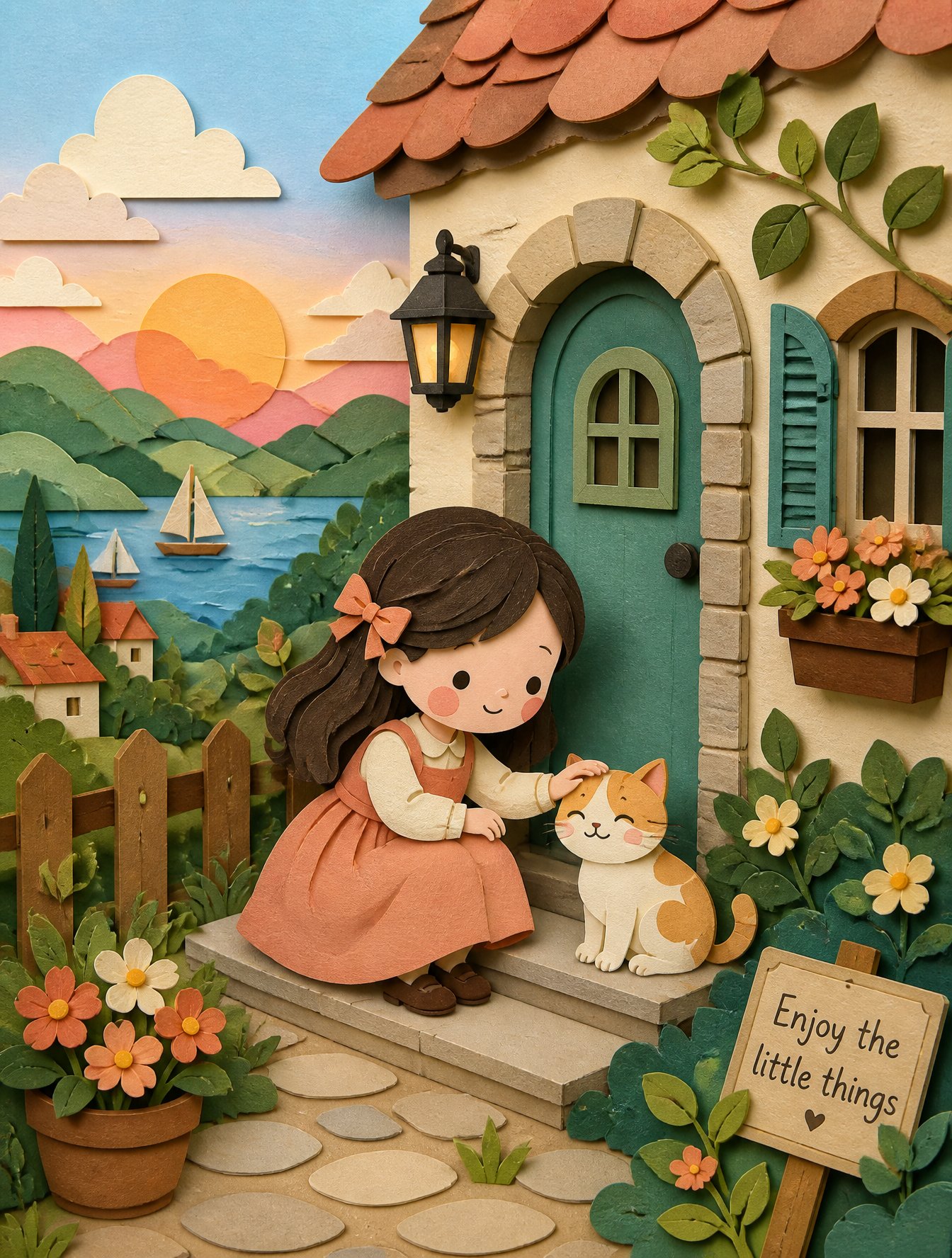
Soft Handcrafted Paper-Cut Layered Illustration
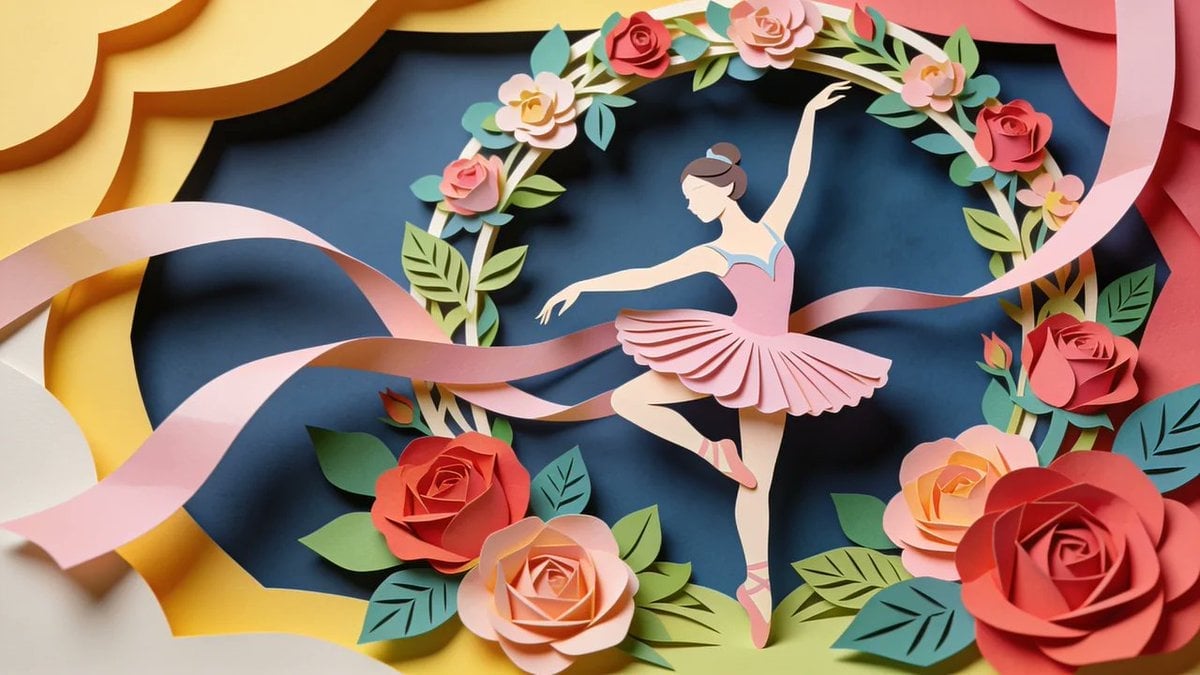
Paper Cut Craft Illustration
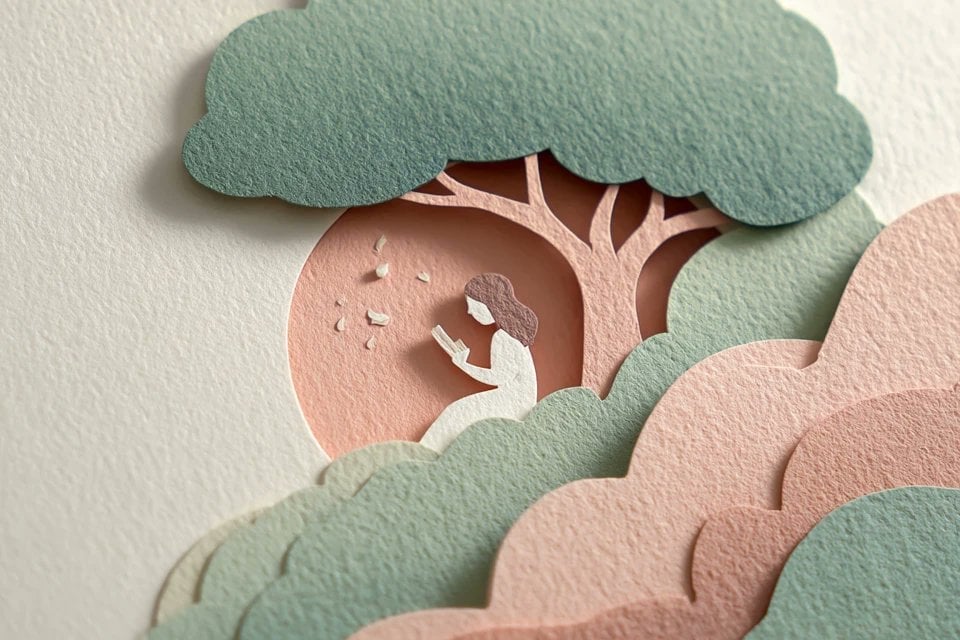
Layered Paper Cut Illustration Template
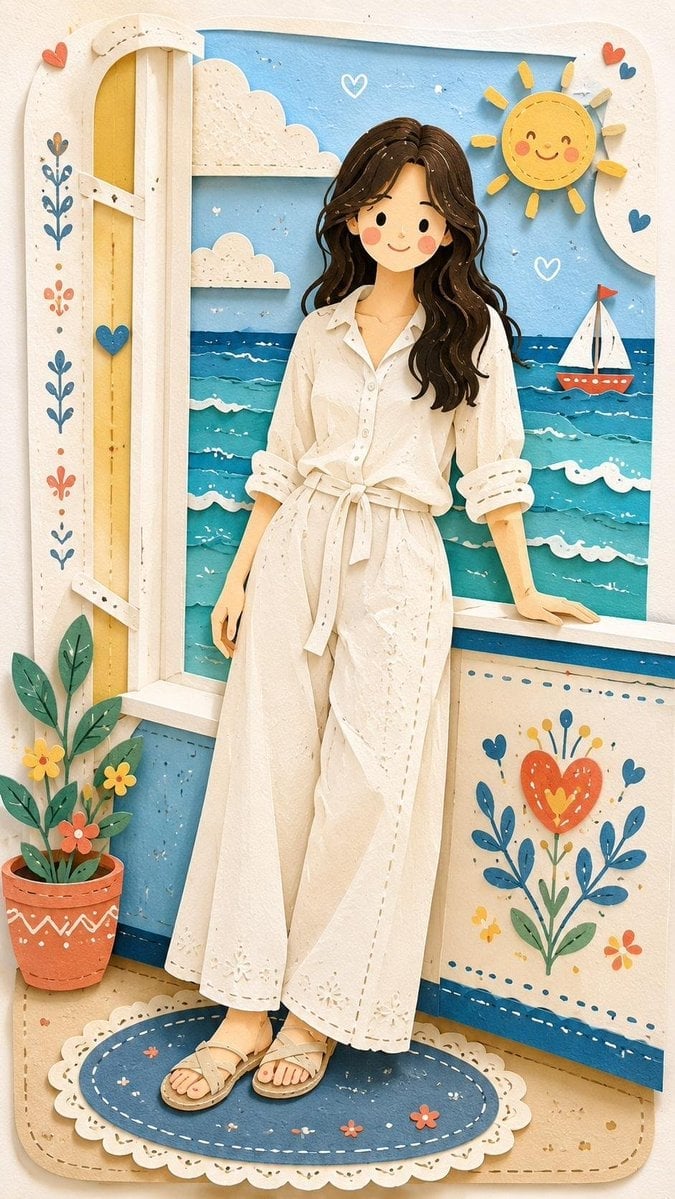
Decorative Folk Flat Paper Cut Illustration
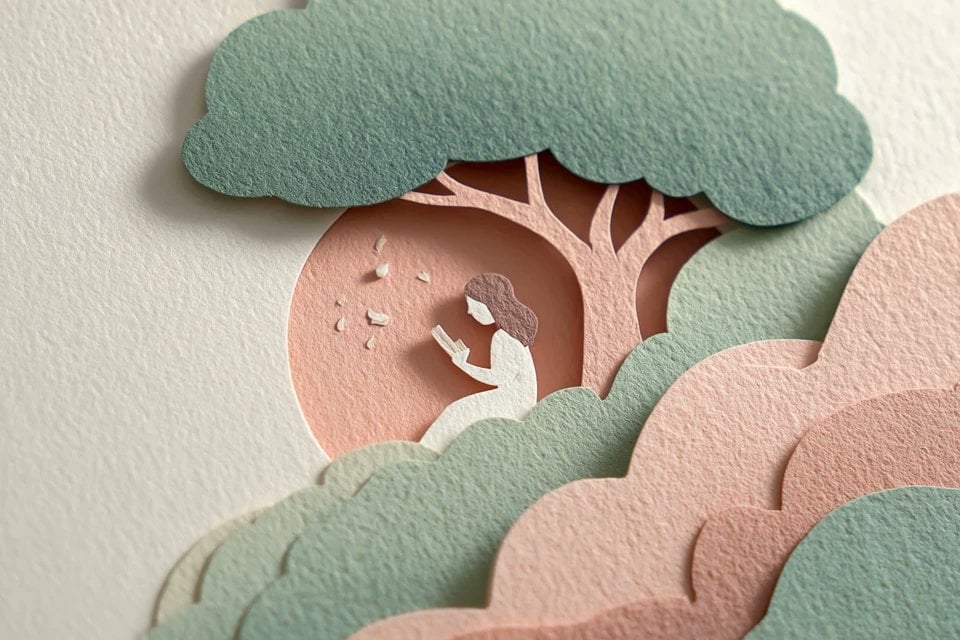
Master Layered Paper Cut Illustration — Overlapping Shapes with Handcrafted Textures
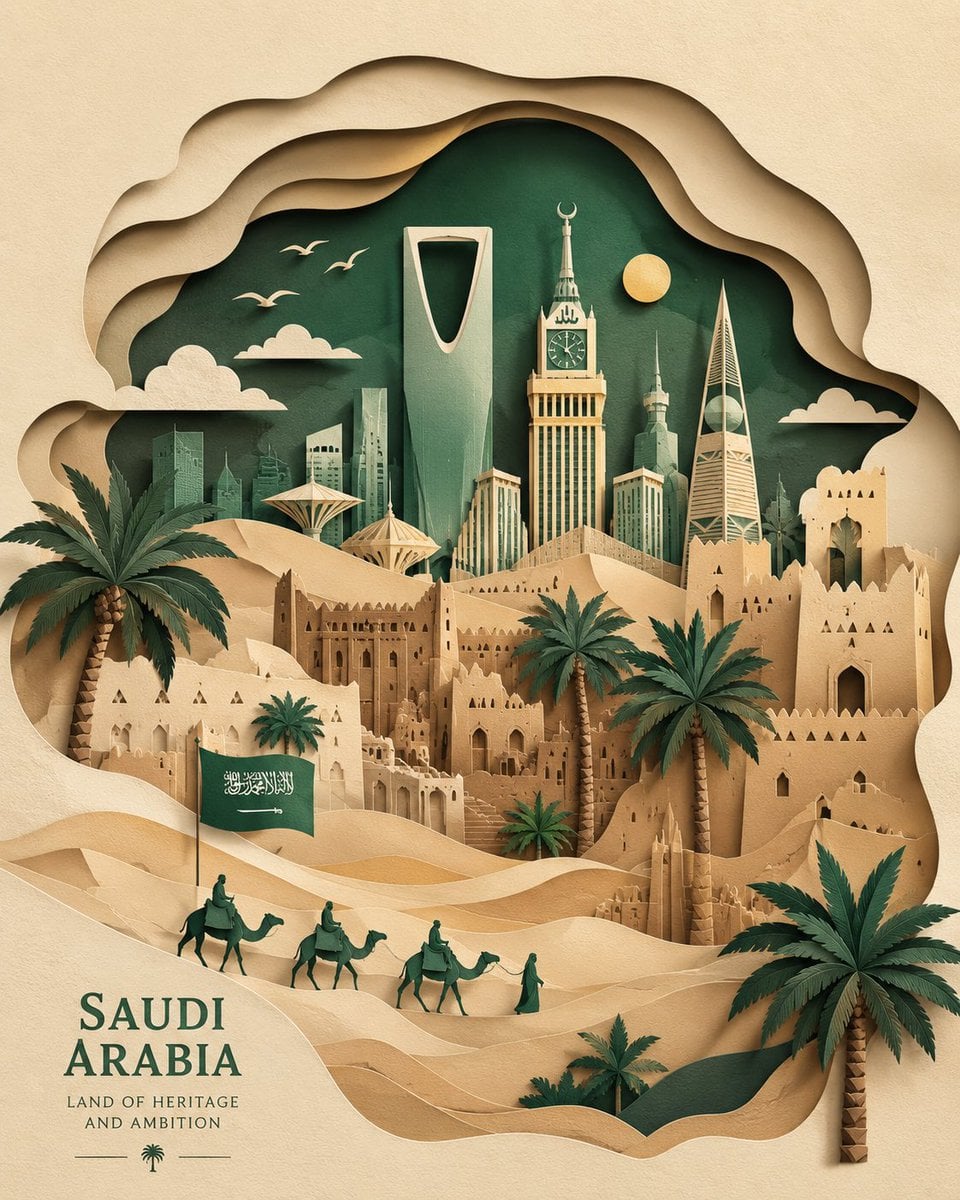
Master Paper Cut Illustration — Saudi Arabia Travel Poster in Layered Paper Art
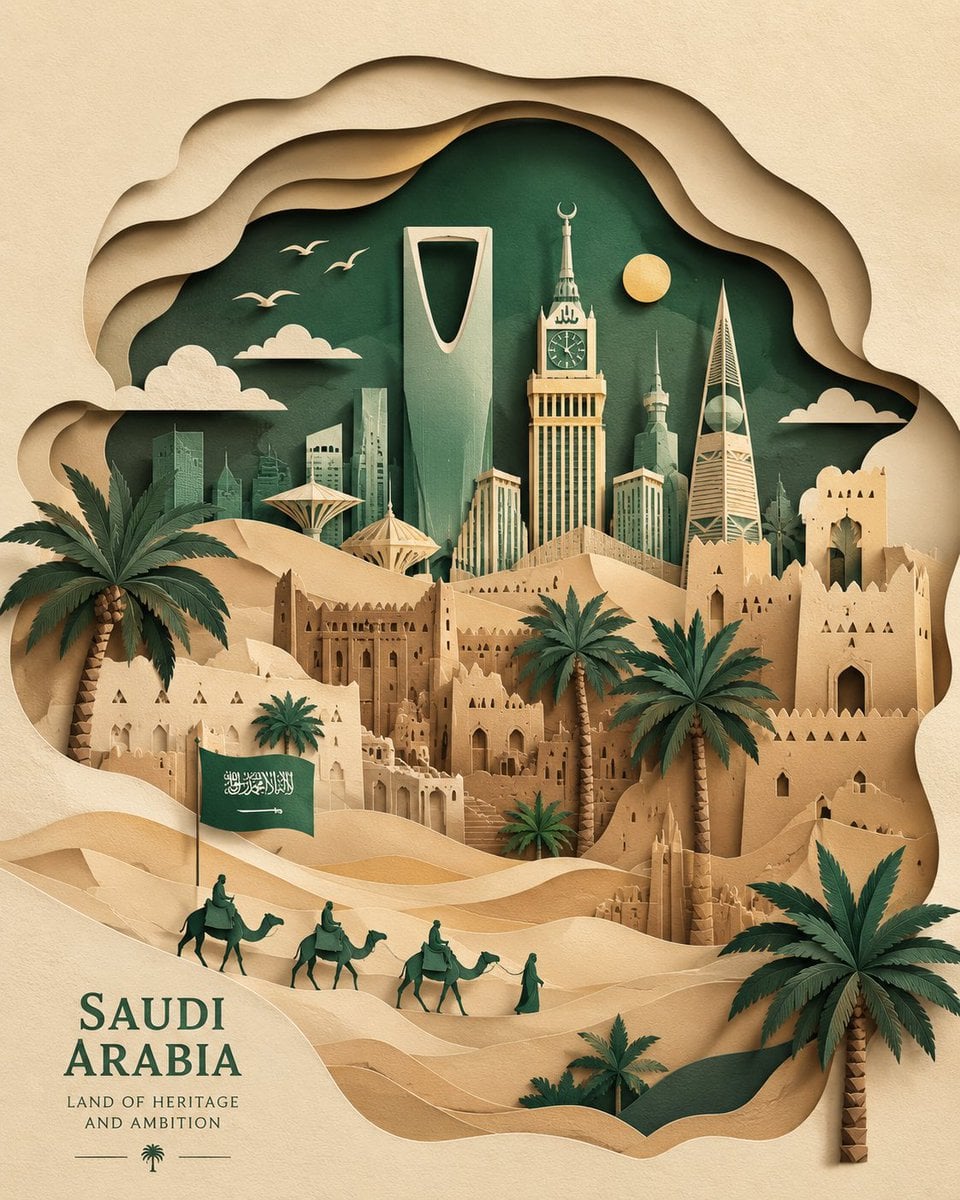
Saudi Arabia Paper Cut Travel Poster
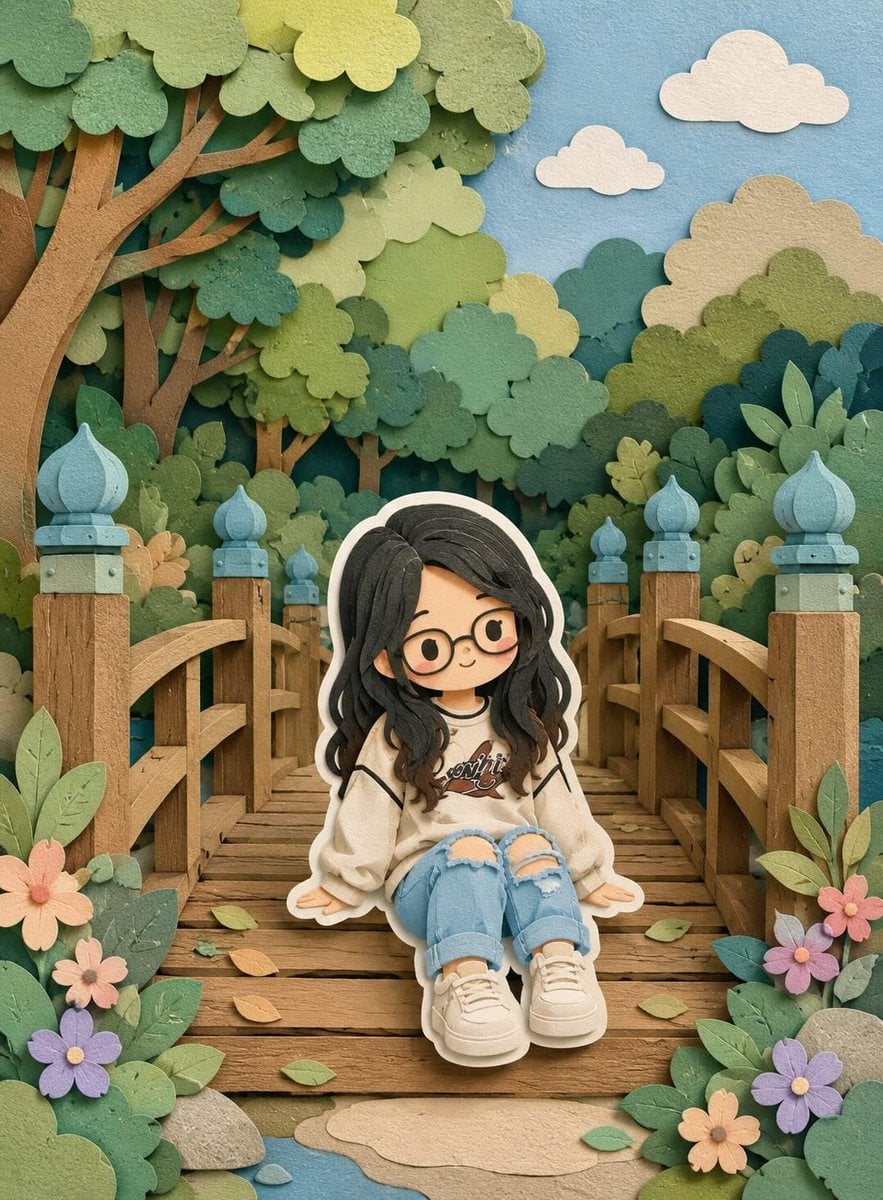
Cute Layered Paper Cut Chibi Girl
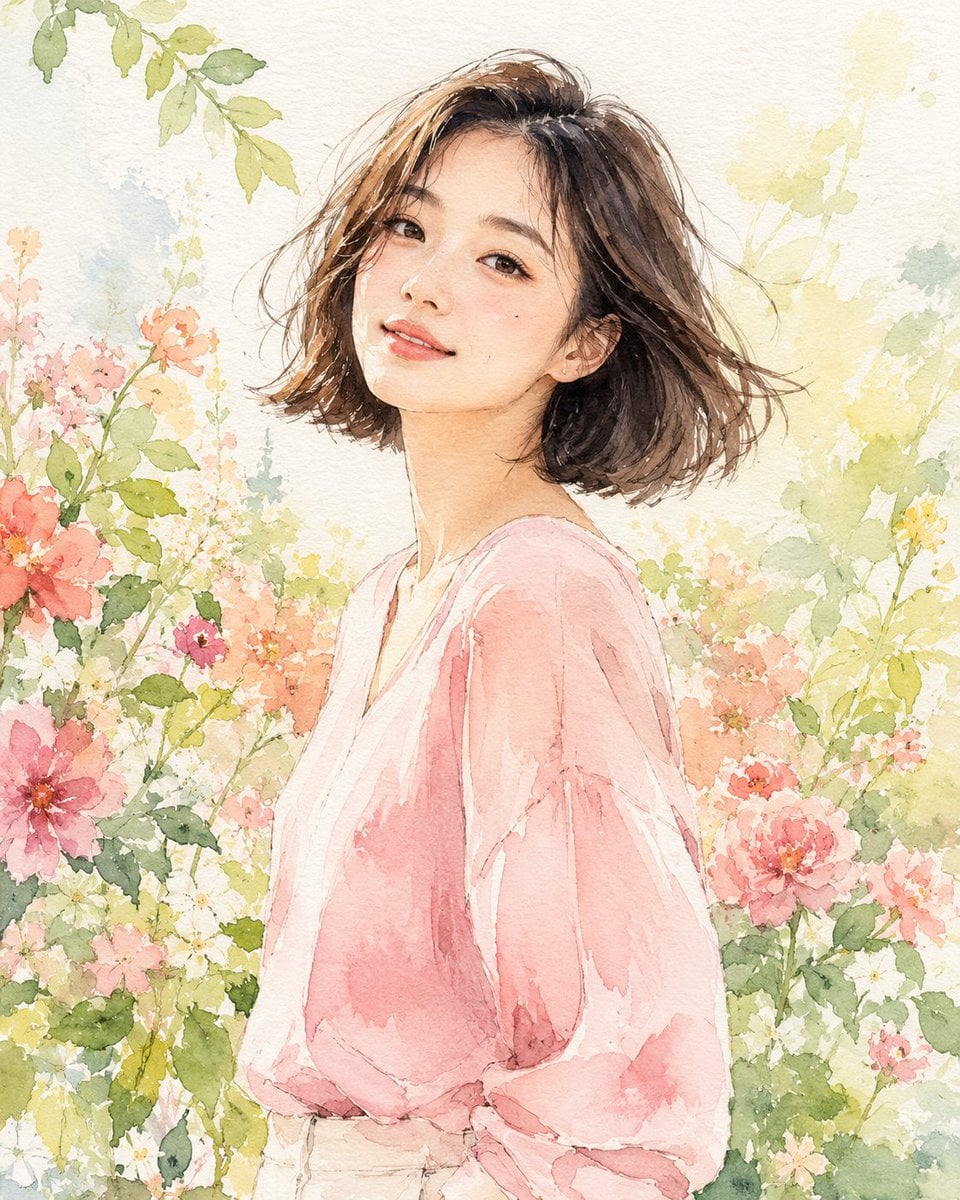
Paper Cut Finale Fireworks
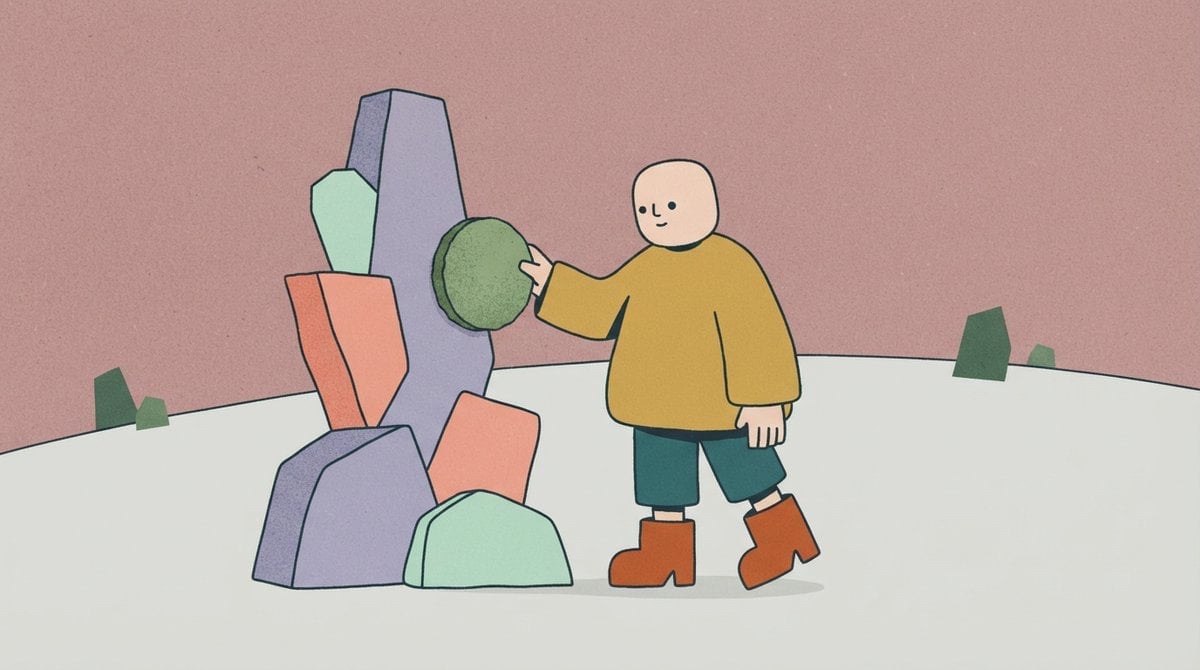
Paper Cut Garden Maze
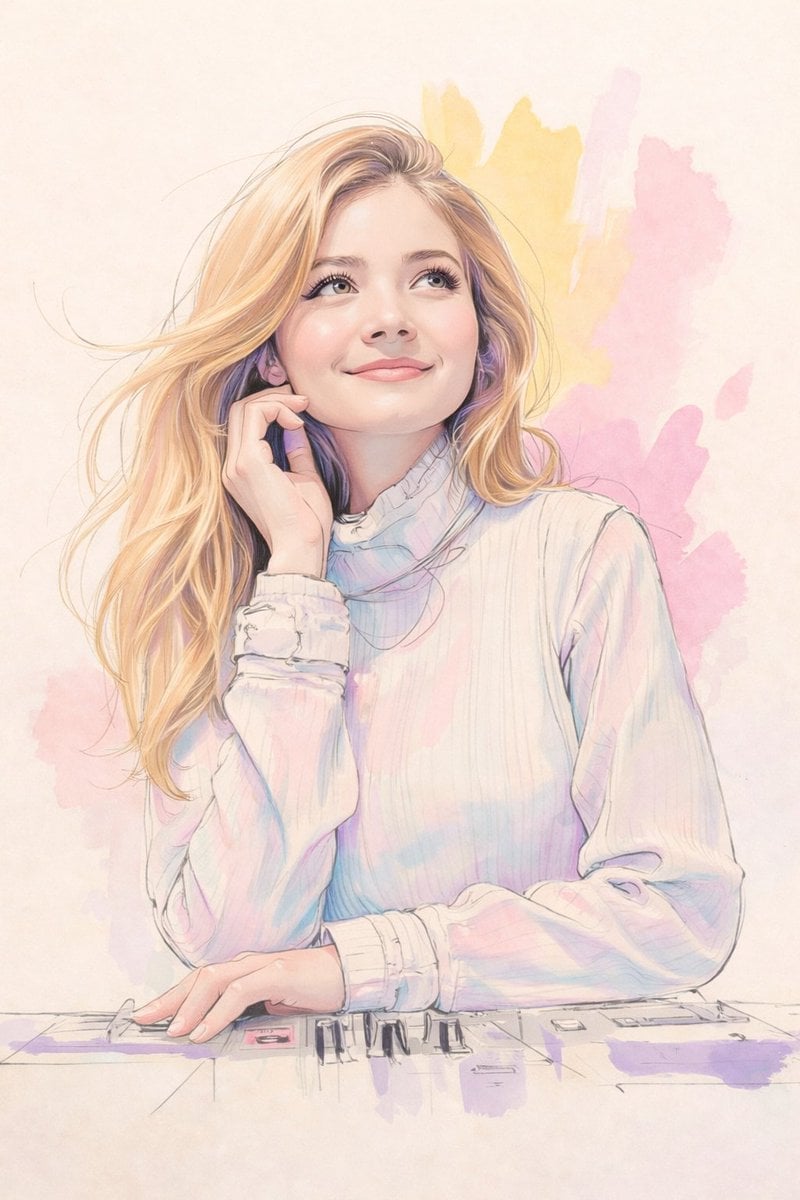
Paper Cut Rooftop Concert
Paper Cut Bicycle Coast
Make it yours
Layered Paper-Cut Illustration works as-is. These are the safest ways to change it without losing the look.
Change one field
Copy a single group, rewrite it, and generate again so you can see what that field is doing.
Keep the frame, change the subject
Hold the composition and light of Layered Paper-Cut Illustration, then swap wardrobe, props or the person for a new take.
| If the result… | Why | Fix |
|---|---|---|
| The result drifts from the preview | Too many fields changed at once. | Reuse Layered Paper-Cut Illustration as-is first, then change one group — subject, light, or setting. |
| The model over-stylizes the scene | The prose prompt leaves finish and camera underspecified. | Add one camera or lighting sentence and stay on GPT Image 2. |
More GPT Image 2 templates
Other prompts made for GPT Image 2.

Six VTuber Japanese Logo Sheet

Realistic Portrait of Woman and Deer

The Vista Modular Condo Poster

AI Model Routing Comparison Infographic

2.5D Anime Art Board

Isometric Productivity Desk Scene

New York Double Exposure Poster

Four-Panel AI Landscape Comparison

Japanese Tatami Lifestyle Magazine Cover

NESCAFÉ Coffee Map Poster
More image prompts
Fresh picks from across the catalog.
23 California Redwood Forest — California Series
Ad recreation prompt using your product and brand aesthetics
2026 Vision Board Collage: Feminine Empowerment and Luxury
Pregnant Selfie with Unimpressed Partner
Monochrome Fashion Collage
Great Wall Travel Collage
King Salmon vs Grizzly Bear Battle
Photo to Watercolor Illustration of Couple
Noisy Distortion Filter for Mixed Media Effect
Luxury Hotel Mirror Selfie
Browse template categories
Layered Paper-Cut Illustration questions
How do I use the Layered Paper-Cut Illustration template?
Add your photo if the template asks for one, edit the prompt if you like — the template's model and format are already selected — and press Generate. Your version opens in PicX Studio.
Can I customize the Layered Paper-Cut Illustration template?
Yes. You can change the subject, setting, lighting, mood, format, and available model controls before creating your image.
Is the Layered Paper-Cut Illustration template free?
Opening and editing this template is free. Generating uses credits, shown on the Generate button when you are signed in.
Which AI model should I use?
Start with GPT Image 2, which is the model associated with this template. You can compare another compatible model for a different finish.
Looking for something else? Browse all templates.

Your photo, any look
Thousands of ready templates for every top image and video model, from one credit balance.