
Toy Keychain vs Real Life Comparison
A creative split-screen prompt that compares a 3D chibi-style keychain figure with its real-life human inspiration in an urban setting.
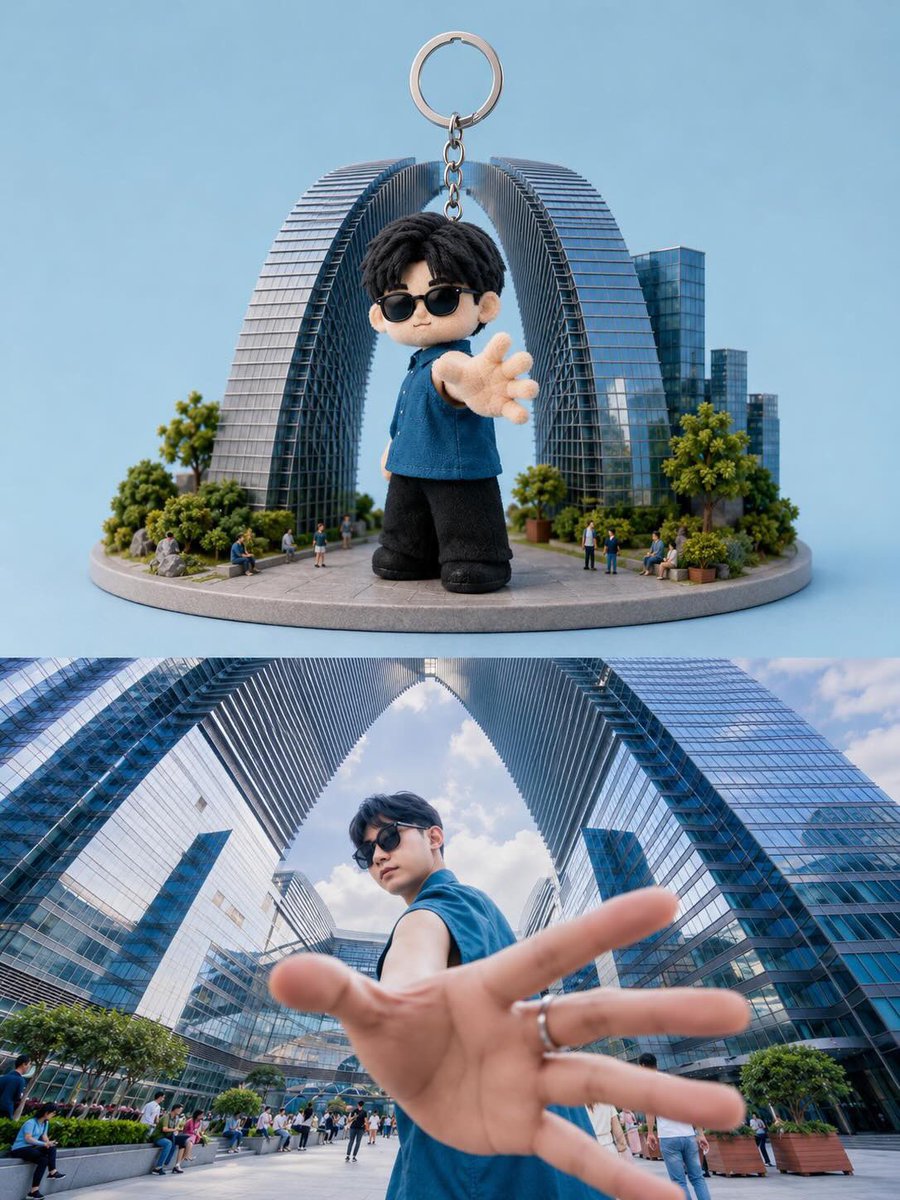
- Prompt included
- Model and format preset
- Free template
The prompt behind this image
Copy the exact prompt behind Toy Keychain vs Real Life Comparison, or open it in the studio and make it yours.
Create a split-screen composition showing a realistic collectible keychain figure and its real-life inspiration. Top half: a cute chibi-style 3D miniature keychain character with {argument name="character look" default="oversized head, black messy hair, black sunglasses, blue sleeveless shirt, black pants, and soft plush-texture details"}. The character is standing with one hand reaching toward the camera in a dynamic perspective pose. Attach a metallic keyring chain above the figure. Place the toy on a circular miniature city platform with {argument name="miniature environment" default="tiny people, trees, and modern futuristic skyscrapers forming a giant arch structure"} behind him. Clean pastel blue studio background, soft lighting, highly detailed toy photography, premium collectible aesthetic, shallow depth of field. Bottom half: realistic cinematic wide-angle photo of the {argument name="subject" default="same young man in the exact same pose and outfit"}, standing between giant modern glass skyscrapers with arch-shaped architecture. Extreme perspective with the hand close to the lens, dramatic low-angle composition, natural daylight, urban luxury atmosphere, ultra realistic photography, vibrant reflections on glass buildings, depth and realism. Style contrast between adorable stylized toy render and real-life cinematic photography. Ultra detailed, high quality, 9:16 vertical composition.
How to use Toy Keychain vs Real Life Comparison in 3 steps
- 1
Open
The prompt is already in the box next to the preview, with the template's model and format selected.
- 2…a portrait of your subject in softgolden-hour light, 85mm…
Personalize
Edit the subject and creative details for your destination.
- 3Generate
Generate
Press Generate — your image is created in PicX Studio, so you can compare it with the original and refine one variable at a time.
More like this
Templates with the same subject, style or setup. Open one to see its prompt.
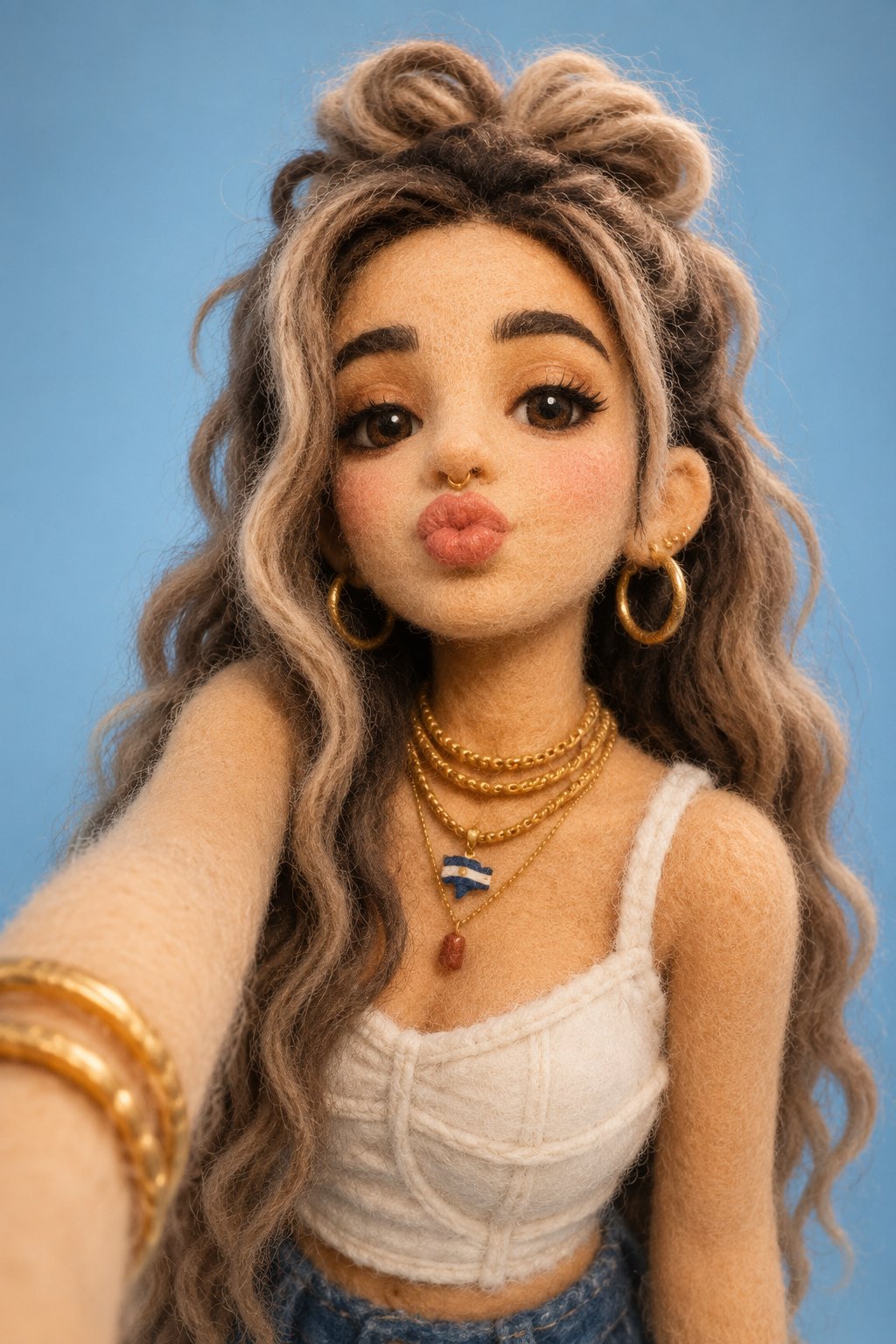
Felt & Knit 3D Character — Photo-Exact Face, Pixar-Quality Plush Figurine

Real-Life and Anime Character Composite
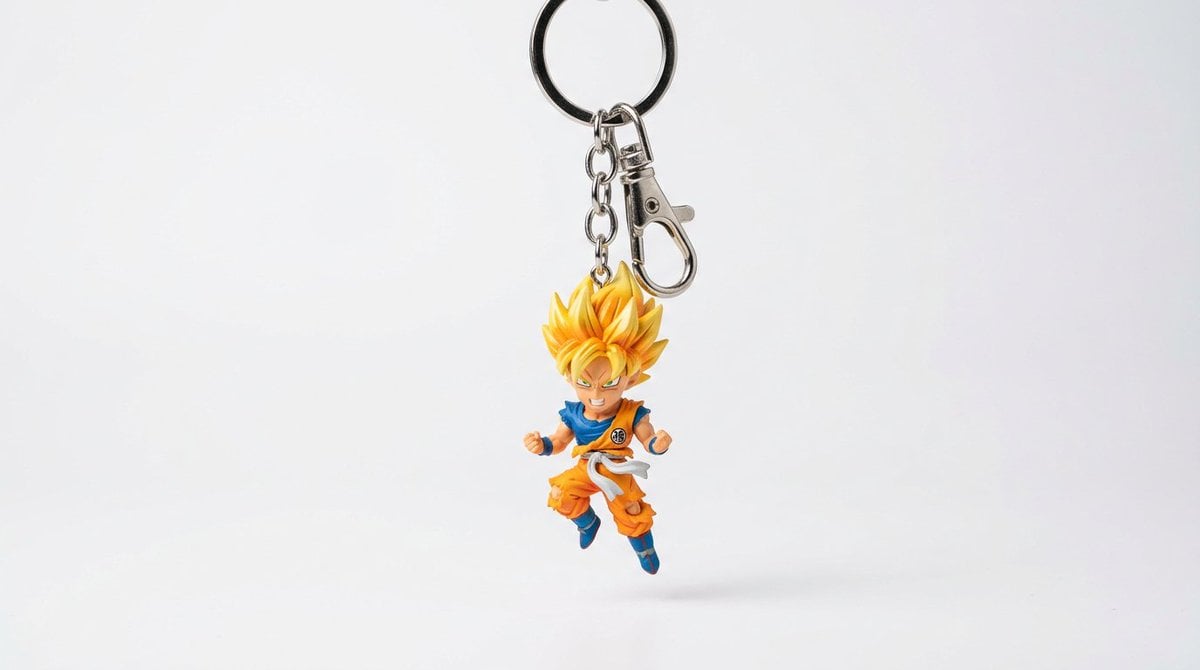
Hyper-Realistic Character Keychain
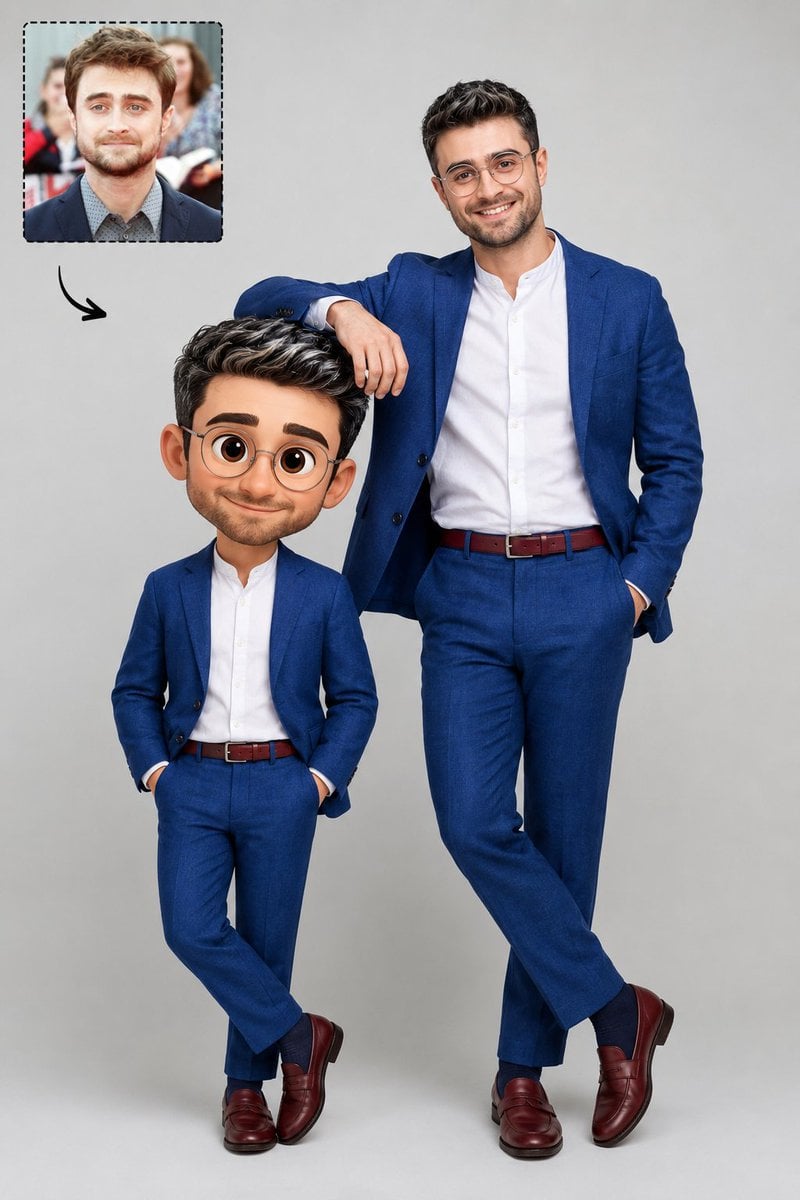
Real Life to Pixar Avatar Transformation
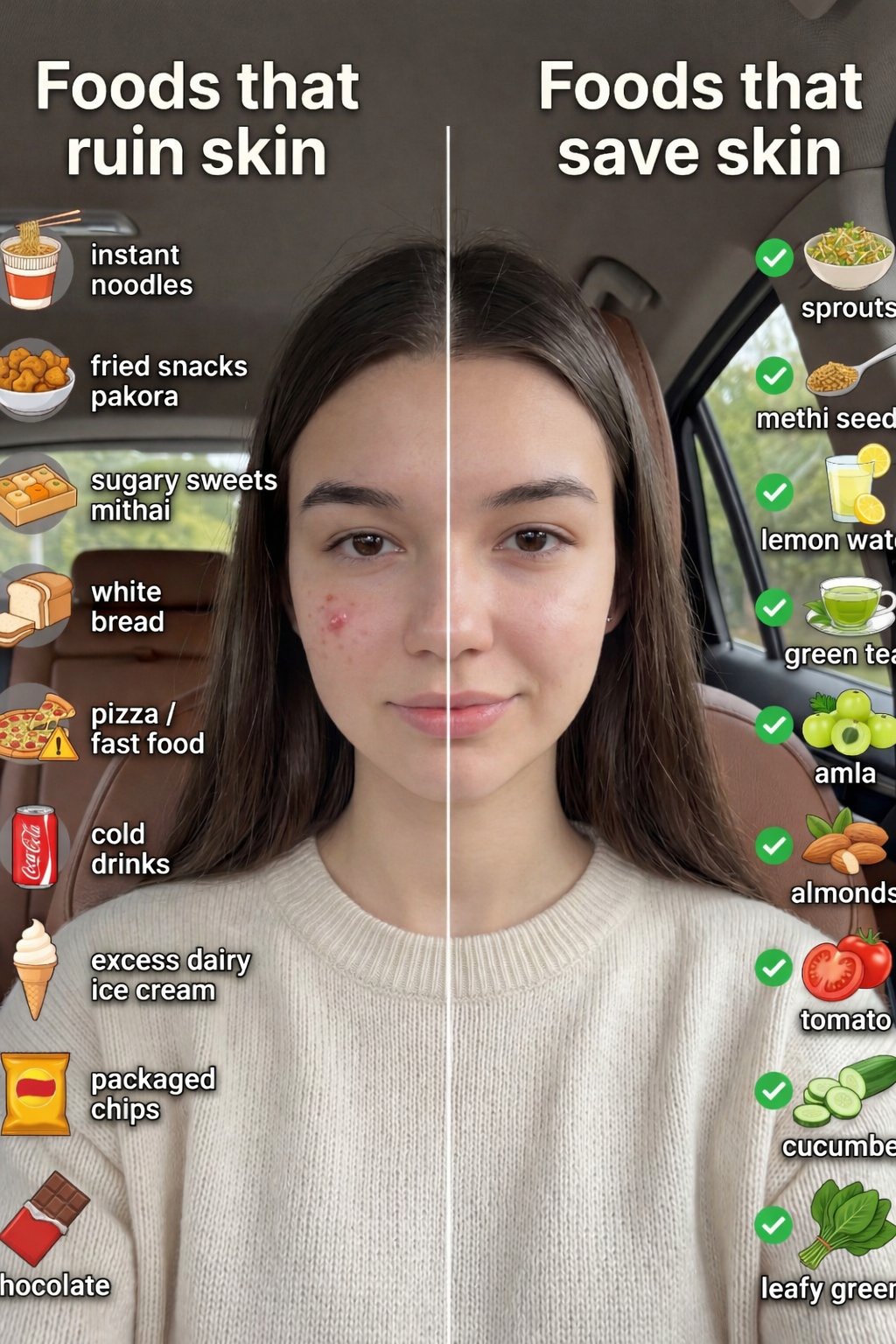
Skin Comparison Portrait — Nano Banana Pro
UGC Skincare Review - Seedance 2.0
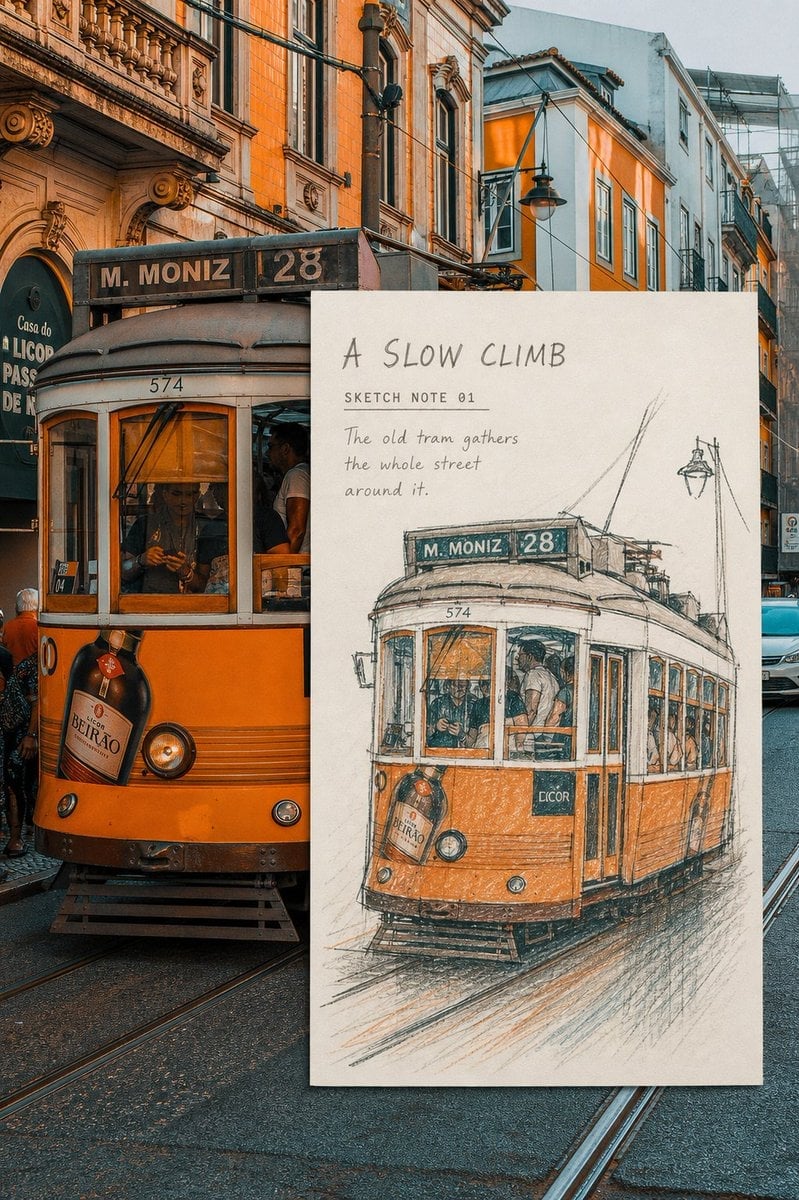
Real-Scene Inset Sketch Poster
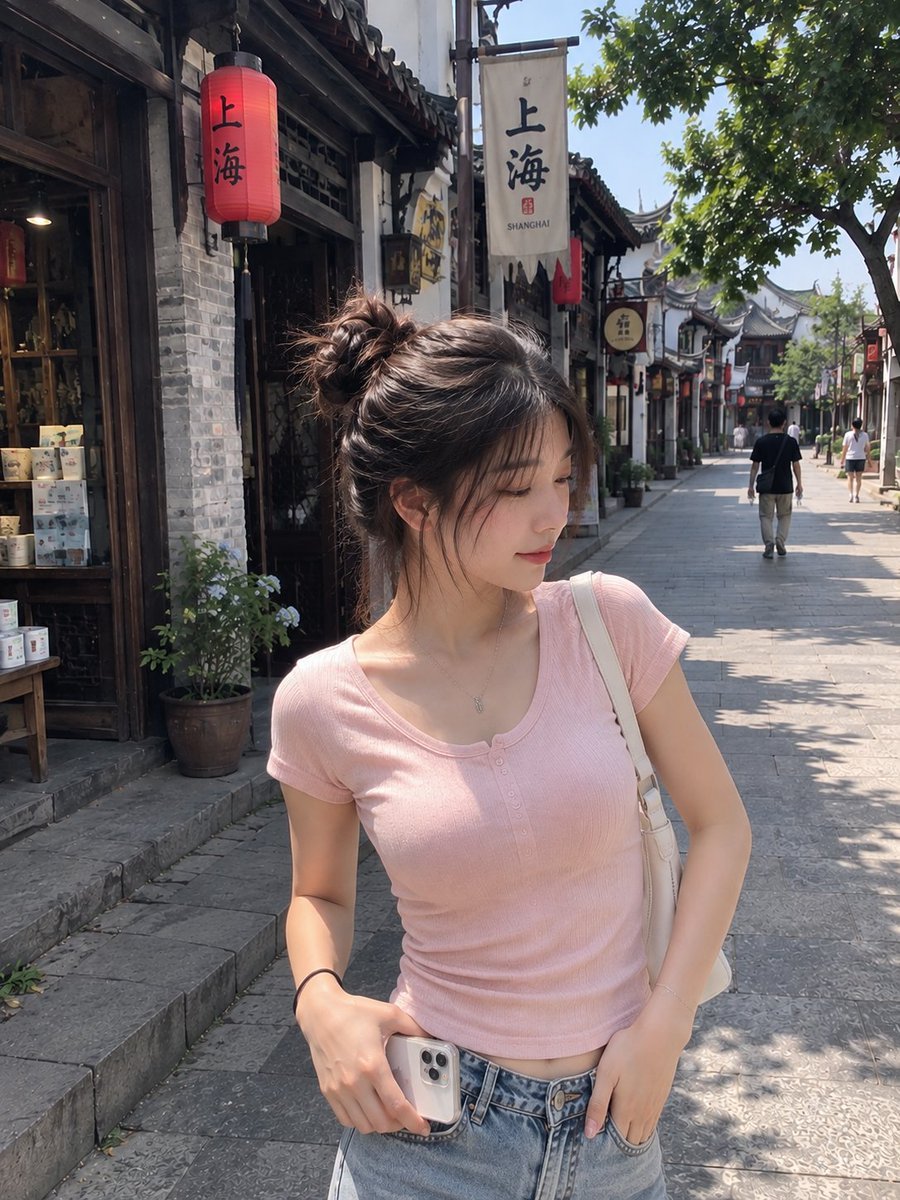
Realistic Chinese Street Smartphone Photo

Mushroom Still Life Composition
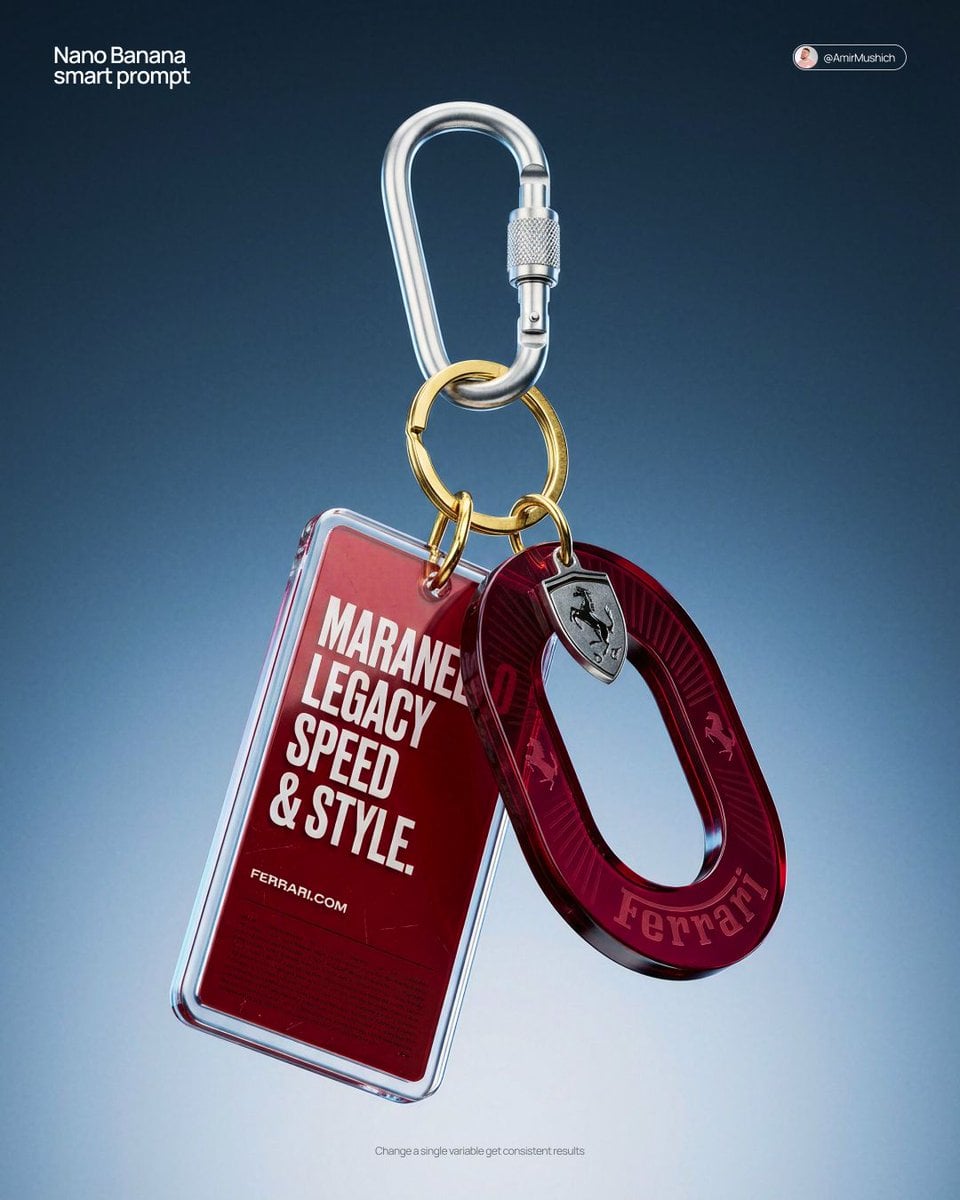
Premium Keychain Collectible CGI Product
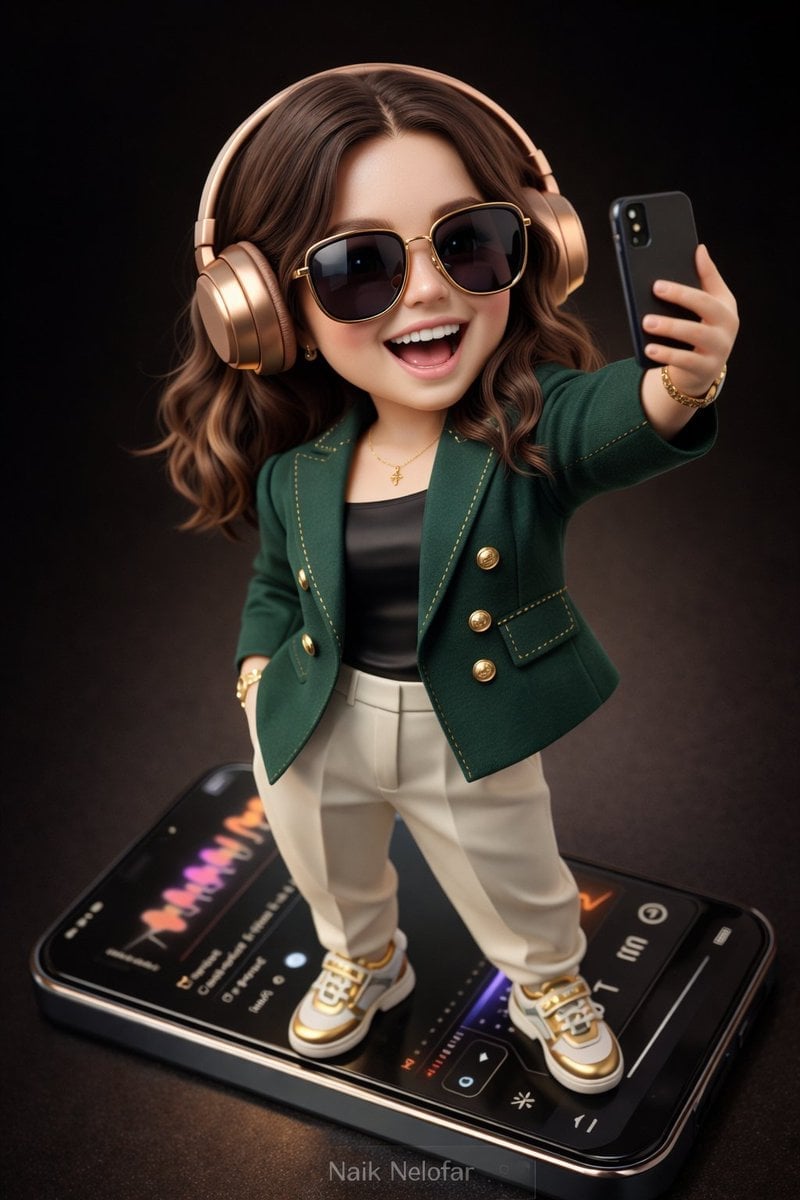
Chibi Designer Toy Character on Smartphone
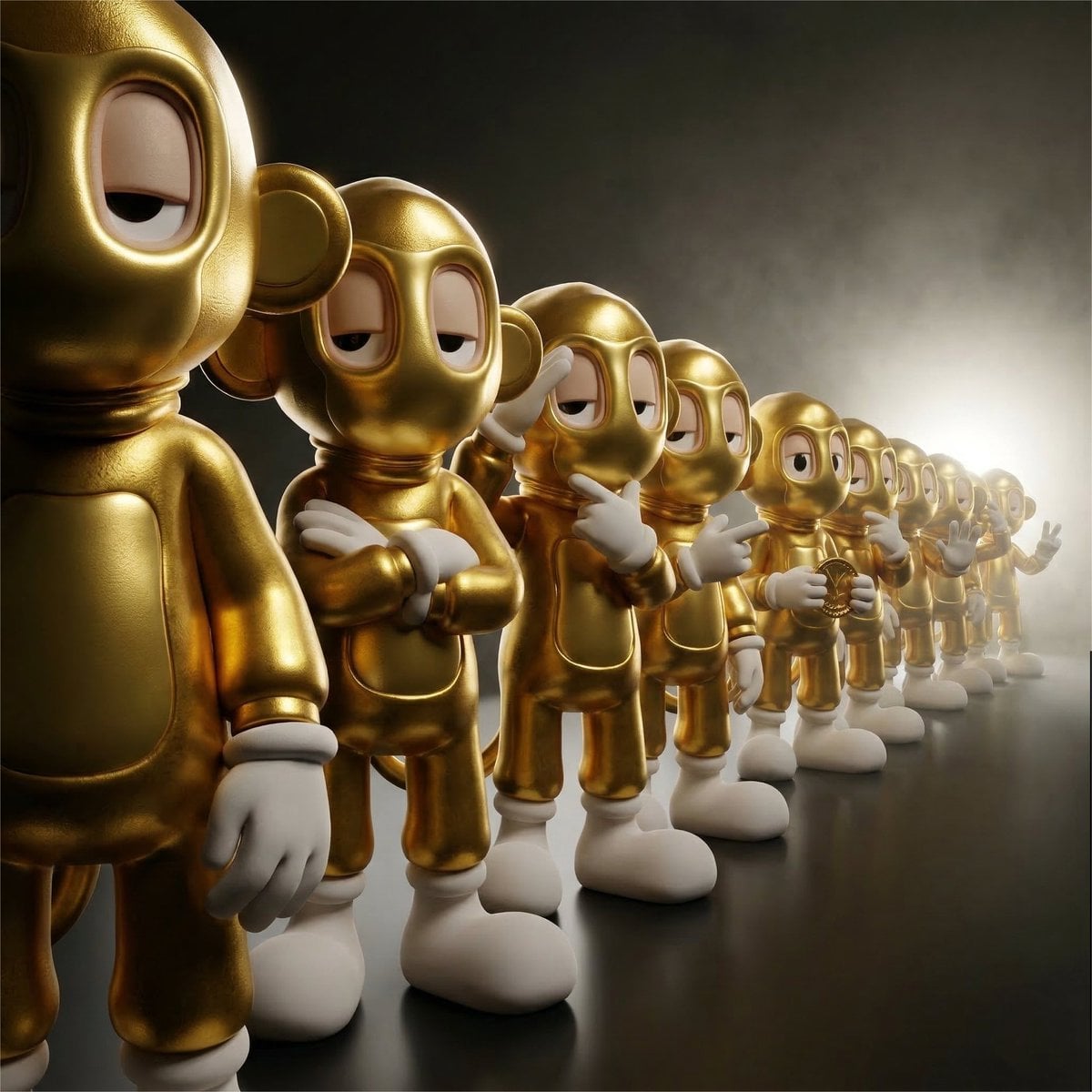
Collectible Vinyl Toy Procession 3D
Make it yours
Toy Keychain vs Real Life Comparison works as-is. These are the safest ways to change it without losing the look.
Change one field
Copy a single group, rewrite it, and generate again so you can see what that field is doing.
Keep the frame, change the subject
Hold the composition and light of Toy Keychain vs Real Life Comparison, then swap wardrobe, props or the person for a new take.
| If the result… | Why | Fix |
|---|---|---|
| The result drifts from the preview | Too many fields changed at once. | Reuse Toy Keychain vs Real Life Comparison as-is first, then change one group — subject, light, or setting. |
| The model over-stylizes the scene | The prose prompt leaves finish and camera underspecified. | Add one camera or lighting sentence and stay on GPT Image 2. |
More GPT Image 2 templates
Other prompts made for GPT Image 2.

Six VTuber Japanese Logo Sheet

Realistic Portrait of Woman and Deer

The Vista Modular Condo Poster

2.5D Anime Art Board

Isometric Productivity Desk Scene

New York Double Exposure Poster

NESCAFÉ Coffee Map Poster

Brutalist Cogito Chinese Typography Poster
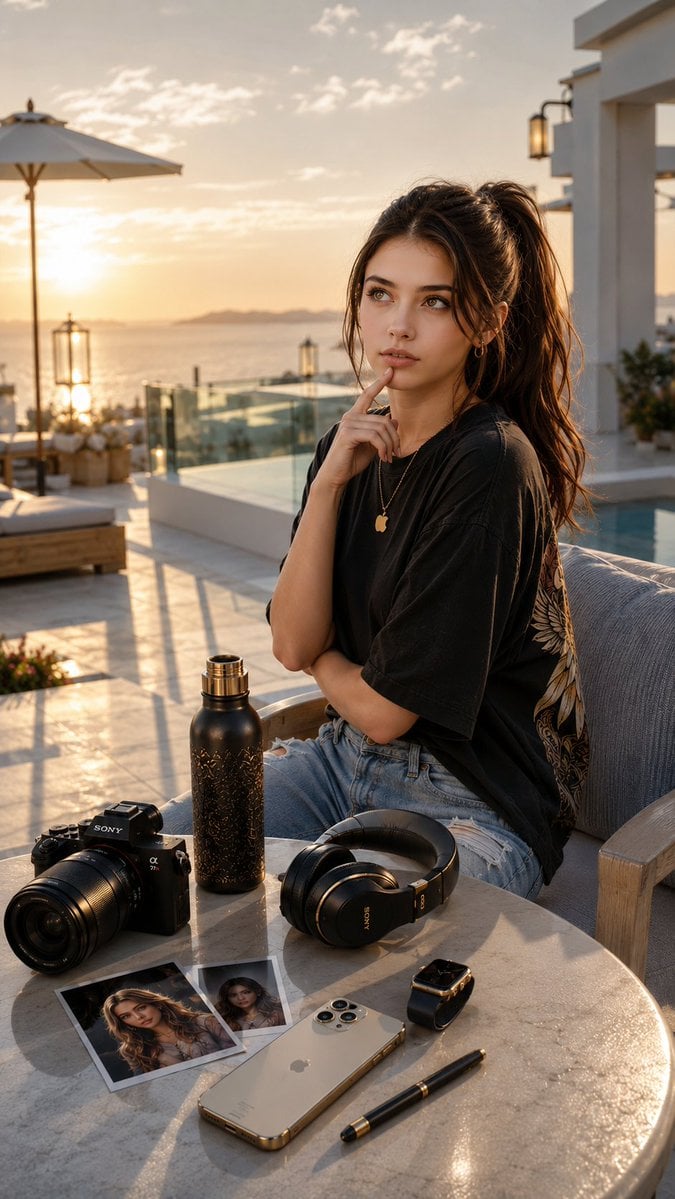
Cinematic Luxury Terrace Portrait

Superhero Era Transformation Split Portrait
More image prompts
Fresh picks from across the catalog.
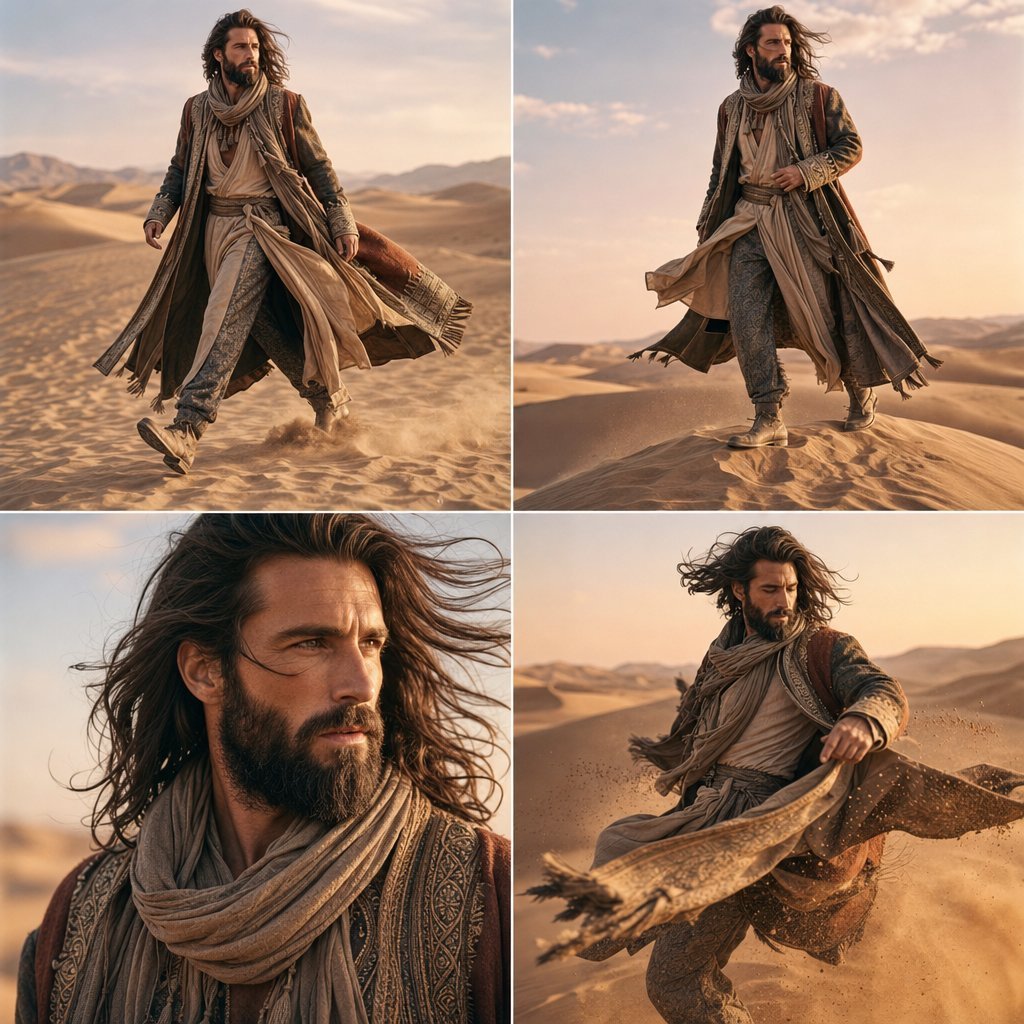
Vogue Desert Fashion Editorial
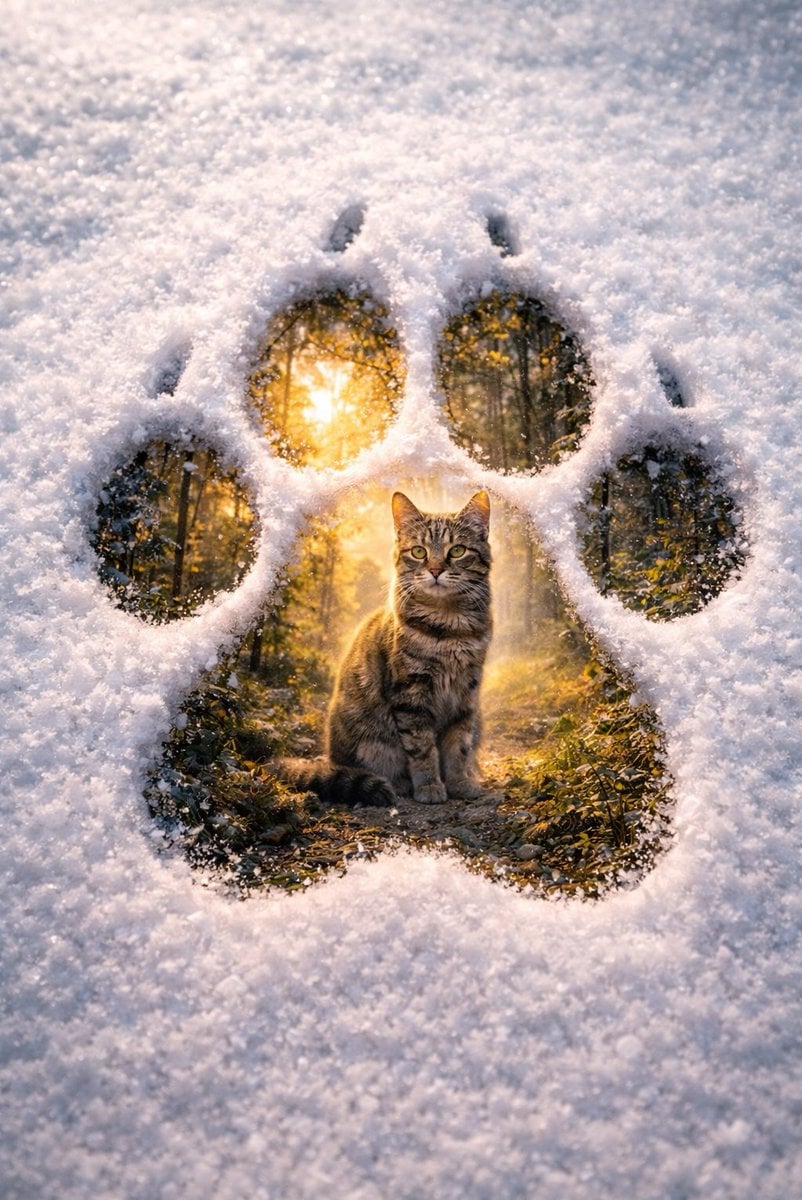
Surreal Pawprint Photo Manipulation Template

Voxel Chibi Cat-Ear Girl

X Sheldon056 Ultra Realistic Fashion Campaign Poster Featuring

Manga Magazine Cover Prompt
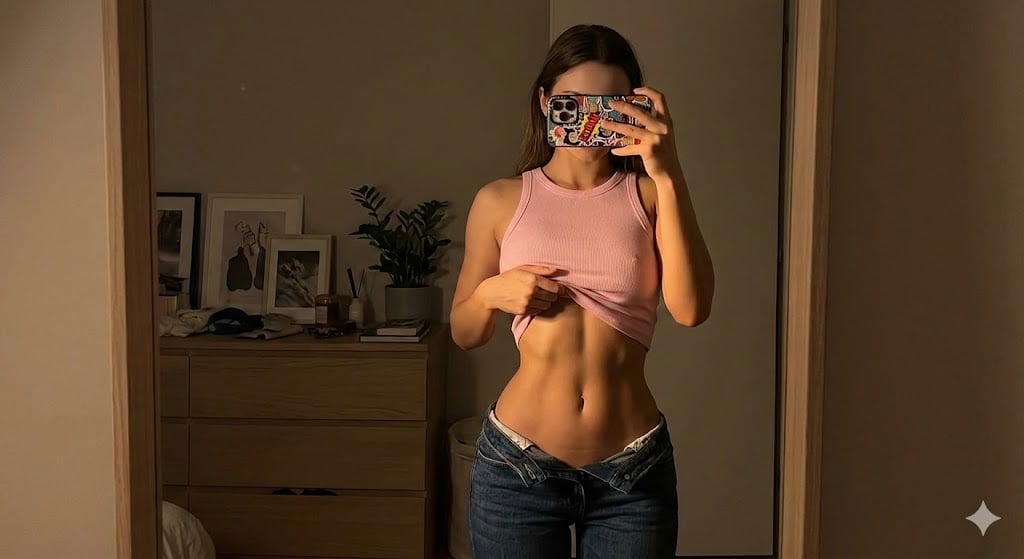
Dramatic Mirror Selfie Image Prompt for Nano Banana Pro
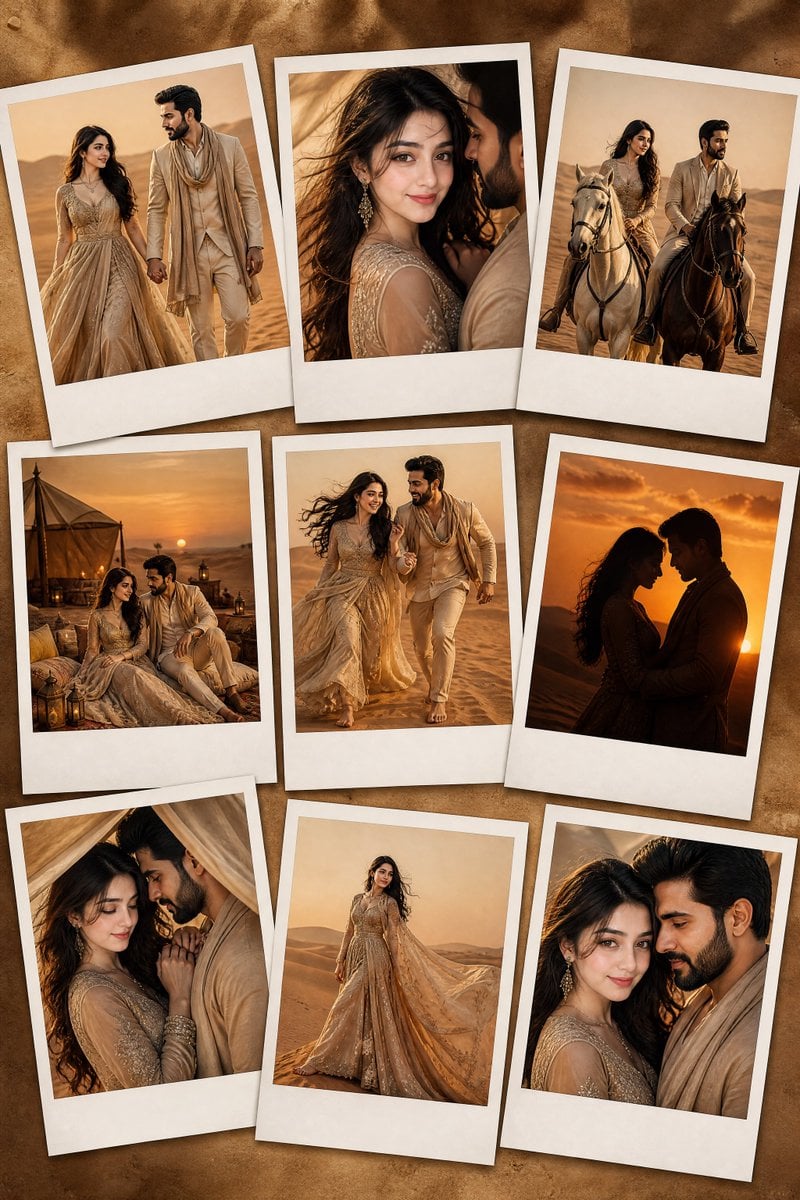
Desert Fashion Editorial Portrait

8K Cinematic Fantasy Portrait of Woman and Horse
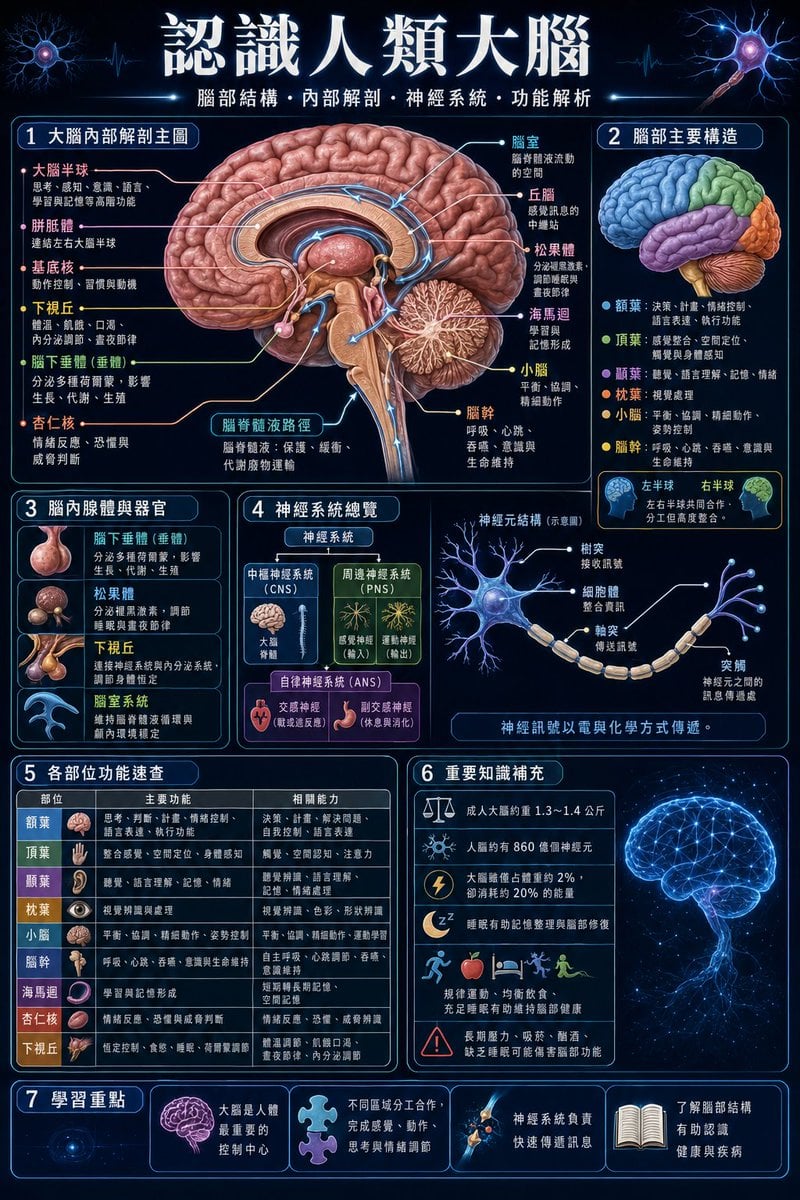
Traditional Chinese Human Brain Infographic
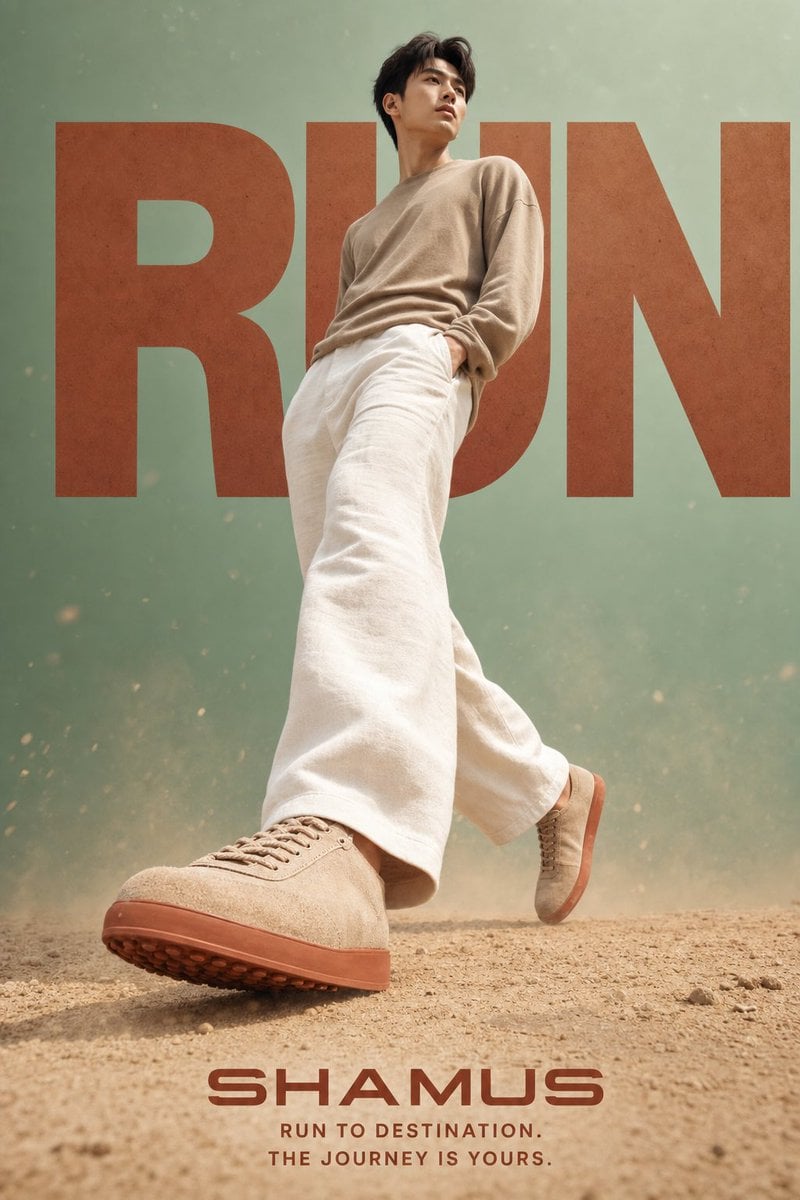
Lifestyle Sneaker Editorial Poster
Browse template categories
Toy Keychain vs Real Life Comparison questions
How do I use the Toy Keychain vs Real Life Comparison template?
Add your photo if the template asks for one, edit the prompt if you like — the template's model and format are already selected — and press Generate. Your version opens in PicX Studio.
Can I customize the Toy Keychain vs Real Life Comparison template?
Yes. You can change the subject, setting, lighting, mood, format, and available model controls before creating your image.
Is the Toy Keychain vs Real Life Comparison template free?
Opening and editing this template is free. Generating uses credits, shown on the Generate button when you are signed in.
Which AI model should I use?
Start with GPT Image 2, which is the model associated with this template. You can compare another compatible model for a different finish.
Looking for something else? Browse all templates.

Your photo, any look
Thousands of ready templates for every top image and video model, from one credit balance.