
Futuristic 3D Graffiti Mural
A prompt for generating a glossy cyberpunk wildstyle graffiti mural with tech motifs on a textured concrete wall.
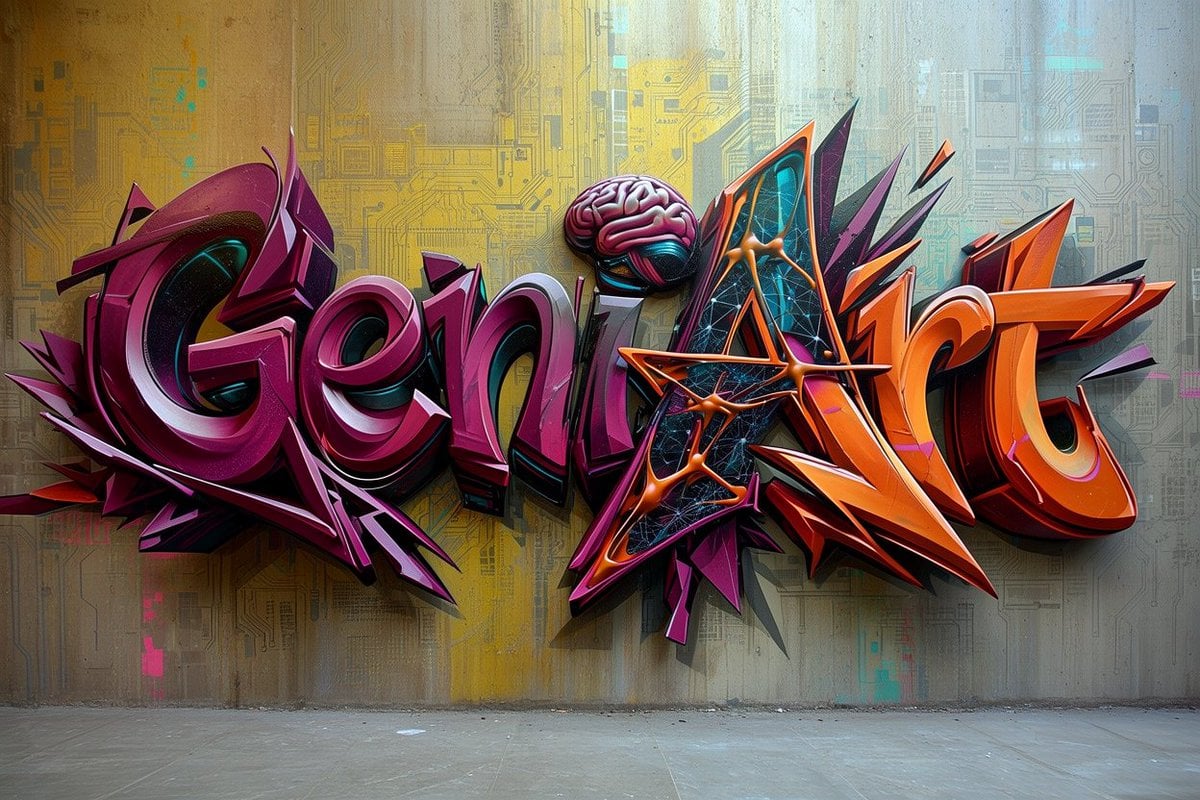
- Prompt included
- Model and format preset
- Free template
The prompt behind this image
Copy the exact prompt behind Futuristic 3D Graffiti Mural, or open it in the studio and make it yours.
Create a highly detailed photorealistic 3D graffiti mural on a concrete wall, spelling the word {argument name="graffiti text" default="GeniArt"} in huge wildstyle bubble letters. The lettering is split visually into two color families: the left half in glossy deep magenta, burgundy, violet, and black with white rim highlights, and the right half in vivid orange, red-orange, black, and purple with sharp angular extensions. Use thick extruded 3D letterforms with strong shadows cast onto the wall, metallic enamel shine, beveled edges, layered outlines, and dramatic perspective depth. Integrate exactly 3 distinctive tech-art details: one pink brain sitting above the center letters, one triangular black-and-cyan digital panel embedded inside the capital A, and one orange molecular/network structure crossing the A with glowing nodes and connecting rods. Add many aggressive spikes, arrows, shards, and abstract graffiti splinters around the letters, especially purple shards behind the left word and orange shards behind the right word. The background is an indoor urban concrete wall with subtle stains, vertical grime, faint circuit-board patterns, cyan and yellow digital markings, and a muted yellow-to-cool-blue wash of light; the floor is bare gray concrete visible along the bottom. Style should feel like a futuristic cyberpunk street-art installation, ultra sharp, high contrast, cinematic lighting, realistic wall texture, realistic depth and cast shadows, no people, no extra readable words, landscape 16:9 composition.
How to use Futuristic 3D Graffiti Mural in 3 steps
- 1Upload ImagePNG, JPG or paste
Add your photo
Upload the photo the template builds on. The prompt, model and format are already set.
- 2…a portrait of your subject in softgolden-hour light, 85mm…
Personalize
Edit the subject and creative details for your destination.
- 3Generate
Generate
Press Generate — your image is created in PicX Studio, so you can compare it with the original and refine one variable at a time.
More like this
Templates with the same subject, style or setup. Open one to see its prompt.
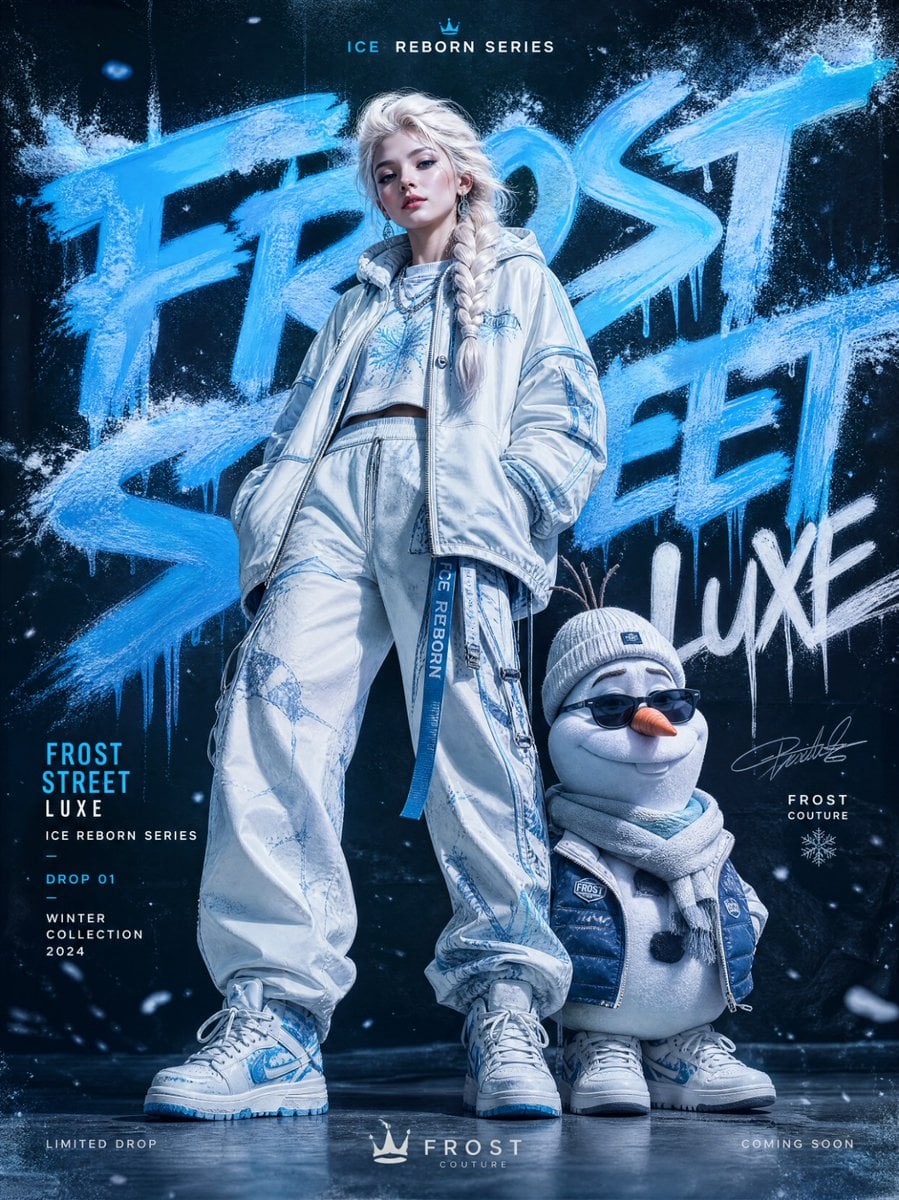
Frozen Street Luxe Graffiti Fashion Campaign
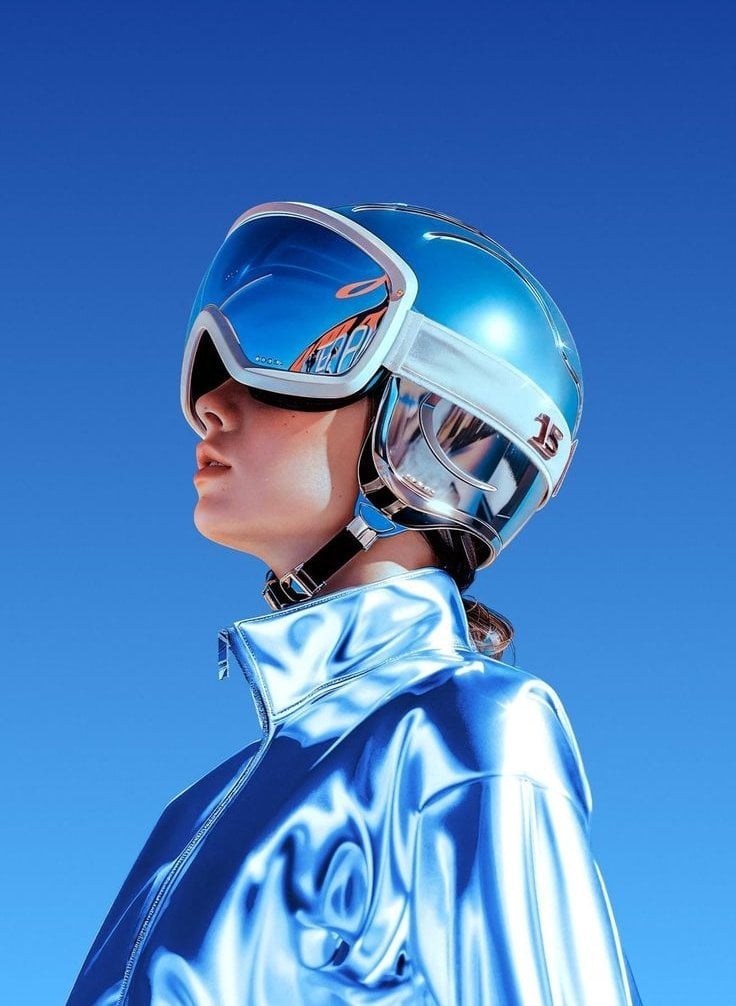
Futuristic Chrome Helmet Fashion Portrait
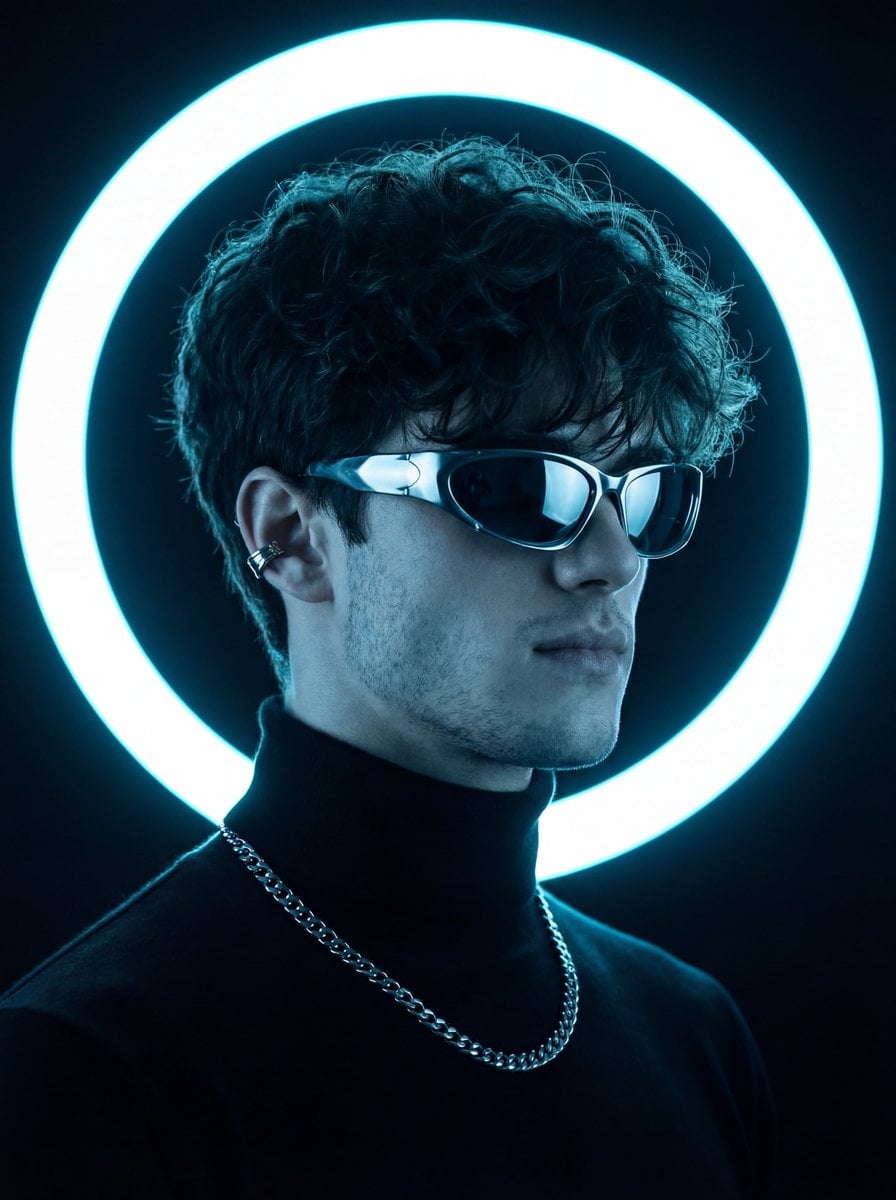
Futuristic Studio Neon Ring Minimalist Portrait
Futuristic Chrome Helmet Fashion Portrait
Futuristic Studio Neon Ring Minimalist Portrait
Black Liquid Cyberpunk Portrait Poster
Miles Morales Spider-Man Brooklyn Graffiti
Cyberpunk Neon Brazil World Cup Poster
Playful Futuristic Brand Kit Board
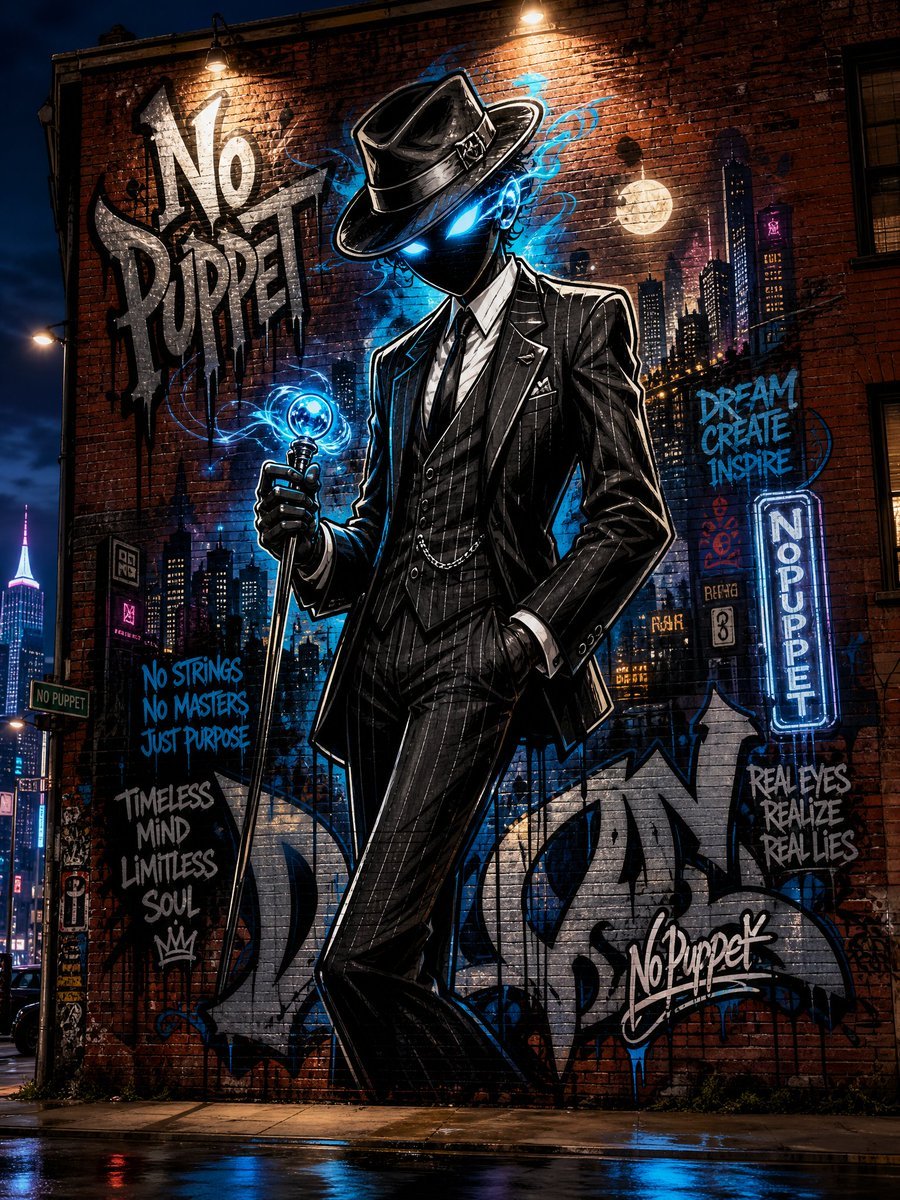
No Puppet Noir Graffiti Mural
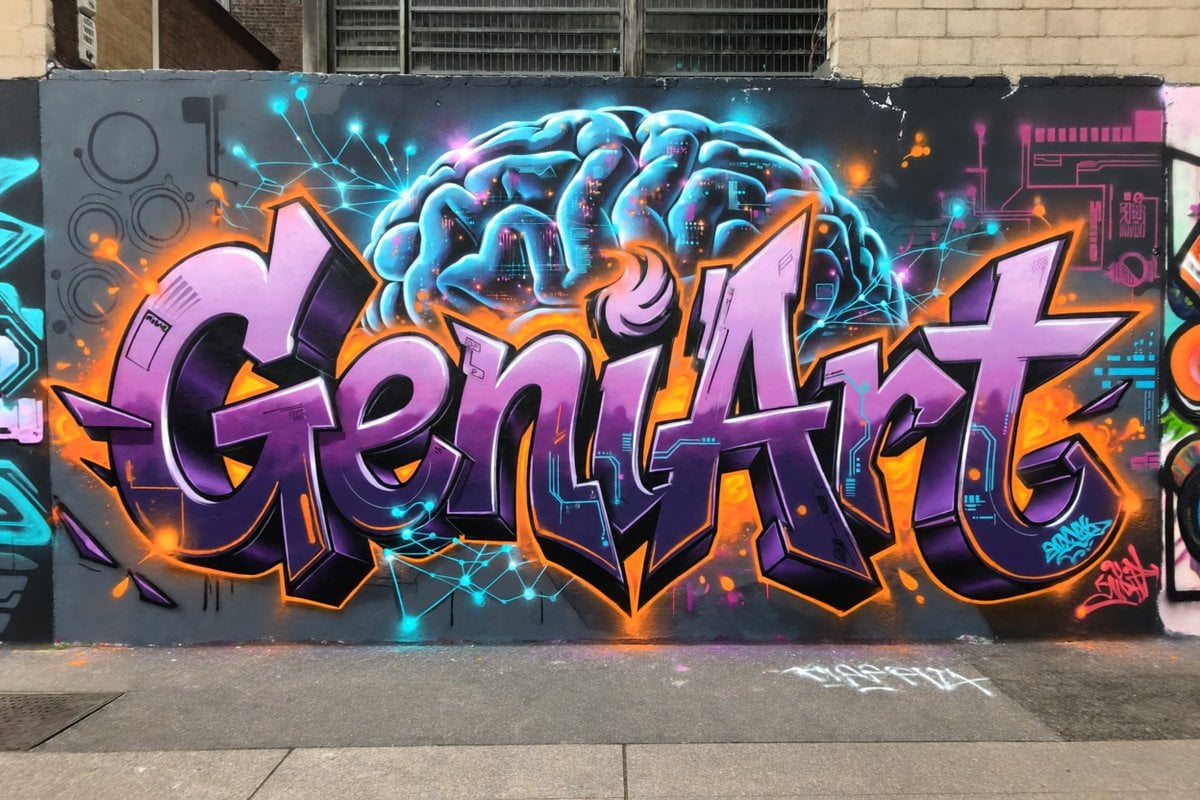
Neon Brain Graffiti Mural
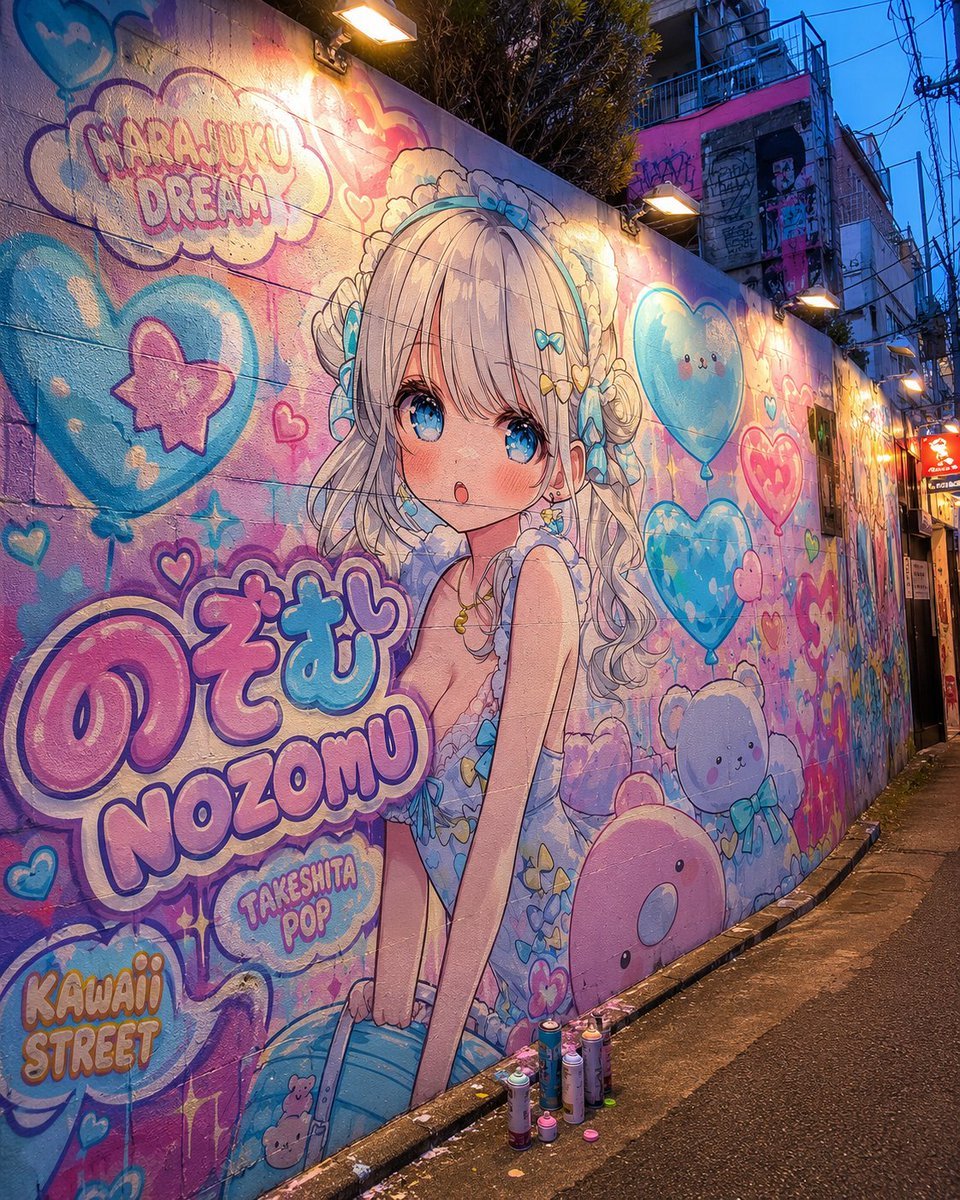
Harajuku Kawaii Graffiti Mural
Make it yours
Futuristic 3D Graffiti Mural works as-is. These are the safest ways to change it without losing the look.
Change one field
Copy a single group, rewrite it, and generate again so you can see what that field is doing.
Keep the frame, change the subject
Hold the composition and light of Futuristic 3D Graffiti Mural, then swap wardrobe, props or the person for a new take.
| If the result… | Why | Fix |
|---|---|---|
| The result drifts from the preview | Too many fields changed at once. | Reuse Futuristic 3D Graffiti Mural as-is first, then change one group — subject, light, or setting. |
| The model over-stylizes the scene | The prose prompt leaves finish and camera underspecified. | Add one camera or lighting sentence and stay on GPT Image 2. |
More GPT Image 2 templates
Other prompts made for GPT Image 2.

Six VTuber Japanese Logo Sheet

Realistic Portrait of Woman and Deer

The Vista Modular Condo Poster

AI Model Routing Comparison Infographic

2.5D Anime Art Board

Isometric Productivity Desk Scene

New York Double Exposure Poster

Four-Panel AI Landscape Comparison

Japanese Tatami Lifestyle Magazine Cover

NESCAFÉ Coffee Map Poster
More image prompts
Fresh picks from across the catalog.
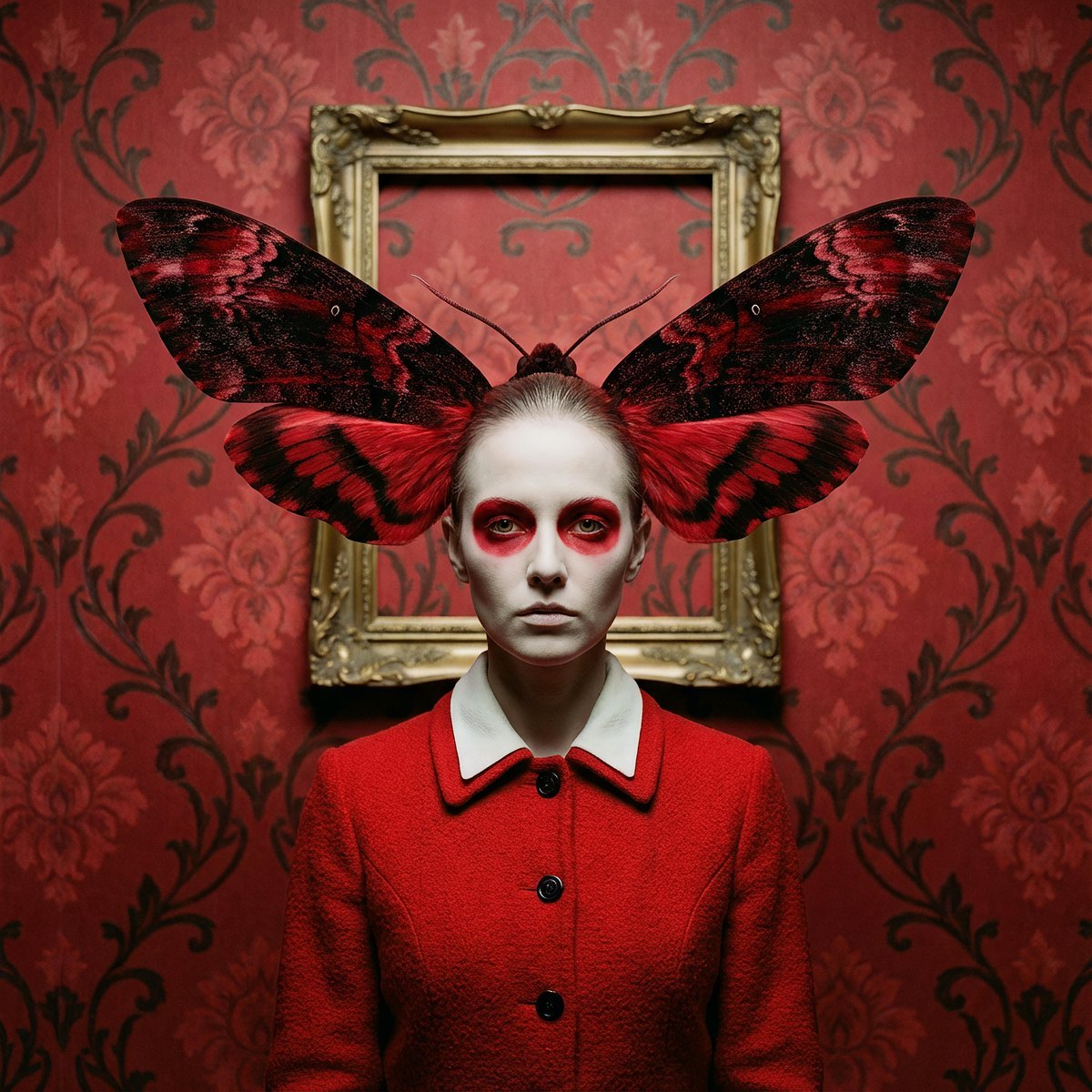
Surreal Moth-Winged Female Portrait
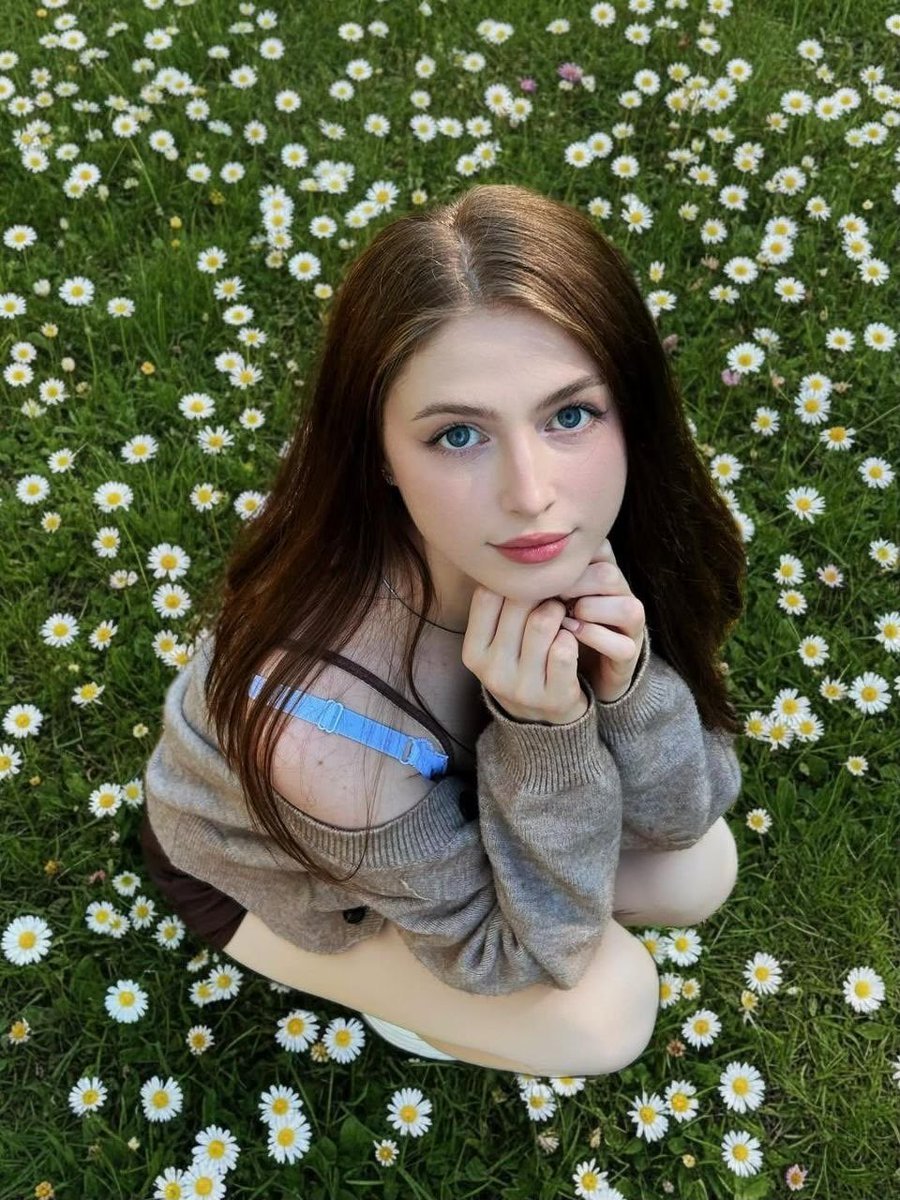
Girl in Daisy Meadow Portrait
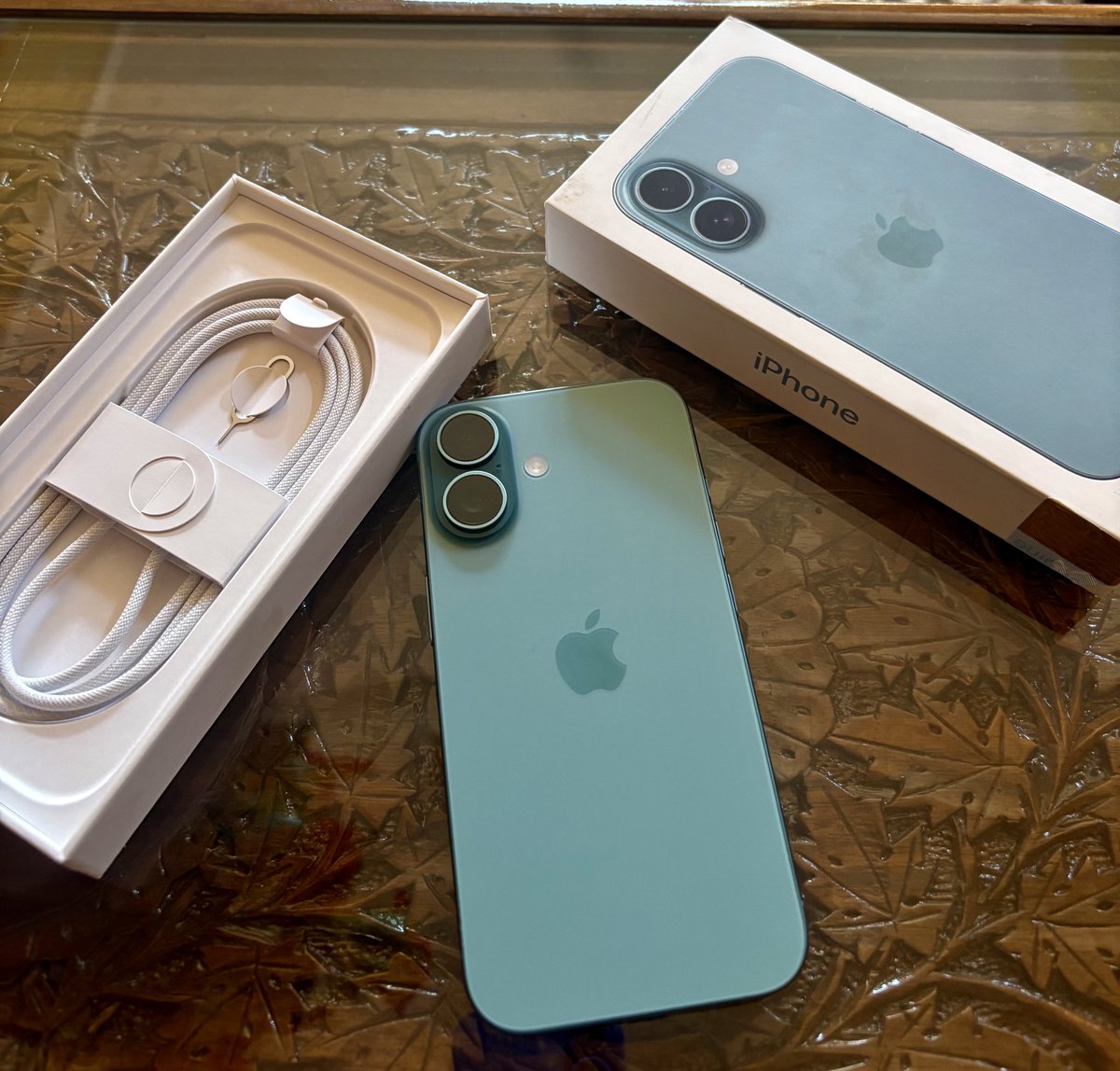
Transform Photo into Pop Art Comic Panel
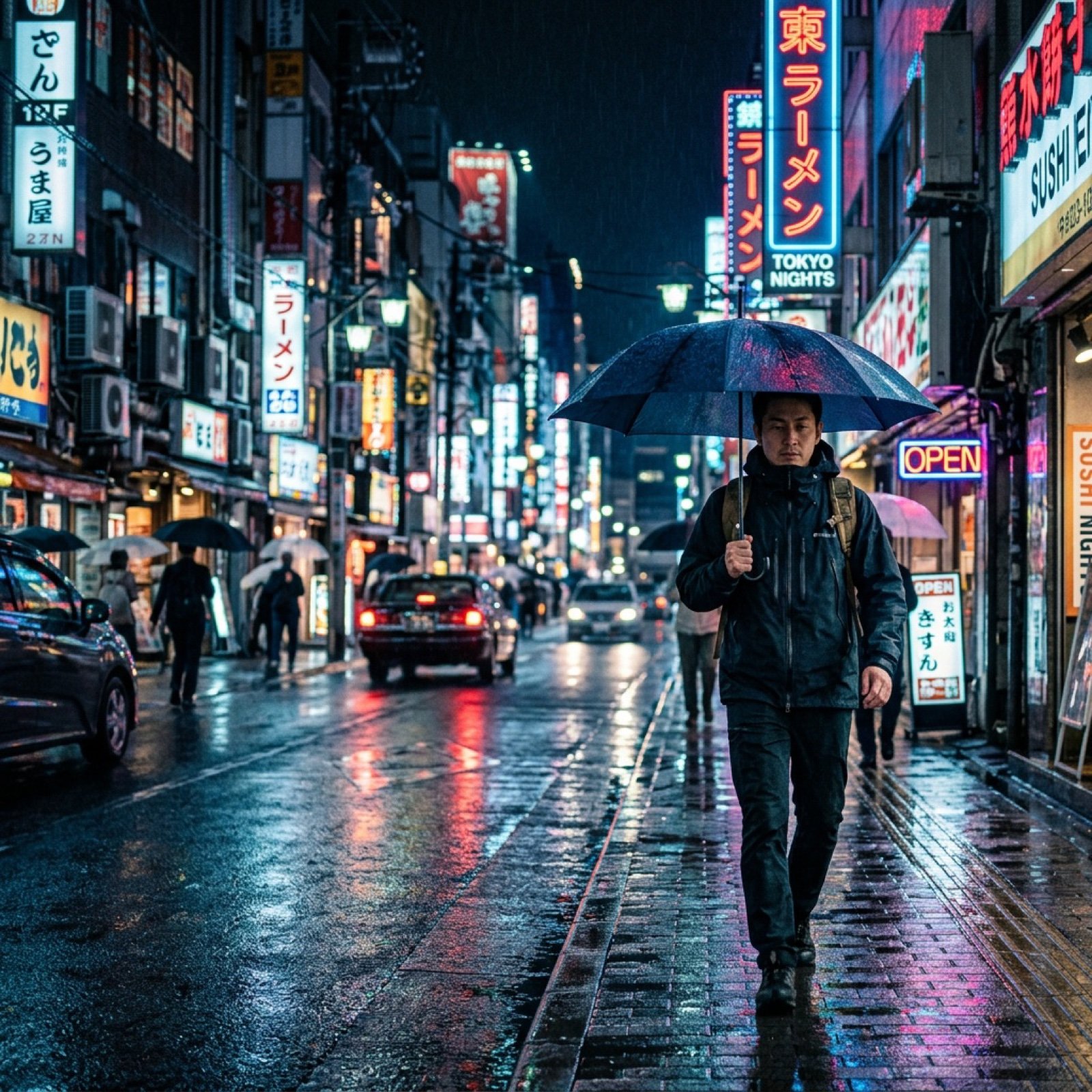
Google Flow video generation prompt formula and features
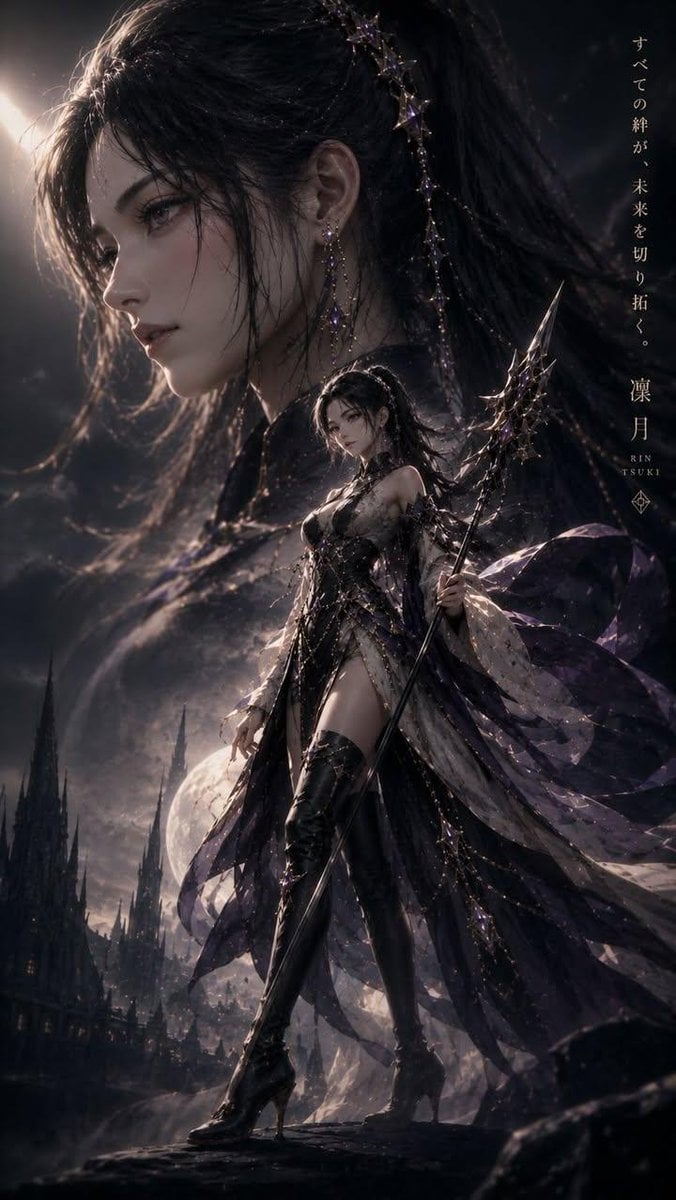
Cinematic Kodak Film Poster
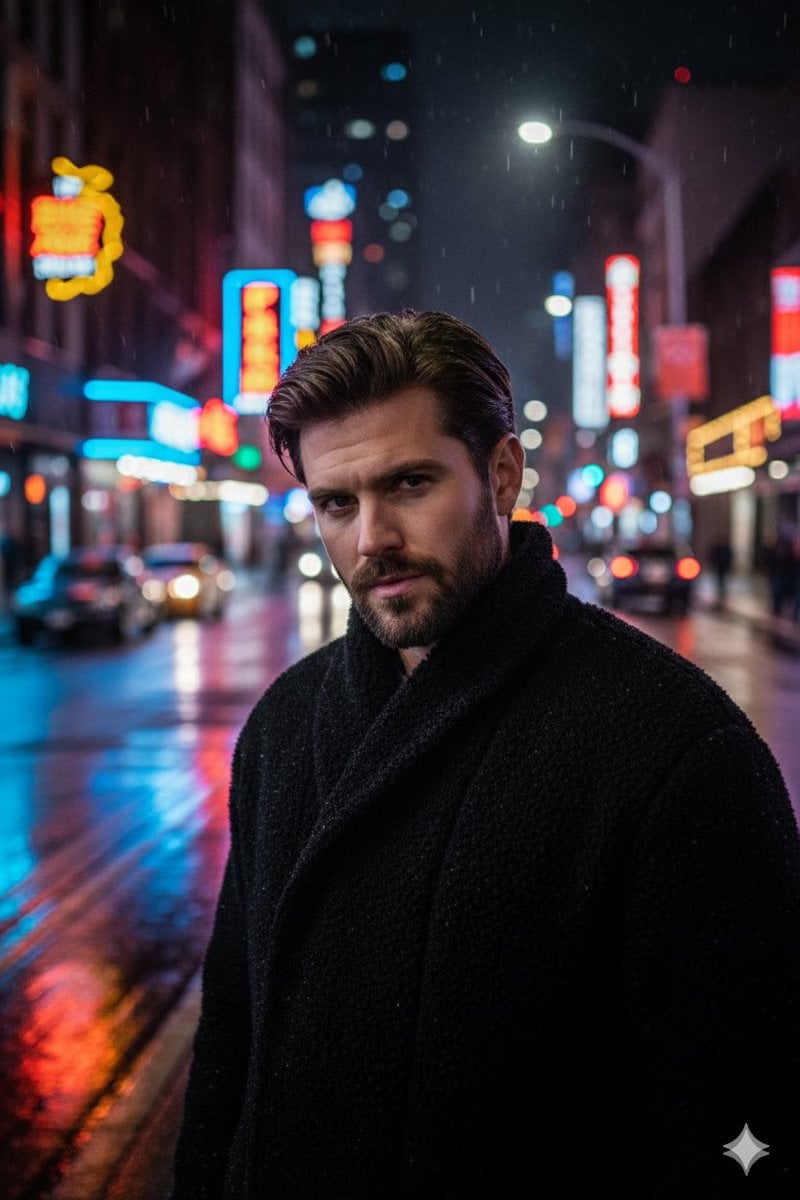
Cinematic Neon Night Street Portrait
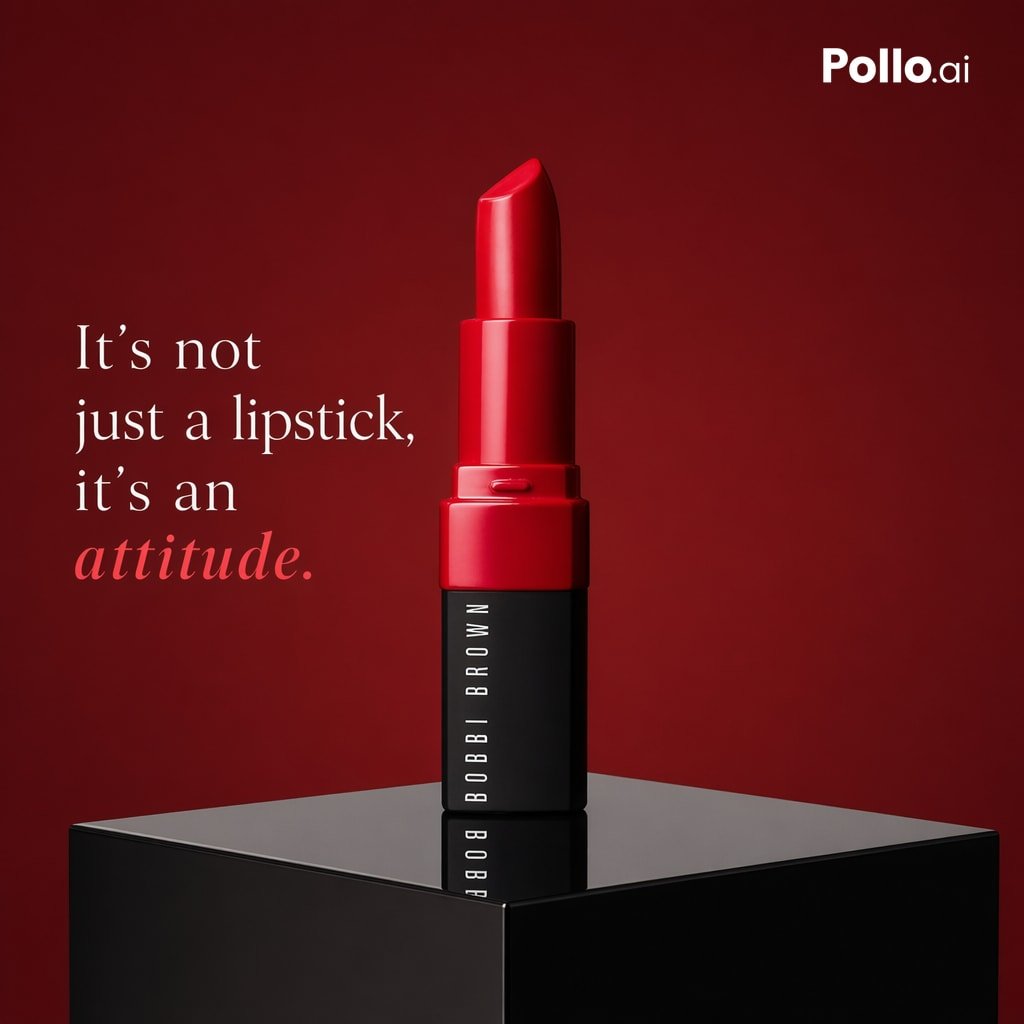
Luxury Red Lipstick Ad Poster
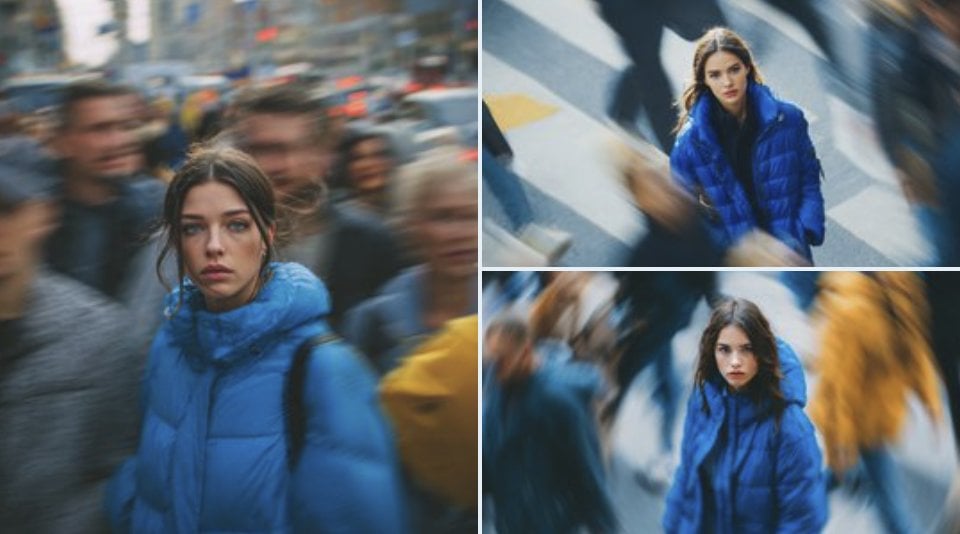
Cinematic Street Portrait of Woman in Puffer Jacket (3 Variations)
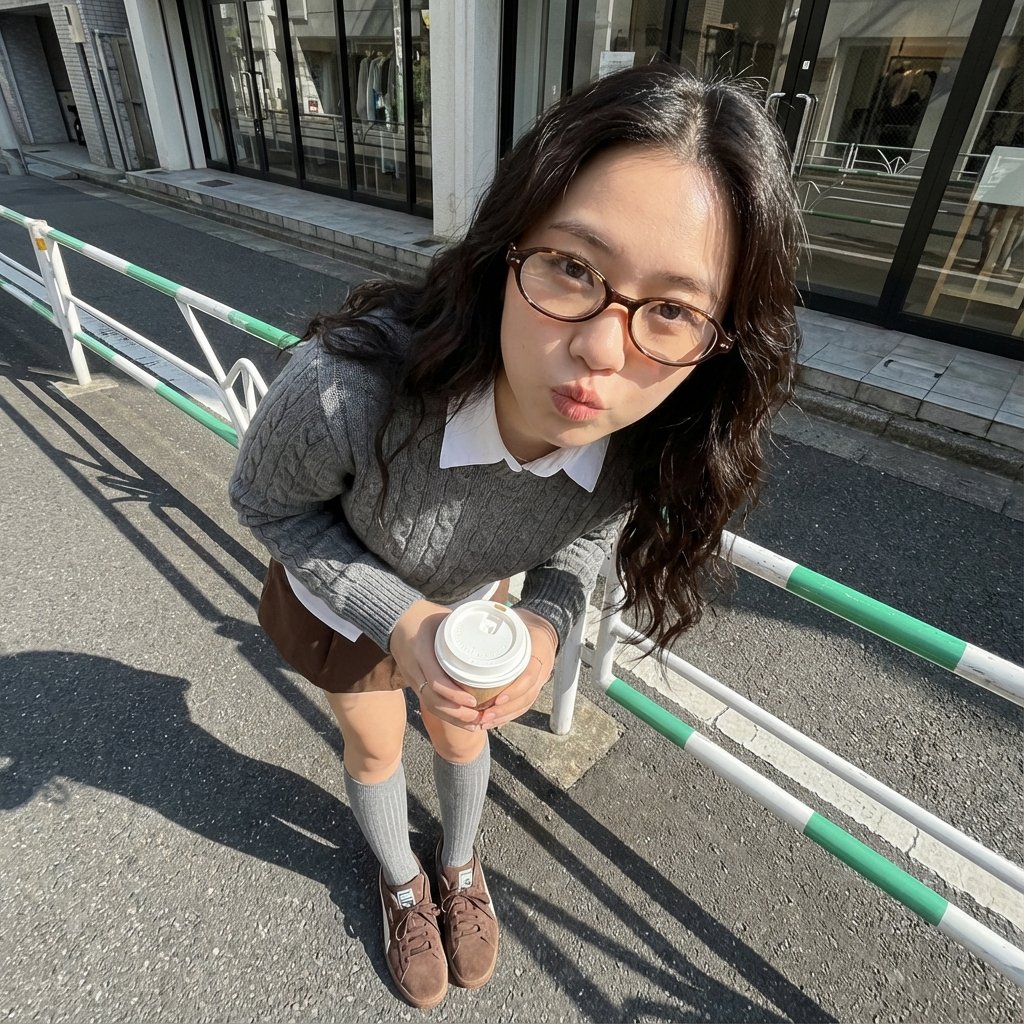
Photorealistic Cute Academic Street Photography Portrait
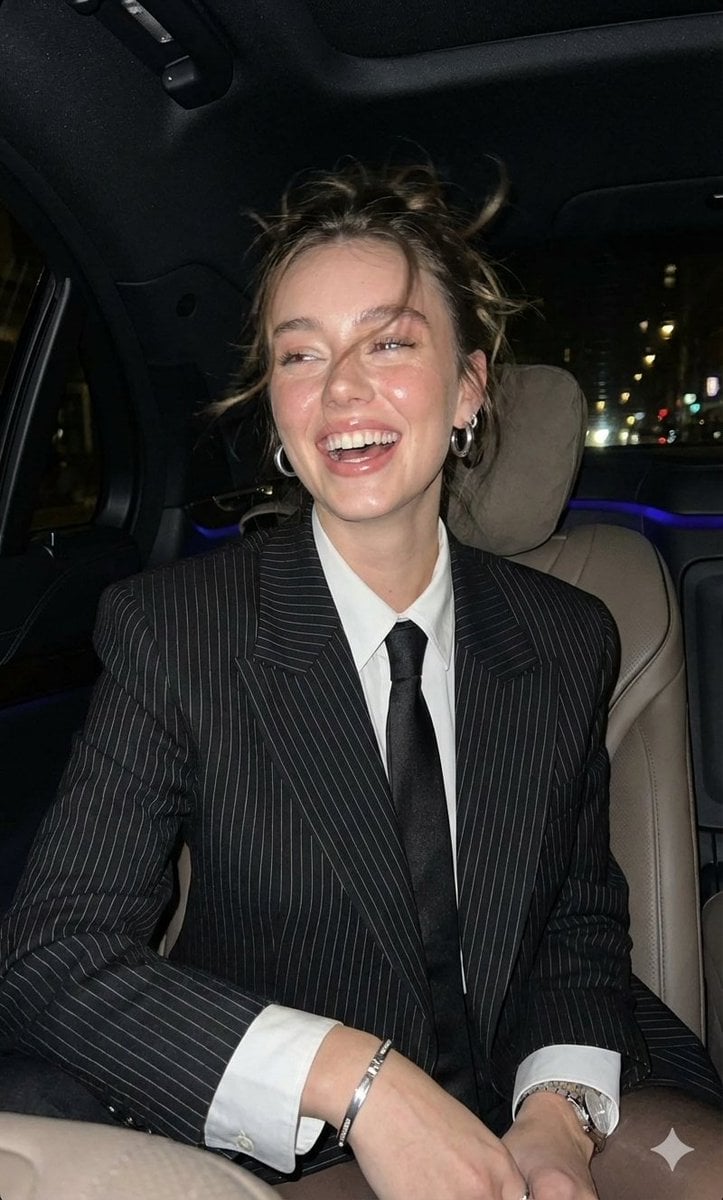
Hyper-Realistic Paparazzi Flash Portrait Prompt
Browse template categories
Futuristic 3D Graffiti Mural questions
How do I use the Futuristic 3D Graffiti Mural template?
Add your photo if the template asks for one, edit the prompt if you like — the template's model and format are already selected — and press Generate. Your version opens in PicX Studio.
Can I customize the Futuristic 3D Graffiti Mural template?
Yes. You can change the subject, setting, lighting, mood, format, and available model controls before creating your image.
Is the Futuristic 3D Graffiti Mural template free?
Opening and editing this template is free. Generating uses credits, shown on the Generate button when you are signed in.
Which AI model should I use?
Start with GPT Image 2, which is the model associated with this template. You can compare another compatible model for a different finish.
Looking for something else? Browse all templates.

Your photo, any look
Thousands of ready templates for every top image and video model, from one credit balance.