
Retro Magic Academy Visual Novel UI
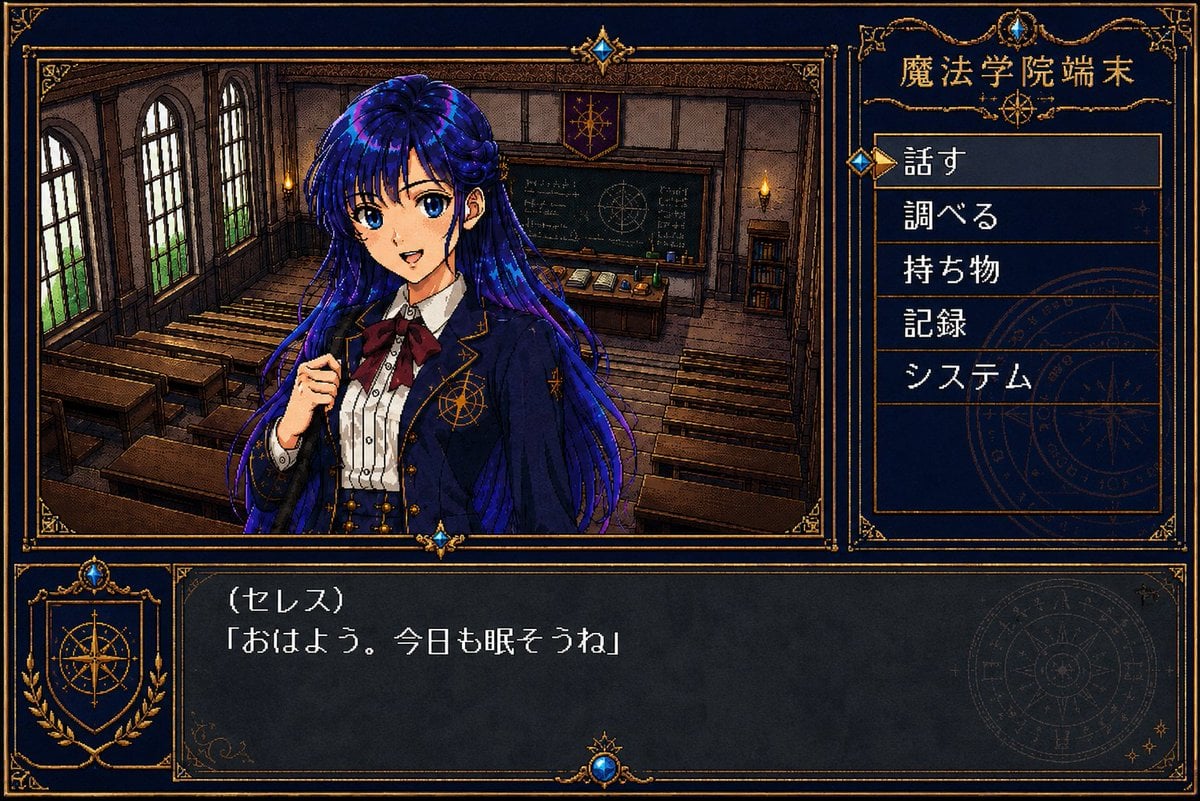
Generates a 1990s Japanese PC-style fantasy academy visual novel screenshot with ornate UI, command menu, and dialogue box.
- Prompt included
- Model and format preset
- Free template
The prompt behind this image
Copy the exact prompt behind Retro Magic Academy Visual Novel UI, or open it in the studio and make it yours.
Goal: Create a 1990s mid-era Japanese PC visual novel / adventure game screen in a 256-color dithered pixel-art style, like a fantasy magic academy mystery game. Canvas: 16:9 landscape game screenshot, 1184×768 feel, dark navy interface with ornate antique-gold borders, low-resolution dithering, visible color banding, crunchy pixel texture, no modern UI polish. Layout: Split the screen into three main areas: a large story scene panel on the upper left, a vertical command menu panel on the upper right, and a wide dialogue box across the bottom. Use elaborate gold filigree corner ornaments, thin double-line frames, small blue gemstone decorations at frame intersections, and faint magical compass-circle emblems in the UI background. Main scene: Inside the upper-left scene panel, show an old European-style magic academy classroom with exactly 3 tall arched windows on the left wall, rows of wooden desks and benches, a chalkboard at the back with arcane diagrams and chalk writing, a teacher’s desk with books and bottles, wall sconces with warm candle flames, dark wood paneling, and a small academy crest banner above the chalkboard. Character: In front of the classroom, centered slightly left, show one anime-style schoolgirl named {argument name="character name" default="Ceres"}. She has very long flowing {argument name="hair color" default="deep cobalt blue and violet"} hair with shiny pixel highlights, a navy academy blazer with gold trim and a golden magic-circle crest on the chest, a white pleated blouse, a large burgundy ribbon bow, and a formal fantasy school uniform. Her right hand is lifted near her chest as if shyly speaking. Cover her face with a centered square soft blur / mosaic censor block so the facial features are indistinct. Right command menu: The upper-right panel title reads {argument name="location title" default="魔法学院端末"}. Under it, display exactly 5 stacked menu items in Japanese, each in its own horizontal row with gold separators: 1) 「話す」, 2) 「調べる」, 3) 「持ち物」, 4) 「記録」, 5) 「システム」. Highlight the first item 「話す」 with a brighter rectangular outline and a small gold triangular cursor plus blue diamond marker on its left. Bottom dialogue box: A dark translucent navy text window spans the bottom. On the left, include a decorative crest panel with a golden compass/astrolabe symbol and laurel motif. In the main dialogue area, display the speaker line {argument name="speaker label" default="《セレス》"} and below it the dialogue {argument name="dialogue text" default="「おはよう。今日も眠そうね」"}. Use white pixelated Japanese bitmap font, clean spacing, and authentic retro text-window rendering. Visual style: 256-color Japanese PC-98 / Windows 95 visual novel aesthetic, hand-drawn anime character over detailed pixel-art background, dark navy and antique gold palette, heavy dithering, subtle scanline-like roughness, ornate fantasy UI, crisp rectangular panels, no photorealism, no 3D render, no watermark, no extra menu items or extra characters.
How to use Retro Magic Academy Visual Novel UI in 3 steps
- 1Upload ImagePNG, JPG or paste
Add your photo
Upload the photo the template builds on. The prompt, model and format are already set.
- 2…a portrait of your subject in softgolden-hour light, 85mm…
Personalize
Edit the subject and creative details for your destination.
- 3Generate
Generate
Press Generate — your image is created in PicX Studio, so you can compare it with the original and refine one variable at a time.
More like this
Templates with the same subject, style or setup. Open one to see its prompt.


Make it yours
Retro Magic Academy Visual Novel UI works as-is. These are the safest ways to change it without losing the look.
Change one field
Copy a single group, rewrite it, and generate again so you can see what that field is doing.
Keep the frame, change the subject
Hold the composition and light of Retro Magic Academy Visual Novel UI, then swap wardrobe, props or the person for a new take.
| If the result… | Why | Fix |
|---|---|---|
| The result drifts from the preview | Too many fields changed at once. | Reuse Retro Magic Academy Visual Novel UI as-is first, then change one group — subject, light, or setting. |
| The model over-stylizes the scene | The prose prompt leaves finish and camera underspecified. | Add one camera or lighting sentence and stay on GPT Image 2. |
More GPT Image 2 templates
Other prompts made for GPT Image 2.

Six VTuber Japanese Logo Sheet

Realistic Portrait of Woman and Deer

The Vista Modular Condo Poster

AI Model Routing Comparison Infographic

2.5D Anime Art Board

Isometric Productivity Desk Scene

New York Double Exposure Poster

Four-Panel AI Landscape Comparison

Japanese Tatami Lifestyle Magazine Cover

NESCAFÉ Coffee Map Poster
More image prompts
Fresh picks from across the catalog.
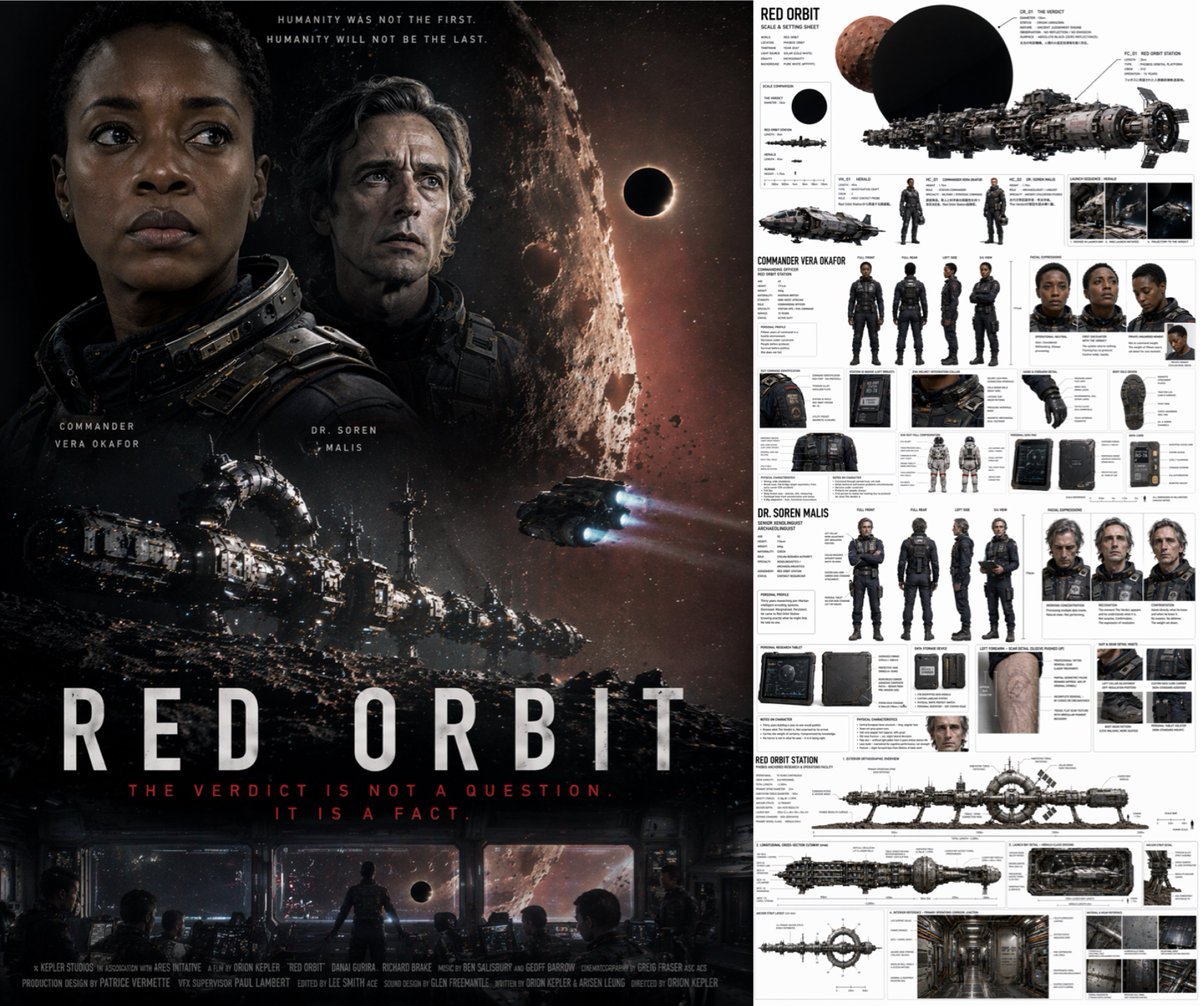
Sci-Fi Movie Poster and Production Design Sheet
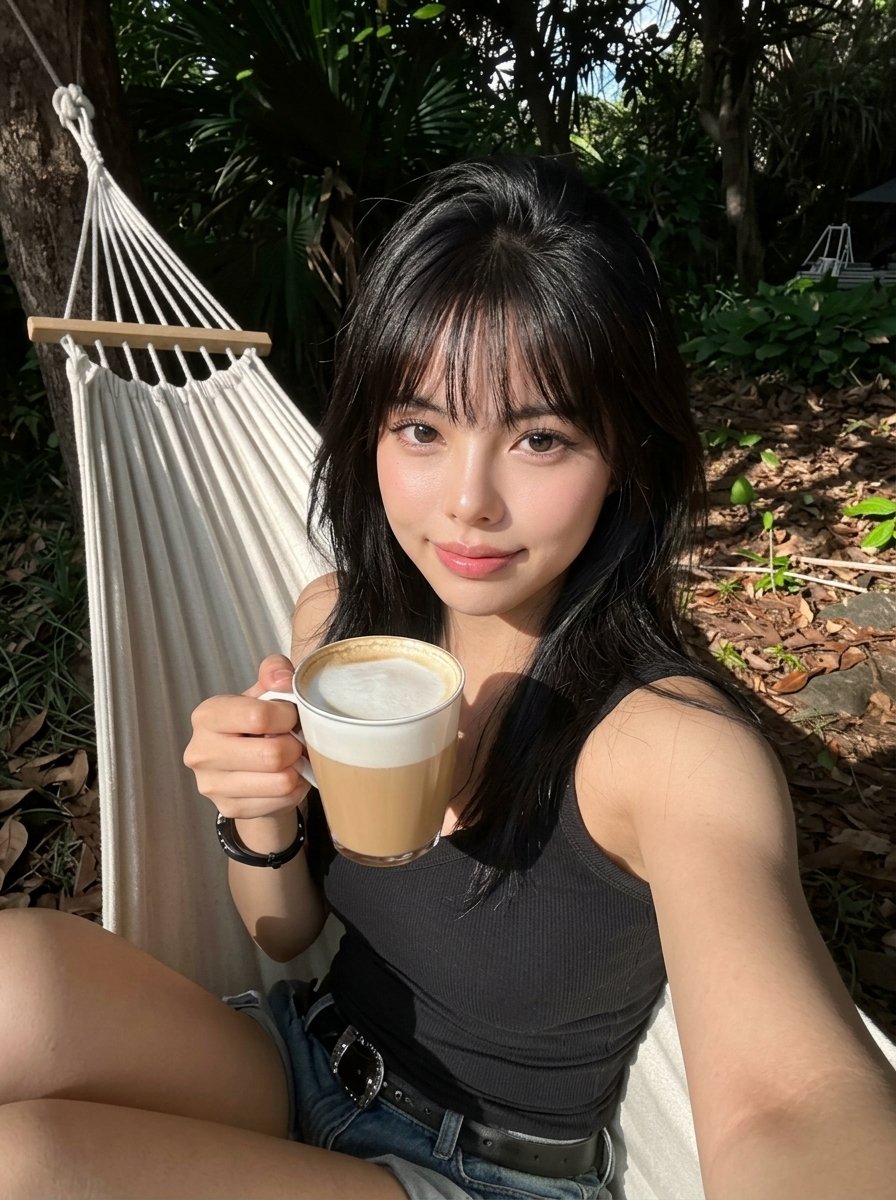
Tropical Hammock Latte — Nano Banana iPhone Style
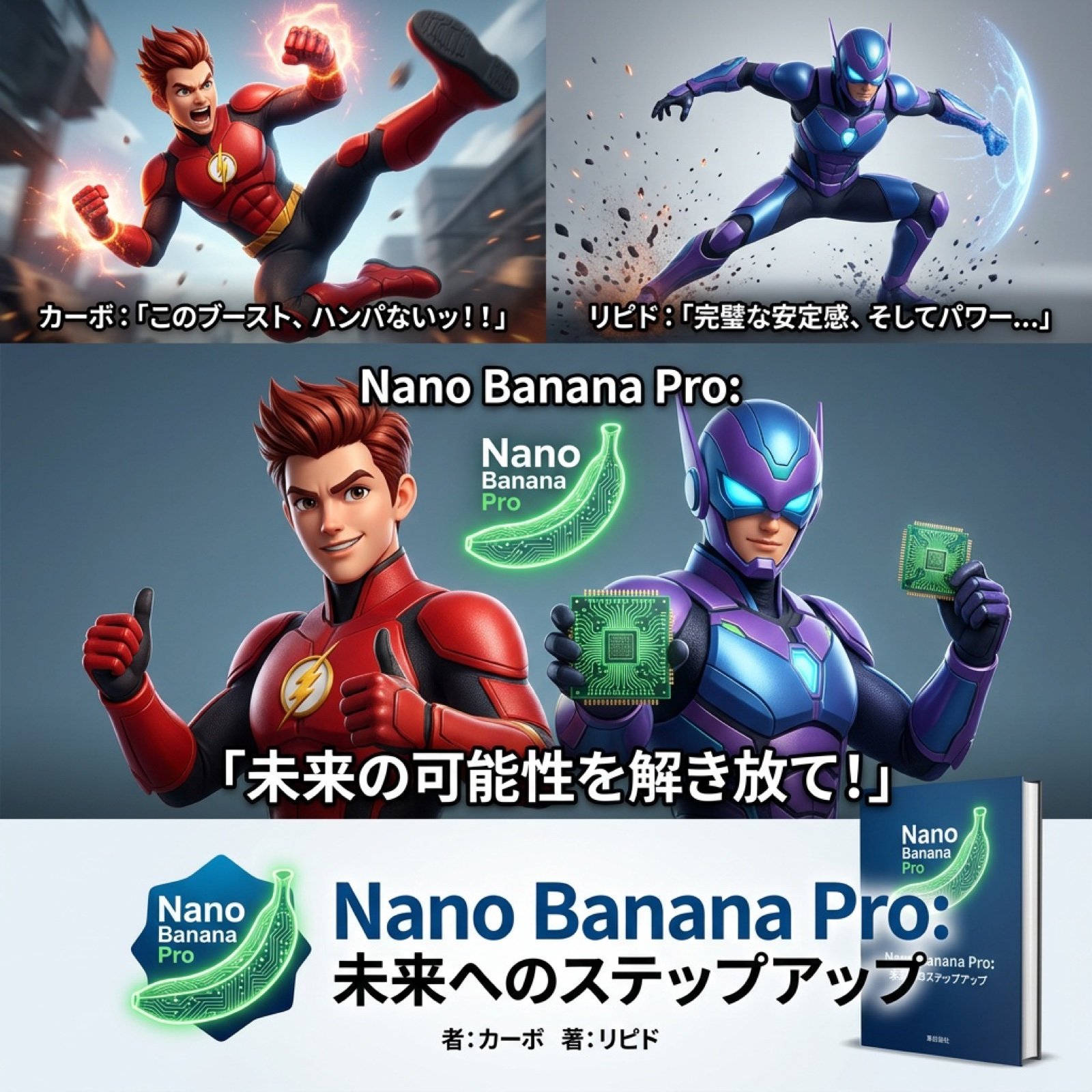
AI Video Generation Prompt for Nano Banana Pro
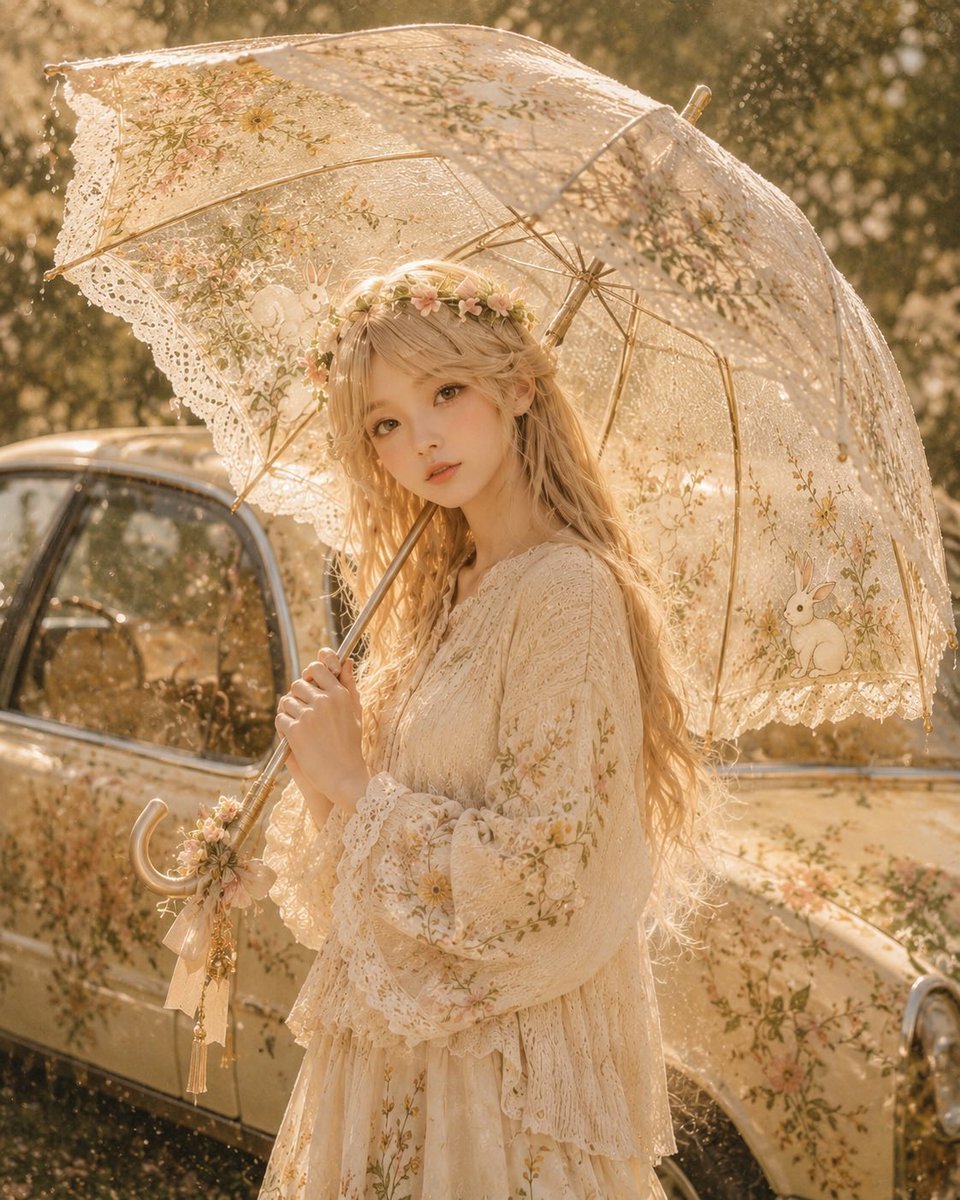
Character-Inspired Custom Umbrella Design
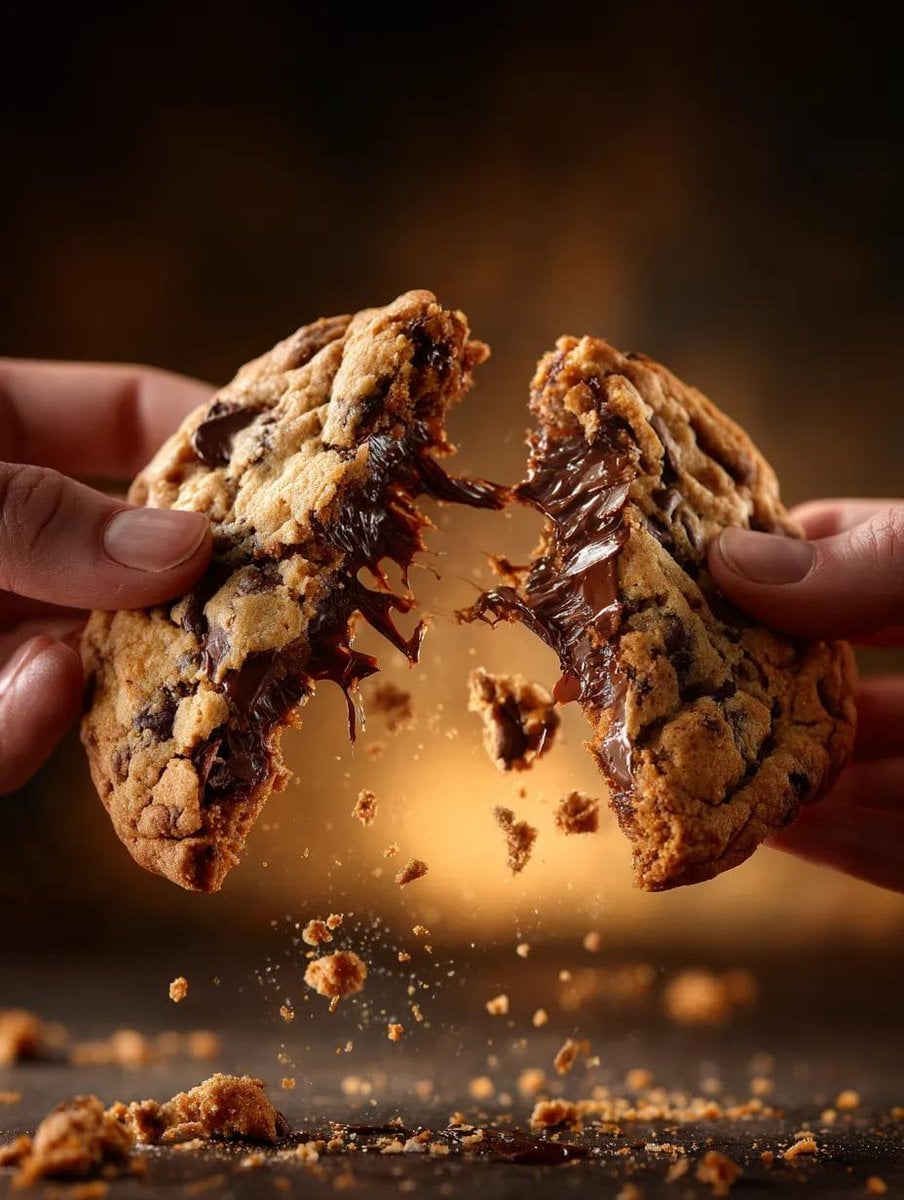
Food Action Photography Prompts for Melted Cheese and Gooey Textures
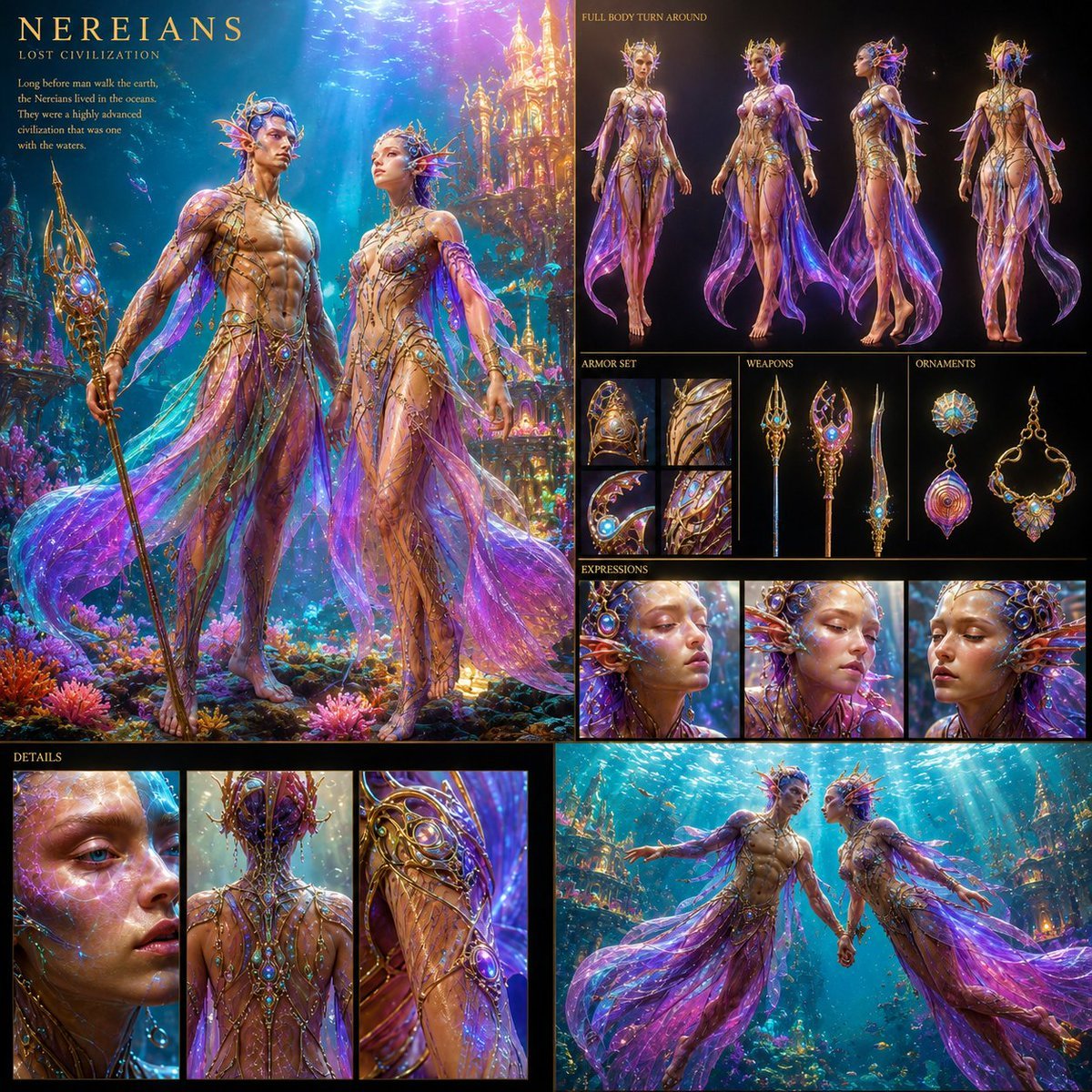
Underwater Civilization Character Board
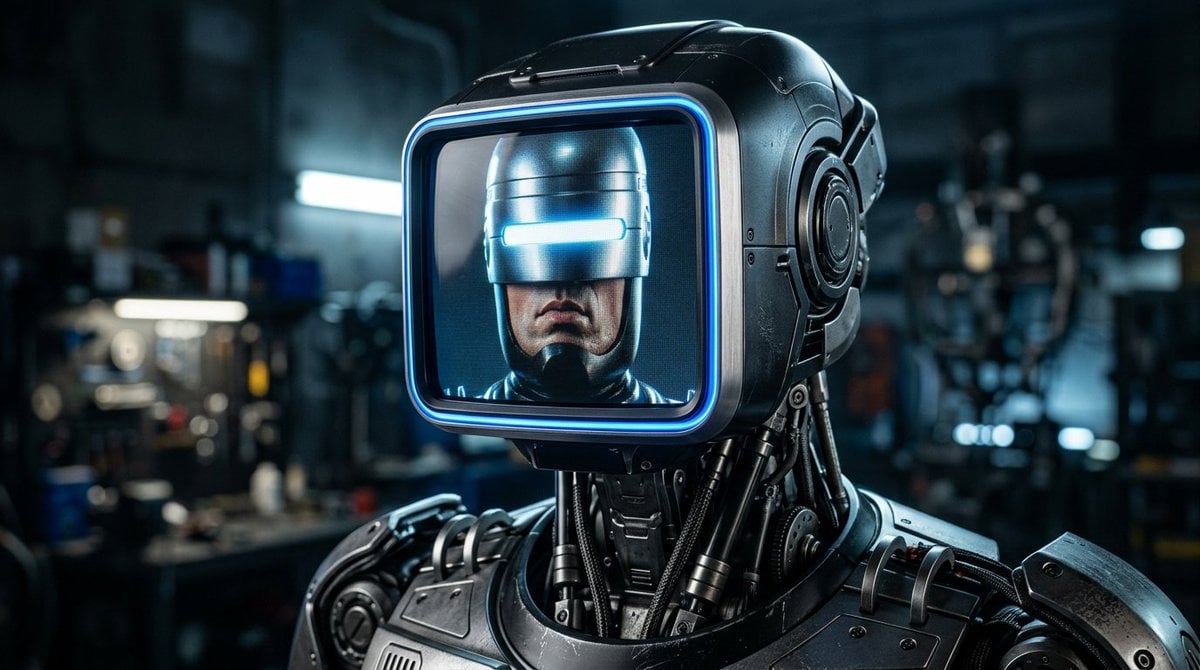
Sleek LCD-Face Robot Prompt
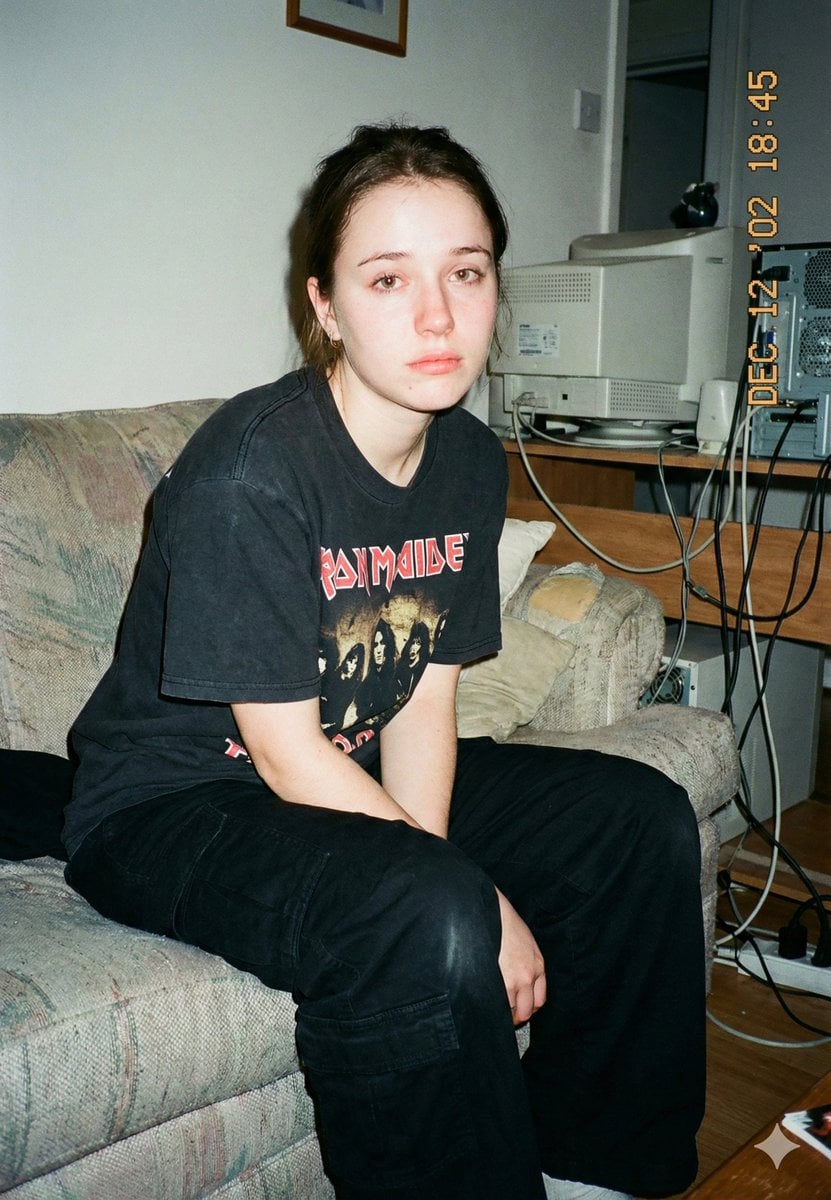
Lo-Fi Candid Portrait with Direct Flash (Early 2000s Aesthetic)
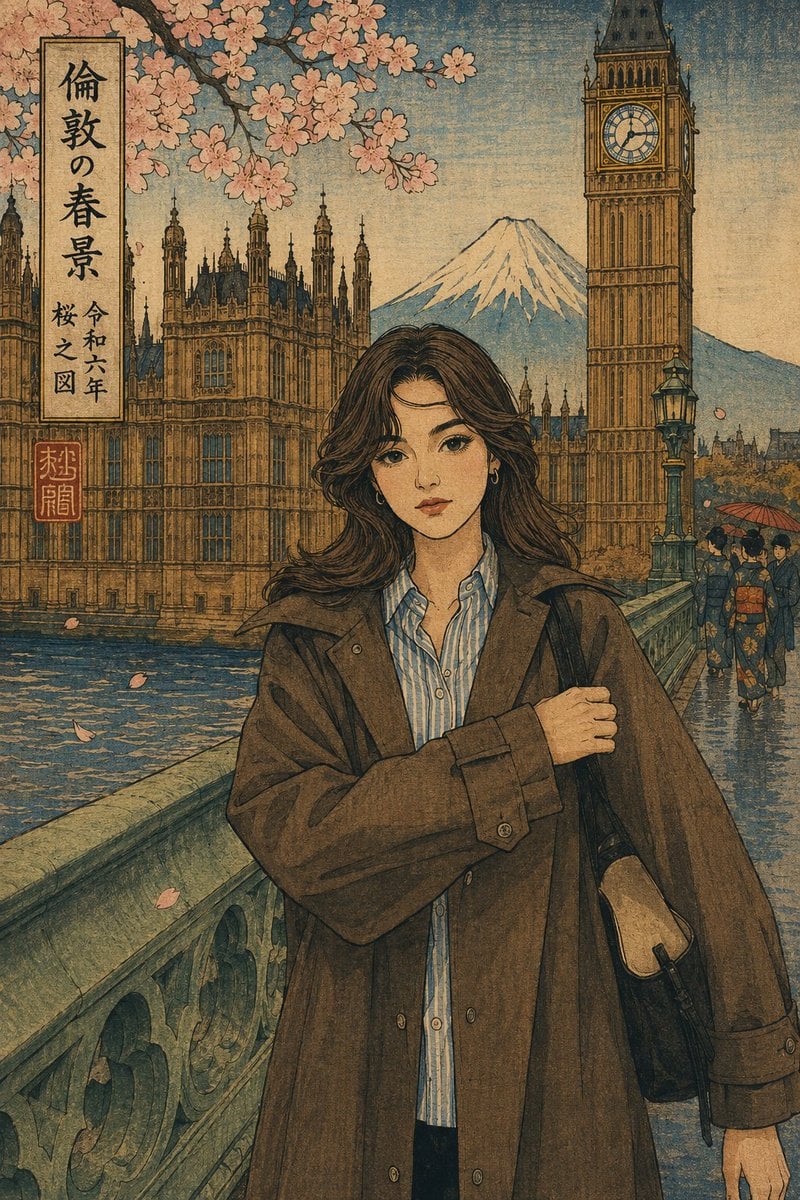
Ukiyo-e Portrait Transformation
Anime Party Spot the Difference
Browse template categories
Retro Magic Academy Visual Novel UI questions
How do I use the Retro Magic Academy Visual Novel UI template?
Add your photo if the template asks for one, edit the prompt if you like — the template's model and format are already selected — and press Generate. Your version opens in PicX Studio.
Can I customize the Retro Magic Academy Visual Novel UI template?
Yes. You can change the subject, setting, lighting, mood, format, and available model controls before creating your image.
Is the Retro Magic Academy Visual Novel UI template free?
Opening and editing this template is free. Generating uses credits, shown on the Generate button when you are signed in.
Which AI model should I use?
Start with GPT Image 2, which is the model associated with this template. You can compare another compatible model for a different finish.
Looking for something else? Browse all templates.

Your photo, any look
Thousands of ready templates for every top image and video model, from one credit balance.