
Felt AI Magic School Infographic
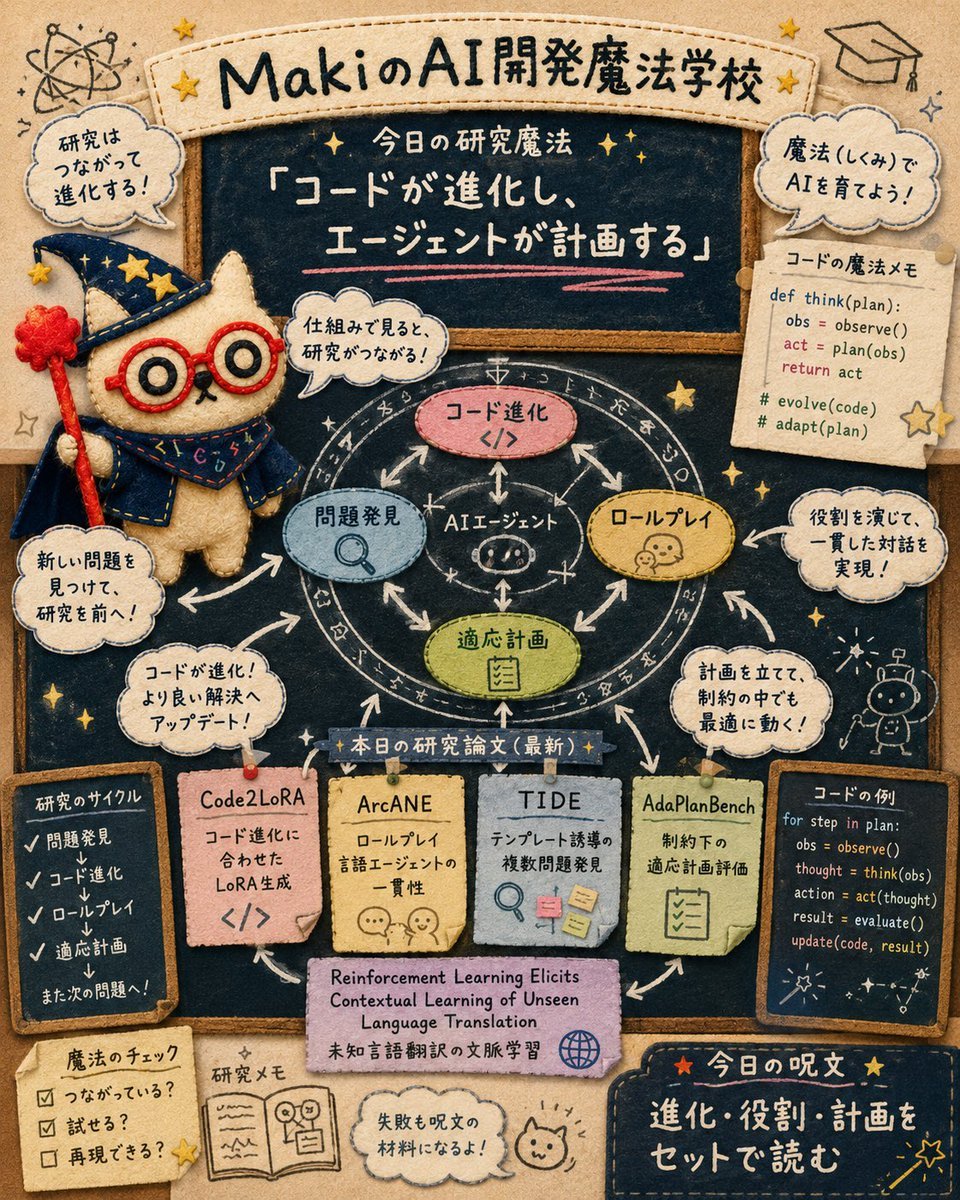
A square handmade felt-style Japanese AI research graphic board with a wizard cat mascot, central agent cycle diagram, research cards, and chalkboard notes for social media sharing.
- Prompt included
- Model and format preset
- Free template
The prompt behind this image
Copy the exact prompt behind Felt AI Magic School Infographic, or open it in the studio and make it yours.
Goal: Create a square social-media-ready felt-and-embroidery graphic recording board for {argument name="school name" default="MakiのAI開発魔法学校"}, mixing a cute wizard cat mascot with an AI research mind map. The design should look like a handmade felt collage: stitched borders, fabric patches, paper notes, yarn outlines, chalk marks, and tiny sewn stars. Canvas: Square 1:1 composition, warm beige craft-paper background, large dark navy chalkboard occupying most of the image, rounded stitched top banner, dense but readable layout, cozy handmade texture throughout. Main title and headline: At the top, put a cream stitched banner with the title “MakiのAI開発魔法学校” and small gold stars. In the center top of the chalkboard, write “今日の研究魔法” and the large quote {argument name="main quote" default="「コードが進化し、エージェントが計画する」"}, underlined with a pink chalk stroke. Character: On the left side, place exactly 1 main mascot: a cream felt wizard cat wearing a navy wizard hat and cape decorated with yellow stars, red round glasses, and holding a red wand with a flower-like tip. The cat has simple black stitched facial features and a cute serious expression. Central diagram: Draw exactly 1 circular chalk-style research cycle in the middle of the board with arrows around it and a small AI-agent face icon at the center labeled “AIエージェント”. Around it place exactly 4 colored felt oval nodes: 1 pink node labeled “コード進化 </>”, 1 blue node labeled “問題発見” with a magnifying glass icon, 1 green node labeled “適応計画” with a checklist icon, and 1 yellow node labeled “ロールプレイ” with small chat/people icons. Use white arrows connecting every node into a loop. Speech bubbles and callouts: Include exactly 6 stitched cream speech bubbles around the board: 1 upper-left bubble saying “研究はつながって進化する!”, 1 near the cat saying “仕組みで見ると、研究がつながる!”, 1 lower-left bubble saying “新しい問題を見つけて、研究を前へ!”, 1 left-middle bubble saying “コードが進化! より良い解決へアップデート!”, 1 upper-right bubble saying “魔法(しくみ)でAIを育てよう!”, and 1 right-middle bubble saying “役割を演じて、一貫した対話を実現!”. Also add 1 lower-right cream bubble saying “計画を立てて、制約の中でも最適に動く!” if space allows, keeping the stitched style. Research cards: Along the lower middle, place exactly 5 pinned fabric/paper cards under a small label “本日の研究論文(最新)”. The cards should read, from left to right: 1 pink card “Code2LoRA / コード進化に合わせたLoRA生成 / </>”, 1 yellow card “ArcANE / ロールプレイ言語エージェントの一貫性”, 1 light blue card “TIDE / テンプレート誘導の複数問題発見”, 1 green card “AdaPlanBench / 制約下の適応計画評価”, and 1 small central pink citation strip below them reading “Reinforcement Learning Elicits Contextual Learning of Unseen Language Translation / 未知言語翻訳の文脈学習” with a globe icon. Side panels and notes: Add exactly 2 dark chalkboard side panels: bottom-left panel titled “研究のサイクル” listing checkmarked steps “問題発見 → コード進化 → ロールプレイ → 適応計画 → また次の問題へ!”, and bottom-right panel titled “コードの例” containing short pseudo-code lines such as “for step in plan: obs = observe(); thought = think(obs); action = act(thought); result = evaluate(); update(code, result)”. Add exactly 1 upper-right pinned paper note titled “コードの魔法メモ” with a short code block: “def think(plan): obs = observe(); act = plan(obs); return act” plus “# evolve(code)” and “# adapt(plan)”. Bottom area: Include exactly 3 small note clusters along the bottom: 1 yellow checklist note titled “魔法のチェック” with three checkbox lines “つながっている?”, “試せる?”, “再現できる?”, 1 open notebook note titled “研究メモ”, and 1 cream bubble saying “失敗も呪文の材料になるよ!” next to a simple bunny doodle. At bottom right, add a dark stitched banner titled “今日の呪文” with the phrase {argument name="spell phrase" default="進化・役割・計画をセットで読む"} and a small magic wand. Decorative elements: Include exactly 1 graduation cap icon in the upper right, 1 atom/science doodle in the upper left, 1 small robot doodle on the right side, many small stitched stars and sparkles scattered across the board, white chalk arrows, pins, tape, and thread seams. Visual style: Japanese kawaii educational infographic, felt graphic recording, handmade embroidery, soft shadows, tactile fabric texture, chalkboard lettering, whimsical AI magic-school theme, warm beige and navy palette with accents of red, yellow, pink, blue, and green. Make the text legible but preserve the charming hand-drawn irregularity. Constraints: Use no photorealism, no glossy 3D, no extra mascots beyond the single cat, no watermark, no logo, and keep the square layout balanced for SNS sharing.
How to use Felt AI Magic School Infographic in 3 steps
- 1Upload ImagePNG, JPG or paste
Add your photo
Upload the photo the template builds on. The prompt, model and format are already set.
- 2…a portrait of your subject in softgolden-hour light, 85mm…
Personalize
Edit the subject and creative details for your destination.
- 3Generate
Generate
Press Generate — your image is created in PicX Studio, so you can compare it with the original and refine one variable at a time.
More like this
Templates with the same subject, style or setup. Open one to see its prompt.

Japan Travel Brochure Poster
Miniature Travel Diorama Postcard
Felt & Knit 3D Character — Photo-Exact Face, Pixar-Quality Plush Figurine
Anime Happily Ever After Sky
Anime Stained Glass Prayer
Anime White Horse Escape
Anime Golden Spinning Straw
Anime Gingerbread Cottage
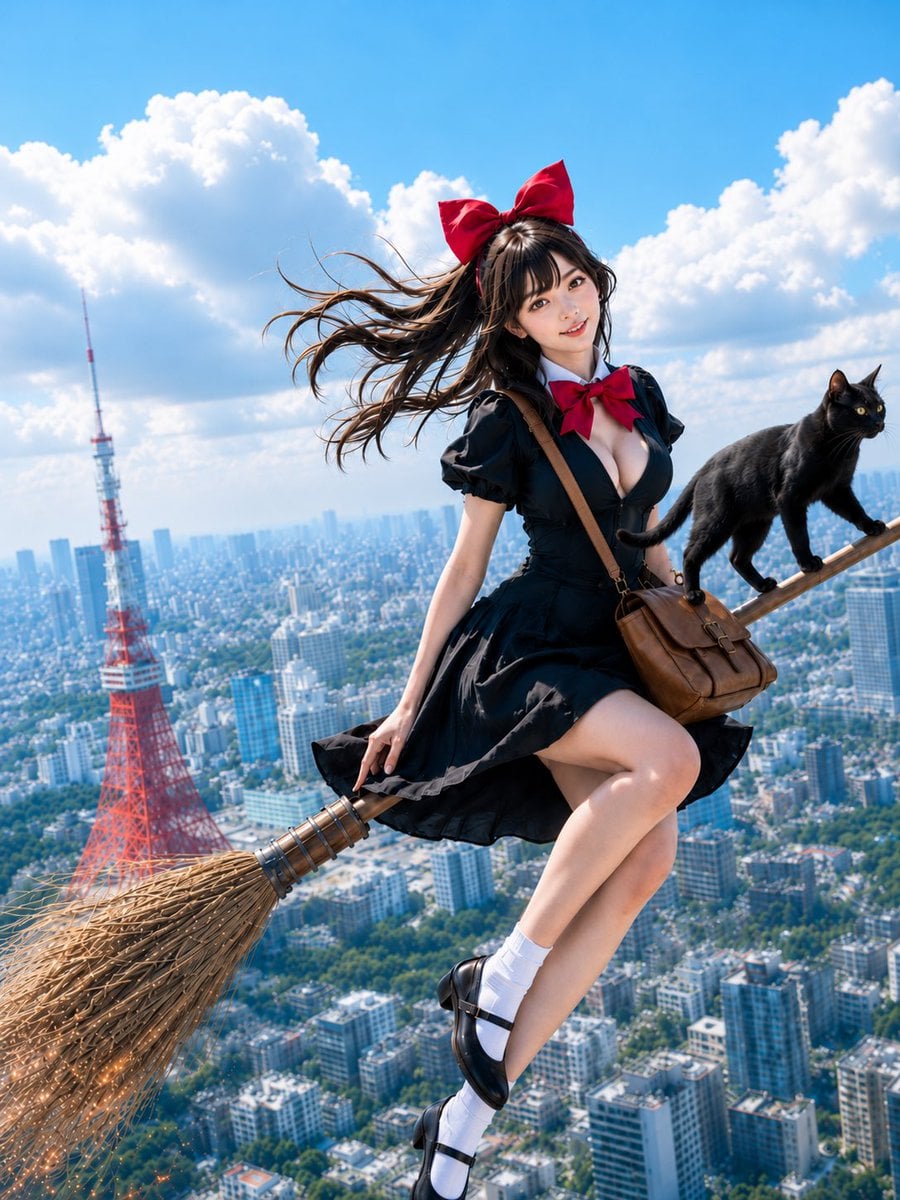
Anime Bean Stalk Climb
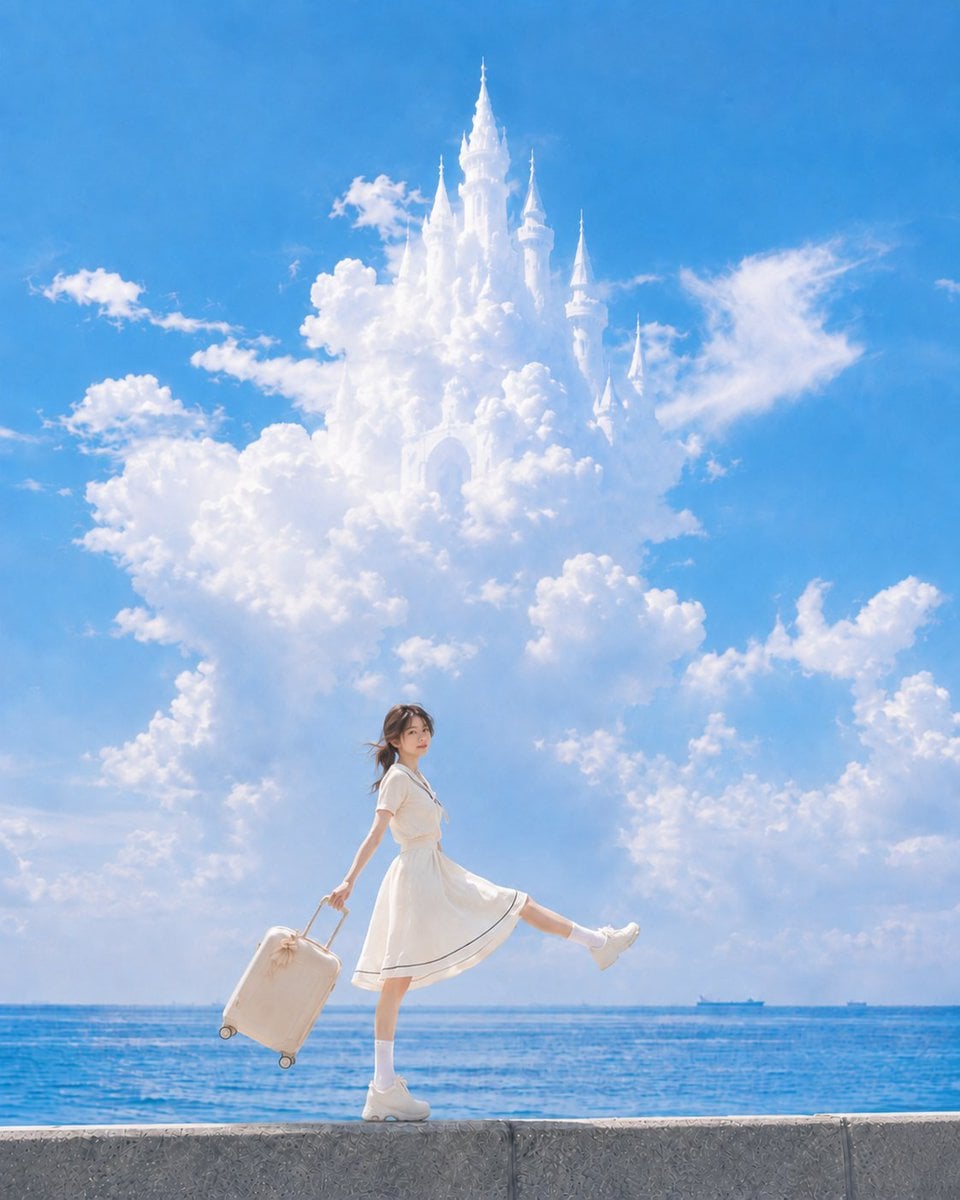
Anime Seafoam Transformation
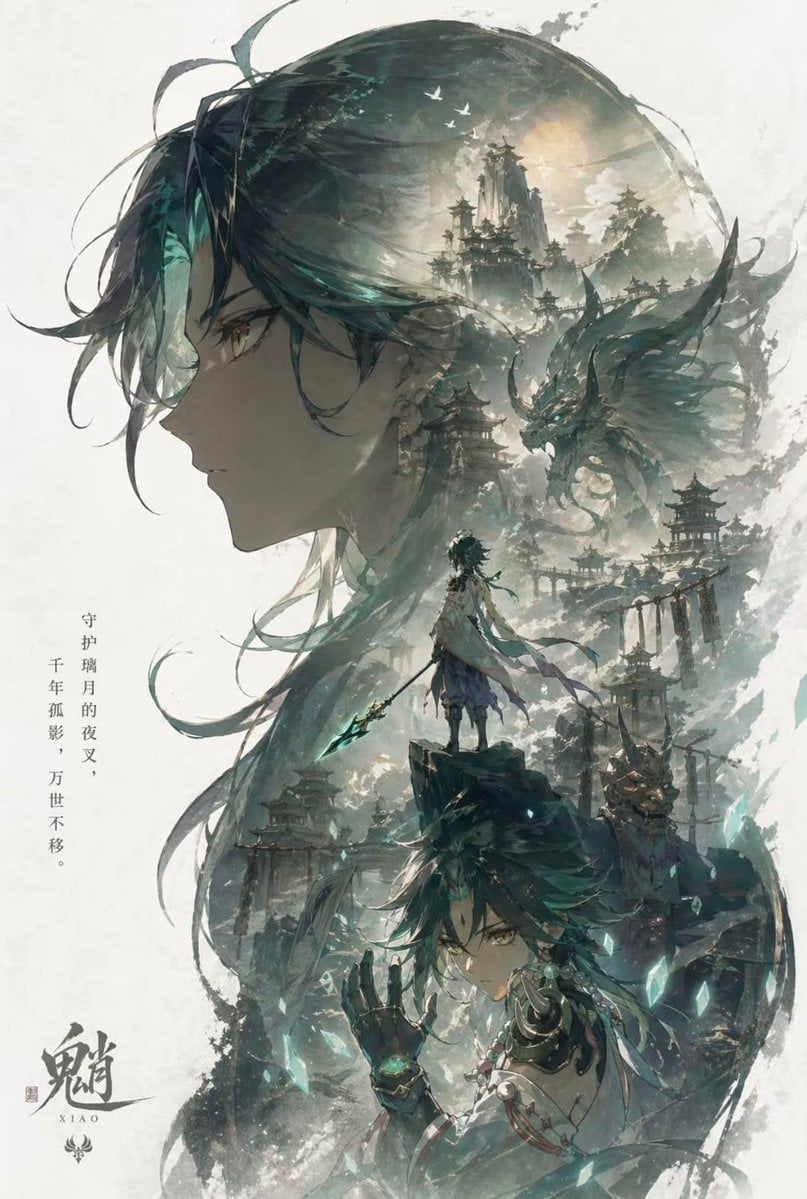
Anime Shoe Fitting Trial
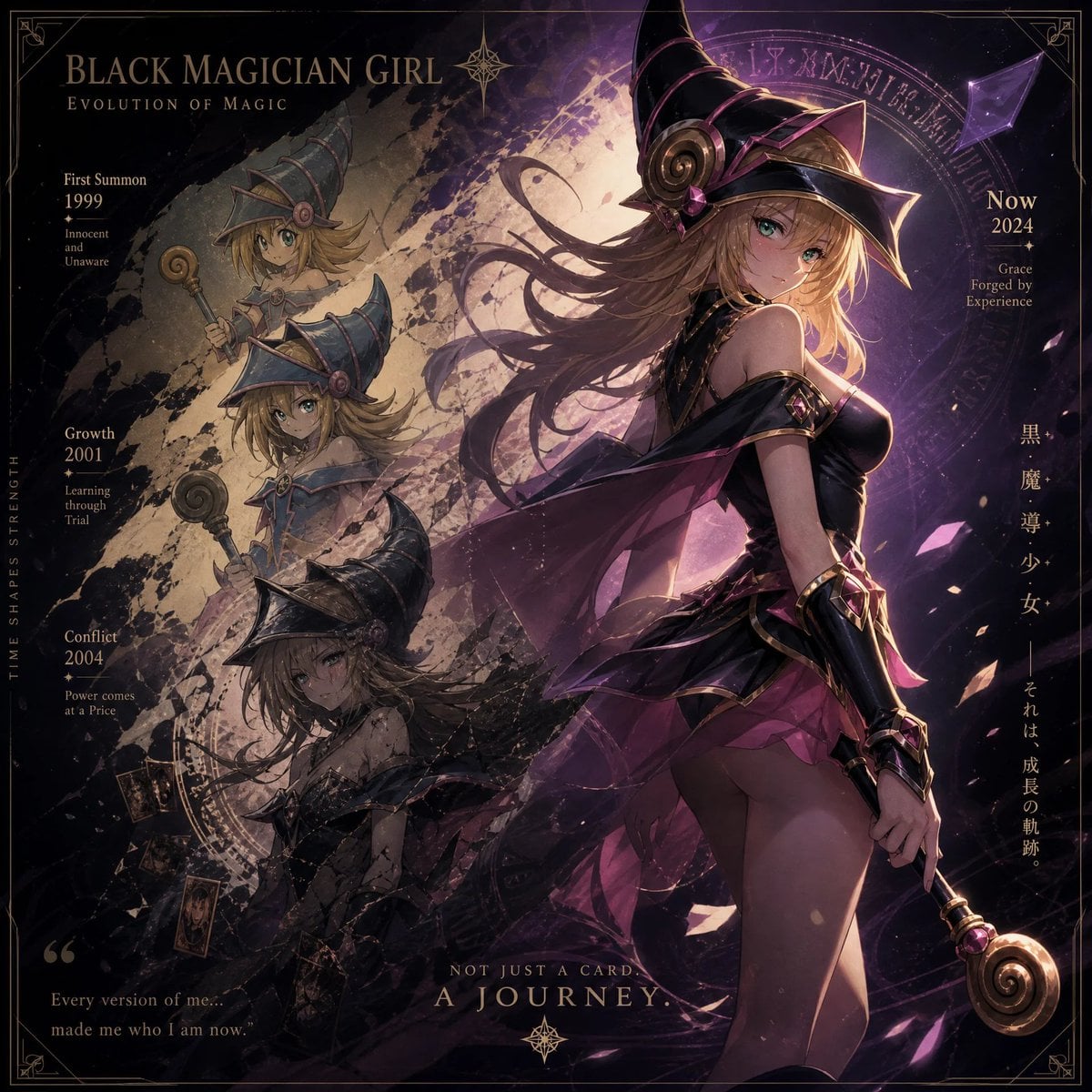
Anime Beast Library Night
Make it yours
Felt AI Magic School Infographic works as-is. These are the safest ways to change it without losing the look.
Change one field
Copy a single group, rewrite it, and generate again so you can see what that field is doing.
Keep the frame, change the subject
Hold the composition and light of Felt AI Magic School Infographic, then swap wardrobe, props or the person for a new take.
| If the result… | Why | Fix |
|---|---|---|
| The result drifts from the preview | Too many fields changed at once. | Reuse Felt AI Magic School Infographic as-is first, then change one group — subject, light, or setting. |
| The model over-stylizes the scene | The prose prompt leaves finish and camera underspecified. | Add one camera or lighting sentence and stay on GPT Image 2. |
More GPT Image 2 templates
Other prompts made for GPT Image 2.

Six VTuber Japanese Logo Sheet

Realistic Portrait of Woman and Deer

The Vista Modular Condo Poster

AI Model Routing Comparison Infographic

2.5D Anime Art Board

Isometric Productivity Desk Scene

New York Double Exposure Poster

Four-Panel AI Landscape Comparison

Japanese Tatami Lifestyle Magazine Cover

NESCAFÉ Coffee Map Poster
More image prompts
Fresh picks from across the catalog.
Luxury Fragrance Advertising Photography Prompt

Cinematic Racing Legend Poster
Dramatic Black and White Family Portrait Prompts
Surreal Giant Product Installation on Skyscraper
Multi-Step Design Generation for 'Lovart' Brand Identity

Candid Portrait Hugging a Poodle in a Park
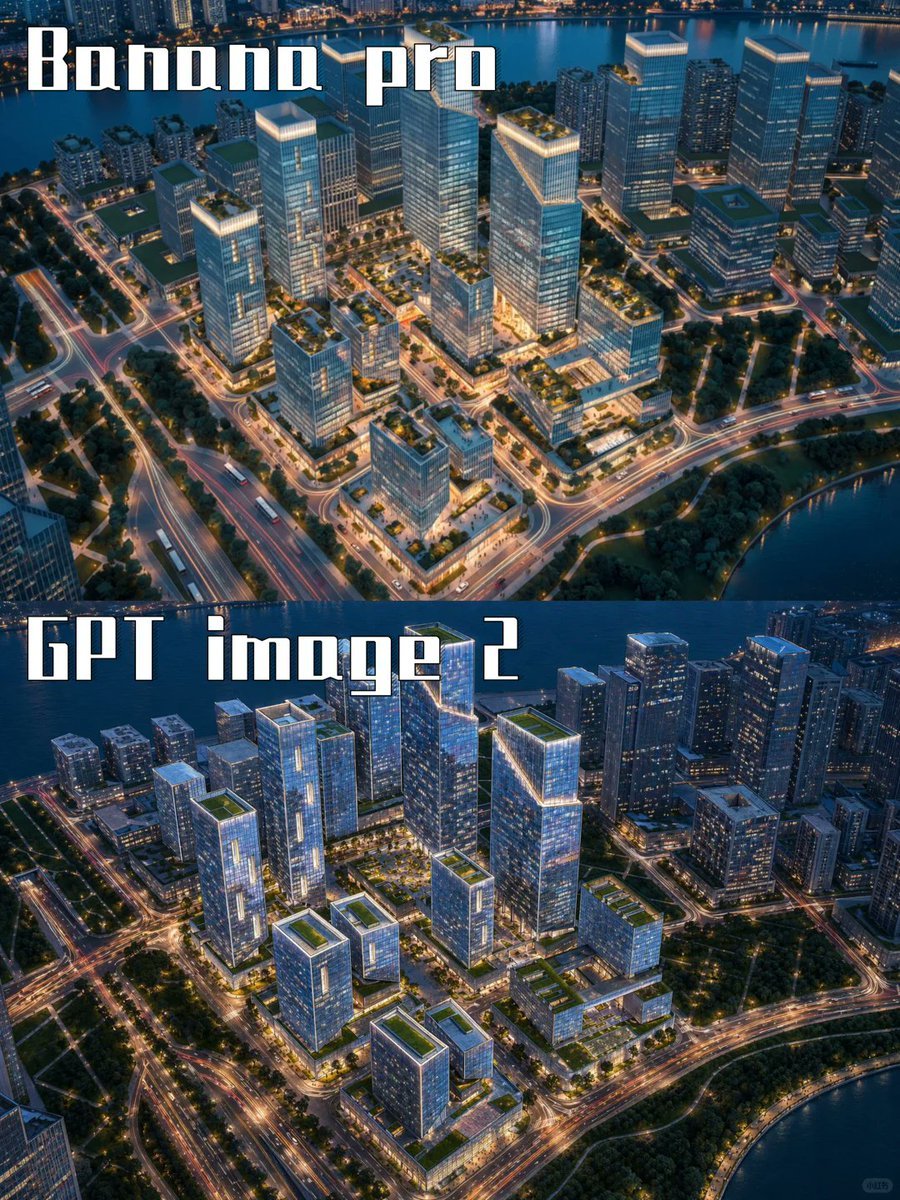
AI City Rendering Comparison Poster
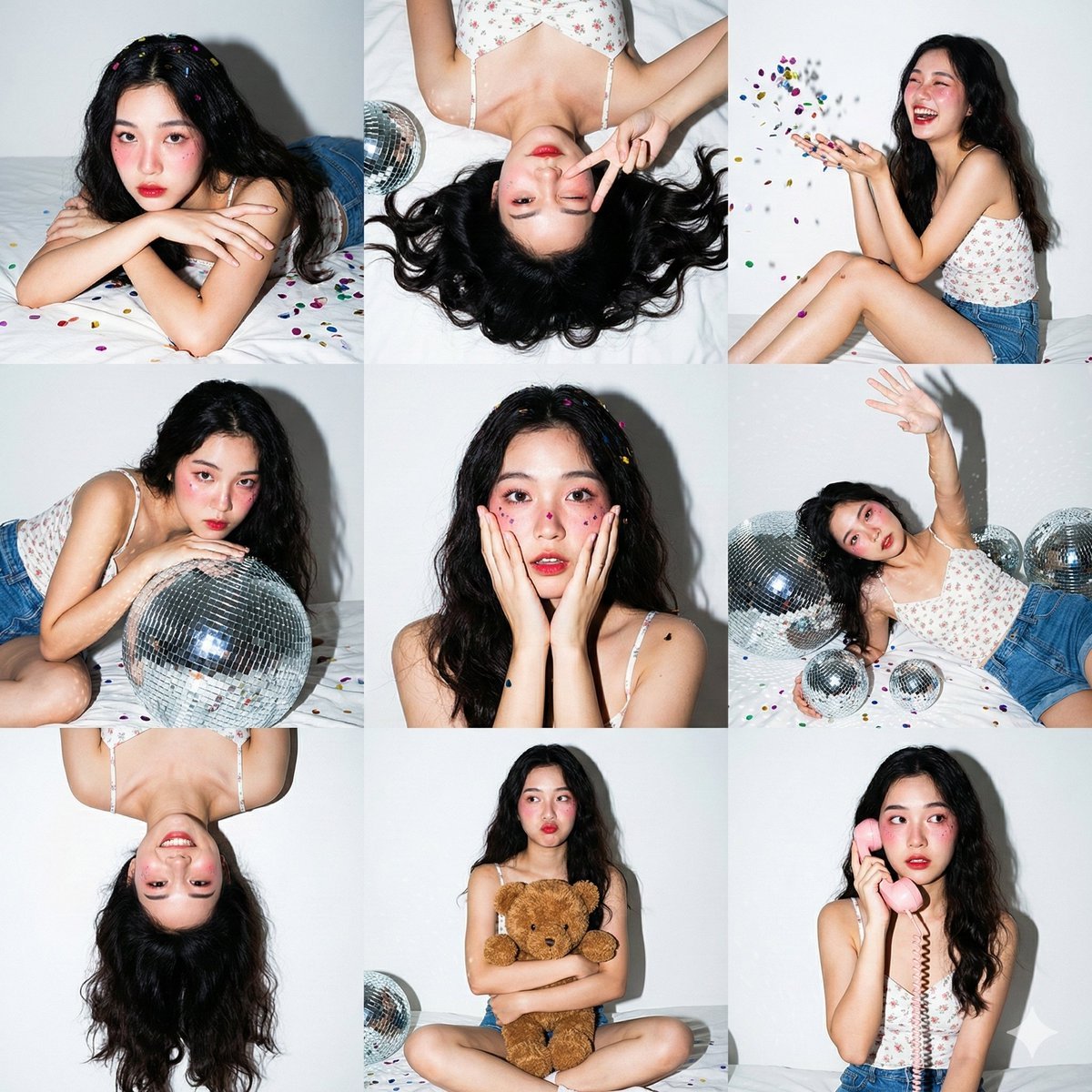
Nano Banana Pro 3x3 Photo Collage Prompt
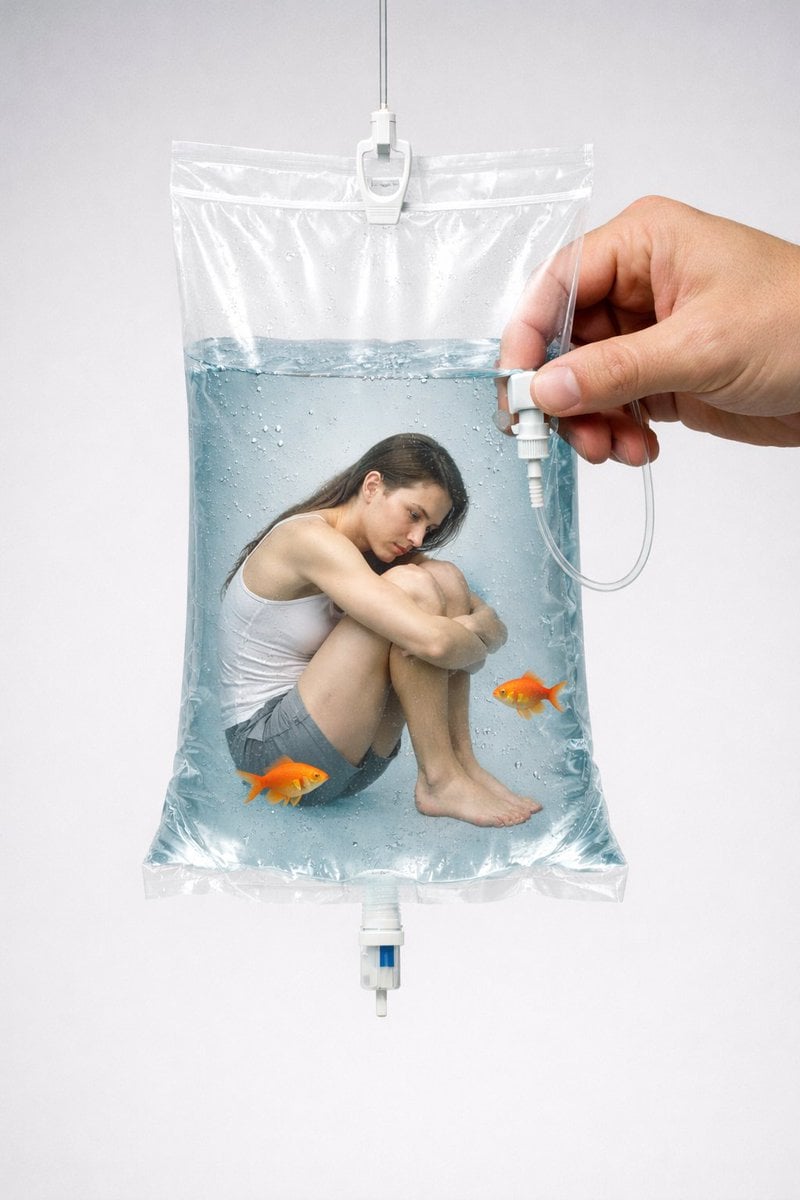
Conceptual Editorial Visual Prompt: Contained Human Aquarium

Gpt2 Profile Avatar Cozy Catgirl Pajama Night Portrait
Browse template categories
Felt AI Magic School Infographic questions
How do I use the Felt AI Magic School Infographic template?
Add your photo if the template asks for one, edit the prompt if you like — the template's model and format are already selected — and press Generate. Your version opens in PicX Studio.
Can I customize the Felt AI Magic School Infographic template?
Yes. You can change the subject, setting, lighting, mood, format, and available model controls before creating your image.
Is the Felt AI Magic School Infographic template free?
Opening and editing this template is free. Generating uses credits, shown on the Generate button when you are signed in.
Which AI model should I use?
Start with GPT Image 2, which is the model associated with this template. You can compare another compatible model for a different finish.
Looking for something else? Browse all templates.

Your photo, any look
Thousands of ready templates for every top image and video model, from one credit balance.