
Cute Chinese Tokenization Infographic
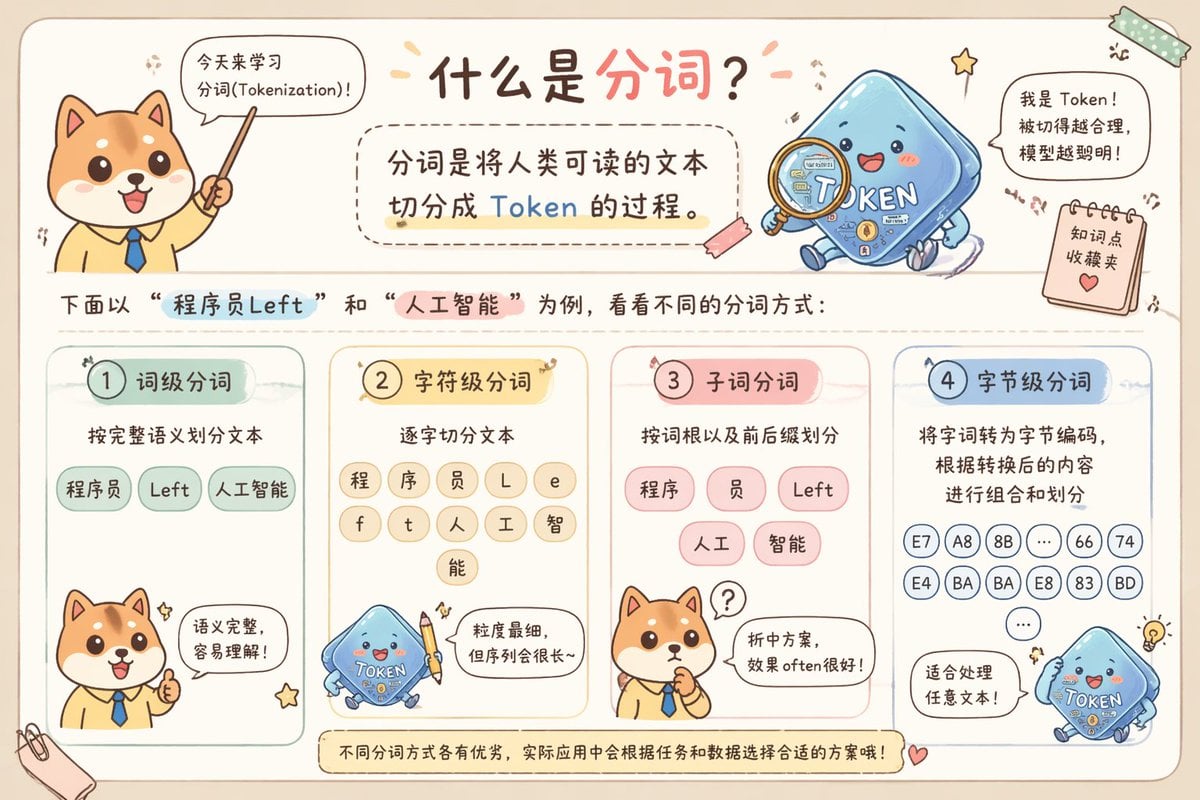
This prompt generates a pastel hand-drawn horizontal Chinese educational infographic explaining four tokenization methods with a Shiba Inu teacher and a blue token mascot, ideal for social media science posts.
- Prompt included
- Model and format preset
- Free template
The prompt behind this image
Copy the exact prompt behind Cute Chinese Tokenization Infographic, or open it in the studio and make it yours.
A cute hand-drawn scrapbook-style horizontal educational infographic in Chinese on a warm beige paper background with rounded borders, pastel doodles, tape stickers, tiny stars, and a classroom-notebook aesthetic. The top center has a large headline in playful handwritten Chinese: "什么是分词?" with the second half in coral pink and the rest in dark brown. On the upper left, a chibi Shiba Inu teacher character stands facing forward, wearing a pale yellow shirt and blue necktie, holding a pointer stick upward, with a speech bubble that says "今天来学习分词(Tokenization)!". On the upper right, a cute blue square token mascot labeled "TOKEN" sits smiling, with blush cheeks, tiny legs and arms, and a magnifying glass; next to it is a speech bubble saying "我是 Token!被切得越合理,模型越聪明!". Near the right edge, add a small hanging notepad card reading "知识点 收藏夹" with a heart icon. Beneath the headline, place a rounded dashed text box containing the definition: "分词是将人类可读的文本切分成 Token 的过程。" with the word "Token" highlighted in blue. Below that, add a line of explanatory text: "下面以 “程序员Left” 和 “人工智能” 为例,看看不同的分词方式:" with "程序员Left" highlighted in light blue and "人工智能" highlighted in pink. The lower half contains exactly 4 rounded pastel panels arranged left to right, each with a numbered badge and title. Panel 1 is mint green and titled "1 词级分词". It includes the subtitle "按完整语义划分文本" and exactly 3 token bubbles: "程序员", "Left", "人工智能". At the bottom of this panel, show the Shiba Inu teacher giving a thumbs up with a speech bubble saying "语义完整,容易理解!". Panel 2 is pale yellow and titled "2 字符级分词". It includes the subtitle "逐字切分文本" and exactly 9 circular token bubbles arranged in rows: "程", "序", "员", "L", "e", "f", "t", "人", "工", "智", "能"—visually presented as individual characters from the example text, in a compact grid. At the bottom, show the blue token mascot holding a pencil, with a speech bubble saying "粒度最细,但序列会很长~". Panel 3 is pale pink and titled "3 子词分词". It includes the subtitle "按词根以及前后缀划分" and exactly 5 token bubbles: "程序", "员", "Left", "人工", "智能". At the bottom, show the Shiba Inu teacher thinking with one paw at its mouth and a question mark above the head, with a speech bubble saying "折中方案,效果 often 很好!". Panel 4 is pale blue and titled "4 字节级分词". It includes the subtitle "将字词转为字节编码,根据转换后的内容进行组合和划分" and displays exactly 14 small circular code bubbles: "E7", "A8", "8B", "...", "66", "74", "E4", "BA", "BA", "E8", "83", "BD", "..." arranged in multiple rows like encoded bytes. At the bottom, show the blue token mascot again, smiling, with a speech bubble saying "适合处理任意文本!" and a tiny light bulb doodle nearby. Across the very bottom, place a rounded banner note that reads: "不同分词方式各有优势,实际应用中会根据任务和数据选择合适的方案哦!". Use soft pastel green, yellow, pink, and blue for the four panels, dark brown handwritten text, subtle shadows, rounded shapes, and adorable kawaii expressions throughout. Keep the composition balanced, clean, and friendly, like a polished social-media science explainer poster.
How to use Cute Chinese Tokenization Infographic in 3 steps
- 1Upload ImagePNG, JPG or paste
Add your photo
Upload the photo the template builds on. The prompt, model and format are already set.
- 2…a portrait of your subject in softgolden-hour light, 85mm…
Personalize
Edit the subject and creative details for your destination.
- 3Generate
Generate
Press Generate — your image is created in PicX Studio, so you can compare it with the original and refine one variable at a time.
More like this
Templates with the same subject, style or setup. Open one to see its prompt.
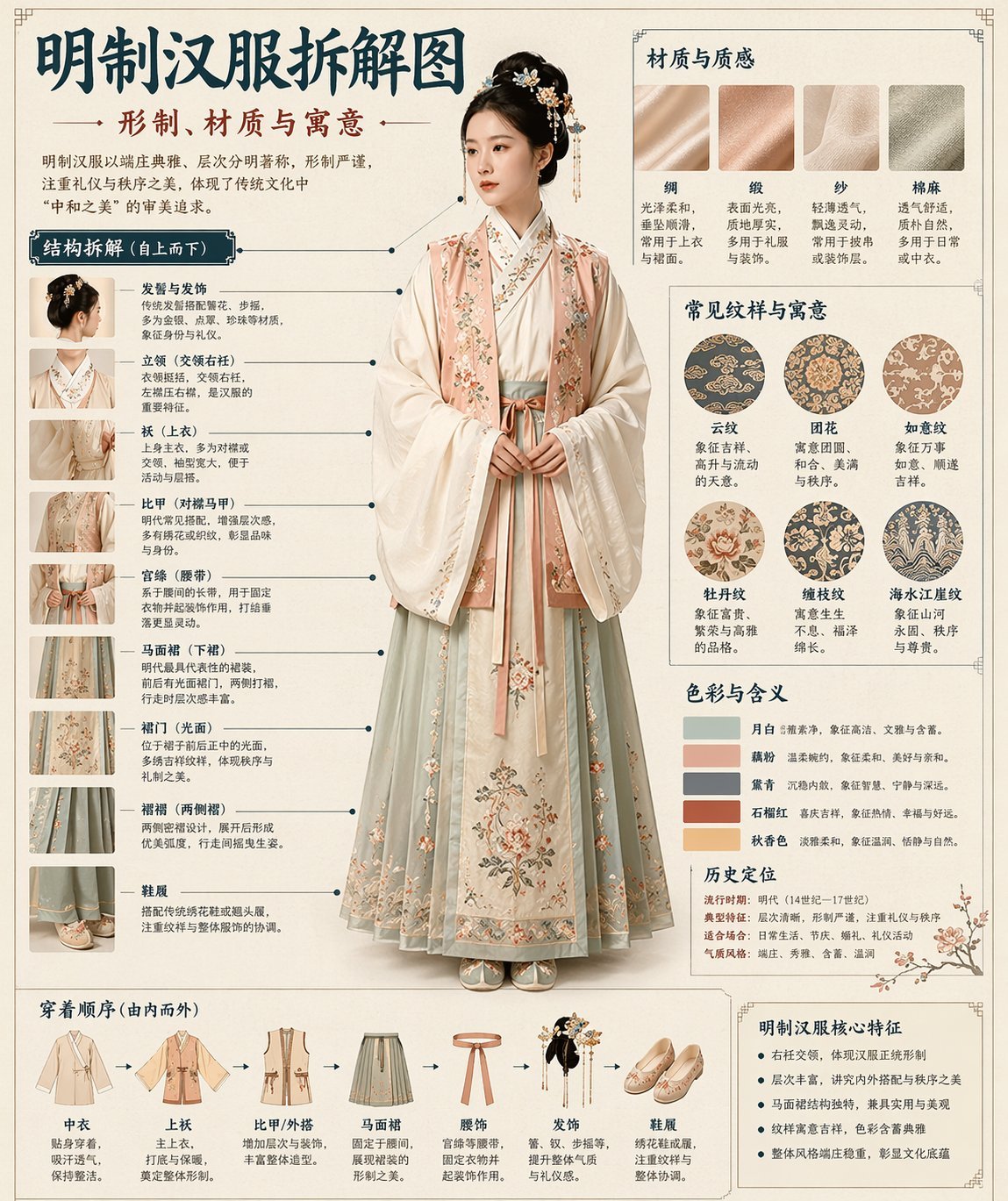
博物馆图鉴式汉服拆解图 — GPT-image-2

Minecraft Homage Illustrious Style

Japan Travel Brochure Poster

Isometric Process Educational Diorama

Isometric Vehicle Teardown Infographic Template
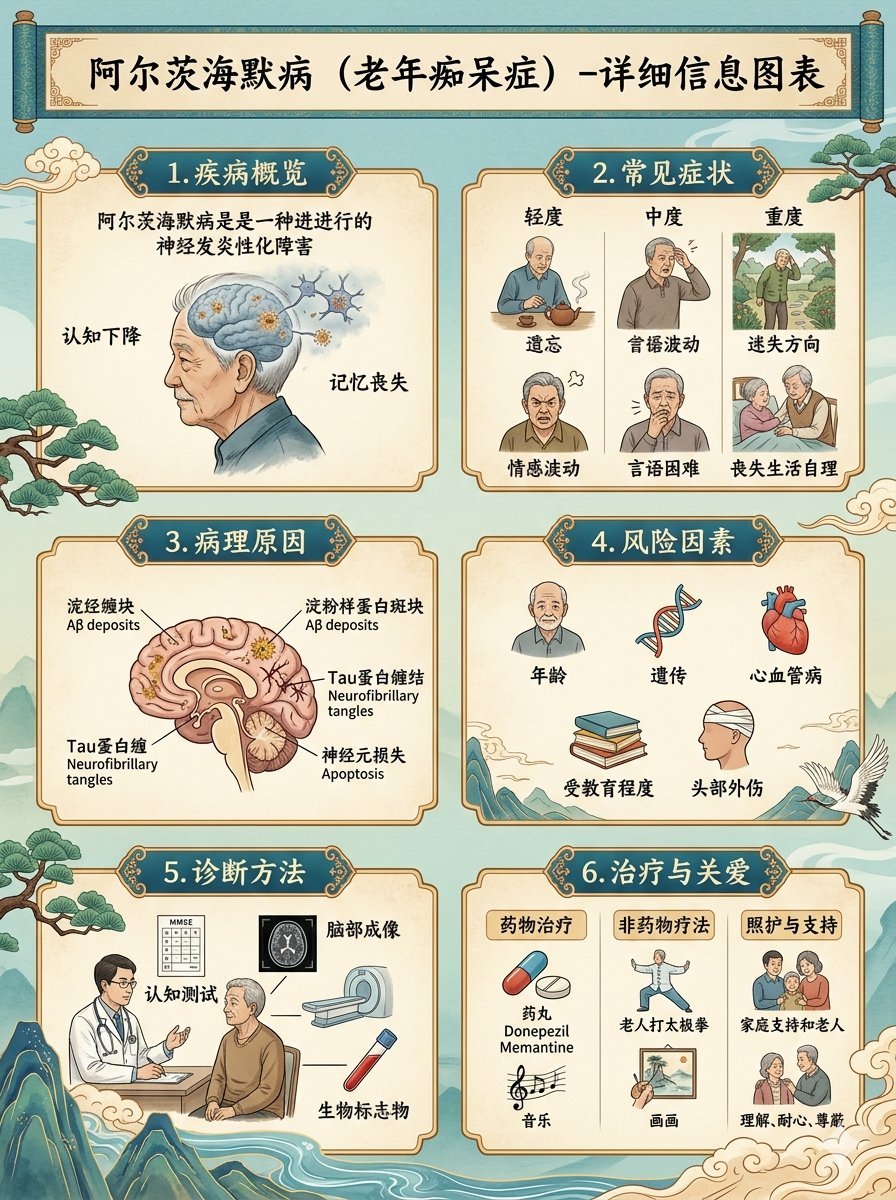
Chinese Alzheimer’s Infographic Poster
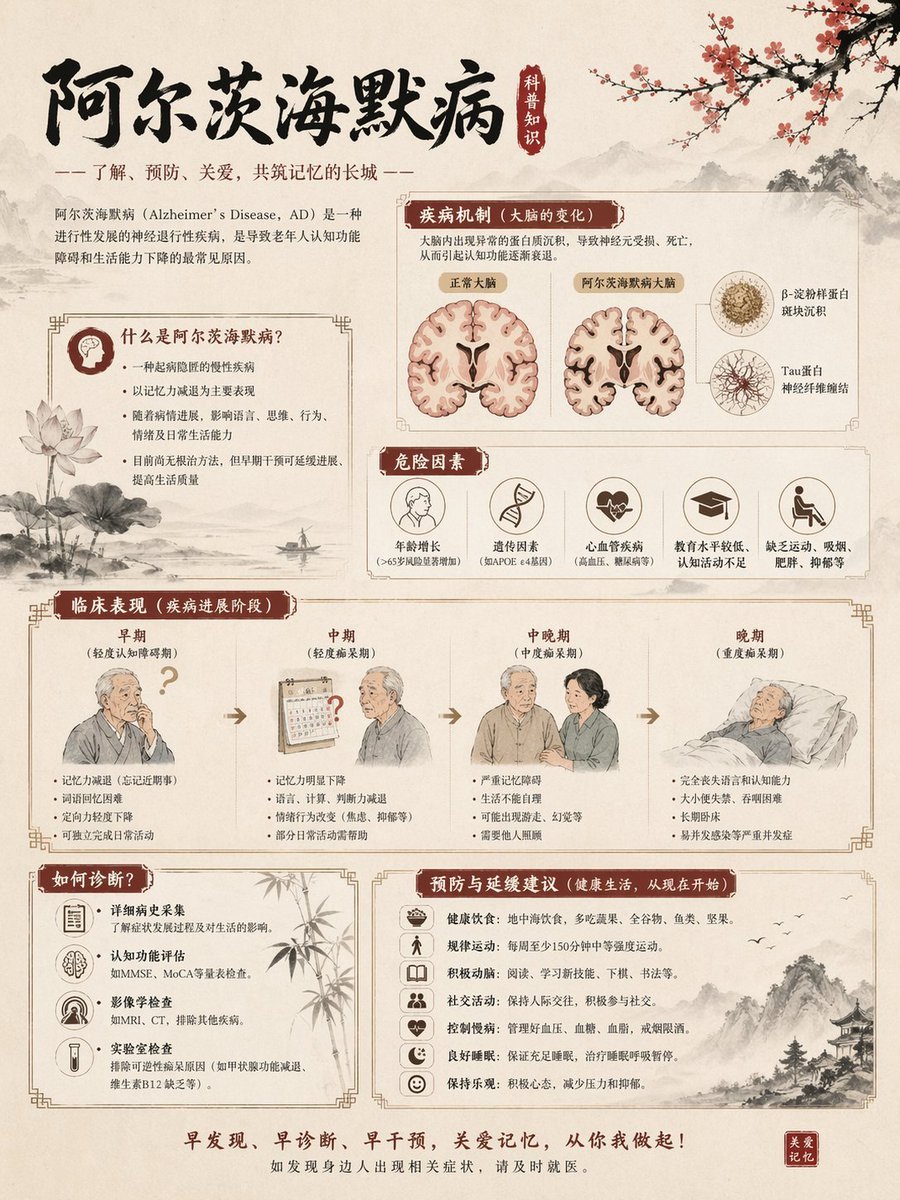
Chinese Alzheimer’s Awareness Infographic
Cute Popmart Chinese New Year Llama
Gpt2 E Commerce Main Image Earbuds E Commerce Infographic
Gpt2 Infographic Edu Visual Alishan One Day Travel Poster

Gpt2 Infographic Edu Visual Ethnographic Plate for Tibetan Ceremonial Hat
Gpt2 Infographic Edu Visual Earth Signs Zodiac Character Poster
Make it yours
Cute Chinese Tokenization Infographic works as-is. These are the safest ways to change it without losing the look.
Change one field
Copy a single group, rewrite it, and generate again so you can see what that field is doing.
Keep the frame, change the subject
Hold the composition and light of Cute Chinese Tokenization Infographic, then swap wardrobe, props or the person for a new take.
| If the result… | Why | Fix |
|---|---|---|
| The result drifts from the preview | Too many fields changed at once. | Reuse Cute Chinese Tokenization Infographic as-is first, then change one group — subject, light, or setting. |
| The model over-stylizes the scene | The prose prompt leaves finish and camera underspecified. | Add one camera or lighting sentence and stay on GPT Image 2. |
More GPT Image 2 templates
Other prompts made for GPT Image 2.

Six VTuber Japanese Logo Sheet

Realistic Portrait of Woman and Deer

The Vista Modular Condo Poster

AI Model Routing Comparison Infographic

2.5D Anime Art Board

Isometric Productivity Desk Scene

New York Double Exposure Poster

Four-Panel AI Landscape Comparison

Japanese Tatami Lifestyle Magazine Cover

NESCAFÉ Coffee Map Poster
More image prompts
Fresh picks from across the catalog.

Isolated Tree on Checkerboard

Vintage Photo Restoration to DSLR Quality Prompt

Soft Intimate Mirror Selfie (Reference-Based Generation)
Cinematic Storyboard Contact Sheet Prompt for Nano Banana Pro
High-Quality Photo of Elegant Chinese Woman in Luxury Car
Charli D’Amelio High-Contrast Editorial Portrait

Anime Characters in Real Purikura Booth
Gritty Prisoner Mugshot Portrait Prompt
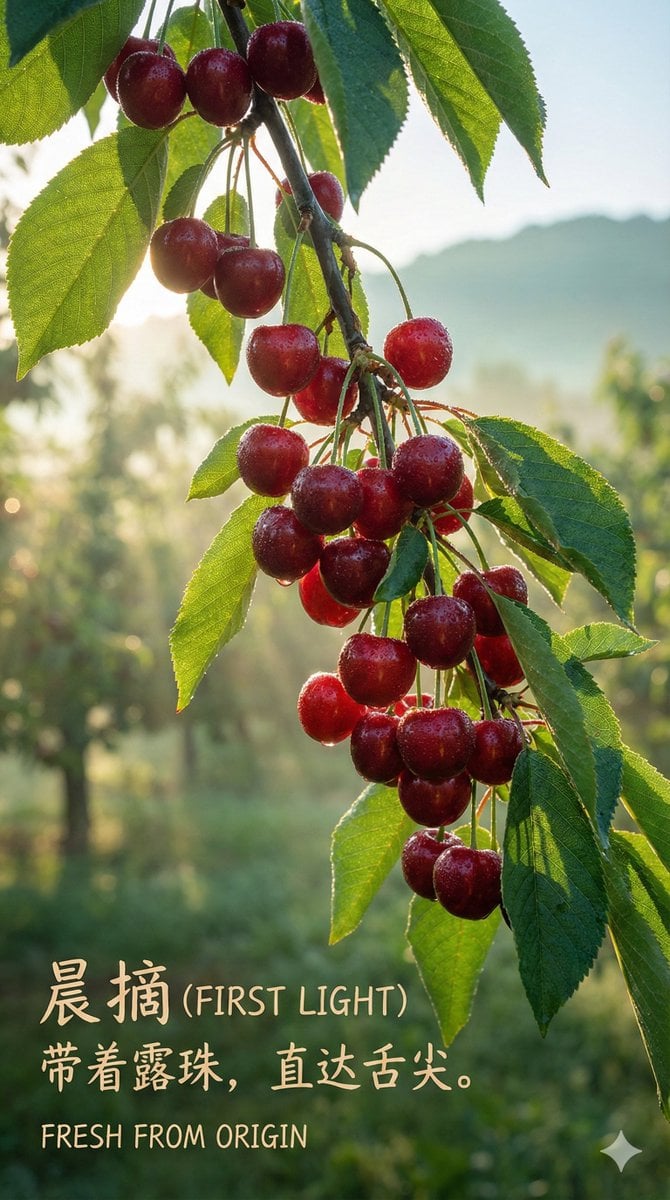
Luxury Cherry Product Photography Prompt (Black Diamond)
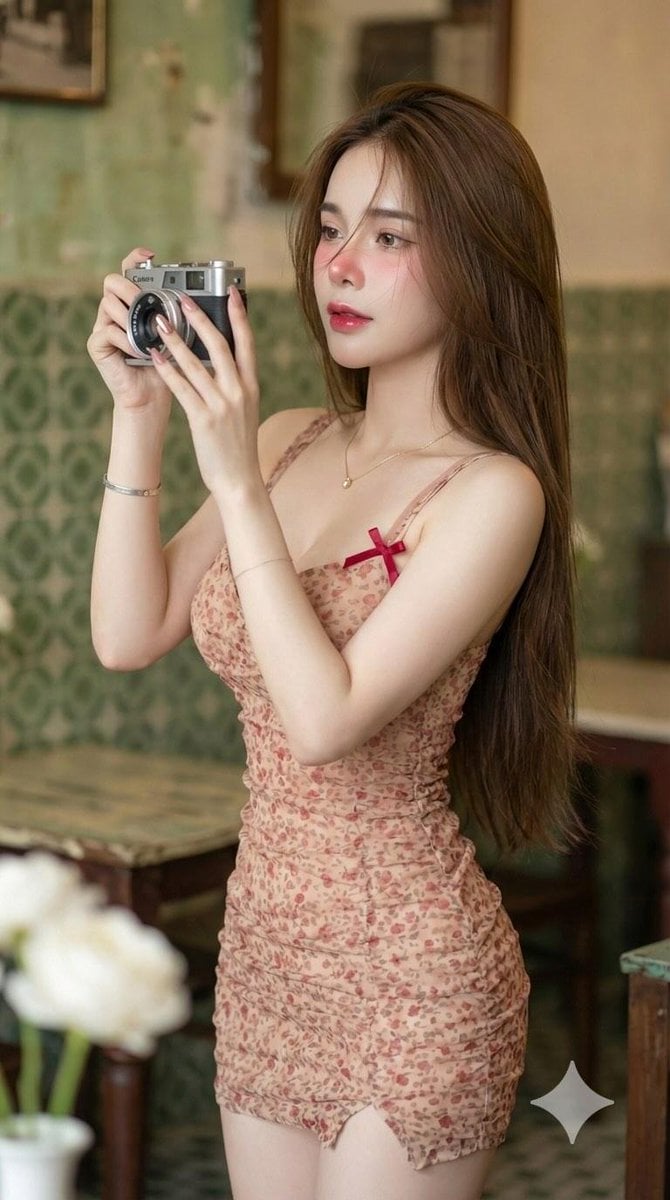
Vintage Camera Girl Aesthetic and Post-Workout Glow Yoga Vibes Prompts
Browse template categories
Cute Chinese Tokenization Infographic questions
How do I use the Cute Chinese Tokenization Infographic template?
Add your photo if the template asks for one, edit the prompt if you like — the template's model and format are already selected — and press Generate. Your version opens in PicX Studio.
Can I customize the Cute Chinese Tokenization Infographic template?
Yes. You can change the subject, setting, lighting, mood, format, and available model controls before creating your image.
Is the Cute Chinese Tokenization Infographic template free?
Opening and editing this template is free. Generating uses credits, shown on the Generate button when you are signed in.
Which AI model should I use?
Start with GPT Image 2, which is the model associated with this template. You can compare another compatible model for a different finish.
Looking for something else? Browse all templates.

Your photo, any look
Thousands of ready templates for every top image and video model, from one credit balance.