How do I use the Claymation Social Banner template?
Choose the primary action to open PicX Studio with the available template settings. Review the model and format, personalize the creative direction, and generate when ready.
Generates a warm claymation-style social media banner with bold Chinese headline text, a raised fist, avatar, and profile edit button. Change the subject, setting, or lighting one variable at a time.
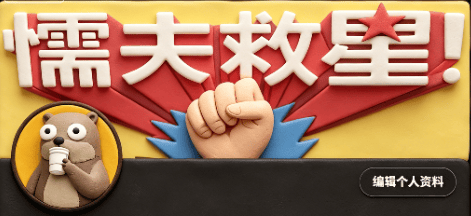
Create a wide 2:1 social media banner in a handcrafted claymation stop-motion style. Canvas size about 984×440 px, with a warm pastel yellow clay background and soft cinematic shadows. Center the composition around one huge raised clay fist emerging from behind a dark charcoal rounded rectangle strip across the bottom third. Behind the fist place one large red folded ribbon/banner shape spreading left and right, and one blue spiky burst shape directly behind the fist. At the top, add one oversized bold white 3D clay headline reading {argument name="headline text" default="懦夫救世!"}, with rounded puffy edges, slight red shadowing, and one red clay star used as the dot/accent near the final exclamation area. Add exactly one circular profile avatar at the lower left overlapping the dark bottom strip: a cute beige clay character with large googly eyes holding a small microphone, framed by a dark ring. Add exactly one rounded black button at the lower right with a thin light outline and small white Chinese text reading {argument name="button text" default="编辑个人资料"}. Use soft polymer-clay texture everywhere, visible fingerprints, rounded handmade edges, macaroon warm colors, shallow depth of field, and realistic stop-motion lighting. Keep the layout clean and graphic, with exactly 5 main visible components: the white headline, the red ribbon, the central fist, the left circular avatar, and the right edit-profile button. No photorealistic skin, no flat vector look, no extra characters, no watermark.
Choose the primary action to open PicX Studio with the available template settings. Review the model and format, personalize the creative direction, and generate when ready.
Yes. You can change the subject, setting, lighting, mood, format, and available model controls before creating your image.
This template is free to open and customize. Generation usage is shown in PicX Studio before you create.
Start with GPT Image 2, which is the model associated with this template. You can compare another compatible model for a different finish.
© 2026 PicX Studio. All rights reserved.

Follow a topic to a crawlable collection of related PicX Studio templates.
43,474 public templates available. Verified via the PicX Studio public templates API; refreshed hourly.








![Minimalist Flat Vector Travel Poster — Premium minimalist flat-vector travel poster for {argument name="city name" default="[CITY_NAME]"}, 3:4 vertical format.](https://cms-assets.youmind.com/media/1787917359711_3ug846_HQX205cbMAA6F6S-300x400.jpg)



























![Classical Realism Oil Painting Portrait Prompt — An oil painting portrait of a young girl [Use the uploaded image as reference] in classical realism…](https://pbs.twimg.com/media/HCWLgAcWUAAtJTv.jpg)